What's inside
- Where to buy
- Key Takeaways
- Quick Picks
- How Did We Choose These Six Tablets?
- Side-by-Side: How Do the Six Compare for Study Work?
- What Should a Student Check Before Choosing a Screen Size?
- How Do You Set Up a Tablet for a Full Semester of Notes?
- Android, iPadOS or Windows: Which Platform Fits Your Course?
- How Do Pens, Paper-Feel Covers and Small Accessories Change Daily Use?
- How Should You Organise Handwritten Notes So They Stay Findable in May?
- What About Reading Comfort During Long Textbook Sessions?
- Which Buying Mistakes Catch Students Out Most Often?
- Final Recommendation
- Frequently Asked Questions
- Related Guides
As an Amazon Associate I earn from qualifying purchases. This post may contain affiliate links at no extra cost to you.
gizmoverdict.com is reader-supported. When you buy through links on our site, we may earn an affiliate commission.
Where to buy
Every listing linked in this guide sells through Amazon, and the sensible way to shop for the best tablets for college note taking and text book reading is to settle the pen question before the screen question. A tablet that ships its stylus in the box starts the semester ready for margin notes on day one; a tablet that treats the pen as an extra purchase asks a student to budget twice, once for the slate and once for the tool that makes it a notebook. Four of the six picks below include a pen or bundle one into the package. The two that do not — Apple’s iPad and Microsoft’s Surface Go 4 — earn their places for other reasons, and both are flagged clearly so nobody is surprised at checkout.
College note taking is really two jobs sharing one screen. The first job is capture: handwriting fast enough to keep up with a lecturer, converting scribbles into searchable text later, and recording the occasional diagram without breaking stride. The second job is reading: textbook PDFs and publisher e-books that arrive as heavy scanned pages, split-screen beside a notes app, often for three or four hours at a stretch in a library carrel. A tablet can be brilliant at one job and mediocre at the other. Small screens cramp two-page textbook spreads; huge screens turn a one-handed reading session on a dorm bed into a wrist workout. The picks below were chosen because each one balances capture and reading in a slightly different way, so the right answer depends on your major, your handwriting habits and how much of your course material lives in PDF form.
One more piece of honesty before the list: none of these machines replaces a laptop for long essays, statistics software or engineering CAD. What they replace is the paper notebook, the printed course pack and the highlighter bleeding through cheap paper. Students who treat the tablet as the reading-and-notes layer of a wider setup — laptop for production, tablet for consumption and capture — tend to stay happy with the purchase for all four years.
Price is deliberately absent from the reasoning below, because student pricing swings with term-time promotions and education discounts that change faster than any guide can track. Judge the six on fit first — pen, screen, storage, ecosystem — and then check the current price on Amazon for the ones that fit, applying whatever student discount your university email unlocks. A tablet that matches your courses at a slightly higher price will always beat a bargain that fights your workflow for four years.
Key Takeaways
- The Samsung Galaxy Tab S10 FE is the most complete student package here: S Pen in the box, an IP68 rating for spill-prone study spaces, and a 90 Hz screen that keeps handwriting feeling responsive.
- Textbook readers who live in split-screen should look at the 12.4-inch Galaxy Tab S9 FE+ or the 12.7-inch Lenovo Idea Tab Pro, where a PDF page and a notes panel sit side by side without shrinking either into uselessness.
- Apple’s iPad on the A16 chip has the deepest library of note and reading apps, but its pencil is a separate purchase, so the true starting cost is higher than the tablet alone suggests.
- Lenovo’s Idea Tab Plus bundles a pen and a folio case together, which quietly removes the two accessory purchases students most often forget to budget for.
- The Surface Go 4 runs full Windows 11 Pro, making it the pick for courses whose reading platforms and reference tools only exist as desktop software.
Quick Picks
| Pick | Badge | Why it earns its place |
|---|---|---|
| Samsung Galaxy Tab S10 FE | Pen included, weather-sealed | The balanced default: S Pen in the box, IP68 water resistance and a 90 Hz display in a size that still fits a crowded lecture-hall desk. |
| Samsung Galaxy Tab S9 FE+ | Big-screen split view | A 12.4-inch canvas with 256GB of storage for students whose textbooks, slides and notes all live on the device at once. |
| Apple iPad 11-Inch A16 | Deepest app library | The iPad ecosystem’s note and textbook apps are the most polished available, provided you budget for the pencil separately. |
| Lenovo Idea Tab Plus | Pen and folio bundled | A 12.1-inch 2.5K screen with the pen and folio case already in the package, so the first week of term needs no accessory hunt. |
| Lenovo Idea Tab Pro | Sharpest reading panel | Its 12.7-inch 3K display renders scanned textbook pages with the crispest text of any Android pick in this line-up. |
| Microsoft Surface Go 4 | Full Windows in tablet form | Windows 11 Pro and desktop-class file handling for courses locked into Windows-only reading and reference software. |
How Did We Choose These Six Tablets?
We started from the two tasks in the keyword itself and scored every candidate against both. For note taking, the non-negotiables were an active stylus that pairs without fuss, palm rejection that survives a hand resting on the glass for an hour, and a notes app capable of converting handwriting to text and exporting it in formats a professor would accept. Tablets whose pen support is an afterthought — a capacitive stick that draws like a finger — were cut early, because slow, fat strokes are exactly what makes students abandon digital notes by midterms.
For textbook reading, we weighted screen area, resolution and storage. A semester of scanned textbooks can swallow tens of gigabytes, and a 128GB tablet shared with photos, games and offline video fills faster than freshmen expect, which is why two picks here carry 256GB. Resolution matters because scanned pages are images, not text: a soft panel turns small print into a smudge no zoom gesture fully fixes. We also considered weight and balance, since reading happens in beds, buses and library chairs rather than at tidy desks, and we favoured tablets with mature PDF annotation tools so highlights and margin notes sync back to a laptop instead of dying on the device.
Finally, we checked the ecosystem each tablet plugs into. Samsung and Lenovo buyers live in Android, where Google Drive, OneDrive and cross-platform notes apps carry the workflow. iPad buyers get the richest specialist apps but should confirm their university’s textbook platform supports iPadOS properly. Surface Go 4 buyers get the full Windows catalogue, including older course software that has never been ported anywhere else. No pick below wins on every axis; each wins on a coherent set of them.
We also filtered for staying power. A college tablet should expect four years of operating-system updates, a battery that still holds a study day in year three, and a manufacturer that sells replacement pens and tips without drama. That filter quietly removed several cheaper slates whose note apps were fine in September but whose update policies and accessory support looked shaky by the following summer. Degrees are long; the tablet has to be boring in the best way, starting every morning and opening the right app every time, long after the unboxing excitement has faded.
Price bands were the last filter, applied only after fit was settled. Student budgets cluster tightly, and the six survivors spread across them without forcing a choice between a pen included and a screen worth reading on. Where two models overlapped completely, we kept the one whose bundle told the clearer story for a first-time buyer.

Samsung Galaxy Tab S10 FE — Pen included, weather-sealed
The Tab S10 FE is the pick we would hand to a student who asked for one recommendation and no follow-up questions. Samsung includes the S Pen in the box, and that single decision removes the most common failure mode of student tablet purchases: the slate arrives, the pen does not, and the first fortnight of lectures gets taken on paper while an accessory order crawls through the post. The S Pen needs no charging and no pairing ritual, so it is ready when a lecturer starts talking faster than expected, and Samsung Notes converts handwriting into typed text, records audio that stays synced to the strokes being written, and exports to PDF and Word formats that tutors actually open.
The supporting hardware suits campus life unusually well. The listing names an Exynos 1580 processor, 128GB of storage, a 90 Hz refresh rate and an IP68 water-resistance rating — that last detail sounds like a spec-sheet flourish until a water bottle leaks inside a backpack or a coffee goes over in the library, at which point it becomes the difference between a bad afternoon and a dead tablet. The 90 Hz panel matters for handwriting feel: the ink trail follows the pen tip closely enough that fast writers stop thinking about the tool, which is precisely the point. Front-camera placement on the long edge also suits video calls with study groups, a small thing that older tablet designs still get wrong.
Textbook duty is where the FE quietly proves itself across a semester rather than a demo. Publisher e-books and PDF course packs open quickly, split-screen pairs a reading app with Samsung Notes without the interface stuttering, and the screen’s size keeps a single textbook page legible at arm’s length while leaving the notes pane wide enough for real sentences rather than cramped scribbles. Students reading in portrait on a train will find it balanced rather than top-heavy, and the long battery life claimed in the listing translates, in ordinary mixed study use, into a tablet that asks for its charger every couple of days instead of every night. That rhythm matters: a notes device that is flat on the morning of a 9 a.m. lecture teaches its owner to carry a paper backup, and the whole system unravels from there.
- Display: Large display with 90 Hz refresh rate, as stated in the listing title
- Processor: Exynos 1580
- Storage: 128GB, WiFi model, US version, Silver finish
- Pen: S Pen included, described in the title as the note-taking pen
- Durability: IP68 water-resistant rating stated in the title
- Battery: Described in the title as long battery life; exact capacity is not stated in the listing title — check Samsung’s documentation for the figure
Strengths
- S Pen in the box means handwriting works from the first lecture, with no second order and no compatibility guessing.
- IP68 sealing shrugs off the backpack leaks and café spills that kill unprotected student tablets every semester.
- Samsung Notes handles ink-to-text conversion, synced audio notes and clean PDF export without extra subscriptions.
Trade-offs
- 128GB is the configuration in this listing; students archiving years of scanned textbooks may need cloud storage discipline.
- The Exynos chip is a mid-range part, fine for notes and reading but not the fastest here for heavy multitasking.
- Android textbook apps from some publishers lag their iPad equivalents in annotation polish.
Best for: undergraduates who want one purchase to cover handwriting, textbook PDFs and study-group calls for a full degree. Not suited for: students whose courses demand Windows-only software, or heavy multitaskers who keep a dozen reference tabs open beside their notes.
Samsung Galaxy Tab S9 FE+ — Big-screen split view
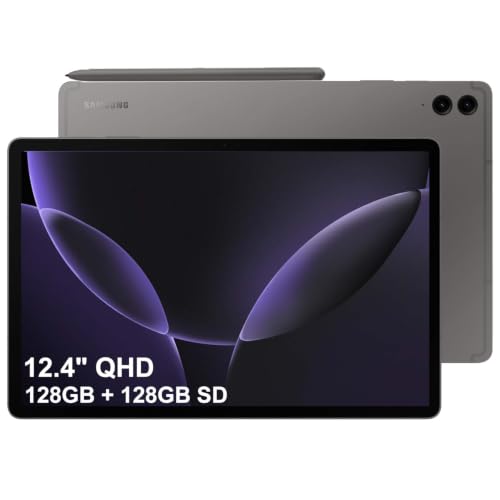
Where the S10 FE is the balanced default, the Tab S9 FE+ is the specialist for students whose reading load is genuinely heavy — law, medicine, history and any other field where the textbook is a thousand-page scanned tome rather than a slim paperback. Its 12.4-inch touchscreen gives a PDF page room to breathe, and in split-screen the page keeps a readable width while Samsung Notes occupies the other half. That geometry is the whole argument for the Plus: annotation stops being a mode you switch into and becomes something that happens beside the text, the way a margin always worked on paper.
The configuration in this listing also suits archivists. With 8GB of RAM and 256GB of storage, the tablet holds several semesters of course packs locally, which matters in halls of residence with congested WiFi and on trains home where the reading still needs doing. The S Pen is included here as well, and the dual rear cameras plus single front camera cover the unglamorous student tasks — photographing a whiteboard before it is wiped, scanning a handout, joining a seminar call — without reaching for a phone. The trade for all that screen is size: at 12.4 inches this is a desk-and-lap tablet, not one to hold above your face in bed for an hour.
Consider how the Plus behaves during a revision weekend, because that is its natural habitat. Four sources open in rotation — the textbook, a past-paper PDF, a notes page and a browser tab for the library catalogue — and the 8GB of memory keeps that rotation fluid instead of reloading pages each time you return to them. Margin notes made in October are searchable in May, which sounds like a small mercy until the night before an exam, when it becomes the entire point of having gone digital. The honest caveat is commitment: this is a tablet you plan your bag around, with a folio that doubles as a stand on library desks, and students who drift between cafés with nothing but a tote bag may find the smaller FE follows their life more faithfully.
- Display: 12.4-inch touchscreen
- Memory and storage: 8GB RAM, 256GB storage
- Pen: S Pen included, per the listing title
- Cameras: One front camera and two rear cameras, as titled
- Model: SM-X610, described in the title as a lightweight, durable design
- Battery: Long battery life is claimed in the title; the exact capacity is absent from the title — verify with Samsung’s own documentation
Strengths
- The 12.4-inch screen makes genuine side-by-side reading and annotating practical instead of cramped.
- 256GB of local storage swallows scanned textbooks and lecture recordings without constant cloud juggling.
- S Pen included, with the same mature Samsung Notes workflow as the smaller S10 FE.
Trade-offs
- The larger frame is noticeably heavier for one-handed reading in bed or on a bus.
- It is a previous-generation FE model, so its processor sits a step behind the newest flagships.
- Folios and stands sized for it cost more and fit fewer bags than 11-inch accessories.
Best for: students in reading-heavy disciplines who annotate dense PDFs daily and want the page and the notebook on one screen. Not suited for: commuters who read standing on packed trains, or anyone who wants the lightest possible bag for walking between far-flung lecture halls.

Apple iPad 11-Inch A16 — Deepest app library
The base iPad is the ecosystem pick, and its case rests on software rather than the spec sheet. iPadOS hosts the strongest bench of note-taking and textbook apps in this guide: handwriting apps with genuinely good search across years of notebooks, PDF readers that treat a 900-page scanned textbook as a lightweight document rather than a burden, and publisher platforms that are usually built for iPad first and ported to Android later, if at all. For a student whose university issues readings through an app store ecosystem, that maturity is worth real money across a four-year degree.
The hardware in this listing is the 11-inch model on Apple’s A16 chip, with a Liquid Retina display, 128GB of storage, Wi-Fi 6, 12MP front and rear cameras and Touch ID. The A16 is comfortably fast for notes, reading and split-screen study, and the 11-inch size is the easiest in this guide to carry everywhere — it slips into bags that reject the 12-inch class and stays comfortable for bed reading. The catch must be stated plainly: no Apple Pencil is included. The pencil is a separate purchase, and students should price the pair, not the tablet, when comparing against the Samsung and Lenovo bundles above. Budget for it, though, and the iPad’s handwriting experience — low-latency, well-supported by every serious notes app — is as good as this category gets.
Reading is the other half of the iPad’s case, and it is strong. The Liquid Retina panel renders textbook scans cleanly, the major e-book and library apps are all present and well maintained, and services that lend digital textbooks tend to test their iPad apps first. Battery behaviour follows the pattern the title describes as all-day life: a full timetable of lectures, reading and calls sits comfortably inside one charge for most students. Where the iPad asks for thought is handwriting workflow. Apple’s own Notes has improved steadily, but the serious student note-takers on iPadOS are third-party apps, some subscription-based, and choosing between them is a small research project of its own. Students who enjoy curating their tools will thrive; students who want the tablet to decide for them are better served by Samsung’s more guided setup.
- Display: 11-inch Liquid Retina display
- Processor: A16 chip
- Storage: 128GB, Wi-Fi 6 connectivity
- Cameras: 12MP front and 12MP rear cameras
- Security: Touch ID fingerprint unlock
- Battery: All-day battery life as described in the title; Apple does not state a capacity figure in the listing title
Strengths
- The richest selection of polished note-taking, PDF and textbook-platform apps of any pick here.
- A16 performance keeps split-screen reading and annotating fluid for years of updates.
- The 11-inch frame is the most bag-friendly and bed-friendly size in this line-up.
Trade-offs
- The pencil costs extra, so the honest comparison price is tablet plus pen.
- 128GB fills quickly if you archive scanned textbooks locally rather than in the cloud.
- iPadOS file management still feels restrictive beside Android and Windows for odd course formats.
Best for: students whose courses lean on iPad-first textbook platforms and who value app polish over bundle pricing. Not suited for: tight budgets that cannot stretch to the separate pencil, or students who need desktop file handling for unusual coursework formats.
Lenovo Idea Tab Plus — Pen and folio bundled
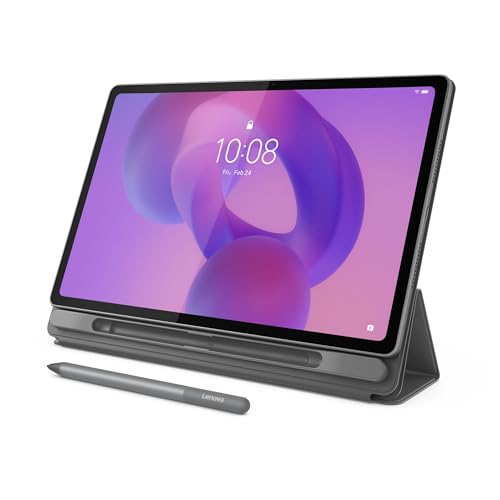
Lenovo’s Idea Tab Plus attacks the hidden-cost problem from the opposite direction to Apple: the listing bundles the Tab Pen and a folio case with the tablet itself. That matters more than it sounds. Students routinely under-budget accessories, then spend the first month of term taking notes with a finger while a cheap third-party pen disappoints them. Here the handwriting tool and the protective cover arrive in the same box as the 12.1-inch screen they serve, and the whole kit is ready for the first seminar.
The screen deserves its own sentence: a 12.1-inch 2.5K IPS touchscreen running at 90 Hz, driven by a MediaTek Dimensity 6400 with 8GB of memory and 128GB of storage. That resolution at that size keeps textbook text clean at reading distance, and the 90 Hz refresh softens the pen’s ink trail the same way it does on the Samsung FE. Lenovo pitches the model as a lightweight tablet, and in practice it splits the difference between the 11-inch travellers and the 12.4-inch desk anchors — big enough for split-screen study, still plausible for reading in an armchair. Its notes software is less celebrated than Samsung Notes or the iPad’s best apps, so committed digital-notebook keepers should test the handwriting-to-text flow early, while casual annotators will find it perfectly serviceable.
A day in the life of the Idea Tab Plus looks like this: folio folded into a stand for a morning seminar, pen out for annotating the week’s chapter, case closed and into a bag without a second thought about scratches, then propped on a kitchen counter at night for a recorded lecture at double speed. Nothing in that routine is exotic, and that is the compliment — the bundle removes friction from ordinary study rather than adding showcase features. The Dimensity 6400 keeps reading apps, note apps and browsers moving without drama, and the 90 Hz screen keeps both scrolling and ink feeling modern. Students coming from an ageing laptop-tablet hybrid will notice the simplicity most: no fans, no updates ambushing a lecture, no pen pairing ritual before the class begins.
- Display: 12.1-inch 2.5K IPS touchscreen, 90 Hz
- Processor: MediaTek Dimensity 6400, with integrated Arm Mali-G57 MC2 graphics
- Memory and storage: 8GB memory, 128GB storage
- Bundle: Tab Pen and folio case included, per the listing title
- Design: Described in the title as a lightweight tablet
- Battery: Endurance figures do not appear in the listing title — confirm them in Lenovo’s documentation before relying on a number
Strengths
- Pen and folio in the box erase the two most common surprise costs of student tablet ownership.
- The 2.5K panel at 90 Hz is sharp and smooth enough for both scanned pages and fast handwriting.
- A genuinely portable take on the 12-inch class, easier to live with daily than the biggest slates here.
Trade-offs
- Lenovo’s bundled notes software trails Samsung Notes and the leading iPad apps in conversion polish.
- 128GB storage, again, asks for cloud habits if your course packs are enormous.
- Third-party case and accessory choice for Lenovo tablets is thinner than for Samsung or Apple.
Best for: students who want the bundle complete on delivery day and a big, sharp screen without flagship pricing logic. Not suited for: power note-takers who need the most advanced handwriting search and conversion tools available on any platform.

Lenovo Idea Tab Pro — Sharpest reading panel
If the Idea Tab Plus is the value bundle, the Idea Tab Pro is the reading instrument. Its 12.7-inch display runs at 3K resolution — 2944 by 1840, as the listing spells out — with 400 nits of brightness, and that pixel density is aimed squarely at the worst material students handle: scanned textbook pages, photocopied journal articles and dense two-column academic PDFs where the footnote type is small and unforgiving. On this panel, zooming into a scan feels like leaning closer to paper rather than magnifying a blur, which reduces the constant pinch-and-pan rhythm that makes long reading sessions tiring.
The rest of the configuration is straightforwardly competent: 128GB of storage, 8GB of LPDDR5X memory, Android 14 and a pen included in the package. The Pro makes fewer ecosystem promises than Samsung or Apple — you are buying an excellent screen with a capable pen and standard Android flexibility, then choosing your own notes and reading apps from the Play Store. Students who already live in cross-platform tools like OneNote, Google Drive or a web-based library portal will feel at home immediately. Students hoping the tablet itself will organise their academic life should look at the Samsung picks, whose software does more of that work for them.
The Pro also rewards students who read primary sources rather than summaries. Journal PDFs with dense references, engineering datasheets, anatomical plates, sheet music with fine notation — material where the print itself carries information that a soft screen smears — all benefit from the 3K panel and the 400-nit brightness when a reading lamp is not cooperating. In split-screen the extra width means the source keeps its true proportions while notes run alongside, and the included pen’s strokes stay registered accurately at the edges of the glass, where cheaper digitisers sometimes wander. It is a deliberate, slightly serious machine: less playful than the iPad, less hand-holding than the Samsungs, and arguably the best pure reading surface in this guide for students whose degrees are measured in thousands of pages.
- Display: 12.7-inch 3K touchscreen, 2944 by 1840, TDDI, 400 nits
- Memory: 8GB LPDDR5X (soldered)
- Storage: 128GB
- Software: Android 14, with pen included per the title
- Model code: ZAE40136US, as printed in the listing title
- Battery: No capacity figure appears in the title — treat endurance claims as unconfirmed until checked against Lenovo’s spec sheet
Strengths
- The 3K panel renders scanned pages and small academic type with the least eye strain in this guide.
- A large canvas that still runs standard Android, so library apps and cloud drives behave as expected.
- Pen included, keeping the handwriting half of the brief intact without another purchase.
Trade-offs
- The big, dense screen makes this a lap-and-desk reader rather than a one-handed one.
- 128GB is modest next to the S9 FE+ for students hoarding course material locally.
- Lenovo’s own software layer adds less study-specific help than Samsung’s notes suite.
Best for: graduate students and heavy PDF readers whose eyes spend hours on scanned academic pages every week. Not suited for: students who mostly read light e-books and want the smallest, cheapest slate that can hold them.

Microsoft Surface Go 4 — Full Windows in tablet form
The Surface Go 4 is the odd one out, deliberately. Every other pick runs a mobile operating system; this one runs Windows 11 Pro on a 10.5-inch tablet, and that single fact decides its audience. Some courses still distribute readings, reference managers, lab software or exam-prep tools that exist only as Windows programs. For those students, an Android or iPad tablet is a second device that cannot open the file that matters, while the Go 4 simply opens it — slowly, on modest hardware, but opens it.
Set expectations correctly and the Go 4 is a useful study tool. The listing specifies 8GB of memory and 128GB of storage in a Platinum finish, and the 10.5-inch screen makes it the most portable pick in this guide after the iPad. Windows note apps such as OneNote offer excellent handwriting conversion and the deepest organisational model of any notes software here, and full desktop browsers handle university portals that mobile browsers mangle. The compromises are equally clear: Windows touch apps for textbook reading are less refined than their iPad counterparts, the pen and keyboard are separate purchases, and this hardware tier is built for documents rather than speed. Treat it as a reading-and-notes terminal for Windows-bound coursework, not as a shrunken gaming laptop, and it earns its place.
Picture the student this serves: a part-time master’s candidate whose readings arrive through a Windows-only library portal, whose reference manager never left the desktop, and whose employer-issued laptop runs the same software the tablet must mirror. For that student the Go 4 is not a compromise but a continuity device — the same OneNote notebooks, the same file system, the same browser bookmarks, in a slate that fits a coat pocket’s larger ambitions. Handwriting in OneNote converts cleanly, PDF annotation happens in full desktop readers rather than cut-down mobile apps, and the 10.5-inch screen, while small for split-screen, is honest about being a companion rather than a command centre. Buy it with eyes open about its pace and its accessory costs, and it solves a problem none of the other five picks can touch.
- Display: 10.5-inch touchscreen
- Memory and storage: 8GB memory, 128GB storage
- Operating system: Windows 11 Pro
- Finish: Platinum
- Pen and keyboard: Not named in the listing title — assume they are separate purchases and confirm before ordering
- Battery: No endurance figure appears in the title; check Microsoft’s documentation rather than trusting summaries
Strengths
- Runs genuine Windows software, including the legacy course tools no mobile platform can open.
- OneNote on Windows is a superb home for handwritten notes that must sync to a Windows laptop.
- The smallest footprint in this guide, easy to carry as a secondary device all day.
Trade-offs
- Pen and keyboard cost extra, repeating the iPad’s hidden-cost problem in Windows form.
- Performance is document-class; large PDFs open fine, but heavy multitasking feels its limits.
- Windows tablet reading apps trail the dedicated ecosystems on both rival platforms.
Best for: students whose degree programme is chained to Windows-only reading platforms, reference tools or lab software. Not suited for: anyone wanting the slickest pure reading experience, or students who expect laptop speed from a tablet-sized Windows machine.
Side-by-Side: How Do the Six Compare for Study Work?
| Tablet | Screen | Pen situation | Storage in listing | Study personality |
|---|---|---|---|---|
| Samsung Galaxy Tab S10 FE | Large display, 90 Hz | S Pen included | 128GB | All-round semester workhorse with spill protection |
| Samsung Galaxy Tab S9 FE+ | 12.4-inch touchscreen | S Pen included | 256GB | Split-screen annotator for reading-heavy degrees |
| Apple iPad 11-Inch A16 | 11-inch Liquid Retina | Pencil sold separately | 128GB | App-ecosystem leader in the most portable frame |
| Lenovo Idea Tab Plus | 12.1-inch 2.5K IPS, 90 Hz | Tab Pen and folio included | 128GB | Complete bundle, no accessory shopping required |
| Lenovo Idea Tab Pro | 12.7-inch 3K, 400 nits | Pen included | 128GB | Sharpest panel for scanned academic pages |
| Microsoft Surface Go 4 | 10.5-inch touchscreen | Pen sold separately | 128GB | Windows software access in the smallest body |
What Should a Student Check Before Choosing a Screen Size?
Screen size decides how a study session feels, so choose it from your reading material rather than from a spec-sheet ranking. Open your heaviest textbook PDF on any screen you own and look at a two-column page: if the columns stay legible without zooming, a tablet of similar size will serve; if you are already pinching, step up a class. As a working rule, 10.5 to 11 inches suits novels, slides and single-column readings, while 12 inches and above suits scanned textbooks, sheet music, lab manuals and anything you annotate in split-screen. The students who regret their size choice almost always bought small for portability and then discovered their course packs were scanned folios.
Weight deserves the same honest test. A tablet read at a desk can be as large as your bag allows; a tablet read in bed, on a train or standing in a lab queue needs to be holdable in one hand while the other turns pages or holds a rail. The 12.4 and 12.7-inch picks are magnificent at a library table and mildly absurd above a pillow. If your reading happens in both places, the middle sizes — the S10 FE and the Idea Tab Plus — are the compromise most students settle into happily.
Resolution interacts with size in a way spec sheets hide. A 2.5K panel at 12.1 inches and a 3K panel at 12.7 inches both render small textbook type cleanly, while a merely adequate resolution stretched across a big screen can look softer than a modest resolution on a small one. Judge sharpness as pixels spread over the actual diagonal — the Idea Tab Pro’s numbers are the strongest here precisely because its resolution grew with its size — and remember that your eyes sit closer to a tablet than to a monitor, which makes softness easier to notice during long sessions.
How Do You Set Up a Tablet for a Full Semester of Notes?
Setup takes an hour and pays back all term. First, create one notebook per course inside a single notes app, and resist scattering notes across three apps because each looked fun in September; search only works when everything lives in one place. Second, connect that app to your university cloud storage and turn on automatic backup, then test it by finding a note from your phone. Third, download the semester’s textbook PDFs while on good WiFi and file them by week, so a dead campus network never blocks a reading assignment. Fourth, learn your pen’s shortcuts — eraser flip, lasso, shape correction — in a low-stakes week, not during the first fast lecture. Finally, set a weekly ten-minute review: convert the week’s handwriting to text, tag the pages your lecturer emphasised, and export a backup. Students who build that rhythm in week one are the ones still using the tablet, happily, in year three.
Do not overlook the social setup either. Join your course’s shared folders and group chats from the tablet itself, so handouts posted at midnight are already downloaded when you open the device at breakfast. Set the tablet’s clock, calendar and reminders to your real timetable, including room numbers, because a notes device that also knows where the lecture is becomes the thing you grab without thinking. And learn the screenshot-and-annotate gesture on your platform early: half of modern coursework arrives as a slide, a photo of a board or a chart in a chat thread, and the students who capture those fragments straight into the right notebook build a revision archive almost by accident.
Android, iPadOS or Windows: Which Platform Fits Your Course?
Platform choice outlives any single model, because your notes, highlights and textbook library accumulate inside it. Android, represented here by the Samsung and Lenovo picks, is the flexible middle road: file handling is open, cloud services from every major provider behave as first-class citizens, and the same notes can follow you to any future Android or Windows device through cross-platform apps. Samsung adds the most complete built-in handwriting suite of the three platforms, while Lenovo leaves the stage emptier and lets you choose your own tools.
iPadOS is the curated road. Its best note and reading apps are subscription-polished, its textbook platforms are the most likely to be fully featured, and its long update support suits a four-year degree bought in one payment. The costs are the separate pencil, a file system that still resists odd jobs, and a library that lives most comfortably inside Apple’s world. Windows, on the Surface Go 4, is the compatibility road: nothing is as elegant for handwriting as the dedicated apps elsewhere, but nothing else runs the actual desktop software some courses still require. Choose by asking one question — where do my course materials already live? — and let the answer, not the advertising, pick the platform.
Whichever platform wins, protect the work with one habit from the first week: automatic backup to a cloud account you control personally, not one issued by the university that expires at graduation. Students lose more notes to lapsed accounts and un-backed-up devices than to any hardware failure, and the loss is always discovered during revision week.
How Do Pens, Paper-Feel Covers and Small Accessories Change Daily Use?
Accessories sound like an afterthought until the first month of term reveals which ones were actually load-bearing. The pen tip is the smallest example: every active stylus in this guide ships with a tip that glides on glass, and students who write for hours often prefer a slightly grippier spare tip or a matte, paper-feel screen cover that adds friction and makes handwriting feel less like skating. The trade is real — matte covers soften screen sharpness a little and wear pen tips faster — but for writers who produce thirty pages a week, control usually beats sparkle. Buy one cover, test it for a fortnight, and keep the glossy screen if your handwriting never felt out of control.
A stand is the second unglamorous essential. Reading at a flat angle on a desk bends the neck; a simple folding stand or the folio’s built-in prop raises the page and pays for itself in comfort within a week. The third accessory is storage discipline disguised as hardware: students on 128GB models should treat cloud sync as part of the device, not an optional extra, because the semester you run out of space will be the semester everything is due at once. Finally, a spare charging cable that lives permanently in the study bag ends the most common small emergency in student tablet ownership — the flat battery discovered outside the lecture hall, with the only cable sitting in a dorm room across campus.
How Should You Organise Handwritten Notes So They Stay Findable in May?
The difference between a tablet full of notes and a useful archive is naming discipline. Give every lecture page the same skeleton: date, course code and topic in the heading, written before the lecturer starts. Notes apps can search handwriting, but they search headings fastest, and a page titled with the week’s topic surfaces in revision season while a page of untitled scribbles hides. Keep one running index page per course — a handwritten table of contents linking themes rather than dates — because exams ask thematic questions, and your notes should be traversable the same way.
Colour is the other quiet system. Students who assign one pen colour to definitions, another to examples and a third to things the lecturer explicitly flagged as examinable build a visual index without any extra effort, and scanning a page later becomes a matter of looking for the flag colour. Resist decorating beyond that system; notes that become art projects stop being fast, and speed in the lecture hall is the entire game. Finally, export each course’s notes to PDF at the end of term and store the files outside the app as well as inside it, so a lapsed subscription or a changed platform in a later year never strands your own work.
What About Reading Comfort During Long Textbook Sessions?
Eye strain in long reading sessions usually comes from setup rather than from the screen itself. Raise the tablet on a stand or a stack of books so the page sits closer to eye level, and your neck will forgive you by week three. Match screen brightness roughly to the room — a blazing panel in a dim library and a dim panel under strip lighting both force your eyes to work harder than the material requires. Most reading apps offer a warm or sepia page tone for evening sessions; use it, not because the science of blue light is settled, but because a page that feels like paper tricks you into reading longer before fatigue arrives.
Breaks matter as much as settings. A rhythm of twenty-five focused minutes and five minutes looking at something distant keeps both eyes and attention fresher than a heroic three-hour slump, and the tablet helps here: set the timer, close the folio during the break, and let the physical act of reopening it mark the return to work. Students reading scanned material should also learn their app’s reflow or text-extraction mode for the worst scans, where enlarging a smeared page image only magnifies the smear; extracted text, though uglier, is often kinder to read at midnight.
Sound is part of comfort too, in shared spaces. Library reading beside a clicking mechanical keyboard — yours or a neighbour’s — frays concentration, and a tablet’s silent page turns are an underrated virtue of this whole category. If you annotate with audio notes or watch recorded lectures, keep one earbud in the folio pocket; the habit of reaching for it without a bag search keeps short study gaps productive, on trains and in the twelve minutes between classes where a surprising amount of a degree’s reading actually gets done.
Which Buying Mistakes Catch Students Out Most Often?
The classic error is buying the tablet and forgetting the pen budget, then discovering the handwriting half of the plan needs a second purchase the grant cheque did not anticipate. The second error is the opposite vanity: paying for a giant screen, then leaving it in the dorm because it is awkward to carry, while a smaller tablet would have attended every lecture. A third mistake is ignoring the textbook platform — some publishers deliver readings through apps that behave very differently on Android, iPadOS and Windows, and ten minutes checking your own courses’ platforms beats a semester of workarounds. Students also underestimate storage: scanned textbooks are image files, and a 128GB tablet shared with a photo library fills by spring. Finally, many buyers skip the case. Lecture-hall floors are concrete, backpacks get dropped, and a folio is the cheapest insurance in this entire guide.
One further mistake deserves its own warning because it masquerades as diligence: buying for the degree you imagine rather than the timetable you have. Students picture themselves annotating research papers in sunlit libraries, then actually spend their hours on slide decks, problem sets and recorded lectures in crowded rooms. If your real week is slides and problem sets, prioritise pen feel and portability over the giant reading canvas; if your real week is primary texts, reverse the order. The honest audit of one typical week in your current studies predicts satisfaction better than any amount of specification comparison.
Final Recommendation
Most students should start with the Samsung Galaxy Tab S10 FE: the pen is in the box, the screen is smooth, the sealing survives dorm life, and Samsung Notes carries the organisational load. Reading-heavy majors should step up to the S9 FE+ or the Idea Tab Pro for split-screen space and sharper scanned pages, while bundle-minded buyers get everything at once from the Idea Tab Plus. Choose the iPad when your courses clearly live in its app ecosystem and the pencil fits the budget, and choose the Surface Go 4 only when Windows software is a hard requirement rather than a preference. Pick the tablet that matches your actual reading list, and it will still be earning its keep at graduation — long after the highlighters it replaced have dried up in a desk drawer.
A last word on timing: buy before term starts, not during freshers’ week. A weekend spent setting up notebooks, downloading course packs and practising the pen shortcuts turns the tablet into furniture by the first lecture, while a tablet bought in a panic on the first Sunday night gets treated as an experiment during the very weeks when habits form. The students who swear by their study tablets in final year are rarely the ones who bought the most expensive model; they are the ones who set theirs up properly once and then never had to think about it again.
Frequently Asked Questions
Can a tablet fully replace paper notebooks for lectures?
For most subjects, yes, provided the pen is a proper active stylus and the notes app converts and searches handwriting. Fast diagram-heavy subjects such as organic chemistry or circuit analysis still reward a quick test in the first week: if you can capture a worked example at lecture speed without thinking about the tool, the replacement has succeeded.
How much storage does a student actually need for textbooks?
Scanned textbook PDFs commonly run from tens to hundreds of megabytes each, so a four-year archive grows quickly. The 128GB configurations here cope fine with cloud backup habits; the 256GB S9 FE+ suits students who keep everything local or study where connectivity is poor.
Is a keyboard necessary for a note-taking tablet?
No. Handwriting is the point of these picks, and long typing belongs on a laptop. A keyboard case helps students who draft short assignments on the tablet itself, but it should be bought after the pen, never instead of it.
Which pick handles group study calls best?
All six carry front cameras suitable for video calls. The Samsung and Lenovo models place their cameras with landscape calls in mind, and the iPad’s camera setup is equally at home in the group-project tools its ecosystem favours.
Should I buy the previous-generation model to save money?
Often, yes — the S9 FE+ in this guide is exactly that play, trading a newer chip for a bigger screen and double the storage. For notes and reading, screen and pen quality age far more slowly than processor bragging rights.
Do these tablets work for left-handed writers?
Yes, with small adjustments. Every platform here lets you move toolbars, and palm rejection works regardless of which hand rests on the glass. Left-handed students should check that their notes app allows the page-turn and scroll gestures to be mirrored, and should angle the tablet slightly, exactly as they would a paper pad, so the hand trails below the line being written rather than across wet ink that, on a screen, never smears anyway. Most left-handed students settle their preferred layout within the first week and never think about it again afterwards.
Related Guides
Students building out the rest of their study kit may also want our neighbouring tablet guides: our roundup of tablets with keyboards for hybrid study setups, the guide to large-screen tablets for long reading sessions, and our picks of tablets for writing and typing beyond the classroom.