What's inside
- Key Takeaways
- Quick Picks
- How Did We Choose These 32-Inch 4K Monitors?
- IPS or VA: Which Panel Suits a General-Computing Desk?
- What Does 4K at 32 Inches Change About Everyday Work?
- The Six Best 32-Inch 4K Computer Monitors, Pick by Pick
- How Do the Six Compare on Stated Facts?
- How Should You Set Up a 32-Inch 4K Screen for a Working Day?
- What About USB-C, Hubs and the One-Cable Desk?
- What Mistakes Do Buyers Make Moving Up to 32-Inch 4K?
- How Does Scaling Actually Work at This Size, and What Should You Choose?
- One 32-Inch Screen or Two Smaller Ones?
- Brightness, Glare and Room Light: The Forgotten Third of the Picture
- What Should You Verify When the Screen Arrives?
- Who Should Stay Smaller, and Who Should Step Past 32 Inches?
- How Does This Class Handle the Video-Call Working Day?
- Final Recommendation
- Frequently Asked Questions
- Related Guides
As an Amazon Associate I earn from qualifying purchases. This post may contain affiliate links at no extra cost to you.
gizmoverdict.com is reader-supported. When you buy through links on our site, we may earn an affiliate commission.
Where to buy: Each monitor below links to its Amazon listing, where the exact regional model suffix, stand configuration and port layout can be confirmed — worth doing with 32-inch panels, because the same headline model often ships in more than one stand and hub configuration.
The best 32 inch 4k computer monitors occupy what many desk workers now regard as the natural size of a serious screen. Thirty-two inches is large enough to hold a document, a reference window and a communication app in a single field of view, and 4K resolution — 3840×2160, four times the pixels of a 1080p screen — makes text at that size render with the crispness of print rather than the softness of a magnified smaller display. For general computing, which is this guide’s territory — writing, spreadsheets, browsing, email, light photo work, video, and the sprawling multi-window reality of modern knowledge work — the combination has become the default upgrade from the 27-inch screens of the last decade.
This roundup deliberately judges the class on desk-work virtues rather than on the creator-specialist criteria that dominate other 4K coverage. You will not find colour-accuracy arguments borrowed from photo-editing guides here; the pool behind this article was assembled for general computing, so the axes are panel type and what it means for everyday viewing, refresh behaviour during scrolling and windows work, ergonomics over an eight-hour day, port selection for real desks, and the eye-comfort features each title actually states. Refresh and contrast figures appear only where titles print them. One pick breaks the desk-work mould on purpose: a high-refresh gaming flagship that also happens to be a 32-inch 4K panel, included and labelled as the outlier for readers whose evenings involve fast games on the same screen as their working days.
A note on the two LG models in this guide, because they invite confusion: the 32U701B-B and the 32UR500K-B are different monitors with different feature sets, and their reviews below are keyed to what each title states — the U701B leads with LG Switch and a tilt stand, the UR500K with built-in speakers, two HDMI ports and OnScreen Control. Treating them as interchangeable would be exactly the kind of listing sloppiness this guide exists to avoid. Readers cross-shopping the smaller class can compare with our best 27 4k monitors roundup, while this guide stays at 32 inches, where the extra glass changes how a working day is arranged.
Key Takeaways
- At 32 inches, 4K gives you both: a large canvas and crisp text, without the scaling compromises of a smaller 4K screen or the softness of a larger 1080p one.
- Panel type is the first fork — IPS for consistent colour at angles, VA for deeper contrast — and this guide’s six split across both camps with the difference explained per pick.
- Eye comfort is a stated feature on most of these titles, from flicker-free backlights to reader modes, and the reviews quote only what each title prints.
- Most of these are 60Hz-class desk monitors; the Dell’s 120Hz and the MSI’s 320Hz dual-mode design are the stated exceptions, aimed at different buyers.
- Stand adjustment varies from tilt-only to height-adjustable, and at 32 inches that difference is felt in the neck by Friday — check the per-pick stand lines before choosing.
Quick Picks
| Pick | Badge | Why it earns its place |
|---|---|---|
| Samsung 32-Inch ViewFinity S7 4K | Clean desk flagship | Samsung’s high-resolution line in IPS with HDR10 and Eye Saver Mode stated in the title. |
| ASUS VP327Q 32-Inch 4K Monitor | Complete comfort checklist | Flicker free and blue light filter in the title, speakers built in, VESA mount ready. |
| Dell S3225QS 32-Inch 4K Monitor | Smooth-scrolling VA | The only stated 120Hz panel among the desk-first picks, with a 3000:1 contrast figure printed. |
| LG 32U701B-B 32-Inch UltraFine 4K | Reader Mode plus LG Switch | LG’s software conveniences and flicker-safe claim on a 60Hz UltraFine panel. |
| LG 32UR500K-B 32-Inch UltraFine 4K | Speakers and dual HDMI | Two HDMI ports and built-in speakers under a borderless design. |
| MSI MAG 321UPD E14 32-Inch 4K Gaming | Work-by-day gaming outlier | A stated 320Hz dual-mode panel with height adjustment — labelled plainly as the gaming pick. |
How Did We Choose These 32-Inch 4K Monitors?
The pool was built for general computing, and the selection honoured that brief. Every pick is a 32-inch class panel at a true 3840×2160 — the Dell’s title specifies 31.5 inches of viewable panel, which is the standard honest measurement behind most “32-inch” badges — and every pick connects over HDMI and DisplayPort, the two ports a modern desk actually uses. Beyond that core, we ranked on the evidence of the titles: panel technology, the eye-comfort features each maker chose to print, stand adjustment as stated, speakers where stated, and the refresh figures where stated, with no figure borrowed from a sibling model or a review.
One more selection note, because buyers will wonder: no ultrawide and no curved model appears in this six, and that is the brief working as intended. The 32-inch 4K class is a 16:9 class — a taller, more document-shaped canvas than the 21:9 ultrawides — and the curved, wide branch of large-screen computing is a different purchase with a different centre of gravity, handled in this batch by the 40-inch guide. Keeping the classes separate is what lets each guide argue its own axes honestly instead of blending two furniture decisions into one muddled ranking.
We also enforced a separation this category often blurs. These are not creator monitors being judged on factory calibration or gamut volume, and the reviews below do not pretend otherwise; a reader who needs a colour-critical screen should shop that specialist category, where our best 5k monitors coverage explores the higher-resolution professional tier. Equally, only one pick — the MSI — is a gaming design, and it is fenced off with its own label rather than allowed to set the guide’s terms. What remains is a fair fight among desk monitors: six ways to put a large, sharp, comfortable picture in front of a working day, differentiated by panel, ports, stands and stated comfort features.
IPS or VA: Which Panel Suits a General-Computing Desk?
The panel question comes first because it shapes everything else and cannot be changed later. IPS panels — the Samsung, the ASUS and both LGs carry the technology or its close family behaviour as titled — hold colour and contrast consistently when the screen is viewed off-centre. On a 32-inch screen, the edges are always somewhat off-centre relative to the viewer’s eyes, so that consistency is not a laboratory virtue; it is why a spreadsheet’s shaded rows look the same shade at the left edge as in the middle, and why a second person glancing at the screen from a chair beside you sees the same picture you do.
VA panels — the Dell is this guide’s stated example, printing a 3000:1 contrast ratio in its title — trade some of that angular consistency for depth: blacks render genuinely darker, which flatters films, photographs and dark application themes, and the contrast figure in the Dell’s title is roughly triple what IPS panels typically claim. Viewed head-on from a normal desk chair, a good VA panel looks rich; viewed from a standing position or a side chair, its picture shifts more than an IPS picture does. For a single-user desk where the chair does not move, VA’s contrast is a legitimate pleasure. For shared viewing or a sit-stand desk with big height travel, IPS is the safer temperament. Neither answer is a verdict on quality — it is a match between panel physics and furniture reality, and the per-pick reviews state which camp each monitor occupies so the match can be made deliberately.
What Does 4K at 32 Inches Change About Everyday Work?
The daily difference is easiest to describe as the disappearance of a compromise. On a 27-inch 1080p screen, windows must be small or few. On a 32-inch 1080p screen, windows can be large but text turns soft, because the pixels are big. On a 32-inch 4K screen, the canvas is large and the pixels are small — about 140 per inch — so a document at a readable size sits beside a browser at a readable size beside a chat window, all rendered with print-like edges. Writers keep the draft and the research open together. Analysts keep the model and the source data in view simultaneously. Anyone who lives in video calls can keep the call, the agenda and the notes in one glance. The productivity claim made for this class is mostly a claim about not switching windows, and it is true in the modest, cumulative way that matters across a year of working days.
There is a subtler change that users report after a month and rarely predict on day one: the screen reorganises the desk around it. A canvas this capable becomes the fixed point — the laptop closes or docks, the notebook and phone arrange themselves as satellites, and the working posture settles because everything needed is inside one field of view. That is also why the ergonomic sections of this guide are written with unusual insistence. A screen you glance at forgives a poor position; a screen that becomes your whole visual environment for eight hours a day collects payment for every centimetre of bad height and every degree of bad angle, in the currency of shoulders and eyes. The size is the pleasure and the responsibility in the same object.
Two practicalities accompany the upgrade. The first is scaling: operating systems will suggest enlarging the interface somewhat, and at 32 inches most users settle at a mild scaling level that keeps text comfortable while retaining the spacious canvas — a gentler version of the trade our best senior monitors guide examines from the large-text side. The second is the connection: 4K at higher refresh rates needs a proper DisplayPort or modern HDMI link, and the cable in the box is, once again, the known-good starting point. Neither practicality is a burden; both are one-time settings on the day the screen arrives.
The Six Best 32-Inch 4K Computer Monitors, Pick by Pick

Samsung 32-Inch ViewFinity S7 4K — Clean desk flagship
Samsung’s ViewFinity line is the company’s high-resolution desk range, and the S7’s title states its essentials with flagship economy: a 32-inch 4K UHD IPS panel, HDR10, and Eye Saver Mode. That is a short list, and it is the right short list for the buyer this pick serves — someone who wants a major maker’s large 4K screen for general computing, with the comfort feature named and the panel technology the safe IPS choice, without a thicket of gaming specifications to decode. The ViewFinity name itself signals the intent: this is a screen designed around looking at work all day.
Eye Saver Mode is Samsung’s low-blue-light picture setting, and its presence in the title matters because it is the feature a desk worker will actually use, every evening, long after the unboxing specifications are forgotten. HDR10 support means the panel accepts and interprets HDR video signals — streaming content mastered in HDR will be handled as intended rather than ignored — while the honest expectation for office work remains the standard picture, where the IPS panel’s consistency across a wide 32-inch canvas does the daily work. The title does not enumerate stand adjustment or speakers, so buyers for whom those are decisive should check the listing’s configuration details; what the title guarantees is the core proposition — size, resolution, panel, HDR handling and a named eye mode from a first-rank maker — and for many desks that core is the purchase.
- Panel: 32-inch IPS, as stated in the listing title
- Resolution: 4K UHD (3840×2160 class), as stated in the listing title
- HDR per title: HDR10
- Eye comfort per title: Eye Saver Mode stated
- Model reference in title: ViewFinity S7 (S71H), LS32H710EANXZA
- Speakers and stand range: not stated in the listing title — confirm on the listing
Strengths
- A first-rank maker’s high-resolution desk line, with the panel and resolution exactly on brief.
- Eye Saver Mode is named in the title rather than left to a brochure.
- IPS consistency suits the wide canvas and any shared viewing.
Trade-offs
- The title is terse about stand adjustment and speakers, so configuration checks fall to the buyer.
- No refresh figure beyond the class standard is claimed — smooth-scroll seekers should compare the Dell.
- HDR10 here is signal handling for video, not a promise of cinema-grade brightness.
Best for: buyers who want a clean, major-brand 32-inch 4K desk screen with a named eye mode. Not suited for: anyone who needs stand range or speakers confirmed by the title alone.

ASUS VP327Q 32-Inch 4K Monitor — Complete comfort checklist
The ASUS VP327Q’s title is the most forthcoming of the desk-first picks, and what it forthcomes with is comfort. It states the 32-inch 4K UHD resolution explicitly as 3840×2160, names 99% sRGB colour coverage, HDR-10, Adaptive-Sync, and then the pair of features all-day workers should underline: Flicker Free and a Blue Light Filter, both printed. Add speakers in the title, HDMI and DisplayPort, a VESA wall mount and tilt adjustment, and the VP327Q becomes the pick whose ownership story is most completely told before the box is even opened.
Each element earns its sentence. Flicker-free backlighting removes the rapid pulsing some panels use to dim, a subtle strain source across long sessions. The blue light filter is the evening setting. Adaptive-Sync, usually discussed as a gaming feature, also smooths ordinary motion — scrolling documents and moving windows lose their tearing — which makes it a quiet quality-of-life feature for office work too. The speakers will not replace a sound system, but they close the video-call question without another device on the desk. And the VESA mount matters at 32 inches more than at smaller sizes, because a panel this large on an arm frees a substantial slab of desk. If the guide has a default recommendation for the general-computing brief, it is this one: not the fastest, not the deepest in contrast, but the most completely considered.
- Panel: 32-inch, technology as described in the listing title
- Resolution: UHD 3840×2160, stated numerically in the listing title
- Colour per title: 99% sRGB
- Eye comfort per title: Flicker Free and Blue Light Filter, both stated
- Ports and audio per title: HDMI, DisplayPort, speakers
- Mounting and stand per title: VESA wall mount, tilt
Strengths
- Both headline eye-comfort features are printed in the title.
- Speakers, VESA mounting and both modern ports make the complete desk package.
- Adaptive-Sync smooths everyday scrolling as well as play.
Trade-offs
- Tilt-only stand as titled, so height comes from an arm or riser if needed.
- Refresh is the desk class standard — the Dell and MSI serve motion-first buyers better.
- Its breadth means no single category where it is the extreme performer.
Best for: the all-day generalist who wants the comfort features in writing and the desk kept simple. Not suited for: high-refresh gamers or buyers needing height adjustment from the included stand.

Dell S3225QS 32-Inch 4K Monitor — Smooth-scrolling VA
Dell’s entry is the desk pick with numbers, and the numbers are interesting. Its title states a 4K UHD VA panel at 120Hz with FreeSync Premium and an eye-comfort positioning, then does something rare in this guide: it prints the supporting figures — 3840×2160, 31.5-inch viewable size, a 3000:1 contrast ratio, 300 cd/m2 brightness, 4ms response and 99% sRGB, with anti-glare coating and HDMI and DisplayPort. A title that specific lets a buyer reason instead of guess, and the reasoning leads somewhere appealing: this is the smooth-motion, deep-contrast option among the desk-first five.
The 120Hz refresh is the headline for everyday feel. At double the class-standard rate, scrolling through long documents, dragging windows and panning across large spreadsheets all render with a fluidity that users describe as the screen feeling faster, even though the computer is unchanged. The VA panel’s stated contrast gives dark themes and evening films their depth, and the anti-glare finish suits bright offices where a glossy screen would mirror the windows. FreeSync Premium keeps motion tear-free with compatible graphics. The honest trade is the VA one from the panel section: share the screen with a colleague standing at your shoulder and the picture shifts more than an IPS picture would. For a seated, single-user desk — most desks — the Dell’s stated package is arguably the most pleasurable in the guide.
- Panel: 31.5-inch viewable VA, anti-glare, as stated in the listing title
- Resolution: 3840×2160, stated in the listing title
- Refresh and response per title: 120Hz, 4ms, FreeSync Premium
- Contrast and brightness per title: 3000:1 contrast, 300 cd/m2 brightness
- Colour per title: 99% sRGB
- Ports per title: HDMI and DisplayPort
Strengths
- 120Hz makes everyday motion visibly smoother than the 60Hz class standard.
- The stated 3000:1 contrast is the deepest figure in this guide.
- Its title prints real numbers — brightness included — which no rival here matches.
Trade-offs
- VA viewing angles are narrower than the IPS picks for shared or standing viewing.
- Speakers are not named in the title.
- Eye comfort is positioned in the title without the sub-features itemised — check the listing for specifics.
Best for: single-user desks wanting smooth motion and rich contrast for work and evening video. Not suited for: frequent shoulder-to-shoulder screen sharing.

LG 32U701B-B 32-Inch UltraFine 4K — Reader Mode plus LG Switch
The first of the two LGs stakes its claim on software intelligence layered over a sound panel. Its title states a 32-inch UltraFine 4K UHD screen at 60Hz with HDR10, sRGB 99% in typical figures, HDMI and DisplayPort — and then names the features that define it: LG Switch, Reader Mode and Flicker Safe. LG Switch is the maker’s utility for arranging windows and controlling the display from the computer, a convenience that sounds minor until a user discovers that splitting a 32-inch canvas into a tidy grid with a click beats dragging window edges all day. For the multi-window workflow this screen size exists to enable, that utility is close to the point of the product.
Reader Mode continues the theme of a monitor tuned for text: a paper-like preset that reduces blue light and softens the picture toward the page, paired with the Flicker Safe claim for a steady backlight. Between them, the U701B is the reading-and-writing specialist of the LG pair. Its stated stand is tilt-only, which at this size means the desk or a riser sets the height — the recurring ergonomic footnote of this class, and one the setup section addresses. Choose this LG when the work is documents and windows management; its sibling, reviewed next, is the one with speakers and a second HDMI for a different kind of desk.
- Panel: 32-inch UltraFine, as stated in the listing title
- Resolution: 4K UHD 3840×2160, as stated in the listing title
- Refresh per title: 60Hz
- Colour per title: sRGB 99% (Typ.)
- Eye comfort per title: Reader Mode and Flicker Safe, both stated
- Software and stand per title: LG Switch, tilt stand; ports HDMI and DisplayPort
Strengths
- LG Switch answers the real 32-inch question — arranging many windows without friction.
- Reader Mode plus Flicker Safe make it the text-worker’s LG.
- UltraFine line consistency and a stated typical colour figure inspire confidence.
Trade-offs
- Tilt-only stand as titled; height must come from furniture or an arm.
- Speakers are not named in the title — its sibling carries those.
- 60Hz is the class standard, so motion-first buyers should look to the Dell or MSI.
Best for: writers, researchers and window-jugglers who will actually use the software conveniences. Not suited for: buyers needing built-in speakers or stand height adjustment.

LG 32UR500K-B 32-Inch UltraFine 4K — Speakers and dual HDMI
The second LG is a different monitor wearing a similar name, and its title tells a connectivity story: a 32-inch 4K UHD UltraFine with HDR10, built-in speakers (two of them, stated), OnScreen Control, Reader Mode and Flicker Safe, a borderless design, and — the detail that separates it from its sibling — two HDMI ports alongside DisplayPort. Two HDMIs is the configuration of a desk with more than one source: a work laptop and a personal machine, a computer and a console, a desktop and a streaming box, switched from the monitor rather than by cable-swapping behind the desk.
OnScreen Control is LG’s window-arrangement and settings utility, the sibling of the U701B’s Switch story, and the shared comfort pair — Reader Mode and Flicker Safe — means the reading virtues carry over. The borderless design is an aesthetic point with a practical shadow: two of these side by side present a nearly continuous canvas, for the user whose work genuinely spans two large screens. Where the U701B is the writer’s LG, the UR500K is the household hub LG — the one that absorbs the desk’s other devices and makes sound without extra boxes. Judge the pair by which desk you have, not by which name sounds newer; their titles describe genuinely different priorities, and this guide has kept them distinct on purpose.
- Panel: 32-inch UltraFine, borderless design, as stated in the listing title
- Resolution: 4K UHD 3840×2160, as stated in the listing title
- Audio per title: built-in speakers ×2
- Eye comfort per title: Reader Mode and Flicker Safe, both stated
- Ports per title: HDMI ×2 and DisplayPort
- Software per title: OnScreen Control
Strengths
- Two HDMI ports end cable-swapping on a multi-source desk.
- Built-in speakers plus the comfort pair make it the self-contained option.
- Borderless design suits a future two-screen expansion.
Trade-offs
- Stand adjustment is not described in the title — verify on the listing.
- Refresh beyond the class standard is not claimed.
- Its similarity in name to the U701B demands a careful listing check when ordering.
Best for: multi-device desks and households wanting sound and switching built into the screen. Not suited for: buyers who need stand details guaranteed by the title.
MSI MAG 321UPD E14 32-Inch 4K Gaming — Work-by-day gaming outlier
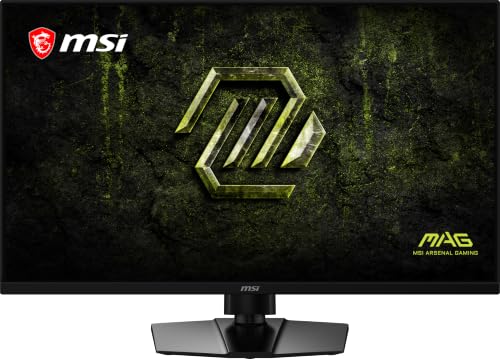
Every general-computing roundup deserves one pick that breaks its own frame, clearly labelled, and the MSI is this guide’s. Its title describes a 32-inch 3840×2160 gaming monitor running at a stated 320Hz with AMD FreeSync Premium, a dual-mode design, HDMI and DisplayPort, VESA mounting, tilt and — uniquely among these six — height adjustment in the title, plus a speaker and a 0.05ms response figure. Dual mode, in this class of product, means the panel can trade resolution for even higher refresh in a second mode; the title does not detail the second mode’s figures, so this review does not invent them. What is stated is already extraordinary for a 4K panel: motion specifications from the esports shelf attached to a full UHD canvas.
The honest framing is the pool’s own: this is the high-refresh outlier for mixed work and play. As a desk monitor it covers the brief — 4K, 32 inches, both modern ports, height adjustment that the comfort picks mostly lack — and as an evening machine it offers a class of motion clarity the other five do not attempt. The buyer it suits knows exactly who they are: work all day on the big sharp canvas, compete in the evening on the same screen, and no interest in owning two monitors to do it. The buyer it does not suit is the pure office user, for whom its headline talents are expensive silence — specifications paid for and never exercised. Included here with its label on, it makes the guide complete; recommended only where its label matches your life.
- Panel: 32-inch gaming panel, as stated in the listing title
- Resolution: 3840×2160 UHD, as stated in the listing title
- Refresh and response per title: 320Hz, 0.05ms, AMD FreeSync Premium, Dual Mode
- Ports per title: HDMI and DisplayPort
- Stand and mounting per title: tilt and height adjustable, VESA
- Audio per title: speaker included
Strengths
- A stated 320Hz at 4K is in a class of one within this guide.
- Height adjustment in the included stand, which the desk picks mostly omit.
- One screen honestly covers the workday and the competitive evening.
Trade-offs
- Pure office users pay for motion performance they will never use.
- Its dual-mode second configuration is not detailed in the title — verify on the listing.
- Gaming-first tuning means comfort features are not its headline story.
Best for: mixed work-and-play users who want one 32-inch 4K screen for both lives. Not suited for: office-only buyers, who are better served by every other pick here.
How Do the Six Compare on Stated Facts?
| Pick | Panel | Refresh per title | Eye comfort per title | Speakers | Stand per title |
|---|---|---|---|---|---|
| Samsung ViewFinity S7 | IPS | Not stated beyond class | Eye Saver Mode | Not stated | Not stated |
| ASUS VP327Q | 32-inch UHD | Adaptive-Sync class | Flicker Free, Blue Light Filter | Yes | Tilt, VESA mount |
| Dell S3225QS | VA, 3000:1 stated | 120Hz | Eye Comfort positioning | Not stated | Not stated |
| LG 32U701B-B | UltraFine | 60Hz | Reader Mode, Flicker Safe | Not stated | Tilt |
| LG 32UR500K-B | UltraFine | Class standard | Reader Mode, Flicker Safe | Built in ×2 | Not stated |
| MSI MAG 321UPD E14 | Gaming panel | 320Hz dual mode | Not its headline | Yes | Tilt and height, VESA |
Read the refresh column as three philosophies. The 60Hz-class screens — Samsung, ASUS and both LGs — spend their budgets on panel, comfort features and price sanity, trusting that office motion does not need more. The Dell spends on 120Hz, the rate at which everyday scrolling starts to feel luxurious. The MSI spends on an entirely different sport. The right column for a given buyer is determined by their evenings and their scrolling sensitivity, not by a league table — and the stand column is the quiet warning of this guide: at 32 inches, confirm how the screen will reach eye height before the box is opened, because only the MSI states height adjustment in its title.
How Should You Set Up a 32-Inch 4K Screen for a Working Day?
Begin with distance. A 32-inch screen wants to sit farther back than the 24 or 27-inch screen it replaces — roughly an arm’s length and a little more — so the whole canvas sits inside a comfortable field of view and the neck stops making small excursions to read the corners. Desks shallower than that distance are the common obstacle, and the solutions are a wall mount or an arm on the VESA fitting most of these picks provide, which lets the panel float at the back edge of the desk, or a honest reassessment toward the 27-inch class. Height follows the usual rule: the top of the screen at or just below eye level, the centre met by a gaze resting slightly downward. At this size the rule matters more, not less, because the corners of the canvas are far enough from the centre that a screen mounted too high turns every glance at a top-corner window into a small neck movement repeated hundreds of times a day.
Then the one-time software pass. Set the resolution to the native 3840×2160. Choose a scaling level by reading real text in your real applications for a day at each candidate setting; most users at this size land on a mild enlargement that keeps the canvas spacious. If your monitor offers a window-arrangement utility — LG Switch on the U701B, OnScreen Control on the UR500K — spend ten minutes teaching it your preferred layout, because the grid you define once is the layout you will snap windows into for years. Set brightness against the room, enable the reader or eye-saver preset for evening work if your pick states one, and confirm the connection is running at the refresh your pick promises, since a fallback cable or port can quietly halve it. Readers moving up from portable or secondary screens — the world of our best laptop portable monitors guide — will find the same ritual familiar at larger scale: native resolution, honest distance, layout decided once.
What About USB-C, Hubs and the One-Cable Desk?
An observant reader will notice what these six titles do not emphasise: USB-C video and hub features. This pool was assembled around HDMI and DisplayPort monitors — the classic two-cable desk, signal plus the computer’s own power — and the titles state those ports consistently. Laptop owners dreaming of a single cable that carries picture, data and charging should know that such monitors exist as a distinct sub-class, surveyed in our best usb c monitors coverage, and that the 40-inch Thunderbolt-class screens in this batch’s sibling guide push the hub idea furthest of all. For a desktop computer, or a laptop that lives docked with its own charger, the distinction barely matters: the screens here connect, display at full specification, and ask nothing more. Judge this guide’s six on the desk they were built for, and shop the hub category deliberately if the one-cable desk is the actual requirement.
What Mistakes Do Buyers Make Moving Up to 32-Inch 4K?
The first is furniture denial: ordering the screen before measuring the desk’s depth, then spending a year with a magnificent panel eighteen inches from their face. The second is the reverse error — sitting at a proper distance but leaving the operating system’s scaling at a level meant for a smaller screen, concluding that 4K text is “too small,” and blaming the hardware for a settings choice. The third is port and cable casualness: an old HDMI lead or the wrong port can cap the refresh below the panel’s stated rate, and the user never sees the smoothness they paid for, a mistake the Dell and MSI buyers in particular should guard against.
The fourth mistake is twin confusion — ordering one LG while meaning the other, because the names differ by a few characters and the listings look alike; this guide separated the U701B and the UR500K by their stated features precisely so the check can be made. The fifth is treating the gaming outlier as the default: the MSI is a superb instrument for its stated purpose and an extravagant one for a documents-only desk. And the sixth is neglecting the stand question until the neck reports it — at 32 inches, with tilt-only stands common in the titles, a riser or arm belongs in the same order if the desk height demands it.
How Does Scaling Actually Work at This Size, and What Should You Choose?
Scaling is the setting that decides how large the operating system draws its interface on a high-resolution panel, and at 32-inch 4K it is a gentler decision than its reputation suggests. With no scaling at all, the interface renders at the panel’s full density — about 140 pixels per inch — which makes standard text smaller than most readers prefer but shows an enormous amount of material at once; some developers, traders and spreadsheet specialists genuinely work this way and love it. At the scaling levels most people choose, the system renders the interface as if the screen had fewer, larger pixels — commonly the equivalent of a 2560×1440 or 3008×1692 canvas — while still using the full 4K panel to draw every edge sharply. That is the arrangement to understand: scaling at this size is not throwing resolution away, it is spending resolution on crispness while sizing the workspace to your eyes.
The practical method is empirical. Start at the level the operating system recommends. Work a full day. If you lean in, scale up one step; if windows feel like they are shouting and the canvas feels cramped, scale down. Applications occasionally misbehave — an old program that renders its own interface without respecting the system setting is the usual suspect — and the per-application fixes are a one-time chore rather than a daily tax. What this size class spares you, compared with a 27-inch 4K screen, is the forced choice: at 27 inches the unscaled interface is too small for nearly everyone, while at 32 inches both the unscaled and the scaled arrangements are legitimately usable, which is part of why this guide’s size has become the default recommendation for a serious desk.
One 32-Inch Screen or Two Smaller Ones?
The alternative to this entire guide is a pair of smaller monitors, and the comparison deserves honesty rather than dismissal. Two 27-inch screens give more total pixels in their 4K forms, a natural physical boundary between tasks — communication on one, work on the other — and the ability to angle each panel. They also cost two stands or arms, two sets of cables, a wider desk, and they place a bezel seam exactly where a single screen has its centre, which is where the eyes spend the day. One 32-inch 4K screen inverts the trade: a continuous canvas with no seam, simpler furniture and cabling, and window management done in software — which is why the LG utilities in this guide matter — rather than in hardware.
The deciding question is how you actually divide attention. Workers whose day is one dominant task with supporting references — the document and its sources, the model and its data — generally prefer the single canvas, because the main task gets the centre. Workers whose day is two co-equal streams — a call that never ends beside the work it discusses, a monitoring wall beside an editor — often prefer the physical split. There is also a growth path worth noting: a single 32-inch screen today can gain a smaller companion later, and two of the borderless LG UR500K units are explicitly designed to pair. But the centre-seam question is permanent, so decide it by watching your own window habits for a week before the box is ordered.
Brightness, Glare and Room Light: The Forgotten Third of the Picture
Specifications end at the panel; the picture the user lives with is made jointly by the panel and the room. Of these six titles, only the Dell states a brightness figure — 300 cd/m2 — and that figure is representative of the class: comfortably bright for ordinary rooms, matched against office lighting rather than against a sunbeam. The correct setup is to set brightness so the screen’s white resembles a sheet of paper under the room’s light, neither glowing against a dim room nor straining against a bright one, and to revisit the setting when the seasons change the room. Every pick here is a matte-finish class product — the Dell states anti-glare outright — which spreads window reflections into a soft haze instead of a mirror image, and positioning still matters: screen side-on to windows, never facing them and never backed by them.
Evening deserves its own sentence because this class of screen is large enough to light a face like a window. The comfort presets stated across these titles — Eye Saver Mode, the ASUS blue light filter, the LG Reader Modes — exist for those hours, and the habit of engaging them as the room darkens is worth more than any single specification in this guide. A 32-inch screen used at daytime brightness in a dark room is a strain machine regardless of its panel quality; the same screen, dimmed and warmed, is the pleasant centre of an evening’s reading and film. The hardware in this guide supports the habit; the titles state the features; the rest is routine.
What Should You Verify When the Screen Arrives?
Large panels reward a methodical first hour. Check the reported resolution and refresh in the operating system’s display settings against the title you bought from — 3840×2160 for every pick here, and the Dell’s 120Hz or the MSI’s headline rate where applicable — because a wrong cable or port can quietly cap both. Display a full-screen white, black and mid-grey image and look for blotches, stuck bright spots or a corner that behaves differently; flat colours reveal what busy desktops hide. Confirm the stand’s adjustment matches the title’s promise and your desk’s need, and if an arm is part of the plan, confirm the VESA pattern before the panel goes up. Run your real applications at your chosen scaling for a day before judging text size, since first impressions of a new canvas are unreliable in both directions. Finally, register the warranty while the invoice is still on the desk — a boring step that future-you, in the unlikely event of a failure, will be grateful was not skipped.
Who Should Stay Smaller, and Who Should Step Past 32 Inches?
This guide’s size is a sweet spot, not a commandment, and the edges are worth mapping. Stay smaller — at 27-inch 4K — if the desk is shallow, if the work is single-window by nature, or if the screen will be shared between close seating where a 32-inch panel overwhelms the space. The picture virtues are the same family; the canvas is simply sized for a smaller room. Step past 32 inches and the category changes shape: the screens become ultrawides, 21:9 canvases that trade height for width and suit timeline work, trading floors and immersive play more than the document-centred day. That territory is covered by this batch’s best 40 inch computer monitors guide, and readers torn between the two should notice the philosophical difference — 32-inch 4K is a bigger page, while 40-inch ultrawide is a wider desk — and choose by whether their work grows vertically, in documents and code, or horizontally, in timelines and side-by-side data.
There is also the question of the second machine. A 32-inch 4K screen is large enough to be shared, in shifts, between a work computer and a personal one, which is where port counts stop being trivia: the LG UR500K’s two HDMI ports, or any pick’s HDMI-plus-DisplayPort pairing, lets two hosts live on one panel and switch by input rather than by cable. Households consolidating desks — one good screen, two computers, different hours — will find that arrangement quietly transformative, and it costs nothing beyond choosing the right pick the first time.
How Does This Class Handle the Video-Call Working Day?
Modern general computing includes hours of video calls, and a 32-inch 4K screen changes their ergonomics in ways worth planning. The call window can sit at a size where faces are life-comfortable rather than postage stamps, while notes and the shared document stay visible beside it — the end of the alt-tab shuffle that fragments attention in a meeting. Camera placement needs one thought: a webcam perched on a 32-inch panel sits higher than on a laptop, so check the angle from your actual chair, and consider that the screen’s size lets the call sit slightly off-centre, nearer the camera, so your gaze reads as eye contact rather than as reading. Speakers, where titles state them — ASUS, LG UR500K, MSI — carry call audio without a headset for those who prefer it, and the large canvas makes shared-screen viewing genuinely legible when a colleague presents small text. None of this requires a special “call monitor”; it is the compound interest of size, resolution and the comfort features already discussed, applied to the meeting-heavy shape of contemporary work.
Final Recommendation
For the general-computing brief this guide set itself, the ASUS VP327Q is the most complete answer: both comfort features printed in its title, speakers and VESA mounting included, and nothing in its specification asking the buyer to take a claim on faith. The Samsung is the choice for a clean flagship from a first-rank maker, the Dell for the seated worker who will feel 120Hz and VA contrast every day, and the two LGs divide neatly between the window-managing reader (U701B) and the multi-source household hub (UR500K). The MSI stands apart, proudly, for the reader whose desk is also a cockpit. Choose among them by panel temperament, stand plan and the features your own title-check confirms — and the screen that arrives will organise your working day around itself so quietly that within a month you will have forgotten the smaller, softer display it replaced, which is the highest praise a desk monitor can earn.
Frequently Asked Questions
Is 32-inch 4K too big for a normal desk?
It is too big for a shallow desk and right for a standard one. The governing measurement is depth: you want roughly an arm’s length and a bit more between your eyes and the glass. A desk around 80 centimetres deep handles it comfortably, especially with the panel on an arm at the back edge; a 60-centimetre desk will feel crowded. Measure before ordering — the furniture question decides more 32-inch purchases than any specification does.
Will my computer drive a 3840×2160 screen properly?
Almost any computer from the last several years drives 4K for general computing without strain — documents, browsing, video and office applications are light work for modern graphics, integrated or otherwise. The caveats are about refresh and gaming: high refresh rates at 4K need a suitable port, cable and graphics capability, which matters for the Dell’s 120Hz and the MSI’s far higher figures, and barely at all for the 60Hz-class picks doing office work.
What is the difference between the two LG models?
They are different monitors, and their titles say how. The 32U701B-B leads with LG Switch software, Reader Mode and Flicker Safe on a tilt stand with HDMI and DisplayPort. The 32UR500K-B leads with built-in speakers, two HDMI ports plus DisplayPort, OnScreen Control and a borderless design, with the same comfort pair. Choose the U701B for a single-computer reading and writing desk; choose the UR500K for a multi-source desk that needs sound from the screen.
Do I need a monitor arm for a 32-inch screen?
Not necessarily, but the stand column of the comparison table explains why many buyers add one. Several picks state tilt-only stands, and a 32-inch panel’s height is right only if the desk and chair happen to agree with the fixed stand. An arm on the VESA mount — stated on the ASUS and MSI, and worth confirming for the others — solves height and depth in one move and returns desk space. If your seated eye height matches the stand, save the money; measure first.
Is HDR10 on these monitors real HDR?
It is real signal handling: the panel accepts HDR10 content and displays it with the tone mapping its brightness allows. What it is not, on desk monitors of this class, is the dramatic brightness range of a high-end television. For office work HDR is irrelevant; for evening streaming it is a pleasant competence. Buy these screens for their panels, comfort features and ergonomics, and let HDR be the bonus it honestly is.
Should a pure office worker consider the MSI gaming model?
Only for one office reason: its title states height adjustment, which the comfort picks mostly do not. If that single feature is decisive and no arm is wanted, the MSI covers the whole desk brief plus a gaming arsenal. Otherwise its 320Hz dual-mode talents are wasted on documents, and the same money buys more relevant virtues — comfort features, speakers, contrast — elsewhere in this guide. It is labelled the outlier because for most office buyers, it is one.
Does 4K make games or video look better on these screens?
Video, yes in a straightforward way: 4K-mastered streaming and footage uses the panel’s full canvas, and even ordinary high-definition video upscales cleanly at this density. Games are a more conditional yes — a 4K canvas is demanding to drive at high frame rates, which is why the guide fences its one gaming pick off with a label. For the desk-first five, treat gaming as a pleasant sideline at sensible settings rather than the design purpose, and let the MSI carry the competitive brief.
How long should a monitor in this class last?
The panel technology here is mature LCD, and a screen used at sensible brightness in a normal room should serve for many years — typically outlasting the computer it was bought beside, sometimes two. The parts that age are the backlight, which dims very gradually, and the stand’s joints if they are adjusted daily. Buying standard ports and VESA mounting, as these picks offer, protects the investment: the screen can move to a second computer, a second room or a second role without an adapter hunt, which is how a good monitor becomes a decade-long household fixture rather than a single setup’s component.
What is the difference between this class and a creator monitor?
Intent and evidence. A creator monitor is sold on colour performance — wider gamuts, calibration reports, uniformity guarantees — and priced for it. This guide’s pool was assembled for general computing and judged on panel behaviour, ergonomics, ports and stated comfort features, with colour figures quoted only where titles print them, such as the 99% sRGB claims on the ASUS and Dell. For documents, browsing, calls and ordinary photo enjoyment, this class is the right spend; for paid colour-critical work, shop the specialist category with its specialist evidence.
Related Guides
The size ladder continues in both directions: best 40 inch computer monitors covers the ultrawide step up, and best 4k monitors mac mini explores this resolution through one popular computer’s lens.
The refresh-rate trade-offs discussed above land differently in a cockpit, as our roundup of the best racing sim monitors explains in sim-specific terms.


