What's inside
- Where to buy
- Key Takeaways
- Quick Picks
- How did we choose these 32-inch 4K monitors?
- Which 32-inch 4K panels anchor a working desk?
- Which 32-inch 4K monitors dock, game or dazzle?
- How do the six 32-inch 4K monitors compare?
- What does the panel split mean for colour, films and everyday work?
- Should you add a second screen to a 32-inch 4K desk?
- How does a 32-inch 4K screen change everyday work habits?
- What should you check in the first week with a new 32-inch 4K monitor?
- Why does roughly 140 PPI feel like the sweet spot?
- How do you set up a 32-inch 4K desk properly?
- What mistakes do 32-inch 4K buyers make?
- Is 32-inch 4K the right upgrade from your current screen?
- How long does a 32-inch 4K monitor stay current?
- How do you choose between this size and going ultrawide instead?
- What about HDR, speakers and the other supporting acts?
- Final Recommendation
- Frequently Asked Questions
- Related Guides
As an Amazon Associate I earn from qualifying purchases. This post may contain affiliate links at no extra cost to you.
gizmoverdict.com is reader-supported. When you buy through links on our site, we may earn an affiliate commission.
Where to buy
The six screens reviewed here each carry a link to their Amazon listing, and shoppers in this category should read those listings for the panel technology first — VA, IPS or OLED — because at this size and resolution the panel type is the personality, and everything else is tuning. The best 32 inch 4k monitors share a single elegant piece of arithmetic: 3840×2160 pixels spread across a 32-inch diagonal lands at roughly 140 pixels per inch, the density at which text is crisp, interfaces sit at a natural size, and most people can switch scaling off entirely and simply work. That is the sweet spot this whole category is built on, and it is why 32-inch 4K has quietly become the default recommendation for a serious single-screen desk.
Understand what “no scaling needed” buys you, because it is the heart of the matter. On a 27-inch 4K screen, most users enable interface scaling to make text comfortable, spending some of the resolution on size. On a laptop panel, scaling is a way of life. At 32-inch 4K, the pixels are large enough to read at native size and numerous enough to hold a full working layout — editor, browser, documents, chat — without any window feeling like a postage stamp. You get all 8.3 million pixels as workspace. For knowledge work, that is not a specification; it is a daily experience, and once people have had it they rarely volunteer to go back.
The six picks divide honestly by panel and purpose. Dell’s VA model is the value anchor with a 120Hz surprise; ASUS and LG field the dependable IPS all-rounders; ViewSonic adds USB-C docking to the same formula; MSI brings dual-mode gaming speed; and ASUS’s ROG OLED sits at the summit as the flagship for people whose desk is also their cinema and their arena. Prices separate these by wide margins in qualitative terms — the OLED costs several times what the VA value picks cost — and the reviews below keep that tiering plain, because at this size the right question is not “which is best” but “which panel personality matches my days”.
Key Takeaways
- 32-inch 4K works out to roughly 140 PPI — the density where text stays crisp at native size and most users can disable scaling entirely.
- Panel type is the real decision: VA for value and contrast, IPS for balanced colour and angles, OLED for perfect blacks and flagship gaming.
- The Dell S3225QS pairs its VA value with 120Hz and 3000:1 contrast, making it the strongest all-round budget shape in the set.
- USB-C with 65W on the ViewSonic turns the monitor into a laptop dock; the other all-rounders ask the laptop to bring its own power.
- The ASUS ROG OLED costs several times the VA picks — a deliberate flagship tier for gaming and film, not a casual upgrade.
- MSI’s dual-mode design lets one 32-inch 4K desk run full resolution for work and a faster reduced mode for competitive play.
Quick Picks
| Pick | Badge | Why it earns its place |
|---|---|---|
| Dell S3225QS 32-Inch 4K | Best value all-rounder | VA contrast, 120Hz smoothness and Dell’s eye-comfort discipline at the friendliest tier in this guide. |
| ASUS VP327Q 32-Inch 4K | Best dependable IPS-class value | 99% sRGB, HDR-10, speakers and ASUS eye care in a straightforward big 4K package for mixed work. |
| LG 32U701B-B 32-Inch UltraFine 4K | Best reading comfort | LG’s UltraFine polish with Reader Mode and Flicker Safe tuning for people whose screen is mostly text, all day. |
| ViewSonic VX3267U-4K 32-Inch 4K | Best for laptop desks | IPS colour plus 65W USB-C, so one cable runs picture and power for the laptop half of your life. |
| MSI MAG 321UPD 32-Inch 4K | Best gaming all-rounder | Dual-mode speed up to 320Hz class with height adjustment — a work canvas that turns genuinely fast after hours. |
| ASUS ROG PG32UCDP 32-Inch 4K OLED | Best flagship, full stop | 4K OLED at 240Hz with a 480Hz FHD dual mode — the summit of this category for gaming and film alike. |
How did we choose these 32-inch 4K monitors?
We held the size and resolution constant — every pick is a genuine 32-inch-class 3840×2160 panel — and let everything else compete. Panel technology came first, because VA, IPS and OLED produce three different desks from the same pixels. Then the working factors: eye-comfort engineering for the long static hours this size is bought for, stand adjustment (a 32-inch panel sits high and heavy, and its ergonomics are not a detail), connectivity for the laptop-and-desktop reality, and the honesty of each listing’s claims. Gaming ability was scored as a spectrum rather than a gate, since this category serves offices that never game and desks that do little else.
We also applied the tier test in the reader’s favour. A pick had to justify its position against the Dell’s value benchmark: extra money had to buy something nameable — docking, dual-mode speed, OLED contrast — rather than a badge. Two picks here cost flagship money, and both can say exactly what the money is for in one sentence. That is the standard the whole list was held to, and it is the standard you should hold any future addition to.
Ergonomics quietly eliminated several plausible candidates along the way. A 32-inch panel is a heavy, high object; models whose stands offered no credible path to correct height, and no VESA pattern to escape to an arm, were set aside no matter how attractive their panels looked. The survivors all offer a believable route to a healthy desk — which, at this size, is not a luxury judgement but the difference between a monitor you keep and one you return.
Which 32-inch 4K panels anchor a working desk?

Dell S3225QS 32-Inch 4K — Best value all-rounder
The Dell is the pick this guide expects most readers to buy, and it earns that expectation on the complete shape of its specification rather than any single fireworks number. The panel is VA, which at this tier buys the contrast LCD can be proud of — a stated 3000:1 — so documents sit on genuinely deep backgrounds, films hold their shadows, and dark-mode interfaces look like the design rather than a grey approximation of it. Around that panel Dell wraps the things offices actually feel: 120Hz refresh that makes scrolling and window movement noticeably calmer than the 60Hz class standard, FreeSync Premium for the occasional game, 99% sRGB coverage for honest colour, and the company’s mature eye-comfort engineering for the eight-hour static stare.
At roughly 140 PPI the S3225QS delivers the category’s founding promise in full: run it at native resolution, no scaling, and enjoy all of the workspace all of the time. Spreadsheets show more columns, editors show more lines, and the two-documents-side-by-side layout that 27-inch screens make snug becomes this panel’s natural posture. Dell’s business-monitor discipline shows in the details buyers forget to check — a stand and menu system designed by people who deploy these by the hundred, and brightness behaviour meant for rooms with windows rather than showrooms.
Its honest trade is the VA one: viewing angles are good rather than IPS-generous, so a screen regularly shared from a second chair at a wide angle will show some shift, and its 4ms-class response keeps it a worker that games rather than a gamer that works. Within the value tier those are the right trades, made openly. If your brief is a serious single screen for serious work at the friendliest tier in this guide, the Dell is not the compromise choice. It is the choice.
There is a fleet argument for the Dell that home buyers borrow from IT departments: when a monitor is deployed by the thousand into offices, its failure modes are known, its menus are documented, and its behaviour is boring in the best sense. A home desk gets the same boring reliability, plus a panel that happens to be genuinely pleasant. In a category full of exciting strangers, the S3225QS is the known quantity — and known quantities are what people who work all day on a screen learn to want.
- Panel: 31.5-inch 4K UHD VA, 120Hz
- Contrast: 3000:1; brightness 300 cd/m² class
- Colour: 99% sRGB
- Sync: FreeSync Premium
- Features: Dell Eye Comfort engineering
Strengths
- 120Hz at this value tier makes the whole working day feel calmer than 60Hz rivals.
- VA contrast gives documents, dashboards and films real depth.
- Dell’s office deployment polish shows in stand, menus and eye comfort.
Trade-offs
- Viewing angles trail the IPS picks when the screen is shared from the side.
- Response speed suits work and casual play rather than competitive gaming.
- No USB-C docking wattage to headline; laptop users should check their power plan.
Best for: professionals and home offices wanting the complete 32-inch 4K experience at a value tier. Not suited for: competitive gamers, or desks where the screen is regularly viewed from wide side angles.

ASUS VP327Q 32-Inch 4K — Best dependable IPS-class value
ASUS’s VP line is the company’s eye-care workhorse family, and the VP327Q brings that brief to the big canvas: a 32-inch 4K panel with 99% sRGB coverage, HDR-10 support, Adaptive-Sync, built-in speakers, and the flicker-free, low-blue-light engineering the VP badge stands for. Its personality is dependability. Nothing in its specification is chasing a headline; everything in it is aimed at the desk where a big sharp screen must simply be right, every day, for work that mixes documents, browsing, media and light creative tasks.
The speakers deserve their sentence, because at 32 inches the monitor often becomes the room’s screen — for a call, a tutorial, a lunchtime video — and integrated audio that is present and adequate beats a separate speaker purchase for most offices. Adaptive-Sync keeps the occasional game or fast video smooth without gaming-monitor theatrics. And the ASUS eye-care stack matters at this size more than at smaller ones: a 32-inch panel fills more of your visual field for more hours, so flicker discipline and blue-light management are working features, not brochure filler.
Choose it against the Dell by panel temperament: the ASUS offers the IPS-class viewing generosity and colour behaviour many buyers default to, while the Dell counters with deeper VA contrast and the higher refresh. Neither answer is wrong; they are the two classic LCD personalities at the same friendly tier, and this guide is comfortable with readers picking their temperament. What both deliver identically is the founding promise — 4K at 140 PPI, run native, all workspace, no scaling — and on that promise the VP327Q does not miss.
Home offices that double as family rooms will recognise this ASUS’s particular diplomacy. It is large enough to be the room’s video screen, plain enough in manner to sit in a workspace without shouting about gaming, and complete enough — speakers, sync, eye care — that nobody in the household needs to understand a specification to use it happily. Versatility without drama is an underrated design achievement, and the VP327Q has it.
- Panel: 32-inch 4K UHD display with eye care
- Colour: 99% sRGB, HDR-10
- Sync: Adaptive-Sync
- Eye care: flicker-free, low blue light
- Extras: built-in speakers; HDMI and DisplayPort
Strengths
- Balanced IPS-class behaviour for colour, angles and everyday work.
- Built-in speakers make it a complete room screen out of the box.
- Eye-care engineering suits the long static hours this size is bought for.
Trade-offs
- Refresh sits in the office class; gamers should look at the MSI or OLED.
- Contrast is LCD-typical rather than the Dell VA’s deeper figure.
- Laptop owners get no built-in high-power USB-C dock in this model.
Best for: mixed-work desks wanting a big, balanced, low-drama 4K screen with speakers included. Not suited for: gamers chasing refresh, or laptop minimalists who need the monitor to be the dock.

LG 32U701B-B 32-Inch UltraFine 4K — Best reading comfort
Some desks are, at bottom, reading machines — research, writing, code review, contracts, documentation — and the LG 32U701B-B is tuned for exactly that life. The UltraFine name brings LG’s usual panel polish, and the feature list reads like a librarian’s requests granted: Reader Mode to soften the page for long documents, Flicker Safe engineering, sRGB 99% (Typ.) colour for honest everyday work, and HDR10 for the video that punctuates the text. At 60Hz it makes no gaming promises, and this guide respects a monitor that knows its reader.
LG Switch, the company’s software for dividing the screen and managing inputs from the desktop, is the sleeper feature for text workers: a 32-inch canvas invites window arrangements — document left, source right, notes below — and software that snaps and remembers those arrangements turns the big panel from a wide-open field into an organised desk. Writers and researchers who live in split-screen will feel this daily, in the same way traders feel window discipline, and it is worth more to them than a gaming specification would be.
Frame the choice plainly: against the Dell, the LG trades refresh and VA contrast for reading-focused tuning and software; against the ASUS, it trades speakers and sync breadth for the UltraFine polish and Reader Mode. All three sit in the same value neighbourhood and deliver the same 140 PPI native workspace. If your screen time is measured in pages rather than frames, the LG is the one in this trio designed by people who counted the same way.
Students of long-form anything — law, academia, technical writing, editing — form this LG’s natural constituency, and they should weigh one more of its quiet virtues: consistency. A reading screen’s job is to disappear beneath the text for six hours, and panels that flicker, glare or demand attention break the exact concentration the work is made of. The 32U701B-B is engineered, more single-mindedly than any rival here, to be forgotten by its reader.
- Panel: 32-inch UltraFine 4K UHD, 60Hz
- Colour: sRGB 99% (Typ.), HDR10
- Software: LG Switch window management
- Features: Reader Mode, Flicker Safe
- Inputs: HDMI, DisplayPort
Strengths
- Reader Mode and flicker discipline serve genuinely long reading days.
- LG Switch turns the big canvas into remembered window arrangements.
- UltraFine panel polish keeps text edges calm at native resolution.
Trade-offs
- 60Hz is an office ceiling; even casual gamers may want the Dell’s 120Hz.
- No USB-C docking headline for laptop-first desks.
- Its specialisms are quiet ones that spec-sheet shoppers overlook.
Best for: writers, researchers, reviewers and anyone whose monitor is primarily a page. Not suited for: buyers wanting one screen to game on seriously after the reading is done.
Which 32-inch 4K monitors dock, game or dazzle?

ViewSonic VX3267U-4K 32-Inch 4K — Best for laptop desks
The ViewSonic VX3267U-4K answers the question the other all-rounders leave open: what runs the laptop? Its USB-C input carries the 4K picture and returns 65W of power, so a laptop desk becomes the one-cable arrangement that modern work promises — arrive, plug, and the big screen wakes with the machine charging through the same lead. Around that convenience sits a proper IPS panel: 4K with HDR10, ultra-thin bezels that make the 32 inches feel like pure canvas, and ViewSonic’s eye-care attention for the long middle of the day.
Sixty-five watts deserves its honest footnote, in the spirit this cluster of guides maintains: it covers the great majority of laptops fully, while the largest, hungriest workstation-class machines under sustained full load may still prefer their own adapters for peak charging. For the ultrabook and mainstream-laptop population — which is to say, most laptop desks — the ViewSonic’s single cable is the whole story, and it transforms a 32-inch monitor from a display into a dock with a very large screen attached.
Against the Dell and ASUS, then, the trade is clear: you exchange the Dell’s 120Hz and VA contrast, or the ASUS’s speakers, for docking and IPS manners. Desks built around a desktop PC will not miss USB-C power and should buy their panel personality first. Desks built around a laptop should start here and only move if the gaming picks below call louder — because a monitor that also charges the computer is a desk with one less brick, one less cable and one less daily decision.
Hot-desking households and shared workspaces get a special dividend from this ViewSonic: whoever sits down with a USB-C laptop inherits the whole desk — big screen, charged battery, peripherals if a hub joins the arrangement — in one gesture, and leaves no trace when they go. A monitor that docks is a desk that shares gracefully, and in homes where the good desk is contested territory, that grace is a feature with daily cash value.
- Panel: 32-inch 4K UHD IPS
- USB-C: 65W power delivery
- HDR: HDR10
- Design: ultra-thin bezels
- Inputs: USB-C, HDMI 2.0, DisplayPort
Strengths
- One-cable laptop docking with real charging wattage.
- IPS colour and angles suit shared and varied work.
- Thin bezels make the big canvas feel uninterrupted.
Trade-offs
- Office-class refresh; gaming ambitions belong to the picks below.
- 65W is ample for most laptops, modest for the hungriest workstations.
- Desktop-PC desks gain nothing from its headline feature.
Best for: laptop-centred desks wanting one cable, one screen and no dock purchase. Not suited for: desktop-only setups, or anyone whose evenings are competitive gaming sessions.
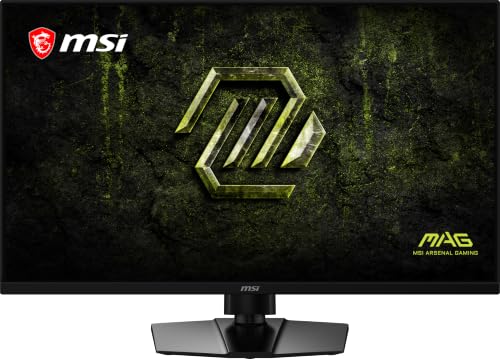
MSI MAG 321UPD 32-Inch 4K — Best gaming all-rounder
MSI’s MAG 321UPD takes the category’s work canvas and asks what it would take to game on it properly — then does those things. The headline is dual-mode speed in the 320Hz class: full 4K for the working day and most titles, with a faster reduced-resolution mode for the competitive games where frames outrank pixels, following the same honest physics this cluster’s gaming guide explains in full. At 32 inches that proposition is especially sweet, because the big panel that holds your whole workspace at native size by day becomes an immersive, fast screen by night without a second monitor muscling onto the desk.
The supporting specification respects both lives. FreeSync Premium covers variable refresh for smooth play, the stand adjusts for height as well as tilt — a mercy at this size, where the wrong screen height is a posture tax — and VESA mounting keeps arm users in the plan. The workday half is not a token: 4K at 140 PPI is the same native workspace the Dell sells, so the MSI’s buyer gives up nothing at the office to gain the arena.
Price it honestly against the value trio: the MSI costs more than the Dell, ASUS and LG class, and the premium buys exactly one thing — speed with its dual-mode flexibility — plus the stand to enjoy it at the right height. Buyers whose games are slow and beautiful may find the OLED’s contrast a better splurge; buyers whose games are fast and ranked will find this the most rational gaming upgrade in the guide, because it never asks the workday to subsidise the evening with a compromise.
There is a room-size argument for the MSI, too. A separate gaming monitor is the classic solution to the hybrid problem, and it costs a second screen’s worth of desk — space that small flats and shared offices often do not have. The MAG 321UPD’s dual mode is, in those rooms, not a luxury feature but the only way the hybrid desk fits at all: one panel, one stand, two lives, and a desk surface that still has room for the keyboard to breathe.
- Panel: 32-inch 4K UHD
- Refresh: dual-mode, 320Hz class at reduced resolution
- Sync: AMD FreeSync Premium
- Stand: tilt and height adjustable, VESA
- Inputs: HDMI, DisplayPort
Strengths
- Dual-mode speed turns the work canvas into a competitive screen on demand.
- Height adjustment at 32 inches protects posture across both lives.
- Full native 4K workspace by day — no work compromise funds the gaming.
Trade-offs
- The fastest mode trades resolution down, like every dual-mode design.
- Its premium over the value trio buys speed that relaxed gamers will not use.
- Contrast remains LCD-class; the OLED below plays a different sport.
Best for: hybrid workers who game competitively and want one big screen for both lives. Not suited for: pure office desks, which should save the premium and take the Dell or LG.

ASUS ROG PG32UCDP 32-Inch 4K OLED — Best flagship, full stop
Every category has a summit where the compromises stop, and in this one it is an OLED. The ROG PG32UCDP’s panel renders black by switching pixels off entirely, which no backlit LCD in this guide can imitate: night scenes hold true darkness, contrast becomes effectively unbounded, and films and games acquire the depth that made OLED the reference technology in living rooms. Layered on that foundation are flagship gaming numbers — 4K at 240Hz, a dual mode reaching 480Hz at Full HD, 0.03ms-class response, G-SYNC compatibility — and working conveniences like USB-C with 90W and a custom heatsink that manages the panel’s thermals for longevity.
The workday case is real and should not be waved past: 4K at 140 PPI is the same crisp native workspace as every pick here, and OLED text at this density is sharp, with the honest caveat that OLED care habits — varying content, letting the panel’s maintenance routines run, not parking static toolbars at maximum brightness for a decade — are part of flagship ownership. ASUS builds in protective features and that heatsink for a reason. Owners who treat the panel as the precision instrument it is will be rewarded for years; owners who want an appliance to abuse should buy the Dell and sleep better.
And the tier must be stated as plainly as this guide promised: this monitor costs several times what the VA value picks cost. That is not a criticism — it is the definition of a flagship — but it means the PG32UCDP should be bought by people who will actually use its gifts: serious gaming, film in a dim room, the daily pleasure of perfect blacks. For them it is not expensive for a monitor; it is the cheapest way to own the best picture this size and resolution can currently produce. Everyone else is better served below, and this guide means that as praise for both ends of its own list.
One constituency should hear its name called: the film lover whose living room cannot host a big television. For that reader, this ROG is not a monitor with entertainment features — it is the cinema, shrunk to desk distance, where OLED’s blacks and 4K’s density combine into something a mid-range TV across a room cannot match for sheer involvement. Judged as a cinema purchase that also happens to be a superb work screen, its flagship tier reads differently, and for that reader it may be the most rational pick in this entire guide.
- Panel: 32-inch 4K OLED
- Refresh: 240Hz at 4K; dual-mode FHD 480Hz
- Response: 0.03ms class
- Sync: G-SYNC compatible
- Extras: custom heatsink, USB-C 90W
Strengths
- Per-pixel OLED blacks deliver contrast no LCD here can approach.
- 240Hz at full 4K plus a 480Hz mode covers every gaming ambition.
- 90W USB-C and flagship build make it a complete desk centrepiece.
Trade-offs
- Costs several times the value picks — a deliberate flagship tier.
- OLED care habits are part of ownership; static-content discipline matters.
- Its gifts are wasted on a pure office desk that never dims the lights.
Best for: gamers and film lovers who want the finest 32-inch 4K picture available, and will use it nightly. Not suited for: value seekers, bright-room offices, or anyone who treats a monitor as an appliance to ignore.
How do the six 32-inch 4K monitors compare?
| Monitor | Panel | Refresh | Signature feature | Tier character |
|---|---|---|---|---|
| Dell S3225QS | VA | 120Hz | 3000:1 contrast, eye comfort | Value anchor |
| ASUS VP327Q | IPS class | Office class | Speakers, Adaptive-Sync | Value all-rounder |
| LG 32U701B-B | IPS class | 60Hz | Reader Mode, LG Switch | Reading comfort |
| ViewSonic VX3267U-4K | IPS | Office class | 65W USB-C docking | Laptop desks |
| MSI MAG 321UPD | Gaming class | Dual-mode 320Hz class | Height-adjustable speed | Gaming all-rounder |
| ASUS ROG PG32UCDP | OLED | 240Hz; FHD 480Hz mode | Perfect blacks, heatsink | Flagship |
What does the panel split mean for colour, films and everyday work?
Panel technology sounds abstract until you assign each type its evening. The VA Dell in a dim room shows films with shadows that stay shadowy; the same film on the IPS picks trades a little of that depth for colour that holds steady when you shift in your chair or a second viewer pulls up beside you. Neither is a defect — they are the two classic LCD temperaments, and knowing which room and which chair are yours settles the choice faster than any measurement. OLED then changes the subject entirely: its blacks are not a better version of the LCD trait but the absence of the backlight that causes it, which is why the ROG’s premium is real and why it is also, for bright offices, frequently unnecessary.
For everyday work the split mostly dissolves. All six panels render documents, code and browsing at the same native 4K clarity, and the differences that remain are ergonomic and economic — stands, speakers, docking, price tier. This is worth saying plainly because panel debates online can make the LCD choices sound like failures, when in truth the value picks here are separated by temperament rather than quality. Choose your temperament, check your desk depth, and the category will treat you well.
Should you add a second screen to a 32-inch 4K desk?
Often the honest answer is: not yet. A single 32-inch 4K canvas holds what a pair of smaller screens used to, without the bezel, the second stand or the colour-matching ritual. Live with it for a month and let the layout habits form; many people discover the “missing” second screen was a habit of the old desk rather than a need of the work. If a genuine second job emerges — a permanent chat and calls screen, a reference monitor for colour, a vertical document display — add it then, deliberately, in the size that job wants.
When that day comes, this category’s own value picks make gracious companions, and an old 32-inch panel being replaced by a flagship retires into the second position beautifully. Big 4K screens age into infrastructure. Buy the first one as if it will serve a decade in some chair of your home — because across its first and second lives, it very likely will.
If the second screen does arrive, give it a job description before it arrives on the desk: communications and calls, permanently; or reference material, permanently; or a vertical document rail, permanently. A second screen with a fixed role extends the main canvas. A second screen without one becomes a larger place to lose windows in — the exact disease the single big panel cured.
How does a 32-inch 4K screen change everyday work habits?
The first change is window honesty. On smaller screens, maximising every application is a survival habit; on this canvas it becomes a waste, and people rediscover the side-by-side layout their work actually wanted — the document under edit beside its source, the spreadsheet beside the email it answers, the code beside the running result. Tasks that used to involve a dozen context switches a day collapse into glances. Nobody markets “fewer alt-tabs” as a specification, but across a working year it may be the largest single return this category pays.
Meetings change character, too. A 32-inch 4K screen shows a grid of colleagues at sizes where expressions survive, and a shared document in a call remains legible without the pinch-zoom dance smaller screens demand. Remote workers consistently underestimate how much of their day is spent in that grid; the big canvas is, among its other jobs, the best seat in every meeting you will attend this year.
The second change is subtler: posture improves when the screen comes to you. A 32-inch panel at proper distance fills the visual field without demanding the lean-in that smaller, denser screens provoke, and its top edge sits where a glance — not a nod — reaches it. Combined with a stand or arm set once and forgotten, the big 4K desk quietly removes a dozen micro-strains that workers had been attributing to their chairs. Buy the size for the pixels, keep it for the posture.
What should you check in the first week with a new 32-inch 4K monitor?
Check the geometry before the picture: sit in your real chair, at your real desk, and confirm the panel’s centre sits slightly below eye level and its whole width inside a comfortable glance. Then check the settings the operating system guessed for you — native resolution confirmed, scaling set by your preference rather than default, brightness matched to the room’s ordinary light. Run your three heaviest applications side by side and notice whether the layout you imagined on paper is the layout the pixels actually permit.
Finally, check the unglamorous behaviours: wake from sleep, input switching if a second machine shares the screen, and the speakers or audio path you will actually use on calls. A monitor is a decade-scale roommate; the first week is when you learn whether its habits and yours agree, while adjustments are still menus and returns rather than regrets. The panels in this guide were chosen to pass that week quietly — but quiet should be verified, not assumed.
Why does roughly 140 PPI feel like the sweet spot?
Pixel density is a negotiation between your eyes and your operating system. Much below 140 PPI at desktop distance, individual pixels begin to announce themselves in text edges and diagonal lines; much above it, interfaces shrink until scaling must intervene to restore comfortable sizes — at which point you are spending resolution on rendering quality rather than workspace. At 32-inch 4K the negotiation settles itself: text is drawn from enough pixels to be smooth, yet each interface element remains its natural physical size. It is the same reason this size became the professional default in design studios long before it became a consumer recommendation.
The practical test is a week of ordinary work. On a well-chosen 32-inch 4K screen, people stop thinking about the display entirely — no squinting, no zoom habits, no window Tetris — and that invisibility is the true product. Smaller 4K screens are sharper on paper and more demanding in life; larger ones spread the same pixels thinner. If you are upgrading from a 27-inch 1440p or 1080p monitor, expect the first day to feel like moving into a bigger office and the fifth day to feel like you always lived there.
There is a budgeting corollary worth stating while the arithmetic is in front of you. Because the density sweet spot removes the need for scaling compromises, it also removes the temptation to buy a second screen “for the extra room” in the same season. Many desks that would once have grown to two 27-inch panels now settle, happily and more cheaply, on one of these. When a single purchase retires a planned second purchase, the honest price comparison for this category is not monitor against monitor — it is monitor against the pair it replaces.
How do you set up a 32-inch 4K desk properly?
Distance and height decide comfort at this size. Sit far enough back that the whole panel lives inside a comfortable glance — for most people that means a desk with real depth and the screen roughly an arm’s length away — and set the panel’s centre slightly below eye level so your gaze falls naturally across its height. If the included stand cannot reach that geometry on your desk, a VESA arm is not an accessory but the second half of the purchase, and several picks here anticipate it.
Then make the software choices once, deliberately: native resolution, scaling off or at the lightest setting your eyes prefer, brightness matched to the room rather than the showroom, and a window layout that uses the width — two documents abreast, or a main window with a genuine sidebar rather than a maximised application pretending the other 4K pixels do not exist. A 32-inch screen’s most common failure is being used as a very large 24-inch screen. Buy the canvas, then actually paint on all of it.
Cable and input housekeeping belongs in the same first hour. Give the main computer the best input the panel offers, route the cable so the desk’s moving parts — drawers, chair, sit-stand mechanism if you have one — never tug it, and keep the second input’s cable coiled and labelled if a laptop visits the desk. Big monitors invite permanent installations; permanent installations reward ten minutes of tidiness with years of silence.
What mistakes do 32-inch 4K buyers make?
The commonest is buying the size and starving the desk: a 32-inch panel on a shallow desk, too close, at the wrong height, generating the conclusion that big monitors are uncomfortable when the furniture was the problem. Second: paying the OLED flagship tier for an office that runs spreadsheets in a bright room — a genuine waste of a great panel’s gifts, and of the budget. Third: the mirror error, buying the cheapest value panel for a desk whose evenings are serious gaming, then blaming the category. Fourth: forgetting the laptop’s power question until the one-cable dream meets a 65W reality it cannot feed. And fifth: leaving scaling at whatever the operating system guessed, then judging the monitor by a setting five minutes in the display panel would have fixed. This category rewards a deliberate first hour more than most.
A sixth mistake is upgrading the screen alone and judging it through an ancient cable or a dock that caps the resolution — the panel then gets blamed for a bottleneck in a lead worth a fraction of its price. When a new 4K screen misbehaves, suspect the chain before the canvas: cable, dock, port, in that order. The monitor is the most visible component of the setup, which makes it the most frequently innocent suspect in the room.
Is 32-inch 4K the right upgrade from your current screen?
Measure your dissatisfaction before your desk. If your current monitor’s crime is crowding — windows competing, documents shrinking, a second screen’s worth of work squeezed into one — then 32-inch 4K is the direct cure, and this guide is your shortlist. If the crime is colour — work returning from clients or printers wearing the wrong hues — the calibrated-monitors guide in this cluster is the honest detour, because size will not fix truth. And if the crime is speed, the gaming-and-programming guide’s dual-mode discussion matters more than diagonal inches.
Upgraders from 27-inch 1440p feel the change most completely: the same comfortable interface size, roughly three-quarters more pixels behind it, and the end of scaling compromises in either direction. Upgraders from 1080p should prepare for a genuinely new desk geometry — the panel is physically much larger — and budget the stand or arm accordingly. In both cases, keep the old screen for a month as the household’s spare or second display; big-monitor buyers rarely regret having a fallback, and the old panel’s second life often becomes its longest one.
How long does a 32-inch 4K monitor stay current?
Longer than almost any other component on the desk. Resolution standards at this class have stabilised — 4K is the settled professional canvas, interfaces are designed around it, and the ~140 PPI experience does not date the way a fashion specification does. A panel bought from this list today should still be a sensible, sharp, welcome screen when the computer beneath it has been replaced twice. What ages is connectivity fashion, which is why the picks favour generous input sets, and why the ViewSonic’s USB-C and the OLED’s 90W version of it are worth their quiet emphasis.
That longevity cuts both ways in the buying decision: it argues for choosing the panel personality you actually want rather than the one on promotion, because you will live with the choice for years, and it argues against overspending on specifications your days never touch. The right 32-inch 4K monitor is a decade of mornings. Buy the mornings you want.
One practical consequence follows for timing: because the monitor outlives the computer, it is the component to buy when it is right rather than when the PC is replaced. Desks that wait for a full-system refresh to fix a cramped screen spend years working around a problem whose solution was independent all along. The screen is its own purchase, on its own clock — and for most readers of this guide, that clock has already struck.
How do you choose between this size and going ultrawide instead?
Some readers arrive here tempted by the 49-inch ultrawides elsewhere in this cluster, and the comparison deserves a fair paragraph. An ultrawide trades vertical space for horizontal sweep: marvellous for timelines, trading layouts and side-by-side pairs, less generous for the tall documents, code files and web pages that fill ordinary work — and it asks more of the desk and the graphics card. A 32-inch 4K keeps the familiar 16:9 shape every application was designed for, at a density that needs no scaling, on a footprint most desks already accept. It is the conservative choice in the best sense: the upgrade that changes your capacity without changing your habits.
The tiebreaker is your window census. Count the windows you truly keep visible: if the answer is two or three tall ones, 32-inch 4K is your format and always was. If the answer is a horizontal river of charts, timelines or tracks, go and read the ultrawide guide with this article’s blessing. Formats serve layouts, not fashions — and the most common buying regret in monitors is purchasing the shape of someone else’s desk.
What about HDR, speakers and the other supporting acts?
A 32-inch 4K screen becomes the room’s default display for video, so its supporting features stop being footnotes. HDR10 appears across most of this list and adds highlight life to films and shows; on the LCD picks it is a pleasant enhancement, while on the OLED it is part of a genuinely cinematic performance. Buyers whose desk doubles as their cinema should weight that difference honestly — it is one of the few places the flagship tier announces itself in ordinary evening use, not just in games.
Speakers follow a similar logic. The ASUS VP327Q’s built-in audio covers calls, tutorials and casual viewing without extra hardware, which in a tidy office is worth real money and desk space. On the silent picks, a small soundbar or your existing speakers close the gap in minutes. And for calls, remember the monitor is only the picture: a decent webcam and microphone matter more to how you are perceived than any panel specification, so let the monitor budget keep a little aside for the peripherals that share its desk.
Final Recommendation
Notice, finally, how little disagreement there is underneath this list’s variety: every pick delivers the same founding experience — a full 4K workspace at native size, on a screen big enough to forget. The differences are the ones your own days dictate: contrast or angles, docking or speakers, speed or cinema. That is a sign of a mature category, and it means the risk in buying here is low and the reward — a desk that simply fits your work — is unusually certain.
Most readers should buy the Dell S3225QS: it is the complete expression of this category’s idea — native 4K workspace, 120Hz calm, VA depth — at the tier where value lives. Readers who prefer IPS manners take the ASUS VP327Q, readers who live in documents take the LG, and laptop desks take the ViewSonic and its one cable. Gamers with a workday take the MSI; gamers with a flagship budget and a dim room take the ROG OLED and own the summit. The size and resolution have already made the important decision for you — all that remains is choosing which personality of panel you want to spend your days with.
Frequently Asked Questions
Is 32-inch 4K better than 27-inch 4K?
For most desks, yes — not because it is sharper (it is slightly less dense) but because its roughly 140 PPI lets you run native resolution without scaling, turning all 8.3 million pixels into workspace. The 27-inch size renders finer text under scaling and suits smaller desks. Choose by whether you prize workspace or density.
Do I need a powerful graphics card for a 32-inch 4K monitor?
For desktop work, no — any modern computer drives 4K productivity comfortably. For gaming at 4K, yes, the demands are real, which is why the gaming picks here offer dual modes that trade resolution for frame rate. The monitor will never be the bottleneck for office work; the GPU decides the gaming story.
VA, IPS or OLED — which panel should I choose?
VA for contrast and value in a single-user desk, IPS for colour consistency and viewing angles in shared or varied work, OLED for perfect blacks, flagship gaming and film. This guide’s picks map to those answers in order: Dell for VA value, ASUS/LG/ViewSonic for IPS balance, MSI for gaming speed, and the ROG OLED for the summit.
Will text be big enough without scaling?
For most people, yes — that is the category’s founding promise at roughly 140 PPI. If your eyes prefer larger text, a light scaling setting remains available and still looks crisp; the point is that scaling becomes a preference at this size rather than a necessity.
Is an OLED safe for office work with static screens?
Modern OLED monitors include protective features — the ASUS here adds a custom heatsink and panel-care routines — and mixed use is well within their design. Pure static content at high brightness for very long hours remains the stress case for any OLED, so offices that park the same dashboard all day should favour the LCD picks.
Should I keep my old monitor as a second screen?
For the first month, yes — as insurance and as an experiment. If the big panel absorbs every job the old screen did, retire it to another room with a clear conscience. If a genuine second role emerges, you will know exactly what it is and can mount the old panel for precisely that job, rather than cluttering the new desk out of habit.
How much brightness do I need at this size?
Enough to match your room, not to defeat it. The value picks here sit in the 300 cd/m² class, which is comfortable for ordinary offices and living rooms; very bright, sunlit rooms reward higher brightness or better blinds, and dim media rooms need far less. Judge brightness against your actual windows at your actual working hours — the showroom’s lighting is the one environment your monitor will never work in.
Is 32 inches too big for a desk?
It is too big for a shallow desk and ideal for a proper one. The panel needs roughly an arm’s length of viewing distance and a height arrangement that keeps its centre near eye level. If your desk can offer that — directly or via an arm — 32 inches stops feeling big within a week and simply feels like enough.
Can I wall-mount or arm-mount these monitors?
The gaming and flagship picks state VESA mounting in their listings, and most modern 32-inch panels follow the pattern — confirm the VESA pattern and the arm’s weight rating for your specific model, because a 32-inch panel is a serious lever on a cheap arm. A good arm is the single best comfort upgrade this category offers.
How deep should my desk be for a 32-inch monitor?
Deep enough to place the screen about an arm’s length away while keeping keyboard and notebook in front of you — in practice, most people are happiest with a genuinely deep desk or a wall/arm mount that reclaims the stand’s footprint. Measure before the panel arrives, not after.
Related Guides
Complete the monitor cluster before you commit the desk around your new centrepiece, since the neighbouring categories answer the questions this one deliberately leaves open for other kinds of work, other rooms and other budgets: the best monitors for fast trading for multi-window canvases and market work, the best monitors for gaming and programming for hybrid-speed desks and long coding sessions, the best monitors for macbook pro and pc if a MacBook shares the desk and the docking question is still open, the best color calibrated monitors for certified colour work and proofing, and the best 49 inch monitors when even 32 inches starts to feel narrow against the work you are planning for next year.
Related guides
- Best 1440p 165Hz Monitors: One Native 165Hz Pick, Three 180Hz Upgrades, an Overclock Headline and a 160Hz Ultrawide
- Best 13×19 Professional Printers
- Best 3rd Party MacBook Chargers: 96W-Class Alternatives, the 100W Cable Rule, and the Apple Benchmark
- Best Built PC: Six Prebuilt Gaming PCs Judged on Parts, Power and Upgrades


