What's inside
- Where to Buy a Tablet That Has to Earn Its Keep Twice
- Key Takeaways
- Quick Picks
- How Did We Balance the Office Against the Sofa?
- Setting the Six Side by Side for a Working Week
- What Should You Decide Before Mixing Work and Play on One Device?
- How Do You Set Up One Tablet for the Office and the Evening?
- Which Double-Life Buying Mistakes Should You Avoid?
- How Does a Work-and-Play Tablet Change Across a Week?
- What About Battery, Charging and the Commute Between the Two Lives?
- Which of These Tablets Suits Which Kind of Worker?
- How Do These Tablets Handle Calls, Cameras and the Hybrid Meeting?
- What Does Ownership Look Like After the First Month?
- How Should You Protect a Tablet That Works for a Living?
- What Is the Sensible Upgrade Path From an Older Tablet?
- How Do the Two Lives Share Storage, Accounts and Screen Time?
- What Should the First Fortnight With the New Tablet Prove?
- Final Recommendation
- Frequently Asked Questions
- Related Guides
As an Amazon Associate I earn from qualifying purchases. This post may contain affiliate links at no extra cost to you.
gizmoverdict.com is reader-supported. When you buy through links on our site, we may earn an affiliate commission.
Where to Buy a Tablet That Has to Earn Its Keep Twice
A tablet bought for one job can be a toy; a tablet bought for two has to be a tool, and that is the standard the best android tablets for work and play are judged by here. The work half demands a screen that documents and spreadsheets can breathe on, a pen or keyboard route that does not feel like an apology, multitasking that survives a video call beside a document, and battery that ends the day when you do. The play half demands the same screen after hours — films, books, games — without the machine feeling like office equipment that escaped. Six picks follow, and each one balances that double life differently.
One pick needs its identity stated before anything else, because honesty about platforms matters more than brand loyalty. The Lenovo Chromebook Duet 11 in this list is not an Android tablet at all: it runs ChromeOS, carries a detachable keyboard in the box, and makes its work-and-play case through the desktop browser, web apps and the Android apps ChromeOS supports. For some buyers that is the best answer in the entire guide. For others — anyone whose work lives in specific Android apps — it is a reason to choose differently. Its review argues the case openly rather than dressing the machine in the wrong uniform.
The remaining five are Android slates spanning a deliberate range: two large Samsung models with pens included, a Lenovo study-and-work machine that bundles its pen and folio, a OnePlus with a book-shaped screen built for reading, and a big HONOR with the most memory and storage in the set. Work-and-play is a spectrum from desk to sofa, and this list is arranged so that wherever your own days sit on that spectrum, one name fits.
Key Takeaways
- The Galaxy Tab S10 FE+ leads with the largest Samsung screen here, an included S Pen and IP68 sealing — the safest all-round double life.
- Lenovo’s Idea Tab Pro bundles pen and folio with a 3K screen, making it the study-and-work kit with the fewest extra purchases.
- The Chromebook Duet 11 is a ChromeOS 2-in-1, not an Android tablet; its keyboard-included, browser-first route suits web-based work genuinely well.
- The OnePlus Pad Go 2’s 7:5 screen shape is the reading and document proportion of the set — pages look like pages on it.
- HONOR’s MagicPad3 carries 16GB of memory and 512GB of storage, the heaviest multitasking specification here, behind a 13.3-inch screen.
- The Galaxy Tab S9 FE+ is the pen-included value route to a big Samsung canvas, with 256GB of storage for work files and media alike.
Quick Picks
| Pick | Badge | Why it earns its place |
|---|---|---|
| Samsung Galaxy Tab S10 FE+ | Best overall | A 13.1-inch screen, an included pen and water resistance cover the office day and the sofa evening in one machine. |
| Lenovo Idea Tab Pro | Best for study and work | Pen and folio in the box, a sharp 3K display and Gemini assistance aimed squarely at students and desk workers. |
| Samsung Galaxy Tab S9 FE+ | Best with pen included | The big-canvas Samsung handwriting route with generous storage, at a friendlier tier than the newer FE+. |
| OnePlus Pad Go 2 | Best reading shape | The 7:5 display proportion flatters documents, ebooks and split-screen reading like no widescreen slate can. |
| HONOR MagicPad3 | Best big-screen value | Sixteen gigabytes of memory and half a terabyte of storage behind the largest screen in this guide. |
| Lenovo Chromebook Duet 11 | Best laptop crossover | A ChromeOS 2-in-1 with the keyboard included — the browser-and-documents route to a working day. |
How Did We Balance the Office Against the Sofa?
Scoring began with the workday, because play is forgiving and work is not. Screen size and multitasking behaviour came first: split-screen documents, a reference beside a draft, a call window that does not evict the notes. Input came second — a pen in the box, a credible keyboard route, or in the Duet’s case a keyboard simply included. Battery and build followed, since a work tablet is carried, knocked and used at whatever charge the morning left it. Only then did we score the evening: streaming quality, reading comfort, speaker behaviour and game manners, because a tablet that feels like a chore at 7 p.m. will be abandoned by month two however good its spreadsheets are.
Every candidate also had to pass a software honesty check. Android tablets live inside their app ecosystems, so we weighted the maturity of each brand’s multitasking layer and its update commitment, and we treated the Duet’s ChromeOS as a distinct platform with its own strengths — desktop-class browser, fast updates, superb keyboard support — rather than as a defective Android. Buyers deserve to know which software world they are moving into; this guide names it for all six.
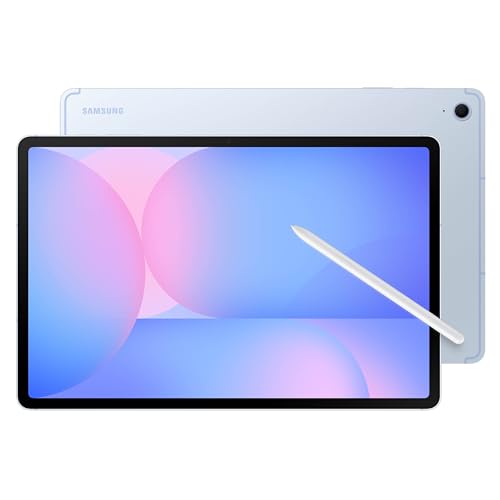
Samsung Galaxy Tab S10 FE+ — Best overall
The FE+ is the tablet for people whose work and leisure genuinely share one screen all day. At 13.1 inches its display is the largest Samsung offers in this guide, and that space changes the work first: two documents sit side by side at readable sizes, a spreadsheet shows its columns without horizontal pleading, and a video call can share the screen with the notes it is discussing. The 90Hz refresh keeps pen strokes and scrolling smooth, the Exynos 1580 handles office multitasking and mainstream entertainment without strain, and the S Pen in the box turns review-and-annotate work into a default rather than an accessory decision.
The evening shift is equally convincing. The same big screen streams films with presence, the speakers carry dialogue across a kitchen, and Samsung’s software polish — split-screen habits, a mature notes app, long update support — makes the machine feel settled rather than improvised. The IP68 rating adds a kind of freedom neither Lenovo nor HONOR offers here: the tablet can work at a poolside table, survive a spilled drink and shrug off rain on a site visit. Its limits are the midrange ones: very heavy games will want trimmed settings, and the keyboard case that turns it into a laptop substitute is a separate purchase that should be budgeted from the start.
Who should skip it? Buyers whose work is entirely browser-and-documents and whose budget is tight may find the Chromebook Duet does their specific day better for less commitment, and buyers who read for hours should at least hold the OnePlus’s page-shaped screen before deciding. But as the single answer to the most common version of this brief — documents, notes, calls, films, light games, one machine — the FE+ is the pick the rest of the list has to argue against.
- Screen: 13.1 inches, LCD panel running at 90Hz
- Chip: Exynos 1580 from Samsung
- Room for files: 128GB built in, cards accepted for more
- Weatherproofing: IP68 against water and dust
- Pen: S Pen travels in the box
- Market: US version stock
Strengths
- Largest Samsung canvas here makes split-screen work genuinely comfortable
- Included S Pen covers annotation and handwriting at no extra cost
- IP68 sealing lets it work in places the other picks should not go
Trade-offs
- Keyboard case is a separate purchase the work budget must include
- Midrange chip asks for trimmed settings in the heaviest games
- 13.1 inches is a desk-and-bag size, not a one-handed reader
There is a longevity argument for the FE+ that deserves air. Samsung’s FE line has become the brand’s value flagship in the best sense: the models receive the long update treatment, the accessories ecosystem is deep, and the midrange processor that feels merely sufficient today tends to age gracefully because it was never thermally stressed by flagship ambitions. A buyer planning three or four years with one machine — the normal expectation for a work tool — should weigh that support story as heavily as any screen measurement in this review.
Best for: professionals and students wanting one large, pen-ready tablet for the whole day. Not suited for: desks that live entirely in a browser and want the keyboard included from the start.

Lenovo Idea Tab Pro — Best for study and work
Lenovo builds this one like a study kit that happens to entertain. The 12.7-inch 3K LCD is sharp in the way documents reward — small text stays crisp at reading distance, PDFs render without the fuzz that tires eyes across a revision session — and the box includes both the pen and a folio case, so the machine is dressed for work the day it arrives. The MediaTek Dimensity 8300 keeps study multitasking fluid: a textbook beside notes, a lecture recording beside a summary, a browser’s worth of research tabs behind both. Google Gemini assistance is woven into the listing’s pitch, and for summarising readings and drafting outlines it is a genuinely useful study companion rather than a sticker feature.
Play is the supporting act and it is well cast. The big screen streams handsomely, the speakers handle films and music with more body than most study tablets manage, and the same processor that organises your coursework runs mainstream games at satisfying settings. The honest limitations are about ceiling rather than floor: 128GB of storage asks for a tidy file habit across a long degree, and Lenovo’s update cadence, while serviceable, is not the class’s most generous. Students who archive each term’s materials to a drive — a good habit in itself — will never feel either limit.
The comparison that matters is against the FE+ above. Samsung offers the larger screen, the sealing and the longer support story; Lenovo offers the sharper-feeling study display, the folio included and a kit price that leaves room in a student budget for the term’s other expenses. Neither is the other’s inferior — they are two well-aimed answers to slightly different semesters, and the reviews are written so a student can recognise their own timetable in one of them.
- Screen: 12.7 inches of 3K LCD
- Chip: Dimensity 8300 from MediaTek
- Working set: 8GB of memory beside 128GB of storage
- Bundled: the pen and a folio, both in the box
- Assistance: Google Gemini features
- Positioning: student and desk-work tablet
Strengths
- Complete study kit in one box — pen, folio and a sharp 3K screen
- Document text stays crisp through long reading sessions
- Gemini tools genuinely help summarising and outlining work
Trade-offs
- 128GB storage rewards an end-of-term archiving habit
- No water resistance for field or lab environments
- Update cadence trails Samsung’s flagship-tier commitment
One more audience should hear its name: the professional returning to study. Evening degrees, certification courses and portfolio programmes all run on exactly this machine’s strengths — readings that render sharply, lectures that play beside a notes page, a pen for the margin thoughts that become essay arguments. The Idea Tab Pro treats that second-shift student as its first-class citizen rather than as a laptop’s poor relation, and the folio in the box means it arrives looking like the serious tool the course deserves.
Best for: students and desk workers who want the working kit complete on day one. Not suited for: anyone whose files accumulate for years without an archive routine.
Samsung Galaxy Tab S9 FE+ — Best with pen included
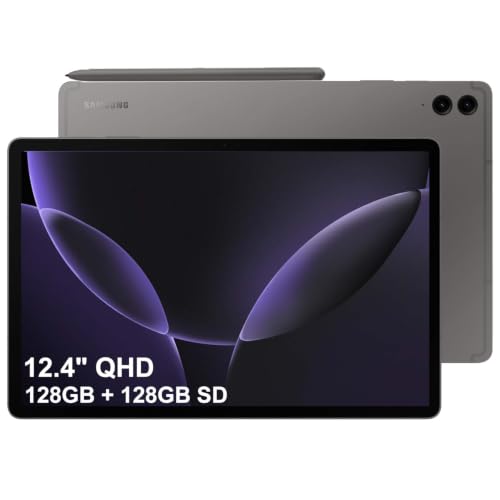
The S9 FE+ is the previous generation’s answer to the same brief, and time has improved its argument: the hardware that launched as the sensible Samsung now sits at a friendlier tier while remaining entirely capable. Its 12.4-inch screen is large enough for the split-screen working style this guide keeps recommending, the S Pen is included for the annotation and handwriting that define pen-first work, and the 256GB storage configuration in this listing doubles the base room of several rivals — a practical advantage for anyone whose work files and media library share one drive. Battery life across a working day is a known strength of this line.
Set against its FE+ successor, the differences are about refinement rather than capability: a slightly smaller screen, an earlier processor generation, and a shorter remaining runway of major updates. Set against the rest of the market, it remains the easiest recommendation for a buyer whose first requirement is a big Samsung canvas with a pen in the box and whose second is not paying flagship money for it. Teachers marking work, field staff annotating documents, and households splitting one tablet between homework and streaming will all recognise their day in this machine.
Play manners are the familiar FE virtues: a bright screen, capable speakers and enough performance for mainstream games at sensible settings. It will not chase the high-refresh gaming picks, and it was never meant to. What it offers instead is the most balanced cost-to-canvas ratio among the pen-included tablets here, from the brand whose software support gives a multi-year purchase its peace of mind.
- Display: 12.4-inch touchscreen
- Memory and storage: 8GB RAM, 256GB storage
- In the box: S Pen included
- Cameras: one front, two rear per listing
- Build: lightweight, durable design
- Generation note: previous FE generation, priced accordingly
Strengths
- Generous 256GB storage at a value position in the Samsung line
- Pen included for marking, sketching and handwritten notes
- Big-canvas split-screen work without flagship pricing
Trade-offs
- Earlier generation means fewer years of major updates ahead
- Screen and chip sit a step behind the newer FE+
- No IP68 sealing, unlike its successor
Households deserve a specific mention in this review, because the S9 FE+ is the pick most likely to be bought by one person and used by four. The pen serves the parent marking homework and the child sketching with equal indifference, the storage holds a family’s media without negotiation, and Samsung’s multi-user habits keep profiles separate. Previous-generation pricing makes that shared role easier to justify: a tablet everyone uses can cost less than the flagship one person guards. If the brief is a family workhorse with genuine work credentials, this is the name to beat.
Best for: pen-first workers and families who want Samsung’s big canvas at yesterday’s tier. Not suited for: buyers who measure value in years of software updates above all.
OnePlus Pad Go 2 — Best reading shape
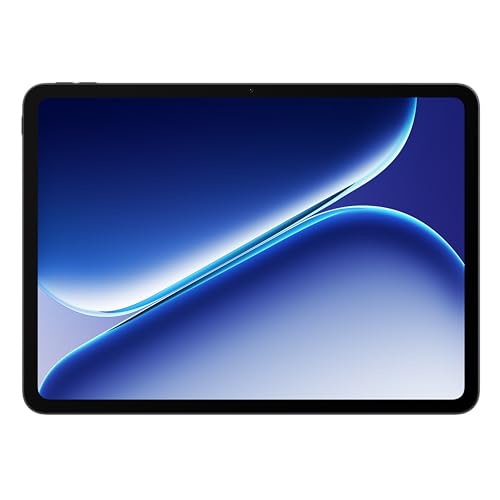
Every other tablet in this guide is shaped like a television; the Pad Go 2 is shaped like a book, and for reading-led work that difference is not cosmetic. Its 7:5 display proportion shows documents, articles, ebooks and web pages with the vertical generosity of paper — fewer scrolls per page, margins that look intentional, a portrait mode that feels designed rather than tolerated. Split the screen and the shape keeps giving: a source document above a notes page reads like an open desk book, which is why researchers, students and heavy readers keep choosing this proportion once they have tried it.
The supporting specification suits a long day’s mixed use: 8GB of memory for juggling apps, Wi-Fi 6 for busy networks, AI features for summarising and organising, and 33W SUPERVOOC fast charging that refills the battery in the time a lunch break allows — a small spec that changes behaviour, because a tablet you can top up quickly is a tablet you never ration. Performance is midrange and honestly so: documents, browsing, streaming and light games run happily, while heavy multitasking with many large apps will find the ceiling sooner than on the 16GB HONOR.
Play on the Pad Go 2 skews toward its shape’s strengths — reading, streamed video in landscape, casual games — rather than toward spec-sheet gaming. Buyers whose evenings are books, articles and a show will find it the most pleasant companion in this list. Buyers whose evenings are demanding 3D titles should take the hint from the badges and look at the larger, faster picks instead.
- Display: 7:5 ratio reading-shaped screen
- Memory: 8GB RAM
- Connectivity: Wi-Fi 6
- Charging: 33W SUPERVOOC fast charging
- Extras: OnePlus AI features
- Colour: Shadow Black
Strengths
- Book-shaped screen flatters documents and long reading like nothing else here
- Fast charging makes top-ups a lunch-break habit, not an overnight plan
- Light, focused design suits commuters and heavy readers
Trade-offs
- Midrange performance meets its ceiling in heavy multitasking sooner
- No pen in the box for handwriting-first workflows
- Widescreen films letterbox more on the taller proportion
Commuters, in particular, should try the shape before dismissing it as a quirk. On a train table or an aircraft tray, the Pad Go 2’s proportion shows a full document page where a widescreen slate shows a letterbox slice, and in portrait on a crowded carriage it reads like the paperback it replaces. Add the fast charging — a top-up at the office before the journey home — and the tablet fits travel rhythms that spec-sheet flagships ignore. Not every advantage needs a benchmark; some are measured in pages finished per journey.
Best for: readers, researchers and commuters whose work is text-shaped. Not suited for: film-first evenings or pen-first note-taking on a budget.
HONOR MagicPad3 — Best big-screen value
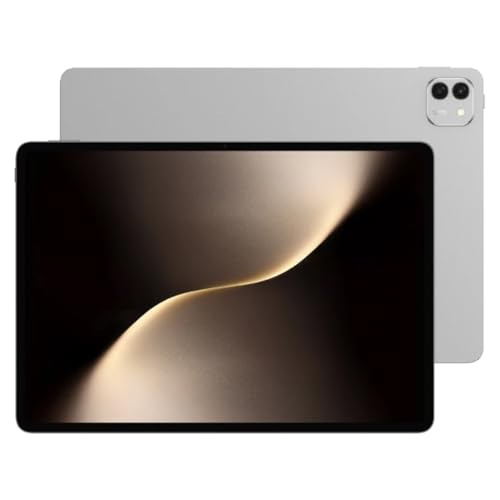
The MagicPad3’s pitch can be read off its listing in one line: the largest screen in this guide at 13.3 inches, the most memory at 16GB, and the joint-most storage at 512GB, running Android 15 — a specification set that reads like a flagship’s and is positioned as this set’s big-screen value. For work, the memory is the operative number: sixteen gigabytes is what lets a tablet hold a call, a document suite, a browser full of research and a media app in suspension without the reload shuffle that breaks concentration. For play, the canvas and storage mean films look grand and whole libraries live on the device.
HONOR’s recent tablets have built a reputation on exactly this formula — generous hardware, keen pricing, a software layer that has matured quickly — and the MagicPad3 is the formula at full size. The cautions are the ecosystem ones this guide raised for its sibling in another context: the accessory range is narrower than Samsung’s, so keyboard and pen choices require more research, and the brand’s long-term tablet update communication is less established than the biggest names’. Buyers who work mainly in apps rather than accessories will barely notice either point.
Position it honestly and it is the power user’s value pick: the tablet for the worker who keeps everything open, the student whose library is the device, the household that wants one big screen to serve as second monitor, streaming centre and games machine in rotation. If your current tablet’s failure mode is reloading apps and deleting files, the MagicPad3 is engineered at precisely your complaint.
- Display: 13.3-inch touchscreen
- Memory and storage: 16GB RAM, 512GB storage
- Platform: Android 15
- Finish: Grey
- Positioning: largest screen and heaviest multitasking spec here
- Extras: HONOR AI tablet features
Strengths
- 16GB of memory keeps a whole working day suspended without reloads
- 512GB holds work files and media libraries together comfortably
- Largest screen in the guide for documents, films and split-screen
Trade-offs
- Accessory ecosystem is thinner than Samsung’s keyboard and pen range
- Biggest and heaviest direction in a list of desk-first machines
- Update track record less established than the longest-running brands
A media-library point completes the MagicPad3’s case. Five hundred and twelve gigabytes is enough for a serious offline film and music collection beside the work files, which turns the tablet into the household’s travel entertainment vault as well as its spare work screen. Families who load one device before a long journey — films for the car, documents for the parent, games for the evening — will understand the appeal instantly. Big storage is unglamorous in a listing and beloved in a life, and this pick has more of it than anything else here.
Best for: heavy multitaskers whose tablets fail by reloading and running out of room. Not suited for: desks that depend on a deep catalogue of keyboards, pens and docks behind the tablet.

Lenovo Chromebook Duet 11 — Best laptop crossover
Here is the pick that breaks the category, deliberately. The Duet 11 is a ChromeOS 2-in-1: an 11-inch 2K touchscreen tablet with a detachable keyboard in the box, running Google’s browser-first operating system rather than Android. Its work case is stronger than that description may suggest to Android loyalists. The Chrome browser on it is the full desktop-class browser — the one web apps, school platforms, office suites and admin consoles are actually built for — and between web apps, Android apps from the Play Store and the included keyboard, a documents-and-email working day is not accommodated by this machine; it is native to it.
The hardware suits the role: the MediaTek Kompanio 838 keeps ChromeOS feeling brisk, the 2K screen is sharp for text, and the whole package converts between laptop and tablet postures in seconds, which makes it a natural for classrooms, shared workspaces and travel. Play is the honest compromise. Streaming is excellent — it is a fine little screen with a browser that every service supports — and Android games from the Play Store run within ChromeOS’s compatibility, but buyers whose play depends on specific Android-native apps or games should verify those titles before choosing this route, because ChromeOS is a different platform with its own catalogue logic.
Storage and memory are the modest numbers in this review — 128GB of eMMC and 4GB of RAM — and they are sized for the cloud-first life ChromeOS assumes: documents in Drive, media streamed, the device itself a window rather than a warehouse. Workers who live that way, especially in Google-centric schools and offices, will find the Duet the most laptop-honest tablet-priced machine in this guide. Workers who live in local files and Android apps should take any of the five slates above instead, with this guide’s blessing.
- Display: 11-inch 2K LCD touchscreen
- Platform: ChromeOS — not Android
- Processor: MediaTek Kompanio 838
- Memory and storage: 4GB RAM, 128GB eMMC
- In the box: detachable keyboard included
- Form: 2-in-1 tablet and laptop postures
Strengths
- Keyboard included turns it into a working laptop the day it arrives
- Desktop-class Chrome browser suits web-based work and school platforms
- Converts between laptop and tablet in seconds for shared spaces
Trade-offs
- ChromeOS, not Android — app compatibility follows a different catalogue
- 4GB of memory and eMMC storage assume a cloud-first workflow
- Smaller screen than the Android picks for split-screen work
Schools explain the Duet’s existence better than any advertisement. A classroom set of Duets is a set of laptops that survive being tablets — keyboards for essays, touchscreens for reading, a platform that updates itself and wipes clean between terms. Adult buyers in Google-run workplaces inherit the same logic at single-unit scale. The Duet is not the most powerful machine in this guide, nor the most entertaining; it is the most administratively honest, and for a large class of real working days that is the quality that matters by Friday.
Best for: Google-centric workers and students whose day lives in the browser. Not suited for: anyone whose essential tools are Android-native apps with no web equivalent.
Setting the Six Side by Side for a Working Week
| Tablet | Screen | Input in the box | Storage | Platform | Working style |
|---|---|---|---|---|---|
| Galaxy Tab S10 FE+ | 13.1-inch, 90Hz | S Pen | 128GB + microSD | Android | All-round professional |
| Idea Tab Pro | 12.7-inch 3K | Pen and folio | 128GB | Android | Study kit |
| Galaxy Tab S9 FE+ | 12.4-inch | S Pen | 256GB | Android | Pen-first value |
| OnePlus Pad Go 2 | 7:5 reading shape | Touch, pen route optional | Midrange tier | Android | Text and reading |
| HONOR MagicPad3 | 13.3-inch | Touch, accessory route | 512GB | Android | Heavy multitasking |
| Chromebook Duet 11 | 11-inch 2K | Detachable keyboard | 128GB eMMC | ChromeOS | Browser laptop |
The table exposes the real decision, which is about input and platform rather than screen size. Pen people have three ready-made answers at three prices. Keyboard people have one included answer and several accessory answers. Platform people have a genuine fork: Android’s app depth against ChromeOS’s browser honesty. Decide which of those three questions is yours and the table narrows to two names; the reviews then settle it on the details of your day.
What Should You Decide Before Mixing Work and Play on One Device?
Decide your input first, because it is the decision accessories cannot fully rescue later. Handwriting and annotation point to the pen-included Samsungs or the Lenovo kit; typing volume points to the Duet’s included keyboard or a budgeted keyboard case for a big Android slate; reading volume points to the OnePlus shape. Decide your platform second: list the five apps your work cannot live without and confirm each one’s home — Android app, web app or either — because that list, honestly made, chooses between the Duet and the slates more reliably than any benchmark.
Third, decide your storage philosophy. Cloud-first workers can live happily with 128GB and the Duet’s model; local-file workers should start at 256GB or take an expandable Samsung. Fourth, be honest about play: a tablet bought for work that cannot entertain will be resented, and one bought for play that cannot work will be supplemented by a laptop purchase within the year. The picks in this guide were chosen so that neither resentment is necessary at any tier — but only if the tier matches the day you actually live.
How Do You Set Up One Tablet for the Office and the Evening?
Use the tablet’s own separation tools rather than willpower. Create a work profile or a second user space where your platform supports it, put the work apps behind it, and let the personal home screen stay personal; the psychological switch at day’s end matters as much as the organisational one. Set up split-screen pairs you actually use — documents beside browser, notes beside call — as saved combinations where the software allows, so the working postures are one tap rather than a daily reconstruction. Configure notifications in two regimes: work hours, where messages surface, and evening hours, where only people do.
For the play half, organise the machine like a leisure device from the start rather than as an afterthought: streaming apps signed in, downloads pointed at expandable or plentiful storage, a reading app stocked. The most common failure of the double-life tablet is not hardware but drift — work apps colonising every screen until the tablet feels like overtime. A monthly five-minute tidy, deleting what the month did not use, keeps both lives intact. Finish the setup with charging: a cable at the desk and a cable where the evening happens, because a double-life tablet earns a double charging routine.
Which Double-Life Buying Mistakes Should You Avoid?
A related trap deserves naming separately: buying the tablet for the worker you intend to become rather than the one you are. The aspirational purchase — the huge screen for the novel, the pen for the sketchbook habit, the keyboard for the freelance career — fails quietly, because the machine serves an imaginary day while the real one goes unassisted. Audit last month, not next year’s resolutions, and let the audit hold the pen when the shortlist is written.
The first is buying screen size and forgetting input, then discovering the keyboard case costs a third of the tablet. Price the full working kit — tablet, input, case — for every candidate before comparing. The second is assuming a platform: buying the Duet for an Android-app workflow, or buying an Android slate for a job that lives in a desktop-class web console. Both machines are good; the mismatch is the mistake. The third is underbuying memory for multitasking: work-and-play means apps in suspension all day, and the difference between a tablet that reloads and one that resumes is usually RAM, which is why the MagicPad3’s 16GB is a work feature, not a luxury.
Fourth, do not let the play half be an afterthought in testing: stream one film and read one long article during the return window, because a tablet that irritates in the evening will be abandoned however it performs at noon. Fifth, beware the single-purpose bargain — a pure entertainment slate or a pure work terminal can undercut everything here and serve half your life, leaving the other half to fund a second device. The double life is the value proposition; buy for both halves or do not buy the category.
How Does a Work-and-Play Tablet Change Across a Week?
Monday tests multitasking: the inbox, the document, the call, the calendar, all before lunch. The big-memory and big-screen picks — MagicPad3, FE+, Idea Tab Pro — make Monday feel roomy; the Duet makes it feel familiar to anyone raised on laptops. Wednesday tests mobility: the commute, the meeting room, the café table, where the Pad Go 2’s shape and the S9 FE+’s balance earn their keep and the 13-inch machines ask for a proper bag. Friday tests the transition: the same device that closed the week’s work opens the weekend’s film, and the tablets that manage notifications and profiles gracefully — the Samsungs especially — make that switch feel like a change of clothes rather than a change of job.
The weekend tests honesty. A work-and-play tablet that nobody reaches for on Saturday was a work tablet with a marketing line, and the picks here were screened against exactly that: each one streams, reads or plays well enough to be chosen freely. Judge your own purchase by the same test after a month. If the tablet is being picked up for pleasure, the double life is real; if it lives in the work bag, the play half of the brief was never truly served, whatever the spec sheet promised.
What About Battery, Charging and the Commute Between the Two Lives?
A double-life tablet has the worst battery job in computing: it cannot die at 4 p.m. like a work machine or at 10 p.m. like a leisure one, because its day contains both. All six picks are sized for a full working day of mixed use, but their margins differ. The big Samsungs and the MagicPad3 carry the largest reserves and suit workers who end the day with a film rather than a charger. The Pad Go 2 answers with speed instead of size — its fast charging turns a short top-up into hours of use, which suits commuters whose day has natural pauses. The Duet sips power in the ChromeOS manner, stretching modest hardware across long school and office days.
The practical advice is behavioural. Charge where you sit, not where you remember: a cable at the desk and a cable by the sofa converts battery anxiety into a non-event for every pick here. Use the commute deliberately — downloaded documents and media cost less power than streamed ones, and a tablet that boards the train at eighty percent arrives at the evening with options. And once a month, let the battery run low before charging; not for the battery’s health, which modern systems manage themselves, but for yours — knowing your tablet’s true reserve is what turns range anxiety into a number you have already planned around.
Which of These Tablets Suits Which Kind of Worker?
The field worker — sites, clinics, classrooms, anywhere the desk is borrowed — belongs to the FE+ for its sealing and size, with the S9 FE+ as the budget-conscious route to the same pen-first style. The knowledge worker in a Google-run organisation belongs to the Duet more often than pride admits: their day is browser tabs and documents, and the included keyboard serves it without an accessory hunt. The academic — student, researcher, returning professional — belongs to the Idea Tab Pro or the Pad Go 2 depending on whether their margins are written in ink or in highlights.
The creator-administrator, the person whose work mixes documents with media, client calls with content, belongs to the MagicPad3’s memory and storage or the FE+’s polish. And the household manager — the buyer purchasing for a family’s combined homework, work and entertainment — belongs to the S9 FE+ or FE+, where the pen, the profiles and the support story protect the investment. None of these profiles is a rank ordering. They are fittings, and a tablet, like a shoe, is only ever right on the foot it was bought for.
How Do These Tablets Handle Calls, Cameras and the Hybrid Meeting?
Hybrid work made the front camera a business tool, and this set divides honestly on it. The large Android slates all handle video calls competently, with landscape-oriented cameras on the newer models framing a desk user naturally rather than from the side. The Duet’s webcam serves the same meetings through the browser with the least setup of any pick here — a ChromeOS virtue schools discovered years ago. What none of these tablets does is replace a laptop’s meeting polish entirely: microphones are good rather than broadcast, and a worker whose day is six hours of calls should budget for a headset whichever pick they choose, because ears and voices tire before batteries do.
Rear cameras matter to a narrower set of workers — scanning documents, photographing whiteboards, recording a site condition — and here the Samsungs’ camera systems and software scanning habits are the most practised, while the Duet and Pad Go 2 treat the rear camera as an occasional tool. The honest summary is that a work-and-play tablet’s cameras are for capturing information, not for photography as a craft, and all six picks clear that bar. Buyers tempted to rank this list by megapixels are solving a problem their phone already solved better.
What Does Ownership Look Like After the First Month?
The first month of any tablet is novelty; the twelfth is truth. By then the FE+ owners have usually bought the keyboard case or consciously decided against it, and the tablet has settled into a desk posture with the pen living in its slot. Idea Tab Pro owners have a term’s worth of organised notes and a folio showing honest wear. Duet owners have stopped thinking of it as a tablet at all — it is simply the small laptop — which is the deepest compliment a crossover can earn. Pad Go 2 owners have read more, measurably, than they did the year before.
MagicPad3 owners, by month twelve, have the fullest storage and the most suspended apps, and S9 FE+ owners have the household machine everyone borrows. None of these outcomes is a warning. They are what success looks like for six different fittings of the same brief, and they are why this guide resists crowning a single winner for every reader: the best work-and-play tablet is the one whose month-twelve description sounds like your life, and the reviews above were written to let you hear that description in advance.
How Should You Protect a Tablet That Works for a Living?
A work tablet is an asset with a screen, and it should be insured like one — by habit more than by policy. A case is not optional for any pick that leaves the house; the folio included with the Idea Tab Pro and the keyboard that dresses the Duet both count, while the Samsungs, HONOR and OnePlus need theirs budgeted. A screen protector is cheap dignity for pen users especially, since grit under a stylus tip is how hairline scratches are born. And a cable-and-charger audit — one set at home, one in the bag — prevents the most common work-tablet failure of all, which is not breakage but an empty battery in the wrong building.
Data protection matters more than glass. Turn on the device-finding service, set a strong unlock, and confirm your work files exist in two places — the tablet and a cloud or drive — before the tablet becomes load-bearing for your job. The double-life machine holds both your employer’s documents and your family’s photos, which makes it the worst device in the house to lose unprepared and the easiest to protect in advance. Ten minutes of setup in week one is the entire premium on that insurance.
What Is the Sensible Upgrade Path From an Older Tablet?
Most readers of this guide are replacing something, and the something teaches the lesson. If the old tablet died by storage, start your shortlist at 256GB or expandable and let the MagicPad3 and S9 FE+ argue. If it died by slowness in multitasking, memory is your spec and the same two names lead. If it died by irrelevance — a leisure slate that could not join the working day — the correction is input and platform, and the pen kits, the Duet and the keyboard-ready big screens are the upgrade that matters. If it simply died, battery exhausted by years, then any pick here restores the day, and you should buy for the life you have now rather than the one the old tablet was bought for.
Keep the old machine in service if you can: a retired tablet makes an excellent dedicated reading screen, kitchen display or child’s device, and a double-life purchase that also upgrades a second room is better value than its price suggests. The work-and-play tablet you choose will be judged against the whole household’s habits, not against a spec sheet — buy the fitting, protect it properly, and it will pay for itself in replaced devices alone.
How Do the Two Lives Share Storage, Accounts and Screen Time?
The practical politics of one device deserve a section, because they decide whether the double life feels elegant or crowded. Storage first: work files are small and media is large, so the partition that matters is not work against play but downloads against everything. Point streaming apps at expandable or plentiful storage where the pick allows it, keep the internal drive’s last fifth empty as a matter of policy, and the tablet will stay fast for both lives. Accounts second: a single sign-in for everything is convenient and fragile; the profile separation described in the setup section is what lets a tablet be handed to a child at the weekend without exposing Monday’s inbox.
Screen time is the third negotiation, and it is with yourself. A machine that holds your work will offer your work at every idle moment unless its notifications are governed, which is why this guide treats the evening notification regime as a headline setup step rather than a footnote. The tablets here all provide the tools — focus modes, profiles, per-app controls. The picks differ in how gracefully those tools are presented, with Samsung’s software the most practised and ChromeOS the most bluntly effective through its sheer separation of contexts.
Handled well, the sharing becomes the point: the document you reviewed at noon is the film you watch at eight is the book you read at ten, and the device disappears into the day. Handled carelessly, the same device is a source of low-grade friction in both directions. The hardware in this guide is uniformly capable of the elegant version; the difference is thirty minutes of setup and the honesty to decide, before purchase, which life gets the home screen.
What Should the First Fortnight With the New Tablet Prove?
Give the purchase a fortnight’s probation with three tests. The work test: one full day where the laptop stays closed, because every gap in the tablet’s working life will announce itself by 3 p.m. — the app that is not there, the file that will not open, the meeting that needs the other machine. The transition test: one evening where work ends on the tablet and play begins on it, and the question is whether the switch felt like a boundary or a blur. The travel test: one journey, bag-packed, where weight, battery and the offline library either justify themselves or do not.
A pick that passes all three is not merely adequate; it is fitted, and the fortnight is when accessories should be bought — after the tests reveal which input, case or cable your actual life is missing, not before. A pick that fails one test usually fails it fixably: a keyboard for the work gap, a profile setup for the blur, a memory card for the journey. Only a platform failure — the wrong software world entirely — is unfixable, which is why this guide spent so much of its length on that single decision.
Final Recommendation
Take the Galaxy Tab S10 FE+ as the default double life: big, pen-ready, sealed and supported. Take the Idea Tab Pro if the day is study-shaped, the S9 FE+ if it is pen-shaped and budget-aware, the Pad Go 2 if it is text-shaped, the MagicPad3 if it is everything-at-once-shaped, and the Chromebook Duet if it is browser-shaped and you want the keyboard in the box. The right answer is the one whose strengths describe your ordinary Tuesday — buy that one, set it up for both halves of the day, and let one machine quietly do the work of two. A month from now the purchase will not feel like a gadget decision at all; it will feel like the day itself got slightly easier to carry, which is the only verdict a double-life tablet is ever really bought for, and the one every pick above can earn when it is matched to the right owner.
Frequently Asked Questions
Can one tablet really replace a laptop for work?
For document, email, browser and light creative work, yes — especially the Duet with its keyboard and desktop browser, or a big Android slate with a keyboard case. For specialised desktop software, heavy spreadsheets with macros or professional development environments, a laptop remains the right tool and the tablet becomes its companion rather than its replacement.
Is the Chromebook Duet a real option in an Android tablet guide?
It is included precisely because the brief is work and play, not Android purity. ChromeOS runs many Android apps, excels at web-based work and includes its keyboard. Buyers whose essential apps are Android-only should choose one of the five Android picks; buyers whose work lives in the browser may find the Duet the most honest machine here.
How much RAM does a work-and-play tablet need?
Eight gigabytes is the comfortable floor for split-screen work with several apps in rotation. Heavy multitaskers — many tabs, documents, calls and media suspended together — will feel the benefit of the MagicPad3’s 16GB daily. The Duet’s 4GB works because ChromeOS and a cloud workflow ask less of local memory.
Does a pen actually improve work, or is it a novelty?
For annotation, marking up documents, signing, sketching ideas and handwritten notes, a pen changes the tool category of the tablet. For typing-led work it adds little, which is why this guide treats pen inclusion as a badge for some picks and keyboard inclusion as the badge for the Duet. Match the input to the work you actually produce.
How long will a work-and-play tablet realistically last?
Three to four years is the honest planning horizon for the Android picks here, with the Samsungs’ update support making the longer end credible and battery wear the usual reason for replacement rather than slowness. The Duet follows ChromeOS’s own long support tradition for education-style devices. Buyers who plan on that horizon should weight support and battery size over a single generation of processor speed, because the chip will still be adequate in year three if the software and the cell hold up.
Which pick is best for reading-heavy work like research?
The OnePlus Pad Go 2, whose 7:5 screen shows documents and articles in a page-like proportion, with the Idea Tab Pro close behind for researchers who also annotate heavily with its included pen. Both keep text crisp across long sessions; the choice is shape against pen kit.
Related Guides
Continue with our guide to tablets with keyboards for laptop-style work, our round-up of the best stylus tablets for handwritten notes, and our comparison of Chromebooks and Android tablets for students.