What's inside
- Key Takeaways
- Quick Picks
- How Did We Choose the Best Adobe Premiere Laptops for This Guide?
- What Does Premiere Pro Actually Ask of a Laptop?
- Which Machines Earned a Full Review?
- Premiere Contenders at a Glance: Silicon, Screens and Storage
- What Do Editors Most Often Get Wrong When Buying for Premiere?
- How Should You Set Up a New Laptop for Premiere on Day One?
- Final Recommendation
- Frequently Asked Questions
- How Do Camera Codecs Change the Hardware You Need?
- What Should Sit Around the Laptop in a Serious Editing Setup?
- Which of These Machines Fits Which Kind of Editor?
- Which Premiere Settings Matter More Than Another Hardware Tier?
- What Is Life Like With These Machines After the First Month?
- How Does Colour Work Change the Calculation?
- What About the Rest of a Delivery: Audio, Captions and Exports?
- Should You Wait, Buy Refurbished, or Stretch to the Next Tier?
- How Much Storage Does a Working Editor Really Burn Through?
- What Should You Do in the First Week With the New Machine?
- Can These Laptops Handle Multicam, Vertical and 360 Workflows?
- Related Guides
As an Amazon Associate I earn from qualifying purchases. This post may contain affiliate links at no extra cost to you.
gizmoverdict.com is reader-supported. When you buy through links on our site, we may earn an affiliate commission.
Where to buy: Each linked pick below points to the exact listing we verified for this guide, and the check-price link on that listing is the only honest way to see today’s figure, because creator-laptop pricing shifts with configuration sales and seasonal promotions. One listing needs a special note before anything else: the ASUS ProArt P16 at the top of this guide is configured and sold by HIDevolution, a specialist system builder, rather than shipped as a plain factory configuration, and that detail is repeated in its review so nobody mistakes it for a stock retail unit.
Choosing among the best Adobe Premiere laptops is really a decision about where your timeline spends its time waiting. Premiere Pro rewards different hardware at different moments: the processor chews through software-decoded footage and effects, the graphics card accelerates colour work, Lumetri scopes, noise reduction and most third-party plug-ins, memory decides how many applications can stay open beside the project, and storage speed decides whether scrubbing a multi-camera sequence feels like editing or like archaeology. A laptop that is brilliant at one of those jobs and weak at another will feel fast in the morning and frustrating by the afternoon.
Footage type matters more than brand loyalty here. An editor cutting 1080p wedding highlights from a single camera lives in a different world from a documentary editor wrangling long-GOP 4K clips from three mirrorless bodies, and both live far from the colourist finishing 6K raw timelines for delivery. The six machines in this guide were chosen to cover that spread honestly: a configured creator flagship, Apple’s current 16-inch professional machine, a value-minded creator model, a certified-style mobile workstation, a display-led premium laptop, and a gaming powerhouse that moonlights as an editing rig.
One habit will save every reader money: buy for the footage you actually shoot, not the footage you admire. Raw codecs, high frame rates and multi-camera work justify serious graphics hardware and generous memory. Straightforward H.264 and H.265 projects, well organised, edit smoothly on far humbler machines, and the money saved buys the external drives, backup capacity and calibrated second screen that professional work quietly depends on.
Key Takeaways
- Premiere leans on the graphics card for effects and colour, so a discrete NVIDIA GPU still earns its place in most Windows editing builds.
- Memory is the silent timeline killer: 32GB is the comfortable floor for 4K work, and 64GB suits multi-camera and After Effects round-trips.
- The ProArt P16 in this guide is a HIDevolution-configured machine, which explains its unusually generous 64GB memory and 2TB storage pairing.
- Apple’s 16-inch pick is the 2026 M5 Pro model, and its unified memory behaves differently from socketed Windows RAM, so compare behaviour, not just numbers.
- Fast internal storage matters, but project organisation — proxies, cache on a quick drive, archived media offline — matters just as much.
- Every pick here carries an OLED or high-grade colour display except the workstation, which trades spectacle for a taller productivity panel.
Quick Picks
| Pick | Badge | Why it is here |
|---|---|---|
| ASUS ProArt P16 (HIDevolution) | Best overall | A configured creator flagship pairing an RTX 5070 with 64GB of memory and a 4K OLED touch panel. |
| Apple MacBook Pro 16″ M5 Pro | Best for Mac editors | The 2026 Apple silicon flagship for editors whose plug-ins, clients and muscle memory already live in macOS. |
| MSI Creator A16 AI+ | Best value creator | An RTX 4060 and 32GB of memory in a calmer, cheaper creator chassis than the flagships around it. |
| HP ZBook Studio G11 | Best workstation | A mobile workstation with professional RTX 1000 Ada graphics and the build discipline studios buy on purpose. |
| Dell XPS 16 | Best display | A 4K OLED touchscreen machine for editors who grade on the laptop panel itself. |
| Lenovo Legion Pro 7i Gen 10 | Best gaming-rig alternative | An RTX 5080 gaming flagship whose raw graphics muscle outruns most dedicated creator laptops. |
How Did We Choose the Best Adobe Premiere Laptops for This Guide?
We started from the timeline outward. Each candidate had to hold a 4K sequence without the playhead stuttering through ordinary cuts, cross-dissolves and a Lumetri grade, because that unglamorous test is where editing days are actually spent. Machines that only shine in export benchmarks were marked down; exporting happens once per project, while playback happens thousands of times.
Graphics hardware was judged on Premiere’s real behaviour. Adobe’s Mercury Playback Engine leans on the GPU for scaling, colour and a long list of accelerated effects, and NVIDIA’s Studio drivers have a long track record in this application, which is why five of the six picks carry GeForce or RTX professional silicon. Apple’s M5 Pro earns its place through a different route — tightly integrated media engines and unified memory — and we assessed it on that basis rather than pretending the two architectures are interchangeable.
Memory and storage were treated as editing features, not spec-sheet decoration. Premiere, After Effects, Audition and a browser full of client feedback tabs coexist on real desks, so 32GB was our working floor for 4K and anything below it was excluded from the Windows picks. Storage had to be a fast NVMe drive of at least 1TB in most picks, because media cache files grow quietly and punish small drives.
Finally, we weighed the screen as a grading tool, the keyboard and ports as daily instruments, and the honesty of each listing. Where a listing described a configured machine from a named builder, we said so. Where a panel was a productivity IPS rather than an OLED, we said that too.
What Does Premiere Pro Actually Ask of a Laptop?
The honest answer is that Premiere asks for balance and punishes lopsided builds. A flagship processor paired with integrated graphics will export respectably and then crawl through a stack of GPU-accelerated effects. A strong graphics card starved of memory will play a simple timeline beautifully and collapse the moment a second application opens. Understanding which part of the program leans on which component turns spec sheets from marketing into a shopping list.
Decoding is the first load. H.264 and H.265 footage from mirrorless cameras is compressed in ways that make frame-accurate scrubbing expensive, and hardware decode support — present in modern Intel, AMD, NVIDIA and Apple silicon — is the difference between a timeline that glides and one that lurches. Editors working with such footage daily should value decode support as highly as raw core counts.
Effects and colour form the second load, and they belong mostly to the graphics card. Lumetri colour, scaling, blurs, noise reduction and most modern plug-ins run on the GPU, which is why the graphics choices in this guide skew generous. The third load is memory: every open sequence, every dynamically linked composition, every cached preview eats RAM, and when RAM runs out the whole system slows at once rather than politely.
The practical conclusion is a hierarchy. For 4K mirrorless work, secure the graphics card first, memory second, storage third and the processor fourth — the reverse of how most laptops are advertised. For 1080p work, relax all four. For raw and multi-camera work, raise all four and accept that the machine will be heavy, loud under load and expensive, because physics collects its fee either way.
Which Machines Earned a Full Review?
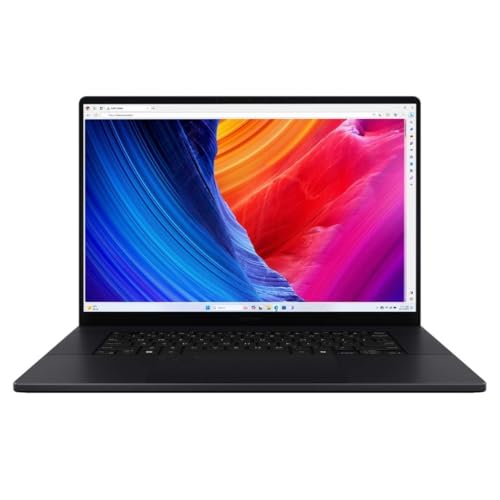
ASUS ProArt P16 (HIDevolution) — Best overall
This is the listing to read carefully before admiring. The ProArt P16 here is configured and sold by HIDevolution, a specialist builder that takes ASUS’s creator chassis and fits it out to a stated specification: in this case a Ryzen AI 9 HX 370 processor, an RTX 5070 graphics card, a very generous 64GB of LPDDR5X memory and a 2TB PCIe solid-state drive, behind a 16-inch 4K OLED touch display. Configured machines like this suit buyers who want the memory and storage fitted from day one rather than opening a new laptop with a screwdriver.
For Premiere, that memory figure is the headline act. Sixty-four gigabytes lets a 4K project, an After Effects composition, Audition and a stack of reference material coexist without the operating system quietly paging to disk, and the RTX 5070 gives Lumetri, scaling and accelerated effects a proper home. The 4K OLED panel suits editors who grade on the internal screen, delivering the deep blacks and per-pixel control that make shadow detail in log footage readable.
The buying caveat is about provenance, not performance. Because a named builder configured this unit, warranty and support conversations may involve that builder as well as the manufacturer, and the exact configuration should be checked line by line against the listing before ordering. Readers comfortable with that arrangement get one of the most completely specified creator laptops in this guide; readers who prefer a sealed factory box should look at the Dell or HP below.
- Display: 16-inch 4K OLED touch
- Processor: AMD Ryzen AI 9 HX 370
- Graphics: NVIDIA GeForce RTX 5070
- Memory: 64GB LPDDR5X
- Storage: 2TB PCIe SSD
- System: Windows 11 Pro; configured and sold by HIDevolution
Strengths
- 64GB of memory is the most in this guide, and long multi-camera timelines feel the benefit immediately.
- The 4K OLED touch panel doubles as a credible grading screen for editors without a calibrated external monitor.
- A 2TB internal drive postpones the external-storage shuffle that interrupts smaller machines mid-project.
Trade-offs
- Builder-configured provenance means support runs through HIDevolution as well as ASUS, which not every buyer wants.
- OLED panels demand sensible brightness habits on static interface elements during very long editing sessions.
- The specification is fixed by the listing, so readers wanting a different memory or storage mix must choose another configuration.
Best for: Windows editors cutting 4K mirrorless or multi-camera work who want maximum memory fitted from the start. Not suited for: buyers who insist on an untouched factory configuration with a single point of support.

Apple MacBook Pro 16″ M5 Pro — Best for Mac editors
The MacBook Pro in this guide is Apple’s 2026 16-inch model built around the M5 Pro chip, in this listing with an 18-core CPU, a 20-core GPU, 24GB of unified memory and a 1TB solid-state drive. That clarity matters, because older Pro generations circulate widely and an editor shopping on memory of the M1 era deserves to know exactly which machine is being recommended and why.
Premiere on Apple silicon is a study in integration. The media engines handle the common mirrorless codecs with an ease that makes timeline scrubbing feel almost unfair, the unified memory pool lets the graphics side draw on system memory without the copying penalties of older architectures, and the 16.2-inch Liquid Retina XDR display remains one of the finest panels fitted to any laptop for colour judgement. Battery editing on location — reviewing a day’s shoot in a hotel room, assembling a rough cut on a train — is where this machine quietly outclasses every Windows rival here.
The honest limits are architectural. Twenty-four gigabytes of unified memory is shared between system and graphics, so an editor whose Windows workstation habits assume 64GB of RAM plus separate video memory should think in terms of behaviour rather than headline numbers, and consider whether their heaviest projects fit this configuration. Expansion is also Apple’s way or no way: ports are good, internal upgrades are non-existent, and the configuration bought is the configuration kept.
- Display: 16.2-inch Liquid Retina XDR
- Chip: Apple M5 Pro, 18-core CPU and 20-core GPU
- Memory: 24GB unified memory
- Storage: 1TB SSD
- Connectivity: Wi-Fi 7; Space Black finish in this listing
- System: macOS
Strengths
- Media-engine decoding makes H.264 and H.265 timelines feel unusually light under the playhead.
- The XDR panel is a genuine grading reference, not merely a pleasant screen.
- Unplugged editing stamina lets location assembly work happen anywhere with a table.
Trade-offs
- Unified memory cannot be upgraded later, so the configuration decision is permanent.
- Some Windows-first plug-in ecosystems and studio pipelines still treat macOS as the second citizen.
- Twenty-four gigabytes will feel tight to editors running huge multi-camera projects beside After Effects.
Best for: editors already invested in macOS who cut camera-native 4K and value the screen and battery as much as the chip. Not suited for: buyers who need socketed upgrades or whose plug-in stack is Windows-only.

MSI Creator A16 AI+ — Best value creator
MSI’s Creator A16 AI+ is the pragmatist’s entry in this line-up: a Ryzen AI 9-365 processor, an RTX 4060 graphics card, 32GB of LPDDR5x memory and a 1TB NVMe drive behind a 16-inch QHD+ panel refreshing at 240Hz. Nothing in that list is exotic, and that is precisely the point — it is the specification an experienced editor would assemble for 4K work if asked to spend sensibly rather than impressively.
The RTX 4060 deserves a fair hearing. Premiere’s accelerated effects and colour tools run happily on it, hardware decoding covers the common camera codecs, and the gap to the RTX 5070 above shows up mainly in heavy noise reduction, stacked effects and export queues rather than in everyday cutting. Paired with 32GB of memory — the figure we regard as the comfortable 4K floor — the MSI handles the centre of professional editing work without drama.
Where the saving shows is in the trimmings. The panel is a fast QHD+ screen rather than a 4K OLED, so editors grading critically will budget for an external monitor sooner with this machine than with the ProArt or Dell. The chassis speaks MSI’s gaming dialect more quietly than a Legion but more loudly than a ZBook. Neither point diminishes the value argument; both simply define who should make it.
- Display: 16-inch QHD+ 240Hz
- Processor: AMD Ryzen AI 9-365
- Graphics: NVIDIA GeForce RTX 4060
- Memory: 32GB LPDDR5x
- Storage: 1TB NVMe SSD
- System: Windows 11 Home; Wi-Fi 7
Strengths
- The core editing specification — RTX graphics, 32GB memory, fast storage — arrives without flagship pricing pressure.
- A 240Hz QHD+ panel makes timeline scrubbing and general interface motion feel fluid.
- MSI’s creator tuning keeps the machine’s manners calmer than its gaming siblings.
Trade-offs
- Colour-critical graders will want an external reference monitor earlier than OLED owners will.
- Windows 11 Home lacks some management features that studio IT policies prefer.
- The RTX 4060 shows its limits sooner under stacked noise reduction and heavy effect chains.
Best for: freelance editors and small studios cutting 4K who would rather fund storage and a monitor than a flagship badge. Not suited for: colourists grading deliverables on the internal panel alone.

HP ZBook Studio G11 — Best workstation
The ZBook Studio G11 is bought with a different part of the brain. Its listing pairs an Intel Ultra 7 165H processor with 32GB of DDR5 memory, a 1TB drive and NVIDIA RTX 1000 Ada professional graphics with 6GB of video memory, in a 16-inch chassis with an FHD+ panel, dual Thunderbolt 4 ports, an infrared camera and Wi-Fi 7. On paper the graphics card looks modest beside gaming silicon; in a studio, its professional drivers and certification culture are the entire argument.
Workstation graphics earn their keep through validation rather than spectacle. Post houses and engineering-adjacent video teams value drivers tested against professional applications, predictable behaviour across updates, and a manufacturer support structure built for business fleets. An editor embedding Premiere work inside a larger managed environment — shared storage, standardised images, an IT department that answers tickets — will find this HP the easiest machine in the guide to justify on a purchase order.
The compromises are visible ones. The FHD+ panel is a productivity screen, entirely serviceable for cutting and interface work but not the grading surface the OLED picks provide, and the RTX 1000 Ada will be outpaced by the GeForce machines on effect-heavy timelines. Buyers should therefore see the ZBook as the stability pick: the laptop least likely to surprise a studio, chosen knowingly rather than by default.
- Display: 16-inch FHD+
- Processor: Intel Core Ultra 7 165H
- Graphics: NVIDIA RTX 1000 Ada, 6GB
- Memory: 32GB DDR5
- Storage: 1TB SSD
- Ports and extras: 2x Thunderbolt 4, IR camera, Wi-Fi 7, Windows 11 Pro
Strengths
- Professional graphics drivers suit managed studio environments where predictability beats peak speed.
- The workstation build and business support structure fit fleet purchasing and IT standardisation.
- Dual Thunderbolt 4 ports keep fast docks, storage and displays on single-cable connections.
Trade-offs
- The FHD+ panel is the least grading-worthy screen in this guide.
- Effect-heavy timelines will feel the RTX 1000 Ada’s limits before the GeForce picks feel theirs.
- Its talents are wasted on a solo editor who never touches managed infrastructure.
Best for: editors inside studios, agencies and engineering firms where driver validation and support contracts matter. Not suited for: solo colourists who grade on the laptop screen or chase maximum effects speed.

Dell XPS 16 — Best display
Dell’s XPS 16 in this listing is the aesthete’s route into serious editing: an Intel Ultra 9 285H processor, an RTX 5060 graphics card, 32GB of memory and a 1TB drive, fronted by a 16.3-inch 4K OLED touchscreen refreshing at 120Hz. Three Thunderbolt 4 ports, a 1080p infrared webcam, a fingerprint reader, a backlit keyboard and Wi-Fi 7 complete a specification that reads like a premium ultraportable that wandered into a grading suite and decided to stay.
The screen justifies the machine’s place here. Editors who deliver to online platforms and grade on the internal panel will appreciate OLED’s per-pixel blacks when judging shadow detail in log and HDR material, while the 4K resolution keeps fine interface text and full-resolution previews honest. The RTX 5060 sits a generation above the MSI’s card and handles Premiere’s accelerated workload with comfortable headroom for the colour and effects work this display invites.
Restraint is required in two places. OLED ownership still rewards modest habits — varied content, sensible brightness, a screensaver that actually engages — during the long static-interface hours editing imposes. And the XPS line’s minimalist port philosophy means the Thunderbolt ports carry everything, so a good dock or hub belongs in the same shopping basket as the laptop itself.
- Display: 16.3-inch 4K OLED touch, 120Hz
- Processor: Intel Core Ultra 9 285H
- Graphics: NVIDIA GeForce RTX 5060
- Memory: 32GB
- Storage: 1TB SSD
- Ports and extras: 3x Thunderbolt 4, 1080p IR webcam, fingerprint reader, backlit keyboard, Wi-Fi 7
Strengths
- The 4K OLED touchscreen is the most seductive grading surface among the Windows picks.
- RTX 5060 graphics give Lumetri and accelerated effects a generation of headroom over value picks.
- The premium chassis and input devices suit editors who live on the machine all day.
Trade-offs
- Thunderbolt-only connectivity makes a dock a practical necessity rather than an accessory.
- OLED care habits are a real, if modest, ownership tax during static editing work.
- Touch input is a bonus for interface work, not a substitute for a proper control surface.
Best for: editors who grade on the internal screen and want a premium Windows machine with current-generation graphics. Not suited for: port-hoarders who keep legacy peripherals permanently attached.

Lenovo Legion Pro 7i Gen 10 — Best gaming-rig alternative
Every editing guide benefits from one machine that ignores the creator category entirely. Lenovo’s Legion Pro 7i Gen 10 arrives with an Intel Core Ultra 9 275HX processor, an RTX 5080 graphics card, 32GB of memory, a 1TB fifth-generation NVMe drive and a 16-inch WQXGA OLED panel running at 240Hz with 500 nits of brightness. Its listing text is untidy about memory — mentioning both 16GB and 32GB — so buyers should confirm the fitted figure on the listing before ordering; the configuration we assessed is the 32GB one.
For Premiere, the RTX 5080 is the story. Noise reduction, AI-assisted tools, stacked accelerated effects and fast exports all scale with graphics muscle, and this card out-muscles every creator-branded pick in the guide. Editors who also render in After Effects, dabble in 3D titles, or simply want an export queue to empty itself will feel the difference in the least glamorous and most valuable place: waiting time removed from the working week.
The gaming DNA brings gaming compromises. The chassis is built for cooling rather than boardroom subtlety, the fans announce themselves under sustained load, and battery editing is a theoretical feature rather than a working method. None of that matters at a desk with headphones on; all of it matters in a quiet client suite. Choose this machine as the desktop replacement it wants to be.
- Display: 16-inch WQXGA OLED, 240Hz, 500 nits
- Processor: Intel Core Ultra 9 275HX, 24 cores
- Graphics: NVIDIA GeForce RTX 5080
- Memory: 32GB (confirm fitted figure on the listing)
- Storage: 1TB Gen 5 NVMe SSD
- System: Windows 11 Pro
Strengths
- The RTX 5080 delivers the strongest effects, noise-reduction and export performance in this guide.
- A 240Hz OLED panel makes both timeline work and high-frame-rate review feel immediate.
- Gaming-grade cooling sustains performance through long renders that throttle thinner machines.
Trade-offs
- Size, weight and fan noise mark it as a desk machine, not a location companion.
- The listing’s memory wording is inconsistent, so the configuration must be verified before purchase.
- Battery life under editing load is a courtesy feature rather than a plan.
Best for: desk-bound editors and hybrid creator-gamers who want maximum graphics power per machine. Not suited for: location editors or anyone presenting work in quiet rooms straight from the laptop.
Premiere Contenders at a Glance: Silicon, Screens and Storage
| Pick | Graphics | Memory | Display | Editing character |
|---|---|---|---|---|
| ASUS ProArt P16 (HIDevolution) | RTX 5070 | 64GB | 16″ 4K OLED touch | Configured memory flagship |
| Apple MacBook Pro 16″ M5 Pro | M5 Pro GPU, 20-core | 24GB unified | 16.2″ Liquid Retina XDR | Integrated Mac efficiency |
| MSI Creator A16 AI+ | RTX 4060 | 32GB | 16″ QHD+ 240Hz | Sensible 4K value |
| HP ZBook Studio G11 | RTX 1000 Ada 6GB | 32GB | 16″ FHD+ | Validated studio stability |
| Dell XPS 16 | RTX 5060 | 32GB | 16.3″ 4K OLED 120Hz | Grading-screen premium |
| Lenovo Legion Pro 7i Gen 10 | RTX 5080 | 32GB | 16″ WQXGA OLED 240Hz | Maximum graphics muscle |
Read the table by workload rather than by rank. The ProArt’s memory lead matters most to multi-camera and multi-application editors; the Legion’s graphics lead matters most to effects and noise-reduction users; the MacBook’s integration matters most to anyone editing away from a desk. The ZBook’s row looks quietest and is deliberately so — its value sits in driver validation, which no specification column can display.
What Do Editors Most Often Get Wrong When Buying for Premiere?
The classic error is buying the processor and starving everything else. Premiere’s marketing-friendly benchmarks flatter CPUs, yet the daily pain points — effect stacks, colour work, previews, multi-application juggling — live in the graphics card and memory. A balanced machine with a mid-range processor will out-edit a flagship processor paired with weak graphics on almost every real timeline.
A second error is ignoring the codec. Editors who shoot H.265 on mirrorless bodies sometimes buy as if they were cutting ProRes, then blame the laptop for decode stutter that a proxy workflow would have erased in an afternoon. Know your footage, test a representative clip before committing, and budget an hour to build proxies into the ingest routine for long-GOP material.
Third comes storage theatre: a huge internal drive bought instead of a backup system. Internal capacity is convenience; the second copy on an external drive is survival. Every machine here should be paired with a backup habit from its first project, because drives fail with the same indifference whether they sit in a flagship or a budget chassis.
Finally, readers overlook the screen until the first client notes arrive. If deliverables are judged on the laptop panel, that panel is a professional instrument and deserves flagship money. If a calibrated external monitor already anchors the desk, the internal screen can step down a tier and free budget for memory or graphics instead.
How Should You Set Up a New Laptop for Premiere on Day One?
Begin with storage discipline. Create a fixed folder structure for projects, media, cache and exports, point Premiere’s media cache at the fastest internal drive, and decide where archives will live before the first deadline decides for you. Editors who organise on day one rarely reorganise in year two; editors who do not, reorganise under pressure.
Next, update deliberately. Install the current Studio driver on NVIDIA machines rather than the gaming branch, bring Premiere itself current, then freeze the combination during a paid project unless a specific bug forces a change. Mid-project updates are how stable systems become anecdotes.
Then build the unglamorous assets: project templates with your sequence settings, Lumetri presets for your common cameras, export presets for every delivery channel you serve, and a proxy preset matched to your main codec. An afternoon of templates returns hours across every subsequent project, on any of the six machines above.
Final Recommendation
Most Windows editors should start at the ProArt P16, provided the HIDevolution configuration route suits them, because its 64GB of memory and RTX 5070 answer the two loads Premiere presses hardest. Mac editors should buy the M5 Pro MacBook Pro without a backward glance at older generations circulating at tempting discounts. The MSI is the honest value answer, the ZBook the managed-studio answer, the Dell the grading-screen answer, and the Legion the answer for anyone whose effects stack laughs at creator branding. Whichever machine lands on the desk, pair it with a backup drive and a proxy habit, and let the next argument with your laptop be about the edit itself — the cut you are still arguing with at midnight is the only bottleneck worth keeping.
Frequently Asked Questions
How much RAM does Premiere Pro genuinely need for 4K editing?
Thirty-two gigabytes is the comfortable working figure for 4K timelines, covering Premiere alongside a browser, reference material and light After Effects work. Sixty-four gigabytes earns its place for multi-camera projects, long-form timelines and heavy dynamic-link use. Sixteen gigabytes remains workable for 1080p with disciplined application habits.
Does Premiere Pro prefer NVIDIA or Apple silicon?
It rewards both through different mechanisms. NVIDIA graphics bring CUDA acceleration, mature Studio drivers and broad plug-in support on Windows. Apple silicon brings integrated media engines and unified memory that make camera codecs feel light. Choose by operating system and plug-in ecosystem first; both routes edit professionally.
Should I use proxies even on a powerful laptop?
Yes, for long-GOP H.264 and H.265 footage, high frame rates and multi-camera work. Proxies convert decode effort into storage, which is the cheapest trade in editing. Even the strongest machine here benefits when scrubbing six angles of mirrorless footage.
Is a 4K screen necessary for editing 4K video?
No. Premiere’s program monitor scales happily, and many editors prefer QHD+ for interface room. A 4K panel helps when judging fine detail and grading critically on the internal screen, which is why the OLED picks suit colour-led workflows, but it is a grading decision rather than an editing requirement.
Can a gaming laptop really replace a creator laptop for editing?
The Legion Pro 7i in this guide demonstrates that it can, provided the desk-bound compromises — size, fan noise, battery stamina — fit your working pattern. Graphics performance, cooling and memory matter more to Premiere than the category printed on the box.
Do I need a separate laptop for After Effects work?
No, but After Effects changes the weighting. Ram previews devour memory, so the ProArt’s 64GB configuration and the Legion’s graphics strength serve motion work best, while the 24GB MacBook configuration asks for shorter preview habits and more frequent purging. Editors who split their week evenly between cutting and motion design should buy memory first and treat the processor tier as the flexible part of the budget.
What should I check on the ProArt P16 listing before ordering?
Confirm the full HIDevolution configuration line by line — processor, RTX 5070, 64GB memory, 2TB storage — and understand that the machine is configured and sold by that builder, so support conversations may involve them alongside ASUS.
How Do Camera Codecs Change the Hardware You Need?
Two editors can both say they cut 4K and need machines a full tier apart, because resolution is the least informative word in the sentence. The codec — the compression scheme the camera used to squeeze the scene onto a card — decides how much work each frame demands. Intraframe formats such as ProRes and DNx record every frame more or less completely, producing enormous files that a modest processor can decode almost casually, provided storage keeps up. Long-GOP formats such as the H.264 and H.265 variants from mirrorless and action cameras record differences between frames, producing small files that demand serious decoding effort for every scrub, reverse-play and frame-step.
This is why hardware decode support deserves a line in every buying conversation. Modern Intel processors with Quick Sync, recent AMD and NVIDIA graphics, and Apple’s media engines all accelerate the common long-GOP codecs, but the depth of that support varies by codec flavour, bit depth and chroma subsampling. The notorious case is 10-bit 4:2:2 H.265 from popular mirrorless bodies, a format that has historically lacked hardware decoding on some platforms and reduced strong laptops to slideshow playback. An editor committed to a camera that shoots it should either verify decode support for that exact format, transcode on ingest, or build proxies as a non-negotiable routine — and should weight the picks in this guide accordingly, favouring the machines whose platforms handle their footage natively.
Raw formats redraw the map again. BRAW, REDCODE and CinemaDNG shift the burden toward the graphics card and storage bandwidth, reward the Legion’s RTX 5080 and the ProArt’s memory, and punish thin ultraportables regardless of their processor badges. High-frame-rate material multiplies everything: a 120fps clip conformed to a 24fps timeline still decodes five frames for every frame shown. The practical exercise is unglamorous and decisive — take sixty seconds of your worst real footage, the clip that made your current machine stumble, and judge every candidate by how it treats that file rather than by how it treats a showroom demo.
What Should Sit Around the Laptop in a Serious Editing Setup?
The laptop is the engine of an editing desk, not the whole vehicle. The first companion purchase should be backup: an external drive at least twice the size of your active project load, written to nightly, plus a second copy — cloud or a drive that lives elsewhere — for anything a client would pay to reshoot. Every pick in this guide becomes a better professional tool the day that habit starts, and no internal specification substitutes for it.
The second companion is a screen strategy. Editors grading deliverables on the internal panel should choose among the OLED and XDR picks here and still learn their panel’s behaviour against a known reference. Editors with a calibrated external monitor can route budget toward memory and graphics instead, connecting through the Thunderbolt ports that feature across this line-up; a single-cable dock that carries the monitor, storage, audio interface and Ethernet turns any of these laptops into a desk workstation and back into a portable in seconds.
Audio deserves a sentence because clients hear it before they see it. Laptop speakers across this guide are fine for checking sync and dialogue presence; they are not mixing tools. A modest pair of headphones you know well will reveal more about a soundtrack than any speaker specification, and timeline decisions made on them travel better between rooms. Likewise, a comfortable external keyboard and a mouse or pen tablet chosen for your hands will outlast several laptops — buy those once, buy them well, and let the laptop budget concentrate on silicon, memory and the panel.
Which of These Machines Fits Which Kind of Editor?
Start with the wedding and events editor, whose week is long-GOP 4K, multi-camera ceremonies and same-week turnaround. Decode support and memory dominate that life: the ProArt P16’s 64GB and RTX 5070 swallow three-angle ceremonies, the MacBook Pro’s media engines make location rough-cuts painless, and either machine repays its cost in evenings returned. The MSI serves the same work at a gentler budget with proxies used more willingly.
The commercial and social editor lives in shorter timelines, heavier effects templates and faster delivery cycles. Graphics acceleration and screen quality share the crown there, which points to the Dell XPS 16 for its grading-grade OLED or the Legion Pro 7i when template stacks and noise reduction fill every sequence. The documentary editor, guarding terabytes across months, should weight storage expansion, Thunderbolt count and sheer reliability — the ProArt’s 2TB start, the ZBook’s managed manners, and a backup discipline that borders on superstition.
The student and the career-changer should resist buying the machine for the job they hope to have in five years. The MSI Creator covers professional learning, portfolio work and early freelance years without trapping capital that courses, storage and a decent monitor need today. Skills compound faster than hardware depreciates; the editor who cuts daily on a sensible machine will outgrow it honestly, knowing exactly which specification their own footage has outrun — and that knowledge is the real buying guide.
Which Premiere Settings Matter More Than Another Hardware Tier?
Before spending up a tier, an editor should audit the settings that cost nothing. Playback resolution is the first: cutting at half or quarter resolution in the program monitor, then returning to full quality for colour judgement and export, transforms how modest hardware feels without touching the final output. The second is the media cache location — cache files stranded on a nearly full system drive throttle everything, while a roomy fast drive keeps previews fluid. Renderer choice is the third: confirm the project is actually using GPU acceleration rather than software-only mode, a silent misconfiguration that has made expensive laptops feel broken in more than one edit suite.
Sequence settings deserve equal suspicion. A timeline whose settings mismatch the footage forces constant background conforming; a timeline built from the clip itself starts clean. Effects order matters too, because stacking GPU-accelerated colour after non-accelerated legacy effects can push work back onto the processor. None of this is glamorous, and all of it is free, which is precisely why it belongs in a buying guide: the difference between the MSI in this guide, well configured, and a flagship badly configured is smaller than the difference their listings suggest. Buy hardware for the loads settings cannot fix — decode support, memory ceilings, graphics muscle for the effects you genuinely stack — and let configuration handle the rest.
What Is Life Like With These Machines After the First Month?
Ownership separates these six more honestly than benchmarks do. Creator laptops live under sustained load, and sustained load is a thermal lifestyle: the Legion’s gaming cooling treats a three-hour render as a mild afternoon, while thinner premium machines trade a little sustained speed for silence and elegance. Editors rendering overnight will barely notice either way; editors exporting between client calls in the same room will develop strong preferences quickly, and headphones only partly excuse a laptop that sounds like it is preparing for departure.
Battery behaviour splits the field along a bright line. The MacBook Pro is the only pick here designed to edit seriously away from a socket, and location shooters should weigh that accordingly. The Windows machines treat battery as safe transport between outlets during heavy work, whatever their light-use figures suggest, because Premiere under load draws power at a rate no current laptop battery sustains gracefully. Weight tells a similar story in the bag: the gap between the XPS and the Legion is the gap between forgetting your laptop is with you and planning your day around it.
Support and longevity complete the picture. The ZBook’s business support structure, the ProArt’s builder relationship through HIDevolution, and Apple’s retail footprint each represent a different answer to the question every professional eventually asks at the worst possible moment: who fixes this, and how fast? A laptop bought for income should be chosen partly as a service arrangement, and readers in a hurry on a deadline should price that answer as honestly as they price the graphics card.
How Does Colour Work Change the Calculation?
Colour is where editing laptops stop being interchangeable. A timeline can be cut on almost anything in this guide, but a grade is judged on the panel in front of the editor, and panels differ in gamut coverage, brightness behaviour and factory calibration in ways that reach the delivered file. The OLED picks — ProArt, XPS and Legion — render deep shadow detail with per-pixel precision, which flatters log footage and HDR deliverables, while the MacBook’s XDR panel adds reference-mode discipline that colour-led editors trust. The ZBook’s FHD+ screen and the MSI’s QHD+ panel are honest cutting screens that ask for an external reference before final colour decisions on client work.
Workflow habits matter as much as panel pedigree. Work in a dim, consistent room, because a display judged beside a sunny window is a different display by afternoon. Keep brightness at a fixed, moderate level rather than chasing the room. Learn your panel against known footage — skin tones you have delivered before, a chart you trust — and check finals on the platform’s typical screen, which for most online work is a phone. Editors who build those habits extract professional colour from the mid-priced picks here; editors who skip them can mistrust even the XDR panel into bad decisions.
What About the Rest of a Delivery: Audio, Captions and Exports?
A finished edit is more than a timeline that plays. Audio passes through loudness targets, caption files must be generated, checked and timed, and exports must be encoded, uploaded, verified and archived — each stage taxing the machine differently. Speech-to-text captioning leans on the processor and, in current versions, on the machine’s AI acceleration, which quietly favours the newer silicon in this line-up. Loudness analysis and normalisation are light work, but they happen at deadline hour, when a laptop already busy exporting resents every extra task.
Export strategy is a hardware decision in disguise. Hardware encoding produces delivery files quickly and slightly differently from software encoding at the same settings; many editors hardware-encode review files for speed and software-encode final masters for control. Queue discipline helps either way: batch exports to run while you caption, caption while you upload, and verify the uploaded file rather than the local one, because platforms recompress everything and the audience never sees your master. The machines here all handle this endgame competently; the faster graphics and larger memories simply compress the waiting between stages, which is where deadline stress actually lives.
Should You Wait, Buy Refurbished, or Stretch to the Next Tier?
Every laptop guide owes readers a straight answer about timing. Creator line-ups refresh on a yearly rhythm, and last-generation machines often remain excellent editors after their successors launch — the honest reason older MacBook Pro generations circulate so widely. Buying the outgoing model at a genuine discount can be the smartest purchase in this entire category, provided the configuration is right: memory and storage, which cannot change later, matter more than the badge of the newest chip.
Refurbished and renewed routes deserve the same clear eyes. A manufacturer-refurbished workstation like the ZBook class, with warranty attached, suits professional buyers well. What this guide will not do is point at a specific renewed listing and call it new, or recommend stretching a budget past the point where storage, backup and a monitor go unfunded. The tier above is always faster; the project funded properly is always better. Decide the footage, decide the panel, fund the ecosystem around the machine, and the laptop choice usually narrows itself to one or two names in the table above.
How Much Storage Does a Working Editor Really Burn Through?
Storage arithmetic humbles new editors quickly. An hour of 4K mirrorless footage can occupy tens of gigabytes before a single render exists; a wedding weekend multiplies that by cameras and days; previews, cache files and exports then grow on top like weather. The 1TB drives fitted to most picks here are working space, not archives, and the ProArt’s 2TB simply buys a longer runway before the same discipline applies. Treat internal storage as the project’s stage — current work only, moved off when the curtain falls — and external drives as the warehouse behind it.
Speed placement matters as much as capacity. Program and operating system on the internal drive, active media on the fastest available storage, cache on the internal drive where room allows, and exports written to a different device from the media when deadlines stack up. Thunderbolt ports across this line-up make fast external SSDs a genuine extension of the machine rather than a compromise, which is why a slightly smaller internal drive paired with a fast external is often the smarter professional spend. What cannot be compromised is the second copy: storage is cheap, reshoots are not, and clients remember the editor who lost footage long after they forget the one who delivered a day late.
What Should You Do in the First Week With the New Machine?
Resist the urge to christen a new laptop with a paying deadline. Spend the first days loading it deliberately: install Premiere and your plug-ins, import a familiar finished project, and render the export you have rendered before, so anomalies announce themselves against a known baseline. Test your actual camera footage at your actual sequence settings, build the proxy preset, and watch the machine’s temperatures and fan behaviour through a long export while there is still time to exchange a unit that misbehaves.
Then set the habits that protect the next three years. Enable automatic project backups to a location that is not the internal drive, decide the update policy — current, but never mid-project — and record the configuration, serial details and warranty route somewhere outside the laptop itself. Photograph the listing page of a configured machine such as the HIDevolution ProArt for your records. A week spent this way feels slow and saves, conservatively, one disaster per year of the machine’s working life.
Can These Laptops Handle Multicam, Vertical and 360 Workflows?
Multi-camera editing is the stress test that rearranges this guide’s order. A four-angle ceremony or podcast switches the burden to simultaneous decoding, and the machines answer differently: the ProArt’s memory depth keeps angles cached and responsive, the MacBook’s media engines decode multiple streams with unusual grace, and the Legion’s graphics headroom covers angle stacks wrapped in colour and effects. Editors cutting multicam weekly should weight those three, build proxies for the angles as routine, and treat the value picks as single-camera machines that can visit multicam rather than live there.
Vertical and social deliverables ask something subtler: not power, but iteration speed. A vertical reframe, three caption passes and five export variants reward a machine that wakes instantly, previews without rendering and encodes review files in moments — qualities spread evenly across this line-up, which is why social-first editors can safely buy the MSI and spend the difference on lighting. Immersive and 360 work sits at the opposite pole, stitching and reorienting enormous frames in ways that flatter the strongest graphics here and punish everything else. Know which of these workflows is your Tuesday rather than your someday, and the table above stops being a ranking and becomes a map.
One last piece of housekeeping applies to whichever name wins: keep the machine’s intake vents clear, edit on a hard surface rather than a bed or sofa, and treat a laptop stand as editing equipment rather than furniture. Sustained rendering turns small thermal kindnesses into measurable speed, and the cheapest performance upgrade available to any pick in this guide is simply letting it breathe. A stand also raises the internal screen toward eye level, which quietly improves posture through the long colour sessions these OLED and XDR panels invite, and pairs naturally with the external keyboard most desk editors already own.
Related Guides
Editors building a wider desk will also want our guide to the best laptops for data science and machine learning work, and anyone cutting on location should read our roundup of dual-screen laptops for portable second monitors before deciding how much screen one bag can carry.



[…] still at school will recognise the earlier stage in our homeschooling laptop guide for families learning at home; those revising after dark should see which backlit keyboards suit late-night study sessions; and […]