What's inside
- Key Takeaways
- Quick Picks
- How We Chose These Picks
- What Is the Real Difference Between a 2TB Drive and a 1TB Plus 1TB Bundle?
- Which Kinds of Files Actually Eat Two Terabytes?
- What Does the Full Lineup Look Like in One Table?
- How Much of Two Terabytes Will You Actually Use?
- Should Your Second Terabyte Live in the Cloud Instead?
- How Do You Set Up a High-Capacity Laptop So the Space Stays Useful?
- Which Storage Mistakes Do Buyers Make Most Often?
- How Long Does a 2TB SSD Last, and How Do You Know It Is Healthy?
- Final Recommendation
- Frequently Asked Questions
- Related Guides
As an Amazon Associate I earn from qualifying purchases. This post may contain affiliate links at no extra cost to you.
gizmoverdict.com is reader-supported. When you buy through links on our site, we may earn an affiliate commission.
Where to buy: all six laptops below are sold on Amazon in the configurations named in the tables, and this guide reads their storage claims the suspicious way — drive by drive — because in this category the headline number and the hardware under it are sometimes two different things.
People shopping for the best 2tb laptops have usually hit the same wall: the red storage warning. A drive that was cavernous at purchase becomes a negotiation — delete a game or keep the video project, archive the photo library or stop shooting raw, clear the downloads folder for the fourth time this month. Two terabytes is the capacity where that negotiation mostly ends for a laptop’s working life, which is why this class exists and why it attracts a particular kind of listing trickery that this guide exists to expose.
Here is the trick, stated plainly at the top where it belongs. On some listings, “2TB Storage” does not mean a 2TB solid-state drive inside the machine. It means a 1TB internal drive plus a 1TB external docking-station drive bundled in the box. The arithmetic adds up and the experience does not: the bundled terabyte lives on your desk, travels only if you pack it, delivers its files at external-drive convenience rather than internal-drive invisibility, and disappears from your available space the moment you close the lid and leave. Two of the six picks in this guide are exactly that kind of bundle — the HP Omen 17 configuration and the MSI Modern 15 H configuration — and we name them as bundles in their headings, their spec boxes and the comparison table, because a buyer deserves to know which kind of 2TB they are paying for before the box arrives. The other four picks carry a genuine single 2TB SSD inside the chassis: the HP OmniBook 5 with Core Ultra 9, the Dell 16 Plus, the LG gram Pro 16 and the HP 17 with Ryzen 5.
Neither kind is automatically the wrong purchase, and this guide refuses the lazy conclusion that bundles are scams. A bundle machine can be a rational buy when its processor, graphics and price are right and your second terabyte is archive material — finished projects, a media library, backups — that genuinely lives at a desk. The Omen 17 in particular pairs its bundle with the only gaming graphics card in this guide, which makes it the right answer for a specific buyer. But the two kinds must never be confused, because their daily behavior differs in ways that matter: internal capacity is always present, always fast and always available to the operating system for installs and caches, while bundled capacity is a peripheral with a cable and a home address. Read the pick headings with that distinction in mind and the rest of this guide is straightforward.
Who needs two terabytes at all? Video editors, obviously, whose project folders measure in hundreds of gigabytes. Photographers with a decade of raw files. Gamers whose libraries have outgrown the delete-to-install ritual — a single modern title can claim a noticeable fraction of a small drive. Data workers with local datasets, virtual machines or model files. And increasingly, ordinary heavy users whose phones back up at full resolution, whose work involves large shared drives synced locally, and who simply refuse to think about storage ever again. If your usage is documents and cloud streaming, two terabytes is a luxury you will never meet; the honest guide says so and points you at cheaper machines elsewhere. If your usage matches the list above, read on — and check the storage line of every pick twice.
Key Takeaways
- Four picks here carry a real, single 2TB SSD inside the laptop: the HP OmniBook 5 (Core Ultra 9), Dell 16 Plus, LG gram Pro 16 and HP 17 (Ryzen 5 7430U).
- Two picks reach “2TB” as a bundle — a 1TB internal drive plus a 1TB docking-station drive: the HP Omen 17 and the MSI Modern 15 H. Their headings and spec boxes say so openly.
- Internal capacity is always with you and always fast; bundled capacity lives on the desk and suits archives, backups and media libraries rather than installs.
- The Omen 17 is the gamer’s route into this class, the gram Pro 16 the traveler’s, the Dell 16 Plus the Copilot+ all-rounder, and the HP 17 the big-screen value route.
- Every pick pairs its storage with 32GB of memory, because large files and small memory are a miserable combination.
- Before buying any laptop advertised by total storage, find the line that describes the internal drive alone — that number is your real capacity on the road.
Quick Picks
| Pick | Badge | Why it earns its place |
|---|---|---|
| HP OmniBook 5 16-inch, Core Ultra 9, 2TB SSD | Best all-round real 2TB | A genuine internal 2TB drive, flagship Intel silicon and a 16-inch touchscreen in one business-creator package. |
| Dell 16 Plus, Core Ultra 9 288V, 2TB SSD | Best Copilot+ 2TB | Real 2TB storage with the efficiency-focused Lunar Lake platform, fingerprint sign-in and Wi-Fi 7. |
| LG gram Pro 16, Ultra 7 355, 2TB SSD | Best portable real 2TB | The full two terabytes in LG’s thin-and-light 16-inch chassis, with a 2560×1600 touchscreen. |
| HP 17-inch, Ryzen 5 7430U, 2TB SSD | Best big-screen value | A real 2TB drive behind a 17.3-inch display, aimed at desk-based work that wants room more than speed. |
| HP Omen 17, RTX 5060 — 1TB SSD + 1TB dock bundle | Best for gamers, honestly labeled | The only discrete graphics card here, on a 144Hz 17.3-inch panel; storage is a bundle, and this guide treats that as a feature to choose knowingly. |
| MSI Modern 15 H — 1TB SSD + 1TB dock bundle | Best desk-archive bundle | A strong Intel Core 9 processor and a touchscreen, with the second terabyte living in the bundled docking set. |
How We Chose These Picks
Storage verification came before everything else, because this category’s defining hazard is a headline that outruns the hardware. For each candidate we read the full listing configuration rather than the title’s total, and classified the machine as a true 2TB laptop only when the internal drive itself is 2TB. Bundle machines were not excluded — they were labeled, in the pick headings themselves, so that no reader can finish this guide confused about which kind they bought. Any listing whose storage description could not be resolved into an internal-drive figure at all was dropped entirely; ambiguity is the trick’s natural habitat, and we declined to house it.
After storage came the sanity checks. Thirty-two gigabytes of memory in every pick, because a two-terabyte drive implies large working files and large working files punish small memory. Processors appropriate to the machine’s stated purpose, from the Omen’s gaming silicon to the HP 17’s humbler Ryzen, each judged against its own job rather than a single ladder. Screens large enough to make use of big local libraries — nothing here is smaller than fifteen inches — and a spread of shapes: a gaming 17, a creator 16, a traveler’s 16, a desk-bound 17 and a 15.6-inch business machine. The result is not six versions of one laptop. It is six different answers to the question of what a very large drive is for.
What Is the Real Difference Between a 2TB Drive and a 1TB Plus 1TB Bundle?
Everything about where your files can be. An internal 2TB SSD is a single volume the operating system treats as home: applications install there, game libraries live there, caches and project files sprawl there, and all of it is present at full internal speed whether you are at your desk, on a train or in a client meeting. The space is also fungible — a 700GB video project and a 900GB photo archive coexist without negotiation about which drive holds what. For anyone whose large files are working files, this is the only configuration that truly delivers what the search term promises.
A bundle splits the world in two. The internal terabyte behaves exactly like any 1TB laptop: fine for the system, applications and current projects. The bundled terabyte is an external drive in a docking-station form, which means it has a location — your desk — and a connection ritual, and speeds and convenience set by that arrangement. Used knowingly, it is a sensible archive: finished work, the media library, the backup target, the raw footage after the edit ships. Used unknowingly, because a buyer read “2TB Storage” and stopped reading, it is a nasty surprise on the first trip away from the desk, when the laptop reports half the expected space and the missing half is sitting at home next to the monitor.
There is a subtler difference in how the two arrangements age. Internal drives are covered by the laptop’s warranty and failure domain; a bundled external drive is a separate device with its own cable to lose and its own health to monitor, and its data is only as safe as your backup discipline for peripherals. None of this makes bundles dishonest — the listings in this guide describe the split in their own text, which is how we classified them — but it makes the bundle a desk accessory purchase wearing a capacity costume. Buy it for what it is and it can be good value. Buy it believing it is something else and it cannot be.
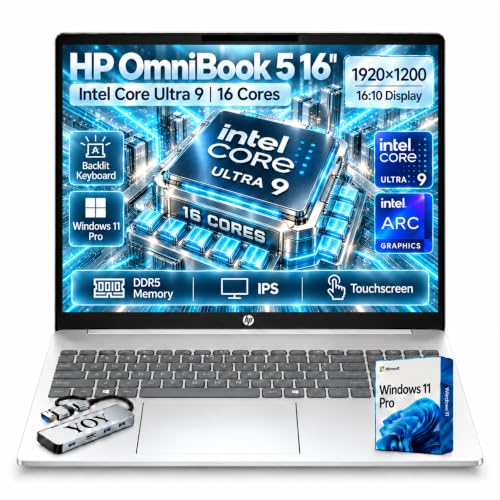
HP OmniBook 5 16-inch, Core Ultra 9 — Best all-round real 2TB
Start the roll call with the straightforward flagship: a 16-inch touchscreen laptop whose 2TB solid-state drive is a single internal unit, paired with Intel’s Core Ultra 9 and thirty-two gigabytes of DDR5 memory. The OmniBook 5 is HP’s creator-and-business line wearing its serious face — a 2K IPS touch panel, support for multi-monitor desk setups through its USB-C and HDMI connections, and Windows 11 Pro underneath. For the buyer whose large drive exists to hold a working life — video projects, photo archives, virtual machines, a decade of documents — this is the pick that asks the fewest follow-up questions. The capacity is real, the memory matches it, and the processor sits at the top of Intel’s mainstream range.
Daily behavior is what flagship specifications are supposed to produce and here do: big files open without the pause that teaches you to dread them, a browser carrying research beside a video timeline beside a call does not push the machine into audible effort, and the touchscreen earns its place when reviewing footage or marking up documents at the desk. The Arc graphics are integrated, so set gaming expectations accordingly — this is a creator and professional machine, not a games rig, and the Omen below exists for that tribe. The 16-inch size is the honest cost: it is a desk-and-carry laptop rather than a forget-it’s-there travel companion, and the gram Pro further down this page is the answer for buyers who need the same capacity in a lighter frame. Within its intended life — serious work, huge local files, a proper desk — the OmniBook is the most complete real-2TB package in this guide.
- Internal storage: one 2TB SSD fitted inside the chassis, no bundle arithmetic involved
- Panel: 16-inch 2K FHD+ IPS touchscreen
- Processor: Intel Core Ultra 9, with Arc 140T graphics
- Memory: 32GB DDR5
- Desk connections: USB-C with DisplayPort, HDMI, multi-monitor support per the listing
- Operating system: Windows 11 Pro
Strengths
- Genuine internal 2TB capacity with flagship memory and processor to match it.
- The touchscreen and 2K panel suit creators reviewing detailed work at a desk.
- Pro operating system and multi-monitor support fit a permanent workstation setup.
Trade-offs
- Integrated graphics cap gaming and GPU-accelerated rendering ambitions.
- Sixteen inches of laptop is a commitment in a carry bag.
- Flagship configuration money, in a guide where humbler machines also hold two terabytes.
Best for: creators and professionals whose local files are their livelihood and whose desk is their base. Not suited for: gamers, or frequent travelers who count every ounce.
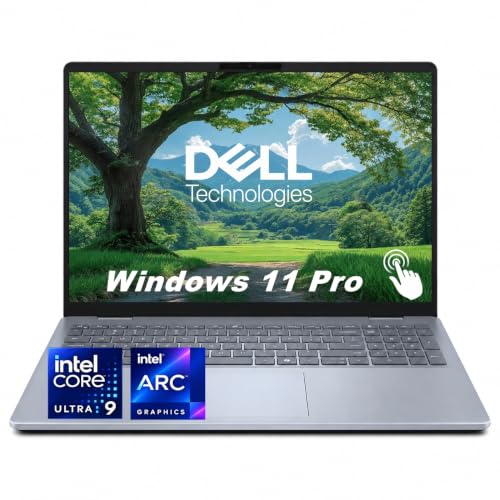
Dell 16 Plus, Core Ultra 9 288V — Best Copilot+ 2TB
Dell’s entry takes the same honest route — a real internal 2TB SSD — and wraps it in the most efficiency-minded platform in this guide. The Core Ultra 9 288V belongs to Intel’s Lunar Lake generation, designed around battery life and integrated capability: the Arc 140V graphics are the strongest integrated option Intel has shipped in this class, the Copilot+ designation brings the current Windows AI features with a proper neural processor behind them, and the whole machine is tuned to sip power in the way that makes a 16-inch laptop plausible as a travel tool rather than a desk anchor. Thirty-two gigabytes of memory completes a configuration with no obvious weak line.
The details around the edges suit a working professional: a fingerprint reader in the power button’s neighborhood for painless sign-in, a 1080p webcam that does not embarrass you on client calls, Wi-Fi 7 and Bluetooth 5.3 for current-generation connectivity, and a backlit keyboard for the late session. The 16-inch FHD+ panel at 1920 by 1200 is the one place the Dell is outshone within this guide — the OmniBook’s 2K touch panel and the gram Pro’s 2560 by 1600 screen both resolve finer — and buyers who stare at detailed imagery all day should weigh that. For everyone else, the Dell’s proposition is balance: real capacity, real efficiency, a trusted business chassis lineage, and nothing in the configuration that needs an asterisk. In a category built on asterisks, that cleanliness is the selling point.
- Internal storage: the full two terabytes live on one internal SSD
- Panel: 16-inch FHD+ (1920×1200), backlit keyboard
- Processor: Intel Core Ultra 9 288V, Arc 140V graphics, Copilot+ AI PC
- Memory: 32GB RAM
- Sign-in and camera: fingerprint reader, 1080p webcam
- Connectivity: Wi-Fi 7 and Bluetooth 5.3 per the listing; Windows 11 Pro
Strengths
- Lunar Lake efficiency makes a big, capacious laptop genuinely portable in battery terms.
- The configuration is asterisk-free: real drive, ample memory, current connectivity.
- Fingerprint sign-in and a proper webcam suit professional daily use.
Trade-offs
- The FHD+ panel is out-resolved by two rivals in this very guide.
- No touchscreen, which desk reviewers and annotators may miss.
- Integrated graphics, again, set the ceiling for gaming ambitions.
Best for: professionals who travel with a huge local library and want Copilot+-era efficiency. Not suited for: pixel-counters, touch annotators, or gamers.

LG gram Pro 16 (2026) — Best portable real 2TB
The gram Pro performs the family’s signature magic trick at a larger scale: a 16-inch laptop with a genuine internal 2TB SSD, thirty-two gigabytes of fast memory and a 2560 by 1600 IPS touchscreen, in a chassis that remains thin and light enough to make colleagues ask what is wrong with their own laptops. LG’s gram line has spent years proving that large screens do not have to mean large carrying weight, and this Pro configuration extends the argument to large storage. For the photographer who edits on location, the consultant whose dataset travels, or the executive whose entire archive must be on the machine rather than in a cloud they do not control, this is the pick that removes the usual compromise.
The specification around the drive supports the premise: an Intel Ultra 7 355 from the current AI generation, memory running at high speed, Wi-Fi 7, and a Copilot+ platform for the current Windows features. The WQXGA touchscreen is the finest panel among the real-2TB picks for detailed visual work, and the bundled accessories in the listing sweeten a premium package. The honest cautions are the gram family’s standing ones: the light chassis flexes more than a milled business shell when handled roughly, and the price reflects a machine that refuses to compromise on the three things — size, weight, capacity — that usually trade against each other. Battery claims from the maker should be read as ceilings, as always, but the gram efficiency reputation is earned. If your two terabytes need to fly, this is how they fly.
- Internal storage: a genuine 2TB internal drive, not a desk accessory
- Panel: 16-inch WQXGA (2560×1600) IPS touchscreen
- Processor: Intel Core Ultra 7 355 AI CPU
- Memory: 32GB RAM at 7500 MHz per the listing
- Connectivity: Wi-Fi 7, Copilot+ PC, Windows 11 Pro
- Kit note: sold with accessories per the listing — check the box contents against your needs
Strengths
- Real 2TB capacity and a high-resolution touchscreen in the lightest 16-inch class here.
- The panel is the best in this guide for photo and visual work on the move.
- Current-generation connectivity and platform features throughout.
Trade-offs
- Premium pricing for the no-compromise combination.
- The featherweight chassis rewards careful handling more than its business rivals do.
- Integrated graphics keep gaming in the casual lane.
Best for: mobile creators and consultants whose archive must travel inside the laptop. Not suited for: rough-handling field work, or buyers watching a strict budget.

HP 17-inch, Ryzen 5 7430U — Best big-screen value
Not every two terabytes needs to be fast — some of them need to be big, cheap to run and attached to a screen you can read across a desk. The HP 17 is the value expression of the real-2TB idea: a genuine single 2TB SSD, thirty-two gigabytes of memory, and a 17.3-inch Full HD anti-glare display, driven by an AMD Ryzen 5 7430U that is several generations from the flagship conversation and entirely unbothered by the work this machine is for. Think of the home office that archives a family’s photo and video history, the small business whose records and media live locally, the student desk where screen room matters more than frame rates. In those lives, capacity and display size are the product, and this HP delivers both without charging for silicon that would sit idle.
The supporting cast fits the brief: Wi-Fi 6 and Bluetooth 5.4, fast-charge support for the battery, Windows 11 Pro with the AI Copilot features, and an anti-glare finish on the big panel that suits bright rooms better than the glossy screens elsewhere in this guide. Set expectations with care in two places. The Ryzen 5 7430U is an efficiency-era chip that will feel its age in heavy multitasking or creative rendering, whatever the generous memory does to help; and a 17.3-inch laptop is furniture — it moves between rooms, not between cities. Buy it as the capacious desk machine it is, at the value end of the real-2TB shelf, and it is one of the most rational purchases in this guide. Buy it expecting a portable powerhouse and you have misread it completely.
- Internal storage: a lone internal SSD holding the complete 2TB
- Panel: 17.3-inch FHD anti-glare display
- Processor: AMD Ryzen 5 7430U
- Memory: 32GB RAM
- Connectivity and power: Wi-Fi 6, Bluetooth 5.4, fast charge per the listing
- Operating system: Windows 11 Pro
Strengths
- The roomiest screen in this guide paired with genuine internal 2TB capacity.
- Anti-glare panel and Pro operating system suit a bright home office.
- Value positioning: the money goes to storage and size, not unused performance.
Trade-offs
- The older Ryzen 5 is the weakest processor in this guide by a clear margin.
- Seventeen inches is a desk fixture, not a travel companion.
- Integrated graphics and a 1080p-class panel cap creative and gaming ambitions.
Best for: home offices and archivists who want maximum screen and storage per purchase. Not suited for: travelers, gamers, or anyone whose workload is processor-heavy.

HP Omen 17, RTX 5060 — Bundle storage, real gaming power
Now the first bundle, labeled as one from its heading onward: this Omen 17’s advertised two terabytes consist of a 1TB internal SSD plus a 1TB docking-station drive in the box. Read that sentence, accept it, and what remains is the most powerful gaming machine in this guide by a distance — an NVIDIA GeForce RTX 5060, an AMD Ryzen AI 9 365, thirty-two gigabytes of memory and a 17.3-inch Full HD panel refreshing at 144Hz. Game libraries are the single most common reason home users run out of storage, and a gaming laptop is precisely where the bundle arrangement stings least and helps most when used knowingly: current titles install on the fast internal drive, while the finished games, the captured footage and the media archive live on the dock drive at the desk where gaming actually happens.
The discipline this pick demands is library management. Keep the internal terabyte for the operating system, launchers and the games in active rotation; treat the dock drive as the vault. Players who already think of their library that way will find the arrangement painless and the machine’s performance genuine — the RTX 5060 is a real discrete GPU with the frame rates and features that integrated graphics in this guide cannot approach, and the big, fast panel shows them properly. Players who install everything everywhere and travel with their laptop will feel the bundle’s limit on the first trip, when half the advertised capacity is at home. Windows 11 Pro and the Omen line’s gaming-focused cooling and keyboard complete a package that is excellent at its job. Just buy it as a 1TB gaming laptop with a useful desk vault included, because that is the truthful description, and on that description it earns its place here.
- Storage, stated exactly: 1TB internal SSD + 1TB docking-station drive — a bundle, not a single 2TB drive
- Panel: 17.3-inch FHD 144Hz display
- Graphics: NVIDIA GeForce RTX 5060 — the only discrete GPU in this guide
- Processor: AMD Ryzen AI 9 365
- Memory: 32GB RAM
- Operating system: Windows 11 Pro; backlit keyboard per the listing
Strengths
- Real gaming performance from a discrete RTX GPU and a 144Hz panel.
- The dock drive suits game archives and captured footage at a fixed desk.
- Strong processor and memory give the machine a life beyond gaming.
Trade-offs
- Half the advertised storage stays at the desk — traveling capacity is one terabyte.
- A 17-inch gaming chassis is the heaviest style of machine in this guide.
- The bundle’s value depends entirely on a library discipline some players will not keep.
Best for: desk-based gamers who rotate a few active titles and archive the rest. Not suited for: travelers, or players who want their whole library everywhere they go.

MSI Modern 15 H — Bundle storage, strong desk processor
The second bundle pairs the same storage arrangement — a 1TB internal SSD plus a 1TB docking-station set — with a very different machine: a 15.6-inch Full HD touchscreen business laptop built around Intel’s Core 9 270H, a high-performance processor that outmuscles most of this guide on raw CPU work. The Modern 15 H is aimed at the desk-bound professional whose second terabyte is genuinely an archive: client records, completed project trees, a media library for the office, the backup target that sits connected all day. For that buyer, the bundle is not a compromise at all — external archive storage that arrives in the box, matched to a fast machine, is a coherent product, and the touchscreen adds the review-and-annotate convenience that desk professionals quietly use constantly.
Hold the configuration to the same honesty standard as the Omen. The internal drive is one terabyte, and if your working files alone exceed that, the machine’s premise fails before the processor’s speed can save it. Memory is a generous thirty-two gigabytes, though of the older DDR4 type, and the webcam is a basic 720p unit that frequent video callers will want to supplement. Wi-Fi 6E connectivity is current, and the Modern line’s restrained black design fits a client-facing office. Read as “a fast 15.6-inch touchscreen laptop with a terabyte inside and a terabyte of desk archive included,” this is a sensible, even shrewd purchase. Read as “a 2TB laptop,” it is the misunderstanding this entire guide was written to prevent — which is why its heading, its table row and this review all describe the split in plain words.
- Storage, stated exactly: 1TB internal SSD + 1TB docking-station set — a bundle, not a single 2TB drive
- Panel: 15.6-inch FHD touchscreen
- Processor: Intel Core 9 270H — the strongest raw CPU here
- Memory: 32GB DDR4
- Camera and connectivity: 720p HD webcam, Wi-Fi 6E per the listing
- Operating system: Windows 11; backlit keyboard
Strengths
- Serious processor performance for CPU-bound desk work.
- The bundled archive drive arrives matched and ready for records and backups.
- Touchscreen and professional styling suit client-facing office use.
Trade-offs
- Internal capacity is one terabyte; the second terabyte does not travel.
- The 720p webcam is the weakest here for a video-call-heavy job.
- DDR4 memory, while ample, is a generation behind the DDR5 machines in this guide.
Best for: desk professionals whose overflow storage is archive material that lives in one place. Not suited for: anyone whose active working files alone exceed a terabyte.
Which Kinds of Files Actually Eat Two Terabytes?
It helps to know the appetites, because they differ by an order of magnitude and your own mix decides whether this category is necessity or luxury. Video is the hungriest: a single project shot in 4K can carry hundreds of gigabytes of raw footage before a single edit is made, and editors keep the raw material until long after delivery because clients return. Photographers accumulate more slowly but permanently — a raw file is a small thing, a decade of them is not, and photo libraries are the classic example of an archive that its owner also browses weekly, which is why photographers split so evenly between this guide’s real-drive and bundle camps. Games are the spikiest consumer: individual modern titles can each claim a tenth of a terabyte or more, so a library of twenty current games is a storage strategy, not a folder.
Then come the professional quiet consumers. Virtual machines and container images multiply invisibly — each one a full operating system pretending to be a file — and developers who run several environments locally can watch half a terabyte vanish into infrastructure. Local AI work in 2026 belongs on the list too: model files and datasets are measured in tens of gigabytes apiece and are useless streamed from a slow connection, which is one reason the high-memory, high-capacity configurations in this guide exist. Music producers with sample libraries, architects with texture and model archives, researchers with instrument data — the pattern repeats. Against all that, the document-and-browser life genuinely fits in a quarter of this capacity with room to spare. The category is not about status. It is about whether your files, honestly inventoried, are the kind that grow teeth.
One more appetite deserves naming because it ambushes families rather than professionals: the household archive. The laptop that becomes the family vault — every phone backup at full resolution, the scanned documents, the children’s school projects, the video of every birthday — fills steadily and is noticed only when it is full, usually during an attempt to back up a new phone. The HP 17 in this guide exists for exactly that household, and its value is that the vault role was chosen deliberately, at a sensible price, rather than discovered on an undersized machine bought for something else.
What Does the Full Lineup Look Like in One Table?
| Model | Internal drive | Total as advertised | Panel | Processor |
|---|---|---|---|---|
| HP OmniBook 5 16 | 2TB SSD — real | 2TB | 16″ 2K touch | Core Ultra 9 |
| Dell 16 Plus | 2TB SSD — real | 2TB | 16″ FHD+ | Core Ultra 9 288V |
| LG gram Pro 16 | 2TB SSD — real | 2TB | 16″ WQXGA touch | Ultra 7 355 |
| HP 17 (Ryzen 5) | 2TB SSD — real | 2TB | 17.3″ FHD | Ryzen 5 7430U |
| HP Omen 17 | 1TB SSD + 1TB dock | 2TB bundle | 17.3″ FHD 144Hz | Ryzen AI 9 365 + RTX 5060 |
| MSI Modern 15 H | 1TB SSD + 1TB dock set | 2TB bundle | 15.6″ FHD touch | Core 9 270H |
The “internal drive” column is the one to shop by. It is the capacity that exists in a hotel room, on a train and at a client’s site. The advertised total is the capacity that exists at your desk. This guide’s four real-2TB picks make those two numbers the same; the two bundles split them, openly, and their value depends on how much of your digital life is desk-shaped.
How Much of Two Terabytes Will You Actually Use?
Do the audit before the purchase, because capacity bought in a panic is often capacity misjudged. Add up your current drive’s contents by kind rather than by total. Operating system and applications are the fixed floor every laptop carries. Then come the working files — the projects, datasets and libraries in active use — which are the portion that must live on the internal drive whatever you buy. Then the archive: finished work, old photos, downloaded media, the installers and images you keep out of caution. Most users who perform this audit discover a split personality: perhaps six or seven hundred gigabytes of genuine working material wrapped in another terabyte of archive. That discovery maps directly onto this guide. Working set above a terabyte means a real-2TB pick, full stop. Working set comfortably below it, with a desk-bound archive, means the bundles enter the conversation honestly.
Growth is the other half of the audit. Storage fills at the rate your life produces files, and the producers are predictable: phone photos and video at modern resolutions, game installs that grow with every generation, creative projects whose raw material dwarfs their outputs. A drive that is seventy percent full at purchase is a drive with an eighteen-month fuse for a heavy user. The comfort of two real terabytes is not the space itself but the removal of storage from your decision-making — no delete-to-install, no archive shuffle before a trip, no warning dialog during a render. Buy the capacity that makes the topic boring, in whichever of this guide’s two honest forms matches where your files actually live.
If the audit leaves you exactly on the boundary — a working set hovering near a terabyte, growing slowly — choose the real drive and do not look back. Boundary cases drift upward over a machine’s life, never downward, and the price difference between the honest forms of this category is smaller than the cost of discovering, in year two, that your laptop’s true capacity was the smaller number. The bundles earn their keep when the split is structural and permanent, not when it is a hope that your files will stay small.
Should Your Second Terabyte Live in the Cloud Instead?
The obvious rival to every machine in this guide is not another laptop; it is a storage subscription. Cloud capacity rents by the month, follows you to any device, survives the theft of the laptop and removes the backup question for the files it holds. For documents, photos in managed libraries and collaborative work, it is frequently the right answer, and this guide’s own school and business recommendations elsewhere assume it. The case for local terabytes rests on the files the cloud handles badly: very large working files that must open instantly and save constantly, libraries used where connectivity is slow or metered, datasets under privacy or client obligations that forbid third-party storage, and game installs, which are effectively local-only by design. Editors working with hundreds of gigabytes of footage feel the difference in their first hour; a document worker may never feel it at all.
The mature answer for most heavy users is layered rather than either/or: working files local on a real drive, archive split between a local copy and a cloud copy, and the irreplaceable material existing in at least two places that are not the same desk. Read the six picks again through that lens and their roles clarify — the real-2TB machines are for people whose working layer is itself enormous, the bundles are a pre-assembled version of the layered answer for desk workers, and the cloud remains the off-site half of the backup story for both. What the cloud cannot do is make a 512GB laptop feel roomy to a video editor, and what a 2TB drive cannot do is survive a house fire. Buy each for its half of the job.
How Do You Set Up a High-Capacity Laptop So the Space Stays Useful?
On a real-2TB machine, resist the urge to partition the drive into fussy compartments; a single volume with a disciplined folder structure — active projects, archive, media, virtual machines — stays flexible as proportions change, and modern operating systems manage one large volume gracefully. Turn on the built-in backup to an external drive or network location from the first week, because two terabytes of un-backed-up files is not an archive, it is a single point of failure with a large capacity. If you bought a bundle machine, set the split up deliberately on day one: internal drive for system, applications and active work; dock drive for the archive and the backup target; and a written note to yourself about what lives where, because six months later you will not remember and the confusion is how files get lost.
Whichever form you bought, adopt two maintenance habits. Keep at least a tenth of the internal drive free — solid-state drives slow and wear faster when run completely full, and the operating system needs room for updates and caches. And run a storage review once a quarter, sorting by size, deleting the installers and duplicates that accumulate silently, and moving genuinely finished projects to the archive tier if you have one. The goal of this guide’s entire category is a laptop whose storage you never think about; these small rituals are what keep that promise true in year three as well as week one.
Which Storage Mistakes Do Buyers Make Most Often?
The defining mistake of this category is reading the total and skipping the composition — buying a bundle while picturing a single drive, then discovering the truth at an airport. It is preventable in thirty seconds by finding the internal-drive line in any listing, and this guide has now told you three times because the industry will not. The second mistake is the mirror image: dismissing bundles entirely and overpaying for internal capacity that will hold nothing but archives, when a desk-based buyer could have spent the difference on the Omen’s graphics card or the MSI’s processor. Both errors come from shopping the headline instead of the file audit.
Two quieter mistakes follow. Buyers of big drives often neglect backup precisely because the drive feels infinite, until a failure or a theft converts “everything I have” into “everything I had” — capacity is not redundancy, ever. And upgraders sometimes buy a capacious machine with an eye to swapping the drive later, without checking whether the model even opens or whether its storage is a standard replaceable module; if future expansion matters to you, verify the service manual before purchase, not after. Storage is the least glamorous specification in a laptop and the one whose mistakes are hardest to undo, which is why this category rewards slow reading more than any other in this batch.
A final mistake is subtler and happens after a correct purchase: filling a large drive with an unexamined copy of the old machine. Migrating everything — the decade of downloads, the three abandoned project structures, the duplicates of duplicates — imports the old clutter into the new room and starts the capacity clock at sixty percent. A big-drive purchase is the one natural moment to decide what your files actually are: migrate the working set deliberately, archive the rest to its tier, and let the obsolete residue go. Owners who do this describe the new machine as feeling fast for years, and the reason is not the hardware. It is that they can find things, the drive breathes, and the two terabytes they bought are spent on their life rather than on its sediment.
How Long Does a 2TB SSD Last, and How Do You Know It Is Healthy?
Solid-state drives wear by writing, not by reading, and they are rated in terabytes written over their service life. A two-terabyte drive carries a generous endurance rating simply by being large — wear spreads across more cells — and for the workloads in this guide, from editing to gaming to archives, a quality internal SSD should outlast the laptop around it by years. The practical enemies are not use but conditions: sustained heat inside a dusty chassis, and the habit of running any SSD completely full, which forces its controller to work harder for every write. The quarterly storage review recommended above is therefore not tidiness for its own sake; keeping a tenth of the drive free is a longevity measure, and the free space costs you nothing you were using.
Health checking is built into the tools you already have. Windows exposes drive health through its storage settings and the drive maker’s own utilities report wear percentage and temperature history in plain terms; a wear figure that climbs a few percent a year is a healthy drive living a normal life, while sudden changes, disappearing capacity or a machine that begins pausing on file operations are early warnings to back up first and investigate second. Bundle owners should extend the same courtesy to the dock drive, which is a separate device with its own health story and, too often, no backup of its own because it was mentally filed as “the backup.” An archive that exists in exactly one place is not an archive; it is a hope. The layered arrangement described in the cloud section — local working copy, local or dock archive, cloud copy of the irreplaceable — is what turns two terabytes from a large risk into a durable system.
Final Recommendation
Two quick portraits before the verdict. A wedding videographer whose season produces a terabyte of footage before autumn: her working set is enormous and mobile, so her answer is a real drive — the gram Pro if the work travels weekly, the OmniBook if it mostly happens at a studio desk. A household whose patriarch has declared himself keeper of thirty years of family photos and videos: his archive is vast, stationary and browsed on a big screen, so the HP 17’s honest capacity at a desk is the rational buy, and even the MSI bundle would serve his overflow. Same headline number, opposite correct machines — the audit, not the advertisement, decides.
Let your file audit cast the deciding vote. If your working files — the ones that must be with you, at full speed, everywhere — exceed a terabyte or soon will, choose among the four honest internal drives: the OmniBook 5 for the complete creator package, the Dell 16 Plus for efficiency and balance, the gram Pro 16 for capacity that travels light, and the HP 17 for maximum screen and storage value at a desk. If your working set is modest and your overflow is an archive that lives in one room, the two bundles stop being traps and become tools: the Omen 17 for the gamer whose vault is a game library, the Modern 15 H for the professional whose vault is records. The only indefensible purchase in this category is the uninformed one — two terabytes is a wonderful amount of room, but only when you know, before the box arrives, exactly where those terabytes physically are. Run the audit tonight, on the machine you already own: sort the drive by folder size, separate the working set from the archive, and let those two honest numbers choose between the four real drives and the two labeled bundles above. It is a ten-minute exercise that this entire category’s marketing hopes you will skip.
Frequently Asked Questions
Is a bundled 1TB plus 1TB the same as a 2TB drive?
No, and the difference is location. A single internal 2TB SSD is present at full speed everywhere the laptop goes, and the operating system treats it as one home for installs, projects and caches. A bundle gives you a 1TB laptop plus a 1TB external drive that lives at your desk: useful for archives, backups and media libraries, absent on every trip. Both arrangements appear in this guide, labeled, because each suits a different buyer’s file habits — but they are not interchangeable, and listings should always be read down to the internal-drive line.
Who genuinely needs two terabytes in a laptop?
Video editors, photographers with large raw archives, gamers with big libraries, data workers with local datasets or virtual machines, and anyone whose synced work folders have grown past a terabyte. Documents-and-cloud users do not need it and should not pay for it. The audit in this guide — working files versus archive — tells you which group you are in more reliably than any advertisement can.
Can I upgrade a 1TB laptop to 2TB later instead?
Sometimes. Many larger laptops use a standard replaceable SSD module, and some offer a second slot; others are sealed or use storage that is impractical to change. If an upgrade path matters to your plan, confirm it in the model’s service documentation before buying, and remember that a bundle machine’s internal drive obeys the same rules. Buying the capacity you need at purchase remains the surer route for most people.
Does a bigger SSD make a laptop faster?
Not in the way a processor or memory does. A larger drive of the same class performs much like a smaller one when both have room to breathe; the speed benefit of capacity is indirect — a drive kept well below full maintains its performance and lifespan better than one run at the brim. Buy two terabytes for room and peace of mind, and keep a tenth of it empty to preserve both.
Should gamers choose the Omen bundle or save for a real 2TB gaming laptop?
Desk-based gamers who rotate a handful of active titles will rarely feel the bundle’s limit, and the Omen’s RTX graphics and 144Hz panel deliver the experience that actually defines gaming. Players who travel with a large library, or who resent managing installs, should treat internal capacity as part of the gaming specification and look at real-2TB machines, accepting the higher cost as the price of a library that is always entirely present.
Do bundle drives slow the laptop down?
The internal drive in a bundle machine performs like any other internal drive of its class, so the laptop itself is not slowed. What differs is the bundled drive’s own behavior: it connects as an external device, so moving very large files to the archive takes external-drive time rather than internal-drive time, and the archive is unavailable whenever the dock is unplugged. For archives and backups, which is what the bundled terabyte is for, that pace is entirely adequate.
Is a 2TB laptop worth it for a student?
For most students, no — coursework is documents, browser research and streamed media, and the money is better spent on lightness and battery, which is why this site’s school guide favors featherweights with half the storage. The exceptions are students whose studies generate the files this category exists for: film and media programs, photography, game development, data science with local datasets. A student in one of those programs should run the same working-set audit as any professional, and if the active files pass a terabyte, a real-2TB machine stops being a luxury and becomes the tool of the course.
How should I back up a laptop that holds two terabytes?
With a target at least as large as the data and a habit that does not depend on memory: schedule the operating system’s built-in backup to an external drive or network storage, keep the most irreplaceable material in a cloud tier as a second copy, and test a restore once so the first attempt does not happen during a crisis. Bundle owners have a head start — the dock drive can serve as the local backup target for the internal drive, provided the truly critical files also exist somewhere off that desk.
Related Guides
Capacity is one axis of a purchase; weight is another, and the machines in our guide to the best 3 lb laptops for school show how much portability a smaller drive can buy. Buyers who settled the storage question but still game on a budget should compare the value machines in the best 700 dollar laptops, and anyone weighing a desktop-sized screen against portability may find the shape discussion in our guide to the best 3 2 laptops useful before deciding. Road workers who live on cellular data should read the best 4g lte laptops before trusting a spec sheet.



[…] coursework involves huge local media libraries should compare the storage-first machines in the best 2tb laptops. And if the school day happens across a campus with patchy Wi-Fi, the connectivity-first machines […]