What's inside
- Key Takeaways
- Quick Picks
- How Did We Choose These Picks?
- What Do the Best 15 Inch Laptops for Video Editing Actually Need?
- Detailed Reviews: Five Linked Picks and the Reference Above Them
- Comparison Table
- Should Your Editing Laptop Come From the Gaming Shelf?
- Common Mistakes When Buying an Editing Laptop
- Why Do Cooling and Sustained Loads Matter More Than Burst Speed?
- How Should Storage and Media Be Organised Around a 15-Inch Editor?
- Which Pick Fits Your Kind of Project?
- What Should Sit Beside the Laptop on an Editing Desk?
- How Do You Decide Between the Two Graphics Picks and the Two Vivobooks?
- Final Recommendation
- Frequently Asked Questions
- What Ports and Connections Does an Editing Workflow Quietly Depend On?
- How Should You Verify an Editing Laptop Listing Before Ordering?
- How Should a Beginner Read This Guide Differently From a Professional?
- How Should an Editor Maintain the Machine Across a Project’s Life?
- Related Guides
As an Amazon Associate I earn from qualifying purchases. This post may contain affiliate links at no extra cost to you.
gizmoverdict.com is reader-supported. When you buy through links on our site, we may earn an affiliate commission.
Where to buy: The five linked laptops below are sold through their current Amazon listings. Editing machines are sold in many configurations under one family name, so verify the graphics chip, the memory amount, the storage size and the exact panel specification on the listing before you order.
Choosing the best 15 inch laptops for video editing begins with an honest admission that shapes this whole guide: the strongest editing machines of the moment mostly live at fourteen and sixteen inches, not fifteen. The professional summit — Apple’s MacBook Pro line and dedicated creator laptops such as ASUS’s ProArt P16 — sits outside this size class, and any guide that pretends otherwise is selling you a fiction. What the fifteen-inch class genuinely offers is something different and, for many editors, more useful: gaming-derived hardware with real discrete graphics, strong processors and good screens at prices that leave budget for storage, audio and a second monitor. This guide maps that real territory rather than the imaginary one.
Within that territory, three things decide whether an editing laptop feels capable or frustrating. The first is the graphics processor, because modern editing software hands effects, colour work, noise reduction and much of the export load to the GPU, and the two RTX 5060 machines here operate in a different league from the integrated graphics of the thinner picks. The second is the screen, because an editor judges colour and sharpness through it for hours; the Legion 5a’s WQXGA OLED panel is the finest display in this guide by a wide margin, and that gap matters more to a colourist than any processor difference on the page. The third is the unglamorous pair of memory and storage, since timelines stutter and media drives fill for reasons that have nothing to do with the badge on the lid.
This guide deliberately contains no invented render times and no fabricated benchmark scores. How fast a given timeline exports depends on the codec, the effects stack, the software version and the media itself, and a number printed without those conditions is decoration rather than information. Instead, each review explains what a machine’s hardware means for the stages of editing — ingest, timeline work, effects, colour and export — in qualitative terms you can map onto your own projects. Two of the picks are near-identical ASUS Vivobook configurations separated only by memory, and the guide treats that pair as the controlled experiment it is: same processor, same storage, same screen, one variable changed.
The sixth slot belongs to a prose-only reference point, the MacBook Pro at fourteen and sixteen inches, included because an editor cross-shopping this class deserves to know exactly what the step up buys and what it costs. Read the class analysis first if you are new to editing hardware; read the reviews first if you already know your software’s demands and simply need the configurations separated honestly.
Key Takeaways
- The strongest dedicated editing machines currently sit at 14 and 16 inches; the 15-inch class answers with gaming-derived hardware that edits very well for less money.
- Discrete graphics divide this guide: the two RTX 5060 picks handle effects and GPU-accelerated work in a league the integrated-graphics machines cannot enter.
- The Legion 5a’s 15.3-inch WQXGA OLED screen is the best display here and the strongest single reason to choose it for colour-sensitive work.
- The two ASUS Vivobook i9 configurations differ only in memory — 32GB against 16GB — and that single difference decides multitasking headroom on complex timelines.
- No benchmark numbers are quoted in this guide, because export speed depends on codec, effects and software; hardware roles are described qualitatively instead.
- Storage fills faster than processors age in editing, so every pick here carries 1TB or a workflow that assumes external media drives.
Quick Picks
- Best screen for editing: Lenovo Legion 5a 15.3″ WQXGA OLED RTX 5060 165Hz (B0HBS1VQLY) — an OLED panel at 2560 x 1600 with a discrete RTX 5060 behind it.
- Best value with discrete graphics: Lenovo LOQ 15.3″ WUXGA IPS 165Hz RTX 5060 (B0GNB7XQX5) — the same graphics tier on a practical IPS panel with 16GB of memory.
- Best processor-led creator pick: ASUS Vivobook 15 i9-13900H 32GB/1TB FHD (B0GZ4ZDMZV) — a flagship-class Intel processor with memory headroom for layered timelines.
- Best for simpler timelines: ASUS Vivobook 15 i9-13900H 16GB/1TB FHD (B0GZ4GXPZP) — the same machine with half the memory, suited to shorter and lighter projects.
- Best for light editing and proxies: Acer Aspire 5 15 i7-1355U FHD Touch (B0DFDN558V) — a slim integrated-graphics machine for cuts, captions and proxy workflows.
- The step-up reference: MacBook Pro 14/16 (prose-only) — the professional summit of laptop editing, outside this size class and price band.
How Did We Choose These Picks?
Selection began with the software, because editing programs divide hardware more ruthlessly than any other common workload. Timelines in modern editors lean on the graphics processor for playback of effects, colour corrections, scaling and many export paths, so a discrete GPU was treated as the class’s main dividing line rather than a bonus. Machines were then separated by the work they suit: full local editing of demanding footage, comfortable editing of ordinary footage, and light editing built around proxies and short-form content. Every pick in this guide is honest about which of those three jobs it is actually for.
The second filter was the panel, judged as a working instrument. Resolution came first, because a 15-inch editor benefits from seeing more of the timeline and the preview together; colour behaviour came second, because a screen that misrepresents saturation quietly corrupts every grading decision made on it. The OLED Legion leads this guide on both counts. The full HD panels on the ASUS and Acer picks are respectable working screens for structure, pacing and sound-led editing, and the reviews say plainly where their limits sit for colour-critical delivery.
The third filter was the supporting cast: memory sized to the timeline’s ambition, storage sized to the reality that a single project can consume hundreds of gigabytes, and cooling designed for sustained loads rather than brief bursts. Editing is a marathon workload — exports and renders hold a machine at full effort far longer than games usually do — so gaming-derived designs with serious thermal systems scored ahead of thin machines with similar headline chips. Each linked pick was verified against its current Amazon listing, and the full listing title is recorded in the sources file beside this guide.
What Do the Best 15 Inch Laptops for Video Editing Actually Need?
Start with the timeline rather than the export, because that is where editors live. Smooth playback of multiple streams, responsive scrubbing and stable behaviour with titles and transitions depend on a blend of processor, graphics and memory that no single specification predicts. A discrete GPU changes the experience most visibly when effects accumulate: colour nodes, stabilisation, noise reduction and scaling all draw on it, and integrated graphics reach their ceiling quickly once a timeline stops being a simple sequence of cuts. Editors whose work is mostly assembly — interviews, lectures, straightforward vlogs — will find even the lighter picks here adequate, while editors layering effects should treat the RTX 5060 machines as the real starting line.
Memory governs how much of the project the machine can hold in mind at once. Sixteen gigabytes supports ordinary timelines in a single application; thirty-two becomes valuable when the editor, a browser full of references, a graphics application and an audio tool all stay open together, which is how real projects are actually built. That is the entire difference between the two Vivobook configurations in this guide, and it is why they are reviewed separately rather than merged: the 32GB machine is a workstation habit in a mainstream shell, the 16GB machine a strong editor for projects that stay inside one application at a time.
Storage is the third leg, and it is the one new editors underestimate most severely. Camera originals are large, rendered previews quietly multiply, and a prudent editor keeps the project and its media on the fastest drive available. Every linked pick here carries a 1TB SSD, which is a sensible working allowance rather than an archive; the professional habit of keeping finished projects on external drives applies at every tier of this guide. Finally, cooling deserves its sentence: sustained export loads expose thin machines, and the gaming-derived Legion and LOQ designs carry thermal systems built for exactly that punishment.
Detailed Reviews: Five Linked Picks and the Reference Above Them

Lenovo Legion 5a 15.3″ WQXGA OLED RTX 5060 — Best Screen for Editing
Badge: Best display pick
The Legion 5a is the machine this guide would hand to an editor who grades their own work, and the reason sits in its listing title: Lenovo Legion 5a Gaming Laptop, AMD Ryzen 7 250, GeForce RTX 5060, 15.3″ WQXGA (2560×1600) 165Hz OLED Display, 32GB DDR5 RAM, 1TB SSD. Begin with the panel. An OLED screen at 2560 x 1600 gives an editor true blacks, per-pixel contrast and the kind of colour confidence that makes on-screen grading decisions trustworthy rather than approximate, and it does so at a resolution that shows more timeline and a larger, sharper preview simultaneously. For work destined for online delivery — where the audience watches on phones and televisions with strong contrast — editing on OLED is a closer preview of the audience’s experience than any IPS panel in this guide can offer.
Behind the screen, the configuration refuses to bottleneck it. The RTX 5060 discrete GPU carries the effects and export acceleration that define modern editing, the Ryzen 7 250 provides the processor throughput for ingest, transcoding and the hundred background tasks a project generates, and 32GB of DDR5 memory lets the editor keep the graphics application and reference material open beside the timeline. The 165Hz refresh rate is a gaming specification that editors will not use directly, yet it signals the panel’s responsiveness and does no harm. The 1TB SSD is the correct working size for active projects, with the usual expectation that archives live externally.
Its trade-offs are the gaming class’s trade-offs. The design announces itself as a gaming laptop, which some professional environments will read differently from a creator-branded machine. Battery life under editing loads is a plugged-in assumption rather than a working condition, and the machine’s weight belongs to the desk-and-bag commute rather than the all-day carry. None of that dents its position here: as a 15-inch editing instrument, it pairs the best screen with the joint-strongest graphics in the guide, and that pairing is what editing actually is.
Strengths
- WQXGA OLED panel delivers the most trustworthy colour and contrast for grading in this guide.
- RTX 5060 discrete graphics accelerate effects, scaling and GPU-assisted export paths.
- 32GB of memory supports the multi-application reality of serious project work.
Trade-offs
- Gaming design and branding may not suit every professional setting or client-facing desk.
- Editing on battery is impractical; this is a plugged-in workstation pattern.
- Heavier than the thin picks, suiting a settled desk more than constant travel.
Key specs: AMD Ryzen 7 250 · GeForce RTX 5060 · 32GB DDR5 RAM · 1TB SSD · 15.3-inch WQXGA 2560 x 1600 OLED 165Hz · Wi-Fi 7 · Windows 11
Best for: Editors who grade their own colour and want the strongest screen-and-graphics pairing at this size. Not suited for: Editors who work untethered all day or need a discreet corporate appearance.

Lenovo LOQ 15.3″ WUXGA IPS 165Hz RTX 5060 — Best Value With Discrete Graphics
Badge: Best value GPU pick
The LOQ is Lenovo’s value gaming line, and for an editor it performs a neat trick: it keeps the component that matters most and economises on the ones that matter less. Its listing — Lenovo LOQ – 2026 – Gaming Laptop – NVIDIA GeForce RTX 5060-15.3″ WUXGA IPS Display – 165Hz Refresh Rate – Ryzen 7 250-16GB Memory – 1TB Storage — shows the same RTX 5060 and Ryzen 7 250 pairing as the Legion above, behind a WUXGA IPS panel rather than the OLED. For timeline structure, pacing, dialogue editing and the majority of online content work, that panel is a perfectly professional instrument: sharp, bright enough for indoor work and free of the cost premium the OLED carries.
The compromises are legible and, for many editors, well chosen. Sixteen gigabytes of memory halves the Legion’s allowance, which shows up when projects grow layered or when several creative applications share the day; disciplined editors who work one application at a time will rarely feel it. The IPS panel asks more care from colourists — contrast and black levels are good rather than reference-grade — and an editor delivering colour-critical work should budget for an external monitor, a purchase the LOQ’s saving makes easier to afford. The 1TB of storage matches the guide’s working standard.
Read against the Legion, the LOQ asks a clean question: how much of your editing is colour judgement? If the answer is a modest share — most of the week is assembly, sound, captions and export — the LOQ delivers the same graphics muscle and processor for the work that dominates your hours. If the answer is most of it, the Legion’s screen earns its premium every single day. Either way, the LOQ is the guide’s clearest demonstration that in this class the graphics chip, not the badge, is the purchase.
Strengths
- RTX 5060 graphics bring full effects and export acceleration to the value tier.
- WUXGA IPS panel is sharp and practical for assembly, dialogue and online content.
- 1TB storage matches the working standard set by the guide’s premium picks.
Trade-offs
- 16GB of memory limits layered timelines and multi-application working.
- IPS contrast is a step below the OLED for colour-critical grading decisions.
- Gaming-class weight and power draw assume a desk-based working pattern.
Key specs: AMD Ryzen 7 250 · GeForce RTX 5060 · 16GB RAM · 1TB SSD · 15.3-inch WUXGA IPS 165Hz · Windows 11
Best for: Editors whose work is assembly-led and who want discrete graphics without the OLED premium. Not suited for: Colourists grading critical work on the laptop screen alone.
ASUS Vivobook 15 i9-13900H 32GB/1TB — Best Processor-Led Creator Pick
Badge: Best CPU-led pick
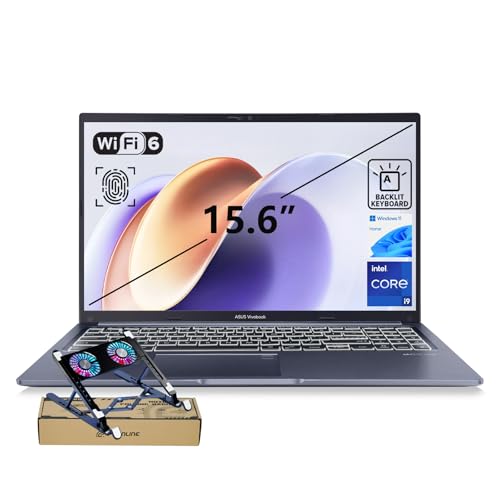
This Vivobook 15 takes a different road to editing capability: instead of a discrete graphics card, it pairs one of Intel’s strongest laptop processors of its generation with a generous memory allowance. The listing title — ASUS Vivobook 15 Laptop, 15.6″ FHD, Intel Core i9-13900H, 32GB RAM, 1TB SSD — describes a machine for editors whose timelines lean on processor work: multi-camera assembly, heavy audio processing, software encoding paths and the general responsiveness of a complex project. The Core i9-13900H brings a flagship-class core count to a mainstream shell, and 32GB of memory means the processor is never starved by the applications around the editor.
The honest boundary of this design is its integrated graphics. Effects that draw heavily on the GPU — aggressive noise reduction, certain colour tools, GPU-rendered titles and transitions — will run at integrated-graphics pace, and editors whose style depends on those tools should choose one of the RTX 5060 machines instead. What the Vivobook offers in exchange is a slimmer, quieter, more conventional laptop than either gaming machine, with a physical webcam shield and fingerprint reader in the listing that suit shared and professional spaces. Its full HD panel is a sound structural editing screen whose colour limits mirror the LOQ’s: fine for pacing and assembly, deserving of an external monitor for final grading.
Within this guide the 32GB Vivobook is the pick for the editor as multitasker — the creator who edits with a script document, a browser of references, a graphics tool and a music library all alive at once, and whose footage is ordinary rather than effects-laden. It is also the more future-resistant of the two Vivobooks by a wide margin, because memory is the specification a project outgrows first.
Strengths
- Core i9-13900H delivers flagship-class processor performance for CPU-led timelines.
- 32GB of memory supports genuinely layered, multi-application project work.
- Slim mainstream design with webcam shield and fingerprint reader suits professional spaces.
Trade-offs
- Integrated graphics cap effects-heavy work well below the RTX 5060 picks.
- Full HD panel is a structural screen rather than a colour-reference screen.
- Sustained processor loads in a slim chassis run warmer than in gaming-derived designs.
Key specs: Intel Core i9-13900H · 32GB RAM · 1TB SSD · 15.6-inch FHD display · Backlit keyboard · Fingerprint reader · Wi-Fi 6 · Windows 11 Home
Best for: Editors with processor-heavy, multi-application workflows and ordinary effects demands. Not suited for: Editors whose style relies on GPU effects, noise reduction or heavy colour tooling.
ASUS Vivobook 15 i9-13900H 16GB/1TB — Best for Simpler Timelines
Badge: Best light-project i9
Everything said about the Vivobook above applies here with one variable changed, and this review exists to price that variable honestly. The listing — ASUS Vivobook 15 Laptop, 15.6″ FHD, Intel Core i9-13900H, 16GB RAM, 1TB SSD — is the same processor, the same 1TB of storage, the same full HD screen, the same webcam shield, backlit keyboard and fingerprint reader, with half the memory. For a defined set of editors that difference will never announce itself: short-form creators cutting single-camera footage, students assembling coursework films, marketers producing social clips inside one application at a time. Their timelines fit comfortably in 16GB, and the strong processor keeps every operation brisk.
The difference announces itself at a predictable moment — the project that grows. A second camera angle, a graphics package open beside the editor, a browser carrying the client’s feedback and the asset library at once, and the 16GB machine begins trading memory to disk while its 32GB twin simply continues. Neither behaviour is a defect; they are two sizes of the same tool. The mistake is buying the smaller size for the larger job, because memory in a slim laptop is rarely a casual upgrade later, and a machine bought for a growing channel should be sized for the channel’s second year rather than its first month.
So the guidance is unusually clean. If your projects are known, bounded and single-application, this configuration spends nothing on headroom you will not use, and its processor still outmuscles most of this class. If your projects are growing, layered or client-driven, the 32GB version above is the same laptop with the ceiling raised, and the price of raising it at purchase is almost always smaller than the cost of replacing the machine early.
Strengths
- The same flagship-class Core i9 processor as the guide’s creator pick.
- 1TB of storage keeps project media local and fast from the first day.
- Slim, professional design with privacy shield and fingerprint sign-in.
Trade-offs
- 16GB of memory is the ceiling that growing projects will eventually meet.
- Integrated graphics limit effects-heavy timelines as with its 32GB twin.
- Full HD panel serves assembly better than final colour judgement.
Key specs: Intel Core i9-13900H · 16GB RAM · 1TB SSD · 15.6-inch FHD display · Backlit keyboard · Fingerprint reader · Wi-Fi 6 · Windows 11 Home
Best for: Short-form and single-application editors who want a strong processor in a slim machine. Not suited for: Editors with layered, multi-camera or multi-application projects that are still growing.
Acer Aspire 5 15 i7-1355U FHD Touch — Best for Light Editing and Proxies
Badge: Best light-editing pick
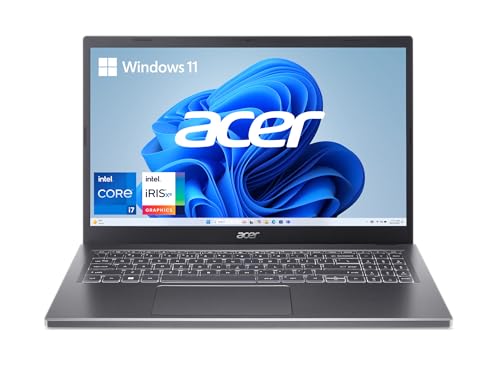
The Aspire 5 closes the linked list by redefining the job rather than failing at it. Its listing — acer Aspire 5 15 Slim Laptop | 15.6″ FHD IPS Touch 1920 x 1080 | Intel Core i7-1355U | Intel Iris Xe Graphics | 16GB LPDDR5 | 512GB Gen 4 SSD — describes a slim, efficient machine whose Core i7-1355U and 16GB of memory make it a genuinely pleasant editor for the lighter half of the craft: cutting interviews, assembling lectures, captioning, trimming screen recordings and preparing social clips. Iris Xe integrated graphics handle straightforward timelines in ordinary resolutions without drama, and the touchscreen IPS panel is a comfortable place to do detailed trimming work.
The professional pattern that makes this machine shine is the proxy workflow. Editors have always traded resolution for responsiveness on modest hardware, generating lightweight stand-in files for the edit and relinking to the originals for export. On the Aspire 5 that pattern turns a slim laptop into a legitimate travelling edit station: cuts and structure decided anywhere, with final effects and full-resolution exports reserved for a stronger machine or a patient overnight render. Students and journalists, whose deliverables are usually structure-led rather than effects-led, may never need more than this.
Its limits should be stated as plainly as its virtues. Multi-stream high-resolution timelines with effects will test its patience, its 512GB SSD assumes an external drive joins the workflow early, and its slim design prioritises portability over sustained-load cooling. Bought as a light-editing and proxy machine, it is excellent value in capability per kilogram; bought as a primary effects workstation, it would be a misunderstanding of what its hardware is for.
Strengths
- Slim, portable design makes it the easiest genuine editor here to travel with.
- 16GB of memory and a responsive Core i7 keep light timelines feeling brisk.
- Touch IPS full HD panel suits detailed trimming and caption work.
Trade-offs
- Integrated graphics bound effects and high-resolution multi-stream work.
- 512GB of storage requires an external media drive from early on.
- Slim cooling favours portability over long full-load export sessions.
Key specs: Intel Core i7-1355U · Intel Iris Xe Graphics · 16GB LPDDR5 RAM · 512GB Gen 4 SSD · 15.6-inch FHD IPS touch · Wi-Fi 6E · Backlit keyboard
Best for: Students, journalists and creators editing light timelines or working with proxies while travelling. Not suited for: Effects-heavy or high-resolution primary editing as the only machine.
MacBook Pro 14/16 — The Step-Up Reference (Prose-Only)
Badge: Professional reference
This slot carries no link, because the machines it describes are not fifteen-inch laptops and do not belong to this class’s price conversation. They are included because honesty requires it: the MacBook Pro at fourteen and sixteen inches is where the laptop editing profession currently keeps its summit, with processors designed around media work, screens built for colour confidence and a software ecosystem many production houses assume by default. An editor whose livelihood is timelines, whose clients deliver Apple-shaped workflows, or whose projects regularly involve the most demanding footage should price that step up seriously before optimising within this guide.
The same logic extends to the ASUS ProArt P16, a sixteen-inch creator machine mentioned here as a reference rather than a pick. Dedicated creator laptops concentrate their budgets on calibrated screens and media-focused hardware in ways gaming-derived designs do not. Naming them is not a dismissal of the five linked picks; it is a map of the border. Inside the border — editors building channels, students, marketers, independent creators whose budgets must also cover cameras, audio and storage — the Legion, LOQ and Vivobooks in this guide deliver real professional capability. Across the border sits a different budget category, and it deserves its own guide rather than a footnote pretending to be one.
Strengths
- Represents the current professional standard for laptop editing at 14 and 16 inches.
- Creator-focused screens and media-oriented processors define the step-up target.
- Clarifies exactly what the 15-inch class trades away and what it keeps.
Trade-offs
- Outside this size class entirely, at fourteen or sixteen inches rather than fifteen.
- Occupies a higher price tier that competes with the rest of a creator’s kit budget.
- A different operating-system ecosystem that not every production workflow assumes.
Key specs: Reference class — 14-inch and 16-inch professional creator laptops; specifications vary by configuration and are not listed here.
Best for: Professional editors whose income depends on timelines and whose workflows assume the platform. Not suited for: Buyers committed to a fifteen-inch screen or to this guide’s price territory.
Comparison Table
| Pick | Processor | Graphics | Memory | Storage | Screen |
|---|---|---|---|---|---|
| Lenovo Legion 5a (B0HBS1VQLY) | Ryzen 7 250 | RTX 5060 | 32GB | 1TB SSD | 15.3″ WQXGA OLED 165Hz |
| Lenovo LOQ (B0GNB7XQX5) | Ryzen 7 250 | RTX 5060 | 16GB | 1TB SSD | 15.3″ WUXGA IPS 165Hz |
| ASUS Vivobook 15 (B0GZ4ZDMZV) | Core i9-13900H | Integrated | 32GB | 1TB SSD | 15.6″ FHD |
| ASUS Vivobook 15 (B0GZ4GXPZP) | Core i9-13900H | Integrated | 16GB | 1TB SSD | 15.6″ FHD |
| Acer Aspire 5 (B0DFDN558V) | Core i7-1355U | Iris Xe integrated | 16GB | 512GB SSD | 15.6″ FHD IPS touch |
| MacBook Pro 14/16 | Prose-only reference — outside this size class | ||||
Should Your Editing Laptop Come From the Gaming Shelf?
For this size class, usually yes, and the reason is thermal honesty. Gaming laptops are engineered around sustained combined loads from processor and graphics together, which is precisely the shape of an export or a long effects render. Their cooling systems, power delivery and chassis volume all assume the machine will work hard for hours, and editors inherit that engineering whether or not they ever open a game. The costs are real — weight, fan noise under load, designs that announce their origins — but they are the costs of the capability itself, paid by every workstation class in some currency.
The exception is the editor whose work is processor-led and portability-bound. A documentary editor assembling interviews in the field, a student cutting coursework between locations, or a marketer producing daily clips may rationally choose the Vivobook or Aspire pattern: strong processor, integrated graphics, slim shell, quiet presence. The deciding question is never which shelf is more respectable; it is which stage of your editing — effects, assembly, travel, export — consumes your week, because that stage should choose the machine.
Common Mistakes When Buying an Editing Laptop
The first mistake is buying the processor and ignoring the graphics, in a craft where the graphics processor carries effects, colour and much of the export. The second is the mirror image: buying a gaming badge without checking which graphics chip and how much memory the specific configuration carries, since family names span wide performance ranges. The third is grading on an unexamined screen — delivering colour decisions from a panel whose limits were never considered, when the fix can be as simple as choosing the OLED pick or budgeting for an external monitor.
The fourth mistake is treating storage as a number rather than a workflow: a single internal drive holding the system, the project, the media and the archive will fill and slow at the worst moment of a deadline, whatever its capacity. The fifth is believing any single export-time figure, including flattering ones in marketing, because export speed is a property of your timeline and your codec rather than of the laptop alone. The sixth is forgetting audio: editors judge sound through whatever the laptop offers, and a machine bought without a thought for headphones or speakers will be graded on its tiny drivers in every review session until the owner corrects it.
Why Do Cooling and Sustained Loads Matter More Than Burst Speed?
Editing is unusual among laptop workloads because its heaviest moments are also its longest. An export, a render queue or a stabilisation pass can hold a machine near its limits for the length of a coffee, a meeting or an overnight run, and hardware behaves differently across that span than it does in a thirty-second burst. Cooling decides how much of a processor’s or graphics chip’s paper capability survives the twentieth minute: a design that sheds heat well keeps its pace, while a design that cannot will quietly slow itself to protect its components, stretching jobs in ways no specification sheet mentions.
This is the deepest reason the gaming-derived picks anchor this guide. The Legion and LOQ were engineered for players who hold their hardware at full effort for hours, with fan systems, heat pipes and vents sized accordingly, and an editor inherits all of that thermal headroom the moment an export begins. The slim Vivobook and Aspire designs make the opposite trade knowingly: they are quieter, lighter and more welcome in shared spaces, and in exchange they ask patience during the longest full-load sessions. Neither trade is a flaw. The flaw is only in buying one while expecting the other.
Practical habits soften the difference whichever machine you choose. Editing on a hard, flat surface rather than a bed or cushion keeps vents breathing as designed. Keeping background uploads and cloud sync paused during a deadline export removes competition for the processor at the moment it matters. And rendering the final delivery while the machine is plugged in, on a desk, with nothing stacked against its exhaust is the unglamorous ritual behind most reliable deadline stories in this craft.
How Should Storage and Media Be Organised Around a 15-Inch Editor?
Every linked pick in this guide carries either a terabyte of internal storage or, in the Aspire’s case, half that with a workflow assumption attached. The professional pattern treats that internal drive as the working set: the current project, its media, its renders and nothing else. Finished projects migrate to external drives, and the archive — the footage you may need again but not this month — lives somewhere slower and cheaper. Editors who adopt this pattern early rarely think about storage again; editors who treat the internal drive as the archive meet its ceiling mid-project, which is the worst possible classroom.
Card ingest deserves its own habit. Footage should be copied, verified and backed up before cards are formatted, and the copy on the laptop should not be the only copy that exists during a shoot’s aftermath. A small external SSD for active overflow and a larger, cheaper drive for completed work cover most independent editors’ needs, and both cost less than the difference between two configurations in this guide. Budgeting for them when the laptop is bought — ideally from the saving a value pick like the LOQ creates — is the mark of a setup designed as a system rather than accumulated as a series of emergencies.
Finally, name things like a professional from the first project. A folder structure that separates originals, proxies, graphics, audio, exports and project files survives growth; a desktop of files named after the day they were downloaded does not. The laptop cannot organise a workflow for its owner, but the editors who stay calm at deadline are, without exception, the ones whose media can be found by someone else at midnight.
Which Pick Fits Your Kind of Project?
The short-form creator, publishing several clips a week, lives inside assembly speed and export convenience. Their timelines are single-camera, their effects are captions, trims and the occasional colour pass, and their bottleneck is turnaround rather than capability. The LOQ serves this editor generously, the 16GB Vivobook serves them elegantly, and even the Aspire keeps pace when the footage is well behaved. What this editor should not buy is colour confidence they will never use; the Legion’s OLED premium buys them little that their audience can see.
The independent filmmaker and the wedding or event editor live somewhere harder: multi-camera ceremonies, long timelines, colour work that clients will judge on large screens, and deadlines measured in days after the event. For them the Legion 5a is the guide’s natural centre, because its screen can be trusted at the grading stage and its graphics carry the effects load without negotiation. The 32GB Vivobook is their alternative when the work is processor-led and the grading happens on an external monitor at a desk, a pattern many event editors already follow.
The student editor and the journalist share a third pattern: modest deliverables, immodest schedules, and editing that happens wherever the story or the coursework is. Portability and price discipline dominate, proxies forgive hardware limits, and the Aspire 5’s slim shape is worth more than a graphics tier that sits unused. Their upgrade path is also the clearest in the guide — when the projects outgrow the machine, they will know exactly which stage of the work demanded more, and the next purchase can be aimed with unusual precision.
What Should Sit Beside the Laptop on an Editing Desk?
The laptop is the centre of an editing setup, not the whole of it, and three companions earn their cost quickly. The first is an external monitor, which turns the LOQ and Vivobook patterns into grading-capable desks and gives every editor the two-screen layout — timeline below, preview large — that the craft quietly assumes. The second is honest audio: a decent pair of headphones reveals dialogue problems, room tone and music balance that laptop speakers physically cannot reproduce, and no editing purchase prevents more rework. The third is the external storage pair described earlier, working drive and archive, which together cost less than one configuration step in this guide.
Beyond those three, restraint is a virtue. Control surfaces, calibrated probes and dedicated panels all have their place in a professional’s room, but they refine a workflow that must first exist: organised media, a machine matched to the project’s real demands, and a screen whose behaviour the editor understands. Buy the laptop for the stage of editing that consumes your week, add the monitor and headphones when the first paid or graded project arrives, and let the setup grow in the order your work actually demands.
How Do You Decide Between the Two Graphics Picks and the Two Vivobooks?
This guide contains two deliberate pairs, and resolving each pair is a matter of naming one habit honestly. Between the Legion 5a and the LOQ, the habit is colour judgement. Both machines share a processor family and a graphics tier, so their timelines feel alike during assembly; they diverge the moment you ask the screen a question about the image itself. If your deliverables are graded by you, on this screen, for audiences who will watch on good displays, the OLED’s authority is worth its premium every working day. If your grading is light, or happens on an external monitor you already own, the LOQ keeps the muscle and returns the difference to your budget, where it can buy the storage and audio gear your setup may need more.
Between the two Vivobooks, the habit is simultaneity. The machines are identical apart from memory, so the question is purely how you work: one application open, projects bounded, everything else closed — or the whole workshop open at once, editor beside graphics tool beside browser beside audio suite. The first editor will never meet the 16GB ceiling and should not pay to raise it. The second editor meets that ceiling weekly, and for them the 32GB configuration is not an upgrade but the correct size of the same tool. Because memory in slim laptops is seldom a pleasant aftermarket project, this is the one decision in the guide where guessing wrong is expensive, and where an honest week of observing your own habits is worth more than any review.
Across the pairs, the Aspire 5 stands as the reminder that not every editor needs either contest. Its contest is against the calendar and the map: can the edit travel, can it happen in the field, can the machine disappear into a bag? Editors whose answer to the graphics question is “rarely” and to the memory question is “one thing at a time” should let the Aspire’s portability argue, and spend the difference on the camera, microphone or lens that their footage will benefit from far more visibly than a graphics tier would.
Final Recommendation
Choose the Legion 5a if colour and capability both matter, because its OLED screen and RTX 5060 pairing is the most complete editing instrument this size class currently offers. Choose the LOQ when the week is mostly assembly and the saving can fund the external monitor or storage your workflow actually needs. Choose the 32GB Vivobook for processor-led, multi-application editing in a slim professional shell, its 16GB twin when projects are known and bounded, and the Aspire 5 when the edit travels and proxies carry the load. And if your income already depends on timelines, price the MacBook Pro step up before spending anything — the most expensive editing laptop is the one bought twice, once inside the wrong class and once outside it.
Frequently Asked Questions
Do I need a discrete graphics card for video editing?
For effects, colour tools, noise reduction and GPU-accelerated exports, a discrete card changes the experience fundamentally, which is why the RTX 5060 picks lead this guide. For assembly editing of ordinary footage — cuts, captions, basic titles — a strong processor with integrated graphics remains genuinely workable.
Why does this guide quote no render or export times?
Because those figures depend on the codec, resolution, effects stack and software version of a specific project, and a number quoted without those conditions would mislead more than it informs. The reviews instead describe what each machine’s hardware does at each stage of editing, in terms you can map to your own timelines.
How much memory does an editing laptop need?
Sixteen gigabytes supports ordinary single-application timelines comfortably. Thirty-two becomes valuable when projects layer multiple streams and effects or when the editor runs beside graphics, audio and reference tools — the exact difference separating the two Vivobook configurations reviewed above.
Is an OLED screen worth it for editing?
For editors who grade their own work, yes: OLED contrast and black levels preview online delivery more faithfully than IPS panels do. For assembly-led work, a good IPS panel like the LOQ’s is a professional instrument, with an external monitor as the natural upgrade path for critical colour.
Can a 15-inch laptop replace a desktop for editing?
For most independent creators, the stronger picks here can serve as the only editing machine, especially with an external monitor and storage attached at the desk. Studios with constant high-volume throughput still benefit from desktop workstations, but that is a throughput argument rather than a capability one.
Should an editor buy for today’s projects or next year’s?
Buy for the projects you can already describe, with one tier of headroom in the specification your work stresses most — memory for layered timelines, graphics for effects-led work, storage for high-volume shooting. Channels and client lists grow, but they grow along the axis you are already on, so headroom aimed at that axis is insurance rather than speculation.
What is a proxy workflow and who should use one?
Proxies are lightweight copies of your footage used for the edit itself, with the originals relinked for final export. The pattern lets modest hardware — the Aspire 5 in this guide — cut demanding footage smoothly, and it suits travelling editors, students and anyone whose deliverables are structure-led.
How important is screen brightness when an editor often works away from a controlled desk?
Brightness matters more than many editors expect, because editing is largely a matter of judging what is actually visible in the darker and brighter parts of a frame. In a dim room almost any of the screens in this guide will show shadow detail clearly enough for confident decisions. Beside a bright window, on a train or in a cafe with strong overhead light, a dimmer screen begins to hide exactly the detail an editor is trying to assess, and clips can leave the laptop looking flatter or darker than they really are. That does not mean every editor needs the brightest panel available, since someone who always works at the same shaded desk will rarely notice the difference. It does mean that editors who grade, caption or review footage in varied places should treat brightness as a working tool rather than a luxury, and should be honest about where their editing truly happens before choosing between the calmer and the more vivid screens above.
Should an editor keep active projects and finished exports in separate places?
Keeping them apart is one of the quiet habits that separates a calm editing life from a stressful one, even on a laptop with a single internal drive. An active project deserves room to grow without warning, because rendered previews, downloaded music, stills and revised versions accumulate far faster than most beginners predict. When finished exports and old project folders live in the same place, a drive can fill up in the middle of a deadline and the editor is forced to delete things in a hurry, which is precisely when mistakes happen. A simple routine works well for most people. Current work stays on the laptop where it is fast and close at hand, finished pieces move to an external drive or another safe home once the client or the course has accepted them, and nothing important exists in only one place. The laptop then begins each new project feeling empty, organised and ready, rather than carrying the weight of every previous deadline.
What Ports and Connections Does an Editing Workflow Quietly Depend On?
An editing laptop spends its life attached to things: card readers after a shoot, external drives holding the media, a monitor at the desk, headphones always. The quality of that attached life depends on ports that headline specifications treat as footnotes. Fast USB connections decide how long ingest takes when a card full of footage meets a deadline, and an editor who shoots weekly feels a slow port as a recurring tax on every project. An HDMI or equivalent display output decides whether the second screen — the grading monitor, the client television, the projector at a review — connects directly or through a pocketful of adapters.
None of the picks in this guide was chosen for its port selection alone, because at this class level the basics are broadly covered, but the working habit matters more than the inventory: keep the reader, the cables and the hub that your desk uses in the bag that travels, because the one shoot where the reader stays home is the one where the footage is needed that evening. Editors building a settled desk should also notice that the gaming-derived picks assume wired, plugged, peripheral-rich working, and reward it — their natural habitat is a desk where everything is already connected and the laptop simply docks into its own ecosystem each morning.
How Should You Verify an Editing Laptop Listing Before Ordering?
Editing configurations hide inside family names more treacherously than in any other class, because a single model line can span integrated graphics and discrete cards, two panel types and three memory sizes. Read the listing’s specification table for the exact graphics chip rather than trusting the family badge, confirm the memory as a single figure for the configuration being sold, and check the panel’s resolution and type in the manufacturer’s terms — WUXGA, WQXGA and FHD describe meaningfully different screens in this guide alone. Confirm the storage is the internal SSD figure rather than a bundle that folds in external or cloud allowances.
Then confirm the machine’s condition and the seller’s warranty route, because powerful laptops attract refurbished listings that resemble new ones at a glance. A renewed workstation-class machine can be a rational purchase when it is labelled honestly and priced accordingly; it is a poor surprise when it arrives in place of the new machine the buyer believed they had ordered. The picks in this guide were each verified against their current listings on the date recorded in the accompanying sources file, and the same ten minutes of reading will protect your own order.
How Should a Beginner Read This Guide Differently From a Professional?
A beginner’s scarcest resource is not capability but knowledge of their own habits, and the guide’s pairs are designed to be read as insurance questions rather than as rankings. The beginner who does not yet know whether their projects will layer effects should weight the graphics picks, because retrofitting a discrete GPU is impossible while learning to colour-grade on an IPS panel is merely a skill. The beginner who does not yet know whether their projects will sprawl across applications should weight memory the same way. The professional, by contrast, already owns that self-knowledge and can buy the exact tier their last ten projects demanded — which is why the same guide that advises beginners toward headroom advises professionals toward precision, and why both readings are correct.
How Should an Editor Maintain the Machine Across a Project’s Life?
Editing machines age in software before they age in hardware, and a light maintenance rhythm keeps the hardware’s reputation intact. Keep the internal drive’s free space deliberate rather than accidental, because editors and their render caches expand to fill whatever room exists and a nearly full drive slows the very operations a deadline measures. Archive finished projects off the machine at the moment they are delivered, while the discipline is painless, rather than in a panic before the next shoot. And let the machine’s fans do their work unobstructed through the long exports that define its life — the cooling sections of this guide apply to ownership as much as to purchase, and a workstation-class habit of hard surfaces and clear vents is the cheapest performance an editor will ever buy.
Related Guides
Editors weighing neighbouring classes should compare the best 1440p laptops for higher-resolution screens beyond this size, the best 120hz gaming laptops for the gaming shelf these picks borrow their hardware from, and the best 15 inch laptops with great battery life for the opposite end of the fifteen-inch trade-off. Builders comparing Intel tiers across sizes should also see the best 14 inch i7 laptops.
Related guides
- Best Direct Thermal Printers: Shipping-Label Machines and Professional Label Systems
- Best 4K UHD HDR HDMI Extenders: 4K60, Long-Run and 4K120 Kits Compared
- Best 25–35 Inch Monitors With Lowest Display Lag: An Honest Ranking Without Invented Numbers
- Best Enterprise SATA SSDs: Endurance Classes, Power-Loss Protection and Fleet Sense


[…] comparing adjacent classes should read the best 15 inch laptops for video editing for the media-production view of similar hardware, the best 14 inch i7 laptops for the […]