What's inside
- Key Takeaways
- Quick Picks
- How Did We Choose These Picks?
- What Actually Decides the Best 15 Inch College Laptops?
- Detailed Reviews: Six 15-Inch Laptops Judged on Student Life
- Comparison Table
- Is 15 Inches the Right Size for Your Degree?
- Common Mistakes When Buying a College Laptop
- How Should a Student Set Up a New Laptop in the First Week?
- What Does Four Years of Ownership Actually Look Like?
- How Do Battery, Weight and the Charger Shape the Daily Carry?
- Windows, macOS or ChromeOS: Which Branch Should a Student Choose?
- Final Recommendation
- Frequently Asked Questions
- How Should You Read a Listing Before Ordering?
- How Should Parents and Gift-Buyers Read This Guide?
- Related Guides
As an Amazon Associate I earn from qualifying purchases. This post may contain affiliate links at no extra cost to you.
gizmoverdict.com is reader-supported. When you buy through links on our site, we may earn an affiliate commission.
Where to buy: Every laptop in this guide links to its current Amazon listing. College machines are sold in several memory and storage configurations under a single model name, so confirm the processor, the RAM amount and the storage size on the exact listing before you order, and check whether the listing describes a new machine rather than a refurbished one.
The best 15 inch college laptops answer a brief that no other size class quite matches. A student needs a screen large enough for a document beside a lecture recording, a keyboard with a proper number pad for spreadsheets and data entry, and a battery that survives a morning of classes without hunting for a wall socket. At the same time the machine rides in a backpack between buildings several times a day, gets opened on narrow lecture-hall desks, and has to last four academic years on a budget that competes with rent, textbooks and food. Fifteen inches, give or take the half inch that separates a 15.3-inch panel from a 15.6-inch one, is where those demands stop fighting each other.
That balance explains why this guide is organised around three honest axes rather than raw speed. Battery endurance decides whether a laptop is a companion or an anchor, because a machine that dies before the last seminar of the day changes how a student plans every hour. Weight decides how willingly the laptop leaves the dorm room, and a computer that stays behind helps nobody. Value decides everything else, because the difference between an entry configuration and a balanced one is often the difference between a machine that feels fine in the first semester and one that still feels fine in the final year. Performance matters, but it matters in tiers: an entry chip handles documents, browsing and video calls without drama, a mid-range chip adds comfortable multitasking headroom, and the strongest processors here only earn their place for students whose coursework genuinely leans on the machine.
The six laptops below map those tiers deliberately. Two entry machines built on Intel’s Core 3 100U show what the floor of the class looks like when it is done properly, with full HD screens and sensible storage. Two balanced machines, one AMD and one Intel, carry 16GB of memory and touchscreens into the middle of the range. One Ryzen 7 configuration stands at the top as the pick for students who compile code, wrangle large datasets or edit media between classes. Read the tiers first and the individual reviews second, because choosing the right tier matters more than choosing between two machines inside it.
Two reference points sit outside the linked list and deserve naming early. The MacBook Air 15, with its 15.3-inch display, is the upgrade landmark for this class: it costs meaningfully more than anything linked here, runs a different operating system, and repays the difference with endurance and build quality that Windows machines at student prices rarely match. A 15-inch Chromebook is the opposite landmark, a separate ChromeOS branch that suits students whose entire workload lives in a browser and whose institution supports it. Both appear again later in this guide as prose-only reference points, because a student choosing between operating systems is making a different decision from a student choosing between configurations.
Key Takeaways
- Battery, weight and value decide a college laptop more than peak speed does, because the machine travels daily and must last four years.
- The class divides into three tiers: entry Core 3 machines for documents and browsing, balanced Ryzen 5 and Core i5 machines with 16GB of memory for most degrees, and a Ryzen 7 configuration for technical coursework.
- Memory is the specification that ages fastest. The 16GB configurations in this guide will feel comfortable in the final year; the 8GB machines ask for disciplined tab habits.
- Every linked pick carries a full HD 1920 x 1080 screen, so none of the six asks a student to read small text on a low-resolution panel for four years.
- Touchscreens appear on four of the six picks and help with quick scrolling and annotation, but no machine here folds into a tablet, so pen work belongs to a different category.
- The MacBook Air 15 and 15-inch Chromebooks are reference points rather than picks: one is a step up in price and polish, the other a separate operating-system branch.
Quick Picks
- Best balanced pick for most students: Acer Aspire Go 15 Ryzen 5 16GB Touch (B0FGBWHNCW) — 16GB of memory, a 512GB SSD and a touchscreen at the centre of the class.
- Best entry Intel option: ASUS Vivobook 15 Core 3 100U 8GB/256GB FHD (B0GWFP7F8W) — the honest floor of the class, with storage as its one tight dimension.
- Best entry option with roomier storage: Dell 15.6 FHD Core 3 100U 8GB (B0H5X2GC1Y) — the same entry processor paired with a 512GB SSD and a bright anti-glare panel.
- Best for technical coursework: Lenovo IdeaPad Slim 3 15.6 FHD Touch Ryzen 7 5825U (B0F2MLQPL3) — eight cores and 16GB of memory for students who compile, model and multitask heavily.
- Best Intel all-rounder: HP Pavilion 15.6 FHD Touch i5-1334U 16GB (B0FLGVS38H) — a ten-core processor, 16GB of memory and a touchscreen in a familiar campus-friendly design.
- Best value with generous storage: ASUS Vivobook Go 15 Ryzen 5 40 8GB/512GB (B0GYMRPNVJ) — Ryzen 5 performance and a 512GB SSD, with memory as the deliberate trade-off.
How Did We Choose These Picks?
Selection started with the academic workload rather than the specification sheet. A typical student day mixes a learning-management system, a dozen browser tabs, a word processor, a video call, a PDF reader and a streaming window, often all at once and usually on battery. Machines were favoured when their configuration answered that mix without strain: enough memory to hold the whole pile open, an SSD large enough that cloud juggling never becomes a weekly chore, and a full HD panel that keeps two windows side by side legible. Anything with a low-resolution screen was excluded from the linked list entirely, because four years of squinting is a poor saving.
The second filter was portability in the real sense, which includes the charger. A 15-inch laptop that only reaches its advertised endurance when brightness stays low still earns consideration, but machines whose efficient processors sip power during light work ranked ahead of hungrier designs with bigger headline batteries. Weight was judged as a backpack problem rather than a number on a page: the difference between carrying a machine all day and leaving it in the dorm is usually decided by a few hundred grams plus the bulk of the power brick, so slimmer designs with modest adapters scored well.
The third filter was longevity. A college laptop is bought once and expected to survive spills of attention if not of coffee, so preference went to established model families with wide service networks, standard parts and listings that state their configuration plainly. Each pick below was verified against its current Amazon listing, and the full product title from that listing is recorded in the sources file that accompanies this guide. Where two machines share a processor, the review explains what actually separates them instead of pretending they are different species.
What Actually Decides the Best 15 Inch College Laptops?
The first deciding factor is memory behaviour across a semester, not across a review week. Eight gigabytes remains workable for a student who writes essays, browses and streams, yet the same machine grows sluggish when a statistics package, a video call and thirty research tabs collide in deadline week. Sixteen gigabytes removes that cliff edge entirely, which is why three of the six picks carry it and why the two 8GB machines that do appear here are framed honestly as entry choices with a known ceiling. A student buying for a light humanities workload can accept that ceiling knowingly; a student buying for engineering should not accept it at all.
The second factor is the screen, because it is the part of the laptop a student actually experiences for six or more hours daily. Every linked pick uses a 1920 x 1080 panel, which at this size renders text crisply enough for long reading sessions and splits cleanly into two usable windows. Touch, offered by four picks here, earns its keep in small ways: scrolling a long article, tapping through slides, signing a form. Brightness and glare handling matter more than touch for library work under mixed lighting, and the reviews note which panels are anti-glare designs and which listings quote a brightness figure worth trusting.
The third factor is the unglamorous hardware of campus life. A webcam that handles a dorm room’s poor lighting, a keyboard that tolerates ten thousand words a week, a hinge that survives being opened one-handed on a bus, and enough ports to accept a presentation clicker, a friend’s USB stick and an HDMI cable in the library’s seminar rooms. None of these details headline a listing, and all of them decide whether a laptop feels like a tool or an obstacle by the second year. The detailed reviews weigh them pick by pick, because at this size and budget the differences between good and adequate live exactly there.
Detailed Reviews: Six 15-Inch Laptops Judged on Student Life

Acer Aspire Go 15 Ryzen 5 16GB Touch — Best Balanced Pick for Most Students
Badge: Best balanced pick
The Acer Aspire Go 15 with Ryzen 5, 16GB of memory and a touchscreen earns the centre of this guide because it refuses to make any single compromise a student will feel weekly. Its full title on the listing — Acer Aspire Go 15in Laptop AMD Ryzen 5 16GB RAM 512GB SSD Touch — describes a configuration that reads like a checklist written by someone who has actually shared a library table with undergraduates. The Ryzen 5 processor sits in the class’s balanced tier, strong enough that compiling a modest project or exporting a presentation never becomes a coffee break, yet efficient enough that ordinary note-taking days do not punish the battery. Paired with 16GB of memory, it holds the whole student pile — browser, documents, chat, music, a PDF or three — without the reload churn that makes 8GB machines feel older than they are.
The 512GB SSD deserves emphasis because storage is where entry laptops quietly fail in year two. Course materials accumulate, phone photos get backed up before a trip, a few games arrive during reading week, and suddenly a 256GB drive demands weekly housekeeping. This configuration postpones that reckoning for most students until well into the degree, and for many it never arrives. The touchscreen adds the small daily conveniences described earlier, and the backlit keyboard from the listing matters more than it sounds: dorm desks and evening library corners are rarely lit like offices, and a student typing an essay at midnight in a shared room will appreciate keys they can see without turning on the main light.
Where does it sit against its neighbours? Against the HP Pavilion below, it trades Intel’s ten-core processor for AMD’s efficiency and usually a friendlier position in the range, while matching it on memory, storage and touch. Against the Lenovo IdeaPad Slim 3, it gives up the Ryzen 7’s extra cores, which only technical coursework will miss. For the broad middle of degrees — humanities, social sciences, business, life sciences with ordinary computing needs — this is the configuration that asks the fewest apologies over four years.
Strengths
- 16GB of memory removes the deadline-week multitasking cliff that defines lesser student machines.
- 512GB of SSD storage postpones the storage-juggling chore that typically arrives in the second year.
- Backlit keyboard and touchscreen suit the dim, shared, improvised workspaces of student life.
Trade-offs
- Integrated graphics only, so demanding gaming and heavy media work belong to stronger machines.
- The Aspire Go line prioritises value over premium materials, and the chassis feels workmanlike rather than luxurious.
- Students on technical degrees may outgrow the processor before the degree ends.
Key specs: AMD Ryzen 5 · 16GB RAM · 512GB SSD · 15.6-inch FHD touchscreen · Wi-Fi 6 · HDMI port · Windows 11 Home
Best for: The majority of students who want one machine that handles every ordinary academic task without a known weak point. Not suited for: Engineering students running heavy simulation software or anyone planning serious gaming alongside study.

ASUS Vivobook 15 Core 3 100U — Best Entry Intel Option
Badge: Best entry pick
The ASUS Vivobook 15 built on Intel’s Core 3 100U defines the floor of this class, and it defines it honestly. Its listing title — ASUS Vivobook 15 Laptop – 15.6” FHD Display- Intel® Core™ 3 100U – 8GB RAM – 256 GB SSD – Windows 11 Home – Cool Silver – F1504VA-PS34 — contains no inflated promises, and the machine behind it matches that tone. The Core 3 100U is an entry processor in the modern Intel stack, designed for exactly the workload a first-year student actually has: documents, browsing, email, video lectures and calls. Within that workload it feels composed rather than slow, because modern entry chips paired with an SSD have long since crossed the line where everyday tasks stop waiting on the processor.
The compromises live where the tier says they should. Eight gigabytes of memory means the machine rewards tidy habits — closing the research tabs once the essay is written rather than keeping forty alive out of sentiment. The 256GB SSD is the tighter constraint, and a student who photographs everything or keeps a local music and video library will meet its ceiling; a student whose files live in institutional cloud storage may never notice it. The full HD display is the configuration’s quiet victory, because ASUS did not reach the entry tier by cutting the screen, and four years of reading on a proper 1920 x 1080 panel is worth more than a slightly faster chip behind a blurry one.
Choose this Vivobook when the budget is firm and the degree is light on computation. It is also the rational pick for a student who expects to replace or supplement the machine later — a desktop in a shared house, lab computers for heavy work — and needs a dependable personal laptop for the writing and reading that dominate most coursework. What it should not be asked to do is grow into a technical degree it was never specced for.
Strengths
- Full HD screen at the entry tier protects the eyes and the reading experience for the whole degree.
- Efficient Core 3 processor suits battery-friendly light workloads across a full teaching day.
- Vivobook design keeps the machine slim and presentable in lectures, seminars and placements.
Trade-offs
- 256GB of storage is the tightest allowance in this guide and demands cloud habits.
- 8GB of memory sets a clear multitasking ceiling during heavy research weeks.
- No touchscreen, so interaction stays with the touchpad and keyboard alone.
Key specs: Intel Core 3 100U · 8GB RAM · 256GB SSD · 15.6-inch FHD display · Windows 11 Home · Cool Silver
Best for: Students on firm budgets with document-and-browser degrees who store their work in the cloud. Not suited for: Anyone whose coursework involves large local datasets, virtual machines or media projects.

Dell 15.6 FHD Core 3 100U — Best Entry Option With Roomier Storage
Badge: Best entry storage
Dell’s entry machine shares its processor with the ASUS above and then makes one decisive change: it doubles the storage. The listing title — Dell 15.6 Laptop, FHD, Intel Core 3 100U, 8GB RAM, Windows 11 Home — continues with details that matter to students, including a 300-nit anti-glare WVA panel, DDR5 memory and a 512GB SSD. That combination reframes the entry tier. The Core 3 100U still sets the performance ceiling, and 8GB of memory still asks for reasonable tab discipline, but the two constraints students feel most often in budget laptops — a dim screen and a full drive — are both answered here.
The anti-glare panel deserves its own sentence, because campus lighting is hostile: overhead fluorescents in lecture halls, windows behind library desks, bright café glass. A 300-nit anti-glare screen stays readable in those conditions where a dimmer glossy panel turns into a mirror with text behind it. Dell also publishes the battery plainly in the listing as a 3-cell 41Wh unit, which sets honest expectations — this is an efficiency-first machine whose modest battery suits class-to-class use with a charger in the bag for long days, rather than a marathon design. Dell’s service network, a genuine consideration for a student far from home, rounds out the case: warranty support and parts availability for a mainstream Dell are about as frictionless as this class gets.
Between this Dell and the ASUS, the choice is a personality test. The ASUS is the slimmer, prettier object; the Dell is the pragmatic one with double the storage and the better-behaved screen under bad light. Students who keep files locally, download lecture recordings or carry a media library should take the Dell’s trade every time, while students who live entirely in the cloud can let design decide.
Strengths
- 512GB SSD doubles the entry tier’s usual storage and removes its most common frustration.
- 300-nit anti-glare panel stays legible under the hostile lighting of real campus buildings.
- Dell’s mainstream service network simplifies repairs for students studying away from home.
Trade-offs
- The modest 41Wh battery makes the charger a daily companion on long teaching days.
- 8GB of memory caps heavy multitasking in the same way as every entry configuration.
- The design is functional rather than distinctive, prioritising durability over style.
Key specs: Intel Core 3 100U · 8GB RAM · 512GB SSD · 15.6-inch FHD 300-nit anti-glare WVA · DDR5 · Wi-Fi 6 · Windows 11 Home
Best for: Budget-conscious students who store files locally and study under bright, mixed lighting. Not suited for: Students needing all-day untethered endurance or heavy multitasking headroom.
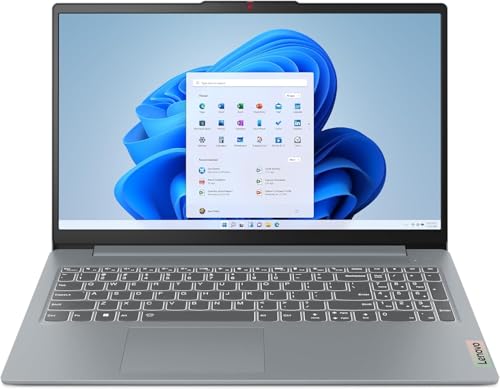
Lenovo IdeaPad Slim 3 15.6 FHD Touch Ryzen 7 5825U — Best for Technical Coursework
Badge: Best performance pick
The Lenovo IdeaPad Slim 3 in this configuration is the strongest machine in the guide, and its listing title explains why: Lenovo IdeaPad Slim 3 Laptop 2025 15.6” FHD 1920 x 1080 Touchscreen, AMD Ryzen 7 5825U, 8-core, AMD Radeon Graphics, 16GB DDR4, 512GB SSD. Eight processor cores change what a student laptop can be asked to do between lectures. Compiling a programming assignment, running a local development environment, crunching a spreadsheet model with real data behind it, or keeping a virtualised lab exercise alive alongside notes — these are the moments where the entry machines in this guide slow down and this one does not. For computer science, engineering, data-heavy business and science students, that headroom is not a luxury; it is the difference between using your own machine and queueing for a lab computer.
The supporting configuration is balanced rather than showy. Sixteen gigabytes of memory matches the processor’s ambition, the 512GB SSD holds development tools and datasets without constant pruning, and the touchscreen covers the annotation and quick-navigation habits of ordinary coursework. The 720p camera named in the listing is the configuration’s plainest component — adequate for seminars and supervision meetings, unremarkable for anything more presentational. Integrated Radeon graphics handle coursework visualisation and light creative work, while remaining, honestly, integrated graphics: students whose degrees involve serious 3D modelling should read the mistakes section below before assuming any machine in this guide covers that ground.
Within the guide’s own ladder, this Lenovo is the answer to a specific question: what if the degree itself is the heavy workload? Students who can name the software their course requires — an IDE, a statistics environment, CAD viewers, data tools — should start here and only step down if the budget truly forces it. Students who cannot name any such software are paying for headroom they will admire in benchmarks and rarely meet in life, and the balanced Acer above serves them better.
Strengths
- Eight-core Ryzen 7 processor handles compiling, data work and heavy multitasking without strain.
- 16GB of memory and a 512GB SSD give the strong processor a configuration worthy of it.
- Touchscreen and full HD panel keep everyday coursework as comfortable as the technical work.
Trade-offs
- The 720p webcam is merely adequate for calls and recorded presentations.
- Integrated graphics still bound the machine out of serious 3D and gaming workloads.
- Non-technical students pay for performance headroom their degrees will never use.
Key specs: AMD Ryzen 7 5825U, 8 cores · 16GB DDR4 RAM · 512GB SSD · 15.6-inch FHD touchscreen · AMD Radeon Graphics · Wi-Fi 6 · Windows 11 Home
Best for: Computer science, engineering and data-heavy students who run real software on their own machine. Not suited for: Students whose heaviest task is a long essay, or anyone needing a discrete graphics card.

HP Pavilion 15.6 FHD Touch i5-1334U 16GB — Best Intel All-Rounder
Badge: Best Intel all-rounder
The HP Pavilion 15.6 is the guide’s Intel-flavoured all-rounder, and its listing — HP Pavilion 15.6″ FHD Touchscreen Laptop Computer, 10-Core Intel Core i5-1334U, 16GB RAM, 512GB SSD — describes the configuration a student would spec for themselves after a semester of learning what actually matters. The Core i5-1334U brings ten cores to the balanced tier, which shows up in the texture of a busy day: a video call stays smooth while a presentation exports, a dozen research tabs coexist with a reference manager, and the machine never develops the pause-before-everything habit that teaches students to dread opening one more window. Sixteen gigabytes of memory and the 512GB SSD repeat the balanced formula, and in this guide repetition of that formula is praise — it is the configuration with no known weak point.
Pavilion is HP’s long-running mainstream family, and that lineage shows in the details a student touches. The keyboard includes the number pad that business, accounting and science students quietly rely on, the touchscreen supports the scroll-and-tap reading style that suits long PDFs, and the listing’s mention of an 11-hour battery figure should be read the way all manufacturer figures should — as a best-case laboratory number that real mixed use will trim, while still indicating an efficiency-minded design rather than a thirsty one. Windows 11 Pro in this configuration is a small bonus for students whose institutions use Pro features or who simply prefer its management options.
Choosing between this HP and the Acer at the top of the guide is the happiest problem in the class. The Acer leans on AMD efficiency and a backlit keyboard; the HP answers with Intel’s ten-core responsiveness and the Pavilion line’s familiarity. Either serves a mainstream degree for four years, and a student who finds one of them in a configuration or finish they prefer has not made a wrong turn.
Strengths
- Ten-core Core i5 keeps busy multitasking days smooth without stepping into performance pricing.
- 16GB of memory and 512GB of storage repeat the guide’s no-weak-point balanced formula.
- Number pad and touchscreen suit the data entry and long-document reading of real coursework.
Trade-offs
- Manufacturer battery figures describe laboratory conditions, so long days still warrant the charger.
- Integrated graphics limit gaming and GPU-accelerated creative work to modest settings.
- The mainstream Pavilion design is practical and familiar rather than premium in feel.
Key specs: Intel Core i5-1334U, 10 cores · 16GB RAM · 512GB SSD · 15.6-inch FHD touchscreen · Wi-Fi 6 · Windows 11 Pro
Best for: Students who prefer Intel and want balanced performance for a busy, varied workload. Not suited for: Students needing discrete graphics or the absolute longest untethered endurance.

ASUS Vivobook Go 15 Ryzen 5 40 8GB/512GB — Best Value With Generous Storage
Badge: Best value pick
The second ASUS in this guide makes the opposite trade from its stablemate, and the contrast is instructive. Where the Core 3 Vivobook pairs an entry processor with a small drive, this Vivobook Go 15 — listed as ASUS Vivobook Go 15 Laptop, 15.6” FHD 60Hz, AMD Ryzen 5 40, AMD Radeon Graphics, 8GB RAM, 512GB SSD, Military Grade, ErgoSense Keyboard, WiFi 6E — spends its budget on a Ryzen 5 processor and a full 512GB SSD, then accepts 8GB of memory as the bill. For a certain student that is exactly the right bill to accept. Processor speed and storage space are felt every day, in every application launch and every saved file, while the memory ceiling only appears when many heavy applications compete at once — a pattern a student can manage by closing what the essay no longer needs.
The supporting details strengthen the value case. Wi-Fi 6E is the most future-proof wireless in this guide, useful in crowded dorm networks where newer bands mean less contention at midnight. The military-grade durability claim in the listing speaks to the backpack reality of student life, where a laptop is jostled, stacked under books and occasionally dropped onto a bed from a height its owner will later exaggerate. The ErgoSense keyboard is ASUS’s name for a typing surface designed for long sessions, and long sessions are the one certainty of any degree.
Position this machine carefully in your own shortlist. It outruns both entry picks and matches the balanced machines on storage, yet its 8GB of memory places a ceiling the Acer and HP above do not have. A student whose workload is broad but not simultaneously heavy — writing, research, streaming, light data work, one thing at a time — gets arguably the most machine per unit of budget in this guide. A student who lives with everything open at once should step up to a 16GB configuration and treat the difference as insurance bought cheaply.
Strengths
- Ryzen 5 performance and a 512GB SSD deliver the two most felt specifications at a value position.
- Wi-Fi 6E offers the most headroom in crowded dormitory and campus networks.
- Durability-focused build suits the daily backpack routine of student life.
Trade-offs
- 8GB of memory is the deliberate compromise and caps simultaneous heavy applications.
- No touchscreen, unlike the balanced picks above it in this guide.
- Students who multitask aggressively will meet its ceiling before the degree ends.
Key specs: AMD Ryzen 5 40 · 8GB RAM · 512GB SSD · 15.6-inch FHD 60Hz display · AMD Radeon Graphics · Wi-Fi 6E · Windows 11
Best for: Value-focused students who work in one or two applications at a time and store plenty locally. Not suited for: Heavy multitaskers who keep every project open simultaneously for weeks.
Comparison Table
| Pick | Processor | Memory | Storage | Screen | Role |
|---|---|---|---|---|---|
| Acer Aspire Go 15 (B0FGBWHNCW) | AMD Ryzen 5 | 16GB | 512GB SSD | 15.6″ FHD touch | Balanced pick |
| ASUS Vivobook 15 (B0GWFP7F8W) | Intel Core 3 100U | 8GB | 256GB SSD | 15.6″ FHD | Entry Intel |
| Dell 15.6 (B0H5X2GC1Y) | Intel Core 3 100U | 8GB | 512GB SSD | 15.6″ FHD anti-glare | Entry storage |
| Lenovo IdeaPad Slim 3 (B0F2MLQPL3) | AMD Ryzen 7 5825U | 16GB | 512GB SSD | 15.6″ FHD touch | Technical coursework |
| HP Pavilion 15.6 (B0FLGVS38H) | Intel Core i5-1334U | 16GB | 512GB SSD | 15.6″ FHD touch | Intel all-rounder |
| ASUS Vivobook Go 15 (B0GYMRPNVJ) | AMD Ryzen 5 40 | 8GB | 512GB SSD | 15.6″ FHD | Value pick |
Is 15 Inches the Right Size for Your Degree?
The honest answer depends on where the work happens. A student whose laptop lives on one desk, travels to the library twice a week and anchors a small study corner will love this size: the screen fits two documents, the keyboard fits a number pad, and the machine doubles as the household entertainment screen without apology. A student whose day is a relay between five buildings, two buses and a part-time job may find that a smaller, lighter machine gets carried more and resented less, and should weigh that honestly before buying screen space they will leave in their room.
There is also the two-device reality to consider. Many students pair a laptop with a tablet or rely on lab desktops for specialised software, and in that arrangement the laptop’s job narrows to writing, reading and communication — work the entry tier here handles gracefully. Students whose laptop is their only computer, by contrast, should buy toward the balanced or performance tiers, because the machine must absorb every surprise the degree invents, from an unexpected data module to a group project edited the night before submission. Naming which student you are, before comparing processors, is the single most valuable step in this entire purchase.
Common Mistakes When Buying a College Laptop
The most expensive mistake is buying the processor and starving everything else. A fast chip behind 8GB of memory and a nearly full small SSD feels slower in the third year than a modest chip with room to breathe, because daily frustration comes from memory pressure and storage juggling rather than from raw computation. The second mistake is trusting the screen size and skipping the resolution: a 15.6-inch panel at low resolution shows less information, more blur and more scrolling than the full HD panels every pick in this guide carries, and the saving is never worth four years of it.
The third mistake is reading battery figures as promises. Manufacturer numbers come from gentle laboratory loops, and a real day of bright screens, video calls and background sync will always land below them; buy the efficiency tier, not the headline hours. The fourth mistake is ignoring the charger. A laptop whose brick is heavy and proprietary becomes a laptop that stays home, so check what you will actually carry. The fifth mistake is forgetting the institution: some courses assume Windows software, some assume a browser, and a ten-minute read of your course’s computing guidance can prevent a four-year workaround.
How Should a Student Set Up a New Laptop in the First Week?
The first week decides whether a laptop feels organised for four years or chaotic by October. Begin with accounts and storage: sign into the institution’s cloud storage before downloading anything else, set coursework folders to sync automatically, and let the machine’s local drive hold working copies rather than the only copies. A laptop that is lost, stolen or drowned in a spilled drink should be an inconvenience, not an academic catastrophe, and that outcome is decided by backup habits formed in week one rather than by any specification in this guide. Turn on the built-in device-finding and encryption features while the setup screens still make it easy.
Next, tame the software pile. Install the reference manager your department recommends before the first assignment, because retrofitting citations in the final year is misery that early organisation prevents. Remove the trial software the machine arrived with, set the browser to restore sessions so a crash never eats an evening’s research tabs, and learn the three keyboard shortcuts your writing will use hourly. Students who type long essays should spend one evening on the keyboard settings — repeat rate, backlight behaviour where fitted, and the touchpad’s palm rejection — because small frictions repeated ten thousand times become the feeling of the machine itself.
Finally, plan the physical routine. Decide which pocket of the bag the charger lives in and keep it there, because a charger that travels is a battery that never matters. Buy nothing else yet: the first month of real use will reveal whether you need a mouse, a second charger for the dorm desk, or a stand, and accessories bought from evidence outperform accessories bought from anxiety. The one exception is a simple sleeve if the bag lacks a padded compartment, since the walk between buildings is where laptops collect their scars.
What Does Four Years of Ownership Actually Look Like?
Year one is the honeymoon for every pick in this guide, and the differences between tiers are at their smallest. The machine is fast, the battery is fresh, the storage is empty and the workload is introductory. Year two is where the guide’s tiers begin to separate: group projects multiply the applications open at once, downloaded readings and media accumulate, and the entry machines start asking their owners for the discipline described in their reviews. Students on balanced configurations notice none of this, which is precisely the point of buying the balanced tier — its reward is the absence of events.
Year three usually brings the specialisation of the degree, and with it the software that tests the purchase. The technical student meets the heavy tools their course has been promising, and the Lenovo’s headroom stops being theoretical. The humanities student meets the long dissertation research phase, where memory full of sources matters more than processor speed. Year four is dominated by the final project and job or postgraduate applications, a season of enormous documents, recorded presentations and zero tolerance for a machine that chooses that week to struggle. Batteries in all tiers hold noticeably less than they did when new by then, and the honest expectation is a machine that still works all morning rather than all day.
Ownership also includes one repair-shaped surprise for most students: a cracked screen, a failing fan, a keyboard that loses a key to a bag zip. This is the unglamorous reason mainstream families from Acer, ASUS, Dell, HP and Lenovo dominate this guide — parts exist, documentation exists, and a campus-town repair shop has seen the model before. A student buying an obscure machine to save a small amount trades away that safety net, and the trade usually reveals itself at the worst possible moment in the academic calendar.
How Do Battery, Weight and the Charger Shape the Daily Carry?
Students rarely weigh a laptop before buying one, and then they weigh it with their shoulders every day for four years. The meaningful figure is not the laptop alone but the travelling kit: machine, charger, and whatever else shares the bag. A 15-inch laptop from this class typically sits in a middleweight band that a healthy backpack shrug handles easily for short walks and noticeably on a forty-minute cross-campus trek. That is why the reviews in this guide treat efficiency as a carrying feature rather than a laboratory metric — a machine that sips power during note-taking can leave its charger in the dorm for a morning of lectures, and the lightest laptop is always the one whose brick stayed home.
Battery behaviour also differs by workload in ways headline figures hide. Writing and reading at moderate brightness are gentle; a video call with the camera on is not; a browser full of autoplaying lecture portals sits somewhere between. The efficient processors in the entry and balanced tiers here were designed for exactly the gentle end of that spectrum, which is where student days are mostly spent. The practical habit that follows is simple: charge overnight, top up during a long library session when a socket is free, and never plan a day that requires the battery to perform at its laboratory best. A machine treated that way will feel dependable in year one and still acceptable in year four, when its cells have aged.
There is one more carrying consideration that listings never mention: the bag itself. A 15.6-inch machine needs a compartment that genuinely fits it, and forcing a large laptop into a sleeve designed for a smaller class bends corners and stresses hinges across a semester of commutes. Students shopping for a bag alongside the laptop should match the compartment to the machine’s actual footprint, and those comparing carrying options across sizes can consult the backpack guidance linked in the related guides below rather than guessing from product photos.
Windows, macOS or ChromeOS: Which Branch Should a Student Choose?
Every linked pick in this guide runs Windows, and that is a deliberate reflection of course requirements rather than a verdict on the alternatives. Windows remains the safest default for a student who does not yet know what software their degree will demand, because the long tail of departmental tools, examination software and placement systems is written for it first. The MacBook Air 15, mentioned throughout this guide as a prose-only reference point, serves students whose institutions are platform-neutral and whose budget reaches its tier; its endurance and trackpad are the class’s benchmarks, and its 15.3-inch screen sits close enough to this size class to make it the natural comparison.
ChromeOS is the third branch, and a 15-inch Chromebook makes sense for a narrower student: one whose institution issues Google accounts, whose coursework is entirely browser-based, and who values simplicity and price over local software. What a Chromebook cannot do is absorb surprises — the unexpected Windows-only statistics package in a second-year module is the classic trap — so it suits students who have read their course’s computing guidance carefully and found the browser genuinely sufficient. Students who have not read that guidance should treat Windows as the default and revisit the question only with evidence in hand.
The deeper point is that the operating system decision outranks every other choice in this guide. Two students with identical budgets and opposite platform needs should buy entirely different machines, and no processor tier can rescue a laptop that runs the wrong system for its owner’s course. Decide the branch first, the tier second, and the individual model last; the reviews above are written to be read in exactly that order.
Final Recommendation
Most students should start at the Acer Aspire Go 15 with 16GB of memory and stop shopping once they have confirmed it fits the budget, because its balance of processor, memory, storage and keyboard answers the ordinary degree without a weak point. Step down to the Dell if money is tight and storage matters, or to the ASUS Vivobook 15 if the cloud carries your files and the budget is firmest of all. Step up to the Lenovo the moment your course names real software, and choose the HP when Intel responsiveness in a familiar design appeals more than AMD efficiency. For the student who has read this far and still feels torn between two neighbouring tiers, buy the higher one — a laptop bought for four years should be chosen for the student you will be in the final year, not only the one arriving this autumn.
Frequently Asked Questions
How much memory does a college laptop really need?
Sixteen gigabytes is the comfortable answer for a machine expected to last a full degree, because it absorbs deadline-week multitasking without slowdowns. Eight gigabytes remains workable for document-and-browser degrees, provided the student closes applications they have finished with and keeps storage from filling completely.
Should a student choose a touchscreen at this size?
Touch earns its place for scrolling long readings, quick taps through slides and signing documents, and four picks here include it. It does not turn these machines into tablets, since none of them fold flat, so students who need to write on the screen with a pen should look at convertible categories instead.
Is a 15-inch laptop too heavy to carry around campus?
It is the largest size most students carry happily, provided the total bag weight including the charger stays sensible. Students crossing a large campus many times daily should weigh the laptop and its adapter together and compare honestly against their current bag before deciding.
Can these laptops handle gaming between classes?
They handle light and older games, browser games and well-optimised titles at modest settings through their integrated graphics. Students for whom gaming is a primary hobby rather than an occasional break should choose a machine with a discrete graphics card from a gaming category.
What about the MacBook Air 15 as an alternative?
It is the class’s upgrade landmark, with a 15.3-inch display, a different operating system and a price tier above every linked pick here. Students whose courses are platform-neutral and whose budget stretches to it gain endurance and polish; students tied to Windows course software should stay with this guide’s picks.
How long should a college laptop last?
A balanced configuration bought today should serve a full four-year degree, with the battery gradually holding less charge by the final year. Entry configurations serve the same span for light degrees, while technical students benefit from the performance tier’s extra headroom as coursework grows heavier.
Should a student spend extra on storage or on memory if only one upgrade fits the budget?
For most students the honest answer is memory first, and the reason is how a college day actually feels when a machine begins to struggle. A laptop that runs short of memory slows down in the middle of everything at once, with lecture slides open beside a browser full of research tabs and a document waiting to be written, and that kind of slowdown cannot be fixed later in the afternoon. Storage that fills up is annoying in a different and much more manageable way, because old video downloads, finished coursework and photographs can be moved to an external drive or to cloud storage during a quiet evening. A student who films a lot of video for coursework or who keeps a large game library may feel the storage pressure sooner than most, and for that student the balance can tip the other way. Everyone else should protect the smoothness of the ordinary day first, choose the calmer memory configuration, and treat storage as a problem that has cheap and patient solutions when it eventually arrives.
Is it worth adding a separate keyboard and mouse for working at a dorm desk?
It sounds like a small luxury until a student has spent a long evening writing at a shallow dorm desk with shoulders raised and wrists bent over a keyboard that sits too high and too close to the screen. A simple external keyboard lets the laptop rest a little further away, which is kinder to the eyes as well as the neck, and a basic mouse makes long stretches of selecting, editing and arranging material feel far less fiddly than a trackpad does hour after hour. None of this needs to be expensive or elaborate, and many students find perfectly good options among the spare equipment already at home. The arrangement also leaves the laptop itself less worn, because the built in keyboard and trackpad are no longer carrying every single hour of work. When the student leaves the desk, the laptop still travels alone in a bag exactly as before, so the comfort gained at the desk costs nothing at all in portability during the day.
How should a student handle a laptop that will be shared occasionally with friends or family?
Sharing feels harmless in a student house, yet a laptop holds coursework, saved passwords, private messages and signed in accounts that were never meant to be passed around a room. The calm solution is to give anyone who borrows the machine a separate guest account of their own, so their downloads, browser history and desktop clutter stay away from the work that actually matters for a degree. It takes only a few minutes to set up before the first time the laptop is lent, and it avoids the awkward conversation that follows when an important file has been moved, renamed or closed without being saved. Students should also get into the habit of locking the screen whenever they step away, even in a room full of people they trust, because most accidents with shared machines are careless rather than malicious. A borrowed charger or a borrowed hour of browsing should never become a threat to a term of finished work.
How Should You Read a Listing Before Ordering?
Model families at this size are sold in many configurations under one name, and the listing in front of you — not the review you read, including this one — is the contract for what arrives. Confirm the processor model in full, because a familiar family name can hide a chip from a different tier. Confirm memory and storage as separate numbers, since listings sometimes headline a combined figure that blends the SSD with bundled cloud or external storage. Check the screen resolution in the specification table rather than the marketing headline, and confirm whether the machine is described as new, because renewed units of popular student models circulate widely and carry different warranty terms.
Then check the two details students forget. The first is the keyboard layout and language, which matters on imported stock and is miserable to discover during freshers’ week. The second is the warranty’s length and route: who honours it, where the machine travels for repair, and how long that journey takes during term. Ten minutes of this reading, done once, protects four years of daily use — and it is the same verification habit this guide applied when assembling the picks above.
How Should Parents and Gift-Buyers Read This Guide?
Many college laptops are bought by someone other than their user, and that buyer’s risks are specific. The first is buying last decade’s idea of a student machine — a large, slow, cheap laptop whose screen and storage will be resented daily — when the tiers in this guide show how modest the step to a balanced configuration can be. The second is overbuying in the opposite direction, purchasing performance for a degree that will never invoice it while starving the unglamorous allowances, memory and storage, that every degree invoices weekly. The safest gift in this guide is the balanced tier bought after one question is answered honestly: what will the student actually study? A named technical subject moves the choice up the ladder; everything else is served, generously and for four full years, by the middle of it.
Related Guides
Students comparing neighbouring sizes and budgets should also read the best 13 inch laptops for lighter machines that travel more easily, the best 14 inch laptops under 500 dollars for the tightest budgets, and the best 15.6 inch general purpose laptops for a wider view of this screen size beyond campus life. Students on engineering courses who need Intel power in this size can compare the best 14 inch i7 laptops.


[…] up in size can compare the best 15.6 inch laptops, and students weighing every size should read the best laptops for college students. The smallest mainstream class is rounded up in the best 11.6 inch […]