What's inside
- Where to buy
- Key Takeaways
- Quick Picks
- How Did We Rank Tablets for Study Rather Than for Spec Sheets?
- Why Does the Pen Decide This Category?
- Which Subjects Bend the Recommendation Most?
- How Do You Build a Note-Taking System That Survives Revision Week?
- How Does the Tablet Fit a Student Budget Across a Whole Degree?
- What Does the Full Student Kit Around the Tablet Cost in Effort?
- How Do the Six Systems Compare for a Degree’s Worth of Study?
- Which Mistakes Do Students Make When Buying Their Tablet?
- What About E-Textbooks, Library Apps and Printing?
- How Should a Student Choose Between Android and iPadOS for Study?
- How Do You Protect the Tablet — and the Work on It — All Degree Long?
- What Does a Study Day Actually Ask of Battery and Screen?
- What About Focus — Can a Tablet Full of Entertainment Still Be a Study Tool?
- How Do These Tablets Handle Group Projects and Presentations?
- What Should Postgraduates and Professional-Course Students Weigh Differently?
- Final Recommendation
- Frequently Asked Questions
- Related Guides
As an Amazon Associate I earn from qualifying purchases. This post may contain affiliate links at no extra cost to you.
gizmoverdict.com is reader-supported. When you buy through links on our site, we may earn an affiliate commission.
Where to buy
The best affordable student tablets are bought against a syllabus, not a spec sheet. A student’s tablet earns its place by doing three jobs relentlessly for years: capturing notes in handwriting that can be searched and revised, presenting reading — textbooks, PDFs, journal articles, slides — in a form eyes can survive for hours, and lasting from the first lecture of the morning to the last library session without a charger hunt. Entertainment is the fourth job and the easiest; every tablet here streams beautifully, which is exactly why this guide refuses to rank by it. The ranking below is built on pens, pages and battery, in that order.
Five of the six picks put handwriting at the centre. Samsung’s Galaxy Tab S6 Lite carries its S Pen in the box; Lenovo’s Idea Tab arrives as a modern 2.5K note-taking slate; Lenovo’s Tab M11 offers pen support on an entertainment-strong base; TCL’s NXTPAPER 11 Gen 2 bundles its stylus with a matte, paper-like screen that treats reading as a first-class citizen. Above them, wearing its step-up label openly, sits Apple’s iPad with the A16 chip — the strongest app ecosystem in education, priced beyond the strict student-budget line once its Pencil joins the basket. The sixth pick, Samsung’s Galaxy Tab A9+, is the deliberate counterweight: no pen ambitions, but the finest affordable screen-and-speaker combination for lectures, reading and revision videos.
Money in this guide is discussed the way students actually experience it — as totals across a degree. A tablet bought in the first autumn should ideally still be annotating in the final spring, so update support, battery health and the price of the pen that completes the system all count as purchase costs, while the headline figure is treated as merely the first instalment. Every pick is positioned qualitatively — entry, mid-budget, step-up — because student discounts and term-time promotions move real prices faster than any guide can chase, while the ladder itself stays put.
Key Takeaways
- Handwriting is the ranking’s first axis: four picks bundle or support a proper pen for notes, one supports it as an option.
- The Galaxy Tab S6 Lite remains the note-taker’s default, with its S Pen included and Samsung Notes doing the heavy lifting.
- Lenovo’s Idea Tab brings a sharper 2.5K screen to the same note-and-read brief at a student-friendly position.
- The TCL NXTPAPER 11 Gen 2 bundles a stylus with a matte screen that long reading sessions genuinely benefit from.
- The iPad (A16) is the labelled step-up: the deepest education app shelf, with the Pencil priced separately.
- The Galaxy Tab A9+ skips the pen and wins the lecture-and-reading vote on screen, speakers and polish.
Quick Picks
| Pick | Badge | Why it earns its place |
|---|---|---|
| Samsung Galaxy Tab S6 Lite (2024) | The note-taker’s default | S Pen in the box, a mature notes app and a size that fits lecture-hall desks and crowded bags. |
| Lenovo Idea Tab | The sharper reading slate | An 11-inch 2.5K display and pen support aimed squarely at documents, slides and handwritten revision. |
| Lenovo Tab M11 | Notes meet entertainment | Pen-capable 11-inch tablet whose speakers and screen keep downtime as strong as study time. |
| Apple iPad 11-inch (A16) | The step-up — ecosystem tier | iPadOS education apps at their deepest, with Apple Pencil bought separately and labelled as such. |
| TCL NXTPAPER 11 Gen 2 | The reading-first bundle | A matte paper-feel 11-inch screen with stylus and case included, built for document marathons. |
| Samsung Galaxy Tab A9+ | The lecture-and-media pick | No pen, no apology: a 90Hz 11-inch screen and quad speakers for recorded lectures and reading. |
How Did We Rank Tablets for Study Rather Than for Spec Sheets?
Note-taking was tested as a workflow, not a feature checkbox. A pick needed handwriting that keeps up at lecture speed, palm rejection that survives a resting hand, and a notes application capable of organising a term’s worth of material — folders, tags, search, ideally handwriting recognition that turns scrawl into findable text before revision week. Pens that ship in the box scored their full value immediately, because a student budget feels every separate purchase; pens sold separately were priced into the pick’s true position on the ladder rather than treated as footnotes.
Reading formed the second test, and it is a test of hours rather than minutes. Screen sharpness for dense PDFs, matte or low-glare behaviour under library lighting, weight for one-handed holding, and the split-screen manners that let a document and a notebook share the display — these decided the reading ranking. The NXTPAPER’s matte panel and the Idea Tab’s 2.5K resolution represent the two honest strategies for eye comfort, diffusion and density, and the guide treats them as equals reached by different roads.
Battery and durability formed the third: a student day is a sequence of rooms, few of them near a free socket, so endurance across a mixed day of notes, reading and streaming outweighed peak performance in every comparison. Update support was weighed as degree-length insurance — a tablet whose maker maintains it for years protects the purchase across the whole course, while a bargain abandoned by updates becomes a streaming screen by the final year, still useful and quietly diminished.
Accessibility was checked as a first-class criterion rather than an afterthought, because students’ needs differ in ways spec sheets flatten. Text scaling, screen readers, dictation, colour adjustments and switch controls exist across Android and iPadOS with different depths of polish, and a student who relies on any of them should test that exact feature on the exact platform before money moves. The iPad’s accessibility suite is the most mature here; Samsung’s Android implementation is a strong second; both outrank any saving a lesser platform might offer a student whose study depends on the feature working flawlessly at 9 a.m. in a lecture hall.
Finally, the ecosystem of study itself was considered: cloud sync to the student’s laptop and phone, the handwriting and PDF apps each platform offers, and how gracefully files move to a printer or a tutor’s inbox. A tablet is one node in a student’s system, and the picks that behave like good citizens of that system ranked above marginally faster hardware that behaves like an island.
Why Does the Pen Decide This Category?
Because handwriting is not nostalgia — it is a study technique with evidence behind it. Students who summarise in their own hand, sketch the diagram rather than photograph it, and annotate readings in the margins retain and organise material differently from students who merely highlight. A tablet that makes handwriting effortless gets used for exactly those high-value habits; a tablet that makes it awkward becomes a video screen with good intentions. That is why this guide interrogates pens so closely: whether one is included, whether it needs charging before a lecture, whether the notes app treats handwriting as searchable data or as dead ink.
There is a subtler academic point worth one paragraph: handwriting slows the note-taker down in a way that helps. Typing invites transcription — the lecture copied at the speed of speech and understood at leisure that never comes — while the pen’s pace forces compression, selection and paraphrase in the moment, which is where learning actually happens. Lecturers can usually tell, from the quality of seminar questions, which students’ notes were thought through at the point of capture. A tablet that puts a good pen in a student’s hand is quietly selling that difference, and it is the strongest argument in this entire guide.
The pen also decides the hidden budget. A system whose pen is bundled starts complete; a system whose pen is a separate, premium-priced accessory asks a student to fund the tablet twice — once at the shelf and once at the moment notes actually begin. Neither is automatically wrong. The iPad’s Pencil ecosystem is superb and its cost is simply part of its true position, which this guide states rather than buries. What is wrong is comparing a pen-included tablet against a pen-separate one as if the boxes contained the same system.

Samsung Galaxy Tab S6 Lite (2024) — The note-taker’s default
The S6 Lite has become the default student tablet by the simplest possible route: the pen is in the box, the pen never needs charging, and Samsung Notes — the application the pen writes in — is genuinely excellent, with handwriting search, PDF annotation, folders and sync that behave like they were designed by people who have survived an exam season. The 10.4-inch size threads the student needle: large enough for split-screen reading-plus-notes, small enough for the fold-down desks and overstuffed bags that define undergraduate geography. The 2024 refresh keeps that formula current without disturbing what made it work.
Its limits are the familiar ones of its tier, and a student should meet them honestly. Performance is adequate for notes, reading, browsing and streaming, and merely adequate for anything heroic; the screen is a good LCD rather than a flagship panel; and 64GB of storage asks for a microSD card to house a degree’s worth of PDFs and downloads. None of those limits touches the core brief — capture, read, revise, repeat for years — which is why this remains the pick the rest of the guide must argue against. For the median student in the median subject, the argument usually fails: this is the tablet to buy, and the others are for students whose needs differ in some specific, nameable way.
- Screen: 10.4-inch LCD that splits happily for reading plus notes
- Pen: S Pen rides in the box and never needs a charge
- Capacity: 64GB fitted, with a microSD slot for the library
- Software: Samsung Notes with handwriting search and PDF markup
- System: Android with Samsung’s study-friendly extras
Strengths
- The complete note-taking system works from the first unboxing, pen included.
- Samsung Notes turns handwriting into searchable, organisable study material.
- Size and weight suit lecture desks, bags and one-handed reading.
Trade-offs
- Performance is study-adequate rather than swift under heavy multitasking.
- 64GB needs a microSD card for a full degree’s library.
- The display is a solid LCD, not the sharpest panel in this guide.
Best for: the typical undergraduate whose tablet life is lectures, notes, readings and revision.
Not suited for: students in graphics-heavy courses who need serious drawing or 3D power from the same device.

Lenovo Idea Tab — The sharper reading slate
Lenovo’s Idea Tab enters the student conversation holding one strong card: an 11-inch 2.5K display, sharper than the tier around it, which flatters exactly the material students stare at longest — dense textbook pages, journal PDFs, code, sheet music, slides shrunk to tablet size. Text edges stay clean at arm’s length and closer, and the extra inch over the S6 Lite gives split-screen study a little more air. Pen support completes the brief, turning the sharp screen into a notebook and an annotation surface for the same documents it displays so well.
The Idea Tab’s case against the Samsung default is therefore a reading case, and students whose courses are document avalanches — law, medicine, humanities with heavy primary sources — should weigh it seriously. Its counters are ecosystem depth and accessories: Lenovo’s notes software and pen bundles vary more by region and retailer, so the buyer must confirm exactly which pen, if any, rides in the box of the listing they choose, and Samsung’s update runway and notes-app maturity remain the safer long bet. Choose the Idea Tab when the reading load is the loudest voice in your degree; it was built to answer precisely that voice.
- Display: 11-inch 2.5K LCD — the sharpest student screen here
- Capacity: a generous 128GB fitted
- Pen: stylus support; confirm bundle contents on the chosen listing
- System: Android carrying Lenovo’s reading modes
- Audio: speakers tuned for lectures and media
Strengths
- The 2.5K panel renders dense academic text with unusual clarity.
- Roomy storage holds a term of PDFs without card management.
- Pen support covers annotation and handwritten notes on the same screen.
Trade-offs
- Pen bundling varies, so the true system cost needs a listing check.
- Notes software is capable but less battle-tested than Samsung Notes.
- Update commitments run shorter than Samsung’s marathon.
Best for: reading-heavy degrees — law, medicine, humanities — where documents dominate the day.
Not suited for: students who want the pen guaranteed in the box without reading the fine print.

Lenovo Tab M11 — Notes meet entertainment
The M11 is the student tablet for the whole of student life, not just its timetabled hours. Its 11-inch screen and unusually good speakers make it the finest film-and-music machine in this guide’s pen-capable group, while stylus support and Lenovo’s software let the same slab take lecture notes, annotate readings and sketch diagrams. Students are not monks; the device that handles Friday night as gracefully as Monday’s seminar gets carried, charged and kept — and a tablet that is present for study because it was present for fun is worth more than a marginally better study tool left in a drawer.
Study-wise it sits a half-step behind the specialists: pen support is real but the bundle varies, the notes experience leans on third-party apps more than Samsung’s integrated system, and performance is mid-tier honest. Its 128GB storage is a genuine student virtue, swallowing recorded lectures and downloaded readings without arithmetic. The M11 is therefore the pick for the student whose brief is honestly mixed — notes yes, but also the shared-house film night, the language app’s audio drills, the revision playlists — and who wants one affordable device to be good at all of it rather than perfect at one corner.
- Screen: 11-inch panel refreshing at 90Hz
- Capacity: 128GB fitted on this listing
- Pen: stylus input supported for notes and sketching (bundle varies)
- Audio: quad speakers with Dolby Atmos — the group’s entertainment high point
- System: Android with reading and kids modes
Strengths
- Entertainment quality that keeps the tablet carried and charged daily.
- Pen support covers notes and annotation without a second device.
- Generous storage for lectures, readings and downloads alike.
Trade-offs
- Note-taking polish trails the S6 Lite’s integrated system.
- The pen may arrive as a separate purchase depending on bundle.
- Mid-range performance asks heavy games and apps to moderate themselves.
Best for: students with honestly mixed lives who want notes, reading and top-tier downtime in one slab.
Not suited for: handwriting maximalists who want the most integrated notes system available.

Apple iPad 11-inch (A16) — The step-up — ecosystem tier
The iPad’s presence in an affordable guide requires its label, so here it is in the heading: this is the step-up pick, priced beyond the strict student tier once the Apple Pencil — sold separately, always — joins the basket. What the climb buys is the deepest education ecosystem on any tablet: Goodnotes and Notability in their most polished forms, reference managers, flashcard systems, subject-specific apps that launch on iPadOS first and sometimes only, and an update runway measured in many years. For students whose courses have an app culture — medicine and design notoriously do — the ecosystem is not a luxury; it is the syllabus arriving on time.
The A16 model specifically asks two honest compromises of its student owner. Its screen is non-laminated, leaving a slight gap under the Pencil that note-takers feel less than artists do, and its Pencil support stops at the USB-C and first-generation Pencils, without Pencil Pro’s hover and gestures. Handwriting itself is superb — fast, accurate, with the best third-party notes apps in the business turning it into searchable, syncable study systems. Buy the iPad when your degree’s apps live there or when a five-to-six-year ownership horizon makes the step-up the cheapest cost per year in this guide; buy it with the Pencil in the same basket and the same budget conversation, because an iPad without its pen is only half of this pick.
- Screen: 11-inch Liquid Retina without lamination
- Pen: Apple Pencil in USB-C or first-generation form — a separate purchase, priced into this pick’s tier
- Processor and capacity: Apple A16 with 128GB fitted
- System: iPadOS with the deepest education app catalogue
- Support: Apple’s long update runway
Strengths
- Education and note-taking apps reach their best versions on iPadOS.
- Performance and updates promise the longest useful life here.
- Handwriting apps like Goodnotes are mature, synced and searchable.
Trade-offs
- The Pencil is a separate purchase that lifts the system beyond the budget tier.
- No Pencil Pro gestures or hover on this model.
- The non-laminated screen leaves a small gap under the pen tip.
Best for: students whose courses run on iPad-first apps, planning to keep one tablet for the whole degree and beyond.
Not suited for: strict budgets, or students whose university systems are built around Google and Microsoft services.

TCL NXTPAPER 11 Gen 2 — The reading-first bundle
The NXTPAPER 11 Gen 2 is the pick that treats reading as a physical experience rather than a resolution figure. Its 11-inch NXTPAPER panel carries a matte, paper-like finish that kills the glare of library fluorescents and café windows, softens the glassy stare of long sessions, and gives the bundled stylus a faint paper drag as it writes. The bundle deserves emphasis: stylus and case ride in the box with 128GB of storage, making this one of the most complete student systems in the guide at its position — a tablet that arrives ready for the library rather than ready for an accessories order.
Reading-first design asks its compromises elsewhere. The matte layer mutes colour vibrancy, so films look softer than on the glossy rivals — acceptable for lecture recordings, noticeable for cinema. TCL’s software layer is plainer than Samsung’s, and its note-taking story leans on the stylus hardware plus Android’s app shelf rather than a famous house notes app. Performance is study-adequate. For the student whose degree is a mountain of text — and whose eyes ache by evening on glossy screens — those trades are not compromises but the entire point: this is the tablet built for the reader, with a pen in its hand and a case on its back from day one.
- Display: 11-inch NXTPAPER matte, paper-like finish
- Pen: stylus included in the box
- Case: protective case included in the bundle
- Storage: 128GB on this listing
- System: Android with paper-style display modes
Strengths
- The matte screen is the kindest surface here for hour-long reading.
- Stylus and case included make it a complete system at unboxing.
- The paper-drag writing feel suits longhand note-takers.
Trade-offs
- Matte diffusion softens film colour compared with glossy rivals.
- Software polish and notes apps trail Samsung’s integrated offering.
- Performance is tuned for study, not for demanding games.
Best for: text-buried students whose eyes tire on glossy screens and who read for hours daily.
Not suited for: students who grade their tablet by film-night colour and gaming punch.
Samsung Galaxy Tab A9+ — The lecture-and-media pick
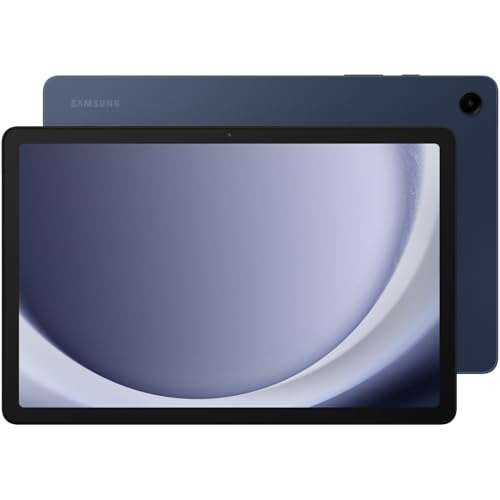
The A9+ closes the list as the honest dissent: a student tablet with no pen story at all, included because a large constituency of students does not take handwritten notes and should not pay for the apparatus. What it offers instead is the finest consumption screen in the guide — an 11-inch panel refreshing at 90Hz — with quad speakers that make recorded lectures intelligible at kitchen-table distance, Samsung’s polished software and update support, and split-screen multitasking that pairs a document with a browser or a lecture with a typed notes app. For the typist, the highlighter and the re-watcher of lectures, this is not a lesser student tablet; it is the correctly specified one.
Its 64GB storage on this listing is the number to manage, with a microSD card as the standing solution for downloaded lectures and readings. A Bluetooth keyboard turns it into a respectable essay-drafting station, and Samsung’s ecosystem syncs pleasantly with a Galaxy phone. The guide’s only insistence is that the choice be conscious: a student who discovers in week three that their course rewards handwritten diagrams has bought the wrong pick, and no speaker quality will compensate. Know your note-taking religion before choosing your tablet — the A9+ serves the keyboard congregation superbly and makes no promises to the penitent.
- Display: 11-inch LCD with 90Hz refresh — the smoothest screen here
- Pen: none; handwriting is not this model’s brief
- Capacity: 64GB fitted, microSD slot standing by for downloads
- Audio: four speakers with Dolby Atmos for lecture playback
- System: Android with Samsung One UI and strong update support
Strengths
- Lecture playback and reading are best-in-guide at this position.
- Samsung polish and updates protect a whole degree’s ownership.
- Split-screen study with typed notes works fluently.
Trade-offs
- No pen support path for handwritten notes or diagrams.
- 64GB leans on microSD expansion for download-heavy courses.
- Keyboard and case are separate purchases for the full study setup.
Best for: typists and lecture-rewatchers whose study system is keyboard, highlighter and recorded media.
Not suited for: any student whose course rewards handwritten notes, sketches or margin annotation.
Which Subjects Bend the Recommendation Most?
STEM courses bend it toward handwriting without apology: derivations, free-body diagrams, chemical structures and annotated problem sets are pen work, and the S6 Lite and NXTPAPER — pens included, systems complete — absorb them without extra spending. Art and design courses bend it toward the iPad, whose drawing and layout apps lead their field, with the Pencil budgeted as course equipment rather than as an accessory. Languages bend it toward audio quality and split-screen dictionaries, where the M11’s speakers and screen quietly excel. Essay-based humanities bend it toward keyboards and reading endurance, where the A9+ with a Bluetooth keyboard and the matte NXTPAPER divide the vote by whether the student’s eyes prefer smoothness or diffusion.
The pattern underneath the bending is the guide’s recurring lesson: the subject is a specification. Two students at the same university with the same budget can correctly buy different tablets from this list, and the reviews above were written so that each can find the paragraph where their own timetable is described. If your subject is not named here, translate it by its dominant activity — writing, reading, listening, drawing, calculating — and the pick aligned with that activity is your pick.
How Do You Build a Note-Taking System That Survives Revision Week?
The tablet is the instrument; the system is the music. Start with one notebook per module inside a single notes app — fragmentation across three apps is how notes go to die — and name every session with its date and topic while the lecturer is still introducing themselves, because “Week 7, Thursday” is not a title future-you can search. Use the pen for thinking and the keyboard for transcribing: diagrams, derivations and margin arguments in handwriting, definitions and quotations typed where they will be copy-pasted into essays. Most notes apps here search handwriting as well as text, but only if the writing is legible to the recognition engine, which is a fine incentive to keep lecture scrawl one notch tidier than instinct suggests.
Build the weekly rhythm in the first fortnight, while motivation is cheap. Ten minutes after each lecture, star the three ideas the session actually turned on; the stars become the revision skeleton months later. Export or sync the notebooks weekly so a lost tablet is an inconvenience rather than an academic event — every platform here syncs to a cloud account, and the only unforgivable backup is the one never switched on. By revision week, the students thriving are rarely the ones who wrote the most; they are the ones whose system can answer “where did we cover this?” in under a minute, and that answer was designed in September, not improvised in May.
How Does the Tablet Fit a Student Budget Across a Whole Degree?
Spread the ledger across the years and the ladder rearranges itself instructively. The pen-included systems — S6 Lite, NXTPAPER — front-load their completeness: the case or pen a rival charges for separately is already in the box, and their running costs are a microSD card, a replacement nib supply and perhaps a notes subscription. The iPad’s ledger is the mirror image: a higher first year, then the longest service life in the guide, so that by a four-year accounting its cost per year can undercut a budget tablet replaced at year three. The Lenovo pair sit between, their ledgers decided by whether the pen bundle was caught complete at purchase.
Two budget disciplines protect every version of the ledger. First, buy the storage and the pen right the first time — mid-degree upgrades to a system are where student budgets leak. Second, treat the tablet as capital, not consumable: a device maintained, cased and backed up serves the whole degree, while the same device treated casually becomes two purchases. The affordable tier’s real promise is not that the tablet is cheap; it is that one careful purchase can cover the most device-hungry years of a person’s education, and every pick above was ranked with that whole horizon in view.
What Does the Full Student Kit Around the Tablet Cost in Effort?
Price the entourage honestly, because every pick here travels with one. A case is non-negotiable in student geography — bags, bikes, lecture-hall floors — and only the NXTPAPER bundles one. A keyboard case or a small Bluetooth keyboard converts the pen picks into essay machines and the A9+ into its best self; students should decide by their typing volume rather than by the fantasy of a laptop replacement. A second charger that lives in the bag ends the battery anxiety that library socket-hunting creates, and a modest power bank covers field trips and long train journeys home.
One more entourage member is free and routinely forgotten: the university’s own software licences. Most institutions give students the office suite, the reference manager’s premium tier, library VPN access and cloud storage as part of enrolment, and a tablet set up with those accounts in the first week starts richer than its price suggests. Check the IT pages before subscribing to anything privately — the number of students paying personally for software their university already licences would fill a lecture hall, and the tablet’s first setup hour is exactly when that waste is prevented.
Software subscriptions form the quiet line item: the notes app tier worth paying for, cloud storage once the free shelf fills, the flashcard and reference tools a course quietly assumes. None is large; together they are the difference between the tablet’s shelf position and its degree position, which is why this guide ranks with totals in mind. The S Pen and NXTPAPER bundles shrink the entourage’s cost by arriving pre-assembled — an advantage that compounds every term the accessories do not need replacing.
How Do the Six Systems Compare for a Degree’s Worth of Study?
| Pick | Pen story | Reading character | Storage | Student it fits |
|---|---|---|---|---|
| Galaxy Tab S6 Lite (2024) | Bundled S Pen that never charges | 10.4-inch LCD, portable | 64GB + microSD | The all-round note-taker |
| Lenovo Idea Tab | Pen supported, bundle varies | 11-inch 2.5K, sharpest text | 128GB | The document-buried reader |
| Lenovo Tab M11 | Pen supported, bundle varies | 11-inch, entertainment-led | 128GB | The mixed study-and-downtime life |
| iPad 11-inch (A16) | Pencil separate — step-up tier | 11-inch Liquid Retina | 128GB | The app-ecosystem student |
| TCL NXTPAPER 11 Gen 2 | Stylus and case in the box | 11-inch matte, glare-free | 128GB | The long-hours reader |
| Galaxy Tab A9+ | No pen | 11-inch 90Hz, lecture-led | 64GB + microSD | The typist and re-watcher |
The pen column is the sorting hat: two complete systems in the box, two pens to verify on the listing, one pen priced as a step-up, and one honest absence. Match that column to your note-taking religion first, and the rest of the table becomes fine-tuning rather than fate.
Which Mistakes Do Students Make When Buying Their Tablet?
The most common is buying the tablet before the timetable — discovering in October that the course’s life is handwritten problem sets, or app-based anatomy, or recorded lectures, and that the September purchase serves a different degree. Ask the department, read the module pages, interrogate a second-year student; one conversation outweighs ten reviews, including this one. The second mistake is the reverse snobbery: refusing the step-up iPad on principle while one’s entire course app culture lives on iPadOS, then spending three years working around the absence.
A sixth mistake deserves its own sentence because it is so rarely named: buying the tablet and never building the system — no notebook structure, no backup test, no weekly export — so that a fine instrument produces a chaotic archive indistinguishable from no system at all. The hardware sections of this guide end at the unboxing; the sections on method are the ones that decide grades, and they cost nothing but the first fortnight’s attention.
Third is storage and pen amnesia combined — the 64GB tablet bought without the card, the pen-supported tablet bought without confirming the pen is in the box, the iPad bought without budgeting the Pencil, each producing a system that is ninety percent complete and one hundred percent annoying. Fourth is case procrastination, the universal student sport, ended by the first bag-drop onto concrete. Fifth is buying for the student one intends to become — the dawn-rising annotator of legend — rather than the one who exists; the A9+ has made more honest typists happy than many a pen tablet bought in aspirational guilt and used as a video screen.
What About E-Textbooks, Library Apps and Printing?
The unglamorous plumbing of student reading deserves a paragraph of its own, because it is where platform differences stop being philosophy. University libraries lend through apps and browser platforms that run on both Android and iPadOS here, but individual textbook platforms occasionally favour one store, and a required e-textbook that will not open on the chosen tablet is a crisis with a deadline. The pre-purchase ritual is five minutes long: list the course’s named platforms, confirm each exists on the candidate’s store, and open the library’s own guide page, which usually states its supported devices with bureaucratic precision.
Printing follows the same pattern — every pick can send a document to a modern Wi-Fi printer, and every university’s managed print system has its own app or web portal whose compatibility should be confirmed once, in September, rather than at midnight before a deadline. None of this is a reason to choose one pick over another in the abstract; it is a checklist that converts the abstract choice into a safe one, and it belongs in the same first week as the case purchase and the backup test.
How Should a Student Choose Between Android and iPadOS for Study?
Follow the course’s software gravity first. If the department’s apps, the library’s systems and the cohort’s shared tools assume iPads — as clinical and design programmes often do — the iPad is not a preference but a uniform, and its step-up cost should be weighed against three or four years of frictionless compliance. If the course lives in Google Workspace, Microsoft 365 and the open web, as most do, Android’s picks deliver the same study outcomes at gentler positions, with the S Pen systems adding handwriting the iPad charges extra to unlock.
Follow the phone second. A student whose life already syncs through an iPhone will feel the iPad as an extension; a Galaxy phone owner gets the same continuity from the Samsung picks, including calls, messages and clipboard sharing that make the tablet feel like the phone’s larger room. Ecosystems are not traps when they are chosen knowingly — they are conveniences with a price, and the student years are exactly when the convenience is worth most and the money is worth most too. That tension is the decision; this guide can price it but cannot resolve it for you.
How Do You Protect the Tablet — and the Work on It — All Degree Long?
Physical protection is the case, bought on day one; this guide will not relitigate it. Digital protection is the larger curriculum. Turn on the maker’s find-my-device service before the first lecture, because a tablet’s most likely tragedy is being left under a library chair. Set a proper passcode — the notes on a lost tablet are a term’s work and a slice of a life. Keep the cloud sync for notes and documents switched on permanently, and test it once by opening a notebook on another device; a backup that has never been restored is a rumour, not a backup.
Then insure the work with one boring weekly habit: an export of the term’s notebooks to a second location, five minutes while a kettle boils. Students lose tablets to theft, to water bottles in bags, to the simple entropy of shared houses, and the ones who shrug are the ones whose work lived in two places. The hardware in this guide is replaceable at student prices; the annotated library of a degree is not replaceable at any price, and the difference between those two facts is the whole of this section.
What Does a Study Day Actually Ask of Battery and Screen?
Run the timetable honestly: a nine o’clock lecture with the brightness up for slides, a library stretch of PDF reading under fluorescents, a seminar where the tablet is the only voice of the readings, an evening of revision with a lecture re-playing in the corner. That day punishes two things — screens that glare or dim into illegibility, and batteries that fade before the evening session. Every pick here was chosen to survive that day at mixed brightness with charge to spare, but their margins differ in character: the matte NXTPAPER spends its advantage on readability in bad light, the 90Hz A9+ spends a little battery buying smoothness, and the smaller S6 Lite’s modest screen is quietly frugal across a long day.
The student’s own habits move the needle as much as the hardware. Downloaded lectures cost a fraction of streamed ones in battery; notes taken with the screen at half brightness in a dim lecture hall cost less than the timetable suggests; and the second charger in the bag, recommended earlier, converts the whole question from anxiety into logistics. Judge battery claims by the day you actually live — and if your course is fieldwork-heavy, weight the endurance picks and the power-bank plan accordingly.
What About Focus — Can a Tablet Full of Entertainment Still Be a Study Tool?
Honestly addressed, because every student asks it in the shop and few guides answer it straight: yes, with architecture. The same screen that holds the seminar reading holds every distraction ever published, and willpower is a weaker control than settings. The practical architecture is separation — a study profile or focus mode that silences entertainment notifications during timetabled hours, reading and notes apps on the home screen with the streaming row exiled to a folder, and downloads of the week’s lectures done in advance so the library’s Wi-Fi cannot become a browsing session. Android and iPadOS both ship the tools; the S Pen picks add the subtle advantage that a pen in the hand biases the brain toward the document.
The deeper truth is that the tablet’s distraction risk is the phone’s risk at larger scale, and students who manage one manage the other with the same systems. A tablet bought with a study architecture installed in week one behaves like a study tool for years; a tablet left as an entertainment slab with good intentions behaves like an entertainment slab. The hardware in this guide is innocent in both directions — which is precisely why the method sections of this guide carry as much weight as the reviews.
How Do These Tablets Handle Group Projects and Presentations?
Student work is social, and the tablet’s role in a group project is usually the shared surface: the document everyone annotates, the slides everyone argues over, the whiteboard that travels between cafés. Split-screen and casting matter here — every pick can throw its screen to a larger display by cable or wireless in most teaching spaces, and the pen picks let a group sketch the plan rather than describe it. File-sharing manners decide the friction: students inside one ecosystem share natively, mixed groups live in cloud documents, and the tablet that opens every format without complaint becomes the group’s default machine.
Presenting from the tablet is the advanced move the pen picks enable beautifully — slides advanced with one hand, diagrams drawn live with the other, questions answered by annotating the deck rather than promising to check later. It is a small theatre of competence that tutors notice, and it costs nothing beyond rehearsing the casting connection before the seminar rather than during it. Even the pen-free A9+ presents handsomely; the pen simply adds the live-annotation flourish for students whose subjects reward it.
What Should Postgraduates and Professional-Course Students Weigh Differently?
The postgraduate’s tablet life is reading-dominant to a degree undergraduates rarely reach: hundreds of journal PDFs, scanned chapters, annotated bibliographies that must sync with a reference manager and survive for years as research infrastructure. That profile elevates the Idea Tab’s sharp screen and the NXTPAPER’s matte endurance, and it makes cloud sync and handwriting search non-negotiable rather than nice. It also extends the ownership horizon — a research tablet bought in year one of a doctorate should be chosen for the maker most likely to be updating it in year five, which quietly strengthens the Samsung and Apple cases.
Professional courses — medicine, law, teaching, accountancy — add their own gravities: placement days where the tablet is a reference library in a pocket, regulatory apps that may exist on one platform only, and cohort norms that function as soft requirements. The advice from the undergraduate sections sharpens rather than changes: interrogate the course’s actual software before buying, weight the ecosystem the profession uses, and treat the tablet as professional equipment with a multi-year ledger. The step-up iPad is chosen most often in this population, and for once the reason is rarely fashion — it is that the profession’s tools genuinely live there.
Final Recommendation
For the median student, the Galaxy Tab S6 Lite remains the answer this guide gives first: complete in its box, kind to its budget, and built around the handwriting that study rewards. Readers buried in documents should look hard at the Idea Tab’s sharper screen and the NXTPAPER’s matte mercy — the latter arriving with pen and case included — while the Tab M11 serves the student whose life is honestly half entertainment. The iPad earns its step-up whenever a course’s apps or a long ownership horizon justify the climb, Pencil budgeted from the start. And the A9+ stands ready for the student who types, highlights and re-watches, and refuses to pay for a pen religion they do not practise. Buy for the degree you are actually taking, in the autumn you are actually starting, and the tablet will still be earning its place at graduation.
Frequently Asked Questions
Is a tablet enough, or does a student still need a laptop?
For notes, reading, essays and coursework portals, most students can run the majority of their week on these tablets, especially with a keyboard added. Specialised software — statistics, coding environments, engineering tools, heavy data work — still belongs on a laptop. The common pattern is tablet for capture and consumption, laptop for production, with the tablet carrying the longer daily hours.
Which notes apps work best on the Android picks?
Samsung Notes leads on the Galaxy tablets, with handwriting search and PDF annotation built in. Cross-platform options like OneNote and Google Keep cover sync-to-laptop needs, and several third-party handwriting apps serve the Lenovo and TCL picks well. The discipline of one app, organised by module, matters more than the brand on the icon.
How much storage does a student tablet need for a full degree?
Notes and documents are light; recorded lectures, textbooks with media and downloads are not. 128GB is the comfortable starting point, while 64GB picks are entirely workable with a microSD card and a termly clear-out. Cloud sync for notes is essential regardless — storage is about convenience, backup is about survival.
Can these tablets handle online exams and proctored tests?
It depends on the institution’s software, and this is the one question to ask the university before buying. Many exam platforms require a Windows or Mac laptop with a lockdown browser that tablets cannot run. Treat the tablet as the study device and confirm what the exam device must be; students are rarely allowed to improvise that answer in the exam hall.
Is handwriting on a tablet really better than typing notes?
For comprehension and retention, the evidence and most lecturers favour summarising by hand — it forces selection rather than transcription. For verbatim capture and searchable archives, typing wins. The strongest student systems, and the reason pen picks lead this guide, use both: pen for thinking during the lecture, keyboard for organising after it.
Do I need a keyboard case, or is a separate Bluetooth keyboard better?
A separate keyboard is usually the smarter student buy: cheaper to replace, usable at a healthier angle with the tablet raised on its case stand, and free to stay home on pen-and-paper days. Keyboard cases win only for students who type in genuinely lap-bound places daily. Either way, test the combination with a real essay before the deadline season, not during it.
Can I record lectures on these tablets?
Yes — every pick records audio through its notes or voice apps, and several notes systems sync the recording to the handwriting, so tapping a word replays what was said as you wrote it. Check your institution’s recording policy first; many allow personal recording, some require permission, and the rule belongs to the university rather than to the tablet.
Should I buy the tablet before term starts or wait for student sales?
Buy before term if the choice is settled — the first weeks are when the note system forms, and a tablet that arrives in week five inherits a month of paper chaos to digitise. Student discounts and education pricing run through much of the year for those who verify their status, so the settled buyer rarely gains by waiting; the unsettled buyer gains more from a department conversation than from any promotion calendar.
Are refurbished or older models a smart student buy?
Often, with two checks: the remaining update horizon, because a tablet near the end of its support life is a shorter purchase than it looks, and battery health, which no listing photographs honestly. A previous-generation S Pen Samsung or iPad from a reputable refurbisher can out-serve a new budget rival — provided the pen is included or priced into the comparison.
When is the iPad step-up genuinely worth it for a student?
When a course’s essential apps are iPad-first or iPad-only, when the student will keep the tablet for four-plus years so its cost per year drops below the Android picks’ replacement cycle, or when the household’s other devices already live in Apple’s ecosystem. Absent those, the pen-included Android systems deliver the study core for less.
What if my course provides a laptop — is a tablet still worth it?
For the capture-and-reading half of study, usually yes: the tablet is the device in the lecture, the library and the bed, while the provided laptop anchors the desk. Students in that position should weight the pen and reading picks most heavily and skip keyboard accessories entirely — the tablet’s job in a two-device life is to be the paper, not a second computer.
Related Guides
Students also compare our affordable Android tablet roundup, the reading-first options in matte-screen tablets for long study sessions, and budget drawing tablets for art coursework.