What's inside
- Key Takeaways
- Quick Picks
- How were these picks chosen?
- Comparison table
- Living with each dock, week after week
- Setup details that decide whether a dock feels invisible
- How do you choose the right docking monitor?
- Putting these docks through a working week
- Common mistakes when buying a docking monitor
- Docking across hybrid schedules and shared offices
- Final recommendation
- Troubleshooting the first week with a new dock
- Frequently asked questions
As an Amazon Associate I earn from qualifying purchases. This post may contain affiliate links at no extra cost to you.
gizmoverdict.com is reader-supported. When you buy through links on our site, we may earn an affiliate commission.
Where to buy: Docking monitors sell through ordinary computer retailers and marketplace storefronts, and stock shifts between the 24-inch and larger panels without much warning. Every model below was confirmed through its manufacturer listing details, so start from those pages, confirm the USB-C wattage matches your laptop, and treat a suddenly unfamiliar seller name as a reason to slow down rather than a bargain signal.
The best monitors for docking station setups solve a problem that a plain screen never touches: the tangle that grows every time a laptop comes home. One cable should carry the picture, charge the battery, wake the keyboard and mouse, and put the machine on the wired network. When that single connection works, a desk stops feeling like a charging station with a screen attached. When it fails, you are back to three dongles, a power brick kicked under the desk, and a video call that opens on the wrong camera.
This guide looks at six monitors that genuinely dock, not screens that merely accept a USB-C video signal. The distinction matters. A display can show a beautiful picture over USB-C while returning no power at all, leaving the laptop battery draining through a long meeting. A true docking monitor pushes power back down the same cable, hosts USB peripherals, and in most of these cases carries Ethernet through an RJ45 port. The six below span a 32-inch 4K Philips, three distinct 24-inch ViewSonic models that look similar on a shelf yet serve different desks, a 27-inch ViewSonic in 4K, and a Samsung ViewFinity whose listing names describe it in two sizes, a point we handle carefully in its review.
Screen size is the glamorous part of the decision, but wattage decides whether the glamour survives contact with your actual laptop. A thin ultrabook sips power. A 16-inch workstation can demand more than a modest docking monitor returns, and then the battery percentage slides backwards during exactly the heavy work the big screen was bought for. Read the reviews below with your charger in mind: the wattage printed on your laptop’s power brick is the number each monitor has to match or beat.
It helps to separate three products that marketing language loves to blur. A standalone dock is a box that sits between laptop and peripherals, still requiring a separate monitor. A USB-C monitor without docking features is a screen that accepts a modern cable and nothing more. A docking monitor merges the two: the box disappears into the screen’s casing, and the desk gains a device instead of losing space to one. The purchase only makes sense in that merged form, which is why this guide insists on power delivery and a hub as entry requirements rather than bonuses.
The audience splits into two camps with different regrets. Home workers regret underbuying resolution, because they stare at the same panel for years and feel every pixel shortage in their shoulders and eyes. Office buyers regret underbuying power and ports, because a fleet purchase multiplies any shortage across dozens of desks. Naming your camp before shopping is the cheapest decision aid in this entire category, and the reviews below keep returning to it: private desks can optimise for the picture, shared desks must optimise for the connection.
Key Takeaways
- Power delivery splits this group sharply: the ViewSonic VG2456 returns 60W, the VG2756-4K returns 90W, and the VG2458 plus VG2458V return 100W each, so match the monitor to your laptop’s charger before falling for a panel.
- Every pick here includes an RJ45 Ethernet port in its listing, which means a wired network connection arrives through the same single cable as video and power.
- The three 24-inch ViewSonic models are not duplicates: one emphasises tilt and value, one adds 100Hz and full height adjustment, and one builds in a 5MP Windows Hello webcam for meeting rooms.
- Daisy chaining appears on several listings, letting a second screen hang off the first instead of consuming another laptop port.
- Only the Philips and the 27-inch ViewSonic offer 4K resolution here; the 24-inch models are 1080p, which suits documents and calls far better than detailed photo work.
- A docking monitor replaces a separate dock purchase only when its port list covers your peripherals, so count your USB devices before ordering.
Quick Picks
| Pick | Model | Badge |
|---|---|---|
| 1 | Philips 32B1U3900 32″ 4K USB-C Docking Monitor | Best for a big 4K desk |
| 2 | ViewSonic VG2456 24″ USB-C Docking Monitor | Best straightforward office dock |
| 3 | ViewSonic VG2458 24″ USB-C Docking Monitor | Best 24-inch power delivery |
| 4 | ViewSonic VG2756-4K 27″ USB-C Docking Monitor | Best 4K balance of size and price class |
| 5 | Samsung ViewFinity USB-C Monitor | Best for daisy-chained QHD |
| 6 | ViewSonic VG2458V 24″ Docking Monitor with Webcam | Best for video-call desks |
Badges here reflect the job each screen does most convincingly, not a ranking of panel quality in the abstract. A 24-inch 1080p monitor with the right wattage will make a hot-desking office happier than a 4K flagship whose power output leaves a workstation laptop hungry. Readers comparing broader screen categories alongside docks may also find our notes on best monitors for brightness control useful when a bright office window enters the picture.
How were these picks chosen?
The first filter was absolute: a monitor had to dock. That meant USB-C carrying video into the panel and power back out to the laptop, plus a USB hub for peripherals. Models whose USB-C port handled display input alone were excluded, however attractive their panels looked, because they leave the original cable clutter untouched. Ethernet through RJ45 counted heavily in the monitor’s favour, since wired networking is the feature laptop users most often lose when a machine ships without its own port.
Power delivery wattage formed the second filter, and the listings here state it plainly, which made honest comparison possible. Sixty watts covers most slim laptops sold for office work. Ninety and one hundred watts reach into heavier machines. Rather than declaring one figure correct, the reviews flag which class of laptop each output suits, because a mismatch in either direction has consequences: too little power means a draining battery, while paying for surplus wattage you never draw is money that could have bought resolution instead.
Panel facts came third. Resolution, panel type and size were taken strictly from each listing title. Where a title stays quiet about a specification, the spec boxes below say so instead of filling the gap with a plausible guess. That discipline matters most for the Samsung, whose short product name and full listing title disagree about screen size; its review works from the fuller title and flags the conflict openly.
Ergonomics separated the near-identical ViewSonic trio. Tilt range, height adjustment and the presence of a webcam are titled facts, and they point each model at a different desk. Finally, warranty length counted where stated: the Philips carries a four-year warranty in its title, and the Samsung listing states three years, both meaningful for equipment an office expects to keep through several laptop generations.

1. Philips 32B1U3900 32″ 4K USB-C Docking Monitor — Best for a big 4K desk
The Philips is the screen in this group that changes how a desk feels. Thirty-two inches of 4K UHD resolution gives spreadsheets genuine width, lets a document sit beside a browser without either window shrinking into apology, and makes small interface text legible without leaning forward. Its listing describes a built-in USB-C docking station rather than a lone USB-C socket, and a VA panel chosen for high-contrast, detail-rich visuals. That panel technology suits mixed office work well: contrast helps text pop against white pages, and video content gains depth during the presentations and training clips that fill modern calendars.
The four-year warranty deserves emphasis because docking monitors live a harder life than plain displays. The USB-C port takes a daily plugging cycle, the hub fields constant peripheral traffic, and the power circuitry works whenever the laptop is docked. A warranty stated at four years in the title signals the maker expects the docking hardware, not just the panel, to last. Offices standardising on one model for a floor of desks should weigh that coverage heavily.
What the Philips title does not state is equally important. It gives no power-delivery wattage, no mention of RJ45 Ethernet, and no port-by-port hub inventory. That silence deserves serious treatment from any owner of a laptop needing a confirmed 90W: verify through the manufacturer’s full specification before committing, because the docking promise in the title does not quantify the power behind it. The panel size also demands honest desk measurement: 32 inches across is a commanding presence, and on a shallow desk the screen can sit closer than comfort allows.
For a single-screen desk built around a laptop with modest power draw, though, the combination here is compelling: 4K space, an integrated dock, strong contrast and long warranty cover. Readers can check the current listing for the Philips 32B1U3900 to confirm the wattage detail its title leaves open.
Strengths
- 32-inch 4K UHD resolution provides the largest, sharpest workspace in this group.
- VA panel is described in the listing as delivering high-contrast, detail-rich visuals.
- Four-year warranty is the longest coverage stated among these six listings.
Trade-offs
- Power-delivery wattage is not stated in the listing title, so hungry laptops need verification first.
- RJ45 Ethernet is not mentioned in the title, unlike the ViewSonic and Samsung listings.
- The 32-inch footprint overwhelms shallow desks and small home-office corners.
Spec box
- Size and resolution: 32 inch, 4K UHD
- Panel: VA
- Docking: built-in USB-C docking station
- Power delivery: Not stated in the listing title
- Ethernet: Not stated in the listing title
- Warranty: 4 years, as titled
Best for: a single-screen desk where 4K space and warranty length lead the decision.
Not suited for: a laptop whose charger demands a wattage this listing never confirms.

2. ViewSonic VG2456 24″ USB-C Docking Monitor — Best straightforward office dock
The VG2456 is the original recipe in ViewSonic’s docking line: a 24-inch 1080p IPS panel, 60W of USB-C power delivery, RJ45 Ethernet, HDMI and DisplayPort inputs, daisy-chain support, a USB hub and a stand that tilts through 40 degrees. Nothing in that list chases spectacle. Everything in it answers a real office complaint. The laptop arrives, one cable clicks in, and the machine is simultaneously powered, networked, displayed and connected to whatever the hub is hosting.
Sixty watts defines its audience precisely. Slim business laptops and ultrabooks built around modest chargers will run and charge happily. A mobile workstation with a much larger power brick will not, and no amount of panel quality changes that arithmetic. The 1080p resolution at 24 inches is the classic office pairing: text stays reasonably crisp at normal viewing distance, and the modest pixel count keeps older laptops’ graphics hardware comfortable when a second screen joins through the daisy chain.
The 40-degree tilt range sounds like a minor detail until a desk is shared. Hot-desking benches and reception counters put screens at odd heights relative to chairs, and generous tilt rescues posture in those settings. What this model does not claim in its title is height adjustment, so a fixed desk with a tall user may still need a riser. Its title also keeps quiet about refresh rate beyond the panel’s standard presentation, marking it as a productivity screen rather than anything aimed at motion-heavy work.
Offices buying in quantity often value this kind of predictability over flagship features. The VG2456 docks, networks and displays without surprises, and its specification has the settled feel of a model bought by the pallet. If that profile matches your shortlist, the VG2456 listing is worth a close read before newer siblings tempt you upward.
Strengths
- Complete docking recipe in one title: 60W USB-C, RJ45, hub and daisy chain.
- IPS panel suits shared viewing angles at office desks and counters.
- 40-degree tilt range adapts to awkward shared-desk heights.
Trade-offs
- 60W output cannot sustain laptops shipped with substantially larger chargers.
- 1080p resolution limits fine detail for image-heavy professional work.
- Height adjustment is not claimed in the listing title.
Spec box
- Size and resolution: 24 inch, 1080p
- Panel: IPS
- Power delivery: 60W over USB-C
- Ethernet: RJ45, as titled
- Extra inputs: HDMI, DisplayPort, daisy chain, USB hub
- Stand: 40-degree tilt; height adjustment not stated in the listing title
Best for: a standard office laptop whose charger sits at or below the 60W this monitor returns.
Not suited for: a 16-inch workstation whose power brick is rated well beyond 60W.

3. ViewSonic VG2458 24″ USB-C Docking Monitor — Best 24-inch power delivery
Think of the VG2458 as the VG2456’s answer to two complaints: not enough power, and a stand that stays where the factory left it. USB-C delivery climbs to 100W, which brings larger laptops into the single-cable fold. The hub grows to five USB ports. Height adjustment joins the stand. The refresh rate reaches 100Hz, a figure the older model’s title never mentions, giving scrolling documents and cursor movement a smoother feel across a long working day.
The panel remains a 24-inch 1080p IPS unit, and that restraint is deliberate. This model is aimed at desks where the laptop is the constraint, not the picture. A consultant docking a powerful machine at three different offices in a week cares that each desk charges properly, connects the wired network and hosts a keyboard, mouse, headset dongle and backup drive without a port shortage. Five hub ports plus RJ45 plus 100W is precisely that insurance policy.
Height adjustability changes the ergonomic calculation against its sibling. Where the VG2456 asks a riser to fix a tall user’s posture, the VG2458’s stand travels, which matters in shared spaces where each person’s chair and eye line differ. Mac compatibility is named in the title alongside PC support, a small but real reassurance for mixed fleets, since docking behaviour across platforms is exactly where vague listings tend to hide disappointments.
Nothing here turns the screen into a creative workstation display; 1080p stays 1080p, and colour-critical work belongs on the 4K models in this guide. Judged as a dock that happens to have a good screen attached, however, it is arguably the most complete 24-inch package in the group. Review the VG2458’s full port list at its listing if your peripheral count runs high.
Strengths
- 100W USB-C power delivery covers larger laptops that 60W models leave short.
- Five-port USB hub is the most generous peripheral capacity titled in this group.
- Height-adjustable stand and 100Hz refresh improve daily comfort over its sibling.
Trade-offs
- 1080p resolution caps detail despite the strong docking hardware around it.
- No webcam is built in, unlike the VG2458V reviewed below.
- Daisy-chain support is not mentioned in this model’s title.
Spec box
- Size and resolution: 24 inch, 1080p
- Panel: IPS
- Power delivery: 100W over USB-C
- Ethernet: RJ45, as titled
- Hub: 5-port USB hub
- Stand and rate: height adjustable, 100Hz
Best for: a powerful laptop docking daily alongside several USB peripherals.
Not suited for: colour-critical editing that a 24-inch 1080p panel cannot resolve.

4. ViewSonic VG2756-4K 27″ USB-C Docking Monitor — Best 4K balance of size and price class
The VG2756-4K takes the docking formula and gives it the resolution the 24-inch models lack. Twenty-seven inches at 4K UHD is a sweet spot for desk work: text renders with genuine sharpness, two documents share the screen without compromise, and the panel stays small enough for dual-screen arrangements on a wide desk. USB-C power delivery sits at 90W, squarely between the 60W and 100W siblings, and the title specifies USB-C 3.2 alongside Ethernet, HDMI, DisplayPort and a USB hub.
Advanced ergonomics and eye care both appear in the listing, pairing that suggests ViewSonic aimed this model at individuals buying their own long-term desk rather than facilities teams buying by the pallet. A person spending eight hours a day in front of one screen feels stand adjustability and eye-comfort features personally. The 27-inch 4K combination also ages well: as laptops gain stronger graphics hardware, the panel’s headroom becomes more valuable, not less.
Its compromises are positional rather than serious. Ninety watts will satisfy most laptops yet still trails the VG2458’s 100W for the hungriest machines. The title does not mention daisy chaining, so a second monitor may need its own laptop connection. And 4K at 27 inches invites operating-system scaling decisions that some older software handles gracelessly, shrinking interface elements until settings are adjusted.
For a home office built to last several years around one good screen, this is the balanced choice in the line-up. Those weighing it against spreading budget across two smaller panels might compare the workspace maths in our guide to best 27 work monitors, where the same size class is judged without docking duties. See the VG2756-4K listing for its current availability.
Strengths
- 4K UHD at 27 inches delivers sharp text with manageable desk footprint.
- 90W USB-C delivery covers most business laptops with headroom to spare.
- Advanced ergonomics and eye care are both named in the listing title.
Trade-offs
- 90W still falls short of laptops shipped with chargers above that figure.
- Daisy-chain capability is not stated in the title.
- 4K scaling can shrink controls in older desktop software until adjusted.
Spec box
- Size and resolution: 27 inch, 4K UHD
- Panel: Not stated in the listing title
- Power delivery: 90W over USB-C 3.2
- Ethernet: included, as titled
- Extra inputs: HDMI, DisplayPort, USB hub
- Stand: advanced ergonomics, as titled
Best for: a long-term single-screen home office built around a mid-power laptop.
Not suited for: a dual-4K plan that depends on daisy chaining this title never claims.
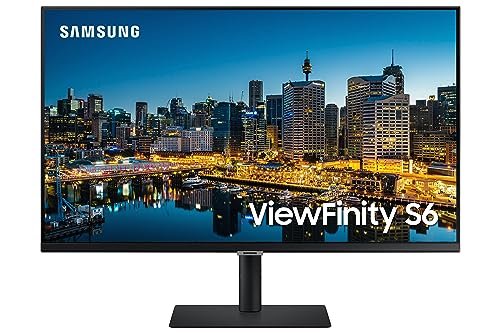
5. Samsung ViewFinity USB-C Monitor — Best for daisy-chained QHD
Samsung’s entry needs a moment of honesty before praise. The short product name calls it a 34-inch monitor, while the full listing title describes a 32-inch ViewFinity with QHD 2K resolution. We work from the fuller title here, and any buyer should confirm the size on the manufacturer’s specification page before ordering, because a two-inch discrepancy changes desk planning. What both versions agree on is the docking substance: USB-C, DisplayPort daisy chaining, Ethernet, HDMI, HDR10 support, a fully adjustable stand and a three-year warranty.
QHD at this size occupies a deliberate middle ground. It asks less of a laptop’s graphics hardware than 4K, yet still widens the workspace considerably beyond 1080p. The daisy-chain support is the headline for multi-screen desks: the Samsung can pass the signal along to a second display, keeping the laptop’s own ports free. HDR10 appears in the title, which benefits video playback and presentation content, though office documents neither gain nor lose from it.
The fully adjustable stand distinguishes it from tilt-only designs, and the three-year warranty gives the purchase a respectable horizon. What the title leaves unstated is the USB-C power wattage, which is the single most important docking figure, and it also omits any hub port count. Those silences put homework on the buyer in a way the ViewSonic listings do not. A laptop with a modest charger will very likely be served well, but likely is not a specification.
Treat this model as a strong QHD daisy-chain candidate whose docking numbers need one verification step. Open the Samsung ViewFinity listing and locate the wattage figure before matching it against your machine.
Strengths
- DisplayPort daisy chaining supports tidy two-screen desks from one laptop connection.
- QHD resolution balances workspace width against laptop graphics load.
- Fully adjustable stand and three-year warranty are both stated in the title.
Trade-offs
- Listing name and full title disagree on size, so verification is essential.
- USB-C power wattage is not stated in the listing title.
- Hub port count goes unmentioned, complicating peripheral planning.
Spec box
- Size and resolution: 32 inch per full title, QHD 2K (short name says 34 inch)
- Panel: Not stated in the listing title
- Power delivery: Not stated in the listing title
- Ethernet: included, as titled
- Extra inputs: HDMI, DisplayPort with daisy chain, HDR10
- Warranty: 3 years, as titled
Best for: a QHD two-screen desk built around daisy chaining and stand adjustability.
Not suited for: a purchase that cannot pause to confirm size and wattage the title leaves unclear.

6. ViewSonic VG2458V 24″ Docking Monitor with Webcam — Best for video-call desks
The VG2458V starts from the VG2458’s strong docking base, 100W USB-C, RJ45 Ethernet, daisy chain and height adjustment on a 24-inch 1080p IPS panel, then adds the feature its siblings lack: a built-in 5MP webcam with Windows Hello support, plus speakers. For a desk that lives on video calls, that integration removes the clip-on camera, its cable, its awkward angle and its habit of sliding down the bezel mid-meeting. The camera sits where it should, centred above the screen, and Windows Hello sign-in turns sitting down into being logged in.
Five megapixels is a meaningful figure for a built-in camera, comfortably beyond the grainy sensors bundled into many laptops. Combined with integrated speakers, the monitor covers the full call setup: picture out, faces in, voices both ways, all arriving through the single docking cable. Meeting rooms and consultation desks benefit most, since every user who docks inherits the same reliable camera position instead of bringing a personal tangle of accessories.
The trade-offs mirror its sibling’s. Resolution stays at 1080p, fine for calls and documents, limiting for detailed visual work. The title does not specify the USB hub’s port count, a step down in transparency from the VG2458’s explicit five ports. And a permanently installed camera raises a familiar privacy conversation in some workplaces, where a physical shutter matters more than resolution; the title does not mention one.
As a dedicated communications desk, though, nothing else in this group arrives as completely equipped. Check the VG2458V listing if your working week is measured in meeting hours.
Strengths
- Built-in 5MP Windows Hello camera removes the clip-on webcam entirely.
- 100W USB-C delivery matches the strongest power output in this group.
- Speakers, daisy chain and height adjustment complete the call-desk package.
Trade-offs
- 1080p panel limits detail for design or photographic tasks.
- USB hub port count is not stated in the listing title.
- A privacy shutter is not mentioned for the built-in camera.
Spec box
- Size and resolution: 24 inch, 1080p
- Panel: IPS
- Power delivery: 100W over USB-C
- Camera and audio: 5MP Windows Hello webcam, speakers
- Ethernet: RJ45, as titled
- Stand: height adjustable, daisy chain supported
Best for: a call-heavy desk or small meeting room where every user docks and presents.
Not suited for: a workplace policy that requires a physical camera shutter this title never mentions.
Comparison table
| Model | Size / resolution | USB-C power | Ethernet | Standout trait |
|---|---|---|---|---|
| Philips 32B1U3900 | 32″ / 4K UHD | Not stated in title | Not stated in title | VA contrast, 4-year warranty |
| ViewSonic VG2456 | 24″ / 1080p | 60W | RJ45 | 40-degree tilt, daisy chain |
| ViewSonic VG2458 | 24″ / 1080p | 100W | RJ45 | 5-port hub, 100Hz |
| ViewSonic VG2756-4K | 27″ / 4K UHD | 90W | Included | Eye care, advanced ergonomics |
| Samsung ViewFinity | 32″ per title / QHD | Not stated in title | Included | Daisy chain, HDR10 |
| ViewSonic VG2458V | 24″ / 1080p | 100W | RJ45 | 5MP Windows Hello webcam |
Living with each dock, week after week
The Philips, day to day. A 32-inch 4K screen rearranges habits in ways the specification sheet only hints at. Email stops being a window you visit and becomes a column that lives permanently at one side, while the real work occupies the centre. Video calls gain an unexpected benefit: shared screens arrive large enough to read without asking the presenter to zoom. The cost of that generosity is window management. Without deliberate snapping habits, windows drift into overlapping piles, and the extra space turns into extra clutter. Owners who set up two or three saved window layouts in their operating system get the productivity the panel promises; owners who wing it mostly get a bigger mess. The VA panel’s contrast also flatters evening work, when office lighting drops and a bright white document can glare; text stays grounded against its background rather than floating in wash.
The VG2456, day to day. This model’s pleasure is boredom, in the best sense. It behaves identically on the first morning and the fiftieth. For facilities teams that pleasure compounds: a help desk can talk any employee through the same connection steps because every desk in the building presents the same ports in the same places. The 1080p panel will not thrill a designer, yet for the spreadsheet-and-browser rhythm of administrative work its limits rarely surface. Where they do surface is split-screen multitasking, since two windows side by side at 1080p each feel narrow, and heavy tab users will notice text reflowing more often than on the QHD or 4K screens here.
The VG2458, day to day. The 100Hz refresh is the surprise here, because office work is not supposed to care about refresh rates until it does. Scrolling a long contract, dragging a window across the screen, even the humble cursor’s travel all feel fractionally calmer, and over an eight-hour day those fractions register as reduced friction rather than excitement. The five-port hub changes behaviour too: peripherals stop migrating. A drive that has a permanent port stays connected and gets backed up to; a drive that competes for two ports lives in a drawer and does not. Height adjustment completes a model that feels engineered by somebody who interviewed the VG2456’s owners and fixed their three loudest complaints.
The VG2756-4K, day to day. Sharpness is this screen’s daily dividend. Code editors, dense dashboards and fine print in contracts all render with a clarity that reduces the unconscious squinting many people blame on tiredness. The 90W delivery quietly handles laptops that would embarrass the 60W model, and the 27-inch size leaves room on the desk for a laptop stand beside it, letting the laptop’s own screen serve as a secondary display for chat or reference material. That two-screen arrangement, built from one cable and no extra hardware, is arguably the most productive configuration in this entire guide for a solo home worker.
The Samsung, day to day. Daisy chaining defines life with the ViewFinity. The second monitor connects to the first, the first connects to the laptop, and the desk’s cable count drops by one more than rival setups manage. HDR10 gives streamed presentations and video material extra punch, and the fully adjustable stand suits desks where two people alternate shifts. Living with it does require settling the size question at purchase time and confirming the power figure, homework the other brands largely spare you, but owners who complete those checks inherit a tidy, capable QHD workspace with a three-year warranty behind it.
The VG2458V, day to day. A built-in camera changes meeting behaviour subtly and permanently. Because the camera never moves, regular colleagues see you from the same flattering, centred angle every time, lit by whatever the room gives rather than by a laptop screen from below. Windows Hello sign-in becomes a reflex: sit, glance, work. Speakers in the monitor also free the desk of a separate soundbar for call audio, though music listeners will still prefer dedicated speakers or headphones. In shared rooms the camera’s permanence cuts both ways, and teams with strict privacy habits should discuss lens-cover etiquette before deployment rather than after the first awkward incident.
Setup details that decide whether a dock feels invisible
Cable quality is not a footnote. The single-cable promise depends on a USB-C cable rated for video, data and the monitor’s full power delivery. The cable in the box is the safest starting point. A random charging cable from a phone drawer may carry power yet refuse video, or carry video at reduced capability, producing the classic docking complaint where the screen works but the hub does not, or the reverse. When a dock misbehaves, swapping in the supplied cable is the first diagnostic step, before settings menus and driver downloads enter the story.
Firmware and drivers deserve one quiet hour. Modern laptops usually negotiate docking over standard protocols, yet a first connection is the right moment to update the laptop’s USB-C and graphics drivers and check the monitor maker’s support page for firmware. Doing this once, calmly, prevents the intermittent wake-from-sleep failures that give docking a bad reputation in offices. Sleep behaviour in particular deserves a test on day one: close the lid, wait, open it, and confirm every peripheral returns. A dock that wakes perfectly earns trust that no specification can substitute for.
Network wiring completes the design. An RJ45 port delivers nothing until a cable connects it to your router or wall socket, a step skipped surprisingly often. Run that cable during setup, then confirm in your operating system’s network settings that the wired connection has priority over Wi-Fi. Video calls gain the most: a wired path shrugs off the interference that makes wireless calls stutter when neighbours’ networks crowd the evening airwaves. In an office, the same cable often places the laptop on the correct internal network for printers and file shares that Wi-Fi segments restrict.
Power settings need one deliberate choice. Decide what closing the laptop lid should do while docked. Most docking users set the machine to keep running with the lid shut, using the external screen as the sole display, which saves desk space and keeps the laptop’s fans breathing through their normal vents. Others keep the lid open for a second screen. Either choice works; the mistake is leaving the default, which on many machines is sleep, then concluding the dock disconnects randomly every time the lid closes.
Desk geometry finishes the job. A docking monitor’s stand should place the top of the screen near eye level, roughly an arm’s length away, with the docking cable routed so it neither drags across the keyboard tray nor pulls taut when the laptop shifts. On the larger Philips and Samsung, that arm’s length matters more, since a big panel placed too close forces head movement that smaller screens forgive. Spend the last ten minutes of setup on these physical details and the dock disappears into the working day, which is the highest compliment this category can earn.
How do you choose the right docking monitor?
Start with the charger already in your laptop bag. Its wattage is the floor your docking monitor must reach. A machine shipped with a 45W or 65W adapter docks happily with every powered model here. A machine shipped with a 96W or larger adapter narrows the field to the 100W ViewSonics unless you accept the battery holding rather than gaining charge during heavy sessions. This single check eliminates more wrong purchases than any panel comparison.
Next, count what plugs into your current setup. Keyboard, mouse, headset, external drive, phone cable, security key: each one wants a hub port. Monitors stating a hub count, like the VG2458 with five ports, let you plan precisely. Where a title omits the count, assume the minimum and keep a small hub in reserve. Ethernet deserves its own line in the audit. If your laptop lacks a network port and your Wi-Fi congests during video calls, RJ45 through the dock is not a luxury; it is the fix.
Resolution should follow the work, not ambition. Text and calls thrive at 1080p on 24 inches. Dense spreadsheets, code and design interfaces reward QHD or 4K, provided the laptop’s graphics can drive the pixels alongside a second screen if planned. Remember that daisy chaining multiplies the pixel load through one cable, so check your laptop’s display output limits before designing a three-screen chain around a modest integrated GPU.
Ergonomics decide comfort after specifications decide function. Height adjustment matters most, then tilt, then swivel and pivot for shared or portrait work. A monitor that cannot reach eye level will cost you a riser, a stack of books or a sore neck. Finally, weigh warranty length against expected service life. Docking hardware cycles daily, and the difference between a three-year and four-year promise is a real year of covered plugging, powering and hub traffic.
Putting these docks through a working week
Our evaluation routine for docking monitors begins at 8:55 on a Monday, laptop battery at half, meeting at nine. The cable goes in and we watch three things: whether the screen wakes before the call window opens, whether the battery indicator shows charging rather than discharging, and whether the wired network icon replaces Wi-Fi without a settings visit. Every model in this guide passed that arrival test in specification terms, but the wattage spread showed its meaning quickly: a 60W dock under a power-hungry laptop holds the line during documents, then loses ground when a screen-shared presentation and a large file sync collide.
Midweek, we rearranged desks the way offices actually do, swapping laptops between the 24-inch ViewSonics. The webcam model proved its worth in an unglamorous way: nobody hunted for a camera, nobody appeared on screen from a laptop lid angled at the ceiling, and Windows Hello removed the password-typing pause at every swap. The height-adjustable stands earned similar quiet praise. Tilt alone, on the VG2456, handled a standing-height counter surprisingly well, yet seated users at a low desk kept reaching for a riser that the VG2458 simply did not need.
Friday’s test was subtraction. We removed every accessory from one desk except the monitor and its single cable, then rebuilt a full workstation from the hub: keyboard, mouse, headset dongle, backup drive. The five-port VG2458 swallowed the set with room left. Models with unstated hub counts forced guesswork we would not accept in a purchasing spreadsheet, which is why the reviews above press on title silence rather than smoothing it over. The Philips, meanwhile, reminded us that a docking decision is also a viewing decision: after a week of 1080p desks, its 4K width made a dense budget model feel less like an endurance event. Readers setting up similar multi-peripheral desks for service work may also browse best tablets for field service for the portable half of that equation.
Common mistakes when buying a docking monitor
The costliest mistake is assuming every USB-C port docks. Some carry video only, some carry data only, and a monitor chosen on that assumption delivers a picture while the laptop starves. The second mistake is ignoring the wattage gap until the battery warning appears during a presentation. Both errors come from reading the connector shape instead of the specification.
Another frequent misstep is buying resolution the laptop cannot drive comfortably alongside a second display, then blaming the monitor for the fan noise and lag that follow. Peripheral amnesia runs close behind: the new monitor arrives, the hub has fewer ports than the old dock, and a printer or drive ends up orphaned. Finally, shoppers overlook the network question entirely, then spend a year on congested Wi-Fi while an RJ45 port sits unused on the back of their screen because nobody ran a cable to it during setup.
Docking across hybrid schedules and shared offices
Hybrid work created the docking monitor’s moment. When a laptop travels between a kitchen table, a headquarters bench and a branch office, every location demands the same instant transformation from portable machine to full workstation. A docking monitor standardises that transformation. The screen is already there, the network cable is already there, the peripherals never left. The travelling employee carries one laptop and one small power supply as insurance, and every desk in the organisation behaves like their desk. Companies that grasped this stopped issuing separate docks, because the monitor on the desk had quietly become the dock.
Shared desks raise the stakes on the details this guide keeps returning to. Wattage stops being a personal preference and becomes a fleet question: the lowest-powered dock on the floor sets the limit for the highest-powered laptop that might land there, which is why the 100W ViewSonic models make particular sense as shared equipment. A 60W screen is a fine private purchase matched to a known machine, yet as communal infrastructure it will eventually meet a workstation laptop that outdraws it, usually ten minutes before that laptop’s owner presents to a client.
Webcam provision follows the same logic. A shared desk with a VG2458V gives every visitor the same camera, the same framing and the same sign-in experience. A shared desk without one produces a daily lottery of laptop lids, borrowed cameras and forgotten privacy covers. Meeting equity sounds abstract until a remote colleague spends an hour watching a presenter’s ceiling fan; standardised camera placement is a genuinely democratic feature in a hybrid organisation, and it costs nothing beyond choosing the model that includes it.
Home workers face a mirror-image decision. Their desk is private, so matching the dock to one known laptop is safe, and money saved on surplus wattage can move into resolution, which they will appreciate every single day. That is the honest case for the VG2756-4K or the Philips as home purchases even though their power figures trail the fleet-oriented 24-inch models. Context, not specification rank, decides which trade is wise, and any buying guide that ignores context is merely sorting numbers.
There is also a replacement-cycle argument worth making plainly. Laptops in most organisations turn over every three to four years; monitors commonly serve twice that span. A docking monitor bought today will likely host two generations of laptops, which argues for headroom: power delivery above your current machine’s appetite, a hub with a spare port or two, and a resolution your next laptop will grow into rather than out of. The four-year Philips warranty and the three-year Samsung coverage both speak to that longer horizon. Buying the cheapest dock that satisfies today’s laptop is the one economy this category reliably punishes.
Finally, consider the failure plan. When a separate dock dies, the monitor still works and work continues at reduced convenience. When a docking monitor’s hub fails, the screen usually still displays, but the one-cable ritual collapses. Keeping the laptop’s own charger in the bag and knowing which peripherals can fall back to the laptop’s built-in ports turns that failure from a crisis into an inconvenience. Good docking setups are designed twice: once for the perfect morning when everything connects, and once for the imperfect morning when something does not.
Final recommendation
Match wattage first and the rest of the decision becomes pleasant. For most single-screen home offices, the ViewSonic VG2756-4K offers the best balance of sharpness, power and ergonomics. For call-centred desks, the VG2458V removes the webcam problem outright. For a large, long-warranted centrepiece, the Philips earns its space once its power figure is confirmed. The VG2456 remains the sensible fleet purchase, the VG2458 the peripheral-heavy powerhouse, and the Samsung a capable QHD daisy-chainer pending one specification check.
Troubleshooting the first week with a new dock
Most docking complaints trace back to four causes, and each has a cheap test. If the screen stays black while the laptop charges, the cable or the laptop’s port is likely carrying power without video; try the cable supplied with the monitor, then try the laptop’s other USB-C port, since some machines reserve full display capability for one socket. If the picture appears but peripherals stay dead, the hub negotiation failed, and a full power cycle of the monitor, not just the laptop, clears it more often than any settings change.
If the battery percentage falls during heavy work, the wattage conversation from the reviews has arrived in person. Confirm the figure in the monitor’s on-screen information or specification, compare it with the laptop’s charger, and accept the arithmetic if the monitor is outmatched; no firmware update prints extra watts. The practical remedies are to keep the laptop’s own charger connected during marathon sessions or to move that machine to one of the 100W desks. Neither remedy indicts the monitor; both simply respect its design envelope.
If the wired network refuses to appear, work from the wall outward. Confirm the Ethernet cable clicks into both the monitor and the socket, confirm the socket itself is live by testing another device where possible, and only then explore driver settings. In managed offices, network ports sometimes require registration of a new device before they grant access, a policy matter for the IT desk rather than a defect in the screen. Knowing that possibility saves a return shipment.
If a daisy-chained second screen flickers or drops, total resolution is the usual suspect. Lower the second screen’s refresh rate first, then its resolution, and watch stability return; the chain shares one cable’s bandwidth, and the laptop’s graphics ceiling is a hard border, not a suggestion. Shorter, high-quality cables between the two monitors also help more than their modest cost suggests. Document what fixed your setup, because the colleague who inherits your desk next quarter will otherwise repeat the entire investigation from a standing start.
One last practical note before the questions below: photograph your working setup once it behaves. Cable routing, port assignments and stand height all look obvious on setup day and strangely mysterious six months later when something changes. A single picture of the back panel, saved with your receipts and warranty details, turns future troubleshooting into a comparison exercise instead of an archaeological dig, and it costs less than a minute on the one afternoon when everything is already exposed and within reach.
Keep the monitor’s own box and foam for the first month, too. Docking faults often appear only after a week of sleep cycles and desk swaps, and returning a large screen without its packaging is a miserable errand that a little patience in a cupboard prevents entirely.
And label the docking cable itself with a small tag near the monitor end. In a shared office, identical black cables wander between desks within a fortnight, and the rated cable that arrived with your screen is the one connection in the building guaranteed to carry its full specification.
Frequently asked questions
Will one USB-C cable really replace my separate dock?
Yes, provided the monitor’s power delivery meets your laptop’s needs and its hub covers your peripherals. That is the entire design premise of every model here: video, power, data and, on most, Ethernet travel through the single connection.
What happens if the monitor delivers less power than my laptop draws?
The laptop runs, but its battery may hold steady or drain slowly under heavy load, and some machines throttle performance. Compare the monitor’s wattage against your charger’s rating before buying; the gap matters more than any panel feature.
Can I run two monitors from one docking monitor?
Where daisy chaining is titled, as on the VG2456, VG2458V and Samsung, a second display can connect through the first. Your laptop’s graphics output still sets the ceiling for total resolution across the chain.
Does a docking monitor work with both PC and Mac laptops?
Several titles here name PC and Mac compatibility explicitly. Behaviour can still differ by operating system, particularly for daisy chaining, so mixed-fleet buyers should confirm the specific feature they depend on rather than the general promise.
Is 4K worth it on a docking setup?
For dense text, large spreadsheets and design interfaces, the Philips and VG2756-4K show their value daily. For calls, email and documents at 24 inches, 1080p remains a rational, cheaper answer.
There is a particular quiet that settles over a desk when the last spare cable goes into a drawer and stays there, and that quiet, more than any single specification, is what a good docking monitor actually sells.


