What's inside
- Where to Buy a Monitor That Puts the Camera Where It Belongs
- Key Takeaways
- Quick Picks
- How Were Conferencing Monitors Judged Differently From Ordinary Screens?
- The Lineup at a Glance: Size, Sharpness and Camera Style
- How Do You Look and Sound Professional on an Integrated Camera?
- What Do Buyers Get Wrong When They Choose a Conferencing Monitor?
- A Day of Meetings, Told Through Each Screen
- Why Does Microphone Quality Matter More Than Camera Resolution?
- How Should a Conferencing Monitor Anchor a Hybrid Week?
- Privacy, Security and the Camera in the Room
- What Happens When the Whole Team Buys the Same Monitor?
- Setting Up the Second Screen Beside a Webcam Monitor
- Lighting the Caller: A Short Course for Integrated Cameras
- How Long Will a Conferencing Monitor Stay Useful?
- A Word for the Reluctant: When a Separate Webcam Still Wins
- The First Week With a Conferencing Monitor: A Small Programme
- What Should Employers and Home Buyers Alike Check Before a Bulk or Single Purchase?
- Presenting, Teaching and Interviewing: Three Call Styles, Three Setups
- Final Recommendation
- Frequently Asked Questions
- Related Guides
As an Amazon Associate I earn from qualifying purchases. This post may contain affiliate links at no extra cost to you.
gizmoverdict.com is reader-supported. When you buy through links on our site, we may earn an affiliate commission.
Where to Buy a Monitor That Puts the Camera Where It Belongs
The best computer monitors with webcam solve a problem the remote-work era made permanent: the camera is part of the desk now, not an accessory. A separate webcam perched on a monitor works until it slides, gets borrowed, or points at your forehead because its clip never quite fit the bezel. A monitor with the camera built in — or better, designed in, with microphones and speakers arranged around it — turns every call into a walk-up experience: sit down, join, be seen properly, be heard clearly, hang up, get on with the day.
Six conferencing monitors make up this guide, each verified against its live listing in our pool and linked so you can check price on Amazon at purchase time. Dell leads with two Video Conferencing models, a 24 inch with a pop-up camera and a 27 inch QHD step-up. ASUS contributes a matched pair of webcam monitors at 24 and 27 inches, Lenovo’s ThinkVision brings a QHD panel with an infrared camera for face sign-in, and HP’s E24mv G4 represents the business-fleet tradition. Every one of them exists because large employers buy them by the thousand for exactly the job most home offices now do daily.
That business heritage cuts both ways, and this guide will be honest about it. These are not entertainment screens or colour-critical instruments; they are communication tools with good panels attached. Their cameras will not rival a dedicated mirrorless setup, and their speakers will not host a film night. What they offer is integration done properly — the camera at eye height by design, microphones tuned for voices in rooms, privacy handled physically rather than by trusting software — and for a working week measured in calls, that integration is worth more than any single specification.
Read the picks by your call life. The daily stand-up presenter, the manager in back-to-back reviews, the consultant whose clients judge professionalism through a lens, and the home worker reclaiming a desk from cable clutter will each find a different favourite below — and the guide’s job is to make those favourites easy to identify.
Key Takeaways
- Dell P2424HEB is the privacy champion: a 24 inch conferencing monitor whose camera pops up when needed and hides when not.
- Dell P2724DEB is the 27 inch QHD upgrade, the same conferencing idea at a larger, sharper scale.
- Lenovo ThinkVision T27hv-30 brings face sign-in, a QHD panel with an IR camera for Windows Hello-style convenience.
- ASUS BE279QSK is the 27 inch all-rounder, a 1080p IPS conferencing screen with a built-in 2MP webcam per its listing.
- ASUS BE24EQK is the compact ASUS route, 24 inches of 1080p with a 2MP webcam and eye-care design.
- HP E24mv G4 is the fleet professional, a 24 inch business conferencing monitor from HP’s E-series line.
Quick Picks
| Pick | Badge | Why it is here |
|---|---|---|
| Dell P2424HEB 24in Video Conferencing | Best Privacy Design | Pop-up camera that physically disappears, in Dell’s conferencing line. |
| ASUS BE279QSK 27in Webcam Monitor | Best 27in All-Rounder | Full HD IPS with a built-in 2MP webcam and full business connectivity. |
| Lenovo ThinkVision T27hv-30 | Best for Face Sign-In | QHD ThinkVision with an IR camera for secure, password-free starts. |
| HP E24mv G4 24in Webcam | Best Fleet Professional | HP’s business conferencing standard at 24 inches. |
| ASUS BE24EQK 24in Webcam Monitor | Best Compact ASUS | 1080p IPS, 2MP webcam and eye-care design in the smaller frame. |
| Dell P2724DEB 27in Video Conferencing | Best Premium Conference Desk | Dell’s 27 inch QHD conferencing flagship for call-heavy leadership desks. |
How Were Conferencing Monitors Judged Differently From Ordinary Screens?
A conferencing monitor is three products wearing one bezel — display, camera system and audio system — and weakness in any one of them taxes every call. The selection therefore began with the camera arrangement. Fixed cameras integrated into the top bezel, as on the ASUS and HP picks, are always ready; Dell’s pop-up design trades a second of deployment for absolute physical privacy; Lenovo’s IR-equipped camera adds biometric sign-in to the brief. Each arrangement is defensible, and the reviews argue for the users each suits rather than crowning a universal winner.
Audio came second, because voices carry meetings more than faces do. Business conferencing lines build their microphones for speech in real rooms — some echo, some distance, a keyboard nearby — and their speakers for intelligibility rather than music. Panel quality formed the third leg: IPS screens dominate here for their viewing angles, Full HD at 24 inches and QHD at 27 keep text at working sharpness, and the stands on business monitors adjust with a seriousness consumer models rarely match, because employers learned long ago that a screen at the wrong height is a compensation claim with a cable.
Finally, connectivity was weighed as employers weigh it: HDMI and DisplayPort as the baseline, VGA lingering on the ASUS pair for legacy rooms, and the general expectation that the monitor should accept whatever laptop the organisation issues next. A home buyer inherits all of that conservatism as pure benefit — these are screens designed to be deployed, forgotten and trusted.

Dell P2424HEB 24in Video Conferencing — Best Privacy Design
The P2424HEB’s defining gesture takes half a second: press the camera and it rises from the top edge; press again and it sinks out of sight. That pop-up mechanism is the most honest privacy feature in this guide, because it is physical. No indicator light to interpret, no software toggle to trust, no sticky note over the lens — when the camera is down, it is down, and a household that shares a desk between work calls and family life feels the difference daily. Dell built this 24 inch monitor for organisations that handle sensitive conversations, and the design shows that seriousness throughout.
As a display, it is the modern business standard: a Full HD IPS-class panel at the size that fits ordinary desks and dual-screen pairings, with the ergonomic stand discipline Dell’s P-series is bought for. The conferencing hardware around it — camera, microphones, speakers — is tuned for the stand-up, the review and the client check-in rather than for broadcast, and it performs those duties without a single extra cable on the desk. One connection brings the laptop’s picture up; the monitor handles the rest of the meeting.
A compliance consultant working from a flat she shares with a partner is this monitor’s natural owner. Her calls involve material that should not be overheard by accident, let alone overseen, and the pop-up camera turns privacy into a reflex rather than a policy. When the camera is down, the desk is a desk again — no lens watching the room during dinner. For buyers whose work carries any sensitivity at all, that physical certainty is worth more than a sharper panel, and it is why the Dell opens this guide.
- Class: 24 inch video conferencing monitor
- Camera arrangement: pop-up, physically retractable
- Maker line: Dell P-series business displays
- Desk role: single or dual-screen call workstation
- Privacy approach: hardware, by design
Strengths
- The retractable camera makes privacy a physical fact, not a settings page.
- Dell’s business ergonomics keep long call days posture-friendly.
- Integrated audio and video clear the desk of separate peripherals.
Trade-offs
- The camera must be raised before each call — a second’s work some will forget mid-join.
- Full HD at 24 inches is working sharpness, not the QHD finesse of the larger picks.
- Its talents are meeting-shaped; entertainment is not its department.
Best for: consultants, legal and health-adjacent workers, and anyone whose calls carry sensitive material.
Not suited for: streamers and creators, who need dedicated cameras with very different ambitions.

ASUS BE279QSK 27in Webcam Monitor — Best 27in All-Rounder
The BE279QSK is ASUS’s business line answering the same brief at a larger scale: a 27 inch Full HD IPS monitor with a built-in 2MP webcam per its listing, and HDMI, DisplayPort and VGA connections covering every laptop generation a household or office might still own. The camera sits fixed in the bezel, always ready, which suits the worker whose calls arrive unannounced — the support lead, the team coordinator — and who cannot afford a join-time ritual beyond clicking accept.
At 27 inches, the working canvas relaxes: documents sit larger, shared screens from colleagues arrive legibly, and the presenter can keep notes beside the call window without a second monitor. ASUS’s business monitors also carry the company’s eye-care design language, which matters in a category where the screen is stared at through other people’s presentations for hours. The 2MP camera class is the honest standard for integrated monitors — entirely adequate for meetings, where lighting and framing matter more than pixel counts — and the listing states it plainly, which this guide appreciates.
Consider a project manager whose day is a mosaic of fifteen-minute calls across three time zones. Her desk holds one screen, this one, and the meeting simply happens when she sits down: camera framed by the bezel’s placement, voice carried by the built-in path, the shared roadmap large enough to annotate live. The BE279QSK will not make her a broadcaster; it makes her punctual, legible and professional, thirty times a week, which is the actual job description of a conferencing monitor.
- Panel: 27 inch IPS, Full HD
- Camera: built-in 2MP webcam per the listing
- Connections: HDMI, DisplayPort and VGA
- Maker line: ASUS BE business series
- Desk role: single-screen call workstation
Strengths
- Always-ready camera suits unpredictable, back-to-back call schedules.
- Twenty-seven inches keep shared screens and documents comfortably legible.
- Triple connectivity accepts legacy and modern laptops alike.
Trade-offs
- A fixed camera offers no physical privacy shutter of the Dell’s kind.
- Full HD across 27 inches is spacious rather than dense for fine text.
- Integrated audio serves speech, not entertainment.
Best for: managers and coordinators living in back-to-back calls on a single big screen.
Not suited for: privacy-absolutists, who should take the Dell’s disappearing camera instead.

Lenovo ThinkVision T27hv-30 — Best for Face Sign-In
Lenovo’s ThinkVision line equips more corporate desks than any brand in this guide, and the T27hv-30 shows why the line keeps that position. It is a 27 inch QHD webcam monitor in the ThinkVision manner — Raven Black, businesslike, built for deployment — and its distinguishing hardware is an IR camera, the infrared sensor that enables face-based sign-in of the Windows Hello kind. That feature changes the first thirty seconds of every working day: sit down, look at the screen, and the machine knows you, with no password typed and no fingerprint hunted.
The QHD resolution earns its place in a conferencing guide for the hours between calls. At 27 inches, QHD text is noticeably crisper than the Full HD ASUS beside it, documents hold more at readable size, and the editor or analyst inside the knowledge worker gets a proper canvas. When the call comes, the same panel shows the gallery and the shared document without the compromises that make people buy a second screen. ThinkVision stands adjust with the line’s usual thoroughness, because Lenovo’s customers deploy these by the floor, not by the unit.
A finance manager in a hybrid role — two days in a headquarters where hot-desking rules, three at home — is the T27hv-30’s natural owner. Face sign-in at both desks, the same QHD canvas at both desks, and a camera that handles the morning risk meeting without a peripheral in sight. Security teams like the IR camera because faces are harder to lend than passwords; users like it because mornings get shorter. In a guide of sensible tools, this is the pick with a genuine daily delight built in.
- Panel: 27 inch QHD LED, 16:9
- Camera: webcam with IR for face sign-in
- Finish: Raven Black per the listing
- Maker line: Lenovo ThinkVision business displays
- Desk role: secure hybrid-work workstation
Strengths
- IR face sign-in removes the password ritual from every desk arrival.
- QHD sharpness serves the document hours between calls properly.
- ThinkVision deployment heritage means stands and build are thoroughly sorted.
Trade-offs
- Face sign-in needs a computer and account set up to use it.
- Its business plainness will not decorate a design-led studio.
- The camera is fixed; physical privacy belongs to the Dell design.
Best for: security-conscious hybrid workers who want sign-in to feel like sitting down.
Not suited for: buyers indifferent to biometrics, who can save by choosing the ASUS pair.

HP E24mv G4 24in Webcam — Best Fleet Professional
HP’s E-series is the other great fleet tradition in business displays, and the E24mv G4 is its 24 inch webcam conferencing model: a Full HD LCD at 23.8 inches viewable per its listing, in black and silver, built to be specified by IT departments and forgotten by everyone else. That forgettability is a genuine virtue in a conferencing monitor. The screen arrives, the camera works, the calls happen, and nobody’s week includes a troubleshooting chapter.
The mv designation marks the conferencing variant in HP’s line, and the model’s appeal is the completeness of the ordinary: an integrated webcam for the daily schedule, a panel sized for the standard desk and the dual-screen pairing, and the ergonomic adjustments that fleet buyers demand because they answer for thousands of necks. Home buyers adopting fleet hardware inherit the testing those volumes impose — a model that survives corporate deployment has survived more quality scrutiny than most consumer products ever meet.
A human-resources manager conducting interviews from a home office is this HP’s natural owner. Candidates meet a stable, professional picture; the screen behind the calls handles the applicant-tracking system at comfortable size; and the whole setup projects the calm competence that makes people want to work for her organisation. She will never open its specification page again, and that is precisely the relationship fleet monitors are designed to create.
- Panel: 24 inch class Full HD LCD, 23.8 inch viewable
- Camera: integrated webcam per the listing
- Finish: black and silver per the listing
- Maker line: HP E-series business displays
- Desk role: fleet-standard call workstation
Strengths
- Fleet-proven reliability is the deepest quality signal in this category.
- Twenty-four inch size pairs easily into dual-screen call desks.
- Business ergonomics and integration keep the setup invisible.
Trade-offs
- Specification excitement is not on offer; this is a tool, plainly.
- Full HD resolution only, where the Lenovo offers QHD at 27 inches.
- No signature privacy mechanism of the Dell pop-up kind.
Best for: professionals who want the corporate-standard conferencing desk at home.
Not suited for: sharpness seekers, who should step up to the QHD picks.
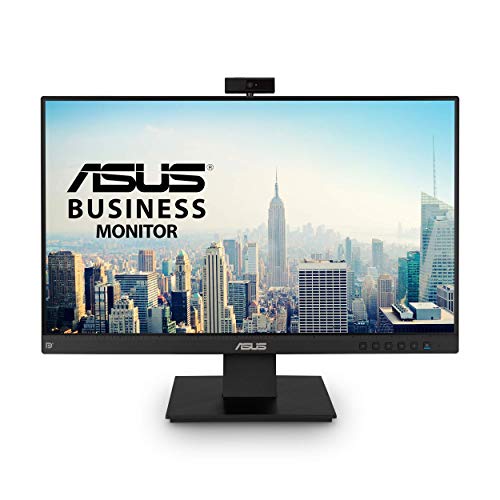
ASUS BE24EQK 24in Webcam Monitor — Best Compact ASUS
The BE24EQK is the smaller ASUS answer, and its review must distinguish it from its 27 inch sibling by facts rather than adjectives. This is a 24 inch Full HD IPS monitor with a built-in 2MP webcam per its listing, HDMI, DisplayPort and VGA connections, and ASUS Eye Care design — the same conferencing recipe, brewed at the size that fits compact desks, dual-screen pairings and spare-room workstations where a 27 inch panel would crowd the furniture.
The smaller frame changes the working feel in two ways buyers should weigh. Text at 1080p is denser and crisper at 24 inches than at 27, which document-heavy callers — the ones reading contracts while discussing them — tend to prefer. And the monitor pairs gracefully: two BE24EQK units make a symmetric conferencing desk for less combined width than many single ultrawides, with a camera centred on whichever screen its owner faces. ASUS’s eye-care design keeps the long shared-screen sessions gentle, a real consideration when colleagues’ presentations occupy your panel for hours.
A solicitor reviewing documents on call with clients is this monitor’s natural owner. The contract sits at crisp density beside the client’s face; the camera is ready when the meeting starts; the desk in a converted box room stays proportionate. Where the BE279QSK serves the one-big-screen worker, the BE24EQK serves the compact and the paired — same brand, same recipe, different geometry, and the honest buyer chooses by measuring the desk before admiring the specifications.
- Panel: 24 inch IPS, Full HD
- Camera: built-in 2MP webcam per the listing
- Connections: HDMI, DisplayPort and VGA
- Design language: ASUS Eye Care
- Desk role: compact or dual-screen call workstation
Strengths
- Denser text at 24 inches suits document-heavy call work.
- Compact frame pairs symmetrically for two-screen desks.
- Eye-care design softens hours spent watching shared screens.
Trade-offs
- Less canvas than its 27 inch sibling for sprawling shared content.
- Fixed camera, so privacy is a software matter here.
- VGA inclusion signals its business vintage more than its ambitions.
Best for: compact desks, dual-screen callers and document-first professionals.
Not suited for: single-screen workers who want maximum canvas — the BE279QSK is theirs.

Dell P2724DEB 27in Video Conferencing — Best Premium Conference Desk
The P2724DEB is Dell’s conferencing idea at full size: a 27 inch QHD video conferencing monitor that pairs the larger, sharper canvas with the integrated camera-and-audio system the line exists for. QHD at 27 inches is the resolution this guide’s panel discussions keep circling as the business sweet spot — text with genuine crispness, room for the call gallery beside the working document, and none of the scaling fuss that very high resolutions can bring to mixed office software.
For the worker whose calls are the job — the team lead running reviews all morning, the account director presenting to clients all afternoon — the larger canvas changes the call itself. Shared content can be studied rather than squinted at, the presenter’s own notes live on the same screen without evicting the audience, and the professional impression compounds across hundreds of meetings. Dell’s conferencing hardware and stand ergonomics complete a package aimed at desks where the monitor is, functionally, the office.
A department head equipping a permanent home office for a leadership role is this Dell’s natural owner. Her screen is the room her team gathers in, five days a week, and the P2724DEB treats that responsibility with the size and integration it deserves. It is the premium commitment in this guide, and like most premium business tools, it justifies itself by disappearing into reliable daily service — the meetings simply work, at scale, with the camera exactly where a camera should be.
- Class: 27 inch video conferencing monitor
- Resolution class: QHD per the listing
- Maker line: Dell conferencing displays
- Desk role: leadership-grade single-screen office
- Camera system: integrated conferencing hardware
Strengths
- QHD at 27 inches is the business canvas at its most balanced.
- Dell’s conferencing integration keeps a call-heavy desk cable-calm.
- Ergonomics and build suit permanent, full-time home offices.
Trade-offs
- The premium position in this guide asks a premium commitment.
- Occasional callers will not use enough of it to justify the step up.
- Its scale needs a desk that can give 27 inches proper distance.
Best for: leaders and presenters whose working day is a sequence of meetings.
Not suited for: light call schedules, where the 24 inch picks deliver the same integration for less.
The Lineup at a Glance: Size, Sharpness and Camera Style
| Model | Size | Resolution | Camera character |
|---|---|---|---|
| Dell P2424HEB | 24 inch | Full HD class | Pop-up, hides physically |
| ASUS BE279QSK | 27 inch | Full HD | Fixed 2MP, always ready |
| Lenovo T27hv-30 | 27 inch | QHD | IR camera, face sign-in |
| HP E24mv G4 | 24 inch | Full HD | Integrated fleet webcam |
| ASUS BE24EQK | 24 inch | Full HD | Fixed 2MP, eye-care design |
| Dell P2724DEB | 27 inch | QHD | Integrated conferencing system |
Two decisions organise the table. The first is camera philosophy: physical privacy with Dell’s pop-up, always-ready simplicity with the fixed designs, or biometric convenience with Lenovo’s IR sensor. The second is canvas: Full HD at 24 inches for compact and paired desks, QHD at 27 for the single-screen professional. A buyer who answers those two questions honestly has effectively chosen, and the remaining differences are the kind that reveal themselves as preferences over months rather than mistakes on day one.
How Do You Look and Sound Professional on an Integrated Camera?
Integrated cameras reward the same fundamentals as any camera. Light first: face a window or a soft lamp rather than sitting with bright light behind you, because a backlit caller is a silhouette with a voice. Height second: the beauty of a monitor camera is that it sits at screen height by design, but the screen itself must be raised so its top meets your eye line — a stand adjustment or an arm, not a stack of novels, if the desk is permanent. Background third: a calm wall or a tidy shelf reads as professionalism; the week’s laundry reads as a cry for help.
Sound deserves equal care. Speak a test sentence at your normal volume and record a short call with a colleague or a test service before the meeting that matters; integrated microphones are tuned for a seated speaker at desk distance, and they punish the habit of leaning back and addressing the ceiling. Close the door, silence the phone, and let the monitor’s noise handling do the rest. Finally, rehearse the join itself once — camera raised if yours pops up, framing checked, water within reach — because the professional impression these monitors exist to create is mostly the absence of the first-minute scramble.
What Do Buyers Get Wrong When They Choose a Conferencing Monitor?
The commonest error is shopping by camera megapixels as if buying a phone. Integrated cameras live or die by placement, lighting and microphone quality; a modest sensor at eye height with good light outperforms a prouder sensor staring up a chin from a laptop hinge. The second error is forgetting the hours between calls, which is where resolution and ergonomics earn their money — a screen bought only for meetings still shows documents all day. The third is ignoring privacy until the first uncomfortable moment, then improvising with tape; buyers who care should choose the mechanism — pop-up, shutter habits, or a camera they are comfortable leaving fixed — at purchase time.
A quieter error is assuming the monitor replaces the whole setup. It replaces the camera, microphone and speakers for meeting purposes admirably, but presenters who record, teach or stream will still want dedicated tools, and households sharing one desk may still want a headset for the call that happens while a partner sleeps in the next room. Buy the monitor for the eighty percent of calls that are ordinary, and let specialist gear serve the rest.
A Day of Meetings, Told Through Each Screen
The Dell P2424HEB and the confidential morning
An employment lawyer starts her day with a call she cannot have overheard: a client describing a workplace dispute in a flat where a partner works one room away. The P2424HEB’s camera comes up for the call and goes down the moment it ends, and that small physical ritual structures her whole practice — camera up means a client space, camera down means her home again. Across a year of sensitive work, the certainty compounds into something clients can feel: this is a professional who treats privacy as architecture, not as a promise in a settings menu.
The BE279QSK and the stand-up that runs itself
A software team’s daily stand-up has nine people, four time zones and fifteen minutes. The coordinator’s BE279QSK simply works: she sits, clicks, and nine faces arrange themselves across 27 inches while the board they discuss stays legible beside them. Nobody’s stand-up has ever been delayed by her equipment, which sounds like a small thing until a team calculates what five lost minutes across nine salaries costs per year. Reliability at the unglamorous hour is the business monitor’s core talent, and the big ASUS performs it without a single dramatic moment.
The ThinkVision and the hot-desk shuffle
A consultant spends Tuesdays at a client site where desks are booked, not owned. The ThinkVision waiting there recognises her face through its IR camera before her bag is off her shoulder, and the morning’s first call — a steering update with her own firm’s partners — starts from a screen that already feels like hers. Hot-desking fails when setup eats the morning; face sign-in is the technology that gives the minutes back, multiplied by every desk, every day, every travelling employee in the building.
The HP and the interview panel
A hiring panel interviews a candidate over video, three interviewers in one room sharing the E24mv G4. Fleet monitors earn their keep in rooms like this: the candidate sees a stable, evenly lit panel of faces, the panel hears answers through a system voiced for speech, and nobody touches a setting between candidates three and four. The HP’s complete lack of personality is the feature — the technology leaves the stage to the people, which is what an interview is for.
The BE24EQK and the contract call
A freelance translator negotiates a book contract over video, the draft open beside the publisher’s face on her BE24EQK. The 24 inch density keeps clauses readable at the size the conversation needs, and when the publisher shares a royalty schedule, it arrives on a screen that treats text kindly. She chose the smaller ASUS for a box-room desk and has never once wished it larger; the pairing of document and dialogue on one compact panel is exactly the shape of her working life.
The P2724DEB and the board update
A managing director delivers a quarterly update to a board scattered across two continents. On the P2724DEB, the figures she presents sit open beside the gallery of faces she is reading for reaction — the raised eyebrow, the exchanged glance — and QHD keeps both honest. Leadership over video is an exercise in attention, and the large Dell is best understood as an attention instrument: everything the meeting contains, visible at once, at a quality that never becomes the story.
Why Does Microphone Quality Matter More Than Camera Resolution?
Meeting research and common experience agree on an unfashionable ranking: people forgive a soft picture long before they forgive bad sound. A voice that echoes, clips or competes with a keyboard exhausts listeners within minutes, while a modest-resolution face in good light can hold a room for an hour. Business conferencing monitors are engineered in that order of priorities — microphones placed and tuned for a seated voice, echo handling for real rooms, speakers voiced for speech intelligibility — which is why this guide treats the integrated system as a whole rather than scoring cameras like phones.
The home buyer benefits from one more consequence of that engineering: consistency. A separate budget webcam and a laptop microphone and a Bluetooth speaker each behave differently in every application, and the week’s first call becomes a settings audit. The integrated path is one device with one behaviour, tested by employers at a scale no consumer accessory ever faces. When a call matters — the interview, the client pitch, the difficult conversation — boring consistency is the luxury being purchased.
How Should a Conferencing Monitor Anchor a Hybrid Week?
The hybrid worker’s desk problem is repetition: the same setup, assembled twice a day, in two places, or one place that must transform between work and home. A conferencing monitor answers by collapsing the peripheral count. At the office, the dock or the single cable wakes a screen that already contains the meeting; at home, the same arrangement keeps the family desk free of a webcam that children find fascinating and partners find faintly dystopian. The Dell’s hiding camera serves the shared home desk best; the Lenovo’s face sign-in serves the multi-desk professional best; the ASUS and HP pairs serve everyone who simply wants the meeting to start.
Two habits complete the hybrid pattern. Keep the monitor’s height set for your seated eye line and resist readjusting it for anyone else — shared desks breed small ergonomic chaos that a marked stand position solves. And decide the default: camera monitors should wake ready, with the meeting application assigned to the integrated microphone and speakers permanently, so the week’s fiftieth call is set up exactly like its first. Hybrid work is a logistics exercise disguised as a lifestyle, and logistics rewards whatever removes steps.
Privacy, Security and the Camera in the Room
A camera that lives on the desk deserves a household policy, and the six picks here embody three different answers worth choosing between deliberately. The physical answer — Dell’s retractable camera — removes the lens from the room when work ends, which suits shared homes, sensitive professions and anyone who simply sleeps better that way. The software answer, used with the fixed-camera models, relies on operating-system indicators, application permissions and the discipline of closing what you open; it is the answer most of the world’s offices run on, and it works when the user is attentive. The biometric answer — Lenovo’s IR system — flips the camera into a guardian, locking the machine when its owner walks away and unlocking it at a glance.
Households with children should think about the camera’s social life as well as its security one. A monitor camera at adult eye height frames adults well and children barely, which is a feature during work hours and a negotiation during the family video call with grandparents, when the smaller ASUS or HP may need a chair-based height adjustment for its youngest participants. None of this is complicated, but all of it is easier decided at purchase than discovered in the first month — the camera is a member of the household now, and the picks above differ mainly in how that membership is managed.
What Happens When the Whole Team Buys the Same Monitor?
Small organisations increasingly standardise on one conferencing monitor for every remote employee, and the fleet models in this guide — the HP, the ThinkVisions and Dells of the world — exist precisely for that purchase. Standardisation buys a support dividend: every employee’s setup behaves identically, so the answer to any problem is known after the first time it is solved. It buys a fairness dividend too, since the newest hire’s home desk matches the director’s, and meetings stop revealing whose equipment budget was an afterthought.
For the individual buyer, the fleet logic translates into a simple heuristic: a model that organisations deploy by the thousand has been tested against more laptops, rooms and networks than any review can simulate. That is not a guarantee of delight — fleet monitors are deliberately unexciting — but it is a guarantee against the exotic failure, the strange incompatibility, the driver that never comes. In a category where the product’s job is to disappear into the working day, the fleet’s boredom is a quality mark, and three of this guide’s six picks wear it proudly.
Setting Up the Second Screen Beside a Webcam Monitor
Many call-heavy workers eventually add a second display, and the webcam monitor should keep the centre position when they do. The camera’s framing depends on the user facing it; a centred conferencing screen with a document panel angled beside it preserves eye contact while the notes live in peripheral vision, where notes belong. Place the secondary screen at the same height, match brightness between the two so glances across the seam do not feel like weather changes, and assign roles permanently: people on the camera screen, paper on the other.
The picks divide naturally for this pattern. The 24 inch models — Dell, HP, ASUS BE24EQK — pair without overwhelming a desk, and two of the same model give the tidiest result. The 27 inch QHD pair can anchor a setup alone for longer than their owners expect; many buyers who planned a second screen find the single large canvas sufficient and spend the money on a chair instead, which this guide endorses as the correct order of priorities.
Lighting the Caller: A Short Course for Integrated Cameras
Because integrated cameras are fixed, the room must adapt to them — and the adaptations are cheap. The governing rule is that the brightest light in the frame should be in front of the caller, slightly above eye level, and soft rather than bare. A window to the front-left with a sheer curtain achieves it free; a small desk lamp bounced off a wall achieves it after dark. What ruins more calls than any camera is the opposite arrangement: a bright window behind the chair, turning the professional into a silhouette while the camera exposes for the garden.
Colour of light matters second. Mixed sources — warm lamp on one side, blue daylight on the other — confuse automatic white balance and leave half a face sunburned. Choose one dominant source for call hours and let the camera settle. Third comes the background’s brightness: a very bright backdrop makes the camera dim the face, so a mid-tone wall outperforms a white one. None of this requires equipment beyond a curtain and a lamp, and all of it improves the picture more than stepping up a camera class — which is why this guide keeps returning callers to the room before the catalogue.
How Long Will a Conferencing Monitor Stay Useful?
Longer than most technology, because its job changes slowly. Meetings will still be meetings in five years; a Full HD or QHD panel at a sensible size will still show them; a camera at eye height will still flatter more than a laptop’s hinge camera. The parts that date are the connections and the software expectations around them, and business monitors are deliberately conservative in both — the VGA ports on the ASUS pair, absurd as they look, are evidence of a design philosophy that refuses to orphan older machines.
Care is minimal and mostly ergonomic: keep the stand’s adjustments moving freely, dust the camera lens with the same microfibre that serves the panel, and revisit the height whenever the chair or desk changes. Owners who buy for their actual call volume — rather than for an imagined broadcast career — routinely find these screens outlasting two laptops, which reframes even the premium Dell as a modest annual cost for the room where a career’s conversations happen.
A Word for the Reluctant: When a Separate Webcam Still Wins
Honesty requires the exception paragraph. If you record lessons, stream, host webinars for hundreds, or shoot content where the camera is the product, a dedicated camera on its own mount — with the monitor freed to be a monitor — remains the better architecture, and several screens in our other guides will serve that desk well. If your organisation mandates specific certified peripherals, their list outranks this one. The integrated monitor’s kingdom is the ordinary professional call, repeated daily, and within that kingdom it has no serious rival for tidiness. Buy for the calls you actually have, and let the imagined studio wait until it is a real one.
The First Week With a Conferencing Monitor: A Small Programme
Day one belongs to setup, not judgement. Connect the monitor, confirm the camera and microphone appear in your meeting application, set the screen height so the lens meets your eyes, and make one test call to a patient colleague. Note what they report — framing, echo, the keyboard’s audibility — because the fixes are all free on day one and strangely expensive to remember in month three. Day two, run a real meeting and change nothing; day three, adjust the light, because by then you will have seen your own preview window in morning and afternoon conditions and will know which side the lamp belongs on.
By the end of the week, do the two things owners skip. Save a photograph of your on-camera framing that pleases you, so drift is visible when the chair or the desk changes. And write down the cable arrangement that works — which port, which lead — on a note inside the desk drawer, because the day a cable is borrowed is the day that note earns its keep. A conferencing monitor’s promise is that meetings become thoughtless; the first week’s small attentions are how that promise gets installed.
What Should Employers and Home Buyers Alike Check Before a Bulk or Single Purchase?
Three checks prevent the standard regrets. First, the estate check: list the machines the monitor must serve — laptop models, a desktop, a partner’s computer — and confirm the video and USB paths exist for each, because the camera half of the product travels over USB even when the picture travels over HDMI. Second, the room check: measure the desk depth for the 27 inch models and confirm the chair’s eye line can meet the screen’s top with the stand’s adjustment, or budget the arm in the same order. Third, the policy check for households and employers alike: decide the privacy answer — pop-up, software discipline, or biometric — before the hardware arrives, because retrofitting a policy onto a camera the household already distrusts is harder than choosing the right mechanism first.
None of these checks appears on a specification sheet, and all three decide satisfaction more reliably than any specification does. The monitors in this guide are mature business tools; matched to the right machines, rooms and policies, they behave like infrastructure. Mismatched, even the best of them becomes a daily small argument — and small daily arguments are exactly what integrated design exists to abolish.
Presenting, Teaching and Interviewing: Three Call Styles, Three Setups
The presenter works standing in her own attention: slides advancing, audience reacting, notes advancing with them. For her, the 27 inch picks earn their size because the deck and the gallery coexist, and the camera’s fixed position lets her rehearse a framing once and trust it for the season. The teacher works differently — screen-sharing a document, annotating live, watching twenty small windows for the confused face — and benefits most from the QHD models, where shared text stays readable for the class and the teacher’s own view of it stays sharp enough to catch the error before a student does.
The interviewer works closest of all: the call is the relationship, and anything that reminds either party of the machinery taxes it. Fleet monitors like the HP, or the Dell with its ceremony of privacy, serve this style by vanishing — the candidate remembers the conversation, not the equipment. Naming your dominant style before purchase is the shortest path through this guide: presenters buy canvas, teachers buy sharpness, interviewers buy invisibility, and everyone buys the camera position that all three styles share, at eye height, in the centre of the desk, where a conversation naturally happens.
One more scenario deserves a paragraph before the verdict, because it decides more purchases than any other: the job interview taken from home. Candidates are judged on signals they barely control — punctuality, composure, the sense of a prepared environment — and a conferencing monitor quietly supplies all three. The camera is already framed when the nerves arrive; the background is the tidy desk the monitor’s tidiness created; the voice is clear because the system was voiced for exactly this. Candidates who have interviewed from a laptop on a pile of books, camera at chin height and microphone beside a whirring fan, understand that the integrated desk is not vanity. It is the removal of every distraction that is not the answer being given.
The same logic, reversed, serves the founder pitching, the freelancer onboarding a client, and the manager delivering difficult news with the steadiness the moment deserves. In each case the technology’s contribution is identical: it refuses to be noticed. That refusal is the through-line of this entire guide, and it is why mature, fleet-proven designs dominate a category that flashier hardware keeps trying to enter with lights and lenses the meeting never asked for.
Budget, finally, deserves one honest paragraph. The integrated premium over an ordinary monitor buys the camera, the microphones, the speakers and the engineering that makes them behave as one device, and it should be compared against the total cost of the separate parts it replaces — a decent webcam, a microphone that does not embarrass, speakers, and the hub or cables to unite them — rather than against the price of a bare panel. Priced that way, the fleet models in this guide are rarely the expensive option; they are the consolidated one, and consolidation is what a working desk is for.
Final Recommendation
Choose by call life. The privacy-minded should take the Dell P2424HEB and enjoy the small daily ceremony of a camera that hides. The sign-in-weary should take the Lenovo and let their face be the password. The single-screen manager belongs on the BE279QSK, the compact or paired desk on the BE24EQK, the fleet traditionalist on the HP, and the leader whose screen is her office on the P2724DEB. For the reader equipping a serious home office today with no special constraints, the P2724DEB is the guide’s first packing choice — the fullest expression of the idea that a meeting should begin the moment you sit down, with nothing to plug in, perch or apologise for.
Frequently Asked Questions
Is a 2MP integrated webcam good enough for professional calls?
Yes, for meetings. At typical call framing, with decent light in front of you, a 2MP integrated camera produces a clear, professional image, and conferencing platforms compress video in ways that erase the advantage of far larger sensors. Lighting and framing will improve your picture more than any specification on this page.
Do these monitors work with any laptop?
Generally yes. The display connects by HDMI or DisplayPort, and the camera and audio travel over USB where the model requires it, so check the cable arrangement for your exact machine once. Business monitors are designed for mixed fleets, which makes them unusually forgiving partners for both new and ageing laptops.
Can I still use a headset with a conferencing monitor?
Certainly, and many users do for privacy in shared homes. The monitor’s speakers and microphone remain available for the calls where the room is yours, and the headset takes over when it is not. The integrated system removes the obligation, not the option.
What does an IR camera add beyond face sign-in?
Security and speed. Infrared face recognition of the Windows Hello kind resists simple photo spoofing and works in dim rooms where ordinary cameras struggle to identify you. For shared or sensitive workstations it also enforces presence: walk away, and the machine can lock itself.
How do I stop the camera showing more of the room than I intend?
Start with distance and angle rather than software backgrounds: sit at your normal working distance, raise the screen so the lens meets your eyes, and check the preview’s edges for anything the room should keep private — the doorway, the whiteboard, the family photograph shelf. A small repositioning of the desk or a curtain solves most framing surprises permanently, and it works in every application, whereas virtual backgrounds vary by platform and occasionally dissolve a shoulder at the dramatic moment of a presentation.
Will the camera work when the monitor is connected to a desktop PC?
Yes — connect the monitor’s USB path to the desktop as well as the video cable, and the camera, microphones and any hub features come alive. The two-cable reality (video plus USB) is the one setup detail worth confirming in your model’s documentation on arrival day.
Related Guides
Readers finishing the call-ready desk may also want our roundup of the best eye care monitors for the long hours between meetings, our guide to the best external mac monitors, and our look at the best vertical monitors for a secondary document screen.
Related guides
- Best 1440p 165Hz Monitors: One Native 165Hz Pick, Three 180Hz Upgrades, an Overclock Headline and a 160Hz Ultrawide
- Best 13×19 Professional Printers
- Best 3rd Party MacBook Chargers: 96W-Class Alternatives, the 100W Cable Rule, and the Apple Benchmark
- Best Built PC: Six Prebuilt Gaming PCs Judged on Parts, Power and Upgrades


