What's inside
- Key Takeaways
- Quick Picks
- How We Chose These Picks
- Which of These Monochrome Machines Matches Your Print Load?
- How Do the Six Compare Side by Side?
- What Actually Wears Out on a High-Volume Monochrome Printer?
- How Should Paper Handling Shape the Decision?
- What Mistakes Do High-Volume Buyers Keep Making?
- How Do You Work Out the True Cost per Page?
- What Should Network Setup Look Like on Day One?
- Print-Only or All-in-One: Which Layout Serves a Busy Floor Better?
- How Do You Keep a High-Volume Machine Alive for Its Full Service Life?
- What Should the Toner Cupboard Look Like?
- How Do You Measure Your Real Monthly Volume Before Buying?
- What Happens When the Whole Office Prints at Once?
- Where Should a Shared High-Volume Printer Actually Sit?
- Final Recommendation
- Frequently Asked Questions
- Related Guides
As an Amazon Associate I earn from qualifying purchases. This post may contain affiliate links at no extra cost to you.
gizmoverdict.com is reader-supported. When you buy through links on our site, we may earn an affiliate commission.
Where to buy: Each machine below links to its Amazon listing, where the configuration on the page — print-only or all-in-one, tray count, included toner — is the configuration that matters. High-volume models often ship in several near-identical variants, so read the listing’s own heading before ordering rather than trusting a search snippet.
Choosing among the best black and white monochrome high-volume printers starts with a confession most product pages avoid: pages per month, not pages per minute, decides whether a machine survives its second year. A department that pushes forty thousand pages through a printer built for eight thousand will not notice the mismatch in week one. It notices in month nine, when rollers glaze, fusers tire and the cost of the bargain arrives as downtime. Speed impresses in a demo. Duty cycle, tray depth and toner yield decide real life.
Monochrome also deserves a defence, because colour machines dominate shop shelves. Text is what offices actually print — invoices, contracts, shipping labels, exam papers, medical forms — and black toner on white paper remains the cheapest, fastest, most legible way to produce it. A monochrome laser has one toner cartridge to stock, one drum path to maintain and no colour calibration drifting between Monday and Friday. Stripping colour out is not a compromise at volume; it is the engineering decision that makes volume affordable.
The six machines here split into two honest camps. Four are print-only workhorses built to sit on a network and absorb queues all day. Two add scanning and copying for offices where the printer doubles as the document hub. Speed figures appear only where the manufacturer’s own listing states them, and where a listing stays silent about a figure, this guide says so instead of borrowing a number from a sibling model — high-volume buyers have been burned by exactly that kind of borrowing.
Key Takeaways
- Monthly volume tolerance matters more than headline speed; a fast machine run past its intended load wears out early.
- Only three listings here state an engine speed — 65, 52 and 47 pages per minute — and the rest are left unnumbered on purpose.
- Two picks are all-in-one units with scanning and copying; the other four print only, which suits centralised office fleets.
- Large paper capacity, stated outright on the Brother MFC-L6810DW, cuts the refill interruptions that quietly eat staff time.
- Running cost at volume is a toner-yield question, and no listing here prints a yield figure — check cartridge options before committing.
- Duplex printing appears in the HL-6210DW’s own name for its listing, and two-sided output halves paper spend on long documents.
Quick Picks
| Pick | Badge | Why it is here |
|---|---|---|
| Brother HL-6210DW | Wireless workhorse | Duplex and wireless are stated in its own listing, a rare fully-described print-only machine. |
| Brother MFC-L6810DW | Document hub | An enterprise all-in-one whose listing leads with large paper capacity. |
| Canon imageCLASS MF465dw II | Compact all-in-one | Canon’s imageCLASS line in all-in-one form for offices that scan as much as they print. |
| Lexmark MS823dn | Fastest stated speed | The only listing here quoting 65 pages per minute, aimed squarely at office queues. |
| KYOCERA ECOSYS PA5000x | 52 ppm ECOSYS | Kyocera’s long-life component philosophy with a stated 52 ppm engine. |
| KYOCERA ECOSYS PA4500x | 47 ppm ECOSYS | The smaller ECOSYS sibling, still quoting a concrete 47 ppm in its listing. |
How We Chose These Picks
High-volume is a claim any manufacturer can print on a box, so the selection here leaned on harder signals. First, every machine had to be a laser — ink systems, however good, carry per-page costs and maintenance cycles that punish sustained text volume. Second, the listing itself had to support a volume story: a stated engine speed, an enterprise designation, an explicit large-capacity claim, or a product family whose entire reason to exist is fleet printing. Machines aimed at home desks were passed over even when their speed looked respectable, because a home printer at office volume is a warranty claim waiting for a date.
Third, the set had to cover the two ways offices actually organise printing. Some centralise: one fast print-only machine per department, fed by a network queue, serviced by whoever owns the IT cupboard. Others distribute: an all-in-one on each floor that prints, scans and copies without a trip across the building. A guide that only served one of those patterns would fail half its readers, so both patterns are represented and the detailed sections say plainly which pattern each machine serves.
Finally, honesty about numbers. Where a listing states a speed, that speed is quoted and attributed to the listing. Where it does not, the spec boxes below mark the figure as not stated and point to the manufacturer’s documentation. That restraint costs this guide some impressive-looking numbers, and it is worth it: a buyer comparing a verified 52 ppm against an invented 60 ppm is being misled in the direction of the invention.
Which of These Monochrome Machines Matches Your Print Load?

Brother Laser Printer, Monochrome Duplex Wireless Printer, HL-6210DW — Wireless workhorse
The HL-6210DW earns its place by describing itself completely. Its listing states monochrome laser printing, duplex output and wireless connectivity in a single breath, which sounds unremarkable until you notice how many rivals on this page withhold one or more of those facts. For an office manager speccing a machine from a listing rather than a showroom, that completeness is a feature in itself: what is promised is printed on the tin.
In daily service this is the machine for a shared workgroup corner — the printer near the accounts desk that everyone sends to and nobody owns. Wireless placement frees it from the one desk with a spare Ethernet drop, and automatic two-sided printing quietly halves the paper bill on the long reports and statement runs that dominate monochrome workloads. Brother’s fleet reputation rests on unglamorous virtues: drivers that install without a fight, toner that is easy to source, and controls a new starter can work out unaided. Nothing in the listing contradicts that inheritance.
The limits are structural. This is a print-only device, so the office still needs a scanning answer elsewhere, and the listing states no engine speed — anyone comparing raw pace against the Lexmark or Kyocera machines below must consult Brother’s documentation rather than assume parity. Treat it as the dependable connected printer for steady departmental volume, not as the fastest gun in the room.
- Print technology: Monochrome laser, stated in the listing
- Duplex: Yes, stated in the listing
- Wireless: Yes, stated in the listing
- Engine speed: Listing title gives no figure — check Brother documentation
- Functions: Print only, per the listing
Strengths
- Duplex and wireless both confirmed by the listing itself, no guesswork needed
- Print-only focus keeps the mechanism simple for shared workgroup duty
- Brother’s driver and toner ecosystem is among the easiest to live with
Trade-offs
- No scan or copy function, so a second device must cover paperwork intake
- Listing gives no speed figure for head-to-head pace comparisons
- Wireless convenience still depends on decent signal at the printer’s corner
Best for: a workgroup seeking a duplex, wireless print-only machine whose stated features can be trusted at face value.
Not suited for: an office expecting this single box to handle scanning and copying as well.

Brother MFC-L6810DW Enterprise Monochrome Laser All-in-One Printer — Document hub
Two words in this listing do heavy lifting: enterprise and capacity. The MFC-L6810DW presents itself as an enterprise all-in-one with large paper capacity, and that combination targets the specific pain of the busy floor printer — not speed, but interruption. Every tray refill is a staff member standing idle, and every empty-tray stall leaves a queue of jobs ageing behind it. A machine that holds more paper, and holds it in the configuration the listing advertises, attacks the least glamorous and most expensive part of office printing.
As an MFC model it folds scanning and copying into the same cabinet, which changes its role from output device to document hub. Contracts arrive on paper, get scanned, get copied, get filed; outgoing paperwork leaves through the same glass and trays. For a floor without a separate scanner fleet, that consolidation is the argument. The enterprise label also signals the expectations Brother builds for: heavier cycles, network administration, and a service life measured in years of shared use rather than a single user’s patience.
What the listing does not do is quote an engine speed or a tray sheet count, and both omissions matter at purchase time. Large capacity is a comparative claim, not a number. Before ordering, pull the exact tray configuration from Brother’s documentation and match it against your peak-day volume — a machine bought for capacity deserves to have that capacity verified in figures, not adjectives.
- Print technology: Monochrome laser, stated in the listing
- Functions: All-in-one — print, scan and copy, per the MFC designation in the listing
- Paper capacity: Described as large in the listing; exact sheet count absent from the title; Brother documentation carries the number
- Engine speed: Absent from the title; Brother documentation carries the number
- Positioning: Enterprise, stated in the listing
Strengths
- Large paper capacity aimed at reducing refill interruptions on busy floors
- All-in-one design consolidates print, scan and copy into one serviced unit
- Enterprise positioning suits shared, administered network environments
Trade-offs
- Capacity and speed are described, not numbered, in the listing
- All-in-one hardware has more mechanisms to service than a print-only box
- Size and weight follow the capacity — this is furniture, not a desktop guest
Best for: a busy floor running one enterprise all-in-one whose trays swallow a full day’s paper without attention.
Not suited for: a small team printing at volumes that would leave its capacity idle and its footprint wasted.
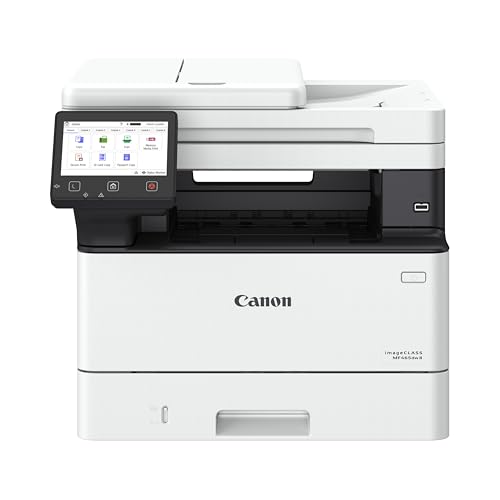
Canon imageCLASS MF465dw II — Compact all-in-one
This listing is the quietest on the page: a name, a generation marker, and nothing else. The MF465dw II sits in Canon’s imageCLASS family, the line Canon builds for business printing, and the MF prefix marks it as a multifunction model rather than a print-only unit. Beyond that, the listing title states no speed, no capacity and no connectivity claims, and this guide will not invent them. The spec box below records the silences honestly.
That restraint shapes the honest case for the machine. imageCLASS all-in-ones are bought by offices that scan steadily — practices digitising intake forms, depots processing delivery paperwork, front desks copying identity documents — and that value a single Canon service relationship across a fleet. The II in the name marks a refreshed generation, which usually matters less for raw mechanics than for current drivers, current security support and parts availability deeper into the machine’s life. Those are fleet virtues, invisible in a showroom and decisive in year four.
The buying discipline this pick demands is simple: because the listing tells you so little, the manufacturer’s documentation must tell you everything before money moves. Confirm engine speed, tray configuration, duplex behaviour and scan handling from Canon’s own pages, and confirm the listing’s configuration matches the documented model. Doing that homework earns a business all-in-one from a major line; skipping it amounts to purchasing a badge.
- Family: Canon imageCLASS business line, per the listing name
- Functions: Multifunction per the MF designation; confirm the exact function set in Canon documentation
- Engine speed: The title is silent on this — consult Canon documentation
- Paper capacity: No figure appears in the title — see Canon documentation
- Connectivity: Title omits it — refer to Canon documentation
Strengths
- Business-line all-in-one from Canon’s established imageCLASS range
- Refreshed generation marker suggests current software and support horizon
- Multifunction format suits scan-heavy front-office workflows
Trade-offs
- The listing states almost nothing — every key figure needs external verification
- No capacity claim, so volume buyers must establish tray depth themselves
- Generation refreshes can differ subtly from predecessors; do not assume identical specs
Best for: an office standardising on Canon all-in-ones and willing to confirm figures from manufacturer documentation before ordering.
Not suited for: a purchaser seeking verified speed and capacity numbers from the listing alone.

Lexmark MS823dn Monochrome Laser Printer for Office — Fastest stated speed
Sixty-five pages per minute is the loudest number in this guide, and Lexmark prints it in the listing itself. The MS823dn is an office monochrome laser with two-sided printing, and its proposition is queue destruction: the shared printer at the end of a corridor of analysts, where the morning’s first hour produces a backlog that a 40 ppm machine would still be chewing at lunch. At a stated 65 ppm, a fifty-page report leaves the tray in under a minute of engine time, and the queue becomes a rumour rather than a routine.
Lexmark’s heritage is the managed fleet — machines leased, monitored and serviced across large organisations — and the MS823dn carries that DNA into outright purchase. The dn suffix signals duplex and network readiness in Lexmark’s naming, matching the two-sided printing the listing states. Offices that already run Lexmark fleets gain the quiet advantages: one driver family, one toner shelf, one service conversation. Offices new to the brand gain a machine designed for administered environments rather than retail shelves.
Speed is not stamina, though, and the listing states no duty figures. A 65 ppm engine run in short bursts all day is a different life from the same engine fed continuous batch runs, and only Lexmark’s documentation separates the two. Verify the recommended monthly volume against your real counts before treating the speed crown as a volume crown as well.
- Print technology: Monochrome laser, stated in the listing
- Engine speed: 65 ppm, stated in the listing
- Duplex: Two-sided printing stated in the listing
- Functions: Print only, per the listing
- Monthly volume rating: Unstated in the title; Lexmark publishes it in the full documentation
Strengths
- Highest stated engine speed in this set, quoted by the listing itself
- Fleet-bred design suits administered, multi-user office networks
- Two-sided printing confirmed without digging through documentation
Trade-offs
- Print-only — scanning and copying live on other hardware
- Volume endurance figures are not in the listing and need checking
- Its pace is wasted on offices whose queues never actually form
Best for: a corridor-end office printer where a stated 65 ppm clears shared queues before they become complaints.
Not suited for: a quiet back office producing daily output too light ever to trouble a slower machine.

KYOCERA ECOSYS PA5000x Monochrome Laser Printer, 52 ppm — 52 ppm ECOSYS
Kyocera’s ECOSYS idea is the most distinctive engineering philosophy on this page: build the drum and developer components to last a very long time, so the consumable that cycles through the machine is mostly toner rather than a cartridge full of wear parts. The PA5000x states 52 ppm in its listing, a pace that places it firmly in departmental territory, and wraps that pace in the ECOSYS long-life argument — at high volume, the cost story is written by what you throw away, and Kyocera’s answer is to throw away less.
Practically, this suits the print room with a conscience and a spreadsheet. Sustainability reports increasingly ask what an organisation discards, and a printer whose consumable stream is leaner answers that question better at audit time. The 52 ppm engine handles batch work — invoice runs, statement batches, course packs — with the calm of a machine designed around sustained output rather than sprint marketing. Kyocera’s fleet following in cost-sensitive public-sector and education environments exists precisely because the arithmetic compounds over years.
The listing beyond speed is spare: no capacity figure, no connectivity claims. The ECOSYS case also depends on using the machine as intended — long-life components reward owners who keep the machine for its full service life and punish anyone planning to churn hardware annually. Confirm tray options and network details in Kyocera’s documentation, then commit for the long haul the design assumes.
- Print technology: Monochrome laser, ECOSYS line, per the listing
- Engine speed: 52 ppm, stated in the listing
- Design focus: Long-life components under the ECOSYS concept named in the listing
- Paper capacity: Listing title gives no figure — check Kyocera documentation
- Connectivity: Absent from the title; Kyocera documentation carries the number
Strengths
- Stated 52 ppm pace suits sustained departmental batch work
- ECOSYS long-life design trims the consumable waste stream at volume
- Strong fit where running-cost audits run across several years
Trade-offs
- Listing omits capacity and connectivity figures entirely
- Long-life economics only pay back owners who keep the machine for years
- Print-only format leaves document intake to separate hardware
Best for: a department running heavy monthly batches and measuring cost across a multi-year service life.
Not suited for: an office planning to replace its printers on a short annual cycle.

KYOCERA ECOSYS PA4500x Monochrome Laser Printer, 47 ppm — 47 ppm ECOSYS
Every fleet has a second tier: the branch office, the satellite department, the regional depot whose volume is serious but not central. The PA4500x is built for that tier. Its listing states 47 ppm — five pages a minute behind its larger sibling — and carries the same ECOSYS long-life design language. For a satellite site, that pairing matters more than the small speed gap: the same consumable philosophy, the same maintenance conversation, scaled to a smaller queue.
The honest question is whether 47 ppm ever becomes the bottleneck, and for most second-tier sites the answer is no. Queues at a branch printer are measured in single documents and short runs; the engine spends its life waiting for work, not drowning in it. What the branch cannot afford is a printer that demands attention — a service visit to a satellite site costs a day, not an hour — and a long-life component design is, at heart, an attention-reduction strategy. Fewer wear parts cycling means fewer surprises at the site nobody visits.
As with its sibling, the listing stops at speed and family name. Tray depth, connectivity and volume figures all live in Kyocera’s documentation, and a fleet buyer standardising on ECOSYS across tiers should confirm that the PA4500x’s options — extra trays, network features — match the satellite site’s actual furniture and wiring before the order goes in.
- Print technology: Monochrome laser, ECOSYS line, per the listing
- Engine speed: 47 ppm, stated in the listing
- Design focus: Long-life components under the ECOSYS concept named in the listing
- Paper capacity: The title is silent on this — consult Kyocera documentation
- Duty guidance: No figure appears in the title — see Kyocera documentation
Strengths
- Stated 47 ppm is ample for branch and departmental queues
- Shares the ECOSYS long-life approach with the larger PA5000x
- Low-attention design suits sites without on-site technical staff
Trade-offs
- Five ppm behind its sibling, if a site’s queues ever do grow
- Listing leaves capacity and connectivity to outside documentation
- Print-only, like its sibling — no scan or copy at the satellite desk
Best for: a branch or satellite office seeking ECOSYS longevity at a stated 47 ppm without paying for unused pace.
Not suited for: a central print room already queueing heavily enough to justify the faster PA5000x tier.
How Do the Six Compare Side by Side?
| Model | Stated speed | Functions | Defining trait |
|---|---|---|---|
| Brother HL-6210DW | Not stated in listing | Print only | Duplex and wireless both stated outright |
| Brother MFC-L6810DW | Not stated in listing | All-in-one | Enterprise positioning, large paper capacity |
| Canon imageCLASS MF465dw II | Not stated in listing | All-in-one | Refreshed imageCLASS generation |
| Lexmark MS823dn | 65 ppm | Print only | Fastest stated engine in the set |
| KYOCERA ECOSYS PA5000x | 52 ppm | Print only | Long-life ECOSYS component design |
| KYOCERA ECOSYS PA4500x | 47 ppm | Print only | ECOSYS design at branch scale |
Read the table as two decisions stacked. The first is functional: two rows scan and copy, four do not, and no amount of speed compensates a floor that needed a scanner. The second is evidential: three rows carry a manufacturer-stated speed and three do not, which is not an insult to the silent three — it is a reminder that their case rests on capacity, connectivity and design claims rather than pace. Collapsing those two decisions into a single fastest-wins ranking reliably produces the wrong purchase.
What Actually Wears Out on a High-Volume Monochrome Printer?
Understanding wear changes how the numbers above should be read. A laser printer’s engine speed describes a sprint; its service life is governed by components with finite rotations. Pickup rollers harden and glaze until multi-feeds begin. Fuser units, which bond toner under heat and pressure, accumulate wear with every page. Transfer paths collect paper dust — and high-volume printing consumes paper by the pallet, each sheet shedding fibres into the mechanism. None of this is a defect. It is physics, scheduled.
Manufacturers express the truce with physics as duty guidance: a maximum monthly ceiling and, more usefully, a recommended monthly range. A machine run inside its recommended range reaches its component milestones slowly and predictably. A machine run at its ceiling every month reaches them at sprint pace. This is why the guide keeps returning to volume honesty — your real monthly count, measured from the machine’s own page counter over a representative quarter, is the single most valuable number in the purchase, worth more than any speed figure on any box.
Toner economics ride on the same arithmetic. At volume, the cartridge question is yield per cartridge and interventions per month. A machine sipping from small cartridges demands constant swaps, each one a pause, a pair of toner-dusted hands and a small chance of a spilled disaster. High-yield cartridge options — where the manufacturer offers them — convert directly into fewer interruptions. No listing in this guide states a yield, so treat cartridge range as a documentation check with the same seriousness as the speed check.
How Should Paper Handling Shape the Decision?
Paper is the consumable nobody specces and everybody touches. Tray depth decides how often the machine asks for help; a department printing thousands of pages weekly through a shallow tray has hired its staff as part-time paper porters. The MFC-L6810DW’s stated large capacity speaks directly to this, and for the other machines tray configuration is a documentation question with real money attached — optional extra trays are often the cheapest productivity upgrade in the entire purchase.
Paper weight and type matter at the margins of office life. Labels, envelopes and heavier stock travel badly through paths designed for plain sheets, and high-volume sites usually have one awkward job — the label run, the certificate stock — that dictates a straight-through path or a capable multipurpose feed. Check the documented media handling for your awkward job specifically; a printer that masters ten thousand plain pages and jams on the weekly label sheet will be remembered for the label sheet.
Duplex deserves its final word here. Two-sided printing, stated for the HL-6210DW and the MS823dn, halves paper consumption on suitable documents and slows tray depletion with it. On long internal documents the saving is automatic and permanent. The discipline is defaults: set duplex as the network default and let single-sided become the deliberate exception, or the feature exists only in the brochure.
What Mistakes Do High-Volume Buyers Keep Making?
The classic error is buying the sprint and ignoring the marathon — choosing on pages per minute while the machine’s recommended monthly volume sits below the office’s real count. The printer performs beautifully for two quarters and then begins the slow decline of rollers and fusers run past their design life, and the organisation concludes the brand is unreliable when the specification was simply misread.
The second error is forgetting the document’s other direction. Offices print out and scan in, and a fleet of print-only machines feeding one overloaded scanner down the corridor has optimised the wrong half of the workflow. The two all-in-ones in this guide exist because intake volume is real volume too.
Third, buyers forget the shelf. Toner for a high-volume machine is a stocking commitment — the right cartridge, in quantity, before the busy period. A printer idle for two days awaiting a cartridge delivery has negated every speed advantage it ever had, and the fix costs nothing but a reorder point and a cupboard.
Finally, there is the quiet mistake of placing a shared printer where the network is weakest or the corridor is longest. Wireless models forgive some placement sins, but a high-volume machine earns its keep where the people and the paper already are.
How Do You Work Out the True Cost per Page?
Sticker price misleads at volume because the machine is the smaller purchase. A department printing a hundred thousand pages a year will spend several times the printer’s price on toner and paper across its life, so the honest comparison is a three-year ledger: hardware, plus expected cartridges at documented yields, plus paper, plus the service interventions the design implies. Build that ledger for two finalists and the cheaper machine is frequently not the one with the lower ticket.
Yield figures need careful reading when you pull them from manufacturer documentation. Cartridge yields are measured against a standard test page with modest coverage — fine for text fleets, since office documents genuinely resemble the test page, but optimistic for graphics-heavy work. A department printing dense forms, shaded tables or scanned-image pages will drain cartridges faster than the stated yield suggests. The correction is empirical: track the first two cartridges against the page counter and recalibrate the ledger with your own coverage reality.
Component design belongs in the same ledger. The ECOSYS argument, carried by both Kyocera picks, is that long-life drums and developers remove whole categories of replacement from the consumable stream. Conventional designs fold more wear parts into the cartridge cycle, which simplifies maintenance — a cartridge swap refreshes more of the machine — at the price of discarding more material per page. Neither philosophy is fraudulent; they price convenience differently, and a fleet with in-house technicians values that convenience differently from a branch with none.
Energy and idle behaviour close the ledger. High-volume machines spend most hours asleep or idle, and a fleet of them multiplies small draws into a real line item. Modern laser fleets wake quickly, which removes the old excuse for leaving machines fully powered overnight. Set sleep timers aggressively at installation; the first user of the morning waits seconds, and the building stops heating empty corridors with standby current.
What Should Network Setup Look Like on Day One?
Deployment discipline separates a fleet that runs for years from one that generates tickets by Friday. Give each shared printer a fixed network address, a descriptive name that matches its physical label — corridor, accounts, print room — and a printed label on the cabinet saying both. Future troubleshooting begins with identifying which machine a job went to, and fleets that skip the labelling step pay for it in every subsequent support call.
Install the manufacturer’s full driver on a test machine before rolling it out, and decide the defaults centrally: duplex on for internal queues, monochrome obviously, paper size matched to the trays actually loaded. Defaults are policy in disguise. An office that sets duplex centrally saves paper without a single memo; an office that leaves defaults to chance gets chance’s paper bill. Both duplex-stated picks here, the Brother HL-6210DW and the Lexmark MS823dn, reward that central discipline directly.
Access control deserves a decision, not a default. Open printing suits small trusted floors; larger organisations benefit from hold-for-release printing on confidential work, where jobs wait until the owner stands at the machine. Whether each model supports the release method you want is a documentation question — ask it before purchase, not during the first leaked payroll run. The enterprise positioning of the MFC-L6810DW hints at that administered world, but hints are not specifications.
Finally, record the baseline. Photograph the page counter on installation day, log the first cartridge change against it, and keep a one-line service diary in the printer’s cupboard. When a machine begins misfeeding at month fourteen, that diary is the difference between a warranty conversation with evidence and one with adjectives. Fleets age gracefully when somebody writes things down.
Print-Only or All-in-One: Which Layout Serves a Busy Floor Better?
The four print-only machines and two all-in-ones in this guide encode a genuine organisational choice. Print-only fleets centralise expertise: fewer mechanisms per cabinet, simpler servicing, and output quality that never shares a budget with a scanner assembly. Where document intake already happens on dedicated scanners or a managed copier, print-only is the leaner spend and the Lexmark and Kyocera picks make their case exactly there.
All-in-one machines earn their premium where paper changes direction at the same desk. A solicitor’s office scanning signed pages minutes after printing drafts, a depot copying delivery notes at the goods-in door, a clinic digitising referral letters — these workflows lose more time walking paper between devices than any engine-speed gap could return. The MFC-L6810DW, with its capacity emphasis, imagines exactly that floor: paper in, paper out, one cabinet, deep trays.
Mixed fleets are the grown-up answer for larger sites: print-only muscle in the print room, all-in-ones distributed at intake points, one toner strategy across both where the brands align. The Brother pair in this guide illustrates the pattern within a single badge — an MFC hub where documents arrive, an HL printer where they merely leave. Standardising within a brand across tiers simplifies drivers, cartridges and service in ways that never appear on a spec sheet and dominate the third year of ownership.
Whichever layout wins, resist the vanity purchase. A floor that prints three thousand pages a month gains nothing from a 65 ppm engine except a shorter wait for the third page of a memo. The guide’s spread of stated speeds — 47, 52, 65, and three machines that ask you to verify pace in documentation — exists so the layout decision and the load decision can be made separately, each on its own evidence.
How Do You Keep a High-Volume Machine Alive for Its Full Service Life?
Maintenance at volume is a calendar, not a reaction. Monthly, somebody should open the paper path and remove the dust that thousands of sheets deposit, check the rollers for the shine that precedes misfeeds, and glance at the waste toner situation before it announces itself mid-run. Quarterly, the page counter deserves recording against the cartridge log, because the ratio between pages and cartridges is the earliest warning that coverage, a failing component or a counterfeit cartridge is distorting running costs.
Paper storage is maintenance in disguise. Reams stored in damp rooms curl, and curled paper jams, and jams at volume are not accidents but a supply decision echoing through the machine. Keep paper in its wrapper until loading, store it flat in the room the printer lives in, and fan and align each ream as it goes into the tray. The large-capacity trays on a machine like the MFC-L6810DW reward this discipline doubly: a deep tray loaded with well-kept paper runs for days without human contact, which is the entire point of the capacity.
Firmware and drivers form the invisible half of upkeep. Manufacturers patch security flaws in network printers — a shared printer is a computer with a paper tray, holding copies of documents in memory — and fleets that never update carry risks their owners never see. Schedule updates in the same diary as the dusting. When a model reaches the age where updates stop, that date, not a breakdown, should trigger the replacement conversation.
Know the symptoms that mean stop. Repeated jams at the same path point, grey backgrounds creeping into white space, a fuser smell that changes character — each is a component asking for scheduled attention before it fails during the payroll run. High-volume printing punishes optimism and rewards the diary-keeper; the machines in this guide are built for years, but only for owners who meet them halfway.
What Should the Toner Cupboard Look Like?
Stocking policy sounds beneath a buying guide until the first stockout idles a department. The rule is simple: reorder when the shelf reaches the level of one full busy-period cycle, not when the machine reports empty. A high-volume site should hold at least one sealed cartridge per machine at all times, two where delivery is slow or the site is remote — the satellite office running a PA4500x cannot borrow a cartridge from a print room forty miles away.
Buy cartridges through channels you can verify. The market in counterfeit and refilled toner is mature, and a suspiciously cheap cartridge that leaks or yields half its promise costs more than the genuine article it imitated. This is not brand piety; it is arithmetic plus the warranty conversation nobody wants to have with grey toner dust visible inside the machine. Where budgets demand remanufactured cartridges, choose suppliers who publish yield testing and accept returns, and log their performance in the diary like any other variable.
Rotate stock. Toner does not spoil quickly, but seals age and cupboards get reorganised; first in, first out keeps the shelf honest. And when a machine is retired, its orphaned cartridges are a sunk cost that argues, one final time, for standardising the fleet on as few cartridge types as the tiers allow — another quiet dividend of pairing machines like the two ECOSYS models or the two Brothers under one badge.
How Do You Measure Your Real Monthly Volume Before Buying?
Every recommendation in this guide leans on a number most offices have never actually read: their own page count. Guesses run low, because people remember ordinary weeks and forget the quarter-end surge, the audit, the enrolment rush, the litigation bundle. The fix takes ten minutes. Every network printer keeps a lifetime page counter in its settings or status page; read it today, read it again in thirty days, and the difference is the truth. Do it across a boundary that includes your busiest recurring event and the figure becomes planning-grade.
Break the total down before using it. A single fleet number hides the distribution that should drive the purchase: one corridor machine drowning while three others idle is a placement problem wearing a volume costume. Count per machine, then decide whether the answer is a faster central printer, a second mid-tier unit where the queue forms, or simply moving an existing machine to where the work is. The tier structure of this guide — a 65 ppm flagship claim, 52 and 47 ppm ECOSYS tiers, all-in-ones where paper changes direction — maps onto that distribution once it is visible.
Count the inbound pages too. Scanning volume rarely appears in printer statistics, yet it decides the all-in-one question more honestly than print counts do. A week of watching the front desk — tally sheets by the scanner, a notebook by the copier — produces the intake figure that tells you whether an MFC-class hub earns its floor space or whether print-only machines plus one serious scanner serve the building better.
Then buy for the measured number with headroom, not for the ceiling. A machine whose documented recommended range comfortably contains your busiest measured month will age slowly; a machine whose ceiling merely equals that month will age at full sprint. Headroom is the cheapest longevity on sale, and it is bought once, at purchase, by choosing the tier above the arithmetic minimum — the most boring sentence in this guide and the one that saves the most money.
What Happens When the Whole Office Prints at Once?
Peak behaviour is the last untested assumption in most purchases. The average day forgives almost any machine; the simultaneous moment does not — thirty staff sending documents inside the same ten minutes before a deadline, each job queuing behind the last. Engine speed governs how fast the queue drains, but memory and processor govern how gracefully the machine accepts the flood, and a printer that pauses between jobs while it renders complex pages can feel slower than its ppm figure promises. This is the scenario the Lexmark’s stated 65 ppm addresses most directly, and the scenario least visible in a showroom demonstration of a single document.
Complex pages stress a different muscle from plain text. A monochrome fleet still prints scanned images, shaded spreadsheets and the occasional dense PDF where every page is effectively a picture. Rendering time per page rises, and the gap between engine speed and delivered speed widens. Offices whose peak load is heavy PDFs should weight processor and memory specifications — available in manufacturer documentation — alongside the ppm line, and should test the finalist with their own ugliest document, not a vendor’s demo file.
Queue management is the human half of the peak. A shared machine with sensible defaults — jobs held visibly, errors surfaced to the sender rather than discovered at an empty tray — survives deadline hour with its reputation intact. The machine blameless in specification can still become the office villain if a failed job silently blocks twenty others. Ask, during evaluation, what a stalled job looks like from a user’s desk; the answer predicts deadline day better than any brochure.
Peaks also argue for the fleet answer over the hero answer. Two mid-tier machines split a surge, cover each other’s failures and let one rest while the other works — resilience no single flagship provides at any speed. Sites that have lived through a sole printer dying on the busiest morning of the quarter rarely buy a single hero again, and the tiered structure of the picks above is designed to make the paired purchase easy to assemble.
Where Should a Shared High-Volume Printer Actually Sit?
Placement sounds like facilities trivia until the complaints arrive. A high-volume machine generates heat, ozone-adjacent smells from hot fusers, and a rhythmic mechanical soundtrack that nearby desks absorb eight hours a day. Put the fleet’s hardest worker in a ventilated alcove or print room, close to the teams that use it most, and both the noise complaints and the corridor marathons disappear. Put it beside the newest hire’s desk and the purchase will be re-litigated at every appraisal.
Power and network deserve the same forethought. Laser fusers draw current in pulses; a circuit shared with a kettle and a microwave will eventually introduce the building to its breaker panel mid-print-run. Wired network drops beat wireless for fixed machines that never move — the HL-6210DW’s wireless is a placement freedom, not an obligation — and a cable also removes one variable from every future troubleshooting call. Plan the socket, the drop and the paper store as one decision, and the machine settles into the building’s life instead of interrupting it.
Accessibility completes the placement picture. Trays are refilled, jams are cleared and cartridges are swapped by whoever stands nearest, so the machine needs knee room, opening clearance for its doors and a light level that lets a human read a status screen without a phone torch. A printer shoehorned into a cupboard with thirty centimetres of clearance will be serviced reluctantly and therefore late. Give the machine the same ergonomic respect as any workstation, and the small interventions that keep it alive actually happen on schedule — a mundane truth that quietly separates fleets still running at year six from fleets replaced at year three.
One last placement consideration is growth. Offices rarely shrink their printing in the year after a fleet purchase, whatever the paperless intentions, so leave the alcove able to accept a second machine or a larger successor without rewiring the corner. The cheapest capacity upgrade is the one the room already fits, and a metre of foresight at installation routinely saves a weekend of electricians later.
Treat that metre of spare room as part of the specification, written into the purchase order alongside trays and cartridges, because retrofitting space around a live fleet costs multiples of reserving it while the corner is still empty and the decision is still just a line on a plan.
Space, power, network and paper storage decided together turn installation day into a formality rather than a negotiation.
Final Recommendation
Start from your measured monthly count, because every correct answer in this guide hangs from it. If shared queues and raw pace define your problem, the Lexmark MS823dn’s stated 65 ppm is the clearest claim on this page. If interruptions define it — trays, refills, a floor’s worth of small stalls — the Brother MFC-L6810DW’s large-capacity enterprise all-in-one design answers the real complaint. For multi-year cost discipline, the Kyocera pair splits neatly by tier: PA5000x for the central room at a stated 52 ppm, PA4500x for the branch at 47. The Canon MF465dw II rewards an office that verifies its figures in Canon’s documentation and wants a current-generation all-in-one, while the HL-6210DW remains the straightforward duplex wireless printer whose listing hides nothing. Match the machine to the measured load, and a monochrome fleet becomes the part of the office nobody ever has to think about — which, for the people signing the toner invoices, is the highest praise a printer can earn.
Frequently Asked Questions
How many pages a month counts as high volume?
There is no universal threshold, but the practical line is where a home or small-office machine’s recommended monthly range ends — typically once a shared machine handles thousands of pages monthly on a sustained basis. Measure your own counter over a full quarter, including the busy season, and compare that figure against each candidate’s documented recommended range rather than its maximum ceiling.
Is a faster printer always cheaper to run?
No. Engine speed and running cost are separate ledgers. Cost per page is driven by toner yield and component life, which is the logic behind Kyocera’s ECOSYS long-life design. A slower machine with high-yield cartridges and durable components can undercut a faster rival across a year of heavy use, which is why this guide treats speed claims and cost claims as different conversations.
Do I need an all-in-one if the office already owns a scanner?
Only if the scanner’s location matches where paperwork actually arrives. A dedicated scanner in a records room does nothing for the front desk copying documents at intake. The MFC-L6810DW and MF465dw II suit floors where scanning and copying happen at the point of printing; print-only machines suit floors where intake is already handled elsewhere.
Why do some listings here state no speed at all?
Because the manufacturers chose not to put the figure in the listing title, and this guide quotes only what the listing states. The figures exist in each maker’s documentation — the spec boxes point there deliberately. Treat the absence as a prompt to verify, not as evidence the machine is slow.
Should duplex printing be the network default?
For internal documents, yes in most offices. Two-sided output halves paper use on long reports and slows tray depletion, and both duplex-stated picks here — the HL-6210DW and the MS823dn — make the setting painless. Reserve single-sided defaults for customer-facing documents where presentation demands it.
Related Guides
Printing at volume connects to the rest of the office kit: see our guide to office networking gear for the wired backbone these machines deserve, our roundup of document scanners for intake-heavy workflows, and our desk setup recommendations for the workstations feeding the queue.