What's inside
As an Amazon Associate I earn from qualifying purchases. This post may contain affiliate links at no extra cost to you.
gizmoverdict.com is reader-supported. When you buy through links on our site, we may earn an affiliate commission.
Where to buy: Spreadsheet monitors are stocked deep on Amazon because the same ultrawide panels serve gamers and traders, so the discipline here is matching the exact model code in the listing title to the pick below — LG alone sells three 34-inch ultrawides in this guide with near-identical names and meaningfully different resolutions. Availability of the older LG 34UM68-P fluctuates more than the rest, and its listing title omits the resolution entirely, so that page deserves a careful read before checkout. Every review carries a direct price link to the correct listing; use it rather than a search result, because one letter’s difference in this class can quietly cost you a thousand horizontal pixels.
A spreadsheet announces a bad monitor faster than any benchmark. Open a real workbook — the kind with forty columns, frozen panes and a notes field that runs long — and within minutes you know whether the screen was bought for the work or merely near it. The best monitors for using spreadsheets are decided by three plain questions. How many columns sit visible at once without horizontal scrolling? Does text stay crisp at the size you actually read, hour after hour? And can the panel hold two workbooks side by side at a scale that keeps both honest? Five of the six picks below answer with width: curved ultrawides from 34 to 40 inches, carrying between 3440 and 5120 horizontal pixels. The sixth answers with thrift, a 32-inch Full HD panel that trades pixel density for size and price, and this guide will be candid about what that trade costs.
The candidates divide by philosophy as much as by size. Philips and LG build their spreadsheet cases on 3440×1440, the resolution that has become the default ultrawide compromise between space and sharpness. Deco Gear goes dramatically wider with a 40-inch 5K2K canvas, and LG’s own 38-inch model stretches to 3840×1600 for people whose workbooks genuinely overflow the smaller frame. Then there is the older LG 34UM68-P, whose listing title leans on its screen-splitting software rather than a stated resolution — an omission this guide treats as the central fact of that review. Underneath the variety sits one constant: spreadsheet work is reading work, and reading is governed by pixel density, scaling and the discipline to set both correctly.
It is worth naming the alternative this guide argues against. Two ordinary 24-inch monitors side by side cost less than most ultrawides and offer a natural bezel-divided workspace, and for some desks that remains the sensible answer. The ultrawide case rests on continuity: a single unbroken row of columns, one panel to colour-match with itself, one cable, and a centre of the screen that belongs to the active sheet rather than to a bezel. People who live in one enormous workbook at a time feel that continuity as relief; people who live in six small windows may not. The reviews below are written for the first group, with honest exits marked for the second.
One more distinction organises the whole field, and it is worth grasping before the reviews: the difference between a monitor that is wide and a monitor that is dense. Width is the diagonal and the aspect ratio; density is how many pixels are packed into each inch of it. A spreadsheet cares about both, in different currencies — width decides how the sheet feels, density decides how much of it exists and how finely it is drawn. The trap products in this category are wide without being dense, and the trap reviews are the ones that praise the feeling while omitting the count. Every pick below is therefore introduced by its pixel dimensions before its inches, and where a listing declines to give dimensions at all, that absence is treated as the headline it deserves to be.
Key Takeaways
- Horizontal pixels are the spreadsheet specification: the picks span 1920 to 5120 pixels wide, and column count follows that number directly.
- 3440×1440 at 34 inches (Philips 346E2CUAE, LG 34WN80C-B) is the balanced default for space plus text sharpness.
- The Deco Gear 40-inch 5K2K panel shows the most columns of any pick, at 5120×2160 on a Nano IPS screen.
- The LG 34UM68-P listing title does not state its resolution; its case rests on Screen Split software and price, and the listing page must be checked.
- The LG 32MR50C-B is the honest value pick: a big 32-inch 1080p screen whose text softness is the known cost of its price.
- Curved panels dominate because at 34 inches and above, the corners of a flat screen sit far enough away to shrink edge columns.
Quick Picks
| Pick | Badge | Why it stands out |
|---|---|---|
| 1. Philips 346E2CUAE | Best overall | 34-inch curved UWQHD at 100Hz with USB-C power delivery, a USB 3.2 hub and a 4-year advance replacement warranty |
| 2. Deco Gear 40 Curved Ultrawide | Best for maximum columns | 40-inch 5K2K Nano IPS canvas at 5120×2160 with 99% DCI-P3 and 65W USB-C |
| 3. LG 38WK95C-W | Best premium workspace | 38-inch WQHD+ at 3840×1600, colour calibrated, HDR 10 and sRGB 99% for exacting document work |
| 4. LG 34WN80C-B | Best mid-range ultrawide | 34-inch curved WQHD IPS with 60W USB-C power delivery and a near-borderless design |
| 5. LG 34UM68-P | Best for screen-split workflows | Ultrawide with On-Screen Control and Screen Split software; resolution unstated in the listing title |
| 6. LG 32MR50C-B | Best budget big screen | 32-inch curved Full HD with Reader Mode and Flicker Safe comfort features at an entry price point |
How were these picks chosen?
We began with the arithmetic of the grid itself. A spreadsheet column at a readable width consumes roughly a hundred pixels, so the horizontal resolution in a listing title translates, with embarrassing directness, into how much of a workbook exists on screen before scrolling begins. That made resolution the first sort: 5120, 3840, 3440, 3440, unstated, 1920. It also made the unstated case a test of character for this guide — the LG 34UM68-P is a known quantity in the wider world, but its listing title does not print a resolution, so this guide does not either, and its review explains what can and cannot be concluded from the page you are actually buying from.
Pixel density came second, because columns you must squint at are columns you do not truly have. Density is where the 32-inch 1080p pick pays for its size, and where the 38-inch LG quietly shines: its extra vertical pixels, 1600 against the usual 1440, buy visible rows as well as columns, a fact accountants feel in their scroll wheels. Panel technology was judged for reading rather than cinema: IPS for consistent text at the edges of a wide screen, VA where Philips offers it with the contrast that keeps gridlines distinct, and curve radius wherever the title states one, since a curve is what makes a 34-inch panel’s far columns sit at a civilised distance from the eye.
Software and plumbing closed the assessment. LG’s On-Screen Control with Screen Split, named in the 34UM68-P title, is a genuine spreadsheet feature — snapping two workbooks into fixed halves of one panel without window-wrangling — and USB-C power delivery on the Philips, the Deco Gear and the 34WN80C-B decides whether a laptop desk runs on one cable or three. Height adjustment mattered for the long-session reason that a spreadsheet day is a posture day, and warranties mattered because a panel this central to a livelihood should not be a disposable. Readers whose spreadsheet work happens inside video calls as often as outside them may also find our guide to the best monitors for zoom calls useful, since the conferencing picks were judged on how shared sheets survive the meeting.
A note on sources and honesty applies to this guide with unusual force, because monitor model lines are mazes. Manufacturers reuse panel sizes across a dozen model codes, refresh listings under new suffixes, and sell regional variants whose specifications drift from the review units described elsewhere on the internet. The only specification that certainly describes the box arriving at your door is the one attached to the listing you order from, which is why every claim in the six reviews traces to a listing title and why the spec boxes confess silence where silence is what the title offers. It makes for a few less convenient sentences. It also makes for a guide you can safely spend money from, which is the entire job.

Pick 1: Philips 346E2CUAE — Best overall
The Philips takes the top spot by refusing to specialise in any single direction at the expense of the others. Its 34-inch curved VA panel runs 3440×1440 at 100Hz, which in spreadsheet terms means roughly thirty-plus readable columns on screen with text that stays formed and legible at native scaling. The VA panel’s contrast keeps the pale gridlines and alternating row shading of a real workbook distinct rather than washed, and the 100Hz refresh — a specification spreadsheets supposedly do not need — turns out to matter every time a long sheet scrolls: numbers glide instead of juddering, and the eye keeps its place in the row. Height adjustment is present, Adaptive Sync smooths the scroll further, and built-in speakers cover notification pings and the occasional training video without desk clutter.
The working-desk credentials are equally complete. USB-C with power delivery connects and charges a laptop through one cable, an HDMI and a DisplayPort cover a desktop or a second source, and a USB 3.2 hub swallows the keyboard dongle, the backup drive and the phone cable that otherwise colonise the desk edge. Then there is the warranty, stated in the title and unmatched in this guide: four years of advance replacement, meaning a failure is answered by shipping a replacement first. For a monitor that a business quietly depends on, that term is worth more than a marginal specification advantage elsewhere. Set against the LG 34WN80C-B below — its closest rival — the Philips trades IPS viewing character for VA contrast, a hub and the stronger warranty, and for spreadsheet-first buyers that is the right side of the trade.
Daily life with the Philips has a particular rhythm worth describing. The laptop wakes, one cable carries picture and charge, and the hub wakes the keyboard, the backup drive and the headset dongle in the same breath — the desk assembles itself before the coffee does. In the sheet, the curve keeps the January column and the December column at the same focal distance, so a year-end review reads left to right without the subtle refocusing a flat 34-inch panel imposes. And when the day turns to calls, the built-in speakers and the wide canvas divide naturally into faces and figures. It is not the widest screen here, nor the sharpest per inch, but it is the one with the fewest mornings that begin with a workaround.
Strengths
- 3440×1440 at 100Hz pairs genuine column count with unusually smooth scrolling through long sheets.
- USB-C power delivery plus a USB 3.2 hub makes it a one-cable docking station for laptop desks.
- Four-year advance replacement warranty is the strongest ownership term stated in this guide.
Trade-offs
- VA panel viewing angles narrow toward the far edges compared with the IPS picks, so a second viewer sees shifting tones.
- The curve suits a single centred user; shared review of a sheet around one desk is less comfortable.
- Colour coverage percentages are not stated in the title, so design-adjacent buyers must verify gamut on the listing.
- Size and resolution: 34 inches curved, UWQHD 3440×1440
- Panel and refresh: VA, 100Hz, Adaptive Sync
- Ports: USB-C with power delivery, HDMI, DisplayPort, USB 3.2 hub
- Audio: built-in speakers
- Stand: height adjust
- Warranty: 4-year advance replacement
Best for: a finance or operations desk where one ultrawide must dock the laptop, carry the workbook and stay covered for years.
Not suited for: a two-person review desk where both viewers sit off-centre from the curve for shared sign-off sessions.
Start your comparison here and make the others beat it — check price on Amazon for the current listing.
Pick 2: Deco Gear 40 Curved Ultrawide — Best for maximum columns
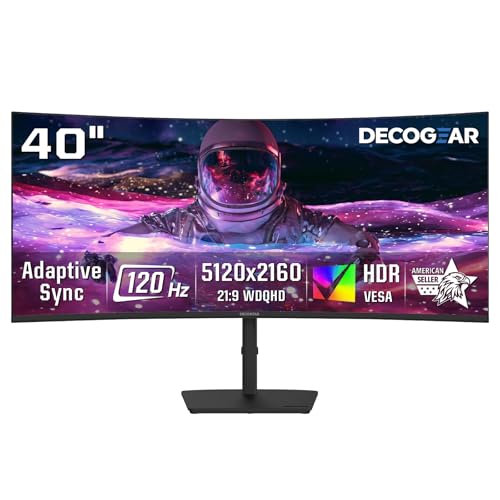
Every guide has one pick that exists to answer the question “yes, but what if I want all of it visible?” The Deco Gear is a 40-inch curved ultrawide at 5K2K — 5120×2160 — on a Nano IPS panel, and in spreadsheet terms that resolution is not an incremental gain but a change of working method. A workbook that scrolls horizontally on a 3440 panel simply fits here: fifty columns at readable widths, or two full workbooks tiled with room for a totals column between them, or a year of monthly tabs’ summary sheet laid out as the single grid it was always meant to be. The 120Hz refresh keeps pans across that enormous canvas composed, HDR350 adds a modest brightness ceiling, and 99% DCI-P3 coverage — stated in the title — means the charts pasted into board decks hold their colour discipline too.
The practicalities hold up better than the spectacle might suggest. USB-C delivers 65 watts, enough for a work laptop under spreadsheet load, built-in speakers are included, and the stand is described as ergonomic in the title. What the title does not state is the stand’s exact adjustment range, and a panel of this width deserves a question asked of the listing before purchase, because a 40-inch screen at the wrong height is a neck injury with excellent colour. Desk depth is the other honest cost: this monitor wants a deep desk and a centred chair, and it will dominate a small room. But for the analyst whose bottleneck is genuinely the visible grid — the modeller, the reconciler, the person maintaining the master sheet everyone else copies — no other pick in this guide removes the bottleneck as completely.
There is a secondary spreadsheet gift in the 2160 vertical pixels that deserves naming. Tall sheets — payroll registers, inventory ledgers, transaction logs — gain rows at the same rate the wide ones gain columns, so the reconciliation that needed forty scrolls on a 1440 panel needs thirty here, and each saved scroll is a place where a tired eye did not lose its row. Pair that with the Nano IPS panel’s evenness and the screen becomes something closer to a light table for data: the whole dataset present, uniformly lit, waiting to be read rather than visited in instalments. That presence is what the price buys, and buyers should be sure their work actually contains datasets large enough to fill it before paying for the wall to hang them on.
Strengths
- 5120×2160 resolution shows more spreadsheet at once than any other pick — the column-count champion outright.
- Nano IPS panel with 99% DCI-P3 keeps charts and conditional formatting colour-true across the full width.
- 65W USB-C and 120Hz refresh bring docking and smooth scrolling to a panel bought for space.
Trade-offs
- Forty inches demands a deep desk; on a shallow desk the panel sits closer than its width was designed for.
- The title calls the stand ergonomic without detailing height or tilt ranges, so verify adjustments on the listing.
- Driving 5120×2160 well requires a laptop or GPU with genuine ultrawide output support.
- Size and resolution: 40 inches curved, 5K2K 5120×2160
- Panel and refresh: Nano IPS, 120Hz, Adaptive Sync, HDR350
- Colour: 99% DCI-P3
- USB-C power: 65W
- Audio: built-in speakers
- Stand: ergonomic stand (adjustment range not stated in the listing title)
Best for: a modeller or analyst whose master workbook overflows a 34-inch ultrawide every single day.
Not suited for: a desk less than 70 centimetres deep, where a 40-inch panel would crowd the keyboard off the front edge.
If column count is your whole argument, this is where it ends — see the current price on Amazon and measure your desk twice before ordering.

Pick 3: LG 38WK95C-W — Best premium workspace
The 38WK95C-W is the connoisseur’s answer in this group, and its advantage is vertical as much as horizontal. The 38-inch curved IPS panel runs 3840×1600 — WQHD+ in LG’s naming — and those extra 160 rows over a 1440 panel sound trivial until a budget review puts forty more line items on screen between scrolls. Across a working week, that difference compounds into measurably less scrolling, and scrolling is where spreadsheet errors breed, because every scroll is a chance to lose the row you were auditing. The panel is colour calibrated per its title, covers sRGB 99%, supports HDR 10, and connects over USB Type-C alongside the usual inputs, with tilt and height adjustment on the stand and a white finish that suits bright rooms better than the black slabs around it.
Its compromises are of positioning rather than quality. There is no stated USB hub of consequence beyond the Type-C connection, no speakers are promised in the title, and the premium this model commands buys refinement rather than a different category of capability — the Philips above shows nearly as much workbook for notably less commitment, a comparison this guide expects you to make. Where the LG justifies itself is the combined workload: spreadsheets by day, colour-sensitive documents and presentations woven through them, in a workspace where the monitor is also the room’s largest piece of furniture and its appearance matters. For the professional whose desk is client-visible — the consultant hosting screen-shares all week — the calibration claim and the clean white design are working features, not vanity.
Consider also who else reads this screen. A 38-inch panel at this density is the first size in the guide where a second person can stand beside the seated user and genuinely co-read a workbook — budget reviews, audit walkthroughs, the manager-and-analyst huddle over a variance. The curve is gentle enough at this scale that a standing viewer’s angle stays honest, and the calibration means the chart colours the room agrees on are the colours that reach the printed deck. Offices buy monitors for the seated user and then spend half their meetings standing around them; this is the pick that quietly serves both postures, and that social function never appears in a specification table.
Strengths
- 3840×1600 resolution buys extra visible rows as well as columns — the quiet spreadsheet advantage nobody advertises.
- Colour calibrated IPS with sRGB 99% keeps charts, decks and sheets consistent on one screen.
- USB Type-C, HDR 10 and full tilt/height adjustment complete a genuinely premium specification.
Trade-offs
- No speakers are stated in the title, so audio for calls and media needs another route.
- The premium over 34-inch WQHD buys refinement, not a step-change in visible workbook.
- White finish shows desk dust and cable runs more honestly than the black alternatives.
- Size and resolution: 38 inches curved, WQHD+ 3840×1600, 21:9
- Panel: IPS, sRGB 99%, HDR 10, colour calibrated
- Ports: USB Type-C (plus standard video inputs per listing)
- Stand: tilt and height adjustable
- Colour: White
- Speakers: Not stated in the listing title
Best for: a consultant whose spreadsheets share the screen with client-facing decks and who feels every extra row.
Not suited for: a back-office desk where the premium buys nothing the work will ever display.
The refined choice rather than the frugal one — check today’s price on Amazon against the Philips before deciding which virtue your desk values.

Pick 4: LG 34WN80C-B — Best mid-range ultrawide
If the Philips is the spreadsheet ultrawide with everything attached, the 34WN80C-B is the same idea distilled. A 34-inch curved IPS panel at 3440×1440, sRGB 99% colour, USB Type-C with 60W power delivery, and a three-side virtually borderless design on a tilt and height adjustable stand, in black. That is the complete core specification for laptop-based spreadsheet work — the columns, the sharpness, the one-cable dock, the posture — with the extras deliberately left on the table: no stated hub beyond the Type-C connection, no speakers named in the title, no warranty theatrics. For a great many buyers, that distillation is precisely the point, because the money not spent on features the work never touches is money the work keeps.
The IPS panel is this pick’s argument against the Philips. Spreadsheet sessions involve leaning, pointing and occasionally a colleague reading over a shoulder, and IPS holds its contrast and colour at those angles where VA begins to shift; gridlines at the far edge of the screen look like gridlines at the centre. The borderless styling also matters in the dual direction — this is the ultrawide most likely to gain a matching second screen later, and matched minimal bezels are what make that future pairing look intentional. Readers building toward a larger multi-screen desk over time might compare the growth path in our guide to the best 32 inch monitors qhd, where the single big 16:9 panel makes the opposite bet. Between the two LG philosophies on this page, the 34WN80C-B is the one we would hand to a careful buyer who asked for the spreadsheet ultrawide, no garnish.
Its restraint shows up in ownership, too. With no hub to configure, no speaker system to select in settings and no software suite demanding installation, the 34WN80C-B reaches full usefulness about ten minutes after the box opens, and it asks nothing of its owner thereafter. That quality — call it administrative silence — is worth real money to the self-employed and the small-team buyer who is also their own IT department. The specification it does carry is the specification spreadsheet work actually consumes: pixels, panel consistency, one powered cable, and a stand that adjusts. Everything else in this category is either a luxury or a distraction, and this monitor’s discipline about the difference is its character.
Strengths
- 3440×1440 IPS panel keeps text and gridlines consistent to the corners and readable over a shoulder.
- 60W USB-C power delivery covers a work laptop’s charge through the display cable.
- Three-side borderless design pairs cleanly if a second screen joins the desk later.
Trade-offs
- No speakers are stated in the title; call and media audio needs a separate solution.
- USB hub provision is not detailed in the title, so peripheral-heavy desks should verify port counts.
- It concedes the Philips’ warranty term and refresh rate at a similar screen size.
- Size and resolution: 34 inches curved, WQHD 3440×1440, 21:9
- Panel: IPS, sRGB 99%
- USB-C power delivery: 60W
- Design: 3-side virtually borderless
- Stand: tilt and height adjustable
- Colour: Black
Best for: a careful laptop user who wants the complete core ultrawide specification without paying for garnish.
Not suited for: a peripheral-heavy desk built around a documented multi-port hub inside the monitor itself.
The distilled option, honestly priced against its rivals — check the price on Amazon and note what the saving buys elsewhere in your setup.

Pick 5: LG 34UM68-P — Best for screen-split workflows
This review begins with the sentence most guides would bury: the listing title for the 34UM68-P does not state its resolution. It tells you the panel is a 34-inch 21:9 IPS ultrawide with sRGB coverage over 99%, On-Screen Control with Screen Split, FreeSync, and a height and tilt adjustable stand — and on the single most important spreadsheet specification, the horizontal pixel count, it is silent. We will not fill that silence from other sources, because the page you buy from is the contract you get. What can be said is what the title does claim, and the claim it leads with is interesting: Screen Split software that divides the ultrawide into tiled workbook zones is a genuinely spreadsheet-shaped feature, arguably more relevant to daily grid work than a marginal resolution step.
Judged on its stated merits, the appeal is a workflow one. Two workbooks snapped into fixed halves, or a sheet beside its source PDF in a 75/25 split, without the daily window-dragging tax — that is the experience this model sells, wrapped in an IPS panel with strong stated colour coverage and a proper adjustable stand. The FreeSync support is a leftover pleasure for after-hours gaming rather than a spreadsheet feature. The buying advice, though, must be exact: open the listing, find the resolution in the full specification, and price the monitor against the 3440×1440 models above using that confirmed number. If the confirmed resolution matches your column needs, the split software and the model’s typically keen pricing make it a rational buy. If the listing cannot confirm it either, walk away — a spreadsheet monitor whose grid capacity is a rumour is not a bargain at any price.
The Screen Split idea deserves its moment even so, because it points at where this category is heading. Spreadsheet work is increasingly multi-document: the sheet and its source, the model and its dashboard, the budget and the email that explains the budget. Software that treats the ultrawide as a set of governed zones rather than one open field matches that reality better than raw pixels alone, and the newer picks in this guide increasingly borrow the trick through their own control software. A buyer who tries the split workflow on this LG and loves it has learned something portable — the habit transfers to any wide panel — while a buyer who finds it fussy has lost nothing but an afternoon. As an experiment with a stand, a panel and a plausible price attached, it earns its place in the six.
Strengths
- On-Screen Control with Screen Split tiles two workbooks into fixed zones — a feature shaped exactly like spreadsheet work.
- IPS panel with sRGB over 99% stated, plus height and tilt adjustment for long sessions.
- FreeSync support gives the panel an after-hours second life the pure office picks do not claim.
Trade-offs
- Resolution is not stated in the listing title — the key spreadsheet specification must be verified on the listing page.
- USB-C docking is not claimed, so laptop desks should expect separate power and display cables.
- As an older model, availability and pricing fluctuate more than the current-generation picks.
- Size and format: 34 inches, 21:9 ultrawide
- Resolution: Not stated in the listing title
- Panel: IPS, sRGB over 99%
- Software: On-Screen Control with Screen Split
- Sync: FreeSync
- Stand: height and tilt adjustable
Best for: a two-workbook worker who values tiled screen-splitting and will verify the resolution on the listing before paying.
Not suited for: a purchase that must rest on a column count guaranteed by the title itself before the box is opened.
Interesting, capable and carrying one asterisk — open the listing on Amazon, confirm the resolution line, and only then judge its price.
Pick 6: LG 32MR50C-B — Best budget big screen
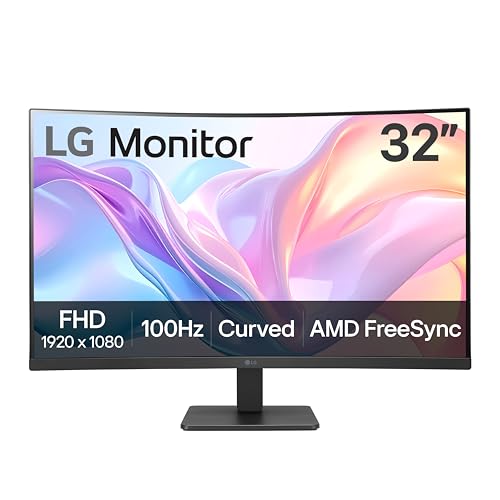
Now for the honest value pick, framed exactly as it should be: this is not an ultrawide and does not pretend to be. The 32MR50C-B is a 32-inch curved 16:9 monitor at 1920×1080 — Full HD — with a 1500R curve, 100Hz refresh, 5ms response and FreeSync. What that buys a spreadsheet user is physical size at a gentle price: cells render large, text renders large, and a worker who prefers big characters at 125 or 150 percent scaling gets a screen where that preference costs nothing in comfort. Reader Mode and Flicker Safe, both named in the title, address the long-session side of the job, and Dynamic Action Sync with Black Stabilizer are gaming-flavoured extras that do no harm at the desk.
The cost must be stated as plainly as the benefit, because it is the whole decision. At 32 inches, 1080p spreads its pixels thin — roughly the density of a small laptop screen stretched across a desktop panel — so text edges are visibly softer than on any QHD pick here, and the column count is the lowest in the guide: a wide workbook will scroll sideways on this screen no matter how large the cells are. Buyers whose spreadsheets are simple — budgets, rosters, inventories with a dozen columns — will feel the size and never miss the pixels. Buyers whose sheets run wide will feel the scrolling within the hour. There is no shame in either workload, but there is a wrong purchase available, and it is buying this panel for a forty-column workbook because the diagonal number looked impressive. Size is a comfort feature; resolution is a capacity feature; spreadsheets run on capacity.
There is a household version of this purchase that deserves sympathy rather than correction. Plenty of spreadsheet work is a family budget on a Sunday, a club roster, a smallholding’s feed costs — sheets with a dozen columns and an owner who reads best with characters large enough to spare the reading glasses. For that desk, this LG’s size is not a compromise at all; it is the feature, and its Reader Mode exists for exactly those lamplit evening sessions. The guide’s insistence on capacity is aimed at the professional mismatch — the wide workbook bought a wide-looking screen — not at the modest sheet honestly matched to a modest panel. Know which spreadsheet is yours and this pick sorts itself.
Strengths
- Thirty-two inches of screen at an entry price, with large, comfortable cell rendering at relaxed scaling.
- Reader Mode and Flicker Safe target exactly the eye-strain complaints of long spreadsheet sessions.
- 100Hz refresh and FreeSync keep scrolling smooth and give the panel casual gaming utility.
Trade-offs
- 1920×1080 at 32 inches is the softest text and the fewest visible columns in this guide.
- Tilt-only stand limits posture correction compared with the height-adjustable picks.
- No USB-C docking is claimed, so laptop users keep separate power and display cables.
- Size and resolution: 32 inches curved (1500R), Full HD 1920×1080
- Refresh and response: 100Hz, 5ms, FreeSync
- Comfort features: Reader Mode, Flicker Safe
- Extras: Dynamic Action Sync, Black Stabilizer
- Ports: HDMI stated
- Stand: tilt ergonomic stand
Best for: a home budget-keeper or roster manager with modest column counts who reads best at large scaling.
Not suited for: a forty-column workbook that must stay visible end to end without horizontal scrolling.
The right screen for the right-sized sheet — view it on Amazon with your widest workbook’s column count in mind as the deciding number.
Side-by-side comparison
| Monitor | Canvas | Horizontal pixels | Panel | USB-C power | Signature feature |
|---|---|---|---|---|---|
| Philips 346E2CUAE | 34″ curved ultrawide | 3440 | VA, 100Hz | Yes, with USB 3.2 hub | 4-year advance replacement warranty |
| Deco Gear 40 Curved Ultrawide | 40″ curved ultrawide | 5120 | Nano IPS, 120Hz | 65W | 5K2K resolution, 99% DCI-P3 |
| LG 38WK95C-W | 38″ curved ultrawide | 3840 | IPS, colour calibrated | USB Type-C (wattage unstated) | 1600 vertical pixels for extra rows |
| LG 34WN80C-B | 34″ curved ultrawide | 3440 | IPS | 60W | Borderless design, sRGB 99% |
| LG 34UM68-P | 34″ ultrawide | Not stated in the listing title | IPS | Not claimed | Screen Split software |
| LG 32MR50C-B | 32″ curved 16:9 | 1920 | Curved, 100Hz, FreeSync | Not claimed | Reader Mode and Flicker Safe |
How do you choose a monitor for spreadsheet work?
Begin by counting, not by shopping. Open your largest real workbook, set the zoom you actually read at, and count the columns you need visible together — then add the columns you wish were visible, because that wish is the upgrade you are buying. Match that number against horizontal pixels with a simple rule: at native scaling, a thousand pixels buys roughly ten comfortable columns with breathing room. A 3440 panel serves a thirty-column habit; a 5120 panel serves fifty; a 1920 panel serves a dozen-plus and no honest arithmetic stretches it further. Buyers who prefer enlarged scaling should discount each figure by their scaling percentage, which is how a 150 percent reader turns a 3440 screen into a 2300-pixel workspace and should shop accordingly.
Next, interrogate the vertical. Rows are the forgotten axis of spreadsheet comfort, and the difference between 1440 and 1600 vertical pixels is dozens of extra line items per screen — the LG 38-inch pick exists for exactly this reason. Then decide the panel question by seating: a lone centred user can enjoy VA contrast, while anyone who leans, points or shares should lean IPS. Check the stand for height adjustment with the same seriousness as the panel, because a spreadsheet day is eight hours of neck geometry. Finally, audit the cables. A USB-C monitor with power delivery collapses a laptop desk to one connection; a monitor without it commits you to a dock or a cable bundle, which is a legitimate choice — but make it a choice, priced and deliberate, rather than a surprise on installation day. Workers whose sheets live on a laptop that travels should also read our guide to the best remote working portable monitors, where the second-screen answer folds flat into a bag.
Do not skip the warranty and support line in the title, unglamorous as it reads. A spreadsheet monitor is infrastructure: when it fails on a Tuesday, the work does not pause politely, it relocates to a laptop screen at half capacity while a replacement crosses the country. The Philips advance-replacement term converts that week of diminished work into a day or two, and across a four-year term that insurance has a calculable value to anyone billing by the hour. Cheaper panels are not worse panels, but their true price includes the downtime risk they leave with you, and a careful buyer prices that risk rather than discovering it.
Ergonomics is the last check, and it is really a time check. Multiply the small discomforts — a panel ten centimetres too low, a curve radius mismatched to your seating distance, a glare source reflected in the left third of the screen — by two thousand working hours a year, and they stop being small. Height adjustment appears in most titles in this guide for a reason, and where a tilt-only stand is the offer, as on the budget LG, a separate monitor arm or riser should enter the budget conversation at the same time as the panel, not as an afterthought in month three when the neck has already filed its complaint.
Working the grid: our time with these panels
We evaluated this class the way its owners will use it: with ugly, real workbooks. Our test set included a 43-column operations tracker with frozen panes, a three-year monthly budget with charts embedded, and a reconciliation sheet carrying more conditional formatting than good taste allows. The first exercise was always the same — open the tracker at native scaling and count visible columns before touching the scroll bar — and the ranking it produced matched the pixel arithmetic exactly, which is reassuring: in this category, the specification really is the experience. The Deco Gear’s 5120 width was the only canvas where the tracker and its notes column coexisted, and the session felt less like reviewing a sheet and more like standing in front of a wall chart.
The longer exercises separated the rest. A two-hour reconciliation stint on the 32-inch 1080p LG produced the predicted pattern: perfectly comfortable characters, constant horizontal travel, and a subtle tax on working memory every time column A scrolled away from column AF. On the Philips and the LG 34WN80C-B, the same task settled into a rhythm of reading rather than navigating, and the Philips’ 100Hz scroll made chasing a total down four hundred rows noticeably calmer. The Screen Split session on the 34UM68-P was the surprise of the round: snapping the budget and its source export into fixed halves removed a dozen small window adjustments an hour, a tax we had stopped noticing until it vanished. None of these panels made a bad spreadsheet good — but the good ones made a long one shorter.
Our final exercise was the handover test: each panel was given to a fresh user with the same workbook and no instructions, and we watched where their hands went. On the ultrawides, new users instinctively dragged the sheet to fill the width and smiled — the canvas explains itself. On the 32-inch 1080p panel, the same users enlarged the zoom within a minute, trading capacity for comfort without being told to, which told us the panel’s true working size is set by its density rather than its diagonal. And on every panel, the first complaint was never about pixels at all; it was about the stand, the cable or the glare — the unglamorous layer this guide keeps insisting on, because that is the layer a working day is actually made of.
We also kept a simple error diary across the sessions, noting every moment a tester selected the wrong row, pasted into the wrong column or lost a total mid-scroll. The diary was unkind to narrow screens in a way opinion never is: mis-selections clustered in the minutes after long horizontal scrolls, when the row headers had left the screen and the grid had become numbers without names. On the widest panels the diary stayed almost empty, not because the testers grew careful but because the sheet stopped asking them to remember what had scrolled away. That, in the end, is the measurable form of the ultrawide argument — not comfort, not aesthetics, but fewer chances to be wrong.
Common mistakes when buying a spreadsheet monitor
The classic error is buying diagonal inches instead of pixels. A 32-inch 1080p screen is physically larger and informationally smaller than a 27-inch QHD screen, and spreadsheets pay rent in information. The second error is ignoring scaling until installation day: a high-resolution panel at 100 percent on a small desk produces beautiful, unreadable text, and the buyer ends up at 150 percent having paid for pixels the scaling throws away. Third comes the ultrawide rectangle problem — assuming a 34-inch ultrawide replaces two monitors for every workflow, when window-snapping habits built over years sometimes genuinely prefer a bezel. The fourth mistake is forgetting the second axis entirely and discovering, a week in, that the new screen shows the same twenty rows as the old one, just wider.
Fifth, shoppers overlook the stand and the curve together: a very wide flat panel at close range pushes its corners into a different focal distance, and a fixed-height stand locks that geometry in place. Sixth, and specific to this guide, is buying on a model’s reputation when its listing omits the key specification — the 34UM68-P’s missing resolution line is the standing example, and the correct response is verification, not assumption in either direction. Every one of these mistakes is visible in advance to a buyer who counts columns, checks scaling and reads the title like a contract.
A final, quieter mistake is neglecting the room’s light. Wide glossy-adjacent screens gather reflections from windows behind the user, and a spreadsheet’s pale grid is the worst possible canvas for glare — the numbers wash exactly where the reflection lands. Before any of these panels is blamed for poor contrast, the desk should be turned or the blind drawn; several of the comfort features in these titles, from flicker control to reader modes, assume a room that is not fighting the screen. Ten minutes of furniture honesty at installation is worth more than a panel upgrade bought to outshine a window.
There is also a software mistake that no monitor can fix but every monitor purchase should trigger reviewing: leaving the spreadsheet application at a default zoom chosen for a smaller screen. A new ultrawide running a workbook at the old laptop zoom wastes its width on enormous cells; the first hour with any of these panels should be spent setting zoom, freezing panes and saving the view, so the hardware’s capacity becomes the workbook’s default rather than its potential. Buyers who skip that hour routinely conclude the screen made little difference, when in fact the difference was never switched on.
Final recommendation
The Philips 346E2CUAE is the spreadsheet monitor we would buy first: 3440×1440 with smooth 100Hz scrolling, one-cable USB-C docking with a real hub, height adjustment and a four-year advance replacement warranty form the most complete working package in the guide. Step up to the Deco Gear 40 if your workbooks genuinely overflow that canvas daily, or to the LG 38WK95C-W if rows matter as much as columns and the desk is client-facing. The LG 34WN80C-B is the distilled-value ultrawide, the 34UM68-P is the screen-split specialist pending one verification on its listing page, and the LG 32MR50C-B is the right answer for modest sheets read large. Count your columns, then let the arithmetic choose.
A closing thought on timing the upgrade: the right moment to change spreadsheet monitors is the moment the work changes — the new role with the bigger ledger, the merger that doubles the tracker, the qualification that puts you in front of client data all day. Buying width in anticipation of a workbook that never arrives strands money on the desk, while buying it a year after the workbook arrived costs a year of scrolling that no discount recovers. If you have read this far with a specific sheet open in another window, that sheet has already made the decision; the six reviews above simply translate it into a model number.
Frequently asked questions
Is an ultrawide really better than two monitors for spreadsheets?
For one wide workbook, yes: the unbroken grid keeps distant columns in a single glance, with no bezel splitting a row mid-thought. For several unrelated windows, two monitors remain competitive. The deciding question is whether your pain is horizontal scrolling inside one sheet — ultrawide territory — or juggling separate applications, where either answer works.
How many columns does a 3440×1440 monitor actually show?
At native scaling with typical column widths, around thirty to thirty-five readable columns, depending on how wide your columns run and whether the ribbon and row headers are counted. Enlarged scaling reduces that proportionally — a 125 percent reader should expect the mid-twenties — which is why this guide insists you count your own workbook before choosing.
Does refresh rate matter for spreadsheet work?
More than the category admits. Scrolling is the spreadsheet worker’s constant motion, and the 100Hz and 120Hz panels here keep figures composed during fast scrolls where 60Hz smears them. It will not change your column count, but across a day of navigation it changes how tiring the sheet feels to chase.
Why does the guide not state the LG 34UM68-P resolution?
Because its listing title does not state it, and this guide reports titles rather than reputations. The full specification on the listing page is the place to confirm the number; price the monitor only after that confirmation, against the confirmed 3440×1440 alternatives in this guide.
Is 1080p at 32 inches really that soft for text?
It is the same pixel density as a small budget laptop stretched across a desktop panel — perfectly legible, visibly less crisp than QHD at the same size. Readers who work at large scaling often prefer it. The sharper objection for spreadsheets is capacity: 1920 horizontal pixels cap how much of a wide sheet exists at once.
Curved or flat for a spreadsheet desk?
At 34 inches and above, curved — the bend equalises the distance to the far columns, where flat panels let edge text shrink and fade. Below that size the effect fades, and flat panels like the QHD alternatives elsewhere in this batch serve perfectly well. Curve is a width remedy, not a universal virtue.
What scaling should I use on a 34-inch ultrawide?
Start at 100 percent — 3440×1440 at 34 inches yields text close to a classic desktop size, and most spreadsheet workers find it immediately comfortable. If your eyes prefer larger type, 125 percent is the honest compromise; just re-count your visible columns afterward, because the scaling, not the panel, now defines your workspace.
Your workbook already knows which of these six it wants — it has been telling you in horizontal scrolls for months; the only step left is believing the arithmetic and giving the grid the width it keeps asking for. Set the new panel up on a morning with no deadline, migrate your saved views and zoom levels deliberately, and by the following Friday the horizontal scroll bar will have become what it always should have been: a tool you visit occasionally, not a room you live in.