What's inside
- Key Takeaways
- Quick Picks
- How did we choose the best hard drives for home network NAS server builds?
- How do the six drives compare for a home server?
- What should a household decide before choosing NAS drives?
- How do you bring a new home NAS volume into service?
- What mistakes do home NAS builders repeat?
- How does a home server’s workload change across its life?
- How do rebuilds test a home server, and how should owners prepare?
- What does the network around the server change about drive choice?
- How should a growing household stage its upgrades?
- What separates a server that lasts from one that merely starts well?
- How do households actually use a NAS once the novelty fades?
- What should be checked in the first month of a new server’s life?
- Final Recommendation
- Frequently Asked Questions
- Related Guides
As an Amazon Associate I earn from qualifying purchases. This post may contain affiliate links at no extra cost to you.
gizmoverdict.com is reader-supported. When you buy through links on our site, we may earn an affiliate commission.
Where to buy: The six drives below all link to listings verified in this site’s pool, spanning Seagate’s IronWolf family, Western Digital’s Red Plus line and Toshiba’s N300 range. Every speed, cache and recording figure quoted comes from the listing titles themselves; silent titles are marked as not stated in the spec boxes.
The best hard drives for home network NAS server use begin with the enclosure’s job description, because a home NAS is not one machine but several wearing a single case. It is the household’s filing cabinet, its photo vault, its backup destination, its media library and, on busy evenings, all four at once. Drives chosen for that combined duty need a different character from drives chosen for a desktop: they must tolerate continuous spinning, the vibration of neighbouring mechanisms inches away, and workloads that arrive at three in the morning when a backup schedule fires. The six picks below were selected against that job description, not against a benchmark chart.
Capacity planning sits at the centre of the home NAS decision, and this pool spans it widely. At one end, a 2TB Red Plus serves a compact two-bay server holding documents and photographs. At the other, 10TB drives from Toshiba and Seagate let a small enclosure swallow a decade of family video without a second box. Between those poles sit the 4TB drives that remain the home market’s workhorse size. A household can therefore build at almost any scale from this single page, and the sections after the picks explain how to choose the scale honestly instead of hopefully.
Two of the six listings publish complete specifications in their titles — both Seagate IronWolf models, at 4TB and 10TB, state their rotational speed, cache and CMR recording outright. The Western Digital and Toshiba titles are terser, confirming line and capacity while leaving details to the fuller listing and the manufacturers’ documents. This guide keeps that asymmetry visible rather than smoothing it over, because a home server is a long-lived appliance and the habit of verifying specifications before purchase outlasts any single drive.
Key Takeaways
- A home NAS drive must suit continuous duty and multi-bay vibration, not desktop patterns of use.
- Both IronWolf picks state speed, cache and CMR in their titles; the Red Plus and N300 titles leave those figures to documentation.
- Capacities run from 2TB to 10TB per bay, covering compact document servers and large media archives alike.
- Redundancy consumes capacity, so usable space always lands below the raw total on the box.
- The right capacity is the one sized for the data’s growth, not for the data’s present.
Quick Picks
| Pick | Badge | Why it earns its place |
|---|---|---|
| Seagate IronWolf 4TB | Transparent mid-size pick | A 4TB NAS drive whose title states CMR, 5400 RPM and a 64MB cache in full. |
| Western Digital WD Red Plus 4TB | Established home NAS size | The Red Plus line at the capacity where most home servers are built. |
| Western Digital WD Red Plus 2TB | Compact server starting point | A 2TB NAS drive for small enclosures, mirrored pairs and document-focused shares. |
| Toshiba N300 10TB | Third-brand capacity option | A 10TB NAS drive from Toshiba’s N300 family for archive-led builds. |
| Western Digital WD Red Plus 10TB | Red Plus at full stretch | Ten terabytes per bay inside the familiar Red Plus line. |
| Seagate IronWolf 10TB | Fully stated large drive | A 10TB IronWolf whose title publishes 7200 RPM, a 256MB cache and CMR. |
How did we choose the best hard drives for home network NAS server builds?
We filtered first for habitat. Every pick carries a NAS designation in its title — IronWolf, Red Plus and N300 are the three manufacturers’ NAS-specific families — because the defining stresses of a home server are continuous operation and neighbour vibration, and drives designed for desktop duty are engineered around a different day. A desktop drive expects to rest; a NAS drive expects to be forgotten in a warm enclosure for years. That single distinction eliminates more bad purchases than any specification comparison.
We filtered second for capacity spread, keeping 2TB, 4TB and 10TB sizes so the guide maps onto the real range of home servers: the two-bay box under a desk, the four-bay unit in a cupboard, the archive build that exists because a family’s video habit outgrew everything else. A guide listing only large drives would abandon the small-server household; a guide listing only small ones would strand the archivists. The six below let both households shop from evidence rather than from apology.
Third, we scored transparency where the listings offered it. A title that publishes rotational speed, cache and recording technology — as both IronWolf titles do — lets a buyer verify fitness without leaving the page, and that verifiability earned those picks prominent positions. The terser titles were not punished with exclusion, because Red Plus and N300 are legitimate NAS families with long service records, but their spec boxes in this guide honestly record what their titles omit, and the analysis directs readers to manufacturer documentation for the missing figures.
Finally, we considered the server as a system. A home NAS is drives plus enclosure plus network plus the household’s habits, and a pick that shines in isolation can disappoint inside a noisy cupboard or behind a congested switch. The buying-guide and setup sections after the picks therefore carry as much weight as the picks themselves: they address placement, redundancy arithmetic, backup discipline and the staged filling of a new volume, because those decisions determine whether good drives become a good server.
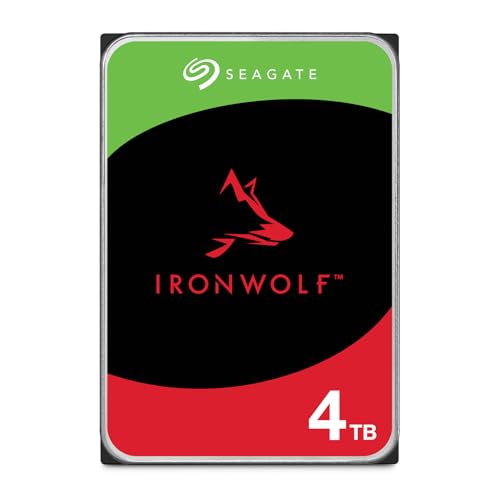
Seagate IronWolf 4TB — Transparent mid-size pick
Seagate’s 4TB IronWolf opens this guide because its title does the reader’s homework in advance: NAS internal hard drive, CMR, 3.5 inch, SATA 6Gb/s, 5400 RPM, 64MB cache. For a home server, that combination describes a drive tuned for the enclosure’s real life — steady file service, overnight backups, a film streamed after dinner — with a spindle speed chosen for quiet continuous running rather than for desktop bragging rights. In a server that lives in a hallway or a study, the 5400 RPM character is not a compromise to apologise for; it is the sound of a machine that can be forgotten.
The CMR statement carries weight on the server’s worst day. When a drive in a redundant volume fails and is replaced, the array rebuilds by reading every surviving member and writing the newcomer full, and conventional recording sustains its pace through that long labour. A home server’s owner rarely thinks about rebuilds at purchase time, yet rebuild behaviour is the specification most likely to be cursed or blessed some Sunday two years later. Seagate printing CMR on the title line removes the doubt at the moment when removing it is free.
Four terabytes is the size around which home servers are most often built, and the arithmetic explains why. Mirrored, it protects four terabytes of household data. Across four bays with one drive given to redundancy, it offers twelve usable terabytes — room for photographs, documents, computer backups and a serious media library to coexist. Households whose video archives already exceed that should read on to the 10TB picks rather than squeeze, because a server filled to its brim in year one becomes a migration project in year two. At its intended scale, though, this IronWolf is the guide’s most completely evidenced recommendation.
- Capacity: 4 TB, per the listing title
- Form factor: 3.5 inch, per the listing title
- Interface: SATA 6Gb/s, per the listing title
- Rotational speed: 5400 RPM, per the listing title
- Cache: 64 MB, per the listing title
- Recording technology: CMR, per the listing title
Strengths
- Every headline figure published in the title, verifiable without extra research
- 5400 RPM tuning suits quiet, always-on home server duty
- CMR stated, supporting predictable rebuild behaviour
Trade-offs
- 4TB per bay is a ceiling that video-heavy households can outgrow
- Slower spindle trails the 7200 RPM IronWolf 10TB in responsiveness
- Cache of 64MB is modest beside the 256MB stated by the largest pick
Best for: a home server owner seeking a mid-size NAS drive with every key specification confirmed in its title. Not suited for: an archive whose growth is measured in terabytes per year.

Western Digital WD Red Plus 4TB — Established home NAS size
The Red Plus name has been attached to home NAS enclosures for so long that it functions almost as a category label, and this 4TB member is the line’s representative at the market’s favourite capacity. The listing title states brand, capacity, line and NAS duty, and stops there; rotational speed, cache and recording technology await the reader in Western Digital’s documentation. That brevity is a research errand rather than a flaw, but it is a real errand, and this guide assigns it openly instead of filling the silence with borrowed figures.
What the nameplate legitimately conveys is habitat and continuity. Red Plus was drawn for small multi-bay enclosures in continuous service, positioned as the line for home and small-office servers rather than for enterprise racks, and a four-bay home NAS sits precisely in that intended territory. Continuity matters in a server expected to serve for most of a decade: a line with a deep retail presence makes a like-for-like replacement a realistic errand years from now, when one member of the volume eventually reports errors and the household wants the same drive, from the same family, without a research project attached.
Capacity behaviour mirrors the IronWolf beside it — four terabytes mirrored, twelve usable across four bays with single-drive redundancy — and the choice between the two 4TB picks is therefore a choice of temperament. The Seagate publishes its internals on the title line; the Western Digital asks the buyer to visit its documentation and rewards the visit with the line’s long household track record. Neither temperament is irrational. An owner valuing stated evidence above all has a clear favourite; an owner valuing an established nameplate and ubiquitous availability has an equally clear one, provided the documentation check gets done before the trays are filled.
- Capacity: 4 TB, per the listing title
- Duty: NAS internal hard drive, per the listing title
- Brand line: WD Red Plus, per the listing title
- Rotational speed: Not stated in the listing title — verify with Western Digital documentation
- Cache size: Not stated in the listing title — verify with Western Digital documentation
- Recording technology: Not stated in the listing title — verify with Western Digital documentation
Strengths
- The home NAS market’s most familiar line at its most popular capacity
- Deep availability supporting like-for-like replacements years later
- Purpose-built for continuous multi-bay home server duty
Trade-offs
- Speed, cache and recording technology all require a documentation visit
- 4TB ceiling applies to fast-growing media collections
- Nothing in the title distinguishes it from its own siblings beyond capacity
Best for: a home server owner requiring a proven NAS line at 4TB with strong long-term availability. Not suited for: a buyer requiring the full specification to be visible before leaving the listing.

Western Digital WD Red Plus 2TB — Compact server starting point
Not every home network server is an archive. Many are modest machines with a defined errand: hold the family’s documents and photographs where every computer can reach them, receive a backup from the household’s laptops, serve a music library to the kitchen speaker. The 2TB Red Plus is sized for that errand. Its title confirms the line, the capacity and the NAS duty, and the drive’s virtue is proportionality — enough machinery for the job, no surplus spinning in the dark consuming attention and shelf space.
Small servers have a particular charm that large ones lose: they finish their tasks quickly, rebuild a mirrored volume in an evening rather than a weekend, and ask so little cooling that they can live almost anywhere in the house. A mirrored pair of 2TB drives protects two terabytes of the files a household would genuinely grieve — documents, photographs, the children’s schoolwork, the scanned family archive — while bulkier, replaceable content can live elsewhere or accept simpler protection. That tiered thinking, precious files guarded tightly and bulk files held loosely, is how small servers punch above their capacity.
The cautions are the family’s usual ones plus one of scale. Speed, cache and recording technology are unstated in the title and belong to Western Digital’s documentation. And 2TB is a ceiling that arrives sooner than optimists expect once whole-computer backups join the shares, because a modern laptop backup can consume a startling share of a small volume by itself. Households hovering at that boundary should price the 4TB picks before ordering; the step up costs little at purchase time and postpones a migration that nobody enjoys. For a bounded job honestly assessed, though, this drive is the guide’s reminder that the best server is the one sized to its actual life.
- Capacity: 2 TB, per the listing title
- Duty: NAS internal hard drive, per the listing title
- Brand line: WD Red Plus, per the listing title
- Rotational speed: Not stated in the listing title — verify with Western Digital documentation
- Cache size: Not stated in the listing title — verify with Western Digital documentation
- Recording technology: Not stated in the listing title — verify with Western Digital documentation
Strengths
- Right-sized for document, photo and backup-target servers
- Small volumes rebuild quickly after a drive replacement
- NAS-specific design for continuous duty in compact enclosures
Trade-offs
- 2TB ceiling arrives fast once full computer backups join the volume
- All technical figures beyond capacity need documentation checks
- Cost per terabyte is rarely the line’s most efficient at this size
Best for: a household seeking a compact server volume for documents, photographs and backup targets. Not suited for: a media archive or a whole-house backup destination with room to grow.

Toshiba N300 10TB — Third-brand capacity option
Toshiba’s presence in a home NAS guide matters beyond this single drive, because a storage market with three genuine NAS families gives households alternatives when one brand’s shelves empty or its pricing hardens. The N300 is Toshiba’s NAS-specific line, and this 10TB member brings the family’s largest argument: capacity per bay. A four-bay server built on 10TB drives holds forty raw terabytes, a figure that reclassifies the home server from a documents box into a genuine household archive capable of swallowing a decade of video without negotiation.
The title states capacity, line, form factor and NAS duty — Toshiba N300, 10TB, 3.5-inch, internal hard drive — and leaves rotational speed, cache and recording technology to Toshiba’s documentation. At this capacity that homework carries extra weight, because large drives concentrate both data and consequence: a rebuild takes many hours, a volume’s worth of family history rides on each mechanism, and the details of the drive’s design deserve confirmation before four of them are entrusted with the archive. The guide’s position is consistent across all six picks: unstated means unverified, and unverified means the manufacturer’s documents get read before money moves.
For the household doing the reading carefully and proceeding with its eyes open, the N300 10TB offers a particular freedom — freedom from the second enclosure. Many home servers multiply because the first one filled; a server built at 10TB per bay postpones that multiplication for years, keeping the household’s storage in one place, behind one backup routine, under one set of habits. That consolidation has a quiet security value of its own, since data scattered across forgotten boxes is data that quietly falls out of the backup plan. One large, well-kept server beats three small, neglected ones, and this drive is how the one large server gets built from a different badge.
- Capacity: 10 TB, per the listing title
- Form factor: 3.5 inch, per the listing title
- Duty: NAS internal hard drive, per the listing title
- Brand line: Toshiba N300, per the listing title
- Rotational speed: Not stated in the listing title — verify with Toshiba documentation
- Cache size: Not stated in the listing title — verify with Toshiba documentation
Strengths
- 10TB per bay postpones the second-enclosure problem for years
- A NAS-specific line from a third manufacturer, widening supply choice
- Suits archive-led servers holding a household’s full media history
Trade-offs
- Speed, cache and recording technology unstated in the title
- Long rebuild windows when a member of a large volume is replaced
- High per-drive cost multiplied across a full enclosure
Best for: an archiving household seeking 10TB per bay from a NAS-specific line outside the two biggest names. Not suited for: a small server whose contents would rattle around inside ten terabytes.

Western Digital WD Red Plus 10TB — Red Plus at full stretch
Households loyal to the Red Plus line eventually ask how far it stretches, and this listing is the answer inside the present pool: ten terabytes per bay under the same nameplate as the 2TB and 4TB picks. That continuity is the pick’s essence. An owner can begin with smaller Red Plus drives in a first server and graduate to this capacity in a larger one without changing families, keeping behaviour, tooling and replacement habits consistent across the household’s whole storage history. In infrastructure meant to be forgotten, familiarity is a feature.
The title maintains the family’s brevity — Western Digital, 10TB, WD Red Plus, NAS internal hard drive — so the technical interior awaits Western Digital’s documentation: rotational speed, cache, recording technology. At 10TB those checks are not pedantry. Capacities within a single line can differ in their internal arrangements, and the owner of a four-bay server filled with 10TB members is committing forty raw terabytes to the answers. The documentation visit takes minutes and governs years, which is the best exchange rate in this entire guide.
Architecturally, this drive enables the fewest-bays route to a large server: a mirrored pair yields ten protected terabytes in a compact two-bay enclosure, while four bays with single-drive redundancy yield thirty usable. Households short on shelf space but long on archive will recognise the appeal immediately. The accompanying duties scale with the capacity — backups held outside the enclosure, health warnings answered promptly, a replacement plan written down rather than improvised — and the sections after the picks address each of them. Capacity this generous is a responsibility as much as a convenience, and this pick rewards the owner who treats it as both.
- Capacity: 10 TB, per the listing title
- Duty: NAS internal hard drive, per the listing title
- Brand line: WD Red Plus, per the listing title
- Rotational speed: Not stated in the listing title — verify with Western Digital documentation
- Cache size: Not stated in the listing title — verify with Western Digital documentation
- Recording technology: Not stated in the listing title — verify with Western Digital documentation
Strengths
- The Red Plus line’s continuity at a full 10TB per bay
- Enables large protected volumes in compact enclosures
- Consistent family behaviour for households standardising on one line
Trade-offs
- Technical interior unstated in the title, requiring documentation checks
- Large volumes rebuild slowly after a member is replaced
- Data concentration per drive raises the cost of neglected backups
Best for: a Red Plus household requiring the line’s largest capacity for a growing home archive. Not suited for: a first server whose contents are still measured in hundreds of gigabytes.
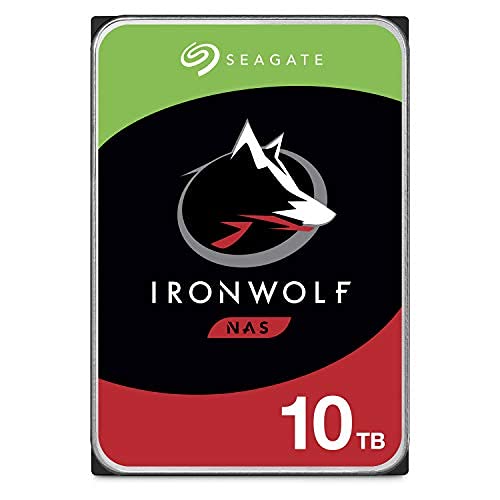
Seagate IronWolf 10TB — Fully stated large drive
The largest IronWolf in the pool is also its most forthcoming large drive. The title publishes the full hand: 10TB NAS internal hard drive, CMR, 3.5 inch, SATA 6Gb/s, 7200 RPM, 256MB cache. Read against the terser 10TB listings beside it, that completeness is the argument. A buyer can evaluate this drive’s character — fast spindle, generous buffer, conventional recording — entirely from the listing, and can weigh the trade-offs of a 7200 RPM mechanism in a home enclosure with the facts on the table rather than in a datasheet across the internet.
Those trade-offs deserve plain statement. A 7200 RPM drive in a home server brings responsiveness that busy households genuinely feel: many small files, several simultaneous users, a media library being indexed while a backup lands. It also brings more voice and more warmth than a 5400 RPM mechanism, and inside a multi-bay enclosure those qualities multiply by the bay count. Placed in a ventilated cupboard or a utility room, the exchange is easy to accept. Placed beside a sofa or a bed, it deserves a second thought, and the 4TB IronWolf’s gentler tuning — or a different room — may serve the household better.
As the guide’s capacity flagship with a published specification, this drive suits the performance-leaning archive build: the server that stores the family’s video and also edits from it, that hosts the photo library and also processes it, that works for its living rather than merely holding possessions. Its 256MB cache, the joint-largest figure stated anywhere in this pool, supports that working character during bursty arrivals. Households whose server is a vault rather than a workshop can save the premium and take a gentler pick; households whose server is a workshop will find this the most completely evidenced tool for the job.
- Capacity: 10 TB, per the listing title
- Form factor: 3.5 inch, per the listing title
- Interface: SATA 6Gb/s, per the listing title
- Rotational speed: 7200 RPM, per the listing title
- Cache: 256 MB, per the listing title
- Recording technology: CMR, per the listing title
Strengths
- Full specification published in the title at the pool’s largest capacity
- 7200 RPM and a 256MB cache suit busy, multi-user home servers
- CMR stated for predictable behaviour during long rebuilds
Trade-offs
- Fast spindle brings more noise and warmth, multiplied across bays
- Premium positioning at 10TB, before the enclosure multiplication
- Vault-style servers may never use the responsiveness on offer
Best for: a busy household seeking a fully specified 10TB drive for a server that works as well as stores. Not suited for: a bedroom-adjacent enclosure where a fast row of drives would intrude.
How do the six drives compare for a home server?
The comparison sticks to title-stated evidence. Two drives publish complete figures; four publish capacity and lineage, with their interiors reserved for manufacturer documentation. Read the gaps as a shopping list for verification rather than as demerits, and read the capacities as the true first-order decision.
| Drive | Capacity | Speed stated in title | Cache stated in title | CMR stated |
|---|---|---|---|---|
| Seagate IronWolf 4TB | 4 TB | 5400 RPM | 64 MB | Yes |
| WD Red Plus 4TB | 4 TB | Not stated | Not stated | Not stated |
| WD Red Plus 2TB | 2 TB | Not stated | Not stated | Not stated |
| Toshiba N300 10TB | 10 TB | Not stated | Not stated | Not stated |
| WD Red Plus 10TB | 10 TB | Not stated | Not stated | Not stated |
| Seagate IronWolf 10TB | 10 TB | 7200 RPM | 256 MB | Yes |
What should a household decide before choosing NAS drives?
Decide the data’s shape first. Inventory what the server must hold — documents, photographs, computer backups, media — and estimate each category’s growth over the years the drives are expected to serve. Photographs grow steadily; video grows in leaps whenever a phone or camera is replaced; backups grow silently as computers accumulate. A capacity chosen against today’s total, without a growth allowance, is a capacity chosen to be outgrown, and outgrowing a server is the most disruptive event in its life.
Decide the protection level second. A mirror guards against one drive’s failure by halving raw capacity. A larger array with one drive of redundancy spreads the cost thinner as bays are added. Neither arrangement is a backup: both protect against hardware failure while leaving deletion, theft and disaster untouched, so an external or off-site copy of the irreplaceable material remains obligatory whatever the array’s shape. Households that internalise that distinction buy drives calmly; households that blur it discover the difference on the worst possible day.
Decide the server’s room third. An enclosure in a utility space can hold fast, warm drives without social cost. An enclosure in a living space must be quiet enough to forget, which pushes the choice toward gentler spindle speeds and toward enclosures with room to breathe. The room decision is genuinely a drive decision, because acoustics and cooling are properties of the combination, not of either part alone.
Decide the budget’s shape as well, because a server is bought in layers: the enclosure once, the drives now, a spare when prudence allows, an external backup destination that too many households postpone until the postponement becomes the story. Spreading those purchases across a season is legitimate planning; skipping the backup layer entirely is not thrift but borrowing against the data, at an interest rate nobody would accept if it were printed on the box.
Decide the household’s discipline last, and honestly. A server whose health warnings get answered, whose backups get checked and whose fans get dusted can safely run large drives for years. A server destined for benign neglect should be built simpler and smaller, with fewer terabytes concentrated in any single mechanism. The best drive is the one whose demands match the attention it will actually receive.
How do you bring a new home NAS volume into service?
Choose the installation hour with the same care as the hardware: a rested morning beats a tired midnight for work that involves trays, screws and irreplaceable data, and a household scheduling its server build like a small project — parts checked, notes open, no other errands pressing — makes fewer of the slips that fill support forums.
Start before the hardware, with the backup verified. Copy the irreplaceable material to a destination outside the new server — an external drive, an existing computer, a cloud tier — and open a few files from the copy to prove it works. Only then unbox the drives, note each serial number against its intended bay, and fit them into a powered-down enclosure, seating every tray until it latches with a firm, even click.
Power up and confirm the enclosure sees every drive at its expected capacity before building anything. Create the volume with the redundancy arrangement decided earlier, then add shares gradually: documents and photographs first, computer backups once the volume has run a day, the media library last. Staging the fill across several days spreads the initial workload, surfaces any misbehaving drive while the project is still young, and leaves the old storage untouched as a fallback until the new server has earned trust.
Close the commissioning with habits, not hardware. Schedule the recurring backups, set the enclosure’s health notifications to reach an address the household actually reads, and write down the installation date, the drive models and the bay order. That one page of notes, kept with the household’s appliance records and photographed for good measure, converts every future incident from archaeology into administration.
What mistakes do home NAS builders repeat?
The standing mistake is buying desktop drives for server duty because the capacity looked cheap. A desktop mechanism in a NAS works outside its design brief every hour — continuous spinning, neighbour vibration, night-time workloads — and the savings evaporate the first time the arrangement fails early. Every pick in this guide carries a NAS designation in its title for a reason; that designation is the first specification to check on any drive destined for an enclosure.
The second mistake is treating redundancy as backup, already flagged above and worth repeating because it is the costliest confusion in home storage. The third is filling a new volume to the brim on day one, leaving no room for the growth the server was bought to absorb; a healthy home volume lives most of its life comfortably below full. The fourth is neglecting the network around the server: a gigabit-era enclosure behind an ancient switch or a failing cable delivers its files at a crawl, and owners blame the drives for a bottleneck that lives in a five-dollar cord. Good drives deserve a competent path to the household, and checking that path costs an afternoon at most.
How does a home server’s workload change across its life?
A new server usually begins as a filing cabinet and becomes, by degrees, the household’s memory. The first year is documents and photographs. Then a backup habit forms and every computer in the house starts shipping its image to the server nightly. Then somebody discovers that the media library can stream to every screen, and the archive’s centre of gravity shifts toward video, the heaviest cargo a home network carries. Drives chosen with that evolution in mind — capacity headroom, NAS duty design, a family with larger siblings available — absorb each stage without a rebuild. Drives chosen for the first stage alone force the household to re-shop at every stage after.
The workload’s texture changes alongside its size. Early life is sequential: copies, backups, streams. Later life adds concurrency — two screens streaming, a backup landing, a photo library indexing, a sync job reconciling — and concurrency is where spindle speed and cache stop being abstractions. Households expecting that busier future should weight the fully specified IronWolf picks accordingly; households whose server will remain a quiet vault can let capacity and calm lead. Neither forecast is a guess, exactly; it is a reading of the household’s own trajectory, and it is the most valuable analysis in the whole purchase.
How do rebuilds test a home server, and how should owners prepare?
Every redundant volume eventually rebuilds, and the event deserves rehearsal in the owner’s mind long before it arrives uninvited. A drive reports errors or fails outright; the volume announces its degraded state; the owner replaces the member; the array then reads every surviving drive end to end while writing the replacement full. During those hours the server works at its hardest and its protection is at its thinnest, because the redundancy that justified the layout is temporarily spent. Preparation is therefore not pessimism — it is the ordinary price of the protection the household already bought.
The first preparation is a spare. A same-model drive kept sealed on a shelf turns a failure into an evening’s errand; a drive ordered after the failure turns it into days of degraded running while a parcel crosses the country. The second preparation is a current backup of the irreplaceable material, verified recently enough that its integrity is a fact rather than a hope, because a rebuild is precisely the moment when a second failure would stop being an inconvenience. The third preparation is documentation: bay order, serial numbers and purchase dates written down carefully at installation, so the degraded evening is spent executing a plan instead of reconstructing history.
Drive choice reaches into rebuild day through recording technology and capacity. CMR drives — both IronWolf picks declare the technology in their titles — sustain their write pace through the long sequential labour, while very large members extend the labour by their sheer sector count. Neither fact should frighten a household away from the 10TB class; both facts argue for matching habits to hardware. Large volumes want prompt replacements and current backups. Smaller volumes forgive slower reactions. The server a household can maintain is the server it should build, and rebuild day is where that sentence stops being philosophy.
After the rebuild completes, the work is not quite done. The replaced drive should be wiped before it leaves the house, the notes updated with the new member’s serial number and date, and the volume’s health checked again a few days later once ordinary workloads have exercised the new arrangement. Owners who close the incident that carefully rarely meet the same incident twice in its frightening form; the second rebuild, when it eventually comes, is a procedure they have already performed.
What does the network around the server change about drive choice?
A home NAS does not serve files into a vacuum; it serves them across the household’s network, and that network quietly caps what any drive can deliver. A single client copying a large file over gigabit Ethernet meets the network’s ceiling long before the drives reach theirs, which is why vault-style servers gain little from fast spindles. The calculus changes when the server feeds several clients at once, or when a household has upgraded parts of its network beyond gigabit, because then the volume itself becomes the bottleneck and drive character — spindle speed, cache, sustained behaviour — starts writing the experience directly.
Wireless clients add their own texture. A laptop on a distant Wi-Fi connection experiences the server through two bottlenecks in series, and the slower one wins; owners sometimes replace drives to cure a hesitation that actually lives in a weak wireless link at the far end of the house. Before blaming storage for a sluggish share, the household should test the same share from a wired connection and compare. That five-minute experiment has saved more unnecessary drive purchases than any buying guide ever written, including this one.
Where the network genuinely is strong, the fully specified picks come into their own. The IronWolf 10TB’s stated 7200 RPM and 256MB cache serve concurrent, wired, working households; the IronWolf 4TB’s gentler stated tuning serves the streaming-and-backup pattern that dominates most homes. The Red Plus and N300 picks ask for documentation checks before the same reasoning can be applied to them, and a network-conscious buyer will fold those checks into the purchase as a matter of course. Drive, enclosure and network are one system wearing three price tags, and the household planning them together spends once and smiles for years.
How should a growing household stage its upgrades?
Storage upgrades go best in stages, each stage small enough to verify before the next begins. The first stage is usually capacity honesty: measuring what the server holds, what it will hold, and whether the present drives can reach that figure under the chosen redundancy. If they cannot, the second stage is a planned migration — new drives installed, a fresh volume built, data copied across in categories, the old volume kept intact until the new one has carried ordinary life for a week or two. That overlap period is the cheapest insurance in home storage, bought entirely with patience.
The third stage is role reassignment for the retired drives. Healthy mechanisms leaving server duty can become offline backup targets in a USB dock, powered only during the weekly copy, holding a second copy of the irreplaceable material in a drawer or a relative’s house. Drives too tired for that duty should be wiped thoroughly and recycled as electronics, their data retired with the same care as their hardware. A household planning this arc at purchase time — front-line service, then backup duty, then a clean exit — extracts the full value of every mechanism it buys.
Staging also protects the budget’s morale. A server grown in considered steps never presents its owner with a single enormous bill or a single terrifying migration weekend; each stage is affordable, reversible and verifiable. The six picks in this guide support that rhythm at every scale, from the 2TB starting point to the 10TB flagships, and the households that thrive with home storage are almost always the ones that treated it as a practice rather than a purchase.
What separates a server that lasts from one that merely starts well?
Longevity in home storage is mostly housekeeping. The enclosure’s fans gather dust across the seasons, and a drive row that ran cool in January can run warm by the second summer if the grilles have furred over. A twice-yearly inspection — fans spinning freely, vents clear, temperatures read against the figures noted at installation — catches the drift while it is still free to fix. Drives themselves report their health through the enclosure’s monitoring, and those reports deserve a reader: a rising count of reallocated sectors or a new pending error is a message sent early precisely so it can be acted on calmly.
Firmware and system updates form the second housekeeping strand. Enclosure software evolves, drive families receive revisions, and a server left entirely untouched for five years can drift into a corner where a necessary update becomes a risky leap. Applying updates during calm periods, with the backup verified first, keeps each step small. The household treating its server like a garden — light, regular attention — almost never faces the scorched-earth weekend that neglected systems eventually demand.
The third strand is the human one: somebody in the household owns the server. Not in the legal sense, but in the practical one — one person knows where the notes live, which drive sits in which bay, when the backup last succeeded and what the health page said. Servers with an owner thrive; servers belonging to everyone in general belong to no one in particular, and their warnings go unread until the warning finally becomes the event itself. Choosing good drives, at the right capacity, from the right family, starts the story well. Appointing their keeper is how the story stays good, and it costs nothing but a conversation at the dinner table.
How do households actually use a NAS once the novelty fades?
Six months after installation, the ceremony is over and the server’s real life begins, and that life follows patterns worth designing for. The backup jobs become invisible furniture, noticed only when a laptop dies and the household discovers, with relief, that recovery is an hour rather than a bereavement. The photo share becomes the family’s default memory, consulted at birthdays and arguments alike. The media library quietly replaces a shelf of discs and a tangle of streaming subscriptions for the household’s favourites. Each of these settled uses is undramatic, and together they are the entire point: infrastructure that has stopped being a project and become a utility.
That settled phase is also when small sizing errors announce themselves. A volume bought with no growth room starts its warnings; a server placed in a warm cupboard starts its fan complaints during the first hot week; a backup routine nobody verified turns out to have been failing silently since spring. Every one of those annoyances was decided at purchase time, in the capacity arithmetic, the room choice and the commissioning habits. The guides’ insistence on those unglamorous steps is not pedantry — it is the purchase price of the quiet years, paid once, in advance, at the only moment when it is cheap.
Households that reach the quiet years tend to describe their server the way they describe a good boiler: rarely, and with mild surprise that it still needs describing at all. The drives inside — whichever of these six families was chosen, at whichever capacity — have become part of the house rather than part of its technology. That is the destination this guide is steering toward, and every section between here and the picks exists to make the journey to it as uneventful as good planning can arrange.
What should be checked in the first month of a new server’s life?
The first month is the volume’s probation, and a short checklist turns it into evidence. Confirm the backups have landed on schedule, every night they were meant to, and open a restored file from each computer’s set to prove the chain works end to end. Read the enclosure’s health page once a week and note the drives’ temperatures under the household’s heaviest ordinary load — a backup evening with a film streaming — so the baseline figures exist before any drift can hide among them. Listen to the enclosure in a quiet moment and learn its normal voice, because the owner who knows the normal sound recognises the abnormal one instantly, months later, from another room.
Then verify the protection story one final time: the external copy of the irreplaceable material exists, is current, and has been opened. With that confirmed, the old storage can be retired or reassigned with a clear conscience, and the server graduates from project to appliance. Households that run this month of probation rarely meet storage emergencies; households that skip it are merely postponing their introductions to problems that were present, and detectable, from the very first week of service.
Final Recommendation
For the typical home server, the IronWolf 4TB is this guide’s anchor: a NAS drive whose title states its speed, cache and recording technology, sized at the capacity where most household volumes are built. The Red Plus 4TB stands beside it for households preferring Western Digital’s line and willing to verify its figures in the documentation. Small, bounded servers are served honestly by the Red Plus 2TB, while archives belong to the 10TB class — the N300 for a third-brand route, the Red Plus 10TB for line continuity, and the IronWolf 10TB for the household whose server works as hard as it stores, with every figure published on its title. Choose the scale first, verify the unstated second, and a home server built from these six will hold the household’s memory without drama for years, through new phones, new laptops, new arrivals and the steady accumulation of a family’s recorded life, asking in return only the small attentions this guide has described.
Frequently Asked Questions
Can ordinary desktop drives be used in a home NAS?
They can be installed, but they work outside their design brief: desktop drives are built around intermittent duty, while a NAS drive is built for continuous spinning and the vibration of neighbouring drives. Every pick in this guide carries a NAS designation in its title — IronWolf, Red Plus or N300 — and that designation is the safer foundation for a server expected to run for years.
How much capacity does a home NAS server need?
Enough for the data, its growth and the redundancy arrangement together. A mirrored pair of 4TB drives protects four terabytes; four 10TB drives with one given to redundancy offer thirty usable. Inventory the household’s categories, add honest growth room, then choose the per-bay capacity that covers the total after redundancy takes its share.
Is a redundant array the same as a backup?
No. Redundancy keeps the volume alive when a drive fails; it does nothing against deletion, theft, fire or a failed enclosure. The irreplaceable material — photographs, documents, family records — still needs a copy outside the server, on an external drive or a cloud tier, checked often enough that its health is known rather than assumed.
Why do some spec boxes in this guide say not stated?
Because those listing titles do not print the figure, and this guide draws specifications from titles rather than from general knowledge about a model line. Capacities within one line can differ internally, so the manufacturer’s documentation for the exact model is the reliable source, and the not-stated lines point there directly.
Does a faster drive make a home NAS feel faster?
For many small operations and several simultaneous users, a 7200 RPM drive such as the IronWolf 10TB can feel more responsive. For single large file transfers, the network link usually sets the ceiling first. Households should weigh the faster spindle’s extra noise and warmth against the workloads their server genuinely performs.
Should all the drives in one server match?
Matching drives behave predictably, simplify replacement and keep volume sizing straightforward. Mixed capacities in one volume generally size the volume around the smaller drives, wasting part of the larger ones. A mixed row can suit a staged upgrade, provided the cost is understood before the trays are filled.
Related Guides
Home storage planning continues in our neighbouring coverage of drives chosen for a Synology enclosure, the efficiency angle in low-power drives for always-on storage, and the protection strategy in backing up a household NAS properly.
Related guides
- Best Enterprise SATA SSDs: Endurance Classes, Power-Loss Protection and Fleet Sense
- Best Color Product Label Printers: Six Desktop Machines for Short-Run Product Labels
- Best 1440p 165Hz Monitors: One Native 165Hz Pick, Three 180Hz Upgrades, an Overclock Headline and a 160Hz Ultrawide
- Best 13×19 Professional Printers


