What's inside
- Key Takeaways
- Quick Picks
- How Did We Choose These Medical Office Printers?
- What Does a Medical Office Actually Ask of a Printer All Day?
- How Do You Lay Out Printing Across a Whole Practice?
- How Do the Six Medical Office Picks Compare Side by Side?
- How Do Paper Handling and Supplies Behave Under Clinic Load?
- What Should a Practice Verify in the Documentation Before the Purchase Is Final?
- What Mistakes Do Practices Make When Buying Printers?
- How Does Printing Follow the Patient From Check-In to Check-Out?
- What Does the Front Desk Ask of a Printer That the Back Office Never Does?
- Final Recommendation
- Frequently Asked Questions
- Related Guides
As an Amazon Associate I earn from qualifying purchases. This post may contain affiliate links at no extra cost to you.
gizmoverdict.com is reader-supported. When you buy through links on our site, we may earn an affiliate commission.
Where to buy: Each machine below links to its Amazon listing, where the exact configuration in the cart can be confirmed before ordering — these printer families sell in wired, wireless, colour and monochrome variants whose names differ by a letter or two. Check price on Amazon from the headings or the Quick Picks table; this guide quotes no prices.
A medical office prints like a small legal firm with worse deadlines. Referral letters, intake forms, appointment cards, after-visit summaries, insurance paperwork and the endless two-sided documents of modern practice all pour through the same few machines, and they pour at the worst moments — the morning clinic, the pre-lunch surge, the end-of-day billing run. The best printers for a medical office are therefore judged the way practice managers judge them: on duplex that halves the paper bill and the filing bulk, on networking that lets every workstation share the load, on speed where a title states it, on paper capacity that survives a clinic session, and on the security features one title here names outright. Five of the six picks are all-in-one lasers that print, copy and scan; one is a print-only enterprise machine for the corridor; colour appears where a title claims it and nowhere else.
One boundary belongs at the top of this guide, stated as plainly as it can be. No printer in this list is described as compliant with, certified for or approved under any healthcare regulation, because printers do not carry such properties — a printer is hardware that prints what a practice’s systems send it. Obligations around patient information live in the practice’s software, access controls, procedures and staff practice. What a printer purchase can honestly be judged on is workflow: whether the machine keeps up, connects properly, prints both sides, holds enough paper and offers the administrative features its title states. That is the judgement this guide makes, pick by pick, from the listing titles alone.
Key Takeaways
- Every pick is a laser, and every title states duplex or automatic two-sided printing — in a practice, duplex is not a feature, it is the paper budget and the filing cabinet agreeing with each other.
- Two Canon titles state speeds outright: 42 ppm for the monochrome MF465dw II and 26 ppm for the two colour Canons, figures the other titles leave unstated.
- The Brother MFC-L8930CDW is the only title that names advanced security features, and it pairs them with colour, duplex print, scan and copy.
- The HP LaserJet Enterprise M406dn is the sole print-only machine here — Ethernet, duplex, no scan or copy in its title — a corridor workhorse rather than a desk companion.
- Three picks are monochrome and three print in colour as titled, so the colour decision splits the list cleanly in half.
Quick Picks
| Pick | Badge | Why it earns its place |
|---|---|---|
| Canon imageCLASS MF465dw II | Fastest titled engine | 42 ppm, duplex, all four functions and expandable paper capacity for the busiest monochrome workload. |
| Canon imageCLASS MF662Cdw (color) | Colour with a long warranty | Colour duplex printing with copier and scanner, backed by a stated three-year limited warranty. |
| Brother MFC-L8930CDW (color) | Security features named | Colour all-in-one whose title states advanced security features alongside duplex print, scan and copy. |
| HP LaserJet Pro 3101sdw | Compact monochrome all-in-one | Print, copy and scan with wireless and automatic two-sided printing in the Pro line’s smaller shape. |
| HP LaserJet Enterprise M406dn | Print-only corridor machine | Duplex and Ethernet in an enterprise build, for shared document volume without desk functions. |
| Canon Color imageCLASS LBP646Cdw | Colour, print only | 26 ppm colour laser with duplex and wireless, for offices whose scanning lives on another machine. |
How Did We Choose These Medical Office Printers?
The shortlist was built from the practice’s paper trail rather than from a spec-sheet beauty contest. Every document type a medical office produces was listed — referral and correspondence letters, intake and consent forms, summaries, billing statements, appointment reminders, copied records, scanned documents arriving and leaving — and machines were kept only if their titles covered the core of that trail: laser printing for volume, duplex for the two-sided majority, and networking for shared access. All-in-ones dominate because the copy and scan functions sit on the same paper trail; the one print-only machine survives because large practices genuinely run corridor printers that do nothing but print, and do it all day.
Speed was used only where a title states it, which produced an instructive asymmetry: Canon publishes ppm figures in these titles and the others do not, so the guide credits Canon’s numbers as titled facts and refuses to invent equivalent figures for Brother or HP. That refusal is the guide’s method in one gesture. Paper capacity was treated the same way — credited where a title says expandable or names a tray, left as a documentation question where it does not. The security conversation was handled with particular care: one title states advanced security features, and that pick is credited with exactly that phrase and nothing beyond it, because the distance between a titled feature list and a practice’s regulatory posture is a distance this guide will not blur. A printer supports good information practice; it cannot constitute it.
Colour was the final axis, and it splits the list deliberately. Practices print colour for patient-facing materials, charts and correspondence that carries a logo’s dignity, while the bulk of the internal trail — forms, summaries, billing — is monochrome work. Three colour and three monochrome picks let a practice equip by station rather than by compromise: colour where patients see the output, monochrome speed where they do not.
What Does a Medical Office Actually Ask of a Printer All Day?
The day begins with paper before the first patient arrives: the day’s schedules, intake packets for new patients, consent forms for scheduled procedures. Mid-morning brings the referral letters and the after-visit summaries, printed one or two at a time between consultations, where a printer’s first-page behaviour and its willingness to wake from sleep matter more than any sustained speed figure. The fax-era remnants still arrive — several of these titles include fax among their functions, and practices that still receive referrals that way know exactly why it survives — while scanning runs in the opposite direction all day, pulling paper records, insurance cards and signed forms into the digital file. Copying is the quiet constant: a page for the patient, a page for the chart, a form duplicated because the original’s handwriting defeated the scanner.
Two properties tie that whole day together. The first is duplex, because the practice’s documents are overwhelmingly two-sided in spirit even when they were drafted as separate sheets — summaries with instructions on the reverse, forms with terms on the back — and a machine that prints both sides in one pass halves the paper handling at exactly the stations where staff time is scarcest. The second is shared access: a printer that only one workstation can reach becomes a queue with a toner cartridge, while a networked machine absorbs the day’s printing from reception, the nurses’ station and the billing desk in whatever order the day demands. Every pick in this guide was chosen against that lived pattern, and the sections below judge each one by how its titled features map onto the stations of a practice’s day. The label side of the same operation — the vial and specimen labels a practice’s dispensary or lab bench produces — is covered by our companion guide to the best pharmacy printers, whose direct-thermal machines complement the document lasers here.
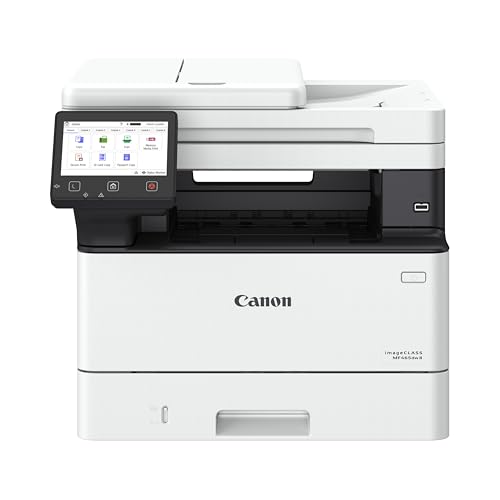
Canon imageCLASS MF465dw II — Fastest titled engine
The MF465dw II carries the only outright speed claim among the monochrome picks, and 42 ppm is a number with a constituency: the practice whose monochrome volume is the main event. Billing runs, form packets, summary printing for a full clinic list — sustained, repetitive, two-sided work where engine pace converts directly into staff minutes. Its title completes the pattern with the full function set of print, copy, scan and fax, wireless connection, duplex as a headline rather than a footnote, and expandable paper capacity, which is the title’s way of saying the machine can grow deeper trays as the practice’s volume grows rather than being replaced by it. In a guide that refuses to invent figures, a title this complete reads like a practice manager’s purchase order transcribed.
The expandable capacity deserves the emphasis, because paper capacity is the specification that decides whether a printer interrupts a clinic. A tray that empties mid-morning manufactures a small crisis at the worst time; a machine whose capacity expands with added trays pushes that interruption out to a scheduled refill. Pair that with 42 ppm duplex output and the MF465dw II becomes the natural anchor machine — the one at the centre of the office that the day’s bulk flows through, while smaller stations handle their local work. It prints monochrome only, and its title claims no colour consolation prize; practices whose patient-facing materials carry colour should pair it with one of the colour picks rather than ask it to be two machines. Judged on its own stated terms, though, this is the most completely specified workhorse in the guide.
- Functions: Print, copy, scan, fax (as titled)
- Speed: 42 ppm (as titled)
- Duplex: Wireless duplex laser, duplex in the headline (as titled)
- Paper capacity: Expandable paper capacity (as titled)
- Colour: Monochrome (as titled)
Strengths
- The fastest stated speed in this guide, aimed squarely at sustained monochrome volume.
- Expandable paper capacity lets the machine’s tray depth grow with the practice instead of capping it.
- All four functions in one title, including the fax that referral workflows still use.
Trade-offs
- Monochrome only — patient-facing colour materials need a second machine by design.
- Its capacity and pace are wasted on a single quiet consulting room; it is built for shared volume.
- The title states no security feature list, so administrative controls are a documentation question.
Best for: a busy practice’s central monochrome station, where billing runs and form packets flow all day. Check price on Amazon, and confirm the tray expansion options in the documentation so the capacity growth path is priced into the same decision.
Not suited for: colour patient materials as a core output — the title is explicit that this is a monochrome machine, and no setting changes that.
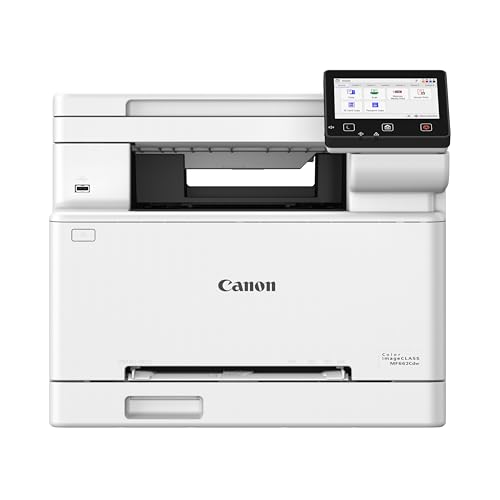
Canon imageCLASS MF662Cdw (color) — Colour with a long warranty
The MF662Cdw brings colour to the guide with an unusual companion in its title: a three-year limited warranty, stated in words. Warranty length is a purchasing fact practices underrate. A printer at the centre of a medical office is infrastructure, and a maker willing to stand behind a colour laser for three years is making a statement about the machine’s intended working life that a practice manager can take to a budget meeting. Around that promise, the title assembles wireless duplex colour printing at a stated 26 ppm, with copier and scanner functions — the colour all-in-one pattern, complete except for fax, which this title does not claim and this section does not grant it.
Colour at 26 ppm serves a specific station in the practice: the front office, where patient-facing output is made. After-visit summaries with colour charts, instruction sheets whose diagrams depend on colour to be read correctly, correspondence that carries the practice’s identity — these are documents where colour is functional rather than decorative, and a dedicated colour machine keeps them off the monochrome workhorse’s queue. The absence of fax in the title is the honest gap to note: practices still receiving faxed referrals should route that traffic to a machine whose title claims it, such as the MF465dw II, rather than assuming this one’s silence is modesty. Read as a pair, the two Canons divide a practice neatly — monochrome speed and fax at the centre, colour and a long warranty at the front — and the titles themselves draw that map.
- Functions: Print with copier and scanner (as titled)
- Speed: 26 ppm (as titled)
- Duplex: Wireless duplex laser (as titled)
- Warranty: 3-year limited warranty (as titled)
- Fax: Not stated in the listing title — verify with the maker’s documentation
Strengths
- A stated three-year limited warranty gives a practice a defensible lifespan figure for budgeting.
- Colour duplex at a titled 26 ppm covers patient-facing materials without borrowing the monochrome queue.
- Copier and scanner functions keep the front office’s paper loop on one machine.
Trade-offs
- Fax is absent from the title, so fax-era referral traffic needs another home.
- Colour running costs follow colour machines everywhere; the bulk internal trail still belongs on a monochrome pick.
- Its pace is a front-office pace — sustained billing volume belongs to the 42 ppm machine.
Best for: the front office station producing colour patient materials, with scanning and copying at the same desk. Check price on Amazon, and note the warranty terms in the listing so the practice’s records carry them from day one.
Not suited for: fax-based referral intake as a stated duty — the title lists copier and scanner functions and no fax, so that traffic cannot be assigned to it on the listing’s evidence.

Brother MFC-L8930CDW (color) — Security features named
One phrase lifts the MFC-L8930CDW out of the colour all-in-one crowd, and it appears verbatim in its title: advanced security features. This guide has been careful — and remains careful — about what such a phrase can mean. It is a maker’s description of the machine’s administrative and access-control toolkit, stated in the listing, and it is credited here as exactly that. It is not a regulatory status, not a certification and not a promise that a practice’s obligations are discharged by a purchase; those live in the practice’s systems and conduct. Within those honest limits, the phrase still matters, because a practice choosing between colour all-in-ones is entitled to prefer the one whose maker builds and advertises access controls — user authentication, locked function access and network protections are the ordinary furniture of that phrase in this product class, and a practice’s IT conversation starts from the maker’s stated list.
The rest of the title is a complete colour all-in-one pattern: duplex print, scan and copy, low-cost printing as a stated positioning, and the business framing Brother gives its office line. The low-cost note deserves its sentence, because colour machines earn suspicion on running costs and a title that leads with cost discipline is addressing the practice manager’s actual objection. What the title does not state is a speed figure or a wireless claim in so many words, and the spec box records those as documentation questions rather than letting the CDW suffix do silent work. As a shortlist entry, the Brother is the colour pick for the practice that wants the security conversation to begin with the hardware’s own stated features — a starting point for the practice’s wider controls, never a substitute for them.
- Functions: Duplex print, scan, copy (as titled)
- Colour: Business colour laser all-in-one (as titled)
- Security: Advanced security features (as titled)
- Cost framing: Low-cost printing (as titled)
- Speed and wireless: Not stated in the listing title — verify with the maker’s documentation
Strengths
- The only title here that names advanced security features, giving the practice’s IT review a stated starting point.
- Colour with duplex print, scan and copy covers the front-office and records workload in one unit.
- Low-cost printing is the title’s own positioning, aimed at colour’s running-cost objection.
Trade-offs
- No speed figure is published in the title, so pace comparisons rest on documentation, not the listing.
- The security phrase is a feature claim, not a compliance property — the practice’s obligations remain its own systems’ work.
- Fax goes unmentioned in the title, leaving that traffic to another machine.
Best for: a practice that wants its colour all-in-one to arrive with a stated security feature set for its IT review. Check price on Amazon, then read the maker’s full security feature list in the documentation as part of the practice’s own assessment.
Not suited for: discharging the practice’s information obligations by purchase alone — the title states features, and features are tools for a compliant workflow, not the workflow itself.

HP LaserJet Pro 3101sdw — Compact monochrome all-in-one
The LaserJet Pro 3101sdw is the guide’s smaller-station monochrome machine, and its title reads like a checklist for a satellite desk: monochrome laser, all-in-one with print, copy and scan, duplex with automatic two-sided printing spelled out twice for emphasis, fast black-and-white printing as a claim, and wireless printing to place it where the work is rather than where the cables are. A practice is not one room; it is a reception, a nurses’ station, a billing nook and a practice manager’s office, and the secondary stations print in bursts — a form here, a copied card there, a summary between patients. A compact all-in-one sized for that burst pattern keeps those jobs off the central machine’s queue, which is a service to both.
The title’s repetition of its two-sided claim is worth a smile and then a serious note: automatic duplex at a small station changes what the station produces, because staff print the two-sided original instead of printing single-sided and photocopying the reverse into a second sheet. Scan joins the same logic — the insurance card, the signed form and the referral letter all enter the digital record at the desk where they arrive, rather than travelling to a central scanner and back. No fax is claimed, no speed figure is published, and no paper capacity is stated, so the 3101sdw should be bought as what its title describes: a fast, wireless, two-sided monochrome all-in-one for the practice’s secondary desks, complementing rather than replacing the heavy central machine.
- Functions: Print, copy and scan, all-in-one (as titled)
- Duplex: Automatic two-sided printing (as titled)
- Connection: Wireless printing (as titled)
- Colour: Monochrome, black-and-white printing (as titled)
- Speed figure and fax: Not stated in the listing title — verify with the maker’s documentation
Strengths
- Automatic two-sided printing at a small station removes the print-then-photocopy workaround for two-sided forms.
- Scan and copy at the desk keep cards and signed forms entering the record where they arrive.
- Wireless placement suits the nooks and secondary desks that structured cabling forgot.
Trade-offs
- Monochrome only, as titled — colour work routes to the practice’s colour machine.
- No fax appears in the title, so it cannot take the referral-fax station’s role.
- No capacity figure is stated, so a full clinic’s bulk run still belongs to the expandable-capacity Canon.
Best for: a nurses’ station, billing nook or satellite desk printing and scanning in bursts through the day. Check price on Amazon, and confirm tray capacity in the documentation against the station’s busiest hour.
Not suited for: the practice’s central bulk workload — the title publishes no expandable capacity or speed figure, so the anchor role belongs to the machine whose title does.

HP LaserJet Enterprise M406dn — Print-only corridor machine
The M406dn is the monk of this guide: it prints, and the title asks credit for nothing else. Monochrome laser, duplex with automatic two-sided printing, fast black-and-white output, Ethernet connectivity — and no scan, no copy, no wireless, no colour. In an enterprise framing, that austerity is a design decision rather than a missing feature. A corridor printer in a larger practice or a clinic floor serves every workstation on its network segment, prints the day’s shared volume — schedules, forms, summaries, billing — and offers no walk-up functions to complicate its administration or its placement. Nobody queues at it with an original to copy; nobody’s scan lands in the wrong folder from it. It is a print server with a paper tray, and busy practices run on such machines.
Ethernet is its titled connection, and the choice coheres with the role: a fixed machine at a fixed network address, administered centrally, indifferent to wireless passwords and signal shadows in a building full of medical equipment. The enterprise label in the title signals the build class HP intends for that duty — sustained shared volume rather than personal output. What the title withholds is any speed figure or capacity number, so a practice shortlisting it for a genuinely heavy corridor should settle both in the documentation before assigning the floor’s printing to it. But the role clarity itself is the recommendation: where the practice’s scanning and copying already live on all-in-ones at the desks, the corridor wants exactly this — duplex, wired, monochrome, tireless — and every function beyond print would be furniture in the wrong room.
- Functions: Print only, as titled — no scan or copy claimed
- Duplex: Automatic two-sided printing (as titled)
- Connection: Ethernet connectivity (as titled)
- Colour: Monochrome (as titled)
- Speed and paper capacity: Not stated in the listing title — verify with the maker’s documentation
Strengths
- Print-only focus suits a shared corridor role, with no walk-up functions complicating administration.
- Ethernet gives the whole floor a fixed, centrally managed print address.
- Enterprise build framing matches sustained shared volume rather than personal duty.
Trade-offs
- No scan or copy anywhere in the title — paper entering the digital record needs another machine.
- Wired only as titled, so placement follows the network cabling, not the room’s convenience.
- No published speed or capacity in the title leaves the heaviest-duty claims to documentation.
Best for: a clinic floor or large practice corridor where every workstation prints and no one copies. Check price on Amazon after the documentation confirms the capacity suits the floor’s daily volume.
Not suited for: a small practice’s only machine — a sole printer that cannot scan or copy leaves the intake desk’s paper loop broken, and this title offers print alone.
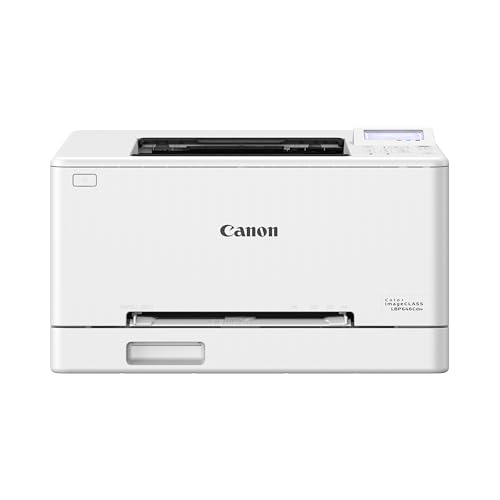
Canon Color imageCLASS LBP646Cdw — Colour, print only
The LBP646Cdw completes the guide’s symmetry: a colour laser that prints only, at a stated 26 ppm, with duplex and wireless, in a white finish the title bothers to mention. Its constituency is the practice whose scanning already has a home — a dedicated records scanner, an all-in-one at intake — and whose remaining gap is colour document output at the stations that produce patient materials. Print-only colour is a cleaner purchase than a second all-in-one in that situation: fewer mechanisms to maintain, a smaller footprint at the desk, and a queue dedicated to the colour jobs that the monochrome fleet cannot take.
Twenty-six pages per minute matches its colour sibling’s stated pace, which makes the pair easy to plan around: the practice’s colour output runs at one speed class whether it comes from the front office’s all-in-one or from this machine at a second station. Duplex is stated, so two-sided colour materials — the instruction booklet, the double-sided education sheet — print in one pass rather than being hand-collated. Wireless is stated, so the machine places by need. What the title does not offer is any copy or scan function, any fax, or any warranty flourish, and this section grants none of them. The white finish, trivial as it sounds, is a real consideration in clinical spaces, where equipment that looks at home in a bright consulting room earns less visual suspicion than a charcoal office box; the title names the colour of the machine, and rooms have been furnished on slimmer evidence.
- Functions: Print only (as titled)
- Speed: 26 ppm (as titled)
- Duplex: Stated in the title
- Connection: Wireless (as titled)
- Finish: White (as titled)
Strengths
- Stated 26 ppm colour pace matches the guide’s other colour Canon, simplifying capacity planning.
- Duplex colour in one pass suits two-sided patient education materials.
- Print-only design keeps the mechanism count and footprint small at a secondary station.
Trade-offs
- No scan or copy is titled, so the intake paper loop stays on another machine by design.
- Colour-only value: a station printing mostly internal forms wastes this machine’s purpose.
- No warranty term is highlighted in the title, unlike its all-in-one sibling.
Best for: a consulting room or education-materials station printing colour documents where scanning already lives elsewhere. Check price on Amazon, and confirm the paper sizes your materials use against the documentation’s tray list.
Not suited for: a desk that must scan signed forms into the record — this title describes a printer only, with no scanner in it.
How Do You Lay Out Printing Across a Whole Practice?
The pattern that emerges from these six titles is a division of labour, and practices print best when they buy the pattern rather than a single heroic machine. Put the high-volume monochrome all-in-one at the operational centre, where forms, summaries and billing flow and where fax still arrives; its expandable capacity and stated speed exist for that address. Put colour at the patient-facing edge — the front office or the education station — where materials are seen, and let the colour machines’ queues stay short by keeping internal bulk off them. Give the secondary desks their own small all-in-one so that a copied insurance card never has to queue behind a billing run, and give the corridor its print-only machine when the building is large enough that shared volume deserves a dedicated engine. Each station’s printer is then sized to its actual work, and no single failure stops the practice’s paper entirely.
Two disciplines bind the layout together. The first is a paper discipline: the same two-sided default set on every machine, the same form stock in every tray, so that a document printed at any station matches the one printed at any other — patients notice inconsistency in a practice’s paperwork even when they cannot name it. The second is an administrative discipline: one person owns the fleet list, the toner shelf and the tray refills, because shared machines without an owner degrade by diffusion in a practice exactly as they do in a pharmacy. Our wider survey of the best printers for dental practices applies the same station logic to a neighbouring clinical setting, and the best printers for medium sized offices guide generalises it beyond healthcare entirely.
How Do the Six Medical Office Picks Compare Side by Side?
| Pick | Colour as titled | Speed as titled | Functions as titled | Connection as titled |
|---|---|---|---|---|
| Canon imageCLASS MF465dw II | Monochrome | 42 ppm | Print, copy, scan, fax | Wireless |
| Canon imageCLASS MF662Cdw | Colour | 26 ppm | Print, copy, scan | Wireless |
| Brother MFC-L8930CDW | Colour | Not stated | Duplex print, scan, copy | Not stated |
| HP LaserJet Pro 3101sdw | Monochrome | Not stated | Print, copy, scan | Wireless |
| HP LaserJet Enterprise M406dn | Monochrome | Not stated | Print only | Ethernet |
| Canon Color imageCLASS LBP646Cdw | Colour | 26 ppm | Print only | Wireless |
The table’s symmetry is the shortlist’s logic: three colour and three monochrome, four all-in-ones and two print-only machines, speeds stated exactly where the makers state them. A practice equipping from scratch typically anchors on one row from the top half and one from the bottom, rather than forcing a single row to serve every station. Practices standardising on multifunction machines across every desk can cross-check the wider field in the best home office multifunction printers roundup, keeping in mind that this guide’s picks were filtered for practice-scale duplex and networking first.
How Do Paper Handling and Supplies Behave Under Clinic Load?
A clinic session is a stress test with a waiting room attached. The printer that cruises through a quiet Tuesday can falter at forty back-to-back summaries, and the failure points are rarely the engine — they are the tray that empties, the output stack that overflows onto the floor, and the toner that fades at the exact moment the billing run starts. Capacity planning is therefore a clinical discipline disguised as an office one. The expandable capacity in the Canon anchor’s title exists because Canon understands that a practice’s volume grows by appointment book rather than by announcement, and the tray that suffices in January is the tray that interrupts in March. Practices should size trays to the longest uninterrupted run the day contains — the morning clinic’s summaries, the end-of-day billing batch — and treat any run longer than the tray as a design flaw in the layout, not a character flaw in the staff member who has to babysit it.
Supplies behave the same way. Toner consumption in a practice is spiky rather than smooth, because the documents are spiky: a week of ordinary correspondence followed by a day of form packets that print like a small book. A shelf that holds one spare cartridge per model, reordered when the spare is opened, converts those spikes into non-events; a shelf run on optimism converts them into emergency courier orders and a receptionist apologising to a queue. Paper deserves equal respect — the same stock in every tray, stored flat and dry, because a practice’s documents are compared with each other by patients and insurers, and a summary that curls from damp paper looks like a summary from a less careful practice. None of this appears in a listing title, and all of it decides whether the machines in this guide earn their reputations. Hardware is the visible half of a printing system; the tray, the shelf and the stock cupboard are the other half, and they are managed, not purchased.
What Should a Practice Verify in the Documentation Before the Purchase Is Final?
The titles in this guide state a great deal, and the gaps they leave are specific enough to form a checklist. First, the figures a title withholds: the Brother and HP picks publish no ppm in these listings, so a practice comparing sustained pace across the whole shortlist should take those numbers from the makers’ documentation rather than from a retailer’s summary page, and should compare them at duplex, since two-sided speed is the speed a practice actually experiences. Second, paper capacity in sheets, tray by tray, including what the expansion options add and what they cost in footprint — a corridor machine that grows a second tray may outgrow its alcove. Third, the security feature list in full, for the Brother in particular: the title’s phrase is a headline, and the practice’s IT review needs the article beneath it, feature by feature, mapped against the practice’s own access policies.
Fourth, the scan side of the all-in-ones: a title that says scan says nothing about the feeder, and a practice pulling multi-page records into the digital file all day lives or dies by whether the scanner accepts a stack and how it handles the two-sided originals that medical paperwork specialises in. That single unstated detail has decided more real-world satisfaction than any print specification in this guide. Fifth, the fax configuration where fax matters — line sharing, junk-fax handling and confirmation reports are documentation territory. Sixth, warranty mechanics: the Canon colour pick states three years, and the practice should know whether those years mean a couriered replacement, an engineer visit or a depot repair, because the answer decides whether a backup machine is a luxury or a necessity. Work through those six checks and the purchase stops being a bet on a title and becomes what it should be in a clinical setting — a verified decision, documented like everything else the practice does.
What Mistakes Do Practices Make When Buying Printers?
The first mistake is buying one machine to be the whole practice. A single printer, however capable, is a single point of failure standing between a clinic and its paperwork, and it forces colour jobs, bulk runs and desk copies into one queue where they delay each other all day. The second mistake is treating duplex as optional. In a practice, two-sided printing is the paper budget, the filing density and the patient’s perception of a professional document, and every title in this guide states it for a reason — a machine without it would have been excluded, and a practice that disables it by default is paying for paper it already saved.
The third mistake is assuming a feature a title does not state. This guide’s own table shows fax present in one title and absent from five, speeds published by one maker and withheld by others, and a security feature list claimed by exactly one machine; a purchase order written on assumptions inherits every one of those gaps as a surprise. The fourth mistake is expecting hardware to carry obligations that belong to systems and conduct. A printer with stated security features is a useful tool inside a practice’s information discipline; it is not the discipline, and no purchase makes it so. The fifth mistake is ignoring the paper path of the day — buying the corridor a desk machine, the desk a corridor machine, and discovering at the first full clinic that capacity, not print quality, was the specification that mattered. The sixth is neglecting the unglamorous shelf: toner for every model in the building, stocked before it is needed, because a practice’s printers fail socially long before they fail mechanically — they fail when the cartridge runs out during the morning clinic.
How Does Printing Follow the Patient From Check-In to Check-Out?
Trace one patient’s paperwork and the fleet layout in this guide explains itself. At check-in, the intake packet comes off the nearest all-in-one — printed that morning or pulled from a tray of pre-printed forms the central machine produced in a quiet hour — while the insurance card and identification go through a scanner at the same desk, entering the record before the patient sits down. In the consultation, the printer’s contribution is mostly invisible: the chart’s printed elements, the consent form for the procedure discussed, the education sheet whose colour diagrams the colour station produced. The after-visit summary is the day’s most time-sensitive print, because it must exist before the patient reaches the door; it is printed at the station nearest the consultation rooms, in duplex, with the follow-up instructions on the reverse — which is why the small all-in-one at the secondary desk earns its place even in a practice that owns a fast central machine.
After the visit, the paper trail turns financial and archival. The billing desk’s run goes through the high-capacity machine, statements and claims paperwork printing in the day’s largest uninterrupted batch. Referral letters leave by post and, in many practices, by fax as well, which is where the anchor machine’s full function set closes the loop. Records requests arrive unpredictably and are answered by copying and scanning at whichever all-in-one is free. Seen end to end, the patient’s single visit touches four of the six machine types in this guide, and the visit’s smoothness is partly a printing outcome: every handoff where a document was ready is invisible, and every handoff where someone waited by a printer is remembered. Practices that map this journey before buying discover their real shortlist is a layout, not a model — and that the six titles above divide the journey between them almost without overlap.
What Does the Front Desk Ask of a Printer That the Back Office Never Does?
The front desk prints in public. Every hesitation is performed in front of the people it affects, every paper jam is a small theatre of delay, and every document the desk produces is handled by a patient seconds later — which quietly raises the standard for what comes out of the tray. A summary with a toner smudge or a crooked feed is not an internal memo’s blemish; it is the practice’s professionalism, carried home in a folder. Front-desk machines therefore earn their keep on behaviours the back office never tests: waking fast from sleep for a single urgent page, printing the first sheet without a warm-up ceremony, and feeding mixed stock — a letter, then a card-thick form, then a label sheet the practice still insists on — without complaint between jobs. The all-in-ones in this guide were read against that standard, and it is one reason the compact HP at the secondary desk and the colour Canon at the front office are specified the way they are.
The back office, by contrast, prints in private and in bulk, and its virtues are stamina and arithmetic: tray depth, duplex reliability across a thousand pages, and a cost per page the practice manager can defend. Confusing the two stations’ requirements is a classic purchasing error — a bulk engine at the front desk overwhelms the space and under-serves the single urgent page, while a charming desk machine in the billing office drowns in the end-of-day run. The six titles in this guide divide almost naturally along that public-private line, and a practice that sorts its shortlist by audience before it sorts by brand will find the final decision noticeably easier than the catalogue suggested.
Final Recommendation
Equip by station and the choices settle quickly. The Canon MF465dw II anchors the practice: the fastest stated engine, all four functions, expandable capacity. Colour belongs at the patient-facing edge — the Canon MF662Cdw where a three-year warranty and scanning share the desk, or the Brother MFC-L8930CDW where its stated advanced security features earn a place in the practice’s IT review. The HP 3101sdw serves the secondary desks, the M406dn takes the corridor in a larger building, and the Canon LBP646Cdw adds print-only colour where scanning already has a home. Buy them as a small fleet with one owner, one toner shelf and duplex set as the default everywhere, and the practice’s paper will move at the speed of its appointments instead of behind them — which is, in the end, the only printer specification a waiting room full of patients has ever cared about.
Frequently Asked Questions
Is any printer in this guide certified for healthcare use?
No printer is presented that way here, because that is not a property printers carry. Compliance with healthcare information rules is achieved by a practice’s systems, access controls, procedures and staff conduct. One pick, the Brother MFC-L8930CDW, states advanced security features in its title, and such features are legitimate tools inside a practice’s wider controls — but the tool is not the compliance, and this guide claims nothing more for it than its title states.
Does a medical office really still need fax?
Many practices do, because referral networks and insurers still send paper-era traffic, and the one title here that claims fax — the Canon MF465dw II — claims it as part of a full function set. If your practice’s fax volume has genuinely ended, the other five picks lose nothing by its absence; if it has not, that single titled claim should steer the anchor purchase.
Colour or monochrome for the main office printer?
Monochrome for the main engine, colour for the patient-facing station, is the pattern this guide’s six picks are arranged around. The bulk of a practice’s trail — forms, summaries, billing — is black-and-white work where the 42 ppm monochrome Canon is the strongest titled tool, while colour earns its running costs on materials patients read and keep.
Why does duplex appear in every single title here?
Because two-sided printing is the closest thing a practice has to a universal printer requirement: it halves paper consumption, halves filing bulk and matches how practice documents are actually read. The shortlist excluded machines whose titles did not state it, and the unanimity in the table is the filter’s result rather than a coincidence.
What should be printed in colour for patients, and what should stay monochrome?
Colour earns its place where it carries information: charts, diagrams, wound-care and exercise instruction sheets, and any document where a shaded scale or a coloured marker is part of the message. Correspondence, forms, summaries and billing lose nothing in monochrome and gain speed and economy there. A useful desk rule is to ask whether removing the colour would remove meaning; if it would merely remove decoration, the monochrome fleet should take the job and the colour machines should be kept for the work only they can do.
How many printers does a small practice actually need?
Two is the practical minimum for most: an all-in-one where paper enters the practice and a second machine — another all-in-one, a print-only colour unit or a corridor printer, depending on the building — so that no single failure or queue stops the day’s documents. A solo practitioner with one room can start with a single strong all-in-one such as the 42 ppm Canon, provided the toner shelf and a contingency plan for a breakdown are treated as part of the purchase. Growth then adds stations one at a time, each bought for its own desk’s paper pattern.
Whatever the count, write the fleet down: model, station, cartridge type and the documentation answers gathered at purchase. A practice runs on records in every other department, and its printers — the machines that produce the records — deserve a page in the same system. When a machine fails mid-clinic, that page is the difference between a five-minute workaround and a morning of archaeology.
The fleet page should also record each machine’s stated title facts — the speeds, functions and warranty terms this guide drew from the listings — because those are the terms the purchase was made on, and memories of a specification fade faster than the machine wears out. Practices that keep the page current find that the next purchase, years later, starts from evidence instead of folklore.
Review the page at the same rhythm as the appointment book’s other audits — a short annual pass is enough — and retire entries as machines leave, so the record always describes the fleet that is actually plugged in along the corridor today.
That small administrative habit closes the loop this whole guide has been drawing: titles state the facts, documentation settles the gaps, and the practice’s own records carry both forward — three layers of paper, each doing the job it is good at.
Keep the fleet page beside the toner shelf, where the person restocking cartridges will see it, and the record maintains itself as a side effect of the shelf’s ordinary traffic.
Small systems like that one are what separate a practice that manages its printing from a practice that merely owns printers.
Print-only or all-in-one for a growing practice?
Both, in their places. Desks that receive paper — intake, reception, records — need the scan and copy functions of an all-in-one, while shared volume in a corridor is served best by a print-only machine like the M406dn that does one job for everyone. Growth usually means adding stations, and each new station should be bought for its own paper pattern rather than cloned from the last purchase.
Related Guides
Practice printing connects to several neighbouring roundups. Monochrome multifunction machines are compared in depth in the best aio monochrome laser printers guide, while the dispensary and lab-bench label side of a practice’s output is handled by the machines in our own cluster’s pharmacy guide, linked earlier in this article.