What's inside
- Where to buy
- Key Takeaways
- Quick Picks
- How Did We Weigh E-Paper Against LCD and OLED?
- At a Glance: Which Large Screen Suits Which Reading?
- How Do You Decide Between E-Paper Calm and Emissive Versatility?
- How Should You Set Up a Large-Screen Reader for Long Sessions?
- How Long Will a Large Reading Tablet Stay Useful?
- What Does Page Size Actually Change in a Reading Session?
- How Should You Handle PDFs, Scans and Library Books on Each Platform?
- What About Comics, Scores and Other Oversized Material?
- Which Mistakes Do Large-Screen Buyers Repeat Most?
- Final Recommendation
- Frequently Asked Questions
- Related Guides
As an Amazon Associate I earn from qualifying purchases. This post may contain affiliate links at no extra cost to you.
gizmoverdict.com is reader-supported. When you buy through links on our site, we may earn an affiliate commission.
Where to buy
All six entries below are sold through Amazon, and the first thing to understand about the best large screen tablets for reading is that the phrase covers two genuinely different technologies sharing one shelf. Four picks use emissive screens — LCD or AMOLED panels that light themselves, refresh dozens of times per second and handle everything from scanned PDFs to video. Two picks, plus a third in spirit, use e-paper: screens that reflect ambient light like a printed page, sip power and stay legible in direct sun, but refresh slowly and treat colour as a soft accent rather than a spectacle. Neither technology is better in the abstract. They are better at different reading lives, and this guide keeps the distinction visible in every section instead of blurring it into a single ranking.
The second honesty point concerns the biggest name in the category. Samsung’s 14.6-inch Galaxy Tab Ultra models are the largest mainstream reading tablets sold, yet every verified listing we could check for both the S9 Ultra and S10 Ultra generations was renewed stock. Rather than dress a refurbished listing up as a normal pick, the Ultra appears below as a clearly labelled prose-only entry: a real option for readers comfortable with renewed hardware, described without a purchase link. The five linked picks are current listings for a 13-inch Lenovo, a 12.4-inch Samsung AMOLED, two 13.3-inch BOOX e-paper tablets and a 10.3-inch Kobo that earns its place as the smallest genuinely large reading surface here.
Who actually needs a large screen for reading? Anyone whose material arrives as fixed-layout pages — textbooks, academic PDFs, sheet music, comics, magazines, technical manuals — where the page was designed at a size and shrinking it means constant zooming. Readers of ordinary flowing e-book text can stay smaller and lighter; a novel reflows to any screen. But the moment your reading is pages rather than text streams, diagonal inches stop being a luxury and become the difference between reading and deciphering.
A note on how to use the verdicts below: each pick ends with guidance about who it fits and who it will frustrate, and those lines matter more than the order of the list. The six devices are not six attempts at the same product; they are three answers to three different questions — how do I read colour documents beautifully, how do I read pages calmly at full size, and how do I read books without carrying a slab. Identify your question first, and the shortlist shortens itself.
Key Takeaways
- E-paper and emissive screens solve different problems: BOOX and Kobo devices read like paper in bright light and last for weeks, while the Lenovo and Samsung panels handle colour, video and fast page work.
- The Lenovo Idea Tab Pro Gen 2 pairs a 13-inch 3.5K IPS panel at 144 Hz with a bundled pen and folio, making it the most complete LCD reading package here.
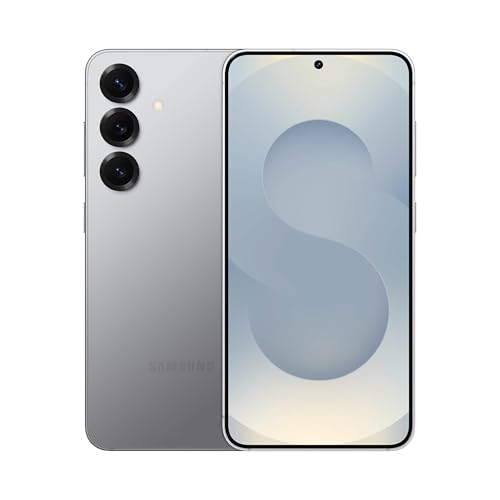
- Samsung’s Galaxy Tab S10+ brings an AMOLED 2X display and the S Pen to the 12.4-inch class, with 256GB of room for a serious local library.
- The BOOX Tab XC offers colour e-paper at 13.3 inches — a full textbook page at near-original size, in a muted palette that suits documents rather than films.
- Samsung’s 14.6-inch Ultra models are included as a prose-only, renewed-only route; we state that plainly instead of linking refurbished stock as if it were new.
Quick Picks
| Pick | Badge | Why it earns its place |
|---|---|---|
| Lenovo Idea Tab Pro Gen 2 13-Inch | Biggest LCD, pen bundled | A 13-inch 3.5K IPS screen at 144 Hz with pen and folio in the package, built for fixed-layout pages at full size. |
| Samsung Galaxy Tab S10+ 12.4-Inch | AMOLED reading luxury | Deep-contrast AMOLED 2X panel, S Pen included and 256GB of storage for readers who also annotate heavily. |
| BOOX Tab XC 13.3 Color ePaper | Colour e-paper at page size | A 13.3-inch colour e-paper screen that shows a textbook page near life size without glare or backlight fatigue. |
| BOOX Tab X 13.3 | Monochrome e-paper specialist | The black-and-white 13.3-inch BOOX for readers who want maximum text contrast and minimum distraction. |
| Kobo Elipsa 2E 10.3-Inch | Lightest large reader | A glare-free 10.3-inch Carta E Ink screen with the Kobo Stylus 2 included, from the most book-focused ecosystem here. |
| Samsung Galaxy Tab S9 Ultra / S10 Ultra | Renewed-only, prose-only | The 14.6-inch giants, available through verified listings only as renewed stock — presented honestly, without a link. |
How Did We Weigh E-Paper Against LCD and OLED?
We refused to score e-paper and emissive panels on one ladder, because the trade-offs are structural. An e-paper screen forms its image from reflected light, so it stays comfortable under a reading lamp or in garden sunlight, produces no flicker, and holds a page image without drawing meaningful power — which is why e-paper devices measure battery life in weeks of reading rather than hours of screen time. The costs are refresh speed, ghosting on fast page turns, and colour that looks like a watercolour wash beside an OLED. An LCD or AMOLED panel inverts every term of that bargain: instant refresh, rich colour, video competence, and a battery measured in hours, with glare and eye fatigue managed rather than eliminated.
Within each family we then judged reading specifics. For the emissive picks: resolution relative to size, because small textbook type exposes soft panels; refresh rate, because smooth scrolling reduces the micro-fatigue of long sessions; and storage, because a large-screen reader tends to become the household’s PDF archive. For the e-paper picks: front-light quality for evening reading, stylus support for annotation, file-format openness, and whether the software treats PDFs as first-class citizens with cropping, contrast and reflow tools rather than as pictures to pinch at.
Finally, we checked the ecosystems honestly. Kobo’s store and library-borrowing integration suit book-first readers. BOOX runs an open Android environment, so the same device can carry a bookshop app, a university library app and a plain folder of PDFs. Samsung and Lenovo offer the full Android app world with pens that annotate inside almost any reader. And the Ultra class, for all its renewed-only awkwardness, remains the size ceiling of the mainstream market, so a guide to large screens that ignored it would be lying by omission.
Weight and balance received more attention than raw specifications, because large screens fail socially before they fail technically: a device that is fatiguing to hold gets read less, whatever its resolution. We favoured folios and cases that double as stands, screens that stay legible at the brightness levels people actually use, and designs whose centre of gravity suits a forearm cradle. Lab numbers cannot capture the moment, forty pages into a report, when a reader shifts grip for the fifth time — but buying decisions should try.

Lenovo Idea Tab Pro Gen 2 13-Inch — Biggest LCD, pen bundled
Lenovo’s second-generation Idea Tab Pro is the emissive pick that feels designed by someone who reads documents for a living. The 13-inch IPS touchscreen runs at 3.5K resolution with a 144 Hz refresh rate, and the combination matters in practice: text edges stay razor-clean at textbook sizes, while long scrolling sessions through a journal article glide instead of juddering. A Qualcomm Snapdragon 8s processor with an Adreno 825 GPU and 8GB of memory keeps big PDF files — the 400-page scanned kind that makes lesser tablets pause and think — opening and paging at the speed of the reader rather than the speed of the hardware.
The bundle completes the argument. The listing includes the pen and a folio case with the tablet, so annotation and a reading stand arrive in the same box, and 128GB of storage holds a respectable working library before cloud archives need consulting. At 13 inches the page geometry is the real luxury: a standard textbook page displays close to its printed size, two-column layouts stay legible without zoom, and split-screen with a notes app leaves both halves usable. This is a lap-and-desk device rather than a one-handed one, and readers who do most of their reading in bed should hold it in a shop or weigh the commitment honestly — but for seated reading, it is the most complete package in this guide.
Its limits are the family’s limits. An IPS panel, however sharp, still emits light and reflects the room; a bright window behind you will show up in the glass in a way no e-paper pick here would tolerate. Battery life is measured in long days of reading rather than weeks. And while the pen is genuinely good for margin notes and highlighting, writers planning hours of daily handwriting should compare its feel against the Samsung S Pen before committing. None of that dents its position: for readers whose material is colour, fixed-layout and screen-bound, this is the first name on the list.
A week of ordinary use clarifies the Lenovo’s character. Monday’s journal article scrolls like water; Wednesday’s scanned committee papers, the worst kind of grey-on-grey PDF, become legible because the panel has pixels to spare for contrast enhancement; Friday’s presentation deck doubles as a second screen for notes. The folio’s stand earns its keep in every one of those scenes, and the bundled pen means the margin note happens in the moment rather than in a later, never-arriving cleanup session. Devices earn loyalty by removing small frictions repeatedly, and that — more than any single specification — is the Pro Gen 2’s real specification.
- Display: 13-inch 3.5K IPS touchscreen, 144 Hz refresh rate
- Processor: Qualcomm Snapdragon 8s, with integrated Qualcomm Adreno 825 GPU
- Memory and storage: 8GB memory, 128GB storage
- Bundle: Pen and folio case included, per the listing title
- Battery: Endurance figures are not given in the listing title — consult Lenovo’s documentation for the rated capacity
- Weight: Not stated in the title; check the full listing before assuming one-handed comfort
Strengths
- 3.5K resolution at 13 inches renders the smallest textbook footnotes without magnification.
- 144 Hz scrolling keeps long articles and feeds unusually smooth for a reading tablet.
- Pen and folio included, so annotating and propping the page up start on day one.
Trade-offs
- An emissive IPS screen cannot match e-paper for sunlight reading or multi-week battery spans.
- The 13-inch frame is a two-handed, seated-reading commitment.
- 128GB is the listed configuration; giant local PDF archives will want cloud support.
Best for: seated readers of textbooks, journals and manuals who want one large, sharp, colour screen with annotation built in. Not suited for: beach and garden readers, or anyone whose reading happens mostly in bed with the device held overhead.

Samsung Galaxy Tab S10+ 12.4-Inch — AMOLED reading luxury
The Galaxy Tab S10+ makes the case that a reading screen can also be a beautiful one. Its 12.4-inch AMOLED 2X display produces true blacks, which changes night reading fundamentally: a dark-mode page is genuinely dark rather than grey-lit, margins disappear into the bezel, and the contrast between ink and page feels closer to print than any backlit LCD manages. Readers who split their time between documents and graphic novels, art books or photography-heavy magazines will feel the difference on every page, because AMOLED colour and contrast flatter images the way e-paper deliberately does not try to.
Samsung supports the panel with the ecosystem this guide’s college sibling article praised: the S Pen is included for annotation, Samsung Notes handles margin work and PDF markup gracefully, and the listing’s 256GB of storage in Moonstone Gray gives a serious library local residence. The title also names Galaxy AI tools and Circle to Search, which sound like garnish until a reader circles an unfamiliar term mid-chapter and gets a definition without leaving the page — a genuinely reading-shaped feature. The 12.4-inch size sits at the practical ceiling for holding in an armchair for an hour, large enough for fixed-layout pages yet not a two-handed slab.
The honest costs are price-class expectations and emissive-screen physics. AMOLED still reflects the room, still asks for its charger on a daily rhythm under heavy use, and its richness can tempt a reading tablet into becoming a video tablet that occasionally reads. Readers with strict distraction discipline may prefer the BOOX entries precisely because they are worse at entertainment. But judged as a reading machine that also annotates beautifully and stores a library without complaint, the S10+ is the premium emissive pick of this line-up.
There is also a longevity argument for the Samsung. A 256GB library, a current-generation flagship platform and Samsung’s update commitments mean the S10+ bought for reading this year should still be receiving software attention when today’s students finish their degrees and today’s professionals finish their projects. Reading devices live longer than phones in most households — they are replaced when they fail, not when they embarrass — so the pick that stays supported longest often proves the cheapest per year of service, whatever the shelf prices said on the day.
- Display: 12.4-inch AMOLED 2X display
- Storage: 256GB, Moonstone Gray finish, US version
- Pen: S Pen included, described in the title as the note-taking pen
- Features named in the title: Galaxy AI tools and Circle to Search
- Build: Described in the title as a durable design
- Battery: Long battery life is claimed in the title; the precise capacity does not appear there — verify it in Samsung’s documentation
Strengths
- AMOLED contrast makes night reading and image-heavy books look superb.
- S Pen annotation plus Samsung’s PDF tools cover serious study markup.
- 256GB of storage holds years of textbooks and downloads locally.
Trade-offs
- Still an emissive screen: glare and daily charging come with the territory.
- Its entertainment talents can erode the focus e-paper devices protect by design.
- Sits in a premium tier; readers who only read text may never use its headroom.
Best for: readers who annotate colour material, read at night in dark mode and want one premium screen for books and media alike. Not suited for: sunlight readers, or minimalists who want a device that does nothing but read and therefore never distracts.

BOOX Tab XC 13.3 Color ePaper — Colour e-paper at page size
The BOOX Tab XC exists for a specific and underserved reader: the one whose documents are printed pages — textbooks with colour diagrams, marked-up manuscripts, sheet music, board papers — and who wants those pages at something close to real size without a glowing screen. At 13.3 inches, its colour e-paper display shows an A4 or US Letter page at near-original scale, which quietly changes the reading experience. There is no zooming ritual, no landscape compromises; the page simply is the size it was designed to be, lit by the room like paper.
Colour on e-paper needs its expectations set honestly. The palette is muted — think watercolour or newsprint rather than a monitor — so diagrams, charts, highlighted passages and colour-coded annotations read clearly, while photographs look subdued and video is effectively off the menu. For document readers that trade is usually welcome: colour carries information in their material, not decoration. The listing title is terse, naming the 13.3-inch colour ePaper panel and 128GB of storage; BOOX’s Android-based environment is the platform context, letting readers install the bookshop, library and cloud apps they already use rather than marrying a single store.
Battery behaviour follows e-paper physics: page turns are the main energy cost, so reading stretches across weeks of typical use rather than days, and the screen remains readable with the front light low or off in a bright room. Annotation with a stylus suits margin notes on those full-size pages. What the Tab XC will not do is behave like a tablet in the entertainment sense — browsing is deliberate, apps refresh at e-paper pace, and that slowness is either the product’s greatest virtue or its deal-breaker, depending entirely on the reader.
Think of the Tab XC’s natural owner: an examiner with a term’s worth of colour-coded scripts, an architect reviewing marked drawings away from the plotter, a musician whose scores carry fingering in three colours of pencil. For them the device is not a lesser tablet but a calmer desk — one where the page is the size paper intended, the light is the room’s own, and the battery is a monthly consideration. Buyers outside that circle should test their tolerance honestly, because living at e-paper pace is a personality fit as much as a purchase.
- Display: 13.3-inch colour ePaper screen
- Storage: 128GB, as stated in the listing title
- Memory: The title’s “6G” figure is printed without a label — confirm the exact memory specification in the full listing
- Stylus support: Not described in the title; verify pen compatibility in BOOX’s documentation before ordering a stylus
- Battery: No figure appears in the title — e-paper endurance is usage-dependent, so check the maker’s stated estimates
- Software platform: Not named in the listing title; confirm the current system version in the full listing
Strengths
- Full-size pages with informative colour and zero backlight glare.
- E-paper power behaviour turns charging into an occasional chore, not a daily one.
- Open app environment lets your existing library and cloud services come along.
Trade-offs
- Muted colour and slow refresh rule out media use almost entirely.
- The listing title is sparse, so several specifications need confirming before purchase.
- Large-format e-paper sits at a specialist price, not an impulse one.
Best for: professionals and students reading colour documents at page size who value calm, paper-like sessions over speed. Not suited for: readers who want video, fast browsing or vivid photographic colour from the same device.

BOOX Tab X 13.3 — Monochrome e-paper specialist
The BOOX Tab X is the monochrome counterpart to the Tab XC, and for text-first readers it may be the more honest tool. Removing colour from e-paper buys contrast: black text on the Tab X’s 13.3-inch screen sits crisper and darker than on colour e-paper panels, whose extra filter layer softens the page slightly. For novels at large type sizes, academic papers, legal documents and long reports — material where the words are the whole content — that extra crispness is the feature, and everything else about the device is in service to it.
Size is the second argument. At 13.3 inches, PDFs keep their designed proportions, sheet music reads at performance scale, and large-print readers get generous type without the page-turn frequency that smaller e-readers impose. BOOX’s open Android environment means the Tab X is not tied to one bookshop: install the store apps you use, a library lending app, a read-later service, or simply load a folder of PDFs and read them in the built-in reader with its strong cropping and contrast tools for scanned material. That openness distinguishes BOOX from the Kobo below, which trades freedom for simplicity.
We must be plain about the listing itself: its title is simply the product name, with no specifications stated. Everything beyond the 13.3-inch monochrome e-paper identity should be verified against the full listing and BOOX’s documentation before purchase — storage, memory, stylus details and front-light specifics included. What can be said from the category is reliable: expect e-paper’s slow refresh, ghosting managed by refresh modes, multi-week reading endurance, and a device that resists every attempt to turn it into an entertainment tablet. Readers who want exactly that resistance will find the Tab X close to ideal.
The Tab X also suits a particular kind of archive: the professional reading room. Law offices working through discovery documents, researchers reading scanned archives, editors marking long manuscripts — anywhere the material is monochrome by birth and the reader’s attention is the scarce resource. In those rooms the Tab X’s refusal to entertain is professional equipment behaviour. It holds a charge through a long case, shows the page at the size the page was made, and never once suggests a video. That purity is narrowing in the market, which is precisely why this device keeps its following.
- Display: 13.3-inch monochrome e-paper screen (size as per the product listing)
- Storage: Not stated in the listing title — confirm the capacity in the full listing before ordering
- Memory: Absent from the title; verify with BOOX’s published specifications
- Stylus: Pen support details do not appear in the title — check the listing contents carefully
- Front light: Not described in the title; confirm its presence and adjustability in the full listing
- Battery: No rating is printed in the title — rely on the maker’s documentation, not summaries
Strengths
- Monochrome e-paper contrast is the sharpest text rendering in the e-paper family.
- A true page-size canvas for PDFs, scores and documents.
- Open app environment avoids single-store lock-in for your library.
Trade-offs
- No colour at all — diagrams and highlighted texts lose a channel of information.
- The bare listing title leaves pre-purchase homework on specifications.
- E-paper refresh behaviour makes anything beyond reading feel laboured.
Best for: text-first readers of PDFs and long documents who prize contrast, calm and page-size fidelity above all else. Not suited for: colour-dependent material, or buyers who dislike verifying specifications before they commit.
Kobo Elipsa 2E 10.3-Inch — Lightest large reader
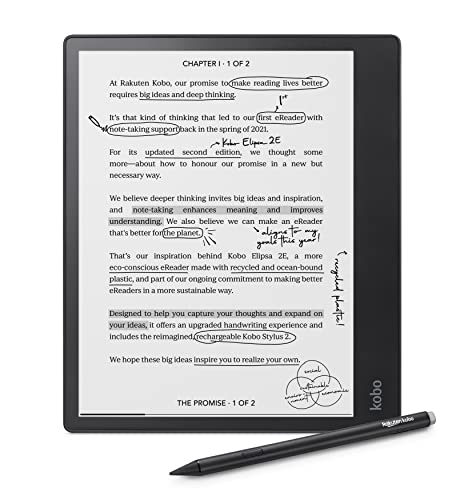
The Kobo Elipsa 2E is the smallest device in this guide and still unmistakably a large-screen reader: 10.3 inches of glare-free Carta E Ink that displays a paperback page with generous margins, or a PDF at a scale far kinder than any phone. Its inclusion is a deliberate counterweight to the 13-inch machines. Plenty of reading lives — novels, narrative non-fiction, reports, library loans — do not need a full A4 canvas, and for those lives the Elipsa’s lighter, more holdable frame will be used more, in more places, than a bigger slab that stays at home.
Kobo’s ecosystem is the most book-shaped here. The listing names ComfortLight PRO, Kobo’s adjustable front light that shifts colour temperature for evening reading, and the package includes the Kobo Stylus 2, so annotation, handwritten notebooks and margin notes work from the first day. Kobo’s store and its deep integration with library lending services suit readers who borrow as much as they buy, and the 32GB of storage holds thousands of ordinary e-books with room to spare — e-books are small; it is scanned PDFs that eat storage, and those belong on the bigger picks anyway.
The boundaries are clear and, for the right reader, painless. This is a reading device, not a tablet: no app store sprawl, no video, no colour, and PDF handling that is competent for reading and annotating rather than for wrestling giant scanned tomes. Wi-Fi is the connectivity named in the title, and the experience is deliberately single-purpose. Readers who find focus easier when the device cannot wander will recognise that single purpose as the Elipsa’s charm; readers who want one machine for everything should look back up the list.
Travel makes the Elipsa’s case most vividly. It is the pick that goes into a carry-on without negotiation, reads through a long flight without hunting for a socket, and survives being read one-handed in a departure lounge queue. The stylus notebooks double as a travel journal, the library integration fills it with borrowed books before the trip, and its single-purpose calm suits holidays that are supposed to involve fewer screens, not bigger ones. Among six large-screen devices, it is the one most likely to be within arm’s reach when a reading moment appears — and frequency of use, in the end, is the metric that decides whether any reader was worth buying.
- Display: 10.3-inch glare-free touchscreen with Carta E Ink technology
- Lighting: ComfortLight PRO with adjustable brightness, per the listing title
- Stylus: Kobo Stylus 2 included in the package
- Storage: 32GB
- Connectivity: Wi-Fi, as titled
- Battery: No figure is given in the title — Kobo’s documentation carries the maker’s estimates
Strengths
- The most holdable large reader here, suited to bed, sofa and travel reading.
- Stylus included, with notebooks and annotation woven into a book-first system.
- Library-borrowing integration makes it the natural home for loan-heavy readers.
Trade-offs
- 10.3 inches still asks PDFs to shrink or scroll more than the 13-inch picks do.
- A deliberately closed, reading-only environment — no general app freedom.
- Monochrome only, and 32GB is sized for e-books rather than scan archives.
Best for: book-first readers who borrow from libraries, annotate as they go and want large type without a large slab. Not suited for: readers of full-size technical PDFs, or anyone who needs a general-purpose tablet alongside the reading.
Samsung Galaxy Tab S9 Ultra / S10 Ultra — Renewed-only, prose-only
We include the Ultra class because a guide to large reading screens that omitted the largest would mislead by silence — and we include it without a link because honesty requires it. Both generations of Samsung’s 14.6-inch flagship, the Galaxy Tab S9 Ultra and the Galaxy Tab S10 Ultra, surfaced in our checks only through renewed listings. Renewed hardware can be a sensible purchase: inspected, warrantied by the seller’s programme and considerably cheaper than new. But it is a different purchase from a new device, with different expectations about battery wear, accessories in the box and cosmetic condition, and it should be chosen knowingly rather than by clicking a link dressed as a standard recommendation.
As reading machines, the Ultras’ appeal is simple scale. A 14.6-inch AMOLED canvas displays a textbook spread — two pages side by side — at something close to real size, a trick none of the linked picks can match, and for readers of scores, atlases, comics and design portfolios that spread view is transformative. The S Pen ecosystem applies here as elsewhere in Samsung’s line, and split-screen research reading is genuinely spacious. Everything said about emissive screens applies too: glare management, daily charging, and a device fully capable of distracting you with the entire internet.
Our advice is procedural. If the Ultra’s size is the one your material truly needs, shop the renewed route deliberately: buy through a programme with a clear returns window, check on arrival that the pen is present and the battery health matches the listing’s promise, and confirm which generation and storage tier you are actually receiving, because renewed listings for two similar generations invite mix-ups. Readers unwilling to do that homework are better served by the linked S10+ or the Lenovo — slightly smaller, entirely straightforward.
One more consideration separates the two Ultra generations for renewed shoppers: they are close enough in size and shape that listings occasionally blur them, so the model number on the box and in the system settings is worth more than the headline of any renewed offer. Confirm storage tier the same way, in the settings screen rather than the description, during the returns window while corrections are still free. Renewed buying rewards exactly this kind of calm verification, and the readers who practise it tend to end up with flagship hardware at mid-range money — the entire point of considering this route.
- Display: 14.6-inch class AMOLED, the largest mainstream tablet size
- Availability: Verified listings for both generations are renewed stock only — this entry is intentionally unlinked
- Pen: S Pen support is part of the Ultra line’s design; confirm the pen is included in any renewed listing you consider
- Storage tiers: Vary by listing; renewed offers differ, so verify the exact configuration
- Condition: Renewed grading, warranty and returns terms are set by the seller’s programme — read them before ordering
- Battery: A renewed unit’s battery history is unknown; treat endurance as a check-on-arrival item
Strengths
- Two-page spreads at near-real size, unmatched by any linked pick here.
- Full Samsung pen and multitasking ecosystem at renewed pricing.
- AMOLED contrast for image-rich books and night reading.
Trade-offs
- Renewed-only availability means condition and battery history vary by unit.
- The largest frame here is a committed two-handed, desk-anchored read.
- Accessories and pen inclusion must be verified listing by listing.
Best for: spread-view readers of scores, comics and atlases who are comfortable buying renewed through a programme with strong returns. Not suited for: buyers who want a new device with predictable condition, or one-handed readers of any description.
At a Glance: Which Large Screen Suits Which Reading?
| Tablet | Screen | Technology | Annotation | Reading personality |
|---|---|---|---|---|
| Lenovo Idea Tab Pro Gen 2 | 13-inch 3.5K, 144 Hz | IPS LCD | Pen included | Sharpest colour page for seated study |
| Samsung Galaxy Tab S10+ | 12.4-inch AMOLED 2X | AMOLED | S Pen included | Premium night reader with a big local library |
| BOOX Tab XC | 13.3-inch colour ePaper | E-paper, colour | Verify stylus details in listing | Full-size documents in muted, calm colour |
| BOOX Tab X | 13.3-inch e-paper | E-paper, mono | Verify stylus details in listing | Maximum-contrast text at page size |
| Kobo Elipsa 2E | 10.3-inch Carta E Ink | E-paper, mono | Kobo Stylus 2 included | Lightest large reader, library-friendly |
| Samsung Galaxy Tab Ultra (S9/S10) | 14.6-inch class AMOLED | AMOLED | S Pen line — verify in renewed listing | Spread view, renewed-only route |
How Do You Decide Between E-Paper Calm and Emissive Versatility?
Start with where and when you read. Reading that happens outdoors, in bright rooms or in long unbroken stretches favours e-paper: reflected light does not fight the sun, and the absence of flicker and notifications stretches a session. Reading that happens at night in bed, across colour material, or in short bursts between other tasks favours the emissive picks, whose dark modes, speed and app depth fit fragmented modern schedules. Many serious readers eventually own one of each — a large e-paper device for the desk and an emissive tablet for everything else — but if the budget allows one, let your dominant reading location cast the deciding vote.
Then interrogate your files. Flowing-text e-books are happy anywhere, including the Kobo. Fixed-layout PDFs at designed page sizes argue for the 13-inch class and above. Scanned documents with poor contrast argue for BOOX’s PDF tools or the Lenovo’s sheer resolution. Colour argues in two directions at once — vivid colour to the AMOLED and LCD picks, informational colour to the Tab XC — and the honest question is whether colour in your material decorates or communicates. Decorative colour wants a glowing screen; communicative colour is perfectly served by e-paper’s quieter palette.
Budget honesty belongs in this decision too, though not as a ranking of prices. Large e-paper is specialist hardware and priced like it; the linked emissive tablets carry flagship-adjacent panels; the Kobo is the modest purchase of the six; and the Ultra’s renewed route converts yesterday’s flagship money into mid-range money at the cost of verification effort. Readers happiest with their purchase tend to be those who paid for the attribute they use hourly — size, contrast, calm — rather than the attribute that impressed them in a shop for four minutes.
How Should You Set Up a Large-Screen Reader for Long Sessions?
Ergonomics decides whether a large screen is a pleasure or a chore by chapter three. Prop the device on its folio stand or a separate stand so the page meets your eyes at a natural angle, and keep the top of the page near eye level when seated at a desk. On e-paper, experiment with the front light before assuming brighter is better: in a lit room the most paper-like setting is often a low one, and in darkness a warm, dim page tires eyes less than a bright white slab. On the emissive picks, set dark mode for night sessions and let the AMOLED’s true blacks do the work.
Organise the library before it organises you. Create collections by project or course rather than by file type, download the week’s reading in advance, and turn on progress sync if you also read on a phone, so a chapter finished on the train continues at the desk. For PDF-heavy devices, learn the crop and contrast controls in the first week — trimming margins effectively enlarges every page you will ever read on the device, a one-time minute that pays out across thousands of pages. Finally, schedule the charge like a ritual: e-paper weekly or less, emissive nightly, so the reader is never the reason a session ends early.
Annotation deserves setup attention too. Decide in the first week where highlights and notes will live for the long term — inside a bookshop’s cloud, inside a notes app, or exported as files you own — because changing systems in year two strands a year of margin work. Readers who annotate for work should test the export path immediately: mark a page, export it, open the result on a computer, and confirm the notes survived the journey in a readable form. Ten minutes of verification now prevents the particular heartbreak of discovering, at report-writing time, that two hundred highlights are locked inside an app that exports nothing.
How Long Will a Large Reading Tablet Stay Useful?
Reading devices age more gracefully than most technology, because their core job changes slowly. A page rendered beautifully in 2026 will render beautifully in 2030; what ages is everything around the page — app support, file-format fashions, battery capacity and the manufacturer’s willingness to keep the software current. E-paper devices age slowest of all, since their software ambitions are modest and their batteries cycle rarely; a Kobo or BOOX bought today plausibly serves a decade of reading, with the battery, not the screen, as the component most likely to call time first.
Emissive tablets ask for a little more planning. Operating-system support windows differ by maker, and a reading tablet that stops receiving updates does not stop reading — your existing library keeps working — but new apps and services gradually close their doors. Samsung’s flagship-class support and Lenovo’s mainstream commitments both suit multi-year ownership; the practical advice is to load the device with your core library and reading apps early, while everything is current, so the tablet’s useful life is anchored to your books rather than to an app store’s mood. For the renewed Ultra, add the battery question to the arrival inspection and expect to budget, eventually, for the reality that a used battery has a past.
Physical care extends all of these timelines more than any specification does. Large screens are large targets: a folio that covers the glass in a bag, a stand that keeps the device off kitchen counters and bathroom tiles, and a charging habit that avoids leaving any lithium battery cooking at full charge on a sunny windowsill will each add more service life than a processor tier ever will. Buy the screen your reading deserves, then treat it like the long-term furniture it is.
What Does Page Size Actually Change in a Reading Session?
It helps to think in pages rather than inches. A 10.3-inch screen shows a typical paperback page with room to spare and a textbook page at a modest reduction; most readers adapt within a chapter and stop noticing. A 12.4 or 13-inch screen shows that textbook page at or near its printed dimensions, which removes a whole category of micro-decisions — no zooming into figures, no rotating for wide tables, no choosing which column to read first because both fit. A 14.6-inch screen, the renewed Ultra’s territory, restores the two-page spread, the format atlases, scores and comics were composed in, and changes reading posture accordingly: spreads belong on desks and laps, not in hands.
Type size is the other half of the equation, and it cuts both ways. Readers who need large type get more words per screen at big diagonals, which means fewer page turns and a steadier rhythm — a real accessibility benefit that smaller devices cannot replicate at the same type size. Conversely, readers comfortable with standard type may find a giant screen mostly empty for flowing text, its extra area serving margins rather than meaning. The sweet spot is personal and material-dependent, which is why this guide keeps three size classes in play instead of crowning one.
How Should You Handle PDFs, Scans and Library Books on Each Platform?
File wrangling is where large-screen readers earn or lose their keep after the honeymoon. On the Android-based picks — Lenovo, Samsung and both BOOX devices — getting files onto the device is gloriously unceremonious: cloud drives, USB transfer, email attachments and browser downloads all land in the same file system, and any competent reader app can open them. BOOX adds the strongest built-in PDF toolkit of the group, with margin cropping that effectively enlarges scanned pages and contrast controls that rescue grey photocopies. Samsung leans on its notes ecosystem for markup, and the Lenovo on raw resolution to make imperfect scans legible.
Kobo’s world is tidier and narrower. Books arrive through its store or library lending, sideloading is possible but clearly a side door rather than the entrance, and the reward for accepting the walled garden is that everything simply works — sync, bookmarks, stylus notebooks — without file management ever crossing your mind. The renewed Ultra route, being Samsung underneath, behaves like the S10+ for files, with the extra caveat that a renewed unit should be factory-reset and updated before your library moves in. Whichever platform you choose, run the worst file you own through it during the first week: the scan with the skewed pages, the PDF with the tiny footnotes. Devices reveal themselves against bad material, not good.
What About Comics, Scores and Other Oversized Material?
Some reading matter is not merely large but shaped differently, and it rewards specific picks. Comics and graphic novels live on colour and contrast: the S10+’s AMOLED renders ink-heavy art with real depth, the Lenovo’s 13-inch canvas shows a full comic page without panel-by-panel guided zooming, and the Tab XC offers a paper-like alternative whose muted palette suits newsprint-style collections better than glossy superhero art. Musicians should think in stands rather than screens — a 13-inch device at music-desk distance reads like a sheet, the folio or a dedicated stand matters as much as the panel, and e-paper’s freedom from glare under stage lighting is a genuine working advantage, provided page turns are planned around the refresh.
Technical manuals and atlases reward resolution and spread view respectively: the Lenovo for dense diagrams with tiny labels, the renewed Ultra for maps and plates meant to be seen whole. Cookbooks, the unsung large-screen genre, favour whichever device you are willing to prop near steam and splashes — usually the one with a folio you can wipe and a screen you can read at arm’s length with floured hands hovering rather than touching. The pattern across all these genres is the same: match the page’s native shape to the screen’s native shape, and the reading takes care of itself.
Which Mistakes Do Large-Screen Buyers Repeat Most?
The most common error is buying size for its own sake, then discovering the device lives in a drawer because it is awkward where the reading actually happens — in bed, in transit, in an armchair with a sleeping cat. The second error is technology mismatch: an e-paper device bought by someone who needed colour and speed, or an AMOLED bought by a sunlight reader who now squints at reflections. A third mistake is ignoring the file test — failing to load your own worst PDF, your largest scan, your most colour-dependent diagram onto the device during the returns window, when the mismatch is still fixable. Buyers also over-trust headline storage on e-paper devices, forgetting that a library of scanned folios grows by gigabytes, and under-trust it on e-book devices, forgetting that ordinary books are tiny. And renewed buyers of the Ultra class sometimes skip the arrival checks — pen presence, battery behaviour, correct generation — that make the renewed route a bargain rather than a gamble.
A quieter mistake is neglecting the stand and folio until after the first strained week. Large screens are at their best propped at a reading angle, and the accessory that achieves it costs little compared with the device; ordering both together means the first long session is comfortable instead of a negotiation with a stack of cushions. Readers who read in more than one room sometimes buy a second inexpensive stand rather than carrying one around — a small, unglamorous purchase that measurably increases how much the big screen actually gets used.
Final Recommendation
Choose by reading life, not by ranking. Seated document readers who want colour, sharpness and annotation in one machine should take the Lenovo Idea Tab Pro Gen 2; readers who read at night and love image-rich books should take the Galaxy Tab S10+ and its AMOLED panel. Document traditionalists who want pages at real size without a glow should decide between the Tab XC’s informational colour and the Tab X’s superior monochrome contrast, while book-first borrowers will simply be happiest with the Kobo Elipsa 2E in hand. The Ultra class remains the spread-view summit, reachable honestly only through renewed listings and a careful arrival inspection. Whichever you choose, the right large screen disappears beneath the page — and the book, not the device, is what you remember at the end of the evening.
If a single sentence must carry the whole guide, it is this: pages want to be read at the size they were made, in the light you actually read by. Measure your shelves of PDFs and paper honestly, match them to one of the three families above, and the specific model almost chooses itself — leaving you free to spend your attention where it belongs, on the next chapter rather than the next upgrade.
Frequently Asked Questions
Is e-paper really easier on the eyes than a tablet screen?
For long sessions in good light, most readers find reflected-light e-paper less tiring because there is no backlight shining into the eyes and no flicker. It is a comfort preference rather than a medical guarantee, and setup — brightness matched to the room, sensible session lengths — matters on both technologies.
Can a 13.3-inch e-paper tablet replace printed handouts entirely?
For reading and annotating them, largely yes: pages display at near-original size and accept margin notes. Printing, signing physical copies and sharing paper with colleagues still belong to paper, and slow e-paper refresh makes rapid flipping through a long document less fluid than a paper stack.
Why is the largest Samsung sold as renewed only in this guide?
Because that is what verification found: every listing we could confirm for both Ultra generations was renewed stock. Rather than link refurbished units as though they were new, the Ultra is presented as a prose-only entry with the checks a renewed buyer should perform.
How much storage does a reading tablet need?
Ordinary e-books are measured in megabytes, so even 32GB holds a vast library of them. Scanned PDFs and image-heavy files are the hungry ones; readers archiving those locally should favour the 128GB and 256GB configurations or keep a cloud archive.
Does a higher refresh rate matter for reading?
It matters for scrolling and page-turn smoothness rather than for static text. The Lenovo’s 144 Hz panel makes long articles glide, which some readers find reduces fatigue; e-paper readers trade that smoothness away entirely in exchange for calm and battery life.
Can I read borrowed library books on all of these?
Library lending is native territory for the Kobo, whose borrowing integration is built into the device. On the Android-based picks, library access usually arrives through lending apps you install, which works well but adds a setup step. Check that your own library’s service offers an app or Kobo support before choosing, since lending systems vary by country and library network.
Related Guides
Reading is one corner of the large-screen world; you may also want our guide to tablets for college note taking and textbook reading, the roundup of tablets for writing and typing on big canvases, and our look at tablets that double as music server controllers.