What's inside
- Where to Buy, and Why GIS Punishes Ordinary Laptops in a Particular Way
- Key Takeaways
- Quick Picks
- How Were These Six Chosen for Spatial Work Rather Than Generic Power?
- What Does a GIS Working Week Actually Ask of the Hardware?
- CPU, GPU, Memory and Storage: Where Each One Actually Bites in ArcGIS Pro
- Field Data, Drones and the Office: How the Workflow Divides the List
- How Should Storage Be Planned When Datasets Grow Faster Than Budgets?
- Deep Learning, Classification and the Tools That Changed the Workload
- The Wider Software Bench: What Else the Machine Must Carry
- Monitors, Docks and the Desk the Laptop Deserves
- Buying for a Team Versus Buying for Yourself
- Six Workstations, One Table: the GIS Ledger
- LiDAR Point Clouds: the Workload That Grades Every Specification at Once
- Cloud Desktops, Remote Data and the Honest Limits of the Laptop
- What Mistakes Do GIS Buyers Make When Speccing a Laptop?
- Single-Thread Truths and Other Specification Subtleties Worth Knowing
- Setting Up a New GIS Workstation in Its First Month
- A Word on Warranties, Accidents and the Life of a Field-Going Machine
- Which Pick Serves Which GIS Role, Stated Shortly
- Final Recommendation
- Frequently Asked Questions
- Related Guides
As an Amazon Associate I earn from qualifying purchases. This post may contain affiliate links at no extra cost to you.
gizmoverdict.com is reader-supported. When you buy through links on our site, we may earn an affiliate commission.
Where to Buy, and Why GIS Punishes Ordinary Laptops in a Particular Way
The best laptops for ArcGIS and image processing are workstations wearing laptop clothes, and the reason is the shape of the work. A GIS professional’s ordinary afternoon might hold a county-wide mosaic of aerial imagery, a LiDAR point cloud with hundreds of millions of returns, a geodatabase being edited by feel as much as by sight, and a layout view rendering a map that a client will print at a size measured in feet. ArcGIS Pro is a genuinely demanding application — it leans on the processor for geoprocessing, on the graphics card for its 3D scenes and raster handling, on memory for the datasets it refuses to stream politely, and on fast storage for the constant churn of intermediate files that spatial analysis creates and discards by the gigabyte.
All six machines below are mobile workstations sold through Amazon and professional channels, and every linked listing was checked against its full product title before selection. The list is built around three tiers of intent. At the top sit two heavy 16-inch machines with 64GB of memory — a Lenovo ThinkPad P16 carrying an NVIDIA RTX 3500 Ada with 12GB of graphics memory, and a Dell Precision 7680 with an RTX 2000 Ada — for analysts whose datasets are measured in counties and whose point clouds arrive by the terabyte. In the middle are HP’s ZBook Fury and ZBook Studio, trading blows between processor muscle and portability. At the creative end are two ASUS ProArt machines with OLED touchscreens, for the growing number of GIS professionals whose deliverable is as much visual — rendered scenes, annotated imagery, presentation maps — as it is analytical.
One discipline runs through the guide: a graphics specification is claimed only where the listing title states it. Where a title is silent — and one famous workstation below is listed without naming its GPU — the spec box says so and points at the maker’s documentation, because a GIS buyer choosing on graphics memory deserves better than a guess wearing a badge.
Key Takeaways
- The ThinkPad P16 is the dataset ceiling here: RTX 3500 Ada graphics with 12GB of memory, 64GB of RAM and 2TB of storage behind a 4K-class screen.
- The Precision 7680 matches the 64GB memory tier with an RTX 2000 Ada 8GB card and Dell’s workstation support behind it.
- The ZBook Fury 16 G11 brings a 20-core i7-13850HX; its listing title does not name a graphics card, so verify the exact configuration against HP’s documentation before ordering.
- The two ProArt machines trade raw GIS muscle for OLED touchscreens and colour quality — the right trade for imagery-led and presentation-led work.
- For ArcGIS Pro, memory and graphics memory decide which datasets open at all; processor speed merely decides how fast they finish.
Quick Picks
| Pick | Badge | Why it is here |
|---|---|---|
| Lenovo ThinkPad P16 (RTX 3500 Ada) | Best for Heavy Datasets | 12GB of graphics memory, 64GB of RAM and 2TB of storage — the machine for countywide mosaics and dense point clouds. |
| HP ZBook Fury 16 G11 | Best Processor Muscle | A 20-core HX processor and 32GB of memory in HP’s flagship chassis; confirm the graphics configuration before buying. |
| Dell Precision 7680 | Best 64GB Alternative | RTX 2000 Ada graphics, 64GB of memory and a 20-core processor with Dell’s workstation organisation behind it. |
| ASUS ProArt StudioBook 16 OLED | Best Display for Imagery | A 3.2K OLED touchscreen and an RTX 4060 for analysts whose maps are also presentations. |
| HP ZBook Studio 16 G11 | Best Portable Workstation | RTX 1000 Ada graphics and workstation certification in the thinnest chassis here, for field-and-office GIS. |
| ASUS ProArt P16 (HIDevolution) | Best Creative-GIS Hybrid | A 4K OLED touchscreen, RTX 5070 graphics and 64GB of memory from a specialist performance retailer. |
How Were These Six Chosen for Spatial Work Rather Than Generic Power?
The selection began with ArcGIS Pro’s own appetite, read honestly. Esri’s application rewards four things in a specific order for most professional workloads: enough memory that the dataset and the application coexist without swapping, a graphics card with enough dedicated memory for 3D scenes and large rasters, processor cores for the geoprocessing tools that parallelise — and many now do — and storage fast enough that intermediate outputs stop being the bottleneck everyone politely ignores. Machines were ranked against that order, which is why the 64GB, 12GB-graphics P16 leads the list despite not carrying the newest processor, and why no gaming laptop appears: workstation graphics drivers and ISV certification are the unglamorous reasons professional GIS shops buy workstation badges, because a certified driver is a promise that the vendor and Esri have at least met.
The second filter was the image-processing half of the title. Orthorectification, classification, mosaicking and the machine-learning tools that increasingly sit inside the GIS workflow all punish the same resources as 3D, with an extra appetite for storage throughput when tiles stream on and off the disk. The third filter was honesty in the listings themselves: titles were read in full, graphics cards claimed only as titled, and the one listing that declines to name its graphics hardware flagged in its spec box rather than silently filled in from the model’s reputation. A buyer spending workstation money on a graphics specification is entitled to know which facts came from the listing and which need a documentation check.
What Does a GIS Working Week Actually Ask of the Hardware?
Monday opens a project built last quarter: a watershed analysis with elevation data at resolutions that make the fan audible, a viewshed run, a suitability model whose intermediate rasters quietly consume tens of gigabytes before lunch. Tuesday is fieldwork’s harvest — drone imagery from a corridor survey landing on the drive, hundreds of photographs to be stitched into an orthomosaic, a point cloud to classify. Wednesday belongs to the client: layouts, exported PDFs the size of posters, a 3D scene for the meeting where the map must move smoothly while a room watches. Thursday is data janitorial work, the unglamorous majority of GIS: geodatabases to compact, joins to repair, metadata to write, a colleague’s shapefiles from 2011 to rescue into the present.
Read across that week, the hardware priorities stop being abstract. Memory decides whether Tuesday’s mosaic and Monday’s project can share the machine with the email and the browser, or whether the analyst develops the closing-everything ritual. Graphics memory decides whether Wednesday’s scene flies or stutters. Storage decides whether Thursday’s rescue job copies at a walk or a run — and whether the drive fills mid-process on Friday, which is when full drives always choose to announce themselves. Every pick below was judged against that week, not against a benchmark chart.
CPU, GPU, Memory and Storage: Where Each One Actually Bites in ArcGIS Pro
Memory first, because it is the gatekeeper. ArcGIS Pro with a serious project, a large raster catalogue and a browser of documentation will live comfortably in 32GB and gratefully in 64GB; below that, the machine starts borrowing from the disk and every operation inherits the delay. Analysts who work with LiDAR, imagery mosaics or network datasets at regional scale should treat 64GB as the professional tier, which is why three machines here carry it. Graphics memory is the second gate: 3D scenes in ArcGIS Pro, voxel and point-cloud rendering, and the deep-learning tools that classify imagery all address the GPU’s own memory, and when it runs out the work does not slow gracefully — it stops or falls back to paths measured in hours. The P16’s 12GB is the roomiest here, the Precision’s 8GB the next step, and the 6GB Studio the portable compromise.
The processor decides the pace of everything else: geoprocessing tools, reprojection, the stitching stages of photogrammetry. The HX-class chips in the Fury and the Precision — twenty cores apiece as listed — are the pace-setters for those jobs, while the P16’s i7-14700HX keeps it firmly in the same conversation. Storage, finally, is the quiet multiplier: NVMe drives across this list, with capacity the variable that matters — imagery professionals should count their active projects, double the figure, and buy the drive that survives the arithmetic. Two terabytes, as on the P16 and the ProArt P16, is what that arithmetic usually concludes.

Lenovo ThinkPad P16 (RTX 3500 Ada) — Best for Heavy Datasets
The P16 in this configuration is the machine this guide would hand to the analyst whose datasets frighten other laptops. Its listing reads like a GIS wish list dictated by experience: an NVIDIA RTX 3500 Ada graphics card with 12GB of dedicated memory, an Intel Core i7-14700HX processor, 64GB of DDR5 memory, a 2TB drive, and a 16-inch UHD+ 4K-class display. The graphics figure is the headline. Twelve gigabytes is the tier at which large point clouds render as scenes rather than loading screens, at which deep-learning classification of imagery runs locally at a pace that keeps it in the workflow, and at which a 3D city model with textured buildings stops being a presentation gamble.
The rest of the specification refuses to become the bottleneck: 64GB of memory lets the mosaic, the geodatabase and the photogrammetry package coexist; 2TB swallows the intermediate files that spatial analysis breeds; the HX processor feeds the GPU and the geoprocessing tools alike. The P16 chassis is a serious object — ThinkPad P-series machines are built as desktop replacements, with the cooling and the weight that honesty requires — and it should be bought as one: the anchor of a desk where the heavy work happens, travelling when it must rather than daily. Lenovo’s workstation support stands behind it, and for a consultancy whose billable hours ride on dataset turnaround, that support is part of the specification in everything but print.
- Graphics: NVIDIA RTX 3500 Ada, 12GB
- Processor: Intel Core i7-14700HX
- Memory and storage: 64GB DDR5 RAM, 2TB SSD
- Display: 16-inch UHD+ (4K-class)
- Sign-in: fingerprint reader
- Operating system: Windows 11 Pro
Strengths
- The most graphics memory here, aimed squarely at point clouds and 3D scenes.
- 64GB and 2TB remove the two commonest GIS bottlenecks in one purchase.
- Workstation certification and drivers suit professional ArcGIS deployments.
Trade-offs
- Size and weight define it as a desk anchor that travels occasionally.
- It is the list’s flagship commitment, priced as one.
- Power draw under full geoprocessing load assumes the mains adapter is near.
Best for: consultancies and agencies processing LiDAR, regional imagery and 3D city data as daily work. Not suited for: a field technician who needs a light machine for data collection and light editing between sites.

HP ZBook Fury 16 G11 — Best Processor Muscle
The Fury is HP’s flagship mobile workstation line, and this G11 listing leads with its processor: an Intel Core i7-13850HX with twenty cores, up to 5.3GHz as titled, backed by 32GB of DDR5 memory, a 1TB PCIe drive, Thunderbolt 4 and an RJ-45 Ethernet port — a connector worth pausing on, because GIS data lives on network storage in most organisations, and a native wired port moves a point cloud at the speed the dataset deserves. For the geoprocessing-heavy analyst — the one whose days are model runs, batch reprojections and network analyses — that processor is the argument, and it is a strong one.
Now the discipline this guide promised. The Fury’s listing title does not name its graphics card. The Fury line is sold in configurations with professional NVIDIA graphics, but the exact card and its memory in the unit behind this listing must be confirmed against HP’s documentation for the specific configuration before the machine is bought on graphics grounds — the spec box below records the gap rather than papering over it. A buyer whose work is processor-led can proceed on the strength of everything else here; a buyer whose work is 3D-led should do the documentation check first, or take the P16 or Precision, whose graphics are stated outright. That is not a defect in the machine. It is a defect in assuming, and this guide declines to assume.
- Processor: Intel Core i7-13850HX, 20-core, up to 5.3GHz
- Memory and storage: 32GB DDR5 RAM, 1TB PCIe SSD
- Display: 16-inch WUXGA
- Graphics: the listing title does not name a card — check the exact configuration against HP’s documentation before ordering
- Ports: Thunderbolt 4, RJ-45 Ethernet
- Operating system: Windows 11 Pro
Strengths
- Twenty HX cores set the pace for geoprocessing and batch work.
- Native RJ-45 suits organisations where datasets live on network storage.
- Fury chassis and cooling are built for sustained workstation loads.
Trade-offs
- Graphics configuration must be verified; the title leaves it unstated.
- 32GB is a step below the 64GB tier for the largest regional datasets.
- Flagship chassis weight applies, as with the P16.
Best for: geoprocessing-led analysts in HP-standardised organisations, once the graphics configuration is confirmed. Not suited for: a buyer who needs the graphics specification guaranteed by the listing itself — the P16 and 7680 state theirs.

Dell Precision 7680 — Best 64GB Alternative
The Precision 7680 is the P16’s natural rival and the Dell organisation’s answer to the same brief: a 16-inch mobile workstation whose listing specifies an NVIDIA RTX 2000 Ada with 8GB of graphics memory, a 20-core Intel i7-13850HX processor, 64GB of DDR5 memory and a 1TB drive. Set beside the Lenovo, the trade is legible — a step down in graphics memory, the same memory tier, the same processor class — and for a great deal of professional GIS that trade costs nothing in practice. Eight gigabytes of graphics memory handles serious 3D scenes, regional imagery and classification work; the datasets that genuinely need twelve are the ones their owners can name, and those owners should buy the P16 with this guide’s blessing.
Dell’s case rests on the whole ownership: Precision workstations sit inside one of the largest support organisations in the industry, the 7680’s chassis is a known quantity in engineering IT departments, and a GIS team already standardised on Dell docks and monitors slots this machine into its desks without a ripple. The FHD+ screen is the honest compromise in the specification — perfectly serviceable for analysis, a step below the P16’s 4K-class panel and the ProArt OLEDs for presentation work — and buyers whose maps are regularly shown rather than merely made should weigh it. As an analysis engine bought for a decade of datasets, though, the 7680’s balance of memory, graphics and support is difficult to argue with.
- Graphics: NVIDIA RTX 2000 Ada, 8GB
- Processor: Intel Core i7-13850HX, 20-core
- Memory and storage: 64GB DDR5 RAM, 1TB SSD
- Display: 16-inch FHD+
- Operating system: Windows 11 Pro
- Support: Dell Precision workstation channels
Strengths
- 64GB memory with a stated 8GB professional GPU covers the professional mainstream.
- 20-core HX processor matches the list’s best geoprocessing pace.
- Dell fleet compatibility suits standardised IT environments.
Trade-offs
- 8GB of graphics memory is the ceiling; the very largest scenes belong to the P16.
- FHD+ display is the plainest panel among the flagships here.
- 1TB will ask for external or network storage discipline on imagery-heavy work.
Best for: GIS teams in Dell environments and analysts whose datasets are large but not extreme. Not suited for: presentation-led work where the screen itself is the deliverable’s stage.

ASUS ProArt StudioBook 16 OLED — Best Display for Imagery
The StudioBook exists for the analyst whose maps get looked at. Its 16-inch 3.2K OLED touchscreen is the finest imagery surface in the first half of this list: aerial photography, classified rasters and hillshades carry subtle tonal differences that an OLED’s contrast renders honestly, and the touch layer turns client meetings into something more fluid than a mouse-driven tour. Behind the screen the listing specifies an Intel Core i9-13980HX processor — the highest-clocked chip here — an NVIDIA GeForce RTX 4060 graphics card, 16GB of DDR5 memory and a 1TB drive. That processor and GPU pair handles ArcGIS Pro’s mainstream and a serious amount of its upper range, including the photogrammetry stitching that drone programmes generate.
The compromise is printed in the same specification: 16GB of memory is the floor this guide set, not its comfort zone, and analysts whose projects sprawl — regional mosaics, simultaneous photogrammetry, a dozen data sources — will feel the ceiling that the 64GB machines postpone indefinitely. Treat the StudioBook as the specialist it is: the imagery-and-presentation workstation for the professional whose datasets are project-scale rather than region-scale, whose clients see the screen, and whose classification and rendering work profits from a panel that tells the truth about colour. Bought for that role, it has no rival here; bought as a dataset-crunching anchor, it would be a beautiful mistake.
- Processor: Intel Core i9-13980HX
- Graphics: NVIDIA GeForce RTX 4060
- Memory and storage: 16GB DDR5 RAM, 1TB SSD
- Display: 16-inch 3.2K OLED touch
- Operating system: Windows 11 Home (note the edition when planning organisational deployment)
- Maker’s line: ASUS ProArt, aimed at creator professionals
Strengths
- 3.2K OLED touch is the best surface here for imagery judgement and client presentation.
- i9 HX processor and RTX 4060 cover mainstream-to-serious ArcGIS workloads.
- ProArt design serves the growing analysis-plus-visualisation role.
Trade-offs
- 16GB of memory is the list’s floor and its clearest limit.
- Windows Home edition may complicate organisational management plans.
- GeForce rather than workstation graphics: certification sticklers should note it.
Best for: imagery-led analysts, drone programme leads and consultants who present from the machine. Not suited for: regional-scale dataset processing, where the 64GB workstations earn their size.

HP ZBook Studio 16 G11 — Best Portable Workstation
Not every GIS professional’s heavy work happens at one desk. The ZBook Studio G11 is the workstation for the analyst who splits the week between the office, the client’s site and the field — a 16-inch machine in the thinnest chassis on this list, whose listing specifies an Intel Ultra 7 165H processor, 16GB of DDR5 memory, a 512GB drive and an NVIDIA RTX 1000 Ada graphics card with 6GB of memory. That graphics card matters more than its tier suggests: it keeps the machine inside the workstation-certification world, with professional drivers for ArcGIS Pro, while the whole package stays genuinely portable in a way the Fury and P16 do not pretend to be.
The specification’s limits are equally clear, and the guide states them as plainly as its strengths. Sixteen gigabytes of memory and a 512GB drive make this a machine for project-scale work and for the field half of a two-machine life — collect, check, edit, present — rather than the sole engine for regional processing. Wi-Fi 7 and an IR camera round out a specification aimed at the mobile professional, and HP’s support stands behind it. Bought with its role understood, the Studio is the pick that gets carried, and a workstation that gets carried to where the data is earns its keep in a currency the flagships cannot match.
- Processor: Intel Ultra 7 165H
- Graphics: NVIDIA RTX 1000 Ada, 6GB
- Memory and storage: 16GB DDR5 RAM, 512GB SSD
- Display: 16-inch FHD+
- Camera and connectivity: IR camera, Wi-Fi 7, Thunderbolt 4
- Operating system: Windows 11 Pro
Strengths
- Certified workstation graphics in the list’s most portable chassis.
- Strong field-and-office balance for consultants and survey-adjacent roles.
- Modern connectivity and sign-in suit a machine that works on client networks.
Trade-offs
- 16GB and 512GB bound it to project-scale datasets.
- 6GB of graphics memory is the list’s floor for 3D work.
- Thin chassis sustain lower loads than the flagship hulls under all-day processing.
Best for: mobile GIS consultants and field professionals who still need certified graphics. Not suited for: the single-machine office whose datasets are regional and growing.
ASUS ProArt P16 (HIDevolution) — Best Creative-GIS Hybrid
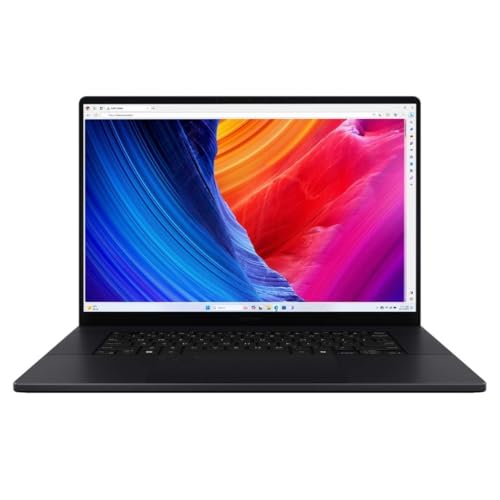
The ProArt P16 closes the list by refusing to choose between the two halves of this guide’s title. The listing — supplied through HIDevolution, a specialist retailer known for configured performance machines — specifies a 16-inch 4K OLED touchscreen, an AMD Ryzen AI 9 HX 370 processor, NVIDIA RTX 5070 graphics, 64GB of LPDDR5X memory and a 2TB PCIe drive. Read that as a GIS specification and it is formidable: memory and storage at the flagship tier, current-generation graphics, and a display that treats imagery as a first-class citizen. Read it as a creative specification and it is the same sentence. For the professional whose week genuinely spans analysis and visualisation — the rendered flythrough, the annotated imagery package, the story map that has to sing — this is the one machine here built for the whole week.
Two honest notes accompany it. The RTX 5070 is a GeForce card, so the ISV-certification argument that supports the workstation picks does not apply in the same way; ArcGIS Pro runs on GeForce hardware across the industry, but organisations that mandate certified drivers should buy accordingly. And a specialist retailer’s configuration deserves the usual verification at checkout — confirm the exact specification on the order, as with any configured machine. Neither note dents the proposition for the independent professional or small studio: flagship memory, flagship storage, a 4K OLED canvas and graphics with headroom, in the machine that travels best among the 64GB tier.
- Processor: AMD Ryzen AI 9 HX 370
- Graphics: NVIDIA RTX 5070 (graphics memory not stated in the listing title — confirm at checkout)
- Memory and storage: 64GB LPDDR5X RAM, 2TB PCIe SSD
- Display: 16-inch 4K OLED touch
- Retailer: HIDevolution configured listing — verify the final specification on the order
- Operating system: Windows 11 Pro
Strengths
- 64GB and 2TB at the flagship tier, in a creative-class chassis.
- 4K OLED touchscreen is the joint-best imagery surface in this guide.
- Current-generation graphics suit both 3D GIS and rendering work.
Trade-offs
- GeForce graphics sit outside the workstation certification story.
- Graphics memory is not stated in the title; confirm before relying on a figure.
- Configured-retailer purchase asks for a careful checkout check.
Best for: independent GIS-and-visualisation professionals who present as much as they process. Not suited for: organisations whose procurement rules require certified workstation drivers.
Field Data, Drones and the Office: How the Workflow Divides the List
Modern GIS work arrives from the field, and the laptop’s place in that pipeline is worth mapping before choosing. Drone programmes generate the heaviest homecoming: hundreds of images per flight, stitched into orthomosaics and surface models by software that uses the processor, the graphics card and the drive in rotation for hours. The flagship tier — P16, Precision, ProArt P16 — absorbs that workload as routine; the StudioBook’s i9 makes it respectable; the Studio asks for patience or a desktop partner. GNSS and survey data, by contrast, arrive light: the field machine’s virtues there are ports, battery manners and a screen readable outdoors, which is the Studio’s home ground.
The office end of the pipeline is where the list’s screens divide. Analysis happens anywhere; cartography — the final layout, the exported poster, the client PDF — is a visual act, and the OLED machines judge colour and tone in a way the FHD+ panels cannot match. A two-machine office often resolves the whole argument: a flagship for processing, its screen chosen for endurance, and the presentation work flowing to whichever display tells the truth. Single-machine buyers must decide which half of their own week is heavier, and this guide’s badges are drawn along exactly that line.
How Should Storage Be Planned When Datasets Grow Faster Than Budgets?
GIS storage obeys a law of accumulation: raw data is never deleted, intermediates breed, and every project keeps a final version plus the three finals before it. Plan for it structurally. The internal drive — 2TB where the budget allows, 1TB as the working minimum — holds the active projects and the software; a fast external drive or the organisation’s network storage holds the archive and the raw deliveries; and a backup regime that a tired human can actually follow protects the whole arrangement. The machines here all speak Thunderbolt or fast USB for those external tiers, and the Fury’s native Ethernet earns a second mention in this context, because network storage at wired speed changes what can live off the laptop without pain.
The subtler discipline is intermediate hygiene. Geoprocessing writes temporary data with abandon, and a drive at ninety percent full slows everything while risking the mid-process failure that wastes a morning. Keep a fifth of the drive empty as a working rule, clear scratch folders at project close, and let the archive tier — not the laptop — be the project’s retirement home. Storage discipline sounds like housekeeping because it is; in GIS it is also performance engineering.
Deep Learning, Classification and the Tools That Changed the Workload
The newest weight in the GIS workload arrived quietly: the deep-learning tools now built into the ecosystem, which detect features in imagery — buildings, roads, trees, vehicles, solar panels — by running trained models over tiles of pixels. These tools are graphics-card work in its purest form. They address the GPU directly, they consume its memory in proportion to tile size and model appetite, and they convert what used to be a specialist’s cluster job into an afternoon task on a properly specced laptop. This is the workload that most separates the list: the P16’s 12GB card runs larger tiles and bigger models without negotiation, the 8GB Precision follows a step behind, and the 6GB Studio treats such jobs as occasional rather than routine. An analyst whose organisation is adopting imagery AI — and most are, whether the adoption has been announced or not — should buy graphics memory for the tools of next year, not the tools of the last project.
Classical image processing tells a parallel story at lower volume. Supervised classification, segmentation, change detection between survey epochs, pan-sharpening and the endless reprojection of rasters between coordinate systems: these are the bread-and-butter operations of the image-processing half of this guide’s title, and they divide their appetite between processor cores, memory and storage speed in proportions that reward balance. It is why this guide resists single-metric buying. A machine with a flagship GPU and a starved drive will mosaic slowly; a machine with vast memory and a modest card will classify slowly; the six picks are arranged so that each one’s balance point is stated in its verdict rather than discovered in its first month.
The Wider Software Bench: What Else the Machine Must Carry
ArcGIS Pro anchors this guide because the keyword names it, but a professional GIS laptop rarely runs Esri’s stack alone. QGIS sits beside it in most real offices, opening the same geodatabases with a different philosophy and no licence ceremony. Photogrammetry lives in its own applications — the drone-mapping suites that stitch and orthorectify — whose appetite for processor and graphics rivals anything in the GIS folder. Remote-sensing specialists add their own platforms; programmers add Python environments, where the geospatial libraries that automate the repetitive half of the discipline run their batch jobs overnight. A laptop specced only for the named application will meet the rest of the bench within a month, which is another argument for the memory headroom this guide keeps buying: every additional tenant is polite in 64GB and a squatter in 16.
There is a licensing-and-deployment corollary for organisations. Workstation certification, discussed in the picks, matters most where IT must support fifty identical machines against a vendor’s support matrix; the independent professional’s bench, assembled tool by tool, cares more about raw capability per pound carried. Both readers are served by this list — the flagships and the Studio for the managed pattern, the ProArt pair for the independent — but they should not mistake each other’s priorities for their own.
Monitors, Docks and the Desk the Laptop Deserves
GIS is a two-screen discipline pretending to be a one-screen one. The map canvas wants the large, honest display; the attribute tables, the geoprocessing panes and the catalogue want the second. Every machine here drives external monitors through its dock or ports, and the desk investment — a 27-inch or larger colour-respectable monitor, a dock that stays wired, a keyboard that survives the attribute-table marathons — repays itself faster than almost any internal upgrade. Buyers weighing the StudioBook’s OLED against a plainer panel should run the arithmetic both ways: a mid-panel laptop plus an excellent external monitor can beat a flagship screen for desk work, while the travelling half of the week still belongs to the built-in display. The picks above were judged as laptops; their desks are the reader’s second, cheaper decision, and it deserves the same dataset-first honesty.
Colour deserves one plain sentence in a technical guide: if the deliverable is printed or published cartography, the screen chain — panel, calibration, ambient light — is part of the instrument, and the OLED picks shorten that chain considerably. Analysts whose output is data rather than display can spend the difference on storage with a clear conscience.
Buying for a Team Versus Buying for Yourself
Organisations buying GIS laptops buy a fleet problem: identical images, spare units, support contracts, and the discipline of a standard configuration that any analyst can sit down at. The workstation flagships serve that pattern — certified drivers, vendor support, configurations that stay orderable across a budget cycle. The Fury’s unstated graphics in its listing is, in this light, a procurement task rather than a mystery: the organisation confirms the configuration once, in writing, and orders against the confirmed build. Individuals buying for themselves face the opposite problem — one machine, every role, no IT department — and for them the ProArt P16’s combination of memory, storage, graphics and screen in a single portable chassis is the closest thing on this list to a complete answer.
Both patterns share the same final step, and it is the one most often skipped: a first-week proving run against the real workload. Open the largest live project. Run the heaviest routine tool. Render the scene that embarrassed the old machine. A workstation bought against this guide’s reasoning should pass those tests without drama — and if it does not, the return window, not the regret, is the place to discover it.
Six Workstations, One Table: the GIS Ledger
| Machine | Graphics | Memory | Storage | Character |
|---|---|---|---|---|
| ThinkPad P16 | RTX 3500 Ada 12GB | 64GB | 2TB | Dataset ceiling |
| ZBook Fury 16 G11 | Confirm per HP documentation | 32GB | 1TB | Processor pace, native Ethernet |
| Precision 7680 | RTX 2000 Ada 8GB | 64GB | 1TB | Balanced flagship |
| ProArt StudioBook 16 | RTX 4060 | 16GB | 1TB | Imagery display specialist |
| ZBook Studio G11 | RTX 1000 Ada 6GB | 16GB | 512GB | Portable certified option |
| ProArt P16 | RTX 5070 | 64GB | 2TB | Creative-GIS hybrid |
LiDAR Point Clouds: the Workload That Grades Every Specification at Once
If one workload can be said to examine a laptop completely, it is the point cloud. A single survey-grade LiDAR delivery can hold hundreds of millions of points, and the ordinary operations on it — classification of ground and vegetation, surface generation, cross-section inspection, the simple act of orbiting the cloud in 3D to see whether the data is honest — touch every resource simultaneously. Memory holds the working set; graphics memory renders the orbit; the processor classifies; the drive streams tiles in and out as the view moves. A machine weak in any one of the four announces it immediately, which is why point-cloud professionals are the most conservative buyers in this guide’s audience and why the P16’s specification — 12GB of graphics memory, 64GB of system memory, an HX processor, 2TB of fast storage — reads like it was dictated by one of them.
The working habits matter alongside the hardware. Point clouds reward tiling discipline: work the dataset in sections, keep the classified and unclassified generations organised, and let the archive tier hold the raw delivery while the laptop holds the active tiles. Analysts who adopt that discipline find the Precision’s 8GB tier and even the Fury’s processor-led build entirely workable; analysts who load everything at once will eventually meet the ceiling of any machine on this list, including the flagship. Hardware buys headroom. Workflow decides whether the headroom is spent or wasted.
Cloud Desktops, Remote Data and the Honest Limits of the Laptop
A fair question hangs over any workstation guide in this decade: with cloud desktops and server-side processing available, why buy the power at all? The GIS answer is practical. Field connectivity is unreliable where GIS work happens; datasets are large enough that moving them to the compute costs more time than computing locally; and a great deal of professional work — the quick edit, the client-site question, the offline week at a remote project — happens where the cloud is a rumour. The balanced pattern most organisations settle into is hybrid: the laptop carries the daily work and the field work, the servers carry the scheduled continental-scale jobs, and the boundary between them is drawn by dataset size rather than by fashion.
That hybrid reality shapes the buying advice one final time. A laptop destined to be the local half of a hybrid system still needs its memory and graphics — the interactive half of GIS, the scene that must orbit smoothly in a meeting, is precisely the part that cannot be outsourced to a distant desktop without losing its immediacy. Buy the interactive power locally, rent the batch power when it is needed, and the six machines above sort themselves by how much of the week is interactive. For most professionals reading this guide, most of it is.
What Mistakes Do GIS Buyers Make When Speccing a Laptop?
The classic is buying the processor and starving the memory, then watching a fast chip wait on a swapping system. The second is ignoring graphics memory until the first point cloud refuses to behave. The third is treating storage as a number rather than a growth curve, and meeting the curve in the middle of a client’s mosaic. The fourth is buying a beautiful screen for a processing anchor, or a processing anchor for a presentation role — the two halves of this guide’s title pull in different directions, and the honest buyer decides which half pays the salary. The fifth is skipping the verification step on a listing that leaves a specification unstated: the Fury’s graphics in this very guide are the standing example, and the fix costs one documentation check.
Single-Thread Truths and Other Specification Subtleties Worth Knowing
A confession the benchmark charts avoid: parts of the GIS workload still run on one processor thread at a time. Certain venerable geoprocessing tools, some rendering paths and plenty of Python scripts execute serially, and on those jobs a high-clocked core beats a crowd of slower ones. This is why the StudioBook’s i9-13980HX — the highest-clocked processor in the list — punches above its memory tier on the serial half of the workload, and why the HX chips in the Fury, Precision and P16 are doubly suitable: many cores for the parallel tools, high clocks for the serial ones. Buyers comparing two machines should ask which half of their own week is serial — the honest answer, for most analysts, is a larger half than the marketing of either camp admits.
A second subtlety lives in the memory itself. The flagships’ DDR5 and the ProArt P16’s LPDDR5X differ in serviceability as much as in speed: socketed memory in the big workstation chassis can, on many configurations, be expanded later, while soldered memory is a decision made forever at checkout. Organisations that refresh on long cycles should confirm the upgrade path for the exact configuration they order — one more instance of this guide’s standing rule that a specification worth money is a specification worth verifying in the maker’s documentation rather than assuming from the model name.
Setting Up a New GIS Workstation in Its First Month
The first month decides whether a powerful machine becomes a productive one. Begin with the unglamorous layer: graphics drivers at the version the organisation or the software vendor recommends, the operating system updated and then left alone, and ArcGIS Pro installed alongside the rest of the bench — QGIS, the photogrammetry suite, the Python environments — before the first project touches the machine, so the environment is built once and imaged. Take that image. A GIS workstation accumulates a small civilisation of software, licences and settings, and the ability to restore it in an afternoon rather than rebuild it in a week is worth the hour the image costs.
Then organise the storage before the data organises itself: a project structure with named homes for raw deliveries, working data, intermediates and outputs; the scratch locations pointed at the fast drive deliberately; the archive connection — network or external — tested with a real dataset rather than a promise. Finish by calibrating the human settings: display scaling that keeps the ribbon legible at arm’s length, the colour chain checked if cartography is in the role, and a benchmark project — the heaviest routine job from the old machine — run and timed, so that every future slowdown has a baseline to be judged against. A workstation set up this way announces its problems as deviations. One that was never baselined announces them as arguments.
A Word on Warranties, Accidents and the Life of a Field-Going Machine
Workstations that travel to sites live riskier lives than their desk-bound siblings, and the warranty conversation should reflect the itinerary. Accidental-damage cover is a genuinely rational purchase for the Studio and the ProArt machines that ride in survey vehicles and site cabins; for a P16 that moves twice a year between offices, standard cover and careful handling usually suffice. Whichever route is chosen, register the machine, photograph its serial label into the asset record, and confirm the cover’s terms in the vendor’s system during the first week — the same advice this site gives for every professional laptop, repeated here because GIS machines concentrate so much project value in a single object. The dataset archive, properly kept on the network tier, is the other half of the insurance: a laptop can be replaced in days, while an unarchived project library cannot be replaced at all.
Which Pick Serves Which GIS Role, Stated Shortly
The consultancy processing survey deliverables at volume: the P16, because its graphics memory and storage are the throughput. The agency analyst inside a Dell estate: the Precision 7680, fleet-standard and balanced. The HP organisation’s power user: the Fury, graphics configuration confirmed in procurement. The imagery specialist whose clients see the screen: the StudioBook for its OLED judgement, the ProArt P16 when the datasets grow teeth. The consultant who lives at client sites: the ZBook Studio, carried daily and forgiven its ceilings. The independent who must do everything on one machine: the ProArt P16, the list’s most complete single answer. Roles, not rankings — the dataset and the desk decide, and this guide has tried to give both their due.
Final Recommendation
Let the dataset decide. Analysts whose work is measured in counties, clouds and mosaics should take the ThinkPad P16 and stop apologising for its size — its 12GB of graphics memory and 64GB tier exist for exactly that work — with the Precision 7680 as the Dell-flavoured equal for all but the largest scenes. Processor-led geoprocessing shops should shortlist the ZBook Fury, doing the one documentation check its listing asks for. Professionals whose deliverables are seen as much as computed should weigh the two ProArt machines, the P16 above all, and field-going consultants should take the ZBook Studio’s portability as the feature it is. A GIS laptop is bought against the largest dataset of the next three years, not the average one of the last three months — choose for the dataset that is coming, and the machine will feel right for longer than the warranty.
Frequently Asked Questions
Does an external monitor change which laptop to buy?
It can soften the screen decision, never the resource decisions. A modest panel paired with an excellent desk monitor serves desk-bound analysis well, and every pick here drives such a setup. What no monitor fixes is memory, graphics memory or storage — the gates that decide which datasets open. Buy the internals for the dataset; let the desk solve the display.
How much RAM does ArcGIS Pro really need?
Thirty-two gigabytes is the comfortable professional tier for project-scale work; 64GB is the tier for regional datasets, LiDAR and imagery mosaics, and for running photogrammetry or virtual machines alongside. Sixteen gigabytes, the floor on two picks here, suits project-scale and field roles with disciplined workloads.
Does graphics memory matter for 2D mapping?
Less than for 3D, but the line blurs: large raster rendering, GPU-accelerated tools and deep-learning classification all draw on the graphics card. Pure 2D vector work is the lightest load in this guide; the moment scenes, surfaces or imagery classification enter the week, graphics memory becomes a gatekeeper.
What should be checked on a configured or specialist-retailer listing?
Exactly what the order confirmation says: processor, graphics card and its memory where stated, system memory, storage and operating-system edition, line by line against the listing that prompted the purchase. Configured machines — the ProArt P16 in this guide is the example — are built or selected to order, and the moment to reconcile the specification is before dispatch, when a discrepancy is an email rather than a return. Keep the confirmation with the asset record; in three years, it is the document that answers what the machine actually is.
Are GeForce cards acceptable for ArcGIS Pro?
They are widely used and ArcGIS Pro runs on them — two picks here carry them. The workstation argument is about certified drivers and vendor support commitments, which matter to organisations with formal deployment standards. Independent professionals commonly and rationally choose GeForce machines like the ProArt pair.
Why does one pick not name its graphics card?
Because its listing title does not. The ZBook Fury’s specification in this guide records what the title states and directs the buyer to HP’s documentation for the exact configuration — the same verification discipline applied to every pick, made visible where a title is silent.
How should a buyer choose between the P16 and the Precision 7680?
Start with the dataset: if point clouds and 3D scenes regularly press against 8GB of graphics memory, the P16’s 12GB card and 4K-class screen settle it. If the work is large but conventional — regional analysis, heavy geoprocessing, imagery at sane scales — the two machines perform as near-equals, and the decider becomes the organisation around them: existing Dell docks and support contracts argue for the Precision, Lenovo standardisation for the P16. It is a pleasant dilemma; both are flagship answers, and the wrong choice between them is still a good machine.
Is a 4K or OLED screen worth it for GIS?
For imagery judgement, cartographic finishing and client presentation, yes — tonal honesty is a professional tool. For pure processing roles, the money usually serves better in memory or storage, and a good external monitor can join the desk later.
Can a GIS laptop replace a desktop workstation entirely?
For most professional roles, yes — the flagship tier here matches the desktop workstations of a few years ago in every resource that matters, and the dock turns the laptop into the desk machine each morning. The exceptions are sustained rendering farms and continental-scale batch processing, which belong on servers regardless of what sits on the desk. Buyers leaving a desktop behind should keep its monitor: the two-screen GIS desk is built from exactly such inheritances.
What is the first upgrade to make when a GIS laptop starts to feel slow?
Diagnose before spending. If projects stutter with memory pressure high, the answer is memory — where the chassis allows it. If scenes falter, the graphics card is the ceiling and the honest fix is a newer machine, since laptop graphics do not upgrade. If everything works but file operations crawl, storage discipline or a faster external tier may be the whole cure. The first-month benchmark suggested in this guide exists to make that diagnosis a measurement rather than a mood.
How long should a GIS workstation last?
Plan for four to five years, speccing memory and storage against dataset growth rather than today’s sizes. The flagship tier in this guide is priced and built for that horizon; the portable picks suit roles that refresh sooner.
Related Guides
Professionals equipping neighbouring benches may also want our guides to laptops for astronomy and deep-sky image stacking, where the same graphics-and-memory logic meets a darker sky, workstations chosen for Allen Bradley PLC programming, and the best laptops for a computer science major for the analyst still finishing the degree.


