What's inside
- Where to buy
- Key Takeaways
- Quick Picks
- What did we actually check before calling these six the best?
- Which of these wide screens fits a work desk, and which fits a gaming rig?
- Why does 3440 by 1440 hit the sweet spot for a 34-inch screen?
- How should you set up a curved ultrawide once it reaches your desk?
- What do ultrawide buyers most often get wrong?
- Which ports and cables does a 34-inch ultrawide actually need?
- What separates a 1500R curve from a 1000R curve in daily use?
- What should you budget beyond the price of the panel itself?
- How do you keep text sharp and colours honest on a gaming-leaning panel?
- How long will a screen in this class stay satisfying?
- Final Recommendation
- Frequently Asked Questions
- Related Guides
As an Amazon Associate I earn from qualifying purchases. This post may contain affiliate links at no extra cost to you.
gizmoverdict.com is reader-supported. When you buy through links on our site, we may earn an affiliate commission.
Where to buy
Start with the six names, because the best 34 inch ultrawide monitors conversation gets muddy fast once every retailer page starts shouting about immersion. Each pick below was confirmed against a live Amazon listing before it earned a place here, and each one can be checked on Amazon through the links in the Quick Picks table and again under its full review. Prices on this class move with promotions, panel supply and bundle changes, so treat the listing itself as the only honest source for what a given model costs on the day you shop, and read the exact variant name carefully before paying — a single letter in a model code can separate a 120Hz panel from a 180Hz one.
A 34-inch ultrawide is the size where the format stops being a novelty and starts being a tool. Every screen in this guide shares the same basic canvas: a curved 3440 by 1440 panel in the 21:9 aspect ratio, wide enough to hold a full-width timeline, two documents side by side, or a game world that genuinely extends into your peripheral vision. That shared canvas is exactly why the differences that remain matter so much. Refresh rate runs from a work-friendly 120Hz to a properly competitive 180Hz across these six. Panel behaviour, curve radius, USB-C docking, speaker quality and stand design split the field into screens built for desks that work all day and screens built for desks that play all evening.
Think about which desk is yours before you think about which badge sounds exciting. A writer, analyst or programmer who games twice a week will live inside the colour, comfort and connectivity choices for eight hours a day and inside the refresh rate for perhaps six hours a week, so the sensible order of priorities runs panel quality, stand, ports, then speed. A competitive player reverses that order without apology. Neither reader is wrong; they are simply buying different monitors that happen to share a diagonal measurement and a resolution.
One more piece of groundwork before the picks themselves. A curved 34-inch panel asks for a desk with real depth, because the screen’s width pulls its ends toward you and its centre sits further back than a flat panel of the same size would. Measure from your chair position to the wall, check that your keyboard tray or desk surface leaves room for the stand’s footprint, and remember that a VESA arm can rescue a shallow desk by floating the panel closer to the wall. Readers who plan that placement now will enjoy the format from the first evening rather than spending a week negotiating with their own furniture.
There is also a longevity argument for choosing carefully at this size. A monitor tends to outlive the computer driving it, often by two or three system generations, so the panel you pick today will frame a future laptop, a future graphics card and probably a future job. That horizon argues for the balanced picks over the fashionable ones: refresh headroom you cannot yet use is a genuine asset, a stand that adjusts fully will suit the next desk as well as this one, and a resolution the industry has settled on will be supported by everything you plug into it for years. The six below were judged with that horizon in mind, not merely on how exciting their specification sheets look this quarter.
Finally, a word about how to read the reviews that follow. Each pick is presented on its own terms first — what it does, who it flatters, where it asks for compromise — because a monitor that is wrong for one desk can be perfect for the desk beside it. Badges mark the centre of gravity, not a league table, and the verdict lines under each review name the reader who should shortlist that model and the reader who should walk past it without regret. Readers who keep their own habits in view while reading will find the right name surfaces quickly.
Key Takeaways
- LG’s 34BP65C-B is the balanced centre of this class: 160Hz, HDR10 and FreeSync Premium on a 3440 by 1440 curved panel that serves work and play without specialising in either.
- Dell’s S3425DW is the one-cable office ultrawide, pairing its 120Hz VA panel with USB-C power delivery at 65 watts and a pair of proper 10-watt speakers.
- Samsung’s Odyssey G5 bends furthest, its 1000R curve wrapping the 165Hz panel closer around your field of view than anything else here.
- ASUS and Alienware split the gaming vote: the TUF brings ELMB Sync and DisplayHDR 400 at 165Hz, while the AW3425DWM pushes refresh to 180Hz.
- AOC’s CU34G2X remains the value anchor, a height-adjustable 144Hz VA ultrawide with a long zero-dead-pixel warranty promise behind it.
Quick Picks
| Pick | Badge | Why it earns its place |
|---|---|---|
| LG 34BP65C-B | Best overall | A 160Hz curved QHD panel with HDR10 and FreeSync Premium that never feels like a compromise in either direction. |
| Dell S3425DW | Best for work | USB-C docking with 65W charging, strong speakers and a 95% DCI-P3 VA panel tuned for long office days. |
| Samsung Odyssey G5 34″ | Best curve | The deep 1000R bend and 165Hz refresh make cockpit and racing games feel physically enveloping. |
| ASUS TUF Gaming VG34VQL1B | Best for gaming | ELMB Sync motion clarity, DisplayHDR 400 and a height-adjustable stand under a 165Hz 1500R panel. |
| AOC CU34G2X | Best value | 144Hz VA speed, a proper ergonomic stand and a three-year zero-dead-pixel pledge at the class’s friendliest tier. |
| Alienware AW3425DWM | Best premium gaming | 180Hz across a 1500R WQHD panel with VESA AdaptiveSync support and Alienware’s gaming polish. |
What did we actually check before calling these six the best?
Every candidate had to clear the same sequence of gates. First, the listing had to be live and specific, naming the exact model, the 3440 by 1440 resolution and the headline refresh rate, because ultrawide line-ups are notorious for near-identical model names hiding different panels. Second, the panel had to be genuinely curved and genuinely 34 inches in the 21:9 format — flat panels and stretched 16:9 screens wearing ultrawide language were set aside. Third, each pick needed a defensible reason to exist beside its five companions, whether that reason was docking, curve depth, motion handling or warranty cover.
Availability shaped the list as much as merit did. Ultrawide line-ups churn quickly, and a guide that recommends a discontinued panel at a fantasy price helps nobody, so each of the six had to be a model a reader can actually order today in the configuration described. That discipline is also why long-running designs such as the AOC sit comfortably beside this year’s Alienware: the question was never which screens are newest, but which screens a reader can buy, plug in and be pleased with, in that order.
Refresh claims were read against the connection that carries them, since a headline rate that only arrives over one particular port shapes how the monitor behaves with a console or an older laptop. Colour claims were treated with similar care: a wide-gamut figure in a listing means the panel can reach those colours, not that it arrives calibrated for them, and the reviews below keep that distinction visible. Finally, ergonomics were weighed as a feature rather than an accessory, because a screen this wide magnifies every flaw in a stand that cannot lift, tilt or swivel into the position your neck actually wants.

LG 34BP65C-B — Best overall
The 34BP65C-B occupies the sensible middle of this guide so completely that it is easy to underestimate it. Its curved 3440 by 1440 panel refreshes at 160Hz, carries HDR10 support and AMD FreeSync Premium, and presents colour and contrast in the even-handed way that lets the same screen grade a photo in the morning and run a fast shooter at night. Nothing about it is the extreme of any single column in the comparison table, yet nothing about it is the weak point of its row either, and for the majority of desks that balance is precisely the recommendation.
Consider how the panel behaves across a mixed week. Spreadsheets gain the obvious ultrawide gift of columns that keep going, code editors hold a file beside its terminal output, and video timelines stretch without the constant horizontal scrolling that makes editing on a 16:9 screen feel like reading through a letterbox. When work ends, the 160Hz refresh and 1ms MBR mode give motion a clarity that a 60Hz or 75Hz office panel simply cannot imitate, and FreeSync Premium keeps frame pacing smooth when a graphics card cannot hold the full rate. LG’s long history with this exact panel size shows in the on-screen controls and the tidy cable routing, small things that compound across years of ownership.
Where the LG asks for compromise, it asks honestly. There is no USB-C docking story here to rival the Dell, so laptop owners will keep a separate charger and probably a hub. HDR10 support on a panel of this class adds tone rather than transformation, and readers chasing a true high-dynamic-range spectacle should calibrate their expectations accordingly. Within its brief — one screen, every job, no drama — those are mild asks, and the monitor answers them with the most rounded specification in this line-up.
Ownership details reward attention as well. The panel’s curve is gentle enough that a second person pulling up a chair still gets a respectable view, the menu system follows the logic LG has refined across its UltraWide line, and the whole unit behaves predictably with both Windows and macOS machines, including sensible behaviour when a laptop wakes from sleep — a small mercy that owners of fussier monitors learn to appreciate. Creators who dabble in HDR video will find the HDR10 mode a pleasant preview tool rather than a mastering reference, which is the honest ceiling for this class and price of panel.
- Panel: 34-inch curved 21:9, 3440 x 1440
- Refresh: 160Hz with AMD FreeSync Premium
- Response: 1ms MBR mode
- HDR: HDR10 support
- Sync: FreeSync Premium for tear-free play
- Role: mixed work and gaming desk
Strengths
- 160Hz refresh covers fast gaming without leaving office work behind
- HDR10 and FreeSync Premium arrive together rather than as either-or options
- Curved QHD canvas suits timelines, code and wide spreadsheets equally
Trade-offs
- No USB-C power delivery for a single-cable laptop desk
- HDR presentation is a gentle enhancement, not a showcase
- Competitive players can find still higher refresh rates further down this list
Best for: readers who split one desk between demanding work and regular gaming and want a single screen that flatters both.
Not suited for: laptop owners determined to dock through one cable, who should start with the Dell below.

Dell S3425DW — Best for work
Dell built the S3425DW for the desk that earns its keep. The 34-inch VA panel runs at 120Hz — double the refresh of the office screens most people are upgrading from — and covers 95% of the DCI-P3 colour space with HDR10 support, 300 cd/m2 brightness and a 3,000:1 native contrast ratio that gives documents, dashboards and video calls a depth flat-looking office panels lack. Text sits on genuinely dark blacks rather than washed greys, and the anti-glare surface keeps ceiling lights from smearing reflections across a morning of email.
The feature that reorganises a desk, though, is USB-C with 65 watts of power delivery. A compatible laptop connects with one cable that carries the picture out and the charge in, and the monitor’s own pair of 10-watt speakers — unusually substantial for this category — handle calls and media without a separate soundbar or a headset for every meeting. Dell’s Eye Comfort engineering and the S-series’ reputation for sensible stands and menus complete a package aimed at people who measure a monitor by how little friction it adds to a working week. This is the successor to the long-running S3422DWG line, updated for the USB-C era, and it feels like a design that listened to a decade of office feedback.
Gaming is a secondary talent rather than the headline. The 120Hz refresh and FreeSync Premium support make after-hours play perfectly enjoyable, and the contrast-rich VA panel flatters cinematic titles, but readers whose evenings are ranked matches will find higher rates and faster gaming tuning in the ASUS, Samsung and Alienware picks. Judged on its own brief, the Dell is the most complete workstation ultrawide here.
Think about the working day this monitor organises. A morning of calls runs through the built-in speakers and the wide canvas holds the meeting beside the notes it generates; midday analysis spreads a workbook across the full width with the reference document still visible; an afternoon of writing places the draft centrally with research parked at the edges where a second monitor used to sit. The 120Hz refresh quietly improves all of it, because scrolling through long documents and dragging windows between zones feels composed rather than smeared. Dell’s warranty and support reputation, a genuine consideration for equipment a business depends on, rounds out a pick that treats reliability as a feature rather than a footnote.
- Panel: 34-inch WQHD VA, 3440 x 1440
- Refresh: 120Hz, FreeSync Premium
- Colour: 95% DCI-P3, HDR10, 3,000:1 contrast
- Brightness: 300 cd/m2, anti-glare coating
- USB-C: video plus 65W power delivery
- Audio: twin 10W built-in speakers
Strengths
- One USB-C cable docks and charges a work laptop
- Speakers strong enough to retire a desktop soundbar for calls
- Deep VA contrast and wide DCI-P3 coverage flatter documents and media alike
Trade-offs
- 120Hz trails the gaming picks by a clear margin
- VA viewing angles shift slightly for viewers seated far off to the side
- No esports motion features such as a dedicated blur-reduction mode
Best for: professionals running a laptop-based desk who value docking, calls and colour over leaderboard refresh rates.
Not suited for: ranked-match players who count every hertz and will feel the gap to 180Hz immediately.

Samsung Odyssey G5 34″ — Best curve
Most curved monitors bend politely. The Odyssey G5 commits. Its 1000R curvature pulls the edges of the 34-inch WQHD panel noticeably closer to your eyes, matching the natural arc of human vision more closely than the gentler 1500R and 1800R screens elsewhere in this guide, and the effect in a racing cockpit, a flight simulator or any first-person world is physical rather than theoretical: scenery occupies the edges of your sight the way it does through a windscreen. Samsung pairs that bend with a 165Hz refresh, a 1ms response claim and FreeSync Premium, so the wrap-around picture is also a fast one.
Away from games, the deep curve is a more personal question. Spreadsheets and documents remain perfectly usable — many owners adapt within a day and stop noticing the geometry — but design work that depends on judging straight lines across the whole canvas can feel subtly distorted near the edges, and a shared screen viewed by two people side by side favours the seat in the middle. Samsung includes Eye Comfort features for long sessions, and the panel’s multiple ports cover a PC-plus-console desk without cable swapping. The G5’s proposition is narrow and confident: if the curve is the reason you are buying an ultrawide at all, this is the one that takes the idea furthest.
Stand and connectivity ambitions are more modest than the panel’s. Expect to add a VESA arm if you want truly flexible positioning, and expect the built-in speakers and USB features of work-focused rivals to outclass what is offered here. The G5 spends its budget on the two things its buyer actually came for — curvature and speed — and readers who share that priority will not miss the rest.
One scenario deserves spelling out, because it is the G5’s home ground. In a racing title, the 1000R bend places the mirrors and the apex of the next corner where your peripheral vision expects them, and the sense of speed arrives through the edges of the screen rather than only through the speedometer. Flight simulation benefits the same way, with instruments low and central and the horizon stretching naturally outward. Players who mostly consume games from a chair pulled back, controller in hand and friends alongside, will feel the curve’s benefit fade with distance — this panel rewards the committed, close, single-player seating position it was designed around.
- Panel: 34-inch WQHD curved, 3440 x 1440
- Curve: 1000R, the deepest bend in this guide
- Refresh: 165Hz with FreeSync Premium
- Response: 1ms class
- Comfort: Eye Comfort features for long sessions
- Ports: multiple inputs for PC and console sharing
Strengths
- 1000R wrap delivers the most enveloping view in the class
- 165Hz refresh keeps fast games fluid inside that wrap
- Peripheral-vision immersion flatters racing and simulation titles enormously
Trade-offs
- Deep bend can unsettle line-critical design work near the edges
- Two people sharing the screen get unequal views
- Docking and audio features trail the work-focused Dell
Best for: simulation and racing enthusiasts who sit centrally and want the world to wrap around them.
Not suited for: designers judging straight lines all day or households where two viewers share one screen.

ASUS TUF Gaming VG34VQL1B — Best for gaming
The VG34VQL1B is what happens when a gaming division rather than an office division designs the ultrawide. Its 34-inch 1440p panel runs at 165Hz behind a 1500R curve, and ASUS layers on the features players actually toggle: ELMB Sync, which runs the Extreme Low Motion Blur backlight technique at the same time as adaptive sync so moving targets stay sharp without tearing, plus Shadow Boost processing that lifts dark scenes enough to spot what is hiding in them. DisplayHDR 400 certification gives highlights more structure than the HDR10-only panels here, and the listing explicitly speaks to console owners as well as PC players.
Ergonomics separate this TUF from cheaper gaming panels that bolt a fast screen to a tilt-only stick. The stand adjusts for height, which on a panel this wide is the difference between a screen that meets your eyes and a screen your neck meets halfway. Eye Care features temper the long-session cost of all that speed. In practice the monitor’s character is eager: colours push vivid, motion settings invite experimentation, and the on-screen tools feel written by people who expect to be judged inside a match rather than on a specification sheet.
Trade-offs follow the gaming brief. USB-C docking is not the story here, colour accuracy for print-critical work is a step behind the Dell’s presentation, and the aggressive gaming picture modes need taming before documents look natural. None of that dents the core case. Among the six, this is the ultrawide a PC gamer should audition first, with the Alienware reserved for readers chasing the final increment of refresh.
The console note in the listing deserves a moment of honesty. A PlayStation or Xbox will drive this panel at 16:9 with bars at the sides, as it does on every ultrawide, but within that frame the TUF’s refresh handling, HDR presentation and motion tools make console games look considerably better than they do on a basic television-class panel, and the monitor switches between a PC input and a console input without drama. For the increasingly common desk where one screen serves a work PC by day, a gaming PC by night and a console on weekends, that flexibility — combined with the height-adjustable stand that keeps all three uses comfortable — is the real product being sold.
- Panel: 34-inch ultrawide 1440p, 1500R curve
- Refresh: 165Hz with FreeSync Premium
- Motion: ELMB Sync blur reduction alongside adaptive sync
- HDR: DisplayHDR 400 certified
- Response: 1ms class
- Stand: height adjustable, Eye Care features
Strengths
- ELMB Sync keeps fast motion readable without giving up tear-free play
- DisplayHDR 400 gives highlights more punch than basic HDR10 modes
- Height adjustment is rare and welcome at this gaming tier
Trade-offs
- Gaming colour modes need calming down for document work
- No USB-C docking for laptop-first desks
- Print-critical colour judgement belongs to the work-focused picks
Best for: PC players who want motion clarity tools and an honest stand under a fast ultrawide.
Not suited for: one-cable laptop minimalists or photographers grading for print.
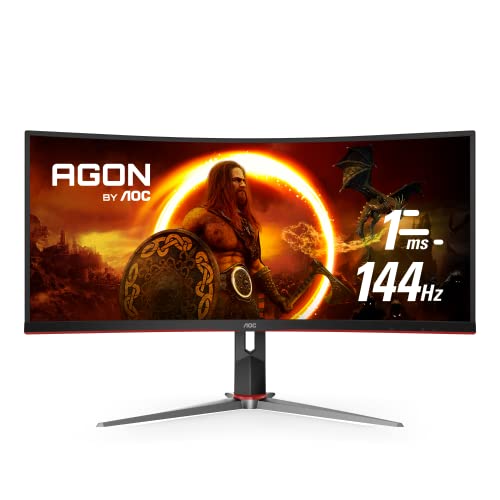
AOC CU34G2X — Best value
The CU34G2X has been the recommendation that embarrasses more expensive ultrawides for years, and its formula remains disarmingly simple: a 34-inch curved VA panel at the full 3440 by 1440 resolution, a 144Hz refresh with adaptive sync, a 1ms response claim, and a stand that adjusts for height instead of merely tilting in apology. AOC wraps the package in a frameless design that looks clean on a desk and suits multi-monitor arrangements, then backs the panel with a three-year zero-dead-pixel promise that addresses the single most annoying failure a monitor can develop.
Longevity in a fast-moving category tells its own story. Gaming panels cycle through model years quickly, yet this AOC keeps being bought because it covers the fundamentals without a conspicuous hole: the resolution is the real one, the refresh is genuinely fast, the curve is present, and the ergonomics respect the person sitting in front of it. For a first ultrawide, or for a second desk that does not need to be the flagship, that completeness matters more than any single headline figure further up this page.
What the value brief leaves out is equally clear. There is no USB-C docking, no HDR certification worth planning around, and the 144Hz ceiling sits below the 160Hz to 180Hz figures of its newer rivals. Buyers should also confirm the exact listing variant, because long-running models accumulate near-identical siblings. Accepted on its own terms, the CU34G2X is the class’s lesson in how much ultrawide a sensible budget actually buys.
Picture quality in everyday use is the pleasant surprise. VA contrast gives films and darker game scenes a richness that budget panels usually surrender, colours are vivid enough for entertainment and honest enough for everyday photo sorting, and the 144Hz refresh keeps even desktop motion feeling modern. Owners upgrading from a 60Hz office screen tend to report that the AOC feels like two upgrades at once — the width they expected and a smoothness they did not know they were missing. As a first step into the format it minimises regret in both directions: cheap enough to justify, complete enough to keep.
- Panel: 34-inch curved VA, 3440 x 1440
- Refresh: 144Hz with adaptive sync
- Response: 1ms class
- Design: frameless bezels for clean multi-screen desks
- Stand: height adjustable
- Warranty: three-year zero-dead-pixel cover
Strengths
- Full-resolution VA ultrawide with real ergonomics at the value tier
- Zero-dead-pixel warranty removes a classic ownership anxiety
- Frameless styling keeps a gaming desk looking deliberate
Trade-offs
- 144Hz is the slowest gaming rate in this line-up
- No USB-C connection for modern laptops
- HDR presentation is nominal rather than a feature to plan around
Best for: first-time ultrawide owners and second-desk builds that need the fundamentals done properly.
Not suited for: players chasing maximum refresh or laptop users building a docked setup.

Alienware AW3425DWM — Best premium gaming
Alienware’s AW3425DWM takes the gaming end of this class and polishes it until it gleams. The 34-inch WQHD panel refreshes at 180Hz — the highest figure in this guide — with a 1ms response claim, a 1500R curve, AMD FreeSync Premium and VESA AdaptiveSync certification, a pairing that covers both graphics-card ecosystems’ variable-refresh standards. Where the AOC is the value lesson and the ASUS the tools lesson, the Alienware is the finish lesson: gaming-brand industrial design, confident build and a panel tuned to make fast games look expensive.
That polish has practical consequences. A 180Hz ceiling gives headroom that keeps motion smooth even in titles whose frame rates fluctuate, and the dual adaptive-sync credentials mean a future graphics-card change does not strand the monitor’s best feature. Alienware’s gaming software and on-screen tools are among the more usable in the category, and the whole object feels designed as the centrepiece of a battlestation rather than as office equipment that happens to be quick. For streaming setups and desks that appear on camera, that presence is part of the product.
The premium brief brings premium-shaped compromises. Work-first features such as USB-C docking and call-ready speakers are not where the money went, and colour-critical professionals will still prefer a screen tuned for accuracy over one tuned for spectacle. Readers paying the Alienware tier should also be honest about their graphics card, because feeding 3440 by 1440 at anywhere near 180 frames per second is a serious demand. Meet that demand, though, and this is the most exhilarating screen in the guide.
There is a subtler advantage to buying the flagship of a gaming line: the panel binning and quality control at this tier tend to be stricter, and the ownership experience — firmware polish, menu design, the feel of the controls — reflects a product expected to anchor a desk for years. Alienware’s design language will divide opinion, as it always does, but nobody who has sat in front of the AW3425DWM mistakes it for a generic panel in a gaming costume. For the reader who has already invested in a powerful rig and a considered setup, this is the ultrawide that completes the picture rather than merely filling the space.
- Panel: 34-inch WQHD curved, 1500R
- Refresh: 180Hz, highest in this guide
- Response: 1ms class
- Sync: FreeSync Premium plus VESA AdaptiveSync
- Design: Alienware gaming styling and build
- Role: flagship gaming centrepiece
Strengths
- 180Hz ceiling future-proofs the panel for stronger graphics cards
- Dual adaptive-sync certification covers both GPU ecosystems
- Build and design presence suit showcase gaming setups
Trade-offs
- Feeding this panel near its ceiling requires serious graphics hardware
- Office docking and audio features are not the spending priority
- Spectacle tuning outranks colour-critical accuracy
Best for: committed PC gamers building a showcase desk around the fastest 34-inch panel here.
Not suited for: laptop dockers, colour graders, or anyone whose graphics card already struggles at 1440p.
Which of these wide screens fits a work desk, and which fits a gaming rig?
Line the six up by intention and the field separates cleanly. The Dell S3425DW is the workstation: docking, speakers, contrast and colour for people whose monitor is a colleague. The LG 34BP65C-B is the diplomat, fluent in both languages and owned happily by readers who refuse to declare a primary use. The AOC CU34G2X is the pragmatist, covering the fundamentals for the least commitment. Then the gaming trio fans out by appetite: the ASUS VG34VQL1B brings the deepest toolkit of motion features, the Samsung Odyssey G5 brings the deepest physical immersion, and the Alienware AW3425DWM brings the highest refresh and the most polished presentation.
| Pick | Refresh | Curve | Defining trait |
|---|---|---|---|
| LG 34BP65C-B | 160Hz | Curved | Balanced all-rounder with HDR10 |
| Dell S3425DW | 120Hz | Curved | USB-C 65W docking, strong speakers |
| Samsung Odyssey G5 34″ | 165Hz | 1000R | Deepest wrap in the class |
| ASUS TUF VG34VQL1B | 165Hz | 1500R | ELMB Sync, DisplayHDR 400 |
| AOC CU34G2X | 144Hz | Curved | Value anchor, zero-dead-pixel cover |
| Alienware AW3425DWM | 180Hz | 1500R | Fastest, flagship finish |
Two cross-cutting questions refine the choice further. The first is graphics hardware: every one of these panels asks a GPU to render roughly five million pixels, so a card that cruises at 1080p will labour here, and refresh ceilings only matter when frames actually arrive. The second is seating: a single centred chair flatters every curve in the guide, while shared viewing, standing desks used at an angle, and line-critical design work all push toward the gentler bends and the work-tuned panels.
Why does 3440 by 1440 hit the sweet spot for a 34-inch screen?
Resolution and size negotiate a truce at this combination. Spread 3440 by 1440 across 34 inches and text renders at a density close to a 27-inch 1440p monitor — sharp enough for all-day reading without operating-system scaling tricks — while the extra horizontal pixels deliver the width that makes the format worthwhile. Step down to 2560 by 1080 on the same diagonal and letters grow visibly coarse; step up to 4K-class ultrawide resolutions and both the purchase tier and the graphics burden climb steeply. The 34-inch WQHD panel is therefore the point where the ultrawide idea costs the least in compromises, which is why every pick in this guide shares it.
Productivity mathematics explains the format’s staying power. Two full windows sit side by side at comfortable widths, a timeline or spreadsheet gains roughly a third more horizontal room than a 16:9 screen offers, and a single centred document can be flanked by reference material without any window feeling exiled. Readers coming from dual 24-inch monitors usually find the seamless canvas calmer; readers coming from one small laptop screen usually describe the change as the single largest quality-of-work upgrade they have made.
How should you set up a curved ultrawide once it reaches your desk?
Placement comes before settings. Centre the panel on your chair rather than on the desk, set its top edge near eye level, and sit at a distance where the curve’s ends feel present but not demanding — for most readers that is a little further back than a flat 27-inch screen invited. Feed the monitor through the port that carries its full refresh rate, then confirm in your operating system’s display settings that the panel is actually running at that rate and at 3440 by 1440, because systems cheerfully default to lower values and a surprising number of owners never notice.
Software finishes the job. Learn your system’s window-snapping shortcuts so the width becomes organised zones instead of one sprawling desktop, enable variable refresh in the graphics driver, and choose a colour mode you can live in: a standard or sRGB mode for work, the gaming modes reserved for play. Readers on the Dell should connect USB-C first and let the monitor’s hub tidy the remaining cables. Finally, give your eyes a week. A curved ultrawide feels theatrical on day one and simply normal by day seven, at which point going back is the strange sensation.
What do ultrawide buyers most often get wrong?
There is a quieter mistake that only appears after a month: leaving the monitor in its showroom picture mode forever. The vivid preset that won the unboxing becomes eye-searing during a week of documents, and owners conclude the panel itself is fatiguing when the setting was the problem all along. Spend ten minutes in the menus during the first week — brightness matched to the room, a work mode assigned to the work input — and the same screen becomes a calmer colleague. The picks here all reward that small investment, and none of them should be judged by their out-of-box theatricality.
The classic error is buying the diagonal and forgetting the desk: a 34-inch curved screen on a shallow surface ends up close enough to force constant head-turning, which owners then blame on the format. The second error is assuming a graphics card that handled 1080p will handle this resolution at high refresh; the pixel count more than doubles, and frame rates respond accordingly. A third mistake is chasing the highest hertz figure while ignoring the stand, then spending a year with a fast panel at the wrong height. Finally, shoppers misread HDR labels, expecting a certification badge on an edge-lit panel to reproduce the highlight drama of a high-end television, and feel misled by a limitation that was in the technology rather than in their particular unit.
Which ports and cables does a 34-inch ultrawide actually need?
The unglamorous truth of ultrawide ownership is that the cable decides what the panel can do. DisplayPort is the connection that carries the full resolution at the full refresh rate on every gaming pick in this guide, and it should be your PC’s default. HDMI serves consoles and secondary machines well, though on some models its bandwidth caps the refresh below the panel’s ceiling at this resolution, which is why the specification to check is not the port count but the rate each port sustains at 3440 by 1440. USB-C, where it exists — the Dell makes the most of it — collapses video, data and charging into a single lead for laptops, and readers with a modern work laptop should treat that convenience as a headline feature rather than a bonus.
Cable quality matters more at these resolutions than it did in the 1080p era. A bargain cable that was fine for an old monitor can flicker, drop the signal or silently limit refresh when asked to carry an ultrawide’s full bandwidth, so use the leads supplied in the box first and replace like for like if you need length. Length itself is a variable: longer runs are more demanding, and a desk with the PC on the floor deserves a properly rated cable rather than the longest cheap one available. None of this is exciting, and all of it is cheaper than returning a perfectly good monitor for a fault that lived in a two-metre piece of wire.
Hubs and docks deserve a final note. Routing video through a laptop dock inserts another device between the graphics card and the panel, and some docks cap refresh rates in ways their marketing never mentions. If a new ultrawide seems stuck below its advertised rate, connect it directly to the computer before blaming the screen — in our experience that single test resolves most ultrawide mysteries, and it costs nothing but five minutes and a reachable port.
What separates a 1500R curve from a 1000R curve in daily use?
Curve radius is quoted as the distance, in millimetres, from the screen’s centre to the centre of the circle its arc belongs to — so a smaller number means a deeper bend. At 1800R and 1500R, the radii of most picks in this guide, the curve reads as a gentle embrace that mainly keeps the panel’s edges at an even viewing distance. At the Samsung’s 1000R the geometry becomes a presence: the ends of the screen visibly angle toward you, the centre recedes, and the picture occupies more of your visual field from the same chair. Neither is objectively correct. The deeper bend amplifies immersion and slightly narrows the comfortable viewing zone; the gentler bends share better, disturb straight lines less and suit mixed work. Readers who can, should sit in front of both geometries before deciding, because preference here is physical and immediate in a way specification sheets cannot capture.
Viewing distance interacts with the radius in a way worth understanding before purchase. A curve is most comfortable when you sit near the distance its radius describes, which for these panels means somewhere between arm’s length and a metre. Sit much closer and even a gentle curve feels like a embrace that crowds you; sit much further back and the wrap flattens into a wide rectangle with slightly angled ends. This is why the same monitor can thrill one owner and faintly annoy another — the variable was the chair, not the panel.
What should you budget beyond the price of the panel itself?
The monitor is the largest line in an ultrawide budget, rarely the only one. A VESA arm is the most common companion purchase, freeing desk space and giving a wide panel the precise positioning its stand may not, and it should be rated for the panel’s weight rather than its diagonal. A longer, properly rated DisplayPort cable follows for floor-standing PCs. Laptop owners without USB-C docking may add a hub; gamers feeding a 180Hz panel may discover their graphics card has become the budget’s next chapter, which is worth knowing before rather than after the screen arrives. None of these extras is mandatory on day one — every pick here works out of the box — but a realistic budget holds a little back for the accessory that your particular desk turns out to need.
Time is a cost too, though a pleasant one. Rearranging a desk around a screen this wide, learning window management, and tuning two picture modes — one for work, one for play — takes an evening. Readers who grant themselves that evening report a honeymoon that lasts; readers who judge the format in the first chaotic hour, cables everywhere and windows overlapping, sometimes return a monitor they would have loved by Friday. The format asks for a fair trial, and in exchange it tends to become the part of the setup its owner praises unprompted.
How do you keep text sharp and colours honest on a gaming-leaning panel?
Start with the picture mode. Gaming presets typically push saturation, sharpening and dynamic contrast in ways that flatter explosions and punish spreadsheets, so assign a standard or sRGB mode to your work input and reserve the vivid modes for play; several picks here remember settings per input, which makes the split painless. Next, confirm the signal itself: run the panel at its native 3440 by 1440, check that your operating system’s scaling sits at a level your eyes enjoy rather than the default it guessed, and disable any eco mode that dims the backlight unpredictably during document work.
Colour honesty at this tier is a matter of expectations and small disciplines. None of these panels replaces a calibrated reference display for print production, but all six can be made consistent enough for web design, photography hobbies and video work by using the sRGB mode, setting a sensible brightness for your room rather than the showroom maximum, and letting the panel warm up for a few minutes before judging it. Readers who later add a colorimeter will find the VA panels here respond well to profiling. The deeper point is that sharpness and colour are behaviours of the whole setup — cable, port, mode, scaling — and the monitor is only one actor in that cast.
How long will a screen in this class stay satisfying?
Longer than most technology you own. Monitor progress moves at a statelier pace than phones or graphics cards, and the fundamentals these six are built on — 3440 by 1440 resolution, refresh rates well past the old 60Hz standard, adaptive sync, mature panel technology — are the settled centre of the market rather than its experimental edge. A reader who buys the balanced LG or the work-ready Dell today is buying into a specification that software, games and operating systems will keep flattering for many years, because developers target the mainstream and this is precisely where the mainstream now sits.
The likelier reason to upgrade later will be a change in your life rather than in the technology: a move to a bigger desk that invites the 38-inch class, a new job in colour-critical production, or a competitive hobby that outgrows 180Hz. Planning for that honesty is liberating. It means the correct purchase today is the screen that fits the desk and the week you actually have, bought without anxiety about a successor rendering it obsolete by spring.
Final Recommendation
A closing thought on timing. Ultrawide pricing moves in waves around major launches and seasonal sales, and the gap between the value AOC and the flagship Alienware widens and narrows with those waves. A reader who has identified the right model can reasonably watch its listing for a short while; a reader still choosing between models gains nothing from waiting, because the differences that matter — curve, docking, refresh, stand — do not change with promotions. Decide on the desk first and the calendar second.
Most readers should begin with the LG 34BP65C-B, because its balance of 160Hz speed, HDR10 support and all-round panel manners fits the mixed reality of a modern desk better than any specialisation. Readers whose desk is unmistakably an office should step sideways to the Dell S3425DW and enjoy the one-cable life, while value hunters can take the AOC CU34G2X knowing the fundamentals are all present. Gamers divide by desire: motion tools point to the ASUS, immersion points to the Samsung’s deep curve, and the Alienware waits for those who want the fastest and finest-finished version of the idea. Whichever name you choose, choose it for the hours you will actually spend — a 34-inch ultrawide rewards the reader who matched the screen to the week, not the weekend fantasy.
Frequently Asked Questions
Do these monitors work well for watching films?
Very well, with one formatting note. Films shot in wide cinematic ratios fill far more of a 21:9 panel than they do of a conventional screen, so the black bars shrink to the top and bottom edges or vanish entirely, and the VA contrast shared by these picks gives night scenes real depth. Programmes made in 16:9 sit in the centre with bars at the sides instead. Streaming through a computer gives you the full benefit; some dedicated streaming devices assume a 16:9 display and behave accordingly, which is worth checking if the screen will double as your main television.
Is a 34-inch ultrawide too wide for a small desk?
It depends on depth more than width. The panel itself spans roughly eighty centimetres, but the real requirement is sitting far enough back for the curve to read as one surface, which usually means a desk at least sixty centimetres deep and ideally more. A VESA arm that pulls the screen toward the wall can make a shallower desk work, and several picks here include standard mounting support for exactly that rescue.
Can a console use these monitors properly?
Consoles connect and display happily, but with a caveat: they output a 16:9 picture, so the ultrawide canvas shows black bars at the sides unless a stretch mode is engaged, which most players dislike. The ASUS listing speaks directly to console owners and handles the pairing gracefully, yet readers whose play is mostly console-based should weigh whether a fast 16:9 screen serves them better than any pick in this guide.
How much graphics power does 3440 by 1440 gaming need?
Budget for a card that is comfortable at 1440p and then some, because the ultrawide resolution adds roughly a third more pixels on top of standard 1440p. High-refresh play in demanding titles calls for genuinely strong hardware, while strategy, indie and older games run beautifully on far more modest cards. The FreeSync Premium support across these picks smooths the experience when frame rates wander below the panel’s ceiling.
Does the curve help or hurt for office work?
For a single centred user it generally helps, keeping the screen’s far edges at a more even distance from the eyes and reducing the sense of the corners falling away. The exception is work that judges long straight lines across the full width, where the gentler curves — or the work-tuned Dell — feel safer. Most office readers adapt within days and stop perceiving the bend at all.
Will one of these replace a dual-monitor setup?
For most readers, yes, and with a calmer desk as the dividend: one panel, one stand, one set of cables, and window management handled by snapping zones instead of a bezel down the middle of your work. The readers who sometimes keep a second screen are those who want a permanent portrait display for documents or chat, or streamers who like production tools on a physically separate panel. Everyone else tends to find the single wide canvas simpler to live with within a week.
Should I choose VA or worry about panel type at this size?
At 34 inches the class is dominated by VA panels, prized for the deep contrast that makes films and dark game scenes look rich, with modern examples handling motion far better than their ancestors. The practical differences between these six picks — refresh, curve, docking, stand — will shape your ownership far more than panel chemistry, so choose on those and let the contrast come as a bonus.
Related Guides
One last reassurance for readers hesitating at the threshold of the format: the adjustment curve is short and one-directional. The first evening feels extravagant, the first week feels productive, and by the first month the question owners ask is not whether the ultrawide was worth it but why the rest of the world’s screens look so narrow. That arc holds across every pick in this guide, from the value AOC to the flagship Alienware, because it belongs to the format itself — the models differ in how they flavour the experience, not in whether the experience works.
Still shaping the wider setup? These companions continue the search: best 38 inch ultrawide monitors for a larger canvas best affordable ultrawide monitors on a careful budget best 4k curved monitors for sharper detail
Related guides
- Best 1440p 165Hz Monitors: One Native 165Hz Pick, Three 180Hz Upgrades, an Overclock Headline and a 160Hz Ultrawide
- Best 13×19 Professional Printers
- Best 3rd Party MacBook Chargers: 96W-Class Alternatives, the 100W Cable Rule, and the Apple Benchmark
- Best Built PC: Six Prebuilt Gaming PCs Judged on Parts, Power and Upgrades


