What's inside
- Where to buy
- Key Takeaways
- Quick Picks
- How We Chose These Picks
- What Do AutoCAD and 3ds Max Actually Ask of a Laptop?
- The Six Workstations, Pick by Pick
- Reading a Workstation Listing Like an Engineer
- Certified Silicon or GeForce Muscle: Which Route Fits Your Studio?
- File Discipline: Projects, Libraries and Versions
- How Should You Set Up a New Workstation for Both Programs?
- How Much Graphics Memory Does a 3ds Max Scene Really Use?
- The Rest of the Desk: Docks, Monitors and Input
- Workstation Line-Up at a Glance: GPU Tier, Memory and Screen
- From First Boot to First Deadline: The First Month
- What Mistakes Do Buyers Make With CAD Workstations?
- Final Recommendation
- Rendering Overnight Without Regret
- Buying for a Team Rather Than a Person
- The Second Screen Question, Settled for CAD
- Sustained Loads and Slim Chassis: The Thermal Footnote
- A Note on Noise, Heat and Shared Studios
- Frequently Asked Questions
- Related Guides
As an Amazon Associate I earn from qualifying purchases. This post may contain affiliate links at no extra cost to you.
gizmoverdict.com is reader-supported. When you buy through links on our site, we may earn an affiliate commission.
Where to buy
Mobile workstations are sold differently from ordinary laptops, and the listings deserve a slower read than a consumer machine would get. Confirm the exact graphics processor named in the configuration, because the same chassis often ships with three different professional GPUs at three very different capability levels, and confirm the memory figure too — a workstation bought with too little RAM is a workstation you will open up within the year. Five of the six machines below carry a live Amazon listing we could verify; the sixth, MSI’s Creator Z16 HX Studio, has no clean Amazon laptop listing at all, and we say so openly where it appears rather than dressing up an accessory page as a laptop.
The best laptops for autocad and 3ds max sit at the point where two demanding programs overlap. AutoCAD itself is not, hour for hour, a heavy program: 2D drafting leans on single-core processor speed, and even large drawings mostly ask for memory and a display that keeps dense linework legible. Then 3ds Max enters the room and changes the arithmetic completely. Viewport performance with heavy geometry, material previews, modifier stacks and test renders all lean on the graphics processor, and a final render can pin every core the machine owns for hours. A laptop that flatters AutoCAD alone can fall apart the moment a Max scene grows teeth, which is why this guide is built around certified mobile workstations rather than fast consumer notebooks.
Three threads run through every judgement below. The first is the professional GPU: NVIDIA’s RTX Ada workstation cards carry ISV certification and drivers tuned and tested against Autodesk applications, and that stability is worth real money when a deadline is close. The second is memory headroom — 32GB is the working floor for serious combined AutoCAD and Max use, and the one 64GB machine here earns its place on exactly that ground. The third is the screen, because a drawing with four hundred layers and a viewport full of splines punish a dim, low-resolution panel all day long.
Key Takeaways
- The ThinkPad P1 Gen 7 takes the lead by pairing an RTX 3000 Ada professional GPU with a 2.8K-class 16-inch panel in a chassis you can still carry between site and studio.
- Dell’s Precision 5690 is the heavyweight: an RTX 5000 Ada with 16GB of graphics memory and an OLED touch display for the largest scenes on this list.
- HP’s ZBook Power G11 undercuts the flagship tier while keeping a certified RTX 1000 Ada and 32GB of memory — the sensible spend for mixed 2D and 3D work.
- The ProArt P16 breaks ranks with a GeForce RTX 5070 and 64GB of memory, trading ISV certification for raw viewport and render muscle aimed at 3ds Max.
- Lenovo’s P16 Gen 2 is the desk anchor: an HX processor, a 3840 x 2400 screen and an RTX 2000 Ada in a machine built to replace a tower.
- MSI’s Creator Z16 HX Studio belongs in the conversation on merit, but with no clean Amazon listing it stays an unlinked pick bought through MSI or a specialist retailer.
Quick Picks
| Pick | Badge | Why it is here |
|---|---|---|
| Lenovo ThinkPad P1 Gen 7 | Best Overall | Certified RTX 3000 Ada power and a sharp 16-inch panel in the most portable full workstation here. |
| Dell Precision 5690 | Best Display | An OLED touch screen over the strongest professional GPU on the list, with 16GB of graphics memory. |
| HP ZBook Power G11 | Best Value Workstation | The certified-GPU route at a step down in spend, with Ryzen efficiency and dual Thunderbolt 4. |
| ASUS ProArt P16 | Best for 3D Work | Sixty-four gigabytes of memory and a 4K OLED make heavy Max scenes its home ground. |
| Lenovo ThinkPad P16 Gen 2 | Best Desktop Replacement | Desktop-class HX silicon and a 3840 x 2400 display for the desk that never travels. |
| MSI Creator Z16 HX Studio | Best Studio Alternative | A creator-tuned HX machine worth shortlisting, sold through MSI channels rather than a clean Amazon listing. |
How We Chose These Picks
The entry requirement was a graphics processor with a credible claim on professional 3D work. Five machines carry NVIDIA RTX Ada workstation cards — the line Autodesk-facing drivers are written and certified for — and the sixth linked pick, ASUS’s ProArt, earns its exception honestly: its GeForce RTX 5070 is not ISV-certified, but 3ds Max leans on GeForce hardware perfectly well in practice, and the machine compensates with double the memory of most of this field. Anything with integrated graphics only, however fast its processor, was turned away at the door.
Memory was the second gate. Combined AutoCAD and 3ds Max work — a drawing open beside a scene, a browser full of reference, a render queue ticking — eats 16GB without noticing, so every linked pick here carries at least 32GB, and we treated storage the same way: 1TB is the practical floor once scene libraries, texture folders and drawing archives accumulate, and the two 2TB machines score accordingly.
Finally we read the displays as working tools rather than decoration. Resolution decides how much of a drawing you can see before panning; brightness decides whether a site cabin or a bright studio washes the panel out; and colour quality decides whether a Max material preview means anything. The ranking below weighs those three working qualities alongside raw GPU strength, because a workstation is bought as a whole instrument, not a benchmark with a keyboard attached.
What Do AutoCAD and 3ds Max Actually Ask of a Laptop?
The two programs stress a machine in almost opposite ways, and understanding that split explains every pick in this guide. AutoCAD’s core drafting engine rewards high single-core clock speed: panning, zooming, regenerating a drawing and running most commands happen on one thread at a time. That is why the HX-class and high-boost processors below matter even for readers who think of themselves as 2D people — a drawing with heavy hatching, dense blocks and external references regenerates noticeably faster on a chip that can hold a high boost clock.
3ds Max spreads its demands wider. The viewport is a real-time 3D view, so orbiting a high-polygon scene, scrubbing an animation or working with dense modifier stacks leans directly on the GPU and on how much memory that GPU carries for textures and geometry. Rendering splits two ways: scanline and Arnold-style CPU rendering uses every core for as long as the render runs, which rewards core count and sustained cooling, while GPU renderers shift the whole burden onto the graphics card and its memory. A machine balanced for Max therefore needs all three — cores, GPU, memory — where a machine for AutoCAD alone can skimp on two of them.
Certification is the quiet fourth factor. Autodesk publishes certified hardware lists, and NVIDIA’s workstation drivers are validated against AutoCAD and 3ds Max in a way consumer GeForce drivers are not. In daily practice the difference shows up as fewer viewport glitches, fewer display-driver crashes mid-session and support lines that take your ticket seriously. It is not magic, and plenty of professionals run GeForce machines happily — the ProArt below is here precisely because of that — but for billable work the certified route removes one category of bad day entirely.
The Six Workstations, Pick by Pick

Lenovo ThinkPad P1 Gen 7 — Best Overall
The P1 Gen 7 is the machine this guide keeps circling back to, because it makes the fewest compromises a travelling professional will actually feel. Its Intel Core Ultra 7 165H pairs strong single-core boost — the quality AutoCAD drafting lives on — with enough cores to keep 3ds Max renders moving, and the NVIDIA RTX 3000 Ada is the sweet spot of the certified range: materially stronger in viewports than the entry workstation cards, without the cost and heat of the flagship tier. In a Max viewport, that card holds orbit and pan smoothly on scenes that make lesser GPUs stutter, and its certified driver removes the display glitches that creep into long sessions on consumer silicon.
The display seals the argument. The 16-inch panel runs at 2560 x 1600, which is the resolution where a full drawing stays legible without constant zooming and where Max’s quad-viewport layout stops feeling cramped. Around the screen, the P1 keeps the ThinkPad virtues that matter on site: a keyboard that survives all-day input, a 5MP camera for client calls, and a chassis slim enough to live in a bag rather than a trolley case. It is the pick for the professional whose week genuinely splits between drawing production and 3D work, and who carries the machine that does both.
- Processor: Intel Core Ultra 7 165H
- Graphics: NVIDIA RTX 3000 Ada professional GPU
- Memory and storage: 32GB RAM, 1TB SSD
- Display: 16-inch, 2560 x 1600 IPS, non-touch
- Operating system: Windows 11 Pro
Strengths
- Certified RTX 3000 Ada delivers dependable viewport behaviour in both Autodesk titles.
- The 2560 x 1600 panel shows a whole drawing at readable scale, reducing pan-and-zoom fatigue.
- Slim workstation chassis travels like a premium ultrabook rather than a desktop replacement.
Trade-offs
- Thirty-two gigabytes is the working floor, not headroom — huge assemblies will want the memory upgrade path checked before purchase.
- The RTX 3000 Ada is a mid-tier card; GPU-render farms in miniature should look at the Precision below.
- Non-touch panel, so stylus-markup workflows need an external tablet.
Best for: professionals splitting the week between production drafting and mid-weight 3ds Max scenes who still carry their machine daily. Not suited for: studios whose bottleneck is overnight GPU rendering on very large scenes — the Dell below carries twice the graphics memory for that work.

Dell Precision 5690 — Best Display
The Precision 5690 is what happens when the budget conversation ends early. Its NVIDIA RTX 5000 Ada carries 16GB of graphics memory — double the P1 above — and that figure, more than any other on this page, decides how large a 3ds Max scene can grow before the viewport starts paging and stuttering. Texture-heavy architectural visualisations, dense product assemblies and scenes layered with high-resolution materials all live comfortably in 16GB, and the certified driver stack keeps that power pointed at Autodesk applications rather than benchmarks. The Core Ultra 7-165H underneath it is the same class of processor as the Lenovo’s, so AutoCAD drafting loses nothing while the 3D side gains enormously.
Then there is the screen. A 16-inch OLED touch display does two jobs at once: colour deep enough that material previews in Max read truthfully, and touch input that suits markup and presentation work in front of clients. Two terabytes of storage means the scene library, the texture archive and the drawing history all live on the machine rather than on an external drive tethered by a cable. Wi-Fi 7 and a full port spread round out a machine that behaves like a studio desktop that happens to fold. It is heavy spend, honestly framed — but nothing else here gives a Max-heavy professional this much room.
- Processor: Intel Core Ultra 7-165H
- Graphics: NVIDIA RTX 5000 Ada, 16GB graphics memory
- Memory and storage: 32GB RAM, 2TB NVMe SSD
- Display: 16-inch OLED touch
- Connectivity: Wi-Fi 7, HDMI, USB-C, Windows 11 Pro
Strengths
- Sixteen gigabytes of GPU memory is the largest scene ceiling in this guide.
- OLED touch panel makes material previews and client presentations genuinely better.
- Two terabytes of fast storage ends the external-drive shuffle for big project archives.
Trade-offs
- The flagship configuration costs flagship money; lighter workloads will never touch its ceiling.
- OLED panels and static CAD toolbars deserve sensible brightness habits to protect the screen over years.
- At this performance level the power supply is a serious brick — budget bag space for it.
Best for: visualisation specialists and lead designers whose Max scenes are the largest in the studio and whose previews must read true. Not suited for: drafters whose work is overwhelmingly 2D linework — the ZBook Power further down delivers that day at a fraction of the commitment.

HP ZBook Power G11 — Best Value Workstation
The ZBook Power G11 exists for the buyer who needs certification on the purchase order but cannot sign off a flagship. Its NVIDIA RTX 1000 Ada is the entry rung of the current certified ladder, and it is important to be straight about what that means: AutoCAD drafting, including large and layered drawings, runs exactly as it should, and 3ds Max handles small-to-mid scenes, product models and visualisation drafts without complaint. Where the ceiling appears is in very dense viewports and GPU rendering, where the bigger cards above pull away. For the enormous middle of professional practice — drawings all week, 3D when the project asks — that ceiling is rarely the working limit.
The AMD Ryzen 7 PRO 8845HS underneath is a quietly excellent choice for this tier: efficient enough to keep fan noise civilised in a shared office, strong in the single-core work AutoCAD rewards, and paired with 32GB of DDR5 so the memory floor this guide insists on is met without an upgrade errand. The 16-inch FHD+ display is the one place the value framing shows — it is a good, bright working panel rather than a colour showcase — and twin Thunderbolt 4 ports mean a single-cable desk dock with external monitors is fully on the table. As a first certified workstation, or a fleet purchase for a drawing office, it is the easiest recommendation here to defend in a budget meeting.
- Processor: AMD Ryzen 7 PRO 8845HS
- Graphics: NVIDIA RTX 1000 Ada professional GPU
- Memory and storage: 32GB DDR5 RAM, 1TB SSD
- Display: 16-inch FHD+
- Ports: 2x Thunderbolt 4, Windows 11 Pro
Strengths
- Certified GPU and 32GB of memory at the most approachable tier in this guide.
- Ryzen PRO processor keeps noise and heat down in office conditions.
- Dual Thunderbolt 4 makes a proper one-cable docking setup straightforward.
Trade-offs
- The RTX 1000 Ada shows its limits in heavy Max viewports and GPU rendering.
- FHD+ resolution gives less drawing area than the 1600p and 4K panels above.
- Plastic-adjacent value engineering in places the flagships spend more on.
Best for: drawing offices, junior-to-mid professionals and anyone whose 3D work is real but not enormous. Not suited for: visualisation leads pushing very large scenes daily, who will feel the entry GPU within the first big project.
ASUS ProArt P16 — Best for 3D Work
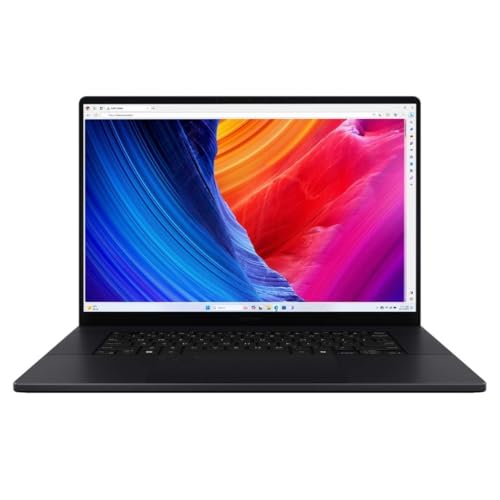
The ProArt P16 is the deliberate outsider in this line-up, and its case rests on a simple observation: 3ds Max does not require ISV certification to run beautifully, and this machine’s hardware is aimed squarely at Max’s appetites. The GeForce RTX 5070 brings current-generation consumer GPU muscle to viewports and GPU rendering, and the configuration’s headline is memory — 64GB of LPDDR5X, double every other pick here. Max users know exactly what that buys: a heavy scene, AutoCAD, a browser of reference boards, a render in the background and a messaging app, all open at once, with the machine still responsive. Memory exhaustion, not raw speed, is what ends most real working sessions, and this laptop postpones that ending further than anything else on the page.
The 16-inch 4K OLED touch display is the other half of the pitch. For material work, look development and client-facing visualisation, a colour-rich 4K panel changes what you can judge on screen — subtle texture variation and lighting falloff that a mid-range IPS smears into approximation stay readable here. The Ryzen AI 9 HX 370 keeps multi-core rendering brisk and the 2TB drive swallows asset libraries whole. The honest caveat belongs in the same breath: the GeForce driver line is not the certified workstation stack, so an office whose support contracts or studio standards demand ISV certification should stay with the RTX Ada machines. For the independent 3D artist, that caveat is paperwork; the hardware is the point.
- Processor: AMD Ryzen AI 9 HX 370
- Graphics: NVIDIA GeForce RTX 5070
- Memory and storage: 64GB LPDDR5X RAM, 2TB PCIe SSD
- Display: 16-inch 4K OLED touch
- Configuration: HIDevolution-built ASUS ProArt P16 H7606WP, Windows 11 Pro
Strengths
- Sixty-four gigabytes of memory is the largest working headroom in this guide, full stop.
- 4K OLED touch panel is superb for look development and material judgement.
- Current-generation GeForce GPU powers through Max viewports and GPU renders.
Trade-offs
- GeForce drivers are not ISV-certified — a real consideration for studio-standard environments.
- Soldered LPDDR5X memory means the 64GB you buy is the 64GB you keep; fortunately it is plenty.
- Creator-tuned extras matter less to pure drafting users, who pay for them anyway.
Best for: independent 3ds Max artists and visualisation freelancers who want maximum scene headroom and a reference-grade screen. Not suited for: firms whose procurement rules require certified workstation graphics on every seat.

Lenovo ThinkPad P16 Gen 2 — Best Desktop Replacement
Some workstations travel; the P16 Gen 2 merely relocates, and it is unapologetic about it. The Intel Core i7-14700HX is a desktop-class processor with twenty cores, and that core count is aimed at the two jobs in this workflow that scale with cores: CPU rendering in 3ds Max and the general churn of huge files, exports and regenerations. Paired with an NVIDIA RTX 2000 Ada — the mid-step certified card — it covers AutoCAD and Max with authority, sitting a rung below the P1’s GPU in viewport terms but ahead of it whenever a render queue becomes the working day. Studios that still render on the CPU, and there are many with good pipeline reasons, will read this specification with recognition.
The display is the other desktop trait: a 16-inch WQUXGA panel at 3840 x 2400 and 800 nits. That is genuine 4K-class working area — a drawing at full detail beside a Max viewport, both readable — and the brightness shrugs off bright offices and site cabins alike. The chassis around it is the full-size ThinkPad formula: a keyboard with a proper desktop feel, a fingerprint reader, and the build tolerance of a machine designed to be opened, upgraded and kept for years. Buy it as a tower replacement that can move rooms when the project does, and it will not disappoint; buy it as a daily carry and the weight will argue with you every morning.
- Processor: Intel Core i7-14700HX, 20 cores
- Graphics: NVIDIA RTX 2000 Ada professional GPU
- Memory and storage: 32GB DDR5 RAM, 1TB SSD
- Display: 16-inch WQUXGA 3840 x 2400, 800 nits, 60Hz
- Security: fingerprint reader, backlit keyboard, Windows 11 Pro
Strengths
- Twenty-core HX processor is the strongest CPU-rendering option in this guide.
- 3840 x 2400, 800-nit display gives true desktop working area and outdoor-grade brightness.
- Full-size chassis favours cooling, upgrades and long service life.
Trade-offs
- Size and weight make it a relocation machine, not a commuter.
- The RTX 2000 Ada trails the P1’s 3000-series card for pure viewport work.
- Sixty-hertz panel is fine for CAD but unremarkable beside the OLED picks for motion.
Best for: desk-based engineers and render-heavy generalists replacing a tower workstation. Not suited for: consultants who present and produce in three different buildings a week — the P1 Gen 7 was designed for that life.
MSI Creator Z16 HX Studio — Best Studio Alternative
The Creator Z16 HX Studio earns its seat here on the strength of its formula rather than a listing: an HX-class Intel processor, NVIDIA Studio-grade graphics and a high-resolution 16-inch creator display in a slim metal chassis is precisely the recipe that suits mixed AutoCAD and 3ds Max work, and MSI’s Studio tuning aims the machine at exactly the creative-professional audience this guide serves. In a fair fight on specifications alone it would stand comfortably alongside the linked picks above, particularly for Max users who value its creator-focused screen and thermal design.
Why, then, is it unlinked? Because honesty about buying routes matters more than a tidy page. Our checks found no clean Amazon listing for this laptop — searches surface cases, batteries and accessories for it rather than the machine itself — and we will not send readers to an accessory page dressed as a laptop. Buyers set on the Creator Z16 HX Studio should go through MSI’s own store or a specialist creator retailer, confirm the exact GPU and memory configuration in writing before paying, and treat any marketplace listing with unusual care. Consider it a genuine shortlist machine with a different front door.
- Class: 16-inch creator workstation with HX-series Intel processing
- Graphics: NVIDIA Studio-grade discrete graphics (confirm exact GPU per configuration)
- Buying route: MSI direct or specialist retailers — no clean Amazon laptop listing found
- Positioning: slim creator chassis aimed at 3D and design workloads
- Note: configurations vary widely; verify memory and storage before ordering
Strengths
- HX processing and Studio graphics match the AutoCAD-plus-Max brief on paper.
- Creator-tuned display philosophy suits material and visualisation review.
- Slim metal build travels better than most HX-class machines.
Trade-offs
- No verified Amazon route — purchase takes more legwork and care.
- Configuration spread between retailers makes like-for-like comparison harder.
- Creator line support channels differ from the big three workstation brands’ next-day enterprise cover.
Best for: buyers who already favour MSI’s creator line and are comfortable purchasing through MSI or a specialist store. Not suited for: anyone who wants the whole shortlist comparable in one cart with uniform returns handling.
Reading a Workstation Listing Like an Engineer
Workstation listings compress a great deal of consequence into very few lines, and learning to read them is a purchasing skill in itself. The model name is the least informative element: a ThinkPad P1 or a ZBook spans generations whose performance differs by years, so the generation marker and the processor’s exact name carry the real information. The graphics line deserves the slowest read — the difference between an RTX 1000 Ada and an RTX 3000 Ada is the difference between this guide’s value tier and its sweet spot, and listings occasionally abbreviate the card in ways that flatter it. Memory should be read as a pair of numbers, capacity and configuration, because a machine whose slots are fully occupied by small modules costs more to upgrade than one with a slot free.
Condition is the other hidden axis. New, manufacturer-refurbished and third-party-renewed units circulate under similar titles in this category, and each is a legitimate purchase at its own price — the error is paying one tier’s money for another tier’s goods, which is why this guide insisted on full-title reading in the MSI and Firefly cases elsewhere in this programme. Warranty length follows the same logic: a workstation’s ticket often includes a one-year term where the buyer assumed three, and extending it at purchase is cheaper than extending it after the first failure. None of this requires suspicion, only literacy — the listings state nearly everything, in order, for the reader willing to read to the end of the line.
Certified Silicon or GeForce Muscle: Which Route Fits Your Studio?
This guide contains both religions, so the choice deserves a plain explanation. The certified route — ThinkPad P1, Precision 5690, ZBook Power, ThinkPad P16 — buys driver validation against Autodesk’s applications, listings on certified-hardware charts, and support desks that treat a CAD crash as their problem. In a firm billing by the hour, that insurance is rational even when the hardware costs more per unit of speed. The GeForce route, represented by the ProArt P16, buys more raw performance and memory per unit of spend and relies on the fact that 3ds Max in particular runs on consumer GPUs all over the industry without drama.
A useful way to decide is to look at where your last three bad days came from. If they were driver crashes, viewport corruption or a support ticket that died on the words “uncertified hardware”, buy certified and never think about it again. If they were renders that ran long, scenes that would not fit in memory and a machine that felt full — buy the muscle. Solo practitioners usually land on the second answer; teams with IT standards usually land on the first; both are defensible, and mixing the two across a studio is more common than either camp admits.
File Discipline: Projects, Libraries and Versions
Workstation performance is partly a filing system. AutoCAD and 3ds Max both accumulate gravity wells of data — block libraries, xref trees, material and texture libraries, proxy assets, render outputs — and a machine whose storage is organised retrieves its working day faster than a more powerful machine rummaging through chaos. The working pattern that serves most professionals is simple to state: active projects on the internal SSD under one predictable root folder; libraries on the same drive, versioned and read-only in spirit; archives moved off to external or network storage at project close, with the project folder’s structure intact so a two-year-old job can be reopened without archaeology.
Version discipline is the other half, and the two programs punish its absence differently. In AutoCAD, the drawing that matters is the one the team agrees is current — a sentence that requires a naming convention, a shared location and the humility to archive rather than overwrite. In 3ds Max, scene files balloon and fork; saving incremental versions is cheap insurance against the corrupted scene and the client who preferred Tuesday’s lighting. Both habits are storage habits, which loops back to this guide’s hardware advice: the terabyte floor and the 2TB picks exist because disciplined filing still consumes real space, and the professional who files well deserves a drive that does not punish them for it.
How Should You Set Up a New Workstation for Both Programs?
Setup order matters more than most buyers expect. Install the certified workstation driver for your exact GPU before opening either program — not the gaming driver, not the default Windows offers — then set each application to use the discrete GPU explicitly rather than leaving the choice to automatic graphics switching, which still occasionally parks a viewport on integrated graphics and produces a mysteriously sluggish machine. In 3ds Max, confirm the viewport driver is the modern Nitrous option and allocate texture memory generously on the 16GB Dell; in AutoCAD, enable hardware acceleration and check that the graphics card is reported correctly in the configuration panel.
Storage discipline pays off weekly. Keep active projects on the internal SSD, archives on external or network storage, and point both programs’ autosave and backup paths at folders you actually back up — a workstation full of work and empty of backups is a single failure away from a very bad month. Finally, set Windows power mode to its performance profile while plugged in and test one genuinely large file from your own archive before the first deadline does it for you. Twenty minutes of verification in week one prevents the classic discovery, mid-project, that a default setting was quietly halving the machine you paid for.
How Much Graphics Memory Does a 3ds Max Scene Really Use?
Graphics memory is the specification buyers understand least and hit hardest, so it deserves a plain walkthrough. When a Max scene loads, its geometry, textures, lightmaps and viewport buffers move into the GPU’s own memory. A modest product model with a handful of materials might occupy a small fraction of a modern card. A visualisation scene — an apartment interior with manufacturer furniture, fabric and timber textures at print resolution, vegetation, and a city context model — can consume several times that, and the moment the scene exceeds the card’s memory, the viewport does not slow gracefully; it stutters, drops texture resolution or, in GPU rendering, refuses the job or falls back to far slower paths.
This is why the guide ranks the Precision 5690’s 16GB as a headline rather than a footnote, and why the mid-tier cards in the P1 and P16 are honest tools rather than compromises: for scenes in the broad professional middle — product work, interiors at presentation quality, mechanical assemblies with sensible texture discipline — 8GB-class professional cards hold the viewport together. The discipline matters as much as the silicon. Texture libraries kept at working resolution rather than archival resolution, instancing used where the scene repeats an object, and proxy objects for background detail all reduce memory pressure more cheaply than any hardware step. The professional who manages a scene well on a mid card will out-deliver the one who buys the flagship and loads it carelessly.
GPU rendering sharpens the arithmetic further, because the entire scene plus the renderer’s own structures must fit in graphics memory at once, with no partial credit. Studios adopting GPU rendering should size the card to the largest scene they realistically expect, not the average one — the largest scene is the one attached to the competition deadline. CPU rendering, by contrast, draws on system memory, which is the quiet reason the 64GB ProArt and the twenty-core P16 Gen 2 remain relevant in a GPU era: pipelines differ, and the wise purchase follows the pipeline you actually run, not the one conference talks celebrate.
The Rest of the Desk: Docks, Monitors and Input
A workstation laptop spends half its life as the engine of a desk, and the desk deserves the same care as the machine. The standard professional arrangement — laptop docked through a single Thunderbolt cable to two external monitors, a full keyboard and a mouse or pen tablet — is supported by every linked pick here, and it changes the working day more than a processor tier does. Two screens end the viewport-versus-drawing shuffle that single-screen CAD imposes: model on one, sheets, schedules or reference on the other, with the laptop’s own panel as a third surface for mail and messaging.
Monitor choice should follow the work rather than the marketing. A 27-inch 4K panel is the current sweet spot for drafting and modelling — enough resolution to hold a drawing at readable scale, enough size to keep two viewports honest — and colour accuracy matters in proportion to how much visualisation the desk produces. Practices judging client-facing images should calibrate, because two uncalibrated screens in the same studio will disagree about the same render, and the argument that follows wastes more time than the calibrator costs. Input deserves a sentence too: a 3D mouse is a genuine productivity tool for heavy Max navigation, a pen tablet serves markup and texture work, and both are cheaper than the hours they return.
None of this requires buying everything at once. The correct order is the machine first, the dock and one good monitor with it, and the second screen and specialist input as the work proves the need. What matters at purchase time is only that the laptop’s ports and graphics support the desk you intend to grow into — and on that test, every workstation in this guide passes with room to spare.
Workstation Line-Up at a Glance: GPU Tier, Memory and Screen
| Pick | Graphics | Memory | Display | Character |
|---|---|---|---|---|
| ThinkPad P1 Gen 7 | RTX 3000 Ada (certified) | 32GB | 16″ 2560 x 1600 IPS | The balanced traveller |
| Precision 5690 | RTX 5000 Ada 16GB (certified) | 32GB | 16″ OLED touch | The scene-size champion |
| ZBook Power G11 | RTX 1000 Ada (certified) | 32GB | 16″ FHD+ | The defensible budget seat |
| ProArt P16 | GeForce RTX 5070 | 64GB | 16″ 4K OLED touch | The memory and muscle play |
| ThinkPad P16 Gen 2 | RTX 2000 Ada (certified) | 32GB | 16″ 3840 x 2400, 800 nits | The tower replacement |
| Creator Z16 HX Studio | Studio-grade (varies) | Varies by configuration | 16″ creator panel | The off-Amazon shortlist entry |
From First Boot to First Deadline: The First Month
The first month with a new workstation decides whether it becomes infrastructure or a recurring topic, and a few deliberate steps make the difference. Week one belongs to configuration: drivers matched to the exact GPU, both applications pointed at the discrete graphics, autosave and backup paths set to folders that are themselves backed up, and the desk — dock, monitors, input — assembled and tested with a real project file rather than a demo. Week two is for migration discipline: templates, palettes, material libraries and plot configurations moved once, properly, rather than rediscovered per project for a quarter.
Weeks three and four are for calibration of expectations. Run the largest file from the archive, render the scene that used to take overnight, open the drawing that used to make the old machine hesitate — and learn, on your own schedule, where the new machine’s real ceilings sit. Every workstation in this guide has one; knowing yours in a quiet week is professionalism, discovering it in a deadline week is drama. Keep the old machine alive and configured until the new one has survived its first real deadline; redundancy during transition is not sentimentality, it is the same backup philosophy this guide applies to files, applied to the hardware itself. After that first deadline passes uneventfully — and with this class of machine, it should — the workstation disappears into the work, which is the highest compliment any of the six names in this guide is aiming for.
What Mistakes Do Buyers Make With CAD Workstations?
The most expensive mistake is shopping by processor alone. AutoCAD’s single-core appetite makes CPU headlines seductive, but 3ds Max punishes a weak GPU and thin memory far harder than it rewards a flagship chip — a mid processor with a strong certified card and 32GB will out-work a halo processor with integrated graphics on every combined workload that matters. The second mistake is the mirror image: buying the biggest GPU in a chassis with 16GB of system memory, then watching a large scene and a large drawing together push the machine into swapping.
Display regret is the third classic. Professionals routinely spend workstation money and then draft for years on a dim 1080p panel because it was the configuration in stock; the screen is the one component you look at for every second of the machine’s life, and the resolution steps in this guide exist because drawing area is productivity. Fourth, buyers forget the dock: a workstation that cannot drive the desk’s two monitors through one cable creates daily friction no benchmark captures. And finally, there is the renewed-listing trap in this category generally — workstation listings at suspicious discounts are sometimes refurbished units in fine print, so read the full listing title and condition line before assuming a bargain.
Final Recommendation
For most professionals living in both programs, the ThinkPad P1 Gen 7 is the answer: certified RTX 3000 Ada graphics, a display with real working area, and a chassis that does not punish mobility. Step up to the Precision 5690 when scenes grow large enough that graphics memory becomes the working constraint, or when the OLED’s colour truth matters to client-facing visualisation. The ZBook Power G11 is the fleet and first-workstation buy, the ProArt P16 is the independent 3D artist’s muscle-and-memory route, and the P16 Gen 2 anchors a desk. The MSI remains a legitimate shortlist machine for buyers happy to purchase through its own channels. Choose by the constraint that actually ends your working sessions — memory, graphics memory, or mobility — and the right name on this page selects itself; for the drafter-modeller carrying one machine between office, site and studio, that name, on the evidence above, is the P1 Gen 7.
Rendering Overnight Without Regret
A practical coda for the Max half of the readership: the overnight render is a workflow, not an accident, and it rewards a little ceremony. Queue the jobs in an order that puts the most-likely-to-fail scene first, so failure announces itself in the evening rather than at dawn. Save the scene, close the applications competing for memory, confirm the power profile and the sleep settings — a workstation that naps at 2 a.m. renders nothing by 8 — and let the machine work in a room whose temperature it can survive. The thick-chassis picks in this guide, the P16 Gen 2 above all, were built for exactly these nights; the slim machines can serve them occasionally and should be scheduled mercifully when they do.
Morning brings the second half of the discipline: check the outputs before the client does, archive the render with the scene version that produced it, and note the settings that worked while they are still legible in memory. Studios that render well are not the ones with the fastest cards; they are the ones whose nights are boring. Boring nights are a process, and the process runs on any machine in this guide whose owner bothers to keep it.
Buying for a Team Rather Than a Person
Individual buyers optimise for their own workload; firms buy something subtler — uniformity. A studio running one workstation model gains spare chargers that fit every desk, a single driver image to maintain, docks that any hot-desking colleague can use, and support staff who learn one machine’s habits deeply. That is the unglamorous reason the big three workstation brands dominate practice IT: next-business-day on-site support, multi-year warranties that match depreciation schedules, and configuration consistency across a fleet order. The ZBook Power and the two ThinkPads in this guide are fleet-shaped purchases; the ProArt and the MSI are individual-shaped ones, and neither shape is wrong — they answer different buyers.
Warranty deserves more attention than it gets at checkout. A workstation earning its living should carry cover for the period it is expected to serve, with accidental-damage protection weighed honestly against the machine’s travel life — a site-carried P1 lives a riskier life than a desk-bound P16. Firms should also plan the refresh cycle at purchase: workstations cascade well, with a lead designer’s three-year-old machine becoming a junior’s entirely adequate seat, which stretches the fleet budget further than any single discount. And the total-cost lens should include the dock, the monitors and the software imaging time, because the laptop’s ticket is rarely even two-thirds of the seat’s real cost.
For solo practitioners the same thinking compresses into two questions. If this machine stops on a Tuesday, what happens to Thursday’s deadline — and does the support tier you bought answer that question? And is there a backup path, even an old laptop that opens the files, while a repair runs? The professionals who treat those questions as part of the purchase rarely appear in deadline disasters; the ones who treat them as pessimism occasionally star in them.
The Second Screen Question, Settled for CAD
Buyers ask whether one large monitor or two smaller ones serve CAD better, and the honest answer is that the work decides. Drafting and modelling favour one large, high-resolution primary display — the drawing or the viewport undivided, at a scale the eye can patrol — with the second screen in a supporting role for schedules, references and communication. Two matched mid-size monitors suit the professional whose day is genuinely split, documents against model, all day. What does not work is the accidental arrangement: the laptop panel as the main screen and a elderly low-resolution monitor as the overflow, a configuration that wastes both the workstation’s graphics and the professional’s eyes.
Resolution matching deserves a practical note. Driving a 4K external panel from any machine in this guide is routine; mixing scaled and unscaled displays under Windows still occasionally produces the blurry-application quirk, cured by keeping the primary CAD display at a consistent scaling. And the laptop’s own panel should not be wasted in docked life: propped beside the main screen, it is the natural home for the project browser, the render queue or the call — a third surface the desk already owns. The workstation was bought to power a workplace, not a screen; set the workplace up once, properly, and the machine’s real performance — the kind measured in finished drawings — rises to meet its specification.
Sustained Loads and Slim Chassis: The Thermal Footnote
One physical truth threads through this guide’s rankings and deserves its own paragraph of honesty. Rendering is a sustained load — minutes to hours at full power — and sustained loads are governed by cooling, not by the peak figures on a specification sheet. Slim workstations like the P1 Gen 7 are engineering marvels that hold impressive performance in a travel chassis, but a full-thickness machine like the P16 Gen 2, with more metal, larger fans and bigger heatsinks, will hold its clocks through a render queue with less strain and less noise. Buyers whose nights are render queues should weight the thick machines accordingly; buyers whose renders are occasional tests will never meet the difference.
Working habits soften the physics. Elevating the rear of the laptop, keeping vents unobstructed by the desk’s paper drift, and rendering on mains power with the performance profile active all return measurable pace. Dust is the slow enemy: a workstation two years into site visits carries a visible fraction of those sites in its cooling fins, and a service clean at the two-year mark restores performance owners often misattribute to age. Treat thermals as maintenance, like backups — unglamorous, scheduled, and the reason the machine you bought is the machine you still have in year four.
A Note on Noise, Heat and Shared Studios
One working condition rarely appears in workstation reviews and constantly appears in studio life: other people. A workstation under render load in a shared studio is a noise source with colleagues attached, and the difference between the slim machines’ higher-pitched effort and the big chassis’ lower, slower airflow is the difference between a machine the room tolerates and one it resents. Solo practitioners in home studios meet the same physics from the other side — the render that runs during a client call, the fan that joins the meeting. Scheduling heavy work outside shared hours is the social solution; choosing the chassis whose acoustics match your room is the purchasing one, and it is a legitimate line in the decision, not a frivolous one. The quietest workstation is the one whose power you finish using before the room fills — but where that is impossible, the thick machines in this guide earn their bulk in decibels as well as degrees.
One last buying habit costs nothing and prevents a surprising share of workstation regret: before ordering, write down the three files — one drawing, one scene, one archive project — that most strained your previous machine, and resolve to open all three in the first week. A workstation is not bought against a specification sheet; it is bought against your own heaviest Tuesday, and the six machines in this guide were ranked with exactly that Tuesday in mind.
Frequently Asked Questions
Is 32GB of RAM really enough for AutoCAD and 3ds Max together?
For the broad middle of professional work, yes — it is the floor this guide sets because both programs open side by side, plus reference material, stays comfortable there. It stops being enough when scenes carry very large texture sets or when CPU rendering shares memory with an open scene; that is the ProArt’s 64GB case, and the Precision’s appeal for the largest work.
Does AutoCAD need a professional GPU at all?
Strictly, AutoCAD runs on modest graphics; what the professional card buys is certified drivers, tested stability and support that recognises the application. Since machines in this guide serve 3ds Max as well — where the GPU is central — the certified card earns its place on the combined brief rather than on AutoCAD alone.
Can a gaming laptop substitute for these workstations?
For 3ds Max, often yes in raw performance terms, as the ProArt P16 demonstrates. The gaps are driver certification, build and support aimed at consumers, and displays tuned for speed over colour accuracy. A solo artist may accept those trade-offs knowingly; a firm standardising seats usually should not.
Which matters more for rendering, the CPU or the GPU?
It depends entirely on the renderer. CPU engines such as Arnold in its standard configuration scale with cores, favouring the twenty-core P16 Gen 2. GPU renderers shift everything to the graphics card and its memory, favouring the Precision 5690’s 16GB RTX 5000 Ada. Match the machine to the renderer your pipeline actually uses.
Why is the MSI listed without a buying link?
Because our checks found no clean Amazon listing for the laptop itself — only accessories such as cases and batteries surfaced. Rather than link an accessory page, we present it unlinked and point buyers to MSI’s own store or specialist retailers, with configuration details confirmed in writing before purchase.
Related Guides
Readers speccing a full desk around these machines may also want our workstation coverage of mobile workstations for engineering software beyond Autodesk, the companion roundup of laptops tuned for SolidWorks and parametric CAD, and our guide to large high-resolution monitors for drafting and 3D viewports.


