What's inside
- Key Takeaways
- Quick Picks
- Which Touchscreen Shape Fits the Way You Actually Work?
- Reading the Six ASUS Touch Designs Against Each Other
- How Do You Set Up a Touchscreen ASUS for Pen and Touch Work?
- Where Do Touchscreen Buyers Most Commonly Go Wrong?
- Do Touchscreens Cost Battery Life and Durability?
- How Does Pen Work Differ Between Drawing, Annotating and Signing?
- What Does Each Form Ask of a Desk, a Bag and a Lap?
- How Do You Choose Between the Two Vivobook Flips?
- Which Software Makes a Touchscreen Laptop Earn Its Premium?
- A Note on Hinges, Moving Parts and Living With Them
- How Do the Six Screens Compare for Colour Work and Film Night?
- What Is It Like to Type a Full Day on Each Form?
- How Should a Buyer Sequence the Pen, the Case and the Warranty?
- How Do These Machines Handle a Second Screen and a Docked Desk?
- What Will These Designs Feel Like After Three Years?
- Which of the Six Would Each Kind of Owner Actually Take Home?
- How Do Touchscreens Behave for Children, Classrooms and Shared Households?
- What About Touchscreens for Buyers Who Mainly Watch, Read and Browse?
- One Last Practical Word: Trying the Posture Before You Pay for It
- Final Recommendation
- Frequently Asked Questions
- Related Guides
As an Amazon Associate I earn from qualifying purchases. This post may contain affiliate links at no extra cost to you.
gizmoverdict.com is reader-supported. When you buy through links on our site, we may earn an affiliate commission.
Where to buy: ASUS sells several of these designs in multiple configurations under near-identical names, so the listing behind each pick’s link is the authority on the build you are actually buying — check the processor, memory and whether a stylus is bundled before the box is sealed.
The best asus touchscreen laptops are really six different answers to one question: what should a screen do when your finger, or a pen, reaches for it? ASUS has spent a decade experimenting with the answers more boldly than any rival — laptops that fold into tablets, laptops with two full screens, tablets that out-muscle laptops, creator convertibles with dials and colour science, and sober clamshells where touch is simply a courtesy. This guide gathers the current flagships of each idea, and it judges them form-first: the hinge, the posture, the way the machine reshapes itself around the work, because on a touchscreen laptop the shape is the feature everything else hangs from.
What unites the six is how seriously ASUS takes the panel itself. Every pick here carries an OLED touchscreen — deep contrast, wide colour, pen-friendly surfaces — and most carry the Copilot+ platform credentials of current Intel Core Ultra or AMD Ryzen AI silicon. Memory is generous throughout: thirty-two gigabytes in four of the six, sixteen in the other two. These are not budget experiments; they are the premium touchscreen line of a company that treats the category as its laboratory, priced accordingly, and the reviews below are candid about which experiments suit which owners.
A word on pens, since the category lives or dies by them. Some of these machines bundle a stylus, some support one sold separately, and the dual-screen Zenbook Duo includes both a stylus and a sleeve in its listing. Pen support transforms a touchscreen from a scrolling convenience into a drawing, annotating and signing instrument, so each review states its pick’s pen situation plainly — and the buying guide explains how to check pressure and tilt support for the pen standard each model uses before committing.
Key Takeaways
- Form is the decision: a flip convertible, a dual-screen Duo, a detachable gaming tablet and a plain clamshell use touch for entirely different jobs.
- The Vivobook 14 Flip is the balanced answer — OLED, a full 360-degree hinge and flagship Intel silicon in the mainstream ASUS line.
- The Zenbook Duo’s second screen is a genuine second monitor, not a gimmick strip, and it changes multitasking more than any other feature here.
- Every pick carries an OLED touchscreen; the differences are size, refresh rate and what the chassis does with the panel.
- The ProArt PX13 and ROG Flow Z13 share AMD’s Ryzen AI Max platform DNA — one tuned for creators, one for players.
- Check the pen situation per model: bundled, supported or essential to buy alongside, it differs across the six.
Quick Picks
| Pick | Badge | Why it is here |
|---|---|---|
| ASUS Vivobook 14 Flip | Best overall | The do-everything convertible: a 14-inch OLED that folds through every posture, with Core Ultra 9 power and 32GB of memory. |
| ASUS Zenbook Duo (2026) | Best dual-screen | Two full 14-inch 3K OLED touchscreens in one laptop — the multitasker’s machine, stylus and sleeve included. |
| ASUS Vivobook 16 Flip | Best big canvas | The Flip idea at sixteen inches: room to draw, present and split the screen, still folding flat for reading. |
| ASUS ProArt PX13 | Best for creators | A 13.3-inch creator convertible with Ryzen AI Max muscle and a 2.8K OLED built for pen work. |
| ASUS ROG Flow Z13 | Best gaming convertible | A gaming tablet with a 180Hz Nebula screen and Ryzen AI Max graphics — the detachable outlier that outruns laptops. |
| ASUS Zenbook 14 OLED Touch | Best premium clamshell | No folding tricks: a refined 2K OLED touchscreen laptop in the classic shape, bundled with stylus and sleeve. |
Which Touchscreen Shape Fits the Way You Actually Work?
Answer with your week, not your wishes. If your days mix typing, presenting, reading and annotating in roughly equal measure, the 360-degree flip hinge is the honest all-rounder: laptop at the desk, tent on the kitchen counter for a recipe or a video call, tablet on the sofa for reading. If your days are two documents deep from nine to five — code beside preview, source beside draft, call beside notes — a second built-in screen is not indulgence but infrastructure, and the Duo is the only machine here that carries its second monitor inside itself. If your work is drawing, retouching or design, the creator convertible’s pen-tuned panel and compact size matter more than raw screen area.
The gaming tablet answers a different week entirely: play at a desk with controller or keyboard, then detach and carry the screen alone. And the plain clamshell with touch — the Zenbook 14 — suits the professional who wants touch for the moments it is natural (scrolling a long document, pinching a map, tapping through a presentation) without paying the weight and hinge complexity of a convertible for postures they will never use. None of these shapes is the future of the others; they are parallel answers, and the most expensive mistake in this category is buying a posture you will use twice.
Two practical checks apply to all six. Pen support: confirm whether the stylus is bundled, and if not, budget for the correct ASUS Pen for the model — third-party pens vary in pressure behaviour. And hinge honesty: a convertible’s screen wobbles slightly more than a clamshell’s when tapped, an engineering fact of the form, so heavy touchscreen typists should expect to steady the panel or choose the clamshell.
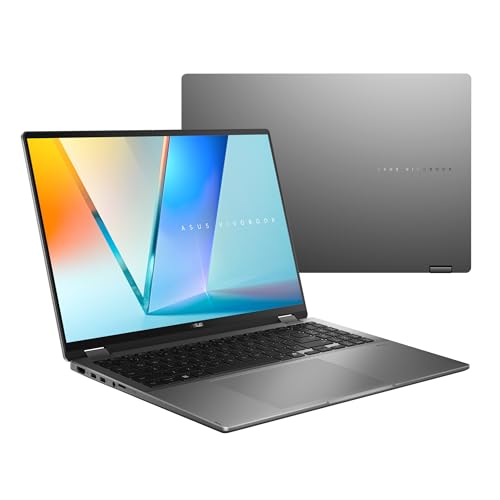
ASUS Vivobook 14 Flip — Best overall
The hinge is the headline: the Vivobook 14 Flip rotates its 14-inch OLED through the full convertible repertoire — laptop, tent, stand and tablet — and does it in the mainstream Vivobook line rather than the exotic one, which is precisely why it leads this guide. The panel is a 16:10 WUXGA OLED touchscreen, tall enough for documents, rich enough for film, and pen-ready for the annotation and sketching that justify a flip in the first place. Around it, ASUS has specified the machine like a flagship: an Intel Core Ultra 9 386H processor, thirty-two gigabytes of memory, a terabyte of SSD storage and Wi-Fi 7, inside a Copilot+ PC that asks for no compromises in ordinary work.
The Flip’s virtue is the absence of a weak posture. As a laptop it is a fast, quiet fourteen-incher with a good keyboard. As a tablet it is thick by slate standards — every convertible is — but entirely serviceable for reading, marking up PDFs and watching in bed. Tent mode earns its keep in video calls and small kitchens more often than buyers predict. The Ultra 9 gives it more processor than the form usually receives, which future-proofs the purchase: this is a convertible that will still feel quick when today’s mid-tier machines are tiring.
Matte Gray, sober lines, no gaming costume — it passes in an office and behaves in a lecture hall. Buyers who know they will draw daily should look at the ProArt below for its creator tuning; buyers who simply want the touchscreen laptop that does everything well, in every posture, at the centre of ASUS’s range, have found it here.
- Form: 360-degree flip convertible, 14-inch
- Processor: Intel Core Ultra 9 386H
- Display: 14-inch 16:10 WUXGA OLED touchscreen
- Memory and storage: 32GB RAM, 1TB SSD
- Platform: Copilot+ PC, Wi-Fi 7
Strengths
- Every posture done properly, with flagship silicon behind them
- OLED panel flatters both pen work and film night
- 32GB memory gives the convertible a long useful life
Trade-offs
- Thicker in tablet mode than any true slate
- Pen may be a separate purchase depending on listing bundle — confirm
- Ultra 9 power is more than annotators strictly need
Best for: mixed-work owners who present, annotate, read and type in equal measure.
Not suited for: pure typists who would never fold the screen past their keyboard.

ASUS Zenbook Duo (2026) — Best dual-screen
Two screens, both real. The Zenbook Duo opens to reveal a pair of 14-inch OLED touchscreens, each 3K resolution at 144Hz, stacked by a hinge that has matured from party trick to genuine workstation architecture. The detachable keyboard sits over the lower panel when you want a conventional laptop and lifts away — or relocates to the desk — when you want both displays live. Writers park research below and draft above; traders and analysts spread dashboards; video editors give the timeline a screen of its own. The second panel is touch-enabled and pen-friendly like the first, and the listing includes a stylus and a sleeve, acknowledging how this machine will actually be carried and used.
The specification refuses to treat the concept as a novelty: an Intel Core Ultra 9 386H, thirty-two gigabytes of memory and a terabyte of storage are flagship numbers, and they need to be — two 3K displays and a desk’s worth of windows is a real workload. Wi-Fi 7 handles the networking. Battery expectations should be set with both screens in mind: run the pair at full brightness and the Duo behaves like what it is, two laptops’ worth of display; drop to one screen for travel and it settles into ordinary premium-laptop manners.
Nothing else in this guide — or most rivals’ catalogues — does what the Duo does, and the honest cost is weight, price and a desk footprint that wants a real desk. For the multitasker who currently travels with a portable monitor, or loses an hour a day to window shuffling, it is not an extravagance but a consolidation: the second screen, built in, always there, touch and pen included.
- Form: Dual-screen laptop with detachable keyboard
- Processor: Intel Core Ultra 9 386H
- Display: Two 14-inch OLED 3K touchscreens, 144Hz
- Memory and storage: 32GB RAM, 1TB SSD
- Included: Stylus and sleeve per listing; Wi-Fi 7
Strengths
- A true second monitor that travels inside the laptop
- Both panels are full-quality OLED touchscreens, not a compromise strip
- Flagship specification keeps two screens’ worth of windows fluid
Trade-offs
- Heaviest concept here, and priced like the flagship it is
- Two bright screens shorten unplugged sessions
- Needs a proper desk to spread out on
Best for: analysts, writers and editors who live two documents deep all day.
Not suited for: café hoppers working from a tray table and a tote bag.

ASUS Vivobook 16 Flip — Best big canvas
Scale the Flip idea up and its character changes: the Vivobook 16 Flip is less a laptop that occasionally becomes a tablet, more a portable canvas that happens to type. Sixteen inches of 16:10 WUXGA OLED touchscreen is room — room to draw at natural scale, to mark up a floor plan or a design proof without pinching, to present to a small group gathered round, to split the screen between a call and the document under discussion. The hinge still runs the full repertoire, and at this size the stand and tent modes become presentation tools rather than party tricks.
The specification is a tier calmer than the fourteen-inch Flip’s: an Intel Core Ultra 7 355, sixteen gigabytes of memory and a 512GB SSD. That is the mainstream Copilot+ configuration, adequate for the productivity, creative-light and media work this machine is aimed at, and the honest buyer should note the step down from its smaller sibling’s 32GB and terabyte. What the sixteen buys instead is the panel itself and the presence it creates — a machine that anchors a kitchen-table office, a studio corner or a classroom demonstration.
Carriage is the deliberate trade. Sixteen-inch convertibles are backpack machines, and in tablet mode this is a two-handed reading experience best rested on a lap or stand. Owners who work at one or two regular places and want their screen big, touchable and foldable will find that trade easy. Owners who move hourly should take the fourteen-inch Flip and never look back.
- Form: 360-degree flip convertible, 16-inch
- Processor: Intel Core Ultra 7 355
- Display: 16-inch 16:10 WUXGA OLED touchscreen
- Memory and storage: 16GB RAM, 512GB SSD
- Platform: Copilot+ PC, Wi-Fi 7
Strengths
- Canvas-scale OLED for drawing, proofing and presenting
- Stand and tent modes become genuinely useful at this size
- Same sober Vivobook design language as its smaller sibling
Trade-offs
- A tier below the 14 Flip on memory and storage
- Tablet mode is a lap-and-stand affair at this size
- Backpack-only portability
Best for: teachers, designers and presenters whose screen is a shared surface.
Not suited for: all-day campus carriers counting every gram and centimetre.

ASUS ProArt PX13 — Best for creators
The ProArt PX13 is the professional’s convertible: 13.3 inches of 2.8K OLED touchscreen on a full flip hinge, built by ASUS’s creator division for people whose screen is a workbench. The panel’s resolution at this compact size is dense and colour-serious, the pen experience is the point of the machine rather than a feature of it, and the whole design — dark, minimal, dial-and-shortcut friendly in the ProArt tradition — is tuned for drawing, retouching and editing on the move. Underneath sits AMD’s Ryzen AI Max+ platform with thirty-two gigabytes of fast LPDDR5X memory and Radeon integrated graphics strong enough to embarrass entry-level discrete cards, which is how a 13-inch convertible comes to handle real creative workloads.
The form deserves its paragraph. At 13.3 inches the PX13 flips into a tablet you can actually hold against one arm while the pen works in the other hand — the digital sketchbook posture that sixteen-inch convertibles only pretend at. It runs Windows 11 Pro, carries Wi-Fi 7, and the listing offers storage tiers up to two terabytes, so confirm the exact build on the listing before ordering; creative libraries eat space, and the larger tiers exist for a reason.
Creators pay for this specialisation, and typists should note the compact keyboard that a 13-inch chassis imposes. But for illustrators, photo editors and designers who want one machine that is laptop, sketchbook and presentation slate in a single bag slot, the PX13 is the most purpose-built tool in this guide — the pick whose every design decision points the same direction.
- Form: 360-degree creator convertible, 13.3-inch
- Processor: AMD Ryzen AI Max+ platform (per listing configuration)
- Display: 13.3-inch OLED 2.8K touchscreen
- Memory and storage: 32GB LPDDR5X; storage tiers vary — confirm on listing
- System: Windows 11 Pro, Wi-Fi 7
Strengths
- Pen-first design in a genuinely holdable tablet size
- Ryzen AI Max graphics muscle far beyond typical integrated chips
- Creator-tuned OLED with dense 2.8K detail
Trade-offs
- Compact chassis means a compact keyboard
- Specialist pricing for specialist tuning
- Storage varies by listing tier — buy the size your library needs
Best for: illustrators and photo editors who draw where they happen to be.
Not suited for: spreadsheet professionals who need a full-size keyboard and a numeric view of life.

ASUS ROG Flow Z13 — Best gaming convertible
The Flow Z13 refuses the laptop shape entirely, and that is its genius. It is a 13-inch tablet — kickstand behind, detachable keyboard in front — carrying hardware that outruns most gaming laptops: AMD’s Ryzen AI MAX 390 with RDNA 3.5 integrated graphics, a unified-memory design that lets the graphics share thirty-two gigabytes of very fast LPDDR5X with the system. The screen is ROG’s Nebula panel, 2.5K at 180Hz with a 3-millisecond response, touchscreen as everything in this guide is. At a desk it docks into a full battlestation; on a train the keyboard detaches and it becomes the most powerful games-and-films tablet on the route.
Integrated graphics carrying a gaming machine sounds like a contradiction until the architecture is understood: the AI Max platform’s graphics are built at a scale ordinary integrated chips never attempt, fed by that wide, fast shared memory. The practical result is a tablet that plays modern games at settings no slate has a right to, while staying cool and quiet in the productivity work — documents, browsing, media — that fills the hours between sessions. Wi-Fi 7 and a terabyte of PCIe Gen 4 storage complete a specification with no apologetic line in it.
The trade-offs are the form’s own. A kickstand wants a desk or a steady lap, the detachable keyboard is very good rather than ThinkPad-deep, and battery life under gaming load obeys the same physics as every machine with this much power. As a convertible it is the outlier of this guide — less a laptop that folds than a tablet that conquers — and for players who value that shape, nothing else here competes.
- Form: Detachable gaming tablet with kickstand and keyboard
- Processor: AMD Ryzen AI MAX 390, RDNA 3.5 graphics
- Display: 13-inch ROG Nebula 2.5K touchscreen, 180Hz, 3ms
- Memory and storage: 32GB LPDDR5X 8000MHz, 1TB PCIe Gen 4 SSD
- Connectivity: Wi-Fi 7
Strengths
- Gaming power in a true tablet form — a category of one
- 180Hz Nebula screen serves competitive and cinematic play alike
- Unified fast memory feeds both system and graphics generously
Trade-offs
- Kickstand ergonomics need a desk or a patient lap
- Detachable keyboard is shallower than a gaming laptop’s
- Premium pricing for the engineering feat
Best for: players who want one device for the desk battlestation and the sofa.
Not suited for: writers who type eight hours a day on their lap.

ASUS Zenbook 14 OLED Touch — Best premium clamshell
After five machines that fold, detach and double, the Zenbook 14 makes the conservative argument — and makes it beautifully. This is a classic clamshell: the screen opens, the keyboard waits, nothing transforms. What it offers instead is refinement of the original form plus a 2K OLED touchscreen for the moments touch is natural — scrolling a contract, zooming a map, tapping through slides — and an AMD Ryzen AI 9 465 with a terabyte of storage under the keys. The listing sells it as a bundle with a touchscreen stylus, a sleeve and a cleaning cloth among the extras, so the pen is part of this package rather than an errand afterwards; confirm the bundle contents on the listing, as bundles are the most changeable part of any offer.
The clamshell’s virtues are the ones convertibles quietly envy. The hinge is rigid, so the touchscreen does not nod when tapped. The keyboard deck is a single engineered surface. The chassis can be thinner and lighter than a flip mechanism allows, and the whole machine carries the Zenbook line’s premium materials and finish — this is the touchscreen ASUS for the professional who finds convertible postures a solution in search of a problem.
It will not read like a tablet in bed or present in tent mode at a market stall, and it does not try to. Judged as what it is — the polished, touch-enabled evolution of the standard premium laptop — it is arguably the easiest machine in this guide to live with, and the one whose shape will never go out of date.
- Form: Premium clamshell with touchscreen (no flip)
- Processor: AMD Ryzen AI 9 465
- Display: 14-inch 2K OLED touchscreen
- Memory and storage: 1TB SSD configuration per listing
- Bundle note: Stylus, sleeve and accessories included per listing — confirm contents
Strengths
- Rigid hinge makes touch use wobble-free
- Zenbook fit and finish in the classic shape
- Stylus bundled — pen work starts on day one
Trade-offs
- No tablet, tent or stand postures
- Bundle compositions change — verify before ordering
- Touch is a courtesy here, not the machine’s whole identity
Best for: professionals who want touch as a refinement, not a transformation.
Not suited for: annotators who need the screen flat against the desk.
Reading the Six ASUS Touch Designs Against Each Other
| Pick | Form | Screen | Touch’s job |
|---|---|---|---|
| Vivobook 14 Flip | Flip convertible | 14″ WUXGA OLED | Every posture, every day |
| Zenbook Duo | Dual-screen | Two 14″ 3K OLED, 144Hz | Double the workspace, pen on both |
| Vivobook 16 Flip | Flip convertible, large | 16″ WUXGA OLED | Canvas for drawing and presenting |
| ProArt PX13 | Creator convertible | 13.3″ 2.8K OLED | The pen is the profession |
| ROG Flow Z13 | Detachable tablet | 13″ 2.5K Nebula, 180Hz | Gaming first, touch throughout |
| Zenbook 14 Touch | Clamshell | 14″ 2K OLED | Convenience taps on a classic laptop |
How Do You Set Up a Touchscreen ASUS for Pen and Touch Work?
Begin with the pen, because the first hour decides whether it becomes a habit or a drawer resident. Pair or charge the stylus, then open Window’s pen settings and assign the barrel button to the action your main application rewards — right-click for general work, eraser or tool-switch in drawing apps. In your drawing or note application, run a two-minute test page: slow diagonal lines reveal jitter, firm strokes reveal pressure behaviour, and tilted shading reveals whether tilt support is active. Discovering any of these on a deadline is the mistake this ritual exists to prevent.
Next, teach the machine its postures. Set the screen-rotation behaviour for tablet mode, decide whether the on-screen keyboard appears automatically, and arrange the taskbar for touch spacing when the keyboard is folded away. Convertible owners should also enable the setting that disables the physical keyboard in tablet posture if their model does not do so automatically, and Duo owners should spend real time arranging which applications open on which panel — the second screen pays rent only when the window habits are formed in week one.
Finish with the screen itself. OLED panels reward a dark theme and punish static brightness, so set a sensible brightness for indoor work, enable the manufacturer’s OLED care features, and let the display sleep on a short timer. Then clean the panel with the cloth every one of these machines deserves — a touchscreen shows every fingerprint its owner has ever made, and the microfibre habit is the cheapest upgrade in this entire guide.
Where Do Touchscreen Buyers Most Commonly Go Wrong?
The classic error is buying the transformation instead of the Tuesday. A flip hinge used twice becomes dead weight and a wobblier screen for three years; a dual-screen flagship carried to cafés becomes an expensive lesson in desk requirements. The reviews above keep returning to the same discipline — inventory your actual week — because in this category the shape is the purchase. The second error is pen neglect: assuming any stylus works with any screen. Pen standards differ, pressure and tilt behaviour differ, and the correct ASUS Pen for the model is the difference between a drawing instrument and a rubber finger. If the pen is not bundled, buy the right one in the same order.
The third error is configuration drift. ASUS sells these designs at several memory and storage tiers under shared names, and marketplace listings do not always headline the tier in the box. The specification boxes in this guide describe the builds reviewed; the listing check before ordering is what guarantees the machine that arrives is the machine described. A related trap is bundle fog — sleeves, styluses and extras that appear in one listing’s bundle and vanish in another’s — which is why both bundle picks above carry the instruction to confirm contents on the day.
Do Touchscreens Cost Battery Life and Durability?
Some, honestly accounted. A touch layer and the brighter panels that show it off draw more than a dim matte screen, and OLED behaviour follows the usual rule — bright white content costs, dark content sips. The convertibles add a second consideration: two hinges’ worth of mechanics and, in the Duo’s case, a second display entirely, which is why its review frames one-screen mode as the travel setting. None of the six is fragile — ASUS builds these lines for daily handling, and the flip hinges are rated for the thousands of rotations a convertible life implies — but a touchscreen is a surface you touch, so a case, a sleeve and the microfibre habit are not accessories but maintenance.
How Does Pen Work Differ Between Drawing, Annotating and Signing?
Three jobs share one stylus and ask different things of it. Drawing is the demanding one: it needs pressure sensitivity that translates a light hand into a light line, tilt behaviour for shading with the side of the virtual nib, and latency low enough that the stroke feels attached to the hand. The ProArt PX13 is specified for this job first, and the Duo’s panels honour it on a larger canvas. Annotating — marking up PDFs, circling the paragraph, writing in margins — needs accuracy and comfort more than artistry, and every convertible here performs it well; this is the pen work most owners actually do weekly, and it is where a touchscreen laptop quietly repays its premium over a semester or a contract cycle.
Signing is the humble job with the strictest audience: the signature must land where the signer intends, on a screen that does not shift under the hand. Any pick here manages it, including the clamshell Zenbook with its bundled stylus, provided the screen is steadied — the one scenario where the convertible’s tablet mode and the Flow Z13’s slate form feel designed rather than adapted. Knowing which of the three jobs is yours is the sharpest way to read this guide: artists start at the ProArt, annotators at the Flips, signers anywhere at all.
What Does Each Form Ask of a Desk, a Bag and a Lap?
Physical honesty, form by form. The Flips ask the least: a normal desk, a normal bag, a lap that tolerates a fourteen- or sixteen-inch footprint, with the single addition that tablet mode wants a surface or a forearm when the session runs long. The Duo asks the most of the desk — it spreads like two laptops because it is two laptops’ worth of display — and repays a permanent desk with a permanent second monitor, while asking its bag to be a real backpack and its lap to be patient. The Flow Z13 asks for a surface its kickstand can trust; on a desk it is superb, on a duvet it is a negotiation, and its bag slot is the smallest here because the keyboard detaches and travels flat.
The ProArt asks for a creative’s desk — room for the machine flat, the pen in reach, a monitor beside it for the reference image — and gives back a sketchbook that also answers email. The clamshell Zenbook asks for nothing at all, which is its entire design philosophy: any desk, any bag, any lap, no postures to manage. Lay your own furniture over this map before ordering; the right form is the one your rooms already fit.
How Do You Choose Between the Two Vivobook Flips?
Siblings invite the question, and the answer is a tape measure plus a memory check. The fourteen-inch Flip carries the stronger specification — Core Ultra 9, thirty-two gigabytes, a terabyte — inside the more portable body, and it is the traveller’s and the generalist’s choice. The sixteen-inch Flip trades a tier of specification for its canvas: Core Ultra 7, sixteen gigabytes, half the storage, and a screen that changes what drawing, presenting and split-screen work feel like. Neither is the better machine; they are the same idea at two sizes, specified inversely because ASUS expects the smaller one’s owner to carry it everywhere and the larger one’s owner to anchor somewhere.
Decide by the room and the road. If the laptop crosses a campus or a city daily, the fourteen’s portability and stronger internals compound. If it lives between a desk and a kitchen table, presenting and drawing at full size, the sixteen’s panel is the feature you will feel hourly while its specification step-down stays invisible in mainstream work. Owners torn between them should measure their current laptop’s screen and their bag’s laptop sleeve; the tape measure settles what the spec sheet cannot.
Which Software Makes a Touchscreen Laptop Earn Its Premium?
The honest answer is that the hardware premium is repaid by habits, and the software is where habits live. Note-taking applications that sync ink across devices turn the convertible into the single notebook of a life — searchable handwriting, slides annotated in place, diagrams beside typed text. PDF editors with real pen support convert contracts, proofs and readings into paper that fights back usefully. Drawing and painting applications, from the free tier upward, are where the ProArt and Duo panels stop being specifications and start being instruments.
Beyond the pen, touch earns its keep in the seams of ordinary software: maps pinched rather than scrolled, presentations advanced by a tap on the screen rather than a hunt for the clicker, photo culling by direct manipulation, whiteboard applications in meetings where the person standing at the laptop draws what the room is saying. None of these requires new purchases — they require the owner to reach for the screen in the first month until reaching is reflex. A touchscreen used only with its trackpad is a premium paid for nothing; the first month’s habits decide which machine you actually bought.
A Note on Hinges, Moving Parts and Living With Them
Convertibles add mechanics, and mechanics deserve a clear-eyed paragraph. A 360-degree hinge is a rated, tested component — these lines are engineered for the thousands of rotations a convertible life implies — but it is also the part of the machine that will age most noticeably, loosening fractionally across years in a way clamshells never experience. Care is simple: open and fold by the centre of the lid rather than a corner, keep crumbs and grit away from the hinge line, and let the manufacturer’s warranty — registered in week one, a step owners skip and regret — stand behind the mechanism.
The detachable forms ask their own care: the Flow Z13’s keyboard connector and the Duo’s detachable board reward clean contacts and a bag that does not let the parts grind against each other unprotected. None of this is fragility; it is the maintenance schedule of moving parts, priced honestly against the postures they buy. Owners who want zero moving-part thoughts have the Zenbook 14 waiting, and its presence in this guide is the proof that ASUS itself considers that a legitimate preference rather than a failure of imagination.
How Do the Six Screens Compare for Colour Work and Film Night?
All six panels are OLED, which sets a high common floor — true blacks, saturated colour, viewing angles that forgive a shared sofa — and the differences live in the details above that floor. Resolution divides them into the dense and the very dense: the ProArt’s 2.8K in 13.3 inches and the Duo’s twin 3K panels render the finest detail, the Zenbook 14’s 2K is close behind, and the Flips’ WUXGA panels trade a measure of density for size and efficiency. For colour-critical work the creator-tuned ProArt makes its intentions plainest, and any buyer grading photographs professionally should still treat every laptop panel as a very good preview rather than a reference monitor — the honest ceiling of the entire category.
Film night redraws the ranking by size and refresh. The Duo becomes a private cinema with a second screen for everything else; the Vivobook 16’s canvas is the group’s natural television; the Flow Z13’s 180Hz Nebula panel, built for games, flatters fast content of every kind. The through-line is that screen choice in this guide is never a sacrifice narrative — the smallest panel here would headline most rival line-ups — and the buyer’s real task is matching size and density to the work, not rescuing quality from a weak field.
What Is It Like to Type a Full Day on Each Form?
The reviews judged postures; the keyboard deserves its own paragraph per family, because writers feel a laptop in their wrists before anywhere else. The clamshell Zenbook and the two Flips offer the conventional contract — fixed deck, full-size layout at fourteen inches and above, the screen’s slight convertible give in the Flips’ case being the only reminder of the hinge. The Vivobook 16’s deck adds the spaciousness its size promises, the friendliest long-form typing surface here. The ProArt’s 13.3-inch deck is the compact compromise: excellent keys in a frame that asks smaller hands or greater tolerance, the standing trade of the creator class.
The detachable pair write their own rules. The Duo’s keyboard is a proper wireless board that works on the desk at ergonomic distance — arguably the best typing posture in the guide, bought at the cost of lap use. The Flow Z13’s cover keyboard is the thinnest here and the one a full-time writer would replace at a desk with a real board, which its battlestation role assumes anyway. None of the six is a bad keyboard; the question is whether the form’s typing posture matches the rooms the writing happens in, and that is a furniture question as much as a laptop one.
How Should a Buyer Sequence the Pen, the Case and the Warranty?
In that order, and in the same order as the laptop whenever possible. The pen first because its standard is model-specific and its absence converts the touchscreen’s best feature into a scrolling convenience; if the chosen pick’s listing does not bundle one, the correct ASUS Pen belongs in the same basket. The case second because a convertible’s screen is its largest surface and its daily environment is a bag — the Duo and the Zenbook 14 bundle sleeves in their listings, and the other four should acquire theirs before the first commute rather than after the first scratch.
The warranty third, registered rather than merely purchased: convertible hinges and dual-screen mechanisms are the parts of these machines an extended plan exists for, and registration in week one is the step that turns a promise into a claim that works in year two. Sequenced this way, the accessories stop being afterthoughts and become what they are — the completion of a purchase whose headline price was never the whole price, in this category least of all.
How Do These Machines Handle a Second Screen and a Docked Desk?
Touchscreen laptops lead double lives, and the desk half deserves its audit. Every pick here drives external displays through its USB-C and Thunderbolt-class ports, which means the convertible that annotates on a train becomes, at home, the second screen beside a large monitor — tablet mode as a graphics slate beside the keyboard is a posture the Flips and the ProArt perform that no clamshell can imitate. The Duo inverts the arrangement entirely: it brings its second screen with it, and docks only for the largest canvas or the full peripheral set. The Flow Z13 docks into its battlestation and forgets it was ever a tablet.
The practical check is the dock itself: match its power delivery to the machine’s appetite, confirm the display outputs cover your monitors’ resolutions and refresh rates, and remember that a touchscreen’s own panel remains live and useful in the docked arrangement rather than going dark. Owners who plan both halves of the life — the folding, carrying half and the docked, spread-out half — get the category’s full value, and the port selections in this guide’s specification boxes were recorded with exactly that planning in mind.
What Will These Designs Feel Like After Three Years?
The silicon will feel fine — thirty-two gigabytes in four of the six and current-generation platforms throughout are a three-year promise kept in advance. The screens will feel as they do on day one if the OLED habits held, which the care sections above exist to ensure. The honest ageing happens in the mechanics and the cell: hinges a fraction looser, batteries a fraction smaller, the Flow’s and Duo’s detachable parts showing the polish of a thousand connections. None of it is failure; it is the patina of moving parts that were used as designed.
The resale and hand-me-down market notices these lines kindly, because ASUS’s touchscreen experiments hold their novelty — a used Duo or ProArt remains a distinctive tool years after a generic laptop becomes anonymous. Buy the form your work needs, keep the habits, register the warranty, and the three-year report writes itself the way this paragraph did: mechanics worn honestly, capability intact, the shape still answering the question it was bought to answer.
Which of the Six Would Each Kind of Owner Actually Take Home?
Run the field against five households. The consultant who presents in client rooms and annotates contracts on trains takes the Vivobook 14 Flip, because every posture in its repertoire maps to a room in that life. The analyst whose home office runs on two monitors takes the Duo and sells the monitors, because the second screen now travels to the kitchen table and the parents’ house at Christmas. The illustrator building a portfolio takes the ProArt, not because it is the most powerful machine here but because it is the only one designed around the exact hand movements of the job.
The player who hosts the group’s game nights and travels to all of them takes the Flow Z13, the battlestation that fits in a tote. The teacher whose screen faces a classroom as often as it faces its owner takes the Vivobook 16, tent mode and all. And the partner at the firm who finds all of this faintly exhausting takes the Zenbook 14, opens it, and gets on with the work — touch available, transformation absent, nothing to learn. Six machines survive the exercise because six lives were described honestly. Describe yours with the same honesty and the guide’s table reads itself.
How Do Touchscreens Behave for Children, Classrooms and Shared Households?
A touchscreen laptop in a shared home lives a broader life than its owner plans, and the forms here divide by hospitality. The Flips are the natural family machines: tent mode turns a recipe, a video call with grandparents or a child’s drawing session into a shared surface that stands on its own, and the hinge survives the enthusiastic handling that shared devices attract. The clamshell Zenbook is the personal machine of the set — the one whose owner will quietly prefer it not be borrowed — while the Duo’s dual screens make it the household’s unlikely homework hero, reference on one panel and writing on the other, provided the desk it lives on is a shared one.
Two practical notes govern the shared life. Create a separate user account for family members in week one; Windows makes it painless, and it keeps the owner’s work, browser and files behind their own sign-in while the machine circulates. And set the pen’s home — a specific drawer, a case pocket, the sleeve it travels in — because a stylus without a home is a stylus on loan to the sofa cushions. These are small disciplines, but a touchscreen machine’s whole value is that people reach for it; planning for the reaching is part of owning one well.
What About Touchscreens for Buyers Who Mainly Watch, Read and Browse?
Not every touchscreen owner draws, annotates or presents, and the casual case deserves its own honest paragraph. For the reader, watcher and browser, touch earns its place in the small moments: the article scrolled by thumb on the sofa, the photo pinched larger, the video controlled without hunting for the trackpad, the recipe advanced with a knuckle in tent mode. The Flips serve this life best because their postures are leisure-shaped, and the Zenbook 14 serves it most discreetly. What the casual owner should not do is pay the Duo’s or the ProArt’s specialisation premiums for leisure alone — those machines’ prices are justified by work, and their reviews have said so in as many words.
The casual owner’s real decision is screen size against sofa reality: the sixteen-inch Flip is the household’s portable cinema, the fourteen-inch models are the personal screens, and the Flow Z13 — gaming hardware and all — is the indulgent outlier for the household that plays. Leisure is a legitimate brief. It simply prices differently, and a guide that respects its readers says where the work premiums stop being worth paying.
One Last Practical Word: Trying the Posture Before You Pay for It
Forms are physical commitments, and the wisest touchscreen buyers rehearse them. In a shop, fold the convertible through its full circle and notice whether tablet mode feels like a posture or a compromise in your own hands; lift the sixteen-inch model the way your bag will lift it daily; tap the top of a display and judge the wobble against your own tolerance rather than a reviewer’s. Ten minutes of handling answers the questions specifications cannot, and the return window exists for the same purpose at home. The shape is the purchase — handle the shape first.
Final Recommendation
For the broadest definition of touchscreen life, take the Vivobook 14 Flip: every posture, a beautiful OLED, flagship memory and silicon, no specialisation required. Take the Zenbook Duo if your work is genuinely two screens wide, the ProArt PX13 if the pen is your profession, the Flow Z13 if the tablet is your battlestation, the Vivobook 16 Flip if the canvas must be large, and the Zenbook 14 if you want the classic laptop simply perfected with touch. Six machines, six shapes, one shared standard of screen.
Choose the posture your Tuesdays actually use, confirm the pen and the configuration on the listing, and the touchscreen will stop being a feature you bought and become the way the computer fits your hands.
Frequently Asked Questions
Do all six of these ASUS laptops support a pen?
All six have touchscreens with pen support as a category feature, but the stylus itself is bundled only in some listings — the Zenbook Duo and the Zenbook 14 bundle described here include one, while other picks may require buying the matching ASUS Pen separately. Confirm the bundle contents on the listing for the exact pick before ordering.
Is a convertible’s screen wobble a real problem?
It is a real characteristic, honestly sized: a 360-degree hinge cannot be as rigid as a clamshell’s, so tapping the top of the screen produces slight movement. For pen work the screen is usually folded flat or steadied anyway, and for typing the screen is untouched. Heavy on-screen typists who find any movement maddening should choose the Zenbook 14 clamshell.
What is the point of the Zenbook Duo’s second screen?
It is a full second monitor — same size and quality as the main panel — for the workflows that live two documents deep: research beside drafting, code beside preview, call beside notes, timeline beside canvas. Owners who currently carry a portable monitor, or lose time to window management, feel the benefit daily; single-document workers will not.
Can the ROG Flow Z13 really replace a gaming laptop?
For a wide range of players, yes: its Ryzen AI Max platform and fast unified memory deliver gaming performance that embarrasses many conventional laptops, in a tablet that docks into a full desk setup. The compromises are ergonomic — kickstand and detachable keyboard — rather than computational.
Are OLED touchscreens hard to keep clean and healthy?
They ask for two habits: a microfibre cloth used often, since touch surfaces show fingerprints, and sensible brightness with the manufacturer’s OLED care features enabled, which modern ASUS software largely automates. In exchange you get the contrast and colour that make every pick in this guide a pleasure to look at.
Which of these is best for a student?
The Vivobook 14 Flip, for the mixed reality of student life — typing essays, annotating readings in tablet mode, presenting in tent mode — with memory and storage that outlast a degree. Budget-conscious students should compare it against the convertible Chromebooks and lightweight laptops in the related guides below, where the same postures appear at friendlier tiers.
Related Guides
Widen the search with confidence: our guide to the best inexpensive lightweight laptops includes touch models at value tiers, the best gaming laptops with long battery life covers the Flow Z13’s plugged-and-unplugged rivals, and our Chromebook roundup for students shows the folding idea at its most affordable.
Related guides
- Best 4K UHD HDR HDMI Extenders: 4K60, Long-Run and 4K120 Kits Compared
- Best 25–35 Inch Monitors With Lowest Display Lag: An Honest Ranking Without Invented Numbers
- Best Color Product Label Printers: Six Desktop Machines for Short-Run Product Labels
- Best Enterprise SATA SSDs: Endurance Classes, Power-Loss Protection and Fleet Sense


