What's inside
- Key Takeaways
- Quick Picks
- How Did We Rank Screens Against Everything Else?
- Why Does Colour Accuracy Decide a Photographer’s Laptop?
- Side-by-Side: the Six Screens and the Systems Behind Them
- How Should a Photographer Build a Backup Habit Around a New Laptop?
- What Does a Sensible First-Week Screen Test Look Like?
- Which Errors Do Photographers Make When Choosing an Editing Laptop?
- How Do Raw Files, Catalogues and AI Tools Divide the Workload?
- What Should Travel With the Laptop on Assignment?
- When Does an External Monitor Change the Whole Calculation?
- How Should Print Work Discipline a Screen Choice?
- What About Video, Which Photographers Now Shoot Whether They Planned To or Not?
- How Long Should a Photographer’s Laptop Last, and What Shortens Its Life?
- How Should a Photographer Organise a Catalogue So Any of These Machines Feels Fast?
- What Changes When the Photographer Works for Clients Rather Than for Pleasure?
- What Does a Photographer’s Desk Owe the Laptop at Home?
- A Note on Buying the Exact Configuration Reviewed
- Final Recommendation
- Frequently Asked Questions
- Related Guides
As an Amazon Associate I earn from qualifying purchases. This post may contain affiliate links at no extra cost to you.
gizmoverdict.com is reader-supported. When you buy through links on our site, we may earn an affiliate commission.
Where to buy: Panel quality varies between individual units of the same model, so order each shortlisted machine from the linked listing, check its screen with your own photographs during the returns window, and keep the unit that renders your back catalogue honestly.
The search for the best affordable laptops for photographers is really a search for a trustworthy screen that happens to have a computer attached. A photographer’s laptop is a darkroom first and a spreadsheet machine a distant second: it judges colour, decides which frames survive and prepares the files clients will print on walls. A fast processor attached to a dull, narrow-gamut display produces confident mistakes at high speed, while a modest chip behind an excellent OLED panel produces truth slowly enough to be useful. That ordering of priorities runs through every judgement in this guide.
The encouraging news is that OLED technology has fallen into the affordable tier carrying its virtues with it: per-pixel light control, deep blacks that reveal shadow detail, and wide colour coverage that lets a raw file show what the sensor actually captured. Four of the six machines below compete on that OLED ground, though they differ in processor, memory and intent. The remaining two make different arguments. The LG gram stakes everything on being almost absurdly light for travel, with an IPS panel whose case is weight rather than colour. The touch-equipped Swift Go offers the gentlest entry price among the Acer pair, accepting a non-OLED screen as the cost of admission.
Everything else a photographer needs is quieter: enough memory to hold a catalogue and an editor open together, storage that swallows a wedding season without panic, ports that accept card readers and backup drives gracefully, and a chassis that survives being opened in cars, cafes and departure lounges. The reviews and the workflow sections that follow weigh those unglamorous things alongside the screens, because a photography laptop fails its owner in the field far more often than it fails on a specification sheet.
Key Takeaways
- For editing, the display is the product; four picks here carry OLED panels and the other two argue weight or price instead.
- The gram 14’s screen is IPS — its brilliance is a 2.47-pound travel weight, and colour judges should pick an OLED rival.
- Thirty-two gigabytes in the Zenbook gives catalogue-plus-editor multitasking the most breathing room in this set.
- The Inspiron convertible earns its place at tethered shoots, where flipping the screen toward a client changes the conversation.
- Judge any unit with your own archived images in the first week, since panel character is personal and return windows are short.
- Budget for a calibrator and a backup drive alongside the laptop; neither is optional equipment for paid work.
Quick Picks
| Pick | Badge | Why it is here |
|---|---|---|
| ASUS Zenbook 14 OLED | Best overall | An OLED panel backed by thirty-two gigabytes of memory and a terabyte of storage, the complete editing brief in one slim machine. |
| Acer Swift Go 14 OLED | Best OLED value | The sharpest screen resolution in this company at the friendliest OLED positioning, a 2880 by 1800 panel at 90Hz. |
| Lenovo Slim 7i Aura Edition | Best Intel OLED option | Lenovo’s polished take on the fourteen-inch OLED formula, with a Core Ultra 7 and a terabyte drive aboard. |
| Dell Inspiron 14 Plus 2-in-1 | Best convertible for tethered review | A Ryzen AI convertible that folds toward clients during shoots and still carries a terabyte for the journey home. |
| LG gram 14 | Best for travel weight | At 2.47 pounds this is the laptop that actually comes on the hike, the assignment and the one-bag trip. |
| Acer Swift Go 14 Touch | Budget touch pick | A touchscreen route into serious editing money-wise, trading OLED contrast for a stronger processor tier. |
How Did We Rank Screens Against Everything Else?
The judging began with the panel because editing decisions are panel decisions. An OLED display earns its advantage in the shadows: wedding photographers judging reception frames, landscape shooters coaxing detail from a dawn sky and product photographers checking black-on-black separation all live in the tonal region where lesser screens crush detail into mush. Wide colour coverage matters next, since a screen that cannot show the colours in a file will silently edit them away, and brightness stability matters third, because a panel that drifts as it warms is a judge whose opinion changes by the hour.
After the screen, memory and storage were weighed as a pair. Raw editors are patient about many things but not about a machine that pages to disk while culling a thousand frames, and sixteen gigabytes is the realistic floor for a single-editor workflow while thirty-two buys the freedom to keep the catalogue, the editor, a browser of client messages and a music app open simultaneously. Storage arithmetic is blunter: a busy year of raw files can pass a terabyte, so the terabyte machines start with an advantage and the half-terabyte picks demand an archiving routine described later in this guide.
Portability was scored as photographers actually experience it — not the bare laptop weight in a laboratory, but the travelling system of body, charger, card reader and backup drive inside a camera bag already heavy with glass. That is the contest the gram wins by a distance that specification tables understate. Convertibility, touch and hinge tricks were treated as shoot-day tools rather than gimmicks: a screen that flips to face a client or lies flat for a stylus pass earns its mechanism, while features nobody touches after unboxing earned nothing.
Finally, every claim in these reviews traces to the verified listing for that configuration or to the established character of the model line. Where a listing does not state a panel technology, the review does not invent one. Photographers, of all buyers, understand why: the whole discipline is refusing to see what is not actually there.
Why Does Colour Accuracy Decide a Photographer’s Laptop?
An uncalibrated, narrow-gamut screen does not merely show photographs slightly wrong; it trains its owner to edit wrong. Faced with a display that cannot render saturated greens, a landscape photographer pushes saturation until the on-screen image looks right, exporting files that scream on every honest screen downstream. Faced with crushed shadows, an editor lifts exposure until blacks turn grey on the client’s television. The laptop is the reference against which thousands of small decisions are made, and a faulty reference multiplies its error across an entire body of work.
OLED panels help because their colour coverage is broad and their black point is a genuine black — each pixel switches off — so the tonal scale an editor sees stretches from true darkness to full brightness without the grey veil that backlit panels lay over shadow regions. That is why four of these six picks are OLED machines, and why the guide is blunt about the gram’s IPS panel: it is a fine, bright travel screen, but a photographer whose income depends on colour should either choose an OLED pick for the desk or plan to judge final colour on an external calibrated monitor.
Calibration completes what hardware starts. Even excellent panels drift and differ, and a hardware calibrator profiling the screen monthly keeps the reference honest across the machine’s life. None of these laptops removes that chore. What the better panels provide is a wide enough gamut and a stable enough response that calibration has something worth calibrating — you cannot profile your way out of a screen that physically cannot display the colours in your files.

ASUS Zenbook 14 OLED — Best overall
The Zenbook 14 OLED takes the top position because it refuses to make the photographer choose between the screen and the specification behind it. The WUXGA OLED panel handles the colour argument, while a Ryzen AI 7 445 processor, thirty-two gigabytes of LPDDR5X memory and a full terabyte of storage handle everything else: heavy catalogues, layered edits, panorama merges and the browser full of location research that accompanies modern assignments. In this company it is the only pick that maxes the memory figure, and heavy editors will feel that headroom every single day.
ASUS has been refining this exact formula across several Zenbook generations, and the maturity shows in the supporting details. The hinge opens to a flat one hundred and eighty degrees, which sounds like a party trick until a photographer lays the machine flat to share an edit across a cafe table. The backlit keyboard suits the evening cull, the Copilot+ platform brings current on-device AI features for the denoise and selection tools editors increasingly lean on, and the whole machine stays in the slim class that disappears into a camera bag’s laptop sleeve.
The listed bundle sweetens the working kit with a mouse and a six-in-one hub, the latter being quietly important: hub-included ownership means card readers, backup drives and an external monitor connect on day one rather than after an accessories order. No pick is flawless — the memory is the fast soldered kind, so the thirty-two gigabytes fitted are the thirty-two the machine will ever have — but since ASUS fits the generous figure from the start, that limitation reads as a settled decision rather than a future regret.
- Processor: AMD Ryzen AI 7 445
- Memory and storage: 32GB LPDDR5X and 1TB solid-state drive
- Display: 14-inch WUXGA OLED, lay-flat hinge
- Platform notes: Copilot+ PC with Wi-Fi 6E
- In the box per listing: Mouse and 6-in-1 hub included
Strengths
- Most complete editing specification in this roundup
- OLED shadow detail transforms reception and night work
- Included hub solves the photographer’s dongle problem immediately
Trade-offs
- Soldered memory means the fitted figure is final
- Glossy OLED needs care in bright, uncontrolled locations
- Premium of the affordable class — the Acer undercuts it
Best for: the working photographer who edits everything on one machine and cannot afford a weak link in the chain.
Not suited for: shooters who edit only at a desk dock — a cheaper pick plus a large external monitor serves that room better.

Acer Swift Go 14 OLED — Best OLED value
Acer’s OLED Swift Go makes one spectacular decision: it spends its money on a 2880 by 1800 OLED panel, the highest resolution in this entire guide, and lets that screen carry the argument. At fourteen inches that pixel density renders type and fine detail with a crispness that makes hundred-percent inspection of sharpness feel luxurious rather than forensic, and the 90Hz refresh lends scrolling through a catalogue a fluidity that sixty-hertz panels cannot mimic. For photographers who cull thousands of frames, those two qualities are not decoration; they are the working surface.
The supporting specification is sensible rather than lavish. Intel’s Core Ultra 5 125H with Arc graphics handles raw conversion and AI-assisted masking at a pace that will satisfy all but the most impatient batch exporters, while sixteen gigabytes of LPDDR5X and half a terabyte of storage mark the boundaries of the value proposition. A wedding photographer shooting forty weekends a year will fill that drive and should treat external archiving as part of the purchase, exactly as the workflow section below describes.
What the Swift Go OLED offers, fundamentally, is proof that the screen-first philosophy no longer requires flagship money. Intel Evo certification disciplines the basics — wake speed, battery behaviour, connectivity — and the machine carries itself like a proper ultraportable rather than a compromised one. Photographers whose editing is mostly single-image craft rather than industrial-volume processing will find the trade Acer made here points precisely at their priorities.
- Processor: Intel Core Ultra 5 125H with Arc graphics
- Memory and storage: 16GB LPDDR5X, 512GB solid-state drive
- Display: 14-inch OLED, 2880 by 1800, 90Hz
- Platform notes: Intel Evo thin-and-light design
- Model reference: SFG14-72-53BP
Strengths
- Finest pixel density of any screen in this guide
- OLED contrast at the friendliest positioning among the OLED four
- Smooth 90Hz scrolling flatters long culling sessions
Trade-offs
- Half-terabyte storage fills fast on raw-heavy schedules
- Sixteen gigabytes is a working floor, not headroom
- Core Ultra 5 trails the Ultra 7 picks in batch grunt
Best for: detail-obsessed editors who inspect sharpness frame by frame and archive finished work externally.
Not suited for: high-volume studios expecting the internal drive to hold a whole season untouched.
Lenovo Slim 7i Aura Edition — Best Intel OLED option
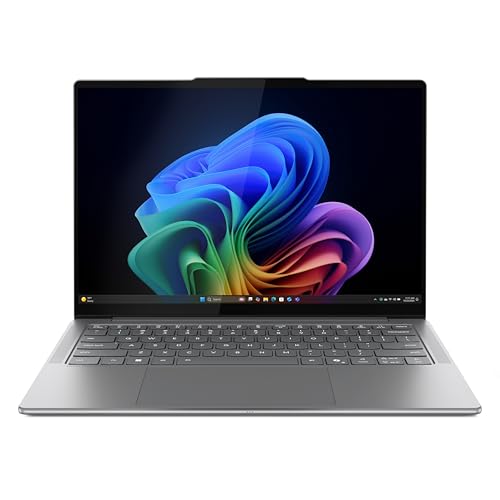
Lenovo’s Slim 7i Aura Edition is the connoisseur’s version of the fourteen-inch OLED idea, built around a Core Ultra 7 256V and finished in a Luna Grey shell that looks at home in a client meeting. Its WUXGA OLED panel shares the Zenbook’s resolution class, and its terabyte of storage doubles the Acer’s, removing the archiving urgency while keeping sixteen gigabytes of memory as the figure to plan around. Photographers who prefer Intel’s platform — for its peripheral ecosystem, its Quick Sync video behaviour or simple familiarity — will find this the natural OLED address.
The Aura Edition branding signals Lenovo’s layer of intelligent features, and beneath the marketing the substance is a thoroughly sorted ultraportable: Copilot+ capability for the AI editing tools now woven through photo software, a chassis tuned for quiet manners, and the kind of keyboard consistency Lenovo’s business lines taught it. Travel photographers will appreciate that the machine’s polish does not come with fragility theatre; it reads as equipment, not jewellery.
Against the Zenbook the Slim 7i concedes memory — sixteen gigabytes against thirty-two — and against the Acer it concedes screen resolution and price aggression. Its ground is the balanced middle: the stronger Intel processor tier, the full terabyte, the OLED panel and a design language that flatters professional settings. For the photographer who presents work to clients on the same machine that edits it, that balance is not a compromise but a description of the job.
- Processor: Intel Core Ultra 7 256V
- Memory and storage: 16GB memory with 1TB storage
- Display: 14-inch WUXGA OLED
- Platform notes: Copilot+ PC, Aura Edition feature layer
- Finish: Luna Grey
Strengths
- Terabyte storage removes the new-machine archiving scramble
- Client-meeting polish backed by genuine editing ability
- Strongest Intel processor tier among the OLED picks here
Trade-offs
- Memory figure matches the Acer rather than the Zenbook
- Resolution trails the Swift Go’s exceptional panel
- Design premium prices it above the value contenders
Best for: Intel-loyal photographers who show finished work to clients straight from the editing machine.
Not suited for: editors who keep enormous catalogues and multiple heavy applications resident all day.

Dell Inspiron 14 Plus 2-in-1 — Best convertible for tethered review
The Inspiron earns its seat through a hinge. Tethered shooting transforms a session: instead of squinting at a camera’s rear screen, the photographer and client watch images arrive on a fourteen-inch display, and a 2-in-1 folds that display into whatever posture the set demands — tented on a studio table, flattened for a stylus pass over a contact sheet, or turned toward a portrait sitter so they can relax into the next frame. Dell builds this one around a Ryzen AI 7 350 with sixteen gigabytes of DDR5 and a terabyte of storage, so the tethering trick arrives with a serious specification underneath.
A note of precision matters here. The verified listing title for this configuration emphasises the convertible design and the core specification rather than trumpeting a panel technology, so this review makes no OLED claim for the Inspiron and advises buyers to confirm the exact display details on the listing before ordering. That honesty does not weaken the pick; its case is the workflow, and photographers buying it for studio tethering will typically judge colour on a calibrated external monitor anyway, with the laptop screen serving selection, posing and client confidence.
Outside the studio the Inspiron behaves as a well-specified mainstream laptop, and the Inspiron 14 Plus lineage carries Dell’s solid support footprint. It is the most situational pick in this guide — a photographer who never tethers and never flips a screen should buy a conventional OLED machine instead — but for portrait, product and event shooters whose clients light up when they can watch the work land, this hinge is a business tool disguised as a feature.
- Processor: AMD Ryzen AI 7 350
- Memory and storage: 16GB DDR5, 1TB solid-state drive
- Form factor: 14-inch 2-in-1 convertible
- Display note: Panel technology not headlined in the listing — verify on the listing page
- Best environment: Studio and on-location tethered work
Strengths
- Convertible screen reshapes client review during shoots
- Terabyte storage swallows a tethered day without swapping
- Modern Ryzen AI platform keeps editing pace brisk
Trade-offs
- Convertible mechanism adds weight over fixed-screen rivals
- Display specifics need confirming before purchase
- Value collapses if the hinge never gets used
Best for: portrait and product photographers who shoot tethered and sell from the screen during the session.
Not suited for: field shooters whose screen never leaves laptop posture from January to December.

LG gram 14 — Best for travel weight
Every photographer knows the laptop that stayed home. It was capable, it was expensive, and at the moment of packing it lost an argument with a second lens — so the trip’s images waited a week for editing and the photographer’s lightest intentions died again. The gram 14 exists to win that argument permanently: 2.47 pounds, two-thirds of an inch thin, and still a real computer with a Ryzen AI 7 450, sixteen gigabytes of memory and a terabyte of storage. It does not ask for a packing decision. It simply always fits.
The trade must be stated as plainly as LG’s engineers would expect. This panel is IPS, not OLED, and this guide will not pretend otherwise: contrast and black depth sit a class below the OLED picks, and final colour judgement for print deserves either an OLED rival or a calibrated external screen at home. For the work travel actually involves — culling on trains, rough edits in hotel light, backing up cards, writing captions, delivering previews — the gram’s screen is bright, sharp and entirely serviceable, and LG quotes playback endurance of up to thirty-two hours, a figure that signals the battery philosophy even if editing days will naturally end sooner.
Consider who should buy it: the travel photographer whose office is a succession of borrowed tables, the photojournalist filing from the field, the workshop leader demonstrating on the move. For them the gram is not the compromised pick but the correct one, and its Copilot+ platform keeps modern editing features current. Pair it with a good external monitor at home base and the two-screen arrangement covers both halves of a photographic life better than any single mid-priced machine could.
- Processor: AMD Ryzen AI 7 450
- Memory and storage: 16GB memory, 1TB solid-state drive
- Display: 14-inch IPS — chosen for efficiency and weight, not OLED contrast
- Body: 2.47 pounds, 0.67 inches thin, Essence Silver
- Endurance note: Maker quotes up to 32 hours of playback; editing days run shorter
Strengths
- Featherweight build that survives every packing decision
- Full terabyte storage despite the travel-first design
- Endurance philosophy suits long field days between sockets
Trade-offs
- IPS contrast cannot match the OLED picks for final colour calls
- Thin chassis leaves sustained loads less thermal room
- Lightness is the premium — power users pay for grams saved
Best for: travelling photographers whose editing happens wherever the assignment sleeps.
Not suited for: print-critical colour work judged solely on the laptop’s own screen.

Acer Swift Go 14 Touch — Budget touch pick
The second Acer in this guide is the first Acer’s pragmatic sibling. It keeps the Swift Go virtues — Intel Evo discipline, a slim aluminium-class body, a modern platform — and swaps the OLED panel for a 1920 by 1200 touchscreen, redirecting the budget toward a stronger Core Ultra 7 155H processor. The result is the gentlest-priced route here into a machine that still edits raw files credibly, and the touch layer turns out to suit photographers more than sceptics expect: pinch inspection of focus, direct manipulation of masks and sliders, and quick culling gestures during a sofa review all feel natural within a week.
Honesty about the screen is again the price of admission. This is not an OLED display, and its contrast and colour reach sit below the panel in its sibling; a photographer specialising in low-light work will see the difference in the shadows immediately. What the touch Swift Go offers instead is balance at a friendlier figure — sixteen gigabytes of LPDDR5X, half a terabyte of storage and the stronger processor tier — which suits the enthusiast upgrading from an elderly machine far more than another year of saving would.
Treat it as the sensible apprenticeship machine: learn the workflow, build the catalogue, and let the external monitor that eventually joins the desk carry final colour judgement. Many working photographers began on exactly such a compromise and produced client-pleasing work for years. The listing’s model reference, SFG14-72T-718K, is worth double-checking at order time so the touch configuration — rather than one of the several Swift Go variants — is the one that arrives.
- Processor: Intel Core Ultra 7 155H with Arc graphics
- Memory and storage: 16GB LPDDR5X, 512GB solid-state drive
- Display: 14-inch 1920 by 1200 touchscreen — not OLED
- Platform notes: Intel Evo thin-and-light design
- Model reference: SFG14-72T-718K
Strengths
- Touch interaction accelerates culling and mask work
- Stronger Ultra 7 processor than its OLED sibling carries
- Gentlest entry figure among these six configurations
Trade-offs
- Shadow rendering cannot rival the OLED panels here
- Storage figure again demands an archiving routine
- Touch glass invites reflections in harsh location light
Best for: enthusiasts stepping up to a real editing workflow without funding the OLED tier yet.
Not suited for: night and event specialists whose portfolios live in the shadow tones.
Side-by-Side: the Six Screens and the Systems Behind Them
| Pick | Display | Memory / Storage | Processor | Defining virtue |
|---|---|---|---|---|
| Zenbook 14 OLED | WUXGA OLED | 32GB / 1TB | Ryzen AI 7 445 | No-compromise editing core |
| Swift Go 14 OLED | 2880 by 1800 OLED 90Hz | 16GB / 512GB | Core Ultra 5 125H | Sharpest panel for the money |
| Slim 7i Aura Edition | WUXGA OLED | 16GB / 1TB | Core Ultra 7 256V | Polished Intel all-rounder |
| Inspiron 14 Plus 2-in-1 | Convertible — verify panel on listing | 16GB / 1TB | Ryzen AI 7 350 | Tethered client review |
| LG gram 14 | IPS, travel-tuned | 16GB / 1TB | Ryzen AI 7 450 | 2.47-pound field weight |
| Swift Go 14 Touch | 1920 by 1200 touch | 16GB / 512GB | Core Ultra 7 155H | Touch workflow, gentle price |
The table exposes the guide’s underlying map: pick your screen philosophy first, then let memory and storage arbitrate between the machines that share it. Among the OLED trio, the Zenbook is the specification maximalist, the Swift Go the resolution bargain and the Slim 7i the polished Intel middle. Outside that trio, each machine answers a narrower question — the convertible answers tethering, the gram answers distance, and the touch Swift Go answers budget — and each is the right answer only when its question is genuinely yours.
How Should a Photographer Build a Backup Habit Around a New Laptop?
A laptop full of unbacked-up client work is not an archive; it is an accident rehearsing. The working rule is three copies, on two different kinds of storage, with one copy somewhere else: the laptop itself, an external drive that receives a copy the same evening as every shoot, and a cloud or off-site copy that follows within days. The terabyte machines here delay the day the internal drive fills, but capacity is not protection — theft, loss and drive failure do not check how empty a disk was before taking it.
Field discipline matters more than software choice. Cards are not formatted until two copies of their contents exist and have been opened successfully; a backup that has never been tested is a hope wearing a progress bar. Photographers shooting tethered or travelling with the gram should treat the hotel-evening copy ritual as part of the shoot itself, as non-negotiable as charging batteries. The laptop’s job in this system is to be the fastest, most pleasant place to work — never the only place the work exists.
What Does a Sensible First-Week Screen Test Look Like?
Open the photographs you know best — the ones whose prints hang somewhere — rather than test charts alone. A familiar portrait exposes skin-tone lies instantly; a familiar night scene reveals whether shadow detail survives; a familiar product shot shows highlight behaviour. Edit one image fully on the new screen, export it, and view the result on the most trusted display you already own. If the two tell the same story, the panel has passed the only examination that matters.
Then profile the screen with a hardware calibrator if paid work is involved, set the editing room’s lighting to something repeatable, and disable any display feature that changes brightness or colour temperature dynamically while you edit — a screen that adapts to the room is a moving target. Check uniformity by filling the display with a mid-grey frame and looking for patches, and test viewing angles with a client chair in mind, since work will be approved over your shoulder. All of this fits inside the returns window, which is exactly where it belongs.
Which Errors Do Photographers Make When Choosing an Editing Laptop?
The expensive error is buying processor bragging rights and discovering the screen cannot show the files properly — editing is a visual act, and the display outranks the benchmark. The second error is treating storage as a one-time figure instead of a growth rate: raw files from modern sensors are large, video clips larger, and a half-terabyte drive that feels roomy in January can be a crisis by the wedding season’s end. The third is ignoring the travelling system — laptop, charger, reader, drives — and optimising the single component that was already the lightest.
A subtler mistake is judging a panel in a brightly lit shop, where every screen looks punchy and reflections hide. Screens earn their keep in the dim room where editing actually happens, under the photographer’s own lighting, with the photographer’s own back catalogue on display. Buy from sellers with sane return terms, perform the first-week test described above, and let evidence rather than showroom theatre make the final call.
How Do Raw Files, Catalogues and AI Tools Divide the Workload?
Modern editing splits into three appetites. Raw conversion and export are processor feasts, rewarding the stronger chips in the Ultra 7 and Ryzen AI 7 machines. Catalogue work — scrolling, preview building, keywording, culling — feeds on storage speed and memory, which is why the terabyte, thirty-two-gigabyte Zenbook feels serene during a five-thousand-frame wedding cull. AI features such as subject masking, denoise and generative removal lean on the neural and graphics hardware these Copilot-era platforms carry, turning what used to be a plug-in’s overnight job into a interactive brush stroke.
Understanding the split prevents two buying errors: paying for processor muscle when the real bottleneck was a nearly full drive, and blaming a laptop for slowness that belongs to a catalogue stored on a slow external disk. Keep the working catalogue and current projects on the internal drive, archive closed jobs externally, and every machine in this guide will feel quicker than its specification suggests. Workflow hygiene is the cheapest performance upgrade in photography, and it transfers free to every future laptop its owner buys.
What Should Travel With the Laptop on Assignment?
The supporting kit decides whether a capable laptop becomes a reliable field system. A fast card reader matched to your card format, a compact bus-powered backup drive, the charger plus a lighter USB-C travel charger where the machine supports one, a short cable kit and a hub — included with the Zenbook’s bundle, an accessory purchase for the others — together weigh less than a single fast prime lens and prevent nearly every field failure photographers actually report. Add a microfibre cloth, because an OLED screen judged through fingerprints is a screen misjudged.
Power planning deserves the same forethought as card planning. Know which of your machines sip through a power bank during a long vehicle transfer, keep the editing-heavy work for mains power where possible, and remember that tethered shooting, screen brightness and batch exports are the three hungriest field activities. The gram’s endurance philosophy shines here, but every pick in this guide will survive an assignment day if its owner treats battery as a resource to be budgeted rather than a surprise to be discovered.
When Does an External Monitor Change the Whole Calculation?
A large calibrated monitor is the single most transformative accessory in digital photography, and its existence rearranges the laptop decision in a liberating way. A photographer who edits mainly at one desk can let the monitor carry final colour judgement and buy the laptop for portability, storage and processing honesty — the exact logic that makes the gram 14 paired with a home display such a coherent system. The laptop’s own screen then needs to be good rather than ultimate, and money migrates from panel specifications toward memory, storage and the monitor itself.
The arrangement fails only when the desk assumption fails. Photographers who edit where the work happens — venues, client offices, hotel rooms the night before delivery — have no fixed reference screen, and for them the laptop panel is the reference, which pushes the OLED picks back to the front of the queue. Honest self-knowledge about where editing hours truly occur is therefore worth more than any single specification in this guide. Track one month of real editing locations before buying, and the answer usually surprises the person keeping the tally.
Connection details deserve a check at purchase. All six machines drive external displays through their modern USB-C or HDMI arrangements, but resolution and refresh ceilings vary, and a photographer planning a large high-resolution monitor should confirm the pairing on the listing and in the model’s documentation. A hub or dock that also delivers power turns the desk into a one-cable landing pad, and that small daily grace is worth more across five years than a benchmark’s decimal places.
How Should Print Work Discipline a Screen Choice?
Photographers who print live under a stricter judge than photographers who publish to screens. A print reveals shadow blocking, colour casts and over-sharpening without mercy, and it is viewed under whatever light the wall provides rather than the controlled glow of a display. Editing for print on a screen with crushed blacks produces the classic disappointment: the file looked luminous at midnight and the print looks like a coal cellar at noon. This is the practical, non-theoretical reason the OLED picks lead this guide for print-oriented readers.
Soft-proofing habits matter alongside hardware. Work in the colour space the lab or printer expects, proof with the paper profile loaded, and resist editing in a bright room for prints destined for dim walls. The laptop’s role is to show the file truthfully enough that those habits can function; a panel that cannot display the shadow gradations in the first place makes soft-proofing an act of imagination. Photographers selling prints should therefore weight the screen even more heavily than this guide already does, and should regard the calibrator as part of the laptop’s purchase price rather than an accessory for later.
There is a consolation for the budget-constrained: print discipline can be rented. A bureau or lab with a properly profiled viewing setup, or a single proof print checked before a full run, catches what a modest screen missed. The touch Swift Go’s owner can absolutely sell prints — the workflow simply includes one more verification step, and professionals on flagship machines would be wise to keep that step anyway.
What About Video, Which Photographers Now Shoot Whether They Planned To or Not?
Clients began asking photographers for motion work years ago and have not stopped. Short clips for social feeds, behind-the-scenes reels and hybrid wedding coverage all pass through the same laptop as the stills, so a photography machine that collapses under a modest timeline is a machine with an expiry date. The platforms gathered here are current-generation silicon with modern media engines, and short-form editing — trimming, colour matching to the stills, captions, export — sits comfortably within every pick’s ability, with the stronger Ultra 7 and Ryzen AI 7 configurations giving the timelines more room to breathe.
The storage warning doubles for video. A single hybrid assignment can produce more gigabytes of footage than a month of stills, which argues again for the terabyte machines or for a ruthless same-week offload routine on the half-terabyte Acers. Proxy workflows rescue modest hardware elegantly: edit low-resolution stand-ins on the laptop, relink to full media for export, and even the value picks feel brisk. Photographers planning serious long-form video as a primary income should be reading a creator-laptop guide rather than this one, but for the hybrid reality most photographers inhabit, these six machines are honestly matched to the work.
Audio deserves one sentence because it is always forgotten: review edits on headphones you trust, since laptop speakers flatter nothing and client-facing clips with ugly sound undo beautiful images in seconds. The laptop is the studio now, and studios are judged on everything they release.
How Long Should a Photographer’s Laptop Last, and What Shortens Its Life?
A realistic service life for an editing laptop is four to five years, set less by failure than by software appetite: raw files grow with sensor resolutions, AI features demand newer neural hardware, and catalogue sizes compound. The specifications that stretch that life are the ones this guide kept rewarding — memory headroom, storage capacity and a screen that will still look honest when the software’s interface grows busier. The Zenbook’s thirty-two gigabytes is best understood as a longevity purchase, and the terabyte drives buy calendar time before the archiving squeeze begins.
Physical life is a separate negotiation. Hinges opened daily in the field, keyboards dusted with location grit, batteries cycled by travel — these wear a machine in ways a desk-bound laptop never meets. The convertible Inspiron’s hinge earns extra scrutiny at purchase for exactly this reason, while the gram’s minimal mass reduces the energy of every drop it might suffer. A padded sleeve, a hard case for vehicle transport and a battery habit that avoids living permanently at full charge on mains power all extend the working life more cheaply than any extended warranty’s fine print.
Plan the succession rather than suffering it. When the next laptop arrives, the old one becomes the tethering machine, the location backup or the office’s spare — roles where its screen’s opinion matters less and its familiarity matters more. Photographers who think in fleets, even fleets of two, stop fearing the upgrade cycle and start exploiting it, and a first purchase made with that future demotion in mind is a purchase made wisely.
How Should a Photographer Organise a Catalogue So Any of These Machines Feels Fast?
Most editing slowness blamed on hardware is catalogue architecture in disguise. A single catalogue holding a decade of work, stored on the same nearly full drive as the operating system, with previews set to maximum quality, will make even the Zenbook feel elderly. Splitting catalogues by year or by client era, keeping the current catalogue on the internal drive and retiring closed years to external storage transforms the experience on every machine in this guide, and it costs an evening rather than a new computer.
Preview discipline pays daily dividends. Generate standard previews on import while the kettle boils, let the software build full-size previews only for keepers, and cull with the embedded previews before asking the machine to render raw data for frames that will be deleted anyway. Photographers who cull ruthlessly at import — the blurred, the duplicated, the hopeless — also shrink every future backup, search and migration. The fastest editing laptop is the one asked to manage the fewest worthless files, and that advantage is entirely behavioural.
Keywording and collections deserve mention because they decide how the archive feels in year three. A photographer who can summon every image of a venue, a family or a product line in seconds owns a business asset; one who scrolls folders named by date owns a storage problem. The laptops here all run the organisational software happily. The difference between a joyful archive and a dreaded one is a fifteen-minute habit per shoot, repeated without exception.
What Changes When the Photographer Works for Clients Rather Than for Pleasure?
Professional obligations quietly rewrite the specification. Delivery deadlines convert batch-export speed from a convenience into a contractual matter, which favours the stronger processors. Client review sessions reward screens that look impressive as well as accurate, which is part of the Slim 7i’s and StudioBook-style polish argument in this guide’s terms — the Inspiron’s convertible showmanship belongs to the same logic. Data obligations appear too: client images may carry contractual or legal handling requirements, and the security features of these modern platforms, from fingerprint sign-in to encrypted storage, stop being bullet points and become compliance.
Insurance and records follow the same shift. A professional should know the replacement cost of the editing machine, keep its purchase records with the business accounts, and insure the kit that travels — the gram’s owner, whose laptop lives in camera bags, most of all. None of this is photographic, and all of it decides whether a broken hinge is an inconvenience or a crisis. The amateur can wait for a sale; the professional buys the machine that keeps promises, which is why this guide’s top pick is the configuration with the fewest asterisks.
Finally, professionals should buy with the tax and warranty calendar in view, purchasing through the business, choosing support tiers that match delivery obligations and timing replacements before failure rather than after it. A laptop replaced on schedule is a tool; a laptop replaced in an emergency is a ransom. The six machines here span the prices at which that scheduled approach becomes feasible for a working photographer, which is, in the end, what affordable was always supposed to mean.
What Does a Photographer’s Desk Owe the Laptop at Home?
The home desk is where an affordable laptop becomes a studio, and a modest investment there multiplies the machine’s value more than a specification upgrade would. A sturdy stand that lifts the screen to eye level, an external keyboard and mouse for long culls, and a single-cable hub arrangement mean the photographer docks in seconds and edits in a posture that survives a six-hour wedding edit. Ergonomics sound like a wellness topic until the first deadline spent hunched over a fourteen-inch screen at a kitchen table teaches the lesson in the neck and shoulders.
Lighting is the desk’s second gift. Editing under a consistent, dimmable light — neither the yellow gloom of a tungsten hallway nor the blue glare of midday window light — keeps the screen’s apparent contrast stable from session to session. Photographers who would never judge a print under random lighting routinely judge files under it, and the fix costs less than a camera strap. A neutral wall behind the monitor and a hood for the screen in bright rooms complete an arrangement that lets even the mid-priced panels in this guide perform at their honest best.
The third gift is a charging and storage home for everything that travels: reader, drives, cables and the laptop itself, in one place, so the field kit reassembles by muscle memory. Photographers lose more mornings to a reader left in another bag than to any hardware failure. A desk that resets the kit automatically is a system, and systems are what separate photographers who merely own good laptops from photographers whose good laptops are always ready. Whichever of the six machines here comes home, give it a desk that treats it like the darkroom it has become.
A Note on Buying the Exact Configuration Reviewed
Popular laptop names hide families, and photography models are among the worst offenders: the same Swift Go or Zenbook badge can cover several panels, memory figures and processors across a model year. Every judgement in this guide belongs to the specific configuration in the verified listing — the stated memory, the stated storage, the stated screen. Before ordering, match the model reference where one is given, read the display line of the listing twice, and treat any cheaper sibling configuration as a different machine requiring its own evaluation. The few minutes that check takes are the cheapest insurance in the entire purchase, because a laptop returned for having the wrong panel helps nobody, and a laptop kept despite having the wrong panel misleads its owner for years.
Final Recommendation
Most photographers should buy the Zenbook 14 OLED and stop deliberating: its screen, memory and storage form the most complete editing instrument in this price territory. The Swift Go OLED is the clever alternative when its extraordinary resolution matters more than headroom, the Slim 7i serves Intel loyalists handsomely, and the Inspiron, gram and touch Swift Go each win their specialised argument outright — tethering, travel and budget respectively. Decide which of those arguments is actually your working life, and the correct machine selects itself.
Frequently Asked Questions
Is OLED really better for photo editing, or is it marketing?
It is genuinely better for the shadow-heavy, colour-critical work photographers do, because each pixel produces its own light and can switch off completely, yielding true blacks and wide colour coverage. The advantage shows in prints and client displays that match what the editor intended.
How much storage does a photographer need?
Count your annual raw intake and double it. A terabyte internal drive suits most working photographers who archive externally; half-terabyte machines like the two Acers demand that archiving habit from the first month rather than the first crisis.
Can the LG gram handle serious editing?
Its processor, memory and storage are entirely serious, and field editing is its home ground. The reservation is only about final colour judgement on its IPS panel — pair it with a calibrated external monitor at base and the reservation disappears.
Do I need a touchscreen for photo editing?
Need is too strong, but the Swift Go Touch and the Inspiron convertible show why many editors enjoy direct manipulation for culling, masking and client review. If your workflow is keyboard-and-shortcut driven, spend the same money on an OLED panel instead.
Should I calibrate a brand-new laptop screen?
Yes, once it has warmed up and settled in, and then roughly monthly for paid work. Calibration cannot widen a panel’s gamut, which is why the screen choice comes first, but it keeps a good panel honest as it ages.
Should a photographer worry about screen burn-in on OLED?
Modern OLED laptop panels include pixel-shifting and refresh routines that make burn-in a minor concern for photographic work, where images change constantly. Static interface elements left at full brightness for years deserve the usual care — vary the wallpaper, let the taskbar hide, avoid parking the same window layout forever — but editing itself is close to the ideal OLED workload, and fear of burn-in should not steer a photographer toward a worse editing screen.
Is sixteen gigabytes of memory enough for Lightroom-style work?
For a single editor working one catalogue at a time, yes — five of these six machines run exactly that figure. Thirty-two gigabytes, as in the Zenbook, buys comfort when layered edits, panoramas and several applications share the day.
Related Guides
Complete the editing desk with our roundup of colour-accurate monitors for photo work, our field-tested notes on portable drives and card readers for photographers, and our comparison of travel laptops for creative professionals.


