What's inside
- Where to buy
- Key Takeaways
- Quick Picks
- How did we choose these 4K HDR monitors?
- What do the HDR labels on a listing actually promise?
- How do the six compare side by side?
- How do you set up a 4K HDR monitor for honest colour work?
- What mistakes do 4K HDR monitor buyers keep making?
- What does an HDR film actually look like across these tiers?
- How does 4K change ordinary work before HDR ever enters the picture?
- How should a creator maintain colour accuracy across the years?
- What separates a grading desk from a viewing desk?
- Should gamers care about this category at all?
- What will HDR look like on your next monitor after this one?
- What should you check in the first week with a creator monitor?
- Final Recommendation
- Frequently Asked Questions
- Related Guides
As an Amazon Associate I earn from qualifying purchases. This post may contain affiliate links at no extra cost to you.
gizmoverdict.com is reader-supported. When you buy through links on our site, we may earn an affiliate commission.
Where to buy
All six monitors below link to their manufacturers’ Amazon listings, and in this category the listing is where the honest numbers live: the brightness figure, the colour gamut percentages, the HDR tier named in full rather than abbreviated. Read those figures on the page for the exact model you are ordering, because creator monitor lines reuse near-identical names across panel generations, and the difference between two similar codes can be the difference between a true HDR display and a badge.
The best 4k hdr monitors share two specifications — a 3840×2160 panel and some form of HDR support — and diverge on the question this entire guide exists to answer: what does that HDR support actually consist of? Here is the tier system, stated once and applied ruthlessly throughout. An HDR10 checkbox, or a DisplayHDR 400 badge, means the panel can accept and tone-map an HDR signal; it has no local dimming, so a bright highlight and a dark scene are rendered within the same backlight’s limits, and the result is compatibility, not spectacle. True HDR — the kind that makes a sunset in a film or a headlight in a game feel like light — requires either hundreds of local dimming zones behind an LCD, as in the mini-LED class, or pixels that light themselves, as in OLED. Of these six monitors, exactly two qualify by their listings: the ASUS ProArt PA32UCR-K, with a 1000-nit figure in the mini-LED class, and the Acer ProDesigner OLED. The other four are excellent creator and office monitors whose HDR is tone-mapping, and this guide recommends several of them warmly — for their colour, their resolution and their value — without ever letting the badge impersonate the performance.
The field otherwise divides by intent. Two ASUS ProArt models serve colour-critical professionals, one at 27 inches with 96W USB-C charging and daisy chaining, one at 32 inches with the mini-LED HDR engine and a bundled calibrator. LG’s UltraFine brings DisplayHDR 400 and 90W charging to the Mac-friendly creator desk. Samsung’s ViewFinity S7 stretches 4K to 32 inches for workspace-first buyers. Dell’s S2725QS is the high-refresh all-rounder at 120Hz. And the Acer OLED is the compact connoisseur’s panel, with verified accuracy and true-black HDR in a 26.5-inch frame. Creators speccing a full desk may want our best external monitors for photo editing guide alongside this one, where timeline behaviour and panel uniformity get their own examination.
Key Takeaways
- HDR tiers are the whole story here: HDR10 support and DisplayHDR 400 mean tone-mapping without local dimming, while the mini-LED-class ASUS PA32UCR-K and the Acer OLED are this guide’s only true HDR displays.
- Brightness and gamut figures are quoted from the listings as manufacturer claims — the PA32UCR-K’s 1000 nits and the OLED’s verified accuracy are claims to weigh, not measurements we performed.
- Colour professionals should sort by the stated accuracy credentials first: Calman verification and Delta E figures appear on both ProArt models and the Acer.
- USB-C charging separates the desk-friendly picks — 96W on the ProArt PA279CRV, 90W on the LG — from models where USB-C plays a smaller role.
- The Dell’s 120Hz refresh makes it the motion pick of a category that mostly runs at 60Hz, for buyers whose 4K work includes fast-moving content.
Quick Picks
| Pick | Badge | Why it earns its place |
|---|---|---|
| ASUS ProArt PA279CRV | Best creator all-rounder | Calman Verified 4K colour with 99% DCI-P3 and Adobe RGB coverage, 96W USB-C charging and daisy chaining in one 27-inch tool. |
| ASUS ProArt PA32UCR-K | Best true HDR | A 1000-nit mini-LED-class panel with Delta E under 1 and a bundled X-Rite calibrator — the professional HDR reference of the six. |
| LG 27UP850K-W | Best for Mac creators | UltraFine 4K with DCI-P3 95% colour, DisplayHDR 400 and 90W USB-C charging on a full ergonomic stand. |
| Samsung ViewFinity S7 32 | Best big workspace | Thirty-two inches of 4K IPS with HDR10 support and Eye Saver comfort for buyers who want room more than drama. |
| Dell S2725QS | Best refresh rate | A 120Hz 4K panel with FreeSync Premium and a fully adjustable stand, for work that moves as well as work that sits still. |
| Acer ProDesigner OLED 26.5 | Best contrast and accuracy | A Calman Verified OLED with Delta E under 1 and DisplayHDR True Black 400 — true HDR in the most compact frame here. |
How did we choose these 4K HDR monitors?
We ranked the evidence in the order a professional would. First came the HDR mechanism, because it is the category’s name and its most abused word: local dimming or per-pixel light earned the true-HDR label, and everything else was described as tone-mapping, however excellent the monitor. Second came stated colour credentials — gamut coverage percentages, Calman verification, Delta E figures — taken strictly from the listings and attributed as manufacturer claims, since a buying guide’s job is to sort claims honestly, not to counterfeit laboratory results. Third came the working desk around the panel: USB-C charging wattage where stated, daisy chaining where stated, stand range, because a creator monitor is infrastructure before it is a picture.
We also kept a place for the buyers this category quietly serves in large numbers: professionals who need 4K clarity and trustworthy colour for SDR work — documents, interfaces, photographs, graded video delivered for standard screens — and for whom HDR is a compatibility requirement rather than a creative tool. The Dell, the LG and the Samsung serve that reader superbly, and their reviews say so without inflating their HDR. A guide that only praised the two true-HDR flagships would fail the majority of its audience; a guide that called all six true HDR would fail everyone. The line drawn in these pages is the honest one, and each pick is recommended for what it verifiably is.
What do the HDR labels on a listing actually promise?
Work through the vocabulary once and the market becomes legible. HDR10 is a signal format — a way of encoding brighter, wider-ranging picture information — and a monitor that lists HDR10 support promises to accept that signal and display its own interpretation of it. DisplayHDR 400 is a certification tier whose requirements, crucially, do not include local dimming; a 400-class panel renders the whole scene with one backlight level, so its highlights are brighter whites, not brighter light sources. DisplayHDR True Black, the Acer OLED’s tier, exists because OLED’s per-pixel control produces black levels LCD tiers cannot approach, and its number describes a different physical achievement despite the similar name. Above the 400 class, higher DisplayHDR tiers on LCD begin to require the dimming zones and peak brightness that make HDR visible as an event rather than a setting.
The practical translation for a buyer is simple. If your HDR need is real — you grade HDR video, master HDR photographs, or watch films expecting the format’s drama — shop from the dimming and OLED end of this guide and read the nit figures as the manufacturers’ claims they are. If your HDR need is compatibility — the streaming service offers an HDR stream, the game has an HDR mode, the client sends HDR files you must at least open faithfully — then a tone-mapping panel serves you completely, and your money belongs in colour accuracy, resolution and the stand. Confusing those two needs is the most expensive mistake in this category, in both directions: overbuying dimming you will never use, or underbuying it for the one job that required it.

ASUS ProArt PA279CRV — Best creator all-rounder
The PA279CRV is the monitor a working creator buys when the desk must do everything: grade, edit, write, charge the laptop and host the second screen. ASUS’s listing describes a 27-inch 4K UHD USB-C HDR professional monitor, Calman Verified with Delta E under 2, daisy chain support, an IPS panel, USB-C power delivery at 96W, height adjustment, and colour coverage of 99% DCI-P3 and 99% Adobe RGB. That gamut pairing is the professional signature — DCI-P3 for video work, Adobe RGB for print-bound photography — and holding both at 99% in one panel means the photographer who also cuts video stops switching tools between jobs. Delta E under 2 keeps the panel’s errors below the threshold of easy perception, which is the difference between trusting your eyes and double-checking them.
The desk infrastructure matches the panel’s ambition. Ninety-six watts of USB-C delivery is a genuine working charge for the great majority of laptops, so the one-cable desk is real here rather than aspirational, and daisy chaining lets a second display hang from this monitor instead of demanding another port from the machine. On HDR, this guide applies its standing honesty: the PA279CRV carries the ProArt line’s HDR support as a compatibility and tone-mapping feature on an IPS panel without the dimming engine of its larger sibling — entirely sufficient for the SDR-centred professional work most creators deliver, and not the screen to buy for HDR mastering. Judged as the complete creator workstation it actually is, it is the most balanced purchase in this guide.
- Panel: 27-inch 4K UHD IPS with HDR support
- Accuracy: Calman Verified, Delta E under 2 per the listing
- Colour: 99% DCI-P3 and 99% Adobe RGB coverage stated
- Docking: USB-C power delivery at 96W, plus daisy chain support
- Stand: height adjustable
Strengths
- Dual-gamut coverage serves print photography and video work from one panel.
- 96W charging and daisy chaining make it a true workstation hub, not just a display.
- Verified accuracy removes the guesswork from client-bound colour decisions.
Trade-offs
- Its HDR is tone-mapping class; HDR mastering belongs on the PA32UCR-K or the OLED.
- Twenty-seven inches gives HDR timelines and grading scopes less room than the 32-inch models.
- Mac colour workflows are served, but the Acer’s stated MacBook colour matching courts that buyer directly.
Best for: photographers and video editors who deliver colour for a living and dock a laptop at the same desk.
Not suited for: HDR colourists needing true dimming, or buyers wanting the largest canvas for multi-window work.

ASUS ProArt PA32UCR-K — Best true HDR
The PA32UCR-K is the reference instrument of this guide, and its listing states the credentials in the flat tone of a lab report: a 32-inch 4K HDR USB-C professional monitor with 1000 nits of brightness, Delta E under 1, 98% DCI-P3 and 99.5% Adobe RGB coverage, USB-C and HDMI connections, and an X-Rite i1 calibrator included. Begin with the brightness. One thousand nits, in the mini-LED class of backlighting with local dimming, is what separates HDR as an experience from HDR as a menu entry: highlights acquire the physical punch of light — sun on water, a welding arc, a stadium floodlight — while the dimming zones hold the surrounding darkness down where it belongs. This is one of only two panels here that can show an HDR master the way its colourist intended.
Delta E under 1 tightens the accuracy claim beyond its sibling’s already strict figure, into territory where the panel’s deviation from true colour is effectively imperceptible even to trained eyes working side by side with a reference. The bundled X-Rite calibrator completes the professional logic: accuracy is not a factory state but a maintained one, panels drift gently over months, and ASUS has put the maintenance instrument in the box rather than in a future purchase order. The 32-inch canvas gives grading scopes, timelines and the image itself room to coexist. Nothing about this monitor is casual, including its intended owner — a professional whose clients will view HDR work on serious displays, and who therefore cannot grade on anything less.
- Panel: 32-inch 4K HDR in the mini-LED class
- Brightness: 1000 nits stated in the listing
- Accuracy: Delta E under 1, with an X-Rite i1 calibrator included
- Colour: 98% DCI-P3 and 99.5% Adobe RGB coverage stated
- Connections: USB-C and HDMI named in the listing
Strengths
- True local-dimming HDR at a stated 1000 nits — the genuine article, not a badge.
- The strictest accuracy figures in this guide, with the calibrator to maintain them included.
- A 32-inch canvas that lets image, scopes and timeline share the desk properly.
Trade-offs
- It is a professional instrument with a professional’s commitment attached; casual desks will not use its ceiling.
- SDR-only workflows gain little from its HDR engine over the PA279CRV’s balance.
- Local dimming can show haloing around small bright objects on dark fields in some content — the known physics of the technology.
Best for: HDR colourists, mastering work and professionals whose delivered files are judged on reference displays.
Not suited for: office-first buyers, or anyone whose HDR exposure is the occasional streaming film.

LG 27UP850K-W — Best for Mac creators
LG’s UltraFine line has a long association with Mac desks, and the 27UP850K-W’s listing shows the formula maintained: a 27-inch UltraFine 4K UHD IPS monitor with DisplayHDR 400, 3840×2160 resolution, a built-in speaker with MaxxAudio, DCI-P3 95% colour (Typ), a 60Hz refresh rate, USB Type-C with 90W power delivery, DisplayPort and HDMI, and a tilt, height and pivot stand. The 95% DCI-P3 figure places it squarely in creator territory — wide-gamut colour for photo and video work — while the 90W USB-C delivery makes the single-cable MacBook desk fully real, charging included, which is precisely the desk this monitor will spend its life on.
Apply this guide’s HDR honesty and the LG’s position clarifies rather than diminishes. DisplayHDR 400 certifies a tone-mapping tier without local dimming, so its HDR is the faithful-compatibility kind: HDR content opens, plays and looks coherent, without the highlight drama of the dimming and OLED panels. For the Mac creator whose deliverables are SDR — which remains the overwhelming majority of professional photo, design and video work — that is not a shortcoming but a correct allocation, with the money visibly spent instead on gamut, charging and a stand that adjusts in every direction including pivot for portrait-format editing. The built-in speaker with MaxxAudio covers calls and reference audio without desk clutter. It is a monitor that knows its desk, its machine and its owner, and serves all three without pretending to a fourth.
- Panel: 27-inch 4K UHD IPS at 3840×2160, 60Hz
- HDR: DisplayHDR 400 — tone-mapping tier, stated honestly
- Colour: DCI-P3 95% (Typ) coverage
- Docking: USB-C with 90W power delivery, plus DisplayPort and HDMI
- Stand and audio: tilt, height and pivot; speaker with MaxxAudio
Strengths
- 90W USB-C charging makes the one-cable Mac desk complete rather than approximate.
- Wide-gamut DCI-P3 colour serves photo and video delivery work credibly.
- A fully adjusting stand, pivot included, suits both landscape grading and portrait editing.
Trade-offs
- DisplayHDR 400 is compatibility, not highlight performance — HDR-first buyers should look up the guide.
- 60Hz refresh trails the Dell for motion-heavy work and play.
- Its accuracy credentials are gamut-based; verified Delta E figures are the ProArt and Acer territory.
Best for: Mac-based photographers, designers and editors who want a colour-honest 4K desk with real charging.
Not suited for: HDR mastering, or Windows-first buyers chasing refresh rate above colour.

Samsung ViewFinity S7 32 — Best big workspace
Samsung’s ViewFinity line is its creator-workspace family, and the S7’s listing makes a spacious, uncomplicated offer: a 32-inch ViewFinity S7 4K UHD IPS monitor with HDR10 support and Eye Saver Mode, under model code LS32H710EANXZA. The argument here is square footage at full resolution. Thirty-two inches of 3840×2160 gives documents, design canvases and code the physical room that 27-inch 4K compresses, letting interface elements sit at comfortable sizes without scaling compromises — the size at which 4K stops feeling dense and starts feeling like a desk. For the professional whose work is breadth — many windows, long timelines, big canvases — that room is the feature, and every other specification is in its support.
The honesty paragraph is short because the listing is modest: HDR10 support here means the tone-mapping compatibility this guide has defined, valuable for opening and reviewing HDR content faithfully and not a claim to dimming-class highlights. Eye Saver Mode, Samsung’s low-blue-light tuning, suits the long sessions a workspace monitor accumulates. What the listing does not headline — verified accuracy figures, charging wattages, high refresh — should be read as the monitor’s priorities rather than its failures: this is the workspace-first member of the six, and buyers whose needs run to colour certification or HDR drama have their picks elsewhere in the guide. Buyers whose need is a large, calm, high-resolution canvas from a major maker will find the S7’s restraint entirely to the point.
- Panel: 32-inch 4K UHD IPS
- HDR: HDR10 support — tone-mapping class
- Comfort: Eye Saver Mode for long-session viewing
- Line: Samsung ViewFinity creator workspace family
- Model: LS32H710EANXZA (S71H)
Strengths
- The largest 4K canvas here at a workspace-first position in the range.
- Full 4K resolution at 32 inches keeps interfaces comfortable without heavy scaling.
- Eye Saver tuning respects the long hours this size of screen is bought for.
Trade-offs
- No verified colour accuracy figures are headlined, so colour-critical delivery belongs on the ProArt models.
- HDR is compatibility-class; film lovers seeking true HDR should choose the OLED or the mini-LED ASUS.
- Charging and hub features are not the listing’s story, so laptop dockers should verify their setup.
Best for: professionals who want maximum 4K working room for documents, design and data at a mainstream tier.
Not suited for: colour graders needing certified accuracy, or HDR enthusiasts.

Dell S2725QS — Best refresh rate
The Dell S2725QS is the pragmatist’s 4K: a 27-inch monitor whose listing specifies a 4K UHD IPS panel at 120Hz with a 5ms response figure, FreeSync Premium, 350 cd/m2 brightness, a 1500:1 contrast ratio, 99% sRGB colour, anti-glare treatment, HDMI, DisplayPort and USB-C connections, and a stand adjusting for height, swivel and pivot. Start with the refresh rate, because in a category of 60Hz professionals, 120Hz is a genuine differentiator — scrolling a long document, scrubbing a timeline, panning across a canvas and simply moving windows all acquire the fluidity that makes a desk feel current. FreeSync Premium extends the same smoothness to variable frame delivery from compatible sources, which serves the after-hours gaming this screen will inevitably host better than any other pick here except the OLED.
Colour positioning is where Dell’s honesty and this guide’s agree: 99% sRGB is the correct gamut for the enormous world of SDR work — web, interface, office, standard video — and Dell states it without dressing it in cinema percentages it does not claim. HDR is not the listing’s headline either, and buyers should treat this as an SDR-excellent monitor that handles HDR content compatibly rather than dramatically. The 350-nit brightness and anti-glare finish suit real offices with real windows, and the full stand adjustment completes a package aimed at the professional mainstream: people who need 4K clarity, trustworthy standard colour and a screen that keeps up when the work starts moving. In a guide of specialists, the S2725QS is the all-rounder that most desks would actually choose.
- Panel: 27-inch 4K UHD IPS, listed at 120Hz with a 5ms figure
- Sync: FreeSync Premium for smooth variable-refresh motion
- Brightness and contrast: 350 cd/m2 with a 1500:1 ratio stated
- Colour: 99% sRGB — the SDR professional standard
- Stand: height, swivel and pivot adjustment with anti-glare finish
Strengths
- 120Hz at 4K gives this category a motion quality the 60Hz professionals cannot match.
- Full stand adjustment and anti-glare treatment fit ordinary bright offices properly.
- An honest SDR specification, stated plainly, at the resolution the work requires.
Trade-offs
- sRGB coverage trails the wide-gamut creator picks for DCI-P3 and Adobe RGB delivery work.
- HDR performance is compatibility-class; it is not why this monitor should be bought.
- No verified Delta E credential is headlined for colour-critical sign-off work.
Best for: professionals and prosumers who want 4K clarity with genuine motion smoothness for mixed work and play.
Not suited for: wide-gamut colour delivery or HDR grading, which are the ProArt models’ professions.
Acer ProDesigner OLED 26.5 — Best contrast and accuracy
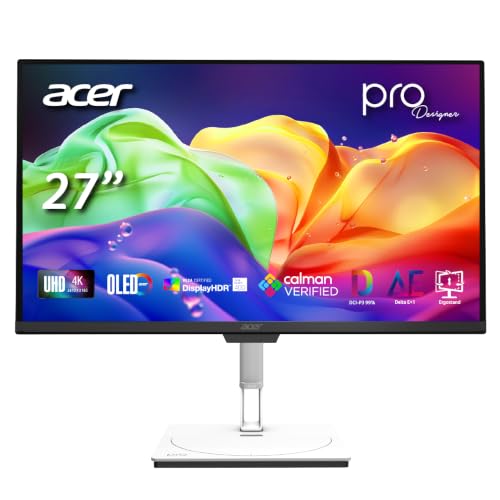
Acer’s ProDesigner entry compresses this guide’s most advanced panel technology into its most compact frame: a 26.5-inch OLED monitor at 4K 3840×2160, listed with MacBook colour matching, Calman Verification, DCI-P3 99% coverage, Delta E under 1, a 120Hz refresh rate, DisplayHDR True Black 400 and AMD FreeSync Premium Pro. Take the HDR credential first, because here the 400 number means something entirely different from the LG’s DisplayHDR 400. True Black tiers exist for OLED’s per-pixel light control: each pixel switches off completely, so black is measured in the thousandths of a nit and HDR highlights stand against genuine darkness. This is true HDR by physics, in the smaller of the guide’s two genuine HDR displays, and for film work and photography with deep shadow content it is transformative in a way no backlight tier can imitate.
The accuracy figures stand beside the ASUS flagship’s: Calman Verified with Delta E under 1 and 99% of DCI-P3, which places this panel in the professional sign-off class, while its stated MacBook colour matching speaks directly to the creator whose reference screen is the laptop beside it — a thoughtful, specific promise rather than a generic gamut claim. The 120Hz refresh and FreeSync Premium Pro give it motion credentials no other creator panel here combines with this contrast, making it the natural pick for the editor whose timelines move. OLED ownership habits apply as the standing note — vary static content, respect the panel’s maintenance routines — and the 26.5-inch size suits a focused single-screen desk rather than a sprawling one. Within those honest borders, this is the connoisseur’s monitor of the six: the finest blacks, verified colour, real HDR, in the frame that fits the most desks.
- Panel: 26.5-inch OLED at 4K 3840×2160, listed at 120Hz
- HDR: DisplayHDR True Black 400 — per-pixel true HDR
- Accuracy: Calman Verified with Delta E under 1 stated
- Colour: DCI-P3 99% coverage with MacBook colour matching
- Sync: AMD FreeSync Premium Pro
Strengths
- Per-pixel black delivers true HDR contrast no backlit panel here can reproduce.
- Verified sub-1 Delta E accuracy puts it in the professional sign-off class.
- 120Hz motion with FreeSync Premium Pro serves editing and play alike.
Trade-offs
- OLED care habits — varied content, maintenance cycles — accompany ownership.
- The 26.5-inch canvas is the most compact here; sprawling multi-window work suits the 32-inch picks.
- Adobe RGB coverage is not the listing’s headline, so print-first photographers should compare the ProArt pair.
Best for: colour-critical creators and film lovers who want true HDR and verified accuracy on a focused single desk.
Not suited for: static-interface all-day dashboards, or buyers needing the largest possible canvas.
How do the six compare side by side?
| Monitor | Size | HDR reality | Stated colour strength | Defining feature |
|---|---|---|---|---|
| ASUS ProArt PA279CRV | 27-inch | Tone-mapping class | 99% DCI-P3 and Adobe RGB, Delta E <2 | 96W charging and daisy chain |
| ASUS ProArt PA32UCR-K | 32-inch | True HDR, mini-LED class, 1000 nits stated | Delta E <1, calibrator included | Professional HDR reference |
| LG 27UP850K-W | 27-inch | DisplayHDR 400, tone-mapping | DCI-P3 95% | 90W USB-C Mac desk |
| Samsung ViewFinity S7 | 32-inch | HDR10 support, tone-mapping | Workspace IPS colour | Largest mainstream canvas |
| Dell S2725QS | 27-inch | Compatibility class | 99% sRGB | 120Hz motion at 4K |
| Acer ProDesigner OLED | 26.5-inch | True HDR, True Black 400 | DCI-P3 99%, Delta E <1 | OLED contrast, verified colour |
The HDR column is the one to read twice, because it contains the guide’s entire thesis in miniature: two panels perform HDR, four panels accept it, and the four are not lesser monitors — they are monitors whose budgets were spent on gamut, size, refresh or charging instead of dimming. Trouble only begins when a buyer reads the column as six equals. The colour column sorts the professionals: verified Delta E figures cluster on the ProArt pair and the Acer, gamut percentages widen as you climb toward them, and the Dell’s honest sRGB anchors the SDR mainstream where most paid work still lives. Between those two columns, every reader of this guide can locate their actual job — and the monitor that matches it is usually the one whose column entries describe that job in the manufacturer’s own words.
The remaining differences are about the desk rather than the image. Charging wattage — 96W on the smaller ProArt, 90W on the LG — decides which of these can be a laptop’s only cable. Daisy chaining, stated for the PA279CRV, decides which can parent a second screen. Refresh decides whose timelines and evenings move at 120Hz. None of these is a picture-quality virtue, and all of them will be exercised more often than the HDR engine on five desks out of six. A complete buying decision in this category reads all the columns, in the order of your own working week.
How do you set up a 4K HDR monitor for honest colour work?
Begin by giving the panel its native signal and nothing else: 3840×2160 from the computer, at the highest refresh the connection sustains, with the monitor’s picture mode set to the standard or creator preset that matches your delivery gamut — sRGB for web and office delivery, DCI-P3 for video — rather than a vivid or dynamic mode, which is a shop-floor costume no professional work should wear. Set brightness for your room rather than the panel’s maximum; colour work is conventionally done at moderate, stable brightness in controlled light, and a screen blazing at full output in a dark room will lie to you about every shadow in the frame. If your model includes or supports a calibrator — the PA32UCR-K bundles one, the ProArt and Acer lines are built around verification — run the calibration after the panel has warmed up for half an hour, and repeat it on a gentle schedule, because accuracy is a maintained condition.
HDR needs its own discipline. Enable HDR in the operating system only when you are actually grading, viewing or testing HDR content; leaving a tone-mapping panel in HDR mode for ordinary desktop work distorts the SDR interfaces everything else is built on, a mismatch even true-HDR owners avoid by switching deliberately. On the dimming ASUS, experiment with the local dimming strength against content you know — aggressive settings maximise drama and haloing together, and the right balance is content-dependent. Finally, judge your setup with familiar material: photographs you have printed, footage you have delivered, a film scene you know by heart. A colour pipeline is trustworthy when known work looks known on it, and that homely test outranks every pattern a calibration utility can draw.
What mistakes do 4K HDR monitor buyers keep making?
Reading the letters HDR as a single promise leads the list, and this guide has spent its length on the correction: the badge spans everything from a tone-mapping checkbox to a thousand-nit dimming engine, and the only defence is to ask which mechanism a specific model carries. The second mistake is buying colour credentials your work cannot use — Adobe RGB coverage for a web designer, a bundled calibrator for a buyer who will never run it — while starving the features the same desk needs daily, such as charging wattage or stand range. Match the credential to the deliverable: the file’s destination screen defines the gamut that matters, and it is knowable before any money moves.
Third, buyers forget the room. A glossy, dimming-equipped flagship in a sunlit office spends its life fighting reflections its matte, brighter-for-SDR rival would have shrugged off; an OLED in a room that never darkens shows only half its genius. The room is part of the specification. Fourth, do not scale away the resolution you bought: running a 4K panel at a non-native setting, or with interface scaling chosen carelessly, quietly returns you to the fuzziness the purchase was meant to end. Set native resolution, choose scaling deliberately, and let applications with their own interface scaling handle themselves. The panel will do the rest — these six, honestly matched to their jobs, are very good at the rest.
What does an HDR film actually look like across these tiers?
Take one demanding scene — a night street after rain, neon signs reflecting in wet tarmac, a face half in shadow — and walk it across this guide’s three HDR realities. On the tone-mapping panels, the Dell, LG and Samsung, the scene is coherent and pleasing: colours are rich, the picture is clearly a good one, and the neon glows at the same brightness as the lit shop windows beside it, because one backlight serves them all. On the mini-LED ASUS, the signs separate from the night: each becomes a distinct, hotter source of light, the tarmac’s reflections sharpen, and the shadowed half of the face stays shadow rather than grey. On the Acer OLED, the darkness itself changes substance — the unlit parts of the street are absent light rather than dark light — and the neon appears to float in it, which is the effect filmmakers mean when they master for OLED reference screens.
None of those experiences is a trick, and the first is not a failure; it is simply a different physical event wearing the same three letters. The buyer’s task is to decide which event their evenings and their work actually require. A household that watches films casually on a creator monitor will be delighted by the first and should spend the difference elsewhere in the room. A colourist, or a film lover building a serious desk cinema, will find the second and third worth every compromise they demand. The listings, read for mechanism rather than badge, tell you which event each box contains — and now you know how to read them.
How does 4K change ordinary work before HDR ever enters the picture?
It is worth remembering that most hours on most of these monitors will be SDR hours, and in those hours the shared 3840×2160 resolution does the heavy lifting. Text at this density stops looking rendered and starts looking printed, which is why writers and editors were the first professionals to adopt 4K desks. Interface design, code, spreadsheets and CAD all gain the same clarity dividend, and photographs reveal focus errors and noise that a lesser panel politely concealed — a mixed blessing every photographer learns to be grateful for. At 27 inches, most users will run some interface scaling and trade a little of the theoretical workspace for legibility; at 32 inches, the Samsung and the larger ASUS let many users run at or near full scale, which is the size’s quiet superpower and the reason the workspace-first buyer should weigh it beyond its HDR modesty.
The costs are real and should be budgeted honestly. A 4K panel asks more of the computer driving it — older laptops may cap refresh or complain under heavy graphical loads — and it asks more of the desk’s light discipline, because a screen this detailed reveals glare and reflections you never noticed on the old one. None of the six here is a casual purchase, but all six repay their hours: the resolution is the floor of the experience, the colour credentials are its trustworthiness, and the HDR mechanism, correctly understood, is the ceiling you choose according to the work and the films that matter to you.
How should a creator maintain colour accuracy across the years?
Accuracy is perishable, and the professionals in this guide’s audience plan for its upkeep the way photographers plan for sensor cleaning. Panels drift gently as backlights age and components settle, so the verified figures in these listings describe the monitor as delivered and calibrated, not as it will inevitably remain in year three. The countermeasures are unglamorous and effective. Warm the panel up before judging colour — a cold screen is a slightly different screen. Keep the room’s lighting consistent during critical work, because your eyes adapt to the room and grade the picture against it. Recalibrate on a schedule if your model supports it — the PA32UCR-K’s bundled X-Rite instrument exists for exactly this rota, and the ProArt and Acer lines are built around verification as a practice rather than an event.
Keep records while you are at it. A simple note of the date, the settings and the calibration result each time you verify the panel turns drift from a suspicion into a measurement, and when a client questions a colour decision — it happens to every professional eventually — the record is the difference between confidence and archaeology. None of this is required of the mainstream buyer, whose Dell or Samsung will serve happily with factory settings for years. It is recorded here because this category’s top tier is bought precisely by people whose work is judged by other people’s screens, and for them the monitor is not a purchase but a maintained instrument, like a lens or a microphone, with a service rhythm of its own.
What separates a grading desk from a viewing desk?
The distinction decides which end of this guide a film worker belongs to, and it is about obligation rather than taste. A viewing desk owes its owner a beautiful picture; a grading desk owes its clients a true one, which will be checked against reference displays the grader does not control. Everything follows from that. The grading desk needs the verified accuracy, the maintained calibration and — for HDR deliverables — the true dimming or OLED mechanism, because a highlight the grader could not see cannot be defended. It also needs discipline the viewing desk is free to skip: controlled light, standardised settings, HDR mode engaged deliberately rather than left as a default. The PA32UCR-K and the Acer OLED are this guide’s grading instruments, at two sizes and two panel philosophies.
The viewing desk, by contrast, may choose by pleasure with a clear conscience — and pleasure, honestly assessed, often lands on the same OLED for its darkness, or on the Dell for its motion, or on the big Samsung simply because a 32-inch film at a desk feels like an event. Where the two desks share one room and one budget, as they do in most freelance lives, the grading obligation wins the purchase and the viewing pleasure inherits a superb screen as its by-product. That is the happiest resolution this category offers, and it is available at two points in this guide for those whose work can claim it.
Should gamers care about this category at all?
Yes, with expectations set by the same tier honesty as everything else here. A creator-class 4K panel gives games a superb canvas — the resolution is the point, the colour is rich, and two picks here, the Dell and the Acer OLED, run at 120Hz with named variable-refresh support, which makes them genuinely dual-purpose desks. What this category does not sell is esports machinery: response figures and refresh ceilings here serve work first, and a competitive player will find faster panels in gaming lines at the cost of the colour credentials these monitors exist for. The crossover buyer — the editor who games in the evening, the photographer who races on Sundays — is exceptionally well served by the Dell’s balance or the OLED’s contrast, and should not let a gaming guide talk them out of a professional panel, nor let this guide talk them into expecting a tournament instrument. Each category keeps its own honesty, and the desk that does both jobs moderately well is a legitimate ambition with two clear answers in this list of six.
What will HDR look like on your next monitor after this one?
The technology’s direction is plain enough to buy against without pretending to prophecy. Dimming zone counts on LCD panels keep climbing, which steadily narrows the haloing gap between mini-LED and OLED; OLED panels keep gaining brightness headroom, which narrows the bright-room gap from the other side; and HDR content keeps becoming the default master rather than the special edition, which raises the value of a true-HDR panel every year a monitor serves. Measured against that direction, the safest long purchases in this guide are its two genuine HDR displays, whose mechanisms will still be the right mechanisms in five years, and its verified-accuracy creator models, whose colour discipline no content shift can obsolete. The tone-mapping picks are present-tense value — excellent screens for the SDR world that still dominates working life — bought with open eyes about the one frontier where they will not advance. A monitor is a long companion; choose the frontier you believe your work will visit, and let the badge fall where it honestly may.
What should you check in the first week with a creator monitor?
Uniformity first, while the return window is open and the discovery is free. Display a full-screen mid-grey, then a white, then a black, in a dim room, and look for the flaws panels reveal only at the extremes: patches of uneven brightness, corners that glow on the LCD models, any tint that gathers at one edge. Perfect uniformity is rare at any price, and the question is degree — a gentle variation you must hunt for is a keeper, a blotch you cannot unsee is a conversation with the seller. Check the stand’s full travel while you are at it, confirm the USB-C charging actually charges your laptop under load if that feature sold you the screen, and run one piece of work end to end — a real edit, a real grade, a real document day — because a monitor’s character under your actual software is the only review that will ever fully apply to you.
Then set the habits that keep the purchase young. Save your working picture settings as the monitor’s custom profile if it offers one, so a visiting hand or a firmware reset cannot quietly return you to a showroom mode. Note the brightness value your room prefers. And file the calibrator, the cables and the receipt together, in the box, in a known place — the professional calm of this category’s best owners is mostly the calm of people who can find their instruments. A week spent this way turns a specification sheet into a workstation, which was the object of the exercise from the first paragraph.
Final Recommendation
Buy by the job, and this guide resolves into a short list of confident answers. HDR colourists and mastering professionals belong on the ASUS ProArt PA32UCR-K, whose dimming engine, stated thousand-nit reach and bundled calibrator make it the reference instrument here. Creators who want true HDR in a focused frame, with verified accuracy and the finest blacks available, should choose the Acer ProDesigner OLED. The working professional who grades, edits and delivers SDR colour all week — and docks a laptop to do it — is best served by the ProArt PA279CRV’s balance of dual-gamut accuracy, 96W charging and daisy chaining, with the LG 27UP850K-W as the Mac desk’s natural alternative. The Dell S2725QS takes the mainstream desk that wants 4K with motion, and the Samsung ViewFinity S7 takes the desk that wants 4K with room. None of these is the consolation prize; each is the correct answer to a different, honestly stated question — and asking your question precisely, before the badge asks it for you, is the whole art of buying in this category.
Frequently Asked Questions
Is DisplayHDR 400 worthless?
No — it is misread, which is different. It certifies that a panel accepts HDR signals and renders them with a degree of brightness and colour discipline, which makes HDR content watchable and openable. What it does not include is local dimming, so it cannot produce the highlight drama of true HDR. The LG in this guide wears the badge honestly and is an excellent creator monitor; just buy it for its gamut and charging, not for HDR spectacle.
What is local dimming and why does it decide HDR quality?
It is the ability to brighten and darken separate zones of an LCD backlight independently, so a bright object in a dark scene gets light while the darkness around it stays down. Without it, one backlight level serves the whole frame and HDR’s defining contrast is impossible. The PA32UCR-K’s mini-LED-class design is built on it; OLED sidesteps the question entirely by lighting each pixel individually.
Which gamut should I care about — sRGB, DCI-P3 or Adobe RGB?
The one your work is delivered in. Web, interface and office work live in sRGB, where the Dell’s 99% coverage is complete. Video and cinema work lives in DCI-P3, served by the LG, the ProArt pair and the Acer. Print-bound photography uses Adobe RGB, which the two ProArt models state at 99% and 99.5%. Buying a wider gamut than your deliverable uses buys you nothing but a wider place to make mistakes.
Does a Delta E figure tell me everything about colour accuracy?
It tells you the average deviation between the colours the panel is asked for and the colours it produces, with figures under 2 generally considered imperceptible in normal work and under 1 reference-class. The figures here are manufacturer claims from the listings — the ProArt models and the Acer state them with Calman verification — and they describe the panel as calibrated. Maintaining that accuracy over the years is what the bundled or supported calibrators are for.
Can these monitors charge a laptop over USB-C?
Some state it outright: the ProArt PA279CRV lists USB-C power delivery at 96W and the LG lists 90W, both genuine working charges for most laptops. Where a listing does not headline a wattage, treat the USB-C port’s charging role as unconfirmed and check the specification page — the same discipline this guide applies to every category, because the port’s shape never guarantees the power behind it.
Is 27 inches or 32 inches better for 4K?
Both work, and the choice is about scaling and desk depth rather than quality. At 27 inches the image is denser and most users run interface scaling for comfortable text; at 32 inches the same resolution sits closer to its natural size, which is why the workspace picks here favour the larger frame. Sit nearer, choose 27; sit further back with a deeper desk, choose 32.
Do I need a special cable or port for 4K HDR?
You need a connection with the bandwidth for a 4K signal at your target refresh rate — DisplayPort or a suitably specified HDMI connection from a modern computer covers it, and the USB-C connections on the docking models here carry the same class of signal from a laptop. HDR itself travels within that signal once the operating system and the application are set to send it. If a new screen seems to accept 4K but refuses HDR, or caps the refresh unexpectedly, suspect the cable before the panel: swap in the lead supplied with the monitor and retest, because high-bandwidth signals are unforgiving of bargain cabling over distance.
Is OLED or mini-LED better for HDR?
They excel differently. OLED’s per-pixel control gives perfect black and pixel-precise highlights, which flatters dark, detailed scenes; mini-LED reaches higher full-frame brightness, which flatters bright content and bright rooms, at the cost of occasional haloing around small bright objects. The Acer and the ASUS PA32UCR-K are this guide’s two true-HDR answers, and the choice between them is a choice of room, content and working style rather than of rank.
Related Guides
A closing note on value, because this category’s prices invite the question: the money in a creator monitor is not buying a television’s drama but a tool’s trustworthiness, and it amortises across every file the desk delivers for years. A panel whose colour you can sign, whose highlights you can defend and whose stand and charging simply disappear into the working day is not an indulgence at any of these six levels — it is the difference between a desk that produces work and a desk that produces work plus a recurring doubt about it. Choose the tier your clients, your films and your own eyes can actually audit, and the purchase will justify itself quietly, deliverable after deliverable.
Creators building toward HDR delivery will find the production side covered in our best monitors xbox series x guide, and photographers weighing these panels against print-proofing needs should read our best usb c monitors roundup, where Adobe RGB coverage and uniformity take the leading roles they deserve.
Related guides
- Best 4K UHD HDR HDMI Extenders: 4K60, Long-Run and 4K120 Kits Compared
- Best 25–35 Inch Monitors With Lowest Display Lag: An Honest Ranking Without Invented Numbers
- Best Color Product Label Printers: Six Desktop Machines for Short-Run Product Labels
- Best Enterprise SATA SSDs: Endurance Classes, Power-Loss Protection and Fleet Sense


