What's inside
- Where to buy
- Key Takeaways
- Quick Picks
- How did we pick these office monitors?
- What makes a monitor genuinely comfortable for eight-hour days?
- How do the six compare side by side?
- How should you set up an office monitor for a healthier working day?
- What mistakes do office monitor buyers keep making?
- When does a second office monitor earn its desk space?
- How do brightness and blue light actually affect an office afternoon?
- What should a small business check before ordering monitors in quantity?
- Which screen suits which job around the office?
- What settings should you change in the first ten minutes?
- When is an old office monitor actually due for replacement?
- How do you keep an office monitor accurate and clean for years?
- What does the first month on a well-chosen office screen feel like?
- Can a laptop screen and an external monitor share the work sensibly?
- Final Recommendation
- Frequently Asked Questions
- Related Guides
As an Amazon Associate I earn from qualifying purchases. This post may contain affiliate links at no extra cost to you.
gizmoverdict.com is reader-supported. When you buy through links on our site, we may earn an affiliate commission.
Where to buy
Each screen in this guide links to its manufacturer’s Amazon listing, which matters in the office category more than most, because business monitor lines are full of near-identical model codes that differ by one letter and a completely different stand. Match the full model name in the listing title against the name in our tables before ordering, especially with the two Samsung picks, whose Essential and Business lines sit side by side in search results wearing very similar faces.
People searching for the best office monitors rarely need spectacle. They need a screen that disappears into the working day: text that stays crisp at arm’s length, a stand that puts the panel where their neck expects it, and brightness behaviour that does not leave them squinting at three in the afternoon when the sun has moved around the building. The six monitors below were chosen against that unglamorous brief. Refresh rates appear in these listings — some surprisingly high — but in an office they buy smoothness in scrolling and window movement, not bragging rights, and we treat them that way throughout. What actually separates these picks is a triangle of stand ergonomics, eye-care engineering and panel geometry, and every review that follows weighs those three first.
The field divides into honest camps. Dell’s SE2726H is a big, fast Full HD screen on a tilt-only stand. Samsung fields two 27-inch IPS models, one Essential and one Business, separated mostly by intent and warranty. MSI’s PRO MP275Q is the resolution climber of the group, bringing WQHD sharpness to a 27-inch office panel with built-in speakers. ViewSonic’s 24-inch entry trades size for a height-adjustable stand and a 120Hz panel. And HP’s 524pn is the geometry rebel: a 24-inch 16:10 WUXGA screen that gives documents vertical room the widescreen crowd gave up years ago. If your office work spills into colour-sensitive territory, our companion guide to the best external monitors for photo editing covers that neighbouring need with stricter colour discipline.
Key Takeaways
- Stand design decides daily comfort more than any panel statistic: two picks here are tilt-only per their listings, which makes a monitor arm or riser part of their true cost.
- At 27 inches, the MSI’s WQHD resolution keeps text noticeably crisper than the Full HD models, and heavy readers should weight that difference heavily.
- HP’s 16:10 WUXGA panel shows more lines of a document at once than any 16:9 screen here, a quiet advantage for contracts, code and long reports.
- Eye-care features are not marketing filler in this class — flicker-free backlights and low-blue-light modes address the specific fatigue that ends office afternoons early.
- High refresh rates in office listings buy smoother scrolling and pointer movement; they are a comfort feature here, not a gaming credential.
Quick Picks
| Pick | Badge | Why it earns its place |
|---|---|---|
| Dell 27 Monitor SE2726H | Best big-screen all-rounder | A 27-inch FHD IPS panel at 144Hz with TÜV eye-comfort certification covers most desks well, provided your chair and screen heights already agree. |
| Samsung Essential Monitor S30GD 27 | Best simple starter screen | Straightforward 100Hz IPS viewing with Samsung’s eye-care tuning for buyers who want a screen that just works from the first morning. |
| Samsung Business Monitor S40GD 27 | Best for managed office fleets | A borderless business panel with Eye Saver Mode and a three-year warranty suits buyers equipping more than one desk at a time. |
| MSI PRO MP275Q | Best resolution for readers | WQHD 2560×1440 sharpness on a 27-inch IPS panel, plus built-in speakers, makes it the text worker’s upgrade in this set. |
| ViewSonic VA2448-MHJ | Best adjustable compact | A 24-inch 120Hz panel on a height-adjustable stand fixes posture problems that larger tilt-only rivals leave to your wallet. |
| HP 524pn | Best for documents | The 16:10 WUXGA panel and a fully adjustable stand were designed around pages, and page workers will feel that intent daily. |
How did we pick these office monitors?
We imagined the person each monitor would actually serve: not a reviewer with a calibration lab, but an accounts clerk at hour six of a spreadsheet, a teacher marking on screen after the classroom empties, a home worker whose office is also the spare bedroom. Against those days, we scored each listing on the things that compound quietly. Stand range came first, because a screen four centimetres too low taxes a neck roughly four thousand times a year. Panel size against resolution came second, since pixel density decides whether text looks printed or merely projected. Eye-care engineering came third — flicker behaviour, blue-light management and the certifications that back them. Warranty and brand support for office buyers ran a close fourth, because a screen that fails in month thirteen is a procurement problem, not a hobbyist inconvenience.
We also read the listings against the grain. Where a manufacturer says “ergonomic design” without naming adjustments, we treat the claim cautiously and say so. Where a listing states plainly that a stand tilts only — as Samsung does for the Essential S30GD — we honour the honesty and price the consequence into the review instead of pretending the limitation away. Refresh rates above the office norm are reported as listed and credited for the smoothness they genuinely add to scrolling, but no office monitor here was chosen or rejected on gaming credentials. The result is a set of six screens that differ in philosophy as much as specification, which is exactly what a real office shortlist looks like.
What makes a monitor genuinely comfortable for eight-hour days?
Comfort is a system, and the panel is only one part of it. The backlight’s behaviour matters more than brochures suggest: a flicker-free design removes a rapid pulsing that some eyes register as strain without ever seeing it directly, which is why Dell’s TÜV certification and the eye-care stacks on the Samsung and ViewSonic listings earn real weight in this guide. Brightness range matters next. An office screen must go bright enough to hold its own against a window at noon and dim enough not to glare in a lamplit room at night, and it must do both without crushing the greys in a scanned document. The HP’s listed 350-nit brightness and the ViewSonic’s 300-nit figure sit in the useful office band; treat them as headroom, not as a setting to run at maximum.
Geometry is comfort’s quiet third leg. A 27-inch screen at a typical desk distance fills enough of your view that documents stop feeling like postage stamps, while a 24-inch panel suits shallower desks where a bigger screen would force your eyes to travel. The HP’s taller 16:10 shape deserves special attention from anyone who reads vertically for a living: contracts, manuscripts, code and web articles all reveal more lines per screenful, which means less scrolling, and less scrolling means fewer micro-interruptions in a train of thought. None of this shows up in an unboxing video. All of it shows up in how you feel at the end of the month.
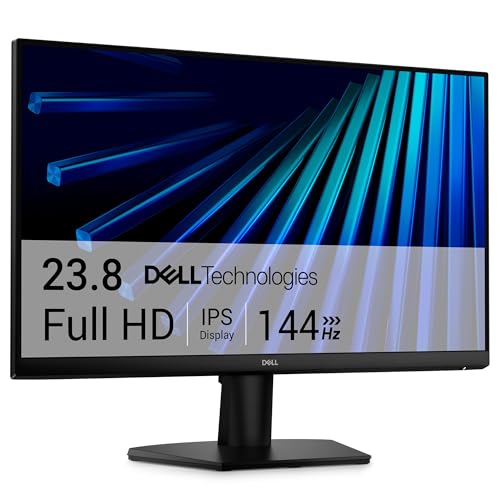
Dell 27 Monitor SE2726H — Best big-screen all-rounder
Dell’s SE2726H is built around a single, confident idea: give the office a large, smooth panel and certify its comfort properly. The listing describes a 27-inch Full HD display at 1920×1080 using IPS technology, running at 144Hz with a 1ms response figure, AMD FreeSync support, TÜV 3-Star eye-comfort certification and two HDMI connections. That is a generous specification for desk work. The high refresh rate makes a visible difference to the texture of an ordinary day — long documents scroll without judder, the pointer glides rather than hops, and the whole desktop feels a generation newer than the 60Hz screens most offices still issue. Two HDMI inputs also suit the reality of shared desks, where a work laptop and a personal machine may both need a home on the same panel.
The counterweight sits underneath the panel. Dell lists tilt adjustment for this stand, and tilt only, so the screen’s height is whatever your desk and chair conspire to make it. In a home office with an adjustable chair this can work out fine; in a fixed setup it often does not, and the honest way to price this monitor is with a simple riser or a VESA arm in the same basket. Accept that arithmetic and the SE2726H is easy to like: a big, calm, certified picture from a brand whose office support infrastructure is a known quantity. Resist it, and you will spend months craning at a lovely panel mounted at the wrong altitude.
- Panel: 27-inch IPS at 1920×1080 Full HD, listed at 144Hz with a 1ms figure
- Certification: TÜV 3-Star eye comfort named in the listing
- Sync: AMD FreeSync support for smooth motion
- Connections: two HDMI ports stated in the listing title
- Stand: tilt adjustment — plan a riser or arm if your eye line sits high
Strengths
- The 144Hz refresh gives everyday scrolling and window movement a fluidity most office panels never offer.
- TÜV 3-Star certification puts an independent stamp behind the comfort claims rather than leaving them as brochure copy.
- Dual HDMI inputs make hot-desking between two machines a button press instead of a cable excavation.
Trade-offs
- Full HD resolution at 27 inches renders text less crisply than the WQHD MSI below; dense readers will notice.
- A tilt-only stand transfers the height problem to your furniture or to an accessory purchase.
- No built-in speakers are headlined, so calls need your laptop’s audio or a separate solution.
Best for: general office workers who want a large, smooth, certified-comfortable screen and already sit at the right height for it.
Not suited for: small desks where 27 inches crowds the workspace, or readers who zoom spreadsheets all day and need QHD density.

Samsung Essential Monitor S30GD 27 — Best simple starter screen
The Samsung Essential S30GD is the monitor for the buyer who has decided, reasonably, that a screen should be a screen. Its listing describes a 27-inch IPS panel with a 100Hz refresh rate, an ergonomic-design claim, advanced eye care features and a Game Mode, under the model code LS27D304GANXZA. Nothing here chases a record. Instead the package aims at the centre of office life: a large IPS picture with viewing angles wide enough that a colleague standing at your shoulder sees the same colours you do, a refresh rate a healthy step above the old standard, and eye-care tuning intended to keep long sessions easy. For a first external monitor bought with a laptop, that centre is exactly where the money should land.
Samsung is candid in the listing that the stand tilts only, and we would rather review a candid limitation than a vague promise. A tilt-only stand on a 27-inch screen asks your chair to do the height work, which many office chairs genuinely can — but try the combination before committing a whole team to it. The inclusion of a Game Mode in an Essential office panel is a small, telling detail: Samsung knows these screens live second lives in the evening, and a mode that sharpens contrast for play costs the office buyer nothing. Simplicity is this monitor’s whole argument, and for a great many desks it is argument enough.
- Panel: 27-inch IPS, listed at a 100Hz refresh rate
- Comfort: Samsung’s advanced eye care features named in the listing
- Extras: Game Mode included for after-hours use
- Stand: tilt only, stated plainly in the listing
- Model: LS27D304GANXZA — check the code when ordering
Strengths
- An uncomplicated, well-judged specification that avoids paying for features office work never touches.
- IPS viewing angles keep colours honest when a second person leans in to review your screen.
- 100Hz refresh smooths the daily scroll without the price step of the fastest panels here.
Trade-offs
- The tilt-only stand is the real price of the simplicity; budget a riser if your chair cannot compensate.
- Resolution sits in the Full HD class at this size, so fine text is softer than on the WQHD pick.
- The listing’s “ergonomic design” phrasing is general — the confirmed adjustment is tilt, and buyers should plan on that basis.
Best for: first-time external monitor buyers and spare-desk setups that need a large, calm picture without ceremony.
Not suited for: posture-sensitive workers who need guaranteed height adjustment from the box — the ViewSonic or HP below solve that directly.

Samsung Business Monitor S40GD 27 — Best for managed office fleets
Samsung’s S40GD takes the same 27-inch IPS foundation as its Essential sibling and re-aims it at the person buying for an office rather than a desk. The listing describes a borderless business monitor with a 100Hz refresh rate, Eye Saver Mode, an ergonomic design brief, a Game Picture Mode and — the detail that reveals its intended buyer — a three-year warranty under model code LS27D402GANXGO. Borderless styling matters in this context for a practical reason beyond looks: multi-monitor rows, the standard furniture of finance, support and operations desks, read as one continuous workspace when the bezels nearly vanish, and the eye stops snagging on the seams between screens.
Eye Saver Mode is Samsung’s name for its low-blue-light tuning, and in a business deployment its value is cumulative: a feature that spares each worker a small amount of strain, multiplied across a floor of desks and a year of afternoons, is a facilities decision as much as a personal one. The three-year warranty works the same way, converting a potential replacement hunt into a phone call. None of this makes the S40GD more exciting than its sibling for a single home desk — the panel class and refresh rate are shared ground — but buying monitors is sometimes logistics wearing a technical costume, and on logistics this is the strongest Samsung in the guide.
- Panel: 27-inch borderless IPS, listed at a 100Hz refresh rate
- Comfort: Eye Saver Mode for reduced blue light during long sessions
- Extras: Game Picture Mode included in the business feature set
- Coverage: three-year warranty stated in the listing
- Model: LS27D402GANXGO — the business-line code to match at checkout
Strengths
- The three-year warranty suits buyers who cannot afford downtime or replacement errands.
- Borderless styling makes multi-screen rows look and feel like one workspace.
- Business-line positioning brings the support expectations offices actually need.
Trade-offs
- Panel fundamentals mirror the Essential model, so a single-desk buyer may not feel the step up.
- Stand adjustments are described in general ergonomic terms rather than enumerated, so confirm the range if height travel is critical.
- Full HD-class resolution at 27 inches remains the shared ceiling of both Samsung picks.
Best for: office managers and small businesses equipping several desks who value warranty length and tidy multi-screen rows.
Not suited for: a lone buyer chasing the sharpest text per screen, who should put the same money toward the WQHD MSI.

MSI PRO MP275Q — Best resolution for readers
The MSI PRO MP275Q is the screen in this guide that a heavy reader will thank us for, because it is the one that treats text as the main event. MSI’s listing describes a 27-inch WQHD office monitor with a 2560×1440 IPS panel at 100Hz, an eye-friendly screen design, built-in speakers, tilt adjustment, and HDMI 2.0b plus DisplayPort 1.2a connections. That resolution step — roughly three-quarters more pixels than Full HD on the same physical size — changes the character of written work. Letterforms gain their proper edges, spreadsheet grids stop shimmering at small zoom levels, and two documents can sit side by side at readable sizes instead of one readable document and one squinted-at companion.
Built-in speakers, easy to dismiss on a gaming panel, make genuine sense here: an office monitor that handles its own call audio removes a headset from at least some meetings and a cable from every desk. The tilt-adjustable stand is the package’s plain note, shared with several rivals, and the same riser arithmetic applies. But weigh what the money bought instead — pixels you will look at for eight hours a day, every day, for years. Of all the specifications in this guide, resolution is the one your eyes audit continuously, and the MP275Q is the only pick that raises it at this size. For writers, analysts, programmers and anyone whose job arrives as text, that is the correct priority.
- Panel: 27-inch IPS at WQHD 2560×1440, listed at 100Hz
- Audio: built-in speakers for calls and media
- Connections: HDMI 2.0b and DisplayPort 1.2a named in the listing
- Design: eye-friendly screen positioning from MSI’s PRO office line
- Stand: tilt-adjustable — pair with a riser for higher eye lines
Strengths
- WQHD density delivers the crispest documents and spreadsheets of any 27-inch pick here.
- Integrated speakers declutter the desk and cover call audio without extra hardware.
- Having both HDMI and DisplayPort keeps it compatible with older desktops and newer laptops alike.
Trade-offs
- Tilt-only adjustment repeats the category’s common compromise at exactly the size where height matters.
- Older laptops may drive WQHD at reduced refresh rates, so check your machine’s external display ceiling.
- The eye-friendly positioning is a design brief rather than a named certification like Dell’s TÜV rating.
Best for: writers, analysts and spreadsheet workers whose days are made of text and who feel Full HD softness as a daily tax.
Not suited for: buyers who need height adjustment included, or desks where 27 inches simply does not fit the available width.
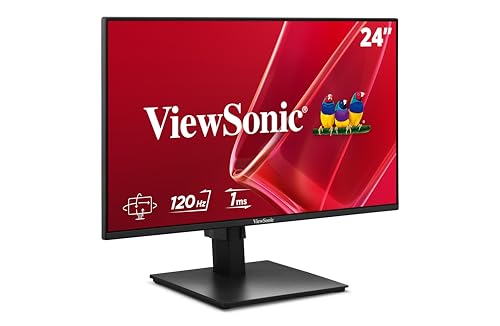
ViewSonic VA2448-MHJ — Best adjustable compact
ViewSonic’s VA2448-MHJ makes the opposite bet from the 27-inch crowd: shrink the panel to 24 inches, then spend the design budget on the stand and the refresh rate. The listing describes a 1080p IPS monitor at 120Hz with a height-adjustable ergonomic stand, variable refresh rate support, HDMI and VGA connections, eye-care features, a frameless design and a 300-nit brightness figure with a 1ms response claim. Every element of that list answers a real office complaint. Height adjustment answers the neck ache. VGA answers the elderly desktop still running the accounts package. The frameless face answers the ugliness of most budget office hardware. And 120Hz answers the sluggish feel that makes a new screen feel old.
At 24 inches, 1080p also stops being a compromise: the pixels pack tighter than they do on a 27-inch Full HD panel, so text renders with a neatness the bigger FHD screens cannot match. That makes this ViewSonic the thinking buyer’s compact — the screen for a shallow desk, a secondary portrait of reliability beside a laptop, or a worker whose posture problems are the actual purchasing reason. It is telling that the smallest monitor in this guide is the one that adjusts the most willingly. Buyers who have suffered a fixed stand before will recognise the VA2448-MHJ as the correction.
- Panel: 24-inch IPS at 1080p, listed at 120Hz with variable refresh rate
- Stand: height-adjustable ergonomic design — the fullest adjustment in this class here
- Brightness: 300 nits stated in the listing, with a 1ms response figure
- Connections: HDMI and VGA for new laptops and legacy desktops alike
- Design: frameless face with ViewSonic eye-care features
Strengths
- Height adjustment from the box removes the accessory hunt that follows tilt-only rivals.
- Full HD at 24 inches is genuinely crisp, sidestepping the softness of larger FHD panels.
- VGA support keeps it useful in offices where older machines still earn their keep.
Trade-offs
- Twenty-four inches gives split-screen work less room than the 27-inch picks provide.
- Absolute workspace still trails the WQHD MSI for side-by-side document work.
- Buyers wanting built-in speakers should confirm their audio plan, as the listing leads with panel and stand features.
Best for: posture-conscious workers, shallow desks and second-screen setups that need proper height adjustment included.
Not suited for: multitaskers who live with three windows open and need the canvas only a 27-inch panel supplies.

HP 524pn — Best for documents
The HP 524pn is the contrarian of this guide, and its listing explains the heresy in its first line: a 24-inch WUXGA panel at 1920×1200 in a 16:10 aspect ratio, using IPS technology, with 350-nit brightness, a 5ms response figure and a 100Hz refresh rate, on a stand offering swivel, height, pivot and tilt, with HDMI among its connections. Those extra 120 vertical pixels over a 1080p screen sound trivial until you spend a day inside documents. They are several more lines of a contract visible without scrolling, another paragraph of the report on screen while you edit, a taller code window with more of the function in view. Writers and reviewers do not experience their work horizontally; they experience it as a column, and this is the only panel here shaped like one.
HP pairs the thoughtful geometry with the guide’s most complete stand — height, pivot, swivel and tilt all present — and pivot deserves its sentence: rotate this screen to portrait and a full page of a document displays at near-print scale, which proofreaders and legal reviewers will recognise as a small miracle. The 350-nit brightness leads the 24-inch class here, useful in bright offices, and 100Hz keeps the tall panel feeling responsive. If your work is pages, the 524pn is not a quirky alternative; it is the monitor that was designed by someone who understood the assignment.
- Panel: 24-inch IPS WUXGA at 1920×1200 in a 16:10 aspect ratio
- Brightness: 350 nits listed, with a 5ms response figure and 100Hz refresh
- Stand: swivel, height, pivot and tilt — the fullest adjustment set in this guide
- Use case: portrait rotation for full-page document review
- Connections: HDMI named in the listing, with the model built for business desks
Strengths
- The 16:10 shape shows more of every document, spreadsheet column and web page per screenful.
- A four-way adjustable stand, including pivot, fits both posture and portrait reading.
- 350-nit brightness handles bright offices better than most compact rivals.
Trade-offs
- Video content carries slightly larger black bars than on a native 16:9 screen.
- At 24 inches it cannot match the sheer canvas of the 27-inch picks for wide timelines or big dashboards.
- WUXGA is a niche resolution, so some older software scales less gracefully than at 1080p.
Best for: document professionals — legal, editorial, academic and code reviewers — who read vertically all day.
Not suited for: media-first users who want a cinematic 16:9 canvas, or anyone needing maximum width for multi-window sprawl.
How do the six compare side by side?
| Monitor | Size and resolution | Refresh | Stand story | Defining strength |
|---|---|---|---|---|
| Dell SE2726H | 27-inch FHD 1920×1080 | 144Hz | Tilt only | TÜV 3-Star comfort certification |
| Samsung S30GD | 27-inch IPS office class | 100Hz | Tilt only | Simple, honest starter package |
| Samsung S40GD | 27-inch IPS borderless | 100Hz | Ergonomic business design | Three-year warranty for fleets |
| MSI PRO MP275Q | 27-inch WQHD 2560×1440 | 100Hz | Tilt adjustable | Sharpest text at this size |
| ViewSonic VA2448-MHJ | 24-inch FHD 1080p | 120Hz | Height adjustable | Posture correction in a compact frame |
| HP 524pn | 24-inch WUXGA 1920×1200 | 100Hz | Height, pivot, swivel, tilt | 16:10 document geometry |
The table exposes the office market’s open secret: at any given tier you can have the panel, the stand or the resolution, and the art of buying is deciding which compromise your body and your work forgive most easily. Workers under thirty with adjustable chairs often forgive a tilt-only stand without noticing; workers managing an existing neck problem should treat the stand column as the whole decision and let the ViewSonic or the HP win by default. Readers forgive almost anything except soft text, which hands the argument to the MSI. Fleet buyers forgive nothing except downtime, which is why the Samsung Business model’s warranty earns its row. There is no universal winner here, and a guide that pretended otherwise would be selling you something.
One more pattern hides in the refresh column. Every pick exceeds the 60Hz that defined office monitors for two decades, which tells you the industry’s floor has genuinely risen: smoothness is now standard equipment, and the differentiators have moved to ergonomics and geometry. That is good news for buyers, because it means the money argument happens over features your body can feel. Spend accordingly — on the stand, on the pixels, on the warranty — and let the refresh rate take care of itself.
How should you set up an office monitor for a healthier working day?
Setup begins before the box opens: measure the distance from your seated eye position to where the screen will stand, and let that distance sanity-check your size choice. An arm’s length suits 24-inch panels; 27-inch screens appreciate a few centimetres more, and a desk too shallow for its monitor will push the panel into your near field no matter how good the stand is. Once the screen is placed, set its height so the top of the display area sits at or just below eye level, then tilt the panel back very slightly so its face meets your gaze squarely. On the height-adjustable ViewSonic and HP this takes seconds; on the tilt-only models, achieve the same geometry with a riser and do it on day one, not after the first stiff neck.
Then tune the picture for the room rather than the showroom. Office listings ship with brightness set to impress under retail lighting, which in a real office means glare by mid-morning. Lower the brightness until white documents match the brightness of a sheet of paper held beside the screen — an old technician’s trick that still works — and enable the low-blue-light or eye-saver mode for afternoon hours if your model offers one, as the Samsungs, the Dell and the ViewSonic do. Finally, if you run a second screen, match heights between the two panels and angle both toward your chair; a mismatched pair trains a constant small head-turn that accumulates into the same fatigue you bought the new monitor to escape.
What mistakes do office monitor buyers keep making?
Buying by size alone leads the list. A 27-inch Full HD screen and a 27-inch WQHD screen share a diagonal and nothing else; the second shows dramatically finer text, and a buyer who compared only inches discovers the difference in the first week of real work. The twin mistake is ignoring the stand column entirely, then paying for the oversight twice — once in discomfort, once in the arm that should have been in the original budget. Read the adjustment list for the exact model, and when it says tilt only, believe it and plan accordingly, as the listings for the Dell SE2726H and Samsung S30GD state plainly.
A third error is equipping a whole team from one person’s preference. The worker who reads contracts needs the HP’s geometry; the support agent living in three chat windows needs width; the accounts clerk needs the MSI’s grid clarity. A short conversation with each role before a fleet order costs an afternoon and saves a year of low-grade grumbling. Finally, do not let gaming vocabulary steer an office purchase in either direction — neither chasing it nor fleeing it. A 144Hz panel in an office is not a toy; it is a smoother Tuesday. Judge these screens by the working day they create, and the specifications will fall into their proper order.
When does a second office monitor earn its desk space?
The honest answer is: when your work has a reference and a canvas at the same time. A support agent reading a ticket while replying in another window, an accountant reconciling a statement against a ledger, a writer drafting against research — these are two-screen jobs, and forcing them onto one panel costs a small tax on every single task switch. Jobs that are one document deep, however absorbing, gain little from a second screen except a more impressive silhouette. Before buying a pair, watch your own window behaviour for a day. If you are constantly alt-tabbing between two specific applications, a second monitor will feel like a raise. If you mostly maximise one window and live inside it, spend the same money on one better screen — the WQHD MSI or the HP’s taller panel — and enjoy the clarity every minute instead of the width occasionally.
Matching the pair matters as much as buying it. Two screens of different heights force a perpetual small head movement at the seam, and two panels with different colour temperatures make the same document look like two documents. The borderless Samsung S40GD exists precisely for this scenario, and its warranty makes the matched-pair purchase defensible for a business. Home workers pairing an existing screen with a new one should at least match size and resolution where possible, set both to the same brightness by eye against a white document, and align the top edges so the horizon stays level as your gaze crosses. A dual setup done carelessly is worse than a single screen done well; done carefully, it is the closest thing office work has to a genuine productivity instrument.
How do brightness and blue light actually affect an office afternoon?
Eye strain in offices is rarely caused by one dramatic factor; it accumulates from small mismatches repeated thousands of times. A screen much brighter than the room forces your pupils to work against the contrast every time your gaze moves between paper and panel. A screen much dimmer does the same in reverse. This is why the working rule is matching, not maximising: set the monitor so a white page on screen resembles the white page on your desk. The brightness figures in these listings — 300 nits on the ViewSonic, 350 on the HP — describe headroom for bright rooms, and in a shaded home office you may run either screen at half its range and be better off for it.
Blue-light modes address a different slice of the problem. Short-wavelength light is part of normal daylight, but a screen pouring it at close range into the evening can leave eyes feeling wired and dry, which is why Samsung’s Eye Saver Mode, BenQ-style low-blue-light tuning elsewhere in the market and Dell’s certified comfort approach all converge on warming the image as the day ages. Used sensibly — mild during the day, stronger toward evening — these modes cost a little colour accuracy that office documents never needed. Flicker is the third factor, and the least visible: a backlight that pulses rapidly can fatigue eyes that never consciously perceive it, which is why flicker-free design and independent certifications carry weight in this guide’s judgements. None of these features will rescue a badly positioned screen, but on a well-positioned one they are the difference between finishing the day fresh and finishing it rubbing your temples.
What should a small business check before ordering monitors in quantity?
Fleet buying rewards boring diligence. Confirm the exact model code for every unit — the Samsung listings in this guide show how one letter separates an Essential from a Business line — and order a single pilot unit first, set it up on a real desk with a real worker, and live with it for a week before the quantity order follows. Check that the stand’s adjustment suits the shortest and tallest people on the team, not the average, because averages do not sit in chairs. Verify the cables in the box match your machines; a monitor that arrives without the lead your laptops need creates a second, sillier purchase order. And record serial numbers and warranty terms centrally from day one, because the Samsung S40GD’s three-year cover only helps the office that can find its paperwork in month twenty-five.
There is also a human step that procurement spreadsheets omit: ask the staff what hurts. A five-minute survey about neck strain, glare from the window wall and squinting at small text will point the budget at the right feature — stands, brightness headroom or resolution — more reliably than any specification comparison. The six monitors in this guide map neatly onto those three complaints, which is not a coincidence; they were chosen against the working day, and a fleet chosen the same way tends to stay chosen, uncomplained about, for the whole of its service life.
Which screen suits which job around the office?
Walk the floor of a typical office and the right monitor changes with every desk. The finance team’s spreadsheets sprawl horizontally and reward width and grid clarity, which points to the 27-inch panels, with the MSI’s WQHD density keeping small figures legible without constant zooming. The support team’s world is three conversations and a knowledge base in rotation; for them the borderless Samsung Business model in a matched pair turns the sprawl into a system. The editor, the solicitor and the academic all read in columns, and the HP’s tall 16:10 panel with its pivot stand is the closest thing this guide has to a bespoke instrument for their trade. The receptionist and the hot-desk pool need something else again: a screen that survives strangers, adjusts in seconds and asks nothing — the height-adjustable ViewSonic, whose stand forgives every new sitter.
The manager’s own desk is the interesting case, because managers do a little of everything and a lot of video calls. For that mixed life the Dell SE2726H’s large, smooth, certified panel covers the breadth comfortably, with its dual HDMI inputs absorbing the work laptop and the personal machine that inevitably migrates to the same desk. The lesson generalises beyond this guide’s six: match the monitor to the dominant shape of the work — wide, tall, paired or shared — and the specification sheet becomes a confirmation exercise rather than a leap of faith. Offices that buy this way replace monitors on a cycle; offices that buy by headline replace them on a complaint.
What settings should you change in the first ten minutes?
New monitors arrive configured to survive a shop floor, not to serve a desk, so a short setup ritual pays immediately. Turn the brightness down to match your room, as described earlier, and set the colour temperature to a neutral or mildly warm preset for document work. Enable the eye-care or low-blue-light mode at a gentle level rather than its maximum, which tends to tint everything amber. If your monitor offers a text or reading preset — several office lines do — try it for a morning; these modes usually trade a little contrast drama for letterform clarity, which is the right exchange for prose. Set the refresh rate explicitly in your operating system’s display settings, because systems frequently default a new screen to 60Hz even when the panel supports 100Hz or more, and the smoothness you paid for sits unused until someone visits that menu.
Finish with the physical checklist. Confirm the screen’s height against your seated eye line one final time, route the cables so nothing pulls sideways on a port, and save the box’s serial information somewhere you will find it in two years. Then do the least technical and most valuable thing of all: work a full day before judging the purchase. First impressions of a monitor are dominated by size; second impressions, the ones that matter, are about whether your shoulders forgot the screen existed. The picks in this guide were chosen to be forgotten in exactly that way.
When is an old office monitor actually due for replacement?
Monitors rarely die dramatically; they fade, flicker at the edges of perception, or simply become the screen everyone avoids. The practical replacement triggers are ergonomic and visual rather than electronic. If a panel can no longer reach a brightness that matches your room without washing out, its backlight is telling you its age. If text at native resolution looks soft on a screen that once looked crisp, check the cable and the settings first — a monitor accidentally running below its native resolution is a settings fault, not a death — but if the softness survives every check, the panel has earned its retirement. Physical triggers matter too: a stand that sags a degree lower every month, a power supply that whines, a screen that needs three attempts to wake. Each is a small daily friction, and small daily frictions are precisely what a new monitor in this guide’s price territory exists to abolish.
There is also a standards trigger worth respecting. Offices still running pre-IPS panels with narrow viewing angles, or screens limited to legacy connections that every new laptop needs an adapter to reach, are paying an adapter tax in money and patience on every desk move. Replacing those units with any of the six here — all IPS, all current-connection designs — removes a category of small support tickets entirely. Retire the old screens gracefully to low-stakes duties: a lobby display, a warehouse terminal, a spare for the intern desk. A monitor’s second life is part of its value, and the picks in this guide, with their standard inputs and sturdy office briefs, are built to have one.
How do you keep an office monitor accurate and clean for years?
Care for an office screen is mostly a matter of not doing the obvious wrong things. Clean the panel with a dry or barely dampened microfibre cloth and nothing harsher; household glass sprays can attack the anti-glare coatings that several of these monitors rely on, and paper towels are sandpaper at this scale. Keep brightness at the level your room needs rather than the maximum the panel offers, because backlights age in proportion to how hard they are driven, and the matched-to-paper setting described earlier is also the longevity setting. Give the vents at the back their breathing room instead of pinning the screen against a wall of lever-arch files. None of this is glamorous, and all of it is the difference between a monitor that looks tired in year three and one that still anchors a desk in year six, which is the lifespan a business purchase should be planned around.
What does the first month on a well-chosen office screen feel like?
The first day is dominated by novelty — the size, the smoothness, the clean bezel — and it is a poor guide to the purchase. The honest evidence arrives around week three, in absences rather than events. The end-of-day headache that used to clock in at four stops appearing. The habit of leaning toward the screen to read a footnote dissolves because the text no longer requires it. The small sigh when a spreadsheet opened — half anticipation of squinting — goes quiet. Ergonomists call this the disappearance of micro-strain, and it is the true product every monitor in this guide is selling beneath its specifications. If, a month in, your shoulders have opinions about your screen, something in the chain — height, distance, brightness — still wants adjusting, and the fix is almost always positional rather than financial. The screens above were chosen so that a month of small adjustments ends in a desk you stop thinking about, which is the highest state office equipment can reach.
Can a laptop screen and an external monitor share the work sensibly?
Yes, and for many home workers this hybrid is the real setup the new monitor joins. The trick is hierarchy: make the external screen the primary display, where documents live at full size, and demote the laptop panel to the reference role — email, chat, the calendar — angled beside your keyboard. Raise the laptop on a stand so its screen’s top edge roughly meets the main monitor’s, or the constant vertical hop between displays will fatigue your neck as surely as a bad main stand would. Set the arrangement in your operating system to match the physical layout, so the pointer crosses between screens where your eyes expect it to. Configured this way, even a modest laptop panel becomes a useful second workspace, and the new monitor’s size and clarity do the heavy lifting they were bought for.
Final Recommendation
If one monitor must be named for the widest range of office desks, it is the MSI PRO MP275Q: WQHD text clarity is the upgrade office workers feel in every single hour, and its built-in speakers keep the desk honest and uncluttered. Workers whose posture is the pressing issue should choose differently — the ViewSonic VA2448-MHJ for its height-adjustable compact frame, or the HP 524pn, whose 16:10 panel and four-way stand make it the finest document machine here. The Dell SE2726H suits buyers who want a big, certified-comfortable screen and already sit at the right height, Samsung’s Essential keeps things admirably simple, and the Business S40GD is the fleet buyer’s calm choice with its three-year warranty. Offices are built one desk at a time; equip each desk for the person who will actually sit at it, and these six give you a defensible answer for every chair in the room.
Frequently Asked Questions
Is 27 inches too big for a normal office desk?
For most desks, no — provided you can sit roughly an arm’s length or more from the screen. Shallow desks and corner setups may suit the 24-inch picks better. Measure your desk depth before ordering; the panel’s diagonal matters less than the distance between your eyes and the glass.
Does refresh rate matter if I never play games?
Yes, modestly. A 100Hz or higher panel makes scrolling documents, dragging windows and moving the pointer feel smoother and more immediate than a 60Hz screen. It will not change your work, but it changes the texture of the day, and most people who switch do not want to switch back.
Why does the HP’s 16:10 shape matter for documents?
Because documents are taller than they are wide. The 1920×1200 panel shows more lines of text per screenful than a 1920×1080 screen, which means less scrolling through contracts, reports and code. Combined with its pivot stand, it can display a full page in portrait at a comfortable reading size.
Can a tilt-only monitor still be ergonomic?
It can, if the rest of the setup compensates: an adjustable chair that sets your eye line correctly, or a riser or VESA arm that lifts the screen to the right height. What a tilt-only stand cannot do is adapt on its own, so the honesty has to come from your furniture plan rather than the monitor.
What is the difference between the two Samsung picks?
They share a 27-inch IPS foundation and a 100Hz refresh rate. The Essential S30GD is the straightforward single-desk buy, while the Business S40GD adds borderless fleet-friendly styling, Eye Saver Mode positioning and a three-year warranty aimed at offices equipping multiple desks.
Is a bigger office monitor always better for productivity?
Only up to the point where your desk distance lets you take in the whole screen without turning your head for routine glances. Beyond that point, extra size becomes travel time for your eyes. Most office workers land happily at 24 or 27 inches; the choice between them should be made with a tape measure on your actual desk, not from a showroom impression, because showrooms have no walls, no window glare and no colleague’s desk six inches behind yours.
How long should an office monitor last?
Plan around five to seven years of daily service for a business-class panel used at sensible brightness. The panel itself usually outlasts the stand, the cables and the connection standards around it, which is why this guide weights warranty and input selection so heavily. A three-year warranty, like the Samsung Business model’s, covers the period in which manufacturing faults almost always declare themselves; beyond that, a monitor’s remaining life is mostly a question of backlight hours and how kindly the office treated it.
Should an office monitor have built-in speakers?
They are a convenience, not a necessity. The MSI’s integrated speakers cover video calls and casual audio without extra desk hardware, which many home offices appreciate. Workers in open-plan offices will use a headset regardless, so speakers should never outrank stand quality or resolution in the decision.
Related Guides
However you equip the desk, keep the receipt, the model code and the warranty terms together in one place, and photograph the serial label on the back of the panel before the screen goes against a wall. That two-minute habit, multiplied across an office, is what turns a warranty from a marketing line into an asset the business can actually claim on a wet Tuesday in year two. Front-of-house and counter roles are better served by the best hd touchscreen monitors.
Desks that grow to two screens are covered in our best usb c monitors guide, which deals with matching heights, arms and cable runs, while readers speccing a full workstation from scratch will find the panel logic here pairs naturally with our best super ultrawide monitors roundup, written for spare-room offices and hybrid schedules.


