What's inside
- Key Takeaways
- Quick Picks
- How Were These Laptops Chosen for Streaming?
- How Does Hardware Encoding Change Single-Laptop Streaming?
- What Else Does a Stream Ask of a Laptop Besides Power?
- What Do Bitrate and Upload Speed Decide Before the Laptop Does?
- One Laptop or Two PCs: Does the Old Streaming Rig Still Make Sense?
- Which Streaming Laptop Matches Your Broadcast?
- How Do the Six Compare for a Streaming Desk?
- What About Recording While You Stream?
- How Do Long Sessions Test Cooling, and What Can You Do About It?
- How Do You Set Up a Laptop Streaming Station Step by Step?
- What Mistakes Do New Streamers Make When Buying a Laptop?
- How Does a Streaming Setup Grow Across Its First Year?
- Final Recommendation
- Frequently Asked Questions
- Related Guides
As an Amazon Associate I earn from qualifying purchases. This post may contain affiliate links at no extra cost to you.
gizmoverdict.com is reader-supported. When you buy through links on our site, we may earn an affiliate commission.
Where to buy: Every laptop in the shortlist below carries a link straight to its Amazon page. Gaming laptop families are sold in wide configuration ranges under one name, so confirm the exact processor, graphics card, memory and storage in the listing you open — one of these picks is explicitly sold across a customised range.
The best laptops for live streaming video have to do two jobs at once, and the second job is the one buyers forget. Playing a game well is job one, and every machine here does it. Job two is broadcasting: capturing that game, encoding it into a stream, running the broadcasting software, feeding chat, alerts and overlays, and pushing the result up your connection — simultaneously, for hours, without the game or the stream degrading each other. A laptop that games beautifully and streams badly is a common and expensive disappointment, and it happens because streaming performance lives in specific places: the graphics card’s hardware encoder, the processor’s spare headroom, the memory, and the network connection. This guide buys for those places.
The single most important streaming component in these machines is the NVIDIA hardware encoder built into every RTX graphics card here — the 5060 and 5070 cards across the guide. That encoder is a dedicated piece of silicon whose only job is turning your gameplay into streamable video, and because it works independently of the cores rendering your game, a stream encoded there costs the game almost nothing. It is the reason a modern gaming laptop can be a complete streaming studio in a way that required a second PC a few years ago. Around that encoder, the guide weighs processor headroom for the broadcasting software and everything else you run, memory for the same reason, and wired networking — note which picks carry a proper Ethernet port, because a stream deserves a cable.
One honesty note before the picks, and it applies to all six without exception: the built-in webcams and microphones on gaming laptops are the weakest part of every streaming setup in this guide. They are adequate for a first stream and for finding your format. Almost every streamer who continues adds an external camera and microphone, and the laptop’s job is to have the ports, the processing headroom and the encoder to make those additions shine. Judge these machines as streaming engines and foundations — not as finished broadcast studios — and you will judge them the way working streamers do.
Key Takeaways
- Every pick carries an RTX 5060 or 5070 graphics card, whose built-in hardware encoder lets the GPU stream your gameplay without stealing performance from the game itself.
- Processor headroom is the second streaming specification: the HX-class chips here leave cores free for broadcasting software, chat tools and everything else a live session runs.
- Two ASUS Strix G16 models appear because they are genuinely different machines — one Intel, one AMD — and the guide explains the difference rather than letting them blur.
- Wired Ethernet matters for streaming; note the Legion 5’s Gigabit LAN port, and plan on a cable or a quality adapter wherever a port is absent.
- Built-in cameras and microphones are the weak link on all six. Budget for external audio and video gear as your channel grows; the laptops will be ready for it.
Quick Picks
| Pick | Badge | Why it earns its place |
|---|---|---|
| ASUS ROG Strix G16 RTX 5060 (Intel) | Best all-round streaming laptop | An i7-14650HX, RTX 5060 encoder, 165Hz panel and Wi-Fi 7 — the balanced single-machine streaming setup. |
| ASUS ROG Strix G16 Ryzen 9 | Best AMD alternative | The same G16 formula built on a Ryzen 9 9955HX, for streamers who prefer AMD’s platform or its multitasking character. |
| ASUS ROG Strix G18 RTX 5070 | Best big-screen streamer | An 18-inch 2.5K 240Hz Nebula display and an RTX 5070 — a desk-bound broadcast station with a screen for every window. |
| Lenovo Legion 5 Ultra 9 | Best for multitasking streamers | An Ultra 9 275HX, 32GB of memory and a Gigabit LAN port — headroom everywhere a busy stream asks for it. |
| Lenovo Legion 5i RTX 5070 | Best OLED streaming pick | An RTX 5070 and a 15.3-inch OLED WQXGA panel in the most compact body of this guide’s upper tier. |
| Lenovo Legion 5a OLED | Best value OLED route | RTX 5060 encoding, 32GB of memory and an OLED WQXGA screen — the streaming essentials with memory to spare. |
How Were These Laptops Chosen for Streaming?
The selection began with the encoder and worked outward. Only machines with current-generation NVIDIA RTX graphics were considered, because the hardware encoder is the foundation of single-PC streaming quality — it is what lets you broadcast at high quality while the game keeps its frame rate. Processor choice came next, with a strong preference for HX-class chips: these are the high-wattage, many-core processors whose spare capacity absorbs the broadcasting software, browser sources, chat bots, music and voice processing that accumulate around a real stream. A game alone rarely stresses them; a game plus a production is exactly what they are for.
Memory was weighted third — 16GB as the working floor, 32GB preferred where a streamer’s setup includes many simultaneous tools — because a broadcast is a small crowd of programs pretending to be one, and crowds need room. Storage earned a similar look: recordings and game libraries are both enormous, and a streamer who fills the drive discovers that a full SSD slows the whole machine at the worst possible time, mid-season,
and networking fourth, where a physical Ethernet port earned genuine credit and Wi-Fi 7 served as the wireless consolation. Screens were judged by a streamer’s double need: high refresh for the game being played, and enough size and resolution to keep the broadcasting dashboard, chat and the game all visible. The 18-inch G18 and the OLED Legions answer that need in opposite directions, which is why both kinds appear. What the selection ignored, deliberately, was thinness. Streaming is a sustained, hot, hours-long workload, and the guide chose machines built like the workstations of this new trade — with cooling to match — over slim designs that throttle politely by the second hour of a broadcast.
How Does Hardware Encoding Change Single-Laptop Streaming?
To see why the encoder matters, consider the alternative. Software encoding asks the processor to compress your video while it is also running the game, the broadcasting software and everything else; on a laptop, that negotiation ends with something sacrificed — the game’s smoothness, the stream’s quality, or the machine’s temperature. Hardware encoding moves the compression onto the dedicated encoder silicon inside the RTX card, which does this one job with specialised efficiency and leaves the game’s rendering hardware and the processor’s cores to their own work. The practical result is the defining fact of modern streaming: one good laptop now does what once required a gaming PC plus a second streaming PC with a capture card.
There is a generational point worth grasping, because it decides how long these machines stay current. Each new RTX generation improves its encoder — cleaner video at the same bitrate, better handling of fast motion and fine detail — and the 5060 and 5070 cards here carry the current generation’s version. A streamer buying now is buying the encoder their audience will judge for years, which is why this guide restricted itself to the current cards rather than padding its table with discounted older models whose encoders belong to an earlier standard. The saving on a previous-generation card is real, and so is the quality gap your viewers see every night; streaming is the one category where that trade should usually be refused.
Setting it up is a single deliberate choice inside your broadcasting software:
select the NVIDIA hardware encoder rather than the software option, and the machine’s division of labour clicks into place. From there, quality decisions become creative rather than desperate — you can afford a higher-quality encode because the encoder is not competing with your game for the same silicon. The processor headroom these HX chips provide then serves everything around the encode: the scenes and sources, the alerts, the browser-based overlays, the recording you keep locally while streaming. Streamers upgrading from older hardware describe the change as the stream becoming boring to run, which is the highest praise production equipment can earn.
What Else Does a Stream Ask of a Laptop Besides Power?
Connections, first of all. A streamer’s laptop accumulates peripherals like a small studio: an external microphone or audio interface, a camera, perhaps a capture device for a console, a second monitor, a stream controller, headphones. Port count and type stop being a spec-sheet footnote and become the daily texture of setup and teardown, and a hub chosen deliberately is part of the real cost of any pick here. Network reliability is the other quiet giant. However fast your Wi-Fi, a wired Ethernet connection removes an entire category of stream failure — interference, a neighbour’s router, a crowded evening band — which is why the Legion 5’s Gigabit LAN port gets its own applause in this guide and why streamers on the other picks should budget for a quality Ethernet adapter and use it whenever the setup allows.
A stream also asks something of the room’s electricity and the streamer’s routine that spec sheets ignore entirely: endurance of the whole arrangement. Chargers that stay plugged in for a season, cables that survive being re-plugged for every event, a desk layout that can be torn down and rebuilt identically — these are the unglamorous determinants of whether streaming from a laptop feels like a studio or like camping. The machines here, being gaming laptops, draw serious power under load and reward a fixed, ventilated home position even when they travel. Build the home position properly once, with cable runs and vent space settled, and every session afterwards starts from competence rather than from reconstruction.
Then there is heat and noise, the production values nobody lists.
A streaming laptop works at full stretch for hours, in the same room as the microphone, and its fans become part of the broadcast whether invited or not. These gaming chassis are built to move air seriously; positioning the laptop thoughtfully, giving its vents room, and setting a sensible fan profile are production decisions as real as any encoder setting. The external microphone you will eventually buy forgives much of this — a close microphone hears you and not the room — which loops back to the guide’s opening honesty: the laptop is the engine, and the engine’s noise is one more reason the finished studio grows around it.
What Do Bitrate and Upload Speed Decide Before the Laptop Does?
A stream is a negotiation between your laptop and your internet connection, conducted continuously for hours in front of witnesses, and the connection — not the laptop, not the platform, not your confidence — sets the ceiling on everything the audience will ever see. Your platform takes your encoded video at a bitrate you choose; choose beyond what your upload sustains and the stream drops frames no laptop can recover, because the packets simply never arrived. The discipline is to test the actual upload speed at the actual streaming hour — evening congestion is real — and set the broadcast comfortably beneath it, leaving room for the game itself if it is an online title sharing the same pipe. Resolution follows the same logic: a clean, stable stream at a modest resolution reads as more professional than an ambitious one that stutters, and viewers’ loyalty tracks stability far more than pixel counts.
This is also where the hardware encoder quietly changes the negotiation. Because the RTX encoder produces high-quality video efficiently at a given bitrate, a laptop in this guide can make a limited connection look better than an older machine could — the same bitrate, more faithfully spent. But efficiency is not magic, and the guide’s advice stands in order: test the connection, wire it if you possibly can, set the broadcast beneath the tested ceiling, and only then tune quality upward. Streamers who reverse that order spend their first month troubleshooting a network problem with graphics settings, which is a special kind of frustrating because every individual setting looks innocent.
One Laptop or Two PCs: Does the Old Streaming Rig Still Make Sense?
The classic two-PC setup — a gaming machine feeding a capture card in a dedicated streaming machine — existed because one computer could not do both jobs without compromise. The hardware encoder is what retired that logic for most streamers. When the encode happens on dedicated silicon inside the same graphics card that renders the game, the second PC’s main job evaporates; what remains is its secondary benefits: total separation of failures, a production machine that can be restarted mid-stream without touching the game, and capacity for genuinely elaborate broadcasts. Those benefits are real, and large productions with staff still build that way. For the solo streamer and the growing channel — this guide’s reader — they no longer outweigh a second machine’s cost, desk space, and doubled maintenance.
The laptop version of the argument is even clearer, because portability is the point. A streaming laptop from this guide is a complete broadcast unit that travels to events, friends’ houses and tournament floors, sets up in minutes, and comes home again. A two-machine rig is a room. Streamers whose lives fit in rooms can ignore this guide’s premise entirely; streamers whose opportunities arrive in different postcodes should recognise the single-laptop era for what it is — not a compromise adopted for budget, but the form the technology now prefers. Buy the encoder, the headroom and the ports, in that order, and the rig — for the first time in streaming’s short history — is genuinely done.
Which Streaming Laptop Matches Your Broadcast?

ASUS ROG Strix G16 RTX 5060 (Intel) — Best all-round streaming laptop
This G16 is the guide’s reference build for single-laptop streaming. Its listing specifies an Intel Core i7-14650HX processor, an NVIDIA GeForce RTX 5060, 16GB of DDR5 memory and a 1TB Gen 4 SSD behind a 16-inch FHD+ 165Hz panel with a 3ms response, running Windows 11 Home with Wi-Fi 7. Read through a streamer’s eyes: the RTX card’s encoder handles the broadcast, the HX processor’s headroom handles the production around it, the panel’s refresh keeps the game feeling like the game, and the fast storage keeps scene assets and recordings responsive. Nothing in the specification is decorative; every line serves the dual workload.
Run a mental broadcast on it to see the balance work. The game loads at the panel’s full refresh; the broadcasting software opens with its scenes and sources; the encoder takes the stream without asking the game for anything; chat, alerts and a browser dashboard accumulate on the processor’s spare cores; a local recording writes to the fast SSD in parallel. Three hours in, the machine’s state is the same as at minute ten, because nothing in the session is being held together by optimism. That steadiness — not any single benchmark — is what a streaming laptop is actually for, and it is why this unglamorous, well-rounded specification sits above flashier ones in the guide’s order.
Its balance is the recommendation.
Streamers whose setup is one machine, one external microphone to start, and ambitions that grow by season will find nothing here that forces an early upgrade — the encoder generation is current, the processor has cores to spare, and 16GB is the honest working configuration for a game plus a broadcast. The growth path is peripherals, not replacement: a better camera, a second screen, more memory if your production sprawls. Its limitations are the class limitations this guide has already confessed — the built-in camera and microphone are starter equipment, and there is no Ethernet port named in the listing, so a wired connection means an adapter. As the default answer to “one laptop that streams,” it earns the top seat.
- Display: 16-inch FHD+ 165Hz, 3ms
- Processor and graphics: Intel Core i7-14650HX with NVIDIA GeForce RTX 5060
- Memory and storage: 16GB DDR5, 1TB Gen 4 SSD
- Wireless: Wi-Fi 7
- Operating system: Windows 11 Home
Strengths
- The complete streaming formula — current RTX encoder, HX processor headroom, fast panel — in one balanced machine.
- Wi-Fi 7 gives the strongest wireless fallback when a cable genuinely cannot reach.
- A growth path of peripherals rather than replacement as a channel matures.
Trade-offs
- No Ethernet port in the listing; serious streamers will add an adapter for wired reliability.
- 16GB is the working configuration, not the sprawling one — busy productions may want 32GB later.
- Built-in camera and microphone are first-stream equipment, as on every pick here.
Best for: streamers building a one-laptop setup meant to grow by peripherals, not by replacement.
Not suited for: producers already running many simultaneous tools who should start at 32GB with the Legion 5.

ASUS ROG Strix G16 Ryzen 9 — Best AMD alternative
Two laptops in this guide share the Strix G16 name, and they are not the same machine — this section exists so the difference is a choice rather than a confusion. Where the pick above is built on Intel’s i7-14650HX, this G16 runs AMD’s Ryzen 9 9955HX, a flagship-class mobile processor, with the same RTX 5060 graphics and encoder, the same 16GB of DDR5 and 1TB SSD formula, and a 16-inch 1920 x 1200 165Hz display, per its listing. It runs Windows 11 Pro where its sibling runs Home, and wears an RGB backlit keyboard. The streaming essentials — the encoder above all — are identical, because the encoder lives in the NVIDIA card both machines share.
So the decision between the two G16s is a platform decision. The Ryzen 9 9955HX is the heavier multitasking hammer, attractive to streamers whose productions lean hard on the processor: many sources, local recording at high quality, additional software running beside the game. The Intel model counters with its own ecosystem and the guide’s top-seat balance. Pricing and availability between the two fluctuate enough that the honest advice is to compare the exact listings on the day you buy, having first decided that the G16 formula is your formula. What you should not do is treat them as duplicates and pick blindly — the processor platform is a real difference in character, support and upgrade conversation, even when the streaming headline reads the same.
- Display: 16-inch 1920 x 1200 165Hz
- Processor and graphics: AMD Ryzen 9 9955HX with NVIDIA RTX 5060
- Memory and storage: 16GB DDR5, 1TB SSD
- Keyboard and operating system: RGB backlit keyboard, Windows 11 Pro
- Positioning: the AMD-platform twin of the Intel G16 above
Strengths
- Ryzen 9 flagship-class processing for productions that lean on the CPU beside the game.
- Identical RTX encoder to its Intel twin — the streaming foundation is the same.
- Windows 11 Pro suits streamers who treat the setup as a small business workstation.
Trade-offs
- Same class caveats as its twin: starter camera and microphone, wired networking via adapter.
- Choosing between the G16 twins requires a platform preference many buyers have not formed.
- 16GB of memory again marks it as a focused, rather than sprawling, production machine.
Best for: streamers who prefer AMD’s platform or whose productions are processor-heavy around the game.
Not suited for: buyers who want the decision made for them — its Intel twin is the guide’s default.

ASUS ROG Strix G18 RTX 5070 — Best big-screen streamer
The G18 is less a laptop than a broadcast desk that folds. Its listing specifies an AMD Ryzen 9 9955HX, an NVIDIA GeForce RTX 5070 and an 18-inch ROG Nebula display at 2.5K with a 240Hz refresh and 3ms response, with Wi-Fi 6E and a 4-zone RGB backlit keyboard. For streaming, two of those facts dominate. The RTX 5070 steps the graphics and its encoder’s host hardware up a tier, giving demanding games more room at the high settings viewers notice. And the 18-inch, high-resolution screen is a production surface: game in the centre, broadcasting dashboard, chat and alerts arranged around it, without the second monitor that smaller laptops eventually demand.
There is a particular joy to producing from a screen this size that smaller machines cannot counterfeit: the broadcast stops feeling like a set of windows competing for a desk and becomes a single, calm console. Chat scrolls where your eye expects it. The preview sits large enough to catch a mis-framed camera before the audience does. Scene switching becomes glancing rather than hunting. Streamers underestimate how much of live production quality is simply seeing everything at once, and the G18 is the only pick here that provides that sight unaided, without a second monitor entering the budget or the desk.
The configuration warning attached to this listing matters:
it is sold in customised builds spanning a wide range of memory and storage, so the exact unit you order defines what you get — read the listing’s configuration line as carefully as the headline. The machine’s nature is desk-bound and unapologetic; eighteen inches travels between rooms, not between cities, and its cooling and size serve the sustained broadcast rather than the commute. Streamers with a fixed setup, a demanding game library and a preference for one vast screen over a multi-monitor rig will find this the most complete single-box studio in the guide.
- Display: 18-inch ROG Nebula 2.5K, 240Hz, 3ms
- Processor and graphics: AMD Ryzen 9 9955HX with NVIDIA GeForce RTX 5070
- Memory and storage: customised range — confirm the exact configuration on the listing
- Keyboard and wireless: 4-zone RGB backlit, Wi-Fi 6E
- Character: desk-bound broadcast station
Strengths
- The 18-inch 2.5K screen holds game, dashboard and chat in one view — a studio on one panel.
- RTX 5070 tier gives demanding games and their streams the most graphics room here.
- Built for sustained sessions at a fixed desk, where streaming actually happens.
Trade-offs
- Sold across a wide customised range — the configuration check is not optional.
- Eighteen inches is a room-to-room machine, not a travel companion.
- Wi-Fi 6E rather than Wi-Fi 7, a small step behind the newest picks.
Best for: desk-based streamers with demanding games who want one huge production screen.
Not suited for: streamers who broadcast from changing locations and need the setup to move easily.

Lenovo Legion 5 Ultra 9 — Best for multitasking streamers
The Legion 5 reads like a specification written by someone who has actually run a busy stream. Its listing names an Intel Core Ultra 9 275HX — the highest processor tier in this guide — an NVIDIA GeForce RTX 5060 with 8GB of GDDR7 memory, 32GB of DDR5, a 1TB NVMe SSD, a 16-inch WQXGA 240Hz display, Wi-Fi 7 and, alone among these picks, a Gigabit LAN port. Every element answers a known streaming pressure: the Ultra 9’s headroom for the production stack, the doubled memory for the sprawl of tools, and that Ethernet port for the connection a stream deserves. If the G16 is the balanced default, this is the headroom build.
Choose it when your broadcast is already more than a game and a webcam view: multiple scenes, local high-quality recording alongside the stream, a browser full of dashboards, voice processing, the works. The WQXGA resolution gives the production more screen to live on than the FHD+ panels, and the 240Hz refresh serves fast games at their own standard. Its compromises are the honest ones of its tier — it is a substantial machine built for a desk, its RTX 5060 sits a tier below the 5070 picks for pure game settings, and like every machine here its camera and microphone await external reinforcements. For the streamer whose bottleneck has become everything around the game, this is the guide’s most direct answer.
- Display: 16-inch WQXGA 240Hz
- Processor and graphics: Intel Core Ultra 9 275HX with NVIDIA GeForce RTX 5060, 8GB GDDR7
- Memory and storage: 32GB DDR5, 1TB NVMe SSD
- Networking: Gigabit LAN port plus Wi-Fi 7 — the guide’s best connection story
- Character: the headroom build for busy productions
Strengths
- Ultra 9 processing and 32GB of memory give a sprawling production genuine room to breathe.
- The Gigabit Ethernet port delivers the wired reliability streaming quietly depends on.
- WQXGA at 240Hz serves both the game’s speed and the production’s screen hunger.
Trade-offs
- RTX 5060 rather than 5070 — the headroom is in the CPU and memory, not the graphics tier.
- A desk-scale machine in weight and presence.
- Its strengths are wasted on a minimal game-plus-webcam setup.
Best for: established streamers whose productions run many tools beside the game.
Not suited for: beginners whose simple setup would leave its headroom permanently idle.

Lenovo Legion 5i RTX 5070 — Best OLED streaming pick
The Legion 5i makes the case that a streaming laptop can be compact and top-tier at once. Its listing specifies an Intel Core Ultra 7 251HX processor, 16GB of memory, a 1TB SSD and an NVIDIA GeForce RTX 5070, behind a 15.3-inch OLED WQXGA display at 165Hz, finished in Eclipse Black. The RTX 5070 gives it the guide’s higher graphics tier in its smallest body, and the OLED panel brings the contrast and colour that make both games and the streamer’s own preview look rich — a genuine pleasure for streamers whose content includes visually lush titles, and for the audience-facing confidence of seeing your own broadcast look its best.
Position it against the Legion 5 above and the family’s logic shows: the 5i trades the Ultra 9 and 32GB for the 5070 and the OLED, in a smaller chassis. Streamers whose games are the demanding part — and whose production around them is tidy — get more from this exchange; streamers running heavy production stacks should take the memory and processor of its sibling instead. The 15.3-inch screen is the compact compromise to note: production windows share space more tightly, and many owners will add an external monitor for the dashboard sooner than the G18’s owner ever will. As a travelling streamer’s high-end machine — events, collaborations, a setup that moves — it is the guide’s most persuasive package.
- Display: 15.3-inch OLED WQXGA 165Hz
- Processor and graphics: Intel Core Ultra 7 251HX with NVIDIA GeForce RTX 5070
- Memory and storage: 16GB RAM, 1TB SSD
- Finish: Eclipse Black
- Character: the compact top-tier traveller
Strengths
- RTX 5070 performance in the guide’s most portable upper-tier body.
- OLED colour and contrast flatter both gameplay and the streamer’s own preview.
- A credible event and travel streaming machine without surrendering the encoder tier.
Trade-offs
- 16GB of memory where its Legion sibling offers 32GB for sprawling productions.
- The 15.3-inch panel crowds a full production layout; an external monitor beckons.
- No Ethernet port named — wired streaming arrives via adapter.
Best for: streamers with demanding games and a setup that travels to events and collaborations.
Not suited for: production-heavy streamers who need the Legion 5’s processor and memory headroom.
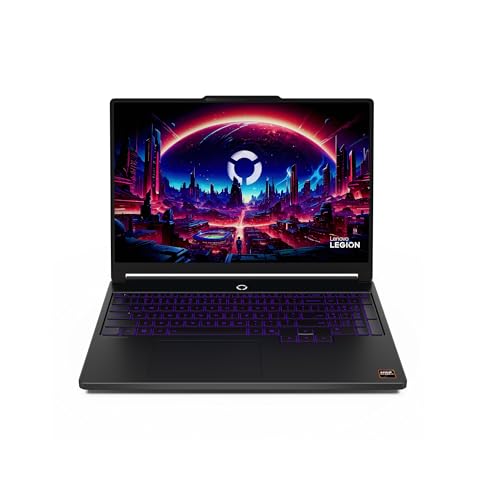
Lenovo Legion 5a OLED — Best value OLED route
The Legion 5a closes the guide by combining the two features streamers ask about most — an OLED screen and generous memory — at the RTX 5060 tier. Its listing specifies a Ryzen 7 250 processor, an NVIDIA GeForce RTX 5060, 32GB of memory and 1TB of storage behind a 15.3-inch OLED WQXGA display at 165Hz, in Eclipse Black. The streaming foundation is fully present: the same hardware encoder as every other pick, memory that matches the guide’s maximum, and a panel whose contrast makes games look the way their trailers promised. For a streamer whose production is growing — more scenes, more tools, a local recording habit — the 32GB is the specification that will be thanked monthly.
There is also a personality to this pick that suits how channels actually grow: unevenly. A quiet month needs nothing special; a viral week brings collaborations, longer sessions, guest sources and a recording archive ballooning in the background. A machine specified with memory headroom and a beautiful screen absorbs those weeks without the streamer shopping mid-surge, while its modest processor only becomes a conversation if the production grows truly elaborate. Most channels’ ceilings are set by their content long before their hardware, and the 5a is specified by someone who seems to know it.
Its honest boundary is the processor tier:
the Ryzen 7 250 is the most modest CPU in this guide, entirely adequate for a game plus a well-run broadcast, but with less spare headroom than the HX flagships when the production sprawls and the game is demanding at once. Read the pick as a prioritisation rather than a compromise: screen and memory first, flagship processing later if the channel ever truly needs it. Many streamers will never reach that later — their bottleneck will be content, not cores — and for them the 5a is the shrewdest specification in the guide, spending where a stream visibly benefits and saving where it does not.
- Display: 15.3-inch OLED WQXGA 165Hz
- Processor and graphics: AMD Ryzen 7 250 with NVIDIA GeForce RTX 5060
- Memory and storage: 32GB memory, 1TB storage
- Finish: Eclipse Black
- Character: screen-and-memory value for growing channels
Strengths
- OLED panel and 32GB of memory — the two most-requested upgrades — at the 5060 tier.
- The full RTX hardware-encoding foundation, identical in kind to every pick here.
- Storage and memory sized for a channel’s growth rather than its launch day.
Trade-offs
- The most modest processor in the guide; very heavy productions will feel its ceiling first.
- Compact 15.3-inch screen shares the family’s appetite for an external dashboard monitor.
- Wired networking, as with most picks here, means an adapter.
Best for: growing streamers who want OLED and memory headroom without flagship processing prices.
Not suited for: producers running the heaviest simultaneous stacks, who belong with the Ultra 9 Legion 5.
How Do the Six Compare for a Streaming Desk?
| Machine | Graphics / encoder | Processor | Memory | Screen |
|---|---|---|---|---|
| Strix G16 (Intel) | RTX 5060 | i7-14650HX | 16GB | 16-inch FHD+ 165Hz |
| Strix G16 (AMD) | RTX 5060 | Ryzen 9 9955HX | 16GB | 16-inch 1200p 165Hz |
| Strix G18 | RTX 5070 | Ryzen 9 9955HX | By configuration | 18-inch 2.5K 240Hz |
| Legion 5 | RTX 5060 | Ultra 9 275HX | 32GB | 16-inch WQXGA 240Hz |
| Legion 5i | RTX 5070 | Ultra 7 251HX | 16GB | 15.3-inch OLED 165Hz |
| Legion 5a | RTX 5060 | Ryzen 7 250 | 32GB | 15.3-inch OLED 165Hz |
One column the table cannot hold is the ownership column: every machine here will, within its first year, be surrounded by the peripherals this guide keeps mentioning, and the total system — laptop, microphone, light, perhaps a camera and a second screen — is the real purchase a streamer is planning. Read the laptop prices in that light when comparing rows. A machine that costs more but delays three peripheral purchases is not obviously the expensive option, and a bargain laptop that forces an immediate memory upgrade and a hub and an adapter may not be the bargain. Streamers think in systems instinctively once they have been live a month; this table is an invitation to think that way a month earlier.
The encoder column is deliberately monotonous — RTX across the board is the point of the guide —
so the real reading happens in the other columns. Processor and memory describe your production’s headroom; the screen describes your daily view of the operation. Choose the row whose headroom matches the broadcast you actually run, and whose screen matches the desk you actually have.
What About Recording While You Stream?
Most growing channels treat the live broadcast as raw material: highlights, clips and edited videos are cut from a local recording made at the same time. That habit adds a third simultaneous workload to the laptop — game, encode for the stream, encode or write for the recording — and it is where the headroom specifications in this guide stop being theoretical. The hardware encoder can serve the stream while the recording is handled efficiently alongside it, but the production as a whole asks more of the processor, the memory and the storage than streaming alone does. The 1TB drives across these picks matter here too: high-quality local recordings accumulate at a pace that surprises every new streamer, measured in gigabytes per session.
Plan the recording workflow with the same deliberateness as the stream. Decide the recording’s quality level separately from the stream’s — it can and usually should be higher, since it is not constrained by your upload — and give it its own folder discipline from the first session, because an undifferentiated drive of enormous video files becomes unsearchable within a month. Streamers who record with intent find their laptops in this guide entirely adequate to the triple workload; streamers who discover recording as an afterthought, switched on at maximum settings mid-season, are the ones who meet dropped frames and go shopping for explanations. The explanation is arithmetic, and this paragraph is it.
How Do Long Sessions Test Cooling, and What Can You Do About It?
A five-hour stream is a thermal marathon run at full pace, and the gaming chassis in this guide are built for marathons — that is precisely what distinguishes them from thin performance laptops that sprint beautifully. Even so, the streamer controls half the thermal story. Vent clearance is the first half: a laptop suffocating against a wall or sitting on a soft surface will throttle in hour three regardless of its pedigree, while the same machine raised on a stand with its intakes breathing stays at full speed to the end. Room temperature is the second half, and streamers who broadcast from small, closed, equipment-warmed rooms learn to treat a door left open as a performance setting.
Fan noise completes the triangle, because cooling you can hear is cooling your audience can hear. The mitigations are production craft rather than purchases: position the laptop off-axis from the microphone, keep the microphone close so its gain can stay low, and use the fan profiles the manufacturer provides to choose a curve you can live with rather than the loudest possible safety. Every pick here can be made broadcast-quiet enough with those habits; none can overcome a microphone placed beside its exhaust. As with so much in this guide, the laptop provides the capability and the streamer provides the last, decisive ten percent.
How Do You Set Up a Laptop Streaming Station Step by Step?
Build the station in the order that isolates problems. First, the network: connect the laptop by Ethernet if the pick allows it natively, or through a quality adapter if it does not, and run the stream tests on that connection before anything else is configured — a stream built on an untested network is a house on an un-surveyed plot. Second, the broadcasting software: create your scenes with the hardware encoder selected from the start, set your output resolution and bitrate to what your tested upload connection sustains comfortably rather than heroically, and record a private test broadcast to inspect with a viewer’s eyes.
Between those steps, save the working configuration as a profile and export a copy of your broadcasting software’s settings to cloud storage. A streaming setup accumulates dozens of small, hard-won adjustments — encoder values, audio filters, scene arrangements, hotkeys — and that accumulated tuning is worth more than any single piece of hardware in the room. Streamers who back it up treat a reinstall or a new laptop as an afternoon; streamers who do not treat it as a bereavement. The laptops in this guide will be replaced someday, as all laptops are. The production you build on them should be portable enough to survive the replacement, and the time to make it portable is the day it first works.
Third, audio before video, because audiences forgive a soft picture and never forgive bad sound.
Position whatever microphone you have close, set its levels so your excited voice does not distort, and listen to a recording on headphones before going live. Fourth, the camera and lighting: face a light source, raise the camera to eye level, and accept the built-in webcam as a starting point whose replacement you will prioritise when the channel justifies it. Finally, rehearse a full session — game, scenes, alerts, a simulated raid of chat messages — and watch the machine’s temperatures and your own checklist. The streamers who look effortless live are the ones whose effort happened in rehearsals nobody saw.
One habit separates calm streamers from frantic ones when something misbehaves mid-broadcast: change a single variable at a time. The temptation is to adjust the encoder, the bitrate and the network settings in one panicked pass, after which nobody knows what helped. These laptops reward method because their capability is not in doubt — test the connection, then the settings, then the production load, in that order, and keep a small dated notebook of the configuration that works, so troubleshooting becomes a lookup instead of an investigation performed live in front of an audience.
What Mistakes Do New Streamers Make When Buying a Laptop?
The founding mistake is buying for the game alone — choosing by frame rates and discovering, on the first broadcast, that streaming is a second workload with its own hardware logic. The encoder and the headroom in this guide exist to prevent that discovery. The second mistake is the mirror: overspending on the laptop while planning to use its built-in microphone and camera indefinitely, when a humbler machine plus proper audio gear would produce a stream audiences rate higher every single night. Sound is the highest-value upgrade in all of streaming, and it is not sold inside a laptop.
One more mistake deserves isolation because it is so easy to make from a spec sheet: assuming the higher-tier graphics card is automatically the better streaming purchase. The encoder generation matters more than the tier for the broadcast itself — a 5060 and a 5070 of the same generation encode with the same silicon family, while the tier mostly buys the game’s frame rates and settings. A streamer whose games are modest but whose production is elaborate may be served better by the Legion 5’s processor and memory than by a 5070 machine, and a streamer with demanding games and a tidy production should reverse that logic. Match the tier to the game and the headroom to the production, as two separate decisions, and the guide’s table starts making its intended sense.
A third mistake is streaming over Wi-Fi by default in a building full of other networks, then troubleshooting the encoder for dropouts the network caused.
A fourth is ignoring configuration ranges on customised listings — the G18’s wide span being this guide’s standing example — and receiving less memory or storage than the headline suggested. A fifth is buying the thinnest machine for a workload that runs hot for five hours, and meeting thermal throttling as a co-host. And the last is skipping the private test stream: every pick here deserves a rehearsal broadcast before a public one, because the audience’s first impression should meet the setup you intended, not the setup you happened to get.
How Does a Streaming Setup Grow Across Its First Year?
Picture the sensible sequence, because buying it all at once is how budgets die. Month one is the laptop, a wired connection and whatever microphone the budget reaches after those two — the stream is live, the audio is respectable, the format is being discovered. The next purchases, in the order audiences notice them, are lighting and the camera: a face lit deliberately and framed at eye level transforms a broadcast more cheaply than any internal upgrade, and it makes the eventual camera purchase count double. A second monitor for the production dashboard follows when scene-switching by alt-tab starts costing on-air mistakes, and it is the upgrade streamers describe with the most relief per unit of money.
Somewhere in that year, memory or storage may knock — a production that has sprawled to the edge of 16GB, a recording archive eating the drive — and the picks here divide honestly on that day: the 32GB machines simply continue, while the 16GB machines ask for either an upgrade, where the model allows it, or tidier habits. Nothing in the sensible sequence involves replacing the laptop, which is the entire point of buying the encoder generation and the headroom correctly at the start. A streaming laptop bought well is not the first of several computers. It is the fixed centre around which a small studio assembles itself, one audience-noticed improvement at a time.
Final Recommendation
Start from the production you run, not the one you envy. For most streamers, the Intel Strix G16 is the complete, balanced answer — current encoder, HX headroom, a screen for the game and room to grow by peripherals. Its AMD twin serves those who prefer that platform or lean on the processor harder. When the production sprawls, the Legion 5’s Ultra 9, 32GB and Ethernet port are the headroom build; when the games are the demanding part, the 5070 machines — the vast G18 for a fixed desk, the OLED Legion 5i for a travelling one — take over; and the Legion 5a is the shrewd route to OLED and memory for a growing channel. Whichever you choose, wire the network, fix the audio first, and rehearse in private — then go live with the confidence of someone whose machine was selected for the broadcast as carefully as for the game, and let the laptop handle the rest, which is exactly what you bought it for.
Frequently Asked Questions
Why does the graphics card matter more than the processor for streaming?
Because of the encoder. The RTX cards here contain dedicated hardware that compresses your video independently, so the stream’s quality stops competing with the game for resources. The processor still matters — it runs the production around the encode — but the encoder is what makes single-laptop streaming practical at high quality, and it lives in the graphics card.
Can I stream and play on one laptop without a capture card?
Yes — that is the setup this entire guide describes. A capture card is for bringing an external source, like a console, into the PC. When the game runs on the same laptop that broadcasts it, the broadcasting software captures it directly and the RTX encoder handles the compression. No second machine is required.
Is 16GB of memory enough for streaming?
For a game, the broadcasting software and a normal set of overlays and tools, yes — several picks here are specified that way honestly. It tightens when productions sprawl: many sources, local recording, extra applications. That is the point at which the 32GB picks, the Legion 5 and 5a, justify themselves.
How important is a wired connection, really?
More than any single setting inside the software. A stream is a continuous upload sustained for hours, and Wi-Fi’s variability — interference, distance, other networks — is the most common cause of dropped frames that streamers misdiagnose as encoder problems. Use Ethernet where the machine offers it, or a good adapter where it does not, whenever your setup possibly allows.
When should I replace the built-in camera and microphone?
The microphone first, and sooner than you think — audio quality is what audiences judge a stream by, often without realising it. A decent external microphone transforms any pick in this guide. The camera can wait until your format settles; when you do upgrade it, every laptop here has the ports and headroom to make the upgrade count.
Does streaming wear a gaming laptop out faster?
It works the machine hard for long hours, which is why this guide favours full-size gaming chassis with serious cooling over thin designs. With vents kept clear and temperatures watched during the first long sessions, a machine here should serve for years of broadcasts. Heat is the enemy to manage; the workload itself is what the hardware was built for.
Can I stream a console through one of these laptops?
Yes, with a capture device between the console and the laptop — that is the one job a capture card still does. The laptop then handles encoding and production exactly as it does for its own games. Check the capture device’s connection type against the laptop’s ports before ordering, and the setup is otherwise the one described in this guide.
Related Guides
Streaming setups rarely live alone for long. Creators who also cut video and photography will appreciate the colour-first machines in best laptops for amateur photography, engineers who stream their builds can compare the workstation logic of best electrical engineering laptops, and anyone whose channel involves presenting or teaching will find the classroom perspective of best laptops for school teachers surprisingly relevant. The workstation class above these gaming machines is compared in the best high end cad laptops.



[…] Creators who render and present their designs live may find the encoder-focused machines in best laptops for live streaming video a useful second desk, and the screen-calibration reasoning in best laptops for amateur photography […]