What's inside
- Where to buy
- Key Takeaways
- Quick Picks
- How did we choose the best ableton laptops?
- What actually makes a laptop good for Ableton Live?
- How do the six picks compare side by side?
- How should you set up a new laptop for Live?
- What mistakes do producers make when buying for Ableton?
- Why does single-core speed matter more than core count?
- Mac or Windows: how do the audio stacks really differ?
- How much storage and memory will your library actually consume?
- What should you test in the first week of ownership?
- Which accessories complete a mobile Ableton setup?
- How do you keep a production laptop fast for years?
- What do producers get wrong about latency?
- How should you split a budget between the laptop and everything around it?
- A note on the renewed listings in this guide
- Final Recommendation
- Frequently Asked Questions
- Related Guides
As an Amazon Associate I earn from qualifying purchases. This post may contain affiliate links at no extra cost to you.
gizmoverdict.com is reader-supported. When you buy through links on our site, we may earn an affiliate commission.
Where to buy
Every laptop below links through to its Amazon listing under its name, which is the quickest way to check the exact configuration on offer, because music laptops live and die by their specification rather than their badge. If you prefer to buy in person, the Apple machines are easy to audition in any Apple Store, and the ThinkPad and Surface lines appear in larger electronics retailers, though the precise memory and storage combinations sold there rarely match the listings here. Wherever you shop, treat the listed configuration as the product: a familiar model name with half the memory is a different machine for production work. The best ableton laptops are not simply fast laptops; they are laptops whose processors, memory and audio behaviour suit the way Live actually loads a machine, and that distinction runs through every pick that follows.
Ableton Live stresses a computer in a pattern that ordinary office benchmarks describe badly. A single track carrying a chain of demanding plug-ins — a software synthesiser feeding a reverb, a saturator and a limiter — runs on one processor core until that core gives up, no matter how many other cores sit idle. Meanwhile your sample libraries, drum racks and frozen audio eat memory, and the audio driver decides whether you can play a keyboard part at a latency low enough to feel connected to the sound. A gaming laptop with a headline-grabbing graphics card can stumble over all three of those tests, while a modest-looking ultraportable with the right silicon sails through them.
That is why this guide weighs single-core performance, memory headroom and driver behaviour ahead of screen size or gaming credentials. It also explains, honestly, where Windows and macOS differ for this job: Core Audio on a Mac is a known quantity that rarely surprises you, while a Windows machine can be superb or can hide a poorly behaved driver that produces clicks at exactly the wrong moment. Neither platform is disqualified — producers make records on both every day — but the questions you should ask before buying differ, and the sections below walk through them pick by pick.
Key Takeaways
- The MacBook Pro 14 with M3 Pro is the most complete Ableton machine here, combining strong per-core speed with enough memory for serious sample work.
- Producers who travel light should start with the MacBook Air M2, which handles writing, arranging and moderate mixes in complete silence.
- On the Windows side, the ThinkPad T14 Gen 4 offers the upgrade path and keyboard that long sessions reward.
- The Acer Swift Go 14 brings modern Intel silicon and a touchscreen to producers who sketch ideas away from the desk.
- The Surface Laptop 5 suits writers who split their day between lyrics, email and Live sessions in cafés.
- The Snapdragon-based Vivobook 16 is a long-battery sketchpad with a real plug-in compatibility caveat you must read before buying.
Quick Picks
| Pick | Badge | Why it earns its place |
|---|---|---|
| Apple MacBook Pro 14 M3 Pro | Best Overall | It pairs the strongest per-core performance in this guide with 18GB of memory and a screen worthy of long arrangement sessions. |
| Apple MacBook Air M2 | Best for Producers on the Move | A silent, fanless body and all-day battery make it the writing partner that disappears into a backpack. |
| Lenovo ThinkPad T14 Gen 4 | Best Windows Workhorse | Business-grade build, a superb keyboard and serviceable internals suit producers who keep machines for years. |
| Acer Swift Go 14 | Best Touchscreen Option | Core Ultra silicon, a bright touch display and a light chassis fit producers who arrange with their fingers as much as a mouse. |
| Microsoft Surface Laptop 5 | Best for Writer-Producers | A tall, sharp screen and an excellent keyboard serve people whose sessions begin as words on a page. |
| ASUS Vivobook 16 (Snapdragon X) | Best Battery-First Sketchpad | A big 16-inch canvas and remarkable stamina suit idea capture, provided your plug-in library cooperates with Windows on ARM. |
How did we choose the best ableton laptops?
We began with the bottleneck that ends more sessions than any other: the single thread. Live distributes tracks across cores, but one track’s device chain is a relay race run by a single runner, so per-core speed decides how exotic a lead synth patch or a vocal chain can become before the audio cracks. Every machine here was judged first on that quality, using the general reputation of its processor family rather than invented test numbers, because plug-in loads vary too much between projects for one figure to mean anything honest.
Memory came second. A modern orchestral template, a few large drum libraries and a browser full of reference tracks can push a project well past what an 8GB machine holds gracefully, and once a laptop starts swapping to disk mid-take, the session’s mood goes with it. We favoured 16GB configurations and treated 18GB on the MacBook Pro as the comfortable tier for producers who know their templates will grow. Storage mattered too, since sample libraries expand relentlessly; 512GB is the sensible floor, with external drives as the pressure valve.
Finally we weighed the unglamorous things: fan noise near a condenser microphone, port selection for interfaces and controllers, keyboard quality for the hours spent naming clips and typing lyrics, and the audio stack underneath. macOS offers Core Audio’s predictability. Windows offers ASIO drivers from interface makers that are usually excellent, but the machine’s other drivers — wireless, graphics, power management — occasionally introduce latency spikes that no setting inside Live can fix. Where a pick carries that risk, its section says so plainly.
What actually makes a laptop good for Ableton Live?
Three resources decide your ceiling. The first is per-core processor speed, which governs how much processing one track can carry. The second is memory, which governs how much sampled material can sit ready to play. The third is the audio path: the driver, the interface and the buffer size you can sustain before the sound breaks up. A useful mental model is to imagine Live as a restaurant. Cores are chefs, but a single complicated dish still passes through one pair of hands at a time; memory is the size of the pantry; the driver is the waiter deciding how quickly plates move. Upgrading the wrong one leaves the real bottleneck untouched.
Buffer size is where these forces meet your fingers. A small buffer feels immediate when you play a software instrument, but it asks the processor to deliver finished audio in tiny, frequent parcels, which is exactly the workload that exposes a weak core or a misbehaving driver. A large buffer relaxes the machine and suits mixing, where you are turning knobs rather than performing. Most producers settle into a rhythm of recording small and mixing large, and every laptop here can support that rhythm — the differences lie in how much plug-in weight each can carry while doing it.

Apple MacBook Pro 14 M3 Pro — Best Overall
The M3 Pro MacBook Pro is the machine in this guide that asks the fewest compromises of a serious Live user. Its processor brings strong single-core pace for greedy plug-in chains and enough additional cores to spread a large arrangement across them, while the 18GB of memory in the listed configuration gives sample libraries and multi-layered drum racks room to breathe. The 14-inch Liquid Retina XDR display earns its keep during arrangement work, where seeing many clips at once without squinting shortens the distance between an idea and a finished section, and its speakers are good enough to sanity-check a balance when headphones would flatter it.
Equally important is what does not happen. Core Audio behaves the same on Tuesday as it did on Monday, the fans stay quiet through tracking and only announce themselves under sustained mixing loads, and the port selection — HDMI, an SD card slot, MagSafe and Thunderbolt — means an interface, a controller and a power lead can all connect without a dongle ceremony. The listed unit is a renewed example, so cosmetic condition and battery history follow the seller’s grading rather than Apple’s showroom standard; the silicon underneath, which is what your projects will feel, is unchanged. For a producer buying one machine to write, record and mix on for years, this is the anchor recommendation of the guide.
- Chip: Apple M3 Pro with strong per-core performance
- Memory: 18GB unified memory on the listed configuration
- Display: 14-inch Liquid Retina XDR, high brightness
- Storage: 512GB SSD
- Ports: Thunderbolt, HDMI, SD card reader, MagSafe charging
Strengths
- Handles heavy per-track plug-in chains that would choke lighter machines
- Memory headroom suits orchestral templates and large sampled kits
- Quiet under tracking loads, so vocal takes near the machine stay clean
Trade-offs
- Memory and storage are fixed at purchase, with no later upgrade path
- The listed renewed unit’s cosmetic grade depends on the seller
- It is the heaviest Apple option here, noticeable in a bag carried all day
Best for: Producers who mix as seriously as they write and want one machine for the whole record. Not suited for: Buyers who need to add memory later or who prioritise the lightest possible bag.

Apple MacBook Air M2 — Best for Producers on the Move
The MacBook Air M2 has become the default sketchbook of modern music-making for a simple reason: it removes every excuse not to open Live. It has no fan, so it records in total silence beside a microphone; it wakes instantly; its battery lasts through a day of writing sessions, train journeys and café tables. The M2 chip’s per-core performance remains genuinely capable for production — songwriting projects, beat-making with sampled instruments and arrangements of moderate size run comfortably — and because the machine is so light, it is the laptop that is actually with you when a melody arrives.
The honest limits appear at the mixing end of the process. The listed configuration carries 8GB of memory and 256GB of storage, which suits producers whose libraries live on an external drive and whose track counts stay moderate, but a sprawling template with several large sampled instruments will press against that ceiling. Sustained heavy loads also ask a fanless chassis to shed heat through its skin, so long, plug-in-dense mixes run slower than they would in the Pro. None of this diminishes what the Air is for. Treat it as the finest writing and arranging tool in this guide, and as a capable mixing machine for projects of sensible size. The listed unit is renewed, which keeps the entry cost gentle; check the stated condition and battery description before ordering.
- Chip: Apple M2, fanless design
- Memory: 8GB on the listed configuration
- Display: 13-inch Liquid Retina
- Storage: 256GB SSD, plan on an external drive for libraries
- Build: among the lightest full laptops Apple has made
Strengths
- Complete silence while recording, a gift near sensitive microphones
- Battery life that survives a full day away from a socket
- Strong per-core pace for writing, beats and mid-size arrangements
Trade-offs
- 8GB of memory caps large sampled-instrument templates
- Fanless cooling slows sustained, heavy mix work
- Only two Thunderbolt ports, so a hub joins most desk setups
Best for: Songwriters and beat-makers whose studio is wherever they happen to be sitting. Not suited for: Mix engineers running very large sessions or producers with huge resident sample libraries.

Lenovo ThinkPad T14 Gen 4 — Best Windows Workhorse
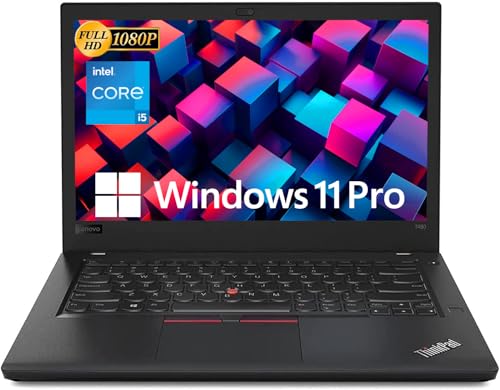
If your production life happens on Windows, the ThinkPad T14 Gen 4 is the grown-up choice in this guide. Its Intel Core i5-1345U pairs respectable per-core speed with the efficiency to keep a session running through a working day, the 16GB of memory in the listed configuration clears the sample-library bar that the Air’s 8GB cannot, and the 14-inch 1920×1200 display gives Live’s arrangement view a little more vertical room than older 1080p panels did. ThinkPads also bring the best keyboard in this line-up, which matters more than it sounds: renaming clips, typing lyrics and riding keyboard shortcuts for eight hours is a tactile experience, and this machine respects your hands.
The ThinkPad’s deeper virtue is longevity. Business laptops of this class are built to be serviced, with parts and documentation circulating for years, and that culture suits producers who would rather repair a machine than replace it mid-album. On the audio side, pair it with a reputable USB interface and its maker’s ASIO driver and behaviour is dependable; the caveat that applies to all Windows machines applies here too, namely that an unrelated driver can occasionally introduce latency spikes, so a new owner should test recording at a low buffer early, while returns are still easy. The listed unit is renewed, graded by its seller, and arrives with Windows 11 Pro — a sensible foundation for a studio machine that also handles ordinary work.
- Chip: Intel Core i5-1345U, ten cores
- Memory: 16GB on the listed configuration
- Display: 14-inch 1920×1200
- Storage: 512GB SSD
- System: Windows 11 Pro, business-class chassis
Strengths
- Keyboard quality that long arranging and writing sessions genuinely reward
- 16GB of memory clears the bar for sampled instruments and bigger projects
- Serviceable business build with a long support tail
Trade-offs
- Per-core pace trails the Apple silicon picks on the heaviest chains
- Speakers are workmanlike, so headphones remain the reference
- As with any Windows machine, verify low-buffer recording early in ownership
Best for: Windows producers who value durability, typing comfort and memory headroom. Not suited for: Buyers chasing the absolute strongest single-track plug-in ceiling.

Acer Swift Go 14 — Best Touchscreen Option
The Swift Go 14 approaches production from a different angle: it is the laptop for people who think with their hands. Its 14-inch touchscreen invites you to drag clips around the arrangement, nudge faders and tap through a set in Session View without reaching for a mouse, and while touch will never replace a good controller, there are moments — sketching on a sofa, tweaking a live set’s layout — where it feels like the future arriving early. Underneath, Intel’s Core Ultra 7 155H brings modern per-core performance and a capable integrated graphics side, and the 16GB of LPDDR5X memory in the listed configuration is the right amount for serious hobbyist and semi-professional projects.
Acer also kept the machine genuinely portable, with a chassis that slips into a small bag and a port selection that covers an interface and a display without drama. The fan is audible under sustained loads in a way the MacBook Air’s silence throws into relief, so close-miked recording is better done with the machine at arm’s length or with tracking kept light. As a Windows laptop it shares the platform’s homework: install your interface maker’s ASIO driver, test at performance buffer sizes, and disable the power-saving habits that can interrupt audio. Do that, and the Swift Go 14 becomes a nimble, modern production companion whose touchscreen earns its place rather than decorating the specification sheet.
- Chip: Intel Core Ultra 7 155H
- Memory: 16GB LPDDR5X
- Display: 14-inch 1920×1200 touchscreen
- Storage: 512GB SSD
- Design: thin-and-light Intel Evo class chassis
Strengths
- Touch display suits Session View sketching and hands-on arranging
- Current-generation Intel silicon with healthy per-core pace
- Light enough to treat as an everyday carry, studio or not
Trade-offs
- Fan noise under load argues for distance during vocal takes
- Memory is soldered, so the listed configuration is the final one
- Touch is a bonus in Live, not a replacement for a controller
Best for: Producers who sketch and arrange away from a fixed desk and like touch input. Not suited for: Purists who record vocals inches from the laptop in silent rooms.

Microsoft Surface Laptop 5 — Best for Writer-Producers
Some producers are writers first. Their sessions begin as verses in a document, chord notes in a margin, voice memos transcribed at midnight — and for them the Surface Laptop 5’s priorities are correctly ordered. Its 13.5-inch PixelSense display uses a taller 3:2 shape that shows more of a lyric sheet and more tracks of an arrangement at once, its keyboard is among the most pleasant on any Windows laptop, and the whole machine has a calm, finished feel that suits rooms where music is one part of a creative day rather than a separate trip to a studio corner.
The listed configuration pairs a 12th-generation Intel i5 with 16GB of memory and 512GB of storage, which is a sensible production specification: enough memory for sampled instruments, enough storage for a working library, and per-core performance that handles writing, arranging and moderate mixes without complaint. It will not out-muscle the MacBook Pro on a mastering-grade chain, and its port selection leans on USB-C plus a single USB-A, so interface and dongle planning is part of ownership. The listed unit is renewed, so judge it by the seller’s stated grade. Chosen knowingly — as the elegant, writerly end of this guide — it is a deeply likeable machine that happens to run Live very well.
- Chip: 12th-generation Intel Core i5
- Memory: 16GB on the listed configuration
- Display: 13.5-inch PixelSense touchscreen, 3:2 shape
- Storage: 512GB SSD
- Ports: USB-C, USB-A and Surface Connect
Strengths
- Tall screen flatters both documents and Live’s arrangement view
- Keyboard and trackpad quality make long sessions comfortable
- 16GB memory configuration suits real production work, not just demos
Trade-offs
- Per-core ceiling sits below the newest silicon in this guide
- Port count is modest, so a small hub earns its drawer space
- Glossy screen can reflect bright studio lighting
Best for: Singer-songwriters and writer-producers who live in documents as much as in Live. Not suited for: Producers whose mixes lean on long chains of heavyweight plug-ins.

ASUS Vivobook 16 (Snapdragon X) — Best Battery-First Sketchpad
The Vivobook 16 is the most interesting gamble in this guide, and its section must be read whole rather than skimmed. The hardware proposition is lovely: a spacious 16-inch 1920×1200 display that shows a full arrangement without scrolling, Snapdragon X silicon that runs cool and quiet, and battery endurance that makes a charger feel optional. As a machine for capturing ideas, writing toplines over bounced instrumentals and arranging audio clips, it is genuinely appealing, and its 16GB of memory and 512GB of storage match the guide’s sensible floor.
The caveat is architectural. This laptop runs Windows on ARM, and while Live itself and a growing list of plug-ins run on that platform, many third-party instruments and effects were built for Intel and AMD processors and reach ARM machines through translation layers or not at all. A producer whose sound depends on a specific beloved synth or a vintage-modeled compressor must verify that exact plug-in’s status before buying, because no battery figure compensates for a missing favourite tool. Producers who work mostly with Live’s own devices, audio recording and a modest set of confirmed plug-ins face no such problem, and for them the Vivobook’s stamina and screen make it a quietly radical sketchpad. Buy it with your plug-in list in hand, not on impulse.
- Chip: Qualcomm Snapdragon X (Windows on ARM)
- Memory: 16GB on the listed configuration
- Display: 16-inch 1920×1200
- Storage: 512GB SSD
- Battery: the endurance headline of this guide
Strengths
- Large screen shows wide arrangements without constant zooming
- Runs cool and quiet, friendly to microphones and long days
- Battery life supports genuinely untethered writing sessions
Trade-offs
- Third-party plug-in support on Windows ARM is incomplete — verify yours
- Some audio interface drivers have been slower to arrive on ARM
- Not the pick for producers with deep legacy plug-in collections
Best for: Mobile writers who work mainly with Live’s built-in devices and audio. Not suited for: Anyone whose signature sound depends on unverified third-party plug-ins.
How do the six picks compare side by side?
| Pick | Platform | Memory | Screen | Production character |
|---|---|---|---|---|
| Apple MacBook Pro 14 M3 Pro | macOS | 18GB | 14-inch XDR | The full-process machine: write, track and mix |
| Apple MacBook Air M2 | macOS | 8GB | 13-inch Retina | Silent writing and arranging, moderate mixes |
| Lenovo ThinkPad T14 Gen 4 | Windows | 16GB | 14-inch 1920×1200 | Durable all-rounder with the best keyboard |
| Acer Swift Go 14 | Windows | 16GB | 14-inch touch | Modern, light and hands-on |
| Microsoft Surface Laptop 5 | Windows | 16GB | 13.5-inch 3:2 touch | The writer-producer’s elegant daily machine |
| ASUS Vivobook 16 (Snapdragon X) | Windows on ARM | 16GB | 16-inch 1920×1200 | Big-screen sketchpad with a plug-in caveat |
How should you set up a new laptop for Live?
Begin before the first session, not after the first glitch. Install Live, then your interface maker’s own driver — on Windows that means the ASIO driver, never a generic substitute — and set the machine’s power plan to favour performance while plugged in. Move your sample libraries onto the internal drive if space allows, because a library streaming from a slow external disk can stutter a session that the processor was handling easily. Then open your largest existing project, set a recording buffer you could actually play through, and play it end to end. That single test tells you more about your new machine than any specification page.
Housekeeping pays rent for years. Keep one folder structure for projects and never let audio files scatter across the desktop, because Live projects reference files by location and a tidy disk makes backups honest. Freeze tracks that carry finished, heavy processing; freezing is not an admission of defeat but the standard professional habit that keeps a session responsive at hour six. Finally, export and archive finished projects with their samples collected into the project folder, so a song you revisit in three years opens complete rather than apologising for missing files.
What mistakes do producers make when buying for Ableton?
The classic error is buying cores by the count. A processor advertising many threads looks powerful on a shelf tag, yet a single overloaded track still silences a session, because Live cannot split one device chain across cores. Per-core speed and memory deserve the money first. A close second is ignoring the audio path entirely: no laptop’s built-in output is the reference you should mix through, so budget for an interface alongside the machine, and treat the laptop’s own speakers as a translation check rather than a monitoring system.
Storage optimism is the third trap. Producers imagine a library as a fixed size, but libraries breed: one orchestral collection invites a second, drum packs accumulate, and a 256GB drive shared with an operating system fills sooner than pride expects. Either choose the larger internal drive or commit early to a fast external drive as the library’s permanent home. The final mistake is platform blindness — buying a Windows on ARM machine without checking plug-in support, or a Mac without confirming that an ageing but essential effect has an Apple silicon version. Ten minutes with a compatibility list protects years of workflow.
Why does single-core speed matter more than core count?
Open a finished project and watch where the load actually sits. The drum bus carries four tracks comfortably because Live can hand each track to a different core. Then look at the lead vocal: a pitch corrector, two compressors in series, an equaliser with dynamic bands, a de-esser, a saturator and a send-hungry reverb tail on the return. That chain is a queue, not a crowd. Each device must finish its slice of audio before the next begins, and the whole queue must complete within the buffer’s deadline, thousands of times per second. One core owns that queue. When it falls behind, the symptom is not slowness in general but a specific misery: crackles on the loudest phrase, dropouts when the chorus stacks up, a session that plays the verse and dies at the drop.
This is why a modest core count with fast individual cores beats a forest of slow ones for production, and why the Apple silicon machines in this guide punch above their paper specifications. It also explains a frustration familiar to upgraders: a new laptop can feel identical to the old one on the exact project that was struggling, if the purchase improved everything except per-core pace. When you compare machines, ask first what a single thread can do, then whether the core count covers your track count, and only then about graphics, which Live barely touches outside video work.
There are workarounds, and professionals use them without shame. Freezing a track renders its chain to audio and releases the core; flattening commits the result. Grouping tracks spreads load when chains are parallel rather than serial. Raising the buffer during mixing widens the deadline every queue must meet. These habits extend any machine’s life, but they are habits of management, not magic — the producer who freezes constantly to survive a session is telling you the laptop’s per-core ceiling is the real limit, and that is the ceiling this guide priced first.
Mac or Windows: how do the audio stacks really differ?
On a Mac, Core Audio is part of the operating system, maintained by the same company that built the hardware, and interfaces present themselves to Live through that single, predictable layer. Producers value this less for elegance than for the absence of surprises: the aggregate behaviour of a Mac laptop and a class-compliant interface is known before you buy, and when something misbehaves, the list of suspects is short. The trade-off is choice. You take Apple’s configurations as offered, memory and storage are decided at purchase, and the repair conversation runs through Apple’s channels.
Windows splits the responsibility. Microsoft provides the stage, the laptop maker supplies drivers for its wireless, graphics and power hardware, and your interface maker supplies the ASIO driver that Live actually performs through. When all three parties do their jobs — which, on reputable business and creator machines, they usually do — the result is excellent, and the platform rewards you with wider hardware choice and, in lines like the ThinkPad’s, a culture of serviceability. The failure mode is specific and worth naming: a background driver, often wireless or power management, occasionally pauses the system for a sliver of time, and at a small recording buffer that sliver becomes an audible click. The defence is equally specific: test low-buffer recording in the first days of ownership, update drivers from the makers rather than from random download sites, and keep the machine’s performance power plan engaged while tracking.
Neither stack changes what Live is. Session View behaves identically, your projects open on both, and collaborators pass files across the divide daily. Choose the platform your plug-ins support completely, your interface maker serves best, and your hands prefer — then stop relitigating it, because records are made on the machine you understand, not the machine a forum prefers.
How much storage and memory will your library actually consume?
Producers chronically underestimate both numbers because libraries grow by enthusiasm rather than by plan. A single quality piano or string collection can occupy tens of gigabytes; a year of sample-pack purchases adds a shelf of one-shots, loops and construction kits; and Live’s own factory content takes its share before you record a note. Add the operating system, your other creative software and the projects themselves — an album’s worth of multitrack audio is not small — and a 256GB drive stops being a specification and becomes a schedule of future deletions. The 512GB configurations favoured in this guide are not luxury; they are the size at which a working producer stops thinking about the disk.
Memory follows a similar curve. Live with a handful of audio tracks sips RAM, but sampled instruments hold their libraries in memory to play instantly, and a template that preloads an orchestra, a large drum kit and several synth patches can claim the majority of a 16GB machine before you press play. The symptom of shortage is not a crash but a creep: longer load times, a beachball or hourglass when switching songs in a live set, the occasional stutter when a new instrument first sounds. If your work leans on sampled realism, memory is the upgrade that protects the session’s flow, and it outranks a larger screen or a faster drive in this guide’s judgement every time.
The practical compromise, when budget forces one, is a fast external SSD dedicated to libraries. Modern USB and Thunderbolt drives stream samples well enough for most instruments, and keeping the internal drive for the system, Live and current projects preserves the snappiness you feel every minute. What does not work is improvising later with a slow spinning disk or a pocket USB stick; sample streaming is a performance task, and it punishes bargain storage exactly when the arrangement gets busy.
What should you test in the first week of ownership?
Treat the first week as an audition with a return ticket, and schedule the hard tests while the ticket is valid. Day one: install Live, your interface driver and your five most essential plug-ins — not your whole collection — and confirm each one authorises and opens. Day two: record something real at the buffer size you intend to perform at, ideally a vocal or guitar part you can play without thinking, and listen back on headphones for clicks that your excitement might forgive in the moment. A clean take at a small buffer is the single most valuable fact you can learn about a production laptop.
Later in the week, load your largest existing project and play its busiest section repeatedly while the machine is warm, because heat is the honest examiner: a laptop that performs beautifully for ten cold minutes may manage its temperature by slowing down at minute forty. Run the same passage on battery and on mains power, and note whether unplugging changes the machine’s manners, since some Windows laptops quietly choose efficiency when the cable leaves. Finally, sleep and wake the machine with your interface connected, close and reopen Live, and unplug and replug the interface mid-session. Studios are ecosystems of small interruptions, and the machine that recovers gracefully from all of them is the machine that will not embarrass you in front of a client.
If a test fails, act while the return window is open and be specific with the seller about what failed: clicks at a stated buffer with a stated interface is a fact, not a complaint. Most producers who do this week of homework never think about their laptop’s reliability again, which is precisely the point — the machine should become furniture, and the music should get the attention.
Which accessories complete a mobile Ableton setup?
The laptop is the centre of the rig, but three accessories decide how professional the rig feels. The first is the audio interface, and it deserves budget before any other extra: two inputs cover most singer-producer work, four suit small ensembles, and the quality of its headphone output matters because that output is your mix position on the road. Buy from a maker with a reputation for maintaining drivers across operating system updates, because an interface orphaned by its manufacturer becomes e-waste on the next macOS or Windows release, while a supported one serves a decade.
The second accessory is the controller, and here honesty about your habits beats aspiration. Keyboard players should buy keys with enough octaves to stop transposing mid-phrase; finger-drummers should buy pads with genuine velocity sensitivity rather than decorative lights; and producers who perform live should weigh a grid controller that mirrors Session View, because the mapping between hand and screen is what makes a performance feel played rather than operated. A controller you touch daily for ten minutes teaches you more musicianship than an expensive one admired in its box.
Third comes the unglamorous infrastructure: a powered hub that lets the interface, controller, licence dongle and external drive coexist; a drive dedicated to backup, because a laptop holding the only copy of an album is a risk no specification can justify; and headphones you have calibrated your taste against, ideally the same pair you mix on at home, so that a café session and a studio session are one continuous judgement rather than two. None of these items appears in a laptop’s headline specifications, and all of them shape your results more than a marginal processor step does.
How do you keep a production laptop fast for years?
Longevity is mostly housekeeping. Keep a fifth of the internal drive empty, because systems and sample streamers alike slow down as disks fill to the brim, and archive finished projects to external storage with their audio collected so the working drive stays lean. Resist the urge to install every free plug-in that crosses your feed: each one is a future compatibility question at operating system upgrade time, and a lean plug-in folder is the difference between updating confidently on release week and freezing your system for a year out of fear.
Heat is the slow enemy. Dust gathers in any fan-equipped machine, batteries age, and thermal behaviour at year four is rarely what it was at unboxing. Work on hard surfaces that let the machine breathe, consider a simple stand that lifts the rear of the chassis during long mixes, and treat a laptop that suddenly runs hot and loud on old projects as a machine asking for cleaning and attention rather than replacement. On the software side, keep one known-good system image or at least a written record of your working configuration before major updates, so a bad Tuesday can be undone by Friday.
Finally, protect the work rather than the machine. Laptops are replaceable on a credit card’s notice; the half-finished album on one is not. An automatic backup that runs without your remembering it — to an external drive at home, to cloud storage, or ideally both — converts the worst day of your production life into an inconvenience. The producers in this guide’s audience who have lost work once all say the same thing: the backup habit costs almost nothing, and the lesson that teaches it costs a record.
What do producers get wrong about latency?
Latency is the delay between playing a note and hearing it, and it is governed by arithmetic rather than by price tags. Your interface converts sound in small parcels called buffers; the smaller the parcel, the sooner each note reaches your ears, but the more frequently the processor must finish its work. At a large buffer the machine relaxes and latency grows to a level a keyboard player feels as a disconnect between finger and sound, while a vocalist monitoring through effects hears an echo of themselves that no amount of talent can sing comfortably against. The craft lies in choosing the smallest buffer your current project sustains cleanly, and in understanding that this number legitimately changes as a project grows: the sketch that tracked beautifully at a tiny buffer in week one may need a larger one once forty tracks of processing surround the vocal.
The common misunderstanding is to chase the lowest possible figure as a badge of honour, then blame the laptop when a real session crackles. Latency you can feel matters only while performing; nobody hears buffer size in a finished mix, and mixing at a performance buffer is like driving everywhere in first gear because first gear accelerates fastest. Disciplined producers treat the buffer as a mode switch — small for playing, generous for mixing — and judge a laptop by the heaviest chain it can carry in each mode rather than by a single heroic number quoted in a forum signature.
Round-trip honesty also matters when comparing machines. The figure Live reports includes your interface’s conversion and driver behaviour, so the same laptop can post different results through different interfaces, and two laptops compared through one interface tell a fairer story than either machine’s marketing. When you audition a new laptop, bring your own interface and your own worst project; the pairing is the product, and its behaviour under your material is the only benchmark that will still matter in a year.
One more subtlety separates smooth studios from frustrating ones: the driver you never think about. On Windows especially, wireless adapters, graphics drivers and aggressive power management can interrupt the audio stream at intervals that feel random — a click every minute or so, often blamed on Live or the interface. The fix is methodical rather than expensive: current drivers from each maker’s own site, a performance power plan while recording, and, if an interruption persists, disabling devices one at a time in a test session until the culprit confesses. Producers who learn this detective work once stop fearing Windows for production; producers who never learn it conclude wrongly that only one platform can make music, and spend accordingly.
How should you split a budget between the laptop and everything around it?
A production setup fails at its weakest component, so the laptop should claim the largest share of a budget without claiming all of it. A sensible division for a first serious rig gives the computer roughly two-thirds of the money, reserves a meaningful slice for the interface and monitoring you will judge every decision through, and keeps a small contingency for the cables, hub and backup drive that nobody budgets for and everybody needs by the second week. Buyers who invert this — a flagship laptop monitored through its own speakers, plug-ins tracked through a crackling onboard input — own an impressive specification and a disappointing studio.
Within the laptop’s share, spend in the order this guide has argued: per-core performance first, memory second, storage third, and everything else after. That order has a practical consequence at the checkout: when a configuration forces a choice between a processor step and a memory step, take the memory if your work is sample-heavy and the processor if your work is synthesis- and effects-heavy, because those are the two ceilings you will actually meet. Screen size, by contrast, can be supplemented later by any inexpensive external monitor, which is why it sits last in the spending order despite being the feature you see in the shop.
Renewed machines, several of which appear in this guide, change the arithmetic kindly: the saving against a new unit can fund the interface outright, provided the listing’s condition grade is clear and the return window is long enough to run the first-week tests described earlier. That is the honest way to stretch a budget — not by accepting a weaker processor or half the memory, which tax every session for years, but by letting a previous owner’s depreciation pay for the rest of your signal chain.
A note on the renewed listings in this guide
Several machines above are sold as renewed examples, and that word deserves a paragraph of plain dealing. Renewed means the laptop has had a previous life — returned, refurbished or professionally inspected and resold — and its cosmetic condition, battery wear and included accessories are described by the individual seller’s grading rather than guaranteed by the manufacturer. The processor does not wear out in any way that matters to a Live session, memory does not fade, and a solid-state drive reports its own health to anyone who checks, so the performance arguments in each pick’s section stand. What varies is the surface: a scuffed lid, a battery at a lower share of its original capacity, a charger that may be a quality equivalent rather than the original.
The sensible routine is to read the listing’s condition description as carefully as its specification, photograph the machine on arrival, run the first-week tests described in this guide while the return window is open, and check the battery’s reported health in the system settings. Do those things and a renewed laptop is one of the smartest routes into serious production hardware; skip them and you are gambling on the one part of the purchase that was never about the silicon.
Final Recommendation
For most producers, the MacBook Pro 14 with M3 Pro is the answer that ends the search: it carries heavy chains, holds big libraries, behaves predictably through Core Audio and presents your arrangement on a screen that flatters long work. The MacBook Air M2 is the better buy when your production life is mobile and your projects are mid-sized, and the ThinkPad T14 Gen 4 leads the Windows field for buyers who value a keyboard and a serviceable chassis. The Swift Go and Surface Laptop each serve a temperament — hands-on arranger, writer first — and the Vivobook 16 rewards the specific producer whose tools are confirmed for ARM.
Choose by imagining your most demanding ordinary session, not your dream one: the laptop that keeps that session fluid, quiet and unglamorous is the laptop that will still be making records with you long after the unboxing thrill has faded into habit. And once it arrives, resist the urge to judge it by its first evening — run the week’s tests, load the worst project you own, and let evidence, rather than packaging or first impressions, tell you that the long search is finally, genuinely over.
Frequently Asked Questions
How much RAM does Ableton Live really need?
Sixteen gigabytes is the comfortable working figure for most producers, covering sampled instruments, drum racks and a browser of references alongside Live. Eight gigabytes remains workable for beat-making and audio-based songwriting, while producers running large orchestral templates should treat 18GB or more as their starting point and freeze tracks as a habit.
Is a Mac or a Windows laptop better for Live?
Live itself runs well on both. macOS offers Core Audio’s consistency and a quieter setup experience, while Windows offers wider hardware choice and upgrade paths but asks you to verify drivers, especially at low recording buffers. The better platform is usually the one your plug-ins, interface and collaborators already live on.
Do I need a separate audio interface?
For recording microphones or guitars, yes — an interface provides proper inputs, phantom power, better conversion and, on Windows, the ASIO driver that low-latency playing depends on. Producers who work entirely with MIDI controllers and samples can start without one, though most eventually buy one for monitoring quality alone.
Can a fanless laptop handle real production?
The MacBook Air M2 in this guide proves it can, within limits. Writing, arranging and mixing projects of moderate size run smoothly and silently. Very large sessions with many heavy plug-ins will slow a fanless machine as it manages heat, which is why it is positioned here as a writing and mid-size project tool rather than a mix-room centrepiece.
What buffer size should I record at?
Choose the smallest buffer that plays your current project without clicks while you perform — many producers land somewhere in the low hundreds of samples or below for tracking, then raise it substantially for mixing, when latency no longer matters and stability does. The exact figure depends on your interface and project, so treat any single number as a starting point for your own test.
Does Live run on Windows on ARM laptops like the Vivobook 16?
Live itself runs, and support across the plug-in world is improving, but coverage is not universal. Some third-party instruments and effects lack native ARM versions or drivers. Before buying an ARM laptop for production, list the plug-ins and interface you cannot work without and confirm each maker’s current support statement.
Related Guides
Building out the rest of your setup? These guides continue the same evidence-first approach: best laptops for music production widens the field beyond Live to other digital audio workstations, best docking stations for laptops covers turning any of these machines into a one-cable desk studio, and best laptop cooling pads helps Windows machines stay composed during long summer mixing sessions.
Related guides
- Best Acer Chromebook Laptops: 6 Picks for School, Work and Home
- Best 8th Generation Laptops: Renewed Business Machines That Still Earn Their Desk Space
- Best Acer Laptops: Aspire, Swift and Chromebook Picks for Work, Study and Travel
- Best Accessible Laptops: Easy-to-Read Screens, Forgiving Keyboards and Built-In Assistive Tools
[…] with our guides to the best laptops for bookkeepers working from home, the best business laptops for small firms, and the best laptops for spreadsheet-heavy […]