What's inside
- Where to buy
- Key Takeaways
- Quick Picks
- How Did We Choose Drawing Pads for Young Artists?
- How Do Parents Set Up a Drawing Pad So a Child Actually Uses It?
- What Free Software Turns These Pads Into a Real Studio?
- How Does a Drawing Pad Fit Into a Child’s School Week?
- What Should Parents Know About Pens, Nibs and Lost Things?
- How Does a Child Graduate From a First Pad to Bigger Tools?
- Which Pad for Which Young Artist? A Parent’s Shortcut
- What About Left-Handed Children and Shared Family Pads?
- The Six Kids’ Pads at a Glance, Sized for Real Desks
- Which Mistakes Do Families Make With a First Drawing Pad?
- Final Recommendation
- Frequently Asked Questions
- Related Guides
As an Amazon Associate I earn from qualifying purchases. This post may contain affiliate links at no extra cost to you.
gizmoverdict.com is reader-supported. When you buy through links on our site, we may earn an affiliate commission.
Where to buy
Parents searching for the best graphic tablets for kids deserve one clarification before a single product is named, because two different products share this search term and only one of them is in this guide. Every pick below is a computer-connected drawing tablet: a pen pad with no screen of its own, which plugs into a family computer, laptop or Chromebook and lets a child draw on the pad while watching the drawing appear on the computer’s display. None of these is a standalone kids’ tablet — there is no screen to watch cartoons on, no app store, no games living inside the device itself. A child who needs a self-contained tablet for videos and apps needs a different guide and a different product entirely.
The other product parents often mean is the LCD doodle board — the battery-sipping magic slate a toddler scribbles on and erases with a button. Those are lovely toys and a different product class altogether: no computer connection, no saved artwork, no real drawing software. They are not picks here, and nothing below should be bought as a substitute for one. What this guide covers is the first real drawing instrument in a young artist’s life: the pad that connects to proper art programs, saves every picture, and teaches the hand skills that transfer directly to the professional tools used in animation, illustration and design.
Why start a child on a screen-less pad at all, when pen displays exist? Three reasons recur in art classrooms. The posture is better, because the child’s eyes stay on an upright monitor rather than curving over a flat screen. The cost of an accident is lower, because a pad that survives being dropped, sat beside a juice cup and carried in a school bag is a pad with no glass panel to crack. And the coordination it teaches — hand moving on one surface, eyes on another — is the same coordination used by most professional digital artists working today, learned here at the age when new coordination is nearly free. The six pads below are sized, priced and toughened for young owners, and each connects to the computers families already have.
Key Takeaways
- These are drawing pads that connect to a computer — not standalone tablets with screens, and not LCD doodle boards, which are a separate toy class.
- The Wacom Intuos Small leads on trust: a battery-free pen, four shortcut keys and creative software in the box to start drawing immediately.
- UGEE’s S640 suits the youngest artists here, with ten express keys and tilt in a pad a small hand can manage.
- XPPen’s Deco 640 and Deco Mini7 V2 bring the modern 16,384-level pen generation to compact, child-sized surfaces.
- Huion’s H640P is the step-up for a child whose hobby is hardening into a skill, and the H430P is the tiniest, simplest first pad.
- Every pen here is battery-free, which means no charging ritual and no lost-stylus crisis beyond the usual household archaeology.
Quick Picks
| Pick | Badge | Why it earns its place |
|---|---|---|
| Wacom Intuos Small (wired) | Best overall | The trusted classroom name, with bundled software and a pen that never needs charging or pairing. |
| UGEE S640 | Best for young kids | Ten express keys, tilt support and a forgiving surface sized for smaller hands and shorter arms. |
| XPPen Deco 640 | Best compact | A 6×4 pad carrying the newest 16,384-level pen generation into a backpack-friendly body. |
| Huion Inspiroy H640P | Best step-up | Tilt, six hot keys and a sturdier feel for the child graduating from dabbling to practising. |
| XPPen Deco Mini7 V2 | Best small desk | A 7×4 surface with eight hotkeys that shares a homework desk with books, lamps and Lego. |
| Huion Inspiroy H430P | Smallest budget pick | A 4.8×3-inch first pad for testing whether the drawing spark catches, at the gentlest tier here. |
How Did We Choose Drawing Pads for Young Artists?
The first filter was survival. A child’s drawing pad will be dropped off a desk edge, used as a tray, drawn on with the wrong end of the pen and left under a pile of library books, so every pick here is a simple, screen-less slab with no glass to shatter and no battery in the pen to die mid-masterpiece. Battery-free pens matter doubly for children: there is nothing to charge, nothing to pair, and a lost pen is a modest replacement rather than a catastrophe — though each guide pick’s pen should still be given a home cup on the desk from day one.
The second filter was the computer already in the house. Every pick connects to the ordinary family fleet — Windows PCs, Macs and, importantly, the Chromebooks schools now issue — because a drawing pad that demands a new computer is not a child’s gift, it is a household project. Bundled or freely available software was weighed too: a pad that arrives with real drawing programs, or pairs gracefully with the excellent free ones, gets a child drawing on Christmas afternoon rather than shopping for subscriptions.
The third filter was room to grow. Children abandon tools that insult them, so these pads are real graphics tablets with real pressure sensitivity — the same fundamental technology as the professional models — scaled in size and price rather than dumbed down in capability. A seven-year-old’s first scribble and a twelve-year-old’s first comic page can both happen on the chairs below, and several of them will still be serving at GCSE or high-school art level if the spark catches fire.
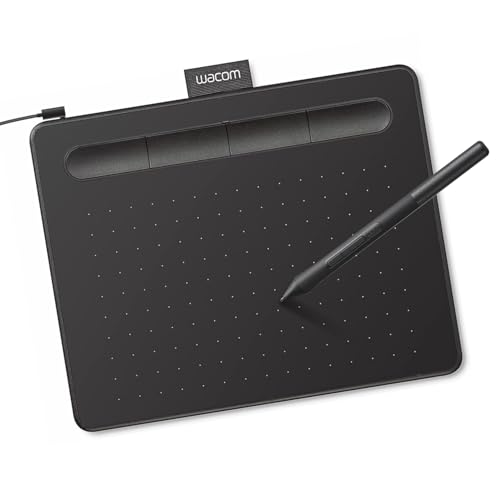
Wacom Intuos Small (wired) — Best overall
The Intuos Small is the pad art teachers ask for by name, and its classroom dominance rests on the least glamorous virtues in this guide: it works, everywhere, immediately, and keeps working for years. The wired connection means no pairing ceremony and no flat battery at the fatal moment; the battery-free pen means the stylus is always ready when a child is, which is a schedule no parent can predict. Four ExpressKeys give small fingers the essential commands — undo will be the most pressed button in the house for the first month — and the pad recognises Mac, Windows and Chromebook, so it follows a child from the family desktop to the school-issued laptop without complaint.
Software is the Intuos’s quiet superpower for families. Wacom bundles creative applications with the pad, so the box contains not just hardware but a starting studio: drawing and painting programs a child can grow into, registered once and owned rather than rented. That bundling solves the second-gift problem that ambushes parents — the pad bought in December that still needs software bought in January — and it signals the ecosystem a child is entering, since the Intuos line is the first rung of the ladder that leads, years later, to the professional tablets in studios.
The drawing feel is the honest, mid-texture surface Wacom has refined across generations, with pressure sensitivity that responds to a child’s lighter touch without demanding adult force. Small in the name refers to the pad’s footprint, which suits a child’s desk and a child’s arm span; the active area still maps sensibly to a family monitor, especially with the driver set to keep proportions true. Parents should perform that one setting themselves, because a distorted circle is a strange first lesson in digital art.
Its costs are the name’s costs: it sits at the top of this guide’s tiers, its four keys are fewer than rivals offer, and the wired-only design belongs to a previous generation’s habits. For a first pad that must simply succeed — as a gift, as a school requirement, as the tool a young artist will judge the whole medium by — those are the right compromises, and they are why this chair, alone among the six, needs no argument beyond its own reputation.
- Active area: small-format pad for children’s desks
- Pen: battery-free, never needs charging
- Keys: 4 ExpressKeys for shortcuts
- Compatibility: Mac, Windows and Chromebook as listed
- Software: creative applications bundled by the maker
Strengths
- Bundled software turns the box into a complete first studio
- Wired reliability and a charge-free pen remove every setup ritual
- Classroom-proven durability and the widest tutorial support online
Trade-offs
- Leads this guide’s price tiers for a small pad
- Four shortcut keys is a lean count beside key-rich rivals
- Wired only, so the pad lives within cable reach of the computer
Best for: A first serious drawing pad for a child aged roughly eight and up, especially as a gift that must work first time.
Not suited for: Households wanting a standalone screen for videos and apps — this pad has no display at all.

UGEE S640 — Best for young kids
The S640 is pitched at the youngest artists in this guide, and its design shows an understanding of what small hands actually do. Ten express keys sound like a specification for adults until you watch a seven-year-old work: children adopt shortcuts as physical rituals — this big button makes the brush bigger, that one brings back the line I ruined — and a generous key bank lets a parent configure a pad that a pre-reader can operate by touch and colour-coded sticker. The battery-free pen supports tilt, so shading with the side of the nib, the gesture every child already knows from crayons, works from the first afternoon.
Pressure sensitivity at 8,192 levels is far beyond a young child’s deliberate control, and that headroom is precisely the point: the pad registers the light, uncertain strokes of a beginner without demanding pressure a small hand cannot sustain, and it will still be registering honestly when that hand is a teenager’s. The surface is forgiving in texture and in temperament, the pad is light enough for a child to carry to the family computer themselves, and UGEE’s value positioning means a juice-related tragedy is a disappointment rather than a financial event.
Parents should set expectations about the first week with any pad in this guide, and the S640 is no exception: drawing on the desk while watching the screen feels strange for the first few sessions, for children exactly as for adults. Children, however, rewire faster. Classroom experience suggests the coordination clicks within days at primary age, especially when early sessions are games — tracing, colouring pages, drawing challenges — rather than attempts at masterpieces. The S640’s job is to make those days frictionless, and its simplicity is engineered toward exactly that.
Against the Intuos above, the S640 trades bundled-software polish and brand infrastructure for keys, tilt and tier. Against the Deco 640 below, it trades the newest pen generation for a slightly more young-child-shaped package. For the youngest chair in the guide — the first pad, for the child who draws on every surface the house offers — its combination is the one we would hand over.
- Pen: battery-free stylus with tilt function, 8,192 pressure levels as listed
- Keys: 10 express keys, configurable per program
- Compatibility: Mac, Windows PC and Android as listed
- Character: light, forgiving first pad for small hands
- Surface: child-manageable drawing area
Strengths
- Ten keys let parents build a touch-and-sticker control layout for young children
- Tilt support honours the crayon-side shading gesture children already know
- Gentle tier makes a first pad a low-stakes experiment for the household
Trade-offs
- Bundled software story is thinner than the Wacom’s studio-in-a-box
- Brand tutorial ecosystem is smaller for parents seeking guided lessons
- Very keen older children will want a larger area within a couple of years
Best for: Young children taking a first step from paper and crayons into computer drawing.
Not suited for: Teenagers already drawing seriously, who deserve a 10-inch surface.

XPPen Deco 640 — Best compact
The Deco 640 answers a modern household geometry problem: the family computer desk is already full. Its 6×4-inch active area occupies about the footprint of a paperback, yet inside that small frame sits XPPen’s current pen generation at 16,384 pressure levels as listed — the same headline figure as the flagship models in this batch’s other guides — with a battery-free stylus that tracks steadily and starts lines at a light touch. For a child whose drawing happens in the corner of a shared desk, or whose pad must live in a school bag between home and grandparents’ house, the Deco 640 is the compact that does not feel like a compromise wearing a costume.
Small pads teach a particular drawing economy that teachers quietly approve of: wrist-scale strokes, frequent zooming, and compositions planned rather than sprawled. A child learning on a 6×4 surface develops control in the fingers that large-pad artists sometimes never acquire, and the mapping to a laptop screen — the computer most children actually use — is proportionate rather than miniature. XPPen’s listing points the pad at drawing, teaching, designing and editing work as well as the rhythm-game crowd, and its driver is the same polished software that serves the brand’s flagships, which means a parent configuring it meets no child-specific weirdness.
The limits are the honest geometry of 6×4. A child who graduates to sprawling comic pages will want a bigger canvas, and drawing mapped to a large desktop monitor from a small pad can feel twitchy until the driver’s area settings are tamed. Both are tomorrow’s problems. Today’s problem — a good pen, a real drawing surface, a footprint that fits a child’s actual life — is the one the Deco 640 solves most completely in this guide.
Cross-shoppers will notice the Deco Mini7 V2 below offering a slightly larger 7×4 area with eight hotkeys. The choice between them is handwriting versus hardware: the Mini7’s extra inch and keys suit the child who also writes and annotates; the Deco 640’s newer pen positioning suits the child who purely draws. Either is a defensible stocking-filler; the Deco’s pen generation gives it this chair.
- Active area: 6 x 4 inches
- Pen: battery-free stylus, 16,384 pressure levels as listed
- Compatibility: PC, Mac and Android as listed
- Uses named by maker: drawing, teaching, designing, editing, osu!
- Character: paperback-footprint pad for bags and shared desks
Strengths
- Newest-generation pen specification in the guide’s most portable body
- Fits school bags, laptop desks and crowded family workstations
- Shares XPPen’s flagship driver, so setup knowledge transfers as children upgrade
Trade-offs
- 6×4 area will eventually cramp a child drawing large compositions
- Mapping to a big desktop monitor needs driver adjustment to feel calm
- Fewer on-pad keys than the Mini7 rival below
Best for: Children drawing on laptops and shared desks where space is genuinely scarce.
Not suited for: Young comic artists already filling A4 pages edge to edge on paper.

Huion Inspiroy H640P — Best step-up
Every hobby has a second purchase — the one made when the first tool has been outgrown and the interest has proven it is staying — and the H640P is this guide’s designated second pad. Its 6×4-inch area matches the compact class, but everything about its execution steps up a grade: a battery-free pen with tilt and 8,192 pressure levels, six hot keys, a surface texture with a more deliberate paper drag, and a build that feels like equipment rather than a toy. For the child who has filled a year of evenings with drawings on a first pad, the H640P is the upgrade that acknowledges their seriousness without jumping to adult pricing or adult size.
Tilt is the technical heart of the step up. Shading with the side of the nib — the charcoal gesture, the watercolour-brush gesture — opens a whole technique family that flat pens cannot teach, and children who draw tonally, in pencil-style shading and soft colour, feel the difference in their first session. Huion’s pen tracks the lean honestly, and the pad’s driver exposes the pressure-curve adjustments that a developing artist is now ready to have opinions about. That readiness is the real product here: the H640P is the first pad in the guide that expects its owner to configure it, and rewards them for doing so.
The step-up framing also suits its second common buyer: the parent whose child has no first pad yet, but whose commitment is already obvious from the paper evidence covering the fridge. Skipping the beginner tier for a demonstrably keen ten-year-old is not extravagance; it is buying once. The H640P’s tier remains modest, its size suits a child’s desk, and its ceiling — tilt, keys, driver depth — will not be reached before the child’s mid-teens, at which point the 10-inch models in the sibling guides become the natural graduation.
Against the S640, it trades key count for pen sophistication. Against the Deco 640, it trades the newest pressure figure for tilt and a more grown-up feel. Those trades define its chair precisely: not the first pad, not the biggest pad, but the pad that tells a young artist their work is being taken seriously — a message whose value no specification table captures.
- Active area: 6 x 4 inches
- Pen: battery-free stylus with tilt, 8,192 pressure levels as listed
- Keys: 6 hot keys
- Compatibility: Mac, PC and Android as listed
- Uses named by maker: drawing, writing, design, teaching
Strengths
- Tilt support unlocks shading techniques a first pad cannot teach
- Driver depth rewards a developing artist’s growing opinions
- Build and surface feel like a deliberate upgrade in the hand
Trade-offs
- Same compact area as cheaper picks, so sprawling work still waits
- Six keys is a middle count — neither minimal nor maximal
- Its refinements are wasted on a child still in the first-month stage
Best for: Keen children around ten and up whose drawing habit has proven permanent.
Not suited for: A tentative first experiment, where its price tier buys unneeded ceiling.

XPPen Deco Mini7 V2 — Best small desk
The Deco Mini7 V2 occupies the in-between size this category needed: a 7×4-inch active area that is meaningfully roomier than the 6×4 compacts for handwriting and annotation, while still fitting the strip of desk between a keyboard and the edge of a homework pile. Its pen carries the 16,384-level specification in its listing, eight hotkeys line the frame, and XPPen explicitly aims the model at the mixed modern workload — digital art, teaching, gaming — that describes a schoolchild’s actual computer use better than any single word. This is the pad for the desk where drawing shares territory with maths homework and neither is allowed to evict the other.
The extra inch of width earns its keep in writing. Children’s digital lives are not purely pictorial: they annotate worksheets, sign school forms practice, write equations with a pen because equations despise keyboards, and mark up screenshots for group projects. A 7×4 surface gives those strokes room to be legible rather than cramped, and the eight keys cover the art commands when the same pad turns to drawing in the evening. One device, two school-day jobs, no drawer full of single-purpose gadgets — parents administering a crowded desk will recognise the appeal instantly.
XPPen’s V2 update keeps the model current in pen behaviour and driver support, including Chromebooks in its listed compatibility, which matters for the school-issued-laptop household this pad so clearly targets. The build is light and unpretentious, the pen battery-free, and the whole kit travels between home desk and classroom bag without a packing decision. It is, in the best sense, an appliance: bought for a job, present for years, thought about rarely.
Its rivals bracket it neatly. The Deco 640 is smaller and newer-penned; the H640P is more artist-serious; the Mini7 is the generalist, and generalists win households. If the child’s computer use is a genuine mixture — some art, some schoolwork, some games — this is the chair. If it is art alone, the specialists above and below argue their cases with better focus.
- Active area: 7 x 4 inches
- Pen: battery-free stylus, 16,384 pressure levels as listed
- Keys: 8 hotkeys
- Compatibility: Chrome, PC, Mac and Android as listed
- Uses named by maker: digital art, teaching, gaming
Strengths
- Extra width over 6×4 pads makes handwriting and annotation comfortable
- Eight hotkeys serve both art software and schoolwork workflows
- Chromebook compatibility matches the school-issued laptop reality
Trade-offs
- Still a compact canvas for ambitious large-scale drawing
- Generalist design lacks the H640P’s tilt-focused artist ceiling
- Desk-presence is larger than the bag-first compacts when travelling
Best for: Schoolchildren mixing drawing with homework, annotation and online classes.
Not suited for: Pure young artists who should spend the same tier on drawing refinement.

Huion Inspiroy H430P — Smallest budget pick
The H430P is the smallest and gentlest commitment in this guide: a 4.8×3-inch pad with four hot keys and a battery-free pen, priced and sized as an experiment. Its natural buyers are the parents of a five-to-seven-year-old whose drawing obsession may be a life’s calling or a half-term’s weather, and the grandparents, godparents and teachers who need a first digital drawing gift that cannot be the wrong size for a desk because it is barely the size of a postcard. Tiny has a second virtue for the youngest users: the whole surface is reachable without stretching, so a small child’s hand never has to travel further than its arm comfortably goes.
Nobody should pretend 4.8×3 inches is a drawing canvas for compositions; it is a sketching and scribbling surface, a place for first lines, colouring pages, tracing games and the discovery of what a pressure-sensitive pen even is. The H430P performs that discovery honestly — real pen behaviour, real software compatibility across Mac, PC, Linux and mobile — rather than in a toy dialect the child would have to unlearn. Huion’s listing even names the rhythm-game use that small pads are famous for, and older siblings have been known to borrow this pad for exactly that long after the young artist has upgraded.
The four hot keys cover the sacred essentials — undo above all — and the driver is Huion’s standard, so a household that later buys a bigger Huion will find the software already familiar. Durability at this size is almost a joke in the pad’s favour: there is so little of it that dropping it is a non-event, and its tier makes replacement a shrug. The correct frame is a season ticket: if the spark dies, little was spent; if it catches, the H430P becomes the travel pad, the spare, the little sibling’s inheritance.
It closes the guide because every category needs an honest floor, and this floor is genuinely honest. Buy it to find out. The answer it returns — in either direction — will be worth many times its tier, and it will have been returned by a real graphics tablet rather than by a toy that taught nothing transferable.
- Active area: 4.8 x 3 inches
- Pen: battery-free stylus
- Keys: 4 hot keys
- Compatibility: Mac, PC, Linux and mobile as listed
- Uses named by maker: drawing, writing, design, teaching, osu!
Strengths
- Smallest, gentlest first step into real pen drawing in the guide
- Whole surface sits within a small child’s comfortable reach
- Real Huion driver and pen behaviour teach transferable skills
Trade-offs
- Far too small for compositions beyond sketches and colouring pages
- Keen children will outgrow it within a school year
- Minimal keys and the plainest presentation in the line-up
Best for: The youngest experimenters, roughly five to seven, testing a drawing spark.
Not suited for: Any child already producing detailed artwork on paper.
How Do Parents Set Up a Drawing Pad So a Child Actually Uses It?
Setup is where good gifts quietly die, so this guide treats it as part of the product. The parent’s evening-before ritual has four steps. Install the maker’s driver before the pad is unwrapped, so the child’s first session is drawing rather than watching progress bars. Open the drawing program the pad will use — the bundled software on the Intuos, or one of the excellent free art programs for the others — and make one test picture yourself, which verifies the pen, the pressure and the save button in a single gesture. Set the driver’s area mapping to preserve proportions, so circles stay circles. And place a cup for the pen on the desk, because a pen with a home survives childhood and a pen without one becomes a legend the household tells at holidays.
The child’s first session should be engineered for a win. Tracing a favourite character, colouring a downloaded line-art page, or drawing a family member with deliberate silliness all beat the blank canvas, which intimidates beginners of every age. Teach exactly three commands in that session — pen draws, this key undoes, this is how we save — and resist the full software tour; children learn programs the way they learn playgrounds, by exploration after the gates are open. Save the first picture with the date in its filename. Households that do this own, years later, a folder that justifies the entire category.
Posture and time deserve a parent’s eye without becoming a regime. The pad centred in front of the monitor, the chair raised so small forearms rest roughly level, and the screen at a comfortable distance will prevent most of the slouching that drawing invites. Sessions for younger children are naturally short; the pad’s advantage over a glowing standalone tablet is that it has no content engine pulling the session longer, so drawing ends when drawing ends, which is a boundary many families have come to value more than any feature in this guide.
What Free Software Turns These Pads Into a Real Studio?
A drawing pad without software is a promise, and fortunately the promise is kept by some of the best free programs in computing. Full-featured painting applications built by volunteers and foundations now offer brushes, layers and pressure behaviour that would have been professional products a generation ago, and every pad in this guide drives them properly. For younger children, simpler kid-facing drawing programs strip the interface to big buttons and bright tools while still saving real picture files. The progression between the two — simple canvas now, layered studio later — can happen on the same pad, which is the economic soul of this whole category.
Parents should install one program, not five. Choice paralysis is real at age nine, and mastery of one canvas — where its brushes live, how its layers stack, what its eraser feels like — builds more skill in a month than a tour of every free download. Add a second program only when the child hits a named limit: animation curiosity, comic panel templates, photo editing for school projects. Each of those has a beloved free answer, and the pads here will drive all of them without new hardware, which is worth remembering when the alternative was a standalone tablet whose app store would have charged rent for the same journey.
How Does a Drawing Pad Fit Into a Child’s School Week?
The weekday life of these pads is more varied than their weekend reputation suggests. Monday’s homework may involve a maths worksheet photographed by a parent, opened in a drawing program and worked directly with the pen, because fractions and long division are handwriting wearing a costume. Tuesday’s group project needs a title page illustrated. Wednesday’s online tutoring session opens a shared whiteboard where the pen lets a child show their working instead of describing it — a difference teachers feel immediately, because a shown method can be corrected while a described one can only be guessed at. None of this requires art to be the child’s passion; the pen is simply a better mouse for anything shaped like handwriting.
Art class itself has quietly moved into these tools. Schools that issue Chromebooks increasingly set digital illustration, photo editing and design tasks, and the child with a pad at home completes them with the same instrument the lesson imagined. The compatibility lines in this guide — Chromebook support on the Intuos, Deco Mini7 and their peers — are therefore not fine print but the difference between homework done fluently and homework done by trackpad, which is the digital equivalent of writing an essay with a crayon held in a fist. Parents checking a school device against a listing before purchase are doing the single most valuable verification in this entire category.
The weekend then returns the pad to its first love, with longer sessions, bigger projects and the social life of young art: drawings exchanged with friends, characters designed for games invented at school, birthday cards for family that get printed and kept. A pad that serves both registers — school tool on weekdays, art instrument on weekends — earns its desk space in a way a games machine never has to. That double life is also why this guide insisted on real graphics tablets rather than toy imitations: school does not accept toy handwriting, and art should not have to.
What Should Parents Know About Pens, Nibs and Lost Things?
The pen is the component a household will interact with most anxiously, so its realities deserve plain speech. All six pens here are battery-free, drawing their power from the pad itself, which eliminates the dead-pen morning entirely — there is no charge to forget and no pairing to drop. What pens do have is nibs, the small tips that wear slowly against the drawing surface. A child’s nib lasts months to a school year depending on pressure habits, and replacements are inexpensive multipacks from each maker. When lines start to feel scratchy or skip at light pressure, the nib — not the pad, not the child — is the first suspect, and swapping one takes ten seconds once a parent has done it the first time.
Lost pens are the category’s domestic drama, and the defence is architectural rather than technological: a pen cup, a pad corner where the pen always sleeps, and a house rule that the pen never leaves the desk’s parish. Replacement pens for every brand here are sold separately and cost a fraction of the pad, so even a successful loss is an errand rather than a tragedy. What families should avoid is the third-party pen bargain bin: pen technology is matched between pad and stylus, and an incompatible pen will not write at all, which is a confusing failure to hand a child.
Finally, a word about pressure habits, because they are formed now. Children press hard when learning any writing instrument, and digital pens forgive it — the line simply thickens — where paper would tear. A parent who notices a white-knuckled grip can turn it into a game the pad makes possible: draw the lightest line you can, now a line like a whisper, now like a shout. The pressure sensitivity that specifications brag about becomes, in that game, a child’s first lesson in expressive line — which is, not coincidentally, the first lesson of drawing itself.
How Does a Child Graduate From a First Pad to Bigger Tools?
Graduation announces itself in the artwork before it appears in any request. Compositions start needing more room than the surface gives; the young artist zooms constantly and complains about it; layers multiply; shading techniques reach for tilt or for finer low-pressure control; sessions stretch past the hour mark without fidgeting. Those are the signals that the pad — not the child’s patience — has become the limit, and they typically arrive somewhere between one and three years after a first purchase, depending on the child’s age and appetite. When they arrive, the household is in the happiest position in consumer electronics: buying an upgrade whose need has been demonstrated rather than imagined.
The ladder from here is well built. The 10-inch screen-less class in this batch’s non-Wacom guide is the natural next rung for an artist who loves the pad format, offering adult surfaces and shortcut hardware at family-reachable tiers. The pen displays in the display-tablets guide are the alternative branch, for the artist whose remaining frustration is the hand-eye split itself. A child can climb either branch with every skill the first pad taught intact, because the fundamentals — pressure, layers, shortcuts, file discipline — are identical on every rung. Nothing learned on the six pads in this guide is ever wasted, which cannot be said for most childhood technology purchases.
The first pad, meanwhile, rarely leaves the family. It becomes the younger sibling’s inheritance, the travel pad, the spare that lives at a grandparent’s house for holiday drawing. Screen-less pads have no battery to swell and no screen to crack in a drawer, so their second lives are measured in years. When parents ask whether a child’s drawing pad is a durable purchase or a disposable one, the honest answer is that it is among the most durable objects in the house — outlasting, in many families, the computer it was bought to accompany.
Which Pad for Which Young Artist? A Parent’s Shortcut
For the child who draws constantly and everywhere — paper, margins, the condensation on windows — skip the experiment tier and start at the Intuos Small or, for a ten-year-old with a proven habit, the H640P. The evidence of commitment is already in, and an under-bought pad will be outgrown while its box is still in the recycling. For the child whose interest is real but young, the S640’s key-rich friendliness and tilt meet them at their level, and its tier protects the household if the interest migrates to football by spring, as interests honourably do.
For the child whose computer is a laptop on a shared table — which is to say, most children in most flats — the Deco 640 and Deco Mini7 V2 are the realistic shortlist, divided by whether the pad’s second job is schoolwork. Choose the Mini7 when handwriting, annotation and online classes fill the week; choose the Deco 640 when the pad is purely an art instrument that must vanish into a bag between sessions. For the youngest hands and the most tentative budgets, the H430P remains the correct first question to ask the universe, accepting in advance that a yes answer means a second purchase later — a purchase the family will then make with a young artist’s own requirements list in hand, which is the best shopping document that exists.
What About Left-Handed Children and Shared Family Pads?
Left-handed children meet one small friction in this category: shortcut keys live on one side of the pad, and a left-handed drawing hand wants them on the other. Most drivers here allow the pad to be rotated 180 degrees in software, moving the keys to the right side where the free hand can reach them, and parents of left-handed artists should perform that rotation during the setup evening rather than letting the child adapt to a backwards instrument. The Deco Mini7 and the Huion models handle the flip gracefully; where a cable’s exit makes rotation awkward, a small right-angle adapter solves what the driver cannot. Shared family pads raise a simpler question — profiles. Each maker’s driver can store per-user or per-program settings, so a parent who annotates documents and a child who paints can share one pad with the keys behaving differently for each, provided the household agrees whose profile is the default and writes it on a sticker. Democracy, in peripheral form.
The Six Kids’ Pads at a Glance, Sized for Real Desks
| Model | Active area | Pen | Keys | Best age signal |
|---|---|---|---|---|
| Wacom Intuos Small (wired) | Small format | Battery-free | 4 ExpressKeys | First serious pad, 8+ |
| UGEE S640 | Compact | Battery-free, tilt, 8,192 levels | 10 express keys | Youngest artists |
| XPPen Deco 640 | 6 x 4 inch | Battery-free, 16,384 levels | Standard set | Bag and laptop desks |
| Huion Inspiroy H640P | 6 x 4 inch | Battery-free, tilt, 8,192 levels | 6 hot keys | Step-up, 10+ |
| XPPen Deco Mini7 V2 | 7 x 4 inch | Battery-free, 16,384 levels | 8 hotkeys | Schoolwork plus art |
| Huion Inspiroy H430P | 4.8 x 3 inch | Battery-free | 4 hot keys | First experiment, 5–7 |
Read the age column as weather, not law — children vary more than products do, and a meticulous seven-year-old may deserve the step-up while a whirlwind eleven-year-old is best served by the toughest simple pad. The columns that should actually drive the choice are area and keys: area decides whether the pad fits the child’s desk and drawing ambition, and keys decide how much of the software a small hand can run without a parent’s keyboard assistance.
Which Mistakes Do Families Make With a First Drawing Pad?
The founding mistake is the one this guide opened with: buying a pad expecting a screen. A child handed a graphics tablet while dreaming of a cartoon machine will judge a fine instrument as a broken toy, and the disappointment belongs to the purchase, not the product. Say what it is when you give it — the drawing board that plugs into the computer — and let its own pleasures arrive on honest terms.
The second mistake is skipping the driver and judging the pen by the operating system’s default behaviour, which can feel laggy, click-happy and pressure-deaf. Twenty minutes of proper setup is the difference between a pad that feels like magic and one that feels like a malfunction, and it must happen before the child’s verdict, because first verdicts in childhood are nearly permanent.
Third, families buy adult size for a child out of a reasonable instinct to avoid buying twice. A 10-inch pad under a seven-year-old’s arm is not future-proofing; it is a surface whose far corners require a stretch, teaching a cramped, wrist-only drawing style. The pads here are sized to be outgrown physically at roughly the moment they are outgrown artistically, and the second purchase, if it comes, will be informed by a young artist with opinions — a far better shopper than a guessing parent.
Finally, protect the artwork, not just the hardware. Set the drawing program to autosave, keep a folder that syncs or gets copied monthly, and print the best pieces. A child whose early work is printed and pinned above the desk receives the message that digital drawing is real drawing, which is the entire point of buying a real instrument in the first place. The printing habit has a second, quieter benefit: it gives grandparents, godparents and teachers a physical artefact to praise, and praise from outside the household is the fuel that carries a young artist through the plateau every learner meets in the second year, when the pictures in their head are better than the pictures their hand can yet produce. Every artist alive has crossed that plateau; the ones who crossed it fastest were the ones whose early work was treated as real by the adults around them, and a drawing pad plus a printer is, in the end, a machine for delivering exactly that treatment.
Final Recommendation
For most families the Intuos Small is the safe pair of hands: bundled software, classroom trust and a pen that is always ready. For the youngest artists, the UGEE S640’s keys and tilt meet small hands where they are, while the Deco 640 and Deco Mini7 V2 divide the compact honours between pure drawing and schoolwork-mixed desks. A child whose commitment is proven deserves the H640P’s step-up, and a household still asking whether the spark exists should let the H430P answer the question at the gentlest tier in the guide. Buy the pad that matches the child in front of you rather than the artist you are hoping for, set it up the night before, and the drawing will take care of the rest — beginning, if the households we hear from are any guide, with a portrait of the family in which somebody’s head is magnificently, unforgettably too large.
Frequently Asked Questions
Does my child need a special computer for these pads?
No. Every pick connects to an ordinary Windows PC, Mac or Chromebook, and several also list Android for phone or tablet apps. The drawing software that suits children runs comfortably on family-grade hardware, because a child’s canvas is not a billboard file. The one requirement is a free USB port and twenty minutes for the parent to install the maker’s driver before the first session.
How is this different from the LCD doodle board my toddler has?
Completely, in purpose. A doodle board is a self-contained toy slate: draw, press a button, the picture vanishes, and nothing is saved or shared. The pads in this guide are instruments that connect to a computer and real art software, so every picture is a file that can be saved, printed, coloured again next year and shown to grandparents. Both are good products; they simply belong to different childhoods, often in the same house at different ages.
Will a screen-less pad frustrate a child used to a touchscreen?
For the first few sessions, mildly — and then, in classroom experience, surprisingly little. Children adapt to drawing on the desk while watching the screen within days, helped by games and tracing exercises, and the skill transfers to the professional tools most digital artists use. A child who remains genuinely frustrated after a fortnight of playful practice is telling you they are a pen-display artist, which is useful information rather than a failure.
What age suits which pad in this guide?
As a rough map: the H430P suits a five-to-seven-year-old’s first experiment, the S640 meets young primary-age artists, the Intuos Small anchors the eight-and-up first serious purchase, the Deco pair fit school-age children drawing on laptops and homework desks, and the H640P steps up for keen ten-and-overs. Temperament outranks birthdays — a careful younger child will thrive a tier up, and there is no prize for rushing.
How long will a child take to get used to drawing without a screen?
Classroom experience puts the honest figure at a few sessions spread across a week — faster for younger children, who treat the arrangement as a game, and slower for older ones with touchscreen habits to unlearn. Tracing games, colouring pages and drawing challenges compress the learning better than free drawing does, because the feedback is immediate and the stakes are zero. By the end of the second week most children stop mentioning the separation entirely, which is the surest sign it has been learned.
Are the pens safe and simple for young children?
The pens are passive plastic styluses with no batteries, no charging and no small detachable parts beyond the replaceable nib, which sits firmly in the barrel. They are, in practical terms, chunky pencils that happen to talk to a pad. Supervision needs are the ordinary ones for any desk tool — the pen is not a drumstick, and the pad is not a tray — and households that give the pen a home cup from day one report that it survives childhood at a rate that surprises them.
Can these pads be used for schoolwork as well as art?
Yes, and several are quietly excellent at it. A pen beats a mouse for annotating worksheets, working through maths, signing forms and marking up screenshots, and the wider Mini7 V2 in particular was chosen with that mixed workload in mind. Online classes that include a whiteboard feature generally accept pen input directly, which turns homework help and tutoring sessions into something a child can write on rather than merely watch.
Related Guides
When a young artist is ready to grow, continue with our guides to larger drawing tablets for teenage artists moving up from a first pad pen displays for students who want to draw directly on the screen tablets with styluses for homework and note taking
Related guides
- Best Basic Phones Camera Buyers Can Trust: Flip Phones and Simple Handsets That Still Take a Photograph
- Best 400 FPS High Speed Cameras: The Honest Truth About Burst Slow Motion
- Best Kids Smartwatches for Texting and Calling: Six Watch-Phones Under Parent Control
- Best Sony Full Frame Cameras for Astrophotography: Sensitivity vs Resolution