What's inside
- Where to buy
- Key Takeaways
- Quick Picks
- How Did We Compare Brands When the Famous Name Is Absent?
- How Long Does the Hand-Eye Split Take to Learn on a Screen-Less Tablet?
- What Do the Challenger Brands’ Drivers Mean for Daily Life?
- How Do You Match a Pad to Your Monitor and Your Software?
- What Does a Year of Ownership Look Like for Each Brand?
- Which Pad Fits Which Kind of Drawing, Honestly?
- How Should a Beginner Grow Into This Category Without Buying Twice?
- How the Six Non-Wacom Pads Stack Up for Working Artists
- Which Mistakes Do Wacom-Alternative Shoppers Keep Making?
- Final Recommendation
- Frequently Asked Questions
- Related Guides
As an Amazon Associate I earn from qualifying purchases. This post may contain affiliate links at no extra cost to you.
gizmoverdict.com is reader-supported. When you buy through links on our site, we may earn an affiliate commission.
Where to buy
Searching for the best graphic tablets not Wacom usually begins with a price shock: an artist prices the famous name, blinks, and wonders what the alternatives actually sacrifice. The honest answer, after years of challenger brands maturing, is: less than the folklore claims, and different things in different places. Every pick in this guide is a screen-less pen tablet — a drawing surface that sits beside your keyboard while your eyes stay on the computer monitor — made by XPPen, Huion or UGEE. Each brand has developed its own pen technology, its own shortcut hardware philosophy and its own tier of the market, and the interesting question is no longer whether the alternatives work, but which alternative’s compromises match your hand, your desk and your software.
The challengers’ shared achievement is the pen. Battery-free electromagnetic styluses with thousands of pressure levels were once the premium feature that justified premium pricing; here they are the entry ticket, with 8,192 levels at the budget end and 16,384 claimed by several picks. Tilt recognition, once a professional extra, appears on mid-range models. Where the brands still diverge is in the texture of the drawing surface, the design of their shortcut keys and dials, the polish of their driver software, and the honesty of their build quality at the cheapest tiers. This guide spends its words on those divergences, because they are what ownership actually feels like.
A note on money, since the premise invites it: this guide quotes no prices, because listings move and bundles change. What can be said truthfully is that the six picks occupy ascending tiers from pocket-money compact to wireless flagship, and that the tier an artist should buy is decided by drawing hours per week far more reliably than by specification envy. An occasional sketcher gains nothing from the flagship’s dial; a professional inker will feel the budget model’s surface texture every single day.
Key Takeaways
- All six picks are screen-less pen tablets from XPPen, Huion and UGEE — you draw on the pad and watch the monitor, the classic graphics-tablet arrangement.
- XPPen’s Deco Pro LW (2nd gen) leads on pen ambition and wireless freedom, with its X3 Pro stylus and a mini key-dial in the kit.
- Huion’s Inspiroy H1060P is the shortcut maximalist’s chair: twelve press keys plus sixteen soft keys on a 10-inch surface.
- The Deco 01 V3 and UGEE M708 prove the 10×6 value class is fully grown — large active areas and modern pens without flagship pricing tiers.
- Huion’s HS611 adds a touch ring and dedicated multimedia keys, a combination aimed at artists who also edit video and stream.
- The Star G640 shows the floor of the category: a 6×4 pad for notes, signatures, osu! and first steps into digital ink.
Quick Picks
| Pick | Badge | Why it earns its place |
|---|---|---|
| XPPen Deco Pro LW (2nd gen) | Best overall | An 11-inch wireless tablet whose X3 Pro stylus and key-dial make it the challenger flagship to beat. |
| Huion Inspiroy H1060P | Best shortcut keys | Twenty-eight programmable inputs on a roomy 10×6.25 surface, for artists who live by the shortcut. |
| XPPen Deco 01 V3 | Best value 10-inch | The full-size drawing experience — 10×6 area, 16K pen — at the tier where value arguments end. |
| UGEE M708 | Budget pick | A big 10×6 canvas and a 16,384-level passive stylus from the category’s value specialist. |
| Huion HS611 | Best media keys | Touch ring, ten hot keys and eight multimedia keys for artists whose work crosses into video and streaming. |
| XPPen Star G640 | Best compact budget | A 6×4 pad that handles notes, teaching, signatures and rhythm games in a bag-friendly footprint. |
How Did We Compare Brands When the Famous Name Is Absent?
Without the default answer in the room, the judging had to become more specific, and it organised itself around what each maker actually does differently. XPPen’s identity is pen ambition plus accessory generosity: its X3-generation styluses chase the finest initial activation in the class, and its tablets arrive with dials, remotes and cases that other brands sell separately. Huion’s identity is hardware abundance — more keys, rings and dials per surface than anyone else attempts — paired with a driver that has grown steadily more capable. UGEE’s identity is the value floor, delivering large active areas and current pen specifications at tiers the other two treat as beneath them.
Testing followed the drawing, as always. Slow diagonals for jitter, light strokes for activation force, tilted shading for honesty, and long inking sessions for the surface texture’s effect on a tired hand. Screen-less tablets add one test of their own: mapping. The active area must scale to the monitor without distortion, and the driver’s handling of dual monitors — still the challengers’ occasional weak seam — was checked, because an artist with two screens and a tablet that will not stay on the right one owns a daily irritation disguised as a bargain.
Build was judged against tier rather than absolutely. A budget pad may flex where a flagship feels milled, and that is acceptable; a budget pad whose pen wobbles in its barrel or whose surface scratches under its own nib within a month is not, at any price. The picks below are the models where the tier’s compromises land on cosmetics and extras rather than on the drawing itself.

XPPen Deco Pro LW (2nd gen) — Best overall
The Deco Pro LW is the pick that makes the article’s premise easiest to defend, because it does not feel like a substitute for anything. It is an 11-inch wireless pen tablet built around the X3 Pro stylus, XPPen’s pen generation engineered for a hair-trigger initial activation and a stable, low-jitter line, with 16K pressure levels claimed in its listing. Wireless here is Bluetooth freedom rather than a dongle afterthought, and it changes the ergonomics of a desk more than any single specification: the pad can sit at the angle your shoulder prefers, travel to the sofa for sketching against a laptop, and leave the desk entirely when the desk must become a desk again.
The mini key-dial included in the kit deserves its own paragraph, because shortcut hardware is where challenger brands have genuinely out-thought the incumbent. A small wireless dial-and-keys unit that can sit under whichever hand is free, rotated to whatever angle suits it, solves the left-handed artist’s ancient grievance with fixed bezel buttons. Brush size, zoom and canvas rotation fall to the dial; the handful of commands every artist actually repeats fall to its keys; and the tablet’s own surface stays clean and symmetrical for the drawing hand.
XPPen positions this generation at studio animators, and the surface and pen behaviour support the claim: the active area is sized for full-arm gesture at monitor scale, tilt works for shading passes, and the pad’s wireless latency is low enough that inking does not feel remotely operated. The honest trade-offs are the class’s usual ones — a battery in the tablet to charge occasionally, a driver to configure thoughtfully, and a price tier that leads the challenger pack even while it undercuts the famous name’s equivalents.
For an artist leaving the incumbent ecosystem, or entering the category determined to skip it, the Deco Pro LW is the landing spot with the fewest asterisks. It asks for no apologies in pen feel, none in size, and none in hardware imagination, which is precisely the combination that earns a best-overall chair in a guide defined by an absence.
- Active area: 11-inch class wireless pen tablet
- Pen: X3 Pro stylus, 16K pressure levels as listed, battery-free pen
- Connection: Bluetooth wireless plus wired option
- Extras: mini key-dial shortcut controller included
- Compatibility: Mac, PC and Android as listed
Strengths
- X3 Pro pen delivers the finest light-stroke manners in this guide
- True wireless freedom lets the pad follow your posture, not the cable
- Included key-dial solves shortcut placement for both hands equally
Trade-offs
- Tablet battery needs occasional charging, unlike wired-only rivals
- Leads the challenger price tiers even while undercutting the big name
- Wireless setup asks for one careful pairing session at the start
Best for: Serious illustrators and animators who want flagship pen feel without the flagship badge.
Not suited for: Purists who want a pad that can never need charging, ever.

Huion Inspiroy H1060P — Best shortcut keys
The H1060P has survived in Huion’s line for years by being the answer to a specific prayer: give me every shortcut on the tablet itself. Twelve physical press keys line its frame and sixteen soft keys run along the surface, twenty-eight programmable inputs in total, on a 10 by 6.25-inch active area that remains one of the roomiest in its tier. An artist whose workflow is a choreography of brush switches, layer commands, canvas flips and tool toggles can keep the drawing hand drawing and the other hand conducting, with the keyboard demoted to typing duty only.
The pen is the generation’s battery-free stylus at 8,192 pressure levels, and its behaviour explains the model’s longevity as much as the keys do: activation is light, lines are steady, and the surface texture gives a controlled drag that inking artists describe as reassuring. Tilt is absent from this older design, which painters who shade with the side of the nib will notice and pure line artists will not. Huion’s driver lets each key carry application-specific assignments, so the pad reconfigures itself as you move between drawing, photo and video programs — the detail that turns a pile of buttons into an instrument.
Age and honesty require two notes. This is a mature design, and its connectivity and styling reflect the years when it was drawn; buyers who want wireless or the newest pen generation should look at the Deco Pro above. And twenty-eight keys are an asset only to artists who will actually program them — the first evening’s configuration is the admission price, and artists who skip it own a tablet with decorations. Those who pay it tend to become the model’s evangelists, which is how a design this seasoned still holds a chair in a current guide.
Against its own brand-mate the HS611 below, the H1060P is the choice of the keyboard-averse purist: more drawing-specific inputs, a larger-feeling work surface, no multimedia distractions. Against the Deco 01 V3 it trades the newer pen for the deeper key bank. Workflows built on shortcuts — comics production, storyboarding, retouching pipelines — will find this the most productive surface in the guide once its keys are taught.
- Active area: 10 x 6.25 inches
- Pen: battery-free stylus, 8,192 pressure levels as listed
- Keys: 12 press keys plus 16 soft keys, application-specific profiles
- Compatibility: Mac, Windows PC and Android as listed
- Character: wired, shortcut-maximalist workhorse
Strengths
- Twenty-eight programmable inputs retire the keyboard for most workflows
- Roomy active area suits full-arm drawing at monitor scale
- Per-application key profiles make one pad serve several programs properly
Trade-offs
- No tilt recognition, which side-of-the-nib painters will miss
- Mature wired design lacks the wireless freedom of newer rivals
- The key bank only pays off if you invest an evening programming it
Best for: Shortcut-driven artists in comics, boards and retouching who hate reaching for keys.
Not suited for: Painters who shade with heavy pen tilt as a core technique.

XPPen Deco 01 V3 — Best value 10-inch
If a single model explains why the challenger brands won the middle of this market, it is the Deco 01 line, and the V3 is its current form: a 10×6-inch active area, a battery-free stylus claiming 16K pressure levels in its listing, eight shortcut keys, and compatibility that runs from Mac and PC through Android and Chromebook. The specification is not a cut-down flagship’s apology; it is the full-size drawing experience — the size class professionals actually use — delivered at the tier where students and hobbyists shop. That combination has made it the default recommendation in art communities for years, and the V3’s pen update keeps the recommendation current.
The drawing feel rewards the reputation. The surface has the fine, even texture that makes long lines controllable, the pen tracks honestly into the corners, and the 10×6 area maps to a standard monitor without the cramped handwriting-in-miniature sensation that small pads impose on artists with large gestures. Eight keys cover the essential commands — the honest half-dozen every artist repeats — without the configuration burden of a twenty-eight-key bank. For teaching, the Chromebook compatibility matters more than any pen statistic: this is a pad a school or a parent can pair with the computer already in the house.
What the tier omits is equally clear. There is no wireless, no dial, and the build is functional polymer rather than the milled confidence of the Deco Pro line. The pen, while specified at the modern 16K figure, lacks the X3 Pro’s last refinement of initial activation, a difference visible in the lightest sketching strokes and invisible in ordinary inking and painting. Buyers should hear that as calibration, not criticism: the gap lives at the edges of technique, and most owners will never draw there.
The Deco 01 V3 is therefore the guide’s centre of gravity — the pick for the student entering a course, the traditional artist digitising a sketchbook habit, the professional equipping a second workstation, and, as its sibling appearance in this batch’s note-taking guide shows, anyone whose pen work mixes drawing with writing. When a category produces a default answer, the honest guide’s job is to say so plainly and reserve its poetry for the specialists around it.
- Active area: 10 x 6 inches
- Pen: battery-free stylus, 16K pressure levels as listed
- Keys: 8 shortcut keys
- Compatibility: Mac, PC, Android and Chromebook as listed
- Uses named by maker: digital art, teaching, osu!, e-learning
Strengths
- Full 10×6 drawing area with a modern pen at a student-friendly tier
- Chromebook support makes it the classroom and family-computer favourite
- Eight keys cover the essential commands without configuration overload
Trade-offs
- Wired only, so the pad stays where the cable allows
- Pen lacks the flagship X3 Pro’s lightest-touch refinement
- Build is practical rather than premium in the hand
Best for: Students, teachers and advancing hobbyists who need the real 10-inch experience.
Not suited for: Wireless devotees, or studios standardising on dial-based shortcuts.

UGEE M708 — Budget pick
UGEE’s specialism is the floor of the market, and the M708 is its emblem: a 10×6-inch drawing surface — the full professional footprint — with eight hot keys and a passive stylus claiming 16,384 pressure levels in its listing, at the tier where other brands offer half the area. For a beginner whose real question is whether digital drawing suits them at all, that arithmetic is compelling: the experiment can be run on a properly sized canvas, where the answer will be truthful, rather than on a cramped pad whose limitations might be mistaken for the medium’s.
The drawing experience is better than the tier’s reputation. The pen is battery-free, the surface gives a light paper-ish resistance, and lines track without the jitter that disfigures the truly anonymous bottom of this market. UGEE’s driver covers the essential mappings and pressure curves, presented plainly. Where the budget shows is in the finish — plastics that feel like plastics, a pen barrel without luxury in its grip, packaging and extras kept to the honest minimum. None of that touches a finished drawing, which is the entire UGEE argument in one sentence.
Who should not buy it is equally definable. Artists already drawing daily for hours will feel the surface and pen refinements they are missing within a month, and will spend the difference in frustration that the Deco Pro or H1060P would have saved them. Professionals billing clients should buy once at a higher tier. But the M708’s chair is not for them; it is for the first tablet in a household, the school art room equipping a class set, the traditional painter testing digital water before committing to the deep end — contexts where a large, competent canvas at the lowest tier is not a compromise but the correct engineering.
Set beside the Deco 01 V3, the M708 trades polish, pen refinement and brand infrastructure for tier. Set beside the Star G640 below, it trades portability for a canvas four times the working size. Both trades are legible, and a buyer who can state which side of them they stand on has understood this category better than most spec-sheet comparisons ever teach.
- Active area: 10 x 6 inches
- Pen: passive stylus, 16,384 pressure levels as listed
- Keys: 8 hot keys
- Uses named by maker: drawing, painting, design, sketching
- Character: largest canvas at the budget tier
Strengths
- Full-size 10×6 area lets beginners judge the medium fairly
- Modern pen specification without a battery to charge
- Class-set and first-tablet economics are unmatched in this guide
Trade-offs
- Finish and pen feel are functional rather than refined
- Daily professional use will outgrow it faster than any rival here
- Driver and extras are kept to the essentials, plainly presented
Best for: First-time buyers and classrooms needing a big honest canvas cheaply.
Not suited for: Full-time artists whose hands will notice every saved refinement.

Huion HS611 — Best media keys
The HS611 is Huion’s tablet for the artist whose desk is also a broadcast booth. Alongside ten hot keys it carries eight dedicated multimedia keys and a touch ring, so volume, playback and brush size all live under the free hand while drawing software, video editors and streaming tools share the same surface. Its 10×6-inch area and 8,192-level battery-free pen with tilt support keep the drawing credentials respectable; the media layer is the differentiator, aimed at the generation of artists who draw on camera, edit their own process videos and cut between applications fifty times a session.
Tilt support earns the HS611 a technique the H1060P above lacks: shading with the nib’s side, charcoal-style, with the stroke widening as the pen leans. Painters and sketchers who work tonally will value that more than any key count. The touch ring, meanwhile, is the control artists end up touching most — a continuous wheel for brush size or timeline scrubbing beats a pair of plus-and-minus keys in every workflow that involves a variable rather than a command, and video editing is nothing but variables.
The design language is slimmer and more colourful than Huion’s workhorse line, which suits the creator-desk aesthetic it targets and worries nobody. Android support extends the pad to phone and tablet drawing apps, a legitimate second life for a desk peripheral. The honest costs are the wired connection and a key layout that generalists must still configure per application to get the media-and-art split working as advertised — the HS611’s versatility is real, but it is configured, not conjured.
Choose it over the H1060P when your work genuinely crosses media — drawing plus editing plus streaming — or when tilt shading is your native language. Choose the H1060P when the work is drawing alone and every input should serve it. The HS611 is the guide’s reminder that a graphics tablet’s job description has quietly expanded beyond drawing, and that for the creator economy’s actual workflow, the expansion is the point.
- Active area: 10 x 6 inches
- Pen: battery-free stylus, 8,192 levels, tilt support as listed
- Keys: 10 hot keys plus 8 multimedia keys
- Controls: touch ring for brush, zoom or timeline
- Compatibility: PC, Mac and Android as listed
Strengths
- Multimedia keys and touch ring serve drawing, editing and streaming alike
- Tilt support enables side-of-the-nib shading techniques
- Slim, colourful design suits creator desks and camera-facing setups
Trade-offs
- Media versatility needs per-app configuration to shine
- Wired connection in a guide whose flagship has gone wireless
- Pure drawing specialists may never touch half its key bank
Best for: Streaming artists and video-editing creators who draw in the same session.
Not suited for: Single-application artists who want every key to serve drawing alone.
XPPen Star G640 — Best compact budget
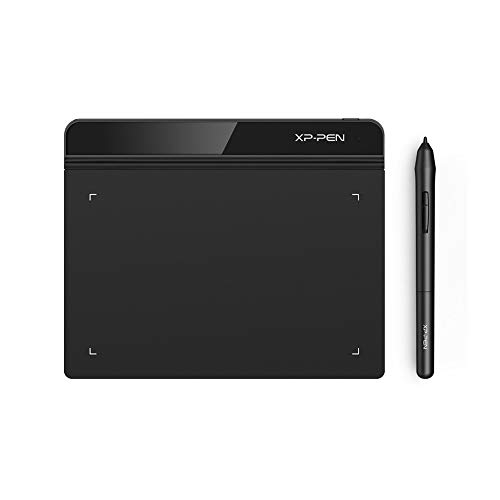
The Star G640 is the smallest honest answer in the category: a 6×4-inch pad with a battery-free stylus, sized for the jobs where a pen beats a mouse without needing a canvas at all. Those jobs are more numerous than the art world admits — signing documents, annotating slides, teaching on a shared screen, handwritten notes in meetings, photo touch-ups at the level of a quick mask — plus one job that is purely this pad’s folklore: osu!, the rhythm game whose players adopted small, responsive tablets years ago and still drive this model’s fame.
Smallness has real ergonomic logic for those tasks. A 6×4 area maps to a monitor with tiny hand movements, so the wrist barely travels and the pad can live permanently between keyboard and monitor edge without rearranging the desk. It slips into a laptop sleeve as an afterthought, weighs nothing worth mentioning, and asks for no charging because the pen is passive and the pad is wired. For drawing proper, the same smallness is the ceiling: full-arm gesture is impossible, fine detail crowds, and artists should read the size as a boundary rather than a challenge.
Within its boundary the G640 behaves like a proper XPPen — steady tracking, a pen that starts lines where it should, a driver that maps areas and pressure without drama. It has introduced more people to pen input than many flagships, precisely because its tier lets a household experiment without a family meeting about the purchase. Students annotating lecture PDFs on a Chromebook will find it compatible and sufficient; the listing’s e-learning and remote-working language is, for once, an accurate description of its daily employment.
Its chair exists to make a distinction the rest of the guide depends on: compact pads are not failed large pads, they are successful small tools. Buy the G640 for notes, teaching, signatures and games, and it will serve for years. Buy it as a cheap route into serious illustration and the 10×6 chairs above will be purchased later anyway, at a combined cost higher than buying the right size first — the oldest false economy in this entire category.
- Active area: 6 x 4 inches
- Pen: battery-free stylus
- Compatibility: Mac, Windows and Chromebook as listed
- Uses named by maker: digital art, e-learning, remote working, osu!
- Character: permanently-on-desk compact pad
Strengths
- Tiny footprint lives on any desk without rearranging it
- Perfectly matched to notes, annotation, signatures and rhythm games
- Lowest-friction entry into pen input in the entire guide
Trade-offs
- Far too small for serious illustration or full-arm drawing
- Wired only, though at this size the cable rarely matters
- No shortcut hardware to speak of beyond the pen itself
Best for: Note-takers, teachers, signers and osu! players needing a compact pad.
Not suited for: Illustrators, whose work will outgrow 6×4 within a week.
How Long Does the Hand-Eye Split Take to Learn on a Screen-Less Tablet?
Every artist considering this category asks the same frightened question, so it deserves a plain answer: the coordination of drawing on a pad while watching a screen feels alien for roughly the first three sessions and then quietly stops being a topic. The brain treats the arrangement the way it treats a mouse or a trackpad — as a tool whose mapping it learns once and then forgets — with one difference: the pen’s absolute positioning, where each point on the pad is always the same point on the screen, makes the mapping far easier to internalise than a mouse’s relative drift. Most new owners report that straight lines and handwriting settle first, within hours, while confident curved inking takes the better part of a week of evenings.
Three habits shorten the apprenticeship measurably. First, draw daily in short sessions rather than in one heroic weekend, because the mapping consolidates between sessions in a way that marathon practice does not accelerate. Second, keep the tablet centred and squared to the monitor during the learning period, so the hand’s geometry and the eye’s geometry agree, and only introduce angled, casual placement once the skill is automatic. Third, spend the first sessions on exercises with feedback — tracing, lettering, hatching a sphere — rather than on a precious drawing whose failure would be blamed on the tool. Artists who follow that dull advice almost universally stop noticing the split; the small minority who do not are the natural customers for the pen displays covered in this batch’s companion guide.
Posture, meanwhile, is the screen-less format’s unadvertised gift. Because the eyes live on an elevated monitor rather than on a surface lying flat ahead, the neck stays nearer neutral than pen-display work allows, and many long-session artists — retouchers, production inkers, CAD-adjacent illustrators — deliberately choose pads for exactly this reason. The challenger brands’ pads are light, cool and silent in a way no display can be, and a pad can be pushed aside for typing without moving a screen. The famous name built its reputation on this format; the six picks here are proof the format’s virtues now come in several dialects.
What Do the Challenger Brands’ Drivers Mean for Daily Life?
Driver software is the least photogenic part of this category and the part owners interact with most, so a buyer’s guide owes it a section. All three brands here provide applications that map the active area, set pressure curves, assign keys per program and store profiles. The differences are in temperament. XPPen’s driver has become the polished one, with an interface that explains itself and profiles that behave predictably across its range — one reason the brand can sell both the flagship Deco Pro and the tiny G640 under a single software roof. Huion’s driver is the tinker’s favourite, exposing deep customisation whose power rewards artists who enjoy shaping a tool. UGEE’s is the plainest, covering the essentials without ornament, which suits its first-tablet audience precisely.
The shared cautions are worth stating once. Install the maker’s driver before judging any pen behaviour, because operating systems’ built-in pen handling can impose its own pressure and right-click behaviours that masquerade as hardware faults. Expect an occasional conflict when two brands’ drivers share one computer — households and studios standardising on one challenger brand per machine will have calmer lives. And keep the driver updated through the maker’s own channel, since the challengers iterate quickly and a two-year-old driver under a new operating system is the single most common cause of the mysterious dead-pen morning.
None of this should frighten a newcomer; it should reassure them that the category has matured into infrastructure. A decade ago, buying outside the famous name meant accepting driver roulette as the price of savings. The six picks in this guide represent the era after that bargain ended — the savings remain, and the roulette wheel has been retired.
How Do You Match a Pad to Your Monitor and Your Software?
Mapping is the quiet mathematics underneath every screen-less tablet, and getting it right once saves a year of small annoyances. The principle is proportion: if the pad’s active area and the monitor’s shape disagree — a widescreen pad mapped to an older squarer display, or vice versa — circles drawn by hand become ellipses on screen unless the driver is told to preserve proportions, which it should always be told. All three brands here expose that setting, usually as a force-proportions or full-area toggle, and the correct ritual is to draw a circle on day one, look at it, and adjust until geometry tells the truth. Artists who skip the ritual sometimes draw for months inside a subtle distortion and blame their own anatomy for hands that will not behave.
Dual monitors complicate the map in a way worth planning for. Most artists want the pad married to the drawing monitor alone, with the mouse handling the second screen, and every driver here can fence the active area to one display. The fencing should be set per application profile where the software allows, because a pad fenced for painting may be wanted across both screens for video editing timelines. This is the sort of unglamorous configuration that separates a studio that flows from a studio that mutters, and it costs one thoughtful evening at most.
Software behaviour completes the match. Drawing programs interpret pen data through their own settings for smoothing, pressure curves and tablet APIs, and the challengers’ drivers offer compatibility modes for the applications that expect particular pen plumbing. The working rule is simple: if strokes lag, wobble or lose their pressure in exactly one program, the fault lives at that junction, and the maker’s support pages almost certainly document the toggle that fixes it. Artists new to the category often return a healthy tablet over a five-minute setting; this guide would rather you kept the tablet and spent the five minutes.
What Does a Year of Ownership Look Like for Each Brand?
Ownership has a texture that specification sheets cannot print, and the three brands here age differently in a drawer, on a desk and in a support inbox. XPPen ownership tends to feel like joining the current conversation: firmware and driver updates arrive briskly, accessory pens and nibs are easy to source, and the product line’s rapid evolution means a two-year-old model still sits inside a living ecosystem. The corresponding risk is generational restlessness — the line moves fast enough that last year’s flagship is this year’s mid-range — which matters only to buyers who read catalogues for pleasure rather than drawing with the tool in front of them.
Huion ownership feels like joining a workshop. The hardware invites configuration, the community of users shares key profiles and driver tweaks with unusual generosity, and models like the H1060P stay in service for years because their job — a big surface with many keys — does not date. The brand’s long model lifespans cut both ways: spare nibs and pens remain findable, while the design language of a veteran model honestly reflects the year it was drawn. Artists who value a tool that stays itself will call that stability; artists who value novelty will shop the newer rows of this guide.
UGEE ownership is the minimalist’s version: buy the pad, draw, and think about the purchase as little as possible thereafter. The ecosystem is smaller, the accessories plainer, the support footprint lighter — and for the M708’s intended owners, that lightness is the product. A classroom does not want a relationship with its tablets; it wants thirty pads that work on Monday. Judged by that standard, the budget brand’s restraint is a professional quality, and the guide scores it as such rather than as an absence of ambition.
Across all three, the shared ownership facts are comforting. Pens do not need charging because they draw power from the pad’s field; surfaces survive years of nibs when the nibs themselves are replaced on schedule; and the failure that actually ends these devices’ lives is usually a cable or a computer upgrade that outruns an old driver — both addressable, both cheaper than a replacement pad. A graphics tablet is among the longest-lived peripherals in computing, and the challengers have inherited that longevity along with everything else.
Which Pad Fits Which Kind of Drawing, Honestly?
Inking is the discipline that audits a pen most cruelly, because a contour line carries its maker’s confidence in public: any jitter, lag or pressure stumble is printed in the stroke itself. Inkers should weight the flagship pen behaviours — the Deco Pro’s X3 Pro first, the Deco 01 V3 as its tier’s representative — and the H1060P’s steady older pen has inked a generation of webcomics without apology. What inking does not need is tilt, colour of the pad, or media keys, which is why a specialist can happily buy the middle of this guide and ignore its extremes with a clear conscience.
Painting audits the opposite virtues. A painter lives in the low-pressure shallows, feathering glazes and blending edges where activation force and pressure smoothness decide everything, and uses tilt as a brush-angle language. The HS611’s tilt and the flagship pens’ low-end manners serve this discipline best, and the H1060P — for all its key-bank glory — is the one chair a tilt-dependent painter should pass. Painters also draw the largest, loosest gestures, which argues for the 10-inch-and-up surfaces and against the G640 no matter how charming its price tier looks in a listing.
Photo retouching sits between the two, needing precision more than expression: small, controlled strokes, constant zoom changes and mask work at pixel level. Retouchers should read the shortcut sections of this guide as their main text, because their hands repeat a dozen commands thousands of times per image. The H1060P’s key bank and the HS611’s ring are the retoucher’s flagships; pen tilt is irrelevant; and a medium pad mapped to a large monitor gives the fine control that pixel work rewards, since small hand movements translate to small image movements.
Lettering, calligraphy and handwriting-based work — the fourth discipline, and the one this category shares with the note-taking world — audits steadiness above all. A letterform exposes wobble the way a contour does, and the writer’s hand works at small scale with high repetition. The Deco 01 V3’s balance of size, steadiness and tier is why it recurs in this batch’s note-taking guide in a different role, and the G640 serves quick annotation handsomely. The through-line of this whole section is the guide’s deepest advice: disciplines, not specifications, should rank these six pads, and an artist who names their discipline honestly has effectively finished shopping.
How Should a Beginner Grow Into This Category Without Buying Twice?
The fear underneath most first purchases is waste: buy too little and the pad is replaced within the year; buy too much and an expensive flagship gathers dust beside an abandoned hobby. The challengers have quietly solved the dilemma by making the middle of the market genuinely good. A beginner who starts on the Deco 01 V3 or the H1060P owns a pad that remains respectable in a professional’s second-desk role if the hobby ignites, and remains a modest, unregretted experiment if it does not. That asymmetry — upside without punishment — is the strongest argument the alternative brands make to newcomers, stronger than any single pen specification.
The growth path, when it comes, usually branches by discipline rather than by simple appetite for more. Inkers climb toward pen refinement, painters toward tilt and surface, production artists toward shortcut hardware, and a healthy ecosystem lets each climb one step without discarding the first pad, which retires to travel duty, a second computer or a younger artist’s desk. Notice that none of the six chairs here is a dead end: even the G640, bought for a semester’s notes, keeps a permanent job in annotation and signatures long after a larger pad takes over the drawing.
The one purchase pattern to avoid is the staircase of near-identical mid-tier pads, each bought because a forum praised its pen over the last one’s. Differences at that altitude are matters of taste, and taste is cheaper to explore through nib types, surface sheets and driver settings on the pad already owned. Spend the second purchase on a genuinely different instrument — a pen display, a larger format, wireless freedom — or do not spend it at all. The artists with the calmest desks in this category are the ones who bought deliberately, configured thoroughly, and then went quiet for years while the work accumulated.
How the Six Non-Wacom Pads Stack Up for Working Artists
| Model | Active area | Pen headline | Shortcut hardware | Connection |
|---|---|---|---|---|
| XPPen Deco Pro LW (2nd gen) | 11-inch class | X3 Pro, 16K levels | Mini key-dial included | Bluetooth and wired |
| Huion Inspiroy H1060P | 10 x 6.25 inch | 8,192 levels | 12 press keys + 16 soft keys | Wired |
| XPPen Deco 01 V3 | 10 x 6 inch | 16K levels | 8 keys | Wired |
| UGEE M708 | 10 x 6 inch | 16,384 levels | 8 hot keys | Wired |
| Huion HS611 | 10 x 6 inch | 8,192 levels, tilt | 10 hot keys + 8 media keys, touch ring | Wired |
| XPPen Star G640 | 6 x 4 inch | Battery-free stylus | Minimal | Wired |
Three rows share the same 10×6 footprint, and the table shows why footprint alone settles nothing: the Deco 01 V3 sells balance, the M708 sells tier, and the HS611 sells tilt plus a media layer. The flagship row distinguishes itself on every column simultaneously, which is what flagship means. The G640’s row looks sparse until its job list — notes, teaching, signatures, rhythm games — is remembered, at which point every missing feature reads as a feature correctly omitted.
Which Mistakes Do Wacom-Alternative Shoppers Keep Making?
The first is shopping by pressure level as if it were a score. A 16,384-level claim on a budget pen and the same claim on the X3 Pro describe different lived experiences, because activation force, jitter control and report behaviour matter more than the count. Read pressure as a threshold the modern category has passed, then judge pens by the strokes described throughout this guide.
The second mistake is buying the smallest pad to save money and the largest monitor to draw on, a pairing that forces the hand to draw postage stamps that become posters. Pad area and screen area want a sane ratio; the 10-inch class exists because it maps gracefully to ordinary monitors. Match the G640 to laptop screens and note-taking, and the 10×6 pads to desktop displays, and the geometry of your hand will thank you.
Third, shoppers neglect the surface. Drawing feel lives in the pad’s texture as much as in the pen, and artists who love a slick glide and artists who need paper-ish drag will rank the same tablet oppositely. Where a brand offers replacement surface sheets or different nib materials, that ecosystem is worth real money to a heavy user — check it before purchase rather than after the first worn quarter.
Finally, some buyers treat the absence of the famous name as a temporary embarrassment to be corrected later, and buy the cheapest challenger as a placeholder. Placeholders in this category have a habit of lasting five years. Buy the challenger you actually want to own — for most artists that is the Deco Pro, the Deco 01 or the H1060P — and let later be later. There is a quieter version of the same mistake in the opposite direction: buying the flagship challenger as a statement, then never configuring its dial, never learning its pen’s low-pressure manners, and concluding that alternatives feel ordinary. The hardware in this guide rewards the hour of setup it asks for, on every tier, and the artists who pay that hour are the ones whose reviews of these brands read like love letters.
Final Recommendation
Start at the Deco Pro LW if your drawing hours justify a flagship, because its pen, wireless freedom and key-dial make the strongest case that the alternative is simply a choice rather than a compromise. Take the H1060P if your workflow runs on shortcuts, the Deco 01 V3 if you want the category’s balanced default at a student tier, and the M708 if the budget is the brief and the canvas must still be full-size. The HS611 owns the creator-desk crossover, and the G640 owns the compact jobs it was born for. The famous name remains a fine purchase for other people; for the artists this guide addresses, the six pads above are not the consolation shelf — they are the shelf, stocked, in the end, by three makers who each learned to do one thing the famous name never bothered to do first, whether that thing is a dial in the box, a key bank like a cockpit, or a full-size canvas at a price a classroom can equip thirty seats with before the term begins.
Frequently Asked Questions
Are non-Wacom tablets good enough for professional work?
Yes, and the proof is occupational rather than theoretical: production artists, teachers, retouchers and streamers run these brands daily, because the modern challenger pen — battery-free, tilt-aware, thousands of pressure levels — crossed the professional threshold years ago. The remaining professional considerations are driver stability in your specific software and the surface feel your hand prefers, both of which this guide weighed pick by pick.
What is the practical difference between 8,192 and 16,384 pressure levels?
Smaller than the numbers imply. Both figures sit far beyond the granularity a human hand can deliberately command, and the felt quality of a pen depends more on its activation force and low-pressure smoothness. A well-tuned 8,192 pen, like the Huions here, draws beautifully; the 16K generation earns its place through those accompanying refinements rather than through the doubled count itself.
Can these tablets work with a Chromebook or a phone?
Several can, and the listings say which: the Deco 01 V3 and Star G640 name Chromebook support, while the Huion and XPPen art models list Android for phone and tablet apps. Expect a reduced active area in some phone pairings, since the pad maps to the phone’s portrait screen. For classroom and mobile sketching the support is genuine; for full desktop software, a computer remains the natural host.
Do I need a screen protector or replacement nibs for a pen tablet?
Nibs, yes — they are consumables that wear against the textured surface, and every pick here uses inexpensive replacements you should own from the start. Surface protection is more optional: the pads are designed to be drawn on directly, and heavy users treat eventual surface sheen as patina. Artists who resell equipment or draw with unusual force may add a surface sheet where the brand offers one.
Left-handed artists: what should we check first?
Three things, all present somewhere in this guide. First, whether the tablet’s keys can be moved or the pad rotated 180 degrees in the driver, so the hardware does not exile your drawing hand to the far side of a key bank — the Deco Pro’s separate key-dial is the most elegant answer here. Second, whether the cable exits where a rotated pad needs it to. Third, whether the driver stores a left-handed profile without fighting the operating system’s own pen settings. Every brand here addresses handedness in its driver; the dial-based and symmetrical designs simply address it best.
Can one pad serve two computers?
Practically, yes, with a small ritual: the pad itself is a standard USB or Bluetooth peripheral, so moving between a desktop and a laptop means one cable or one pairing per machine, with the driver installed on both. Profiles travel less gracefully than hardware — export your key and pressure settings where the driver allows, or accept a few minutes of reconfiguration on the second machine. Studios that hot-desk a single flagship pad between seats do exactly this and consider the ritual cheaper than a second flagship.
Will a wireless tablet lag when I draw?
The Deco Pro LW’s Bluetooth connection is engineered for drawing, and in ordinary inking and painting the latency sits below what the hand can detect. Artists doing extremely fast gesture work, or working in interference-heavy environments, retain the wired option in the same box. For the wired picks the question never arises, which is its own quiet argument for a cable.
Related Guides
Keep exploring pen input with our guides to pen displays for artists who want to draw directly on the screen compact tablets for handwritten lecture notes drawing tablet accessories from nibs to stands
Related guides
- Best Basic Phones Camera Buyers Can Trust: Flip Phones and Simple Handsets That Still Take a Photograph
- Best Sony Full Frame Cameras for Astrophotography: Sensitivity vs Resolution
- Best Affordable Android Tablets: Five True Android Slates and One Fire OS Specialist, Clearly Labelled
- Best 400 FPS High Speed Cameras: The Honest Truth About Burst Slow Motion