What's inside
- Where to Buy a Screen That Feels Like It Grew From Your Mac
- Key Takeaways
- Quick Picks
- How Was This Field Judged, Given That Every Pick Speaks Fluent Mac?
- The Whole Field in One View
- How Do You Set Up a Mac External Monitor for Perfect Scaling?
- Where Do Mac Buyers Most Often Waste Money or Regret Saving It?
- Six Mac Desks, Six Reasons the Shortlist Splits
- What Does Living With macOS Scaling Actually Feel Like?
- How Does the Monitor Choice Interact With Which Mac You Own?
- The Accessory Question: Webcams, Speakers and the Clean Desk
- Colour Workflows on a Mac: From Camera to Client Screen
- Buying for the Next Mac, Not Just This One
- Two Screens or One Big One for a Mac Desk?
- The First Evening: Unboxing to a Tuned Mac Desk
- What About Gaming, Films and the Hours After Work?
- A Note on Resale, Longevity and the Second-Hand Question
- Reading the Fine Print Before You Commit
- Final Recommendation
- Frequently Asked Questions
- Related Guides
As an Amazon Associate I earn from qualifying purchases. This post may contain affiliate links at no extra cost to you.
gizmoverdict.com is reader-supported. When you buy through links on our site, we may earn an affiliate commission.
Where to Buy a Screen That Feels Like It Grew From Your Mac
The hunt for the best external mac monitors begins with a peculiarity no Windows buyer faces: Macs are fussy about scaling. A MacBook’s internal display is a Retina panel, dense enough that text looks like print, and macOS is designed to render at that density. Connect a low-density external screen and the system must choose between tiny sharp text and large soft text — the compromise every Mac owner who bought the wrong monitor recognises within a minute. The screens in this guide exist to end that compromise: five of them are 5K panels at 27 inches, matching the pixel density Macs are happiest driving, and the sixth is a 4K model tuned specifically for Mac colour behaviour.
Every pick was verified against its live listing in our pool and is linked so you can check price on Amazon when you shop. Apple itself opens the guide with the Studio Display, the native answer. LG’s UltraFine 5K is the long-serving alternative that defined this category. ASUS brings a 5K ProArt for colour professionals, BenQ fields both a 5K Thunderbolt 4 model and its Mac-tuned 4K MA270U, and Samsung’s ViewFinity S8 arrives as the newest 5K entrant. Between them, they cover the full argument a Mac buyer must settle: how much of Apple’s own ecosystem integration is worth paying for, and how much is available elsewhere for less.
Three questions organise everything that follows. First, density: 5K at 27 inches gives the true Retina experience, while 4K at the same size asks macOS to scale — a difference visible in every line of text. Second, colour: Macs live in the P3 colour world, and the panels here state their P3 credentials to varying depths. Third, connection: a single Thunderbolt or USB-C cable that carries the picture one way and laptop power the other is the modern Mac desk’s founding convenience, and the picks differ in how completely they deliver it.
None of these screens is cheap, and this guide will not pretend the category is a bargain hunt. It is a longevity purchase — the monitor will likely serve two or three Macs — and the reviews judge accordingly, on the quality of the daily experience across years rather than on any single dazzling specification.
Key Takeaways
- Apple Studio Display is the native benchmark: 5K Retina-class panel with Apple’s own integration, on a tilt-adjustable stand in this configuration.
- LG UltraFine 5K 27MD5KL-B is the category classic, a 27 inch 5K IPS panel built for Mac from the start.
- BenQ PD2730S is the Thunderbolt 4 colour pick, 27 inch 5K at 218 PPI with 98% P3 and 90W power delivery per its listing.
- ASUS ProArt PA27JCV brings creator credentials to 5K, with 99% DCI-P3 coverage per its listing.
- BenQ MA270U is the 4K value with Mac colour matching, dual USB-C and 90W delivery aimed squarely at MacBook owners.
- Samsung ViewFinity S8 is the fresh 5K alternative, with HDR10 and Eye Saver Mode per its listing.
Quick Picks
| Pick | Badge | Why it is here |
|---|---|---|
| Apple Studio Display (Standard, Tilt Stand) | The Native Choice | Apple’s own 5K display, with the ecosystem integration only Apple ships. |
| LG UltraFine 5K 27MD5KL-B | The Proven Alternative | The 5K Mac monitor that defined the third-party route. |
| ASUS ProArt PA27JCV 5K | Best for Colour Pros | 5K with 99% DCI-P3 and ProArt creator discipline. |
| BenQ PD2730S 27in 5K Mac Monitor | Best Thunderbolt 4 Desk | 218 PPI, 98% P3, nano matte surface and 90W Thunderbolt 4 delivery. |
| BenQ MA270U 27in 4K Mac Monitor | Best Mac-Tuned Value | 4K with Mac Color Match thinking and dual USB-C at a friendlier position. |
| Samsung ViewFinity S8 27in 5K (S80HF) | The New Contender | Samsung’s 5K entry with HDR10 and eye-saver design. |
How Was This Field Judged, Given That Every Pick Speaks Fluent Mac?
The first test was pixel density, because it decides the daily experience more than any other figure. At 27 inches, 5K — 5120×2880 — lands at the Retina density macOS is designed around, so text renders at the same physical sharpness as the MacBook’s own screen and windows keep their size as they cross between displays. The listings state the BenQ PD2730S at 218 PPI explicitly, which is that Retina-class figure. The lone 4K pick, BenQ’s MA270U, was admitted on different evidence: it is engineered for Mac colour behaviour, and its review argues honestly for the buyers whose work tolerates the scaling compromise in exchange for its price.
Colour formed the second test. Macs work in Display P3 by default, so panels were read for their P3 claims: 99% DCI-P3 on the ASUS, 98% P3 on the BenQ 5K, and Mac-specific colour matching on the MA270U. The third test was the cable: Thunderbolt or USB-C carrying video and power together, with delivery wattage sufficient for a MacBook under load — 90W where the listings state it. A Mac desk with one cable is not a luxury; it is the difference between a workstation and a docking ritual.
Finally, the guide weighed what specifications cannot settle: integration. Apple’s own display participates in the Mac’s brightness controls, colour behaviour and accessory ecosystem in ways third parties approximate to different degrees, while the third parties answer with matte panels, richer stands or friendlier pricing. The reviews below argue each manufacturer’s case in its own terms, because in this category the honest question is not which screen is best but which philosophy of the Mac desk you want to live inside.
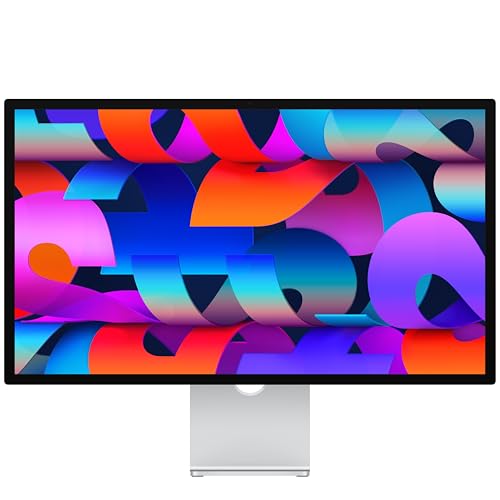
Apple Studio Display (Standard, Tilt Stand) — The Native Choice
The Studio Display is the monitor Apple makes for people who believe the desk should feel like one product. Its 5K panel delivers the Retina experience exactly as macOS intends it — text with print edges, photographs at full density, interface elements at the sizes their designers chose — and the integration runs deeper than resolution. Brightness keys on the Mac keyboard simply work, the colour behaviour matches the MacBook’s own P3 presentation, and the whole object shares its design language with the machine it serves. This configuration carries the standard glass and the tilt-adjustable stand, per the listing.
Ownership of Apple hardware is a study in trade-offs accepted knowingly. The stand adjusts tilt and nothing else in this configuration, the design prioritises the clean desk over the adjustable one, and the price sits at the summit of this guide. What the money buys, beyond the panel, is the absence of negotiation: no scaling experiments, no colour surprises when a file moves from laptop screen to big screen, no accessory that feels adopted. For the Mac user whose work is colour-sensitive and whose patience for configuration is thin, that seamlessness is not a luxury feature — it is the product.
Picture a design director running a small studio entirely on Macs, passing files between MacBooks and the big screen all day. Her team passes files between MacBooks and the big screen all day; the Studio Display makes those handoffs invisible, so a layout judged on the laptop at a client’s office looks identical back at the studio wall. She will tell you the purchase hurt once and has not been thought about since, which is the most Apple verdict imaginable — and, for the right buyer, the correct one.
- Panel class: 27 inch 5K Retina-class
- Glass: standard glass per the listing
- Stand in this configuration: tilt-adjustable
- Ecosystem role: Apple’s own Mac display
- Colour world: Display P3 native behaviour
Strengths
- Perfect macOS scaling and colour behaviour with zero configuration.
- Keyboard brightness control and ecosystem integration just work.
- Design coherence with the Mac it serves is unmatched in this guide.
Trade-offs
- The highest price in this line-up, and it is not close.
- Tilt-only adjustment in this configuration limits ergonomic range.
- Standard glass reflects more than the matte picks in bright rooms.
Best for: Mac-first studios and professionals who value seamlessness above adjustment.
Not suited for: bright, reflection-prone rooms where a matte panel serves better.

LG UltraFine 5K 27MD5KL-B — The Proven Alternative
Before Apple sold its own 5K display, the UltraFine 5K was the Mac external monitor — developed in LG’s long collaboration with the Mac ecosystem, sold through Apple channels for years, and still the reference third-party answer. Its 27 inch IPS panel delivers the full 5K UHD resolution for Mac per its listing, which means the same Retina-class density, the same honest scaling, the same text quality that makes Mac owners fussy in the first place. Buying it today is buying the category’s founding document, revised and proven across an enormous installed base.
The UltraFine’s argument is maturity. Its behaviour with Macs — connection, scaling, colour — has been exercised by more Mac owners over more macOS versions than any rival here, so its surprises are known quantities rather than discoveries awaiting the first owner. It presents in the P3 world Macs inhabit, connects by the single-cable discipline the category promises, and asks nothing exotic of the desk. Where the Studio Display sells integration as luxury, the LG sells it as routine.
Take the software team lead equipping a home office meant to outlast a decade of MacBooks. He has watched colleagues cycle through compromise screens — the soft 4K, the ultrawide that scaled strangely — and chooses the panel whose only story is that it has always worked. For buyers who find Apple’s price a bridge too far but refuse to leave the 5K reservation, the UltraFine remains the address the category’s history points to.
- Panel: 27 inch IPS LCD
- Resolution: 5K UHD, built for Mac per the listing
- Maker line: LG UltraFine
- Colour world: P3-class Mac presentation
- Category role: the established third-party standard
Strengths
- True 5K Retina-class density with a long Mac track record.
- Proven behaviour across many macOS generations and Mac models.
- Undercuts Apple’s own display while keeping the 5K experience.
Trade-offs
- Its design has aged beside the newer entrants in this guide.
- Apple’s deeper ecosystem touches are approximated, not native.
- Availability and revisions vary, so read the exact listing carefully.
Best for: Mac owners who want proven 5K without the Apple summit price.
Not suited for: buyers who want the newest panel technology and design language.

ASUS ProArt PA27JCV 5K — Best for Colour Pros
ASUS aims the ProArt PA27JCV at the Mac owner who is also a colour professional, and its listing leads with the credential that audience reads first: a 5K IPS panel at 5120×2880 with 99% DCI-P3 coverage. That pairing — Retina density plus near-complete P3 — makes it the creator’s instrument in this guide, the screen for the photographer editing in the P3 world, the video editor whose delivery targets modern displays, the designer whose brand colours live or die by small differences. ASUS also cites its LuxPixel surface technology in the listing, part of the ProArt programme of keeping reflections from corrupting judgement.
ProArt ownership brings the line’s working habits: colour modes aligned to professional standards, uniformity discipline, and the expectation that the owner will calibrate and verify rather than merely admire. Set against the Studio Display, the ASUS trades Apple’s integration polish for a creator-first panel story and a position that leaves budget for the calibrator and the arm a professional desk wants anyway. Set against the LG, it argues that 5K for Mac has grown up into a colour instrument rather than remaining a very sharp office screen.
A commercial photographer who retouches on a Mac Studio by day and delivers to P3 screens by night is this monitor’s natural owner. Her files move between camera, this panel and client devices without a colour translation surprise, and the 5K density lets her judge retouching at magnifications that would turn a lesser panel into mosaic. She chose it over Apple’s display with her eyes open: less ecosystem magic, more colour authority — the professional’s exchange rate.
- Panel: 27 inch IPS
- Resolution: 5K, 5120×2880 per the listing
- Colour coverage: 99% DCI-P3 per the listing
- Surface technology: LuxPixel per the listing
- Maker line: ASUS ProArt professional displays
Strengths
- Near-complete P3 coverage at full 5K density serves colour professionals properly.
- ProArt discipline suits calibration-based workflows.
- Positions below Apple’s display while arguing a stronger colour case.
Trade-offs
- Apple-level integration touches are not its story.
- Its professional modes reward owners who will actually use them.
- Brand service experience varies by region more than Apple’s does.
Best for: photographers, video editors and designers whose Mac work is colour-critical.
Not suited for: owners who want the display to configure itself entirely.

BenQ PD2730S 27in 5K Mac Monitor — Best Thunderbolt 4 Desk
BenQ’s PD2730S is the most completely specified Mac monitor in this guide, and its listing reads like a checklist written by a Mac user: a 27 inch 5K panel at 218 PPI, 98% P3 coverage, Thunderbolt 4 connectivity with 90W power delivery, a 2000:1 contrast figure, uniformity technology and a nano matte panel. Each element answers a known Mac-desk complaint — scaling, colour, cable clutter, washed contrast, uneven panels, reflections — and together they make the strongest specification argument here for the buyer who reads spec sheets closely.
The nano matte surface deserves emphasis because it divides this guide philosophically. Apple’s standard glass and the glossy tradition look gorgeous in controlled light and mirror the room in uncontrolled light; BenQ’s matte discipline serves the real rooms Macs actually work in — the bright studio, the office with a window wall, the home desk facing the garden. Uniformity technology addresses the quieter flaw: a panel whose corners drift from its centre makes colour judgement position-dependent, and BenQ manages it as a headline feature rather than a hope.
The buyer this specification seems drawn for is the product designer prototyping in P3 all day from a sunlit corner office. The Thunderbolt 4 cable runs her MacBook Pro and feeds it 90W; the matte panel keeps the afternoon sun out of her colour decisions; the density keeps interface text at print sharpness through the longest prototyping session. Against Apple’s display she trades a measure of integration gloss for a panel engineered, feature by feature, for her actual room — an exchange this guide finds easy to respect.
- Panel: 27 inch 5K, 218 PPI
- Colour coverage: 98% P3 per the listing
- Connection: Thunderbolt 4 with 90W power delivery
- Contrast figure: 2000:1 per the listing
- Surface: nano matte with uniformity technology
Strengths
- The most complete Mac specification sheet in this guide.
- Matte surface and uniformity tech serve real, bright rooms.
- Thunderbolt 4 with 90W delivery perfects the one-cable desk.
Trade-offs
- Matte presentation lacks the glossy depth some Apple devotees love.
- It asks a near-flagship commitment without the Apple badge.
- Its richness of modes rewards a setup session on day one.
Best for: Mac professionals in bright rooms who read specifications and mean it.
Not suited for: glossy-display romantics who prize depth over reflection control.

BenQ MA270U 27in 4K Mac Monitor — Best Mac-Tuned Value
The MA270U is this guide’s honest compromise, and BenQ designed it specifically as one. It is a 27 inch 4K monitor — 3840×2160 — built for MacBook Pro and Air owners per its listing, with dual USB-C, 90W power delivery and Mac Color Match thinking: BenQ’s effort to make a 4K panel present colour the way a Mac’s own display does, so files crossing between the laptop screen and the big screen do not change their minds about hue. It costs meaningfully less than the 5K field, and its review exists to identify the buyers for whom that saving is wisdom rather than false economy.
The compromise lives in density. At 27 inches, 4K asks macOS to scale, and text — while far better than on low-density screens — does not achieve the print-perfect Retina rendering of the 5K picks. For documents, browsing, development, video and general creative work, most owners adapt within a day and stop seeing it. For typography obsessives, interface designers and anyone who stares at small text professionally, the difference remains visible and the 5K step-up is the correct spend. BenQ’s colour matching narrows the other gap — colour — to the point where the MA270U’s owners rarely feel exiled from the Mac’s colour world.
A freelance writer-developer with a MacBook Air and a finite desk budget is this monitor’s natural owner. Her work is words and code, her colour needs are honesty rather than laboratory precision, and the MA270U gives her the big calm canvas, the one-cable 90W life and Mac-faithful colour at a price that leaves room for the chair and the keyboard her posture also requested. She is not settling; she is allocating — and this guide respects the allocation.
- Panel: 27 inch 4K, 3840×2160
- Mac tuning: Mac Color Match per the listing
- Connections: dual USB-C
- Power delivery: 90W per the listing
- Audience named in listing: MacBook Pro and Air owners
Strengths
- Mac-faithful colour behaviour at the guide’s friendliest position.
- Dual USB-C and 90W delivery keep the one-cable promise fully.
- BenQ’s Mac-specific engineering softens the 4K compromise considerably.
Trade-offs
- Text density cannot match the 5K picks; macOS scaling is involved.
- Colour professionals should still buy into the 5K ProArt or BenQ PD class.
- It will be outgrown by owners whose work turns colour-critical.
Best for: MacBook owners who want a tuned, single-cable big screen without 5K pricing.
Not suited for: typography and interface professionals who live at small text sizes.

Samsung ViewFinity S8 27in 5K (S80HF) — The New Contender
Samsung’s ViewFinity S8 is the newest name in this company, a 27 inch 5K monitor at 5120×2880 with HDR10 support and Eye Saver Mode per its listing, from Samsung’s high-resolution ViewFinity line. Its arrival matters beyond its own merits: Samsung’s panel manufacturing sits behind much of the display industry, and a Samsung-branded 5K aimed at Mac-class buyers signals that the Retina-density category is becoming a market rather than a duopoly. Buyers benefit from that contest in pricing and in features alike.
Within the guide’s terms, the S8’s case rests on the same foundation as the other 5K picks — the density that makes macOS happy — with Samsung’s own accents: HDR10 handling for the growing library of HDR content Macs produce and consume, and an eye-saver mode for the long general-work hours between creative sessions. Its listing is the briefest here, so this review stays disciplined: exact colour-gamut and power-delivery claims should be confirmed on the listing itself before purchase, and the monitor’s youth means its long-term Mac behaviour is less documented than the LG’s or Apple’s.
Its most likely first owners are early-adopting creative generalists — part designer, part video hobbyist, wholly allergic to paying the Apple premium. He gets the full 5K canvas, a modern feature set and the satisfaction of the newest entrant, accepting in exchange that his screen’s folklore is still being written. In a category this mature, a credible new contender is itself a recommendation, and the ViewFinity earns its chair on that basis.
- Panel: 27 inch, 5K 5120×2880
- HDR note: HDR10 per the listing
- Comfort feature: Eye Saver Mode per the listing
- Maker line: Samsung ViewFinity high-resolution series
- Connection centre: USB hub functionality per the listing
Strengths
- Full 5K density from a first-tier panel maker at a contender’s position.
- HDR10 handling suits Mac-created HDR photo and video libraries.
- Fresh competition pressures the whole category’s pricing.
Trade-offs
- The newest entrant carries the least long-term Mac track record here.
- Its listing states fewer colour specifics than the BenQ and ASUS rivals.
- Buyers should verify power delivery details on the listing before ordering.
Best for: early adopters who want 5K density and modern HDR handling.
Not suited for: buyers who prize a decade of documented Mac behaviour — the LG’s territory.
The Whole Field in One View
| Model | Resolution | Colour headline | Defining idea |
|---|---|---|---|
| Apple Studio Display | 5K | Native P3 behaviour | Total ecosystem integration |
| LG UltraFine 5K | 5K | P3-class presentation | The proven Mac alternative |
| ASUS ProArt PA27JCV | 5K | 99% DCI-P3 | Colour professional’s instrument |
| BenQ PD2730S | 5K | 98% P3 | Thunderbolt 4, matte, uniform |
| BenQ MA270U | 4K | Mac Color Match | Tuned value for MacBook owners |
| Samsung ViewFinity S8 | 5K | HDR10 support | The new 5K contender |
The table reduces to one axis and one question. The axis is density: five screens at 5K, one at 4K, and the 4K screen justifies itself only through tuning and price. The question is integration: how much of Apple’s seamlessness do you need, and what will you trade for it — money, matte glass, adjustability, colour authority? Every buyer’s answer is a point in that two-dimensional space, and every pick above is the correct answer for somebody’s point.
How Do You Set Up a Mac External Monitor for Perfect Scaling?
Connect the display and let macOS introduce itself first; modern versions recognise these panels and choose the sensible default. Then open the display settings and look at the resolution choices as what they are — scaling choices. On a 5K panel, the default looks-like setting gives Retina rendering at a comfortable interface size, and most owners should live there for a week before experimenting. On the 4K MA270U, choose the scaled setting whose text size matches your MacBook’s feel rather than chasing the largest canvas; consistency between the two screens is what makes a dual-screen Mac desk feel like one machine.
Colour comes next: confirm the display is using its P3-capable profile, and if you own a calibrator, build a fresh profile for the external panel rather than borrowing the laptop’s. Arrange the screens in settings to match the desk’s physical layout so the cursor crosses naturally, decide which display hosts the menu bar for your dominant work, and set brightness from the keyboard where the model supports it or from the panel where it does not. Ten minutes of this, done once, is the entire configuration burden of the modern Mac monitor — a fact worth remembering when a cheaper, fussier screen tempts.
Where Do Mac Buyers Most Often Waste Money or Regret Saving It?
The commonest waste is buying density without need and integration without use: the casual MacBook owner who purchases Apple’s flagship to read email at magnificent resolution has bought a sports car for the school run. The commonest regret runs the other way — the professional who saves on a low-density screen, then spends two years leaning toward soft text and resenting the desk. Both errors come from shopping by aspiration rather than by the actual week’s work, and both are avoidable by the unfashionable method of listing what the screen will show, hour by hour, before opening a single listing.
A subtler waste is the stand. Buyers pay for panels and then perch them at fixed, wrong heights for years; where a pick’s stand adjusts only tilt, as with this guide’s Studio Display configuration, the honest total price includes the arm or the riser that completes the ergonomics. Budget the whole desk — panel, cable, arm, calibrator where relevant — and the category’s prices become comparisons of systems rather than of stickers.
Six Mac Desks, Six Reasons the Shortlist Splits
The Studio Display in the client-facing studio
A brand studio receives clients in a room where every object is an argument about taste. The Studio Display belongs there the way the right chair does: its panel makes the work look inevitable, its integration means a presentation never pauses for a settings negotiation, and its design tells the client, before a word is spoken, that details are this studio’s religion. The premium is real, and in that room it is also marketing spend — the only pick in this guide that can honestly claim both budgets.
The UltraFine in the engineer’s decade desk
An engineer who replaces laptops every three years but furniture every fifteen chooses the UltraFine for its boringness across time. Three MacBooks will dock with it across its life; each will find the same density, the same behaviour, the same absence of blog posts to read about scaling quirks. Longevity in peripherals is a personality trait as much as a specification, and this LG is the guide’s clearest expression of it.
The ProArt in the retoucher’s cave
A retoucher working for fashion clients keeps her room dim and her standards absolute. The ProArt’s 99% DCI-P3 coverage is her working surface: skin, fabric and product colour judged in the space her clients’ campaigns will inhabit. She calibrates monthly, keeps a reference print pinned beside the screen, and chose ASUS over Apple because the money difference bought the calibration hardware and the monitor arm her posture demanded — a allocation only a professional would think to make.
The PD2730S in the bright architect’s office
An architect’s studio has the window wall every designer envies and every glossy screen fears. The BenQ’s nano matte panel turns that liability into scenery: drawings and 3D views stay legible at noon, the 2000:1 contrast keeps shaded elevations readable, and Thunderbolt 4 clears the cable tray to a single lead per desk. Visitors assume the matte discipline was an interior-design choice; it was a colour-accuracy one, and the renders leaving that office prove it daily.
The MA270U in the writer’s rented study
A novelist who also builds websites rents a study by the year and furnishes it by the month. The MA270U gives her MacBook Air a big, colour-faithful canvas for both trades at a price that survives a renter’s arithmetic, and its dual USB-C life means the desk assembles in minutes after every reshuffle. She knows about the 5K difference, has seen it in a friend’s studio, and has decided — correctly, for prose and code — that her money works harder in the bank than in her peripheral vision.
The ViewFinity in the video maker’s spare room
A video maker cutting HDR footage from modern cameras in a spare room wants density and HDR handling without the flagship toll. The Samsung gives him the 5K canvas his timelines crave and HDR10 behaviour for reviewing his own exports, and its newcomer status does not trouble a buyer who updates his tools as readily as his software. His desk is the category’s future arriving early: several credible 5K makers, chosen on merits, changed without ceremony.
What Does Living With macOS Scaling Actually Feel Like?
Owners describe the difference between the 5K picks and lesser screens in a phrase that sounds like exaggeration until experienced: the external monitor stops feeling external. Windows dragged from the MacBook arrive the same size, wearing the same sharpness, as if the laptop had simply grown. That continuity changes behaviour — people use both screens fluidly instead of treating the external as a warehouse for secondary windows — and it is the real product the 5K premium buys, more than any single photograph’s beauty.
On the 4K MA270U, the experience is close but detectably translated: text is rendered beautifully by the standards of almost any other platform, yet the Mac-trained eye catches the fractional scaling in fine print and interface lines. Most owners stop noticing within days, which is why the MA270U’s value case is genuine. Professionals whose product is the interface itself — the type designer, the app team — should not rely on adapting; their eyes are their instruments, and instruments are not asked to compromise. Everyone else is choosing between excellent and perfect, and should let price and room, not anxiety, decide.
How Does the Monitor Choice Interact With Which Mac You Own?
MacBook Air owners gain the most drama from any pick here: a silent, light laptop becomes a full desktop at one cable, and the 90W delivery figures on the BenQ models exceed what the Air can even consume, leaving headroom that expresses itself as fast, cool charging. MacBook Pro owners should check their port story — the Pro’s own ports reduce dock dependence, and the monitor’s hub features matter correspondingly less than its panel. Mac mini and Studio owners are buying their only display, which argues for the fullest specification the budget allows, since there is no laptop screen to fall back on and the monitor will be judged alone, all day, for years.
Chip generations matter at the margins. Older Intel Macs drive these resolutions happily in most cases but deserve a compatibility glance at the exact model before purchase, particularly for the 5K panels. Apple silicon machines treat 5K as home territory. In every case, the monitor will likely outlive the Mac it is bought for — plan the purchase for the next machine as well as the current one, which is one more argument for the density and connectivity standards the leaders here share.
The Accessory Question: Webcams, Speakers and the Clean Desk
A Mac monitor decision quietly decides three other purchases. Apple’s display integrates its own camera and speaker system into the ecosystem, which is why its owners’ desks stay empty of peripherals; third-party picks vary, and buyers should inventory what each model includes before assuming the comparison is panel against panel. A desk that needs a separate webcam, speakers and a hub after buying a cheaper monitor may discover the arithmetic converging on the flagship it avoided — with worse integration at the end of it. The honest comparison is always system against system.
Ergonomics is the second accessory trap. A tilt-only stand, however beautiful, fixes the panel’s height at whatever the desk and chair conspire to produce, and for many bodies that conspiracy ends at a strained neck. Budget the arm or riser in the same breath as the monitor wherever the stand’s range is limited, and treat height adjustability — where a model offers it — as money saved rather than a bullet point. The screen you look at for a decade should meet your eyes where they are, not where the furniture wishes they were.
Colour Workflows on a Mac: From Camera to Client Screen
The Mac’s colour story is unusually coherent: cameras and iPhones capture in wide colour, macOS manages in P3, and clients increasingly view on P3 devices. A monitor that covers P3 nearly completely — the ASUS at 99% DCI-P3, the BenQ at 98% P3 — keeps the editor inside that coherence, judging files in the same space the audience inhabits. The MA270U’s Mac Color Match exists to approximate the same coherence at 4K, matching the laptop’s presentation so work can move between screens without a visible seam of hue.
Print remains the exception that tests the system, since paper speaks CMYK and Adobe RGB rather than P3. Mac photographers printing seriously should read this guide alongside our photo editing roundup, where the Adobe RGB specialists live, and consider whether the desk needs one screen for each language or a soft-proofing discipline on a P3 panel. For the majority whose destination glows, the P3 completeness in this guide is the correct and sufficient standard — buy for the destination, and let the exception workflows rent their solutions when they arise.
Buying for the Next Mac, Not Just This One
Peripheral time runs slower than computer time. The monitor bought today will meet at least one more Mac, probably two, and its standards should be chosen for the machine you cannot yet specify. That argues for the category’s consensus features — 5K density, Thunderbolt or USB-C with generous power delivery, P3 colour — because those are the standards the next Mac will assume. It argues against exotic connections, proprietary docks and any feature whose support depends on a single software generation.
It also argues for buying the panel quality once. Owners forgive themselves a generous monitor purchase within a month; they forgive a cheap one never, because it taxes them daily in small denominations of softness and glare. Spread across the two or three Macs it will serve, even this guide’s summit price becomes a modest monthly figure — and the mid-priced 5K picks, the LG and the BenQ and the ASUS among them, become some of the easiest money in the whole setup to justify.
Two Screens or One Big One for a Mac Desk?
Mac owners perennially debate pairing two smaller displays against one excellent 27 inch panel, and this guide’s category settles the debate for most desks: one 5K screen at Retina density beats two lesser panels for the work Macs do, because the single panel keeps scaling perfect, colour unified and the desk’s cable count at one. Dual setups retain one honest advantage — physical separation of roles, reference on one screen and canvas on the other — and the natural execution is a pick from this guide as the primary, with the MacBook’s own screen, open beside it, as the assistant. That arrangement costs nothing extra and delivers most of the dual-screen benefit with none of the mismatch.
Owners who do add a second external should match density before size. A 5K primary beside a low-density secondary creates a visible quality cliff that the cursor crosses a hundred times a day, and the eye registers each crossing as a small disappointment. A matched pair — two of the same 5K model, or the MA270U knowingly chosen as a secondary — keeps the desk coherent. Coherence, in the Mac world, is not an aesthetic preference; it is the operating system’s design assumption, and the desks that honour it feel right in a way their owners struggle to articulate and never willingly surrender.
The First Evening: Unboxing to a Tuned Mac Desk
Resist judging any pick here in its first ten minutes, because a Mac desk assembles in stages. Connect the cable, let the Mac recognise the panel, then walk the short checklist: scaling set to the default Retina presentation, screens arranged to match the furniture, the external display’s profile selected, brightness matched between laptop and monitor so a window crossing the seam does not change its mood. If the model includes a hub, migrate the peripherals one at a time and confirm each wakes correctly from sleep — sleep behaviour is where docks and hubs confess their sins, and it is better confessed on a quiet evening than before a client call.
Then use the desk for real work for three days before touching a setting again. Scaling preferences, brightness habits and window arrangements all settle with use, and the owner who fiddles daily never learns which discomfort was the panel and which was novelty. By the third evening, the setup that remains is the setup the next several years will run on — and if a genuine flaw persists by then, the return window is still open and the lesson was cheap. Patience, in this category, is a specification too.
What About Gaming, Films and the Hours After Work?
Mac owners ask, usually quietly, whether these professional panels disgrace themselves after hours. They do not. Films on a 27 inch 5K P3 panel look as their colourists intended, HDR content finds the headroom the Samsung and its peers provide, and the same density that sharpens text renders streamed detail beautifully. Refresh rates in this category are working rates rather than gaming rates, and Mac gaming itself remains a modest ecosystem, so the honest verdict is that these screens are excellent cinema and casual-play displays that no one should buy primarily for competitive gaming. The desk that works beautifully all day and entertains properly all evening is not a compromise — for most households it is the entire requirement, met by a single purchase.
A Note on Resale, Longevity and the Second-Hand Question
Quality Mac monitors hold value unusually well, because the buyer pool is patient and the standards change slowly: a 5K P3 panel bought today remains a correct answer for years, which is visible in the second-hand market’s respect for the UltraFine generation. Buyers considering a used example of any pick here should test for the panel faults that photographs hide — uniformity across a grey screen, backlight consistency at low brightness, dead pixels at reading distance — and confirm the cable and stand are the originals, since replacements quietly erode the saving. New buyers gain the warranty and the return window; in a category where a single panel flaw can annoy for a decade, that protection has a calculable worth, and this guide’s links lead to the new listings for exactly that reason.
Reading the Fine Print Before You Commit
Three listing details deserve a buyer’s eyes in this category, because they vary quietly between configurations. The first is the stand: the same display may be sold with tilt-only, height-adjustable or VESA-mount configurations, and the Studio Display in this guide is the standard-glass, tilt-stand configuration specifically — price the ergonomic completion if your body needs more range. The second is glass: standard and matte-style treatments change the bright-room experience entirely, and the choice should follow your room’s light rather than showroom impressions. The third is power delivery wattage on the third-party models, which decides whether a MacBook Pro under heavy load charges, merely sustains, or slowly drains while connected.
None of these details is hidden; all of them are simply quieter than the headline resolution. The buyer who confirms them against the live listing — using this guide’s links to reach the exact configuration reviewed — converts the largest peripheral purchase of the decade into the least surprising one. In a category defined by long ownership, unsurprising is the highest praise a purchase can earn, and it is available to anyone willing to read one page carefully before paying for ten years of mornings.
One last perspective for the undecided: ask what your current screen costs you, not in money but in behaviour. The Mac owner working on a compromised external display develops habits around it — the laptop kept open as the true screen, the big panel demoted to reference duty, the colour judgements deferred to a device screen, the desk that never quite becomes a workstation. Those habits are the daily tax of the wrong monitor, and they are invisible precisely because they feel like preferences. Every pick in this guide abolishes the tax in its own way; the 5K five abolish it completely. Choose the philosophy you trust, confirm the fine print, and let the next decade of mornings at the desk be the verdict.
Final Recommendation
Buy the Studio Display if the Mac ecosystem is your profession and seamlessness is worth its summit price; it remains the reference the others are measured against. Buy the BenQ PD2730S if your room is bright and your specification standards are high, the ProArt if colour authority leads, and the LG if you want the proven 5K path at a gentler position. The Samsung is the credible newcomer, and the MA270U is the value answer for MacBook owners whose work is words, code and general creation. For the typical reader of this guide — a Mac professional equipping a desk for years — the PD2730S is the packing choice: Retina density, matte discipline and Thunderbolt 4 completeness, in the room you actually work in, under the light you actually have.
Frequently Asked Questions
Why does 5K matter so much for Macs specifically?
Because macOS interface rendering is designed around Retina density. At 5K on a 27 inch panel, the system can render every interface point with a clean two-by-two block of pixels, producing the same sharpness as the MacBook’s own screen. Lower densities force fractional scaling, which softens text in a way Mac owners notice immediately.
Can one cable really run the display and charge my MacBook?
Yes, where the monitor provides sufficient USB-C or Thunderbolt power delivery — 90W on the BenQ picks here covers MacBook Pro charging under normal loads. The same cable carries the picture to the screen and power back to the laptop, which is the foundation of the tidy modern Mac desk.
Is the 4K BenQ MA270U a mistake for a Mac?
No — it is a deliberate trade. Its Mac colour tuning keeps files consistent with the laptop screen, and many owners adapt to its scaling within days. It becomes the wrong choice mainly for professionals whose days are spent at small text sizes or in colour-critical judgement, where the 5K picks repay their premium.
Do I need a matte or a glossy screen?
Decide by room. Controlled, dimmer rooms flatter glossy panels like Apple’s standard glass. Bright rooms, windows and overhead lighting argue for the matte discipline of the BenQ PD2730S or the treated surfaces in the ProArt line, because a reflection is a colour error you cannot calibrate away.
Should I wait for the next generation of Mac displays?
Waiting is rational only when a specific, announced product answers your exact brief better than today’s field. In this category, standards move slowly and the current 5K generation already matches what macOS asks of a display, so a screen bought now is unlikely to be embarrassed by next year’s announcement. The cost of waiting is paid in present-tense mornings at a compromised desk, and it compounds daily, while the benefit remains speculative. Buy the panel that fits the room and the work today, from the six above, and let the future’s owners enjoy the future.
How many external monitors can my Mac drive?
It depends on the exact Mac and chip, and the answer has changed across generations, so check your model’s specification carefully before planning a two-external-screen desk or ordering a second panel for a machine that cannot drive one. Many MacBook configurations drive one external display natively at these resolutions, with higher counts reserved for the Pro and Max-class machines and the desktop Macs. Every pick in this guide is designed to be that one excellent display; buyers planning a pair should confirm the machine first and the monitors second, in that order, to avoid owning a beautiful second screen the laptop cannot light.
How should I dispose of or pass on my old monitor?
Pass it downward before recycling it: a family member’s first desk, a spare-room setup, or a local school or charity will usually take a working screen gladly, and a monitor’s most sustainable year is always the one spent in use. When a panel truly reaches its end, use the manufacturer’s or retailer’s electronics recycling route rather than general waste, and remove any desk arms or mounts first, since those serve the next screen unchanged.
Does a 5K monitor slow an older Mac down?
Driving more pixels asks more of the graphics hardware, and very old machines may run warmer with a 5K panel attached, particularly during video-heavy work. For ordinary office, writing, browsing and design duties, any Mac recent enough to be your daily machine will drive these displays without drama. If your Mac already struggles with its internal screen, solve that first — a new monitor amplifies a healthy machine and merely reveals a tired one at higher resolution.
What cable should I keep as a spare?
A quality Thunderbolt cable of the same class as the one in use, kept in the desk rather than the travel bag. The single-cable desk’s only fragility is the cable itself, and a failure on a deadline morning becomes a story about a spare that cost little and waited patiently. Avoid the longest lengths for the desk run, since shorter cables behave more reliably at these bandwidths, and label the spare so it is not quietly promoted into a phone charger by the household.
Will these monitors work with a Windows PC as well?
Generally yes as displays, since the connections are standard; the Mac-specific tuning, integration and scaling benefits simply become irrelevant. Households and studios running both platforms can share any pick here, with the Mac gaining the most from the arrangement.
Related Guides
Mac owners completing the desk may also want our testing of the best external monitors for photo editing, our roundup of the best 4k portable monitors for the travel kit, and our guide to the best eye care monitors.


