What's inside
- Key Takeaways
- Quick Picks
- How Did We Choose These Law School Laptops?
- What Should You Check About Exam Software Before Buying?
- How Do the Six Law School Laptops Compare?
- How Should a Law Student Organise Files, Backups and Notes From Day One?
- What Does a Good Home Study Desk Add to a Law Laptop?
- How Do a Law Student’s Laptop Needs Change From 1L to 3L?
- Which Note-Taking Method Should Drive the Choice: Typing, Pen or Recording?
- How Should a Student Budget the Whole Purchase, Not Just the Laptop?
- What Changes When Clinics, Journals and Legal Jobs Enter the Week?
- How Do You Protect Your Eyes and Posture Across Three Years of Reading?
- What About Evening Students, Second-Career Students and Students With Jobs?
- How Does Group Study Change What the Laptop Has to Do?
- What Are the Common Mistakes When Buying a Laptop for Law School?
- Final Recommendation
- Frequently Asked Questions
- Related Guides
As an Amazon Associate I earn from qualifying purchases. This post may contain affiliate links at no extra cost to you.
gizmoverdict.com is reader-supported. When you buy through links on our site, we may earn an affiliate commission.
Where to buy: The six laptops below link to the verified Amazon listings for the configurations described, and law students should note the memory and storage inside each listing title before anything else. A law degree lasts three years and the laptop bought for orientation is expected to sit the bar-prep season with you, so the configuration decision is a three-year decision wearing a one-afternoon disguise.
Law school makes a peculiar set of demands on a laptop, and almost none of them are the demands that sell laptops. Nobody in a contracts lecture needs a gaming graphics card. What a law student needs is a machine that survives a twelve-hour day of reading cases, outlining, researching on Westlaw or Lexis, and drafting memos — then does it again tomorrow, and for roughly a thousand tomorrows after that. The best laptops for law school are therefore chosen on battery, weight, keyboard and reliability, the unglamorous virtues, because law school is a marathon of text and the machine is the shoes.
Reading is the first workload, and it is heavier than it sounds. Casebooks arrive as thousand-page PDFs, research platforms run in the browser with a dozen tabs of secondary sources, and the outlining process builds documents that grow all semester into hundred-page structures you navigate under exam pressure. A clear screen you can read for hours, enough memory to hold the research sprawl without stuttering, and storage that swallows three years of briefs, outlines and recorded lectures are the real specifications of this degree. Every pick in this guide clears them, at several shapes and prices of student life.
The second workload is the exam, and it deserves its own paragraph because it changes the buying conversation. Law school exams are typed, at speed, for hours, often on dedicated exam software that your school specifies and supports on particular platforms. The keyboard beneath your fingers during a three-hour issue-spotter is not a comfort feature; it is the instrument of the grade. This guide weights keyboards accordingly, names the exam-software check every student must run against their own school’s requirements before buying, and treats reliability — a machine that has never once failed to wake up — as the closest thing to an academic virtue a laptop can have.
Key Takeaways
- Battery and weight outrank power here: every pick is a genuine all-day, carry-everywhere machine.
- Check your school’s exam software requirements before buying anything — most support both platforms, but the check is yours to run.
- Two picks fold into tablets with pens, the Yoga 7i and the OmniBook Ultra Flip, for students who annotate cases by hand.
- The ThinkPad X1 Carbon’s keyboard and the MacBook Air’s battery are the two superlatives around which most students should decide.
- Storage splits the list from 512GB to a full 2TB on the OmniBook; outlines are small, but three years of lectures and PDFs are not.
- Every machine here is built to still be working at bar prep, not merely at orientation.
Quick Picks
| Pick | Badge | Why it is here |
|---|---|---|
| Apple MacBook Air 13 (M5) | Best for most law students | Fanless, featherweight and long-legged on battery, with 16GB of memory and a 512GB drive. |
| Lenovo ThinkPad X1 Carbon Gen 12 | Best keyboard for exam season | The finest typing surface in the guide with 32GB of memory in an ultralight business chassis. |
| Lenovo Yoga 7i 2-in-1 | Best for annotating by hand | An OLED touchscreen that folds flat, a Yoga Pen in the listing, and a full terabyte of storage. |
| Dell XPS 13 | Most compact premium option | A 13.4-inch 3K touch display in Dell’s smallest flagship body, with 16GB and 512GB as listed. |
| HP OmniBook Ultra Flip | Best convertible, biggest storage | A 2.8K OLED 2-in-1 with 2TB of storage — three years of law school, held on one drive. |
| HP EliteBook 840 G11 | Built to outlast the degree | Enterprise durability and security in a 14-inch machine that transitions straight into first-job life. |
How Did We Choose These Law School Laptops?
We started from the student’s day rather than the manufacturer’s catalogue. Each candidate had to be light enough to carry between classes without thought, frugal enough to run a full day of lectures and library hours, and equipped with a keyboard a student could type an exam on without the machine becoming part of the story. Memory and storage were set at honest floors — 16GB and 512GB respectively, with several picks well above them — because the research-and-outlining sprawl of a law degree punishes starved configurations by the second year, when replacement money is at its scarcest.
We also insisted on spread. A law cohort contains the devoted hand-annotator who needs a folding pen machine, the Windows-committed student whose school or summer employer runs on Microsoft, the Mac loyalist whose whole life is already in that ecosystem, and the pragmatist who wants business-grade durability that walks straight into a first associate job. The six picks map to those students rather than to six shades of the same preference, and two of them — the X1 Carbon and the EliteBook — also serve our day-trading guide, where the same durability and keyboard virtues are read through a trader’s day instead of a student’s.
What we left out is as deliberate. Gaming laptops fail the weight and battery tests no matter their power. Bottom-shelf budget machines fail the three-year test, which is the only test this degree really sets. Chromebooks and tablet-only setups fail the exam-software and document-heavy reality of law study at most schools. The list that remains is short because the degree’s demands, properly understood, are narrow: text, time and trustworthiness.
What Should You Check About Exam Software Before Buying?
Almost every law school delivers exams through dedicated software — Examplify is the name most students meet first — and the software, not the laptop marketing, decides platform compatibility. The major exam platforms support both Windows and macOS in current versions, and every machine in this guide sits comfortably within their hardware expectations. But “almost” and “most” are doing work in those sentences: schools set their own requirements, some programmes or clinics impose their own software, and a handful of tools in the wider legal world remain Windows-first. The check takes ten minutes — your school’s IT or exam-office page lists the current requirements — and it must happen before the purchase, not during orientation week.
Two practical corollaries follow. First, keep the machine’s operating system updated on your schedule, not the software’s: exam platforms occasionally require recent OS versions, and the week before finals is the wrong week to discover a compatibility hold. Second, treat the laptop you sit exams on as a maintained instrument — backups running, storage healthy, no experimental software in December or May. Students who follow that discipline find exam day technologically boring, which is the highest praise exam day can earn.

Apple MacBook Air 13 (M5) — Best for most law students
The MacBook Air is the laptop you will see most often in a law school lecture hall, and the M5 generation listed here — 16GB of unified memory, a 512GB SSD, a 13.6-inch Liquid Retina display, Wi-Fi 7 and the 12MP Center Stage camera among its stated features — earns that popularity on the exact virtues this degree rewards. It is fanless, so it contributes no noise to a silent reading room. It is light enough to forget in a bag alongside a casebook that outweighs it. And its battery behaviour suits the law student’s actual day — lectures, library, a café, another lecture — without the charger becoming an item on the mental packing list.
The same machine anchors our fanless laptops guide, where the argument was silence; here the argument is the whole student pattern. Sixteen gigabytes holds the research sprawl of browser tabs, PDFs and outlining software that defines a study session, and the M5 chip handles that bursty, document-centred workload with an ease that never becomes the subject of the day. Its limits are the familiar ones: storage and memory are fixed at purchase, so the 512GB drive asks students who record every lecture to keep a cloud or external habit, and the heaviest multitaskers in a cohort will be better served by the X1 Carbon’s 32GB below.
For the student without a platform commitment — no Windows-only clinic software, no employer requirement — this is the guide’s default answer, and the safest single recommendation we can make to an incoming 1L. It will still be a good laptop at bar prep, which is the only finishing line that matters.
- Chip: Apple M5 in a fanless design
- Memory and storage: 16GB unified memory, 512GB SSD
- Display: 13.6-inch Liquid Retina
- Camera and sign-in: 12MP Center Stage camera, Touch ID as listed
- Wireless: Wi-Fi 7 as listed
Strengths
- All-day battery behaviour matched to the lecture-and-library pattern.
- Silent in reading rooms, featherweight beside a casebook.
- A mature, low-maintenance machine for three demanding years.
Trade-offs
- 512GB fills across three years of recordings without a storage habit.
- Memory is fixed at 16GB for the life of the machine.
- Students bound to Windows-only school or clinic software should look below.
Best for: the majority of law students, especially those without a platform constraint. Not suited for: students whose school or clinic mandates Windows-only software, or who archive every lecture locally.

Lenovo ThinkPad X1 Carbon Gen 12 — Best keyboard for exam season
Ask a room of lawyers what they remember about their exam laptops and nobody mentions the processor. They remember typing — three hours of it, at speed, with the answer taking shape under their fingers. The X1 Carbon Gen 12 is in this guide because its keyboard is the best typing instrument here, and because the rest of the listed configuration — a Core Ultra 7 155U, 32GB of memory, a 512GB SSD and a 14-inch WUXGA touchscreen in an ultralight carbon chassis — removes every other excuse. The 32GB figure, rare in student conversations, is the quiet luxury: research sprawl, outlining software, a dozen PDFs and the exam platform itself, all held open without the machine ever becoming the bottleneck in a study session.
The Carbon’s second law-school virtue is toughness worn lightly. ThinkPads are bought by institutions that expect years of daily carrying, and the student’s version of that life — bag, lecture bench, library, café, home, repeat for a thousand days — is exactly the duty cycle the line is built for. It also walks out of graduation into a first job without looking like a student machine, which matters more to the budget than to the ego: a laptop that serves the degree and the first associate years is a laptop bought once.
Readers of our day-trading guide will recognise this machine wearing a different argument — there it was memory for chart stacks and support for a business-critical desk. Here it is keyboard, memory and durability for a text-critical degree. The hardware is the same; the life it serves is not, and students should choose it for the reasons in this section rather than the other one.
- Processor: Intel Core Ultra 7 155U, Evo platform as listed
- Memory and storage: 32GB, 512GB SSD
- Display: 14-inch WUXGA touchscreen
- Operating system: Windows 11 Professional as listed
- Design: ultralight carbon business chassis, model 21KC00A7US as listed
Strengths
- The keyboard a three-hour typed exam deserves.
- 32GB of memory swallows the widest research sessions whole.
- Business durability that continues into first-job life.
Trade-offs
- A premium price for a student budget, justified only across the full degree and beyond.
- 512GB asks lecture archivists to keep an external or cloud routine.
- Windows-only: students committed to the Apple ecosystem should take the Air.
Best for: Windows students who type enormously and want one machine for the degree and the first job. Not suited for: tight budgets, where the same money must also cover books and bar prep.

Lenovo Yoga 7i 2-in-1 — Best for annotating by hand
Some students read with a pen in their hand, and for them the laptop question is really a paper question. The Yoga 7i’s listing describes a 14-inch WUXGA OLED touchscreen in a 2-in-1 body, with a Yoga Pen included, an Intel Core Ultra 5 226V processor, 16GB of RAM and a 1TB SSD. Fold the screen back and a case PDF becomes a document you can mark the way generations of law students marked casebooks — underlining the holding, bracketing the dicta, scribbling the margin note that becomes the exam answer — except the marked copy is searchable, backed up and weighs nothing in the bag.
The terabyte of storage is the specification students underestimate at orientation and bless by 2L: three years of annotated PDFs, outlines, recorded lectures and journal work accumulate into a genuine archive, and this machine holds it internally without the external-drive ritual. The OLED panel serves the reading life directly, with the contrast that makes long documents easier company in dim library light. Sixteen gigabytes is the honest middle of this guide — ample for the research-and-outlining pattern, short of the X1 Carbon’s extravagant headroom.
The convertible compromise should be entered knowingly. A 2-in-1 is heavier in the hand as a tablet than a dedicated tablet would be, and the hinge is a mechanism to treat with respect across three years of daily folding. Students who annotate everything will pay those costs gladly. Students who merely like the idea of annotating should test their honesty before paying for it — the clamshell picks in this guide are waiting for them at no penalty.
- Processor: Intel Core Ultra 5 226V as listed
- Memory and storage: 16GB RAM, 1TB SSD
- Display: 14-inch WUXGA OLED touch, full DCI-P3 and HDR 500 figures as listed
- Included input: Yoga Pen as listed
- Wireless and sign-in: Wi-Fi 7, fingerprint reader as listed
Strengths
- Hand annotation of cases on a folding OLED screen, pen included.
- A terabyte holds the whole degree’s archive internally.
- Reading comfort from OLED contrast across long study sessions.
Trade-offs
- Tablet mode is heavier than a dedicated tablet for long hand-held reading.
- 16GB trails the X1 Carbon for the very widest research sprawls.
- The folding hinge asks for gentler treatment than a fixed lid.
Best for: students who genuinely annotate by hand and want their casebook, notes and archive in one machine. Not suited for: keyboard-only students, who would carry the hinge’s cost without using its benefit.

Dell XPS 13 — Most compact premium option
The XPS 13 is the pick for the student whose bag is already a logistics problem. The listed configuration places a 13.4-inch 3K touchscreen — with a 500-nit brightness figure in the title — in Dell’s smallest flagship body, with an Intel Core 5 320 processor, 16GB of LPDDR5 memory and a 512GB SSD. What that assembles into is a premium, highly readable little machine that disappears into a tote beside a casebook and reappears in the lecture hall with a screen sharp enough for a full day of dense text. For students who read on trains, in crowded cafés and in the twenty minutes between classes, compactness is not a luxury; it is the feature that decides whether the laptop is present for the studying that happens in fragments.
The trade-offs of the small flagship shape should be read plainly. Sixteen gigabytes serves the law workload honestly — research platforms, PDFs, outlining and drafting are not memory-hungry in the developer sense — but the student who also edits the law review’s podcast or runs heavy side projects should notice the X1 Carbon’s 32GB. The 512GB drive is the guide’s standard floor, with the same archive advice attached. And a 13.4-inch screen, however sharp, is a single-document screen; students who outline with the case open beside the document will want an external monitor at home, which this machine drives happily through its modern ports.
Within its pattern — the mobile student, the fragmented study day, the small bag — the XPS 13 is the most polished answer in this guide, and its premium finish carries the same graduation-to-first-job benefit as the ThinkPad’s, in a more design-conscious dialect.
- Processor: Intel Core 5 320 as listed
- Memory and storage: 16GB LPDDR5, 512GB SSD
- Display: 13.4-inch 3K touch, 500-nit figure as listed
- Wireless: Wi-Fi 7 as listed
- Operating system: Windows 11 Pro as listed
Strengths
- The most compact premium body in the guide, built for small bags.
- A sharp 3K screen that makes fragmented reading sessions count.
- Flagship finish that survives the transition to professional life.
Trade-offs
- A single-document screen size; side-by-side work wants an external monitor.
- 16GB is the ceiling of this configuration.
- Premium pricing for a specification that is solid rather than extravagant.
Best for: highly mobile students who study in fragments across the city. Not suited for: students whose home desk is their main study site and who would use a larger screen daily.
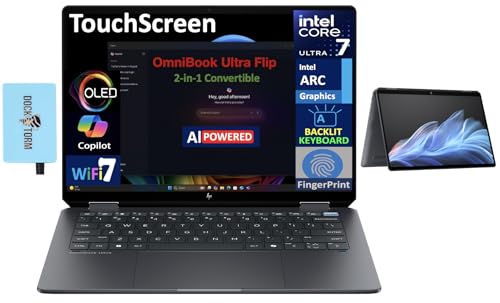
HP OmniBook Ultra Flip — Best convertible, biggest storage
The OmniBook Ultra Flip is HP’s current flagship convertible — the line that succeeds the Spectre name — and its listing reads like a student archive argument: a 14-inch 2.8K OLED touchscreen in a 2-in-1 body, an Intel Ultra 7-256V processor, 16GB of LPDDR5X memory and a full 2TB of PCIe storage. That storage figure is the largest in this guide by a factor of two, and in a degree measured in accumulated documents it is not a vanity specification. Every lecture recording, every annotated casebook, every journal draft and every semester’s outline can live on the machine itself, backed up to the cloud, without the student ever performing the storage triage that interrupts a study week.
As a convertible it shares the Yoga 7i’s hand-annotation proposition with a sharper panel: fold it, take the pen to the case, and the reading workflow becomes tactile. The 2.8K OLED out-resolves the Yoga’s screen for students who find fine text on dense PDFs a daily concern. The processor tier also steps up, giving the machine more headroom for the student whose side work — a research assistantship with data, a clinic with media — reaches beyond documents.
The bundled hub in this listing varies by seller and should be treated as a bonus rather than a reason. The core decision is simpler: this is the convertible for the student who wants the pen workflow and refuses to think about storage again until after the bar. Students who annotate rarely should compare it honestly against the Yoga, whose terabyte may be archive enough at a gentler commitment.
- Processor: Intel Ultra 7-256V as listed
- Memory and storage: 16GB LPDDR5X, 2TB PCIe SSD
- Display: 14-inch 2.8K OLED touch, 2-in-1 folding design
- Sign-in: fingerprint reader, backlit keyboard as listed
- Operating system: Windows 11 Pro as listed
Strengths
- Two terabytes ends the storage conversation for the entire degree.
- The sharpest convertible screen in the guide for dense legal text.
- A stronger processor tier for students whose work exceeds documents.
Trade-offs
- The flagship convertible price is the steepest student commitment here.
- 16GB of memory, like the Yoga, sits below the X1 Carbon’s figure.
- Convertible weight in tablet mode, as with any 2-in-1.
Best for: pen-annotating students who record and archive everything and want it all on one drive. Not suited for: students on strict budgets, or keyboard-only studiers who gain nothing from the fold.

HP EliteBook 840 G11 — Built to outlast the degree
The EliteBook is the pragmatist’s pick, chosen the way a careful student chooses anything expensive: for the whole arc, not the first semester. Its listed configuration — an Ultra 7-165H, 16GB of memory, a 512GB SSD, a 14-inch WUXGA touch display and two Thunderbolt 4 ports — comes from HP’s enterprise line, which means the machine was designed for organisations that buy laptops by the thousand and measure them in years of daily service. A law student is, in laptop terms, a small organisation of one with a three-year deployment and a mission-critical exam schedule; the fit is exact.
The enterprise security positioning, which our day-trading guide values for financial accounts, serves the student differently but no less really: a laptop holding exam software, clinic files and eventually client-adjacent work deserves proper sign-in security and a machine whose updates and drivers are maintained with institutional seriousness. The two Thunderbolt 4 ports build the home desk — an external monitor for outlining with the case beside the draft is the single best study upgrade a student can make, and this machine anchors it without fuss.
Its compromises are the honest business ones. Sixteen gigabytes is the working figure rather than the extravagant one, the IPS panel is a tool rather than a showcase, and the styling announces “office” in every room. A student who wants the degree’s machine to also be a small pleasure of design should look at the XPS 13 or the Air. A student who wants to buy once, insure it with a business support story, and think about the laptop never again until graduation should look directly at this one.
- Processor: Intel Ultra 7-165H as listed
- Memory and storage: 16GB, 512GB SSD
- Display: 14-inch WUXGA IPS touch
- Connections: two Thunderbolt 4 ports, Wi-Fi 6E as listed
- Operating system: Windows 11 Pro as listed
Strengths
- Enterprise durability and support aimed at years of daily service.
- Two Thunderbolt 4 ports make the home study desk a one-cable affair.
- Security hardware appropriate to clinic and client-adjacent work.
Trade-offs
- 16GB and 512GB are the guide’s floor figures, not its headroom.
- The IPS screen is outshone by the OLED convertibles for reading pleasure.
- Corporate looks, deliberately and completely.
Best for: pragmatists buying one machine for the degree and the first job, with support to match. Not suited for: students who want the lightest, prettiest or longest-battery machine in the guide.
How Do the Six Law School Laptops Compare?
| Pick | Memory / Storage | Screen | Form | Student it fits |
|---|---|---|---|---|
| MacBook Air 13 (M5) | 16GB / 512GB | 13.6-inch Liquid Retina | Fanless clamshell | The default student |
| ThinkPad X1 Carbon Gen 12 | 32GB / 512GB | 14-inch WUXGA touch | Ultralight clamshell | The exam typist |
| Lenovo Yoga 7i 2-in-1 | 16GB / 1TB | 14-inch WUXGA OLED touch | Convertible with pen | The hand annotator |
| Dell XPS 13 | 16GB / 512GB | 13.4-inch 3K touch | Compact clamshell | The mobile studier |
| HP OmniBook Ultra Flip | 16GB / 2TB | 14-inch 2.8K OLED touch | Convertible | The archivist annotator |
| HP EliteBook 840 G11 | 16GB / 512GB | 14-inch WUXGA IPS touch | Business clamshell | The buy-once pragmatist |
The table resolves into three questions, in order. Platform: does your school, clinic or ecosystem point to macOS or Windows — the Air stands alone on one side, five machines on the other. Pen: do you annotate by hand — two convertibles answer yes in different storage sizes. Everything else is temperament: keyboard devotion, compactness, or institutional durability, each of which names its machine in the rows above.
How Should a Law Student Organise Files, Backups and Notes From Day One?
The students who suffer least in 3L are the ones who built a boring system in the first month of 1L. One folder per course per semester, outlines kept as living documents rather than end-of-term reconstructions, and every case brief saved where the system says it lives rather than where the desktop happened to be. The laptop’s storage figures in this guide — up to the OmniBook’s two terabytes — make that system physically easy; the discipline is the student’s contribution, and it compounds like interest. An outline archive that can be searched in bar prep is an asset bought with five minutes of filing a week.
Backup is the other half of the system, and law school gives it stakes: a dead laptop in November is an inconvenience, but a dead laptop holding the only copy of a semester’s outlines is an academic event. Cloud sync for the documents folder, running automatically rather than by intention, is the minimum viable protection, and any machine in this guide runs it without noticing. Set it up during orientation week, test a restore once so the knowledge exists before it is needed, and the laptop’s reliability story becomes a system rather than a hope.
What Does a Good Home Study Desk Add to a Law Laptop?
The single highest-value accessory in this entire guide is not sold as a laptop accessory at all: an external monitor at the home desk. Outlining is a two-document activity — the case or statute on one screen, the outline growing on the other — and splitting it across one small panel taxes every study session for three years. Every pick here drives an external display through its modern ports, and the business picks do it through the Thunderbolt connections their sections describe. Add a stand to raise the laptop’s own screen as a second surface, an external keyboard if the desk is permanent, and the study setup quietly becomes the one students describe as the place the degree actually happened.
The second accessory is time rather than hardware: a charging routine. Law days are long and libraries are competitive for outlets, so the student who starts each day fully charged — and who knows which of these machines sip and which drink — owns a small daily advantage that compounds across a semester. The MacBook Air’s frugality leads this guide on that measure, but every pick was chosen to clear a full class day; the routine is what turns a specification into a habit.
How Do a Law Student’s Laptop Needs Change From 1L to 3L?
First year is volume: the heaviest reading load of the degree, the steepest outlining habit to build, and exams that decide an outsized share of a student’s trajectory. The laptop’s job in 1L is endurance and invisibility — battery for the long library days, a keyboard that survives the December and May typing marathons, and storage discipline established before the archive exists. Every pick in this guide was specified against 1L first, because a machine that serves the hardest year serves the others by inheritance.
Second year rearranges the work rather than lightening it. Journal and moot court add production deadlines and collaborative documents; clinics add real files with real confidentiality, which is where the EliteBook’s security story and the business picks’ general seriousness stop being abstractions. Summer associate work adds an employer’s environment, sometimes a Windows-standardised one, and the student whose laptop already speaks that language walks in with one less adjustment. Third year adds the bar’s approach: prep courses streaming for months, practice exams under the jurisdiction’s own software, and the job search’s endless documents. The machine that began the degree should end it without ceremony — which is the practical meaning of every durability claim in this guide, and the reason the buy-once picks are framed the way they are.
The implication for buyers is that the cheapest year to satisfy is the wrong one to shop for. A laptop specced for a light first semester meets its ceiling in a heavier later one, when money and time are both scarcer. Shop for the arc — 1L’s volume, 2L’s variety, 3L’s finish — and the six configurations above stop looking generous and start looking correctly sized.
Which Note-Taking Method Should Drive the Choice: Typing, Pen or Recording?
Law students divide by capture method more than by any other habit, and the division should be made honestly because it selects the machine. The typing student — the majority — lives in documents: briefs typed in class, outlines built from them, everything searchable. Their machine priorities are keyboard, battery and screen, which is the Air and X1 Carbon conversation. The pen student annotates the reading itself, thinks in margins, and remembers by hand; their machine is a convertible, and the Yoga 7i and OmniBook exist in this guide for them alone. The recording student captures lectures and reviews them at speed; their machine priorities are storage and battery above all, and they should read the terabyte-and-above picks with particular care, because a semester of recorded audio and video is the fastest way any student fills a drive.
Hybrid students — most real students — should weight the method they use for the hardest material, not the easiest. Annotating the cases you understand is pleasant; the method that carries you through the subject you fear is the one the laptop must serve. And a word of institutional caution belongs here: some professors restrict laptops, recording or both in their classrooms, and school policies govern exam-day devices strictly. The machine should be bought for the degree’s rules as published, not for a workaround — every pick in this guide serves fully within the ordinary rules, which is another argument for their unglamorous respectability.
How Should a Student Budget the Whole Purchase, Not Just the Laptop?
The laptop’s price is the visible part of a three-year cost that includes the warranty decision, the home monitor this guide keeps recommending, a backup service, a decent bag that protects the machine through a thousand journeys, and eventually a bar-prep season the same machine must survive. Students who price the whole arc make calmer decisions at every step: the extended warranty becomes an arithmetic question about a machine with no backup and an exam schedule, the monitor becomes a planned second purchase rather than a mid-semester scramble, and the storage upgrade at purchase — the step from a starved configuration to the floors set in this guide — reveals itself as the cheapest insurance in the entire budget.
Student discount programmes from the manufacturers represented here, and education pricing through school bookstores, are worth the ten minutes they take to check, as is the question of whether your school’s own IT shop supports particular brands on site — a repairable-on-campus machine has a value no specification table captures. None of that changes which six machines belong on the shortlist. It changes what the chosen one costs across three years, which for a student is not a footnote but the decision itself, properly understood.
What Changes When Clinics, Journals and Legal Jobs Enter the Week?
By the second year, the laptop stops being purely a study tool and becomes, in small ways, a professional one. Clinic students handle real client files under confidentiality obligations, and the habits that surround the machine — encryption on, sign-in secured, updates maintained, nothing sensitive left in a downloads folder — matter as much as the hardware. The business-grade picks in this guide, the EliteBook foremost and the ThinkPad beside it, were built for organisations that think about those obligations formally, and a student heading toward clinic-heavy or firm-heavy years gets quiet value from that heritage every time a supervisor asks how their files are kept.
Journal and law review work adds a production rhythm: cite-checking marathons with dozens of sources open, shared documents with many editors, and deadlines that cluster cruelly with exams. That is the widest multitasking pattern in student life, and it is where the X1 Carbon’s 32GB and the larger external-monitor desk setups earn their keep in a student’s actual grade-adjacent outcomes. Part-time legal work — the research assistantship, the small-firm clerkship — adds one more consideration: the machine may need to live inside an employer’s software expectations for a few hours a week, which is a gentler version of the platform audit this guide prescribed for exam software, and worth the same ten minutes before accepting the role’s first assignment on your own hardware.
How Do You Protect Your Eyes and Posture Across Three Years of Reading?
Law school’s physical demand is easy to mock and expensive to ignore: thousands of hours of reading, much of it on the laptop screen, in library chairs of variable mercy. The screen choices in this guide were made with that load in mind — the OLED convertibles’ contrast for dim reading rooms, the XPS 13’s sharp 3K text, the Air’s comfortable panel for all-day documents — and the student’s habits complete what the hardware begins. Raise the screen where you can, use the external monitor at home rather than hunching over the laptop for the long outlining sessions, and let text size be a tool rather than a pride point: a larger font on a clear screen is how a reader is still reading well in hour six.
Breaks belong in the same conversation as backups and batteries, because they are the same kind of discipline — unglamorous, compounding, and invisible until the week they are skipped. The machines here wake instantly and hold their state for days, which removes every technical excuse for working in unbroken four-hour slabs. A degree is three years of reading; the students who finish it with their eyes and backs intact are the ones who treated the setup as part of the studying from the first semester, not as an ergonomic emergency in the third.
What About Evening Students, Second-Career Students and Students With Jobs?
A growing share of every law cohort studies around a working life, and their laptop calculus differs from the residential student’s in ways this guide should name. The evening student’s day has no library margin in it: the laptop moves from a day job to a lecture hall to a kitchen table, and the virtues that matter compress into weight, battery that survives the whole combined day, and a machine that wakes instantly in the four minutes before class. The MacBook Air and the XPS 13 were practically drawn for that pattern, and the student living it should weight their sections above the archivist convertibles, however appealing the pen looks in a shop.
The second-career student brings a different asset: they have usually owned work laptops before and know their own habits with unusual clarity. Their risk is not ignorance but inheritance — assuming the degree wants what their old job wanted. A former engineer’s instinct for power, a former designer’s instinct for the pen, a former analyst’s instinct for the giant spreadsheet screen: each is a real preference that law school’s text-and-time reality will test. The honest exercise is the one this guide opened with — reconstruct the student’s actual day, hour by hour, and let that day choose. More often than the career-changers expect, it chooses the same shortlist as the twenty-two-year-olds, because the degree, not the biography, sets the workload.
Students balancing employment should also settle the boundary question early: whether school work lives on a personal machine, a work machine, or a firm line between them. Clinic confidentiality and employer policies both have opinions on that question, and the answer shapes everything from which pick to buy to how the backup is arranged. The machines in this guide all serve the personal-machine pattern properly; the boundary itself is a conversation with your school and your employer that no buying guide can have for you, and having it in August is worth a great deal of hardware.
How Does Group Study Change What the Laptop Has to Do?
Law school is more collaborative than its competitive reputation suggests, and the laptop sits at the centre of the collaboration. Study groups build shared outlines in documents edited by five people at once; journal teams pass drafts through comment threads that run for weeks; moot court partners rehearse over video calls with the record spread across both screens. A machine that handles shared documents, group calls and a browser full of sources without stuttering is not a luxury in that environment — it is the price of being a reliable member of the group, and every pick in this guide clears it without discussion.
The camera and microphone, minor characters in most laptop guides, earn their place here for exactly that reason. The listings for several picks state their camera specifications because group work now happens through them weekly, in study sessions, remote classes and interviews alike. A student whose whole cohort meets them through a grainy, echoing laptop has taxed every collaboration they join; the machines above were chosen partly so that no reader of this guide becomes that student by accident.
What Are the Common Mistakes When Buying a Laptop for Law School?
Buying for the specifications of a different degree is the founding error: the gaming laptop whose power serves nothing in a contracts course while its weight and battery tax every day of it, or the ultra-budget machine whose third year coincides with its failure season. The second mistake is skipping the exam-software check described earlier — ten minutes of reading that stands between a student and a platform surprise. The third is starving storage or memory to save money in August that will be repaid, with interest and panic, in the Novembers to come.
Two subtler mistakes complete the list. Students buy the convertible for an annotation habit they do not actually have, paying in weight and money for a pen that stays in the bag; the honest self-test is whether your undergraduate notes were handwritten or typed. And students forget the transition at the end: a machine bought only for school, in a colour and condition that cannot walk into a first job, is a machine whose cost must be recovered in three years instead of six. The business-flavoured picks in this guide exist to make that second mistake unnecessary.
Final Recommendation
Most incoming law students should buy the MacBook Air 13 with the M5 chip: it is light, silent, long-legged on battery and entirely sufficient for the reading, research and writing the degree consists of, and it will still be a pleasure at bar prep. Windows students who type their way through life should take the ThinkPad X1 Carbon Gen 12 for its keyboard and its 32GB of headroom, unless institutional durability at a steadier commitment matters more, in which case the EliteBook 840 G11 is the buy-once answer. Students who annotate by hand should choose between the Yoga 7i’s terabyte and the OmniBook Ultra Flip’s two terabytes and sharper screen, according to how much of the degree they intend to archive — and students who study everywhere except a desk should take the XPS 13 and enjoy a flagship that fits the smallest bag in the cohort. Whichever you choose, run the exam-software check first, set up the backup on day one, and then forget the laptop entirely, which is what the best law school laptops are ultimately for: three years of hard reading deserve a machine that never once becomes the story.
Frequently Asked Questions
Mac or Windows for law school?
Either, at most schools — the major exam and research platforms support both, which is why this guide contains one Mac and five Windows machines rather than a platform sermon. Decide by your school’s published exam-software requirements first, then by clinic or employer software, then by the ecosystem your phone and habits already live in. The student with no constraint in any of those three should take the MacBook Air for its battery and weight, or the X1 Carbon for its keyboard, according to taste.
How much storage does a law student actually need?
Outlines and briefs are small; the archive is not. Three years of case PDFs, recorded lectures, journal work and backups of all of it grows past what a small drive forgives, which is why this guide’s floor is 512GB and why the Yoga 7i’s terabyte and the OmniBook’s two terabytes are genuine features rather than luxuries. Students who record every lecture should start at a terabyte or commit to a cloud archive from the first semester.
Is 16GB of RAM enough for law school?
Yes, for the degree’s actual workload: research platforms in the browser, large PDFs, outlining and drafting software, and exam applications. Five of the six picks carry 16GB and will serve a full degree comfortably. The X1 Carbon’s 32GB is for the student whose research sessions sprawl widest or who intends the machine to serve heavier first-job work afterwards — headroom, not necessity.
Do I need a touchscreen or a 2-in-1 for law school?
Only if you annotate by hand. Students who marked up printed cases as undergraduates will use the Yoga 7i or the OmniBook Ultra Flip daily and consider the fold the best money in the purchase. Students who typed everything will never fold their laptop, and for them a touchscreen is a minor convenience rather than a workflow. Be honest about which undergraduate you were.
When should I buy — summer before 1L, or later?
The summer before 1L is the right window for most students: the machine is set up, backed up and familiar before the first assignment, and any exam-software requirement can be checked calmly against the school’s published list. Waiting for a marginally newer model mid-degree trades that calm for very little. Students entering with a healthy, recent laptop can reasonably start on it and replace it when it falters, provided the backup discipline in this guide is already running.
Will these laptops handle the bar exam and bar prep?
Bar prep is a lighter workload than law school itself — video lectures, practice questions, outlining — and every pick here handles it easily. Bar exam delivery uses its own software with its own published requirements, which change over time; check your jurisdiction’s current list against your machine in your final year, keep the operating system and storage healthy, and a laptop bought for 1L from this guide should carry you through the last exam of the process.
Should I insure the laptop or buy the extended warranty?
Run the arithmetic of your own risk. A student whose laptop has no backup, whose exam schedule is immovable and whose budget cannot absorb a mid-semester replacement is precisely the buyer extended cover and accidental-damage protection were designed for, and campus theft and coffee are not hypothetical risks across three years of library life. A student with a working spare machine and a forgiving budget can self-insure reasonably. Decide during orientation, photograph the serial number, and keep the receipt somewhere that is not the laptop itself.
Can I get through law school on the laptop I already own?
Often, yes — and this guide would rather tell you so than sell you a replacement you do not need. If your current machine is a few years old at most, holds a full class day on battery, runs your school’s exam software, and carries at least the memory and storage floors this guide sets, start the degree on it with the backup discipline running and replace it when it genuinely falters. The six picks here then become your shortlist for that replacement day, whenever it arrives, rather than an orientation-week obligation.
What accessories are actually worth buying with the laptop?
Three, in this order. A protective sleeve or a properly padded bag compartment, because the machine will travel a thousand times and needs to survive all of them. An external monitor for the home desk when the budget allows, for the two-document outlining workflow described in this guide. And a second charger that lives in the bag, so the home setup never has to be dismantled in a hurry. Everything else — docks beyond the monitor’s needs, elaborate stands, premium mice — can wait for the semester that proves you need it, bought against experience rather than orientation-week enthusiasm.
Does the brand of laptop matter to employers or professors?
No, and the student who buys for an imagined audience is spending on theatre. Professors care that you read the case; employers care about the work product and the interview; neither audience has ever recorded the badge on a student’s laptop lid. What the business-flavoured picks in this guide buy is not prestige but service life and support — the machine’s ability to keep working through the degree and into the first job. Buy the laptop for the person who will type on it at 1 a.m. in the library, because that is the only audience the purchase actually has.
Is a refurbished business laptop a sensible alternative for students?
It can be, with the same discipline this guide applied to its own pool: buy from a channel that inspects and warrants the machine, verify the exact configuration rather than the model badge, and check the battery’s condition before anything else. A refurbished business-class laptop from a reputable programme often serves a degree better than a new consumer machine at the same outlay. What it should never be is an unwarranted gamble bought in August — the exam calendar does not forgive optimism, and the saving is only real if the machine is.
Related Guides
Students weighing the same machines from other angles will find the MacBook Air examined for silence in the best fanless laptops, the screens compared in depth in the best laptops with OLED display, and the X1 Carbon and EliteBook in their business lives in the best laptops for day traders.
Related guides
- Best Direct Thermal Printers: Shipping-Label Machines and Professional Label Systems
- Best 4K UHD HDR HDMI Extenders: 4K60, Long-Run and 4K120 Kits Compared
- Best Enterprise SATA SSDs: Endurance Classes, Power-Loss Protection and Fleet Sense
- Best Color Product Label Printers: Six Desktop Machines for Short-Run Product Labels


