What's inside
- Key Takeaways
- Quick Picks
- How Did We Choose These Picks?
- What Should a Programming Laptop Prioritise First?
- How Do the Six Programming Laptops Stack Up on Specs?
- Which Configuration Choices Actually Matter for Web Development?
- How Should You Set Up a New Development Laptop in the First Day?
- How Much Does Portability Matter for a Developer, Really?
- What About Docks, Monitors and the Desk Your Laptop Returns To?
- How Long Should a Programming Laptop Last, and What Kills One Early?
- Which Pick Fits Which Kind of Developer?
- What Should You Check Before the Return Window Closes?
- How Does AI-Assisted Coding Change the Specification You Should Buy?
- Why Do Keyboard, Trackpad and Webcam Deserve More Attention Than Benchmarks?
- Should You Buy the Warranty and Support Tier Like It Matters?
- What Are the Common Mistakes When Buying a Laptop for Programming?
- Final Recommendation
- Frequently Asked Questions
- Related Guides
As an Amazon Associate I earn from qualifying purchases. This post may contain affiliate links at no extra cost to you.
gizmoverdict.com is reader-supported. When you buy through links on our site, we may earn an affiliate commission.
Where to buy: Five of the six machines below are sold through the Amazon listings linked in this guide, and those links point at the exact configurations described. The sixth, the Framework Laptop, is sold directly by its maker and appears here without a shop link, because no authorised Amazon listing for it came back when we checked. Buy the configuration named in each section rather than the cheapest variant sharing the same model name, since memory and storage are the two things a developer feels every single day.
Programming punishes a laptop in a pattern that ordinary office work never creates. A browser with forty tabs is heavy, but it is a steady heaviness. A developer’s machine swings: idle while you read code, then a compile that wants every core at once, then a local test suite, a container or two, an editor indexing a large repository, and a video call layered over all of it. The best laptops for programming and web development are the ones that handle those swings without throttling, without running out of memory, and without a keyboard that makes eight hours of typing feel like a punishment.
Memory is the first dividing line, and it is not close. Sixteen gigabytes is workable for light web work in a single project, but a modern stack — editor, language server, browser with developer tools, a database container, a build watcher — eats through it and starts swapping to disk. Every pick in this guide is listed at 32GB in its linked configuration except where the listing itself says otherwise, and that is deliberate. Storage follows the same logic: 512GB is the floor once a few container images and two or three checked-out projects are living on the drive, and 1TB is the comfortable choice for anyone who keeps virtual machines around.
The second dividing line is the screen, because code is text and text is what you stare at. A taller 16:10 panel shows more lines of a file than the old 16:9 shape, which means less scrolling and more context around the function you are editing. Resolution matters less than that shape and less than plain freedom from glare in a bright room. The third line is the keyboard and the ports: you will type on this machine more than you will do anything else with it, and you will plug it into monitors, docks and drives constantly. Those unglamorous details decide whether a powerful laptop is also a pleasant one.
Key Takeaways
- Buy memory before processor speed: 32GB keeps an editor, containers and a browser alive together without swapping.
- A 16:10 screen shows more lines of code per glance than 16:9, and that shape matters more than chasing resolution.
- Two of the six picks are MacBook Pro models; the honest macOS question is whether your stack targets Apple platforms or runs happily in containers.
- The ThinkPad T14 Gen 5 in this guide is the AMD configuration with 32GB, the specification developers usually ask for by name.
- The Framework Laptop earns its place on repairability and upgrades, and it is bought direct, so it carries no Amazon link here.
- Every linked configuration below names its memory and storage in the listing title, so check those two numbers before anything else.
Quick Picks
| Pick | Badge | Why it is here |
|---|---|---|
| Lenovo ThinkPad T14 Gen 5 (AMD) | Best all-round Windows developer laptop | Ryzen 7 PRO power with 32GB of memory, a proper keyboard and the ports a dock-free desk still needs. |
| Dell XPS 14 Premium | Best screen for long reading sessions | The 3.2K OLED touch panel makes dense code and documentation easy on the eyes, backed by 32GB and a 1TB drive. |
| ASUS Zenbook 14 OLED | Best value with 32GB fitted | A Ryzen AI 7 chip, 32GB and a full terabyte in a slim OLED machine that travels well between desk and meeting room. |
| Apple MacBook Pro 14 (M4 Pro) | Best for Apple-platform and Unix-heavy work | The 12-core M4 Pro configuration with 24GB of unified memory compiles fast and stays quiet doing it. |
| Apple MacBook Pro 14 (M5 Pro) | Newest generation, longest runway | The M5 Pro model steps up to a 15-core CPU and a 1TB drive, suiting buyers who keep a machine for many years. |
| Framework Laptop | Most repairable — sold direct | Modular ports and replaceable parts make it the one laptop here designed to be opened, upgraded and kept. |
How Did We Choose These Picks?
We started from the workload rather than the spec sheet. Each candidate had to be listed with enough memory for a realistic development stack, a screen in the taller 16:10 shape or better, and a keyboard with a reputation among people who type for a living. Machines that only reached 32GB through a configuration nobody stocks were set aside; the linked listings here state their memory and storage in the title itself, which removes the usual guesswork of landing on a product page and finding the good version hidden three clicks deep.
We also weighed the two operating system paths honestly. Windows machines in this guide run Linux comfortably through WSL or dual boot, and the ThinkPad in particular has a long history with Linux distributions. The MacBook Pro models suit developers whose work touches iOS or macOS at any point, and anyone whose toolchain is Unix-first. Neither path is the correct one in the abstract; the correct one is the one your team’s stack already lives on, and the sections below say plainly where each machine fits.
Finally, we kept one seat for the Framework Laptop even though it cannot be linked. A programming guide that only lists sealed machines misses the laptop a growing number of developers choose specifically because its memory, storage, ports and even mainboard can be swapped. It is described from its maker’s direct channel, marked prose-only throughout, and no Amazon link is attached to it anywhere in this article.
What Should a Programming Laptop Prioritise First?
Memory headroom comes before everything, because running out of it degrades the whole machine at once rather than slowing one task. When RAM fills, the operating system swaps pages to the SSD, the editor stutters, the container build crawls, and the fan noise arrives all together. A faster processor on a 16GB machine will lose a working afternoon to a 32GB machine with a mid-range chip almost every time, simply because the bigger machine never hits the swap wall during a normal stack of tools.
After memory, spend on the screen and keyboard, the two parts you physically interact with for the entire life of the laptop. Processor choice comes third and depends on your compile profile: heavy native builds and large test suites reward core counts, while typical web development — interpreted languages, bundlers, local servers — is bursty and well served by any modern chip in this guide. Battery life matters if you genuinely work away from a desk; if the laptop lives plugged into a dock, weight and port selection matter more than an extra hour of unplugged time.

Lenovo ThinkPad T14 Gen 5 (AMD) — Best all-round Windows developer laptop
The T14 has been the default answer to “what laptop should our developers use” for years, and the Gen 5 in its AMD configuration shows why the habit persists. The listing pairs a Ryzen 7 PRO 8840U with 32GB of DDR5 memory and a 512GB NVMe drive, which is precisely the balance a working programmer would spec given the choice: plenty of RAM for containers and editors, a fast drive, and a processor with strong multi-core output for builds without the heat of a gaming chip. The 14-inch WUXGA touch panel keeps the taller shape that shows more of a file at once.
What separates the ThinkPad from prettier rivals is the accumulation of practical decisions. The keyboard has deep, quiet travel that survives a full day of typing without finger fatigue. There are enough built-in ports that a simple desk setup needs no dock at all. The chassis is built to a business standard rather than a fashion standard, which means it tolerates being carried in a bag daily and opened on site without ceremony. For a developer who wants one Windows machine that does everything competently and asks for no adaptation period, this is the safest pair of hands in the guide.
- Processor: AMD Ryzen 7 PRO 8840U
- Memory and storage: 32GB DDR5, 512GB NVMe SSD
- Display: 14-inch WUXGA touch panel
- Graphics and wireless: AMD Radeon 780M integrated graphics, Wi-Fi 6E
- Operating system: Windows 11 Pro
Strengths
- The 32GB fitted as standard removes the most common developer bottleneck without a configuration hunt.
- Keyboard feel and port selection are aimed at people who type and plug things in all day.
- AMD efficiency keeps fan noise modest during ordinary editing and browsing work.
Trade-offs
- The 512GB drive fills quickly if you keep several container images and virtual machines locally.
- Integrated graphics rule it out for serious GPU computing or local model work.
- The styling is plainly corporate, which some buyers will count against it.
Best for: Windows and Linux developers who want a dependable 32GB workhorse with a keyboard they will never think about. Not suited for: developers whose work needs a discrete GPU for compute, rendering or local AI workloads.
Dell XPS 14 Premium — Best screen for long reading sessions
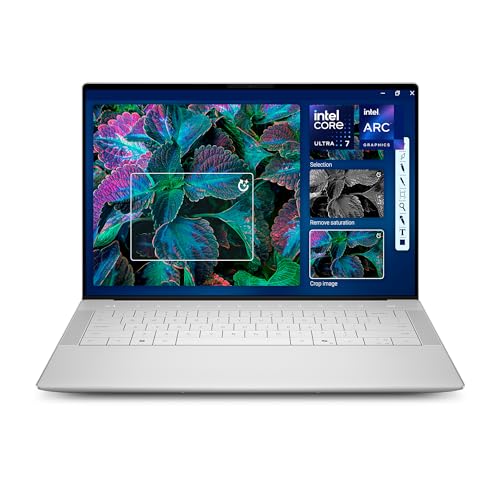
Developers read far more code than they write, and the XPS 14 Premium is built around that truth. Its listing centres on a 14.5-inch 3.2K OLED touch display with a variable 48–120Hz refresh range, driven by an Intel Core Ultra 7 255H with 32GB of memory and a 1TB SSD. Text on this panel is crisp at normal viewing distances, the variable refresh keeps scrolling through long files smooth without burning battery at full rate when the screen is static, and the terabyte of storage means your projects, images and toolchains live locally instead of on an external drive.
The XPS line trades some practicality for its design, and a developer should know the exchange before buying. The port count leans on Thunderbolt and USB-C, so a desk with older peripherals wants a dock or hub as part of the purchase. In return you get the most polished Windows chassis in this guide and a screen that genuinely reduces eye strain across a long review session. Choose it when the display is the feature you will appreciate daily and your desk setup is already USB-C based, or when one good dock solves the port question permanently.
- Processor: Intel Core Ultra 7 255H with Intel Arc graphics
- Memory and storage: 32GB, 1TB SSD
- Display: 14.5-inch 3.2K OLED touch, 48–120Hz variable refresh
- Sign-in: fingerprint reader built into the backlit keyboard deck
- Model line: Dell XPS 14 Premium DA14250
Strengths
- The OLED panel is the finest reading surface among the Windows picks here.
- A full terabyte of storage as listed suits developers with large local assets.
- The variable refresh rate balances smooth scrolling against battery drain intelligently.
Trade-offs
- USB-C-centric ports make a dock a near-mandatory extra for legacy desks.
- OLED buyers should use dark editor themes and screen sleep to protect the panel over years.
- It costs more than the ThinkPad while offering a similar day-to-day coding speed.
Best for: developers who read and review code for hours and want the best Windows display in this guide. Not suited for: anyone whose desk is full of USB-A and HDMI peripherals they refuse to dock.

ASUS Zenbook 14 OLED — Best value with 32GB fitted
The Zenbook 14 OLED makes its case on specification per pound and per inch. The linked configuration runs an AMD Ryzen AI 7 445 with 32GB of LPDDR5X memory and a 1TB SSD behind a 14-inch WUXGA OLED screen — the same memory and storage figures as machines that present themselves as far more serious, in a slim chassis that disappears into a bag. For a web developer whose day is an editor, a design tool, a browser matrix and a local server, that combination covers the whole job with room to spare.
Two details in the listing deserve a developer’s attention. The 180-degree lay-flat hinge sounds like a gimmick until the first time you flatten the screen on a table to walk a colleague through a layout bug; it earns its keep in collaborative work. The bundled extras in this particular listing, including a mouse and hub, vary by seller, so treat them as a bonus rather than a reason to buy. The core machine is the argument: OLED clarity for design-adjacent web work, a terabyte for assets and containers, and enough memory that the browser tab habit of a front-end developer stops being a performance problem.
- Processor: AMD Ryzen AI 7 445, Copilot+ PC class
- Memory and storage: 32GB LPDDR5X, 1TB SSD
- Display: 14-inch WUXGA OLED with a 180° lay-flat hinge
- Wireless and input: Wi-Fi 6E, backlit keyboard
- Operating system: Windows 11 Pro as listed
Strengths
- 32GB and 1TB together at this size is the strongest value combination in the guide.
- The OLED screen suits front-end developers who judge colour and layout daily.
- Slim and light enough to make hybrid working genuinely painless.
Trade-offs
- Soldered memory means the 32GB you buy is the 32GB you keep forever.
- The glossy OLED reflects overhead lighting in bright offices.
- ASUS support and driver tooling is less familiar to corporate IT teams than Lenovo or Dell.
Best for: front-end and full-stack web developers who want OLED, 32GB and a terabyte in a portable body. Not suited for: buyers who plan to upgrade memory later in the machine’s life.

Apple MacBook Pro 14 (M4 Pro) — Best for Apple-platform and Unix-heavy work
For a large share of professional developers the MacBook Pro is not a preference but a requirement: if your work ships an iOS or macOS app, this is the machine the toolchain lives on. The listed configuration carries the M4 Pro chip with a 12-core CPU and 16-core GPU, 24GB of unified memory and a 512GB SSD, behind the 14.2-inch Liquid Retina XDR display. That memory figure reads lower than the 32GB Windows picks, and unified memory behaves differently from system RAM, but be honest with yourself about scale: very large container fleets and multiple simultaneous virtual machines will still push this configuration, and the next pick exists for exactly that buyer.
Where the M4 Pro machine distinguishes itself is sustained, quiet speed. Compiles that spin a Windows laptop’s fans into audibility finish here with barely a whisper, and the machine holds its performance on battery in a way that makes working from a train or a client office feel no different from the desk. The Unix foundation of macOS means most open-source tooling installs the way its documentation assumes. If your stack is web services, mobile apps or anything documented Linux-first, the daily friction is simply lower, and that compounds across years of ownership.
- Chip: Apple M4 Pro, 12-core CPU and 16-core GPU
- Memory and storage: 24GB unified memory, 512GB SSD
- Display: 14.2-inch Liquid Retina XDR
- Positioning: built for Apple Intelligence features
- Finish: Space Black as listed
Strengths
- Fast, quiet compiles and excellent performance away from the charger.
- The native route to iOS and macOS development with no workarounds.
- Superb display and speakers make long sessions and calls noticeably easier.
Trade-offs
- 24GB is the ceiling of this configuration; heavy container users should look at the M5 Pro pick.
- Nothing inside is upgradeable after purchase.
- Some enterprise and Windows-specific tooling still needs a virtual machine or a second machine.
Best for: developers building for Apple platforms, and Unix-first developers who value quiet sustained speed. Not suited for: teams standardised on Windows-only tooling, or anyone running several heavy virtual machines at once.

Apple MacBook Pro 14 (M5 Pro) — Newest generation, longest runway
The M5 Pro configuration listed here is the one to buy when the plan is to keep a laptop for five or six years and never think about it again. It steps up to a 15-core CPU and 16-core GPU, pairs the chip with 24GB of unified memory and doubles storage to 1TB, and adds Wi-Fi 7. The storage jump matters more to developers than the headline suggests: a terabyte holds your repositories, container images, a local model or two for experimentation and a Time Machine-friendly margin, without the weekly housekeeping a 512GB drive eventually demands.
Choosing between this and the M4 Pro pick is a question about time horizon rather than daily speed. For ordinary web development the two feel close; the M5 Pro pulls ahead in long builds, in AI-assisted tooling that uses the newer chip’s acceleration, and in how current it will still feel in year four. Buyers who replace machines every two or three years can save with the older generation. Buyers who spec once and settle should take the newer chip and the bigger drive, because storage regret is the one complaint no software update can fix.
- Chip: Apple M5 Pro, 15-core CPU and 16-core GPU
- Memory and storage: 24GB unified memory, 1TB SSD
- Display: 14.2-inch Liquid Retina XDR
- Wireless: Wi-Fi 7
- Positioning: built for AI workloads as listed
Strengths
- The 1TB drive removes the storage management chore from a developer’s week.
- Newest Apple silicon gives the longest useful software runway of any pick here.
- Wi-Fi 7 future-proofs the wireless side for the next router upgrade.
Trade-offs
- The premium over the M4 Pro configuration buys longevity more than day-one speed.
- Unified memory remains fixed at purchase, as with every Apple silicon laptop.
- Costs the most of the six picks in this guide.
Best for: developers buying once for many years, especially those adding local AI tooling to their workflow. Not suited for: short replacement cycles, where the M4 Pro configuration is the smarter spend.
Framework Laptop — Most repairable, sold direct
The Framework Laptop exists to answer a frustration every developer recognises: a good machine retired early because one part failed or one specification fell behind. Its design makes the mainboard, memory, storage, battery, screen and even the ports replaceable with ordinary tools, and the ports themselves are swappable modules, so the side of your laptop can carry exactly the connections your desk needs this year and different ones next year. For a programmer, the practical consequence is a machine that can start at a modest configuration and grow — more memory when the containers multiply, a bigger drive when the projects do.
Honesty about the channel matters here. Framework sells directly, and no authorised Amazon listing for the laptop came back from the product check behind this guide, so this pick carries no purchase link and no image marker beyond the prose-only tag. Prices, configurations and availability should be checked on the maker’s own store, where the DIY edition also lets experienced builders assemble the machine themselves. The trade is convenience: you give up next-day marketplace delivery and the return habits of a giant retailer, and in exchange you get the only laptop in this guide designed around a decade of service rather than a replacement cycle.
- Design: modular, repairable chassis with swappable port modules
- Upgrades: memory, storage, battery and mainboard replaceable by the owner
- Sales channel: direct from the maker; no Amazon listing in our pool
- Editions: prebuilt and DIY assembly options through the maker’s store
- Audience: developers who keep machines for many years
Strengths
- Repairability turns most failures into a parts order instead of a new laptop.
- Upgrade paths let the specification grow with your workload.
- Port modules adapt the machine to changing desks and dongles.
Trade-offs
- Bought direct only, so no marketplace pricing or delivery convenience.
- Fit and finish trail the polished unibody machines in this guide.
- Resale and support ecosystems are smaller than Lenovo, Dell or Apple.
Best for: developers who maintain their own hardware and resent sealed machines. Not suited for: buyers who want a corporate support contract and next-day replacement behind their laptop.
How Do the Six Programming Laptops Stack Up on Specs?
| Pick | Processor as listed | Memory | Storage | Screen | Standout quality |
|---|---|---|---|---|---|
| ThinkPad T14 Gen 5 (AMD) | Ryzen 7 PRO 8840U | 32GB DDR5 | 512GB | 14-inch WUXGA touch | Keyboard and ports |
| Dell XPS 14 Premium | Core Ultra 7 255H | 32GB | 1TB | 14.5-inch 3.2K OLED touch | Reading comfort |
| ASUS Zenbook 14 OLED | Ryzen AI 7 445 | 32GB LPDDR5X | 1TB | 14-inch WUXGA OLED | Value and portability |
| MacBook Pro 14 (M4 Pro) | M4 Pro, 12-core CPU | 24GB unified | 512GB | 14.2-inch Liquid Retina XDR | Quiet sustained speed |
| MacBook Pro 14 (M5 Pro) | M5 Pro, 15-core CPU | 24GB unified | 1TB | 14.2-inch Liquid Retina XDR | Longevity |
| Framework Laptop | Chosen at order, upgradable | Chosen at order, upgradable | Chosen at order, upgradable | Chosen at order | Repairability |
Read the comparison through your stack rather than by row order. A Windows developer with a dock-free desk and a typing-heavy day lands on the ThinkPad almost by default. A front-end developer judging layouts lands on one of the OLED machines. An Apple-platform developer has no real choice to make about operating system, only about generation and storage, which is why two MacBook Pro configurations sit side by side here. And the Framework row, full of choices instead of fixed numbers, is either the most attractive line in the table or a sign the machine is not for you.
Which Configuration Choices Actually Matter for Web Development?
Front-end and back-end work stress a machine differently, and the configuration should follow the heavier half of your week. Front-end development is a browser problem: multiple browsers open, developer tools inspecting a live page, a bundler rebuilding on every save, a design application alongside. That profile rewards memory and screen quality above raw core count, which is why the OLED picks with 32GB suit it so well. Back-end work is a services problem: databases, queues, containers and test suites running simultaneously on your own machine. That profile rewards memory first too, then core count, then storage speed, because container images and database files punish a small or slow drive.
Full-stack developers, who live in both profiles on the same afternoon, should simply buy the most memory on offer and stop optimising. The recurring mistake in this category is spending the budget on a processor tier whose extra performance appears in benchmarks but not in a working day, while leaving memory at a level that forces the machine to swap every time the full stack starts. Every configuration linked in this guide was chosen to prevent that specific error, so if you buy from this page, the remaining decision is operating system and screen, not survival.
How Should You Set Up a New Development Laptop in the First Day?
Begin with the boring foundations while motivation is high. Turn on full-disk encryption, set up a password manager, and enable automatic backups before the first project lands on the drive, because retrofitting any of the three after a failure is a story developers tell each other as a warning. Install your editor and version control, clone your dotfiles or settings repository if you keep one, and sign in to the accounts your toolchain needs while you still remember which ones they are.
Then reproduce your working environment deliberately rather than by accident. Install the container runtime or WSL distribution your team uses, pull the images for your main project, and run the full test suite once on day one. That single run surfaces every missing dependency, every environment variable living only on the old machine, and every licence that needs moving, at a moment when the old laptop is still within reach. Finish by configuring the editor’s font, ligatures and theme on the new screen; on the OLED and XDR panels in this guide, a proper dark theme is both easier on the eyes and kinder to the display over years of use.
How Much Does Portability Matter for a Developer, Really?
Every laptop in this guide weighs little enough to carry, yet the difference between the lightest and heaviest pick is still the difference between forgetting the machine is in your bag and planning your day around it. Developers who genuinely move — between home, office, client sites and conferences — should weight the Zenbook and the two MacBook Pro models heavily, because a laptop left at home for being burdensome is a laptop that fails at its main job several days a month. Developers whose machine travels only between a desk and a meeting room can ignore weight almost entirely and let screen, keyboard and ports decide.
Battery life interacts with portability in a way spec sheets flatten. The Apple silicon machines hold their performance unplugged, which changes how you work away from a desk: compiles and test suites run at full speed in a café or a departure lounge. The Windows picks are at their best plugged in for sustained heavy builds, though all of them handle editing, browsing and calls away from the charger for a normal working stretch. If your development day includes long unplugged build sessions rather than unplugged reading and typing, that distinction belongs near the top of your decision, above screen resolution and above brand.
There is also the question of what travels with the laptop. A machine that needs a dock, a hub and a separate charger brick to function at a hot desk carries a hidden weight penalty that its chassis figure never shows. The ThinkPad’s generous ports and the Framework’s swappable modules both attack that hidden penalty from different directions — one by including connections, the other by letting you choose them. Count the whole kit you will actually carry, not the laptop alone, when two picks otherwise look equal.
What About Docks, Monitors and the Desk Your Laptop Returns To?
Most development laptops spend most of their lives as the engine of a desk setup, so the desk deserves a section of its own. A single-cable dock driving two external monitors, power, keyboard and network turns any pick in this guide into a workstation, and the return on that setup is large: a big external screen for the editor, a second for documentation or logs, and the laptop’s own panel as a third surface for chat and terminals. All six picks support that pattern through USB-C or Thunderbolt class connections, but the experience differs in the details — how many external displays the chip supports at once, and whether the laptop’s own screen stays usable alongside them.
Apple silicon deserves a specific note here, because external display support varies by chip tier and has caught buyers out before. The Pro-tier chips in both MacBook Pro picks are the ones intended for multi-monitor desks; if your setup runs two or three external panels, confirm the exact count for the configuration you are buying rather than assuming the laptop’s price guarantees it. On the Windows side, the ThinkPad and XPS models are routinely deployed on docks by IT departments, which means accessories and firmware for that pattern are mature and easy to find.
Finally, think about where the laptop’s own screen sits in the arrangement. A taller 16:10 panel remains useful as a genuine third workspace beside external monitors, showing a terminal tail or a test run without stealing space from the editor. Developers who buy a laptop purely as a dock engine sometimes choose the cheapest screen and regret it on the first trip; the picks here all carry panels worth using, so the desk and the road are both covered by the same purchase.
How Long Should a Programming Laptop Last, and What Kills One Early?
A realistic service life for a machine in this guide is four to six years, and the thing that ends it is rarely the processor. Laptops retire early because memory becomes the ceiling as projects grow, because the battery fades to the point of tethering the machine to a wall, or because storage fills with the accumulated weight of toolchains. That is the practical argument behind this guide’s insistence on 32GB configurations and its preference for terabyte drives where the listing offers them: you are not buying performance for this year, you are buying headroom against the year the project doubles.
Battery care is the owner’s share of the bargain. A laptop that lives on a dock at full charge for years will age its battery faster than one cycled gently, and most machines in this class offer a charge-limit setting for desk-bound use; turning it on is the single cheapest longevity decision available. Heat is the other slow enemy, and it argues for keeping vents clear and letting a heavy build finish on a hard surface rather than a sofa. None of this is glamorous, but the developers still happily using five-year-old machines are, almost without exception, the ones who bought memory headroom and treated the battery kindly.
The Framework Laptop reframes the whole question, because its answer to a faded battery or a full drive is a parts order and ten minutes with a screwdriver. That does not make it the right choice for everyone — corporate buyers need support contracts, and Apple-platform developers need a Mac — but it explains its presence in a guide otherwise filled with sealed machines. Longevity is a feature, and each pick here expresses it differently: the ThinkPad through business support, the MacBook Pro models through long software support, the Framework through a parts catalogue.
Which Pick Fits Which Kind of Developer?
Abstract comparisons only help so far, so here is the guide translated into the readers who usually arrive at it. The backend developer running containers all day should start at the ThinkPad T14 Gen 5 or the M5 Pro MacBook: the ThinkPad if the team’s infrastructure is Windows and Linux documented, the MacBook if it is Unix documented, and in both cases the memory figure is doing the heavy lifting. The deciding detail is not speed but fit with the team’s own documentation, because every workaround for the wrong platform is paid weekly, in small instalments of friction, for years.
The front-end developer should start at the screens. Colour judgement, layout inspection and long hours in browser tooling make the OLED picks the natural home: the Zenbook 14 OLED for value and portability, the XPS 14 Premium for the most refined panel and chassis. Both carry 32GB, which the modern front-end stack — bundler, browser matrix, design tool, component library documentation — genuinely uses. A front-end developer who also edits video or motion work should read the content creation guide linked at the end, because that workload adds a discrete GPU requirement this guide deliberately does not serve.
The mobile developer has the shortest decision in the article. Anything shipping to Apple’s platforms needs a Mac for the complete toolchain, so the choice collapses to M4 Pro or M5 Pro, and the honest answer is budget and storage: the M4 Pro configuration for a two-to-three-year cycle, the M5 Pro for a longer one, with Android work running comfortably on either. The student or career-changer should weight repairability and price of eventual upgrades, which points at the Framework Laptop bought direct, or at the ThinkPad as the conventional alternative with the strongest support ecosystem. The consultant who lives on client sites should weight weight itself: the Zenbook or a MacBook Pro, plus the battery behaviour described earlier, will matter more by the third client visit than any benchmark gap in this guide.
What Should You Check Before the Return Window Closes?
The first fortnight with a development laptop is a diagnostic period, and it should be used like one. Run your heaviest real project — not a benchmark — through a full build and test cycle, and watch memory pressure while your complete stack is open. If the machine swaps during your ordinary workload, the configuration is wrong for you regardless of what any guide says, and the return window is the time to discover that. Check the screen in your actual lighting for reflections and uniformity, type a long document on the keyboard in one sitting, and run the machine on battery for a full working session to see whether its unplugged behaviour matches your pattern.
Test the desk as well as the laptop. Connect your monitors and dock, confirm the resolutions and refresh rates you expected, and put the machine to sleep and wake it a dozen times, because dock wake behaviour is where small annoyances breed. Check fan noise under your real build, not a synthetic stress test; a machine that is quiet in reviews but loud under your particular compiler is loud, for you, in the only sense that matters. Finally, register the warranty, photograph the serial number, and store the receipt somewhere that is not the laptop itself. These are unglamorous checks, and they are exactly the ones that separate a laptop that serves for five years from one that generates a year of low-grade regret.
How Does AI-Assisted Coding Change the Specification You Should Buy?
AI coding assistants have quietly altered what a development laptop does all day. The cloud-based tools add little local load beyond another editor service, but they encourage a working style with more context open at once: larger repositories indexed, more files in play, more background analysis running while you type. That pushes in the same direction as everything else in this guide — toward memory headroom — and it is one more reason the 16GB configuration ages badly. The developer who adopts an assistant and finds the machine suddenly swapping has not bought the wrong assistant; they have met the ceiling this guide warned about.
Local experimentation is a different matter. Running a mid-sized model on your own machine for code completion experiments, embeddings over a documentation set, or offline work uses the neural accelerators built into the Ryzen AI, Core Ultra and Apple silicon chips in these picks, and it uses memory in large, honest chunks. Unified memory on the MacBook Pro models is genuinely convenient here, because the same pool serves the system and the model. Buyers who know local AI work is part of their plan should treat the M5 Pro’s positioning seriously and should, on the Windows side, favour the 32GB configurations without exception. Buyers who only use cloud assistants can ignore the accelerator specifications entirely and spend on screen and storage instead.
One caution belongs in any honest version of this discussion: assistant tooling changes monthly, and laptop purchases last years. Buy the machine that serves the fundamentals — memory, storage, screen, keyboard — and let the software evolve on top of it. Every pick in this guide clears the fundamentals bar, which is precisely why none of them will be embarrassed by whatever the tooling looks like in two years’ time.
Why Do Keyboard, Trackpad and Webcam Deserve More Attention Than Benchmarks?
A benchmark measures the minutes a laptop spends building your project. The keyboard measures the hours you spend writing it, and the arithmetic of a working life is not close. A developer types tens of thousands of keystrokes on an ordinary day, navigates by trackpad between desk setups, and spends a growing share of the week on video calls where the webcam and microphones represent them to their team. Yet buying guides rank machines by processor first because processors are easy to number. This guide has deliberately treated the input devices as first-class specifications, and the picks reflect it: the ThinkPad’s keyboard reputation, the large trackpads on the Dell and Apple machines, and the camera quality noted in the listings are part of why these six are here.
Keyboard quality is partly personal, which is why the honest advice is to type on a candidate before committing when you can. Travel depth, key stability and layout all matter, and layout hides traps: a moved control key or a half-height arrow cluster will irritate a touch-typist for the entire life of the machine. Programmers should also check the function row behaviour, because debuggers and IDE shortcuts lean on those keys heavily, and a machine that hides them behind a touch strip or an fn toggle adds friction to the exact moments of deepest concentration. The conventional rows on the ThinkPad and the MacBook Pro models are, in this respect, quietly correct design.
The webcam point deserves its sentence too. Remote and hybrid development teams meet face to face through these cameras daily, and the listings for several picks here call out their camera specifications because buyers have started to care. If your role involves presenting to clients or leading calls, weigh the camera and microphone quality of a pick the way you would weigh its screen; you are the content it transmits, and a poor camera taxes every meeting you attend for years.
Should You Buy the Warranty and Support Tier Like It Matters?
For a hobby machine, support is an afterthought. For the laptop your income runs through, a dead motherboard in a deadline week is a financial event, and the support tier is the insurance priced against it. Business lines such as the ThinkPad and the business-channel heritage behind the XPS exist partly because their manufacturers maintain repair networks and next-business-day options aimed at exactly that fear. Apple counters with a dense retail footprint where a machine can be carried in rather than posted. Neither answer is wrong; the mistake is buying a premium laptop with consumer-grade assumptions and discovering the difference during the worst week of the year.
Price the protection against your real exposure. A developer who bills daily and owns no spare machine loses more in three idle days than any extended warranty costs, while a developer with a backup laptop and a tolerant schedule can reasonably self-insure. Whichever way you decide, decide at purchase, while the options are open and cheap, rather than after the first failure has already made the decision expensive.
What Are the Common Mistakes When Buying a Laptop for Programming?
Buying 16GB of memory to save money is the most expensive saving in this category, because the machine it produces will be replaced a year or two early. A close second is choosing by processor brand loyalty instead of by workload: the AMD, Intel and Apple chips in this guide are all capable, and the differences that matter are memory, storage and screen, not the badge on the palm rest. A third mistake is ignoring the keyboard until the laptop arrives. If you can, type a paragraph on the model you intend to buy; a keyboard you dislike will still be disliked at hour six of every working day.
Two quieter mistakes deserve mention. Developers often forget the second screen: if your desk runs an external monitor, confirm the laptop drives it at full resolution over a single cable before buying, which every pick here does through USB-C or Thunderbolt class connections. And buyers of premium machines often skip the warranty question until something fails; business lines like the ThinkPad exist partly because their support options suit people whose income depends on the machine. Match the support to how much a dead laptop would cost you, not to how reliable you hope it will be.
Final Recommendation
For most developers reading this guide, the ThinkPad T14 Gen 5 in its AMD configuration is the recommendation to beat: 32GB of memory, a keyboard and port selection built for work, and no configuration traps in the listing. Front-end developers who live in the browser should take the Zenbook 14 OLED for its value, or the XPS 14 Premium if the screen is where they want the money to go. Developers tied to Apple’s platforms should buy the M5 Pro configuration for its terabyte of storage and long runway, unless the M4 Pro machine’s lower cost fits a shorter replacement cycle better. And if the idea of replacing a whole laptop over a failed port genuinely offends you, the Framework Laptop is waiting on its maker’s own store. Whichever route you take, buy the memory first and the badge last, and the machine will still feel right when the projects on it have changed twice over.
Frequently Asked Questions
Is 16GB of RAM ever enough for programming?
For learning, small scripts and single-project web work, yes, and many developers start there happily. The ceiling appears when containers, a database and a browser join the editor at the same time. If your budget forces a choice between 16GB with a faster chip and 32GB with a mid-range chip, take the memory; the guide above is built on that judgement.
Should a web developer choose macOS or Windows?
Follow your stack. If anything you ship targets iPhone or Mac, macOS is required for the full toolchain. If your team documents everything for Windows or your employer standardises on it, the Windows picks here are excellent. Most web tooling runs well on both, and Linux is reachable from either through WSL on Windows or the Unix foundation of macOS.
Do I need a discrete graphics card for development?
Ordinary programming and web development do not use one. You need discrete graphics for game development, heavy 3D work, video production or serious local AI model work. Everyone else is better served spending that money on memory and storage, which is why the integrated-graphics machines in this guide are recommended without apology.
How much storage should a developer buy?
Treat 512GB as the working minimum and 1TB as the comfortable figure. Repositories are small, but container images, virtual machines, SDKs and local datasets are not, and they accumulate quietly. Two picks in this guide list 512GB and three list a full terabyte; if your work involves containers daily, weight your choice toward the terabyte machines.
Can these laptops run Linux properly?
The ThinkPad line has the longest Linux track record of the Windows picks here, and the Framework Laptop is actively friendly to Linux installations. The Zenbook and XPS models generally run mainstream distributions well, though checking your exact distribution’s notes is wise. On the MacBook Pro models, Linux runs in virtual machines rather than as a mainstream native install.
Does the brand of processor matter for everyday coding?
Far less than the marketing suggests. The AMD, Intel and Apple processors across these six picks all handle editing, browsing, local servers and ordinary builds with ease, and the differences appear only at the extremes: very long compiles, heavy virtualisation or local AI work. Choose the platform your stack prefers, then judge the individual machine on its memory, storage, screen and keyboard, because those are the specifications you will still be noticing in year three.
Why is there no Amazon link for the Framework Laptop?
Framework sells its laptops directly, and our product check returned no authorised Amazon listing for it. Rather than attach a link to a third-party listing of uncertain standing, the pick is presented prose-only with the channel stated plainly, so you can buy it from the maker with the configuration you choose.
Should a student buy from this guide or aim lower?
A student whose course involves real development work — containers, databases, a final-year project of any size — will hit the same memory ceiling as a professional, only with less money to escape it. The honest route is the configuration discipline in this guide applied at the lowest price that satisfies it: 32GB if it can possibly be managed, 512GB or better, and a keyboard that survives four years of essays and code. A student doing only light scripting and web exercises can step below these picks safely, but should still avoid any machine that cannot be upgraded or resold, because the gap between coursework and a first job’s workload arrives faster than expected.
Should a developer keep the old laptop as a backup machine?
Yes, if it still runs, and the arrangement costs nothing but a drawer. A development environment takes hours to rebuild faithfully — accounts, keys, toolchains, the container images that download at the speed of regret — and a spare machine with yesterday’s environment intact turns a hardware failure from a lost day into a lost hour. Keep the old laptop updated monthly, sign in to it occasionally so its sessions stay alive, and let it serve as the test machine for the upgrades you are afraid to try on the laptop your income depends on.
Related Guides
Developers setting up a complete desk may also want our guides to the best laptops with OLED display for a deeper look at screen technology, the best content creation laptops if your work crosses into video and design, and the best fanless laptops for a silent machine for reading and writing work.


