What's inside
- Key Takeaways
- Quick Picks
- How Did We Choose These Picks?
- What Actually Makes a Laptop Good for 2D Animation?
- How Do the Six Picks Compare Side by Side?
- How Should You Set Up a New Laptop for Animation Work?
- What Mistakes Do Animators Make When Buying a Laptop?
- Which Animation Software Should Decide Your Specification?
- How Should You Pair a Tablet or Pen Display With These Laptops?
- What About Noise, Heat, and Battery During Real Animation Days?
- How Should You Test an Animation Laptop in Its First Week?
- What Does a Sensible Upgrade Path Look Like Over Four Years?
- How Should a Student Grow Into This Purchase?
- Final Recommendation
- Frequently Asked Questions
- Related Guides
As an Amazon Associate I earn from qualifying purchases. This post may contain affiliate links at no extra cost to you.
gizmoverdict.com is reader-supported. When you buy through links on our site, we may earn an affiliate commission.
Where to buy: Every linked machine below points to its live Amazon listing. Before you order, confirm the exact memory and storage configuration on that page, because several of these families ship in more than one build and the listing title, not the product family name, is what you are actually buying.
If you are shopping for the best 2d animation laptops, the first thing worth unlearning is the gaming-laptop instinct. Frame-by-frame drawing, inbetweening, cleanup, ink and paint, and timeline scrubbing in software such as Toon Boom Harmony, TVPaint, Clip Studio Paint, Krita, OpenToonz, and After Effects lean hardest on three things: a screen that shows colour honestly, a processor that answers a single brush stroke or timeline drag without lag, and enough memory to hold a long scene with many layers open at once. A powerful discrete graphics card helps with certain effects and with compositing, but it sits fourth on that list, not first. Every pick in this guide was judged against that order of priorities.
That ordering changes what a sensible shortlist looks like. You will find a 14-inch Apple flagship here, a pen-ready convertible barely larger than a sketchbook, a business ultraportable with a superb OLED panel, and a 16-inch flip machine with a bundled stylus. What you will not find is a heavy gaming rig bought purely for its graphics badge, because hauling two extra kilograms to a life-drawing class buys a 2D animator almost nothing. Portability counts in this craft: animators draw in studios, in cafés, on trains, and on the sofa, and the laptop that gets opened is the laptop that gets used.
Colour deserves a paragraph of its own before any product names appear. Animation work eventually leaves your screen and lands on broadcast monitors, festival projectors, phones, and client laptops, and a panel that quietly oversaturates reds or crushes shadow detail will send you chasing corrections that were never in your drawings. The strongest panels in this roundup are OLED screens with wide colour coverage, and the Apple Liquid Retina XDR display earns its place for a different reason: exceptional brightness control and factory calibration discipline. Whichever machine you choose, budget a little time in the first week to check its output against a second screen you trust.
Memory is the quiet deal-breaker. A short looping exercise with a dozen layers runs happily on modest hardware, but a production scene with backgrounds, character rigs, effects layers, and a scratch audio track open beside your browser and reference board is a different workload entirely. Sixteen gigabytes is the floor we would accept for a student machine bought today, and the picks below mostly sit at 24 or 32 gigabytes, which is where long scenes stop stuttering when you scrub. Storage follows the same logic: project folders grow faster than students expect, and every linked pick here carries at least 512 gigabytes, with one honest exception flagged in its review.
Key Takeaways
- For hand-drawn and cut-out 2D work, screen colour, single-core snap, and memory matter more than a discrete graphics card, so this list rewards panels and RAM before GPU badges.
- The ASUS ProArt PX13 is the only pick here designed around a pen from the ground up, with a 2.8K OLED touchscreen in a convertible body; draw-on-screen animators should start their comparison there.
- Three of the six picks carry 32 gigabytes of memory, which is the comfortable zone for long Harmony or TVPaint scenes with reference material open alongside.
- The Microsoft Surface Laptop is the lightest route into this class, but its 256-gigabyte drive is the tightest storage in the roundup and needs an external drive habit from day one.
- None of these machines needs a gaming-class cooler to do this job well; quiet fans during a recording session or a quiet studio crit are worth more than benchmark bravado.
Quick Picks
| Pick | Badge | Why it earns its place |
|---|---|---|
| Apple MacBook Pro 14 with M5 Pro | Best overall for professional 2D work | A reference-grade display, 24 gigabytes of unified memory, and silent, instant timeline response make it the machine working animators asked us about most. |
| ASUS ProArt PX13 | Best for drawing directly on screen | The convertible 2.8K OLED panel folds flat for pen work, and 32 gigabytes of memory keeps big layered scenes open without complaint. |
| Lenovo ThinkPad X1 Carbon Gen 14 | Best keyboard and travel build | A 2.8K OLED screen with a variable refresh range, a superb keyboard for shortcut-heavy cleanup work, and a chassis built for daily commuting. |
| MSI Summit A16 AI+ | Best big-screen pen option | Sixteen inches of QHD+ canvas at 165Hz with an included pen suits animators who rough out scenes large and revise at a desk. |
| ASUS Vivobook S16 (2026) | Best value OLED all-rounder | A 16-inch OLED display, a current Ryzen AI 9 chip, and 32 gigabytes of memory cover drawing, cleanup, and light compositing in one sensibly priced body. |
| Microsoft Surface Laptop 13.8 | Best for students on the move | Snapdragon efficiency, a bright touchscreen, and a genuinely portable body fit campus life, provided you manage its small drive carefully. |
How Did We Choose These Picks?
We started from the software, not from the spec sheet. Toon Boom Harmony and TVPaint reward fast single-core performance when you drag a playhead across hundreds of frames, and they reward memory when a scene carries dozens of drawing layers plus imported backgrounds. Clip Studio Paint and Krita reward pen latency and colour honesty. After Effects, which many 2D animators use for compositing and camera moves, rewards memory again and uses the graphics processor for a defined set of accelerated effects rather than for everything. A laptop that serves all four programs well is therefore a balanced machine, not a graphics monster.
From there we applied three filters. First, the display had to be defensible for colour work: OLED panels with wide gamut coverage, or Apple’s XDR panel, passed; dim, washed-out budget screens did not, however strong the processor behind them. Second, memory had to reach at least 16 gigabytes, with a preference for 24 or 32 in machines aimed at professionals. Third, the machine had to be something an animator would actually carry to a studio, a classroom, or a client’s office, which pushed out the heaviest gaming chassis even when their paper specifications looked tempting.
We also weighed the pen question honestly. Many 2D animators still draw on a separate pen display or graphics tablet and treat the laptop screen as a viewer and timeline surface. For them, a convertible hinge is a nice extra rather than a requirement. Animators who came up on iPads or pen displays often feel the opposite: drawing where the image lives feels non-negotiable. This list serves both camps deliberately, with two true pen convertibles, one touchscreen laptop, and three superb conventional machines for tablet users.
Finally, we checked each model against the current verified listings available to us, recorded the exact configuration behind every link, and refused to quote render times or benchmark scores we could not stand behind. Where a pick carries a real compromise, such as the Surface Laptop’s small drive, the review below says so in plain language instead of burying it.
What Actually Makes a Laptop Good for 2D Animation?
Draw a single frame and almost any modern laptop copes. Animate for six hours and the differences arrive. Timeline scrubbing is the first test: when you drag through a scene to check arcs and spacing, the software redraws frame after frame in rapid succession, and that work lands largely on one processor core at a time. Chips with strong single-core behaviour and fast storage make scrubbing feel like flipping a sketchbook; weaker chips turn it into a slideshow that hides the very timing problems you were checking for.
The second test is layer weight. A dialogue scene might hold a background, two characters on separate rigs, props, a shadow pass, a highlight pass, and guide layers you never export. Each layer lives in memory while you work. When memory runs short, the operating system starts swapping to disk, and brush strokes begin to arrive a fraction of a second late. That fraction is enough to ruin line confidence, which is why experienced animators talk about RAM the way photographers talk about lenses.
The third test is colour trust, and it is the one buyers most often skip. An OLED panel with wide coverage shows you the saturated costume colour you actually picked, and a well-calibrated LCD does nearly as well. A narrow-gamut budget panel shows you a duller, shifted version, and you compensate by pushing colours further than the scene needs. The mistake only becomes visible when the work screens somewhere else. If your budget forces a choice between a stronger graphics card and a better panel for 2D work, choose the panel every time.
Pen behaviour forms the fourth test for anyone drawing on the laptop itself. What matters is the felt delay between nib and line, the consistency of pressure response in your drawing app, and whether the screen stays put or wobbles when you lean on it. Convertible hinges that fold fully flat remove the wobble problem by letting the machine rest on the desk like a pad. A laptop used with an external tablet skips this test entirely, which is one reason the non-convertible picks here remain excellent choices.

Apple MacBook Pro 14 with M5 Pro — Best overall for professional 2D work
The MacBook Pro earns the top slot in this guide for a reason that has little to do with fashion and everything to do with how 2D production actually feels at hour five. The M5 Pro chip in this 14.2-inch model pairs a 15-core CPU with a 16-core GPU, and the workload that matters here, timeline interaction, sits squarely on the CPU side. Dragging through a dense Harmony scene, stepping frame by frame to check a head turn, or nudging keys in After Effects all happen with the kind of immediacy that keeps your attention on the acting choices instead of on the machine. Twenty-four gigabytes of unified memory is the standard configuration in this listing, and for most independent and studio 2D work it is a well-judged amount: large scenes stay open, a browser full of reference stays open beside them, and the machine does not start trading data with the disk mid-stroke.
The display is the other half of the argument. The Liquid Retina XDR panel is not OLED, and it does not need to be. Its brightness control, contrast handling, and colour discipline make it one of the most trustworthy screens any animator can buy in a laptop, and it holds that trustworthiness at the low brightness levels people actually use in dim studios late at night. Animators moving between this screen and a calibrated external monitor will find fewer surprises than with almost any rival, which quietly saves hours across a production. The 1-terabyte drive in this configuration also matters more than it sounds: project archives, sound files, and exported sequences accumulate relentlessly, and internal space postpones the external-drive juggling act.
Working life around the edges is equally considered. The keyboard suits long shortcut-heavy cleanup sessions, the trackpad remains the reference for timeline gestures, and the machine stays composed and quiet under the bursty loads that drawing software creates. Most 2D animators will pair it with a pen tablet or pen display, since the screen does not accept a stylus, and that is the honest shape of this recommendation: it is the best laptop here for animators whose drawing surface is a separate device, which describes the majority of working professionals.
- Display: 14.2-inch Liquid Retina XDR
- Processor: Apple M5 Pro, 15-core CPU and 16-core GPU
- Memory: 24GB unified memory
- Storage: 1TB SSD
- Colour and finish: Silver, Wi-Fi 7
Strengths
- Timeline scrubbing and frame stepping feel immediate even in heavy scenes, because the processor headroom is aimed exactly where 2D software loads it.
- The XDR display is a colour reference you can carry, reducing nasty surprises when work moves to a client monitor or a festival screen.
- A full terabyte of fast internal storage keeps active projects, audio, and exports together instead of scattered across drives.
Trade-offs
- There is no pen input on the screen, so on-screen drawers must budget for a tablet or pen display as part of the setup.
- Memory is fixed at purchase; animators who already know they run enormous multi-app scenes should think carefully before settling on this configuration.
- It is the premium-priced route in this roundup, and the value case rests on daily professional use rather than occasional hobby sessions.
Best for: professional and serious freelance 2D animators who draw on a separate tablet and want the most trustworthy screen and the calmest performance in the class. Not suited for: animators who insist on drawing directly on the laptop screen, or buyers whose whole budget must also cover a large pen display.

ASUS ProArt PX13 — Best for drawing directly on screen
The PX13 is the machine in this guide that an iPad-trained animator will understand within ten seconds. It is a 13.3-inch convertible whose 2.8K OLED touchscreen folds back until the laptop becomes a drawing surface, and that single mechanical fact reshapes the whole working day. Roughing out keys on a train table, inbetweening on the sofa, cleaning up at a studio desk: the drawing is always under your hand, with no separate tablet to pack, cable, or balance on a crowded desk. The OLED panel brings the colour honesty this craft demands, with the deep blacks that make checking shadow shapes easy and the saturation control that keeps costume colours believable.
Underneath, this particular listing is a customized build around AMD’s Ryzen AI Max+ 388 with 32 gigabytes of LPDDR5X memory, and that memory figure is the one to underline. Pen animators tend to run one scene very hard rather than six programs at once, and 32 gigabytes means the scene in front of you, however layered, stays responsive while you scrub and redraw. Storage varies by configuration on this listing, so check the exact capacity on the page before ordering; the sensible target for animation work is the larger options, since video reference and project history eat space quietly.
There are honest limits to a 13.3-inch canvas. A full timeline, toolbars, and a drawing viewport share a modest area, and many owners will dock to a larger monitor for compositing and final checks while keeping the PX13 itself for drawing. The hinge design helps here because the machine spends its desk life either flat or tented, both stable under a resting hand. For animators whose drawing hand is the centre of their practice, no other pick in this guide removes as much friction between idea and line.
- Display: 13.3-inch OLED 2.8K touchscreen, convertible 2-in-1
- Processor: AMD Ryzen AI Max+ 388
- Memory: 32GB LPDDR5X (customized configuration)
- Storage: varies by configuration on the listing; confirm before ordering
- Extras: backlit keyboard, Wi-Fi 7, Windows 11 Pro
Strengths
- Drawing happens directly on a colour-honest OLED canvas, with the body folding flat so the screen never rocks under your hand.
- Thirty-two gigabytes of memory is generous for the class and keeps long, layered scenes fluid while you work them.
- The small footprint travels like a sketchbook, which suits students and freelancers who draw in several places each week.
Trade-offs
- The 13.3-inch workspace crowds timelines and palettes; most owners will want an external monitor for compositing days.
- Configurations differ across this listing, so the storage figure needs a careful check at checkout rather than an assumption.
- Convertible pen hardware adds cost compared with a plain laptop of similar processing power.
Best for: animators who draw on screen by preference or by training, especially iPad and pen-display converts who want one device for drawing and production. Not suited for: animators who do most of their work docked at a large desk setup and would rarely fold the screen back.

Lenovo ThinkPad X1 Carbon Gen 14 — Best keyboard and travel build
Cleanup and inbetweening are keyboard crafts as much as drawing crafts. Onion-skin toggles, frame stepping, exposure-sheet edits, and a dozen app-specific shortcuts fill the working day, and the X1 Carbon Gen 14 makes a persuasive case that the best animation laptop for a travelling professional might be the one with the finest keyboard in business computing. Lenovo’s keys have the travel and consistency that shortcut-heavy work rewards, and the chassis around them is built to be carried daily without drama. This 2026 generation pairs a Core Ultra 5 335 with 32 gigabytes of LPDDR5X memory, a pairing that looks modest beside flagship chips until you remember what 2D software actually asks for: quick single-core answers and generous memory, both of which are present here in full.
The screen is the surprise that lifts this business machine into an animation guide. The 14-inch 2.8K OLED in this configuration is a non-touch panel with a variable refresh range running from 30 to 120Hz, and for drawing-adjacent work that combination is quietly ideal. Static exposure sheets and held frames can sit at low refresh while timeline playback ramps up smoothly, and the OLED colour behaviour gives cleanup artists a truthful view of line weight and fill boundaries. Because it is not a touchscreen, this is a pick for tablet users, and it makes no apology for that.
Three Thunderbolt 4 ports give the X1 Carbon an unusually complete docking story for its size, so a home studio with a pen display, a backup drive, and a second monitor connects through one ecosystem of cables. The 512-gigabyte drive is the configuration’s one tight figure; animators with large archives will live partly on external storage, which the port selection at least makes painless. Judged as a travel-first animation workstation for people who draw on separate hardware, it is the most grown-up machine in this guide.
- Display: 14-inch 2.8K OLED, non-touch, variable refresh 30–120Hz
- Processor: Intel Core Ultra 5 335, Series 3 vPro
- Memory: 32GB LPDDR5X
- Storage: 512GB SSD
- Ports: 3x Thunderbolt 4
Strengths
- The keyboard is the best here for shortcut-driven cleanup, exposure work, and long frame-stepping sessions.
- A 2.8K OLED with variable refresh gives truthful colour and smooth playback while sipping power on static sheets.
- Thirty-two gigabytes of memory plus triple Thunderbolt 4 makes docking to a full studio setup genuinely simple.
Trade-offs
- No touch or pen layer at all, so it only makes sense alongside a separate drawing device.
- The 512-gigabyte drive will feel small to animators who keep years of projects on the machine itself.
- Its processor is tuned for efficiency and travel rather than for the heaviest compositing workloads in this roundup.
Best for: travelling professionals and students who draw on a tablet, live on keyboard shortcuts, and dock into a fuller setup at home. Not suited for: on-screen drawers, or buyers who want the strongest compositing performance available in this list.

MSI Summit A16 AI+ — Best big-screen pen option
Some animators think in big gestures. Their roughs sprawl, their layouts breathe, and a 13-inch canvas feels like drawing through a letterbox. The Summit A16 AI+ answers that temperament directly: a 16-inch QHD+ touchscreen at 165Hz in a 360-degree flip body, with a pen included in the box and 32 gigabytes of memory behind a Ryzen AI 9-365 processor. Fold it flat on a desk and you have the largest drawing surface in this guide, large enough to keep a timeline visible beneath the viewport without the constant zooming in and out that smaller convertibles impose.
The high refresh rate earns a specific mention for drawing. Pen displays and drawing tablets have trained animators to expect the line to arrive with the nib, and a 165Hz panel shortens the visual part of that loop when you sketch quickly. Fast hatching, energetic rough passes, and scrubbing through a scene all benefit from a screen that redraws eagerly. The QHD+ resolution is not OLED, so outright colour coverage sits a step behind the PX13 and the X1 Carbon, but for roughs, timing passes, and layout work, which is where a big pen canvas spends most of its life, the panel is well matched to the job, and final colour checks can happen on a calibrated external screen.
Size cuts both ways, and the review should say so plainly. A 16-inch convertible folded flat is a desk instrument more than a lap instrument; you will rough out scenes at tables, not on buses. The included pen removes the accessory hunt that other convertibles impose, and the 1-terabyte drive gives sprawling project folders room to grow. Animators who storyboard, lay out, and rough at scale will find this the most natural-feeling drawing machine in the roundup, provided their working life happens at desks.
- Display: 16-inch QHD+ touchscreen, 165Hz, 360-degree flip
- Processor: AMD Ryzen AI 9-365
- Memory: 32GB LPDDR5x
- Storage: 1TB NVMe SSD
- Extras: pen included, Windows 11 Home, Ink Black
Strengths
- The largest pen canvas here, with room for viewport and timeline together during rough passes.
- A pen in the box and a flat-folding hinge make it a complete drawing station without accessory research.
- The 165Hz panel keeps fast sketching and timeline scrubbing feeling unusually direct.
Trade-offs
- Folded flat, it is a desk tool; the size that helps drawing works against casual lap or travel use.
- The LCD panel trails the OLED picks on colour coverage, so critical colour approval deserves a second screen.
- It is a 2024 design competing against newer chips elsewhere in this list, even though its drawing hardware remains distinctive.
Best for: storyboard artists, layout artists, and rough-pass animators who want maximum drawing room and work mainly at a desk. Not suited for: animators who draw in transit, or colour-critical finishers who need an OLED reference in the same device.
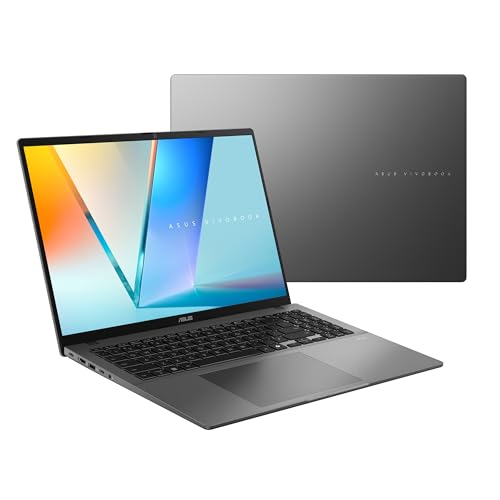
ASUS Vivobook S16 (2026) — Best value OLED all-rounder
Not every animator needs a flagship, and the Vivobook S16 is the pick that respects a budget without insulting the craft. Its 16-inch OLED display runs at WUXGA resolution in a 16:10 shape, which gives timelines and drawing viewports a little more vertical room than a classic widescreen panel, and the OLED colour behaviour puts it ahead of many nominally stronger machines that ship with ordinary LCD screens. For a student or early-career animator, the screen is the specification they will feel every single day, and this one is genuinely good.
The rest of the configuration refuses to cut the corners that matter. A Ryzen AI 9 465 processor with integrated Radeon graphics handles drawing applications, timeline work, and light After Effects compositing with room to spare, and 32 gigabytes of memory, a figure many pricier rivals still treat as an upgrade, comes standard in this listing alongside a 1-terabyte drive. That combination means the machine will not be the reason a semester project stutters, and it leaves headroom for the multi-program reality of production: drawing app, reference browser, chat with collaborators, and a music or lecture stream all at once.
There is no pen layer and no convertible hinge, so the Vivobook assumes a tablet on the desk, which is how most animation programs teach anyway. What it offers instead is balance: a big honest screen, modern internals, and enough memory and storage to grow with its owner from coursework into paid freelance work. Among the six picks, it is the one we would hand to a talented student whose budget is real and whose ambitions are larger than their bank balance.
- Display: 16-inch 16:10 WUXGA OLED
- Processor: AMD Ryzen AI 9 465 with Radeon graphics
- Memory: 32GB
- Storage: 1TB SSD
- Extras: Copilot+ PC, Wi-Fi 6, Windows 11 Home, Matte Gray
Strengths
- A 16-inch OLED at this tier gives students colour they can trust from their first production class onward.
- Thirty-two gigabytes of memory and a terabyte of storage arrive as standard, not as costly configuration upgrades.
- The 16:10 shape quietly helps every timeline and layered viewport feel less cramped.
Trade-offs
- No touchscreen or pen support, so on-screen drawing is off the table entirely.
- Integrated graphics set a ceiling for effects-heavy compositing that the MacBook Pro clears more easily.
- The chassis and keyboard are good rather than class-leading; ThinkPad loyalists will notice the difference.
Best for: students and early-career animators who draw on a tablet and want one balanced machine for coursework, freelance work, and light compositing. Not suited for: pen-on-screen drawers, or professionals whose compositing workload already strains high-end hardware.

Microsoft Surface Laptop 13.8 — Best for students on the move
The Surface Laptop makes its case in the first week of term. It is light enough to forget in a bag, its 13.8-inch touchscreen is bright and pleasant for reviewing work, and the Snapdragon X Elite inside it delivers the kind of instant, cool, quiet responsiveness that suits a student day split between lectures, library drawing sessions, and group crits. For 2D animation specifically, the chip’s single-core behaviour keeps drawing applications feeling alert, and 16 gigabytes of memory handles coursework-scale scenes in Clip Studio Paint, Krita, and TVPaint without drama.
Two cautions belong in the open rather than in fine print. The first is storage: 256 gigabytes is the smallest drive in this guide by a wide margin, and animation projects, video reference, and application libraries will fill it faster than a new owner expects. The workable habit is an external SSD for archives and a ruthless approach to what lives on the internal drive. The second caution is software fit. Windows on Snapdragon has matured a great deal, and mainstream drawing applications run well, but a student whose program mandates a specific older tool or plugin should confirm compatibility before committing, because edge cases still exist at the margins of the catalogue.
Judged within those limits, this is a delightful machine for the right owner. The touchscreen supports touch gestures and works with a pen for annotation and light sketching, though dedicated drawers will still prefer a proper tablet for production line work. Battery-friendly efficiency means library sessions without charger anxiety, and the Sapphire finish in this listing gives it a personality most student laptops lack. It is the pick for animators whose course load is broad, whose drawing is one subject among several, and whose laptop must excel at everything a campus day contains.
- Display: 13.8-inch touchscreen
- Processor: Snapdragon X Elite, 12-core
- Memory: 16GB
- Storage: 256GB SSD
- Extras: Copilot+ PC, Windows 11, Sapphire finish
Strengths
- Genuinely portable and quiet, with the responsive feel that keeps drawing apps pleasant during short sessions between classes.
- The bright touchscreen suits review, annotation, and gesture-driven timeline work around campus.
- Efficient Snapdragon hardware stretches a charge across a full teaching day for most students.
Trade-offs
- The 256-gigabyte drive demands an external storage habit from the first semester onward.
- Sixteen gigabytes of memory is a coursework ceiling; very large production scenes belong on stronger picks.
- A small number of niche or older animation tools still deserve a compatibility check on Snapdragon before purchase.
Best for: students who animate as part of a wider course load and value portability, quiet running, and all-day flexibility. Not suited for: professionals running large production scenes, or anyone unwilling to manage external storage.
How Do the Six Picks Compare Side by Side?
| Model | Screen | Memory and storage | Drawing style it suits |
|---|---|---|---|
| MacBook Pro 14 M5 Pro | 14.2-inch Liquid Retina XDR | 24GB, 1TB | Tablet or pen display on a pro desk |
| ASUS ProArt PX13 | 13.3-inch 2.8K OLED touch, folds flat | 32GB, varies by configuration | Direct pen drawing anywhere |
| ThinkPad X1 Carbon Gen 14 | 14-inch 2.8K OLED, 30–120Hz | 32GB, 512GB | Tablet plus heavy shortcut work while travelling |
| MSI Summit A16 AI+ | 16-inch QHD+ touch, 165Hz, folds flat | 32GB, 1TB | Large-scale roughs and layouts with included pen |
| ASUS Vivobook S16 | 16-inch WUXGA OLED, 16:10 | 32GB, 1TB | Tablet-based study and freelance production |
| Surface Laptop 13.8 | 13.8-inch touchscreen | 16GB, 256GB | Light sketching, review, and campus mobility |
Read the table by drawing habit first and by processor second. The two convertibles exist for people whose hand must be on the image; the other four assume a drawing surface beside the keyboard and repay that assumption with better screens for review, better keyboards, or lower weight. Memory divides the list into a professional tier at 24 and 32 gigabytes and a student tier at 16, and that division predicts long-scene comfort more reliably than any processor name in the table.
How Should You Set Up a New Laptop for Animation Work?
Begin with colour. In your first session, open a piece of finished work whose colours you know well, view it on the new screen beside a device you already trust, and adjust your expectations before you adjust any settings. Most of the panels in this guide need little correction, but learning how your screen leans, slightly warm, slightly cool, deeply saturated in one channel, is knowledge you will use on every scene afterward. Save any calibration profile you create and revisit it after firmware or driver updates.
Next, organise storage before the first deadline does it for you. Keep active scenes on the internal drive, finished projects and raw reference on an external drive or network location, and exports in a dated folder structure you can search months later. Animators lose more time to file archaeology than to slow hardware, and a simple convention, project name, scene number, version, beats any cleverness. Cloud backup of the project folder, not just the exports, protects the layered files that cannot be recreated from a rendered video.
Finally, tune the software to the machine. Raise the memory allowance inside your drawing application so large scenes use the RAM you paid for, set autosave intervals short enough to hurt a little and no more, map your most-used shortcuts to keys your hand can find without looking, and test an export early, on a short scene, so the first full render of a finished piece is not also your first experiment with the settings.
What Mistakes Do Animators Make When Buying a Laptop?
The most expensive mistake is buying a graphics card instead of a screen. A buyer dazzled by gaming specifications ends up with a dim, narrow-gamut panel and a GPU their drawing software barely touches, then spends the production wondering why their colours look wrong everywhere else. The second mistake is the mirror image: falling for a beautiful pen display laptop with too little memory, then watching it stumble over the layered scenes that arrive in the second year of a course or a career.
A third mistake is ignoring the drawing surface question until after purchase. Animators who know they draw best directly on an image should buy the convertible and be done; animators who have always used a tablet should not pay a premium for a hinge they will open twice. The fourth mistake is treating storage as an afterthought. Animation projects are heavier than they look, video reference is heavier still, and a full drive degrades everything from autosave to operating system updates at exactly the moment a deadline arrives.
Which Animation Software Should Decide Your Specification?
Animators rarely run one program for an entire career, but the program you run this year should shape the laptop you buy this year, because each major tool loads hardware in its own pattern. Toon Boom Harmony is the studio standard for television and streaming production, and its appetite is memory plus single-core responsiveness. A Harmony scene is a node network as much as a drawing: pegs, effects, and compositing nodes all evaluate as you scrub, and the playhead rewards a processor that answers quickly one core at a time. Harmony artists should weight the memory column of the comparison table heavily and treat graphics specifications as background information.
TVPaint comes from a different tradition, a bitmap drawing program built around the feel of the drawn line, and it rewards storage speed and memory in equal measure because its projects hold enormous numbers of bitmap frames. A TVPaint artist working at production resolution will feel a slow drive every time a long scene loads or saves, which is one reason the terabyte configurations in this guide matter beyond mere convenience. TVPaint also draws beautifully on pen hardware, and its artists are the natural audience for the PX13 and the Summit A16, where the program’s paper-like workflow meets a screen that folds out of the way.
Clip Studio Paint occupies the broad middle ground of independent and webtoon-influenced animation, and it is the least demanding program in this discussion while still rewarding a good screen above all else. Its animation tools suit shorter loops, music videos, and social content, and its drawing engine feels wonderful on hardware with strong single-core behaviour. Students whose programs teach Clip Studio can buy almost any pick here with confidence, which frees their budget for the screen and memory choices that will outlast the course.
Krita deserves mention because it is free, capable, and increasingly common in schools and independent studios. Its animation workflow is frame-based and honest, its brush engine is demanding in bursts, and it behaves well on both Windows and, through the broader ecosystem, alongside the other tools here. Krita artists benefit from the same priorities as everyone else in this guide: memory for layered scenes, a truthful panel, and a processor that keeps the brush glued to the nib.
After Effects is the outlier, the program that turns a 2D laptop into a compositing station. Camera moves across layered artwork, parallax builds, particle effects, and puppet-tool character work all live there, and After Effects uses memory aggressively while leaning on the graphics processor for a defined set of effects. Animators whose job title includes compositing should read the MacBook Pro and the 32-gigabyte Windows picks as their shortlist within the shortlist, and should be honest about how much of their week is drawing and how much is comping, because the right answer differs by ratio.
OpenToonz and Blender’s Grease Pencil round out the landscape for completeness. OpenToonz, descended from studio software used on celebrated hand-drawn features, asks little of modern hardware and runs happily across this whole list. Grease Pencil is the interesting hybrid: a 2D drawing system living inside a 3D program, which means its users quietly inherit some 3D hardware needs, particularly when scenes grow complex or mix drawn and modelled elements. If Grease Pencil is your main tool, read this guide alongside the modeling guide linked at the end, and weight graphics capability a little higher than a pure 2D artist should.
How Should You Pair a Tablet or Pen Display With These Laptops?
Four of the six picks assume a separate drawing surface, so the pairing deserves practical treatment rather than a footnote. A small graphics tablet, the kind without a screen, remains the posture-friendly professional default: your hand draws on the desk while your eyes stay level with the laptop or an external monitor, and years of studio work prove the arrangement. It costs the least, travels in a laptop sleeve, and never needs charging standards or display cables. Its learning curve is real for beginners, usually a week of deliberate practice, and after that week most artists stop noticing the disconnect entirely.
A pen display moves the image under the hand while keeping the laptop as the computer, and it suits artists who found the PX13’s 13.3 inches too small but still want direct drawing. The pairing to plan for is desk space and ports: the X1 Carbon’s three Thunderbolt 4 connectors make it the easiest host here, the MacBook Pro follows closely, and the Vivobook and Surface Laptop both manage with a hub. Pen displays also add a second screen to your colour workflow, which cuts both ways: you gain a drawing surface and inherit a second panel to check against your reference screen.
Cable discipline sounds trivial until a deadline teaches otherwise. Keep the tablet cable routed so a resting forearm cannot drag it, keep a spare in the bag if your livelihood depends on the device, and test the full setup, drawing, scrubbing, exporting, the day the laptop arrives rather than the night before delivery. The animators who suffer least from hardware are not the ones with the most expensive hardware; they are the ones whose setup stopped being an experiment months before the deadline arrived.
What About Noise, Heat, and Battery During Real Animation Days?
Animation work is bursty. A drawing application idles while you think, spikes when you scrub, idles again while you study the playback. Machines tuned for that rhythm, which includes every pick here, stay quiet for most of the day, and quiet matters more than outsiders expect: dialogue recording, voice reference playback, and the simple concentration of a studio crit all suffer beside a laptop that sounds like a hairdryer. The MacBook Pro and the Surface Laptop are the calmest machines in this guide under drawing loads, while the convertibles sit close behind because their processors are efficient designs rather than desktop replacements.
Battery life follows the same bursty logic. A full day of meetings, review, and light drawing is realistic on the efficient picks; a full day of continuous compositing exports is not realistic on any laptop, and animators plan wall power for render sessions accordingly. The honest habit is to treat battery as freedom for drawing and reviewing, and the charger as part of the rendering kit. Heat, finally, is a drawing comfort issue on the convertibles: a panel that grows warm under a resting hand during a long cleanup session becomes tiring, and both pen picks here manage their thermals sensibly for the class, warming rather than heating under sustained drawing.
How Should You Test an Animation Laptop in Its First Week?
Returns windows are short and productions are long, so the first week with a new machine should be a structured trial rather than a honeymoon. On day one, load the largest scene you finished in the last year, not a demo file, and scrub it end to end. Watch for the moments where playback hesitates: effects nodes, heavy backgrounds, and multi-character sections are where a laptop confesses its limits. If your largest real scene plays honestly, the machine will handle next year’s work, because scenes grow slowly and hardware impressions formed on real files do not lie.
On day two, draw for two unbroken hours. This tests the things specifications cannot describe: whether the keyboard shortcuts fall where your fingers expect, whether the screen brightness stays comfortable, whether a convertible panel warms under your palm, whether the fan note intrudes on your concentration. Line quality is partly a psychological product; an animator who trusts the setup draws decisively, and two hours is long enough to learn whether trust is forming. Note anything that irritates you, because small irritations in week one become the reasons a machine gets replaced in year two.
Later in the week, run the unglamorous tests. Export a finished piece at production settings and keep the file; you now own a reference render for future comparisons. Copy your whole project archive onto the machine and off again to learn its real storage behaviour. Connect every peripheral you own, tablet, pen display, audio interface, backup drive, and confirm the dock or hub arrangement works as a single daily gesture rather than a cable ritual. Set up your backup properly, verify one restore, and only then declare the machine in service.
The final test is a crit. Show work to a colleague on the new screen and watch their face during the saturated scenes and the dark scenes. If they see the film you thought you made, the panel is honest and the purchase is finished. If they describe colours you did not choose, you still have time inside the returns window to act on that knowledge, which is exactly what the window is for.
What Does a Sensible Upgrade Path Look Like Over Four Years?
Animation laptops age in a predictable order, and planning for it at purchase softens every stage. Storage pressure arrives first, usually inside eighteen months, as project archives accumulate; the terabyte picks meet it earliest and the two-terabyte picks latest, but everyone meets it, and the external drive bought calmly in advance costs less than the one bought in panic during delivery week. Battery wear arrives second, quietly shortening the untethered working day, and animators who treat the battery as a consumable rather than a betrayal plan their desk power accordingly. Software ambition arrives third: each year’s tools assume a little more memory and a little more graphics headroom, which is precisely the depreciation the headroom in these configurations was bought to absorb. A machine chosen with a ceiling visibly above your current scenes does not merely last longer; it changes how you bid for work in year three, because you can promise scenes your first laptop would have refused.
How Should a Student Grow Into This Purchase?
Buy for the third year, not the first. Early coursework, a bouncing ball, a walk cycle, a short dialogue scene, runs happily on every pick here, but later semesters bring layered production scenes and first freelance deadlines that ignore the academic calendar. Memory and storage headroom that feels excessive in September becomes indispensable by the following spring, which is why the 32-gigabyte picks dominate this guide’s recommendations for students with serious intent. A glamorous badge dates politely in the background; a machine that still holds a final-year scene without swapping earns its place at graduation and beyond.
Final Recommendation
For most working 2D animators, the MacBook Pro 14 with M5 Pro is the safest pair of hands in this guide: the screen can be trusted, the timeline never argues, and the storage and memory suit professional scenes. Draw-on-screen animators should choose by canvas size instead, the PX13 for portability and OLED colour, the Summit A16 AI+ for room to sprawl. Students split by lifestyle: the Vivobook S16 for a desk-and-tablet setup with growing ambitions, the Surface Laptop for a campus day that never sits still, and the X1 Carbon for travellers who live on shortcuts. Buy for the hand and the eye first, and the processor second, and the machine will still feel right when the work gets serious.
Frequently Asked Questions
Do I need a discrete graphics card for 2D animation?
For drawing, inbetweening, cleanup, and ink and paint, no. Those tasks lean on the processor’s single-core speed and on memory. A discrete card becomes relevant when your pipeline leans heavily on GPU-accelerated effects in compositing, or when the same machine must also handle 3D or heavy video work. Every pick here was chosen because its integrated or included graphics serve 2D pipelines well.
How much RAM does a 2D animator actually need?
Sixteen gigabytes covers coursework and short scenes comfortably. Twenty-four to thirty-two gigabytes is the range where long, layered production scenes with reference material open beside them stop causing slowdowns, which is why most picks in this guide sit there. If your scenes routinely involve many characters and effects layers, treat 32 gigabytes as your target rather than your luxury.
Is an OLED screen worth it for animation?
For colour trust, yes. OLED panels in this guide offer wide coverage and deep blacks that make checking shadow shapes and saturated costumes reliable. The exception that proves the rule is the MacBook Pro’s XDR LCD, which reaches similar trust through calibration discipline and brightness control. What matters is honest colour, and both technologies can deliver it.
Should I draw on the laptop screen or use a separate tablet?
Follow your training. Animators raised on pen displays usually draw better and faster directly on the image, and the PX13 or Summit A16 exist for them. Animators trained on desk tablets often prefer the posture and the unobstructed view a separate surface gives, and they will be happier spending on screen quality and memory instead of a hinge. Neither answer is more professional than the other.
Can these laptops handle After Effects compositing?
Yes, at the scale most 2D productions require. Camera moves, parallax, and effects passes over hand-drawn footage are well within the abilities of the stronger picks here, especially the MacBook Pro and the 32-gigabyte machines. Extremely effects-dense compositing at high resolution is a different workload, and animators who live there full-time should look at workstation-class hardware as well.
What should I check on the listing before I order?
Confirm the exact memory, storage, and display fitted to the configuration you are buying, since several families here sell multiple builds under one name. On the PX13 especially, storage varies by configuration. Check pen inclusion where it matters to you, and confirm the operating system edition if your studio or school specifies one.
Related Guides
Animators weighing neighbouring classes should also read our guides to best 3d animation laptops for render-focused machines, best 3d modeling laptops for viewport-first workstations, and best 4k laptops for video editing if compositing and editing share your desk.



[…] decisions are covered in our guides to best 3d modeling laptops for viewport-first work, best 2d animation laptops for drawing-led pipelines, and best 4k laptops for video editing for the compositing and finishing […]