What's inside
- Where to buy
- Key Takeaways
- Quick Picks
- What Did We Demand From Tablets Claiming to Run Illustrator?
- Which Devices Put Which Illustrator in Front of Your Pen?
- What Should Tablet-First Illustrators Know About Colour and Export?
- How Should You Choose Between Desktop Illustrator and the iPad Edition?
- How Do You Move an Illustrator Workflow Onto New Hardware Without Losing a Week?
- Where Does Each Pick Land When the Software Truth Comes First?
- Can a Chromebook or a Budget Laptop Substitute for These Picks?
- What Mistakes Do Illustrator Shoppers Keep Making?
- What Does a Week of Real Illustrator Work Look Like on Each Route?
- How Do Plug-Ins, Fonts and Print Shops Fit the Picture?
- How Long Does Each Route Take to Stop Feeling New?
- What Exactly Does Illustrator for iPad Leave Out — and Who Notices?
- How Do You Get the Best Vector Lines Out of a Pen Display?
- Final Recommendation
- Frequently Asked Questions
- Related Guides
As an Amazon Associate I earn from qualifying purchases. This post may contain affiliate links at no extra cost to you.
gizmoverdict.com is reader-supported. When you buy through links on our site, we may earn an affiliate commission.
Where to buy
Searching for the best adobe illustrator tablets runs into a naming trap before it reaches any hardware: “Illustrator” describes three different pieces of software depending on where it runs. On a Windows machine — or through a pen display attached to one — Illustrator is the full desktop program, with the complete Pen tool, Pathfinder, Image Trace, gradient meshes, artboards without practical limits and thirty years of plug-ins. On an iPad, Illustrator is a genuine Adobe-built app for iPadOS with a touch-first interface and a real, growing subset of the desktop toolset. On Android, Illustrator does not exist at all. Any list that glosses over those three facts is selling you a tablet first and telling you the truth later, so this guide states them in its opening breath.
The six picks therefore divide by software reality rather than by brand. The Microsoft Surface Pro 11 runs desktop Illustrator natively because it is a Windows computer folded into tablet shape. The iPad runs Illustrator for iPad, drawn on directly with Apple Pencil, and syncs its files to the desktop edition through Adobe’s cloud. Two pen displays — Huion’s Kamvas 13 (Gen 3) and XPPen’s Artist 15.6 Pro V2 — put a pen surface in front of desktop Illustrator running on a computer you supply. Wacom’s Intuos Pro does the same job without a screen under the pen. And the Samsung Galaxy Tab S10 FE closes the list as the honesty pick: a fine pen tablet on which Illustrator itself cannot run, included because Android shoppers deserve a clear account of what they would actually draw in instead.
Who should want which version is a workflow question disguised as a shopping question. Logo designers living in anchor points, print production artists, and anyone exchanging .ai files with desktop-based teams need the desktop program within reach, full stop. Illustrators who sketch, ink and colour in a looser vector style, then finish or deliver from the same device, are the audience Illustrator for iPad was built for — and for them it is not a compromise but a pleasure. Read the software descriptions in each review as carefully as the hardware ones; in this category the program is the product, and the tablet is its delivery mechanism.
Key Takeaways
- Full desktop Illustrator runs only on Windows and macOS, so a Surface Pro 11 or a computer-fed pen display is required for the complete program.
- Illustrator for iPad is a real Adobe app with a touch interface and a subset of desktop tools — capable for illustration, incomplete for production work.
- There is no Illustrator app for Android; the Galaxy Tab S10 FE appears here to make that plain and to point at the alternatives honestly.
- Pen displays from Huion and XPPen deliver desktop Illustrator on large canvases while a computer does the processing.
- The Wacom Intuos Pro skips the screen entirely and remains the precision veteran’s choice for node-by-node vector editing.
- Cloud sync through Adobe’s ecosystem lets iPad sketches graduate to desktop finishing without file-format gymnastics.
Quick Picks
| Pick | Badge | Why it earns its place |
|---|---|---|
| Microsoft Surface Pro 11 | Desktop Illustrator, untethered | A Windows tablet that installs the real program and pairs it with a pen-friendly 13-inch touchscreen, no second computer involved. |
| Apple iPad 11-inch (A16) | Illustrator for iPad, drawn directly | The friendliest route into Adobe’s touch Illustrator, with Pencil drawing on the same glass that shows the artwork. |
| Huion Kamvas 13 (Gen 3) | Pen display value for desktop files | A laminated 13.3-inch drawing screen that hands your existing computer a proper pen surface for full Illustrator. |
| XPPen Artist 15.6 Pro V2 | The bigger desktop canvas | Nearly sixteen inches of pen display for illustrators whose artboards sprawl and whose tool panels need room to live. |
| Wacom Intuos Pro Medium | Screen-free precision instrument | The mature pen tablet whose surface, pen and drivers vector artists have trusted through decades of deadline work. |
| Samsung Galaxy Tab S10 FE | The Android reality check | An excellent S Pen tablet that cannot run Illustrator, standing here so Android buyers see the substitution clearly. |
What Did We Demand From Tablets Claiming to Run Illustrator?
Screening began with the software licence of the truth: each pick had to state precisely which Illustrator — desktop, iPad edition, or none — it puts in front of the pen. Vague phrases like “works with Illustrator” were treated as disqualifying until they resolved into a version, an operating system and a file path. That single discipline rearranged the category completely, pushing two screenless or tethered devices into honest contention and forcing one famous tablet brand to the bottom of the list as a warning label rather than a recommendation.
Vector work then set the hardware tests, and vector work is not painting. Illustrator drawing is anchor points, Bézier handles, snapping, zooming to four hundred percent to nudge a node, and panning across artboards the size of billboards. A pick needed pen accuracy at the pixel level, sane behaviour at extreme zoom, and enough performance to keep redraws instant on files dense with paths. Pen displays were judged on parallax and colour credibility, since a vector artist proofing brand colours on a washed-out panel is designing blind in the one channel that matters commercially.
File exchange formed the third test. Illustrator rarely lives alone: artwork flows to print shops, to clients, to After Effects, to a colleague’s desktop at midnight. Picks scored well when the .ai file’s journey — cloud documents, USB drives, exported PDFs — involved no format translation and no silent feature loss. The iPad edition’s cloud-document model passed with a noted caveat: files round-trip faithfully, but desktop-only effects wait on the desktop side of the fence, untouched, until a full copy of the program opens them.
Longevity of support entered the ledger as well. A hardware pick that Adobe or its maker abandons quickly becomes a stranded investment, so preference went to platforms with demonstrated update commitments — Apple’s long iPadOS runway, Microsoft’s Surface support history, and the pen makers whose driver updates reliably follow each new Illustrator release. A pen display whose drivers lag an operating-system upgrade can idle a studio for a week, a risk that never appears on a box.
Ergonomics closed the screening, because Illustrator sessions are long and posture compounds. Pen displays were assessed for stand stability and cable sanity; the Surface for how its kickstand behaves on a desk versus a lap; the Intuos Pro for the hand-eye separation that some artists never adapt to and others prefer for the unobstructed view of the monitor it grants. There is no universal winner in that paragraph, only matches and mismatches between a device’s posture and a person’s habits.
Which Devices Put Which Illustrator in Front of Your Pen?
It helps to picture the category as three rooms. In the first room stands the Surface Pro 11, alone: a tablet-shaped Windows PC where Illustrator installs exactly as it does on any desktop, every menu present, every plug-in eligible. In the second room the iPad draws directly into Adobe’s touch-built Illustrator, a smaller program wearing the same name, exchanging files with the first room through cloud documents. In the third room sit the Kamvas, the Artist Pro and the Intuos Pro — pen hardware, not computers — borrowing whatever Illustrator the attached machine runs, which in practice means the full desktop edition at full strength. The Galaxy Tab waits outside all three rooms with a good pen and no invitation, because Adobe has never shipped Illustrator for Android. Every recommendation below is really directions to the right room.

Microsoft Surface Pro 11 — Desktop Illustrator, untethered
The Surface Pro 11 is the only pick that collapses the whole Illustrator question into a single device. It runs Windows on a Snapdragon X Plus processor, installs the genuine desktop Illustrator from Adobe’s Creative Cloud app, and lets you draw on its 13-inch touchscreen with a Surface pen while the complete program — Pathfinder, Image Trace, mesh gradients, scripting, the lot — sits underneath. For a freelancer who presents in boardrooms at noon and nudges anchor points in a hotel room at night, this one-machine answer has an obvious gravitational pull, and the tablet form keeps it bag-friendly in a way no laptop-plus-display pairing matches.
Honesty requires the friction notes. Illustrator on Windows was designed for mouse precision, and while the pen works, parts of the interface remain small-target territory; many Surface illustrators keep a compact mouse or rely on keyboard shortcuts for node surgery, using the pen for drawing passes. The Snapdragon generation also asks buyers to confirm that any exotic plug-ins in their workflow support Windows on ARM — Adobe’s own applications run properly, but a beloved third-party extension is worth a five-minute check before purchase rather than a frustrated evening after it. Battery life under sustained vector work is respectable rather than magical, so the charger travels too. None of this dethrones the pick; it simply defines its owner as a desktop-Illustrator loyalist who values consolidation over touch-native grace.
- System: Windows 11 on Snapdragon X Plus — full desktop Illustrator installs natively
- Display: 13-inch touchscreen, pen input via Surface Slim Pen (separate purchase)
- Storage: SSD-based, sized for Creative Cloud libraries
- Form: kickstand tablet that pairs with an optional keyboard cover
- Ports: USB-C, ready for drives, docks and external monitors
Strengths
- The complete desktop Illustrator, with every production tool, runs on the device itself.
- One machine covers client meetings, travel and studio desks without file hand-offs.
- Desktop file compatibility is absolute, since nothing ever leaves the desktop format.
Trade-offs
- Illustrator’s desktop interface has small targets that a pen finds fiddly in dense panels.
- Niche third-party plug-ins should be checked for Windows on ARM support first.
- The pen and keyboard are separate purchases that lift the true working total.
Best for: freelance designers who live in desktop Illustrator and want it in a tablet bag without a second computer anywhere in the workflow.
Not suited for: illustrators who specifically want a touch-first drawing interface and would experience the desktop UI as clutter.

Apple iPad 11-inch (A16) — Illustrator for iPad, drawn directly
Illustrator for iPad deserves a fairer description than “the cut-down one.” Adobe rebuilt the program around the Pencil: drawing a shape and watching it become clean vector geometry feels like a magic trick the first dozen times, the touch shortcuts for nudging and duplicating become reflexive within a week, and the core illustration toolkit — pen, pencil, shapes, type, gradients, patterns, repeat grids — covers the daily work of a huge share of working illustrators. Files live as cloud documents, so a sketch begun on this iPad opens on a studio desktop with every path intact, ready for the production tools the iPad edition omits.
Those omissions should be named plainly. There is no Image Trace equivalent with desktop depth, no mesh-gradient editing of desktop richness, and print-production controls are thinner — this is an illustration instrument, not a prepress station. The base iPad’s non-laminated screen and its Pencil options (USB-C Pencil or first-generation, no Pencil Pro hover) place a modest ceiling on the drawing feel as well. Yet for its intended artist — drawing-led, delivery by export, allergic to desks — this is the happiest Illustrator experience in the guide, and the A16 chip keeps even dense pattern work fluid. Buy it as a drawing companion with a desktop escape hatch, not as a desktop in disguise, and it will not disappoint.
- System: iPadOS — runs Illustrator for iPad from Adobe, not the desktop edition
- Display: 11-inch Liquid Retina, non-laminated
- Pen: Apple Pencil (USB-C) or Apple Pencil (1st generation), sold separately
- Files: Adobe cloud documents syncing to desktop Illustrator
- Chip and storage: Apple A16 with 128GB on this listing
Strengths
- Drawing vectors directly on glass with a Pencil is the most natural Illustrator feel anywhere.
- Cloud documents make the iPad-to-desktop hand-off nearly frictionless.
- The touch interface teaches faster than the desktop program for newcomers to vector work.
Trade-offs
- Desktop-only tools such as deep Image Trace and mesh editing are absent.
- Print-production controls are limited compared with the full program.
- No Pencil Pro support on this model, so hover previews stay out of reach.
Best for: drawing-led illustrators who create in vector from the first stroke and deliver digitally, finishing heavy production elsewhere only occasionally.
Not suited for: prepress and brand-production specialists whose files depend on desktop-only Illustrator features every single week.

Huion Kamvas 13 (Gen 3) — Pen display value for desktop files
Pair the Kamvas 13 (Gen 3) with any reasonably modern computer and the Illustrator in front of you is the full desktop edition, running at desktop strength, on a laminated 13.3-inch canvas that keeps the pen tip visually welded to the anchor point it is placing. That combination — complete software, direct drawing, moderate footprint — is why pen displays dominate professional vector desks, and Huion’s third-generation Kamvas 13 is the value benchmark of the format. Its PenTech stylus tracks with the steadiness node-work demands, the matte surface steadies long handle-drags, and the whole apparatus asks only for a desk corner and a USB-C-capable host.
The conditions deserve equal billing. This screen is a peripheral: no computer, no Illustrator, no drawing at all, and the host machine’s age sets the performance ceiling for giant files. The 13.3-inch canvas, generous beside a tablet, feels snug once Illustrator’s panels claim their columns — many owners park panels on the main monitor and keep the Kamvas as pure canvas, a two-screen arrangement that turns the size question into a virtue. Colour on this class of panel is honest working colour rather than proofing colour, so brand-critical decisions deserve a glance at a calibrated monitor. Accept those terms and the Kamvas delivers the essential professional experience — desktop Illustrator under a direct pen — at the friendliest entry point in this guide.
- Type: 13.3-inch laminated pen display; requires a PC or Mac
- Pen: battery-free Huion stylus with high-level pressure response
- Software: full desktop Illustrator from the host computer
- Connection: USB-C-led cabling to the host machine
- Surface: matte, anti-glare drawing finish
Strengths
- Full desktop Illustrator with a direct, low-parallax pen at a modest entry cost.
- Laminated matte glass keeps anchor points exactly where the nib lands.
- Works with the computer you already own, Windows or Mac alike.
Trade-offs
- Completely dependent on a host computer; nothing works away from the desk.
- On-screen workspace shrinks once Illustrator’s panels open on the same display.
- Panel colour is working-grade rather than proofing-grade for brand sign-off.
Best for: vector artists with a capable computer who want desktop Illustrator under a direct pen without flagship display pricing.
Not suited for: anyone hoping to draw in bed, on trains or anywhere a cable and a host machine cannot follow.

XPPen Artist 15.6 Pro V2 — The bigger desktop canvas
Everything the Kamvas does, the Artist 15.6 Pro V2 does on a larger stage — and in Illustrator, stage size is not vanity. A 15.6-inch canvas holds the artwork and the panels in one glance, keeps tool palettes open during drawing rather than summoned and dismissed, and gives long Bézier curves the physical runway they need to land smoothly. XPPen’s second-generation Pro pairs that acreage with a precise, battery-free pen and a laminated full-HD panel, and the result is the pen display that desktop illustrators graduate to when a 13-inch surface starts feeling like drawing through a letterbox.
The graduation costs desk, not just money. This display claims a serious footprint, wants a stand adjusted to a draughting angle, and anchors its owner to the workstation as firmly as the Kamvas does — the tether is the family’s defining trade, and the bigger screen makes the anchor heavier, not lighter. It also shares the family’s dependence on host power: pair it with an ageing laptop and Illustrator’s redraws, not the pen, become the bottleneck. For a settled studio desk running a healthy computer, though, this is the most comfortable desktop-Illustrator drawing surface in the guide, the one where an eight-hour artboard session stops feeling like an endurance event.
- Type: 15.6-inch pen display; requires a PC or Mac
- Pen: battery-free XPPen stylus with fine pressure control
- Software: full desktop Illustrator supplied by the host
- Panel: full-HD laminated drawing surface
- Extras: shortcut keys and dial for Illustrator commands
Strengths
- The expansive canvas keeps artwork and panels visible together during complex builds.
- Long curves and detailed node work gain room that smaller displays cannot offer.
- Shortcut hardware trims the keyboard trips that interrupt drawing flow.
Trade-offs
- The footprint demands a dedicated desk rather than a borrowed corner.
- Portability is effectively zero; this is studio furniture, proudly.
- Host computer performance dictates how heavy a file feels.
Best for: established illustrators with a fixed workstation whose artboards sprawl and whose sessions run long.
Not suited for: students in shared rooms, travellers, and desks that must clear away at night.

Wacom Intuos Pro Medium — Screen-free precision instrument
The Intuos Pro looks like the odd pick — a pen tablet with no screen at all, drawing on a blank surface while the artwork appears on a separate monitor — until you watch a veteran logo designer work on one. Decades of refinement live in this slab: a Pro Pen with superb pressure and tilt behaviour, a surface texture tuned to feel like pencil on stock, drivers so mature that Illustrator’s every pen gesture behaves predictably, and a workflow where the artist’s hand never covers the artwork being edited. For node-by-node vector construction, where the drawing is really precision pointing, that unobstructed monitor view is not a compromise but a preference many professionals refuse to surrender.
The adaptation curve is real and should not be minimised. Drawing in one place while looking at another takes most newcomers days to naturalise, and some never fully settle — freehand sketching feels indirect compared with ink appearing under a nib. Wacom’s pricing also reflects its professional positioning, and the medium size, while the sweet spot for Illustrator work, still asks for a permanent desk allocation beside the keyboard. What the money buys is the reference instrument of the category: when a studio’s Illustrator work must simply behave, identically, for years, this is the hardware that gets specified. Judge it as a tool for vector editors first and sketchers second, and its place here explains itself.
- Type: screen-free pen tablet, medium active area; requires a PC or Mac
- Pen: Wacom Pro Pen 3, battery-free, with tilt support
- Software: full desktop Illustrator on the host computer
- Connection: USB or Bluetooth wireless to the host
- Surface: replaceable texture sheets for different drawing feels
Strengths
- Pen precision and driver maturity are the category’s reference standard for vector editing.
- The hand never obscures the artwork, which node work quietly benefits from all day.
- Wireless operation keeps the desk free of one more cable.
Trade-offs
- Hand-eye separation takes genuine practice and defeats some artists entirely.
- Professional positioning means professional pricing for a screenless device.
- Freehand drawing feels indirect beside any pen display or iPad.
Best for: logo and type designers whose Illustrator hours are spent in anchor-point surgery on a calibrated studio monitor.
Not suited for: artists who sketch freehand and need the line to appear beneath the pen to stay in flow.

Samsung Galaxy Tab S10 FE — The Android reality check
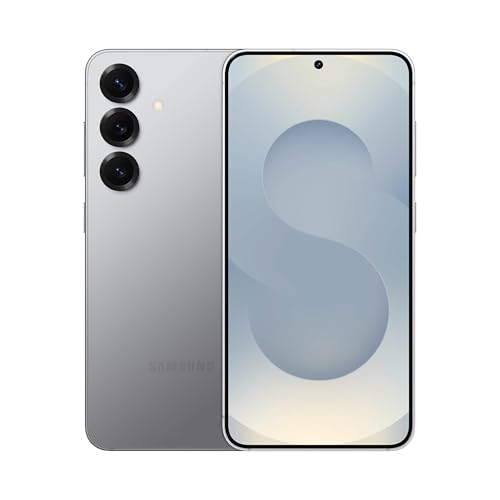
Let the heading carry the whole review’s honesty: the Galaxy Tab S10 FE cannot run Adobe Illustrator, because Adobe does not make Illustrator for Android — not a mobile edition, not a viewer with editing, nothing. It closes this list because Android owners searching this keyword are numerous, and they deserve a straight answer inside the guide they opened rather than a disappointed discovery after checkout. If your non-negotiable requirement is Illustrator itself, your choices end at the five picks above this one, and no discount on this tablet changes that sentence.
What the S10 FE can do is still worth recording, because some searchers’ real need is “draw vector-style artwork on a tablet I already like.” Its S Pen is bundled and excellent, the 10.9-inch screen is bright and splash-proofed by an IP68 rating, and Android offers vector-capable drawing apps — Concepts foremost, with its infinite canvas and vector strokes, plus Illustrator-adjacent workflows through browser-based tools for light edits. Files can be exported in common formats for finishing in desktop Illustrator later. That is a legitimate sketch-and-concept workflow. It is simply not Illustrator, and this guide will not call it one. Buy this tablet for Android reasons — the pen, the durability, the ecosystem you already own — with eyes open about the Adobe-shaped hole.
- System: Android — Adobe Illustrator is not available for this platform
- Display: 10.9-inch LCD with 90Hz refresh
- Pen: S Pen included in the box, battery-free
- Alternatives: Concepts and other Android vector-drawing apps
- Durability: IP68 dust and water resistance
Strengths
- Superb bundled pen and a bright screen make it a fine vector-sketching slate in non-Adobe apps.
- IP68 sealing suits drawing in studios, cafés and other splash-prone territory.
- Expandable storage keeps large project libraries on the device.
Trade-offs
- Illustrator does not exist for Android — the central fact of this entry.
- Substitute apps export for desktop finishing rather than replacing the program.
- Adobe cloud-document workflows from the iPad edition have no counterpart here.
Best for: Android-committed artists whose actual need is pen-driven vector sketching and who finish production files on a desktop.
Not suited for: producing .ai deliverables inside Illustrator on the tablet itself — that requirement points at the Surface or the iPad.
What Should Tablet-First Illustrators Know About Colour and Export?
Colour discipline is where tablet-first workflows most often meet their first professional surprise. iPad and Android screens are tuned to please the eye, which is not the same as telling the truth about a CMYK conversion or a client’s spot colour. The safeguard is procedural rather than expensive: build artwork in the colour space the delivery demands, soft-proof on a desktop when print is involved, and keep a known reference file — an image whose printed result you have already seen — to sanity-check any new screen against. Pen-display owners hold an advantage here only when the display feeds from a calibrated setup; an uncalibrated pen display lies just as fluently as a tablet does.
Exports reward the same procedural care. SVG for web, PDF/X for print, PNG at deliberate sizes for everything else — each route in this guide reaches those formats, but the iPad edition sometimes reaches them through the cloud-document detour, adding minutes that matter at deadline o’clock. Illustrators who export fifty variants for a design system should time that chore on their chosen route before committing a studio to it. Small frictions, repeated daily, are the real specification sheet of any creative tool, and they are exactly the ones launch reviews never measure.
How Should You Choose Between Desktop Illustrator and the iPad Edition?
Let the file’s destination decide. Artwork headed for print production, complex brand systems, or a team pipeline lives safest in the desktop program, where every feature the file might need already exists; artwork headed for social feeds, editorial spots, merchandise and the illustrator’s own portfolio is comfortably within the iPad edition’s reach from start to finish. Many professionals run a hybrid without thinking of it as one: concepts and line work on the iPad, because drawing there is joyful, then cloud documents opened on the desktop for the last ten percent of production. The hybrid only works because Adobe’s cloud keeps the file native on both sides — a convenience no rival ecosystem currently matches.
Budget the subscription, not just the slab. Illustrator in any edition rides on a Creative Cloud plan, and the honest cost of every pick in this guide includes that ongoing plan for as long as you use the program. The pen displays shift spending toward a one-time hardware outlay riding on a computer already owned; the Surface concentrates everything into one premium device; the iPad spreads cost across tablet, Pencil and plan. None is cheapest in the abstract — the cheapest is the one whose pieces you do not duplicate. A designer who already owns a strong desktop gains least from the Surface and most from a pen display; a designer with no computer at all reverses that arithmetic entirely.
Consider also where your hands are happiest, because Illustrator is a thousand small gestures repeated for years. Direct-on-glass drawing suits artists who sketch their vectors; the Intuos Pro’s indirect method suits editors who build them. Neither is a lesser craft, and forcing the wrong one is a quiet tax on every project. If a store visit is possible, draw the same simple logo mark both ways — direct and indirect — and trust the method that disappears beneath your attention fastest.
How Do You Move an Illustrator Workflow Onto New Hardware Without Losing a Week?
Start with the file library, not the drawing. Gather your live .ai files, your brush and symbol libraries, your swatch books and your hard-won keyboard shortcuts, and move them deliberately — cloud documents through Adobe’s sync, the rest by drive or export — before the new device becomes your daily driver. Open three representative files on the new setup: one simple, one typical, one monster. The monster file is the audit that matters; it will expose missing fonts, plug-in gaps and performance ceilings while the old setup still sits within reach as a fallback.
Rebuild the pen’s feel next, inside Illustrator itself. Set the calligraphic and scatter brushes you actually use, adjust the Pen tool’s fidelity and smoothing to your hand’s habits, and run the anchor-point drills — draw a circle with four points, edit a stranger’s logo curve, trace a small sketch — until the new pen’s pressure curve stops surprising you. Pen-display owners should calibrate and then check registration at the screen’s corners, where parallax hides. Surface owners should pin Illustrator’s touch workspace settings and decide, honestly, which operations belong to the pen and which to a mouse kept within reach.
Finally, rehearse the exit paths: export a print PDF with fonts outlined and one without, send a cloud document to the other platform and open it, and save a copy in an older Illustrator version for the client whose studio runs three versions behind. These five minutes of bureaucracy, done on a quiet afternoon, are what separate a hardware upgrade from a deadline-week archaeology dig. Keep the old setup untouched for one full project cycle; confidence is a feature, and it ships with a fallback.
Where Does Each Pick Land When the Software Truth Comes First?
| Pick | Which Illustrator? | Needs a computer? | Drawing feel | Headline strength |
|---|---|---|---|---|
| Surface Pro 11 | Full desktop edition | It is the computer | Pen on glass, desktop interface | Complete program in one portable machine |
| iPad 11-inch (A16) | Illustrator for iPad | No | Direct Pencil drawing, touch-native | Most natural drawing feel, cloud sync to desktop |
| Huion Kamvas 13 (Gen 3) | Full desktop edition | Yes — host required | Direct pen on laminated matte glass | Desktop power at the friendliest display entry |
| XPPen Artist 15.6 Pro V2 | Full desktop edition | Yes — host required | Direct pen, largest canvas here | Room for sprawling artboards and open panels |
| Wacom Intuos Pro Medium | Full desktop edition | Yes — host required | Indirect, pen on blank surface | Reference-grade precision for node editing |
| Galaxy Tab S10 FE | None — no Android edition exists | No | Direct S Pen drawing in other apps | Excellent pen tablet outside the Adobe fence |
The second column is the whole guide in miniature. Four routes reach the full desktop program — one self-contained, three through a host — one route reaches Adobe’s touch edition, and one excellent tablet reaches no Illustrator at all. Choose your row by that column before letting screen sizes and pen features argue, and the rest of the decision becomes a matter of taste and desk space rather than truth and fiction.
Can a Chromebook or a Budget Laptop Substitute for These Picks?
Shoppers on a budget sometimes ask whether a cheap laptop plus a free vector editor dodges this entire category, and the honest answer is that it dodges the software, not the problem. Illustrator does not run on ChromeOS at all, and its web beta remains a limited companion rather than the program. A budget Windows laptop does run desktop Illustrator respectably for light files, and pairing one with the Kamvas 13 is in fact the classic student rig — but that is not a substitute for the picks here; it is one of the picks here, with the laptop acknowledged as the host it always required. The category’s floor is set by the software’s demands, and pretending otherwise just moves the spending to a worse place.
Free and low-cost vector editors deserve a respectful footnote for readers whose requirement is vector drawing rather than Illustrator itself. Affinity’s suite runs on iPad and desktop with a one-time purchase and reads and writes common formats; browser-based tools handle light edits anywhere. Studios exchange .ai files, though, and coursework specifies Illustrator by name, which is why this guide stays inside Adobe’s fence. If your world does not, the hardware advice transfers almost intact — direct pen surfaces and honest app checks serve any vector program — but the file-exchange chapters of your life will read differently.
What Mistakes Do Illustrator Shoppers Keep Making?
The priciest mistake is buying on the name alone: an Android tablet purchased for “Illustrator” that no Illustrator will ever run on, or an iPad bought for a print-production workflow its edition cannot finish. The defence is the version question — which Illustrator, on which system — asked before money moves. The second mistake is forgetting the host: a pen display ordered for a laptop too old to drive it smoothly turns a drawing upgrade into a computer emergency, so check the machine’s ports and power against the display’s needs while both are still returnable propositions.
A related slip is buying the display before checking the desk’s geometry: pen displays want a draughting posture, slightly raised and close, and a workstation arranged for a monitor on a high stand will fight the new surface for months. Measure the desk, picture the keyboard’s exile to a side tray or a shelf, and confirm the chair height suits a drawing angle — the five minutes of spatial honesty that separate a studio upgrade from an expensive shelf ornament.
Third comes pen amnesia — pricing the Surface or the iPad as if the pen were in the box, then meeting it as a separate line item. Fourth, illustrators underestimate panel real estate in both directions: cramming desktop Illustrator onto a small display with every panel open, or buying a huge display for a desk that then cannot hold a keyboard. The last mistake is subtle: assuming the iPad edition’s limits are temporary inconveniences rather than a product boundary. Adobe expands it steadily, but a workflow that needs mesh gradients today needs the desktop today, and roadmaps do not ship client work.
What Does a Week of Real Illustrator Work Look Like on Each Route?
Abstract comparisons sharpen when a working week walks through them. Monday opens with a logo refinement: forty anchor points to perfect, client comments in the margins. The Intuos Pro and the pen displays treat this as home ground, desktop Illustrator at full stretch, while the Surface matches them from a café table — the week’s first hint that its premium buys location freedom rather than capability. The iPad handles the meeting sketches beautifully, then hands the precision edits to a desktop, a hand-off so smooth it barely counts as friction, provided the studio desktop exists.
Wednesday brings an editorial illustration, drawn more than constructed. Here the order inverts: the iPad is the fastest instrument in the building, Pencil moving at the speed of thought, while the pen displays run a close second and the Intuos Pro’s indirect drawing feels, for once, like the deliberate choice rather than the natural one. Thursday’s pattern repeat for a textile client splits the field again — the iPad edition’s repeat tools are genuinely delightful, the desktop’s are deeper, and both finish the job. Friday is production: exports, outlined fonts, a print shop’s PDF specification. Desktop routes close the week without breaking stride; the iPad’s files finish their journey on a desktop, as designed.
The lesson of the week is that no route wins all five days, which is why studios so often pair them — an iPad for the drawing days, a pen surface for the production days, files flowing between. Solo buyers must instead pick the route that wins their most common day, not their most prestigious one. Count your own last month honestly: the hardware serving the majority of those hours is the hardware this guide would hand you, and the minority hours can borrow, export or compromise their way through.
How Do Plug-Ins, Fonts and Print Shops Fit the Picture?
Plug-ins are the desktop program’s quiet superpower and its portability tax. Vector studios accumulate extensions for barcodes, CAD-like precision, pattern generation and export tricks, and those live only where desktop Illustrator lives — on the Surface outright, or on the host behind a pen display or the Intuos Pro. The iPad edition runs none of them. A freelancer whose client work depends on even one such extension has, in effect, already made the hardware decision; the remaining question is merely which desktop route fits the desk.
Fonts travel better than plug-ins but still reward planning. Adobe Fonts syncs across the desktop and iPad editions under the same account, which covers most illustration work gracefully; privately licensed foundry fonts install on desktop systems and the Surface, while iPad handling of side-loaded fonts is narrower. Print shops close the loop: they ask for PDFs or packaged .ai files with fonts outlined or embedded, deliverables the desktop routes produce natively and the iPad edition produces through a cloud-document detour to a desktop. None of this makes the iPad a lesser drawing tool — it makes it a drawing tool whose owner should keep a desktop within occasional reach, exactly as its strongest users already do.
How Long Does Each Route Take to Stop Feeling New?
Adoption curves differ enough to belong in a buying guide, because a tool’s first fortnight shapes whether it becomes furniture or an instrument. The iPad edition onboards fastest — a competent drawer produces presentable work on day one, because the interface hides everything except drawing until asked. Pen displays take a few sessions of calibration and shortcut-mapping before the hand trusts the surface, after which the desktop program’s familiarity carries the artist. The Intuos Pro asks the most: a week or two of deliberate practice before indirect drawing stops consuming attention, repaid by years of precision once the skill sets. The Surface sits between, its learning curve being Illustrator itself rather than the hardware — artists who know the desktop program are home immediately, and newcomers face the full program’s honest complexity from the first launch.
None of these curves should scare a buyer whose route is otherwise right; they should simply be scheduled. Do not adopt any of these picks in deadline week. Adopt in a quiet stretch, run one real but forgiving project end to end, and let the mistakes happen where they cost nothing. The artists who abandon good hardware almost always abandoned it during a crunch that the hardware did not cause.
What Exactly Does Illustrator for iPad Leave Out — and Who Notices?
Precision about the iPad edition’s boundaries helps more than either hype or dismissal. Present and strong: the Pen and Pencil tools with smoothing that flatters shaky hands, shape building, the full gradient and pattern machinery most illustrators touch daily, repeat features for motifs and grids, robust type tools with touch kerning, and layer management deep enough for commercial illustration. Absent or reduced: the desktop’s deepest Image Trace controls, gradient mesh editing, the full effects gallery, advanced print separations, actions and scripting, and the plug-in universe. The pattern is unmistakable — Adobe kept the drawing and lightening-fast creation tools, and left the production engineering on the desktop.
Who notices maps neatly onto job descriptions. Editorial illustrators, surface-pattern designers, children’s-book artists and social-content creators can run entire commissions inside the iPad edition and export delivery files without once feeling fenced in. Packaging designers, prepress operators, brand-identity systems builders and anyone artworking other people’s files will hit the fence within the first project — not because the app is weak, but because their work is precisely the production engineering Adobe left behind. The honest shopping question is therefore autobiographical: read your last five projects and count how many needed a desktop-only tool. Zero means the iPad is a complete answer; two or more means it is a companion, priced and judged as one.
One more boundary deserves daylight because students trip over it: coursework. Many design programmes teach Illustrator as the desktop program, with tutorials, plug-ins and submission requirements written against it. A student arriving with only the iPad edition will translate every lesson through a subset interface while classmates follow along directly. That friction is survivable for the drawing-confident and miserable for the already-struggling, which is why this guide steers laptop-owning students toward a pen display and reserves the iPad recommendation for drawing-led courses with explicit mobile tolerance.
How Do You Get the Best Vector Lines Out of a Pen Display?
Pen displays reward a short setup ritual with years of steadier lines. Calibrate first, then verify at the corners, because a display whose registration drifts at the edges will quietly teach you to mistrust your own hand. Inside Illustrator, tune the Pencil and Pen tools’ fidelity sliders toward the middle: full smoothing irons your style into corporate curves, while raw fidelity records every tremor as an anchor-point thicket. Most illustrators land on a personal setting within a week and then forget the slider exists — which is the correct outcome, since the tool should serve the hand rather than supervise it.
Map the display’s shortcut keys and dial to the commands your fingers actually hunt: undo, the Direct Selection tool, zoom, and the eyedropper cover most illustrators’ top four. Work at the zoom your delivery size implies — vector artists who live at extreme magnification produce beautifully precise files and strangely lifeless lines, because every curve was negotiated node by node instead of drawn. A healthy rhythm alternates: draw zoomed out with commitment, then zoom in to edit with detachment. The pen display supports both halves of that rhythm better than any mouse, which is ultimately why it earned its desk space in professional studios.
Care habits close the ritual. Pen nibs are consumables; a nib worn to a chisel edge scratches matte coatings and lies about pressure, so swap it when strokes start feeling gritty rather than when it snaps. Keep the screen’s brightness matched to the room so colour judgements stay stable across a session, and let the display warm up before any colour-critical morning. None of this is glamorous, and all of it is the difference between a pen display that feels like an instrument and one that feels like an appliance.
Final Recommendation
Decide the software first and the hardware decision shrinks to fit. If your living is desktop Illustrator, the Surface Pro 11 is the one-device answer, while the Kamvas 13, the Artist 15.6 Pro V2 and the Intuos Pro divide the host-based vote by canvas size and drawing style. If your living is drawing that happens to be vector, the iPad with Illustrator for iPad is the most pleasurable instrument here, with a desktop friendship maintained through the cloud. And if you own the Galaxy Tab already, draw happily in Concepts — just never let a listing tell you it is an Illustrator tablet. The right purchase in this category is the one where the program you open on day thirty is the program you believed you were buying on day one.
Frequently Asked Questions
Is Illustrator for iPad the same program as desktop Illustrator?
No — it is a separate, touch-designed application sharing the name, the file format and the cloud. Core drawing and illustration tools are present and genuinely good, while deep production features such as advanced Image Trace and mesh-gradient editing remain desktop territory. Files move between the two through Adobe cloud documents.
Can I run Illustrator on any Android tablet with a good pen?
You cannot. Adobe publishes no Illustrator app for Android on any tablet, Samsung included. Android artists use alternatives like Concepts for vector drawing and finish in desktop Illustrator elsewhere. Any listing implying an Android tablet “runs Illustrator” is describing those workarounds, not the program.
Do pen displays improve Illustrator, or is a mouse enough?
A mouse is enough for node editing — generations of designers prove it — but a pen transforms the drawing side: freeform paths, brush work, tracing and pressure-driven strokes all become hand-natural. Many professionals keep both on the desk and switch by task, pen for drawing passes, mouse for precision panel work.
Will my desktop Illustrator files open on the iPad edition?
Yes, through cloud documents, with paths and layers intact. Desktop-only effects and features are preserved but not editable on the iPad side; they wait, unharmed, until the file returns to the desktop program. For illustration-led files the round trip is effectively seamless.
Does the Surface Pro 11 run Illustrator as well as a desktop PC?
For the overwhelming majority of illustration work, yes — the program is the genuine desktop build and the Snapdragon X Plus handles dense vector files comfortably. The checks worth making are niche: unusual third-party plug-ins and any legacy peripherals in your studio chain.
Does Illustrator on the web change any of this?
Adobe’s browser-based Illustrator is a light companion for opening and lightly editing files on machines without the program installed — useful in a pinch on a borrowed computer. It is not a route to running Illustrator on Android or ChromeOS for real work, and it does not alter any recommendation here. Treat it as a viewer with editing privileges, not a platform.
How much computer does a pen display actually need for Illustrator?
Illustrator is kinder than video or 3D software: a mid-range laptop or desktop from the last several years, with a free USB-C or HDMI path and enough memory for your file sizes, drives a pen display happily. Very old machines reveal themselves through slow redraws on path-dense files rather than outright failure, so test with your largest live project before blaming the display.
Which pick suits a design student on a tight setup?
A student with any serviceable laptop usually gains most from the Kamvas 13 (Gen 3): full desktop Illustrator for coursework, a direct pen for learning the program properly, and no second computer to maintain. Students without a laptop should look at the iPad for drawing-led courses — while confirming the syllabus does not demand desktop-only features.
Is a second-hand Wacom a sensible shortcut?
Often, yes — professional pen hardware is built for long service, and a used Intuos or pen display with a healthy pen and current drivers can serve a student well. Verify driver support for your operating system before paying, inspect the drawing surface for deep scratches in the active area, and budget for fresh nibs. The saving is real; so is the homework.
Related Guides
Round out the desk with our guide to pen displays for photo and video work, weigh the stylus options in the best tablets with pens included, and compare drawing routes in standalone tablets that need no computer.