What's inside
- Choosing a Learning Tablet by Features, Fit and Daily Reality
- Key Takeaways
- Quick Picks
- How Did We Judge Tablets for This Brief?
- Open System or Closed System: Which Fits Your Household?
- Durability in Real Settings: Bags, Desks, Cars and Waiting Rooms
- Offline Content: The Feature Every Setting Quietly Depends On
- One Device, Several Settings: Home, School and Everywhere Between
- How Do the Six Learning Tablets Compare?
- Sound, Headphones and Shared Spaces
- Questions Worth Asking Before the Purchase Is Final
- How Should a Carer Set Up an Open Tablet for a Learner?
- Growing Room: What Happens When the Learner Changes?
- Which Mistakes Do Families Make With a First Learning Tablet?
- Final Recommendation
- Frequently Asked Questions
- Related Guides
As an Amazon Associate I earn from qualifying purchases. This post may contain affiliate links at no extra cost to you.
gizmoverdict.com is reader-supported. When you buy through links on our site, we may earn an affiliate commission.
Choosing a Learning Tablet by Features, Fit and Daily Reality
The search for the best learning tablets for individuals with special needs covers a wider range of people than any other query in this batch: children whose learning is supported at home and at school, teenagers who benefit from a predictable and uncluttered device, and families or carers choosing a tablet for a learner whose needs make ordinary consumer electronics frustrating in specific, practical ways. This guide answers that search the only honest way a product guide can — by examining features. Screen size, text scaling, the strength of parental and carer controls, the durability of the case, the simplicity of the environment and the length of the battery are all things a listing can state and a family can verify. What a tablet will do for a particular person’s learning is a question for that person, their family and the professionals who know them, and no pick below pretends otherwise.
That discipline shapes the shortlist. The six machines divide into two philosophies. The open Android tablets — two Samsung Kids Edition models, a Contixo and an EDDBNi — run a full tablet system behind child-oriented protection, so carers can install the exact apps a school or family already uses, enlarge text and display elements through Android’s accessibility settings, and fence the device with parental controls. The two LeapFrog LeapPad models take the opposite path: a closed learning system with no open app store at all, where everything on the device was made for it, nothing can be bought or browsed by accident, and the environment a learner memorises today is the environment that greets them next month.
Predictability deserves its place near the top of the feature list, because for many learners it is the feature. A home screen that never rearranges itself, a case that makes the device easy to grip and hard to damage, controls that stop a session wandering into shops or browsers, content that works without an internet connection once loaded — these are not glamorous specifications, and they decide whether a tablet becomes a calm part of a routine or another object that generates incidents. The pick sections therefore read each machine for its steadiness as much as for its screen, and the guide sections that follow cover setup, text and display adjustments, and the carer controls that keep a device predictable over months of use.
One more framing note before the rankings. Most of these products are marketed as kids’ tablets, with age guidance printed on several listings, because that is where manufacturers aim durable cases and control suites. Families choosing for older learners should read past the colours and characters to the underlying features — a large, clear display in a protective case with strong controls is a feature set, whatever the box art says — while also weighing dignity honestly: a device that suits a person’s abilities and looks acceptable to them in their world is worth more than a theoretically ideal one they refuse to carry.
Key Takeaways
- This guide judges features only — screen, text scaling, controls, cases, battery and system openness — and makes no claims about learning or therapeutic outcomes.
- The two LeapPad models are closed systems with no open app store, which makes them the most predictable environments in the list.
- Samsung’s two Kids Edition tablets pair 11-inch-class displays with durable covers and expandable or generous storage for app-based learning chosen by the family.
- Android’s built-in accessibility settings — text size, display size, magnification — are available on the open tablets and should be configured during setup, not discovered later.
- The Contixo K102 and EDDBNi 10 cover the same feature brief at gentler commitment, with parental controls and protective cases in the box.
- A tablet becomes part of a routine through setup: carers should configure controls, text size and the home screen before the first session, then change one thing at a time.
Quick Picks
| Pick | Badge | Why it earns its place |
|---|---|---|
| Samsung Galaxy Tab A9+ Kids Edition | Best open-system all-rounder | An 11-inch display in a durable puffy cover, expandable storage and Samsung’s control and accessibility depth behind a kid-friendly shell. |
| Samsung Galaxy Tab A11+ Kids Edition | Best large-display Samsung | The newer Kids Edition with 128GB of storage and a large, slim, durable build for learners who benefit from bigger text and targets. |
| Contixo K102 Kids Tablet | Best mid-size controlled option | A 10-inch HD screen, parental controls and a protective case in a long-running model aimed at ages three to twelve. |
| LeapFrog LeapPad Academy | Best closed-system academy | LeapFrog’s curated learning environment with no open app store, built for repetition, routine and carer-set boundaries. |
| LeapFrog LeapPad Ultimate | Best closed-system school readiness | The Ready for School edition of the LeapPad idea — a sealed library of learning content in a child-proofed shell. |
| EDDBNi Kids Tablet 10 | Best current-Android value | Android 15, 64GB of storage, dual cameras and parental controls in a cased 10-inch tablet at the list’s gentlest commitment. |
How Did We Judge Tablets for This Brief?
The first criterion was legibility. A learning tablet is read at close range for long stretches, so screen size and the ability to enlarge text and interface elements mattered more than resolution bragging. The Samsung pair’s 11-inch-class displays and the 10-inch screens of the Contixo and EDDBNi give text room to be big; Android’s display-size and font settings, present across the open tablets, let a carer tune that size to the person rather than to a designer’s default. The LeapPads take a different route to the same destination: their software was designed from the start with large, simple interfaces for young learners.
The second criterion was control — specifically, who holds it. Parental and carer controls decide what appears on the device, how long sessions last, and whether purchasing and browsing exist at all. The open tablets rely on their makers’ control suites plus Android’s own family tools; the LeapPads answer the question architecturally, because a closed system has no store to lock and no browser to fence. Both answers are legitimate, and the right one depends on whether the learner’s apps come from an open store chosen by adults, or whether safety-through-absence suits the household better.
A note on dignity belongs in the judging criteria, because features are only half of fit. Several picks wear bright colours and character-adjacent styling aimed at young children, which will suit many owners perfectly and others not at all. Where a learner is older, or simply particular, the open tablets’ cases can often be swapped for plainer protection, and the interface inside can be made as grown-up as its owner wishes — one more quiet dividend of the open philosophy. A device its owner is content to be seen with is a device that travels, and travelling is where learning tablets earn their keep.
The third criterion was physical forgiveness. Every pick ships in or with a protective case, because devices used for learning get carried between rooms, cars, classrooms and appointments, and they get dropped by everyone involved. Battery behaviour, storage headroom for downloaded content, and the simplicity of charging completed the judging, with one rule held throughout: no feature was credited that the verified listing or the platform’s standard behaviour does not support, and no benefit was promised beyond what a feature plainly does.
Open System or Closed System: Which Fits Your Household?
The open tablets — both Samsungs, the Contixo, the EDDBNi — are real Android devices wearing protective clothing. Their strength is choice: the reading app a school recommends, the communication or symbol-based app a family already uses, the video service the household subscribes to, all installable by the adult in charge. Their demand is configuration: an open system arrives with a store, a browser and a universe of settings, and the carer must build the fenced, calm version of it before handing it over. The setup section later in this guide treats that building work as the purchase’s second half, because on an open tablet it genuinely is.
The closed LeapPad systems invert the bargain. Nothing arrives that LeapFrog did not make or approve for the device, content expands through LeapFrog’s own cartridges and downloads rather than an open store, and the environment stays stable month after month — a property some learners and many carers value above versatility. The costs are equally plain: an app the school adopts next term will not run here, the content library is finite and aimed at younger children, and a learner who outgrows the library outgrows the device entirely. Neither philosophy is the caring choice in the abstract; each is the caring choice for a particular household’s balance of choice, stability and supervision capacity.
Cost of ownership follows the same fork. An open tablet’s price is the beginning of a relationship maintained in small instalments of attention — updates approved, storage pruned, controls revisited — while a closed system’s price buys freedom from most of that maintenance at the cost of a hard ceiling on content. Households rich in configuration time and poor in tolerance for ceilings choose open; households rich in neither, which is most households in a busy term, should price the closed systems’ simplicity as the genuine feature it is rather than as a compromise they are settling for.
A useful way to decide is to list the three activities the tablet must support on its first day. If any of them names a specific app from an open store, the decision is made — buy open, and budget the setup evening. If all three are general (stories, games, learning activities, videos loaded by an adult), the closed systems enter the conversation with their simplicity fully priced. Households that skip this listing exercise tend to buy the philosophy that was on offer rather than the one their week required.

Samsung Galaxy Tab A9+ Kids Edition — Best open-system all-rounder
The A9+ Kids Edition takes Samsung’s mainstream 11-inch tablet and wraps it in a durable puffy cover, and that combination — real tablet, serious protection — is the open-system argument at its best. The display gives text and app interfaces room to scale up through Android’s accessibility settings, the storage expands beyond the built-in 64GB, and Samsung’s parental controls plus the wider Android family tools let a carer decide exactly which apps exist on the device, how long sessions run and whether the wider internet is present at all. For a learner whose apps are chosen by family and school together, this is the most adaptable machine in the list.
The puffy cover deserves its own sentence because it changes how the tablet is handled all day. It adds grip for hands that benefit from a thicker edge to hold, cushions the corners that meet floors and table edges, and makes the device visually and physically distinct from a parent’s work tablet — a small clarity that helps routines stick. Samsung describes the build as slim and lightweight beneath the cover, and the long battery positioning in the listing suits devices that travel between home, school and appointments without a charger in attendance.
Adaptability is also the workload. This tablet can do almost anything Android can, which means the carer must decide what it will do, app by app, setting by setting, before the first session — and revisit those decisions as needs change. Households with the time and confidence for that configuration get the most capable pick here. Households without it should look honestly at the LeapPads, whose limitations are the price of having the decisions pre-made.
- Display: 11-inch screen, per the listing title
- Storage: 64GB with expandable storage, per the listing title
- Case: kid-friendly durable puffy cover included, per the listing title
- Battery: long battery life positioning in the listing title
- Controls: Samsung parental controls with Android accessibility settings available
Strengths
- A real, current Android tablet under the protection, so school and family apps all run.
- Expandable storage keeps downloaded content and apps from crowding each other.
- The puffy cover’s grip and padding suit daily carrying between settings.
Trade-offs
- The open system demands a deliberate setup evening before first use.
- Built-in storage starts at 64GB, so the expansion slot will likely be used.
- Its versatility can overwhelm if a carer enables everything at once.
Best for: a family or school setting that chooses its own apps and can configure the fence.
Not suited for: a household that needs the environment finished and sealed the moment the box opens.

Samsung Galaxy Tab A11+ Kids Edition — Best large-display Samsung
The A11+ Kids Edition is the newer Samsung take on the same formula, with 128GB of storage as standard in the verified configuration and a large display in a body the listing describes as durable, slim and light. For learners who benefit from bigger text, bigger touch targets and an interface with room to breathe, that large canvas is the headline feature: Android’s display-size settings can enlarge the whole interface, and a big screen means the enlarged interface still fits a usable amount of content per screen rather than a single lonely button.
Storage generosity matters practically here. Learning apps, downloaded videos for journeys, photographs and the learner’s own creations accumulate across a school year, and 128GB postpones the housekeeping arguments that a smaller allowance forces termly. The long battery positioning repeats the A9+’s travel-friendly stance, and Samsung’s control layer gives carers the same app-by-app authority as its sibling — the two Samsungs differ mainly in generation, storage and size emphasis, which makes choosing between them a refreshingly concrete exercise.
As with its sibling, the openness is the commitment. Nothing about the A11+ configures itself, and its larger, more capable canvas invites scope creep — one more app, one more service — that a carer should resist in favour of the calm, small home screen the setup section recommends. Configured with restraint, this is the open-system pick for learners whose first requirement is simply that everything on screen be big enough to use comfortably.
- Display: large display, per the listing title
- Storage: 128GB in the verified configuration
- Build: durable, slim and light, per the listing title
- Battery: long battery life positioning in the listing title
- Controls: Samsung parental controls with Android accessibility settings available
Strengths
- The large display makes enlarged text and targets genuinely practical.
- Double the A9+’s built-in storage reduces housekeeping across the school year.
- The newer generation promises the longer support runway of the Samsung pair.
Trade-offs
- A bigger tablet is a two-handed carry for smaller learners.
- The open system still asks for full configuration by the carer.
- Its capability tempts owners to enable more than the routine needs.
Best for: a learner whose comfort depends on large text and large targets on screen.
Not suited for: a very small learner who needs the lightest device their hands can manage.

Contixo K102 Kids Tablet — Best mid-size controlled option
The K102 is the long-running, straightforward answer in this list: a 10-inch HD tablet with parental controls, dual cameras, Wi-Fi, 32GB of storage and a protective case, aimed by its maker at ages three to twelve. Its virtues are the brief’s virtues without flourish — a screen large enough for clear text and simple interfaces, a control layer that lets adults decide the app shelf, and a case that accepts the daily knocks of a device that travels between home and classroom in a school bag.
Contixo’s software layer leans toward curated content for younger learners, and the Android underneath means a carer can add the specific apps a family or school already uses, subject to the tablet’s generation and the apps’ requirements — worth a check for any single essential app before ordering, as with every older model. The pink finish of the verified listing will delight some learners and should be considered honestly for others, because a device carried into varied settings should look like it belongs to its owner.
Age and storage are the K102’s honest boundaries. As an earlier-generation model, its remaining software runway is shorter than the Samsungs’, and 32GB fills quickly once video joins the app shelf, so downloaded content needs the rotating discipline described elsewhere in this batch. For a family buying a first controlled tablet for a younger learner — with a plan measured in school years rather than in a decade — it covers the feature brief at a gentler commitment than the Samsung pair.
- Display: 10-inch HD display, per the listing title
- Storage: 32GB, per the listing title
- Controls: parental controls, per the listing title
- Features: dual cameras, Wi-Fi, protective case included
- Manufacturer age guidance: ages 3-12, per the listing title
Strengths
- A proven, simple formula: screen, controls and case in one purchase.
- Ten inches keeps text large while staying manageable in a school bag.
- Android underneath allows specific family and school apps to be added.
Trade-offs
- Earlier-generation hardware means a shorter remaining update horizon.
- Thirty-two gigabytes requires rotating downloaded content deliberately.
- The verified finish is pink, which not every learner will want to carry.
Best for: a younger learner’s first controlled tablet for home and classroom routines.
Not suited for: a long-horizon purchase expected to serve unchanged for many years.
LeapFrog LeapPad Academy — Best closed-system academy
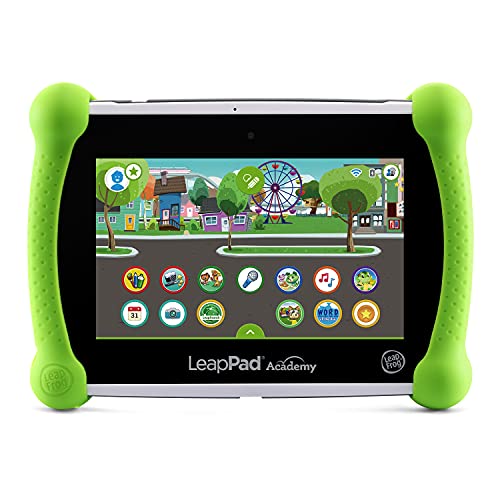
The LeapPad Academy is a learning tablet in the sealed sense: a LeapFrog device whose content comes from LeapFrog’s own library of educator-influenced apps, games and activities, with no open app store, no general web browser and no route for a learner to wander into purchasing or unapproved content. For households whose first requirement is that the environment be exactly what it was yesterday, that sealed design is not a limitation to apologise for. It is the product.
Predictability runs through every layer. The interface was built for young learners, with large targets and a structure that rewards repetition; the content library is organised as an academy, so activities sit in a curriculum-shaped order rather than in an algorithmic feed; and expansion arrives through LeapFrog’s own content channels, which a carer approves as purchases rather than discovering after the fact. A learner who thrives on sameness — same home screen, same activities, same rewards — meets a device designed around that preference rather than configured into approximating it.
The boundaries must be printed as plainly as the virtues. This is a closed system: the specific app a school or therapist’s programme uses will not install here, because nothing from an open store installs here, and this guide states that in the pick itself rather than in a footnote. The library also targets younger children, so the Academy suits early-years learners and will be outgrown. Within that honest frame, it is the calmest device in the list, and calm is a legitimate specification.
- System: LeapFrog closed learning system — no open app store
- Content: LeapFrog’s own library of learning apps and activities
- Design: child-focused interface with large, simple targets
- Controls: carer-approved content expansion through LeapFrog channels
- Colour: green, per the listing title
Strengths
- The sealed environment cannot drift into shops, browsers or surprises.
- A stable interface rewards repetition and routine across months.
- No setup labyrinth: the fence is the architecture, not a settings project.
Trade-offs
- No open-store apps can ever be installed, including school-specified ones.
- The content library is aimed at younger learners and will be outgrown.
- Expansion content comes only through LeapFrog’s own channels.
Best for: a young learner whose household prizes a sealed, unchanging environment.
Not suited for: a learner whose programme depends on a named app from an open store.
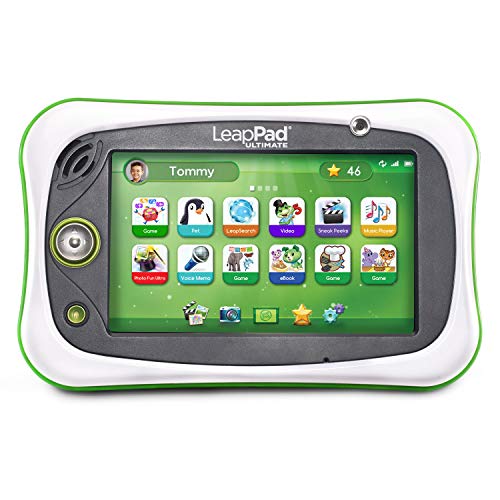
LeapFrog LeapPad Ultimate — Best closed-system school readiness
The LeapPad Ultimate applies the same sealed philosophy with a school-readiness emphasis — its full name in the listing is the Ready for School edition — packaging LeapFrog’s learning library around the activities families associate with preparing for the classroom: letters, numbers, early reading and problem-solving games, presented in the LeapPad environment of large targets, immediate feedback and carer-visible structure. Like the Academy, it has no open app store, and that fact is stated here in the body of the pick, where a family deciding between philosophies will actually read it.
Choosing between the two LeapPads is a matter of emphasis and availability rather than of kind. Both are closed, both are built for young learners, both trade the open world’s choice for the sealed world’s steadiness. The Ultimate’s school-readiness framing suits a household whose tablet time is organised around starting school; the Academy’s broader academy framing suits a household organising around a general learning routine. Either way, the carer’s ongoing work is small: approve expansion content occasionally, keep the device charged, and let the routine repeat.
The same two boundaries from the Academy apply unchanged, and repetition here is deliberate. A closed library is finite, and a learner’s growth will eventually reach its edge — at which point the household graduates to an open tablet with the setup discipline this guide describes, carrying the routine habits with them. And no specific third-party app will ever run on this hardware. Families for whom those sentences read as relief rather than warning are exactly the families this pick exists for.
- System: LeapFrog closed learning system — no open app store
- Edition: Ready for School, per the listing title
- Content: LeapFrog’s own library of learning apps and activities
- Design: child-focused interface with large, simple targets
- Colour: green, per the listing title
Strengths
- School-readiness framing organises content around a familiar goal.
- The sealed system removes browsing and purchasing risks by design.
- Minimal ongoing configuration for carers once the routine is set.
Trade-offs
- Closed to all open-store apps, permanently and by design.
- Aimed at younger learners, so its useful life is a season of childhood.
- Content growth depends entirely on LeapFrog’s own catalogue.
Best for: a preschool learner whose family wants school-shaped content in a sealed shell.
Not suited for: an older learner whose interests and apps have outgrown early-years libraries.

EDDBNi Kids Tablet 10 — Best current-Android value
The EDDBNi closes the list with the open-system brief at its gentlest commitment: a 10-inch Android 15 tablet with 64GB of storage, dual cameras, parental controls and a protective case. Android 15 matters quietly here — a current operating system on a value tablet means the accessibility settings, control features and app compatibility start from the present rather than from several versions ago, which lengthens the useful runway that value picks usually surrender.
For a carer, the feature set covers the routine essentials. Parental controls fence the app shelf and session lengths; Android’s text and display scaling enlarge the interface for the learner using it; the case absorbs the carrying life between home, car and classroom; and 64GB holds a sensible library of learning apps and downloaded content without the constant pruning a 32GB device demands. Dual cameras support the video calls and photograph-the-room games that form part of many learners’ tablet time.
Value hardware asks for calibrated expectations in return. The quad-core processor is built for learning apps, stories, video and calls — the brief itself — rather than for heavy games or creative suites, and the maker’s support ecosystem is smaller than Samsung’s, so long-term update promises deserve a check against the seller’s current information. Judged strictly as a first open tablet for a defined set of learning activities, it delivers the brief’s features at the list’s lowest anxiety.
- Display: 10-inch screen, per the listing title
- System: Android 15, per the listing title
- Storage: 64GB, per the listing title
- Controls: parental controls, per the listing title
- Features: dual cameras, 2.4G Wi-Fi, protective case included
Strengths
- A current Android version gives the value pick an unusually long runway.
- Sixty-four gigabytes halves the storage housekeeping of 32GB rivals.
- The full feature brief — controls, case, cameras — is present without flourish.
Trade-offs
- Quad-core performance is matched to learning apps, not to heavy games.
- A smaller maker’s support horizon should be verified before purchase.
- Wi-Fi is 2.4G only in this listing, fine for learning content, slower for huge downloads.
Best for: a first open-system tablet for a defined set of learning activities.
Not suited for: a household wanting a big-brand support promise behind the purchase.
Durability in Real Settings: Bags, Desks, Cars and Waiting Rooms
A learning tablet’s working environments are unusually varied for a consumer device. The same machine may start a morning on a kitchen table, travel in a school bag, spend a day moving between classrooms, wait through an appointment in the afternoon and finish the evening on a sofa. Every transition is a drop opportunity, a spill opportunity or a being-sat-on opportunity, which is why this guide weighted included cases so heavily and why the Samsung puffy cover, the Contixo and EDDBNi cases and the LeapPads’ child-proofed shells are features rather than packaging. A carer choosing between two otherwise equal picks should choose the one whose protection is already fitted, because protection bought later tends to be bought after the first incident instead.
Repairability and replacement belong in the durability ledger too, stated plainly. Screens on devices in this life get cracked eventually in a meaningful minority of households, and the practical questions — does the maker or seller offer a repair route, is a replacement case available, can the content and configuration be restored onto a new unit from a backup — decide whether an accident is a bad week or a lost routine. Carers should set up whatever backup the platform offers during the first setup session, while the device is new and the motivation is high, because a configuration rebuilt from memory after an accident is never quite the device the learner knew.
Handling matters alongside hardness. Thick, grippy edges help hands of many sizes and strengths keep hold of a device that is mostly glass; a case that stands the tablet up turns any table into a workstation without a second pair of hands to hold it; and a device light enough to be carried by its owner, rather than always for its owner, supports the independence that routines are built from. None of those properties appears in a specification table, and all of them can be assessed from the listings’ descriptions and photographs with a carer’s eye — which is, in the end, the most qualified eye in this entire purchase.
Offline Content: The Feature Every Setting Quietly Depends On
Connectivity is the invisible assumption in most tablet advice, and learning settings break it constantly. School networks have filters and login rituals, clinics and waiting rooms have captive portals, cars and trains have tunnels, and many households deliberately keep a learner’s device offline as part of its fence. Downloaded content is therefore not a travel luxury in this category; it is the mechanism by which the tablet’s library becomes a property of the device rather than of the network. On the open tablets, carers download within the chosen apps over home Wi-Fi; on the LeapPads, the library largely lives on the device and its cartridges by design.
The routine that makes offline work is the same rehearsal recommended throughout this batch, adapted to a carer’s calendar: load the week’s content on a quiet evening, switch Wi-Fi off, open each activity once to prove it runs, and return the device to its charging place. Five minutes, weekly, converts the tablet from a device that usually works into a device that is known to work — a distinction that matters enormously on the morning of an appointment or the first day back at school, when there is no slack in the schedule for troubleshooting a spinning loading icon.
One Device, Several Settings: Home, School and Everywhere Between
Many learning tablets live double or triple lives across settings, and the settings do not always want the same device. A school may require specific apps and a managed level of access; home may prize stories and family video calls; a grandparent’s house may need the simplest possible version of the home screen. The open tablets handle that plurality best, because a carer can shape profiles, app shelves and controls per context — but plurality has a cost in predictability, and the carer should decide deliberately which single configuration the learner will meet in all settings, changing only what a setting truly demands.
Battery discipline travels with the multi-setting life. A tablet that leaves home at whatever charge the night happened to give it will eventually be flat in the setting that needed it most, and the failure will be remembered as the tablet’s rather than the routine’s. The charging-place rule from the setup section — same place, every night, no exceptions for tiredness — is the entire solution, and it is worth stating to every adult in the rotation, because a routine held by one person and unknown to the others is a routine that survives exactly as long as that person’s memory does.
Communication between settings is the unglamorous feature that makes plurality work. A shared note — in the tablet’s own notes app or a document both home and school can open — recording what changed, what worked and what frustrated this week prevents the slow drift in which each setting configures the device slightly differently until nobody recognises the routine. The tablet is equipment; the routine around it is the actual support, and equipment that travels with its instructions travels well.
How Do the Six Learning Tablets Compare?
| Tablet | System | Screen | Storage | Defining feature |
|---|---|---|---|---|
| Samsung Galaxy Tab A9+ Kids Edition | Open Android | 11-inch | 64GB, expandable | Puffy cover plus full app choice |
| Samsung Galaxy Tab A11+ Kids Edition | Open Android | Large display | 128GB | Room for enlarged text and targets |
| Contixo K102 | Open Android | 10-inch HD | 32GB | Proven mid-size controlled option |
| LeapFrog LeapPad Academy | Closed LeapFrog | Child-focused display | LeapFrog library | Sealed, unchanging environment |
| LeapFrog LeapPad Ultimate | Closed LeapFrog | Child-focused display | LeapFrog library | Ready for School content framing |
| EDDBNi Kids Tablet 10 | Open Android 15 | 10-inch | 64GB | Current software at a gentle tier |
The system’s column decides first, the screen second, storage third. A household that has already chosen between open choice and closed steadiness will find its shortlist waiting in the matching rows, and the remaining decision is the comfortable one of size and budget.
Sound, Headphones and Shared Spaces
Learning tablets are used in shared spaces — classrooms, clinics, family rooms, public transport — and their sound behaviour is part of their social fit. Speakers that remain clear at modest volume suit guided activities at a table; headphone support suits independent activities in company, and a carer should test both routes during setup week rather than discovering them mid-journey. Where the platform offers volume limiting in its settings or through the control layer, setting a ceiling is a one-minute configuration that protects hearing and household peace simultaneously, and it belongs in the same setup session as the text-size work.
Volume behaviour at startup is a small detail with an outsized daily effect. A tablet that wakes at the volume it was left at can ambush a quiet room if yesterday ended loudly; carers should fold a volume check into the evening charging ritual, setting the device to its household level before it sleeps. It takes three seconds, and like most of the rituals in this guide, its value is measured in incidents that never happen.
Headphones deserve the same feature-based choosing as the tablet: a fit the learner tolerates, a cable or wireless connection the household can manage, and durability matched to the bag the tablet travels in. Some learners prefer speakers for every activity and reject headphones entirely, which is also useful information — it argues for the larger tablets whose speakers carry a room corner kindly, and for session planning that respects the spaces the sound will fill. As with every decision in this guide, the person’s actual response outranks the feature list, and setup week is when that response should be observed rather than assumed.
Questions Worth Asking Before the Purchase Is Final
Four questions, asked of the people who know the learner, sharpen this purchase more than any comparison table. What three activities must the tablet support on day one — the exercise that separates open from closed systems in this guide’s earlier section. Which apps, if any, has the school or programme already named, and do they run on the system being considered. What does the learner’s current routine look like, and where would a tablet session sit inside it without displacing something valued. And who will own the setup and the weekly housekeeping — because a tablet whose configuration belongs to nobody drifts within a term, whatever its badge.
None of those questions has a product answer, which is precisely their value. They convert a shopping decision into a fitting decision, and the six picks here were described in enough feature detail — systems, screens, storage, cases, controls — for the answers to land on a specific model rather than on a category. Families who arrive at the order button through those questions rarely return the device; families who arrive through a flash sale sometimes return two.
How Should a Carer Set Up an Open Tablet for a Learner?
Configure before the first handover, in a quiet hour, and change one thing at a time thereafter. Start with the interface itself: open the accessibility settings and set text size and display size to comfortable, then check the result in the apps the learner will actually use, because an interface enlarged in settings but cramped in the one essential app has solved the wrong problem. Add magnification and any display features the learner benefits from, set the screen timeout generously enough that reading is never interrupted mid-page, and only then build the app shelf.
The app shelf should start small — the few activities of the first week’s routine, arranged in the same positions they will keep — because a home screen that grows one app at a time stays learnable, while a home screen that arrives crowded teaches nothing except searching. Apply the parental controls next: session lengths, purchase lockout, browser decisions, and a carer PIN kept out of birthday territory. Download the content that must work offline, test it with Wi-Fi off, and write the charging station into the routine so the device is found in the same place, charged, every morning.
Document the finished setup somewhere outside the tablet — a page in the household notebook or a shared note — listing the apps installed, the control settings chosen, the text sizes set and the carer PIN’s location. Devices outlast memories, carers rotate between parents, relatives and support workers, and a written record is what lets a second adult restore, adjust or replace the setup without interrogating the first. In a category where consistency is the product, documentation is not bureaucracy; it is the mechanism by which consistency survives the humans.
Then observe before adjusting. A new tablet generates a week of novelty behaviour that settles into the real pattern, and carers who reconfigure daily chase the novelty rather than the pattern. Note what actually frustrates — a target too small, a session boundary that lands mid-activity, an app that buries its exit — and change those specific things, one per week, explaining each change in advance where explanation helps. Steadiness is the curriculum the hardware teaches; the setup’s job is to stop getting in its way.
Growing Room: What Happens When the Learner Changes?
Learners change faster than devices, and a wise purchase plans the succession rather than pretending permanence. The open tablets absorb change best: new apps join the shelf, text sizes adjust, controls relax or tighten as the carer judges, and the same hardware serves successive versions of the routine. That is the structural argument for the Samsung pair in households whose horizon is long, and it is why this guide described their configuration burden as an investment — the setup evening buys years of adjustability, paid back every time the environment evolves without a new purchase.
The closed systems plan succession differently: they serve a season completely, then hand over. A learner graduating from a LeapPad to an open tablet carries the routine habits — session shapes, charging place, the expectation that the device contains a known world — into a larger environment, and carers can stage that graduation gradually, introducing the new device alongside the old for a few weeks rather than swapping worlds overnight. Planned succession, in either philosophy, beats the two failure modes at the extremes: clinging to an outgrown device because replacing it feels like starting over, or replacing so often that no routine ever settles.
Handing the old device onward deserves the same deliberateness as buying the new one. A retired learning tablet, wiped and re-homed within the family or donated through a reputable route, can serve a younger learner’s season in turn — provided its controls still work, its battery still holds a day, and its next carer receives the setup notes along with the hardware. Passing on the documentation is passing on the routine, and the routine was always the valuable part.
Replacement triggers are worth naming so the decision is observable rather than emotional. The library is exhausted or the apps no longer fit. The controls can no longer express the boundaries the household needs. The battery no longer covers the settings the tablet travels between. Or the learner’s own preference — the most underrated specification in this entire guide — has clearly moved. Any one of those, sustained over weeks rather than days, is a legitimate signal, and the next purchase will be easier for everything the first one taught.
Which Mistakes Do Families Make With a First Learning Tablet?
The first mistake is buying a philosophy by accident — ordering a closed LeapPad for a learner whose school programme lives in an open-store app, or handing an unconfigured open tablet to a household that needed the sealed environment. The three-activities exercise in this guide exists to prevent exactly that purchase, and it takes four minutes. The second mistake is skipping the setup evening on an open tablet, so the learner meets the store, the browser and the settings before the carer has fenced any of them.
The third mistake is promising outcomes in either direction — expecting the tablet to deliver progress it was never able to guarantee, or dismissing it when the honest benefits are the practical ones: a calm routine, content that works offline, an interface sized to the person, sessions that end when the timer says so. This guide has deliberately described features and fit, because those are what a purchase can actually deliver, and families who buy on that basis are rarely disappointed by what arrives.
The fourth mistake is changing everything at once. New apps, new rules, new case, new charging place, all in one weekend, teaches the learner that the device is unstable — and for many learners the device’s stability is its chief virtue. Introduce the tablet as a routine from the start, keep its world small and consistent, and let growth arrive as single, explained additions. The households that report the smoothest tablet adoptions are, without exception, the ones that treated boring as a feature.
Final Recommendation
For most families choosing an open system, the Galaxy Tab A9+ Kids Edition is the balanced answer: a real Android tablet in a genuinely protective cover, with expandable storage and the control depth to shape the environment precisely. Choose the A11+ Kids Edition when large text and large targets lead the requirements, the EDDBNi when a current Android at a gentle commitment covers a defined activity list, and the Contixo K102 when a proven mid-size option for a younger learner fits the years you are planning for. Choose either LeapPad — Academy for the general routine, Ultimate for the school-readiness framing — when a sealed, unchanging environment is the feature your household values most, knowing exactly what closed means. The right tablet here is the one whose features match a real person’s real week, set up once with care and then left gloriously unchanged.
Frequently Asked Questions
Do these tablets make claims about learning outcomes?
No, and this guide does not either. The listings describe features — content libraries, controls, cases, screens — and features are what a purchase can honestly be judged on. How any individual learner responds to a device depends on the person, their support network and their programme, which is why families should treat a tablet as equipment chosen with the people who know the learner, not as an intervention with promised results.
What does it mean that the LeapPad tablets are a closed system?
It means their content comes only from LeapFrog. There is no open app store on a LeapPad, so apps from Google Play or a school’s recommended list cannot be installed; content grows through LeapFrog’s own cartridges and downloads, which a carer approves. For some households that seal is the entire appeal — nothing unapproved can appear — and for others it rules the devices out immediately. Both reactions are correct for their households.
Can text be made bigger on the Android tablets?
Yes. Android provides font-size and display-size settings that enlarge text and interface elements system-wide, along with magnification features, and the Samsung, Contixo and EDDBNi picks all run Android. Set the sizes during the initial setup and verify them inside the actual apps the learner uses, because one app’s idea of large can differ from another’s. The larger screens in this list — the Samsung pair especially — make enlarged interfaces practical rather than cramped.
Which pick suits an older learner rather than a young child?
The open Android tablets, configured by a carer, adapt furthest beyond early childhood, because their apps, text sizes and interfaces can grow and change with the person. The Samsung pair offer the most headroom, with the A11+ favouring larger displays and storage. The LeapPad models and the K102 are aimed at younger learners by their makers — the K102’s listing says ages three to twelve — and families of older learners should weigh how the device’s look and library will feel to its owner.
How important are parental controls if the learner is supervised?
Controls do a different job from supervision: they make the device itself predictable, so sessions stay inside the chosen apps, purchases cannot happen by tapping, and time boundaries are kept by the machine rather than argued with the person. Even closely supervised households benefit, because the controls protect the routine on the days supervision is divided. Every pick here includes a control layer or, in the LeapPads’ case, a sealed design that serves the same purpose.
How long should tablet sessions be?
That is a decision for the family and the professionals who know the learner, guided by the household’s routine rather than by any figure a product guide could print. What the hardware contributes is the ability to keep the boundary kindly: session timers and schedules in the control layers of the open tablets, and the natural finiteness of a LeapPad activity session in the closed ones. Set the boundary in the device, announce it as part of the routine, and let the machine hold it consistently.
Can one tablet be shared between siblings with different needs?
It can, with structure. On the open tablets, separate profiles or a deliberately divided app shelf — one learner’s activities grouped and placed consistently, the other’s beside them — keeps each person’s world recognisable, and carers should protect each learner’s arrangement from casual rearrangement by the other. The LeapPads suit a single young owner’s routine best. Sharing works when the device’s predictability survives it, and fails the week it stops being the same device for the person who depends on that sameness.
What should we check before ordering for a specific programme?
Three things. First, whether the programme’s essential apps exist for the system you are buying — open Android for store apps, LeapFrog only for LeapPad content. Second, whether any single essential app has device or version requirements the pick meets, checked on the app’s own page. Third, the seller’s current information on updates and support for that model. Those checks take minutes and prevent the only truly disappointing outcome in this category: a well-chosen tablet that cannot run the one thing it was bought for.
Related Guides
Families comparing the wider shelf may also find best tablets for 2 year olds down load netflix helpful for the youngest learners’ travel and download questions, best tablets that function like laptops for older learners moving toward schoolwork machines, and best tablets when you already have a laptop for the household’s own companion screen once the learner’s device is settled.
Related guides
- Best Basic Phones Camera Buyers Can Trust: Flip Phones and Simple Handsets That Still Take a Photograph
- Best Sony Full Frame Cameras for Astrophotography: Sensitivity vs Resolution
- Best Affordable Android Tablets: Five True Android Slates and One Fire OS Specialist, Clearly Labelled
- Best 400 FPS High Speed Cameras: The Honest Truth About Burst Slow Motion