Our Top Picks
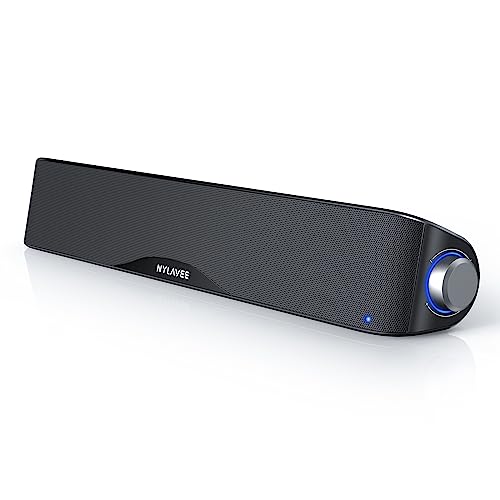
 JBL Professional 1 Series 104-BT Compact Desktop Reference4.88 x 6.02 x 9.72 inches1 poundsCheck on Amazon


What's inside
- What the Bluetooth radio in a monitor actually does
- Profiles and codecs: the part that decides sound quality
- Bluetooth, Wi-Fi casting and USB-C: three different doors
- Smart monitors: a television brain in a desk body
- Panel and resolution basics for desk use
- Sound from the monitor itself
- Pairing behaviour, memory and multipoint reality
- When a separate adapter, or nothing, makes more sense
- Ports, hubs and stands: the unglamorous deciding factors
- Choosing a size and shape for your room
- Setup walkthrough: getting the wireless side right on day one
- Reading a spec sheet for this category
- How the major use cases rank the features
- Costs, value and the feature tax
- Common myths worth retiring
- Accessibility and everyday comfort details
- Environmental and practical ownership notes
- A short decision path
- Multi-monitor desks and Bluetooth boundaries
- Firmware, apps and the software tail
- Questions to ask before any specific model
- Check prices on Amazon
- A note on returns and realistic trials
As an Amazon Associate I earn from qualifying purchases. This post may contain affiliate links at no extra cost to you.
A monitor with Bluetooth sounds simple until you ask what that radio is actually for. Unlike a phone or a laptop, a desktop display is mostly a destination for video, and the wireless link bolted into its housing can serve several unrelated jobs. On one model it carries sound outward to headphones or a small speaker. On another it connects a keyboard and mouse so a single desk setup can serve two computers. On a smart monitor it may do both, while also talking to a remote control, a game controller, or a phone used during setup. Those are very different promises, and the spec sheet rarely separates them clearly.
This guide works through the distinction in plain terms. It explains which Bluetooth profiles matter for sound, why version numbers tell only part of the story, how latency behaves with films compared with music, and where Bluetooth ends and Wi-Fi casting or USB-C begins. It also covers the ordinary monitor questions that still decide whether you enjoy the screen every day: panel type, resolution, text clarity, built-in speaker quality, ports, and stand design. Nothing here rests on handling the products. The discussion draws on published specifications, interface standards, and manufacturer documentation, and it says so openly, because a careful reading of documented behaviour is more useful than invented impressions.
What the Bluetooth radio in a monitor actually does
Start with direction. Bluetooth links are not generic pipes; each one follows a profile that defines what kind of data moves and in which direction. A monitor that advertises Bluetooth might receive audio, send audio, accept input from peripherals, or offer a low-energy channel for setup and control. Some models do several of these. Others do exactly one, and that one may not be the one you wanted. Reading the manual for the profile list is therefore the single most valuable step before buying, far more valuable than noting the version number printed in a comparison table.
Audio output is the most common role. The monitor takes sound that arrived over HDMI, DisplayPort, or USB-C from your computer, then forwards it wirelessly to headphones or a powered speaker. That arrangement tidies a desk: the computer can sit under the desk or docked to one side, while late-night listening happens through headphones paired once with the screen that never moves. It also helps in shared rooms, where routing sound through the display lets two people swap listening devices at the screen rather than digging into operating system menus on a shared machine.
Peripheral pairing is the second role, and it belongs mostly to smart monitors and productivity models with a built-in hub or KVM switch. Here the monitor hosts a keyboard and mouse, then passes their input to whichever computer is currently selected. Switch the video source and the typing follows. For a desk that alternates between a work laptop and a personal machine, that behaviour removes a separate USB switch and a pair of dongles. Check the fine print, though: some displays pair peripherals only in their smart platform mode, not when acting as a plain monitor for an attached computer.
The third role is control and setup. Remote controls for smart monitors often use Bluetooth Low Energy rather than infrared, which removes the need to point the remote at the screen and lets it work from odd angles or from a sofa. Phones may connect briefly during first setup to pass Wi-Fi credentials, and some ecosystems let a phone act as a colour calibration tool or a trackpad. Game controllers pair for cloud gaming apps built into the smart platform. None of these uses needs much bandwidth, which is why low-energy radios appear even on screens that cannot stream audio at all.
Profiles and codecs: the part that decides sound quality
For music and film sound, the profile that matters is A2DP, the Advanced Audio Distribution Profile. It defines stereo audio streaming from a source to a sink, and nearly every audio-capable monitor implements it. Beneath A2DP sits the codec, the compression scheme both ends must share. SBC is the mandatory baseline: every A2DP device supports it, it sounds acceptable at its higher bitpool settings, and it adds noticeable delay. AAC is common where Apple devices are involved and tends to perform well at modest bitrates. aptX and its relatives appear on some monitors and headphones, offering lower delay or, in the HD and Adaptive variants, higher fidelity when both ends support the same variant.
Codec support must match at both ends of the link. A monitor offering aptX paired with headphones that only accept SBC will fall back to SBC, silently. The same logic applies to AAC: a Windows computer sending to a monitor that forwards audio onward creates a chain with two wireless or digital hops, and the weakest codec in that chain shapes the result. When you read a spec sheet, look for the codec list on both the monitor and your headphones, and treat the intersection as the real specification. Marketing that names a codec without naming the profile context tells you little.
Hands-free profile support is rarer and worth checking if you hope to use a headset microphone through the monitor. Many displays that stream music perfectly well have no path for a microphone at all, because the monitor itself has no reason to capture voice. Video calls usually keep their audio path inside the computer, with its own Bluetooth stack handling the headset directly. Expecting the monitor to relay call audio and microphone return is a common misunderstanding, and product documentation is the place to settle it: look for HFP or HSP listed explicitly, and be sceptical when only A2DP appears.
Version numbers, by contrast, matter less than shoppers assume. Bluetooth 5.0, 5.1, 5.2 and 5.3 mostly refine low-energy behaviour, connection robustness, and power use; the classic audio path used by A2DP changed little across those releases. A 5.0 monitor with well-implemented aptX can sound better and respond faster than a 5.3 monitor limited to SBC. Newer versions do bring steadier connections in crowded radio environments and better coexistence with Wi-Fi, which helps in dense offices and apartment buildings. Treat the version as a tiebreaker, not a headline, and give the codec and profile list your first attention.
Latency: why films forgive and games do not
Every Bluetooth audio path adds delay, typically somewhere between roughly one hundred and three hundred milliseconds depending on codec, buffering, and implementation. Films and television hide that delay well because the brain tolerates sound arriving a fraction after lips move, and many players and smart platforms compensate by holding the picture back by a matching amount. Music listening hides it completely, since there is no picture to compare against; a pause between pressing play and hearing the first note rarely bothers anyone.
Interactive work exposes delay immediately. In a game, the gap between a click and its sound effect feels detached, and rhythm games become genuinely harder. Video editing suffers too, because cuts judged by ear drift from the picture. Low-latency codec variants shrink the gap considerably when the whole chain supports them, yet even then a wired connection remains the reference for timing-sensitive work. A sensible desk therefore treats monitor Bluetooth audio as a convenience for media and casual listening, while keeping a cable or a dedicated low-latency dongle for the tasks where timing is the task.
There is also a second delay hiding in the chain when a computer feeds the monitor by cable and the monitor forwards sound wirelessly. The display must decode or re-encode the stream, which adds its own buffering. Some monitors pass audio with minimal processing; others add lip-sync adjustment settings buried in the sound menu. If you plan to use forwarded audio daily, look for a documented lip-sync or audio delay control. Its presence signals that the maker expected this use and engineered for it, rather than adding Bluetooth as a checklist feature.
Bluetooth, Wi-Fi casting and USB-C: three different doors
Shoppers often treat every wireless badge as interchangeable, but Bluetooth, Wi-Fi casting, and USB-C Alt Mode solve unrelated problems. Bluetooth is a short-range, low-bandwidth link designed for audio, input devices, and control data. It cannot carry a desktop picture. No monitor receives its main video feed over Bluetooth, and any listing that seems to promise that is describing something else, usually casting. Keeping that boundary clear prevents the most common disappointment with this category.
Wi-Fi casting, through standards and platforms such as Miracast, AirPlay, or Chromecast built in, does carry video. A laptop or phone sends a compressed picture across your local network to the smart monitor, which decodes it without a cable. That freedom suits presentations, photo sharing, and casual video. It brings costs: compression softens fine text, network congestion adds stutter, and delay makes it poor for games or precise pointer work. Casting quality depends heavily on your router placement and local interference, variables no monitor maker controls. Use casting as a guest feature and a convenience, not as the primary connection for a desk where you read spreadsheets all day.
USB-C with DisplayPort Alt Mode is the wired opposite: one cable carrying a full-quality picture, USB data for the monitor hub, and power delivery that can charge a laptop, commonly at levels documented between 65 and 96 watts on productivity models. Nothing wireless matches its stability. The relevance here is that many Bluetooth monitors are also USB-C hub monitors, and the combination is genuinely useful. The cable handles picture, power, and wired peripherals, while Bluetooth handles the extras: headphones at night, a controller for the smart platform, a remote from the sofa. Judged as a complement to a good wired dock, Bluetooth makes sense. Judged as a replacement for one, it disappoints.
Wi-Fi inside a smart monitor also powers its streaming apps, firmware updates, and voice assistant features, which Bluetooth alone could never support. When a spec sheet lists both radios, assign each its job: Wi-Fi for network services and casting, Bluetooth for nearby personal devices. If a monitor lists Bluetooth but no Wi-Fi, expect a narrower feature set centred on audio and peripherals, with no standalone streaming. That narrower set can still be the right buy for a focused work desk that deliberately avoids another smart television interface.
Smart monitors: a television brain in a desk body
Smart monitors run a full platform, commonly Tizen, webOS, or Google TV, with streaming apps, a home screen, and an app store. They work without any computer attached, which changes how a room functions: a bedroom desk becomes a small entertainment screen after hours, a kitchen workspace plays news during breakfast, and a dorm room needs no separate television. The Bluetooth radio in these models earns its keep most fully, pairing remotes, controllers, soundbars, headphones, keyboards, and sometimes phones within one ecosystem.
The trade-offs deserve equal attention. A smart platform adds boot time, update prompts, advertising surfaces on some home screens, and a privacy surface that a dumb monitor simply lacks. Microphones in remotes, account sign-in requirements, and viewing-data settings all need a few minutes of deliberate configuration. There is also a longevity question: app support for a given platform generation fades over years, while the panel itself may remain excellent. A conventional monitor paired with a separate streaming stick ages more gracefully, because the cheap part can be replaced. Weigh that against the tidiness of one device, one remote, and no extra HDMI port consumed.
For readers weighing panel quality first and smart features second, our guide to best 1440p ips monitors covers the resolution class that suits most desks, while the smart platform discussion here covers the wireless side of the decision.
Smart monitors also blur the line with small televisions. A 32-inch smart monitor and a 32-inch television may share panel technology, yet differ in tuner presence, pixel density expectations, remote design, and how aggressively they process a computer signal. Monitors generally preserve a clean 4:4:4 chroma path for crisp text and offer DisplayPort or USB-C inputs that televisions omit. If your primary work is text, choose the monitor and accept its smaller app polish. If the screen is primarily for streamed shows with occasional laptop use, a small television may serve better for less money, a comparison developed further in the section on screen sizes below.
Standalone use and the office in a box
Some smart and productivity monitors go further, offering document editing apps, cloud PC access, or remote desktop clients built in. The idea is a thin workspace: the screen itself connects to a virtual desktop hosted elsewhere, and the local desk needs no computer at all, only a keyboard and mouse paired over Bluetooth. For hot-desking spaces, call centres, and spare-room setups, that model reduces hardware clutter and centralises data. Performance depends entirely on network quality, and demanding creative work will not tolerate it, but for mail, documents, and browser tools it is a legitimate pattern that explains why peripheral pairing exists on models that otherwise look like ordinary panels.
Panel and resolution basics for desk use
Wireless features sit on top of a display, and the display fundamentals decide long-term satisfaction. Three panel families dominate. IPS panels offer wide viewing angles and consistent colour, which suits shared viewing and colour-aware work. VA panels deliver deeper contrast and darker blacks, attractive for films in dim rooms, though their viewing angles narrow and dark-level response can smear in fast motion on cheaper implementations. TN panels, now rare outside budget esports models, trade colour quality for speed. For a general desk monitor with Bluetooth extras, IPS remains the balanced default, with VA attractive when evening viewing matters more than off-angle accuracy.
Resolution interacts with size. At 24 inches, 1920 by 1080 stays workable, though text edges look soft beside finer panels. At 27 inches, 2560 by 1440 is the widely loved middle ground: enough space for two documents, gentle scaling requirements, and a pixel density around 109 pixels per inch that keeps text clean at typical desk distances. At 32 inches, 3840 by 2160, marketed as 4K, gives a large canvas and very sharp text, especially with operating system scaling set to produce a 1440p-sized workspace with finer rendering. Ultrawide 34-inch panels at 3440 by 1440 stretch the 1440p idea sideways for timeline work and side-by-side research.
Anyone whose budget points to the simpler end of the market will find the trade-offs mapped in our roundup of best 1080p pc monitors, where panel quality at modest resolutions gets the attention it deserves.
Brightness and coating matter in real rooms. Most desk monitors specify somewhere between 250 and 400 nits, adequate for indoor light with curtains drawn against direct sun. A matte anti-glare surface spreads reflections and preserves readability near windows, at a small cost to perceived contrast compared with glossy glass. HDR labels on desktop monitors need care: a panel rated HDR400 without local dimming can accept an HDR signal but cannot show the deep simultaneous contrast the format promises. Treat such labels as signal compatibility rather than a picture transformation, and prioritise a good SDR image, which is what you will look at for most of every working day.
Refresh rate and response claims deserve the same calm reading. A 60 Hz panel serves office work and video perfectly well. Higher rates, 100 Hz and beyond, smooth scrolling and pointer movement in a way many office users unexpectedly appreciate, and they transform game feel. Response time figures are measured under differing methods between brands, so use them loosely. Adaptive sync support, under names such as FreeSync or G-Sync compatibility, prevents tearing in games by matching the panel rate to the frame rate, and costs nothing to have in reserve even for occasional play.
Sound from the monitor itself
Built-in monitor speakers exist on a spectrum from barely adequate to genuinely pleasant. Typical specifications list two channels at two to five watts each, in small enclosures with no room for bass. Such speakers handle notification sounds, voice calls, and spoken video comfortably, which is all many desks require. Music exposes their limits quickly: thin low end, modest volume before distortion, and a boxy character on voices. Models with larger enclosures, sometimes ten watts per channel or a small integrated soundbar arrangement, do noticeably better and can fill a bedroom or study with casual listening.
Bluetooth changes the sound equation by making the monitor a relay rather than the final destination. A screen with weak speakers but solid Bluetooth audio output can hand music to a proper speaker on a shelf, keeping the desk clear and the wiring simple. Conversely, some smart monitors accept Bluetooth audio in the other direction in certain modes, acting as a speaker for a phone. Direction matters again; documentation will state whether the monitor is a source, a sink, or both, and in which modes each direction works.
Readers who decide that a dedicated wireless speaker is the better destination for desk audio can explore the options in our guide to best bluetooth smart speakers and then judge monitors purely as relays and displays.
For voice-focused work, clarity in the midrange matters more than any specification on the box. Speaker wattage figures are poor predictors, since enclosure design and driver placement dominate. A downward-firing pair can sound muffled against a desk surface, while front-firing drivers aimed at the listener usually render speech more directly. If calls dominate your day, a modest dedicated speakerphone or a headset will outperform any built-in arrangement, and the monitor Bluetooth path can still serve that headset for media between calls if the profiles line up.
Pairing behaviour, memory and multipoint reality
Daily convenience depends on small behaviours that spec sheets summarise poorly. How many devices does the monitor remember? Does it reconnect automatically to the last headphones when it wakes, or must you open a menu each morning? Can it hold two connections at once, in the manner of multipoint headphones, or does switching mean unpairing? Product manuals usually describe the pairing list size and the steps for clearing it, and those details predict whether Bluetooth feels invisible or fiddly by the second week of ownership.
Interference behaviour matters in dense environments. Bluetooth shares the 2.4 GHz band with older Wi-Fi networks, wireless mice receivers, and microwave ovens. A well-designed monitor places its antenna away from shielding metal and offers a stable connection across a room. A poorly placed antenna drops audio when a metal laptop lid sits between the screen and your headphones. You cannot learn antenna placement from a listing, but you can favour models whose documentation discusses wireless range honestly, typically quoting around ten metres for Class 2 radios under open conditions, and you can plan your desk so the direct path stays short and unobstructed.
Security deserves a brief mention. Pairing should require an explicit action on the monitor, ideally with an on-screen confirmation, so that a neighbour cannot connect unnoticed. Modern Bluetooth versions support secure connections with encryption for audio and input. Keyboards paired to a monitor deserve the same caution as keyboards paired to a computer, since keystrokes are sensitive data. In shared or office settings, clear the pairing list before passing a monitor to another team, just as you would sign out of accounts on a smart platform.
When a separate adapter, or nothing, makes more sense
Plenty of desks gain nothing from Bluetooth in the screen. If your computer already has a modern Bluetooth stack, your headphones can pair with it directly, gaining multipoint features and codec control that a monitor relay may not offer. A small USB Bluetooth adapter upgrades an older desktop for very little money and moves with you to the next monitor. A dedicated audio dongle with a low-latency codec serves gaming headsets better than any display relay. In each case the monitor returns to being a monitor, chosen purely for its panel, which widens your options considerably.
The integrated radio earns its place in specific patterns. A smart monitor used without a computer needs its own pairing for remotes and controllers. A two-computer desk benefits from peripheral hosting tied to the input switch. A minimal laptop desk benefits when the monitor acts as the single hub for everything, wired and wireless alike. A bedroom or studio screen benefits when headphones pair with the display that hosts the streaming apps, so no other device needs to stay awake. If none of those patterns resembles your room, spend the budget on panel quality, a better stand, or a larger screen instead.
There is also a hybrid worth knowing: many people pair headphones to the computer for work, then to the smart monitor for evening streaming, accepting two pairings for two contexts. Most headphones remember several hosts and switch through their own app or button sequence. That arrangement avoids relay latency during the day and keeps the evening simple. It illustrates the healthy way to view monitor Bluetooth overall: as one tool among several, valuable where it removes friction, easy to bypass where it adds any.
Ports, hubs and stands: the unglamorous deciding factors
Check the port list as carefully as the wireless list. A modern desk monitor should offer at least one HDMI and one DisplayPort, or a USB-C input with Alt Mode, plus a USB hub if it hosts peripherals. KVM functionality requires upstream connections for each computer, sometimes through USB-C on one side and a separate USB-B port on the other. Ethernet passthrough appears on some productivity models and steadies a laptop connection without a separate dock. Audio output through a 3.5 mm jack remains useful for wired speakers and as a fallback when wireless pairing misbehaves at an awkward moment.
Stand ergonomics shape comfort more than most picture settings. Height adjustment is the essential movement, letting the top of the screen sit near eye level; tilt alone leaves short and tall users compromising. Swivel helps shared desks, and pivot to portrait suits long documents and code. Where the bundled stand falls short, a VESA mount, most commonly 100 by 100 millimetres on desktop models, lets an arm take over. Confirm VESA support before assuming an arm will fit, because a few slim designs omit it. Cable routing through the stand, a small detail, keeps the wireless desk aesthetic coherent.
Power and heat are minor but real. Smart platforms draw a little standby power to stay ready for remote wake and quick start; settings usually allow a deeper sleep at the cost of slower waking. If the monitor lives in a bedroom, look for a setting that disables the standby light or dims it at night. Firmware updates arrive over Wi-Fi on smart models and through USB or a utility on plain models; either way, an update path matters because Bluetooth stacks and casting receivers receive fixes over a product life.
Choosing a size and shape for your room
Desk depth decides size more honestly than ambition does. At a shallow desk of sixty centimetres, a 27-inch panel already fills a comfortable field of view, and a 32-inch screen can force head turning for corner content. Deeper desks and wall mounting relax that limit. Ultrawides reward a centred seating position and punish off-axis viewing from a second chair, so a screen shared with a partner for evening viewing may suit a flat 16:9 shape better. Curved panels, common on ultrawides, make little difference at 27 inches and below, though they can even out viewing distance across a wide screen.
The boundary case is the small television used as a monitor, or the large smart monitor used as a television. Hybrid spaces such as studio flats genuinely benefit from one screen doing both jobs, and our comparison of best 10 tv monitors explores that crossover category in depth for readers leaning that way.
Resolution scaling interacts with size in ways worth rehearsing before purchase. A 27-inch 4K panel run at full native workspace makes interface text tiny for many eyes; run with scaling, it offers the sharpest text of any option here, at the price of more graphics demand. A 32-inch 1440p panel spreads fewer pixels over more area, softening text in a way some users never notice and others cannot unsee. Visit the arithmetic: divide the horizontal pixels by the width in inches for a rough density sense, and favour roughly one hundred pixels per inch or more for relaxed reading at arm length.
Setup walkthrough: getting the wireless side right on day one
Begin with the wired foundation. Connect the computer by USB-C or DisplayPort, confirm the native resolution and refresh rate in the operating system, and set scaling before touching anything wireless. Update the monitor firmware if the maker offers a newer release, since early firmware on smart models often refines pairing behaviour. Only then pair devices, one at a time, naming each clearly in the monitor menu where the platform allows it. Pair headphones first and play a familiar song, then a short dialogue clip, listening for delay against lip movement. If the platform offers an audio sync adjustment, set it now while the test clip is fresh in mind.
Pair input devices next if the monitor hosts them, and test the KVM switch with both computers awake. Confirm that switching video also moves keyboard and mouse, and learn the switch shortcut, whether a button under the bezel or a key combination in the on-screen menu. Pair the remote last and check its range from your actual seat, not from beside the desk. Finally, walk through privacy settings on smart models: sign out of any demo accounts, review voice assistant options, set viewing data choices deliberately, and note the factory reset location for the day the screen changes owners.
A short troubleshooting repertoire covers most wireless complaints. Dropped audio usually traces to distance, obstruction, or a competing connection, such as headphones that also grabbed a phone at the same moment. Re-pairing after removing the device from both ends clears stale keys. Stutter confined to one codec points to support mismatch rather than interference. A monitor that forgets pairings after power loss may be losing its settings memory when switched off at the wall; leaving standby enabled for a night tests that theory. Keep the manual section on wireless reset bookmarked, because each brand hides it in a different menu.
Reading a spec sheet for this category
A disciplined pass through any listing takes five minutes. First, find the Bluetooth line and note version, then hunt the manual for profiles: A2DP for audio out, any mention of input hosting, any microphone profile. Second, list codecs named, and compare them against your headphones. Third, identify direction: source, sink, or both, and in which modes. Fourth, confirm the ordinary monitor facts: panel type, native resolution, brightness, colour gamut claims, port list, VESA pattern, and stand adjustments. Fifth, for smart models, name the platform and check that your essential streaming services publish apps for it. A model that survives that pass with no unanswered question is a model you understand, which is rarer and more valuable than a model with the longest feature list.
Colour gamut claims need translation. A figure such as 99 percent sRGB describes coverage of the standard web and office colour space and is a good baseline for general work. Wider DCI-P3 figures suit video work aimed at cinema or modern streaming delivery. Factory calibration reports included with some models suggest care, though without a colorimeter of your own you will rely on the maker diligence. For most buyers, an IPS panel with full sRGB coverage, decent brightness uniformity, and a comfortable matte surface will look right every day, and no wireless feature compensates for a panel that fails those basics.
How the major use cases rank the features
The focused home office
A work desk values reliability over novelty. The picture must stay sharp for eight hours, the stand must fit the body, and connections must survive sleep, wake, docking, and undocking without a ritual. In that setting Bluetooth earns a modest supporting role: headphones for calls and focus music, perhaps a keyboard hosted by the screen. The platform question tilts conservative, because a plain monitor boots instantly and never interrupts a morning with an update banner. If the same desk hosts two laptops, KVM behaviour outranks every other convenience, and documentation about input switching deserves more scrutiny than any audio codec. Choose the panel and the switch first; let wireless support break ties between finalists.
The bedroom and studio screen
A combined living and sleeping space rewards the smart monitor formula. Streaming without a computer, a remote that works from a pillow, headphones paired to the screen for late viewing, and a tidy single-cable laptop connection by day form a coherent whole. Panel priorities shift toward contrast and screen uniformity in dim light, which can favour VA, and toward a size that suits viewing from two or three metres, often 32 inches. Speaker quality matters more here as well, unless a soundbar or shelf speaker already lives in the room. Standby behaviour, indicator lights, and a reliable sleep timer move from footnotes to genuine selection criteria.
The gaming desk
Play reorders priorities again. Refresh rate, adaptive sync, response behaviour, and input lag dominate, while Bluetooth recedes to controller pairing on a smart platform and casual media audio. Competitive players will route sound through a wired headset or a dedicated dongle regardless of what the monitor offers, because timing and microphone clarity decide matches. Casual players exploring cloud gaming apps on the screen itself benefit most from the integrated radio, pairing a controller and headphones with no console or PC involved. That split explains why gaming-branded monitors often include Bluetooth quietly, without centring it: the radio serves the platform around the game more than the game itself.
The creative workstation
Colour work adds its own demands: wide gamut coverage, uniformity, a calibration path, and a matte surface that behaves under controlled lighting. Bluetooth contributes little beyond convenience audio, and some colour-critical users deliberately prefer a display with no smart layer at all, reducing variables and interruptions. Where the radio does help is peripheral tidiness on a multi-machine desk, since colour suites often pair a powerful desktop with a laptop for capture or client review. Even there, a hardware KVM with wired switching can feel more deterministic. The lesson repeats across every use case in this section: name your pattern first, then check whether the radio serves it.
Costs, value and the feature tax
Bluetooth hardware itself is inexpensive; the price differences in this category come from what travels with it. A radio bundled into a smart platform carries the cost of that platform, its licensing, its remote, and its larger software support burden. A radio bundled into a productivity hub carries the cost of the hub electronics and KVM switching. Comparing a Bluetooth model against a plain sibling therefore asks what else the extra money buys, and whether you want those companions. If the answer is a platform you will never open, the honest comparison is against a better panel at the same total.
Long-term value also hides in support. Smart models receive platform updates for a finite window, after which apps may stop renewing even though the display remains fine. Plain monitors ask almost nothing of their maker after sale, beyond occasional firmware fixes. Neither path is wrong, but they suit different ownership temperaments. Buyers who replace screens every few years can enjoy smart features without meeting their end of support. Buyers who keep a good panel for a decade should weigh the dumb-screen-plus-stick architecture, where the replaceable part carries the software risk.
Warranty and dead pixel policies rarely headline a listing, yet they protect the largest part of your spend, the panel. Read the pixel policy for your region, note whether the warranty covers backlight failure, and keep proof of purchase somewhere durable. A wireless fault can often be worked around with a dongle; a panel fault cannot be worked around at all. That asymmetry should steer both your research time and your budget toward the glass.
Common myths worth retiring
One persistent myth claims a higher Bluetooth version guarantees better sound. As covered earlier, codec agreement and implementation govern fidelity and delay, while recent versions mostly refine connection management and low-energy behaviour. A second myth imagines Bluetooth can replace the display cable for a laptop, perhaps because casting demonstrations blur the categories; no Bluetooth profile carries a desktop image, full stop. A third myth treats monitor speakers as television speakers in miniature, expecting room-filling sound from two small drivers in a thin enclosure; physics disagrees, and the relay role of Bluetooth exists partly to solve exactly that limit.
A fourth myth holds that pairing headphones to the screen must sound worse than pairing to the computer. The relay adds a processing step, yet with a shared high-quality codec and a clean implementation the audible difference for casual media can be negligible, while the convenience difference is large. The honest test is your own content: dialogue for sync, a familiar recording for tone, and a game for delay, each tried through both paths during the return window if your retailer offers one. Documentation sets expectations; your room and your ears settle the rest, using gear you already own and content you already know.
Accessibility and everyday comfort details
Several quiet features decide whether a screen welcomes every user in a household. On-screen menus driven by a small joystick are faster than rows of identical buttons, and a remote on smart models can be easier still for users with limited reach. Voice control through a platform assistant may help some readers and concern others; the settings to disable it should be as visible as the settings to enable it. Text size in smart menus, high-contrast menu themes, and screen reader support vary widely between platforms, so households that need them should verify availability in platform documentation rather than assuming parity with phones.
Blue light and flicker behaviour belong in this conversation too. Most modern panels use DC dimming or high-frequency pulse methods that reduce visible flicker at low brightness, and many carry low blue light modes that warm the image for evening reading. Such modes shift colour accuracy, so daytime colour work should return to a neutral preset. A monitor that remembers separate presets per input saves repeated menu trips when a desk alternates between a work laptop and a games machine. Preset memory is another unglamorous line in a manual that predicts daily satisfaction better than a headline specification.
Environmental and practical ownership notes
Energy labels and typical consumption figures help estimate running cost, though for a single desk display the sums stay modest. Smart features add standby draw, and a screen left in quick-start mode for years accumulates more consumption than its panel rating suggests. Packaging and repairability matter at the margins: a standard external power brick is easier to replace than an internal supply, and a VESA-compatible chassis can gain a second life on an arm in another room. When a monitor eventually leaves the desk, a factory reset that wipes pairings, accounts, and network credentials protects the previous owner; locate that menu on day one rather than during a hurried move.
Cleaning and care are simple but worth stating. A matte panel wants a soft microfibre cloth, lightly dampened with water, and no harsh solvents that attack the coating. Dust in speaker grilles and around the joystick responds to a soft brush. Vent slots along the top edge should stay clear, especially where a shelf sits close above the screen. None of this is glamorous, yet a display is among the longest-lived electronics in a home, and small care habits preserve both picture and resale prospects.
A short decision path
Compress the whole guide into a sequence. Decide size and resolution from your desk depth and work type. Choose panel family from your room light and viewing habits. Confirm the wired foundation: USB-C with Alt Mode if a laptop docks there, enough HDMI and DisplayPort sockets for your machines, a hub and KVM if two computers share the desk. Only then interrogate the wireless layer: which profiles, which codecs, which direction, how many remembered devices, and whether a smart platform sits behind it. Reject any model whose manual leaves those answers vague, because vagueness in documentation usually mirrors vagueness in implementation. Finish with the stand, the VESA pattern, the warranty, and the standby behaviour, and you have a purchase grounded in evidence rather than in a badge.
Multi-monitor desks and Bluetooth boundaries
Dual-screen setups introduce a question that single-screen buyers never meet: which display owns the wireless duties? Pairing headphones to both monitors invites confusion, because the headphones cannot know which screen you mean when both wake at once. The tidy pattern assigns audio and peripheral hosting to one designated primary display, leaving the second as a pure picture device. That division also simplifies troubleshooting, since every wireless behaviour traces to one menu and one firmware version. If the second screen is a plain model bought for its panel alone, nothing is lost; matching size and resolution across the pair matters far more for daily comfort than matching wireless badges.
Arm mounting changes cable logic in these setups. A USB-C cable needs slack for movement, and a monitor hub reduces the number of runs down the arm. Bluetooth removes headphone cables from the moving assembly entirely, which is a small but real ergonomic gain when a desk converts between sitting and standing heights. Keyboards hosted by the primary display similarly stay put while laptops come and go. The pattern rewards planning the desk as a system rather than collecting features device by device, and it explains why hub monitors with radios cluster at the productivity end of catalogues.
Firmware, apps and the software tail
Companion software can deepen or sour ownership. Some makers offer a desktop utility that adjusts brightness, colour presets, and input switching from the computer, sparing the bezel joystick. Others provide a phone app for smart models that handles setup, remote duties, and sometimes colour adjustment guided by the phone camera. Each extra app is another account prompt and another update stream, so value depends on whether it replaces a genuine annoyance. A utility that only mirrors the on-screen menu adds little. One that manages two computers through a KVM, or that schedules firmware updates quietly overnight, solves recurring friction.
Read update notes when they are published, because they reveal what a maker maintains. Notes that mention pairing stability, codec fixes, or casting receiver updates signal active care for the wireless layer. A model whose last firmware predates its second birthday by a wide margin may still display a fine picture, yet its smart features will drift away from phone and service changes. For a plain monitor that drift barely matters. For a smart monitor bought as a streaming screen, it defines the useful life of half the product, and pricing should reflect that horizon honestly.
Questions to ask before any specific model
Keep a short checklist beside you while comparing finalists. Does the manual name A2DP, and does it state whether audio flows out of the monitor, into it, or both ways? Which codecs appear, and do your headphones share at least one beyond SBC? How many pairings are remembered, and is there a described reset for the wireless list? If peripherals are hosted, does hosting work in plain monitor mode with an attached computer, or only inside the smart platform? What power does the USB-C port deliver, and will it charge your laptop under load rather than merely slow its discharge? Does the stand adjust for height, and if not, is the VESA pattern standard? Each answer exists in documentation; a seller unable to point to one is telling you something about the product support culture behind the screen.
Notice how few of those questions concern the radio version printed largest in marketing. That inversion is the heart of this category. Wireless in a monitor is a supporting system with specific, checkable behaviours, wrapped around a display that must succeed on older, stricter terms: sharp text, honest colour, comfortable ergonomics, and connections that stay put. Buyers who hold that order steady rarely regret the screen they bring home, and they usually discover that the small wireless conveniences, chosen knowingly, become the details they mention to friends a year later.
Check prices on Amazon
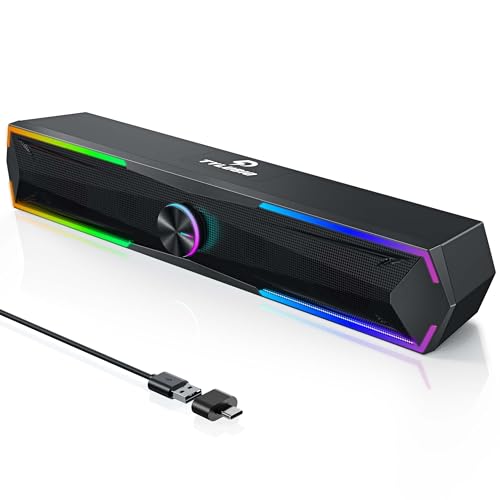
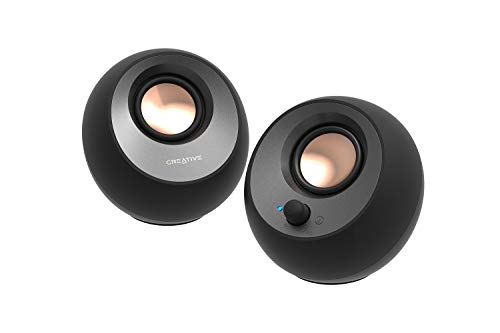
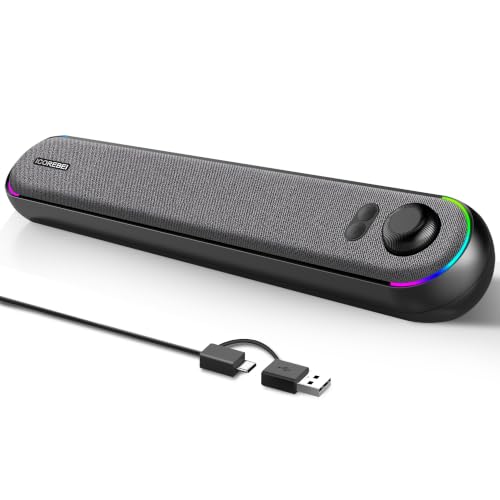
Live listings for the shortlist in this guide are pulled from Amazon below, so prices and availability are always current at the moment you look.


A note on returns and realistic trials
Because pairing behaviour reveals itself only in a real room, the return policy of the retailer functions as part of the product. A generous window lets you learn whether headphones reconnect cleanly after sleep, whether the remote reaches from the sofa, and whether text stays comfortable through a full work week. Use that window deliberately rather than passively: schedule the dialogue sync check, the two-computer switch, and a long reading session in the first days, while packaging and patience are both intact. Keep notes on menu paths you had to hunt for, since a control you cannot find under mild pressure will not improve under deadline pressure.
If a trial exposes a flaw, distinguish a defect from a design limit before reacting. One unit that drops connections at short range in a clear room suggests a fault worth exchanging. A model line that lacks a microphone profile will lack it on the replacement too, and the correct response is a different model or a different audio path. That distinction saves weeks of exchanges and points back to the documentation habit this guide has pressed throughout: profiles, codecs, directions, and modes, verified on paper before the box is opened, then confirmed in the room while change is still easy.
One final practical habit ties the whole topic together: label your pairings and your cables during setup, while intent is fresh. A small note in the monitor menu, a tag on the USB-C lead that belongs to the laptop rather than the desktop, and a written record of which headphones live with which screen will save a household surprising amounts of guesswork over the years that follow. Wireless systems feel magical when they reconnect without thought, and that magic is usually just early organisation, remembered faithfully by devices that were set up with care on the first afternoon.
Disclosure: Links on this page may earn this site a commission, paid by the retailer, when readers buy through them, and that support arrives at no extra cost to the reader. Coverage here is drawn from published specifications and documentation, and recommendations rest on that documented record rather than on handling the products in person.
Choose the screen for the picture you will watch all year, and let its radio be the quiet extra that removes one small friction from every single day.
Related guides
- Best 24 Inch Monitors
- Best 25–35 Inch Monitors With Lowest Display Lag: An Honest Ranking Without Invented Numbers
- Best 1440p 165Hz Monitors: One Native 165Hz Pick, Three 180Hz Upgrades, an Overclock Headline and a 160Hz Ultrawide
- Best Computer Monitors Graphic Designers Can Trust for Print and Screen Work


