What's inside
- Where to buy
- Key Takeaways
- Quick Picks
- How did we choose these wireless access points?
- Access point, mesh node, repeater — what is the real difference?
- Where should an access point actually go?
- Which wireless access points should you install?
- How do the six access-point options compare?
- How do you install a home access point, step by step?
- How many access points does a home actually need?
- How do access points handle a house full of simultaneous devices?
- What cabling do you need, and what if the walls have none?
- How do you manage several access points without losing your mind?
- How do you troubleshoot an access point that underperforms?
- How do access points serve a garden office or outbuilding?
- What is the difference between a home AP setup and real enterprise WiFi?
- How do you keep an AP network secure?
- Can an access point help with a home cinema or gaming room?
- One last check before you order an access point
- What mistakes do people make with access points?
- Final Recommendation
- Frequently Asked Questions
- Related Guides
As an Amazon Associate I earn from qualifying purchases. This post may contain affiliate links at no extra cost to you.
gizmoverdict.com is reader-supported. When you buy through links on our site, we may earn an affiliate commission.
Where to buy
Every home network has a room where the WiFi goes to apologize — the garden office, the converted attic, the far bedroom behind two brick walls. The best wireless access points solve that room properly: not by shouting louder from the router’s corner, but by placing a second, wired-fed radio where the people actually are. An access point takes an Ethernet cable as its input and broadcasts WiFi as its output, extending the same network with full wired speed behind it.
That definition does real work in this guide, because three different products get confused under this keyword. A router routes — it owns the network, assigns addresses and guards the door to the internet. A mesh node extends wirelessly, receiving and rebroadcasting over the air. An access point extends by wire, which is why it outperforms both bodges in the rooms that matter. The linked picks below are routers from our verified pool whose access-point mode is a genuine, documented feature — each labelled as exactly that, a mode rather than a dedicated device — while the prose picks are purpose-built access points from the Omada, UniFi and NETGEAR business lines.
One requirement deserves stating before any pick: an access point needs a cable run, or at least a cable route, to its location. If your far room has Ethernet in the wall, a network switch nearby, or any practical way to run a flat cable along a skirting board, you are the reader this technology was invented for. If no wire can ever reach, mesh is your answer and a different guide is your home.
Key Takeaways
- An access point is defined by its wired feed: Ethernet in, WiFi out, on the same network as your router — not a second network with a second password.
- Wired backhaul is the whole advantage: unlike a repeater, an access point does not halve its own feed by receiving wirelessly.
- The three linked picks are routers running in access-point mode — a real feature, honestly labelled — while the prose picks are dedicated ceiling-and-wall access points.
- Power over Ethernet lets a dedicated AP live on a ceiling with a single cable carrying both data and power; check for a PoE injector or switch in the budget.
- Match the AP’s generation to your devices: a WiFi 6 AP serves a modern household fully, and one AP in the right room beats a flagship router in the wrong one.
- Multiple APs want a plan — spacing, channel separation and reduced transmit power — not just multiple purchases.
Quick Picks
| Pick | Badge | Why it earns its place |
|---|---|---|
| TP-Link EAP670 (Omada) | Prose dedicated ceiling AP | A WiFi 6 ceiling access point from TP-Link’s Omada line, with a 2.5G PoE port and controller management for homes that will grow past one unit. |
| Ubiquiti UniFi U6 Pro | Prose ecosystem favourite | The access point that built a thousand home networks: WiFi 6, PoE, and the UniFi controller ecosystem behind it. |
| NETGEAR WAX220 | Prose small-business AP | A WiFi 6 access point from NETGEAR’s business Essentials line — simple local management, PoE, and no controller religion required. |
| TP-Link Archer AX73 | Linked router with AP mode | A strong WiFi 6 router whose access-point mode turns it into a fast wired-fed extender — and back into a router whenever you need one. |
| TP-Link Archer AX21 | Linked value router with AP mode | The budget route to a wired access point: an AX1800 router whose AP mode covers a far room for less than most dedicated units cost. |
| ASUS RT-AX86U Pro | Linked performance router with AP mode | A high-end WiFi 6 router whose AP mode — or AiMesh node duty — brings flagship radios and a 2.5G port to the far end of a cable run. |
How did we choose these wireless access points?
We chose across the two honest ways to buy an access point in a home. The first is a dedicated unit from a business networking line — Omada, UniFi, NETGEAR’s Essentials — designed to be mounted, powered over Ethernet and managed alongside siblings. The second is a consumer router switched into access-point mode, which thousands of households already own in a cupboard and which costs nothing to try. Both routes appear below, each described as what it is.
For the dedicated units, the filters were mounting and management. A home AP should disappear — ceiling or high wall, a single PoE cable, no power brick hunt — and its software should let a second and third unit join without a networking degree. Omada and UniFi earn their prose places on the strength of ecosystems a home can grow into one room at a time, with controllers that run on a small PC, a NAS or the maker’s cloud.
For the router-mode picks, we required the AP mode to be a first-class, documented feature rather than a forum hack — present in the maker’s own interface, disabling the routing functions cleanly so the main router stays in charge of addresses. TP-Link’s Archer line and ASUS’s AiMesh-era routers both qualify, and they bring a side benefit no dedicated AP matches: if the main router ever dies, the AP-mode unit can be promoted back to full router while a replacement ships.
What we did not credit: range claims measured in open fields, speed classes summed across bands as if one device could use them all, and any product whose ‘access point’ label described a repeater in disguise. The wire is the definition; everything else is commentary.
One methodological confession completes the choosing: this guide weighted the reports of installers and long-term owners above launch reviews, because access points are a category where day-one impressions lie. A unit that dazzles in a weekend test and drops clients in month three is a known species; a unit that is merely present in year four, unmentioned and unmissed, is the actual product being bought. Longevity evidence is slower to gather and harder to fake, and it moved several of these picks up the list.
Access point, mesh node, repeater — what is the real difference?
Start with the feed. A repeater listens to your existing WiFi and rebroadcasts it, spending half its conversation receiving and half transmitting on the same air — convenient, cable-free, and structurally slow. A mesh node is a smarter repeater: part of a coordinated system, often with a dedicated radio for the node-to-node link, roaming handled gracefully. An access point skips the wireless feed entirely: a cable carries the data at full wired speed, and every scrap of its radio serves your devices.
That is why, room for room, a wired access point wins. The garden office fed by an AP gets the same speed as a laptop plugged in beside the router; the same office fed by a repeater gets a fraction, shared with the hop itself. Mesh sits honourably between — the right answer where cables cannot go, and the wrong one where they already do. Homes with Ethernet in the walls who buy mesh are paying to ignore their best asset.
Roaming deserves a sentence of its own. A single network name across router and APs lets devices move, but the device — not the network — decides when to let go of a weakening signal, and some cling stubbornly. Coordinated systems (mesh, or APs under one controller) nudge devices between radios with standards-based encouragement. A lone AP in mixed company still works well; just know that the sticky-phone phenomenon is a client habit, not an AP defect.
Where should an access point actually go?
The AP belongs where the demand is, not where the cable happens to end — though reconciling those two addresses is the practical art. Ceiling centre of the problem room is the textbook answer for dedicated units, whose antennas are designed to spread signal downward and outward from above. High on a wall is the honest second. For a router-shaped AP-mode unit, a shelf at head height in the open beats a cupboard, a floor or the metal shadow behind a television, as it does for every radio in this guide series.
Distance from the main router matters in the opposite way newcomers expect: too close is its own problem. Two strong radios overlapping heavily make devices cling and channels collide; the craft is coverage like overlapping torch beams, bright everywhere with gentle seams. If your router already serves the near half of the house well, the AP wants the far half’s heart, with transmit power trimmed so each radio’s territory is clear.
And the cable run itself: measure before buying, use proper Cat6 if you are installing, and remember PoE means the ceiling position needs no electrician — one cable, data and power together, back to a switch or injector near the router. It is the rare home project where the tidy solution and the high-performance solution are the same solution.
Which wireless access points should you install?
Three dedicated access points are covered in prose, and three linked routers follow whose access-point mode makes them legitimate — and reversible — ways to cover a far room.
TP-Link EAP670 (Omada) — Prose dedicated ceiling AP
The EAP670 is what an access point looks like when a business line designs it without apology: a white ceiling disc, a single Ethernet port that carries 2.5-gigabit data and Power over Ethernet together, and radios tuned to serve a room full of devices rather than win a specification contest. Mounted over a living room, an office floor or a classroom-sized kitchen, it simply becomes the WiFi for that space — which is the highest compliment this category offers.
Omada is the other half of the purchase. TP-Link’s controller software — run on a small hardware controller, a PC or the cloud — lets one EAP become three without the setup becoming a folk ritual: adopt the new unit, and the network’s names, passwords and roaming behaviour follow. For a home adding coverage room by room across a year of renovations, that adopt-and-extend rhythm is exactly right, and the per-unit price keeps the rhythm affordable.
The honest costs are installation-shaped. Somebody has to run the cable and mount the disc; a PoE switch or injector joins the budget if your router cannot supply power; and the Omada interface, while far friendlier than enterprise gear of old, still assumes a reader who finds the phrase ‘VLAN’ interesting rather than alarming. Renters and the cable-averse should look at the router-mode picks below instead.
The EAP670’s second career deserves a mention for growing households: because Omada networks are defined by the controller rather than by any single unit, an EAP670 that starts life covering a living room can be joined later by outdoor units for a garden, smaller discs for bedrooms, or a wall-plate model for a study — all adopted into the same network in minutes. The first unit is therefore less a purchase than a founding member, and readers who suspect their coverage project has sequels should weigh that heavily.
- Form: ceiling/wall-mount dedicated access point
- Feed: Ethernet with Power over Ethernet
- Port: 2.5G Ethernet uplink
- WiFi: WiFi 6 dual band
- Management: Omada controller (hardware, software or cloud)
Strengths
- Purpose-built for the job, invisibly mounted
- 2.5G PoE uplink — one cable does everything
- Omada adoption makes growing painless
Trade-offs
- Requires a cable run and mounting work
- PoE switch or injector may add cost
- Controller concept is a small learning curve
Best for: homeowners wiring coverage room by room, permanently.
Not suited for: renters who cannot run cable or mount hardware.
Ubiquiti UniFi U6 Pro — Prose ecosystem favourite
The U6 Pro is the default recommendation of the enthusiast internet for a reason that survives scrutiny: it is a well-made WiFi 6 access point — ceiling-friendly, PoE-fed, strong in crowded device environments — attached to the most mature management ecosystem a home can buy into. UniFi’s controller shows every client, every radio and every problem in one dashboard, and for the household that enjoys knowing its network, that visibility is addictive.
In a home context its talents are the practical ones: it holds up when a house party’s worth of phones arrives, it plays gracefully in multiples under one controller, and its ceiling-disc form is the visual standard every rival imitates. Paired with a UniFi gateway or run behind an ordinary router with the controller on a NAS or mini-PC, it scales from one room to a small estate without changing religion.
The caveats are ecosystem-shaped. UniFi rewards commitment — the dashboard’s full glory assumes UniFi switches and gateways around the AP — and Ubiquiti’s stock and product-line churn have frustrated buyers before. A single U6 Pro behind a random router still works well; it simply leaves some of what you paid for on the table. Buy it as the first brick of a UniFi wall, or knowingly as a very good standalone disc.
There is a rite of passage among U6 Pro owners that the guide reports without mockery: the first evening spent watching the controller’s client map for no reason, learning which device is the television by its traffic’s shape and discovering the one gadget that has been clinging to a distant radio for months. That visibility changes how a household understands its own network — problems acquire names and addresses — and for the temperament that enjoys it, the dashboard alone justifies the ecosystem’s price of admission.
- Form: ceiling/wall-mount dedicated access point
- Uplink: one Ethernet cable carrying data and PoE power
- WiFi: WiFi 6 dual band, strong multi-client handling
- Management: UniFi controller software
- Ecosystem: pairs with UniFi gateways and switches
Strengths
- Superb controller visibility across the network
- Proven in multiples under one dashboard
- Excellent behaviour with many simultaneous clients
Trade-offs
- Full value assumes UniFi ecosystem around it
- Controller needs somewhere to run
- Availability can fluctuate
Best for: enthusiasts building a managed multi-AP home network.
Not suited for: anyone wanting one box, one app, no ecosystem.
NETGEAR WAX220 — Prose small-business AP
The WAX220 is the dedicated AP for readers who liked the EAP670’s shape but not its ecosystem homework. NETGEAR’s Essentials line aims at small businesses and serious homes: WiFi 6 radios, PoE power, wall or ceiling mounting, and management that can stay resolutely local — configure the unit through its own interface, in standalone fashion, without adopting a controller or creating a cloud account as the price of admission.
That standalone temperament suits the single-AP household precisely. The commonest home installation is one far room — the office over the garage, the annex, the studio — and for exactly one unit, a controller is overhead without benefit. The WAX220 covers that room, takes its power down the same cable that feeds it, and asks nothing further. NETGEAR’s business support channels, rather than a consumer app’s chatbot, stand behind it.
Growth is where it concedes ground: a house that becomes a four-AP project will eventually envy Omada’s and UniFi’s central dashboards, though NETGEAR offers its own Insight management for those who want it, with subscription flavours to evaluate. As a one-or-two-unit answer with business manners and no ecosystem vows, it is the most straightforward dedicated pick in this guide.
The WAX220 also suits one specific reader the other dedicated picks serve awkwardly: the home worker whose employer reimburses business-grade equipment but whose house cannot host a networking hobby. It installs like an appliance, documents like a business product for the expense claim, and behaves for years without asking its owner to learn what a controller is. In a guide full of systems and ecosystems, there is real merit in a box whose entire personality is that it has none.
- Form: wall/ceiling dedicated access point
- Connection: wired Ethernet, powered over the same cable (PoE)
- WiFi: WiFi 6 dual band
- Management: standalone local interface; optional cloud
- Audience: single-AP homes and small businesses
Strengths
- No controller required for a simple install
- Business-grade build and support
- PoE keeps ceiling placement to one cable
Trade-offs
- Large multi-AP homes will want central management
- Optional cloud features may involve subscriptions
- Still needs that cable run, like every true AP
Best for: one or two problem rooms, solved permanently and simply.
Not suited for: a whole estate planned as a managed fleet.

TP-Link Archer AX73 — Linked router with AP mode
Label first, as this guide insists: the Archer AX73 is a router, sold as a router, and its place here rests on a documented feature — TP-Link’s access-point mode, which retires its routing duties and lets it serve purely as a wired-fed WiFi broadcaster under your main router’s command. Households do this constantly and successfully, and starting from a full router buys an insurance policy no dedicated AP offers: if the main router fails, the AX73 can be switched back and run the whole network by dinner.
As an AP it is generously equipped. Its AX5400-class WiFi 6 radios — an aggregate figure across bands, per this guide’s standing rule — are stronger than many dedicated units at similar money, its antennas suit shelf placement in the room it serves, and gigabit Ethernet ports remain available for a desk or television beside it. A spare-room office fed by an AX73 in AP mode is, in raw capability, better served than most homes’ main networks.
The compromises are form and focus. It is a desktop box with external antennas, not a ceiling disc; it wants a shelf and a power socket rather than PoE invisibility; and its interface carries a router’s full wardrobe of settings where a dedicated AP wears a uniform. None of that matters in a study or a spare room. For the reader with a cable run and a preference for flexible hardware, it is the most capable linked route to a covered far room.
A practical footnote for AX73 owners using AP mode: label the unit, physically, with a strip of tape reading ‘AP — do not factory reset’ and its fixed address. The commonest way these installations break is a well-meaning reset during some unrelated troubleshooting, which silently promotes the unit back to router mode and gives the house two competing networks. Ten seconds with a tape strip prevents the only failure this reliable arrangement commonly suffers, and the guide offers the tip with the confidence of long observation.
- Form: desktop router used in access-point mode
- Mode: documented AP mode; routing handed to main router
- WiFi: WiFi 6 dual band, AX5400 class aggregate
- Ports: gigabit Ethernet for uplink and local devices
- Bonus: can resume full router duty if needed
Strengths
- Stronger radios than many dedicated APs
- Reversible — a spare router is built in
- Local Ethernet ports serve the room’s desk too
Trade-offs
- Desktop form, not a discreet ceiling mount
- Needs a mains socket, not PoE
- Router interface is more than an AP strictly needs
Best for: a wired spare room or office wanting maximum flexibility.
Not suited for: a ceiling installation meant to disappear.

TP-Link Archer AX21 — Linked value router with AP mode
The Archer AX21 makes the economic case for AP mode better than any pick here. Dedicated access points carry business-line pricing; the AX21 is a mass-market WiFi 6 router, frequently inexpensive, whose access-point mode does the same essential job — Ethernet in, same-network WiFi out — for a bedroom, a small office or a granny annex. For the household testing whether a wired AP solves its problem, it is the cheapest honest experiment available.
Its AX1800 class is modest and sufficient: a far room’s real demand is usually a laptop, a television and a phone, not a benchmark. The setup follows TP-Link’s familiar pattern — switch the mode, cable it to the main network, set the same network name — and the unit then serves quietly, with its remaining Ethernet ports free for the room’s wired citizens. Like its bigger sibling, it can be promoted back to router duty in an emergency, a trick worth real money the first time it is needed.
Set expectations by its station: it will not match the EAP670’s multi-client polish or vanish onto a ceiling, and a house planning a fleet should start with the fleet’s ecosystem instead. But as one room, one cable, one modest box — the most common access-point story in the world — the AX21 is the value answer, and the linked pick most readers of this guide should price first.
The AX21’s lightness cuts both ways in an interesting direction: it is the one pick here a renter can install with adhesive hooks and remove without evidence, feeding it from a cable run along a skirting board that leaves with them. For the tenant whose far room fails and whose deposit matters, that reversibility is a feature no ceiling disc can match — the whole installation, cable included, can be in a box in the hallway in twenty minutes on moving day.
- Form: desktop router used in access-point mode
- Mode: documented AP mode in TP-Link interface
- WiFi: WiFi 6 dual band, AX1800 class aggregate
- Ports: gigabit Ethernet uplink plus local ports
- Positioning: budget route to wired coverage
Strengths
- Cheapest honest way to test a wired AP
- Simple setup with familiar controls
- Doubles as an emergency spare router
Trade-offs
- Modest capacity beside dedicated units
- Desktop form with mains power only
- Not the start of a managed AP fleet
Best for: one far bedroom, office or annex on a budget.
Not suited for: a multi-room managed installation.
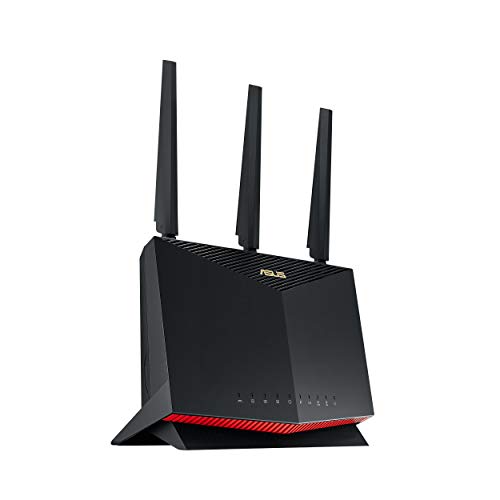
ASUS RT-AX86U Pro — Linked performance router with AP mode
The RT-AX86U Pro is the connoisseur’s version of the AP-mode idea. ASUS supports access-point operation across its range, and this model’s radios are flagship-class WiFi 6 with a 2.5G port that can serve as its wired feed — meaning the far room it covers can be fed faster than gigabit where the house’s cabling and switch allow. Alternatively, in an ASUS household it can join as an AiMesh node with a wired backhaul, which is an access point in everything but spelling, with roaming coordination included.
Why deploy such a capable box at the network’s edge? Because edges are where demand lives: the gaming desk, the studio, the home cinema. An AX86U Pro feeding a wired backhaul in the room where the household’s heaviest wireless work happens is not extravagance; it is putting the best radio where the traffic is, while a lesser unit guards the hallway. Its gaming and VPN firmware talents mostly sleep in AP duty, but its traffic handling and range do not.
The price is the argument against, and it is a fair one: this costs several times the AX21 while covering the same room in the same mode. The justification is longevity and ceiling — a unit that can anchor a network today, extend one tomorrow, and never be the weak radio in either role. Enthusiasts cycling ASUS hardware through their homes will find it the natural linked pick; everyone else should admire it and buy by need.
Households running the AX86U Pro as an AiMesh node with wired backhaul report one benefit that deserves naming precisely: the roaming conversation between an ASUS main router and this unit is noticeably more decisive than mixed-brand arrangements, with devices handed over at thresholds a human would choose. Standards-based roaming helps everywhere, but same-ecosystem tuning helps measurably more — a small, real dividend on the premium, and the sort of detail that only appears after a month of living with the handoffs.
- Form: desktop router, AP mode or AiMesh node
- Feed: Ethernet, with 2.5G port available
- WiFi: WiFi 6 dual band, AX5700 class aggregate
- System: AiMesh compatible with wired backhaul
- Software: full ASUS firmware feature set
Strengths
- Flagship radios at the room that needs them
- 2.5G feed suits fast wired infrastructure
- AiMesh route adds coordinated roaming
Trade-offs
- Costs multiples of the value AP-mode pick
- Gaming features largely idle in AP duty
- Large desktop form factor
Best for: ASUS households extending a high-end network by wire.
Not suited for: a single modest room on a careful budget.
How do the six access-point options compare?
The table’s real divide is philosophy: dedicated discs that disappear and are managed as a fleet, versus routers in AP mode that sit on shelves and stay reversible. Both philosophies deliver the same wired-fed WiFi; choose by the room and by what else the hardware might owe you later.
| Pick | Role in this guide | Watch out for |
|---|---|---|
| TP-Link EAP670 (Omada) | Dedicated ceiling AP (prose) | Installation effort; PoE budget |
| Ubiquiti UniFi U6 Pro | Dedicated ecosystem AP (prose) | Controller and ecosystem commitment |
| NETGEAR WAX220 | Dedicated standalone AP (prose) | Less central management at scale |
| TP-Link Archer AX73 | Router in AP mode (linked) | Shelf form; mains powered |
| TP-Link Archer AX21 | Value router in AP mode (linked) | Modest class; shelf placement |
| ASUS RT-AX86U Pro | Performance router in AP mode (linked) | Premium price for edge duty |
How do you install a home access point, step by step?
Begin with the cable, because the cable is the project. Confirm the run works before mounting anything: plug a laptop into the far end and check it negotiates a full gigabit connection. If you are installing fresh cable, Cat6 is the sensible default, and if the AP is PoE, decide where its power comes from — a PoE switch beside the router is the clean answer, a single injector the economical one.
Configure the AP before it goes on the ceiling. For a dedicated unit, adopt it into its controller or set it up standalone at a desk; for a router, switch it to AP mode first, because the mode change reboots it and rewrites its address. Give it the same network name and password as the main network, a fixed address you can find later, and — if the option exists — slightly reduced transmit power when it sits close to the router’s territory.
Mount, connect, then walk-test with a phone: stand in the served room and confirm the device has actually joined the new radio (the AP’s client list in its interface settles arguments), run the household’s real tasks, and only then tidy the cabling. Live with it a week before adding a second unit; most homes discover one well-placed AP was the whole prescription, and the second unit’s budget retires undefeated.
How many access points does a home actually need?
Fewer than marketing suggests, placed better than instinct suggests. The arithmetic that works: one radio source — router or AP — per floor’s living core in ordinary construction, with an extra for any room separated by masonry, foil insulation or a long corridor from its nearest source. A typical three-bedroom house usually lands on router plus one AP; the sprawling or stone-built home lands on router plus two or three, ideally under one controller so they behave as a system.
More is not better past that point. Overlapping APs on crowded channels degrade each other, and devices in a forest of strong signals roam worse, not better. The discipline is coverage with seams, not saturation: if every room shows a strong signal from its intended radio and a weak one from the others, the design is right. Add units to fix measured dead rooms, never to win a count.
How do access points handle a house full of simultaneous devices?
The scenario that separates a real AP deployment from a hopeful one is the gathering: twenty phones in the living room, a video doorbell reporting, laptops in three rooms and a television streaming — all at once. Radios do not serve devices one at a time in neat turns; they share airtime by negotiation, and a single distant router spends much of that airtime shouting slowly at faraway clients, because distant devices must be spoken to at slower, more robust rates that consume the channel for everyone. This is the hidden tax a far room imposes on the whole house, and it is why adding an AP improves the network even in rooms the AP does not serve.
A wired AP in the busy room changes the arithmetic locally and globally. Locally, nearby devices talk fast and briefly, freeing the AP’s air for the next request. Globally, the main router stops spending its evening on slow conversations with the far end of the house, and the rooms near it breathe easier too. Owners consistently report that the whole network felt faster after one AP, in places the AP never touched — this is the mechanism, and it is the strongest argument for the wired route over any wireless bandage.
Dedicated APs add a further layer for the genuinely dense household: modern WiFi 6 units handle many simultaneous clients with scheduling refinements designed exactly for crowds, and a controller-managed fleet can balance clients between radios so no single AP drowns while its neighbour idles. A home rarely needs that sophistication; a home business, a rental property or a household of teenagers with friends is precisely where it stops being sophistication and starts being the requirement.
What cabling do you need, and what if the walls have none?
The honest inventory first. Ideal: Ethernet already in the walls, terminating near where the AP belongs — fit the AP and stop reading. Common: no wall cabling, but a practical route exists — along skirting boards, through a loft or cellar, behind furniture — where a flat Cat6 cable can travel invisibly enough for domestic peace. Worth knowing: cable length is rarely the problem in a house; even modest Cat5e runs carry gigabit happily across any distance a home contains, and Cat6 removes all doubt for the price of pennies per metre.
The middle technologies deserve honest treatment for the homes where a direct run truly cannot happen. Powerline adapters send networking over the mains wiring: performance varies enormously with the age and layout of the circuits, from genuinely useful to barely better than the WiFi you were escaping, and they should be bought from somewhere with a painless return. MoCA adapters, which use coaxial television cabling, are the stronger alternative where coax exists in the right rooms — near-wired speeds in many homes, and an excellent AP feed. Both beat surrendering; neither beats a real Ethernet run where one is possible.
And if none of it is possible — the rented flat with no coax, no routes and a landlord allergic to cable clips — then this guide releases you with its blessing: buy the mesh system from the neighbouring guide, place its nodes by the halfway rule, and know that you chose correctly for your architecture. The AP gospel is about using a wire where a wire can exist, not about shaming the homes where it cannot.
How do you manage several access points without losing your mind?
One AP is a device; three are a system, and systems want coordination. The practical questions multiply quietly: are the channels overlapping, is one radio shouting over another, did the firmware update reach all of them, and which unit is the garden studio’s clients actually clinging to? This is the problem the controller ecosystems in this guide — Omada, UniFi, and their peers — exist to answer, with a single dashboard where every AP reports its clients, its channel and its health, and where a setting changed once propagates everywhere.
The home-scale version of that discipline can be stated as habits rather than products. Name each AP by its room, so client lists read like a floor plan. Fix each unit’s address so you can always find it. Stagger channels deliberately on the 2.4GHz band — only three truly separate channels exist there — and let the 5GHz radios choose with more freedom. Trim transmit power so each AP’s territory ends where its neighbour’s begins; the instinct to set everything to maximum is the single most common self-inflicted wound in multi-AP homes.
Finally, update firmware as a fleet and keep a note — a literal note, in a drawer — of the network’s names, passwords, controller login and each AP’s location and address. The person who will thank you for that note is you, in eighteen months, at ten in the evening, when one room goes quiet. Managed this way, a multi-AP home network crosses the line from project to infrastructure: present, boring and beneath notice, which is where all great home technology ends up.
How do you troubleshoot an access point that underperforms?
Work the chain in order, from the wall outward, and change one thing at a time. First, the feed: plug a laptop into the AP’s cable and confirm the wired speed is what the house’s switch promises — a surprising share of ‘bad APs’ are a damaged cable or a port negotiating at a tenth of its rate. Second, the client list: confirm your test device is actually associated with the new AP and not clinging to the main router through two walls, which the AP’s own dashboard settles in seconds. Third, the channel picture: a free phone analyser app will show whether your AP and a neighbour’s are sharing a 2.4GHz channel at full strength, a fix measured in one settings change.
Only after the chain is cleared should the AP itself be suspected, and even then the likeliest culprits are placement and power rather than defect — a unit behind a chimney breast, or two radios set to maximum and deafening each other across a hallway. Reduce, reposition, retest. The methodical order matters because each step is cheap and the order is diagnostic: by the time you reach the end, you will know which link in the chain was lying, and it is almost never the one the product’s return label blames.
How do access points serve a garden office or outbuilding?
The garden office is the access point’s finest hour, and its rules are the home rules with the stakes raised. The feed matters most: a buried or overhead Ethernet run to the building is the gold standard, installed once and forgotten for a decade, and it turns the office’s WiFi into a full citizen of the house network — same name, same printer, same NAS — rather than a wireless colony hoping the house’s signal crosses the lawn. Where a cable run is genuinely impossible, a point-to-point wireless bridge is the professional answer, and a mesh node at the office window is the domestic one; both beat a repeater balanced on hope.
Inside the office, the AP placement follows the desk, not the door: ceiling centre if the building is a single room, or on the wall the desk faces, high and clear of the metal shelving and the foil-backed insulation that garden buildings are so often lined with — a material that makes each such office a small Faraday cage with a view. Test the video call from the actual chair before declaring victory, because the chair is the only seat whose opinion counts. Done properly, the garden office stops being the house’s connectivity apology and becomes, as more than one owner has reported, the best-connected room they own.
What is the difference between a home AP setup and real enterprise WiFi?
Less than the enterprise’s pricing suggests, and more than the home’s optimism assumes. The hardware DNA is shared — the dedicated picks in this guide are literally business-line products — and the core physics are identical. What enterprise deployments add is design process: a site survey before purchase, channel plans drawn on floor plans, capacity calculated per seat, and management that treats fifty access points as one instrument. A home that borrows the thinking at its own scale — survey by walking, plan channels on the 2.4GHz band, place by the failure map — captures most of the benefit without the invoice.
Where the home should not imitate the enterprise is in appetite. Features like per-user authentication servers, elaborate VLAN segmentation and seamless roaming tuned for voice handsets crossing a campus solve problems a household does not have, and chasing them converts a weekend project into a vocation. The sweet spot this guide has aimed at is enterprise hardware with domestic ambitions: business radios, business reliability, and a network whose entire management burden is an app glanced at monthly. That is not a compromise version of the real thing. For a house, it is the real thing.
How do you keep an AP network secure?
An access point extends your network’s reach, and everything it reaches should be deliberate. The foundations are the usual ones, applied with the knowledge that each AP is another door into the house: current firmware on every unit — a controller makes this a single glance rather than a ladder tour — a strong, unique password on the management interface, and the main network protected with WPA3 where devices allow, or the WPA2/WPA3 transition mode where they do not. An AP left on a default admin password is a door with the key in it, however strong the WiFi password beside it.
Segmentation is the second layer, and home AP systems make it easier than their reputations suggest. A guest network for visitors is standard everywhere; the more valuable trick is a separate network name for the smart-home fleet — the plugs, bulbs, cameras and appliances whose makers’ update habits you cannot audit — keeping them off the network your laptops and banking live on. Dedicated AP ecosystems handle such separation gracefully, and even a router in AP mode usually passes the main router’s guest arrangement through. Ten minutes of this organisation, done once, is worth more than any single security feature printed on a box.
Can an access point help with a home cinema or gaming room?
The media room is where households feel network quality as picture quality, and it rewards the AP treatment in a specific way. A wired AP in or near the room gives the streaming box and the console’s wireless life a short, clean hop — but the deeper move is to notice that the AP’s arrival brings Ethernet with it. The television, the streamer and the console can usually be wired from the AP’s switch or a small switch beside it, leaving the room’s WiFi to the phones and remotes it serves effortlessly. Wired where it sits, wireless where it moves: the media room is that rule’s showroom.
Gamers should take the same hint one step further. No access point, however good, gives a competitive player the latency of a cable, and the AP’s true gift to the gaming desk is the port it brings within reach. Run the desk’s machine wired from the AP’s feed, and the room gains both — a cable for the machine that cares about milliseconds, and strong local WiFi for everything else in it.
One last check before you order an access point
Before ordering, walk the intended installation one final time with fresh eyes. Test the cable run’s far end with a laptop and confirm a full-speed wired connection, because that number is the ceiling everything else inherits. Confirm the power story — a PoE switch, an injector in the box, or a socket beside a shelf for a router-mode unit — and confirm the mounting story, whether that is a ceiling fixing, a high shelf or a renter’s adhesive hook. Finally, confirm the mode: a dedicated unit’s controller or standalone setup understood, a router’s AP mode located in its maker’s documentation. An access point bought after that walk is an installation; one bought before it is a hope with a delivery date.
What mistakes do people make with access points?
The category’s failures are almost never the AP itself; they are definitions confused, cables untested and radios piled where one would do.
Buying a repeater and calling it an access point. If no cable feeds it, it is not an AP, and it will deliver repeater performance under an AP’s name. The wired feed is not a detail; it is the entire technology.
Creating a second network name for the AP. A differently named AP strands devices and doubles password chores. Same SSID, same password, same network — the AP extends the household’s WiFi; it does not found a rival.
Mounting before configuring and testing. Ceiling-first installs turn every setting change into a ladder trip. Configure at a desk, walk-test on a temporary perch, and mount only when the room is proven covered.
Forgetting PoE in the budget. A ceiling AP with no power plan is wall art. Confirm whether the unit ships with an injector or expects a PoE switch, and cost the answer before the cable run begins.
Stacking APs until the air is crowded. Three radios shouting over one another serve a home worse than two placed with restraint. Measure the dead room, fix the dead room, stop.
Final Recommendation
For a permanent, growing installation, start with a dedicated unit — the EAP670 for Omada value, the U6 Pro for the UniFi ecosystem, the WAX220 for controller-free simplicity. For a room that needs covering now, the linked routers in AP mode are legitimate and reversible: the AX21 as the budget experiment, the AX73 as the capable all-rounder, the RT-AX86U Pro where an ASUS household wants flagship radios at the edge.
Whichever route you choose, let the cable decide the ceiling of your expectations and the room decide the placement. A wired access point in the right place is the least glamorous upgrade in home networking — and the one whose absence, once you have lived with it, becomes impossible to imagine tolerating again.
Frequently Asked Questions
Can I use my old router as an access point?
Very often, yes — if its firmware offers an access-point mode, as the linked TP-Link and ASUS models do, the conversion takes minutes: enable AP mode, cable it to your main network, and match the network name and password. Older routers without a dedicated mode can sometimes be configured manually by disabling DHCP, but a documented AP mode is the clean path.
Does an access point need the same network name?
For the seamless experience, yes — the same SSID and password make it one network your devices roam across. A different name also works technically, but devices will cling to the known network and you will manage two sets of credentials forever. Same name is the arrangement this guide recommends without reservation.
What is PoE and do I need it?
Power over Ethernet sends electricity down the same cable that carries data, letting a ceiling AP run with a single cable and no nearby socket. Dedicated APs commonly expect it. You supply it either from a PoE switch or a small injector near the router — check whether your chosen AP includes an injector before assuming.
Is an access point better than mesh?
Where a cable can reach, yes — the wired feed gives the AP full speed to share, while a mesh node spends wireless capacity on its own backhaul. Where no cable can go, mesh is the right tool and a good one. The technologies are answers to different houses, not rivals for the same one.
How is an access point different from a range extender?
The feed. An extender receives your WiFi wirelessly and rebroadcasts it, halving its own throughput in the process and adding latency. An access point receives data by cable at full wired speed and spends its entire radio serving devices. In the room being served, the difference is not subtle.
Why are routers listed in an access-point guide?
Because their access-point mode is a real, manufacturer-supported way to build exactly this — and our verified pool links routers rather than dedicated APs this batch. Each linked pick is labelled as a router in AP mode, while the dedicated ceiling units are covered in prose, so you can choose either route with the distinction in plain sight.
Related Guides
An access point is one answer to the far-room problem; the neighbouring guides cover the others and the routers that anchor them all. best mesh WiFi routers for whole-home coverage best WiFi 6E routers and the 6GHz band best modem router combos for cable homes



[…] is settled, the house side has its own decisions; these guides take it from the router outward. best WiFi 6E routers and the 6GHz band best mesh WiFi routers for whole-home coverage best wireless access points for larger […]