Our Top Picks
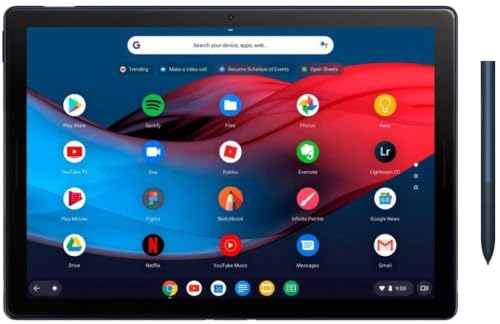 FexelPc Laptop Google Pixel Slate 12.3" Touchscreen LCD12.3 inches16 x 10 x 2 inches4 poundsCheck on Amazon

What's inside
- How a Google Fi data-only SIM actually works
- What the plan structure means for cost, without a price tag
- The network underneath Fi, and why bands decide everything
- Physical SIM, eSIM, and the tablet gap between them
- Cellular iPads on Fi: the most predictable route
- Samsung Galaxy Tab and the Android cellular landscape
- What works, what does not, and what works through apps
- Activation, step by step in general terms
- Size, screen, and choosing the tablet itself
- International use: where Fi data-only service shines
- Tethering, hotspots, and sharing the tablet connection
- Troubleshooting: APN settings, LTE fallback, and the usual suspects
- Check prices on Amazon
- Who this setup suits, and who should buy a carrier tablet plan instead
As an Amazon Associate I earn from qualifying purchases. This post may contain affiliate links at no extra cost to you.
This guide is reader-supported, which means purchases made through affiliate links in this article may earn a commission that helps fund the research and writing behind it, at no extra cost to you. Prices, plan terms, and device compatibility change over time, so the explanations here focus on how the system works rather than on a snapshot of any single offer, and you should confirm current terms with the carrier and the tablet maker before you buy hardware or change a plan.
A tablet on Google Fi sounds simple until you ask what kind of connection the tablet actually gets. Fi is best known as a phone service, with a primary line that carries a number, voice calling, and messaging. A tablet does not join that arrangement as a second phone. Instead, on eligible plans, the account holder can order a data-only SIM that shares the data allowance of the main line. The tablet connects to mobile data, browses, streams, syncs, and uses apps, but it does not receive its own Fi phone number and it does not place ordinary cellular calls or send carrier text messages in the way a phone on the primary line does.
That distinction shapes every buying decision that follows. If you want a larger screen for maps in a car, a second display for travel, a connected slate for field notes, or a couch tablet that keeps working when household Wi-Fi drops, a data-only SIM can be an elegant answer because it draws from a pool you already pay for. If you want a tablet that rings, that appears as its own line on a bill, or that a child can use to call a parent through the carrier network, Fi data-only service is the wrong tool, and no tablet choice will turn it into one. Internet-based calling and messaging inside apps are a different matter, and those work whenever data flows.
Compatibility is the second filter, and it is less forgiving than marketing language suggests. A tablet must be a cellular model, not a Wi-Fi-only model, because a Wi-Fi-only slate has no modem, no SIM tray or cellular eSIM radio path, and no antennas tuned for mobile bands. It must support the frequency bands used by the network Fi relies on in the United States. It must be unlocked, so it is free to accept a SIM from a carrier other than the one that sold it. And it must handle the activation and access point settings Fi expects. A tablet can be excellent in every other respect and still be a poor Fi tablet if any one of those conditions fails.
This guide walks through the mechanism first, then the network, then the tablet families most often used with the service, then activation, roaming, tethering, and troubleshooting. The goal is not to push a single model. Cellular tablet lineups change by generation, storage tier, and region, and the same product name can hide different modems in different markets. The goal is to give you a reliable way to judge any specific unit you are considering, read its specification sheet with the right questions in mind, and avoid the two expensive mistakes in this category: buying a Wi-Fi-only tablet for a SIM plan, and buying a cellular tablet built for another region whose bands only partly overlap with the network you will actually use.
How a Google Fi data-only SIM actually works
A data-only SIM is a secondary credential tied to an existing Fi account. Think of the primary phone line as the account anchor. It holds the number, the identity checks, the billing relationship, and the plan. The data-only SIM borrows connectivity from that anchor. It authenticates to the network as a data device belonging to the account, draws data from the same overall arrangement, and appears in account management as an additional connected device rather than as an independent subscription with its own number.
Because the SIM is data-only, the network treats sessions from it as data sessions. Web traffic, app sync, streaming, cloud backup, navigation downloads, and software updates all fit naturally. What is absent is the voice and carrier messaging layer. There is no dialable number assigned to the tablet, so other people cannot call the tablet directly through the public telephone network, and the tablet cannot send a conventional SMS that arrives as a carrier text from its own number. Any calling or messaging has to ride inside an app over the data connection, using that app’s own account and identity.
That architecture explains a common moment of confusion during setup. A new owner inserts the SIM, sees signal bars and a working browser, and then searches in vain for a phone number in settings, or tries the stock dialer and finds the call will not complete. Nothing is broken. The device has done exactly what the credential allows. Judging the setup by phone behavior leads to needless returns and support calls, while judging it by data behavior — does the browser load on cellular with Wi-Fi off, do apps sync, does the account show the device — gives the correct answer within minutes.
Fi has historically limited how many data-only SIMs one account can hold, and the exact allowance and eligibility rules belong to the plan terms in force when you order. The structural point matters more than any single number: data-only access is a feature of particular Fi plans, not a universal add-on available to every account type at every time. Before shopping for a tablet, sign in to the account that would host it and confirm that the plan offers data-only SIM ordering, that you have not reached the account limit, and that ordering a SIM will not force a plan change you do not want.
Ordering is normally done from account settings, where the data-only option appears separately from adding a new phone line. The SIM arrives as a physical card in the familiar multi-size format, with break-out sections for the sizes older and newer devices use, and most modern tablets take the smallest nano size. Keep the larger frame pieces in a drawer rather than discarding them, because an adapter frame can matter if the card later moves into an older device with a larger slot, and keep the printed card numbers with your account records until activation is complete.
What the plan structure means for cost, without a price tag
Readers often ask for a simple monthly figure for a tablet on Fi, and the honest answer is structural rather than numerical. The data-only SIM itself has traditionally been offered without a separate per-device monthly line charge on eligible plans, which is a large part of its appeal. What you pay for is the underlying plan and the data the whole account uses. The tablet is another mouth feeding from the same pool, not a new subscription standing beside the phone line.
On a flexible, pay-for-data style plan, that means every gigabyte the tablet consumes adds to the same metered usage as the phone, subject to the plan’s billing protections, caps, and thresholds as written at the time. A tablet used for email and maps barely moves the meter. A tablet used to stream high-definition video over cellular for a long train journey, download large game files, or back up a photo library can move it a great deal. The device is larger, its screen invites longer viewing, and many tablet apps default to richer media than their phone counterparts, so usage habits rather than the SIM determine the bill.
On an unlimited-style plan, the structure flips. The account pays a set amount for the line arrangement, and the tablet’s data comes out of the plan’s high-speed allowance and prioritization rules rather than a per-unit meter. Here the questions to ask are about thresholds: how much high-speed data the plan includes before speeds may be reduced, whether data-only devices share the same threshold treatment as the phone, and whether video streaming over cellular is managed or limited in resolution by plan terms. Those details, not the SIM, decide whether a heavy tablet habit feels free or constrained.
Either way, compare like with like when weighing a dedicated carrier tablet plan against Fi data-only access. A carrier tablet plan typically charges a distinct monthly line fee and may include its own data bucket, its own promotional tablet pricing, and sometimes voice-adjacent features managed through number-pairing systems. Fi data-only access trades those separate structures for simplicity and shared usage. For a household already satisfied with Fi on phones, sharing is usually the cleaner arithmetic. For a business that needs a tablet line itemized separately, insured separately, or managed under a different account owner, a standalone plan can still make sense despite the extra line charge.
Watch for indirect costs that never appear in plan marketing. A cellular tablet itself costs more than its Wi-Fi-only sibling in most lineups, sometimes by a margin large enough to buy a portable hotspot outright. A protective case with a stand, a keyboard folio, or a car mount adds more. Roaming behavior and out-of-plan data treatment can change the economics of a single long trip. None of that argues against the setup; it argues for doing the full sum — hardware premium plus shared data behavior plus accessories — rather than treating a no-extra-line-charge SIM as a free tablet connection.
The network underneath Fi, and why bands decide everything
Google Fi is a mobile virtual network operator, which means it sells service under its own name while the radio connection itself runs on infrastructure owned by another carrier. In the United States, Fi service for compatible devices is built around T-Mobile’s network. That single fact does more practical work than any compatibility list, because it tells you which frequency bands a tablet’s modem must support to hear the network clearly in cities, suburbs, and along highways.
Mobile networks speak on many bands, each a slice of radio spectrum with its own reach and capacity. Low-band frequencies travel far and penetrate buildings well, forming the coverage layer that keeps a tablet connected in rural areas and inside concrete structures. Mid-band frequencies carry far more data and form the capacity layer that makes modern 5G fast in populated areas. High-band millimeter-wave frequencies can be extremely fast over very short distances but are rare in tablets and fragile through walls and glass. A tablet does not need every band a network owns, but missing the main low and mid bands shows up as weak rural signal, disappointing indoor reception, or 5G that never appears where a phone beside it connects easily.
For LTE, the practical checklist for a Fi tablet centers on the bands T-Mobile has long used for its LTE footprint, including its extended-range low band and its principal mid-band LTE frequencies. For 5G, the important entries are the low-band 5G frequency that provides wide-area coverage and the mid-band 5G frequencies that provide the large speed gains in metro areas. When you read a tablet specification sheet, look for a bands list in the cellular section and compare it directly, number by number, rather than trusting a headline that says 5G or LTE without detail. Regional variants of the same tablet often differ exactly here.
Carrier aggregation and modem generation add a subtler layer. Newer modems combine several bands at once for higher throughput and handle handovers between cells more gracefully at highway speed. An older cellular tablet may connect perfectly well for reading, mail, and standard-definition streaming while feeling sluggish next to a current phone on the same account in the same room. That gap is not a Fi fault and not a defect in the tablet. It is the expected distance between modem generations, and it is worth weighing if the tablet’s main job is large downloads or high-resolution video rather than light connected tasks.
Network switching, once Fi’s signature feature, deserves a historical note because older advice still circulates. Fi originally moved compatible phones between several US networks and a Wi-Fi calling layer. The industry consolidated, partner arrangements changed, and the modern service in the United States rests on one principal underlying network for most devices and situations. Advice that tells you to judge a tablet by its support for networks Fi no longer leans on, or to force carrier profiles with dialer codes written for long-retired phone models, is advice from another era. Judge a tablet by the network as it operates now.
Signal indicators can mislead during evaluation. A tablet showing LTE in a location where your phone shows 5G may be limited by its modem, by its band list, by plan or SIM provisioning for data devices, or simply by the way its maker labels connection icons. Measure the experience instead of the badge: run the apps you care about, move between rooms, and check whether maps, documents, and streams behave as you need. Conversely, a 5G icon with poor real throughput usually points to congestion, weak mid-band reach, or a fallback connection wearing a generous label, not to a setting you can toggle into speed.
Physical SIM, eSIM, and the tablet gap between them
Fi supports eSIM activation on many phones, which leads buyers to assume a modern tablet with eSIM will activate the same way. For data-only tablet use, that assumption is the most common trap in the whole category. Historically, Fi data-only service has been provisioned through a physical data-only SIM card ordered from the account. Tablet eSIM support on Fi has been limited and changeable, and a tablet whose spec sheet proudly lists eSIM may still have no supported path to put a Fi data-only line on that eSIM.
The safe buying rule follows directly: if your plan is a Fi data-only connection, prefer a tablet with a physical nano-SIM tray unless Fi’s own current compatibility and activation guidance for your exact account and model explicitly describes an eSIM route for data-only devices. A tray is unfashionable and entirely dependable. It lets you move the card between devices for troubleshooting, test the SIM in another compatible tablet, and rule out provisioning problems by substitution, none of which an embedded-only arrangement makes easy.
Physical SIMs also simplify the used market. A secondhand cellular tablet with a tray can be checked in minutes: insert the card, set the access point if needed, turn off Wi-Fi, and load a page. With eSIM-only hardware, every transfer involves carrier provisioning flows, QR codes or activation servers, and the possibility that the previous owner’s profiles or regional restrictions complicate setup. For a primary phone that trade can be worthwhile. For a secondary data device whose whole appeal is simplicity, the tray earns its place.
Dual-SIM language needs careful reading on imported Android tablets. Some models offer two physical slots, some offer one slot plus eSIM, and some list dual SIM only for certain regional variants. A second slot does not improve Fi service, because the data-only SIM needs only one home, but dual-standby behavior can affect which modem profile is active and which bands are available to each slot on some hardware. If you plan to run a Fi card alongside a local SIM while traveling, confirm from the maker’s documentation for your exact variant that both profiles can do what you expect at the same time.
Keep the physical card healthy. A nano-SIM that has been punched out, adapted up and down between sizes, or carried loose in a wallet can develop intermittent contact problems that look exactly like network faults: random drops to no service, a tablet that works on a desk and fails in a moving car. If an older card behaves erratically in a new tablet, ordering a fresh data-only SIM is a cheap diagnostic step before blaming the hardware. Handle cards by their edges, seat them fully in the tray with the correct orientation, and never force a tray that resists, because a bent tray can damage the reader inside the tablet.
Cellular iPads on Fi: the most predictable route
Cellular iPad models are the tablets most often reported working smoothly with a Fi data-only SIM, and the reasons are structural. Apple sells cellular iPads in configurations built for broad North American band support, the hardware is carrier-unlocked when bought outright through many channels, and iPadOS handles data-only provisioning gracefully: insert the SIM, let the device register, and in most cases the connection comes up without manual access point editing. The tablet behaves as what it is, a data device, and the software does not demand a voice line to feel complete.
Generation and variant still matter. An iPad bought for another region, or a very old cellular model whose LTE band list predates the low-band coverage layer the network now relies on, can connect in cities and disappoint elsewhere. Carrier-sold units may carry financing or unlocking conditions until paid off, so a bargain secondhand iPad originally sold through a carrier deserves an unlock check before money changes hands. The model identifier, found in settings and printed in regulatory information, is the key to looking up the exact band list for the unit in front of you rather than for the product line in general.
Newer cellular iPads complicate the SIM question because parts of the lineup have moved toward eSIM-centered designs, and the presence or absence of a physical tray now varies by model and generation. That makes the tray check essential rather than assumed. Read the specifications for the exact generation you are buying, look for the SIM section, and confirm a nano-SIM tray exists if you intend to use a physical Fi data-only card. An otherwise perfect iPad that cannot accept the card is a Wi-Fi tablet for your purposes, regardless of how advanced its modem is.
What works on an iPad over Fi data is everything that uses the internet: Safari, mail, maps with live traffic, streaming apps, cloud document editing, video meetings through apps, and iMessage and FaceTime, which run over data using your Apple account identity. What does not appear is a carrier phone number for the iPad itself. Continuity features can relay calls through a nearby iPhone on the same Apple account, but that is an Apple ecosystem feature riding on the phone’s line, not a Fi voice service on the tablet, and it stops being relevant when the phone is absent or on a different account.
iPadOS also offers clear diagnostics, which helps during setup. The cellular data section shows whether the device sees the SIM, whether data is enabled, and how much data each app has used, which is genuinely useful for spotting a single runaway app inflating the shared account usage. Data roaming controls live in the same area and matter for travel, and the personal hotspot toggle, when available for the device and provisioning, is visible rather than buried. Learning this one settings screen answers most questions owners later ask about where the data went.
For families, a cellular iPad on a data-only SIM makes a thoughtful travel device for a teenager: connected maps, messaging through apps, entertainment, and school platforms, without handing over a phone number or a voice line. Screen Time and account controls still apply as they would on Wi-Fi. The same logic serves delivery drivers, real-estate work, and field service, where the iPad is a tool with a defined app set and the office cares about data access, not about the tablet receiving calls. In each case the appeal is the boundary as much as the connection.
Samsung Galaxy Tab and the Android cellular landscape
Samsung’s Galaxy Tab line is the natural Android counterpart, and its cellular models can work well with Fi data when the variant is right. The caution is that Samsung sells a wider spread of regional and carrier variants than Apple, and two tablets with nearly identical names can carry different modems, different band lists, and different software builds. A North American unlocked cellular variant with full support for the underlying network’s bands is the target. A variant built for another continent may support only a subset, delivering a tablet that seems fine in a first indoor check and fades on the road.
Carrier-branded Galaxy Tabs deserve special scrutiny on the used market. A unit built for a different US carrier may be locked, may emphasize that carrier’s bands in its aggregation profiles, and may receive software updates on that carrier’s schedule even after unlocking. None of that automatically disqualifies it, and many such tablets work respectably for data, but the discount should reflect the uncertainty. Ask for the full model code, verify unlock status with the original carrier where possible, and look up the band list for that code specifically before judging the deal.
Readers comparing Android options broadly will find useful context in our overview of best 4g lte tablets for business, because the same discipline — modem first, screen second — governs both business LTE buying and Fi data-only buying. A tablet purchased for a Fi SIM is, in hardware terms, an LTE or 5G business tablet asked to live on one particular network, and the specification habits that prevent disappointment there prevent it here too.
Lenovo’s cellular tablets occupy a useful middle ground, with some models offering clean Android builds, physical SIM trays, and sensible pricing through retailers, while other models in the same family are Wi-Fi-only or built for markets outside North America. The brand name alone tells you little. Check each model for a cellular SKU, a tray, an unlocked North American band list, and a modem generation recent enough for your speed expectations. Lenovo tablets aimed at education and enterprise fleets can be especially good value secondhand, provided the fleet configuration does not include management locks that survive resale.
Beyond the big names lies a long tail of imported Android tablets advertising generous specifications at low cost. Some are legitimate bargains; many cut corners precisely in the modem, listing band support that is partial, outdated, or simply inaccurate in marketplace copy. For Fi use, treat unverifiable band claims as a negative rather than a neutral. A tablet whose maker publishes a complete, model-specific cellular specification — bands, SIM size, network technology — is a safer purchase than one whose listing repeats the word 4G beside a stock photo. The modem is the product here, and vague modem information is vague product information.
Android software adds one more variable: access point name settings. Where iPadOS usually configures itself, Android tablets occasionally arrive with an empty or incorrect APN profile for a Fi data SIM and sit at signal bars with no data flow until the profile is set correctly, as the troubleshooting section below explains. That is a five-minute fix once known and a maddening fault before it, so factor it into first impressions. An Android tablet that shows signal but no data on first insertion has usually not failed; it has not yet been told how to ask for data.
What works, what does not, and what works through apps
It helps to sort tablet activities into three honest categories. First, everything that works fully over a data connection: browsing, email, cloud storage, navigation with live data, streaming music and video, social apps, video meetings, online learning platforms, point-of-sale and inventory tools, and software updates. For most owners this category is the entire reason for the SIM, and it behaves on a tablet essentially as it does on a phone, with a larger screen and often a larger battery.
Second, the functions that do not exist on a data-only line: incoming and outgoing carrier voice calls to ordinary phone numbers using a number belonging to the tablet, conventional SMS and MMS to and from such a number, and carrier services that depend on a voice line identity, such as certain number-based verification flows that insist on a mobile number capable of receiving a text. When a bank, a workplace system, or a government service demands a mobile number for verification, your Fi phone line’s number is the one to use; the tablet has none to give.
Third, the large middle ground of app-based communication. Voice and video calling inside apps such as meeting platforms, messaging apps with calling features, and voice-over-internet services works over Fi data with the identity of your account in that app. Quality depends on the connection, and a moving vehicle or a weak indoor signal will show in a call sooner than in an email sync. If your plan for the tablet involves presenting on video calls from job sites or joining classes from a car, evaluate call stability in those real places rather than assuming that a fast speed result at home predicts it.
Emergency calling deserves a careful sentence. Phones have regulatory and technical obligations around emergency calls that data-only tablets were not designed around, and a tablet with a data SIM should never be treated as an emergency phone. Keep a charged phone as the emergency device for children, drivers, and anyone whose safety plan currently assumes a connected tablet can summon help like a handset. This is not a footnote; it is a boundary to design family and workplace setups around from the start.
Readers who mainly need compatibility language for GSM-style networks may also browse best 10 gsm android tablets to see how band terminology is presented across Android lineups, since the habit of reading band lists transfers directly to judging a Fi candidate. The vocabulary is shared even though Fi’s modern network arrangement is specific, and fluency in that vocabulary is the closest thing this category has to a universal buying skill.
Finally, set expectations about identity in shared-device settings. A data-only tablet signed into personal accounts is a personal device even when its connection is shared. App notifications, photo libraries, and messages through apps will appear on it as they would on any signed-in screen. Households that want a neutral shared tablet should use a separate account profile for it, and workplaces should enroll it in whatever device management they use elsewhere, rather than assuming the absence of a phone number makes it anonymous or low-risk.
Activation, step by step in general terms
Activation begins before the SIM touches the tablet. Confirm the plan’s eligibility for data-only service in the account, order the data-only SIM if you do not already hold one, and note which account and which primary line it will attach to, especially in households where several people manage Fi accounts and a SIM ordered under one login will never activate under another. While the card is in transit, check the tablet: update its operating system on Wi-Fi, confirm it is unlocked, charge it, and locate the SIM tray and the eject tool or a suitable paper clip.
When the card arrives, power the tablet down before changing SIMs unless the maker explicitly supports hot-swapping, break out the nano size carefully, and seat it in the tray in the orientation the tray’s shaped corner dictates. Reinsert the tray flush, power on, and give the device a few unhurried minutes near a window or in a spot where phones get decent signal. First registration involves the network recognizing a new data device, and judging it in the first thirty seconds produces false alarms. A restart after the first power-on is a reasonable, harmless step if no connection appears.
Next, follow the activation path Fi provides for data-only devices, which may involve confirming the device in the account or app associated with the primary line. Keep the primary phone nearby, because account confirmations and sign-in prompts naturally go to the account holder’s main device and email. If activation stalls at an account step, the cause is usually mundane: signed into a different Google account than the Fi account, a data-only SIM ordered under a plan that was later changed, or a device limit already reached by forgotten hardware still listed on the account.
Then verify data in the only trustworthy way: turn Wi-Fi off, confirm the cellular indicator is present, and load several pages and apps over the mobile connection. Check the account view to see the tablet listed as a data-only device. Make a note of the tablet’s data usage screen location so future questions about consumption have a home. If the household uses data safeguards — alerts, limits in the operating system, or app-level download restrictions — set them now, while the setup is in front of you, rather than after a streaming-heavy weekend.
If signal appears but data does not flow, go straight to the access point name check described later in this guide before trying anything more dramatic. If no signal appears at all, reseat the SIM, confirm the tablet is a cellular model — a surprising number of setup failures end here, with a Wi-Fi-only unit bought in good faith — and confirm the SIM works in another compatible device if one is available. Methodical substitution, SIM into known-good hardware and known-good SIM into suspect hardware, separates card problems from tablet problems faster than any sequence of menu toggles.
Finish by recording the pairing in your own notes: which tablet, identified by model and serial, holds which data-only SIM, under which account, from which date. Fleets and families accumulate anonymous gray tablets quickly, and six months later nobody remembers which card belongs where. A labeled note turns a future troubleshooting session from archaeology into a lookup, and it helps if a device is lost, because you will know exactly which SIM to suspend in the account.
Size, screen, and choosing the tablet itself
With connectivity settled, the tablet decision returns to ordinary virtues, weighted by connected use. Around ten inches is the enduring sweet spot for a Fi tablet: large enough for maps, documents, split-screen reference work, and comfortable video, small enough for a car mount, a kitchen counter, or a carry-on pocket. Guidance gathered under best 10 inch google tablets applies here with the cellular filter added, because a ten-inch Wi-Fi-only favorite is irrelevant to this purchase while a ten-inch cellular model with the right bands may be ideal.
Similar logic surrounds the slightly larger class covered in best 10 1 inch tablets, where that extra fraction of screen often comes with cases, keyboards, and mounts designed for the size. If your tablet will live on a desk with a keyboard as a light laptop substitute, the larger class and its accessory ecosystem deserve attention. If it will live in a hand, in a vehicle, or in a child’s backpack, weight and grip matter more than the diagonal figure, and a smaller, lighter cellular model used daily beats a grander one left at home.
Battery behavior changes character on cellular. A tablet that lasts days on home Wi-Fi will spend more energy on a mobile connection, especially in weak-signal areas where the modem works harder to hold the network. For travel and field use, treat manufacturer battery claims as Wi-Fi figures and expect less on the road. A modest power bank in the travel kit is not pessimism; it is the standard companion of every connected tablet that works away from desks, and vehicle power adapters earn their place on long driving days.
Storage interacts with connectivity too. A tablet with generous storage can download maps, media, and documents on Wi-Fi in advance, reducing cellular consumption and buffering against dead zones. A small-storage tablet leans on the cloud for everything, which makes it hungrier for data and more helpless where coverage thins. For Fi use, where the data pool is shared with phones, stepping up storage can be a quiet way to lower monthly data pressure, and offline downloads before a trip are the single most effective data-saving habit a tablet owner can build.
Durability deserves a word for the roles Fi tablets often fill. A slate riding in a work truck, a delivery bag, or a school backpack needs a case with real corner protection and a screen protector you are willing to replace, and it benefits from a matte finish that survives sunlight glare at outdoor sites. Water and dust resistance ratings are uncommon in tablets compared with phones, so assume the device wants shelter from rain and site dust unless its specification explicitly says otherwise. The SIM does not make the tablet rugged; it only makes it connected.
Software support length is the last quiet criterion. A cheap cellular tablet abandoned by its maker after a year becomes a security concern while still holding your accounts and consuming your data pool. Prefer makers with a stated update policy and a track record of delivering it, keep automatic updates enabled on Wi-Fi, and retire connected tablets from account duty when updates end, even if the hardware still feels lively. A data connection widens what a neglected device is exposed to, and update policy is part of connectivity buying whether listings admit it or not.
International use: where Fi data-only service shines
International data is the feature that turns Fi loyalists evangelical, and data-only SIMs share much of that appeal on eligible plans. In a long list of destinations, Fi lines continue to work for data after landing, without a separate travel pass purchase or a local SIM hunt at the airport, and the data-only tablet participates in that arrangement under the plan’s international terms. For travelers who navigate, translate, book, and work from a tablet, arriving connected on a big screen is a genuine luxury that quickly becomes a habit.
The honest caveats are about scope and speed rather than existence. Destination lists change, some countries are covered for data at reduced speeds or through roaming partners with variable quality, and extended international use — living abroad for long stretches while keeping the service as a primary connection — runs into fair-use terms designed for residents who travel, not for permanent relocation. Read the international section of your plan terms before a long trip, and treat a multi-month posting abroad as a different problem that likely wants a local solution for the bulk of its data.
On arrival, the practical ritual is simple: leave the Fi SIM in place, ensure data roaming is enabled in the tablet’s cellular settings if the operating system asks, disable automatic large downloads, and give the device time to register on a partner network, which can take longer than a home registration. If data does not start, a restart and a manual check of the access point profile resolve most cases, and toggling airplane mode forces a fresh network search without a full reboot. Hotel Wi-Fi remains valuable for backups and streaming libraries even where cellular roaming works well.
Tethering abroad is more restricted than at home on many plans and devices, so do not build a travel workflow that assumes the tablet will feed a laptop in every country. Where the whole point of the trip setup is connecting several devices, a dedicated travel router with a local SIM, or the phone’s own hotspot under its own terms, may be the sturdier design. The tablet’s gift abroad is being connected itself, immediately and simply, not necessarily being infrastructure for everything else you packed.
Tethering, hotspots, and sharing the tablet connection
Owners naturally ask whether a Fi tablet can share its connection onward, turning itself into a hotspot for a laptop or a child’s Wi-Fi-only device. The answer depends on plan terms, device provisioning, and the tablet’s own software, and it has changed over time, so the correct approach is to check the hotspot toggle’s behavior on your specific combination rather than to trust any blanket claim. Where tethering from a data-only device is supported, it is convenient for occasional laptop sessions. Where the toggle is absent or the connection refuses to pass traffic, that is provisioning speaking, not a fault to repair.
Even where it works, think about whether it should be the design. A tablet hotspot drains the tablet’s battery quickly, generates heat in a bag, and consumes the shared data pool at laptop rates, which are far less forgiving than tablet rates because laptops download updates, sync drives, and load full desktop pages without restraint. A phone hotspot or a small dedicated hotspot device usually serves the role better, leaving the tablet as an endpoint with predictable consumption. Use tablet tethering as a bridge for an hour of need, not as the household’s standing internet plan.
Dedicated hotspot comparisons clarify the trade. A hotspot device does one job, often with better antennas, external antenna ports on some models, and an Ethernet or USB tethering option for stubborn laptops. It also needs its own line or SIM arrangement, which may not fit a data-only structure as neatly as a tablet does. Many owners end up with both patterns across a year: the Fi tablet for personal connected use everywhere, and a hotspot or phone tether for the few weeks when a laptop must work from a cabin, a site office, or a relative’s spare room.
Data safeguards matter most exactly here. Before any sharing session, set the connected laptop to treat the network as metered where its operating system offers the setting, pause cloud drive sync, and avoid starting system updates over the shared connection. On the tablet side, watch the per-app and hotspot usage figures in cellular settings after the session, so the first experiment teaches you the real cost of an hour of laptop work on your pool. Surprises in shared-data households almost always trace to an unmetered laptop or an unattended backup, not to browsing.
Troubleshooting: APN settings, LTE fallback, and the usual suspects
Most Fi tablet problems reduce to a short list, and working it in order saves hours. First, confirm the obvious physical layer: the SIM is the data-only card, fully seated, in a cellular tablet, in an area where a Fi phone gets service. Second, confirm the account layer: the plan still offers data-only service, the device appears in the account, and no data pause or block has been applied to the line in a forgotten moment of bill management. Third, confirm the device layer: cellular data is on, data roaming is set appropriately for your location, airplane mode is off, and the operating system is current.
The access point name is the classic fourth step. The APN tells the tablet how to request data sessions from the network, and a wrong, blank, or carrier-foreign profile produces the signature symptom of signal bars with no working data. Fi’s documented data settings center on the APN value published in its support guidance for data-only devices — widely listed as h2g2 — with other fields generally left at their defaults unless support directs otherwise. Enter it exactly, save the profile, select it, and restart. On dual-profile Android tablets, make sure the Fi profile is attached to the slot holding the Fi SIM, a mismatch that produces baffling half-working states.
Fifth, interpret 5G and LTE behavior calmly. Many data-only setups will spend much of their time on LTE even where 5G exists, depending on device support, provisioning, and local network conditions, and an LTE connection that browses, navigates, and streams at the quality you need is a working connection, not a consolation prize. Pursuing a 5G icon through resets and profile edits can consume an afternoon for no change in lived experience. Reserve concern for connections that are slow in practice, drop repeatedly, or fail in places where a Fi phone beside the tablet works well, because those patterns point to band gaps or hardware issues worth pursuing.
Sixth, isolate by substitution when problems persist. The Fi SIM in another compatible tablet, another known-good SIM in your tablet, and your tablet tried in a different location together form a triangle that locates almost any fault: card, device, or place. Document what you find before contacting support, because that triangle is exactly what a good support session will reconstruct, and arriving with it done shortens the conversation dramatically. Keep screenshots of the APN screen and the device information screen, which shows model and modem details, in the same note.
Finally, know the faults that are not faults. A tablet that cannot receive a verification text has no number to receive it on. A tablet whose app store downloads pause on cellular may be obeying a download-over-mobile setting you enabled. A tablet that slows late in a billing cycle may be meeting a plan threshold shared with the phones. Naming these correctly prevents returning good hardware and prevents the slow erosion of confidence in a setup that is behaving exactly as designed.
Check prices on Amazon
Live listings for the shortlist in this guide are pulled from Amazon below, so prices and availability are always current at the moment you look.


Who this setup suits, and who should buy a carrier tablet plan instead
The Fi data-only tablet suits the already-committed Fi household first of all. If the phones are on Fi, the plan supports data-only SIMs, and the tablet’s job is connected convenience — travel, fieldwork, a car, a kitchen, a second screen for a student — then sharing the existing arrangement beats opening a second carrier relationship in nearly every dimension: one account, one data story, one set of international terms, and a SIM that asks for no separate line commitment.
It also suits deliberately bounded uses. A tablet for an older parent that handles video calls through apps, photos, news, and maps gains little from a voice number and much from simplicity. A work tablet with a fixed app set gains from a connection with no number to publish or abuse. A travel tablet gains from Fi’s international data character more than from any domestic feature. In each case the absence at the center of the product — no voice line — is either irrelevant or actively desirable.
Choose a carrier tablet plan instead when the tablet needs its own public number identity through carrier pairing systems, when a carrier’s promotional hardware pricing is the real attraction and its terms suit you, when the tablet will live permanently in a place where the underlying Fi network is weak but another carrier is strong, or when billing, insurance, and management must be separate for organizational reasons. Coverage geography outranks every other argument in this list: the best plan structure on a network your building blocks is worth nothing on a rainy night when the connection is the job.
Also reconsider if your honest usage is laptop-scale. A tablet quietly becoming a household’s main video and hotspot device will stress any shared pool, and a plan designed for heavy tablet use, or a home internet connection doing its proper job, may serve better. The data-only SIM rewards lightness and mobility. Asking it to be infrastructure is the one use pattern that reliably turns its fans into critics, and the fault in that story belongs to the expectation, not the SIM.
Whatever you choose, buy the tablet in the right order: confirm the account feature, confirm the exact model’s tray, bands, and unlock status, keep the return window in mind while you evaluate signal in your real places, and set up data safeguards on day one. Done in that order, a tablet on Fi is one of the most satisfying quiet upgrades in mobile computing — a big screen that is simply connected, wherever you carry it, on an account you already understand. For the traveler packing a charged slate at dawn, with maps already waiting on the larger screen, that quiet reliability is the whole point.