Our Top Picks
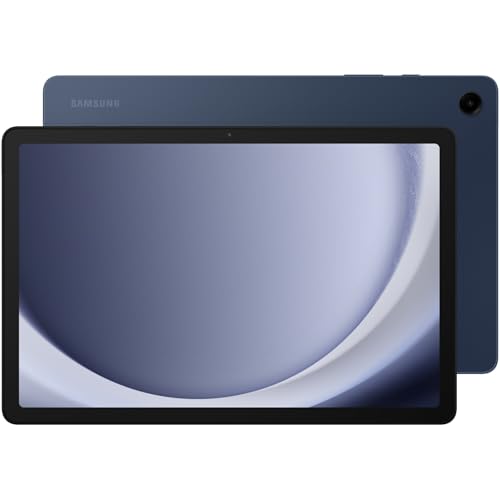
 11 Inch Android 16 Tablet with Keyboard10.95 Inches10.18 x 6.69 x 0.34 inches2 poundsCheck on Amazon


What's inside
- Why expandable memory still matters on a tablet
- Which tablet lines still offer a slot, and which dropped it
- UHS-I versus UHS-II: bus speeds and real transfer ceilings
- Speed classes in plain language: A1, A2, V30, and friends
- File systems: exFAT, FAT32, and the four-gigabyte wall
- Adoptable storage: what it promises and why it can bite
- Moving media versus moving apps: what belongs on the card
- Endurance, counterfeits, and caring for cards
- Camera and photo workflows through the card slot
- Offline media: the card’s finest hour
- Day-to-day management: settings, folders, and housekeeping
- Troubleshooting: when a card misbehaves
- Where removable storage goes next
- Cards for children, classrooms, and shared devices
- Common buying mistakes with cards and slots
- Check prices on Amazon
- Choosing your setup: a practical summary
As an Amazon Associate I earn from qualifying purchases. This post may contain affiliate links at no extra cost to you.
Readers help keep this site running: when you buy through affiliate links on this page, the site may earn a commission from retailers, and that income pays for research-driven guides like this one without raising the price you pay. Recommendations here follow the specifications and standards documents, not sponsorships, and models that dropped their card slots are called out just as plainly as those that kept them.
Why expandable memory still matters on a tablet
Tablets fill up faster than their owners expect. A device bought for browsing and streaming quietly becomes the family photo archive, the offline movie library for flights, the storage home for a child’s games, and the dumping ground for documents and downloads. Internal storage that felt generous at purchase can feel tight two years later, especially on entry-level models sold with modest capacity to hit an attractive price. A microSD slot changes that math completely, letting owners add a large, inexpensive pool of storage in seconds without replacing a working device.
The economics are the first attraction. Tablet makers charge a steep premium for higher internal storage tiers, while a reputable microSD card with the same capacity usually costs a fraction of that upgrade step. The card is also portable wealth: it can move to a replacement tablet, a laptop, or a camera, carrying its library with it. Internal storage dies with the device or gets wiped at trade-in; a card rides along to the next machine. For households running several tablets, a small stock of cards is flexible capacity that can be assigned wherever the need appears.
Not every workload benefits equally, and honest guidance starts there. Removable cards are slower than internal flash storage, sometimes dramatically so, which makes them excellent for video, music, photos, books, and documents, and less suitable as the primary home for demanding games or heavy creative projects. Understanding that division of labor is the whole secret to a good experience. Owners who treat the card as a media vault are delighted; owners who expect it to behave like internal storage are the ones writing angry reviews about stuttering apps.
There is also a resilience argument. A card can be removed before a tablet goes in for repair, handed to a relative with the holiday photos already on it, or kept as a simple offline backup of irreplaceable family media. In areas with slow or expensive internet, cards are still the fastest way to move a large video library between devices, faster than uploading and downloading again. Sneakernet, as engineers jokingly call carrying storage by hand, has unbeatable bandwidth when the library is large enough.
Finally, expandable storage extends a tablet’s useful life, which is good for budgets and for the planet. Many tablets are retired not because their screens or processors failed, but because they ran out of room and became frustrating. A slot postpones that day by years. Buyers who care about longevity should therefore treat the presence of a slot, and the maximum card capacity the tablet officially supports, as first-order buying criteria alongside screen quality and battery size, not as a nostalgic footnote.
Which tablet lines still offer a slot, and which dropped it
The market has split into clear camps. Samsung’s Galaxy Tab A series, aimed at families and value buyers, has consistently kept microSD slots, and Lenovo’s mainstream Tab models likewise treat expansion as a standard feature rather than a luxury. Fire tablets from a major online retailer, whatever their other compromises, have long included card slots and actively promote them for downloading video and books. Many education-focused and rugged tablets keep slots as well, because schools and field workers need cheap, swappable storage more than they need thinness records.
The premium camp moved the other way. Apple’s iPad line has never offered a card slot in any model, steering buyers toward internal tiers and cloud storage instead. Samsung’s flagship Galaxy Tab S models dropped microSD support for a generation before restoring it on later releases, a reversal that showed how strongly some buyers value the feature. Google’s Pixel Tablet launched without a slot, and most thin flagship Android tablets from other brands have followed the sealed design, prioritizing water resistance, thin bodies, and simpler construction.
Shoppers should verify the current generation rather than trusting a brand’s reputation, because lineups change their minds. A slot present on last year’s model may vanish on this year’s, and regional or cellular variants occasionally differ from Wi-Fi versions. The manufacturer’s specification page for the exact model is the authority; retailer listings sometimes copy older text across generations. Readers building a shortlist will find it efficient to begin with the best 128gb tablets category, where internal capacity and expansion options can be weighed side by side before narrowing to a specific line.
Slot implementation varies in ways worth a glance. Most tablets use a spring-loaded tray shared with a SIM card on cellular models, or a dedicated tray on Wi-Fi versions, opened with a small pin tool. A few rugged models hide the slot under a sealed flap or the removable back cover, which protects it from dust and water at the cost of convenience. Hybrid trays on some phones force a choice between a second SIM and a card, but on tablets the tray is usually arranged so the card has its own place. Checking tray style matters for people who swap cards often, such as photographers.
Maximum supported capacity is the other specification to confirm. Older tablets may officially support only smaller cards because they were certified before larger capacities existed, and some file-system limits discussed later in this guide apply regardless of the card’s size. In practice, many tablets read cards larger than their official rating, because the underlying standard is the same, but official support is the safer promise, especially for cards used to store anything important. When a manufacturer states a ceiling, treat larger cards as an experiment, not a plan.
ChromeOS tablets and convertibles form a middle case. Several models include microSD slots and handle them well for media and downloads, though the way ChromeOS treats removable storage for Android apps inside its container has its own quirks. Windows tablets from major brands often include slots too, and Windows treats a card much like any removable drive, which makes it flexible for files but still a poor home for installed programs. The pattern across platforms is consistent: cards excel at carrying content, and operating systems differ mainly in how gracefully they let apps use that space.
UHS-I versus UHS-II: bus speeds and real transfer ceilings
The letters printed on a microSD card describe several different things at once, and the bus interface is the one that sets the ceiling for everything else. UHS stands for Ultra High Speed, and it describes how the card and the host device talk to each other electrically. UHS-I, the interface found in virtually every tablet with a slot, has a single row of contacts and a theoretical maximum transfer rate of about 104 megabytes per second. That ceiling is a property of the connection itself, not of any particular card’s flash memory.
UHS-II adds a second row of contacts and raises the theoretical ceiling to about 312 megabytes per second, with a later UHS-III standard doubling that again on paper. The catch is compatibility: a UHS-II card only reaches those speeds in a host that has the second row of pins and the matching controller. Almost no tablets include UHS-II readers, because the added cost and board space serve a tiny audience. Plugged into a normal tablet, a UHS-II card politely falls back to UHS-I behavior and performs like one, which makes its premium price hard to justify for tablet use alone.
Real transfer speeds sit below the ceilings for several reasons. Card controllers in tablets are often modest, shared with other functions, and tuned for power saving rather than peak throughput. The card’s own flash and controller quality matter enormously: a well-made UHS-I card can sustain sequential reads in the ninety megabyte-per-second neighborhood in a good reader, while a bargain card with the same logos may manage half that and collapse further on sustained writes. Small-file performance, which governs how snappy a card feels when an app opens hundreds of tiny assets, is weaker still on every card.
Where UHS-II genuinely earns its keep is in dedicated card readers attached to computers, and in high-end cameras that record demanding video. Photographers who offload a day of shooting through a UHS-II reader to a laptop save real minutes on every transfer. If your card will live its whole life inside a tablet, that reader speed is irrelevant, and the money is better spent on capacity or on a higher app-performance rating. If the same card shuttles between a camera, a reader, and a tablet, the calculation changes, and one fast card can serve all three roles.
Buyers will also meet older markings such as SDHC and SDXC, which describe capacity families rather than speed. SDHC covers cards up to 32 gigabytes, SDXC covers larger cards up to two terabytes under the standard, and the newer SDUC family extends beyond that. A tablet that accepts SDXC cards accepts the big capacities most buyers want. These logos at least are simple: match the family to the host’s stated support, then spend your attention on the speed classes, which is where real differences in daily experience hide.
Heat and sustained performance complete the bus picture. Cards throttle when they get hot during long writes, and a tablet copying a huge video library in one session may slow noticeably partway through. Breaking giant transfers into batches, keeping the tablet cool and charged, and using a computer reader for the initial load of a very large library are practical habits. None of this requires exotic knowledge, just the recognition that a card’s best speed is a sprint figure, and libraries are marathons.
Speed classes in plain language: A1, A2, V30, and friends
Speed-class logos exist because the bus ceiling tells you almost nothing about how a card behaves in real work. The oldest mark is the plain Speed Class, a circled number guaranteeing a minimum sustained write speed in megabytes per second, so Class 10 promises at least ten. The UHS Speed Class uses a U-shaped symbol, where U1 also means ten and U3 means thirty megabytes per second minimum sustained writes. For tablet media storage, U1 and Class 10 are the floor worth accepting, and U3 is the comfortable standard for recording high-resolution video.
The Video Speed Class, marked with a V, was created for recording and states the same kind of sustained-write guarantee in clearer steps. V10, V30, V60, and V90 correspond to minimum sustained writes of ten, thirty, sixty, and ninety megabytes per second. V30 is the sweet spot for tablets and cameras recording 4K video at typical bitrates, with headroom for bursts and background tasks. V60 and V90 serve professional cameras recording very high-bitrate footage and cost accordingly; in a tablet they provide bragging rights rather than visible benefits.
Application Performance Class is the rating tablet owners should weight most heavily, because it measures the random read and write operations that apps and system tasks perform constantly. A1 requires at least 1,500 random read operations per second and 500 random write operations, alongside a modest sustained-write floor. A2 raises those floors substantially, to 4,000 read and 2,000 write operations per second, using techniques such as command queuing and caching that depend on host support. In plain terms, an A2 card makes apps stored or working on the card feel noticeably less sluggish than an unrated card with a flashier headline speed.
Two cautions keep those ratings honest. First, A2’s advantages shrink when the host device does not implement the supporting features, and many tablets do not fully do so, which narrows the real gap between a good A1 card and an A2 card inside an actual tablet. Second, every class mark is a minimum guarantee under test conditions, not a description of a specific card’s average behavior, so brand quality and genuine flash memory still separate a trustworthy card from a mediocre one wearing the same logos. Buyers comparing options for smaller screens can cross-check priorities in the best 10 inch tablets category, where slot presence and screen size tend to travel together.
A simple buying rule emerges from the alphabet soup. For a media-only card holding films, music, and books, choose a reputable U1 or U3 card and spend the savings on capacity. For a card that will hold apps, games, or camera output, choose A2 if the price gap is small and A1 at minimum, with V30 marking the comfortable choice for video recording. Ignore decorative read-speed numbers printed largest on the packaging; they describe best-case sequential reads in a laboratory reader, the workload a tablet card performs least often in real life.
File systems: exFAT, FAT32, and the four-gigabyte wall
Every card is formatted with a file system, the rulebook that decides how files are named, organized, and how large each file may grow. Smaller cards traditionally ship as FAT32, an elderly and universally compatible format with one famous flaw: no single file may exceed four gigabytes. That limit was irrelevant in the era of small photos and short clips, and it is a genuine obstacle now, because a single high-resolution film, a long 4K recording, or a large game-data file can sail past it without trying.
exFAT is the format designed to replace FAT32 for removable flash storage, and it is the standard format for SDXC cards above 32 gigabytes. It removes the four-gigabyte ceiling, supports very large volumes, and is understood by Android, Windows, macOS, cameras, and most tablets without extra software. For a tablet card carrying a video library, exFAT is the correct default in nearly every case. Its main weakness is the absence of journaling, which means a card removed mid-write or a device that loses power during a copy is more likely to end up with a corrupted file or directory than a journaled system would be.
Formatting choices therefore follow a short decision path. Let the tablet format a new card if you plan to use it only there, because the device will choose the format it handles best and set up its directory structure. Format on a computer when you need a specific result, and choose exFAT for any card above 32 gigabytes or any card that will hold large video files. Avoid reformatting a card to FAT32 to satisfy an old device unless that device truly requires it, and remember that such a move reimposes the file-size wall on everything you copy afterward.
File-size limits bite in sneaky ways. A video app may download a film in segments and never trouble FAT32, while the same film copied as one file from a computer fails at the four-gigabyte mark with a vague error. Long recordings split automatically by cameras into chapter files for the same reason, which is normal behavior rather than a fault. Owners building an offline library should standardize on exFAT, keep individual files sensibly organized in folders by show, trip, or subject, and resist the temptation to maintain one giant archive file that is painful to copy, back up, or repair.
There is a third path some advanced users take: formatting cards with file systems such as NTFS or ext4 for specific ecosystems. Windows handles NTFS natively but most Android tablets will not read it without extra tools. Linux-based systems like ext4, yet Windows and macOS then need help in return. For a card whose entire virtue is moving between devices, those formats trade away the universality that makes the card useful. Keep tablet cards on exFAT, and let fixed drives in single-platform setups carry the exotic formats instead.
Adoptable storage: what it promises and why it can bite
Android offers a feature called adoptable storage, sometimes labeled as formatting a card as internal storage, which folds the card into the tablet’s storage pool so the system treats the combined space as one. The appeal is obvious on a small tablet: apps and their data can live on the card transparently, the four-gigabyte and per-app headaches fade, and the owner stops managing two locations. For a stationary tablet with a fast, high-quality card, the arrangement can work respectably for light apps and media-heavy services.
The costs are structural. Adopting a card encrypts it and binds it to that one tablet, so it can no longer be pulled out and read in a computer or camera; the portability that makes cards valuable is surrendered. The card also becomes a single point of failure for everything stored across the combined pool. Cards wear out faster than soldered internal storage, they can corrupt after power loss, and when an adopted card fails, the apps and data living on it go with it, sometimes destabilizing the device until the dead card is formally forgotten in settings.
Performance is the quieter risk. Even an A2 card is slower than a modern tablet’s internal flash, particularly at the random operations systems perform constantly, and the interface may stutter in ways owners misattribute to age or to the apps themselves. Manufacturers know this, which is why some brands disable adoptable storage on their tablets entirely, and why the option’s availability varies by model and Android version. A tablet that lacks the option is not broken; its maker made a judgment call, and for many owners it was the right one.
Our guidance is conservative: use cards as portable, removable storage by default, and reserve adoption for a specific situation, namely a low-storage tablet used at home with a genuinely fast card, a good backup habit, and an owner who accepts the trade. Never adopt a bargain or unbranded card, never adopt the only copy of important photos, and photograph or export anything irreplaceable before adopting, because the format erases the card completely. If the goal is simply more room for films and books, portable storage already solves it without any of these risks.
Un-adopting deserves a sentence of its own, because owners discover it too late. Moving back requires migrating data off the card in settings while the card still works, then reformatting it as portable. If the card fails first, that path closes. Anyone who adopted a card should treat its health as device health: keep free space on it, avoid filling it to the brim, and replace it at the first signs of errors rather than nursing it along. Readers considering flexible devices that blur tablet and laptop roles should also review the best 2 and 1 tablets category with this storage behavior in mind, since convertible workflows tend to shuffle large files more often.
Moving media versus moving apps: what belongs on the card
The happiest card setups follow one rule: media moves, machinery stays. Films, television episodes, music libraries, podcasts, audiobooks, e-books, comics, photos, and documents all thrive on a card, because they are read sequentially, tolerate slower random access, and are easy to copy elsewhere if the card misbehaves. Streaming apps from major services allow downloads to be directed to the card in their settings, which is the single largest space saving available to most owners, since a season of high-quality video dwarfs most app collections.
Apps are a more delicate matter. Android lets some apps move part of their footprint to a portable card, but developers can forbid it, widgets and background services may stop working from the card, and updates sometimes move an app back to internal storage without ceremony. Large games are the tempting target and the frequent disappointment: the initial install may sit partly on the card while later data packs land internally, or performance may suffer in games that stream assets constantly. Owners should move a few apps, live with them for a week, and only expand the experiment if everything behaves.
App data deserves separate thought from the app itself. A mapping app’s offline regions, a music app’s downloads, a podcast app’s episodes, and a reading app’s library can usually be pointed at the card from inside each app’s own settings, even when the app itself stays internal. That arrangement captures most of the space saving with almost none of the fragility, and it survives app updates gracefully. When setting up a new tablet, working through the storage setting of your five largest apps is worth more than an afternoon of moving program files around.
Photos and videos shot on the tablet itself can usually be directed to the card by the camera app, which keeps internal storage clear and makes the card a natural shuttle to a computer. The discipline required is backup: a card holding the only copy of family photos is a loss waiting for a dropped tablet or a corrupted directory. Copy the card to a computer or cloud on a routine, and treat the card as transport and working space, never as the archive of record. Two copies in different places is the minimum standard for anything you would grieve.
Households sharing tablets benefit from a little organization. One card per person, labeled physically with a marker on its adapter or case, prevents the chaos of a single shared card stuffed with everyone’s downloads. Children’s tablets in particular thrive on dedicated cards loaded with their media, which can move with them to a replacement device after the inevitable cracked screen. Shoppers setting up a modest family tablet may also want to compare the best 4gb ram tablets category, where card-based media storage pairs sensibly with lighter multitasking expectations.
Endurance, counterfeits, and caring for cards
Flash memory wears out by writing, and cards differ enormously in how much writing they tolerate. A card used for a mostly static film library is written rarely and can serve for years. A card used for constant downloads, app data, or continuous recording in a camera or security device is written relentlessly and should be a high-endurance model, a distinct product family built and rated for sustained writing cycles. Matching the card’s endurance class to its job is cheaper than replacing failed cards and reconstructing lost libraries.
Counterfeit cards are the category’s persistent scandal. Fraudulent cards report a large capacity to the operating system while physically holding far less, overwriting earlier data once the real space runs out, so files appear to copy successfully and corrupt silently later. The defenses are boring and effective: buy from reputable retailers and the manufacturers’ own stores, distrust prices far below the going rate for a capacity, and verify a new card’s true capacity with a capacity-checking utility on a computer before trusting it with anything that matters. Testing takes a while on large cards and is worth every minute.
Physical care is simple. Handle cards by their edges, keep them in a case rather than loose in a bag, and avoid removing a card while the tablet is writing to it; use the eject or unmount option in storage settings before pulling the tray. Keep contacts clean and dry, and do not leave cards in hot cars, because heat ages flash memory. Label cards with their contents and the date they entered service, which turns a drawer of identical black rectangles into a manageable library and flags the oldest cards for retirement first.
Formatting is maintenance, not a cure-all. A fresh format in the device that will use the card clears directory corruption and resets the file system cleanly, and doing it after moving a card between very different devices is good practice. It does not restore worn-out flash, fix a counterfeit, or rescue a card that reports errors repeatedly. A card that produces copy failures, vanishing files, or read-only behavior is telling you it is finished; believe it the first time, copy off whatever remains readable, and replace it rather than negotiating.
Capacity tiers have settled into a practical ladder. Smaller cards suit documents, books, and music. Mid-size cards in the 128 to 256 gigabyte range are the value sweet spot for most tablet owners, holding substantial video libraries without the price premium of the largest tiers. Cards of 512 gigabytes and one terabyte serve serious offline collections, camera workflows, and adopted-storage experiments, and they reward buyers who verify authenticity carefully, since fakes concentrate exactly where the money is. Buy the tier your library needs this year with modest headroom, because card prices fall steadily and oversizing far ahead rarely pays.
Camera and photo workflows through the card slot
For photographers, a tablet with a card slot is a field tool rather than a mere viewer. Many cameras record to full-size SD cards, and a microSD card in an adapter can serve in the camera, then move directly into the tablet for review on a large, bright screen at a café or on a train. That direct path skips cables, dongles, and slow wireless transfers, and it lets a photographer cull failures, mark favorites, and share a few edited frames while the rest of the shoot waits safely for the computer at home.
Card speed choices for this workflow follow the camera’s needs first. A card rated V30 handles the 4K video and burst photography of most enthusiast cameras, and its app-class rating helps the tablet browse large folders of images without lag. Photographers shooting very high-bitrate video should follow the camera maker’s recommendation for V60 or V90 media for recording, while accepting that the tablet will read those cards at its own UHS-I pace. The review experience remains pleasant; only giant transfers reveal the tablet’s ceiling.
Editing on the tablet fits naturally into this flow. Modern photo apps handle raw files from major camera brands, and working copies, exports, and shared albums can live on the card to spare internal storage. The discipline, again, is redundancy: the card from a paid or irreplaceable shoot should be copied before editing begins, and the originals should not be deleted from the card until a second copy exists elsewhere. A tablet makes review delightful, which makes it dangerously easy to tidy up prematurely.
Scanning and family-archive projects are a quieter version of the same workflow. A tablet loaded with scanned photographs on a card becomes a portable family album that can travel to relatives, display slideshows, and accept new additions without touching cloud accounts or passwords. For older relatives especially, a tablet plus a labeled card is a gift with no subscription and no login, and updating it later means mailing a small card rather than teaching anyone a new service over the phone.
Offline media: the card’s finest hour
Travel exposes the value of local storage better than any other scenario. Flights, trains, rural drives, cruise ships, and foreign trips with expensive roaming all punish dependence on streaming. A card loaded before departure carries films for the journey, maps for the destination, music for the room, and books for the beach, and it does so without touching the tablet’s internal space, leaving room for the photos the trip itself generates. Families facing a long drive can load each child’s tablet card with their own selections and end the back-seat negotiation before it starts.
Building a good offline library is a craft. Download at the quality you will actually watch on a tablet screen rather than the maximum available, because file sizes multiply quickly and a season at a sensible resolution beats three episodes at a theatrical one. Refresh downloads before each trip, since some services expire downloaded licenses after a set period or require periodic check-ins while connected. Keep a small permanent collection of comfort favorites on the card for delays and dead zones, the digital equivalent of a paperback that lives in your travel bag.
Offline readiness extends beyond entertainment. Offline map regions for every destination, a downloaded translation pack for the local language, copies of travel documents and insurance details, and an offline reference or two turn a tablet into a genuinely useful companion when networks fail or accounts lock at the worst moment. Storing those essentials on the card as well as internally adds redundancy, and encrypting sensitive documents before storing them anywhere removable is a sensible precaution in case the card is lost.
Commuters and students get a daily version of the same benefit. Lectures, course readings, language lessons, and downloaded articles live happily on a card, and a term’s worth of material rarely challenges even a modest capacity. Workers in hospitals, warehouses, ships, and secure facilities where networks are restricted or forbidden rely on local storage professionally, and for them a tablet without a slot can be a tablet that cannot do the job at all. Expandable memory is sometimes a convenience and sometimes a requirement, and buyers in restricted environments should treat it as the latter.
Day-to-day management: settings, folders, and housekeeping
Owning a card well is mostly a matter of small habits in the tablet’s storage settings. That screen shows how much space the card holds, what categories consume it, and which apps keep data there, and a monthly glance prevents the surprise of a full card on the morning of a trip. Android also lets owners set the card as the default download location in some browsers and file managers, which quietly routes the steady drip of PDFs, installers, and saved pages away from internal storage without any daily effort.
Folder discipline pays for itself the first time you move the card to a computer. Keep the structure the tablet creates, add a handful of clearly named folders for your own material, and avoid scattering files across the root of the card where they mingle with system directories. Names with dates travel well across devices and sort naturally, whether the subject is a holiday, a semester, or a renovation project. A card organized this way can be browsed by any relative on any machine, which is precisely the interoperability the format promises.
Free space is a performance feature, not wasted money. Flash storage slows as it fills, because the controller has fewer clean blocks to write into, and a card packed to its final megabyte will crawl during copies and updates. Leaving a tenth of the card empty keeps writes brisk and gives apps room for temporary files. When a card approaches full, the correct response is to graduate to a larger one or archive material to a computer, not to squeeze and hope, because a card that fills mid-recording can corrupt the very file it was capturing.
Ejecting properly belongs in this housekeeping list. Tablets write data in the background more often than owners realize, flushing caches and thumbnails after the visible work seems finished. Using the unmount command and waiting for its confirmation before opening the tray protects the file system from the corruption that exFAT, without journaling, cannot repair gracefully. If a tray must be opened while the tablet is off, that is safe too, since nothing is writing. The habit takes three seconds and prevents the most common self-inflicted card injury.
Troubleshooting: when a card misbehaves
Most card problems announce themselves in a few familiar ways, and each has a sensible order of checks. A card that suddenly appears empty or unreadable should first be reseated, because trays shift and contacts oxidize; power the tablet down, remove and reinsert the card, and restart before assuming the worst. If a computer is available, test the card there with a reader. A card readable on a computer but not in the tablet points at the tablet or its formatting expectations, while a card unreadable everywhere is likely failing and should be copied by any means that works, then replaced.
A card that mounts as read-only is usually protecting itself after detecting errors, and it should be treated as a warning rather than an inconvenience to override. Copy everything readable to safety immediately, because read-only mode often precedes total failure. Formatting may appear to revive such a card, and owners are tempted to return it to service, but a card that has once cried for help has told you its remaining life is short. Demote it to carrying disposable copies if you keep it at all, and never let it hold the only version of anything again.
Disappearing apps and vanishing downloads usually trace back to a card that unmounted unexpectedly, a tray with a poor fit, or a card formatted as portable while an app expected its data to remain. Checking that the card is firmly seated, avoiding the cheapest unbranded trays and adapters, and restarting the tablet to force a clean remount solves most cases. If one app repeatedly loses its card data while others behave, the fault is probably that app’s storage handling, and moving its library back to internal storage is a legitimate answer rather than a defeat.
Slow performance after months of good service has several candidate causes worth separating. A nearly full card slows for the reasons described above. A card repeatedly filled and emptied in small pieces fragments its free space and works its controller harder. A card that has absorbed heavy writing duty may simply be wearing. Copying the contents off, reformatting in the tablet, and copying back restores the first two cases and gives the third a fair final test; if slowness returns quickly on a clean, half-empty card, replacement is the honest fix.
Where removable storage goes next
The standards world has not stood still, even as flagship designers drift away from slots. The SD Express specification marries the familiar card shape to the same PCI Express and NVMe technology used in fast computer drives, promising speeds many times beyond UHS-II, with backward compatibility so the cards still work, at ordinary speeds, in existing slots. Adoption in tablets has been minimal so far, and heat and cost argue against a rapid takeover, but the path exists for devices that want removable storage without a performance apology.
Capacity continues its quiet march as well. The SDUC family extends the standard’s addressing far beyond the two-terabyte boundary of SDXC, and card makers steadily make yesterday’s exotic capacities ordinary and affordable. For tablet owners the practical meaning is that a slot bought today is not a dead end: larger, faster, cheaper cards will keep arriving for the readers that already exist, within the UHS-I ceiling those readers impose. Longevity, once again, is the slot’s argument, stated in the language of roadmaps.
Cloud storage will keep improving too, and the honest comparison is not card versus cloud but card alongside cloud. The cloud excels at backup, sharing, and access from everywhere; the card excels at speed without a network, privacy by physical possession, zero subscription cost, and working exactly the same at altitude, at sea, or in a basement archive room. Most well-run tablet setups use both, each for what it does best, and the owners caught out are those who bet everything on either one alone.
Cards for children, classrooms, and shared devices
Children’s tablets are where expandable storage quietly does its best work. A child’s media world is bulky and repetitive: favorite films watched a dozen times, songs on permanent rotation, games that swell with updates, and a camera roll of gloriously unedited enthusiasm. Loading that world onto a card keeps a modest tablet responsive, lets parents curate content on a computer where bigger screens and better tools live, and means a replacement tablet after a drop can be restored to familiar order by moving one small card across the room.
Parental control interacts with storage in ways worth planning. Content downloaded to a card can travel to another device, which may or may not match a family’s intentions, so households that rely on strict per-device controls should decide consciously where downloads belong. Conversely, a card prepared by a parent with approved films, books, and music is a walled garden in physical form, ideal for travel and for relatives’ houses where the tablet will roam beyond the home network’s filters. The card becomes a simple, understandable unit of permission: what is on it is allowed, and everything else is somewhere else.
Classrooms and training programs value cards for logistics rather than entertainment. A teacher can prepare one master card with the term’s readings, videos, and worksheets, duplicate it for every tablet in a set, and update the whole class by swapping cards rather than coaxing thirty devices through a congested school network. Devices that return to a charging cart each night do not need individual cloud accounts to stay current. For programs in regions with limited connectivity, that physical distribution is not a workaround; it is the infrastructure.
Shared and public-facing tablets, from library kiosks to trade-show displays to waiting-room entertainment, benefit from the same separations. Content on a card can be refreshed without touching the device’s configuration, a worn card can be replaced without a service visit, and a device can be repurposed for a new audience by exchanging its library in seconds. Administrators should still encrypt or avoid sensitive material on removable media in these settings, because a card that is easy to swap is also easy to walk away with, and the convenience cuts in both directions.
Common buying mistakes with cards and slots
The most frequent mistake is buying capacity by headline price alone, choosing the cheapest card of a given size from an unknown seller and discovering, months later, that its real capacity or endurance was fiction. The second is buying speed in the wrong dimension, paying for a UHS-II or extreme sequential-read card that a UHS-I tablet can never exploit, while skimping on the app-performance rating that would have made a daily difference. Both errors come from reading the biggest number on the package instead of the small standardized marks, which is exactly the habit this guide has tried to retrain.
A third mistake is assuming a slot guarantees a feature set. Owners buy a tablet expecting to move every app to the card, or to adopt the card as internal storage, and discover that the maker disabled one or both options. The remedy is checking the specific model’s storage behavior in its manual or support pages before purchase, a five-minute task that prevents a year of irritation. Similarly, buyers should confirm that their key streaming services allow downloads to external storage on Android, since app policies, not the tablet, make that decision, and policies can differ between platforms.
The final mistake is neglecting the unglamorous accessories: a decent reader for the computer, a small case that holds spare cards and the tray tool, and a spare card kept empty for emergencies. Together they cost very little and convert every card task, from the initial library load to the mid-trip swap, from a fumble into a routine. A spare card also provides the perfect test subject when troubleshooting, letting an owner separate card faults from tablet faults in one swap instead of a week of guesswork.
One more scenario deserves mention before the summary, because it decides purchases quietly every day: the hand-me-down tablet. Devices pass from parents to children, from one sibling to another, and from home duty to workshop, kitchen, or bedside duty, and each transition is painless when the library lives on a card. The new owner inserts their own card and finds their own films, books, and documents waiting, while the previous owner’s material leaves with them, private and intact. Wiping a tablet for a fresh start no longer means rebuilding a media collection from the network, and a device can change hands in an afternoon instead of a weekend. Families who plan for that second and third life, rather than only the unboxing, consistently get more years and more value from the same hardware, and the card slot is the small feature that makes the whole relay possible.
There is a related point about repairs and replacements under warranty. A tablet sent away for service is usually wiped, and owners are told to back up first, advice that is far easier to follow when the bulk of the library sits on a card that simply stays home. The replacement or repaired unit returns, the card slides back in, and the media world reassembles itself while only apps and settings need rebuilding. That is not a reason to skip proper backups of photos and documents, which belong in at least two places regardless, but it is a very practical form of insurance that owners of sealed, slotless tablets cannot buy at any price after the fact.
Gift buyers should hear this too, because a tablet given with a prepared card is a different present from a tablet given alone. Loading a card with family photographs, a few beloved films, the recipient’s music, and a shelf of books turns a generic device into something personal the moment it is switched on, and it spares a less technical recipient the entire setup burden. It is the modern equivalent of giving a music player already filled with songs someone chose for you, and it costs little beyond an hour of thought.
Check prices on Amazon
Live listings for the shortlist in this guide are pulled from Amazon below, so prices and availability are always current at the moment you look.


Choosing your setup: a practical summary
Pulling the threads together produces a short, reliable recipe. Buy the tablet for its screen, battery, and software support, and confirm the slot and its official capacity ceiling on the manufacturer’s specification page before ordering. Buy a card from a reputable maker and retailer, sized to your library with modest headroom, rated A1 or A2 for app-adjacent work and V30 if recording or shuttling 4K video. Verify the card’s true capacity on a computer before trusting it, format it in the tablet, and set your media apps to download to it from day one.
Keep internal storage for the system, your core apps, and anything that must be fast or always present, and let the card carry the heavy, happy bulk of media. Back up photos and anything irreplaceable as if the card were already lost, because one day a card will be. Replace cards at the first repeated error, retire the oldest ones from important duty, and label everything. Followed consistently, those habits turn a tiny piece of plastic into the cheapest, calmest upgrade a tablet can receive.
Expandable memory will probably keep retreating from flagship spec sheets, which makes choosing it deliberately, while it remains widely available in the tablets most families actually buy, a quietly smart decision. A slot costs its owner nothing when empty and saves the day repeatedly when filled, and few features in consumer electronics can honestly claim that ratio. When the next tablet in your household is chosen, give the humble card slot the respect its track record has earned, and your future self, settling into a long flight with a full library and space to spare, will be glad you did.