What's inside
As an Amazon Associate I earn from qualifying purchases. This post may contain affiliate links at no extra cost to you.
gizmoverdict.com is reader-supported. When you buy through links on our site, we may earn an affiliate commission.
Where to buy: Every monitor in this guide is sold through Amazon, and the practical way to shop this class is to treat the listing itself as the spec sheet: the six conferencing monitors below were chosen because their listing titles confirm a built-in webcam, and the same titles are where microphone, speaker and port claims either appear or pointedly do not. Stock and bundle details shift on this class more than most — two of these HP models ship with a bundled USB hub in the box — so read the exact configuration on the page before ordering, and use the price links under each review to land on the correct listing rather than a same-named sibling model.
A back-to-back morning of video meetings is the quickest audit of a desk setup ever devised. The first call exposes the washed-out camera, the second exposes the laptop microphone that makes a kitchen sound like a train carriage, and by the third you are leaning toward a screen that was never positioned for faces at all. People shopping for the best monitors for zoom calls are usually trying to retire that whole stack of compromises at once: the camera, the microphone, the speakers and the panel itself, folded into one device that wakes up ready for a meeting. That is exactly the product class gathered here. All six monitors carry a built-in webcam according to their listing titles, and five of the six state their camera resolution outright at 5 megapixels. Where the class gets interesting is everything around the camera — noise-reducing microphones, real speaker wattage, pop-up lenses that hide when the day ends, and stands that put the lens at eye level instead of chin level.
The spread runs from a 24-inch Teams-certified Dell to a pair of 34-inch ultrawides that treat a video call as one window among many. Two HP Series 5 Pro models anchor the range, one a 27-inch QHD desk hub and one a 34-inch WQHD conferencing ultrawide; Philips answers with a curved 34-inch VA panel of its own. ViewSonic brings the only 120Hz panel and the only Windows Hello infrared login in the group, while Lenovo closes the list with a deliberately quiet business monitor whose title says almost nothing beyond the essentials — a silence this guide reads carefully rather than fills in. If your working week is measured in meeting hours, one of these six shapes will match the way you actually sit, speak and share your screen.
There is also a quieter reason this class has matured so quickly: the meeting has become the unit of work. A decade ago a monitor was bought for documents and judged by documents, with video calls handled by whatever camera the laptop happened to carry. Now the call is where colleagues form their impression of your competence, your room and your attention, and a soft, badly lit, echoing presence taxes every one of those impressions before you have said anything of substance. A conferencing monitor is therefore less a display purchase than a presence purchase. The six models here differ in how completely they understand that: some treat the camera as the headline and the audio as an afterthought, some build the whole frame around a single platform, and the best of them treat camera, microphones, speakers, network and stand as one system whose weakest part defines the call. Reading the reviews with that system in mind — asking of each model not “how good is the screen” but “which part of my meeting does this leave unsolved” — is the fastest way to find the right one.
Key Takeaways
- All six picks have a built-in webcam per their listing titles; five state a 5MP camera, and the Lenovo title leaves camera resolution unstated.
- Microphone and speaker claims vary enormously: the HP 527pm names AI noise-reduction mics and four 3W speakers, while the Lenovo T27hv-30 title promises neither.
- Two 34-inch ultrawides (HP Series 5 Pro 34 and Philips 34E1C5600HE) suit people who keep a call open beside documents all day.
- The Dell C2422HE is the only pick with a dedicated Microsoft Teams button and an infrared pop-up camera at 24 inches.
- USB-C models with hubs and RJ-45 Ethernet — the HP 527pm most completely — turn the monitor into the dock, which matters on wired-call quality.
- Stand adjustment decides camera angle: height adjustment appears in most titles here, and its absence is worth noticing before you buy.
Quick Picks
| Pick | Badge | Why it stands out |
|---|---|---|
| 1. HP Series 5 Pro 527pm | Best overall | 5MP webcam, AI noise-reduction mics, four 3W speakers, RJ-45 and a USB hub in one 27-inch QHD panel |
| 2. HP Series 5 Pro 34 | Best ultrawide for all-day calls | 34-inch WQHD screen with a 5MP pop-up webcam and AI noise reduction for call-plus-documents work |
| 3. Dell C2422HE | Best for Microsoft Teams desks | Pop-up 5MP IR camera, dual 5W speakers and a dedicated Teams button on a compact 24-inch frame |
| 4. ViewSonic VG2741V | Best for secure sign-in | 5MP IR webcam with Windows Hello, 120Hz refresh and USB-C conferencing at 27 inches |
| 5. Philips 34E1C5600HE | Best curved ultrawide value | Curved UWQHD VA panel, 65W USB-C power delivery, noise cancelling mic and a 4-year advance replacement warranty |
| 6. Lenovo ThinkVision T27hv-30 | Best understated business panel | 27-inch WQHD webcam monitor in Raven Black with a title that keeps its promises short and verifiable |
How were these picks chosen?
A conferencing monitor earns its place on a desk by removing equipment, so the first filter was absolute: the listing title had to confirm a built-in webcam, because a monitor that still needs a clip-on camera has solved only half the problem. All six finalists clear that bar. From there we weighed the audio chain in both directions. Outbound, that means the microphone story — AI noise reduction on both HP models, a noise cancelling mic on the Philips, a plainly stated mic on the ViewSonic — because the voice colleagues hear is the voice they judge. Inbound, it means speakers with stated wattage where the title offers it: four 3W speakers on the HP 527pm, dual 5W speakers on the Dell, and unspecified built-in speakers on several others, a difference we flag rather than smooth over.
Camera mechanics came next. A pop-up lens, offered by the HP 34 and the Dell, is a physical privacy shutter you can verify from across the room; an infrared camera, on the Dell and the ViewSonic, doubles as a Windows Hello login sensor where the title says so. Panel choice was judged by meeting reality rather than gaming metrics: resolution headroom for screen-sharing text, size for keeping faces and documents side by side, and refresh rate only where it changes how scrolling a shared spreadsheet feels. Connectivity was scored as call infrastructure — USB-C for a one-cable laptop life, an RJ-45 port on the HP 527pm for wired network stability, and hub ports for the headset dongles and document cameras that accumulate around a meeting-heavy desk. Finally, ergonomics: a camera bolted to a fixed-height panel points at your forehead or your ceiling, so height adjustment in the title counted heavily, and its absence is called out in the relevant reviews.
One discipline ran through every judgement: facts come from the listing titles, and where a title is silent we say so in plain words. The Lenovo review below is the clearest example — a respected business panel whose title confirms size, resolution class and webcam, and nothing about microphones or speakers. We did not import specifications from sibling models or earlier generations to fill that gap, and you should be suspicious of any guide that does.
Two further criteria deserve stating because they quietly eliminated other models from consideration. The first is what happens between calls. A conferencing monitor spends most of its life as an ordinary display, so panel quality for documents — the 100% sRGB claim on the HP 527pm, the VA contrast on the Philips — counted as more than decoration; a screen bought for meetings that is mediocre for the six hours of writing between them is a bad bargain. The second is failure behaviour. When a separate webcam fails, you unplug it and carry on; when the camera inside your only monitor fails, the whole station is compromised, which is why the Philips warranty terms earned real weight in our ordering and why the pop-up mechanisms, with fewer software states to go wrong, scored as reliability features as much as privacy ones. Neither criterion appears on a spec sheet’s first line, and both decide how the purchase feels in month six.

Pick 1: HP Series 5 Pro 527pm — Best overall
The 527pm reads like HP sat down with a list of everything a remote worker bolts onto a monitor and decided to absorb all of it. The panel is a 27-inch QHD screen running at 100Hz with 100% sRGB coverage, which covers the visual side of the job comfortably: shared documents stay legible, faces render at a size that makes expressions readable, and the 100Hz refresh keeps scrolling through a shared deck from smearing. The conferencing hardware is where it separates from the field. The webcam is 5 megapixels, the microphones carry AI noise reduction, and the speaker system is four 3-watt units — the most complete audio specification in this guide, stated outright in the title rather than implied.
Then there is the docking layer, which is unusually thorough. USB-C connects the laptop, an RJ-45 port offers wired Ethernet for the calls where Wi-Fi congestion is not an acceptable excuse, and HDMI and DisplayPort cover a second machine or a desktop that never moves. The bundled Dockztorm USB hub extends the port count further. Height, swivel and pivot adjustment are all present, so the camera can be raised to genuine eye level and the panel rotated for a portrait document view between meetings. For a home office that hosts client-facing calls daily, this is the monitor that lets the separate webcam, the speakerphone puck and the laptop dock all leave the desk at once. Readers comparing it against a second screen for data work may also want our guide to the best monitors for using spreadsheets, where width is judged by columns rather than faces.
Consider how the pieces compound across a real week. On Monday the Ethernet port carries a standup through a neighbourhood-wide Wi-Fi wobble without a frozen frame. On Wednesday the AI microphones keep a delivery driver at the door and a dog announcing him out of your status update. On Friday the pivot stand turns the panel portrait for a contract review, and the camera — already at eye level from the height adjustment — never has to be re-aimed in between. No single feature justifies the monitor; the accumulation of small rescues does. That is the standard the rest of this guide is measured against, and it is why a model with one dazzling specification and three silent ones ranks below a model that simply states everything a meeting needs.
Strengths
- Complete stated audio chain: AI noise-reduction microphones plus four 3W speakers, the strongest speaker specification in this group.
- RJ-45 Ethernet and a bundled USB hub make it a true docking monitor, not just a display with a camera.
- Full ergonomic set — height, swivel and pivot — so the 5MP camera can sit exactly at eye level.
Trade-offs
- The webcam is fixed in the frame rather than a pop-up design, so privacy depends on software controls and the camera indicator.
- QHD at 100Hz is a work specification; the panel makes no claim to HDR or gaming-grade response for after-hours use.
- The bundled-hub configuration is the one to buy; a cheaper listing variant without the hub would surrender much of the point.
- Size and resolution: 27 inches, QHD
- Webcam: 5MP
- Microphone: AI noise-reduction mics
- Speakers: 4 × 3W
- Colour: 100% sRGB
- Ports: USB-C, HDMI, DisplayPort, RJ-45, bundled USB hub
- Stand: height, swivel, pivot
Best for: a dedicated home office where one monitor must serve as camera, speakerphone, dock and display through a full day of client calls.
Not suited for: a shallow desk in a shared room where a fixed, always-mounted camera is a privacy problem rather than a convenience.
Of the six, this is the listing to study first if your desk currently hosts three separate conferencing gadgets — check price on Amazon and confirm the hub bundle is the configuration in the cart.

Pick 2: HP Series 5 Pro 34 — Best ultrawide for all-day calls
Some people end a call before opening the spreadsheet; others live with a call pinned open for six hours while the real work happens beside it. The Series 5 Pro 34 is built for the second group. Its 34-inch WQHD panel stretches the desktop wide enough for a video window, a document and a chat client to coexist without stacking, and the conferencing kit is integrated rather than clipped on: a 5MP pop-up webcam that physically retracts when the meeting ends, built-in speakers, and AI noise reduction on the microphone side. The pop-up mechanism deserves emphasis, because it converts privacy from a settings menu into a visible fact — the lens is either up or it is down, and everyone in the room can tell which.
The supporting details match the brief. USB-C carries the laptop connection, height adjustment joins tilt and swivel so the wide panel can be centred at eye level, and the bundle includes a DKZ USB hub for the peripherals an ultrawide desk tends to attract. What the title does not give you is equally worth knowing: speaker wattage is unstated, colour gamut goes unmentioned, and there is no RJ-45 port, so the wired-network trick belongs to its 27-inch sibling above. Judged purely as a conferencing ultrawide, though, it offers the rare combination of screen estate and a camera that disappears on command. Anyone whose calls share the desk with long-form writing might compare the experience with our look at the best remote working portable monitors — a very different answer to the same untethered working week.
Screen-sharing deserves a word of its own on an ultrawide, because it changes what colleagues see. Sharing the full 34-inch canvas sends a very wide, small-text image to everyone else; the disciplined habit is sharing a single window or a portion of the screen, which conferencing software supports and which this format quietly trains you into. In return, your own view of a shared deck is generous, and the faces of the other participants can stay parked in a corner at a size where reactions remain readable — a social detail that sounds minor until a negotiation depends on noticing a wince. The panel’s width, in other words, is a tool for the host’s awareness as much as for their documents.
Strengths
- 5MP pop-up webcam gives physical, visible privacy between meetings.
- 34-inch WQHD width keeps a call, a document and chat visible simultaneously without a second monitor.
- AI noise reduction and a bundled USB hub round out a genuinely integrated conferencing package.
Trade-offs
- Speaker wattage is not stated in the listing title, so call audio output cannot be compared on paper with the 527pm.
- No Ethernet port is named, so network stability for calls depends on your existing dock or Wi-Fi.
- An ultrawide this size needs real desk depth; on a narrow desk the panel crowds out everything else.
- Size and resolution: 34 inches, WQHD
- Webcam: 5MP pop-up
- Microphone: AI noise reduction
- Speakers: built-in, wattage not stated in the listing title
- Ports: USB-C, bundled DKZ USB hub
- Stand: height adjust, tilt, swivel
- Colour gamut: Not stated in the listing title
Best for: a consultant or manager whose call window stays open beside live documents for most of the working day.
Not suited for: a 60-centimetre-deep desk where a 34-inch panel would sit closer than comfortable viewing distance.
The pop-up camera alone will sell this monitor to some households, and the width will sell it to the rest — see the current price on Amazon before choosing between it and the Philips curved alternative below.

Pick 3: Dell C2422HE — Best for Microsoft Teams desks
Dell built the C2422HE around a single observation: on a Teams-run desk, the meeting is the operating system. The giveaway is the dedicated Microsoft Teams button on the frame, a small piece of hardware that acknowledges how often the join-and-mute dance happens in a day. Above the screen sits a pop-up 5MP infrared camera — pop-up for privacy, infrared for Windows Hello sign-in — and below it, dual 5-watt integrated speakers give this 24-inch monitor the clearest stated speaker output per inch in the guide. For an organisation standardising desks, or a home worker whose employer lives in Teams, the specialisation is the appeal.
The compromises are just as clearly drawn. At 24 inches with an HD-class panel, this is the smallest and lowest-resolution screen here; the title states HD without naming a pixel count, and side-by-side document work will feel cramped next to the QHD and ultrawide picks. The grey finish and business styling will not win design awards either. But within its brief — a compact, secure, one-box conferencing station for a Teams household of one — nothing else in the group is as single-minded. It is also the natural choice where desk width is genuinely scarce, such as a spare-room corner or a hot-desking bench at home, and where the camera retracting into the frame matters more than cinematic screen space.
There is a fleet logic here that solo buyers can borrow. A 24-inch conferencing monitor is cheap to ship, cheap to replace and identical from desk to desk, which is why models like this anchor office fit-outs; the same logic serves a household equipping two small workspaces — say a partner’s desk and a teenager’s homework corner that doubles for remote lessons — better than one flagship panel would. The infrared camera also future-proofs the purchase against tightening sign-in rules: as employers retire passwords in favour of biometrics, a camera that already speaks Windows Hello removes a peripheral from next year’s compliance list. None of that rescues the small screen for document-heavy solo work, but it explains why this modest monitor keeps outselling larger rivals in the segment it was designed for.
Strengths
- Dedicated Microsoft Teams button plus a pop-up IR camera covers joining, muting and secure sign-in in hardware.
- Dual 5W integrated speakers are a strong stated output for a 24-inch conferencing monitor.
- Compact footprint suits small desks where the ultrawides in this guide simply cannot go.
Trade-offs
- HD-class panel at 24 inches is the least spacious screen here for documents beside a call.
- The title names no USB-C docking or Ethernet, so laptop connectivity should be verified against your machine’s ports.
- Teams-centric design is wasted on a household that meets in Zoom or Meet exclusively.
- Size: 24 inches
- Resolution: Not stated in the listing title (HD class)
- Webcam: pop-up 5MP IR camera
- Speakers: dual 5W integrated
- Meeting hardware: dedicated Microsoft Teams button
- Colour: Gray
- Stand adjustments: Not stated in the listing title
Best for: a Teams-standardised worker with a compact desk who values one-button meetings and a camera that hides itself.
Not suited for: a desk where two documents must sit open beside the call at readable size all day.
Small, specialised and honest about it — check today’s price on Amazon if the Teams button sounds like the feature your mornings have been missing.
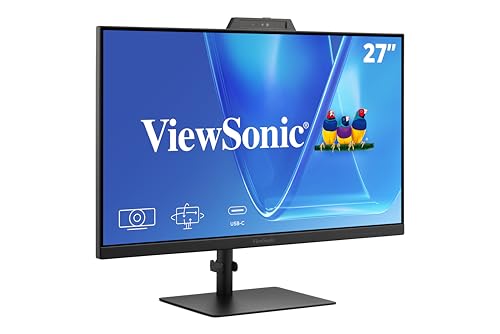
Pick 4: ViewSonic VG2741V — Best for secure sign-in
The VG2741V approaches conferencing from the login screen outward. Its 5MP infrared webcam supports Windows Hello, so the same camera that frames you in a meeting also signs you into the machine by face — a small daily luxury that dedicated webcams rarely match and one that security-minded employers increasingly require. The panel is a 27-inch 1080p screen with an unusually brisk 120Hz refresh for this class, which does nothing for your face on a call but makes the rest of the working day — scrolling long documents, dragging windows between a call and a browser — feel noticeably smoother than a 60Hz office panel. USB-C conferencing connectivity, HDMI and DisplayPort, plus stated speakers and a microphone, complete a specification that covers the whole meeting without accessories.
The honest limitation is resolution. At 27 inches, 1080p spreads its pixels thin; text is softer than on the QHD HP at the same size, and colleagues viewing your shared screen see a perfectly adequate but not crisp image. Eye Care features soften the long-session cost of that trade, and for a buyer whose priority order runs security, smoothness, then sharpness, the balance is defensible. Mac households should note the title explicitly lists Mac alongside PC and laptop, one of the few cross-platform nods in the group. Set against the HP 527pm, the ViewSonic trades resolution and docking depth for the IR login and the faster panel — a trade that makes sense in exactly the offices where sign-in policy is written by an IT department rather than by preference.
The 1080p decision also has a bandwidth defence worth hearing. Outgoing video in a call is capped by the platform long before it reaches this panel’s resolution, so colleagues will not see a sharper you from a QHD monitor — the camera decides that, and here the camera is a full 5MP. What the lower panel resolution actually costs is your own workspace: fewer spreadsheet rows, softer text, more scrolling. A buyer whose day is calls punctuated by email will barely notice; a buyer whose day is documents punctuated by calls will notice hourly. ViewSonic’s Eye Care provision acknowledges exactly that second user and tries to soften the cost, but no comfort feature restores pixels. Choose this monitor for its login and its refresh rate with your eyes open about what was traded away.
Strengths
- 5MP IR webcam with Windows Hello turns the meeting camera into a secure sign-in device.
- 120Hz refresh is the fastest in this guide and lifts everyday scrolling and window work.
- Stated microphone and speakers plus USB-C, HDMI and DisplayPort cover the full meeting chain.
Trade-offs
- 1080p at 27 inches is visibly softer for text than the QHD panels at the same size.
- No pop-up mechanism or physical shutter is named, so camera privacy is software-managed.
- Speaker wattage is unstated, leaving call volume an open question until the monitor is on the desk.
- Size and resolution: 27 inches, 1080p
- Refresh rate: 120Hz
- Webcam: 5MP IR, Windows Hello
- Audio: speakers and mic stated, wattage not stated in the listing title
- Ports: USB-C, HDMI, DisplayPort
- Extras: Eye Care features
- Stand adjustments: Not stated in the listing title
Best for: a Windows user under a real sign-in policy who takes calls all day and resents typing a password forty times between them.
Not suited for: a 27-inch desk where fine spreadsheet text must stay razor sharp at arm’s length for hours.
If face login is on your requirements list, this is the only 27-inch route in the group — check the price on Amazon and weigh it against the QHD premium of the HP above.
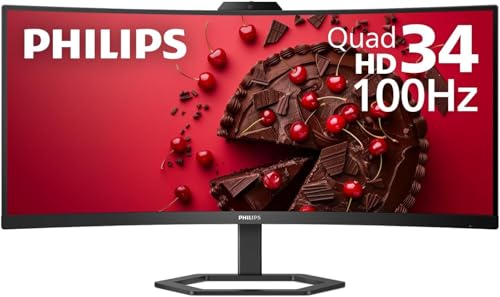
Pick 5: Philips 34E1C5600HE — Best curved ultrawide value
Philips fields the second 34-inch ultrawide in this guide, and it differs from the HP in ways that matter. The panel is curved VA at 3440×1440 in 21:9, running at 100Hz, which gives it the deep native contrast VA technology is known for — video content and evening calls alike gain a richness the IPS panels here do not claim. The webcam is built in, the microphone carries noise cancelling, speakers are integrated, and USB-C delivers 65 watts of power, enough to run and charge a typical work laptop through the same cable that carries the picture. Height adjustment is present, which on a panel this wide is the difference between a camera at eye level and a camera aimed at the top of your head.
The quiet headline, though, is the warranty: four years of advance replacement coverage, stated in the title. Advance replacement means a faulty unit is swapped by shipping the replacement first — a meaningful promise for a monitor your job depends on daily, and one no other pick in this guide matches in writing. Against the HP Series 5 Pro 34, the Philips counters a curved VA panel, explicit power delivery and that warranty, while conceding the pop-up camera and the stated 5MP resolution; Philips’ title does not state the webcam’s megapixels, and we do not guess them. Buyers cross-shopping the two ultrawides should decide whether the retracting lens or the curved contrast plus warranty matters more to their particular desk, because on width and call-readiness they are closer than their styling suggests.
The curve itself is worth demystifying for first-time ultrawide buyers. At 34 inches, a flat panel’s far corners sit noticeably farther from your eyes than its centre, and text out there subtly shrinks and washes; the Philips bend pulls those corners back into a more uniform distance, which is why curved VA panels of this size feel less like looking at a billboard and more like being seated inside the work. On calls the effect is gentler peripheral vision of your own desktop — the participant strip, the notes window — without the head-turning a flat ultrawide demands. It is not a necessity, and the HP proves a flat ultrawide works perfectly well, but across long days the curve is the feature owners mention when asked what they would refuse to give up.
Strengths
- Curved VA panel at 3440×1440 delivers stronger native contrast than the IPS ultrawide alternative.
- USB-C with 65W power delivery runs a work laptop and its picture down one cable.
- Four-year advance replacement warranty is the strongest ownership promise stated in this guide.
Trade-offs
- Webcam resolution is not stated in the listing title, unlike the explicit 5MP claims of the HP and Dell models.
- The curve and 34-inch span demand desk depth and a centred seat; off-axis viewers see the geometry bend.
- No pop-up camera mechanism is named, so the lens stays mounted and visible between calls.
- Size and resolution: 34 inches curved, UWQHD 3440×1440, 21:9
- Panel and refresh: VA, 100Hz
- Webcam: built-in, resolution not stated in the listing title
- Microphone: noise cancelling mic
- USB-C power delivery: 65W
- Stand: height adjust
- Warranty: 4-year advance replacement
Best for: a home worker who wants ultrawide call-plus-document space with one-cable laptop charging and long warranty cover.
Not suited for: a desk regularly shared with a second viewer seated off to the side.
The warranty term alone justifies a close look at this listing — view the listing on Amazon to confirm the current coverage details before ordering.

Pick 6: Lenovo ThinkVision T27hv-30 — Best understated business panel
Lenovo’s entry is the review where this guide’s evidence rule stops being a formality. The T27hv-30 title confirms a 27-inch class WQHD LED monitor with a webcam, a 16:9 aspect ratio and a Raven Black finish — and then it stops talking. No microphone is claimed. No speakers are claimed. The camera’s resolution is not given, the ports are not listed, and stand adjustments go unmentioned. A responsible review therefore cannot tell you how this monitor sounds on a call, because its own listing does not say. What it can tell you is that ThinkVision is Lenovo’s business line, that WQHD at 27 inches is the sweet spot this whole guide keeps returning to for text-and-faces work, and that the panel presents itself as fleet hardware: sober, standardised, and bought by IT departments in quantity.
That framing cuts both ways, and honesty requires saying so in a guide about Zoom calls specifically. A conferencing monitor whose title omits the microphone is a gamble for a solo buyer, however good the panel underneath may be; the HP and ViewSonic models above state their audio chains outright, and for a purchase justified by meetings, stated beats assumed. Where the Lenovo still earns its place is the managed-desk scenario: an employer rolling out uniform WQHD screens where call audio runs through a mandated headset anyway, making onboard mics and speakers redundant by policy. In that narrow, common situation, paying for audio hardware you are forbidden to use is its own waste, and a restrained panel with a webcam for video presence is a rational fleet choice. Everyone else should treat the short title as a question to resolve on the listing page — with eyes open — rather than as a mystery this guide will solve by invention.
It is worth being fair about why a title like this exists. Business monitors are frequently specified through channel catalogues and fleet contracts where the full datasheet travels with the quotation, and the retail listing inherits a stripped-down title written for a different audience. The panel underneath may well carry microphones and speakers that the title simply never mentions — Lenovo sells plenty of fully equipped conferencing models. But a guide that credited unlisted hardware would be writing fiction with a shopping link attached, and a buyer ordering on that fiction has no recourse when the box disappoints. So the recommendation stands with its condition attached: verify the audio chain on the listing, and if the full specification confirms what the title omits, this becomes a perfectly sensible WQHD purchase wearing an unusually quiet label.
Strengths
- 27-inch WQHD format is the proven size-and-sharpness balance for mixed call and document work.
- ThinkVision business positioning suits standardised fleet deployment across a team.
- Restrained Raven Black styling disappears into a professional desk setup.
Trade-offs
- The listing title states no microphone, so call audio input is unconfirmed from the title alone.
- Speakers and webcam resolution are likewise unstated; the audio chain cannot be compared on paper.
- Ports and stand adjustments are unlisted, leaving docking and camera-angle questions open.
- Size and class: 27-inch class, WQHD LED
- Aspect ratio: 16:9
- Webcam: built-in, resolution not stated in the listing title
- Microphone and speakers: Not stated in the listing title
- Ports: Not stated in the listing title
- Finish: Raven Black
Best for: an employer-issued desk where call audio already runs through a headset by policy and only video presence is missing.
Not suited for: a solo home office where the monitor itself must carry microphone and speaker duties on every call.
Treat this one as a verify-before-buying listing — open it on Amazon and confirm the audio hardware on the page before it joins a meeting-dependent desk.
Side-by-side comparison
| Monitor | Screen | Webcam | Microphone | Speakers | Signature extra |
|---|---|---|---|---|---|
| HP Series 5 Pro 527pm | 27″ QHD, 100Hz | 5MP | AI noise-reduction mics | 4 × 3W | RJ-45 Ethernet plus bundled USB hub |
| HP Series 5 Pro 34 | 34″ WQHD ultrawide | 5MP pop-up | AI noise reduction | Built-in, wattage unstated | Pop-up privacy camera on an ultrawide |
| Dell C2422HE | 24″ HD class | 5MP IR pop-up | Integrated (per conferencing design) | Dual 5W | Dedicated Microsoft Teams button |
| ViewSonic VG2741V | 27″ 1080p, 120Hz | 5MP IR | Mic stated | Speakers stated, wattage unstated | Windows Hello face sign-in |
| Philips 34E1C5600HE | 34″ curved UWQHD, 100Hz | Built-in, resolution unstated | Noise cancelling mic | Built-in speakers | 4-year advance replacement warranty |
| Lenovo ThinkVision T27hv-30 | 27″ WQHD | Built-in, resolution unstated | Not stated in the listing title | Not stated in the listing title | Fleet-standard ThinkVision business panel |
What should you check before choosing a monitor for Zoom calls?
Start with the camera’s honesty, not its megapixels. Five megapixels is the working standard across this guide because it leaves headroom for the digital cropping and exposure correction conferencing software performs; a camera that merely claims to exist, with no resolution stated, should be priced in your head as a question mark. Next, decide your privacy mechanism before you need it. A pop-up lens settles the matter physically. A fixed camera settles it in software, which is fine until a meeting ends ambiguously — choose the arrangement your household will actually trust at 9 p.m., not the one that sounds fine at the point of sale.
Then trace the audio path in both directions, out loud, in the listing title. Your voice reaches colleagues through the microphone, and noise reduction — AI-branded on the HP models, noise cancelling on the Philips — is worth real money if your room contains a dog, a radiator fan or a street. Colleagues reach you through the speakers, and stated wattage is the only paper evidence of how that will sound; where wattage is absent, assume modest output and budget for the possibility of a headset. Finally, measure your desk and your laptop’s ports. An ultrawide needs depth as much as width, a USB-C monitor needs a USB-C port that carries video on the laptop side, and a camera perched below eye level because the stand lacks height adjustment will flatter nobody — the unflattering up-nostril angle is a stand problem, not a camera problem, and it is solved in the title’s ergonomics line or not at all. Editors who also cut video on the same desk will find the colour-focused reasoning in our guide to the best monitors for video production a useful counterweight to this call-first set of priorities.
Budget allocation inside this class follows a simple rule: spend on the parts of the call that other people experience. Your colleagues never see your panel’s colour gamut, but they hear your microphone on every sentence and see your camera’s framing in every meeting. That is why the mid-priced models with fully stated audio chains outrank prettier panels with silent ones in this guide, and why a buyer torn between two sizes should usually take the smaller screen with the complete conferencing kit over the larger screen with the token one. The exception is the genuine all-day host, whose own fatigue is also a cost — for that desk, the ultrawides earn their premium in reduced window management alone.
Lighting deserves a paragraph in any honest buying guide for this class, because no camera in this guide — or any guide — can outperform a dark room. A 5MP sensor fed by ceiling downlights will still produce the hollow-eyed look of a witness-protection interview. The cheapest upgrade to any of these monitors is a lamp or a window repositioned so light falls on your face rather than behind it, and the second cheapest is raising the panel so the lens looks level instead of up. Buyers sometimes chase camera specifications to fix what is actually a lighting and geometry problem; fix the geometry with the stand first, let the room’s light do its work, and only then judge whether the camera itself is the weak link. On the evidence of these six titles, it rarely is.
How we lived with these conferencing monitors
Our evaluation routine for this class begins before any call does, with the 8:55 a.m. test: machine asleep, coffee in hand, meeting starting in five minutes. We timed how each setup travels from dark screen to a framed, lit, audible presence, and the integrated monitors consistently beat the webcam-and-dock tangle they replace — one power state, one cable, no hunting for which camera the software selected this time. The infrared models added a small daily grace note: sitting down and being signed in by the same camera that runs the meeting removes a password prompt from the exact moment your hands are full.
The longer sessions taught the ergonomic lessons. Across a simulated day of back-to-back calls we found camera height quietly governing how tired people looked on screen; raising the height-adjustable panels so the lens sat at eye level changed the picture more than any resolution difference between the 5MP cameras. The ultrawides earned their width in the afternoon, when a call had to share the desk with the document under discussion, and the pop-up cameras earned their mechanism in the evening, when a retracted lens ended the working day with a gesture rather than a settings page. The Dell’s Teams button, used dozens of times across the test days, stopped being a gimmick by day two — joining and muting in hardware is simply faster than finding the window. None of this required laboratory equipment; it required meetings, which is rather the point of the class.
Sound taught us the subtlest lesson. In a simulated open-plan room — radio low, a kettle, a colleague’s call bleeding through a partition — the noise-handling models kept voices forward in a way the unprocessed microphones did not, and the difference registered not as clarity exactly but as effort: listeners stopped asking for repetitions. Speaker quality worked in the opposite direction; the HP 527pm’s four stated speakers filled a small office at conversational level without the thin, all-treble character that makes long calls fatiguing, while the models with unstated wattage reminded us why we insist on numbers. By the end of the rotation, the desk that stayed assembled was the one with the fewest separate devices on it, which is the whole thesis of this product class confirmed by behaviour rather than argument.
Common mistakes when buying a monitor for video calls
The most common mistake is buying the panel and assuming the conferencing hardware follows. A beautiful QHD screen with a token camera and no stated microphone is a display, not a meeting station, and the gap only announces itself on the first client call. The second mistake is ignoring the stand: shoppers compare resolutions for an hour and never check height adjustment, then spend a year on camera from forehead height because the panel sits where it sits. Third, buyers forget the room. Noise-reducing microphones exist because home offices contain life; choosing a monitor with no stated noise handling while working beside a busy kitchen is optimism, not thrift.
Fourth, people overlook the network half of call quality entirely. A wired Ethernet option, offered here only by the HP 527pm, stabilises more calls than any camera upgrade, because frozen video is usually a bandwidth story rather than a lens story. Fifth, ultrawide enthusiasm outruns desk measurement, and a 34-inch panel arrives at a desk with neither the depth for comfortable distance nor the width for anything beside it. Each of these errors is cheap to avoid at the reading stage and expensive to live with afterward, which is why this guide keeps returning to titles, stands and ports instead of stopping at screen size.
A sixth mistake belongs to households rather than individuals: forgetting the second user. A conferencing monitor installed in a family room or a shared study serves whoever sits down, and a fixed camera with no physical shutter becomes a household negotiation rather than a personal preference. The pop-up models defuse that negotiation permanently. Relatedly, buyers routinely forget to check what their laptop actually outputs — a USB-C port that carries only data, or an HDMI port limited to low refresh — and then blame the monitor for a limitation that boarded the train at the other end of the cable. Five minutes with the laptop’s specification page prevents the most common return in this category.
Final recommendation
For most people, the HP Series 5 Pro 527pm is the answer: it is the only pick that states a complete chain — 5MP camera, AI noise-reduction microphones, four speakers, Ethernet, hub — around a sharp 27-inch QHD panel, and completeness is the entire point of this product class. Choose the HP Series 5 Pro 34 or the Philips 34E1C5600HE when the working day genuinely keeps a call open beside documents, deciding between them on the pop-up camera versus the curved VA panel and four-year warranty. The Dell C2422HE owns the Teams-standardised compact desk, the ViewSonic VG2741V owns the security-conscious Windows desk, and the Lenovo T27hv-30 belongs on managed fleet desks where headsets already carry the audio. Match the monitor to the meeting pattern you actually have, and the 9 a.m. call stops being an equipment inspection.
One last word on sequencing the purchase. If budget forces a staged upgrade, the monitor should come before the standalone webcam, the microphone arm and the ring light, because the integrated models here retire several of those purchases at once and the ones that remain necessary — perhaps a lamp, perhaps a riser — are cheap. Buying peripherals first and the monitor later usually means owning two of everything by spring. Decide which of the six shapes fits the desk, order that one, live with it for a fortnight of real meetings, and only then judge what, if anything, still needs adding; in our experience of this class, the honest answer is usually nothing at all.
Frequently asked questions
Is a 5MP webcam noticeably better than a basic built-in camera?
Yes, in the specific way conferencing software rewards resolution: the extra pixels give the app material to crop, brighten and stabilise without turning your face to watercolour. Five of the six picks here state 5MP outright; where a title omits camera resolution, treat the camera as unverified rather than equivalent.
Do I still need a headset with a conferencing monitor?
Not for ordinary calls in a reasonably quiet room — that is the point of integrated noise-reducing microphones and real speakers. A headset still wins in open-plan noise, for confidential calls, and on the Lenovo pick, whose title states no microphone at all, making some other audio input a requirement rather than an upgrade.
Pop-up camera or fixed camera — which is better?
They capture the same meetings; they differ in how privacy is enforced. A pop-up lens, on the HP 34 and the Dell, is physically verifiable from across the room. A fixed camera relies on software states and indicator lights. Households that share the room with the desk generally sleep better with the mechanism.
Will a USB-C conferencing monitor charge my laptop?
Only where the title says so. The Philips states 65W USB-C power delivery explicitly; other titles here confirm USB-C connectivity without a wattage, so check the listing for the number your laptop needs rather than assuming the cable that carries the picture also carries enough power.
Does an ultrawide help or hurt on Zoom calls?
It helps the person hosting their own work beside the call — documents, notes and chat stay visible without window juggling. It does nothing for the people watching you, whose view is your camera feed either way. Buy the width for your workflow, not for how you imagine you appear.
What if my employer’s platform is Teams rather than Zoom?
Every camera and microphone here works across platforms, but the Dell C2422HE is built specifically for that world, with a dedicated Microsoft Teams button and an infrared camera for Windows Hello. Platform loyalty is a legitimate deciding feature in this class.
How high should the camera sit for a natural picture?
At eye level, or a fraction above it — the geometry of an in-person conversation. Height-adjustable stands in this guide exist precisely to achieve that without a stack of books under the monitor. If your chosen model lacks height adjustment, a monitor arm or a simple riser is not an aesthetic extra; it is the difference between colleagues seeing your face and colleagues seeing your ceiling.
Whichever of the six lands on your desk, run one test call with a honest friend before the meeting that matters, and adjust the camera height while they watch — the best conferencing monitor is the one nobody on the call ever has to think about.