What's inside
- Key Takeaways
- Quick Picks: The Best Drawing Monitors for Left-Handed Artists, by Titled Controls
- How Did We Rank Pen Displays for a Hand Most Designers Forget?
- What Actually Makes a Pen Display Awkward for a Left-Handed Artist?
- Six Pen Displays, Read From the Left Side of the Desk
- How Do You Set Up a Pen Display for a Left-Handed Desk?
- How Do the Six Compare on What Their Titles Actually State?
- Which Mistakes Do Left-Handed Artists Make When Buying a Pen Display?
- How Does Drawing on Glass Differ From Paper for the Left Hand?
- What Should a Left-Handed Artist Test in the First Week?
- Final Recommendation
- Frequently Asked Questions
- Related Guides
As an Amazon Associate I earn from qualifying purchases. This post may contain affiliate links at no extra cost to you.
gizmoverdict.com is reader-supported. When you buy through links on our site, we may earn an affiliate commission.
Where to buy: All six pen displays below are listed on Amazon, and every product name in this guide links to its listing, where the photographs show the detail that decides this purchase for a left-handed artist — which edge of the bezel carries the shortcut keys, and which side the dial sits on. Titles rarely print that geography, so treat the listing images as part of the specification and study them before any money moves.
Shopping for the best drawing monitors works with lefties starts with a truth the marketing rarely states plainly: the pen itself does not care which hand holds it. A battery-free stylus is a symmetrical object, and every display in this guide will track it identically from either side. What actually differs for a left-handed artist is everything around the pen — the column of shortcut keys your drawing hand keeps brushing, the dial that sits under the wrong wrist, the stand that only tilts one way, and the canvas that needs rotating so your hand stops hiding the line you are drawing. This guide ranks six pen displays on exactly those surroundings, judged from what their makers print in their listing titles, with caution lines wherever a title stays silent about controls.
That framing matters because no title in this set claims to be “made for left-handers,” and this guide will not upgrade any of them into one. Instead, each review separates three questions. Can the controls be reached, mirrored or moved out of the drawing hand’s way? Does the software-side rotation of the canvas — a property of every pen display class — combine with a stand that physically allows a turned or tilted working angle? And does the title give a left-handed buyer anything verifiable at all, or only a pen-pressure figure and a hope? The answers differ sharply across the six, and the differences are the ranking.
A note on who this serves. Left-handed artists are roughly a tenth of every art class and almost none of the product photography, so the working postures in listing images — pen in right hand, keys under the left — show the mirror image of a left-handed desk. Reading titles with that inversion in mind is the skill this category demands, and it is a skill this guide tries to practise on every page: each pick is examined as it would sit in front of an artist whose drawing hand comes from the left, whose palm crosses the screen from the other side, and whose shortcut hand is the right one.
Key Takeaways
- No title here claims a left-handed design; the honest contest is over dial placement, shortcut hardware that can be repositioned, and stands that allow a rotated working posture.
- The HUION Kamvas 13 (Gen 3) is the only title naming a Dual Dial, putting a rotary control on the conversation for both sides of the screen.
- The XPPen Artist Pro 19 Gen2 pairs its 4K panel with a Mini Keydial — a separate control unit whose position on the desk is the artist’s choice, not the bezel’s.
- The ASUS ProArt PA169CDV is the sole pick whose title states a colour accuracy figure (Delta E<2, Calman Verified) and the only one naming a Dial on a portable 15.6-inch body.
- Pen pressure divides the field as titled: 16,384 levels on the HUION Kamvas 13 and the XPPen’s dual styluses, 8,192 on the Kamvas 22, and unstated in both Wacom titles.
Quick Picks: The Best Drawing Monitors for Left-Handed Artists, by Titled Controls
| Pick | Badge | Why it made the cut |
|---|---|---|
| HUION Kamvas 22 | The big quiet canvas | A 21.5-inch laminated, anti-glare screen with 120% sRGB and an adjustable stand, whose title names no fixed shortcut column at all. |
| HUION Kamvas 13 (Gen 3) | The dual-dial traveller | A 13.3-inch display whose Dual Dial wording is the most left-hand-relevant control claim in this set, with 16,384 pen levels behind it. |
| Wacom Cintiq 16 (QHD) | The professional’s QHD | A QHD screen and Pro Pen 3 from the maker whose driver ecosystem left-handed artists have relied on for mirrored setups. |
| Wacom One 14 | The starter Wacom | A laminated Full HD pen display titled for beginners and students, running across Windows, Mac and Chromebook. |
| XPPen Artist Pro 19 Gen2 4K | The 4K with a loose dial | An 18.4-inch 4K panel, 156% sRGB and dual 16,384-level styluses, plus a Mini Keydial that can live on the artist’s right side. |
| ASUS ProArt PA169CDV (Wacom EMR) | The portable colour instrument | A 15.6-inch 4K USB-C pen display with Wacom EMR, a titled Dial, touch and the only stated colour accuracy figure here. |
How Did We Rank Pen Displays for a Hand Most Designers Forget?
We read every title twice: once as a specification, and once as a floor plan. The specification pass collected the usual evidence — screen size, lamination, colour coverage as titled, pen pressure levels, tilt support, connectivity. The floor-plan pass asked where things physically sit. Does the title name shortcut keys, and if so, are they a fixed column welded to one bezel? Does it name a dial, and is that dial part of the frame or a separate object? Does a stand adjust, and in which directions? A title that names no controls at all — the Kamvas 22’s approach — scores differently from one that names controls locked to the left edge, because an absent column can be replaced by a keyboard or a loose dial placed wherever the artist wants, while a fixed column in the wrong place is an obstacle with a product name.
Canvas rotation was treated as class knowledge rather than a per-pick claim: pen displays as a category let the working image rotate, and every artist software package of consequence supports turning the canvas so a left-handed stroke pulls toward the body the way a right-handed one does. What the guide graded per pick was whether the hardware cooperates with that rotation — stand flexibility, cable exit, control placement — because a rotated canvas under a fixed left-side key column simply moves the problem. Readers comparing the pen-display route against screenless tablets should weigh best drawing tablets without screen honestly, since a screenless tablet sidesteps the entire control-geography question by putting the drawing surface and the controls on separate objects from the start.
Colour and pen figures were kept in their titled lanes. Where a title prints a coverage percentage or a pressure level, the review uses it; where it prints neither — both Wacom titles are notably terse — the spec box carries the caution line rather than a figure borrowed from the maker’s wider reputation. Wacom’s name carries weight with artists for reasons earned over decades, but this guide’s currency is printed evidence, and the reviews below spend reputation only where the title itself invites it.
What Actually Makes a Pen Display Awkward for a Left-Handed Artist?
Three frictions, in the order artists meet them. The first is the shortcut column. Most pen displays that carry physical keys place them in a vertical strip on one short edge of the bezel. For a right-handed artist that strip sits under the free hand, perfectly placed. For a left-handed artist the same strip sits under the drawing hand’s wrist or beyond the screen’s far edge, and the artist’s palm heel spends the day resting on buttons — pressing them accidentally, or contorting to avoid them. The workarounds are rotating the display 180 degrees so the column changes sides (which flips the screen image and relocates every cable), disabling the keys and using a keyboard, or choosing a display whose controls are detachable, doubled or absent.
The second friction is the dial. A rotary controller for brush size and zoom is the single most-touched control in digital painting, and its side matters as much as the keys’. A dial on the drawing hand’s side invites the artist to cross hands constantly or nudge it with the pen hand between strokes. This is why the two titles in this set that address the dial problem — HUION’s Dual Dial wording, XPPen’s separate Mini Keydial — receive such extended treatment below: they are the only listings whose printed words acknowledge, even indirectly, that control geography is a design decision rather than a fixed fate.
The third friction is subtler: the viewing geometry of the hand itself. A left-handed artist’s hand approaches a line from the opposite side, occluding the beginning of a stroke where a right-handed hand occludes the end, and pushing strokes behave differently from pulling strokes on paper and screen alike. Canvas rotation in software answers most of this, which is why stand flexibility — the ability to tilt the display low and stable, like a sheet of paper on a drafting table — is graded in every review. A pen display that only stands upright like a monitor forces a posture paper never asked for; one that reclines invites the posture artists already own.
Six Pen Displays, Read From the Left Side of the Desk
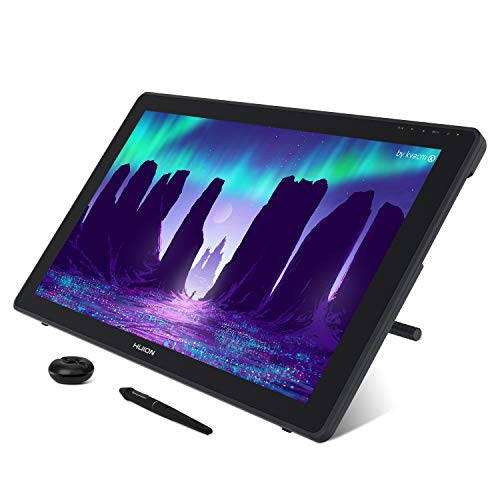
HUION Kamvas 22 — The big quiet canvas
The Kamvas 22’s title is a study in what it does not say. It promises a 21.5-inch screen, full lamination, anti-glare treatment, 120% sRGB coverage, an adjustable stand, a battery-free stylus with 8,192 pressure levels and tilt support, and compatibility across Mac, PC and Android — and it never mentions shortcut keys or a dial at all. For a right-handed artist that silence might read as a missing feature. For a left-handed artist it can read as a clear desk: no fixed column waits under the drawing wrist, and the shortcut question can be answered with whatever the artist prefers — a keyboard on the right, a loose controller, the software’s own radial menus — placed exactly where a right hand wants them.
The canvas itself argues for patience rewarded. Full lamination closes the gap between pen tip and pixel, which matters more to left-handed artists than most, because a hand approaching from the left already works with a slightly different sight line over the nib; parallax is the tax on that geometry, and lamination cuts it. Anti-glare treatment spreads room light instead of mirroring it, and the adjustable stand lets the big panel recline toward the drafting angle. At 21.5 inches this is a stay-at-home desk anchor rather than a traveller, and its working area forgives the broad arm movements of an artist drawing from the shoulder.
- Panel: 21.5-inch, full laminated, anti-glare as titled
- Colour: 120% sRGB stated in the title
- Pen: battery-free stylus, 8,192 pressure levels, tilt support as titled
- Stand: adjustable stand named
- Compatibility: Mac, PC and Android as titled
- Shortcut keys and dial: Not stated in the listing title — verify with the maker’s documentation
- Resolution: Not stated in the listing title — verify with the maker’s documentation
Strengths
- No titled shortcut column means nothing fixed sits under a left-handed drawing wrist.
- Full lamination reduces the parallax that a left-side sight line feels most.
- The largest canvas in this set, with an adjustable stand for a drafting posture.
Trade-offs
- Artists who want physical keys must supply their own and give them desk space.
- The title omits resolution entirely, so the panel’s sharpness needs confirming elsewhere.
- At 21.5 inches it claims a permanent desk rather than a bag.
Best for: a left-handed artist with a settled desk who prefers to choose and place every control personally. Not suited for: a mobile workflow, because a 21.5-inch panel with a stand is furniture, not luggage. The photographs on its Amazon listing show the bezel plainly, which is where the absence of a key column can be confirmed at a glance.
One working pattern flatters this HUION in particular: the painter who works large and slow. Illustration with broad colour blocking, background painting, comic pages built up in layers — these are sessions where the hand travels and the eyes stay wide, and a 21.5-inch laminated field rewards exactly that rhythm. The left-handed version of the session adds one detail: without a key column dictating the setup, the artist can also rotate the whole display a few degrees on the desk, the way paper is angled on a drawing board, and let the forearm rest at its natural slant. A fixed-control display resists that small rotation because its keys rotate away from usefulness; this one’s silence on controls makes it, paradoxically, the most posture-tolerant hardware in the guide.

HUION Kamvas 13 (Gen 3) — The dual-dial traveller
Two words in this title do more for a left-handed artist than any other phrase in the guide: Dual Dial. The Kamvas 13 (Gen 3) is a 13.3-inch pen display in black, with full lamination, Canvas Glass 2.0, 99% sRGB coverage and PenTech 4.0 at 16,384 pressure levels, working across PC, Mac and Android with a stand included — and it carries two dials where the class usually carries one. A single dial is a side chosen for you. Two dials reopen the question, placing a rotary control within the free hand’s reach for artists of either handedness, and that is why this small screen, not the largest or sharpest here, takes the guide’s strongest left-hand verdict.
The rest of the specification suits a travelling illustrator. Thirteen inches is sketchbook scale — the display slips into a bag beside the laptop it mirrors, and the stand in the title means the hotel desk or studio hot-desk becomes a drawing station without improvisation. The 16,384 pressure figure doubles the Kamvas 22’s titled levels, which shows up in the lightest-touch work: faint construction lines, glazing strokes, the first pass of a sketch that should barely exist. Canvas Glass 2.0 is the maker’s name for its surface treatment, and paired with full lamination it promises a short, honest distance between nib and line.
- Panel: 13.3-inch, full lamination, Canvas Glass 2.0 as titled
- Controls: Dual Dial named in the title
- Colour: 99% sRGB stated
- Pen: PenTech 4.0, 16,384 pressure levels as titled
- Compatibility: PC, Mac and Android as titled
- Stand: included, as titled
- Resolution: Not stated in the listing title — verify with the maker’s documentation
Strengths
- Dual Dial is the only titled control feature that serves both hands’ desks by design.
- The highest titled pressure figure among the compact picks, for light-touch sketching.
- Sketchbook size plus an included stand makes it the natural travel display here.
Trade-offs
- A 13.3-inch canvas crowds dense interfaces; tool palettes eat drawing room.
- Resolution is not printed in the title and must be confirmed before purchase.
- Shortcut keys beyond the dials are not described in the title.
Best for: left-handed drawing in more than one place in turn, with a dial sitting under the free hand and no rotating the display or remapping a workflow around fixed hardware. Not suited for: an artist whose files sprawl across dozens of layers and palettes at once, because 13.3 inches ration the workspace. Its listing on Amazon shows both dials in the product photographs — the single most useful image check in this entire guide for a left-handed buyer.
There is also a fairness point worth making about size. Small pen displays are often reviewed as compromises, but for left-handed artists a compact panel carries a hidden advantage: it can be turned. A 13.3-inch display rotates on a desk like a magazine, letting the artist swing the whole unit until the drawing angle, the cable exit and the dial positions align with a left-handed posture — a manoeuvre a 21.5-inch panel tolerates poorly. Combined with the dual dials, the Kamvas 13 is the pick that treats the artist’s body as the fixed point and the hardware as the adjustable variable, which is precisely the relationship left-handed users spend their lives reversing in other product categories.

Wacom Cintiq 16 (QHD) — The professional’s QHD
Wacom’s title is the shortest in this guide and behaves like a name spoken in a room where everyone already knows it. What it states: a Cintiq 16 with a QHD screen and the Pro Pen 3, aimed at serious artists creating illustrations, comics, animations and digital art. What it does not state fills the spec box below — no pressure figure, no colour percentage, no control description, no stand detail. This guide’s rule is to report that terseness as terseness. A buyer is entitled to note, though, what the two stated facts are worth: QHD resolution on a 16-class canvas is a genuine sharpness step over the Full HD tier, and the Pro Pen 3 is the current flagship stylus of the maker that effectively invented this product category.
For a left-handed artist, the Cintiq’s case rests less on its title than on the ecosystem the title implies — and the guide flags that distinction honestly rather than laundering reputation into specification. Wacom’s long presence in professional studios means its configuration software, its pen behaviour and its behaviour under a rotated canvas are the most documented in the field, and left-handed professionals have built mirrored workflows on Cintiqs for years. That history is a reason to investigate this pick first; it is not a substitute for verifying, in the maker’s documentation, the control layout and pen figures this listing declines to print. Artists speccing a full desk around the display can compare the wider field in best display graphic tablets before deciding how much of the budget the screen itself should claim.
- Panel: 16-class, QHD screen as titled
- Pen: Pro Pen 3 named in the title
- Intended work: illustrations, comics, animations and digital art, as titled
- Pen pressure levels: Not stated in the listing title — verify with the maker’s documentation
- Colour coverage: Not stated in the listing title — verify with the maker’s documentation
- Shortcut keys, dial and stand: Not stated in the listing title — verify with the maker’s documentation
Strengths
- QHD resolution is the sharpest titled screen claim among the mid-size picks.
- The Pro Pen 3 pairs the display with the maker’s flagship stylus generation.
- The Cintiq line’s studio history makes its left-handed workflows the most documented in the class.
Trade-offs
- The title verifies almost nothing a left-handed buyer specifically needs to know.
- Pen pressure and colour figures must be sourced entirely from documentation.
- Control geography — the heart of this guide — is unaddressed in the listing.
Best for: a left-handed professional already invested in Wacom’s pen ecosystem who will confirm the control layout in documentation and values QHD sharpness on the canvas. Not suited for: a purchase decision that must rest on the listing alone, because this title proves almost nothing beyond screen and pen. Wacom’s own documentation, linked from the Amazon listing, is where this pick’s real specification lives.
The comics workflow named in the title deserves a left-handed footnote. Comic artists ink with long, committed strokes and rotate the page constantly — on paper, the page spins under the hand all day. On a pen display, that spinning becomes canvas rotation, and the artist’s demand shifts from the pen to the software’s rotation smoothness and the display’s willingness to sit at a low, stable tilt while the free hand works the dial or keys. The Cintiq’s professional positioning suggests it expects exactly that workload; the title simply declines to itemise the hardware that serves it. Treat this pick as a strong hypothesis that documentation must confirm, and it will not disappoint; treat the brand name as the confirmation itself, and you have bought a logo with a screen attached.
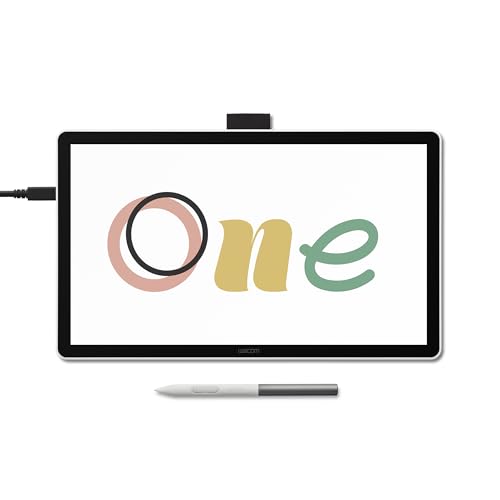
Wacom One 14 — The starter Wacom
The Wacom One 14’s title is written for the beginning of an artist’s life rather than the middle: a drawing tablet with an IPS Full HD laminated screen and pen, addressed to beginners and students learning digital art, animation and graphic design, and compatible with Windows, Mac and Chromebook. That Chromebook word matters more than it looks. It places this display within reach of school-issued hardware, which is where a great many left-handed artists first discover that digital tools, unlike scissors and spiral notebooks, can be configured to stop fighting them.
For a left-handed beginner, the honest virtues here are simplicity and forgiveness. A laminated Full HD screen keeps the pen honest, the 14-inch class is large enough to draw on without the commitment of a desk anchor, and a starter product’s restrained control set means fewer fixed buttons sit in the drawing hand’s path while habits form. What the title does not provide is any figure a spec-sheet shopper would want — no pressure level, no colour percentage, no control or stand description — and the review does not invent them. The Wacom One’s proposition is that a first pen display should be judged on whether a student will still be using it in a year, and that is a question of feel and reliability that titles cannot settle; the caution lines below mark the boundary of what print can prove.
- Panel: 14-class IPS, Full HD, laminated screen as titled
- Audience: beginners and students, as titled
- Compatibility: Windows, Mac and Chromebook as titled
- Pen pressure levels: Not stated in the listing title — verify with the maker’s documentation
- Colour coverage: Not stated in the listing title — verify with the maker’s documentation
- Controls and stand: Not stated in the listing title — verify with the maker’s documentation
Strengths
- Chromebook compatibility in the title opens it to school-issued hardware.
- A laminated screen at a starter tier keeps pen tracking honest while habits form.
- The restrained, beginner-aimed design leaves a left-handed student’s desk uncluttered by fixed controls.
Trade-offs
- No pen, colour or control figure is printed for a buyer to verify.
- Full HD across 14 inches is adequate for learning, not the sharpness ceiling of this guide.
- An advancing artist may outgrow a starter specification sooner than a mid-tier one.
Best for: a left-handed student buying a first pen display, especially where a Chromebook is the computer it must serve. Not suited for: billable work that depends on titled colour and pressure figures, because this listing offers none of them. A look at the listing photographs on Amazon will at least settle the control layout the title leaves blank.
There is a developmental argument for starting left-handed artists on simple hardware, and this Wacom embodies it. A beginner’s real task is building the eye-hand loop — looking at the screen, moving the pen, trusting the line — and every additional fixed control is a small interruption to that loop, doubly so when the controls sit where a left-handed wrist wants to rest. The One 14’s spareness, whatever its commercial reasoning, produces the cleanest possible first desk: screen, pen, computer, nothing else claiming territory. Artists who later graduate to dial-covered hardware will add controls by choice, placed by choice; artists who start on a crowded bezel often spend years working around a layout they never chose.

XPPen Artist Pro 19 Gen2 4K — The 4K with a loose dial
XPPen prints the most exuberant title in this set: a 4K UHD Artist Pro 19 Gen2, an 18.4-inch drawing tablet with screen, 156% sRGB, 1.07 billion colours, anti-glare treatment, dual styluses each with 16,384 pen pressure levels — and a Mini Keydial. That last item is the left-handed headline. A keydial is a small separate control unit rather than a strip of the bezel, and a separate unit can be parked on whichever side of the display the artist’s free hand occupies. For a left-handed artist, that means the dial and its buttons live on the right, placed by the artist, angled by the artist, and movable mid-session — the control-geography problem answered with furniture rather than with a settings menu.
The canvas credentials are equally maximal. 4K across 18.4 inches is the densest large drawing surface in this guide, and the titled colour claim — 156% sRGB with 1.07 billion colours — is the widest gamut language any of the six listings attempts. Dual styluses in the title means a spare pen or a second pen feel ships in the box, a practical mercy for artists who work in more than one room. Anti-glare treatment keeps the big glass usable under ordinary room light. Nothing in the title describes a stand, and the spec box flags it; a panel this size will spend its life at whatever angle its support provides, so that support deserves a listing-page check.
- Panel: 18.4-inch, 4K UHD, anti-glare as titled
- Colour: 156% sRGB and 1.07 billion colours stated in the title
- Pens: dual styluses, 16,384 pressure levels each as titled
- Controls: Mini Keydial named in the title
- Stand: Not stated in the listing title — verify with the maker’s documentation
- Compatibility: Not stated in the listing title — verify with the maker’s documentation
Strengths
- The Mini Keydial’s separateness lets a left-handed artist put the controls on the right side, at a chosen angle.
- 4K resolution and the guide’s widest titled colour claim serve detail-heavy, colour-led work.
- Two full-pressure styluses in the box remove the lost-pen emergency from the working week.
Trade-offs
- The title never mentions a stand, so the working angle depends on hardware the listing must clarify.
- An 18.4-inch 4K panel demands a capable computer to drive it smoothly.
- Compatibility is unstated in the title, an unusual gap for a pick this expensive to get wrong.
Best for: a large, dense, colour-wide canvas for left-handed illustration and concept work, with controls that can be picked up and put down again where the right hand lives. Not suited for: a small desk, because 18.4 inches of glass plus a separate dial unit is a two-object footprint. Confirm the stand arrangement through the Amazon listing before ordering, since the title’s silence there is this pick’s one structural unknown.
Think about what the loose dial does to a long session’s rhythm. On a fixed-column display, every brush-size change is a reach to a place the maker chose; the artist’s free hand develops a commute. With the keydial parked beside the keyboard hand’s natural rest position, brush size, zoom and undo become reflexes performed without looking, and the drawing hand never leaves the canvas to supervise them. Right-handed artists receive that rhythm by default on most hardware and rarely notice it exists. The XPPen is the one listing here whose titled contents hand the same rhythm to a left-handed artist without asking them to rotate, remap or forgive anything — and that, more than the 4K headline, is why it anchors the guide’s upper end.

ASUS ProArt PA169CDV (Wacom EMR) — The portable colour instrument
ASUS builds this one like an instrument rather than a peripheral. The PA169CDV is a 15.6-inch 4K USB-C portable pen display running Wacom’s EMR pen technology, with 10-point touch, an IPS panel, 100% sRGB coverage, PANTONE Validation, Calman Verification and a stated Delta E of less than 2 — the only colour accuracy figure printed anywhere in this guide — plus HDMI and a Dial among its titled features. For a left-handed artist, two of those words carry special weight. The Dial gives a rotary control on a body small enough to rotate on the desk until the control falls to the preferred side, and the Wacom EMR pen means the stylus is battery-free and works with the pen ecosystem many artists already own.
Portability reframes the left-handed question entirely. A portable display is repositioned constantly — angled on a café table, propped beside a laptop in a studio corner, turned to show a client a sketch — and each repositioning is a fresh chance to put the controls where the artist wants them rather than where a fixed desk dictated. Touch adds a second input language: the free hand can pinch, pan and rotate the canvas directly on the glass, which sidesteps bezel controls altogether for the gestures artists perform most. The trade is scale and permanence: 15.6 inches is a working canvas, not a drafting table, and a portable unit’s support arrangements are necessarily lighter than a desk anchor’s stand.
- Panel: 15.6-inch IPS, 4K as titled
- Colour: 100% sRGB, PANTONE Validated, Calman Verified, Delta E<2 — all stated in the title
- Pen technology: Wacom EMR as titled
- Touch: 10-point touch stated
- Controls: Dial named in the title
- Connections: USB-C and HDMI as titled
- Pen pressure levels: Not stated in the listing title — verify with the maker’s documentation
Strengths
- The guide’s only stated colour accuracy figure, for work that will be judged in print or by clients.
- A titled Dial on a body light enough to rotate until the control suits the artist’s free hand.
- Touch input lets the free hand drive canvas gestures without touching a bezel control at all.
Trade-offs
- Pen pressure is not printed, so the pen’s finesse must be verified in documentation.
- Fifteen inches of canvas suits portable work better than sprawling, multi-panel pages.
- A portable design’s support is lighter than a dedicated stand’s; long sessions want a desk plan.
Best for: a left-handed studio carried between client visits and two workplaces, with a laptop as the only computer, on colour claims that survive a professional conversation intact. Not suited for: a single fixed desk where a larger anchored canvas would serve better, because portability is this pick’s whole premise. Its Amazon listing photographs show the Dial’s placement, the detail a left-handed buyer should inspect first.
The client-facing scenario is where this ASUS separates itself. A left-handed illustrator sketching live in a meeting — absorbing feedback, revising on the spot — needs the display to behave like a sheet of paper passed across a table: light, turnable, indifferent to which side the pen approaches from. Touch gestures and a rotatable body deliver that behaviour in a way no anchored display in this set attempts. Add the colour credentials, which let the same unit carry the work from meeting sketch to client-credible proof, and the PA169CDV reads as the professional traveller’s answer to a question the other five picks answer for people who stay home.
How Do You Set Up a Pen Display for a Left-Handed Desk?
Work through the desk in the order your body meets it. First, the chair and the panel angle: tilt the display low, toward the drafting posture, so the forearm rests along the surface rather than hovering from a raised elbow — a hovering arm tires, and a tired arm’s strokes shorten and tighten. Second, the rotation: turn the whole display a few degrees, the way a sheet of paper sits angled on a board, until straight vertical strokes feel like pulls toward the body instead of pushes across it. Third, the controls: whatever your display carries — dial, keys, a loose keydial, a keyboard — belongs on your right, at the distance your free hand falls to without looking. Fourth, the cable: route it from the side away from your drawing arm, because a cable crossing the forearm’s path will be dragged, snagged and resented daily.
Then configure the software to match the furniture. Rotate the canvas mapping if you have physically turned the display; mirror any on-screen radial menus to the right side; assign the dial’s direction so that clockwise grows the brush with the hand that actually turns it. Spend one session drawing something unimportant — studies, copies, warm-up pages — while the arrangement settles, and adjust without mercy. A left-handed setup is never delivered by a manufacturer; it is assembled by the artist, once, and then defended. Artists hunting for the wider context of pen hardware can also read best affordable drawing tablets with screen and pressure to see how the budget tier handles the same control questions.
One more piece of furniture deserves a sentence: the second screen, or its absence. Many pen-display desks pair the drawing surface with an ordinary monitor that holds references, palettes overflow and communication tools. For a left-handed artist that reference screen belongs on the right, above or behind the free hand’s territory, so glances travel away from the drawing rather than across it. Single-screen artists should instead learn their software’s canvas-only mode — the keystroke that banishes every palette — because on a pen display the interface chrome competes for the same glass the hand works on, and the competition is fiercer the smaller the panel. The 13.3-inch Kamvas and the 14-inch Wacom One reward that habit most; the big XPPen and Kamvas 22 forgive its absence.
How Do the Six Compare on What Their Titles Actually State?
| Pick | Size and panel | Colour as titled | Pen as titled | Control story as titled |
|---|---|---|---|---|
| HUION Kamvas 22 | 21.5″ laminated, anti-glare | 120% sRGB | 8,192 levels, tilt, battery-free | No keys or dial mentioned |
| HUION Kamvas 13 (Gen 3) | 13.3″ laminated, Canvas Glass 2.0 | 99% sRGB | PenTech 4.0, 16,384 levels | Dual Dial |
| Wacom Cintiq 16 | 16-class QHD | Not stated | Pro Pen 3 | Not stated |
| Wacom One 14 | 14-class IPS FHD laminated | Not stated | Pen included, levels unstated | Not stated |
| XPPen Artist Pro 19 Gen2 | 18.4″ 4K, anti-glare | 156% sRGB, 1.07 billion colours | Dual styluses, 16,384 levels | Mini Keydial (separate unit) |
| ASUS ProArt PA169CDV | 15.6″ IPS 4K, touch | 100% sRGB, Delta E<2 | Wacom EMR, levels unstated | Dial |
Read the control column as this guide’s thesis in miniature. Two listings answer the left-handed question with hardware — a doubled dial, a detachable dial — one answers it with a dial on a turnable body, one answers it by omission, and two decline to answer in print at all. The pen and colour columns show the inverse pattern: the listings most eloquent about controls are not always the most eloquent about colour, which is why the choice below is a genuine fork rather than a ladder.
Which Mistakes Do Left-Handed Artists Make When Buying a Pen Display?
The first is shopping from the product photographs without mentally mirroring them. Every staged image in this category shows a right-handed desk; the keys that look conveniently placed sit, for you, under your drawing wrist. Train the inversion until it is automatic: look at any pen display and immediately ask where each control lands when the pen changes hands. The second mistake is assuming a famous name has solved the problem on your behalf. Two of the most storied listings in this guide print nothing about controls whatsoever — reputation is not a layout, and the artist who buys the name without checking the geography inherits whatever geography the name happens to ship.
The third mistake is subtler: fixing the hardware and forgetting the software half of the setup. Canvas rotation, mirrored menus and dial direction live in settings, and an artist who arranges the desk beautifully but leaves the software in its right-handed defaults will fight a low-grade friction for years without naming it. The fourth is buying for the artist you plan to become instead of the sessions you actually hold — a vast anchored canvas for someone who draws on trains, a portable instrument for someone whose desk never changes. Left-handed artists, of all buyers, cannot afford the wrong physical premise, because every other premise in this category is negotiable except the body’s.
How Does Drawing on Glass Differ From Paper for the Left Hand?
Paper taught every left-handed artist a set of defensive habits: the hooked wrist to avoid smearing ink, the page rotated clockwise until the writing runs uphill, the spiral binding avoided or the notebook flipped so the rings sit on the right. Glass quietly retires most of that curriculum. There is no wet ink to smear, so the hook can relax into a natural grip; the canvas rotates in software to any angle, not just the ones a physical page tolerates on a crowded desk; and there is no binding at all. Artists migrating from paper often report that the display is the first drawing surface that never asked their hand to apologise — provided, and it is the whole subject of this guide, that the controls ringing the glass do not reintroduce the apology in plastic form.
Two paper habits do transfer, and both argue for the stand and surface claims graded above. The first is drawing from the shoulder for long lines: on paper the arm glides because the heel of the hand rests and slides on the sheet, and on glass that glide depends on the surface treatment and on the display sitting low and stable enough to bear the hand’s weight — the practical content behind the anti-glare and lamination claims in the HUION and XPPen titles. The second is page-turning: paper artists rotate constantly and unconsciously, and the digital equivalent is canvas rotation assigned to a control the free hand can reach without a menu dive. An artist whose dial or keys cannot perform that rotation fluidly will simply stop rotating, and their digital work will quietly inherit the cramped geometry of a fixed page — the exact constraint the technology promised to remove.
Friction is the last paper property worth chasing. A pencil drags; a pen nib on bare glass skates, and the skate is directionally asymmetric — pushing a nib across glass feels different from pulling it, which means left and right hands genuinely experience different surfaces on the same display. The textured surface claims in these titles, from HUION’s Canvas Glass wording to the anti-glare treatments on the Kamvas 22 and the XPPen, are therefore not cosmetic for this audience: they are the difference between a stroke that starts where the artist intended and one that arrives a millimetre late. Judge them in the first week’s drawing, not from the listing’s adjectives.
What Should a Left-Handed Artist Test in the First Week?
Draw the exercises that expose geography, not the ones that flatter it. Long diagonal hatching across the full canvas will reveal whether your wrist crosses a key column, whether the cable drags at your forearm, and whether the stand creeps under pressure. A page of circles drawn at several canvas rotations will show whether rotation is fluid enough to become a habit or so clumsy it will be abandoned by week two. An hour of continuous inking — a comic page, a finished illustration — tests the session-length questions: heat on the palm, the dial’s reach at minute fifty, the free hand’s commute to undo.
Keep the packaging until those tests are done, and be honest about the results in a way right-handed reviewers never have to be. A display that is excellent for nine tenths of the population can still be wrong for your desk in ways no specification predicts, because the specification was written by someone picturing a different hand. The first week’s drawings are the only review copy that matters; the titles in this guide got the six candidates into your studio, and your own left hand delivers the verdict each of them has been waiting for.
Final Recommendation
Choose by where your controls will live. If a dial under the free hand is the dream, the HUION Kamvas 13’s Dual Dial is the only titled design that builds it in, and its travelling size forgives the small canvas. If the canvas must be large and the colour wide, the XPPen’s loose Mini Keydial delivers the same freedom at 4K scale. The Kamvas 22 suits the artist who wants a blank, generous field and controls of their own choosing; the ASUS ProArt suits the artist whose display must move through the world and testify about colour when it arrives; the two Wacoms suit readers willing to do their homework in documentation and value the pen ecosystems waiting there. Whichever arrives at your desk, spend its first evening on arrangement — angle, rotation, control placement, cable route — because for a left-handed artist the setup is not preparation for the product. The setup is the product, and the first drawing made without thinking about your own hand is the moment this purchase starts paying you back.
Frequently Asked Questions
Is any pen display actually made for left-handed artists?
None of the six titles in this guide claims a left-handed design, and buyers should distrust any listing that promises one without describing mirrored or movable controls. What exists — and what this guide ranks — is a spectrum of workarounds designed into hardware: doubled dials, detachable control units, control-free bezels and bodies small enough to rotate. The pen itself is hand-neutral everywhere in the set.
Why does dial placement matter so much?
Because the dial is the control a digital artist touches most — brush size and canvas zoom run through it dozens of times an hour. A dial fixed on the drawing hand’s side forces constant hand-crossing or pen-hand interruptions. The Kamvas 13’s Dual Dial and the XPPen’s separate Mini Keydial are the two titled answers in this guide, and they work by opposite philosophies: duplicate the control, or detach it.
Can I just rotate a pen display 180 degrees to move its keys?
Physically, often yes — and artists do. But rotation relocates everything else too: the cable exit, the stand’s tilt direction, any printed logos and controls’ labels, and it depends on the display’s stand tolerating the flipped posture. It is a legitimate tactic with a cooperative stand, which is why stand flexibility is graded in every review here, but a display whose controls were designed to be ambidextrous or movable asks less of the artist than one that must be turned upside down to behave.
Do left-handed artists need different pen pressure levels?
No — pressure levels are a property of the pen and digitiser, identical in either hand. The figures matter for the work, not the handedness: 16,384 levels as titled on the Kamvas 13 and the XPPen styluses serve the lightest construction strokes, while the Kamvas 22’s 8,192 remains a thoroughly professional figure. Where a title prints no level at all, as both Wacom listings do, the figure belongs on the documentation checklist rather than in a guess.
Does canvas rotation really replace a mirrored layout?
It replaces half of one. Rotating the canvas in software fixes stroke geometry — the hand stops hiding the line’s beginning, and pull strokes behave like pull strokes. It does nothing for physical controls welded to the wrong bezel, which is why this guide grades software rotation as class knowledge and hardware geography as the per-pick contest. The complete left-handed setup uses both.
What should a left-handed student buy first?
On titled evidence, the Wacom One 14 is the explicit student pick — beginner framing, a laminated Full HD screen, and Chromebook compatibility for school hardware — provided its undocumented figures are acceptable for coursework. A student whose schoolwork is illustration-led and who can stretch further will find the Kamvas 13’s dual dials a control education in themselves: hardware that never has to be worked around teaches better habits than hardware that must be forgiven daily.
Related Guides
The pen-display question continues in neighbouring categories: artists weighing a laptop that draws can read best laptops for drawing with stylus, and those speccing the whole desk around the display will find the colour-first perspective in best computer monitors graphic designers use. Both guides reward the same habit this one teaches — read the title as a floor plan before you read it as a promise.
Related guides
- Best 1440p 165Hz Monitors: One Native 165Hz Pick, Three 180Hz Upgrades, an Overclock Headline and a 160Hz Ultrawide
- Best 13×19 Professional Printers
- Best 3rd Party MacBook Chargers: 96W-Class Alternatives, the 100W Cable Rule, and the Apple Benchmark
- Best Built PC: Six Prebuilt Gaming PCs Judged on Parts, Power and Upgrades


