What's inside
- Where to Buy a Printer a Chromebook Can Actually Talk To
- Key Takeaways
- Quick Picks
- How Did We Judge Printers for an Operating System That Refuses Drivers?
- Which of These Six Fits a Chromebook Household?
- How Do the Six Compare on the Chromebook Question?
- How Do Schools and Small Businesses End Up in the Same Guide?
- What Changes When the Household’s Chromebook Is Replaced?
- How Do You Set Up a Printer for a Chromebook Without Losing an Evening?
- Which Mistakes Make Chromebook Printing Harder Than It Needs to Be?
- What Does a Consumer-Reports Way of Thinking Add to This Purchase?
- What Does a Week of Chromebook Printing in a Real Household Look Like?
- How Should Ink and Paper Be Handled Once the Machine Is Home?
- Which Questions Should a Buyer Ask at the Listing Page Itself?
- How Does Printing From a Phone Fit Alongside the Chromebook?
- What Should Happen in the First Week After the Printer Arrives?
- Final Recommendation
- Frequently Asked Questions
- Related Guides
As an Amazon Associate I earn from qualifying purchases. This post may contain affiliate links at no extra cost to you.
gizmoverdict.com is reader-supported. When you buy through links on our site, we may earn an affiliate commission.
Where to Buy a Printer a Chromebook Can Actually Talk To
Every model below is listed on Amazon, where the product page confirms the current version and lets you check price on Amazon before it joins the household. The search for the best printers for chromebook consumer reports usually begins after a small domestic disappointment: a perfectly good printer, a perfectly good Chromebook, and a print dialog that cannot find the one from the other. This guide exists to prevent that introduction from failing.
ChromeOS prints over Wi-Fi. There is no driver to install in the Windows sense, no cable ritual that rescues a machine the operating system does not recognise — the printer joins the home network, the Chromebook finds it there, and the relationship either works in the first ten minutes or becomes a research project. That is why this shortlist was judged, as the pool directs, on wireless setup and stated compatibility, strictly as the listing titles describe them. Four of the six are home inkjet all-in-ones from HP and Canon. The other two are thermal specialists — a label printer and a receipt printer — whose titles do something the all-in-ones’ titles do not: they name Chromebook compatibility outright.
That difference in wording matters and this guide will not blur it. Where a title states Chromebook compatibility explicitly, the spec box says so. Where a title is silent, the spec box carries the caution line instead, and the prose treats wireless all-in-one printing as the general route it is rather than dressing it as a promise the listing never made.
Key Takeaways
- Chromebook printing lives or dies on the wireless setup; every pick here is a wireless machine as titled.
- Only the JADENS label printer and the MUNBYN receipt printer state Chromebook compatibility in their titles — the four all-in-ones are judged on their wireless credentials instead.
- The HP DeskJet pair, the Envy and the portable Canon cover the ordinary home work: documents, school pages, photographs, scanning and copying.
- The Canon PIXMA TR160 is the traveller of the set, with a stated 50-sheet tray and a 1.44-inch display in a lightweight body.
- Labels and receipts are separate crafts with separate machines; neither thermal pick prints a document page.
Quick Picks
| Pick | Badge | Why it is here |
|---|---|---|
| HP DeskJet 2923 | The Straightforward Starter | Wireless all-in-one home printing in its plainest form. |
| HP Envy 6155 | The Polished All-Rounder | Duplex printing and an ink trial lift it above the entry tier. |
| Canon PIXMA TR160 | The Portable One | A lightweight wireless printer with its own display, made to travel. |
| HP DeskJet 2955 | The Sibling Option | A second DeskJet configuration to compare against the 2923 on the listing pages. |
| JADENS Bluetooth Thermal Label Printer | Labels, Chromebook Stated | Its title names Chromebook among its compatible systems outright. |
| MUNBYN WiFi Thermal Receipt Printer | Receipts, Chromebook Stated | An 80mm POS printer whose title lists Chromebook among the systems it works with. |
How Did We Judge Printers for an Operating System That Refuses Drivers?
The first pass read every title for its wireless story, because on ChromeOS the network is the driver. A printer that joins Wi-Fi cleanly and announces itself properly is a printer a Chromebook can use; everything else is commentary. The second pass separated stated compatibility from assumed compatibility with unusual strictness, because the entire disappointment this keyword represents comes from assuming. Two titles in the pool state Chromebook support in so many words, and both belong to thermal specialists; the four document printers state wireless all-in-one credentials and are presented on exactly that basis.
The third pass matched machines to the jobs Chromebook households actually print: homework and forms, the occasional photograph, labels for a small seller working from a kitchen table, receipts for a market stall or food truck whose till is a Chromebook in a stand. That spread explains a shortlist that runs from a portable Canon to a point-of-sale MUNBYN without apologising for the distance between them.
Which of These Six Fits a Chromebook Household?

HP DeskJet 2923 — The Straightforward Starter
The DeskJet 2923’s title is a model of entry-level honesty: a colour inkjet, wireless, all-in-one, aimed at easy home printing of colour documents, with mobile compatibility and print, scan and copy functions. For a Chromebook household, that combination describes the standard modern route — the printer on the home Wi-Fi, the Chromebook sending documents across it, the phone in the house able to do the same. Nothing in the title reaches beyond that brief, and for the kitchen-table workload of forms, homework and the occasional boarding pass, the brief is sufficient.
Its natural home is the household buying its first printer for a child’s school Chromebook, where the questions are simple ones. Will it print the worksheet tonight? Will it copy the permission slip? Will it scan the drawing for grandparents? The title answers each with a stated function, and the machine’s positioning — ideal home use, in HP’s own words — keeps expectations at the level the hardware intends to meet.
The caution belongs in the open: Chromebook compatibility is not stated in this title, so the spec box below carries the standard caution line rather than a compatibility tick. The wireless route it describes is the route ChromeOS uses, but a household for whom a printed promise matters more than a general mechanism should read the maker’s current compatibility documentation before ordering — advice this guide repeats for every all-in-one here, because the keyword’s whole history is people not being told to.
- Functions: print, scan and copy, as titled
- Connection: wireless stated in the title
- Mobile compatibility: stated in the title
- Positioning: easy home printing, ideal home use
- Chromebook compatibility: not stated in the listing title — verify with the maker’s documentation
Strengths
- A complete home function set covers the school-and-forms workload in one small unit.
- Wireless and mobile compatibility match how a Chromebook household actually sends pages.
- Its plain positioning keeps the purchase honest about volume and ambition.
Trade-offs
- Compatibility with ChromeOS must be confirmed outside the title before buying.
- No duplex is stated, so two-sided printing cannot be assumed from the listing.
- Entry positioning means heavy weekly volume belongs on a sturdier machine.
Best for: a family’s first printer alongside a school Chromebook, for documents, copies and scans. Not suited for: a home office printing long two-sided documents daily, where its unstated duplex and entry brief show.
Parents can check price on Amazon and read the current listing details there.
There is a rhythm to such a household’s printing that suits this machine’s modesty. Nothing arrives in hundreds; everything arrives in ones and twos, usually at eight in the evening, usually needed by nine the next morning. A printer for that rhythm is judged on whether it wakes, connects and prints without a negotiation — and on whether it forgives being ignored for a fortnight between jobs. The DeskJet tier exists precisely at that tempo, and the 2923 is its most straightforward expression in this guide.

HP Envy 6155 — The Polished All-Rounder
The Envy line has always been HP’s attempt to make the home printer presentable, and the 6155’s title adds substance to the styling: wireless all-in-one colour printing with scan and copy, duplex printing stated outright, a three-month trial of Instant Ink, and an AI-capable label that reflects HP’s current software framing. The duplex line is the one that matters most in this guide, because it separates the Envy from both DeskJets on a feature a Chromebook household will use weekly — school projects and household documents read better, and cost less paper, two-sided.
Its colour is the Envy’s other traditional strength, aimed at the home user who prints photographs and presentation pages alongside the forms. The title positions it best-for-home, a notch of intent above the DeskJets’ ideal-home-use phrasing, and the Portobello finish named in the title signals the design-conscious buyer HP is courting: this is a printer meant to sit in a living space without apologising for itself.
The compatibility discipline applies here unchanged. The title states wireless credentials and mobile compatibility, not Chromebook support in words, so the caution line appears below as it does for its DeskJet siblings. What the Envy adds is depth of function for households whose printing has outgrown the starter tier while remaining, in every other respect, a home workload.
- Functions: print, scan, copy, as titled
- Two-sided printing: duplex stated in the title
- Ink note: 3-month trial of Instant Ink included, as titled
- Connection: wireless stated
- Chromebook compatibility: not stated in the listing title — verify with the maker’s documentation
Strengths
- Stated duplex printing serves documents the way a household actually reads them.
- The ink trial softens the first season of ownership.
- Design-conscious finish suits a printer that lives in shared rooms.
Trade-offs
- ChromeOS support needs confirming in the maker’s documentation, as with all the all-in-ones here.
- No feeder is stated, so multi-page scanning is a flatbed, page-at-a-time affair.
- Its polish is wasted on a printer destined for a garage shelf.
Best for: a Chromebook household whose printing includes photographs, projects and two-sided documents in shared living space. Not suited for: bulk scanning work, since no document feeder is claimed in its title.
Households stepping up a tier can check price on Amazon and compare the Envy’s listing against the DeskJets directly.
The Instant Ink trial in its title deserves a household’s clear-eyed reading. A subscription ink model suits families whose printing is steady and who dread the empty-cartridge evening; it suits sporadic printers less obviously. The trial period exists so the household can learn which kind it is on evidence rather than on temperament — use those months to notice the family’s real page count, and let that number, not the marketing, decide what happens when the trial ends.

Canon PIXMA TR160 — The Portable One
Every other pick in this guide assumes the printer stays home. The TR160’s title assumes the opposite: a colour wireless portable printer, lightweight and compact, with a 50-sheet paper tray and a 1.44-inch display, sold for printing on the go. That combination — its own screen, a real tray, a body meant to be carried — serves the Chromebook’s own philosophy unusually well, because Chromebooks are the laptops people carry, and a printer that travels in the same bag closes the loop for anyone whose office is wherever they land.
Picture its working life. A market researcher printing consent forms at a venue. A student in a dorm room where the shared printer is three floors and one queue away. A site manager whose Chromebook lives in the cabin and whose paperwork cannot wait for the office. In each case the TR160’s stated traits map directly onto the need: wireless to join whatever network exists, a display to manage setup without a tethered computer, a tray that holds enough sheets for a session rather than a page at a time.
Portability taxes the usual home virtues, and the title’s silences mark where. No scan or copy function is stated — this is a printer, in the singular sense — and no duplex is claimed. A household choosing it as the only printer should do so knowing the flatbed work will need another answer. As a second, travelling machine beside a home all-in-one, or as the whole answer for a genuinely mobile worker, its brief is the most distinctive in this guide.
- Form: lightweight and compact portable printer, as titled
- Paper tray: 50-sheet tray stated in the title
- Display: 1.44-inch display stated
- Connection: wireless stated
- Chromebook compatibility: not stated in the listing title — verify with the maker’s documentation
Strengths
- A genuinely portable body pairs with a Chromebook’s own travelling nature.
- Its own display makes setup on unfamiliar networks a self-contained task.
- A 50-sheet tray supports real sessions rather than single-sheet improvisation.
Trade-offs
- No scanning or copying is stated, so it cannot serve as a home’s only paper machine for most households.
- No two-sided printing is claimed in the title.
- Its tray is sized for travel, not for a family’s weekly volume.
Best for: a mobile worker, student or researcher printing documents wherever the Chromebook happens to be. Not suited for: a household needing one machine to scan, copy and print everything.
Travellers can check price on Amazon and confirm the current portable configuration there.
Its display is worth one more thought, because on a Chromebook the printer’s own screen carries unusual weight. With no driver panel on the laptop to interrogate, the machine’s small window into its own state — network, readiness, ink — becomes the household’s diagnostic tool. A 1.44-inch display will never be luxurious, but on an unfamiliar venue network, with a queue of forms to print, it is the difference between configuring the machine and merely hoping at it.

HP DeskJet 2955 — The Sibling Option
The 2955’s title could be swapped with the 2923’s without a reader noticing for several lines: colour inkjet, wireless, all-in-one, easy home printing, colour documents, mobile compatibility, print, scan and copy, ideal home use. That closeness is not a failure of the shortlist but a feature of how home printers are actually sold — near-identical models differentiated by bundle, region, retailer and the small print of the current listing. This guide keeps both because a Chromebook household shopping today will meet both, and the honest advice is to compare them as siblings rather than pretend one is a different species.
Comparison, in this case, is a listing-page exercise. Check which configuration is currently stocked, how each describes its included ink and setup, and whether either page adds compatibility information the titles omit. Model numbers in this tier change costumes frequently; the function set — wireless colour all-in-one printing for a home — is the stable fact both titles agree on, and it is the fact the purchase should rest on.
Everything said about the 2923’s caution applies here in the same words, deliberately: ChromeOS compatibility is a documentation check, not a title claim, for this machine too. Households that find that check satisfactory gain a second, interchangeable route to the same kitchen-table capability, and in a tier where stock fluctuates, interchangeability is a genuine virtue.
- Functions: print, scan and copy, as titled
- Connection: wireless stated in the title
- Mobile compatibility: stated in the title
- Positioning: easy home printing, ideal home use
- Chromebook compatibility: not stated in the listing title — verify with the maker’s documentation
Strengths
- The full home function set is stated as plainly as its sibling’s.
- A second configuration widens the chance of finding the tier in stock as intended.
- Wireless setup follows the same Chromebook-friendly route as the 2923.
Trade-offs
- Differentiation from the 2923 lives in listing details rather than in any stated capability.
- Duplex is not claimed, so two-sided work needs verification or another pick.
- ChromeOS support is a documentation question here as well.
Best for: a household that has settled on the DeskJet tier and wants the better-presented of two near-identical listings. Not suited for: anyone expecting a distinct capability its sibling lacks — the titles promise none.
Comparison shoppers can check price on Amazon, where the two DeskJet listings can be read side by side.
Sibling models also protect a household against a quiet hazard of the budget tier: the discontinued listing. When a near-identical twin exists, a family is not stranded if one variant vanishes from sale between the decision and the purchase, or when a replacement is needed years later and the original number has retired. Continuity is an unglamorous virtue, and in this price band it is sometimes the deciding one.

JADENS Bluetooth Thermal Label Printer — Labels, Chromebook Stated
Here, at last, is the word the keyword came for, printed in a title: the JADENS label printer’s compatibility list runs iOS, Android, Windows, Mac and Chromebook, stated outright. Its craft is labels — shipping labels for the Etsy and Shopify sellers its title names, USPS work, the organised pantry and the labelled storage box — printed thermally, which means no ink at all: the image is burned into coated label stock by heat, and the consumable is the label roll itself.
The built-in paper bin in its title is a small phrase with daily consequences. A label printer that carries its own roll inside the body sits tidier on a packing bench, feeds straighter, and travels between the kitchen table and the market stall without a loose roll unspooling in transit. Bluetooth, also stated, suits the phone-and-Chromebook pattern of small sellers, whose design and postage software increasingly lives on exactly those devices.
Keep its borders clear. It prints labels and nothing else — no documents, no photographs, no homework — and its presence in this guide is as the stated-compatibility answer for one specific, enormous Chromebook use case: the home-based seller whose entire business runs from a browser. For that reader, this unassuming thermal box may be the most directly qualified pick on the page.
- Route: thermal label printing — no ink required
- Compatibility stated: iOS, Android, Windows, Mac, Chromebook
- Connection: Bluetooth wireless, with built-in paper bin
- Aimed at: Etsy, Shopify and USPS label work, as titled
- Document printing: none — labels only
Strengths
- Chromebook compatibility is stated in the title itself, a rarity in this guide.
- Thermal printing removes ink from the running-cost picture entirely.
- The built-in paper bin keeps a packing bench tidy and the roll protected.
Trade-offs
- It cannot print a document page of any kind.
- Label stock is a continuing consumable commitment unique to the thermal route.
- Colour, photographs and graphics beyond label work are outside its design.
Best for: a Chromebook-based small seller printing shipping and product labels daily. Not suited for: any household document task — pair it with an all-in-one, never substitute it for one.
Sellers can check price on Amazon and confirm the label sizes the current listing supports.
Thermal printing’s economics deserve a sentence of their own for sellers weighing this pick. With no ink to buy, the running cost collapses into the label stock itself, and the cost per label becomes a number a small business can know exactly — a rare certainty in printing. Against that, labels are a forever purchase, and a seller’s volume decides whether the certainty is a bargain. The Chromebook stated in the title simply means the whole arrangement can be driven from the same inexpensive laptop that runs the shop.
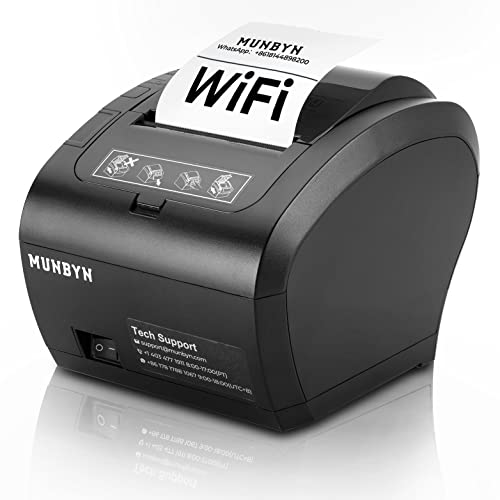
MUNBYN WiFi Thermal Receipt Printer — Receipts, Chromebook Stated
The MUNBYN closes the six with the second stated Chromebook claim, from an entirely different counter: an 80mm thermal receipt printer for point of sale, working — as its title lists — with Mac, Windows, Chromebook and Linux. Its connection set is a small business’s roll call: WiFi for the counter, plus USB, LAN and RS232 ports for the till hardware of every era, and cash-drawer support for the drawer that still anchors most small shops’ money.
Its title is equally honest about its borders, and the honesty deserves quoting in spirit: it does not support Square, PayPal, Zettle, Shopify or Bluetooth. A receipt printer lives inside a point-of-sale ecosystem, and this one’s title tells a buyer exactly which ecosystems it enters and which it refuses — the single most useful thing a POS listing can do, because a receipt printer incompatible with the till software is not a bargain at any price. Chromebook-based till setups, which are common in small cafés and market businesses precisely because Chromebooks are cheap and browser-based, are squarely in its stated territory.
Like the JADENS, it is a thermal specialist: no ink, no documents, no labels beyond receipt width. Its role in a Chromebook story is the commercial mirror of the label printer’s — proof that the stated-compatibility corner of this market is currently occupied by the thermal machines, while the document all-in-ones rely on the general wireless route.
- Route: thermal receipt printing, 80mm, as titled
- Compatibility stated: Mac, Windows, Chromebook, Linux
- Connections: WiFi, USB, LAN and RS232 stated
- Cash drawer support: stated in the title
- Not supported, as titled: Square, PayPal, Zettle, Shopify, Bluetooth
Strengths
- Chromebook is named in its stated working systems.
- Four connection types cover tills old and new on the same counter.
- Its exclusions are printed in the title, preventing the classic POS mismatch.
Trade-offs
- Major payment platforms are explicitly unsupported, which rules it out for those tills.
- Receipts are its whole world; no documents or labels beyond its width.
- No Bluetooth, despite the WiFi, so phone-driven setups should look elsewhere.
Best for: a café, stall or small shop running a Chromebook-based till on a compatible system, needing receipts and a cash-drawer kick. Not suited for: any business whose payment platform appears in its stated exclusions.
Counter owners can check price on Amazon and match the listing against their till software before anything else.
A Chromebook-based till has one more quiet advantage this pick is built to receive: the laptop is replaceable. When the counter computer is an inexpensive browser machine, a hardware failure is an afternoon’s errand rather than a business crisis, and peripherals that speak to standard systems — as this printer’s stated list describes — move to the replacement machine without drama. Small businesses insure themselves in such small structural ways far more often than they buy actual insurance against technology.
How Do the Six Compare on the Chromebook Question?
| Pick | Job | Connection as titled | Chromebook in title? |
|---|---|---|---|
| HP DeskJet 2923 | Home documents, scan, copy | Wireless | Not stated — verify with the maker’s documentation |
| HP Envy 6155 | Home documents with duplex | Wireless | Not stated — verify with the maker’s documentation |
| Canon PIXMA TR160 | Portable documents | Wireless | Not stated — verify with the maker’s documentation |
| HP DeskJet 2955 | Home documents, scan, copy | Wireless | Not stated — verify with the maker’s documentation |
| JADENS Label Printer | Shipping and product labels | Bluetooth | Yes — stated |
| MUNBYN Receipt Printer | Point-of-sale receipts | WiFi, USB, LAN, RS232 | Yes — stated |
The last column is the most instructive table this guide could print. Stated compatibility and document printing do not currently overlap in this pool: the machines that name the Chromebook do not print documents, and the machines that print documents ask to be verified. Understanding that single fact, and shopping by it calmly, serves a household, in the long run, better than memorising every other line on the page ever will.
How Do Schools and Small Businesses End Up in the Same Guide?
Because the Chromebook put them there. The same inexpensive, browser-centred laptop that schools issue to children by the thousand is the machine small businesses choose for counters and kitchen-table offices, for the same reasons: it is cheap, it updates itself, and it holds no local data worth grieving over. A printer guide for that computer therefore inherits both worlds at once — the worksheet and the shipping label, the permission slip and the receipt — and this shortlist’s strange span from DeskJets to a point-of-sale MUNBYN is simply that inheritance made visible.
The two worlds even share a buying discipline. A school district and a market trader both need the machine to work with the Chromebook in front of them, both are ruined by an assumption, and both benefit from a title that states its compatibility in plain words. Where the school’s fleet buyer reads specifications at scale, the trader reads one listing at midnight — but the sentence each of them is hunting is the same sentence, and only two titles in this pool contain it.
There is a lesson in that for how these products are described. The document-printer industry treats operating-system compatibility as a documentation matter, something for support pages; the thermal specialists, selling to smaller and more anxious buyers, print it on the box. Until the first habit changes, guides like this one will keep a column in their comparison tables for the difference — and households will keep being surprised by a distinction that could have been a headline.
What Changes When the Household’s Chromebook Is Replaced?
Sooner or later the laptop at the centre of this system is swapped — a school issues a new one, a hinge fails, a faster model arrives at a birthday. The printer should survive that transition without ceremony, and in a properly arranged home it does: the new Chromebook joins the same network, finds the same printer, and the household’s printing continues as if the computer were a lightbulb that had been changed. That continuity is the deepest argument for the network route this guide keeps describing. A printer married to one machine’s drivers dies with that machine; a printer married to the household’s Wi-Fi outlives several laptops.
Protect the transition with two small habits. Keep the printer on the main home network rather than on a guest or extender oddity that a future setup might not reproduce, and keep the saved-evidence folder from the purchase — listing, compatibility conclusion, network name — where the person setting up the next Chromebook can find it. The machines most likely to confuse a new laptop are the thermal pair, whose software ecosystems matter as much as their radios; the MUNBYN’s stated exclusions, checked once at purchase, should be checked again if the till software ever changes.
How Do You Set Up a Printer for a Chromebook Without Losing an Evening?
Prepare the network before the printer. The Chromebook and the printer must end up on the same Wi-Fi network, so know the network’s name and password, and be aware that some routers maintain separate bands that behave like separate rooms — a printer on one band and a Chromebook on another can be technically connected and practically invisible to each other. Place the printer where the signal is honest rather than where the shelf is pretty; a weak corner produces the intermittent printing that households describe as the printer having moods.
Run the printer’s own setup first, from its panel or its maker’s app on a phone, until the machine reports itself connected to the home network. Only then turn to the Chromebook’s settings, where the printer should appear as an available device on that network, ready to be saved. Print a test page of something trivial. Then print the real document, because the second job is where paper size and orientation settings introduce themselves, and it is better to meet them on a worksheet than on the one form that matters.
If the printer refuses to appear, work the short ladder in order: both devices on the same network, both awake, the router restarted once, the printer’s wireless set up again from scratch. Resist the urge to install anything — ChromeOS printing does not work that way, and downloads promising to fix it are a detour into somebody else’s business model. Households whose wider setup includes a family office corner may also find the wireless discipline in the guide to best printers for home and small office useful, since the network habits are identical even where the operating systems differ.
Which Mistakes Make Chromebook Printing Harder Than It Needs to Be?
The founding mistake is buying on an assumption — a printer whose box never mentioned ChromeOS, chosen because a relative’s Windows laptop printed to it happily. The second is its mirror: assuming a printer cannot work because its title omits the word, when the maker’s documentation lists ChromeOS support the listing never quoted. Both errors are cured by the same ten minutes with the maker’s current compatibility pages, which is why this guide repeats the instruction until it becomes reflex.
Network mistakes follow. A printer joined to a guest network, a Chromebook on the main one; a new router installed and every device rejoined except the printer; a printer asleep in a far room with a signal too weak to hold. Each presents as a compatibility failure and is actually a geography failure. The third class of mistake is job confusion — expecting the label printer to handle a document, the receipt printer to handle a label run, or any of the all-in-ones to match a thermal machine’s cost per label. The six picks form a toolkit; using a tool outside its stated job is how toolkits get blamed.
What Does a Consumer-Reports Way of Thinking Add to This Purchase?
The phrase in the keyword deserves a direct answer. A consumer-reports approach to buying — whoever publishes it — means judging a product on tested behaviour and stated specifications rather than on the warmth of its advertising, and it means treating compatibility as a fact to be verified rather than a vibe to be absorbed. This guide has tried to work in that spirit throughout: claims are tied to listing titles, silences are labelled as silences, and the two machines that state Chromebook support are distinguished from the four that ask for a documentation check, without either group being inflated into the other.
Applied at home, the same spirit becomes a short ritual before any printer order. Read the title for what it claims. Read the maker’s compatibility documentation for what the title omitted. Read the current listing for bundle and stock. Then — and only then — compare prices, because a cheap printer that cannot talk to the household’s only computer is the most expensive printer on the page. Households that adopt that order of operations rarely join the disappointed audience this keyword was born from.
There is a second consumer-reports habit worth borrowing: keeping the evidence. Save the listing details and the compatibility page’s conclusion at purchase time, in the same folder as the receipt. If a question arises in month nine — a system update, a new router, a replaced Chromebook — the household that can re-read what was promised, and by whom, solves it in minutes instead of re-litigating the purchase from memory.
What Does a Week of Chromebook Printing in a Real Household Look Like?
Monday is a form for school, printed at the last responsible moment. Tuesday is nothing. Wednesday is a worksheet, a copied permission slip, and a scanned drawing sent to grandparents by a child who has strong opinions about which drawing. Thursday is a return label — the JADENS’ moment, in a selling household — and Friday is a photograph for a project board, where the Envy’s colour earns its shelf. The weekend brings the irregulars: a boarding pass, a recipe, a pattern, a receipt dispute that sends someone to the MUNBYN’s cousin in the family business.
No single machine in this guide covers that whole week, and the week is the argument for the guide’s structure. The all-in-ones carry the document days; the thermal pair carry the commercial minutes; the portable Canon carries the week when the household itself travels. A Chromebook sits at the centre of all of it, indifferent to which device serves which day, provided each device was chosen for its stated job and verified in the way its title requires. Printing happiness, at household scale, is mostly the absence of category errors.
How Should Ink and Paper Be Handled Once the Machine Is Home?
Home inkjets live a feast-and-famine life that their cartridges feel keenly. A fortnight of silence followed by a Sunday of projects is normal, and the household’s part of the bargain is to keep the machine powered at the wall so it can run its own quiet maintenance, and to print something small in the silent weeks rather than letting the first important document double as a nozzle test. None of the titles here makes promises on this subject, so the advice is offered as household practice, not as a product claim.
Paper discipline is simpler and pays faster. Keep the household’s stock dry, flat and in its wrapper until loading; fan a small stack before it goes in; and keep one pack of the good paper separate for the photograph and the certificate, because children can tell the difference even when parents pretend not to. The thermal pair escape most of this — their stock is their ink — but they ask their own version: label and receipt rolls stored away from heat, since a thermal surface begins its life sensitive to exactly the thing that prints it.
Which Questions Should a Buyer Ask at the Listing Page Itself?
Four questions, in order, will carry a Chromebook household further than any feature comparison. First: does this listing, or the maker’s documentation it leads to, name ChromeOS or Chromebook for this exact model? Second: what exactly is in the box — starter ink, cables, label stock — since bundles in this tier vary quietly between listings of near-identical machines? Third: which of the functions in the title will this household use weekly, and which are decoration? Fourth: if this printer vanished from sale tomorrow, which sibling or successor would replace it, and does the household’s evidence folder say so?
Notice what is absent from that list: any question about speed. Home printing beside a Chromebook is measured in jobs per evening, not pages per minute, and none of the six titles here makes a pace claim worth planning around. The absence is itself information. A category that does not compete on speed is telling its buyers to compete on fit — the right job, the right network, the right stated promise — and the households that listen are the ones whose printers simply work, unremarkably, for years.
How Does Printing From a Phone Fit Alongside the Chromebook?
Most Chromebook households are also phone households, and the titles here nod to that reality with their repeated mobile-compatibility claims. In practice the phone becomes the printer’s second front door: the photograph that never reaches the laptop, the label adjusted on the seller’s app, the document forwarded from an email on a train. A printer that serves both doors from the same network connection — the pattern every all-in-one here describes — keeps the household’s habits simple, because nobody has to remember which machine obeys which device.
The thermal pair divide that convenience by their connections. The JADENS’ stated Bluetooth suits the phone-first seller outright. The MUNBYN pointedly excludes Bluetooth in its title while offering WiFi and three wired routes, a till-centred philosophy in which the counter’s fixed systems matter more than a handset. Neither is a defect; each is a small declaration of which room the machine believes it lives in, and reading those declarations carefully removes the surprise from either.
What Should Happen in the First Week After the Printer Arrives?
Day one belongs to the network: unbox, connect, save the printer on the Chromebook, and print one trivial page and one real one. Day two belongs to the second device — the phone, the other Chromebook, the parent laptop — because a household printer that only one machine can find is a problem deferred, not solved. Somewhere in that first week, print the three documents the household actually lives on: the form, the photograph, the multi-page school project. Each teaches a setting, and learning them in a calm week is cheaper than learning them at a deadline.
By day seven, do the two pieces of paperwork that future-you will bless you for. Photograph or save the listing and the compatibility conclusion into the evidence folder, and write the printer’s network name and the date on a label inside its lid or underneath its base. Then deliberately print nothing for two days, and print again — the small rehearsal of the household’s real rhythm, silence and all, which confirms the machine wakes and reconnects as a home printer must. A setup that survives its first quiet weekend will survive the school year.
Sellers adding the JADENS or the MUNBYN should spend the same week on a parallel ritual: a full practice run of the commercial workflow, from design to printed label or receipt, on stock they are willing to waste. The first real order is the wrong classroom. A dozen sacrificed labels in week one is the cheapest tuition in small-business printing, and the Chromebook at the centre of it will feel, by Friday, less like a school laptop moonlighting and more like what it has quietly become — the till, the office and the print room of a very small, very modern company.
One last household pattern deserves naming, because it decides more purchases than any specification: the printer is usually bought in a hurry, the evening a document is due. Everything in this guide is arranged to make that hurried purchase a safer one — the jobs separated, the stated promises separated from the assumed ones, the verification step made explicit. If the evening allows only three minutes of reading, spend them on the comparison table’s last column and on the verdict under the pick that matches your job. The rest of the guide will still be here tomorrow, when the form has been printed and the household has time to learn what else its new machine can do.
And if the hurried evening belongs to a seller rather than a parent, the same mercy applies in miniature: the label printer whose title names your laptop’s system, bought in ten minutes, will outperform a week of research that ends in a beautiful machine speaking the wrong language. Speed and certainty are not enemies in this category; they are the same purchase, made at the right column of the table.
Final Recommendation
Let the job choose, and let the wording keep you honest. For ordinary home documents beside a Chromebook, the Envy 6155 is the deepest of the all-in-ones here, with the DeskJet 2923 and 2955 as its plainer siblings and the Canon TR160 as the travelling alternative — each to be confirmed against the maker’s Chromebook documentation before the order, because their titles claim wireless rather than naming the operating system. For labels and receipts, no confirmation hunt is needed: the JADENS and the MUNBYN state Chromebook compatibility in their titles, and each is the right machine for exactly one counter in the house. A Chromebook prints happily ever after not when its owner finds a magic model, but when the network is sound, the job matches the machine, and the promise being relied on is one the maker actually made — in writing, where this guide could read it.
Frequently Asked Questions
Do Chromebooks need printer drivers?
Not in the traditional sense. ChromeOS printing works over the network with printers the system can discover and support, which is why this guide judges wireless setup so heavily and treats the maker’s compatibility documentation as the authority for any model whose title stays silent.
Why do only the thermal printers state Chromebook compatibility?
Because their makers chose to print it in the title. The JADENS and MUNBYN listings name Chromebook among their systems; the HP and Canon titles describe wireless all-in-one printing without naming operating systems. The difference is one of listing wording, and the correct response is verification, not assumption in either direction.
Can a Chromebook print labels for an online shop?
Yes — that is precisely the JADENS pick’s stated territory, with Chromebook in its compatibility list and Etsy, Shopify and USPS named in its title. Sellers should still confirm the label sizes their postage workflow needs against the current listing.
Which pick is best for a student’s dorm room?
The Canon PIXMA TR160, if the need is documents alone: portable, wireless, with its own display for unfamiliar networks. If the dorm workload includes copying and scanning, one of the DeskJet all-in-ones serves better, at the cost of staying in one room.
What should I check first when a Chromebook stops seeing the printer?
The network, before anything else: same Wi-Fi for both devices, both awake, signal strength where the printer stands. Most disappearances are a router change, a band split, or a printer that quietly joined a different network during a previous setup attempt.
Is the MUNBYN suitable for a home office?
Only if the home office runs a till. It is a point-of-sale receipt printer with stated Chromebook support and stated exclusions — including several major payment platforms — so its home is a counter, and its buyer should match it against their point-of-sale software first.
Can one printer serve both the homework and the online shop?
Partly, and the boundary is thermal. An all-in-one can print a document that looks like a label, on label stock it tolerates, at inkjet cost per sheet; the JADENS exists because sellers outgrow that improvisation quickly. The common household answer is two modest machines — an all-in-one for paper, a thermal for labels — each cheap in its role, rather than one machine compromised in both.
Does a wired connection help a Chromebook print?
Indirectly. Chromebooks themselves are wireless creatures, so the printer’s own Ethernet port — where a model offers one, as the MUNBYN does for its till world — helps by giving the printer a rock-steady place on the network from which the Chromebook can find it. For the home all-in-ones here, the titles claim wireless, and a strong, well-placed Wi-Fi signal is the practical equivalent.
What if the maker’s documentation and the listing disagree?
Trust the maker’s current documentation for compatibility, and the listing for what is actually being sold and shipped. Where the two conflict on a fact that decides the purchase, that conflict is itself a finding — a reason to choose the model whose paperwork agrees with itself, or to ask the seller a direct question before money moves.
How long should a home printer in this class be expected to last?
Long enough to be replaced by preference rather than emergency, if the household keeps its side of the bargain: steady power, dry paper, an occasional small print in the quiet weeks, and a network that does not change its name every season. The machines here are household appliances in the honest sense, and they repay being treated like the washing machine — ignored when working, maintained in small ways, understood before they are blamed, and replaced, eventually, by a household that has learned exactly what it needs from the years this one gave.
Related Guides
Readers building out a Chromebook-centred setup may also want best laser printers for college students for the semester-volume alternative, best label printers small business for a deeper label shortlist, best printers for college low ink when running costs lead the decision, and best afforadble wireless printers for the wider wireless field.
Related guides
- Best 1440p 165Hz Monitors: One Native 165Hz Pick, Three 180Hz Upgrades, an Overclock Headline and a 160Hz Ultrawide
- Best 13×19 Professional Printers
- Best 3rd Party MacBook Chargers: 96W-Class Alternatives, the 100W Cable Rule, and the Apple Benchmark
- Best Built PC: Six Prebuilt Gaming PCs Judged on Parts, Power and Upgrades


