What's inside
- Key Takeaways
- Quick Picks
- What job does the laptop actually do during a round?
- How much graphics card does a bay honestly need?
- Does the bay’s display change which laptop is right?
- The six laptops, one bay at a time
- The six laptops compared for simulator duty
- How do you set up a laptop bay that behaves from the first swing?
- What if the laptop also has to handle lessons, video and club data?
- What mistakes do golfers make when buying a laptop for a bay?
- How long should a simulator laptop be expected to serve?
- How do you choose between the two RTX 5070 machines?
- What else belongs in the budget around the laptop?
- Final Recommendation
- Frequently Asked Questions
- Related Guides
As an Amazon Associate I earn from qualifying purchases. This post may contain affiliate links at no extra cost to you.
gizmoverdict.com is reader-supported. When you buy through links on our site, we may earn an affiliate commission.
Where to buy: Each machine below links to its Amazon listing, and the listing is where you confirm the graphics card, memory and drive size actually fitted to the unit in your cart, since gaming ranges reuse one model name across builds that differ in exactly the parts a simulator loads hardest.
Nobody buys a golf simulator all at once. The launch monitor arrives first, then the net or impact screen, then the mat, and only then does the household ask the awkward question: what is going to run all of this? The best laptops for golf simulators are the answer to that last question, and they are judged here on the work a bay actually assigns them — rendering a detailed course convincingly, holding simulation software and shot records together for hours, and connecting cleanly to the monitor and display already standing in the room. Launch monitors, projectors and enclosures are separate purchases with their own guides; this page is strictly about the computer.
That distinction shapes every ranking that follows. A simulator laptop does not sprint the way a gaming laptop in a review benchmark does. It settles in, plugged in, usually in a garage or spare room chosen for ceiling height rather than ventilation, and it redraws a landscape after every swing for an entire evening. Sustained graphics output matters more than peak numbers. Memory matters because the simulation package never runs alone. And connections matter in a way they never do for ordinary gaming, because the laptop has to talk to a launch monitor on one side and a projector or its own screen on the other.
Six laptops are ranked below. Two carry the GeForce RTX 5070, one an RTX 4070, two an RTX 5060, and the last an RTX 3050 that is included deliberately and labelled honestly as the entry route. No frame-rate figures for named simulator packages appear anywhere in this guide, because the listings do not state any and the real number depends on the software, the resolution and the room you build. What the guide does instead is show which facts in each listing title predict a bay that behaves, and which single check to finish before paying.
Key Takeaways
- This guide covers only the computer third of a simulator bay; the launch monitor and the projector or screen are judged elsewhere and bought separately.
- Graphics tier sets the ceiling for rendered courses: the RTX 5070 pair and the RTX 4070 machine carry the most headroom, while the RTX 3050 Victus is a first-season route and is described that way throughout.
- Three picks carry 32GB of memory, which suits bays where swing video, shot archives and a browser share the machine with the simulation software.
- Video outputs are the trap in this category: several titles name no display output at all, so matching the laptop to your projector is a check to complete before ordering, not after.
- The Acer Nitro V16 is the only pick whose title names both an Ethernet port and an SD card slot, two unglamorous details that bay owners end up using constantly.
- Storage divides the field cleanly: five picks carry 1TB drives, and the entry Victus carries 512GB, which fills sooner once course libraries and recorded sessions accumulate.
Quick Picks
| Pick | Badge | Why it earns its place |
|---|---|---|
| Acer Nitro V16 (RTX 5070) | Best complete bay computer | RTX 5070 graphics, 32GB of memory, a colour-accurate WQXGA screen and the only title here that names Ethernet and an SD slot outright. |
| MSI Katana A15 AI (RTX 4070) | Best for long sessions | An RTX 4070 and Ryzen 9 processor paired with named Cooler Boost 5 cooling, aimed squarely at warm rooms and evening-long practice. |
| ASUS ROG Strix G16 (RTX 5060) | Best screen-led pick | A 165Hz panel with a stated 3ms response and Wi-Fi 7, for the bay where the laptop’s own display is the picture being watched. |
| GIGABYTE Gaming A16 (RTX 5070) | Strongest core specification | Matches the RTX 5070 with 32GB of memory and a 1TB drive, provided your bay’s connections are settled before it arrives. |
| HP Victus 15 (RTX 3050) | Honest entry route | An entry graphics card, 8GB of memory and a capable Core i5: a sensible first bay beside a portable launch monitor, with limits stated plainly. |
| MSI Katana 15 HX (RTX 5060) | Best compact QHD choice | QHD resolution at 165Hz in the smaller 15.6-inch chassis, with an HX-series processor and a full 1TB of storage. |
What job does the laptop actually do during a round?
Follow a single shot and the division of labour becomes obvious. The launch monitor watches the strike — by camera or radar depending on its design — and passes ball and club measurements to the laptop over whatever connection that unit uses. The laptop’s software then performs two tasks simultaneously: it computes where the shot goes, and it draws where the shot goes, placing the ball inside a rendered course of trees, water, bunkers and grandstands that has to stay believable at the size your display shows it. The drawing never pauses. From strike to landing to roll-out, the scene is rebuilt continuously, and that continuous rebuild is graphics-card work from first frame to last.
Once the shot settles, the quieter jobs start. The shot joins the session record, the session joins a growing personal archive, and if a swing camera belongs to the bay, its video is stored and queued for replay beside the numbers. Multiply one shot by a four-player league night and the pattern is hard to miss: the graphics card carries the scenery, the memory carries everything running alongside the software, the drive carries the accumulating record, and the cooling system carries the whole arrangement through the warmest hour of the evening. A laptop with no weak carrier among those four is what this guide went looking for, and the picks below were separated on exactly that basis.
Connections deserve a paragraph of their own because they are where simulator builds quietly fail. Launch monitors attach by USB, by Ethernet or wirelessly depending on the model. Projectors accept particular inputs and resolutions. The listing titles in this category are strikingly uneven about outputs — some name an Ethernet port proudly, others name no port of any kind — and that unevenness is why the reviews below keep returning to one habit: write down every device the laptop must reach in your bay, then confirm each link against the maker’s documentation for the exact model before the order goes in.
How much graphics card does a bay honestly need?
The useful way to think about the graphics card is as resolution and scenery bought in advance. Simulation software renders a three-dimensional course, and every step up in display resolution, and every richer scenery setting, raises the work the card performs on every frame of every shot. A net-and-laptop arrangement running the machine’s own Full HD or QHD panel is a moderate demand. A projector throwing a large, bright, detailed image is a heavier one. And the golfer who expects to upgrade the projector in two years is really choosing a graphics card for the room they intend to have, not the room currently standing.
That logic places the RTX 5070 machines at the head of the guide, not because a stopwatch would catch them during one swing, but because headroom is what survives software updates and display ambitions. The middle of the field deserves a fair hearing rather than a reflex ranking. The RTX 4070 in the Katana A15 AI is a previous-generation card that still sits above the RTX 5060 in the broad order of tiers, and the two RTX 5060 machines answer with newer platforms around the card — current processors, faster wireless standards, sharp high-refresh panels. The RTX 3050 in the Victus belongs to a different conversation entirely: sensible settings, a first season, a golfer learning whether the hobby takes hold. Tiers can be stated honestly; invented frame rates for named packages cannot, and none appear here.
Does the bay’s display change which laptop is right?
Completely, and in opposite directions. In a projector bay the laptop demotes itself to an engine in the corner. Its own screen becomes a dashboard for software, settings and shot data, glanced at between swings. There the ranking runs graphics tier first, memory second, connections always, panel last — and the Acer and GIGABYTE, with RTX 5070 cards and 32GB of memory, are the natural engines, while the Katana A15 AI’s named cooling suits a machine that may live in a cabinet with imperfect airflow. The one discipline a projector household cannot skip is confirming how the chosen laptop sends its picture out, because several of these titles simply never say.
A screen-only bay inverts every one of those priorities. The laptop’s panel is the fairway now, and its size, resolution, colour and motion handling are not a dashboard but the experience itself. The Acer’s WQXGA screen with full sRGB coverage, the Strix G16’s stated 3ms response, and the Katana 15 HX’s QHD sharpness each become a reason to buy in their own right, with the graphics card serving the panel instead of leading the decision. Screen-only bays also travel — to a garden, a friend’s garage, a coaching studio — and since no title here offers a weight figure, portability has to be judged by chassis size, accepting that the 16-inch machines are luggable rather than graceful. Neither arrangement is the correct one; they are different hobbies sharing a launch monitor, and the laptop should be bought for the room actually being built.
The six laptops, one bay at a time
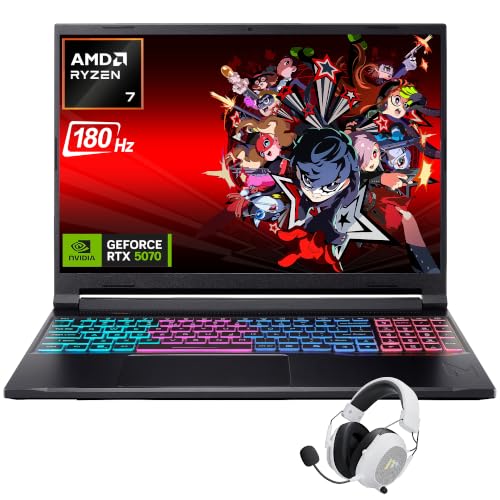
Acer Nitro V16 (RTX 5070) — Best complete bay computer
The screen is where this Acer opens its argument, and unusually for a gaming laptop it is an argument about colour as much as speed. The 16-inch WQXGA panel runs at 180Hz with 100% sRGB coverage as titled, which describes a display able to render a course at a resolution where the fairway, rough and water read as distinct things rather than neighbouring shades of green. In a screen-only bay that panel is the whole show. In a projector bay it becomes an unusually capable control screen, sharp enough that shot data and course flyovers stay legible from a standing position several feet away, which is where a golfer actually reads them.
Behind the panel sits the joint-strongest core specification in this guide: a GeForce RTX 5070 with DLSS 4 as titled, an AMD Ryzen 7 260 processor, 32GB of DDR5 memory and a 1TB fourth-generation SSD. That pairing is the configuration that asks the least of the next few years, since course libraries grow, simulation packages accumulate features, and shot archives never shrink. What lifts the Nitro above its specification twin, the GIGABYTE below, is connection candour. Its title names an RJ45 Ethernet port, which suits launch monitors and home networks that prefer a wire, and an SD card slot, which suits the swing cameras that still record to cards. Wi-Fi 6E and a backlit keyboard round out a listing that reads as though it were specified by someone who had stood in a garage bay at midnight.
There is a subtler point in the Nitro’s favour that only appears across a season. Simulator software is updated constantly, and each generation of course rendering asks a little more of the hardware than the last. A machine bought with headroom absorbs those increments invisibly; a machine bought at the minimum re-litigates its purchase with every update. The RTX 5070 and 32GB pairing here is the guide’s clearest example of buying the increments in advance, and it is why this pick leads the list even for golfers whose current software would run contentedly on less.
One further consideration flatters this machine: mixed use. A laptop with a colour-accurate high-resolution screen and this much memory does not have to retire when the round ends. It edits the swing video, runs the household’s other demanding software, and serves as a genuinely good general computer the rest of the week. Simulator purchases are often justified to a sceptical household on exactly that basis, and among these six the Nitro makes the case most convincingly because so little of its specification is single-purpose.
- Display: 16-inch WQXGA LED, 180Hz, 100% sRGB as titled
- Graphics: NVIDIA GeForce RTX 5070 with DLSS 4
- Processor: AMD Ryzen 7 260
- Memory: 32GB DDR5 RAM
- Storage: 1TB Gen4 SSD
- Ports and wireless: RJ45 Ethernet, SD card slot, Wi-Fi 6E, backlit keyboard
- Operating system: Windows 11 (edition detail as listed)
- Not stated in the listing title — verify with the maker’s documentation: video output type for a projector, weight, battery capacity
Strengths
- RTX 5070 graphics give rendered courses the joint-most headroom available in this guide
- WQXGA 180Hz screen with full sRGB coverage can carry a screen-only bay without assistance
- Ethernet port and SD slot are named in the title, a rarity in this class and a monthly convenience in a working bay
Trade-offs
- The title never names the video output a projector bay depends on, so that check remains yours to close
- A 16-inch chassis is the joint-largest footprint here and needs measuring against a tight bay shelf
- The listing mentions an included accessory without identifying it, so nothing should be budgeted around it
Best for: one bay built to last several seasons, ready for a projector or for its own screen as the room evolves. Not suited for: a shelf or stand built to a strict 15-inch width, because the 16-inch chassis is a physical fact of this pick.
Bays are assembled slowly and changed rarely, so check price on Amazon for this configuration and settle the projector output question against Acer’s documentation before ordering.

MSI Katana A15 AI (RTX 4070) — Best for long sessions
Garage bays get warm, and warm rooms are where gaming laptops quietly lose their pace. The Katana A15 AI builds its whole case inside that observation. Its title names Cooler Boost 5, MSI’s cooling system, in the same breath as a Ryzen 9-8945HS processor and a GeForce RTX 4070 — a previous-generation graphics card that still sits high in the performance order, above the RTX 5060 machines in this guide in raw tier terms. With 32GB of DDR5 memory and a 1TB drive beside them, the listing describes a machine assembled to hold a steady rhythm through a two-hour practice session rather than to sprint for twenty minutes and fade.
The screen supports the endurance story rather than distracting from it: a 15.6-inch QHD panel at 165Hz, sharp enough to flatter a rendered course and quick enough to keep ball flight smooth on the laptop’s own display. For a projector bay, the QHD resolution also gives the machine headroom to feed a higher-resolution projector than a basic Full HD panel pairing would suggest, though the physical output itself needs confirming against the maker’s documentation because the title does not state it. Nothing in this listing reaches for novelty. It is a strong processor, a strong card, generous memory and a cooling system with its name printed in the title, arranged for stamina.
- Display: 15.6-inch QHD, 165Hz
- Graphics: NVIDIA GeForce RTX 4070
- Processor: AMD Ryzen 9-8945HS
- Memory: 32GB DDR5 RAM
- Storage: 1TB SSD
- Cooling: Cooler Boost 5 as titled
- Operating system: Windows 11
- Not stated in the listing title — verify with the maker’s documentation: video outputs, Ethernet provision, weight
Strengths
- RTX 4070 graphics and a Ryzen 9 processor form the strongest sustained-play pairing in this guide
- Cooling is a named feature of the listing, which matters in warm, enclosed bays
- 32GB of memory and a 1TB drive match the most generous configuration offered here
Trade-offs
- The title is silent on ports, so every connection your bay needs must be verified before purchase
- The graphics card is a previous-generation part, even though its tier remains high
- Its 15.6-inch screen is a step down in size from the 16-inch picks for screen-only bays
Best for: a dedicated practice bay in a warm room, where sessions run long and steady behaviour is the entire point. Not suited for: a launch monitor setup that requires a wired Ethernet connection confirmed from the listing itself, because this title states no Ethernet port.
Endurance is difficult to price from a listing alone, so look at the current price on Amazon alongside the port details in the full product description before committing.

ASUS ROG Strix G16 (RTX 5060) — Best screen-led pick
The Strix G16 begins from the assumption that you will be watching the laptop itself. Its 16-inch FHD+ screen is a 16:10 panel running at 165Hz with a 3ms response time as titled, a specification aimed at motion clarity: the ball leaving the clubface, the flight arc, the roll-out across the green, all drawn without the smearing that makes fast movement feel vague at exactly the moment the eye is following it. An RTX 5060 does the rendering, driven by an Intel Core i7-14650HX, an HX-class processor designation that suits a machine expected to work hard while plugged into a bay. Wi-Fi 7, the newest wireless standard named anywhere in this guide, keeps a wireless launch monitor connection as current as the category offers.
The compromises sit in capacity rather than quality. Memory is 16GB of DDR5, half the Acer and GIGABYTE figures, and while simulation software alone sits comfortably inside that, the golfer who also keeps swing-video analysis, a browser of lesson content and a shot archive open alongside will meet the ceiling sooner. Storage is a healthy 1TB fourth-generation SSD. Read this machine as the display specialist of the six: in a bay built around a net, a mat and the laptop on a stand, its screen and graphics pairing is the most coherent combination here, while in a projector room its talents are partly wasted and the Acer’s connection set argues louder.
- Display: 16-inch FHD+ 16:10, 165Hz, 3ms response as titled
- Graphics: NVIDIA GeForce RTX 5060
- Processor: Intel Core i7-14650HX
- Memory: 16GB DDR5 RAM
- Storage: 1TB Gen 4 SSD
- Wireless: Wi-Fi 7
- Operating system: Windows 11 Home
- Not stated in the listing title — verify with the maker’s documentation: video outputs, Ethernet provision, memory upgradeability
Strengths
- 165Hz panel with a stated 3ms response is the motion-clarity pick of the six
- RTX 5060 graphics with an HX-series processor suit plugged-in bay duty
- Wi-Fi 7 is the most current wireless standard named in this guide
Trade-offs
- 16GB of memory is half the capacity of the leading picks
- Windows 11 Home rather than Pro, which matters only to households managing machines centrally
- The title names no wired networking and no video output
Best for: a screen-only bay where the laptop display is the picture and motion clarity leads the decision. Not suited for: an evening routine of simulation software, video analysis and archives running side by side, because 16GB of memory is this configuration’s ceiling.
If that profile sounds familiar, check the Strix’s price on Amazon and weigh it against the 32GB picks before the decision hardens.

GIGABYTE Gaming A16 (RTX 5070) — Strongest core specification
Where the Acer is the all-rounder, the GIGABYTE A16 is the specification purist’s version of the same idea. It matches an RTX 5070 with 32GB of DDR5 memory and a 1TB drive — the pairing this guide keeps returning to as the no-compromise configuration for simulation software — behind a 16-inch screen running at 165Hz with a 1920 by 1200 WUXGA resolution. That resolution sits a notch below the Acer’s WQXGA in pixel count, and on a laptop panel the difference is subtle; the size and refresh rate, which a player actually feels, are equal. The processor is an Intel Core i7-13620H, an older generation than some rivals here, and the honest reading is that for rendering work the graphics card and the memory beside it outweigh the processor’s vintage.
What this title withholds is connection detail: no port of any kind is named, in a listing otherwise generous with numbers. For a projector bay that missing line is the single fact to establish before purchase, through the maker’s documentation for this exact model, because a simulator laptop that cannot feed the projector in the format the projector expects is an expensive ornament with excellent memory. Where the bay’s connections are already settled — a launch monitor that links wirelessly or by USB, display plans already proven — there is little else to argue with: the joint-strongest core specification in the guide, in a black steel chassis that looks at home in a serious room.
- Display: 16-inch WUXGA 1920×1200, 165Hz
- Graphics: NVIDIA GeForce RTX 5070
- Processor: Intel Core i7-13620H
- Memory: 32GB DDR5 RAM
- Storage: 1TB SSD
- Operating system: Windows 11 Home
- Not stated in the listing title — verify with the maker’s documentation: every port, wireless standard, weight and video output
Strengths
- RTX 5070 graphics with 32GB of memory is the pairing that asks least of the future
- 16-inch 165Hz screen matches the class leaders for size and smoothness
- 1TB drive leaves room for course libraries and recorded sessions to grow
Trade-offs
- No port of any kind is named in the title, so bay connections are entirely yours to verify
- The Core i7-13620H is an older processor generation than the HX chips elsewhere here
- Screen resolution sits a step below the Acer’s WQXGA panel
Best for: a specification-led shortlist where the bay’s connections are already known to work over standard links. Not suited for: a projector setup whose input requirements remain unconfirmed, because this listing’s title offers no video output information at all.
Given that caveat, review the price on Amazon together with GIGABYTE’s own port documentation for the A16 before the two are allowed to meet.
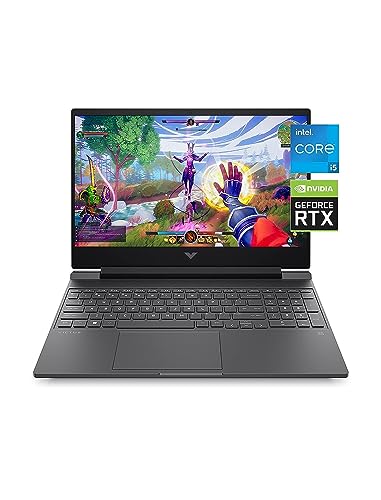
HP Victus 15 (RTX 3050) — Honest entry route
Every hobby has a sensible first purchase that teaches you what you actually want, and in this guide the Victus 15 is that purchase. Its GeForce RTX 3050 is an entry-level graphics card several tiers below the 50-series machines above it, its memory is 8GB and its drive is 512GB, and none of that is dressed up here. What it offers is a real discrete graphics card, a 12th-generation Intel Core i5-12500H processor that is genuinely capable, a Full HD display, a backlit keyboard and HP’s enhanced thermals — the makings of a machine a golfer can buy alongside a first launch monitor without the computer consuming the entire budget before the net is even hung.
The honest use case is a starter bay: a net in the garage, a portable launch monitor, simulation software run at sensible settings on the laptop’s own screen or a modest projector, and a player learning whether the hobby sticks. The limits announce themselves in a predictable order. The 8GB of memory is the first ceiling, felt when software, browser and video tools share the machine. The 512GB drive fills as course libraries grow. And the RTX 3050 asks for reduced rendering settings in the most detailed software long before the RTX 5070 machines do. Understood as a first season rather than a final bay, it returns full value; expected to perform like the picks above it, it disappoints by arithmetic rather than by any failing of HP’s.
One secondary virtue is worth naming. Because this is a 2022-era model line, its listing is the one in this guide most likely to be weighed against second-hand alternatives and seasonal discounts, and that comparison should be made on the specification in front of you rather than on the Victus name, which covers many builds. The title here is specific — the 15-fa0025nr configuration with the i5-12500H — and that specificity is what is actually being bought.
- Display: Full HD display as titled
- Graphics: NVIDIA GeForce RTX 3050
- Processor: Intel Core i5-12500H, 12th generation
- Memory: 8GB RAM
- Storage: 512GB SSD
- Cooling and input: enhanced thermals as titled, backlit keyboard
- Operating system: Windows 11 Home
- Not stated in the listing title — verify with the maker’s documentation: refresh rate, ports, memory upgradeability
Strengths
- A genuine discrete graphics card at the entry end of this guide’s range
- The Core i5-12500H is a strong processor to find at this tier
- Backlit keyboard and enhanced thermals are practical bay features rather than padding
Trade-offs
- 8GB of memory is the tightest figure in this guide and will be felt first
- The RTX 3050 sits several graphics tiers below the RTX 5070 picks
- 512GB of storage is half the room the other five picks provide
Best for: a first bay built around a portable launch monitor, where the computer should not consume the whole budget. Not suited for: a permanent projector installation expected to run the most detailed simulation software at high settings, because the RTX 3050 and 8GB of memory set that ceiling.
As a starter purchase it stands or falls on value, so see the current Amazon price and compare it honestly against stepping up to the Katana 15 HX.

MSI Katana 15 HX (RTX 5060) — Best compact QHD choice
The Katana 15 HX occupies the thoughtful middle of this guide. Its 15.6-inch QHD display runs at 165Hz, matching its larger A15 sibling for resolution while keeping the smaller chassis, and its RTX 5060 is driven by an Intel Core i7-14650HX, the same HX-class processor family as the ASUS Strix. In a bay where the laptop sits on a stand beside the mat and its screen is the display, that combination of QHD sharpness, high refresh and current-generation graphics is arguably the sweet spot of the six: nothing about the picture asks for forgiveness, and the machine is not paying for a 16-inch panel the room may not have space for.
Memory is 16GB of DDR5 and storage a 1TB NVMe drive, a pairing that mirrors the Strix and carries the same advice — tidy habits, simulation software given room to breathe, and the browser closed during a round if the machine starts to feel shared. Wi-Fi 6E is a modern standard that suits wireless launch monitors, and the RGB keyboard is the one flourish in an otherwise purposeful title. Against its A15 sibling, this Katana trades the older but higher-tier RTX 4070 and 32GB of memory for a newer card, a newer processor and a sharper focus on the screen. Which side of that trade suits a given bay depends on whether its bottleneck is rendering headroom or display quality, and the comparison table below lays the two machines side by side.
- Display: 15.6-inch QHD, 165Hz
- Graphics: NVIDIA GeForce RTX 5060
- Processor: Intel Core i7-14650HX
- Memory: 16GB DDR5 RAM
- Storage: 1TB NVMe SSD
- Wireless and input: Wi-Fi 6E, RGB backlit keyboard
- Operating system: Windows 11
- Not stated in the listing title — verify with the maker’s documentation: video outputs, Ethernet provision, weight
Strengths
- QHD at 165Hz in a 15.6-inch chassis is the sharpest compact display here
- Current-generation RTX 5060 graphics paired with an HX-series processor
- 1TB of storage matches the guide’s leaders despite the midrange position
Trade-offs
- 16GB of memory, where the A15 sibling offers 32GB
- The RTX 4070 in that same sibling sits a tier above this card in raw order
- Ports go unnamed in the title, as with most of this guide
Best for: a space-conscious bay where the laptop screen is the display and QHD clarity leads the decision. Not suited for: an evening of analysis software and archives kept open beside the simulation, because 16GB of memory is the limit written into this build.
To place it against its sibling, confirm the Katana 15 HX price on Amazon and compare the two Katana listings directly.
The six laptops compared for simulator duty
| Model | Graphics | Memory / storage | Screen | Bay note |
|---|---|---|---|---|
| Acer Nitro V16 | RTX 5070 | 32GB / 1TB | 16-inch WQXGA 180Hz | Ethernet and SD slot named in title |
| MSI Katana A15 AI | RTX 4070 | 32GB / 1TB | 15.6-inch QHD 165Hz | Cooler Boost 5 for long sessions |
| ASUS ROG Strix G16 | RTX 5060 | 16GB / 1TB | 16-inch FHD+ 165Hz, 3ms | Wi-Fi 7 for wireless monitors |
| GIGABYTE Gaming A16 | RTX 5070 | 32GB / 1TB | 16-inch WUXGA 165Hz | No ports stated; verify outputs |
| HP Victus 15 | RTX 3050 | 8GB / 512GB | Full HD | Entry route for a first bay |
| MSI Katana 15 HX | RTX 5060 | 16GB / 1TB | 15.6-inch QHD 165Hz | Compact QHD screen-led option |
The table compresses the guide’s argument into a single glance: graphics tier and memory divide these machines more than brand does. The two RTX 5070 laptops and the RTX 4070 Katana form the headroom group, the two RTX 5060 machines form the display-led group, and the Victus stands alone as the entry route. Choose the group by how your bay shows the picture and how long the machine is expected to serve, then choose within it by the connection and screen details the individual reviews describe.
How do you set up a laptop bay that behaves from the first swing?
Begin with the physical layout, because most simulator frustration is furniture in disguise. The laptop needs a stand that keeps its vents clear and its screen visible from the hitting position without sitting inside the swing path or within reach of a mishit ball’s opinion about direction. Run the launch monitor’s connection the way its maker intends and test that link before the projector enters the conversation, so that when something misbehaves you already know which link in the chain is responsible. Only then arrange the display side: decide which screen is primary, set the resolution deliberately rather than accepting a default, and play three holes before declaring the bay finished.
Software discipline comes next. Install the simulation package and let it finish every update before the first session, because nothing corrodes a Saturday like a progress bar. Set the laptop’s power behaviour for plugged-in use so it does not sleep mid-round or dim its screen during a backswing, and clear away the background clutter that competes for memory — a habit worth twice as much on the 16GB machines in this guide. Finally, build the boring routine that keeps a bay pleasant: back up shot data regularly, leave storage headroom instead of filling the drive to the brim, and once a month clear the dust from the vents of a machine that lives in a garage. A bay maintained that way feels like equipment; one that is not becomes a project.
What if the laptop also has to handle lessons, video and club data?
Many home bays quietly become coaching studios. A phone or camera records the swing, the laptop plays it back beside the launch monitor’s numbers, and across a season the machine accumulates a library of sessions that is genuinely valuable: dated proof of what changed and when. That workload argues for the boring specifications. Storage fills first, which is why five of these six picks carry a 1TB drive and why the Victus’s 512GB appears among its trade-offs rather than being forgiven. Memory is next, because video playback beside live simulation software is exactly the two-things-at-once pattern that separates the 32GB machines from the 16GB ones in daily feel. The Acer’s SD card slot, a small line in its title, is the sort of detail this workload rewards monthly, since swing cameras still speak in memory cards.
There is also a social dimension to plan for. A bay with a good laptop becomes the clubhouse: friends arrive with their own expectations, league nights run long, and the machine is operated by whoever stands nearest, some of whom will treat its keyboard as a drinks coaster. A backlit keyboard, present across most of this guide, earns its keep in the dimmed light of a projector room more than any gaming flourish does. And the laptop living this double life should be backed up as though it matters, because a season of swing history cannot be replaced by reordering hardware. None of this rearranges the rankings; it explains why the rankings prize headroom over cleverness at every tier.
What mistakes do golfers make when buying a laptop for a bay?
The recurring error is buying for the wrong display. A golfer planning a projector room who spends the budget on the laptop’s own panel has optimised the screen they will glance at for data while underfunding the graphics headroom the projected picture depends on; the reverse error — a powerful machine with a modest screen in a screen-only bay — is just as common. Decide which surface your eyes will live on and let that decision lead. The second error is assuming connections. Launch monitors attach by USB, Ethernet or wireless depending on the model, projectors expect particular inputs, and several listings here state no video output at all. The bay that fails on delivery day almost always fails at a port.
Third, memory is chronically underestimated because simulation software demos beautifully in a shop. The demo is one program running alone; the real bay is the software, the shot archive, the swing video and a browser arguing about a ruling, all at once, in month six. That arithmetic is behind this guide’s respect for 32GB. Fourth comes heat denial: a laptop that is brilliant for twenty minutes in an air-conditioned room can be merely adequate for two hours in a July garage, which is why cooling appears in these reviews as a feature rather than a footnote. The last error is buying the entry machine with flagship expectations. The Victus earns its place honestly, but it is a first season’s laptop, and purchasing it to run a permanent high-resolution installation is how a bargain turns into two purchases.
How long should a simulator laptop be expected to serve?
A bay laptop ages differently from a work laptop. It is rarely dropped, never commutes, and spends its life plugged in at a desk or stand, which removes the physical wear that kills most portables. Its enemies are software and standards instead: simulation packages grow more detailed, launch monitors revise their requirements, and display expectations creep upward as projectors improve. Judged against those enemies, the specification that buys years is headroom bought early — in the graphics tier and the memory figure — because neither can be assumed upgradeable later. Several titles in this guide are silent on memory expansion, and the cautious approach treats the fitted figure as the final one unless the maker documents otherwise.
That reasoning sets a realistic calendar. The RTX 5070 and RTX 4070 machines with 32GB of memory should be expected to anchor a bay through several software generations, with the projector or launch monitor likely upgraded around them before they are replaced. The RTX 5060 pair sit a step behind in that calendar — still multi-year machines whose screens may keep them useful even after a projector takes over the heavy picture. The Victus should be bought with a shorter horizon in mind from the start, as the machine that proves the hobby; if it is still earning its place in year three, it has overdelivered. Planning the replacement cycle honestly at purchase time is what separates a bay that improves steadily from one that lurches between crises.
How do you choose between the two RTX 5070 machines?
The Acer and the GIGABYTE arrive at the same core specification by different routes, and the deciding evidence is not in the columns they share. It is in the columns where they differ. The Acer states its connections: Ethernet for the wired corner of the bay, an SD slot for the swing camera’s cards, Wi-Fi 6E for the wireless side, and a screen with a resolution and colour figure printed in the title. The GIGABYTE states none of its connections and a slightly lower screen resolution, while matching the Acer’s graphics tier, memory and storage exactly. A golfer whose bay is already built — whose launch monitor’s link is proven, whose projector’s input is known and fed by an existing arrangement — may rationally take the GIGABYTE and spend the verification effort once, on paper, before ordering. A golfer building the room from empty walls should notice that the Acer’s title answers, in advance, questions the GIGABYTE’s title leaves for a documentation hunt, and that a build-from-scratch project has quite enough hunts already.
There is also a temperament difference worth respecting. The Acer reads as the machine designed by someone anticipating the whole room; the GIGABYTE reads as the machine designed by someone optimising the computer. Simulator bays reward the first temperament, because the computer is the component most entangled with everything else in the room. But entanglement can be managed by a careful owner, and where it has already been managed — where the room exists and works — the GIGABYTE’s identical core specification is not a lesser purchase, merely a less documented one. The reviews above keep both readings open deliberately; the room you actually have should close the question.
What else belongs in the budget around the laptop?
A laptop bought in isolation has a way of surprising its owner at the till of everything else. The simulation software itself is a purchase, sometimes once and sometimes by subscription, and the course libraries that make it worth owning accumulate their own cost across seasons. The launch monitor’s accessories — the mat rated for real balls, the net or impact screen, the projector lamp’s eventual replacement — all belong to the same budget conversation, and the golfer who prices the computer to the last penny of the bay fund discovers the rest of the list in instalments. None of this argues for a cheaper laptop. It argues for sequencing: the machine in this guide is the component with the longest service life in the room, and the one whose specification cannot be topped up later with a parcel and a Saturday afternoon.
There are also two small purchases that protect the large one. A stand that lifts the laptop’s vents clear of the surface is the cheapest performance accessory in the entire bay, because a machine that breathes holds its pace through the warm last hour of a session. And a surge-protected power arrangement is worth its modest place in the plan for any laptop that will live permanently plugged in inside a garage, where the electrical supply is asked to share with freezers, heaters and power tools. Neither item appears in any listing title in this guide, which is exactly why they are mentioned here rather than in the reviews: they are the bay’s responsibility, not the laptop’s, and forgetting them is how good machines acquire bad reputations.
Final Recommendation
Most bays should start the shortlist with the Acer Nitro V16:
the strongest graphics tier here, 32GB of memory, the best screen in the guide and the only connection set that reads as though it anticipated a simulator. The GIGABYTE A16 matches its core specification once its outputs are verified, the Katana A15 AI is the endurance choice for warm rooms and long sessions, and the two RTX 5060 machines serve screen-led bays that prize the picture on the laptop itself. The Victus remains the right first step for a golfer testing whether the hobby takes hold. Whichever machine is chosen, list every device in the bay, confirm every connection against the maker’s documentation, and the laptop will disappear into the golf — leaving you alone with the far more pleasant problem of your swing.
Frequently Asked Questions
Can a gaming laptop really run a golf simulator well?
Yes, and it is the natural tool for the job, because simulation software is at heart a 3D game engine drawing a course instead of a battlefield. The requirements rhyme: a discrete graphics card with headroom, enough memory for the software and its data, and cooling that sustains output across a session. That is why this guide is built from gaming laptops, and why its rankings weight sustained behaviour over peak claims.
How much memory does simulator software need?
The software alone is not greedy, but a bay is never only the software. Shot archives, swing-camera playback, a browser and the operating system all share the machine, and across a long session that company adds up. Sixteen gigabytes works with tidy habits, as the Strix and Katana 15 HX reviews describe; 32GB removes the question entirely, which is why three picks here carry it. The Victus’s 8GB is the one figure in this guide to treat as a genuine constraint from the start.
Does the laptop screen matter if I use a projector?
Less than the graphics card does, but not zero. The laptop screen remains the control surface for software, settings and shot data, so legibility from standing distance still counts. What changes is priority: in a projector bay, spend first on graphics tier and memory, and treat a high-resolution laptop panel as a luxury. In a screen-only bay the order reverses, and our broader look at the best 1440p laptops is worth reading alongside this guide if a sharp built-in display is your main screen.
What should I check about my launch monitor before choosing?
Its connection method and its software requirements, in that order. Establish whether your monitor links by USB, Ethernet or wireless, then confirm the laptop you favour can meet it; the Acer names an Ethernet port in its title, while several rivals leave networking unstated and push the question to the maker’s documentation. Then check the software package you intend to run for its own stated requirements, and choose the laptop that clears them with room to spare.
Should I buy the laptop before the launch monitor?
Buy them as a pair on paper even if the purchases are months apart. The launch monitor decides the connection the laptop must offer and often expects particular software, and the software sets the hardware bar the laptop must clear. Golfers who reverse the order sometimes end up with a beautiful machine that cannot talk to their monitor without an adapter chain, or one that clears the software’s minimum with no room for its next version. A single page listing monitor, software, display and laptop, checked together, prevents both outcomes; the refresh-rate side of that same question is explored in our roundup of the best 120hz gaming laptops.
Can the laptop live permanently in the garage?
Mostly yes, with two conditions. The machine should sit on a stand that keeps its vents clear and its body out of the dust layer that garage floors generate, and it should be brought inside during the coldest weeks if the garage is unheated, since batteries and screens both prefer a temperate life. Beyond that, a bay laptop’s permanent residence is an advantage: the setup stays assembled, the connections stay proven, and practice becomes something that starts with a swing rather than with twenty minutes of cabling.
Is the entry-level Victus a false economy?
Only when it is bought to do a flagship’s job. As a first bay beside a portable launch monitor, it teaches the hobby at a fair commitment, and many golfers discover that a net, a mat and honest feedback are all they ever wanted. The false economy begins when it is asked to drive a permanent high-resolution installation, at which point the honest move is one of the RTX 5070 picks rather than a second season of compromises.
Related Guides
Golfers building out the rest of the room will find the display questions explored further in our roundup of the best large gaming laptops, while anyone whose simulator doubles as a general gaming den can compare the picks here against the best laptops for virtual reality in this same series, since the graphics tiers overlap heavily. Teachers of the game, meanwhile, may recognise the screen-and-demonstration questions in our best laptops for math teacher guide, where showing technique on a display is the whole job.


