What's inside
- Key Takeaways
- Quick Picks
- How did we judge laptops for legal work specifically?
- What should a small firm check before standardising on one model?
- Should partners and support staff get the same machine?
- What does the AI PC label on these listings actually buy a law firm?
- Which specifications actually matter across a courtroom week?
- How do you keep client data safe on a laptop that leaves the office?
- Which of these laptops holds up best, pick by pick?
- Side by side: the six business laptops compared
- How do the six picks divide by type of practice?
- What should the desk around the laptop look like?
- How should a firm set up a new lawyer’s laptop on day one?
- What mistakes do small firms make when buying laptops?
- When should a small firm replace a laptop rather than nurse it along?
- Final Recommendation
- Frequently Asked Questions
- Related Guides
As an Amazon Associate I earn from qualifying purchases. This post may contain affiliate links at no extra cost to you.
gizmoverdict.com is reader-supported. When you buy through links on our site, we may earn an affiliate commission.
Where to buy: Every linked machine below points to its live Amazon listing, and that listing page is where you confirm the exact memory and storage configuration in the cart before paying, because several business laptop families sell under one model name with more than one specification hiding underneath it.
A small firm runs on its laptops in a way a large firm never quite does. There is no IT department down the hall, no spare pool machine in a cupboard, and no second pair of eyes checking that the brief got filed because the partner’s screen froze during upload. The best laptops for small firm lawyers are therefore not the fastest machines money can buy; they are the ones that protect client confidentiality by default, survive being carried between office, court and kitchen table, and present a calm, credible face on a video call with a judge. This guide ranks six current business laptops against exactly those pressures.
Read the security details as the headline act rather than fine print. A fingerprint reader and an infrared webcam are not luxury trims in legal work; they are the difference between a machine that locks the moment you stand up and one that sits open on a conference table showing a settlement figure. Likewise, Windows 11 Pro appears on every pick here, and that is deliberate: the Pro edition carries the drive encryption and management features a practice handling privileged material should treat as the floor, not an upgrade.
Nothing in this guide promises you a warranty package, a support contract or a next-business-day anything, because the listings themselves do not promise those things in their titles. A few of these machines reach Amazon through reseller storefronts rather than the manufacturer’s own shop, and this guide writes about them neutrally for that reason. What you are buying is the hardware exactly as titled, and the sections below stick to what each title actually states.
Key Takeaways
- Every pick runs Windows 11 Pro and offers biometric sign-in, by fingerprint reader, infrared webcam or both, because an unlocked laptop is a confidentiality incident waiting for a venue.
- Thunderbolt 4 appears across the whole list, so one cable at the desk can drive monitors, storage and power while the machine itself stays light enough to carry to a hearing.
- The Lenovo ThinkPad T14 Gen 6 is the most complete single answer: 32GB of memory, a 5MP webcam, two Thunderbolt 4 ports and Wi-Fi 6E in a 14-inch professional chassis.
- Firms that still wire into office networks should note which picks carry a physical Ethernet port; three of the six do, and the others expect you to dock or adapt.
- One pick, the Dell Latitude 5450, is sold in customised configurations, so its listing asks you to choose memory and storage deliberately rather than accepting a single fixed build.
- Screen size is the honest dividing line: five 14-inch machines for people who move, one 16-inch ThinkPad for the lawyer whose laptop mostly lives on one desk.
Quick Picks
| Pick | Badge | Why it earns its place |
|---|---|---|
| Lenovo ThinkPad T14 Gen 6 | Best overall for a small practice | Pairs 32GB of DDR5 memory and a 5MP webcam with dual Thunderbolt 4, giving one lawyer a machine that drafts, files and appears on camera without compromise. |
| Lenovo ThinkPad E14 Gen 7 | Best storage headroom | Ships with a full 1TB solid-state drive and keeps a wired Ethernet port, which suits a document-heavy practice that archives matters locally. |
| Dell Pro 14 (PC14250) | Best straightforward office buy | A current-generation Dell business build with an anti-glare screen, infrared webcam and Ethernet, aimed at firms that want the conventional choice done properly. |
| Dell Latitude 5450 (touch) | Best for annotating on screen | The only touchscreen in this group, with configuration choices up to 64GB of memory for lawyers who mark up exhibits directly on the display. |
| Lenovo ThinkPad T16 Gen 4 | Best desk-based screen space | A 16-inch panel, 1TB of storage and both RJ-45 and HDMI ports make it the pick for long document review sessions at a fixed desk. |
| Dell Pro 14 Plus (Ryzen 7 PRO) | Best AMD alternative | Ryzen 7 PRO power with Copilot+ PC status and two Thunderbolt 4 ports, for firms that prefer not to standardise on Intel across the office. |
How did we judge laptops for legal work specifically?
General business laptop advice tends to stop at processor and price, and that is not enough for a practice. We weighted four things that legal work punishes when they are weak. The first is sign-in security, because a laptop carrying privileged files gets left in cars, chambers and coffee shops, and a fingerprint reader or infrared camera turns locking it into a reflex instead of a chore. The second is the keyboard and screen pairing, since drafting and reviewing documents is still the centre of the working day; a backlit keyboard and an anti-glare or comfortably sized panel matter more across a year than a benchmark gap.
The third factor is connection honesty. Small firms inherit whatever network the building offers, and older offices still run wired drops at each desk, so the presence or absence of an Ethernet port is a practical fact rather than a spec-sheet footnote. Thunderbolt 4 counted heavily for the opposite reason: it is the port that lets a 14-inch laptop become a full desk setup through one dock, then leave for court in a bag. The fourth factor is configuration clarity. Where a listing offers several memory and storage builds under one name, we said so plainly, because ordering the 16GB version while believing you bought the 32GB one is a mistake firms make every week.
One more judgement ran underneath all four: we favoured machines a firm can buy twice. A laptop that is perfect once, in one configuration, from one listing that vanishes next month, is a poor foundation for a fleet, because the second and third purchases are where small firms actually live. Business lines like the ThinkPad T and Dell Pro ranges exist to be reordered, and that boring virtue counted in their favour throughout. It is also why the configurable Latitude earns its place despite the homework it sets: its range of builds lets a firm keep one chassis while adjusting the specification to each role.
Everything in the detailed sections below is drawn from the manufacturers’ listing titles for these exact machines. Where a title is silent about something a lawyer might care about, the spec box says so instead of guessing, and the prose treats that silence as a prompt to check the maker’s documentation rather than as an invitation to assume the best.
What should a small firm check before standardising on one model?
Standardising sounds like a large-firm luxury, yet it pays off fastest in a small office: one charger type, one dock, one set of habits when something misbehaves the night before a filing deadline. Before a firm commits every fee-earner to the same chassis, three checks are worth an afternoon. Confirm that the firm’s practice-management and document software runs comfortably in the memory configuration you are actually ordering, not the maximum the listing mentions. Confirm how the machine behaves with the firm’s existing monitors, because a Thunderbolt dock that drives two external screens turns any of these 14-inch picks into a desk workstation. And confirm the sign-in story end to end: enrol every user’s fingerprint or face on day one, while the administrator password is still written down somewhere sensible.
There is also a quieter question about who sells the machine. Some listings in this class are the manufacturer’s current storefront builds; others are customised or reseller configurations, and the Dell Latitude 5450 below is explicit about being customised. Neither route is automatically wrong, but a firm should know which it is buying, read the exact configuration line in the cart, and keep the invoice and serial numbers filed with the asset register. That paperwork habit, boring as it sounds, is what makes a warranty conversation possible later regardless of channel.
Should partners and support staff get the same machine?
There is a respectable argument for a single model across the whole firm, and it is the argument from the cupboard: one spare charger, one dock type, one image of the setup instructions, and any machine can be borrowed by anyone when a screen dies an hour before a hearing. Small firms feel that benefit more than large ones because there is no fleet team to absorb variety. The counter-argument is that the work is not uniform. The lawyer reviewing disclosure all week and the receptionist running the diary and the phones are not buying the same day with their laptop, and forcing both onto one specification either overbuys for one desk or underbuys for the other.
This guide’s six picks happen to map onto a sensible two-tier answer. The 32GB ThinkPads, the T14 Gen 6 and E14 Gen 7, suit the fee-earners whose machines carry the document load; the 16GB Dell Pro 14 models suit staff roles and lighter caseloads while keeping the same Windows 11 Pro, biometric sign-in and Thunderbolt docking story across the office. The Latitude 5450 sits between the tiers for the firm that wants one chassis and several configurations. What matters is that the tiers share the security and docking standards, so the firm’s habits stay uniform even where the specifications differ. Variety in processors is survivable; variety in how machines lock, encrypt and connect is where small firms get hurt.
What does the AI PC label on these listings actually buy a law firm?
Several titles in this guide carry AI PC or Copilot+ language, and a firm is entitled to ask what that means beyond a badge. The honest answer today is: mostly readiness. These designations signal processors with dedicated hardware for the on-device AI features that Windows and office software are steadily adding, such as live captions, transcription assistance and smarter search across local files. For a practice, the plausible near-term wins are mundane but real: a deposition recording transcribed on the machine rather than uploaded to a third-party service is a confidentiality improvement, and captions on a hearing call help the lawyer who is also taking the note.
What the label does not do is change the fundamentals this guide ranked on. It does not encrypt a drive, improve a keyboard or add a port, and no firm should pay a premium for it while skimping on memory or storage to afford the badge. Treat it the way this guide has: as a longevity signal that the machine will stay current with software for longer, worth having when it arrives attached to a sound specification, as it does on the Dell Pro 14 Plus and the ThinkPad T14, and worth nothing as a substitute for one. The firms that regret laptop purchases regret them over drives that filled and memory that ran out, never over a missing badge.
Which specifications actually matter across a courtroom week?
It helps to walk the week rather than the spec sheet. Monday is drafting: long documents, tracked changes, footnotes, a research database in the browser and the practice’s document system filing everything in the background. That day is governed by memory and keyboard. Sixteen gigabytes copes; thirty-two feels invisible, and invisibility is what you are buying. The keyboard is backlit on every pick here, which sounds cosmetic until a deadline moves to 9 p.m. in November and the office lights are the only ones still on.
Tuesday is review. Disclosure arrives as scanned PDFs of wildly varying quality, and the work is reading: page after page, often two documents compared side by side. That day is governed by the screen, and it is why this guide treats the T16’s 16-inch panel as a serious professional tool rather than a size indulgence, and why anti-glare finishes earn their mentions. Wednesday is the hearing or the client meeting, in person or on screen, and that day is governed by the webcam, the microphone experience and sign-in speed: the lawyer who can open the lid, be recognised by the infrared camera and be presentable in seconds looks like the lawyer who was never flustered at all.
Thursday is travel, even if it is only across town, and that day is governed by the chassis and the ports: will it drive the unfamiliar screen in the mediation suite, will it join a network it has never met, will it survive the bag? Friday is administration, billing and filing, and that day is governed by storage and by whether the machine has quietly filled its drive with three years of matters nobody archived. No single specification wins the week. The picks below are ordered by how completely they cover all five days, and the differences between them are mostly about which day your own practice finds hardest.
How do you keep client data safe on a laptop that leaves the office?
Confidentiality on a travelling laptop rests on layers, and hardware is only the first. The biometric sign-in fitted across this guide’s picks exists so that the strong password can stay strong: a lawyer who unlocks with a fingerprint forty times a day will tolerate a proper passphrase, while one who types it forty times a day will quietly shorten it by Friday. Drive encryption, part of the Windows 11 Pro story on every machine here, is the layer that matters when the laptop does not come home: a stolen encrypted laptop is a hardware loss and an insurance claim, while a stolen unencrypted one is a notification exercise to every client whose file was on it.
The remaining layers are habits the hardware supports. A privacy shutter, like the one on the E14 Gen 7, settles the camera question physically during privileged calls. An infrared webcam that locks the machine when you walk away, where the operating system is set to use it, closes the conference-room gap. And the firm’s own rule, that client material lives in the document system rather than in a desktop folder named with a client’s surname, is what makes any single laptop’s loss survivable. Buy the machine whose security features your lawyers will actually use every day, because the best control is the one that never gets switched off for being annoying.
Which of these laptops holds up best, pick by pick?
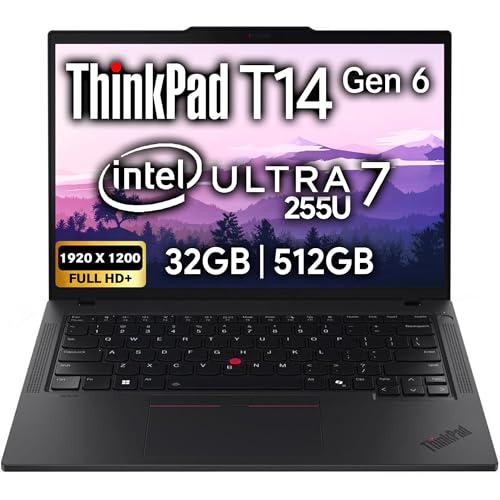
Lenovo ThinkPad T14 Gen 6 — Best overall for a small practice
The ThinkPad T14 Gen 6 reads like a checklist written by someone who has actually watched a solo practitioner work. Its Intel Ultra 7 255U processor and 32GB of DDR5 memory give it the headroom to keep a document management system, a browser full of research tabs, a PDF editor with a 400-page exhibit bundle and a video call all open at once without the machine developing opinions about which one you should close. The 512GB solid-state drive is the one figure here that a heavy archiver will outgrow, but for a firm whose closed matters live on a server or in cloud storage, it is a sensible size rather than a stingy one.
The details around the edges are what push it to the top of this list. The 5MP webcam is the sharpest camera in this group on paper, and it matters: remote hearings and client calls are now part of the record of a practice’s professionalism, and a clear image at a kitchen table reflects on the firm. A fingerprint reader covers sign-in, the keyboard is backlit for late drafting sessions, Wi-Fi 6E keeps it current on newer office networks, and two Thunderbolt 4 ports mean the desk setup and the travel charger never compete for the same socket. Lenovo also labels it an AI PC, though for legal work that badge matters less than the plain competence surrounding it.
- Display: 14-inch FHD+ IPS panel
- Processor: Intel Ultra 7 255U
- Memory: 32GB DDR5 RAM
- Storage: 512GB SSD
- Sign-in and camera: fingerprint reader, 5MP webcam
- Ports and wireless: 2 Thunderbolt 4 ports, Wi-Fi 6E
- Operating system: Windows 11 Pro
- Not stated in the listing title — verify with the maker’s documentation: weight, battery capacity, HDMI and Ethernet provision
Strengths
- 32GB of memory as titled, enough for e-discovery review tools running beside ordinary office software
- Two Thunderbolt 4 ports, so a dock and a fast external drive can stay connected at the same time
- 5MP webcam, the strongest camera specification among these six picks
Trade-offs
- 512GB of storage is the joint-smallest in this group, which local archivers will feel first
- The title names no Ethernet port, so a wired office connection runs through a dock or adapter
- Wi-Fi 6E only shows its advantage where the office router also supports it
Best for: a single-machine office carried everywhere and docked at home, where one laptop has to serve as the whole practice setup. Not suited for: a practice that keeps its entire closed-file archive on the laptop itself, because the 512GB drive is the ceiling here.
Availability moves around in this class, so check price on Amazon for the current listing before budgeting the purchase.

Lenovo ThinkPad E14 Gen 7 — Best storage headroom
The E14 Gen 7 is the ThinkPad for a firm that thinks in matters rather than in gigabytes, right up until the drive fills. Lenovo fits this configuration with a 1TB solid-state drive, double the T14 above, alongside the same 32GB of DDR5 memory and a slightly different processor, the Intel Core Ultra 7 255H. In practice that pairing suits the lawyer who keeps several active matters fully local: scanned disclosure, deposition video transcripts, expert reports and the inevitable folder of exhibits that were too large to email. Nothing about that workload needs exotic hardware; it needs space and memory, and this build leads with both.
Its connection set is quietly the most office-friendly here. Alongside Thunderbolt 4 there is a physical Ethernet port, which still matters in older buildings where the Wi-Fi reaches the conference room as a rumour. A privacy shutter on the webcam gives a physical answer to camera anxiety in privileged conversations, the fingerprint reader handles sign-in, and the backlit keyboard keeps it usable in a dimmed room during a presentation. The honest compromise sits in the wireless line: Wi-Fi 6 rather than 6E, a step behind its sibling, though on most small-firm networks nobody will ever measure the difference.
- Display: 14-inch panel (resolution not stated in the listing title)
- Processor: Intel Core Ultra 7 255H
- Memory: 32GB DDR5 RAM
- Storage: 1TB SSD
- Sign-in and camera: fingerprint reader, webcam with privacy shutter
- Ports and wireless: Thunderbolt 4, Ethernet port, Wi-Fi 6
- Operating system: Windows 11 Pro
- Not stated in the listing title — verify with the maker’s documentation: panel resolution, weight, battery capacity
Strengths
- 1TB of storage as titled, the joint-largest drive in this guide
- Physical Ethernet port for wired office networks, no adapter required
- Webcam privacy shutter for a hardware-level answer during sensitive calls
Trade-offs
- Wi-Fi 6 rather than the 6E fitted to the T14 Gen 6
- The listing title does not state the screen resolution, so confirm it before ordering
- A single Thunderbolt 4 port is named, where the T14 offers two
Best for: a document-heavy practice that archives active matters on the machine and plugs into a wired network at the office. Not suited for: a lawyer who runs two Thunderbolt accessories at once without a dock, because only one such port is named in the title.
Configurations in the E series shift between listings, so it is worth checking the current price on Amazon against the exact build described above.

Dell Pro 14 (PC14250) — Best straightforward office buy
Dell’s Pro 14 is the pick for the firm that wants the conventional answer executed properly. Dell positions the PC14250 as the next generation of its Latitude 5450 line, and the specification follows that brief: an Intel Core 5 120U processor, 16GB of memory and a 512GB solid-state drive. Those are moderate figures next to the 32GB ThinkPads above, and honesty requires saying so. They are also entirely adequate for the workload most small firms actually run: drafting, email, research, billing software and video calls, none of which strains 16GB unless the user keeps everything open forever.
Where this Dell earns its place is the accumulation of office-correct details. The 14-inch FHD+ screen is anti-glare, which is the finish you want under the fluorescent lighting of a rented office or a courthouse waiting area. An infrared webcam enables face sign-in, the keyboard is backlit, Thunderbolt 4 handles docking, and a physical Ethernet port is present for wired networks. It is, in short, the machine least likely to surprise an office manager, and for a firm buying three or four identical units for staff, predictability is a feature with real monetary value when something needs troubleshooting at 8 a.m.
- Display: 14-inch FHD+ anti-glare panel
- Processor: Intel Core 5 120U
- Memory: 16GB RAM
- Storage: 512GB SSD
- Sign-in and camera: infrared webcam for face sign-in, backlit keyboard
- Ports and wireless: Thunderbolt 4, Ethernet port
- Operating system: Windows 11 Pro
- Not stated in the listing title — verify with the maker’s documentation: memory type, Wi-Fi generation, weight
Strengths
- Anti-glare FHD+ screen suited to bright offices and shared spaces
- Infrared webcam gives hands-free face sign-in at the desk
- Ethernet and Thunderbolt 4 together cover both old and new office wiring
Trade-offs
- 16GB of memory is half what the two ThinkPads in this guide carry
- The Core 5 processor sits a tier below the Ultra 7 chips elsewhere here
- The title does not name a fingerprint reader, so sign-in leans on the camera
Best for: a firm equipping support staff and junior lawyers with identical, manageable machines. Not suited for: the partner who keeps e-discovery review software and forty tabs open all day, because 16GB of memory is the hard ceiling of this configuration.
Because Dell sells several Pro 14 variants, look at the live price on Amazon and match the configuration line to the PC14250 build before ordering.

Dell Latitude 5450 (touch) — Best for annotating on screen
This Latitude 5450 is a different creature from the Dell above despite the shared lineage, and the difference starts with its screen: a 14-inch FHD touchscreen, the only touch display in this group. Touch earns its keep in legal work in specific moments rather than all day: initialling a page during a client meeting without printing it, circling a clause on a shared exhibit, signing off a proof while standing in a corridor. Lawyers who work that way will feel the benefit weekly; lawyers who live entirely on the keyboard will not, and this guide will not pretend otherwise.
The listing is sold as an IST Computer customised build, and its title is unusually open about that: memory can be 16GB, 32GB or 64GB of DDR5, and storage 512GB, 1TB or 2TB, wrapped around a 12-core Intel Ultra 7 155U. That openness is both the appeal and the homework. A firm that selects the 64GB and 2TB end gets the most capacious machine in this entire guide; a firm that clicks carelessly gets an ordinary one at an extraordinary expectation. Treat the configuration menu as part of the purchase, read it twice, and screenshot what you ordered. The infrared webcam, backlit keyboard and Thunderbolt 4 port are fixed points in the title regardless of which build you choose.
- Display: 14-inch FHD touchscreen
- Processor: Intel Ultra 7 155U, 12 cores as titled
- Memory: buyer’s choice of 16GB, 32GB or 64GB DDR5 (customised listing)
- Storage: buyer’s choice of 512GB, 1TB or 2TB SSD (customised listing)
- Sign-in and camera: infrared webcam, backlit keyboard
- Ports: Thunderbolt 4
- Operating system: Windows 11 Pro
- Not stated in the listing title — verify with the maker’s documentation: Ethernet provision, weight, stylus support for the touchscreen
Strengths
- Only touchscreen here, suited to marking up documents and exhibits directly
- Configuration ceiling of 64GB memory and 2TB storage exceeds every fixed build in this guide
- Ultra 7 processor with 12 cores as titled, a step above the Pro 14’s Core 5
Trade-offs
- The specification you receive depends entirely on the options selected at purchase
- Reseller-customised listing, so read the seller’s configuration line rather than assuming a factory build
- No Ethernet port is named in the title
Best for: a lawyer who genuinely annotates on screen and is willing to choose the high-memory configuration deliberately. Not suited for: a single fixed specification with nothing to select, because this listing’s memory and storage are choices, not givens.
Given the options involved, review the configuration and price on Amazon slowly, and confirm the memory and drive figures in the cart match your intention.

Lenovo ThinkPad T16 Gen 4 — Best desk-based screen space
Every firm has one lawyer whose laptop leaves the building twice a year, and the T16 Gen 4 is built for that person. Its 16-inch FHD+ display is the largest screen in this guide, and screen size is the one specification that changes document work hour by hour: two pages of a contract side by side at readable size, a spreadsheet of damages beside the pleading it supports, a deposition transcript open next to the notes it feeds. Underneath sits an Intel Ultra 7 258V processor with 32GB of LPDDR5X memory and a 1TB drive, a specification that will not be the reason any ordinary legal task feels slow.
The port selection confirms the desk-bound intent. RJ-45 Ethernet and HDMI are both named in the title, a pairing none of the 14-inch picks matches in full, so this machine wires into an office network and drives a presentation screen or a TV in the conference room without a pocketful of adapters. A fingerprint reader, backlit keyboard and Wi-Fi 6E with Bluetooth round out a specification that treats connectivity as a solved problem. In exchange, you accept the obvious: a 16-inch chassis is the one you notice in a bag, and the title’s webcam line, which prints as “5MB”, should be read as a listing typo to verify rather than a specification to quote.
- Display: 16-inch FHD+ panel
- Processor: Intel Ultra 7 258V
- Memory: 32GB LPDDR5X RAM
- Storage: 1TB SSD
- Sign-in and camera: fingerprint reader, backlit keyboard (webcam line in the title appears mistyped — verify)
- Ports and wireless: RJ-45 Ethernet, HDMI, Wi-Fi 6E and Bluetooth
- Operating system: Windows 11 Pro
- Not stated in the listing title — verify with the maker’s documentation: Thunderbolt provision, exact weight, webcam resolution
Strengths
- 16-inch screen gives genuine two-document working space without an external monitor
- Both Ethernet and HDMI on board, the most complete wired set in this guide
- 1TB of storage paired with 32GB of memory for a heavy local caseload
Trade-offs
- The 16-inch chassis is the least bag-friendly machine here
- The title names no Thunderbolt port, so docking options need checking
- The webcam specification in the title is unclearly printed and needs verification
Best for: the desk-anchored reviewer who reads documents all day and presents from the same machine. Not suited for: daily court runs across town, because a 16-inch chassis is the physical commitment this pick asks for.
Stock of the larger ThinkPads fluctuates, so see the current Amazon price when the firm’s budget round comes up.

Dell Pro 14 Plus (Ryzen 7 PRO) — Best AMD alternative
Not every firm wants an all-Intel office, and Dell’s Pro 14 Plus is the considered way to avoid one. Its Ryzen 7 PRO 250 is an 8-core AMD processor from the PRO line aimed at business fleets, and Dell builds this configuration to Copilot+ PC status, which signals a machine intended to stay current with the AI features arriving in Windows and office software. For a practice, the practical translation is longevity: this is hardware bought to be unremarkable for years, in the good sense.
The rest of the title supports that reading. Memory is 16GB and storage 512GB, the same moderate pairing as the Intel Pro 14, and the same caveat applies to heavy multitaskers. Against that, this model names two Thunderbolt 4 ports where its Intel sibling names one, a 1080p infrared webcam for face sign-in, an IPS FHD+ anti-glare-class panel and a backlit keyboard. A firm already invested in AMD desktops, or simply unwilling to have every egg in one silicon basket, gets a machine that asks for no apologies in meetings and docks as well as anything here.
- Display: 14-inch IPS FHD+ panel
- Processor: AMD Ryzen 7 PRO 250, 8 cores as titled
- Memory: 16GB RAM
- Storage: 512GB SSD
- Sign-in and camera: 1080p infrared webcam, backlit keyboard
- Ports: 2 Thunderbolt 4 ports
- Operating system: Windows 11 Pro
- Not stated in the listing title — verify with the maker’s documentation: Ethernet provision, Wi-Fi generation, fingerprint reader
Strengths
- Ryzen 7 PRO processor gives the firm a credible non-Intel standard
- Two Thunderbolt 4 ports match the best docking provision in this guide
- Copilot+ PC designation signals a long, current service life
Trade-offs
- 16GB of memory and 512GB of storage mirror the range’s moderate builds
- No Ethernet port is named in the title
- The title does not mention a fingerprint reader alongside its infrared webcam
Best for: a firm standardising on AMD, or splitting its fleet so one chip shortage cannot idle the whole office. Not suited for: a wired-network office that refuses adapters, since no Ethernet port appears in this listing’s title.
As with its Intel sibling, confirm the price on Amazon for this exact Ryzen configuration rather than a neighbouring Pro 14 variant.
Side by side: the six business laptops compared
| Model | Screen | Memory / storage | Sign-in | Notable port fact |
|---|---|---|---|---|
| Lenovo ThinkPad T14 Gen 6 | 14-inch FHD+ IPS | 32GB / 512GB | Fingerprint reader | Two Thunderbolt 4 ports |
| Lenovo ThinkPad E14 Gen 7 | 14-inch, resolution not titled | 32GB / 1TB | Fingerprint reader, privacy shutter | Ethernet port on board |
| Dell Pro 14 (PC14250) | 14-inch FHD+ anti-glare | 16GB / 512GB | Infrared webcam | Ethernet and Thunderbolt 4 |
| Dell Latitude 5450 (touch) | 14-inch FHD touchscreen | 16–64GB / 512GB–2TB by choice | Infrared webcam | Thunderbolt 4, customised build |
| Lenovo ThinkPad T16 Gen 4 | 16-inch FHD+ | 32GB / 1TB | Fingerprint reader | Ethernet and HDMI together |
| Dell Pro 14 Plus (Ryzen) | 14-inch IPS FHD+ | 16GB / 512GB | 1080p infrared webcam | Two Thunderbolt 4 ports |
Read the table as a map of philosophies rather than a league table. The ThinkPads spend their budget on memory and storage; the Dells spend theirs on fleet manners and sign-in; the Latitude spends yours, optionally, on the largest configuration in the room. None of the six is a mistake for a small firm, but they are not interchangeable, and the sections above exist so the difference is chosen rather than discovered.
How do the six picks divide by type of practice?
Litigation-heavy firms live in documents and deadlines, and they should start at the top of this list: the T14 Gen 6 for the lawyers who move between court and office, the T16 Gen 4 for the reviewer who anchors the disclosure work, and the E14 Gen 7 where local archives run deep. A litigation practice’s laptop failures are deadline failures, so memory headroom and storage are not indulgences there; they are the insurance the fee structure already assumes. Transactional and private-client firms, whose days run more to drafting, calls and completions, can weight the camera and sign-in story higher: the Dell Pro 14 Plus and Pro 14 present beautifully on client calls and ask very little management of anyone.
Family and criminal practices add a different pressure: their laptops travel to prisons, police stations, clients’ homes and courtrooms where the network is whatever it is, and the machine must lock fast, open fast and shrug off a day in a bag. For those lawyers the fingerprint reader and the sheer predictability of the ThinkPads count heavily, and a physical Ethernet port stops being nostalgia and becomes the difference between filing from the building and filing from the car park. Sole practitioners, finally, should read this guide as a fleet of one: buy the machine that covers your own hardest day rather than the average one, because there is no colleague’s laptop to borrow when yours is the only one in the firm. For most sole practitioners that reasoning lands, again, on the T14 Gen 6 and its absence of obvious weaknesses.
What should the desk around the laptop look like?
A laptop chosen well can still be undermined by the desk it returns to. The pattern that works in small firms is boring and consistent: one dock per desk, connected by a single Thunderbolt cable, driving one or two external monitors, a full-size keyboard and the office network where the dock provides it. Every pick in this guide carries Thunderbolt 4, which is precisely what makes that pattern portable across the fleet: the partner’s T14 and the assistant’s Pro 14 can share a desk, a dock and a charger without a drawer of incompatible bricks. Hot-desking between offices, or a lawyer splitting the week between home and chambers, stops being a negotiation with cables.
Two practical warnings belong here. First, a dock is not a backup: the firm’s files need a backup routine that runs whether or not any individual laptop is having a good week, and the 1TB drives on the E14 and T16 make it tempting to treat the laptop itself as the archive, which it is not. Second, screens multiply quietly. The lawyer who reviews documents on a 14-inch panel at a kitchen table and a large monitor at the office is effectively running two workplaces, and the laptop is the only constant. That is an argument for choosing the machine on its keyboard, camera and sign-in, the parts that travel, and letting the desk supply the size. It is also why this guide ranks a well-rounded 14-inch machine first even though the 16-inch ThinkPad is, at a fixed desk, the more comfortable tool.
How should a firm set up a new lawyer’s laptop on day one?
Setup is where confidentiality is actually won or lost, and it takes less than an hour if it is done in the right order. Start with the operating system fully updated before any client material touches the drive, because a machine patched on day thirty has spent a month exposed. Turn on drive encryption next and store the recovery key in the firm’s password vault, not in a desk drawer and not only on the machine it protects. Then enrol the user’s fingerprint or face sign-in and set the screen to lock quickly; a laptop that locks itself after a short idle period protects the files during every coffee run for the rest of its life.
Only after that foundation should software go on: the practice-management client, the document system, the PDF tools and the firm’s standard browser configuration with its research logins. Create a standard user account for daily work and keep the administrator account separate, so that a careless click on an attachment does not arrive with full permissions attached. Finish by testing the two scenarios that actually happen in practice: join a video call from a different room and check how the webcam and microphone present, and undock the machine, close the lid, carry it to another desk and confirm it wakes, reconnects and locks as expected. A laptop that has passed those two rehearsals on day one rarely embarrasses anyone on day ninety.
What mistakes do small firms make when buying laptops?
The most expensive mistake is buying on processor headlines while ignoring memory. Legal software is rarely demanding one program at a time; it is demanding in aggregate, with the document system, research tabs, email and a call all resident at once. A firm that saves a little by choosing 16GB for its heaviest multitasker will spend the difference in waiting, daily, for years. The second mistake is treating sign-in security as a personal preference. If the laptop carries client files, biometric sign-in and encryption are firm policy, and the purchase should be filtered by them before anyone falls in love with a screen.
A third mistake is ordering from a configurable listing without reading the configuration actually selected, which is how a firm ends up with half the memory it budgeted for; the Latitude 5450 section above describes the careful way through that menu. Fourth, firms forget the desk: a laptop bought without a docking plan becomes a laptop with three cables wrestled in and out twice a day, and ports break that way. Finally, there is the quiet mistake of never writing anything down. Model, serial number, configuration and purchase date belong in an asset register from the first day, because the firm that cannot say what it owns cannot insure it, replace it or retire it responsibly.
When should a small firm replace a laptop rather than nurse it along?
Small firms are good at making machines last, sometimes past the point where thrift becomes risk. The clearest replacement trigger is security support: a laptop that can no longer run a currently supported operating system with its encryption and sign-in features intact has stopped being a saving and become an exposure, whatever its screen says. The second trigger is behavioural. When a fee-earner’s machine becomes the reason calls start late, filings are uploaded from someone else’s desk, or documents are kept on a personal computer because the work one is unbearable, the firm is paying for the old laptop in the most expensive currency it has.
The third trigger is arithmetic. A machine that needs a new battery, a replacement keyboard and a storage upgrade in the same year is asking to be replaced in instalments at retail prices, and the result is still an old chassis. Firms that handle this well stagger their purchases: a third of the fleet each year, say, so no single budget round carries the whole office and no two lawyers are nursing dying machines in the same month. The outgoing machines, wiped properly and recorded in the asset register, make fine spares for interns and counsel visits. Replacement planned that way is a diary entry; replacement left to failure is an emergency, and emergencies in a law firm have a habit of choosing deadline week.
Notice what is absent from the regrets firms describe afterwards: nobody regrets buying too much storage, too clear a webcam or a keyboard their lawyers liked. The regrets cluster around the unglamorous fundamentals bought too cheaply, and they compound because a business laptop is kept for years. A firm choosing from this guide is choosing among machines that all clear the professional bar; the remaining work is matching the bar to the building, the bag and the caseload in front of you, and then writing down what you bought so the next purchase starts from knowledge instead of archaeology.
Final Recommendation
For most small firms, the Lenovo ThinkPad T14 Gen 6 is the machine to build the fleet around: its memory, camera, ports and sign-in hardware are all pointed at the realities of practice, and nothing in its title asks you to forgive a weakness. Firms with wired offices and local archives should look hard at the E14 Gen 7, annotators at the touch-screen Latitude 5450, and the desk-bound reviewer at the T16 Gen 4, while the two Dell Pro 14 models give staff fleets and AMD loyalists clean, manageable answers. Buy the configuration your heaviest ordinary day requires, enrol the biometrics before the first client file lands, and the laptop will fade into the background of the practice — which, for a tool that carries other people’s secrets, is the highest praise available.
Frequently Asked Questions
Is Windows 11 Pro genuinely necessary for a two-lawyer firm?
For machines carrying client material, treat it as necessary in practice. The Pro edition is the version built for managed, encrypted, business use, and every pick in this guide ships with it, so the question rarely costs anything extra in this class. A firm standardising on Pro also keeps its setup instructions identical across machines, which matters when the office manager is also the IT department.
How much memory does legal work actually use?
Drafting alone is light; a whole working day is not. With a document system, research database tabs, email, a PDF editor holding a large bundle and a video call open together, 16GB is workable and 32GB is comfortable. That is why this guide places the 32GB ThinkPads at the top for fee-earners while still recommending 16GB builds for staff whose day is narrower, a distinction also worth reading about in our guide to the best 13 inch business laptops if smaller machines are on the table.
Does a small firm need an Ethernet port in 2026?
Only the firm’s building can answer that. Offices with wired drops at each desk, older wiring cupboards or unreliable shared Wi-Fi will use a physical port weekly, and three picks here include one. A firm in a modern serviced office may never touch it. The mistake is not choosing either way; it is failing to check before the machines arrive. Walk the office once with the question in mind, count the wired drops that are actually live, and let that small survey settle a specification argument that otherwise runs on assumptions and ends with a drawer of adapters nobody ordered in time.
Are reseller and customised listings safe to buy for a practice?
They can be, provided the firm buys with its eyes open: read the exact configuration selected, keep the invoice and serial record, and do not assume support terms the listing never states. The Latitude 5450 in this guide is transparent about being customised, which is the honest version of this route. What a firm should not do is pay for a specification it merely assumed was inside the box.
Touchscreen or not for reviewing documents?
It depends on how the lawyer actually marks up work. Someone who initials pages, circles clauses and signs proofs with clients present will use the Latitude 5450’s touch display weekly and miss it when it is gone. Someone whose review happens entirely through tracked changes and comments may never touch the screen at all, in which case the same money is better spent on memory. Neither answer is wrong; the error is buying touch for an imagined workflow rather than the real one.
Can one laptop serve as both office desktop and court machine?
Yes, and for most small-firm lawyers that is the right model. Every pick here carries Thunderbolt 4, so a single dock at the office turns the carried machine into a desktop with external screens and a full keyboard, while the laptop itself stays light enough for hearings. The arrangement works best when the firm standardises the dock and charger alongside the laptop, so any machine can sit down at any desk.
What should a hybrid lawyer prioritise differently?
Someone splitting the week between office, home and court should weight camera quality, sign-in speed and docking more heavily than raw storage, because their machine is judged on calls and carried daily. Our roundup of the best laptops for remote work approaches that same trade from the home-office side and pairs naturally with the picks here.
Related Guides
Firms equipping a mixed office may also want our look at the best 17 inch windows business laptops for desk-bound staff who need even more screen, and the best affordable laptops for zoom meetings if a second, call-focused machine is part of the plan. And because small firms often share hardware wisdom across professions, teachers outfitting a classroom make many of the same trade-offs discussed in the best laptops for math teacher guide in this same series.


