What's inside
- Where to buy
- Key Takeaways
- Quick Picks
- How Did We Judge Cameras for a Two-System Desk?
- What Makes the Best Monitor Mounted Webcams for Windows and Linux Different From the Rest?
- Which Features Survive the Trip to Linux, and Which Stay Behind?
- What Should a Monitor Clip Do Well, Whatever It Is Clipping To?
- What Does “Plug and Play” Actually Promise — and What Does It Leave Out?
- How Do the Six Compare for a Two-System Desk?
- How Do You Test a New Camera on Both Systems in the First Week?
- How Do You Share One Camera Between Two Machines Without Replugging It Daily?
- What Goes Wrong When People Buy One Camera for Two Operating Systems?
- When Does the Room Matter More Than the Camera You Bolt to the Monitor?
- Final Recommendation
- Frequently Asked Questions
- Related Guides
As an Amazon Associate I earn from qualifying purchases. This post may contain affiliate links at no extra cost to you.
gizmoverdict.com is reader-supported. When you buy through links on our site, we may earn an affiliate commission.
Where to buy
All six cameras here are sold through Amazon in the US, and this guide begins with a disclosure about its own evidence: not one of these listings prints the word Linux in its title. That is normal for this category, and it is exactly why the guide is written the way it is. Dual-OS suitability for a webcam is decided by a driver standard, not by a badge on the box, so each review separates what the title states from what the standard implies, and marks the Linux question honestly in every spec box rather than laundering an assumption into a claim.
The best monitor mounted webcams for windows and linux serve a desk that lives two lives. Perhaps the work laptop runs Windows and the personal machine runs a Linux distribution; perhaps a dual-boot setup changes personality with the project; perhaps a household shares one monitor between a Windows gaming PC and a Linux media box. In every version of that desk, the camera perched on the monitor is expected to simply wake up and work on whichever system is booted — no driver hunt, no vendor utility, no features quietly amputated on one side of the fence.
The technology that makes that possible is UVC, the USB Video Class standard: a camera that speaks UVC properly is driven by class drivers built into both Windows and Linux, and it behaves like a keyboard or a mouse — a device the operating system already understands. The trap is the layer above the video. Vendor software for adjusting settings, updating firmware or unlocking advertised extras is usually written for Windows, sometimes for macOS, and rarely for Linux, so a camera can be fully dual-OS as a camera while its companion app is single-OS. This guide judges both layers separately for all six picks, because that separation is the difference between a camera that works on Linux and a camera whose box merely never said it would not.
Key Takeaways
- Linux webcam support runs on the UVC standard, not on listing badges — and since no title here names Linux, every spec box in this guide marks the point as one to verify rather than assume.
- The NexiGo N60 is the simple reference: 1080p, plug and play, a privacy cover and software control for the Windows side of the desk.
- EMEET’s C960 brings two microphones and a 90-degree view to the same plug-and-play philosophy at 1080p.
- Anker’s PowerConf C200 steps the picture up to 2K with low-light correction for dim rooms.
- Microsoft’s Modern Webcam is the certified-meeting pick: noise-cancelling microphone, HDR, autofocus and an integrated privacy shutter.
- UGREEN’s 2K model pairs dual microphones with a 95-degree field of view and a privacy cover, for rooms where two people share the frame.
Quick Picks
| Pick | Badge | Why it is here |
|---|---|---|
| NexiGo N60 | Best Simple Dual-OS Starter | Plug-and-play 1080p with a privacy cover — the camera to learn the dual-boot life with. |
| NexiGo N60 Pro (Gen 2) | Best Cable Flexibility | A USB-A to Type-C cable in the box and a distortion-free lens for cleaner edges. |
| EMEET C960 | Best Two-Microphone Value | Dual mics and a 90-degree frame at 1080p for shared desks and small rooms. |
| Anker PowerConf C200 | Best 2K for Dim Rooms | 2K capture with low-light correction where the desk lamp does the lighting. |
| Microsoft Modern Webcam | Best Certified Meeting Pick | Teams/Zoom certification, HDR, autofocus and a proper integrated shutter. |
| UGREEN 2K Webcam | Best Wide Room Coverage | 2K, dual microphones and a 95-degree view for two chairs at one monitor. |
How Did We Judge Cameras for a Two-System Desk?
We started from the standard rather than the marketing. A webcam’s cross-platform life is determined by whether it presents itself as a UVC device that class drivers can run unaided, so we favoured listings that emphasise plug-and-play behaviour — the marketplace’s plain-language signal for class-driver operation — and treated every proprietary-sounding extra as a feature whose cross-platform status needed questioning. Where a listing mentions software control, as the N60’s does, the review says plainly that such control is a Windows-side convenience and that the camera’s Linux life will be lived through the system’s own camera settings and the meeting app’s controls.
The second criterion was the mount, because this guide’s premise is a camera that lives on a monitor shared between systems. A monitor clip must grip bezels of different thicknesses, survive the monitor being nudged between two users, and aim down at the chair without sagging over a season. Listings rarely detail their clips, so we weighted designs from makers whose cameras are known quantities on monitor tops, and we flag in the placement section how to test a clip’s honesty in the first week, while returns are still easy.
Third came the ordinary camera virtues, judged for a desk that hosts two operating systems and therefore probably two kinds of work: resolution for the calls that matter, field of view matched to one chair or two, microphones that do not embarrass either system, and a privacy mechanism — cover or shutter — that works identically regardless of which OS is booted, since a physical cover is the one feature no driver can take away.
What Makes the Best Monitor Mounted Webcams for Windows and Linux Different From the Rest?
One word: obedience to a standard. UVC — USB Video Class — defines how a camera describes itself to a computer: its resolutions, frame rates and controls, all in a language both Windows and Linux speak natively through class drivers shipped with the operating system. A UVC-faithful camera needs nothing installed. It is enumerated the moment it is plugged in, it appears in Zoom, Teams, browsers and recording tools on both systems, and it will still work on the next distribution upgrade and the next Windows feature update, because the contract is between the device and a standard, not between the device and a vendor’s driver team.
The differences appear at the margins, and the margins are where buying decisions should be made. Basic controls — exposure, white balance, focus where the hardware allows — are exposed through the standard and can be adjusted on Linux with system tools and on Windows through app settings. The vendor’s own utility, where one exists, may add prettier interfaces, preset profiles, firmware updates and occasional headline features; that utility is the part of the purchase most likely to be Windows-only. A dual-OS buyer is therefore really buying two products: a standard camera that travels freely, and a software layer that may not. Every review below prices those two products separately in words, so the Linux half of your desk is never subsidising features it cannot open.
There is a third, smaller difference: honesty about Macs. Several titles here mention Mac or PC, which tells you the maker tested beyond Windows — a mildly encouraging sign for standard-obedience in general, though it is not evidence about Linux and this guide does not pretend otherwise. Linux evidence, properly so called, would be a title or listing that names UVC or Linux outright; none of the six does, which is why the verification refrain runs through the spec boxes. The standard makes success highly likely; the refrain exists because highly likely is not the same as stated.
Which Features Survive the Trip to Linux, and Which Stay Behind?
The video itself survives intact — resolution, frame rate and the sensor’s low-light character are properties of the hardware speaking the standard, and a 2K camera is a 2K camera on either system. Autofocus, where the lens supports it, is likewise a device behaviour. The microphone array survives too, since USB audio is its own mature class standard; dual microphones on Windows are dual microphones on Linux.
What stays behind is the polish layer. Companion utilities for fine control, background effects run by the vendor rather than the meeting app, firmware updaters and any cloud-tied extras are typically built for Windows first and sometimes only. The practical consequence is a setup ritual this guide recommends to every dual-OS owner: configure the camera once on the Windows side if its utility offers settings that persist on the device — many cameras remember exposure and framing choices internally — then carry the camera to Linux with those choices aboard. Settings that live in the utility rather than the device will not travel, and discovering which kind yours are is a ten-minute experiment worth doing in the first week.
One more survivor deserves its own sentence: the privacy mechanism. A cover or shutter is a property of the plastic, and it crosses between operating systems with a perfect record, asking nothing of either. On a desk where the camera’s allegiance changes with the boot menu, the one control that never changes hands is the physical one — a fact worth remembering when choosing between two otherwise equal models, one with a cover in the box and one that leaves privacy to an indicator light and a settings page.
Meeting-app features are the middle case: background blur, framing and noise suppression performed by Zoom or Teams themselves work on whichever system the app supports them, independent of the camera. This is quietly good news for Linux users, because the app layer has been steadily absorbing the tricks that used to require vendor software — the camera’s job increasingly reduces to delivering a clean, standard picture and a clean, standard audio feed, which is precisely the job UVC was designed to specify.
What Should a Monitor Clip Do Well, Whatever It Is Clipping To?
The clip is the least reviewed and most touched part of a monitor-mounted camera, and on a shared monitor it works twice as hard as usual. A good mount works like a small clamp with a counterweight: the front lip hooks the bezel’s edge, the rear foot braces against the monitor’s back, and the camera’s weight settles the whole arrangement into stillness. It should grip a thick gaming display and a thin office panel with equal indifference, tilt through enough range to aim down at a chair from a high screen, and hold that aim through the small earthquakes of desk life — the nudged monitor, the wiped screen, the cable tugged by a passing sleeve.
Bezels are the variable that defeats lazy designs. Modern monitors have shrunk their frames to a few millimetres, which gives a clip little to hook and puts its lip close to the visible picture; a mount that intrudes onto the screen’s edge is a daily eyesore, while one that grips too shallowly will creep. Curved ultrawides add their own geometry, asking the clip to sit on a surface that is not flat in any direction. The practical test is unglamorous and decisive: mount the camera, use the desk normally for three days, and check whether the framing in your call preview is the framing you set. A mount that has drifted has failed the only examination that matters, whatever its product page promised, and week one is when that failure is still free to return.
Tripod threads are the mount’s insurance policy, and worth checking for on any listing: a camera that can leave its clip for a small desktop tripod or a shelf mount gains a second life when the monitor changes, the desk rearranges, or the camera is promoted to a streaming corner. On a dual-OS desk, where the whole point is hardware that outlasts software arrangements, that flexibility is not a bonus feature. It is the same philosophy as UVC, expressed in metal and plastic: buy the part that adapts, and the setup survives its own future.
What Does “Plug and Play” Actually Promise — and What Does It Leave Out?
The phrase is doing precise work under its casual surface. Plug and play promises enumeration: connect the cable and the operating system recognises the device class, loads its built-in driver, and offers the camera to applications — no disc, no download, no account. For a dual-OS desk this is the entire ballgame, because it means the promise is kept by the standard rather than by the vendor’s continuing goodwill. A camera can outlive its maker’s driver page, its companion app and its product cycle, and still enumerate on a fresh Linux install in a decade, for the same reason a twenty-year-old USB keyboard still types.
What the phrase leaves out is everything above enumeration. It does not promise the vendor’s settings utility, firmware updates delivered gracefully, or cloud features; it does not promise that every advertised resolution is available in every app, since apps impose their own ceilings; and it does not promise the microphone’s processing extras if those live in software. None of that makes the phrase dishonest — it makes it scoped. The mature reading, and the one this guide applies to all six picks, is to treat plug and play as a guarantee about the floor of the experience: the camera will work, on both systems, at its standard settings. Everything above the floor is a feature to be verified individually, on the system where you intend to use it.
There is a corollary for the second-hand and spare-parts market that dual-OS households often shop in: standard-obedient cameras are the safest used purchases in the category, because their function can be tested completely in two minutes on any machine, with no licence, activation or account standing between the test and the truth. A camera whose value lives in its software is a gamble used; a camera whose value lives in its sensor, lens and microphones is an instrument, and instruments keep.

NexiGo N60 — Best Simple Dual-OS Starter
The N60 is the camera this category was built on: 1080p, a microphone, plug-and-play USB, a privacy cover, and software control listed among its features, aimed squarely at Zoom, Skype and Teams calling. Its plug-and-play emphasis is the dual-OS signal that matters — a camera designed to run on class drivers with nothing installed is a camera whose Windows ease and Linux ease come from the same root. For a first camera on a two-system desk, that simplicity is worth more than a longer feature list, because every behaviour is the standard’s behaviour and therefore the same in both worlds.
The software control in its title deserves the guide’s standard footnote, delivered without malice: utilities of this kind are Windows-side tools. On Linux, the N60’s adjustments will be made through the system’s camera controls and the meeting app, which cover exposure and the everyday settings adequately for most desks. The privacy cover, by contrast, is gloriously platform-independent — a physical piece that closes the lens identically under any operating system, any driver state, any app misbehaviour. On a shared monitor between two systems, that cover is also a small diplomatic instrument: closed means closed, legible to everyone in the room.
As a picture, 1080p from a monitor-top perch is the established grammar of video calls, and the N60 speaks it without embellishment. It will not crop-zoom with headroom to spare, and its single built-in microphone is a desk-distance device. Within those honest borders it is the reference point of this guide — the camera against which the others must justify their extras. Anyone equipping a dual-boot desk for the first time could do far worse than to start here and learn which extras their own usage actually demands; the N60’s price on Amazon is low enough in the category’s geography that it also serves as the natural spare for a second monitor.
- Video: 1080p HD
- Linux/UVC: Not stated in the listing title — verify UVC class-driver support on the listing before relying on Linux use
- Audio: built-in microphone
- Privacy: privacy cover
- Control: software control listed — expect the utility to be a Windows-side tool; core video runs plug and play
- Mount: monitor-top clip design typical of the model — confirm grip on your bezel thickness on the listing
Strengths
- Plug-and-play design is exactly the behaviour a dual-OS desk needs.
- The physical cover gives both systems the same unambiguous privacy state.
- A proven, uncomplicated 1080p picture for the standard meeting day.
Trade-offs
- Software control should be assumed Windows-side until verified otherwise.
- 1080p leaves no headroom for digital cropping.
- A single microphone limits it to one voice at desk distance.
Best for: a first dual-boot desk, or a second monitor that needs a dependable camera without ceremony. Not suited for: a two-person frame or a dim room, where the wider and brighter picks below argue their cases.

NexiGo N60 Pro (Gen 2) — Best Cable Flexibility
The second-generation N60 Pro keeps its sibling’s plug-and-play 1080p foundation and adds three considered things: a distortion-free lens, a noise-reduction microphone with a privacy cover, and — the detail this guide prizes — a USB-A to Type-C data cable in the box. That cable is a small manifesto about real desks. A dual-OS setup often means a Windows desktop with USB-A ports to spare and a modern laptop whose only openings are Type-C; a camera that ships ready for both connectors ends the adapter hunt before it begins, and the camera can migrate between machines as easily as the monitor’s input button switches between them.
The distortion-free lens addresses the quiet flaw of wide webcam optics: straight lines near the frame’s edge — door frames, shelves, the monitor behind you — bowing like a ship’s hull. A corrected lens keeps the room looking like the room, which matters in professional calls where the background is part of the impression. The noise-reduction microphone works the same territory as the C960’s dual-mic approach from a different direction, aiming to keep the voice forward and the room’s clatter back, and the listing’s platform roll — Zoom, Skype, Teams, Webex, across laptop, Mac and PC — describes exactly the mixed-fleet life this guide is about.
Linux remains, as everywhere in this guide, a verify-rather-than-assume item: the title names Mac and PC, not Linux, and the spec box says so in the standard wording. The plug-and-play design is the encouraging structural fact. If the cable flexibility is what draws you, the natural comparison is against its own sibling — check both NexiGo listings’ Amazon prices together, because the Pro’s premium over the plain N60 is the entire question, and it is answered differently in different weeks.
- Video: 1080p
- Linux/UVC: Not stated in the listing title — verify UVC class-driver support on the listing; title names Mac and PC only
- Lens: distortion-free design
- Audio: noise-reduction microphone
- Privacy: privacy cover
- Connection: USB-A to Type-C data cable included
Strengths
- The included dual-ended cable fits both halves of a mixed desk without adapters.
- Corrected optics keep room edges straight in professional frames.
- Noise reduction helps the voice in ordinary, untreated rooms.
Trade-offs
- Still 1080p — the upgrades are optical and practical, not resolution.
- Linux is unnamed in the title, as with every pick here.
- Its case rests heavily on the cable and lens; desks needing neither may prefer the plain N60.
Best for: a monitor shared between a USB-A desktop and a USB-C laptop, switched daily. Not suited for: a single-machine desk with one connector type, where its signature cable solves a problem that does not exist.
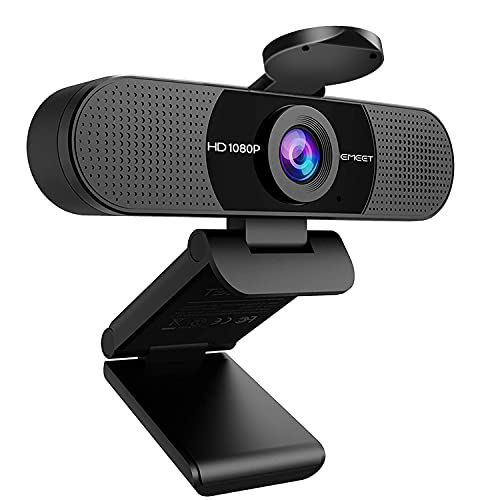
EMEET C960 — Best Two-Microphone Value
EMEET’s C960 is one of the category’s long-running staples, and its listing explains its endurance: 1080p, two microphones, a 90-degree field of view, plug-and-play USB, and a platform list that runs from Zoom and Teams to FaceTime and YouTube. The two microphones are its centre of gravity. A pair of capsules gives the camera a fuller, more room-aware voice pickup than a single microphone manages — two people at one desk both register properly, and a single speaker gains a naturalness that colleagues notice without being able to name.
The 90-degree frame is the companion choice: wide enough for a pair of chairs or a single chair with breathing room, without tipping into the fisheye territory where the room starts to bend. For the dual-OS desk specifically, the C960’s appeal is its lack of demands. There is no software layer in its title to argue about, no proprietary ecosystem to half-lose on Linux; the camera’s proposition is a standard picture and a better-than-standard microphone, delivered over plug-and-play USB. What you see in its specification is what both operating systems will get, which is the purest form of the dual-OS promise any camera in this guide makes.
Its limits are the era’s limits: 1080p is the ceiling, there is no privacy cover named in the title — a point the spec box records, since the other picks mostly include one — and low-light heroics are not claimed. Judge it as the value anchor for voice: if your meetings are two-voiced or your room is kind, the C960 covers the brief with money left over. Its Amazon price is characteristically modest, and pairing it with a small desk light is a combination that outperforms cameras costing considerably more in a dark room.
- Video: 1080p
- Linux/UVC: Not stated in the listing title — verify UVC class-driver support on the listing before relying on Linux use
- View: 90-degree field of view
- Audio: two built-in microphones
- Privacy cover: Not stated in the listing title — verify on the listing if a cover is included
- Connection: plug-and-play USB
Strengths
- Dual microphones give shared-desk calls a voice quality singles cannot match.
- No software layer to lose on the Linux side — the proposition is all hardware.
- The 90-degree frame fits two chairs without distorting the room.
Trade-offs
- No privacy cover is named in the title.
- 1080p only, with no low-light claims for dim rooms.
- Its design is a veteran — steady, but without newer tricks like HDR.
Best for: two people sharing one monitor for calls, on either operating system, on a budget that prefers sense to sparkle. Not suited for: privacy sticklers who want a cover in the box, or presenters who need resolution headroom.

Anker PowerConf C200 — Best 2K for Dim Rooms
Anker’s C200 steps this guide’s resolution up: a 2K webcam for PC, laptop and Mac, with low-light correction headline in its title. That pairing — more pixels, and processing aimed at rooms where the light is poor — suits a recognisable dual-OS habitat: the spare-room desk, the evening-shift setup, the basement studio where a Linux box and a Windows box share one lamp-lit monitor. Low-light correction in a webcam is exposure and processing working to lift a dim image without turning it to noise, and in rooms that never see real daylight it is worth more than any resolution figure.
The 2K sensor earns its keep in the standard way: meetings transmit at 1080p or below, but the surplus resolution makes the transmitted picture a downsample rather than a stretch, and gives digital framing adjustments something to spend. Anker’s title also trails a set of audio and speaker phrases that appear to belong to its conference-speakerphone relatives; this review deliberately rests only on the webcam claims — 2K video and low-light correction — and the spec box follows the same discipline. Dual-OS buyers should apply the guide’s refrain here too: the title names PC and Mac, and Linux goes unverified by the title even though the plug-and-play class-driver logic applies.
In the guide’s internal contest, the C200 is the picture-quality step-up that stays at a sane tier: it does not chase certification or HDR, it simply resolves more and copes better after dark. Rooms with real daylight and single voices may not need it; rooms lit by one lamp and a monitor’s glow will feel the difference in the first evening call. Because Anker accessories are promoted in waves, a glance at the C200’s current Amazon price before buying is the difference between a fair step-up and an accidental splurge.
- Video: 2K
- Linux/UVC: Not stated in the listing title — verify UVC class-driver support on the listing; title names PC, laptop and Mac
- Light handling: low-light correction, per listing title
- Audio: conference microphone claimed in listing — treat detailed audio claims with care and verify on the listing
- Privacy cover: Not stated in the listing title — verify on the listing
Strengths
- 2K capture with correction aimed squarely at dim-room desks.
- Resolution headroom improves the transmitted picture and framing flexibility.
- Anker’s accessory build quality is a known quantity in this category.
Trade-offs
- The listing’s audio tail is ambiguous — verify microphone details on the listing itself.
- No certification claims for organisations that require them.
- Linux remains a verify item, as throughout this guide.
Best for: lamp-lit desks and evening callers on either system who want a visibly better picture. Not suited for: a certified-meeting workplace, where the Microsoft pick below carries the paperwork.

Microsoft Modern Webcam — Best Certified Meeting Pick
Microsoft’s Modern Webcam is the corporate citizen of this guide, and its title reads like a compliance checklist that happens to describe a good camera: a built-in noise-cancelling microphone, an integrated privacy shutter, HDR video, autofocus, light correction, USB connectivity, and certification for Teams and Zoom. For the dual-OS desk there is an obvious irony to address first — a Microsoft camera in a Linux guide — and the resolution of the irony is the guide’s whole thesis: what matters is the standard, not the logo. A camera built to be certified across meeting platforms lives or dies by behaving predictably on class drivers, and its spec box applies the same Linux verification note as every other pick, because its title, like all the others, does not name Linux.
Within its stated claims, the feature mix is the most complete here. HDR and light correction address the window-behind-the-desk problem from both ends; autofocus keeps a fidgeting speaker sharp without focus hunting rituals; the noise-cancelling microphone is aimed at the open-plan and household noise floors; and the integrated shutter — built in, not a loose cover — is the privacy mechanism at its most civilised, present when wanted and impossible to lose. Certification for Teams and Zoom is the workplace dialect of plug-and-play: it promises the buttons, the defaults and the behaviour have been tested against the platforms employers actually run.
The camera’s resolution is the one specification its title leaves unstated in the material this guide works from, and the review respects that silence rather than filling it from memory: buyers for whom the exact capture resolution is decisive should confirm it on the listing. What is stated is more than enough to place it — this is the pick for the desk whose calls are formal, whose employer has opinions, and whose owner wants the shutter, the certification and the correction suite in one device. It also appears in this batch’s microphone-focused guide from the other direction, a overlap that reflects how central its audio claim is to its design.
- Video: HDR with light correction and autofocus (capture resolution not stated in the listing title provided — verify on the listing)
- Linux/UVC: Not stated in the listing title — verify UVC class-driver support on the listing before relying on Linux use
- Audio: built-in noise-cancelling microphone
- Privacy: integrated privacy shutter
- Certification: certified for Teams and Zoom, per listing title
- Connection: USB
Strengths
- The most complete stated feature set here: HDR, autofocus, noise cancellation, shutter.
- Platform certification suits employer-run meeting environments.
- The integrated shutter is the tidiest privacy solution in the guide.
Trade-offs
- Its title does not state capture resolution — check the listing if that number decides for you.
- Certification value is wasted on purely personal, platform-agnostic use.
- Linux verification is still on the buyer, logo notwithstanding.
Best for: the formal dual-OS desk — work Windows by day, personal Linux by night, meetings that matter on both. Not suited for: a casual household setup, where its certification and polish cost more than the use case returns.

UGREEN 2K Webcam — Best Wide Room Coverage
UGREEN’s entry pairs the C200’s 2K step with the C960’s two-voice thinking: a 2K-at-30fps camera that also runs 1080p, with dual microphones, fixed focus, plug-and-play operation, a 95-degree field of view and a privacy cover, for PC and Mac. The 95-degree view is the widest in this guide, and it defines the camera’s habitat — the family desk where a parent and child sit in for a call with grandparents, the two-chair huddle around one monitor, the presenter who wants the whiteboard edge in frame. Width at 2K is a meaningful combination, because the surplus resolution keeps a wide frame from dissolving into mush at its edges.
Fixed focus is the specification that will be misread as a flaw, so let it be read correctly instead: a fixed-focus lens is set for the desk distance and stays there, which means no autofocus hunting when you lean, gesture or hold an object toward the lens — a small, real virtue for demonstrations and for anyone who has watched a camera breathe in and out of focus through a meeting. The trade is that very close or very distant subjects cannot be pulled sharp. At monitor distance, where this camera will live, the fixed point is chosen exactly right.
Dual microphones and a privacy cover complete a specification that reads like the guide’s checklist answered in order, with Linux in its usual position — unnamed in the title, resting on the plug-and-play standard, flagged in the spec box. For a shared family or two-desk setup that boots both systems, this is arguably the most complete all-rounder here; households pricing it should note its Amazon listing against the C960, since the UGREEN’s premium buys resolution and width over the EMEET’s value, and the right answer depends on how the room is actually used.
- Video: 2K at 30fps, also 1080p
- Linux/UVC: Not stated in the listing title — verify UVC class-driver support on the listing; title names PC and Mac
- View: 95-degree field of view — the widest here
- Focus: fixed focus, set for desk distance
- Audio: dual microphones
- Privacy: privacy cover included
Strengths
- 2K resolution behind the guide’s widest frame keeps two-person shots detailed.
- Fixed focus never hunts during gestures or demonstrations.
- Dual microphones and a cover complete the shared-desk checklist.
Trade-offs
- Fixed focus cannot sharpen very close-up object work.
- The wide frame shows more room — untidy backgrounds included.
- 2K at 30fps only; no high-frame-rate mode for fast motion.
Best for: family desks and two-chair calls on a monitor both systems share. Not suited for: macro-style product close-ups or a solo presenter who wants a tight, narrow frame.
How Do the Six Compare for a Two-System Desk?
| Pick | Video | View | Audio | Privacy | Linux in title? |
|---|---|---|---|---|---|
| NexiGo N60 | 1080p | Standard | Built-in mic | Cover | No — verify UVC |
| NexiGo N60 Pro (Gen 2) | 1080p | Distortion-free lens | Noise-reduction mic | Cover | No — verify UVC |
| EMEET C960 | 1080p | 90 degrees | Two microphones | Not stated | No — verify UVC |
| Anker PowerConf C200 | 2K | Standard | Verify on listing | Not stated | No — verify UVC |
| Microsoft Modern Webcam | HDR, autofocus | Standard | Noise-cancelling mic | Integrated shutter | No — verify UVC |
| UGREEN 2K | 2K 30fps | 95 degrees | Dual microphones | Cover | No — verify UVC |
The last column is deliberately monotonous. Six cameras, six identical entries — not because Linux support is absent, but because listing titles are the wrong place to look for it, and a comparison table that invented variety there would be lying in six different directions. The real comparison runs through the other columns: pick your resolution tier, your width, your microphone count and your privacy mechanism, then run the single UVC verification on the winner’s listing before the order is placed. It is a calmer way to shop than badge-hunting, and it generalises to every peripheral a two-system desk will ever need.
How Do You Test a New Camera on Both Systems in the First Week?
Give the camera a structured first week and it will never surprise you in month six. Day one belongs to Windows: plug in, confirm the camera appears in your meeting apps with no installation drama, run the vendor utility if one exists, and note which settings live in the camera — set exposure and framing the way you like them and see whether the choices survive a reboot and a move to another port. Then boot Linux and repeat the app check: the camera should enumerate immediately, appear in the browser and the meeting tools, and deliver the same resolutions. Any setting that vanished in transit is a utility-side setting; write it down, because future-you will otherwise re-diagnose it as a fault.
Midweek, test the physical life: the clip’s grip after the monitor has been nudged a dozen times, the aim after a cleaning wipe, the cover or shutter’s state being legible at a glance. Record a one-minute call on each system in the room’s worst light — evening, one lamp — and listen back to the microphone with headphones, because laptop speakers forgive audio sins that the far end of a real call will not. If the camera passes its worst-light, worst-audio, second-operating-system test in week one, it is not a purchase any more; it is furniture, which is the highest honour a webcam can earn. Keep the notes from that week — the settings that travelled, the ones that did not, the port that behaved — somewhere the future owner of the same puzzling symptom, who is also you, will find them instead of starting the diagnosis from zero.
How Do You Share One Camera Between Two Machines Without Replugging It Daily?
The monitor is shared by an input button; the camera needs its own arrangement, and three patterns cover nearly every dual-OS desk. The simplest is the honest cable: the camera’s USB lead is long enough to reach whichever machine is active, and switching systems means moving one plug. It costs nothing, it never misbehaves, and it suits desks where the switch happens once a day — the work machine off, the personal machine on. Its weakness is wear and tedium when the switch happens hourly.
The second pattern is a USB switch — a small hub with two upstream ports and a button — which moves the camera (and usually the keyboard and mouse with it) between machines at a press. For a webcam this works well provided the switch is a plain, well-made one: the camera re-enumerates on the newly selected machine exactly as if it had been plugged in fresh, which is the standard behaving as designed. The third pattern is the full KVM, where the camera rides along with the display switching; here the caution is that some KVMs interpose their own USB emulation, which suits keyboards and mice but can occasionally confuse a video device. If a KVM is in your future, the camera is the peripheral to test first and most sceptically during the return window, because it is the one whose standard is the most demanding of the three.
Whichever pattern you choose, give the camera a consistent port and a strain-relieved cable run. Half the “Linux webcam problems” and “Windows webcam problems” reported on forums are, on inspection, a cable being slowly worried out of its socket by a monitor arm’s daily movement — an operating-system-neutral failure wearing an operating system’s name. The standard cannot help a camera that is not, in the physical sense, connected.
What Goes Wrong When People Buy One Camera for Two Operating Systems?
The headline error is buying the software instead of the camera: choosing a model for a vendor utility’s tricks — a background system, a beauty filter, a settings suite — and discovering those tricks live only on Windows while the Linux half of the desk gets the bare device. The defence is this guide’s discipline: value the hardware and the standard first, and count any utility as a Windows-side bonus that may or may not be there on the other side. The second error is the mirror image — assuming that because a title omits Linux, the camera cannot work there, and overpaying for one of the rare listings that prints the word. The standard, not the title, is the evidence; the title’s silence is why we verify, not why we despair.
Third, dual-OS desks forget the microphone’s passport: USB audio is standardised too, but a camera whose audio depends on a vendor driver or a companion app for its noise processing may sound noticeably plainer on Linux. The picks here mostly keep their audio in hardware — dual capsules, noise-reduction designs — which travels. Fourth, and most mundane: the mount. A clip that grips a thick gaming monitor may skate on a thin laptop-style display, and a camera bought for “the monitor” that fits neither screen in the house is a paperweight with a lens. Measure the bezel, read the listing’s mount description, and treat week one’s grip test as part of the purchase.
When Does the Room Matter More Than the Camera You Bolt to the Monitor?
More often than camera marketing admits, and the dual-OS desk is the perfect place to learn it, because the room is the one component both operating systems share. A window directly behind the chair will silhouette any of these six cameras into a witness-protection interview; the same window moved to the side, or softened by a blind, flatters all of them equally. A bare-walled room will make every microphone in this guide sound like it is broadcasting from a stairwell, while one soft furnishing — a rug, a curtain, a bookshelf with actual books — improves the audio more than the step from a single microphone to a dual array. The camera is the last ten percent of a call’s quality. The room is the first ninety, and it is gloriously indifferent to which operating system is running beneath it.
This is why the placement advice in this guide keeps returning to unglamorous acts: raise the monitor so the camera approaches eye level, put a lamp where it lights the face rather than the ceiling, angle the screen so the lens is not staring into the window’s reflection. None of these acts costs what a camera costs, and all of them compound with whichever pick you choose. The dual-OS buyer who spends an hour on the room and buys the honest mid-range camera will out-present the buyer who buys the flagship and bolts it, unconsidered, into a cave — on Windows, on Linux, and on any system that comes after either of them.
Final Recommendation
Choose by the columns that vary, verify the one that does not. For a single chair and a simple life, the NexiGo N60 or its Pro sibling — the Pro when the desk mixes USB-A and Type-C — covers the dual-OS brief with the least machinery. Two voices at one monitor point to the EMEET C960’s microphones or, with resolution and width added, the UGREEN 2K. Dim rooms argue for Anker’s C200; formal, certified meeting life argues for Microsoft’s Modern Webcam and its integrated shutter. Every one of them then gets the same final step: confirm the UVC class-driver behaviour on the listing, plug in on both systems in the first week, and let the standard do what standards are for.
A camera that works identically under two operating systems is a small monument to interoperability in an industry that prefers lock-in — buy the standard, keep the cover closed when the day is done, and your monitor’s perch will serve both halves of your computing life without ever asking which one booted this morning. That indifference, once experienced, is hard to give up: every peripheral purchased afterwards gets asked the same question this guide asked, and the desk slowly becomes a place where the hardware serves the person rather than the platform — which was, all along, the only sensible order of things.
Frequently Asked Questions
Will any of these webcams actually work on Linux if the listing never mentions it?
In practice, UVC-compliant cameras work on Linux through the class driver built into the kernel, and plug-and-play designs like these are built on that standard — which is why the expectation is positive. But expectation is not a listing claim, so this guide marks Linux as a verify item for all six: check the listing for UVC or Linux mentions, and use the first-week test on your own distribution while the return window is open.
What is UVC, in one breath?
USB Video Class — the standard language a webcam uses to describe its video to a computer. Because both Windows and Linux ship drivers for that language, a UVC camera needs no vendor driver on either system. It is the single most important acronym in dual-OS camera buying, worth more than any badge printed on a box.
Do I lose the camera’s extra features when I switch to Linux?
You lose, at most, the vendor’s software layer — utilities for settings, presets or effects that were built for Windows. The camera’s hardware features travel: resolution, microphones, autofocus, HDR and light correction are properties of the device speaking the standard. Settings that the camera stores internally, once configured, generally travel with it too.
Can one camera serve a Windows PC and a Linux PC sharing a monitor?
Yes — that is the exact desk this guide was written for. The camera stays clipped to the monitor; whichever machine is driving the display gets the camera, provided the USB cable reaches the active machine or a simple USB switch shares it. Test the clip’s grip and the cable run once, and the arrangement becomes invisible in daily use.
Is 2K worth it if my meetings only send 1080p?
Often, yes, for two reasons: the 1080p picture a meeting app sends is downsampled from the 2K source and generally looks cleaner for it, and the spare resolution gives digital framing and cropping something real to work with. If your calls are casual and your room is bright, 1080p native cameras remain entirely respectable — the 2K premium buys polish, not permission.
Why do several reviews mention the privacy cover like it matters to an OS guide?
Because it is the one feature whose behaviour is identical on every system, driver and app: a covered lens is off, unconditionally. On a monitor shared between two machines — possibly two people’s machines — that legibility is worth more than any software indicator, which is why covers and the Microsoft camera’s integrated shutter get their emphasis here.
My Linux distribution shows the camera but my meeting app does not — whose fault is that?
Usually neither the camera’s nor the distribution’s: it is a permissions or packaging question. Browser-based meetings need the browser’s camera permission granted for that site; apps installed as sandboxed packages may need their camera access enabled in the system’s privacy settings before the device appears inside them. The diagnostic order that saves an evening is: confirm the camera in a simple local camera app first, then in the browser, then in the meeting tool — the layer where it disappears is the layer that owns the problem, and it is almost never the hardware.
Related Guides
The dual-OS desk has neighbours on this shelf. Voice-first shoppers should read the microphone-quality webcams from Microsoft and Logitech, where several of these makers argue the audio case in full; anyone whose monitor also hosts a sign-in routine can browse the Windows Hello facial recognition webcams; and presenters who have outgrown the fixed frame entirely will find their machinery in the remote motor pan tilt webcams guide. See also webcams remote motor pan tilt.


