What's inside
- Key Takeaways
- Quick Picks
- How Did We Choose These Picks?
- What Does Custom Firmware Actually Change Day to Day?
- How Do Updates Work Once the Community Owns Your Router?
- What Can You Actually Do With an Open Router on a Rainy Weekend?
- How Should a Household Network Be Laid Out Around One of These?
- Which Routers Belong in a Side-by-Side Comparison?
- Which Hardware Numbers Matter More Than the Wi-Fi Logo?
- What Does a Careful First Evening With OpenWrt Look Like?
- How Should You Prepare Before Installing Anything?
- What Mistakes Do First-Time Flashers Keep Making?
- Final Recommendation
- Frequently Asked Questions
- Related Guides
As an Amazon Associate I earn from qualifying purchases. This post may contain affiliate links at no extra cost to you.
gizmoverdict.com is reader-supported. When you buy through links on our site, we may earn an affiliate commission.
Where to buy: Five picks below carry verified pool links. The sixth, a TP-Link model whose listing says nothing about alternative firmware, appears as a prose-only cautionary entry with no purchase link, because sending you to buy hardware for a flashing project its own listing never promises would be a disservice.
Shoppers hunting for the best routers that can run custom firmware usually arrive with a frustration already formed. Perhaps the stock interface hides the setting they need, perhaps the manufacturer stopped releasing updates for a box that still works, or perhaps they want a VPN running on the router itself so every device in the home inherits the tunnel. Whatever pushed you here, the honest starting point is that custom firmware is not one thing. OpenWrt replaces the entire operating system with a community-maintained Linux distribution built for networking hardware. Asuswrt-Merlin, by contrast, keeps the ASUS interface and adds features and fixes on top, which means it only exists for supported ASUS models. DD-WRT occupies a third position, older and broader in hardware reach but slower to evolve. Choosing a router for this hobby therefore begins with deciding which ecosystem you intend to live inside, because the hardware follows that decision rather than the other way round.
There is also a sober warning that belongs at the top rather than buried near the end. Flashing alternative firmware can void a warranty, and a failed flash can leave a router unresponsive until recovered through a serial cable or a recovery mode that not every model offers. None of that should scare off a careful reader, yet it does mean the wisest purchase is hardware whose community support is documented, current and specific to the exact revision on the shelf. A model name alone is not a promise. Manufacturers quietly change chipsets under the same retail name, and the revision letter printed on the underside label can decide whether a firmware image exists for your unit at all.
The six entries below reflect that reality in their ordering. Two GL.iNet routers arrive with OpenWrt already installed beneath a friendlier skin, which removes the flashing risk entirely. A Cudy model advertises OpenWrt readiness in its own listing title. A Linksys from the famous WRT lineage carries a long community history. A NETGEAR Nighthawk listing states open source support outright, though the unit in this pool is a certified refurbished example and deserves that context. Finally, the prose-only TP-Link stands as the control case: a perfectly decent stock router that this guide refuses to dress up as something its listing never claimed.
Key Takeaways
- OpenWrt, Merlin and DD-WRT are different commitments, so pick the ecosystem before picking the box.
- Routers shipping with OpenWrt pre-installed remove the riskiest step, the first flash, from the project.
- Hardware revision matters as much as model name; check the label underneath before ordering anything.
- A refurbished listing can be fair value, provided you accept shorter support expectations.
- One entry here is deliberately prose-only because its title never mentions alternative firmware.
- Keep the stock firmware file and recovery instructions downloaded before you change anything.
Quick Picks
| Pick | Badge | Why it earns its place |
|---|---|---|
| GL.iNet GL-MT6000 Flint 2 | OpenWrt without the flash | Pre-installed OpenWrt, twin 2.5G ports and Wi-Fi 6 pace for households wanting depth without drama. |
| GL.iNet GL-AX1800 Flint | Gentler first step | The original Flint pairs the same open foundation with gigabit ports and a calmer price class. |
| Cudy WR3000S AX3000 | OpenWrt-ready value | Its listing title names OpenWRT directly, alongside five gigabit ports and vendor mesh support. |
| Linksys WRT3200ACM | The classic lineage | A WRT-family design from the line that made alternative firmware mainstream among home users. |
| NETGEAR Nighthawk R7000 | Open source stated | The listing itself advertises open source support, though this pool entry is certified refurbished. |
| TP-Link Archer AX21 | Prose-only warning | Included to show the boundary: nothing in its title supports a custom firmware claim. |
How Did We Choose These Picks?
The selection rule for this guide was stricter than raw wireless speed. A router earned consideration only when some verifiable thread connected it to alternative firmware: a listing title naming OpenWrt, a manufacturer known for shipping OpenWrt beneath its own interface, a product family built historically around community development, or explicit open source wording in the listing. Models that merely felt likely to be supported were excluded or, in one instructive case, demoted to prose-only status so the distinction stayed visible.
Wireless performance still mattered, because nobody should accept a sluggish network as the admission price for an open platform. Wi-Fi 6 hardware leads the list, while the two older designs remain because their community ecosystems are the entire point of their inclusion. Port counts, multi-gig connections and VPN behaviour were weighed as secondary evidence. Throughout, listing titles were treated as the ceiling of what could be claimed: where a title stayed silent, this guide stays silent too, and says so openly rather than filling the gap with hopeful folklore from forum threads written about different hardware revisions.
What Does Custom Firmware Actually Change Day to Day?
Most owners notice the difference in four places. First, update cadence: community projects often keep patching hardware long after a vendor’s marketing department has moved on, which matters for a device that guards the whole home. Second, visibility: OpenWrt exposes per-device traffic, connection tables and firewall rules that consumer interfaces hide behind friendly graphics. Third, services: a router with real processing headroom can run WireGuard for the entire household, filter advertising at the network edge, or divide the home into virtual networks for guests, cameras and work machines. Fourth, longevity of knowledge: skills learned inside OpenWrt transfer between brands, whereas a vendor interface teaches habits that expire with the product line.
Against that, stock firmware has genuine virtues worth admitting. It arrives tested as a unit, updates itself with little ceremony, and keeps warranty conversations simple. Plenty of households in the guest-network and mesh guides elsewhere in this batch are better served by polish than by possibility. This particular guide is for readers who have already weighed that trade and chosen possibility, eyes open.

GL.iNet GL-MT6000 Flint 2 — OpenWrt without the flash
The Flint 2 occupies the most comfortable seat in this category because it dissolves the founding anxiety of the hobby. Its listing states pre-installed OpenWrt, so the router you unbox already runs the open platform, wrapped in GL.iNet’s approachable interface for ordinary tasks. You can live in the friendly layer for months, then open the advanced LuCI interface on an afternoon when curiosity strikes, learning the system on hardware that was designed around it rather than adapted to it after the fact. That graduation path, from guided to open, is precisely what a first custom firmware router should offer.
Performance credentials keep it from feeling like a teaching toy. The listing describes eight-stream Wi-Fi 6 reaching combined figures of 1148 Mbps on one band and 4804 Mbps on the other, plus dual 2.5G ports that let a fast fibre service or a wired desktop exceed the old gigabit ceiling. OpenVPN and WireGuard support appear in the title as well, and on OpenWrt those protocols are not decorative: the platform’s package system lets you shape routing per device, sending the television through one path and a work laptop through another. For a household that wants a VPN router, a learning platform and a genuinely quick wireless hub in a single purchase, nothing else in this set covers all three roles at once.
Consider how this router behaves in a mixed household, because that is where its design intelligence shows. A parent can handle the ordinary chores, renaming the network, checking which tablet joined at midnight, restarting on a schedule, inside the approachable interface without ever meeting a command line. The enthusiast in the same home can schedule the deeper work for later: a segregated network for the doorbell and plugs, firewall rules written deliberately, a WireGuard endpoint for the laptop that travels. Both people are using the same OpenWrt, at different depths, and neither has to apologise to the other. Few routers manage that diplomatic feat, and it is why the Flint 2 suits shared homes better than a bare development board ever could.
Its 2.5G ports also change the upgrade maths. A household expecting a faster fibre tier next year, or already running a wired workstation and a network drive that converse daily, can buy this once and let the rest of the chain catch up gradually. The ports wait patiently; nothing about them demands an immediate ecosystem. Meanwhile the radios cover the present honestly, and the platform underneath will still be receiving community attention when the wireless standard on the box has become a period detail.
- Platform: OpenWrt pre-installed under the GL.iNet interface
- Wireless: Wi-Fi 6, eight streams across two bands
- Wired: dual 2.5G Ethernet ports
- VPN: OpenVPN and WireGuard named in the listing
- Role: main home router rather than travel accessory
Strengths
- No flashing gamble, since the open system ships from the factory.
- Multi-gig ports give fast wired devices room beyond gigabit.
- Package ecosystem extends the router long after unboxing day.
Trade-offs
- The friendly interface can tempt owners to postpone learning the deeper system indefinitely.
- Two premium ports still leave most LAN connections at ordinary speeds elsewhere in the chain.
- Enthusiast features reward patience; casual users may never touch half of them.
Best for: households ready to adopt OpenWrt as their permanent router platform. Not suited for: anyone who wants mesh simplicity with zero interest in what runs underneath.
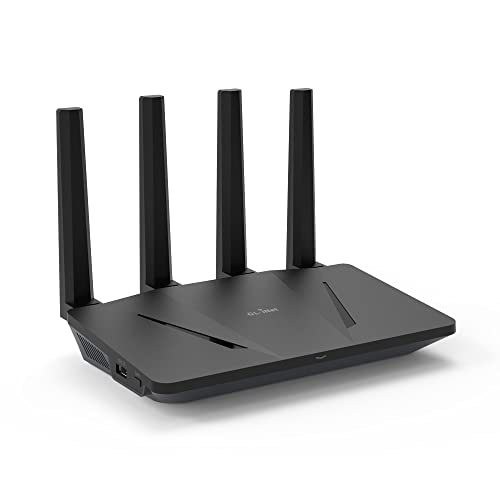
GL.iNet GL-AX1800 Flint — Gentler first step
The original Flint reads like the Flint 2’s patient older sibling. It shares the defining trait, GL.iNet’s OpenWrt foundation, but wraps it around AX1800-class Wi-Fi 6 and five gigabit Ethernet ports, a specification that suits ordinary broadband tiers without pretending to chase multi-gig headlines. The listing mentions capacity for up to 120 devices and built-in OpenVPN and WireGuard, which tells you the intended audience clearly: a normal home that wants an open, VPN-capable router and has no plan to wire a workstation at two and a half gigabits.
There is an educational argument for starting here. Because the hardware costs less and asks less, mistakes feel cheaper, and the OpenWrt skills you build transfer upward unchanged if you later graduate to faster GL.iNet hardware. The interface layering works identically, the package manager behaves the same way, and configuration backups teach the discipline of exporting settings before experiments. Where the Flint 2 is the destination router for committed users, this first Flint is the sensible doorway, and doorways matter in a hobby where a frightening first experience often ends the experiment entirely.
There is a thrift argument here that goes beyond the purchase itself. Routers die socially before they die electrically: a vendor stops updating, a household loses confidence, and a working box goes to a drawer. An open platform interrupts that cycle, because the software’s future depends on a project’s health rather than a product line’s marketing calendar. The first Flint, bought as a modest AX1800 router, can therefore expect a longer useful conversation with its owner than its specification sheet implies, first as the main router, later perhaps as a wired access point in a spare room or a travel spare pressed into service when the main unit fails.
That second career is worth picturing before you spend more on a faster sibling. If your broadband tier is ordinary and your wired ambitions are a console and a desktop, the headroom you would pay for in the Flint 2 may sit unused for years, while the money saved here covers the cables, the small switch or the battery backup that real networks quietly need. Judged as a system purchase rather than a spec contest, the original Flint is frequently the wiser basket.
- Platform: OpenWrt foundation with GL.iNet interface
- Wireless: Wi-Fi 6 dual band, AX1800 class
- Wired: five gigabit Ethernet ports
- VPN: OpenVPN and WireGuard support stated
- Capacity note: listing cites up to 120 devices
Strengths
- Same open learning path as its faster sibling, at a calmer commitment.
- Five wired ports reduce the need for an extra switch.
- VPN duties are native rather than bolted on.
Trade-offs
- Gigabit ports cap wired transfers below what newer hardware allows.
- AX1800 radios feel modest beside current mid-range rivals.
- Power users will outgrow it sooner than the Flint 2.
Best for: first-time OpenWrt owners on mainstream broadband plans. Not suited for: homes with multi-gig internet or heavy wired file transfers.

Cudy WR3000S AX3000 — OpenWrt-ready value
Cudy puts the decisive word directly in the product name: OpenWRT. The listing title for the WR3000S calls the router OpenWRT-Ready, and that phrasing deserves a careful reading. Ready is not the same as pre-installed. It signals a hardware platform the vendor presents as suitable for the open system, while the act of installing it, and responsibility for doing so correctly, still belongs to you. Readers who understand that distinction get an appealing bargain; readers who skim past it may feel misled by their own haste rather than by the listing, which is unusually plain about where the boundary sits.
As a router in its own right, the specification is thoroughly modern: AX3000 Wi-Fi 6 split between 2402 and 574 Mbps bands, five gigabit ports, MU-MIMO, coverage claims around a modest home, and support for a couple of hundred devices. Cudy also layers its own cloud control and mesh support over the stock experience, so the box can live an ordinary life if the flashing project keeps slipping down your weekend list. That dual identity, respectable stock router today and open platform candidate tomorrow, makes it the value hinge of this guide, provided your tomorrow genuinely arrives and you verify the exact unit against current OpenWrt documentation before the first reboot into an installer.
The WR3000S also raises a fair question about trust. When a smaller brand prints OpenWRT in its title, is that a commitment or a garnish? The careful answer is that the title creates a testable claim: the hardware table either lists this model with a documented installation path or it does not, and your purchase decision should wait for that check rather than for anyone’s enthusiasm, including this guide’s. Cudy’s own stock software, with cloud control and mesh pairing, gives the router a respectable life even while you deliberate, which softens the risk considerably compared with hardware that is useless until flashed.
For a certain reader, that deliberation is the pleasure. You unbox a competent AX3000 router, run it stock for a fortnight, learn your household’s actual traffic patterns, and then decide whether the open installation still tempts you, now with baselines to compare against. If it does, you proceed with backups and documentation. If it does not, you own a fine router and a postponed hobby, which is a far better outcome than a bricked box and a story told through clenched teeth.
- Platform: described as OpenWRT-Ready in the listing title
- Wireless: Wi-Fi 6, 2402 plus 574 Mbps band figures
- Wired: five gigabit Ethernet ports
- Extras: cloud control and Cudy mesh support
- Installation: owner-performed, unlike the GL.iNet pair
Strengths
- Vendor states the open firmware intention in plain sight.
- Stock feature set remains useful if plans change.
- Port count beats many rivals at this tier.
Trade-offs
- Ready means you still carry the flashing risk personally.
- Cloud control will not appeal to privacy-first tinkerers.
- Community depth is younger than the WRT lineage below.
Best for: confident installers chasing modern radios on a budget. Not suited for: anyone expecting OpenWrt to be running at first boot.

Linksys WRT3200ACM — The classic lineage
Some product names carry history, and WRT is the heaviest name in this field. The letters descend from the WRT54G, the router whose open firmware scene effectively created the hobby this guide serves, and the WRT3200ACM was designed as a modern heir to that tradition, styled to echo the blue and black stackable hardware enthusiasts remember. Its listing emphasises AC3200 dual-band wireless, beamforming, Tri-Stream technology and MU-MIMO, specifications from an earlier generation that nonetheless describe a capable radio platform for homes whose internet tier sits below gigabit.
Why include an older design among Wi-Fi 6 rivals? Because community knowledge compounds. Years of forum threads, recovery walkthroughs and build discussions surround the WRT family, and when something goes wrong at midnight, the depth of written experience around your exact hardware is worth more than a newer chipset’s benchmark. The honest counterweight is age: wireless standards have moved on, security expectations have risen, and any buyer should confirm that the specific firmware branch they intend to run is actively maintained for this model rather than preserved as a museum piece. Nostalgia opens the door here, but verification should decide whether you walk through it.
Living with the WRT3200ACM in the present day means accepting a particular bargain with time. Your clients will connect over Wi-Fi 5 in an age of Wi-Fi 7 marketing, and in a small or medium home on a sub-gigabit plan, most of them will never notice the missing generation, because their bottleneck is the internet service or the wall between rooms, not the radio standard. What you receive in exchange is maturity: years of accumulated answers, edge cases already met by somebody else, and recovery procedures rehearsed often enough to be boring, which is the highest praise a recovery procedure can earn.
It also makes an unusually good teacher. A student of networking who installs, breaks, recovers and reconfigures this machine will meet nearly every classic situation the hobby contains, on hardware whose community has written about all of them. That educational density is a genuine feature, as real as any antenna, and for the reader who values understanding over novelty it may outweigh every newer radio in this guide.
- Platform: WRT family with long community firmware history
- Wireless: AC3200 dual band with Tri-Stream
- Features: beamforming and MU-MIMO named in listing
- Design: styling echoes the classic WRT hardware
- Era: older generation, verify current build support
Strengths
- Deep archive of guides and recovery advice surrounds the family.
- Purpose-built identity rather than accidental compatibility.
- Radios remain respectable for sub-gigabit services.
Trade-offs
- No Wi-Fi 6, so modern clients lose their newest efficiencies.
- Age makes pre-purchase maintenance checks essential.
- Styling and size suit a shelf, not a discreet corner.
Best for: enthusiasts who value documented history over radio novelty. Not suited for: households equipping a brand-new Wi-Fi 6 or later client fleet.
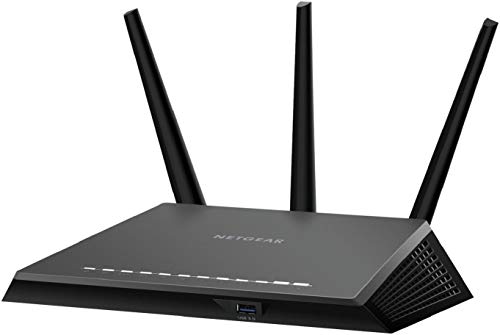
NETGEAR Nighthawk R7000 — Open source stated
The R7000 might be the most written-about home router of its decade, and this listing makes its relevant claim in four words: Open Source Support. NETGEAR’s AC1900 Nighthawk served as a test bed for countless alternative builds, VPN experiments and traffic-shaping projects, so its presence in a custom firmware guide needs little justification. What does need stating, loudly, is the parenthesis at the end of the listing title: Certified Refurbished. The pool entry is not a new unit, and the analysis proceeds on that basis rather than pretending otherwise.
Refurbished status cuts both ways. It lowers the cost of entry into a famously hackable platform, which suits experimenters who may keep the device as a secondary router, a VPN endpoint or a lab bench for learning firewall rules without endangering the household’s main connection. It also means cosmetic wear is possible, accessory completeness deserves checking on arrival, and the support horizon differs from a fresh retail box. The listing adds Circle parental controls and Alexa compatibility, stock-era comforts that matter less to the flashing audience but could serve a family role if the experiment ends. Buy it as a known platform at a refurbished discount, with refurbished expectations, and the proposition is coherent.
Picture the R7000’s most sensible modern job and the refurbished question settles itself. It sits not as the proud centrepiece of a new network but as the second router: the one running the experimental configuration, the guest network for a garden office, the VPN endpoint for a single desk, the spare that saves a workday when the main router dies on a Monday. In those roles its age is camouflage and its community documentation is a superpower, because any configuration you can imagine for it has been attempted, argued about and written down by earlier owners.
On arrival, treat it like any refurbished machine: inspect it, reset it fully, update or replace its software before trusting it with traffic, and change every credential. A factory reset is not paranoia here; it is the standard handshake between a device with a past and an owner with standards. Do that, and the R7000’s second career can be as honourable as its first.
- Platform: listing states open source support
- Wireless: AC1900 dual band
- Condition: certified refurbished, stated in the title
- Extras: Circle parental controls, Alexa compatibility
- Sensible role: experiment platform or secondary router
Strengths
- Enormous body of community knowledge documents this model.
- Refurbished pricing logic suits a learning project.
- Still adequate radios for a lab or spare-room role.
Trade-offs
- Refurbished condition will not suit gift-style purchases.
- Wi-Fi 5 era hardware trails every newer pick here.
- Stock extras lose relevance once alternative firmware replaces them.
Best for: tinkerers wanting a documented playground at reduced commitment. Not suited for: anyone needing a pristine, long-warranty main router.
TP-Link Archer AX21 — Prose-only warning
Every guide needs its boundary marker, and the Archer AX21 is this one. As a stock AX1800 router it has sold in enormous numbers and doubtless serves many homes perfectly well. None of that is in dispute. What matters here is narrower: the pool entry for this model states plainly that its custom-firmware status is not stated in the listing title, and instructs that it be treated as a stock-firmware router unless the OpenWrt hardware table confirms your exact hardware revision. This guide follows that instruction to the letter, which is why this section carries no purchase link and no image marker tied to a product.
The spec-box line for this pick therefore reads differently from the five above, deliberately: Not stated in the listing title — verify with the OpenWrt hardware table for your exact hardware revision. That sentence is the most useful thing this section can give you. Archer model names span multiple revisions built on different silicon, and advice written about one revision can be actively dangerous when applied to another. If you already own an AX21 and curiosity strikes, read its underside label, match the revision against the hardware table, and accept whatever answer the table gives, including no. If you are shopping specifically for a flashing project, buy one of the five linked picks whose claim survives scrutiny instead of gambling on an ambiguity.
It is worth pausing on why this guide keeps the AX21 visible instead of quietly dropping it. Affiliate roundups earn trust at exactly these joints: the places where a link would be easy and a claim would be convenient. Leaving the model in, unlinked and clearly labelled, shows the working. It also serves owners, who are numerous, by pointing them to the one authoritative check, the hardware table matched against the revision printed on their own unit, rather than to a comment thread about a stranger’s router bought in a different year.
If that check blesses your revision, proceed with the same preparation ritual described later in this guide, and welcome. If it does not, the stock router remains a stock router, and the five linked picks above exist precisely so that your next purchase does not depend on a stranger’s luck. Either way, the answer came from documentation rather than hope, which is the closest thing this hobby has to a motto.
- Firmware status: Not stated in the listing title — verify with the OpenWrt hardware table for your exact hardware revision
- Link status: prose-only, no dp link by design
- Stock identity: AX1800-class consumer router
- Risk point: revisions under one name can differ internally
- Guide position: cautionary example, not a recommendation to flash
Strengths
- As a stock router, its mainstream popularity implies a familiar setup experience.
- Its ambiguity teaches the revision-checking habit better than any lecture.
- Including it honestly protects readers from a mismatched purchase.
Trade-offs
- No verified custom firmware claim can be made from its listing.
- Revision research falls entirely on the owner.
- Project shoppers should simply choose a linked pick instead.
Best for: existing owners willing to research their precise revision first. Not suited for: anyone ordering today with flashing as the primary goal.
How Do Updates Work Once the Community Owns Your Router?
The update question deserves more than a reassuring wave, because it is the strongest practical argument for this entire category and also the place where newcomers most often misunderstand what they signed up for. Vendor firmware arrives as a single blessed package: the manufacturer tests one image, pushes it, and accepts the support calls. OpenWrt works more like a small Linux computer you happen to route packets with. There are stable releases, which most households should run, and there are development snapshots, which exist for testers and for hardware so new that no stable build has caught up yet. Choosing a snapshot for a family router because a forum post praised its wireless driver is a decision you will revisit at an inconvenient hour, usually when a package you depend on refuses to install because the snapshot moved on overnight.
Stable releases still demand a modest ceremony. You read the release notes, confirm your model appears in the supported list for that version, back up the configuration, and upgrade with the option to preserve settings only when the notes say preserving them is safe. Major version jumps occasionally change internal structures, and the honest projects say so plainly. This sounds like work compared with a phone-style auto update, and it is, yet the exchange is transparency: you can read exactly what changed, decide when to move, and keep a router secure years after a vendor’s product page has stopped mentioning it. For many readers of this guide, that trade is the whole point.
There is a second, quieter benefit. Because the same system runs across dozens of brands, a vulnerability response does not depend on one company’s priorities for one ageing model. The project publishes a fix, builds follow for supported hardware, and your Flint, your Cudy or your WRT all drink from the same stream. That shared fate is precisely why the revision warnings elsewhere in this guide matter so much: the stream only reaches hardware the project can identify exactly.
What Can You Actually Do With an Open Router on a Rainy Weekend?
Abstract feature lists rarely convince anyone, so consider the projects owners genuinely finish. The most common first project is a household VPN client: the router joins a WireGuard service, and a rule sends the streaming box through the tunnel while leaving the work laptop on the ordinary connection because its employer’s systems object to foreign-looking addresses. The second project is usually segmentation. A separate wireless network appears for cameras, plugs and other chatty gadgets, firewalled away from the laptops holding tax documents, so a compromised smart bulb becomes an annoyance rather than an incident. Guest access stops being a borrowed feature and becomes a network you designed, with its own address range and no path inward.
Third comes visibility. OpenWrt will show you, per device, what is talking and how much, which ends arguments about mystery slowdowns with evidence. Perhaps the doorbell camera uploads constantly. Perhaps a games console decided that weekday afternoons are for downloading an entire library again. Either way, you fix the actual cause. Fourth, some owners add network-wide advertisement filtering or a local DNS resolver, accepting the occasional broken shopping link as the price. None of these projects requires heroics. Each is an afternoon, a backup taken first, and a household briefed that the internet will blink twice.
Notice what is absent from that list: chasing the last theoretical megabit. Open platforms shine at policy, not miracles. They let a modest router enforce sophisticated decisions about traffic, and they keep teaching you the network you own. Readers who finish one project usually start another, which is why the processing headroom and storage of the Flint 2 matter more than its headline wireless figure suggests, and why the older WRT and R7000 still earn affection as second routers dedicated to experiments the main network never has to risk.
How Should a Household Network Be Laid Out Around One of These?
Placement advice for an open router sounds mundane and saves real grief. Put the router where its radios can breathe, centrally and elevated, not inside a cabinet beside the modem where heat and obstruction conspire. Wire what never moves: the television, the desktop, the console, the network drive. Every device you move onto a cable returns airtime to the phones and laptops that have no choice. If your home defeats a single router’s coverage, resist the urge to crank transmit power in the open settings beyond sensible levels; a second wired access point, perhaps an older router from this very list repurposed, beats a shouting match between radios.
Address planning is the other unglamorous win. Decide your internal ranges before the segmentation project begins: one range for trusted machines, one for gadgets, one for guests. Write the plan down with the admin password stored in a proper password manager, not on a sticky note attached to the hardware it protects. Label cables. Photograph the final wiring. The difference between a network that survives its owner’s holiday and one that requires a video call to fix is almost always documentation, and open firmware rewards documented networks because every setting was a deliberate choice somebody made.
Which Routers Belong in a Side-by-Side Comparison?
| Pick | Firmware position | Wireless class | Standout trait |
|---|---|---|---|
| GL.iNet GL-MT6000 Flint 2 | OpenWrt pre-installed | Wi-Fi 6 | Dual 2.5G ports |
| GL.iNet GL-AX1800 Flint | OpenWrt foundation | Wi-Fi 6 | Five gigabit ports |
| Cudy WR3000S | OpenWRT-Ready per title | Wi-Fi 6 | Owner performs installation |
| Linksys WRT3200ACM | WRT community lineage | Wi-Fi 5 AC3200 | Deep written archive |
| NETGEAR Nighthawk R7000 | Open source support stated | Wi-Fi 5 AC1900 | Certified refurbished entry |
| TP-Link Archer AX21 | Not stated in title | Wi-Fi 6 stock | Prose-only cautionary pick |
A word about reading this table alongside retailer listings: prices and bundles drift, refurbished stock appears and vanishes, and a model can be listed by several sellers with meaningfully different conditions. The firmware position, by contrast, is a property of the hardware and its documentation, and it changes slowly. Anchor your decision on the slow facts, then hunt the fast ones, checking condition and seller carefully wherever a listing mentions refurbishment.
Read the firmware column before the wireless column. In this category the operating system is the purchase, and radios are supporting cast. The two GL.iNet models remove installation risk, the Cudy transfers it to you in exchange for value, the Linksys and NETGEAR trade modern radios for community depth, and the TP-Link demonstrates why an unverified assumption should never reach a checkout.
Which Hardware Numbers Matter More Than the Wi-Fi Logo?
Enthusiast forums obsess over chipsets for a reason that marketing pages rarely explain. The processor inside the router decides how much work the open system can do beyond simply passing packets. Encrypting a VPN tunnel is arithmetic, and arithmetic takes cycles; a router that routes a gigabit happily may manage only a fraction of that through a tunnel if its chip lacks acceleration for the task. Memory matters in parallel. OpenWrt itself is lean, but the moment you add a filtering resolver, a traffic monitor and a file-sharing service, the lean system becomes a small server, and small servers run out of RAM in ways that present as mysterious reboots rather than honest error messages.
Storage is the third quiet specification. Flash memory holds the system and its packages, and cramped flash turns every ambitious project into a negotiation about what to delete. This is where the generational spread in this guide stops being trivia. The Flint 2 was designed in an era when GL.iNet understood that its customers install things; the older Linksys and NETGEAR models were designed when alternative firmware was leaner, and their communities have learned to work within tighter rooms, sometimes with external storage tricks that beginners should admire from a distance before attempting. None of this information appears in the pool listing titles, which is exactly why this guide keeps its claims tied to those titles and presents the chipset discussion as shopping method rather than as invented specification. The method travels: whatever model you consider, in this guide or beyond it, read the hardware table entry for processor, memory and flash before you read a single opinion about it.
Antenna counts and band arithmetic, by contrast, deserve your scepticism. More chains help only clients that can use them, and most phones cannot. A household of ordinary devices will feel placement, wiring and sensible channel choices far more than an extra stream. Spend your attention budget on the platform’s health: recent stable builds, an active forum, a recovery method you understand. Those unglamorous indicators predict your experience in month six, which is when a router purchase is truly judged.
What Does a Careful First Evening With OpenWrt Look Like?
Hour one is deliberately boring. The router goes in place, wired to the modem and to one laptop, and you change nothing except the administrative password, the wireless names and their passwords, matching the old network’s names if you want every household gadget to rejoin without a tour of settings menus. You update to the current stable release if one is pending, reboot once, and then you stop. The family streams, works and plays on the new system for a day. This restraint feels anticlimactic and is the single best diagnostic habit you can build, because any problem tomorrow now has a known-good yesterday beneath it.
Hour two, on a later evening, adds exactly one project, most sensibly the gadget network. You create the separate interface, attach a new wireless name to it, write the firewall rules that let it reach the internet and nothing else, then move two or three smart devices across and watch them behave. The doorbell still rings to the phone. The plug still obeys its schedule. Only then do the remaining gadgets migrate, in small groups, while you keep notes a future you will thank present you for. The VPN project follows the same rhythm on another evening, one device group at a time, with a speed test recorded before and after so expectations rest on numbers rather than vibes.
By the end of the first month, the network has become something stock firmware rarely produces: a system whose every unusual behaviour has an author and a reason. That is the real product being sold by every pick in this guide, from the factory-fresh Flint 2 to the refurbished R7000 on its second career. The hardware differs, the radios age, but the habit of deliberate networking is the durable purchase.
How Should You Prepare Before Installing Anything?
Preparation separates a satisfying Saturday project from a weekend of regret. Begin by photographing the label underneath your router, capturing model, revision and serial details in one frame. Download the current stock firmware from the manufacturer and store it somewhere other than the router itself, alongside a written note of your internet connection type and any credentials your provider requires. Export a backup of existing settings if the stock interface allows it. Read the complete installation guide for your exact build once through before touching a cable, because several platforms distinguish sharply between an initial installation image and the upgrade images used afterwards, and confusing the two is the classic beginner error.
Then schedule the work like a grown-up. Flash when the household can tolerate an hour without internet, keep a phone with mobile data nearby for reading documentation, and connect the configuring computer by Ethernet cable rather than wireless, since the radios will restart and reconfigure during the process. After installation, change the administrative password before anything else, set your country correctly so radio rules match local law, and only then begin restoring services one at a time, testing between changes. That patient sequence, one alteration followed by one test, is how experienced users keep a working network while exploring an open platform.
What Mistakes Do First-Time Flashers Keep Making?
The recurring disasters share a theme: haste. Owners flash an image built for a sibling model because the names look alike. They skip the revision check that the AX21 section above exists to teach. They interrupt power during a write because nothing appeared to be happening. They configure an elaborate VPN, firewall and filtering stack in one sitting, then cannot tell which layer broke the video calls. Each failure is understandable and each is avoidable with the dull virtues of reading fully, changing one thing at a time and keeping the previous working configuration backed up.
Another quiet failure mode deserves naming: buying for a project you will never start. Every household has a drawer of intentions, and an enthusiast router can join it easily, purchased in a burst of ambition during a sale and then run stock forever because life intervened. There is no shame in that outcome, but there is a smarter sequence. Run the new router stock, or in its friendly interface layer, for the first fortnight. Learn what your household actually asks of it. Then promote exactly one ambition from the drawer, the VPN or the gadget network, and finish it properly. A single completed project teaches more and serves longer than five half-configured experiments competing for your attention.
Finally, respect the human network around the technical one. The people sharing your home did not volunteer as beta testers, and their patience is a resource to budget like bandwidth. Announce maintenance windows. Keep the old configuration one restore away. Apologise with cake when a change eats a film night. The households where open firmware thrives for years are the ones where the administrator behaves like a considerate utility company, not a wizard whose experiments fall on the innocent without warning. That social discipline, unglamorous as it sounds, is the difference between a hobby the family tolerates and one they eventually vote down.
A subtler mistake is treating custom firmware as a personality rather than a tool. If your household actually needs effortless mesh coverage and an application your least technical family member can operate, an open platform may be the wrong trophy. The routers in this guide reward curiosity. They are not a moral upgrade over the polished systems reviewed elsewhere, merely a different answer for a different temperament.
If flashing firmware still feels daunting at first: the community you are joining documents its own history unusually well, so almost every confusion you will meet has a written answer waiting. Search before you despair, read before you flash, and the learning curve flattens quickly.
Final Recommendation
Choose the Flint 2 if you want the open platform with the training wheels engineered in rather than strapped on, the original Flint if budget should govern the first step, and the Cudy if you are genuinely prepared to perform an installation yourself. The Linksys and the refurbished NETGEAR serve readers who prize documented community history, while the AX21 stays on the shelf unless its hardware table entry, for your revision, says otherwise. Start with the router whose firmware claim you can verify in writing, and your first open network will feel like craftsmanship rather than gambling.
One last buying consideration rarely appears in specification tables: noise, heat and light. Enthusiast routers live in hallways and on shelves, and a box with a fan, a hot top panel or a carnival of status lights can sour a household on an otherwise excellent platform. Open firmware often lets you dim or extinguish those lights on a schedule, a small mercy that stock interfaces increasingly offer too. Check the physical character of any pick as seriously as its chipset. The router you live with is furniture as well as infrastructure, and the best firmware in the world cannot rescue a machine your family unplugs because it glows at night.
Frequently Asked Questions
Does installing OpenWrt void a router warranty?
It can, depending on the manufacturer and region, which is why routers shipping with OpenWrt already installed are such an attractive route: the open system is then part of the product as sold rather than a modification you performed.
Can I return to stock firmware afterwards?
Usually yes, through a documented recovery or reversion process, but the method varies by model and sometimes by revision. Confirm the path back exists, and download the stock image, before you install anything.
Is Merlin the same thing as OpenWrt?
No. Merlin builds on ASUS’s own firmware for specific ASUS models, preserving its interface while adding features. OpenWrt replaces the system entirely and spans many brands. None of the six picks here is a Merlin play; this set centres on OpenWrt and open source support.
Why does hardware revision matter so much?
Manufacturers sometimes change the chipset inside a product while keeping the retail name. Firmware is written for chips, not names, so an image for one revision may fail or damage another. The label underneath is the authority.
Should a beginner start with a pre-installed model or a ready one?
Start pre-installed if the budget allows it, because removing the installation step removes the only moment where a small mistake can leave you without a router at all. The GL.iNet pair exists for exactly that reader. Choose a ready model such as the Cudy when you actively want the installation experience as part of the hobby and you have a fallback connection, a free evening and the patience to read the full procedure twice. Neither choice is more authentic than the other; they simply assign the risk to different people, the factory or you.
What should I do with the old router afterwards?
Keep it, at least for the first month, configured and labelled in a cupboard. It is your insurance policy while the new platform earns trust, your diagnostic tool when a fault could belong to either the service or the router, and later a candidate for access point duty in the room the new router cannot reach. Many open-firmware households end up as two-router households by accident and then by preference, with the veteran handling experiments, guests or the garden while the newer machine guards the main network. Retiring hardware on day one is tidiness purchased with resilience, and resilience is the currency this whole category trades in.
Will custom firmware make my internet faster?
It cannot exceed the speed your provider delivers, and on older hardware heavy features can reduce throughput. Its real gifts are control, updates, visibility and services, not magic bandwidth.
How long does a typical installation take?
For a documented model with the correct image already downloaded, the mechanical part often takes under half an hour, most of it spent waiting for reboots and re-checking addresses. The honest total is longer: an evening of reading beforehand, the installation itself, and a day of ordinary use before you declare victory and start adding services. Anyone promising a five-minute transformation is selling you their confidence, not your experience. Budget the evening, keep the old router nearby, and the process usually feels pleasantly undramatic, which is exactly how infrastructure work should feel.
Related Guides
Keep exploring the router shelf with our guide to routers with guest access and easy management, compare wired flexibility in the access point configuration roundup, and see how cellular models behave in the SIM card mobile router guide.


