What's inside
- Where to buy
- Key Takeaways
- Quick Picks
- How did we choose these 200Hz monitors?
- Which 200Hz monitors are actually worth your money?
- How do the six picks compare side by side?
- Should you overclock a 180Hz panel or buy 240Hz headroom?
- What graphics card does 200Hz really require?
- Which mistakes send 200Hz buyers back to the returns desk?
- How do you set up a 200Hz monitor correctly on day one?
- What does 200Hz change in different kinds of games?
- How long will a 200Hz-class monitor stay relevant?
- Does panel type still matter at 200Hz?
- What should you check in the first week of ownership?
- Is 200Hz a stepping stone or a destination?
- Final Recommendation
- Frequently Asked Questions
- Related Guides
As an Amazon Associate I earn from qualifying purchases. This post may contain affiliate links at no extra cost to you.
gizmoverdict.com is reader-supported. When you buy through links on our site, we may earn an affiliate commission.
Where to buy
The best 200hz monitors sit in an awkward gap in the market, and understanding that gap is the whole point of this guide. Almost no panel sold today runs at exactly 200Hz as its native, out-of-the-box refresh rate. Instead, the class is built from two directions: monitors that reach 200Hz through a factory-supported overclock on a 180Hz native panel, and monitors that sail straight past the number to 240Hz and simply include 200Hz among the rates they can run. The best 200hz monitors are therefore not a spec you filter for on a store page; they are a judgement you make about how a given panel gets to that figure, what it costs you in resolution or colour to get there, and whether the overclock is a documented feature or a hopeful menu setting. Every pick below states plainly which route it takes. Two reach the target through an overclock and say so in their verified listing titles. One presents both a 180Hz figure and a higher figure in its title, and we treat the higher number as its ceiling rather than its everyday rate. Three run at 240Hz natively and are included honestly as above-the-standard options for buyers who want headroom rather than a panel straining at its limit.
Why chase 200Hz at all when 144Hz and 240Hz dominate the shelves? Because 200Hz is where the motion clarity of the esports tier stops demanding esports compromises. At 144Hz a fast pan across a map still smears slightly at the edges of your vision. At 240Hz the smear is nearly gone, but the panels that do it natively at higher resolutions are few, and your graphics card has to feed them. A 200Hz-class panel asks for roughly forty percent more frames than 144Hz rather than two-thirds more, and that difference decides whether a mid-range GPU holds the rate in the games you actually play or only in the menus. This guide is for the buyer who has done that arithmetic and landed on 200Hz deliberately, not for the buyer who simply wants the biggest number on the box.
Key Takeaways
- Native 200Hz panels barely exist; the honest choices are factory overclocks from 180Hz or native 240Hz panels running with headroom to spare.
- An overclocked 200Hz is a real feature when the manufacturer prints it in the listing title, but it may disable some picture options while it runs.
- Resolution decides the GPU bill: 200Hz at 1080p is easy to feed, while 200Hz at 1440p wants a genuinely strong graphics card.
- Two of our six picks are 27-inch 1440p panels, which is the size where 200Hz and a sharp image stop fighting each other.
- Check which connector carries the full rate before you buy, because an older HDMI port can quietly cap a fast panel below its headline figure.
- If your games cannot hold 200 frames per second, a 240Hz panel wastes nothing thanks to variable refresh, but a strained overclock can add quirks.
Quick Picks
| Pick | Badge | Why it earns its place |
|---|---|---|
| LG UltraGear 27GS75Q-B | Most honest route to 200Hz | A 27-inch 1440p panel whose own title admits the recipe: 180Hz native, overclocked to 200Hz when you ask it. |
| Gigabyte M27Q2 | 200Hz-OC at 1440p | Gigabyte prints the overclock in the product name itself, pairing a QHD SuperSpeed IPS panel with FreeSync Premium. |
| BenQ MOBIUZ EX251 | Compact speed with sound | A 24.5-inch-class 1080p panel listing both 180Hz and 220Hz figures, with real speakers and BenQ’s game colour tools. |
| ViewSonic VX2726 | Above standard, console friendly | A 27-inch 1080p panel running 240Hz natively over HDMI 2.1, so 200Hz is a cruise rather than a ceiling. |
| Acer Nitro KG240Y | Small-desk 240Hz | A 23.8-inch 240Hz IPS panel with a claimed half-millisecond response, for tight desks that still want top-tier motion. |
| LG UltraGear 27GR83Q-B | The no-compromise overshoot | 240Hz at 1440p with HDR400 and both sync families, the pick for a GPU that will never be the bottleneck. |
How did we choose these 200Hz monitors?
We started by refusing the easy lie. A search for 200Hz monitors returns page after page of panels whose relationship to the number ranges from “overclocks there with a menu toggle” to “was near a 200Hz monitor once.” Our pool only contains listings verified through the site’s own product data, and we read each title the way a sceptical buyer should: the first refresh figure is the native rate, anything marked OC is an overclock, and a second unexplained figure is a ceiling claim to be treated with care. That reading sorted the candidates into the three honest groups described above, and we picked the strongest two from each group so the guide mirrors the real market rather than pretending a native-200Hz shelf exists.
Within each group we weighted motion behaviour over brochure drama. A 200Hz figure means little if the panel’s pixel response cannot keep pace, because slow transitions turn extra frames into extra smear. We favoured IPS-family panels with claimed response times at or near a millisecond, adaptive sync from at least one major family, and a connector set that can actually carry the headline rate at the panel’s native resolution. Size mattered too: 200Hz at 27 inches and 1440p is a different product from 200Hz at 24 inches and 1080p, and a good guide needs both, because the first serves players who split time between games and desktop work while the second serves players whose desk and budget are built around competition alone.
Finally, we checked the cost of the overclock where one exists. Factory overclocks sometimes restrict other features while active — a strobing mode may switch off, or the higher rate may only be available over one input. A pick stayed on the list only if reaching 200Hz did not quietly dismantle the reasons you bought the monitor. Where a listing leaves a detail ambiguous, the detailed section below says so rather than smoothing it over, because a buyer who understands the compromise is a buyer who will not be surprised by it.
Which 200Hz monitors are actually worth your money?

LG UltraGear 27GS75Q-B — Most honest route to 200Hz
LG does something in this listing title that the whole industry should copy: it prints “180Hz (OC 200Hz)” and lets you see the mechanism. The panel underneath is a 27-inch IPS screen at 2560×1440, and in its standard configuration it refreshes 180 times a second, which is already brisk. Ask it to overclock and it runs at the 200Hz this guide is about. That transparency matters because it tells you the overclock is an engineered, warrantied mode rather than a panel lottery — LG built the headroom in, tested it, and put its name on the result. For the buyer who wants a genuine 200Hz experience at a resolution that still looks sharp on a desktop full of text, this is the most defensible route on the page.
Living with the GS75Q-B means living at 1440p, and that changes the supporting cast. Your graphics card must produce close to 200 frames per second at a resolution with seventy-seven percent more pixels than 1080p, which in demanding titles means a high-end card or intelligent use of upscaling. The monitor helps where it can: it is G-Sync Compatible and carries a claimed 1ms response, so when the frame rate wanders below the ceiling the picture stays smooth instead of tearing, and fast transitions do not dissolve into trails. The 27-inch size gives the extra frames somewhere useful to go, too — at this size a racing line or a distant opponent occupies enough pixels that clarity gains remain visible rather than theoretical. Treat the overclock as a mode you enable for gaming sessions and the native rate as your desktop default, and the panel’s dual personality becomes a feature rather than a footnote.
There is also a workflow dividend to this panel that pure esports screens never pay. A 27-inch 1440p desktop holds two documents side by side without either feeling amputated, timelines in editing software stop demanding constant zooming, and strategy games — the genre where 200Hz matters least and screen estate matters most — become genuinely more comfortable. Owners of dual-purpose desks often discover that the monitor they bought for ranked nights is the one that quietly improves their working mornings, and the GS75Q-B is built for exactly that double life. Its overclock, meanwhile, behaves like a turbo button from an older, more honest era of hardware: present when you summon it, absent when you do not, and never pretending to be the machine’s only personality. That honesty about modes extends to how you should budget for it — count the GPU first, the panel second — because a 1440p screen fed at 120 frames still looks superb, while the same screen starved at 70 exposes every compromise you tried to skip. Bought in the right order, this is the pick most readers of this guide will be happiest with in three years’ time.
- Panel: 27-inch IPS, 2560×1440
- Refresh: 180Hz native, 200Hz factory overclock
- Response claim: 1ms
- Sync: G-Sync Compatible, FreeSync family support
- Extras: HDR support per listing class
Strengths
- The overclock is printed in the title, so the 200Hz claim is a documented mode rather than a rumour.
- 1440p at 27 inches keeps text and desktop work sharp between gaming sessions.
- Adaptive sync from the major families means neither GPU camp is locked out.
Trade-offs
- Feeding 200 frames at 1440p is a serious and ongoing graphics-card expense.
- Overclock modes on panels of this class can restrict some picture features while active.
- Buyers who play only lightweight esports titles are paying for resolution they may not need.
Best for: players who want a truthful 200Hz at 1440p and own the GPU to feed it. Not suited for: anyone whose card already struggles to hold 144 frames at 1080p.

Gigabyte M27Q2 — 200Hz-OC at 1440p
Gigabyte takes LG’s honesty one step further and puts the overclock in the model’s marketing name: M27Q2, a 27-inch QHD monitor described as “200Hz-OC.” The panel technology is Gigabyte’s SuperSpeed IPS, a fast variant of IPS tuned for response rather than the wide-gamut colour work the standard M27Q line is known for. That tuning choice tells you exactly who this monitor is for. It is not the photographer’s QHD screen that also games; it is the gamer’s QHD screen that happens to share a silhouette with one. FreeSync Premium headlines the sync support, which brings low-framerate compensation to the party — when your card dips under the panel’s minimum variable-refresh window, the monitor duplicates frames to stay smooth instead of giving up and tearing.
The comparison with the LG above is the interesting one, because both arrive at 200Hz over 1440p by overclocking and both sit at 27 inches. The differences are in emphasis. Gigabyte’s SuperSpeed IPS branding promises its fastest pixel transitions in this tier, and the M27Q2’s feature list leans toward players who live in competitive titles but have outgrown 1080p’s softness on a big screen. In practice the deciding factors will be your GPU camp’s sync preference, the stand and port layout on your desk, and which overclock implementation behaves better with your favourite games — some titles and some strobing settings coexist happily with an overclock, others ask you to choose. Either way, you are choosing between two honest implementations of the same idea, which is a far better problem than most 200Hz shoppers get.
Gaming-first tuning shows up in the small decisions as much as the headline rate. A SuperSpeed IPS panel trades a little of the colour volume that creator panels brag about for transition speeds that keep 200Hz honest, and at 200 frames per second that trade is the correct one: a frame that arrives smeared is not really a frame your eyes can use. Gigabyte’s gaming software ecosystem also lets you save profiles per game, so the tactical shooter that wants maximum brightness and the story title that wants richer shadows stop arguing over one shared preset. Consider, too, what the M27Q2 says about where this class is heading. Two years ago a QHD panel at this speed was a flagship curiosity; now two major brands sell overclocked versions as mainstream gaming products, which means firmware support, replacement availability, and community knowledge are all on your side. The remaining question is purely personal — whether your reflexes, your card, and your favourite titles can spend what this panel earns — and if the answer is yes, the M27Q2 spends it beautifully.
- Panel: 27-inch SuperSpeed IPS, 2560×1440
- Refresh: 200Hz via factory overclock
- Sync: FreeSync Premium headline support
- Focus: fast pixel response for competitive play at QHD
- Class: gaming-first sibling of Gigabyte’s M27Q line
Strengths
- SuperSpeed IPS prioritises the pixel response that makes a high refresh rate visible.
- FreeSync Premium’s low-framerate compensation smooths out dips below the sync window.
- The overclock is part of the product’s name and positioning, not a hidden menu gamble.
Trade-offs
- Colour and creator features take a back seat to speed in this tuning.
- Like every 1440p 200Hz panel, it assumes a powerful and recent graphics card.
- Buyers loyal to the other sync ecosystem should confirm their preferred mode before ordering.
Best for: competitive players stepping up from 1080p who refuse to give back motion clarity for sharpness. Not suited for: colour-critical work where a creator-tuned QHD panel makes more sense.

BenQ MOBIUZ EX251 — Compact speed with sound
The EX251’s listing title is the one document in this guide we ask you to read like a lawyer. It presents the monitor as a 25-inch Full HD panel with “180Hz 220Hz” refresh figures and a 1ms GTG response claim. BenQ’s own positioning for this model treats 180Hz as the standard rate and the higher figure as the panel’s maximum through overclocking, and that is how we present it here: a monitor that lives at 180Hz, visits the low 200s when pushed, and therefore belongs in a 200Hz guide with its paperwork shown. If a seller page ever quotes only the bigger number, you now know which question to ask. At 1080p the GPU demands shrink dramatically compared with the two QHD picks above, which makes this the most accessible seat at the 200Hz table.
What lifts the EX251 above a bare spec sheet is everything around the panel. BenQ’s MOBIUZ line builds in 2.5-watt speakers that are genuinely usable for voice chat and casual video — rare honesty in a category where “built-in speakers” usually means a punishment — plus a USB hub, an AI game colour mode, and a colour database tuned per game genre. The 99% sRGB coverage claim keeps colours respectable for the streaming and content work that fills the hours between matches. At roughly 24.5 inches of actual screen, it also fits the shallow desks and dual-monitor futures that 27-inch panels crowd out. It is the pick that treats 200Hz as one ingredient in a complete small gaming station rather than the entire recipe.
The EX251 also deserves credit for understanding the room it will live in. Compact gaming monitors overwhelmingly end up in bedrooms, dorms, and shared flats, where a separate soundbar is one purchase too many and headphone-only life gets old by February. Usable speakers change the monitor’s whole day: morning videos, voice calls, and casual streams all happen without reaching for a headset, and the USB hub means the keyboard and mouse dongles stop colonising your laptop’s ports. BenQ’s eye-care heritage is present as well, in the low-blue-light and flicker-free behaviour that long sessions quietly depend on. None of this dilutes the gaming brief — the panel is fast, the sync is present, the colour tools are genre-aware — but it does mean the EX251 is the easiest pick in this guide to justify to someone who is not a gamer at all. If your 200Hz ambitions come with a small desk and a realistic budget, this monitor’s compromises are the ones that cost you least.
- Panel: ~24.5-inch class IPS, 1920×1080
- Refresh: 180Hz standard, higher figure to 220Hz as listed ceiling
- Response claim: 1ms GTG
- Sync: AMD FreeSync
- Extras: USB hub, 2.5W built-in speakers, DP 1.2 and HDMI 2.0
Strengths
- 1080p keeps the frame-rate target reachable for mid-range graphics cards.
- Speakers and a USB hub reduce the extra hardware a small desk needs.
- BenQ’s per-game colour database is a real convenience for players who swap genres nightly.
Trade-offs
- The headline rate requires the overclock; day-to-day native speed is 180Hz.
- 1080p at this size is visibly softer for text than the QHD picks.
- DisplayPort 1.2 is an older standard, so check cable and port expectations carefully.
Best for: small-desk gamers who want 200Hz-class motion plus usable sound without a speaker purchase. Not suited for: buyers who want the overclock question to never cross their mind.
ViewSonic VX2726 — Above standard, console friendly
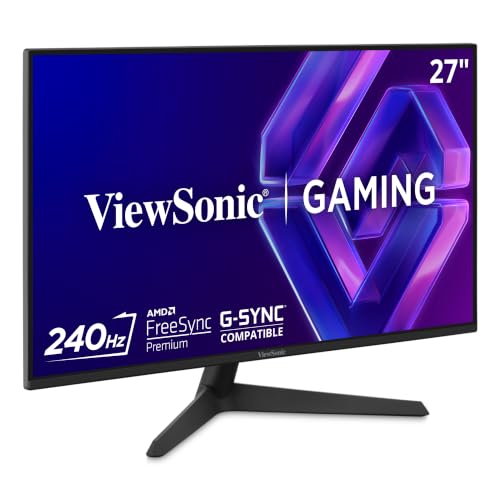
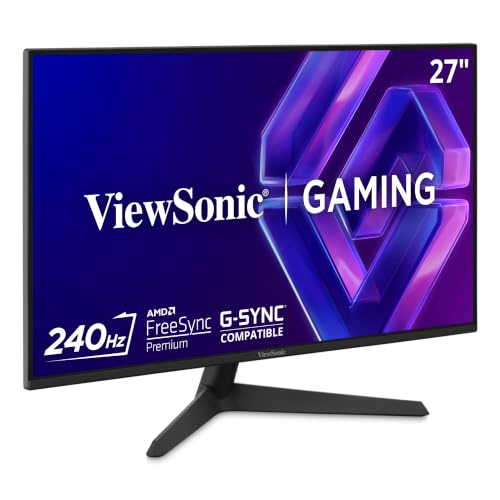
Some buyers read the first three picks and think the obvious thought: why negotiate with an overclock when native 240Hz panels exist? The VX2726 is ViewSonic’s answer at 27 inches and 1080p. It runs 240Hz natively, carries a 1ms MPRT claim, and — the detail that separates it from most fast panels — connects over HDMI 2.1 as well as DisplayPort, with explicit support for the 144Hz and 165Hz modes that current consoles output. Set it to 200Hz in your operating system if that is the rate your GPU sustains best, and the panel will not even notice the effort; you are using five-sixths of its stride. That headroom is the entire argument for overshooting the target, and for players who split a desk between a PC and a console it is a strong one.
The compromise is written in the resolution. Stretching 1920×1080 across 27 inches yields a pixel density that desktop text notices immediately — letters are simply larger-grained than on the 24-inch class. In fast games the size becomes an asset: targets are bigger, the picture fills more of your peripheral vision, and the built-in speakers and HDR10 support make it a credible living-room-adjacent screen. But a writer, coder, or spreadsheet-heavy hybrid worker will feel the softness every working hour. ViewSonic also lists both FreeSync Premium and G-Sync Compatible status, so the panel does not care which badge your graphics card wears. Buy it as a gaming screen first and a work screen second, in that order, and it will not disappoint you.
Think about who benefits most from a 27-inch 1080p screen running this fast, because the answer is more specific than “gamers.” Players of battle royale and arena titles, where spotting movement at the edge of vision decides fights, gain real information from the size — motion is simply easier to read on a larger canvas, and at 240Hz that motion stays legible. Console players who also own a gaming PC gain a single screen that flatters both machines instead of a compromise that short-changes each. And streamers gain a panel whose modest resolution matches the 1080p their audience actually watches, so the game they play and the picture they broadcast are the same picture. The buyers who should hesitate are the ones whose desk is primarily a workplace; for them this screen’s softness at reading distance is a daily tax. Everyone else gets a monitor whose specification looks lopsided on paper — huge, fast, modest resolution — and feels perfectly judged in the chair.
- Panel: 27-inch IPS, 1920×1080
- Refresh: 240Hz native
- Response claim: 1ms MPRT
- Sync: FreeSync Premium and G-Sync Compatible
- Extras: HDMI 2.1, HDR10, built-in speakers
Strengths
- Native 240Hz removes the overclock from the conversation entirely.
- HDMI 2.1 makes it one of the few fast panels that treats consoles as first-class inputs.
- Large targets and an immersive field of view suit fast, reactive games.
Trade-offs
- 1080p across 27 inches is the softest desktop text in this guide.
- You pay for 40Hz of headroom you may deliberately never use.
- Its size demands more desk depth than the compact picks to stay comfortable.
Best for: PC-and-console players who want 200Hz with the panel barely trying. Not suited for: text-heavy hybrid workers who will stare at documents all day.
Acer Nitro KG240Y — Small-desk 240Hz
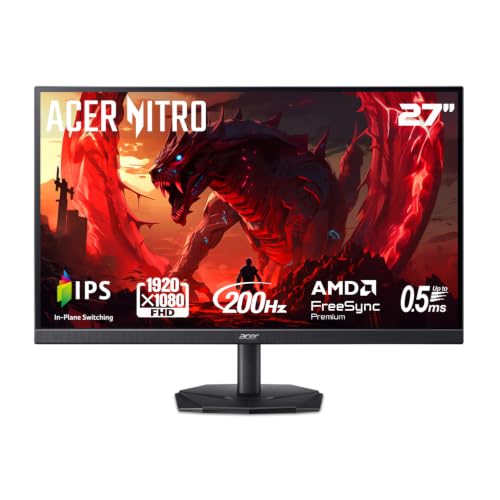
Acer’s Nitro KG240Y takes the same overshoot logic as the ViewSonic and shrinks it onto the desks where most competitive gaming actually happens. The screen is 23.8 inches of IPS at 1920×1080, refreshing at 240Hz natively, with a claimed 0.5ms response that puts it at the sharp end of IPS motion behaviour. At this size 1080p stays respectably crisp, the whole unit fits beside a console, a laptop, or a second screen, and the frame-rate target — while still demanding — is the one modern mid-range cards were built to chase in esports titles. If the VX2726 is the big-screen argument for buying past 200Hz, the KG240Y is the purist’s version: no wasted inches, no wasted pixels, everything spent on motion.
Acer rounds the panel out with the practical touches its Nitro line is known for: 99% sRGB coverage so colours stay honest for streamed content, FreeSync Premium to keep variable frame rates tear-free, two HDMI ports plus DisplayPort so a PC and console can stay plugged in, and VESA mounting for the arm you will eventually buy. The ergonomic ambitions of the bundled stand are modest, as they are across this class, so budget the mount into the plan if you share the desk with work. What you are really buying is the combination — native 240Hz, a fast IPS response claim, and a footprint that fits real rooms. In a guide about a refresh rate that barely exists natively, a small panel that blows straight past it without drama is a genuinely refreshing sight.
There is a discipline to the KG240Y’s specification that more expensive monitors could learn from. Every choice spends on the experience of playing: the fast IPS panel, the high native rate, the sync, the colour coverage that keeps streamed and recorded footage looking like what you saw. Nothing is spent on a designer stand, a lighting ring, or a resolution your card cannot feed — and the VESA mount quietly acknowledges that serious players replace the stand anyway. That makes this the pick we would hand to a younger competitive player building their first serious station, or to a household adding a second gaming desk without flagship money. It also travels well between roles: the same tight pixel pitch that sharpens text makes it the most tolerable work screen among the pure-speed picks. Acer has made many Nitro monitors, and most blur together; this one stands out because its compromises all point the same direction, toward motion, and in this guide’s territory that focus is a virtue.
- Panel: 23.8-inch IPS, 1920×1080
- Refresh: 240Hz native
- Response claim: 0.5ms
- Sync: AMD FreeSync Premium
- Extras: 99% sRGB, 2× HDMI plus DisplayPort, VESA mountable
Strengths
- The fastest response claim among our IPS picks, in the size esports players prefer.
- 1080p at 23.8 inches keeps text tighter than any 27-inch 1080p panel can.
- Dual HDMI inputs let a console live on the same screen without cable swapping.
Trade-offs
- The included stand’s adjustment range is basic; a VESA arm is a likely second purchase.
- No USB hub, so laptop users will still need a dock or dongle discipline.
- Players wanting a big, immersive picture should look at the 27-inch picks instead.
Best for: competitive players on compact desks who want native speed with no overclock asterisks. Not suited for: anyone shopping for a single large screen to double as a TV.

LG UltraGear 27GR83Q-B — The no-compromise overshoot
Every guide needs one pick that simply refuses the premise of compromise, and here it is a 27-inch LG running 240Hz at 2560×1440 with a 1ms claim, HDR400, and both G-Sync Compatible and FreeSync Premium Pro credentials. Nothing about reaching 200Hz strains this monitor; you could cap your games at 200 frames per second for GPU thermals or noise and still be using only part of what the panel offers. The Nano IPS technology behind it brings wider colour than standard IPS panels, which is why this model keeps appearing on desks that mix ranked play with photo and video work. It is, bluntly, the monitor for the reader who priced the overclock picks, priced their own patience, and decided to buy the ceiling instead of the ladder.
The bill arrives in two parts. The first is the purchase itself, in the tier where fast QHD panels have always lived. The second is perpetual: a 240Hz QHD panel is a standing order for flagship graphics hardware, refresh after refresh, because once you have played at this level the downgrade is genuinely unpleasant. HDR400 deserves a calibrated expectation too — it is an entry-level HDR certification that improves highlights and tone mapping without the local dimming drama of higher tiers. None of that dents the core proposition. If your target was 200Hz because you wanted elite motion at a sharp resolution, this is the version of that idea with every asterisk removed, and it will still be ahead of your needs when the rest of your rig has been upgraded around it twice.
Flagship panels earn their keep in the years after purchase, and the 27GR83Q-B is specified like a monitor that expects to be kept. Its rate and resolution sit at the point where GPU progress will spend the next several years catching up for most players, which means each graphics upgrade you buy will visibly unlock more of a screen you already own — a rare and satisfying direction for hardware value to flow. The Nano IPS colour performance also future-proofs it against your tastes changing: the player who discovers photography, video editing, or colour-graded single-player titles in two years will not need a second screen to take them seriously. Even its HDR400, modest as the tier is, handles the growing library of HDR-flagged games more gracefully than the SDR-only panels below it in price. None of this makes it the sensible pick for everyone — for many readers it is frankly more monitor than their games can use — but a guide to a demanding refresh rate owes you one option with nothing held back, and this is it.
- Panel: 27-inch Nano IPS, 2560×1440
- Refresh: 240Hz native
- Response claim: 1ms
- Sync: G-Sync Compatible and FreeSync Premium Pro
- Extras: HDR400 certification
Strengths
- 240Hz at QHD is the full request with headroom, no modes or toggles required.
- Nano IPS colour keeps creative work credible on the same screen.
- Both sync ecosystems are certified, so a future GPU switch costs nothing here.
Trade-offs
- It commits you to high-end graphics cards for the life of the monitor.
- HDR400 is a starting tier, not the showcase HDR of dimming-equipped panels.
- For pure 1080p esports, its resolution is capability you will rarely use.
Best for: players with flagship GPUs who want the 200Hz question settled permanently. Not suited for: builds planned around mid-range graphics hardware.
How do the six picks compare side by side?
| Pick | Size and resolution | How it reaches 200Hz | Sync | Character |
|---|---|---|---|---|
| LG 27GS75Q-B | 27in, 1440p | 180Hz native, OC to 200Hz | G-Sync Compatible | Transparent overclock, sharp desktop |
| Gigabyte M27Q2 | 27in, 1440p | 200Hz-OC by design | FreeSync Premium | Speed-tuned SuperSpeed IPS |
| BenQ MOBIUZ EX251 | ~24.5in, 1080p | 180Hz standard, 220Hz listed ceiling | FreeSync | Speakers, hub, game colour tools |
| ViewSonic VX2726 | 27in, 1080p | 240Hz native overshoot | FreeSync Premium, G-Sync Compatible | Console-ready HDMI 2.1 |
| Acer Nitro KG240Y | 23.8in, 1080p | 240Hz native overshoot | FreeSync Premium | Compact esports footprint |
| LG 27GR83Q-B | 27in, 1440p | 240Hz native overshoot | Both families | Flagship colour and speed |
Should you overclock a 180Hz panel or buy 240Hz headroom?
This is the real decision in the 200Hz class, and it is more about temperament than technology. The overclock route costs less and wastes nothing: a 180Hz panel running its factory 200Hz mode gives you exactly the rate you wanted, on hardware whose every other specification was chosen for your desk. Factory overclocks from major brands are engineered modes, not warranty-voiding adventures, and in years of this product class existing they have proven reliable. The honest caveats are behavioural — an overclocked mode may disable a strobing feature, may only be reachable over DisplayPort, and adds one more setting to re-check after every driver or firmware change.
The headroom route costs more and buys indifference. A 240Hz panel running at 200Hz is loafing, and loafing hardware rarely surprises you. Variable refresh means you never have to run the panel at its maximum; you can cap frames wherever your GPU is happiest and the monitor simply complies. The headroom route also future-proofs the purchase against your next graphics card, which will almost certainly be faster than your current one. Our rule of thumb: if the price gap between the overclock pick and the 240Hz pick at your preferred resolution is small enough that you would forget it within a month, take the headroom. If the gap is the price of a meaningful GPU upgrade, take the overclock and spend the difference where frames are actually made.
What graphics card does 200Hz really require?
Frame rate is a budget your GPU spends every second, and 200Hz raises the rent differently at each resolution. At 1080p, competitive titles with sensible settings are comfortable territory for current mid-range cards, and even older high-end hardware can hold 200 frames in the esports staples this class is bought for. At 1440p the same target in the same games wants a card from the upper tier, and in graphically rich single-player titles it wants upscaling technologies engaged and settings negotiated. Neither answer is a reason to avoid the class — variable refresh exists precisely so a panel can follow a fluctuating frame rate gracefully — but it should shape which pick you choose. Buying the 1440p overclock panels for a card that lives at 110 frames per second means buying resolution and refresh you will meet only in menus and older games.
Do the honest test before you order: load your three most-played games, turn on a frame counter, and note the rates at the resolution you are considering. If your current card already crowds 200 frames at 1080p, the compact picks will transform your desk the day they arrive. If it hovers near 144 at 1440p, either budget the GPU upgrade into the same season or choose the 1080p route and enjoy the rate you can actually feed. A monitor outlives two or three graphics cards, so buying slightly ahead is rational — buying a full generation ahead is how good panels end up reviewed unfairly by disappointed owners.
Which mistakes send 200Hz buyers back to the returns desk?
The classic mistake is believing a headline. Shoppers see a big number in a product name, never read the parenthetical, and feel cheated when the panel arrives running at its native rate with the faster mode buried in a menu. You are now immune to that one, but its cousins remain. Buyers plug a fast panel into an older HDMI port or a bargain cable and unknowingly cap it far below its capability, then blame the monitor for ordinary motion. Buyers enable the overclock and a strobing mode that conflicts with it, producing a picture worse than the native rate they abandoned. Buyers chase 200Hz on a 60Hz-trained eye’s first week and conclude the difference is imaginary, when the honest truth is that motion clarity reveals itself over weeks of play, especially in tracking and flick shots, rather than in a desktop drag test.
The subtler mistake is mismatch: pairing a 200Hz panel with a desk, chair, and viewing distance arranged for a smaller screen, or with a second monitor so different in height and colour that the main panel’s excellence is spent next to an eyesore. And the most expensive mistake is sequence — buying the flagship 240Hz QHD panel first and the GPU “later,” where later keeps moving. Buy in the order your frame rates dictate, and the 200Hz class rewards you exactly as promised.
How do you set up a 200Hz monitor correctly on day one?
Unboxing a fast monitor and plugging it in is not the same as owning one, because operating systems are conservative creatures that default to safe refresh rates. Your first job is to open the display settings and actually select the rate you paid for — you would be surprised how many fast panels spend their first year running at 60Hz under owners who never checked. Use the cable in the box, connected to the port the manual identifies as full-bandwidth, and confirm the figure in the monitor’s own on-screen display rather than trusting the computer’s word for it. Then enable variable refresh in your GPU control panel, set it for full-screen and windowed use if your games run borderless, and only then enable the overclock mode if your pick needs one, re-checking the rate afterwards because mode changes sometimes reset it.
Inside games, three habits protect the investment. Turn off the in-game frame limiter or set it a few frames below the panel’s ceiling so variable refresh stays in its happiest range. Disable vertical sync in the game itself when your GPU-level sync is handling the job, because stacked sync systems fight each other into stutter. And give the panel a week before judging it: play your most familiar title, the one whose motion your hands know by heart, and pay attention to tracking smoothness during fast turns rather than to static sharpness. Players consistently report that the benefit announces itself in a favourite game first, and only afterwards becomes obvious everywhere else.
What does 200Hz change in different kinds of games?
Not every genre cashes the same cheque. In tactical and arena shooters the gain is direct information: a strafing opponent’s silhouette stays coherent through the pan, so your crosshair placement stops guessing at where a smeared shape’s centre was. In racing games the gain is anticipation — the road unwinds toward you with less judder at the periphery, braking markers arrive as stable objects rather than vibrations, and long corners feel slower in the best possible way. MOBA and strategy players get a quieter benefit, mostly in camera scrolling: a fast pan across the map keeps unit icons and health bars readable mid-flight, so the screen stops going blind exactly when you are looking for a fight.
Single-player and cinematic titles are the honest exception. Many are content to run between 60 and 120 frames per second, some are capped there by their engines, and in those games a 200Hz panel’s contribution is limited to smoothness in the ranges it can reach. That is not a failure of the monitor; it is a reminder that refresh rate is a ceiling, not a floor, and why variable refresh matters so much in this class. The panel follows the game. When the game sprints, the screen sprints with it, and when the game strolls through a cutscene the screen strolls too — the 200Hz figure simply guarantees the ceiling will never be the reason a fast game felt slow.
How long will a 200Hz-class monitor stay relevant?
Monitors age more gracefully than almost any other part of a gaming setup, because the standards they embody change slowly and the human visual system does not upgrade. A 200Hz-class panel bought today sits above the rate most games target and most GPUs sustain, which means it has years of headroom before it feels ordinary. The likelier ageing points are around the panel rather than in it: connector standards evolve, HDR expectations keep climbing, and the size you find perfect at one desk can feel small at the next. Our picks mitigate the first two where they can — HDMI 2.1 on the ViewSonic, wide colour on the flagship LG — but the honest answer is that a monitor in this class should serve five years without apology.
That longevity changes the buying maths in a way worth stating plainly. Spread across five years, the difference between the overclock route and the flagship route is a trivial monthly figure, while the difference in daily experience is not trivial at all. This is why we push buyers toward the pick whose compromises they understand and accept rather than the pick whose price they merely survived. A monitor is the one component you literally look at for every second of every session; buy the view you want to live with.
Does panel type still matter at 200Hz?
Every pick in this guide is an IPS-family panel, and that is a deliberate verdict about where the technology stands. A decade ago, chasing this refresh rate meant accepting a TN panel with washed-out colour and viewing angles that punished anyone slouching in their chair. Modern fast IPS has closed the response gap to the point where the remaining TN advantage interests only players competing for money, while its colour and angle advantages benefit literally everyone who looks at the screen. The two LG picks extend the idea in opposite directions — Nano IPS widening colour at the flagship end, a plain honest IPS doing the work at the overclock end — and the SuperSpeed IPS in the Gigabyte is the same philosophy tuned harder toward speed.
The OLED question deserves a straight answer too. OLED panels deliver effectively instant pixel response and now reach these rates and beyond, and where they appear in our wider pool — a 27-inch QD-OLED at 240Hz features in our 4K guide — they are formidable. At the specific 200Hz point, however, the IPS picks here cost meaningfully less, carry no burn-in anxiety for static desktop elements, and hold brightness more stubbornly across a full white screen. Buyers whose desk is games-only and whose budget flexes should audition OLED before deciding; buyers with mixed desks and finite budgets are exactly who this IPS class was built for, and it serves them without apology.
What should you check in the first week of ownership?
Fast panels reward a methodical first week. Run a dead-pixel and backlight check on full-screen solid colours while your return window is wide open, not because these brands are suspect but because any panel can ship with a flaw and the time to find it is now. Play one session with the overclock off and one with it on, if your pick has one, and confirm the mode is stable in your longest game rather than merely selectable in a menu. Test every input you intend to use, at the rate you intend to use it, including the console or laptop that only visits the desk on weekends. Finally, set your brightness for the room you actually play in rather than the showroom the defaults imagine; a panel run at comfortable brightness for a month teaches your eyes what it really looks like, and most owners who do this week of homework never think about their monitor again — which is precisely the point of buying a good one.
Is 200Hz a stepping stone or a destination?
For most players it is a destination wearing a stepping stone’s clothes. The jump from 60Hz to 144Hz rewires your expectations in a weekend; the climb from 144Hz to the 200Hz class refines them, and the further climb to the highest rates available refines them again by a margin many players honestly cannot feel. That is why the smart money in this class stops at a panel whose rate their GPU can actually sustain and whose resolution their desk can actually use, instead of chasing the frontier for its own sake. If your games, your card, and your eyes all agree at 200Hz, you have not settled for less — you have found the point where the returns stop shouting and start whispering, and building a setup around that point is the most grown-up purchase in this entire guide.
Final Recommendation
Start with the LG 27GS75Q-B if your life mixes games with a real desktop: its overclock is honestly labelled, its resolution respects your working hours, and its sync support forgives either GPU camp. Choose the Gigabyte M27Q2 instead when competitive play clearly outranks colour work in your week. Drop to the BenQ EX251 when the desk is small and the budget is honest, accepting 180Hz as home and the low 200s as a visiting mode. Take the ViewSonic VX2726 for a PC-and-console desk, the Acer KG240Y for a compact esports corner, and the LG 27GR83Q-B when you want this purchase to end the conversation for years. The 200Hz monitor you will love is not the one with the cleverest number on its box — it is the one whose route to that number you understood completely before the box was opened.
Frequently Asked Questions
Is a native 200Hz monitor better than a 180Hz panel overclocked to 200Hz?
In daily use they are effectively indistinguishable at the same rate, because the panel does not know or care how the figure was reached. The practical differences are around the edges: a factory overclock is a tested mode, but it can restrict other features while active, and it asks the panel to run at its engineered limit. A native panel at exactly 200Hz barely exists in today’s market, which is why this guide is organised around overclocks and 240Hz overshoots instead.
Can I run a 240Hz monitor at 200Hz?
Yes, and with variable refresh enabled it is often the smartest configuration. Your operating system and games can cap output at 200 frames per second, the panel follows that rate smoothly, and your graphics card runs cooler and quieter than it would chasing 240. Nothing is wasted; the unused headroom simply becomes composure.
Does 200Hz need DisplayPort, or will HDMI work?
It depends on the resolution and the HDMI version, which is why the port list matters more than the cable’s marketing. At 1080p, recent HDMI versions carry 200Hz comfortably, and our ViewSonic pick’s HDMI 2.1 is fully up to the task. At 1440p, DisplayPort is the safe default for the overclock picks. When in doubt, use the DisplayPort cable included with the monitor for your gaming machine.
Will I notice 200Hz if I am coming from 60Hz?
Immediately in motion, and increasingly over the following weeks. Cursor movement, window dragging, and camera pans all gain a solidity that screenshots cannot convey. The full benefit in games — cleaner target tracking, less smear during fast turns — tends to register as your aim feeling calmer before it registers as a visual revelation, which is why players who adapt rarely accept going back.
Is 200Hz worth it for console gaming?
Current consoles top out at 120Hz output, so a console alone cannot feed a 200Hz panel its headline rate. A shared PC-and-console desk is a different story: the PC uses the full rate, the console uses the panel’s 120Hz mode, and a pick like the VX2726 with HDMI 2.1 handles both gracefully. Buy for the PC, enjoy the console compatibility as a bonus.
Does overclocking a monitor shorten its life or void the warranty?
A factory overclock mode advertised in the product’s own title is a manufacturer-supported feature, and using it as documented is not the same as forcing a panel beyond its specifications with third-party tools. Keep to the modes the maker publishes, ensure the panel has reasonable airflow like any hardworking screen, and the overclock picks in this guide will serve as their makers intended.
Do you need a new cable for 200Hz?
Usually not, but check what the monitor is actually receiving before you blame the panel. DisplayPort on any recent graphics card carries 200Hz at 1080p and 1440p without strain, and HDMI 2.1 does the same; the quiet failure mode is an older HDMI cable or port silently holding the screen at a lower rate while the box’s headline number sits in the settings menu like a promise. Open the monitor’s information page while a game runs: the incoming signal it reports is the only refresh rate you truly own, and every pick in this guide was chosen so that a mainstream cable reaches it.
Related Guides
Keep exploring the fast end of the monitor shelf with our guides to the best 240Hz monitors for pure native speed, 1440p 144Hz monitors that balance sharpness and value, and the best 24-inch 1ms 144Hz monitors for compact esports desks.


[…] who want the resolution without the size constraint can roam the full field in best 1440p monitors, while speed-first buyers should compare the flagship class in best 240Hz monitors. For the same […]