What's inside
- Key Takeaways
- Quick Picks
- How Did We Choose These Monitors for Senior Users?
- Why Does 1080p at a Bigger Size Beat 4K for Older Eyes?
- Which Eye-Care Features Actually Matter, and Which Are Just Labels?
- The Six Best Senior Monitors, Pick by Pick
- How Do the Six Compare at a Glance?
- How Should You Set Up a Monitor for Aging Eyes?
- What About Magnifier Attachments and Screen Software?
- What Mistakes Do Families Make When Buying a Monitor for a Parent?
- How Do Glasses Change the Monitor You Should Buy?
- Buying for a Parent in Another City: How Do You Get It Right First Time?
- Could a Television Do This Job Instead?
- How Should the Screen Behave From Morning to Evening?
- What Happens When Needs Change in a Few Years?
- Final Recommendation
- Frequently Asked Questions
- Related Guides
As an Amazon Associate I earn from qualifying purchases. This post may contain affiliate links at no extra cost to you.
gizmoverdict.com is reader-supported. When you buy through links on our site, we may earn an affiliate commission.
Where to buy: Each monitor below links to its Amazon listing, where you can check the current stand, port and warranty details for the exact model — a worthwhile minute, because several brands sell a same-sized sibling with a different panel under a very similar name.
Shopping for the best senior monitors starts with a truth the display industry rarely advertises: for older eyes, the best monitor is usually not the sharpest one. It is the one that makes text physically large. A lifetime of reading leaves many seniors with presbyopia — the gradual loss of near focus that makes small print a strain — and no software setting fully compensates for characters that are simply tiny on the glass. That is why every pick in this guide runs at 1920×1080, the resolution most buying guides treat as the budget option. Spread across 27 or 32 inches, those pixels are big, and big pixels make big letters. The email client, the bank statement, the video-call window and the family photo all arrive at a size that can be read at a natural distance, with reading glasses doing their normal job instead of a magnifier doing an emergency one.
This guide judges six monitors on the things that decide daily comfort: how large text actually renders at each screen size, which eye-care features each listing genuinely states — low blue light modes, flicker-free backlights, reader modes — and the practical kindnesses that matter in a real home, such as built-in speakers for video calls, a stand that adjusts without tools or strength, and ports that match the computer already sitting on the desk. Where a listing does not claim an eye-care feature, we write exactly that rather than assuming it, because comfort claims should be bought on evidence. Readers comparing the wider category will also find our best eye care monitors roundup useful, but the six below were chosen specifically through the senior lens: text size first, everything else second.
A word about who this guide is for. Some readers are buying for themselves and know precisely what their eyes need. Others are adult children setting up a parent’s desk, often at a distance, often hoping the box that arrives will simply work. Both readers are served here: the explanations are plain, the setup advice assumes nobody wants to crawl behind a desk twice, and the recommendations favour monitors that forgive — forgiving stands, forgiving menus, forgiving warranties.
Key Takeaways
- Text size is governed by pixels per inch: 1080p at 32 inches renders interface text roughly a third larger than the same 1080p at 24 inches, and that difference is the whole ballgame for tired eyes.
- A 4K monitor is the wrong instinct here — at native settings it makes text smaller, and fixing that with scaling adds a layer of settings many seniors would rather never meet.
- Four of the six picks state eye-care features in their own titles — low blue light, flicker-free backlights or a reader mode — and the other two are marked honestly where they do not.
- Built-in speakers remove a whole peripheral from the desk and make video calls with grandchildren dramatically simpler.
- Height adjustment is an eye feature, not a luxury: a screen set at the right height ends the chin-tilting that bifocal and progressive-lens wearers know too well.
Quick Picks
| Pick | Badge | Why it earns its place |
|---|---|---|
| ASUS VA279HG 27-Inch Eye Care Monitor | Most complete eye-care list | Low blue light and flicker-free are both in its title, on a frameless 27-inch IPS panel with a three-year warranty. |
| BenQ GW2791P 27-Inch Eye-Care Monitor | Eye care as the brand promise | BenQ builds this line around eye care outright, at the same friendly 27-inch 1080p size. |
| Philips 271V8LB 27-Inch Eye Care Monitor | Longest warranty reassurance | Flicker-free and low blue light in the title, plus a four-year advance replacement warranty for set-and-forget ownership. |
| ViewSonic VA3209M 32-Inch Monitor | Largest text with speakers | The joint-biggest screen here, with dual speakers built in for calls and video. |
| LG 32MR50C-B 32-Inch Monitor | Reader Mode specialist | A curved 32-inch panel whose title names Reader Mode and Flicker Safe directly. |
| HP 24mh 24-Inch Monitor | Best stand in the guide | Height and tilt adjustment plus built-in speakers — the ergonomic pick where desk space is tight. |
How Did We Choose These Monitors for Senior Users?
We began with the size-and-resolution maths explained below and admitted only monitors whose pixel density keeps standard interface text genuinely large: 1080p at 24 inches as the floor, 27 inches as the sweet spot, 32 inches as the maximum-text option. That single filter removes most of the modern monitor market, including every 4K panel, and it is the correct removal — those products optimise for sharpness, and sharpness is not the constraint here.
We also excluded two product types that surface constantly in this search and serve it badly. Touchscreen overlays and add-on magnifying screens promise enlargement without a new monitor and deliver a dimmer, softer picture instead; they are accessories with a role in a few specialised settings, not a substitute for glass of the right size. And we excluded the small end of the market entirely — the 21 and 22-inch value monitors that fill office bulk orders — because at 1080p they render text smaller than the laptop screens many seniors are trying to escape. A guide for older eyes that recommends a smaller picture than the reader already owns has failed before it begins, whatever the price.
Next we read titles the way a careful buyer should. Eye-care language counted only when the manufacturer printed it in the listing title: the ASUS, Philips and LG state their features outright, the BenQ carries eye care in the product line’s very name, and the ViewSonic and HP do not make the claim, so their specification boxes below say “Not stated in the listing title” on the eye-care line. That is not a condemnation of either screen — both earn their places on size, speakers and stand — but a reader choosing specifically for eye comfort deserves to know which claims are printed and which are absent. Finally we weighed ownership friction: warranty length, speaker inclusion, stand adjustment and port selection, because a monitor for a senior household should reduce the number of future phone calls that begin with “the screen is doing something strange.” Readers who want the broader comfort category beyond this shortlist can compare it with our best 27 monitors for eye strain guide, which approaches the same problem from the office-work angle.
Why Does 1080p at a Bigger Size Beat 4K for Older Eyes?
The arithmetic is simple enough to do on an envelope, and every senior monitor decision follows from it. A screen’s resolution counts its pixels; its size spreads them out. Divide one by the other and you get pixel density — how many pixels fit in an inch — and pixel density is what decides how big a standard letter appears. A 24-inch 1080p screen packs roughly 92 pixels into each inch. A 27-inch 1080p screen spreads the same pixels over more glass: about 82 per inch, so every character renders about a tenth larger. A 32-inch 1080p screen drops to roughly 69 pixels per inch, making text nearly a third larger again than on the 24-inch. Same software, same settings, same eyes — the letters are simply bigger, because the screen is bigger and the pixel count did not change.
Now run the comparison that marketing pushes. A 32-inch 4K screen carries four times the pixels, about 140 per inch, so at its natural settings every letter is half the height of the same letter on a 32-inch 1080p screen. Operating systems can scale the interface up, and on a good day that works — but scaling is a setting that must be found, chosen, and occasionally re-chosen after updates, and some older programs ignore it and render tiny anyway. For a confident user who enjoys settings, a 4K panel plus scaling is a legitimate route, and our best 32 inch 4k computer monitors guide covers that class properly. For the reader this guide serves — someone who wants the box opened, the cable plugged in and the text simply large — native 1080p on generous glass removes the entire problem at the hardware level, permanently, with nothing to configure and nothing to drift.
A concrete example makes the envelope maths tangible. Take the standard line of text in an email program. On the 24-inch HP it stands at the size this guide calls moderate — readable for many, a stretch for some. On any of the three 27-inch picks the identical line, from the identical program with identical settings, stands about a tenth taller and wider, a difference you feel across a whole page rather than in a single word. On the 32-inch ViewSonic or LG it stands nearly a third larger than on the HP, which is roughly the difference between ordinary print and the large-print edition of the same book. Nothing was configured to achieve that; the glass did it.
There is a second, quieter benefit. Larger text permits a longer viewing distance, and a longer viewing distance is kinder to neck and shoulders and friendlier to progressive lenses, whose reading zone sits low in the lens. A senior leaning in toward a small, dense screen is fighting three battles at once; a senior sitting back from a 32-inch 1080p screen is fighting none of them.
Which Eye-Care Features Actually Matter, and Which Are Just Labels?
Three features recur in this category, and each does something real. Flicker-free backlighting addresses the rapid brightness pulsing that some screens use to dim themselves; many people never notice it consciously, yet report headaches and fatigue after long sessions, so a backlight that holds steady is a genuine comfort feature for all-day users. Low blue light modes shift the picture warmer, reducing the short-wavelength light associated with eye strain in the evening and with sleep disruption when screens are used near bedtime; on the picks here it is a menu setting, so it can be tried rather than believed. Reader Mode, LG’s name for its variant, goes a step further toward the look of paper — reduced blue, softened contrast — and readers who spend their screen time in documents often find it the most immediately pleasant of the three.
What matters for honesty is that these are claims of design, not medical treatments. No monitor prevents eye disease, and this guide makes no such claim for any pick. What a well-chosen monitor can do is remove avoidable strain: steady light, warm evening colour, large text, sensible brightness. The remaining comfort work is environmental — a room lit evenly rather than a bright screen in a dark room, a chair and desk height that let the feet rest flat, and the simple habit of looking out of a window regularly to let focusing muscles change their task. The monitor is one part of that system, and the picks below are the ones whose titles support their part of it with printed claims.
The Six Best Senior Monitors, Pick by Pick

ASUS VA279HG 27-Inch Eye Care Monitor — Most complete eye-care list
If a family member asked which single monitor to send to a parent’s house, this ASUS is the answer that needs the fewest follow-up questions. Its title reads like the checklist this guide was built from: a 27-inch IPS panel at 1080p, low blue light and flicker-free both named, a frameless design, VESA wall mounting for anyone who prefers the screen on an arm, and a three-year warranty standing behind it. The 120Hz refresh and Adaptive-Sync in the title are gaming-flavoured extras that a senior user may never invoke, but they cost the comfort story nothing, and a grandchild visiting with a console will quietly appreciate them.
The IPS panel is doing quiet work here too. Seniors rarely sit in a laboratory viewing position; they sit in their chair, at their angle, sometimes with a spouse pulling up a second chair to look at photos together. IPS keeps colours and contrast honest from off to the side, so a photo of the family looks like itself from both chairs. The 99% sRGB figure in the title means colours are reproduced faithfully rather than approximately, which matters for anyone who prints photographs or shops by colour. At 27 inches and 1080p, text lands at the size this guide recommends as the default — noticeably larger than a laptop screen or a 24-inch monitor, without the desk footprint of the 32-inch pair.
- Panel: 27-inch IPS, frameless
- Resolution: 1920×1080 (Full HD), as stated in the listing title
- Eye-care features per title: Low Blue Light and Flicker Free, both stated
- Refresh and response per title: 120Hz, 1ms, Adaptive-Sync
- Ports per title: HDMI and VGA
- Mounting and warranty per title: VESA wall mount, 3-year warranty
Strengths
- Both headline eye-care features are printed in the title, not buried in a brochure.
- IPS viewing angles suit shared viewing and imperfect seating positions.
- VESA mounting plus a three-year warranty make it easy to install once and forget.
Trade-offs
- No built-in speakers are named in the title, so video calls may need the computer’s own audio or a small speaker.
- The stand’s adjustment range is not described in the title, so check the listing if height adjustment matters.
- Its gaming extras are wasted on pure email-and-documents use, harmless but present.
Best for: the default recommendation — a parent or self-purchase where eye comfort claims should be explicit and the size generous. Not suited for: desks that need sound from the screen itself, or anyone set on a 32-inch maximum-text setup.

BenQ GW2791P 27-Inch Eye-Care Monitor — Eye care as the brand promise
BenQ has spent years making eye care the centre of its home-office monitor identity, and the GW2791P’s title reflects that positioning in the plainest possible way: it is sold as a 27-inch 1080p 120Hz IPS eye-care home office monitor. Where other brands treat comfort features as a line in a feature list, BenQ treats them as the product’s name. For a buyer who finds long specification lists more confusing than reassuring, that clarity has real value — the promise is on the box.
The specification that is stated matches the guide’s template exactly: 27 inches is the size we recommend as the default, 1080p is the resolution that keeps text large, and IPS is the panel type that behaves from a natural chair angle. The 120Hz refresh is again more than document work requires, but it does make scrolling through long documents and photo libraries feel smoother, a small daily pleasure that is easy to underrate until you have lived with the alternative. The title is comparatively terse about ports and extras, so a buyer with a specific need — a particular connector, wall mounting, speakers — should confirm those details on the listing. What the title does commit to is the thing this guide cares about most: a mainstream maker staking its name on eye comfort at the right size and resolution.
- Panel: 27-inch IPS
- Resolution: 1080p (1920×1080 class), as stated in the listing title
- Eye-care features per title: eye-care monitor positioning stated in the product name and title
- Refresh per title: 120Hz
- Ports: not enumerated in the listing title — confirm on the listing
- Intended use per title: home office
Strengths
- Eye care is the product’s headline identity, backed by a brand with a long record in comfort features.
- The size, resolution and panel type are exactly the combination this guide recommends as default.
- A clean, office-first design suits a home desk without gaming styling.
Trade-offs
- The title leaves ports and speakers unlisted, so specific connection needs require a listing check.
- Readers who want each eye-care sub-feature named individually get less detail here than from the ASUS or Philips titles.
- Stand adjustment is not described in the title.
Best for: buyers who trust a comfort-first brand promise and want the standard recommended size without a long spec negotiation. Not suited for: anyone whose setup depends on a specific port or built-in speakers they cannot verify first.

Philips 271V8LB 27-Inch Eye Care Monitor — Longest warranty reassurance
The Philips makes its pitch in two parts. The first is the expected comfort pair, stated in its title: flicker-free backlighting and low blue light, on a 27-inch Full HD panel — the guide’s default size at the guide’s default resolution, with both headline eye-care claims in print. The second part is rarer and, for this audience, arguably more valuable: a four-year advance replacement warranty, also in the title. Advance replacement means that if the monitor fails, a replacement is sent without the broken unit making a round trip first. For a senior living alone, or a family supporting a parent from another city, that warranty structure is the difference between a minor inconvenience and a week without a screen.
The panel is VA rather than IPS, and the difference deserves a plain explanation. VA panels are known for deep contrast — blacks look blacker, which readers of documents and watchers of films often enjoy — while IPS panels hold colour better at wide angles. At a desk, viewed mostly head-on by one person, the Philips’ contrast is a fair trade for a slightly narrower ideal viewing angle. Its 100Hz refresh and Adaptive Sync sit in the title as quiet bonuses. HDMI 1.4 and VGA cover both modern and older computers, a thoughtful inclusion for households where the PC being connected has some years on it.
- Panel: 27-inch VA
- Resolution: 1920×1080, as stated in the listing title
- Eye-care features per title: Flicker-Free and Low Blue Light, both stated, under the line’s Eye Care naming
- Refresh and response per title: 100Hz, 4ms GtG, Adaptive Sync
- Ports per title: HDMI 1.4 and VGA
- Warranty per title: 4-year advance replacement
Strengths
- The four-year advance replacement warranty is the strongest ownership promise in this guide.
- VA contrast flatters documents, films and photographs viewed head-on.
- VGA alongside HDMI keeps older household computers welcome.
Trade-offs
- VA viewing angles are narrower than the IPS picks, so shared viewing from a side chair is less faithful.
- No speakers are named in the title.
- Its 4ms response is the slowest figure here — irrelevant for documents, worth knowing for fast games.
Best for: set-and-forget ownership where warranty support matters as much as the picture, and single-viewer desks. Not suited for: two-chair photo viewing at wide angles, or buyers who need screen speakers.
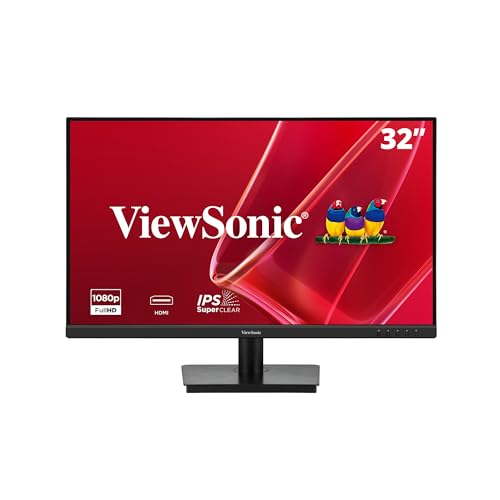
ViewSonic VA3209M 32-Inch Monitor — Largest text with speakers
The ViewSonic is the guide’s big-type option with a practical bonus. Thirty-two inches at 1080p produces the largest standard text of any pick here — the maths section above puts it near a third larger than a 24-inch screen renders — and for a reader whose eyes have made clear that size is the priority, this is the specification that answers. The panel is IPS, so the big picture stays consistent from a relaxed seating angle, the design is frameless, and the title names dual speakers built in, which removes the separate-speaker question from a video-call setup entirely.
Honesty requires the eye-care line to be handled exactly as the pool for this guide instructs. The ViewSonic’s title does not state low blue light or flicker-free claims, so its specification box below reads “Not stated in the listing title” on that line. That does not make it a harsh screen — brightness discipline and room lighting remain in the user’s hands on any monitor — but a buyer choosing primarily on printed eye-care claims should compare the ASUS, Philips and LG titles before this one. What the ViewSonic offers instead is scale plus simplicity: a large, friendly picture, sound included, HDMI and VGA for whatever computer is at hand, and a title that describes it for home office, work and daily tasks without pretension.
- Panel: 32-inch IPS, frameless design
- Resolution: 1080p Full HD, as stated in the listing title
- Eye-care features per title: Not stated in the listing title
- Audio per title: dual speakers built in
- Ports per title: HDMI and VGA
- Intended use per title: home office, desktop and laptop, work and daily tasks
Strengths
- The largest standard text in the guide, from the 32-inch 1080p combination.
- Built-in dual speakers simplify video calls and video watching.
- IPS panel keeps the big picture even from an easy chair’s angle.
Trade-offs
- No eye-care features are claimed in the title, unlike four of its rivals here.
- Thirty-two inches needs a desk with genuine depth so the screen can sit at a comfortable distance.
- Text is large but not fine — readers wanting crisp small print should look at the 27-inch picks.
Best for: readers for whom text size outranks every other consideration, and video-call-heavy households. Not suited for: buyers choosing on printed eye-care claims, or shallow desks.
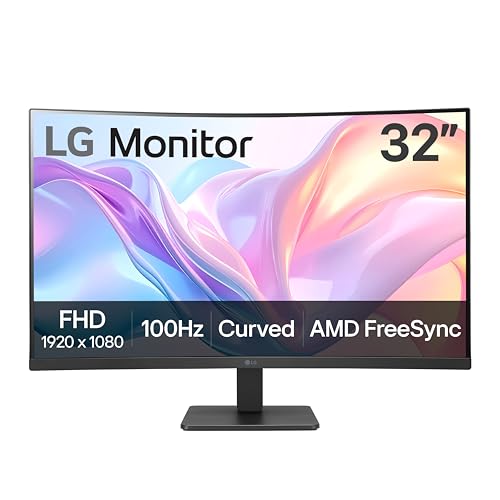
LG 32MR50C-B 32-Inch Monitor — Reader Mode specialist
The LG takes the same 32-inch 1080p canvas as the ViewSonic and bends it — literally. Its title describes a curved panel with a 1500R radius, and the curve is more than styling at this size: the edges of a wide flat screen sit noticeably farther from the eyes than its centre, while a gentle curve brings the edges closer to the same focal distance, which many readers experience as a more uniform page. Onto that canvas LG prints the two claims document readers care about: Reader Mode and Flicker Safe, both named in the title, alongside FreeSync at 100Hz and a tilt ergonomic stand.
Reader Mode is the feature to linger on. It is LG’s paper-like picture preset — blue light reduced, contrast softened toward the look of a printed page — and for someone whose screen day is letters, articles, statements and email, a single menu choice that tunes the whole display for reading is worth more than a dozen gaming specifications. The title also names Dynamic Action Sync and Black Stabilizer, gaming-leaning features that can be ignored in service of the reading mission. One honest limit: the stand named in the title is tilt-only, so height must be solved with desk arrangement or a riser if the default height does not suit — a point the setup section below returns to, because at 32 inches the screen’s centre should still meet the eyes correctly.
- Panel: 32-inch curved, 1500R, as stated in the listing title
- Resolution: 1920×1080 Full HD, as stated in the listing title
- Eye-care features per title: Reader Mode and Flicker Safe, both stated
- Refresh and response per title: 100Hz FreeSync, 5ms
- Ports per title: HDMI
- Stand per title: tilt ergonomic stand
Strengths
- Reader Mode is a purpose-built preset for the document-heavy way seniors actually use screens.
- The curve evens out focus distance across a wide 32-inch picture.
- Flicker Safe is printed in the title alongside the reading features.
Trade-offs
- Tilt-only stand means height is fixed unless you add a riser or arm.
- HDMI is the only port named in the title, so an older VGA-only computer needs an adapter.
- A curved screen is a matter of taste for some readers; flat-screen loyalists should pick the ViewSonic instead.
Best for: heavy readers who want maximum text size plus a stated reading preset. Not suited for: buyers needing VGA, height adjustment out of the box, or a flat panel.
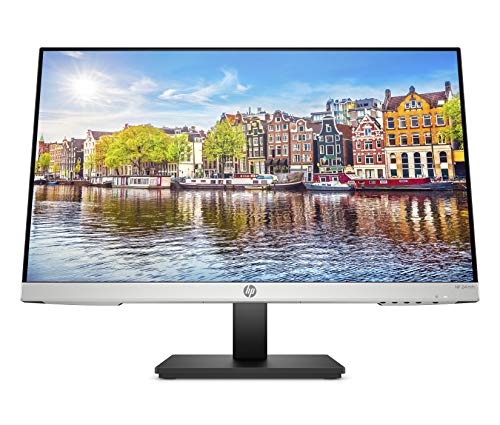
HP 24mh 24-Inch Monitor — Best stand in the guide
Every guide needs a pick that wins on a virtue the headline specifications ignore, and the HP wins on posture. Its title names the feature set that matters at a small desk: a 23.8-inch IPS display at 1080p, built-in speakers, VESA mounting, and — the rarest words in this price class — height and tilt adjustment for ergonomic viewing. Height adjustment is the single most valuable comfort feature for wearers of bifocal or progressive lenses, because it lets the screen come to the eyes instead of the chin tilting to find the lens zone that focuses at screen distance. Hours of small neck strain end with one stand that moves.
The trade is size, and it should be faced squarely. At 23.8 inches, 1080p renders the smallest text in this guide — still larger than most laptop screens, and perfectly workable for many readers, but a step down from the 27-inch picks and a long step from the 32-inch pair. Its eye-care line also follows the honest pattern: the title states no low blue light or flicker-free claim, so the box below says so. What the HP offers is the complete, tidy, adjustable package — speakers included, DisplayPort alongside HDMI for modern computers, a stand that adapts to the person — for a smaller desk or a reader whose eyes are content at 24 inches and whose neck is not.
- Panel: 23.8-inch IPS
- Resolution: 1080p, as stated in the listing title
- Eye-care features per title: Not stated in the listing title
- Audio per title: built-in speakers
- Ports per title: HDMI and DisplayPort
- Stand and mounting per title: height and tilt adjustment, VESA mounting
Strengths
- Height adjustment is the stand-out ergonomic feature for progressive and bifocal wearers.
- Speakers, VESA mounting and DisplayPort make it the most complete small package here.
- IPS panel at a size that fits desks the bigger picks cannot.
Trade-offs
- Smallest text in the guide — the size-first reader should step up to 27 or 32 inches.
- No eye-care features are claimed in the title.
- Readers upgrading from a laptop may find 24 inches a smaller leap than they hoped.
Best for: smaller desks, posture-first buyers, and anyone whose current screen causes neck ache. Not suited for: readers whose main need is the largest possible text.
How Do the Six Compare at a Glance?
| Pick | Size and panel | Text scale (approx. pixels per inch) | Eye-care claim in title | Speakers | Standout trait |
|---|---|---|---|---|---|
| ASUS VA279HG | 27-inch IPS | About 82 — large | Low Blue Light, Flicker Free | Not named | Complete claim list, 3-year warranty |
| BenQ GW2791P | 27-inch IPS | About 82 — large | Eye-care line positioning | Not named | Comfort-first brand identity |
| Philips 271V8LB | 27-inch VA | About 82 — large | Flicker-Free, Low Blue Light | Not named | 4-year advance replacement warranty |
| ViewSonic VA3209M | 32-inch IPS | About 69 — largest | Not stated in the listing title | Dual speakers | Maximum text with sound included |
| LG 32MR50C-B | 32-inch curved | About 69 — largest | Reader Mode, Flicker Safe | Not named | Paper-like reading preset |
| HP 24mh | 23.8-inch IPS | About 92 — moderate | Not stated in the listing title | Built in | Height-adjustable stand |
The table’s middle column is the one to shop by. If reading standard text without leaning in is the goal, the two 32-inch rows deliver it most completely, and the choice between them is speakers and a flat IPS picture (ViewSonic) versus stated reader features and a curve (LG). The three 27-inch rows are the balanced default, separated by warranty philosophy and panel type. The HP row trades text size for the stand and the tidy footprint. None of these is a wrong answer; they are answers to differently weighted questions, which is why the per-pick reviews above dwell on who each screen suits rather than declaring a single champion.
How Should You Set Up a Monitor for Aging Eyes?
Setup begins with distance and height, before any menu is opened. Place the screen so its centre sits roughly an arm’s length away — farther for the 32-inch picks, which are designed to be read from a proper distance — and so the top of the screen is at or slightly below eye level, letting the gaze rest slightly downward, the position eyes and neck both prefer for reading. If the stand cannot reach that height, a sturdy riser, a monitor arm on the VESA mount, or even a stack of large books in a pinch will do; what matters is that the screen meets the eyes, not the reverse. Progressive-lens wearers should fine-tune from their actual chair, glasses on, reading real text, because the correct height is the one where the reading zone of the lens meets the middle of the screen without a chin lift.
Then set the picture once, deliberately. Choose the native 1920×1080 resolution so text is rendered at the size the panel was bought for. Set brightness to match the room rather than to maximum — a screen much brighter than its surroundings is a strain source all by itself — and if the monitor offers a low blue light or reader preset, enable it for a week and judge by comfort rather than by first impression, since a warmer picture can look odd for a day and restful thereafter. In the computer’s settings, confirm that display scaling sits at its standard setting for these native 1080p picks; the hardware has already done the enlargement work. Finally, arrange the room: a lamp that lights the desk without reflecting in the screen, and the screen placed so a bright window is to the side rather than behind it or behind the reader.
What About Magnifier Attachments and Screen Software?
Two accessories circle this category and deserve honest treatment. The first is the physical screen magnifier — a fresnel sheet that hangs in front of the monitor. It enlarges, but it also softens, adds reflections and distorts at the edges, and it treats the symptom by degrading the picture. A larger monitor treats the cause. Magnifiers are accessories, never picks in this guide, and the better spend is almost always the next size up in screen. The second is software magnification built into the operating system, which is genuinely useful as a supplement: a quick zoom for the occasional small dialog box or a dense spreadsheet, layered on top of a screen whose everyday text is already the right size. Used that way — hardware for the baseline, software for the exceptions — the combination covers nearly every reading situation a home computer presents.
There is one more software setting worth knowing: text can be enlarged inside individual programs, and browsers in particular remember a zoom level per site. Setting the bank, the news site and the email provider each to a comfortable zoom once, so they open correctly forever after, is a ten-minute kindness that adult children can perform during setup and parents will benefit from daily. It pairs naturally with the hardware choices above and with the desk guidance in our best office monitors guide, much of which applies unchanged to a home desk used for correspondence and accounts.
What Mistakes Do Families Make When Buying a Monitor for a Parent?
The most common mistake is buying the impressive specification instead of the needed one: a 4K screen chosen because it is “the best,” which then renders a parent’s email at half size and generates a support call that ends with scaling settings nobody enjoys. The second mistake is ignoring sound — assuming speakers exist — and discovering on the first video call that the new monitor is silent and the old all-in-one’s speakers left with the old machine. The third is forgetting the existing computer’s ports: a VGA-only older PC and an HDMI-only monitor can be reconciled with an adapter, but only if someone thinks of it before the box arrives.
The fourth mistake is ergonomic: placing a fixed-height screen on a desk riser meant for a laptop, or on a stack that puts its centre above eye level, and creating neck ache that gets blamed on age. The fifth is buying for the showroom’s lighting — maximum brightness, vivid mode — rather than the living room’s. And the sixth, gentlest mistake is setting everything up, leaving, and never checking a week later whether the reader preset got turned off by an update or the brightness crept back up. A short follow-up visit, or even a call that asks “is the text still comfortable?”, closes the loop that the purchase opened.
How Do Glasses Change the Monitor You Should Buy?
Most monitor advice is written as if eyes arrive unassisted. Senior eyes usually arrive with optical help, and the type of help changes what the monitor should do. Single-vision reading glasses are tuned for one distance, typically book distance, which is closer than a monitor should sit. A wearer who reads the screen through them often leans in unconsciously to reach the focal distance the glasses impose — one reason a screen that can sit a little farther back, rendering larger text, relieves strain that looks muscular but is actually optical. If new glasses are also being considered, a pair prescribed for computer distance is the single most effective companion purchase to any monitor in this guide, and it is worth mentioning to the optician by name: the screen distance, measured in the actual chair, is the number they need.
Bifocals and progressives divide the lens into zones, with reading power low in the lens. That design assumes books sit low and close. A monitor mounted too high forces the wearer to tilt the head back to bring the reading zone onto the screen — the classic computer-neck posture — which is why the setup section insists on a screen centre at or below eye level, and why the HP’s height adjustment earned it a place here despite its smaller panel. Trifocal and occupational lenses exist precisely for screen work, but the monitor can do its share first: large native text, correct height, comfortable distance. When those three are right, most wearers of most lens types settle quickly, and the residual complaints point to the prescription rather than the purchase.
Buying for a Parent in Another City: How Do You Get It Right First Time?
Distance buying adds failure modes that have nothing to do with the monitor. The first is information: before ordering, learn three facts about the existing setup — the computer’s available ports, the desk’s depth, and whether any speakers exist. A photograph of the back of the computer, sent by phone, answers the first and prevents the adapter surprise. The second is delivery reality: a 32-inch box is large, and if the recipient cannot comfortably lift and unpack it, the 27-inch picks are not a compromise but the correct choice, or the delivery should be timed to a visit. The third is setup sequencing: the kindest arrangement is a video call during unboxing, with the giver watching the same desk the receiver is working at, because most “it doesn’t work” moments are a cable in the wrong port or an input source waiting to be selected, both fixable in a sentence when someone can see.
Choose the model with that afternoon in mind. Printed eye-care claims and long warranties — the Philips’ four-year advance replacement above all — reduce the odds of a second logistics exercise later. Built-in speakers remove a peripheral from the unboxing entirely. And whichever pick is sent, include the setup basics in the box’s first phone call: native resolution, comfortable brightness, the reader or low-blue-light preset switched on. The goal is a monitor that becomes invisible infrastructure in a parent’s daily life — email read easily, grandchildren seen clearly on calls, accounts managed without squinting — and invisibility is achieved as much by these small logistics as by the panel itself.
Could a Television Do This Job Instead?
It is a fair question, because many homes already own a large television and a 40-inch TV renders enormous text. As a permanent desk monitor, though, a television brings mismatched compromises: it is designed to sit metres away rather than at desk distance, its stand and size rarely fit a desk’s depth, and its picture processing favours films over crisp text edges. As an occasional big-screen for photos, video calls in the living room or a slideshow for visitors, a television is genuinely lovely, and a laptop or small computer can drive it with one cable. The monitors in this guide exist for the daily desk — the correspondence, the banking, the news — where the right size at the right distance, used for hours, is what protects comfort. Buy the tool for the daily job; borrow the television for the occasional one.
How Should the Screen Behave From Morning to Evening?
A monitor in a senior household rarely keeps office hours. It might show the news with breakfast, host a long video call in the afternoon, and carry a film or a crossword into the evening, and each of those uses asks something slightly different of the picture. Morning light in many homes is bright and directional, which is when reflections matter most and when a screen placed side-on to a window earns its keep; midday calls for honest brightness so faces look like faces; evening is when the warm presets — low blue light, Reader Mode — stop being specifications and start being the difference between a screen that feels calm and one that glares. None of the picks here automates that rhythm, and that is fine: the practical routine is to set a comfortable daytime brightness once, learn the one menu path to the warm preset, and use it as the evening settles, much as lamps get switched on around the house.
Evening use connects to sleep in a way worth one plain paragraph. Bright, blue-rich light late in the evening can nudge the body’s clock later, and older sleep is often fragile enough without the help. The warm presets in the ASUS, Philips and LG titles, and the BenQ’s eye-care positioning, are the hardware side of a simple habit: warmer and dimmer after dinner, and the screen off in favour of a book or the radio for the last stretch of the night when possible. This guide makes no medical claims for any monitor; it simply notes that the features exist in these titles, that they cost nothing to use, and that readers who try them usually keep them.
What Happens When Needs Change in a Few Years?
Eyes change, desks change, and households change, so a word about how these picks age is worthwhile. A monitor bought at 27 inches today can become the second screen of a larger setup later, or move to a kitchen counter, a guest room or a grandchild’s first desk — the standard ports and VESA mounts on most of these picks keep those second lives open. If vision declines further, the upgrade path is size, not resolution: the same 1080p principle at a larger diagonal, or the television route for shared viewing, rather than a sharper panel that renders smaller. If the computer is replaced, HDMI’s universality across all six picks means the monitor will not be the obstacle. Buying with printed warranties and standard connections, as this shortlist does, is what keeps a purchase made for today’s eyes useful through tomorrow’s arrangements — and that durability, more than any single feature, is what makes a monitor a kind purchase.
Final Recommendation
Start at 27 inches unless you have a reason to do otherwise. The ASUS VA279HG is the most complete default: both eye-care claims in print, an IPS panel that forgives seating angles, and a three-year warranty. The Philips is the choice when long, no-fuss warranty cover matters most, and the BenQ when a comfort-first brand is the reassurance wanted. If text size is the dominant need — and for many readers it honestly is — step to 32 inches and choose between the ViewSonic’s speakers and flat IPS picture and the LG’s Reader Mode and gentle curve. Keep the HP in mind for small desks and sore necks, where its height-adjustable stand does more for daily comfort than two extra inches would. Whichever of the six arrives, set its height with the reader seated in their own chair wearing their own glasses, because a monitor chosen for someone’s eyes should be finished by fitting it to them — and then it can simply be used, every day, without being thought about at all.
Frequently Asked Questions
Is a bigger monitor always better for seniors?
Up to a point, yes, because at a fixed 1080p resolution a bigger screen renders bigger text — that is the principle this whole guide rests on. The point of diminishing returns is the desk: a 32-inch screen needs enough depth to sit at a comfortable distance, and beyond that size the reader starts turning their head to take in the whole picture. For most desks, 27 inches is the balanced answer and 32 inches the maximum-text answer; both appear in the picks for exactly those reasons.
Why not just buy a 4K monitor and turn the scaling up?
It can work, and for a confident user it is a legitimate setup. The hesitation is practical: scaling is a software setting that must be found and sometimes re-found, some older programs ignore it, and the whole arrangement depends on configuration staying put. A 1080p screen at 27 or 32 inches achieves the same large text in hardware, permanently, with nothing to set. This guide recommends the route with the fewest moving parts; readers who enjoy settings can explore the 4K class in our best 40 inch computer monitors guide’s neighbourhood with open eyes.
What does flicker-free actually do?
Many screens dim by pulsing their backlight rapidly. Some people perceive the pulsing directly; more notice it indirectly, as fatigue or a headache after a long session. A flicker-free design holds the backlight steady instead. Four picks here carry a printed flicker-related claim — the ASUS and Philips say flicker-free, the LG says Flicker Safe, and the BenQ is sold under an eye-care line — while the ViewSonic and HP titles do not state the claim, which is why their specification boxes say so plainly.
Do I need separate speakers with these monitors?
Only with some of them. The ViewSonic VA3209M names dual speakers and the HP 24mh names built-in speakers, so both handle video-call and video sound on their own. The ASUS, BenQ, Philips and LG titles do not name speakers, so plan on the computer’s existing audio or a small separate speaker for those — an easy addition, but one worth knowing about before the first family video call, not during it.
How far away should a senior sit from a 32-inch monitor?
Farther than instinct suggests. A 32-inch 1080p screen is designed to be read from a comfortable arm’s length and a bit beyond — roughly the distance at which the whole screen fits in the central field of view without head-turning. If the reader is leaning in, the answer is rarely a different screen; it is usually brightness, a reading preset, or a check that the resolution is truly set to 1920×1080 rather than something scaled.
Can these monitors connect to an older computer?
Mostly yes, and the port lists were part of the selection. The ASUS, Philips and ViewSonic all include VGA alongside HDMI, which welcomes older desktops directly. The HP pairs HDMI with DisplayPort for newer machines. The LG names HDMI only, so a VGA-only computer would need an adapter with it. Checking the back of the existing computer before ordering takes one minute and prevents the only setup surprise this category commonly delivers.
Should the monitor match a laptop or a desktop computer?
Either works, and the port lists decide the details. A laptop with HDMI connects to every pick here in one cable, and a laptop user gains the most dramatic text-size improvement of all, since laptop screens are small and dense. A desktop offers more placement freedom. If the household computer is a laptop that travels, consider whether the monitor should also charge it or host its accessories — that is hub territory beyond this guide’s six — but for picture, sound and comfort alone, every pick serves both kinds of computer without preference.
What if text still feels small on a 27-inch screen?
Work through the causes in order before concluding the screen is wrong. Confirm the resolution is truly 1920×1080 and scaling is at its standard setting; check the viewing distance and the screen height against the setup section; try the warm reader preset, which many readers experience as effectively clearer even at the same size; and add per-website zoom in the browser for the two or three sites used daily. If text still feels small after all four, the honest answer is the 32-inch step — the ViewSonic or the LG — because the limitation is physical, and the physical fix is more glass at the same resolution.
Is a curved monitor strange to read on?
For the first hour, mildly; after that, most readers stop noticing. The LG’s 1500R curve is gentle — a suggestion of wrap rather than a cockpit — and its purpose at 32 inches is to keep the screen’s edges at a similar distance from the eyes as its centre. Readers who try it and dislike it lose nothing by choosing the flat ViewSonic at the same size and resolution instead; the guide offers both shapes deliberately.
Related Guides
Comfort at the desk is a system, not a single purchase. Readers refining a whole setup may want best raspberry pi monitors for the small-screen end of the display world, and the wider comfort category is covered by best laptop portable monitors for anyone whose computing happens away from a fixed desk.
Readers at the other end of the refresh-rate spectrum can see how the priorities invert in our guide to the best racing sim monitors, where motion clarity outranks text size.
Related guides
- Best 1440p 165Hz Monitors: One Native 165Hz Pick, Three 180Hz Upgrades, an Overclock Headline and a 160Hz Ultrawide
- Best 13×19 Professional Printers
- Best 3rd Party MacBook Chargers: 96W-Class Alternatives, the 100W Cable Rule, and the Apple Benchmark
- Best Built PC: Six Prebuilt Gaming PCs Judged on Parts, Power and Upgrades


