What's inside
- Key Takeaways
- Quick Picks
- How Did We Choose These Six Machines?
- Which Multifunction Printer Fits the Way You Actually Work?
- How Do the Six Compare Side by Side?
- What Should You Check Before Choosing an Ink System?
- How Do You Set Up a Multifunction Printer So It Stays Reliable?
- What Mistakes Do Home Offices Make When Buying a Multifunction Printer?
- Which Paper Handling Details Actually Change Your Week?
- How Does Scanning Quality Differ Between These Machines?
- What About Printing From Phones, Tablets and Chromebooks?
- Which of These Machines Suits a Shared Household Office?
- How Should You Think About Running Costs Without a Single Price Tag?
- What Does a Sensible First Month of Ownership Look Like?
- When Should You Replace a Printer Instead of Repairing It?
- How Do These Machines Cope With Labels, Envelopes and Odd-Sized Paper?
- What About Privacy When a Printer Scans Your Paperwork?
- Why Should You Distrust Every Print-Speed Number Equally?
- Final Recommendation
- Frequently Asked Questions
- Related Guides
As an Amazon Associate I earn from qualifying purchases. This post may contain affiliate links at no extra cost to you.
gizmoverdict.com is reader-supported. When you buy through links on our site, we may earn an affiliate commission.
Where to buy: Every machine below is sold through Amazon, and the product names in this guide link straight to the matching listing, so check the listing page for the exact configuration, the ink or toner it ships with, and what sits in the box before you order.
A home office earns its keep in interruptions. You are halfway through a contract when a school form needs signing, scanning and sending back before lunch. A delivery label has to exist on paper, not on a screen. The best home office multifunction printers exist for exactly that scattered workload, because a multifunction machine folds printing, scanning and copying into one footprint on a desk that probably has no spare surface left. Four of the six picks here also fax, for the households still dealing with a medical office, a school district or a government form that refuses to accept email.
Under that shared job description, the six machines split along three fault lines. The first is ink: two picks burn through conventional cartridges, one drinks from refillable tanks you top up with bottles, and one uses Brother’s INKvestment cartridges, which hold a reservoir inside the cartridge itself. The second fault line is the engine: five picks are colour inkjets, while the Brother DCP-L2640DW is a monochrome laser that prints no colour at all and is proud of it. The third is paper handling — which machines feed a stack of pages through an automatic document feeder, and which flip a sheet over on their own for two-sided printing. Read your own week honestly, match it against those three splits, and the shortlist below mostly sorts itself.
Key Takeaways
- Multifunction means print, scan and copy on every pick here; fax appears only on the HP 8139, the Canon TR8620a and the Brother 5010’s sibling functions — check each listing rather than assuming.
- Ink economics divide the shelf into cartridge machines, Canon’s refillable MegaTank bottles, and Brother’s INKvestment reservoir cartridges; the right choice follows your monthly page count, not the sticker on the box.
- An automatic document feeder matters more than raw print speed for anyone who scans signed contracts, receipts or multi-page forms more than twice a week.
- The Brother DCP-L2640DW is the deliberate outlier: monochrome laser output, no colour, no fax, and the calmest fit for a desk that prints text all day.
- Auto two-sided printing saves real paper on long documents, but two-sided scanning is a separate feature — only the Brother 5010’s listing promises automatic 2-sided copy and scan.
Quick Picks
| Pick | Badge | Why it earns its place |
|---|---|---|
| HP OfficeJet Pro 8139 | Fullest fax-and-feeder kit | The only pick pairing an ADF and duplex printing with a year-long Instant Ink trial and HP’s AI-capable scanning software. |
| Brother Work Smart 1360 | Compact all-rounder | Duplex printing and a document feeder in a home-sized inkjet that skips fax and keeps the footprint small. |
| Canon MegaTank G3270 | Bottle-fed tank pick | Refillable tanks replace cartridges entirely, suiting steady colour printing where ink cost per page drives the decision. |
| Canon PIXMA TR8620a | Photo-leaning office pick | A five-function machine with feeder and fax that also handles family photographs better than any office-first rival here. |
| Brother DCP-L2640DW | Monochrome laser outlier | Toner, duplex printing and laser-sharp text for the desk that never prints a colour page on purpose. |
| Brother INKvestment 5010 | Two-sided scan specialist | Automatic 2-sided copy and scan plus a 2.7-inch colour touchscreen, built around high-capacity reservoir cartridges. |
How Did We Choose These Six Machines?
We started from the tasks a home office actually repeats: printing a return label without ceremony, scanning a signed page before a deadline, copying an ID card, and producing a clean colour handout for a client call. Any candidate had to print, scan and copy — that trio is the definition of the category — and had to connect wirelessly, because a home office printer that demands a USB cable tethered to one laptop fails the household the moment a second person needs it.
From there we weighted the paper path. A document feeder changes scanning from a page-at-a-time chore into a stack-and-walk-away task, so feeder-equipped models earned preference, and auto duplex printing earned the same because two-sided output is where home paper budgets quietly leak. We deliberately kept one monochrome laser in the line-up: plenty of home offices print nothing but text, and pretending otherwise would push those buyers toward colour hardware they will never use. Ink systems were treated as a genuine fork rather than a ranking — cartridges, tanks and reservoir cartridges each punish a different printing habit, and the reviews below say which habit each one punishes.
Finally, we read the listings the way a sceptical buyer should. Features appear in these reviews only where the manufacturer’s own listing states them. Where a listing stays silent — the MegaTank G3270’s listing, for instance, names no document feeder and no automatic duplex — we say so plainly instead of borrowing specifications from a sibling model.
Which Multifunction Printer Fits the Way You Actually Work?
Before the individual reviews, it helps to name your dominant job, because each pick below wins a different one. If your week is contracts, invoices and signed forms moving in both directions, the feeder-and-fax machines at the top of the list are your territory. If your week is school projects, colour handouts and the occasional photograph, the Canon PIXMA and the MegaTank speak your language. If your week is page after page of black text with a deadline attached, skip to the laser and do not apologise for it. And if your scanning pile is full of two-sided originals — insurance forms, double-sided statements, worksheets printed front and back — the Brother 5010’s two-sided copy and scan path was built for precisely that pile.
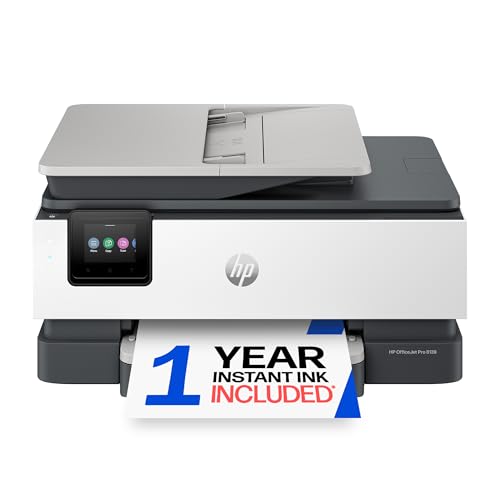
HP OfficeJet Pro 8139 — Fullest fax-and-feeder kit
The OfficeJet Pro 8139 is HP’s attempt to leave nothing off the home-office checklist. Its listing promises print, scan, copy and fax, an automatic document feeder, and duplex printing, which together cover every paper task a household office generates. HP also bundles a one-year trial of its Instant Ink subscription and describes the machine as AI-capable, which in practice refers to its scanning software’s habit of tidying up scanned pages — straightening, cleaning edges and naming files more sensibly than a raw scan usually manages.
Who feels the benefit? Anyone whose work arrives as other people’s paperwork. A realtor printing listing sheets in the morning and scanning signed disclosures in the afternoon uses the feeder and the fax in the same hour. A bookkeeper for three small clients lives inside the scan-to-file workflow. The duplex engine quietly halves the paper in every long report, and because the 8139 prints in colour, the charts and highlighted clauses survive the trip to paper intact. Setup runs through HP’s app-led process, and the machine is happiest on a stable Wi-Fi network with the app installed on the phone you already use to photograph receipts.
The honest cautions are about the ink model rather than the hardware. Instant Ink is a subscription: pages are counted, and the trial year is an introduction, not a permanent arrangement. Households that print in bursts — three hundred pages one month, ten the next — should read the plan terms on the listing carefully, because subscription logic rewards steady volume. The 8139 is also a cartridge inkjet, so long idle stretches are not its friend; a page or two a week keeps any inkjet healthier than a month of silence followed by a panic job.
- Functions stated: print, scan, copy, fax
- Paper handling stated: automatic document feeder, duplex printing
- Ink system: cartridges with a 1-year Instant Ink trial included
- Extras stated: AI-capable scanning features, wireless
Strengths
- Nothing on the standard home-office list is missing — feeder, fax and two-sided printing all appear in its own listing.
- The included Instant Ink trial year lets a new owner learn their real monthly volume before committing to a plan rhythm.
- Colour output covers client-facing documents, charts and schoolwork without a second machine.
Trade-offs
- Subscription ink suits predictable printing; wildly uneven months make the maths worth checking before the trial ends.
- Like every cartridge inkjet here, it prefers regular small jobs over long silent gaps.
- Buyers who never fax pay for a function they will leave untouched.
Best for: a paperwork-heavy home office that scans, faxes and prints colour in roughly equal measure. Not suited for: a text-only desk, where the mono laser below does the same core job with less fuss.

Brother Work Smart 1360 — Compact all-rounder
Brother’s Work Smart 1360 takes the opposite brief from the HP: keep the machine small, keep the function list honest, and serve a home rather than a pretend corporation. The listing states print, scan and copy with duplex printing and an auto document feeder, mobile printing, a 1.8-inch display, and Alexa compatibility. Fax is absent, and for most households in 2026 that absence is a feature — one less phone-line ritual nobody performs.
The 1360 makes sense as the family-desk machine. Homework prints from a Chromebook in one room, a parent scans a permission slip from the feeder instead of flattening it page by page on the glass, and copies of a recipe or a worksheet happen without waking a laptop. The small display handles the walk-up jobs — copy, scan to a preset — while phones and computers drive anything complicated. Duplex printing keeps the paper stack shrinking at a sane rate when a teacher sends home a twelve-page packet that needs to come back as a printed booklet.
Temper expectations around scale. This is a home machine wearing a “Work Smart” badge, not a departmental workhorse: the feeder and trays are sized for household stacks, not a fifty-page evidence bundle. Brother’s cartridge ink follows the usual inkjet logic — sensible for light-to-moderate volume, less charming if you print a novel draft every fortnight. And because the display is small, anyone who prefers configuring everything at the machine rather than in an app should look at the larger-screen Brother further down this page.
- Functions stated: print, scan, copy
- Paper handling stated: duplex printing, auto document feeder
- Display stated: 1.8-inch
- Extras stated: mobile printing, works with Alexa, wireless
Strengths
- Feeder plus duplex in a footprint that fits an ordinary home desk or shelf.
- No fax hardware inflating the brief for households that have fully moved to email and portals.
- Brother’s plain, menu-driven approach suits shared family use by people with uneven patience for apps.
Trade-offs
- No fax, full stop — a household still faxing medical forms must look at the HP or the Canon TR8620a instead.
- The small screen makes on-device setup of detailed scan destinations slower than app-based rivals.
- Cartridge ink economics fade at sustained high volume; heavy printers should study the MegaTank.
Best for: a shared household desk juggling school, light work and everyday scanning. Not suited for: an office that faxes weekly or scans in bulk.

Canon MegaTank G3270 — Bottle-fed tank pick
The G3270 replaces the cartridge ritual with bottles and tanks. Canon’s MegaTank design puts refillable reservoirs in the front of the machine; when a colour runs low you pour in a bottle of ink rather than snapping in a small plastic cartridge. Its listing states print, copy and scan in a compact desktop body aimed at home and office use. Just as important is what the listing does not state: no automatic document feeder and no automatic duplex printing are named, so treat this as a flatbed machine that prints one side at a time unless the listing changes.
That trade — generous ink supply, modest paper handling — suits a particular household beautifully. Think of the family that prints constantly but scans rarely: colouring pages, lesson plans, labels, flyers for a side business, draft after draft of a child’s book report. For that pattern, feeding pages by hand onto the scanner glass a few times a month is a trivial price for never watching a cartridge gauge fall during a print run. Tank systems also change the psychology of colour: when ink arrives in bottles, printing a full-colour page stops feeling like spending money in real time, and people simply use the machine more.
The cautions are physical. Bottles must be stored upright somewhere, and refilling, while designed to be clean with keyed nozzles, is still pouring liquid into a machine — do it on a clear surface, not over a white carpet. The flatbed-only scanning means a ten-page signed agreement becomes ten lifts of the lid. And single-sided printing on a long document means either accepting one-sided output or standing by to flip a stack manually, which nobody enjoys twice.
- Functions stated: print, copy, scan
- Ink system: refillable tank, bottle refills
- Paper handling stated: flatbed scanning; no feeder or auto duplex named in the listing
- Form stated: compact desktop design, wireless
Strengths
- Bottle refills remove the cartridge replacement cycle that dominates inkjet running costs at steady volume.
- Front-facing tanks make remaining ink a glance, not a menu dive.
- Compact body fits the small desks and shelves where home printers actually live.
Trade-offs
- No document feeder in the listing, so multi-page scanning is a manual, page-by-page job.
- No automatic two-sided printing named — long documents print single-sided by default.
- Tank ink still dislikes total neglect; a test page now and then keeps nozzles honest.
Best for: steady colour printing households that scan occasionally and hate cartridge shopping. Not suited for: anyone whose scanning arrives in thick stacks.

Canon PIXMA TR8620a — Photo-leaning office pick
Most office printers treat a photograph as an insult. The PIXMA TR8620a was designed by a line that never forgot photos exist. Canon’s listing describes an all-in-one for the home office with copier, scanner, fax and an auto document feeder, explicitly split between “Photo, Document” work, with AirPrint, Android printing and Alexa support. That dual citizenship is the whole pitch: contracts on weekdays, grandchildren on weekends.
In daily use the feeder handles the office side — a stack of forms scans while you make coffee — while the PIXMA print engine handles colour with more care for gradients and skin tones than a four-ink office box typically manages. Families who print photos at home a few times a month, for frames, school projects or a grandparent’s fridge, get visibly better results here than from the office-first machines above, without surrendering the fax and feeder that a home business still needs. AirPrint support matters in Apple-heavy households, where printing from an iPhone without installing anything is the difference between a feature used weekly and one used never.
The compromise is running cost discipline. Photo-capable inkjets sip expensive ink through more sophisticated cartridges, and printing photographs is the thirstiest thing any inkjet does. If your photo printing grows from occasional to enthusiastic, the per-print maths deserves a hard look, and a dedicated photo service may still win for large prints. The TR8620a is also a generalist by design: a buyer who never prints a photo pays for talent that sits idle, and the mono laser below will out-print it on text all year long.
- Functions stated: print, copy, scan, fax
- Paper handling stated: auto document feeder
- Extras stated: AirPrint, Android printing, works with Alexa
- Focus stated: photo and document printing for home office
Strengths
- The only pick here that takes photographs seriously while keeping fax and a feeder.
- AirPrint and Android support cover mixed-device households without driver archaeology.
- Canon colour handling flatters presentations and school projects as well as photos.
Trade-offs
- Photo printing drinks ink; frequent large photos change the running-cost picture quickly.
- Generalist design means text-heavy offices pay for colour talent they may rarely use.
- Duplex printing is not named in the listing summary, so confirm on the listing if two-sided output is essential.
Best for: households where the office printer doubles as the family photo printer. Not suited for: pure document factories that measure a printer by cost per text page.

Brother DCP-L2640DW — Monochrome laser outlier
Every guide needs one pick that refuses the premise, and here it is: a printer that cannot print colour, cannot fax, and will still be the right answer for a large slice of home offices. The DCP-L2640DW is a compact monochrome laser multifunction — the listing states copy, scan and duplex printing with mobile printing — built around toner rather than ink. Toner is a dry powder. It does not clog, dry out or sulk after a quiet month, and a laser page of text comes out with edges that look carved rather than drawn.
Picture the desk this belongs on. A tax preparer in season prints returns and scans client documents all day, every page black on white. A student prints lecture notes and problem sets by the hundred. A home-based paralegal, a tutor printing worksheets, a writer printing drafts — all of them live in monochrome whether they admit it or not. For those desks the DCP’s duplex engine halves paper use automatically, the scanner and copier cover the paperwork loop, and the machine can sit idle through a holiday month and print perfectly on the first morning back, a trick no inkjet in this guide can promise with a straight face.
The limits are absolute, so respect them. Colour is not a setting you can enable later; a child’s colour-coded timetable or a client’s logo page must go elsewhere. There is no fax modem, so the one office in your life that demands faxing needs a workaround or a different pick. And while laser text is superb, laser greyscale makes photographs look like photocopies of photographs — anyone printing images should stay with the inkjets above.
- Functions stated: print, copy, scan (no fax — DCP line)
- Engine: monochrome laser, toner-based
- Paper handling stated: duplex printing
- Extras stated: mobile printing, wireless, compact body
Strengths
- Toner never dries out, so irregular printing schedules stop being a maintenance problem.
- Laser text sharpness suits contracts, returns and dense documents read at arm’s length.
- Automatic duplex printing is standard equipment, not an upgrade.
Trade-offs
- No colour output of any kind, ever — plan a second route for colour pages.
- No fax function for the shrinking but real set of institutions that still demand it.
- Greyscale images and charts lose the clarity that colour coding provides.
Best for: text-dominated home offices that print in bursts and scan regularly. Not suited for: households needing colour handouts, photos or fax.

Brother INKvestment 5010 — Two-sided scan specialist
Brother’s INKvestment design hides its ink supply inside the cartridge: each cartridge carries an internal tank, so capacity grows without asking the owner to pour anything. The 5010’s listing leads with a rarer talent — automatic 2-sided copy and scan — alongside a 2.7-inch colour touchscreen. That first feature deserves emphasis, because it solves the most tedious scanning job in any home office: the stack of double-sided originals.
Consider what two-sided scanning actually saves. Bank statements, insurance explanations, school worksheets and signed agreements increasingly arrive printed on both sides. On a single-sided feeder, each stack must be scanned, flipped by hand in the right order, scanned again and merged — a fiddly ritual that scrambles page order the moment a phone rings mid-job. The 5010’s automatic 2-sided copy and scan path takes the stack as it is. For a home office that archives paperwork digitally — the “scan it, shred it” household — that difference compounds across hundreds of pages a year, and the colour touchscreen makes setting up scan destinations a walk-up task rather than a software expedition.
INKvestment economics sit between standard cartridges and a refillable tank: you still replace cartridges, but they are built to hold more, so replacements arrive less often. Households printing a few pages a month gain little over the Work Smart 1360 above, while genuinely heavy colour printers should still compare against the MegaTank’s bottle system. The 5010 is also unapologetically a scanning-led machine — its headline features serve the input side of paperwork — so a buyer whose life is output-only printing may be paying for feeder talent that gathers dust.
- Functions stated: print, scan, copy (all-in-one)
- Paper handling stated: automatic 2-sided copy and scan
- Ink system: INKvestment reservoir cartridges
- Display stated: 2.7-inch colour touchscreen
Strengths
- Automatic two-sided scanning removes the flip-and-merge ritual for double-sided originals.
- Reservoir cartridges stretch the interval between ink replacements without bottle pouring.
- The larger colour touchscreen suits walk-up copying and scanning by the whole household.
Trade-offs
- Its best features serve scanning; print-only households will underuse them.
- Cartridges still need replacing eventually — the tank Canon removes that errand entirely.
- Fax is not part of this model’s stated pitch, so fax-dependent offices should verify before ordering.
Best for: paper-archiving households drowning in double-sided originals. Not suited for: light users who scan twice a year and print a label a month.
How Do the Six Compare Side by Side?
| Model | Engine and ink | Functions | Paper-handling highlight |
|---|---|---|---|
| HP OfficeJet Pro 8139 | Colour inkjet, cartridges + Instant Ink trial | Print, scan, copy, fax | ADF and duplex printing |
| Brother Work Smart 1360 | Colour inkjet, cartridges | Print, scan, copy | ADF and duplex printing, small body |
| Canon MegaTank G3270 | Colour inkjet, refillable tanks | Print, copy, scan | Flatbed only per listing |
| Canon PIXMA TR8620a | Colour inkjet, photo-capable | Print, copy, scan, fax | ADF; photo and document focus |
| Brother DCP-L2640DW | Monochrome laser, toner | Print, copy, scan | Duplex printing, compact body |
| Brother INKvestment 5010 | Colour inkjet, reservoir cartridges | Print, scan, copy | Automatic 2-sided copy and scan |
Work down the columns rather than across the rows. The engine column decides your running-cost life for the next several years. The functions column is where fax quietly appears and disappears. The final column predicts your daily annoyance level: paper handling, more than any speed figure, is what you will praise or curse at 8 a.m. on a deadline morning.
What Should You Check Before Choosing an Ink System?
Ink is where a cheap printer becomes an expensive one, so decide this before falling for any single model. Cartridge machines — the HP, the PIXMA and the Work Smart 1360 — ask the least commitment up front and the most discipline afterwards: cartridges are easy to buy and easy to resent. They suit light, irregular printing, provided the machine still gets exercised often enough to keep its nozzles clear. The subscription twist on the HP changes the shape rather than the size of the cost: pages become a monthly service, which some households find calmer than cartridge roulette and others find irritating on a quiet month.
Tank and reservoir systems invert the bargain. The MegaTank’s bottles and the INKvestment cartridges both put more ink inside the machine from the start, which rewards people who print steadily and in colour. The honest question is not which system is “cheapest” in the abstract — it is which one matches your rhythm. Print three hundred pages in a school-holiday burst and then nothing for two months? A laser sidesteps the whole dilemma. Print thirty colour pages a week, every week? The tank machines were designed with your kitchen-table production line in mind.
How Do You Set Up a Multifunction Printer So It Stays Reliable?
Placement comes first. Give the machine a flat, ventilated spot within honest range of your router — wireless printers fail socially long before they fail mechanically, usually because they were exiled to a far corner behind two walls. During setup, join the printer to your main home network rather than a guest network, since guest networks often isolate devices and make the printer invisible to your laptop. Install the manufacturer’s app on one phone, complete a test print, a test scan and a test copy on day one, and save the scan destination you will actually use — a single folder named Scans beats a maze of cloud options nobody opens.
Then build two small habits. Print or copy something in colour once a week if you own an inkjet, even a single test page, because moving ink is the cheapest maintenance there is. And keep the scanner glass clean with a microfibre cloth: a single hair or coffee speck on the glass reproduces itself down every scanned page like a scratch on a record, and feeder scans streak when the thin glass strip under the feeder gathers dust. Five minutes of this attention a month is the difference between a machine that feels cursed and one that simply works.
What Mistakes Do Home Offices Make When Buying a Multifunction Printer?
The classic error is buying for the rarest job. A household that prints one colour photo a year buys the photo-led machine, then spends three years paying photo-ink prices for text. Buy for the weekly job; rent, borrow or outsource the annual one. The second error is ignoring the scanner while obsessing over print speed. Most home offices scan more consequential pages than they print, yet buyers compare print speeds — figures the manufacturers measure under ideal conditions — and never ask whether the machine has a feeder or can scan both sides of a page.
A third mistake is forgetting the second year. Paper, ink or toner, and the occasional replacement of a worn part all belong in the budget conversation, and the machine that looked cheapest on day one often finishes last by month eighteen. Finally, people place the printer where the spare socket is rather than where the paper flows: a multifunction machine earns its name when it stands near the desk where forms arrive, not in a hallway cupboard that turns every scan into an expedition.
Which Paper Handling Details Actually Change Your Week?
Specifications sheets bury the two numbers that decide daily happiness: how much paper the tray holds, and whether the feeder takes a stack thick enough for your real jobs. A home office that prints a weekly report, a few labels and the children’s homework will never feel a small tray. A home office that prints a monthly newsletter run or a tax-season stack will refill a small tray often enough to develop opinions about it. None of the listings in this guide compete on tray bragging rights — this is home equipment, honestly sized — so the practical move is to count your thickest regular job and make sure the feeder and tray swallow it in one load rather than three.
Duplex deserves a second, more careful look, because the word hides two different machines. Automatic duplex printing flips the paper inside the printer; every pick that names duplex printing does that job without you. Duplex scanning is rarer and more valuable, and it comes in two flavours: a reversing feeder scans one side, pulls the page back and scans the other, while a single-pass design scans both sides in one trip. The Brother 5010’s listing promises automatic 2-sided copy and scan without naming the mechanism, so if the distinction matters to your archive project, the listing page and its questions section are where to confirm it. For everyone else, the practical difference is patience: reversing feeders are slower per page, single-pass feeders are faster, and both are enormously better than a human standing at a flatbed flipping pages.
Finally, think about the output side. Where does the printed page land, and can you reach it from your chair? Does the machine hold its finished pages tidily or scatter them? These sound like jokes until the first morning a thirty-page duplex report slides off a shallow output ledge onto the floor in the wrong order. Home machines are getting smaller, which is lovely for the desk and occasionally rude to the paperwork.
How Does Scanning Quality Differ Between These Machines?
Every scanner in this guide will produce a perfectly legible contract, invoice or school form — the technology for ordinary documents matured years ago. The differences appear at the edges. Photographs scanned on an office-led machine look flat compared with the PIXMA’s more photo-aware hardware, because Canon’s home line has spent decades caring about colour gradation in a way office lines never needed to. Old, faded documents — a grandparent’s letter, a sun-bleached certificate — benefit from the same colour care when you scan them for the family archive.
The other difference is software behaviour. HP leans on its app and its stated AI-capable features to straighten skewed pages, trim borders and produce tidy files with sensible names. Brother’s approach is more utilitarian: scan to the destination you configured, in the format you chose, without editorial comment. Canon sits between the two. None of these philosophies is wrong, but they suit different temperaments — the household that wants the machine to think, and the household that wants the machine to obey. Whichever you choose, set the default scan format deliberately: PDF for documents you will email or archive, JPEG for images, and a resolution high enough for small print without ballooning every receipt into a poster-sized file.
One more scanning habit separates calm offices from frustrated ones: naming. A scanner that drops forty files called Scan001 through Scan040 into a folder has not finished the job; it has postponed it. Spend ten minutes on day one setting up two or three named destinations — Taxes, School, Receipts, whatever your life uses — and every future scan lands pre-sorted. All six machines here can work this way through their apps or panels; the difference is only whether the owner bothers.
What About Printing From Phones, Tablets and Chromebooks?
The modern home office is not one computer. It is a work laptop the employer manages, a personal phone, a child’s Chromebook, a partner’s tablet, and occasionally a guest who needs a boarding pass. Wireless printing standards are what let all of those reach one machine. AirPrint, named in the PIXMA’s listing, is Apple’s built-in route — the printer simply appears in the print sheet on iPhone, iPad and Mac. Android printing, also named for the PIXMA, and the mobile printing named for both Brother models, cover the other side of the household. Alexa compatibility, named for the Work Smart 1360 and the TR8620a, lets a voice command start a print job, which is more useful for shopping lists and calendars than for contracts.
The practical advice is boring and vital: whatever you buy, test every device in the house during the first week, while returning the machine is still painless. Print from the Chromebook, from the phone on the sofa, from the laptop in the spare room. Most “my printer won’t print” stories are really “my printer was never introduced to this one device” stories, and they are all solvable in week one and miserable in month four. Keep the printer’s firmware updated through its app, and resist moving it to a different network name during a router upgrade without re-running setup — half of all sudden printer failures are actually network changes wearing a disguise.
Which of These Machines Suits a Shared Household Office?
Sharing changes the ranking. In a one-person office, the owner’s habits rule: the archivist takes the 5010, the minimalist takes the laser. In a household where three people print and none of them wants to be the printer administrator, forgiveness matters more than features. The Work Smart 1360 and the OfficeJet Pro 8139 both assume casual users will walk up, tap something obvious and walk away. The touchscreen on the 5010 serves the same shared logic for scanning. The MegaTank asks slightly more of its owner — bottles, levels, the occasional manual flip — and repays a household that prints constantly.
Noise and speed etiquette belong in the shared calculation too. A printer beside a bedroom door, or in the corner of a living room where calls happen, should be judged on how it behaves at 7 a.m., not just on its feature list. Lasers tend to be brisk and businesslike; inkjets take a moment to wake, prime and think before the first page. None of this appears in a headline specification, which is why the reviews above keep returning to rhythm: how the machine fits the pattern of a real house matters more than any single number on the box.
How Should You Think About Running Costs Without a Single Price Tag?
Honest printer economics can be discussed without quoting a single product price, because the shape of the cost matters more than any figure that will change next month anyway. Every inkjet in this guide divides its life into two wallets: the machine, bought once, and the ink, bought forever. Cartridge machines keep the first wallet light and the second busy. Tank and reservoir machines reverse the emphasis. Which wallet deserves your worry depends on arithmetic only you can do: estimate your pages per month honestly — most households overestimate by half — then ask how many cartridge swaps, bottle refills or toner changes that volume implies across three years.
Paper is the forgotten third wallet. Duplex printing, offered by the HP, the Work Smart 1360 and the DCP-L2640DW, quietly halves the paper consumed by long documents, and over a year of reports and school packets that saving is real even though nobody frames it as a printer feature. Paper quality matters too: inkjets bleed slightly into cheap, absorbent paper, making text look softer than the same page from the laser, while a decent mid-weight sheet makes an inkjet page look nearly as crisp. Buyers judging print quality in the first week should swap the paper before blaming the machine.
The last cost is your own time, and it is the one spec sheets never mention. A feeder that swallows a stack unattended buys back minutes every week. A scanner that files to the right folder buys back the hunt for a document during a phone call with an insurer. A machine that survives a month of neglect buys back the stressful evening of coaxing dried nozzles back to life before a deadline. Add those minutes up and the “expensive” printer is frequently the cheap one wearing a disguise.
What Does a Sensible First Month of Ownership Look Like?
Week one is for introductions: every device in the house prints once, the scanner sends a page to its real destination folder, and the copier proves it can duplicate an ID card without amputating the edges. Print one colour photograph if your machine supports it, not because the photo matters but because it exercises every ink channel while the box is still in the hallway. Register the warranty, photograph the serial label with your phone, and put the spare paper and ink where the printer actually lives rather than in a garage expedition zone.
Weeks two to four are for defaults. Set duplex as the default if your machine offers it and your documents allow it — changing a default once beats remembering a checkbox four hundred times. Set the scan default to a sensible resolution and file format. If your machine has a quiet mode or a scheduled sleep, configure it now, while you are still reading menus voluntarily. By the end of the month, the goal is a machine nobody in the house thinks about: it prints, it scans, it copies, and the only remaining decision is which of the six philosophies on this page you would choose again.
When Should You Replace a Printer Instead of Repairing It?
Home multifunction machines are rarely worth professional repair once they pass a few years of service, but “not worth repairing” is not the same as “broken”. A printer that jams on one particular paper stock may simply dislike that stock. A scanner producing a vertical line on every feeder scan usually has a speck of dirt on the narrow glass strip, a two-minute fix with a cloth. Wi-Fi dropouts that began the week a new router arrived belong to the router, not the printer. Work through those three checks before shopping, because they account for a remarkable share of premature replacements.
Genuine end-of-life looks different: a printhead that stays clogged after cleaning cycles, a feeder that misfeeds clean paper in a clean path, a scanner lamp that leaves half of every page in shadow. When those arrive, replace with your eyes open about what changed in your habits since the last purchase. The household that bought a cartridge inkjet for occasional letters and now runs a home business from the same desk should not buy the same class again — it should climb to the tank, reservoir or laser tier that its current rhythm demands. That, more than any brand loyalty, is the upgrade path this guide is really describing.
How Do These Machines Cope With Labels, Envelopes and Odd-Sized Paper?
Home offices rarely print on plain letter paper alone. Shipping labels, envelopes for the one client who still wants a posted invoice, card stock for a school project, a sheet of sticker labels for jam jars or storage boxes — odd media is where paper paths earn their reputation. Inkjet feeders generally grip single sheets and envelopes well when the guides are snugged properly, and the most common cause of a skewed label is a paper guide left floating a centimetre too wide. Laser owners should be more careful: adhesive labels not rated for laser heat can soften inside a hot fuser, so the DCP-L2640DW’s owner should buy labels that state laser compatibility on the pack and feed them in small batches.
Photographs deserve their own sentence in this section. Only the PIXMA was designed with photo paper in mind, and its results on glossy stock sit in a different league from an office inkjet asked to improvise. The other colour machines will print an image on photo paper acceptably for a school poster, but anyone framing the result will notice the difference. Match the medium to the machine’s upbringing and none of the six will embarrass you.
What About Privacy When a Printer Scans Your Paperwork?
A multifunction printer sees your most sensitive paper: tax returns, medical letters, contracts, a child’s report card. Treat it like the small computer it is. Change any default admin password during setup if the model offers one, keep its firmware current, and think before enabling scan-to-email through a cloud relay you do not control — scanning straight to a folder on your own network keeps the document inside your house. When the machine eventually leaves your home, sold, donated or recycled, clear its stored settings and any saved scan destinations first. Few households remember that step, and it takes two minutes in the settings menu.
None of this is a reason to fear a networked printer; it is a reason to set one up deliberately rather than accepting every default the setup wizard suggests. The six machines here all come from manufacturers with mature update practices, and a home user who applies updates and uses a normal password is in a perfectly reasonable position.
Why Should You Distrust Every Print-Speed Number Equally?
Manufacturers measure print speed the way sprinters would if they were allowed to start running before the gun: a warm machine, a simple page, a stopwatch that starts after the first sheet is already moving. Your real first page includes waking from sleep, a printhead cleaning its throat, the computer negotiating with the network, and the document rendering. That is why this guide never ranks these six machines by their speed claims. In a home office, the difference that matters is between a machine that begins a job promptly and one that leaves you standing beside it, and that behaviour is set more by sleep settings and connection quality than by any headline figure.
Where speed genuinely bites is the long job. A hundred-page duplex report exposes warm-up, per-page pace and paper handling all at once, and it is also where a feeder, a decent tray and automatic two-sided printing repay their keep together. If long jobs are your life, weight the DCP-L2640DW’s laser stamina and the 8139’s complete paper path more heavily than any single-page impression. If your life is five-page jobs scattered across a day, buy for the scanner, the ink system and the footprint, and let speed look after itself — because in that rhythm, it honestly does.
Final Recommendation
For most home offices, the HP OfficeJet Pro 8139 is the safest single answer: feeder, fax, duplex printing and colour in one box, with a trial year to learn your true volume. Households that scan double-sided paperwork constantly should step sideways to the Brother INKvestment 5010, and families printing colour every week should let the Canon MegaTank G3270’s bottles do the heavy lifting. If your desk prints nothing but text, the Brother DCP-L2640DW is the calmest purchase on this page. Choose by the job you repeat every single week, not the job you imagine — the right multifunction printer is the one whose strengths match your ordinary Tuesday, not your someday.
Frequently Asked Questions
Do I still need fax in a home office printer?
Only if your life touches an institution that insists on it — some medical practices, legal offices, schools and government agencies still list fax as a channel. If none of your paperwork mentions a fax number, skip it without guilt; three picks here include it and three do not.
Is a document feeder worth paying for?
If you scan anything longer than two pages more than a couple of times a month, yes. A feeder turns a fifteen-minute page-turning session into a load-and-leave task, and it is the feature owners most often say they underestimated before buying.
Can a multifunction printer replace a dedicated scanner?
For household and small-office paperwork, comfortably. The exception is high-volume archiving or photographic film scanning, which remain dedicated-scanner territory. For contracts, receipts, forms and ID documents, the feeders and flatbeds here are entirely sufficient. One practical tip decides most of the perceived quality gap: scan at a moderate resolution for documents you will only read on screen, and reserve the highest settings for photographs or pages with very small print, because bloated files slow down emailing, uploading and searching later, while adding nothing a contract reader will ever see.
Why include a monochrome laser in a colour inkjet guide?
Because many home offices print only text, and for them toner beats ink on reliability, idle tolerance and text sharpness. Including the DCP-L2640DW lets those buyers stop paying for colour hardware they will never switch on.
Should a home office printer live on the desk or in another room?
Near the work, within reason. A printer in the same room as the main desk gets used for the small jobs — the label, the form, the single signed page — that justify owning it, while a printer down the hall quietly trains the household to avoid printing altogether. The exceptions are noise and sleep: a machine sharing a bedroom or a nursery wall should either move or be scheduled to sleep at night. Wireless range is the other boundary; one room away through ordinary interior walls is normally fine, while two floors and a brick chimney between printer and router is asking for dropouts. When in doubt, put the printer where the paperwork is born, not where the spare socket happens to be.
How long can an inkjet sit unused before problems start?
There is no universal number — humidity, temperature and cartridge design all play a part — but the safe habit is a small print every week or two. If your printing regularly pauses for months, a laser removes the worry entirely.
What is the single most useful accessory for a home office printer?
Adequate paper, bought before you run out, and a small stock of the odd media your household actually uses — a pack of envelopes, one sheet set of shipping labels, a modest stack of card stock. Printers are blamed for shortages that are really cupboard failures: the urgent label at 9 p.m. with no label stock in the house. A shallow drawer or a single folder beside the machine holding those supplies, plus one spare ink or toner unit bought when the machine first warns rather than when it stops, removes nearly every printer emergency a home office ever experiences. None of the six machines here needs exotic consumables, so the habit costs little and pays out weekly.
What is the best first job to give a new multifunction printer?
The job it will repeat all its life, done once slowly and correctly: scan a real multi-page document to the folder the household actually uses, print a real colour page the family actually needs, and copy one awkward original — an ID card, a creased form — while you still have the patience to learn from it. That single afternoon of honest work teaches the machine’s menus, proves the network path from every device, and leaves behind the named destinations and defaults that make the next thousand jobs thoughtless. Households that begin with test pages learn where the test page button is; households that begin with real work learn their printer.
Related Guides
Stepping up in paper handling, our guide to best color laser printers with duplex printing and document feeder covers colour lasers built around feeders and two-sided output. Households outgrowing a single desk can compare the heavier-duty shortlist in best home office and small business printers, while text-only buyers will find their dedicated shortlist in best laser black printers. The packing bench next to the printer deserves its own machine: the best bluetooth label printers.



[…] Buyers whose scanning is lighter can widen the field with best laser color home printers, where print-only colour lasers join the comparison. The broader step-up shortlist lives in best home office and small business printers, and households still weighing inkjet against laser will find the other side of the argument in best home office multifunction printers. […]
[…] still deciding between ink and toner for the whole paperwork loop will find the wider argument in best home office multifunction printers, and text-only homes can save the colour entirely with best laser black […]