What's inside
- Where to Buy an Office Workhorse Panel Without Overthinking It
- Key Takeaways
- Quick Picks
- How Were the Best IPS Monitors for Office Work Judged When They Look Identical?
- What Separates Six Screens That Look Identical on Paper?
- How Should an Office Monitor Be Set Up for a Healthy Working Day?
- Why Does This Class Stay at 24 Inches and Full HD?
- How Does a Second Screen Change the Office Equation?
- What Should a Home Office Steal From Corporate IT?
- What Mistakes Do Office Buyers Keep Making?
- Which of These Screens Belongs in Shared Spaces — Meeting Rooms, Counters and Receptions?
- What Do Warranty and Support Add to a Screen This Simple?
- Final Recommendation
- Frequently Asked Questions
- Related Guides
As an Amazon Associate I earn from qualifying purchases. This post may contain affiliate links at no extra cost to you.
gizmoverdict.com is reader-supported. When you buy through links on our site, we may earn an affiliate commission.
Where to Buy an Office Workhorse Panel Without Overthinking It
Shopping for the best ips monitors for office work sounds like the simplest purchase in technology, and the shortlist explains why it is not quite. Six screens sit in this guide, and on paper they are nearly the same screen: every one is a 24-inch-class IPS panel at Full HD, every one comes from a maker whose business line has supplied offices for years, and every one will show a spreadsheet beautifully. The honest frame, stated now rather than discovered later, is that this class is deliberately uniform — the manufacturers converged on this specification because it is what offices asked for. What separates the picks is everything around the panel: the stand’s range of motion, the ports on the back, the eye-care engineering for eight-hour days, and the fleet sense of the maker behind it.
All six carry verified purchase links, so the current price of any row can be checked on Amazon as you read. The Dell P2425H leads as the all-round office standard. The HP E24 G5 argues the ergonomics case, the Lenovo ThinkVision T24-40 the fleet case, the LG 24MR400-B the value case with a 100Hz flourish, the ASUS VA24EHF2 the eye-care value case at 120Hz, and the BenQ GW2490 the long-reading-day case with adaptive brightness and built-in speakers. None of them is the wrong answer; the guide’s work is to match each to the desk it suits, because in a class this even, fit is the only real specification.
Why IPS, and why 24 inches at Full HD, deserves a straight answer rather than a shrug. IPS panels hold their colour and contrast when viewed off-centre, which is how office screens are actually viewed — leaned back, swivelled toward a colleague, glanced at while standing. And the 24-inch FHD format is the size at which standard office text renders at comfortable physical dimensions without scaling tricks, on a footprint that leaves a desk still usable for paper, a phone and a coffee. Bigger and sharper exists, and this site’s other guides cover it; this class endures because it is proportioned to the work.
Read the reviews, then, with your own working day in view: how long you sit, whether the screen ever turns toward a visitor, how many cables your laptop offers, whether the office buys one screen or fifty. Those answers, not the near-identical panel lines, are what the verdicts below are organised around.
And a word about what this guide refuses to do, because the refusal is information too. It prints no prices, because the class’s prices shuffle with every promotion cycle and a printed figure would be wrong by the time it mattered; each link leads to the listing’s current truth. It also declines to rank the six panels by a laboratory measurement none of them was bought to win. Office monitors are not instruments; they are colleagues — present every day, judged on reliability, manners and fit — and this guide has reviewed them in exactly those terms.
Key Takeaways
- Dell P2425H is the office default: the current P-series business panel, the screen an IT department would choose when nobody wants to think about screens.
- HP E24 G5 argues with its stand and hub, a fully ergonomic E-series panel with a USB hub for desks that dock and swivel all day.
- Lenovo ThinkVision T24-40 is the fleet buy, ThinkVision discipline aimed at offices equipping many seats identically.
- LG 24MR400-B is the value outlier, adding 100Hz smoothness and a borderless design to the standard office formula.
- ASUS VA24EHF2 pairs eye care with 120Hz, flicker-free low-blue-light engineering at the smoothest rate in this class.
- BenQ GW2490 is built for readers, adaptive brightness and eye-care tuning for desks that live in documents.
Quick Picks
| Pick | Badge | Why it is here |
|---|---|---|
| Dell P2425H 24in | Best Overall | The balanced business standard: current P-series panel, sensible everything. |
| HP E24 G5 24in | Best Ergonomics | Full stand adjustment and a USB hub for the desk that moves all day. |
| Lenovo ThinkVision T24-40 24in | Best Fleet Pick | ThinkVision consistency for equipping a whole office the same way. |
| LG 24MR400-B 24in | Best Value | 100Hz and a three-side borderless design at the friendly end of the class. |
| ASUS VA24EHF2 24in | Best Eye-Care Value | 120Hz smoothness with flicker-free, low-blue-light engineering. |
| BenQ GW2490 24in | Best for Long Reading Days | Adaptive brightness and speakers tuned for document-heavy work. |
How Were the Best IPS Monitors for Office Work Judged When They Look Identical?
Since the panels converge, the judging weighted the differences that survive convergence. Ergonomics came first: an office monitor is furniture you look at for two thousand hours a year, and the stand decides whether those hours are spent at a healthy eye line or in a slow slouch toward a fixed screen. Height adjustment is the critical motion, tilt the necessary one, pivot and swivel the bonuses that turn a personal screen into a shared one. The reviews read each stand as the product’s posture policy, because that is what it becomes by February.
Ports came second. The modern office desk runs on a laptop, and the monitor is either the desk’s hub or another device competing for the laptop’s few sockets. A built-in USB hub, stated in the HP’s listing, changes the daily cable reality; honest DisplayPort and HDMI provision covers the rest. This guide did not invent connections the listings do not state — where a title is silent about a port type, the review is silent too, and the reader is told to confirm at the listing before buying for a specific cable plan.
Eye care came third, and it was judged as engineering rather than as a sticker. Low-blue-light modes, flicker-free backlights and adaptive brightness appear across these listings in various combinations, and they matter in proportion to the length of the reading day. Refresh rate, the specification this class’s buyers least expect to discuss, was read last and honestly: the 100 and 120Hz panels here scroll documents more smoothly than the standard rate, a small daily mercy that is real but not a reason to overturn an ergonomic preference.

Dell P2425H 24in — Best Overall
The P2425H holds the overall badge the way Dell’s P-series has held office desks for years: by being the considered default. Its listing is terse — a 24-inch Full HD LED monitor — and the terseness is almost the point. This is the current generation of the business line that facilities departments order by the pallet, the panel whose behaviour in an office is a known quantity: IPS viewing stability, Full HD text at the size office software expects, and a stand and chassis designed for desks that get rearranged, inherited and hot-swapped between employees without ceremony.
What best overall means in this deliberately uniform class is the absence of a wrong note for the median desk. The solo professional, the small practice, the home office that must also impress on a video call — the Dell asks nothing unusual of any of them and gives each the standard, current version of the office screen. Buyers with a specific lever to pull — a hub requirement, a fleet contract, a documented eye-strain problem — will find their lever in the picks below; buyers without one should not manufacture complexity, and the P2425H is the reward for that restraint.
There is also a longevity argument that office buyers feel in year four rather than day one. Dell’s business display operation is built around exactly this product: parts, warranty handling and model continuity across a fleet’s life. A screen bought for an office is bought into an ecosystem of support, and the P-series ecosystem is the deepest in this guide. For a single home desk that argument softens; for any desk whose screen is someone else’s job to maintain, it hardens into the deciding factor.
The new starter’s desk is the picture to hold: a laptop, a P2425H at proper height, documents that read like paper, and nothing about the setup that will need revisiting when the workload grows up. Offices run on such unglamorous correctness, and this Dell is its current embodiment.
One habit separates satisfied P-series owners from the rest, and it is worth adopting with any pick here: spend the first week adjusting. Height on Monday, tilt on Tuesday, brightness against the room’s real light by Friday. The default settings of any business monitor are a compromise aimed at a showroom that does not exist; the panel’s actual quality only emerges once the desk has negotiated its own settings, and the Dell’s forgiving, standard behaviour makes that negotiation short.
- Panel: 24 inch Full HD IPS-class LED, 1920×1080
- Line: Dell P-series business monitors, current generation
- Desk role: the general-purpose office standard
- Maker support: Dell business display ecosystem and warranty handling
- Fit: single desks through small-office rollouts
Strengths
- The balanced default: no weakness a normal office desk will find.
- P-series support depth suits screens other people must maintain.
- Current-generation panel keeps a fleet purchase consistent for years.
Trade-offs
- Its listing is light on stated extras; confirm specific ports before ordering.
- Specialist needs — hub, fleet tools, eye-care tuning — are better served below.
- It wins by balance, so no single headline feature argues for it.
Best for: the standard office desk, at home or in a small practice.
Not suited for: desks with a specific hub or eye-care requirement to satisfy.

HP E24 G5 24in — Best Ergonomics
The E24 G5’s listing is the most forthcoming in this guide, and what it forthcomes about is a complete office specification: a 23.8-inch viewable IPS panel at 1920 by 1080, 250-nit brightness, 5ms response, HDMI, DisplayPort and a USB hub. HP’s E-series is the company’s ergonomic business line, and the G5 generation’s identity is the adjustable desk — a panel meant to be set at the right height, tilted to the right angle and swivelled toward the colleague or client across the desk, then returned, dozens of times a week, without wobble or complaint.
The USB hub is the feature with the longest daily shadow. Keyboard, mouse, headset dongle and a phone cable can live in the monitor, so the laptop itself takes one display lead and the desk’s cable population stops migrating every time someone docks or leaves. In meeting-heavy offices the swivel completes the pattern: the screen becomes a presentation surface for two, turned toward a visitor without the undignified whole-desk shuffle. Ergonomics in this pick is not a posture lecture; it is the mechanics of a desk that changes shape through the day.
Brightness deserves its plain note: 250 nits is the standard office figure, correct for interior lighting and unremarkable beside a window in full sun. The E24 G5 is an interior tool, and within interiors its panel is exactly as bright as the work requires. Offices with serious glare should solve the window first and then choose any pick in this guide; the HP will not solve the window for them, and its review will not pretend otherwise.
The client-facing professional is this HP’s owner: the adviser who turns the screen toward the person across the desk six times a day, the team lead whose monitor hosts the standup’s figures, the hybrid worker whose dock-and-go routine the hub was invented for. For those desks, ergonomics is not a badge but the product.
There is a management angle to the E24 G5 that rarely gets said aloud: a screen that turns toward a visitor changes the power geometry of a meeting. Figures are shown rather than described, corrections are made on the document rather than after it, and the conversation stays on the same side of the desk. Advisers, clinicians with results to walk through, and teachers with a parent across the desk all live in that geometry — and for them the swivel is not a convenience feature but the medium of trust.
- Panel: 23.8 inch viewable IPS, 1920×1080, edge LED backlight
- Brightness and response: 250 nit, 5ms per the listing
- Ports: HDMI, DisplayPort and a USB hub per the listing
- Line: HP E-series ergonomic business displays, G5 generation
- Desk role: the adjustable, shareable office screen
Strengths
- The fullest stated specification in the guide, hub included.
- E-series ergonomics suit desks that swivel toward visitors.
- Hub wiring calms the daily dock-and-undock cable churn.
Trade-offs
- Standard brightness asks the room, not the panel, to handle glare.
- Its ergonomic premium is wasted on a screen that never moves.
- Fleet buyers may prefer the ThinkVision’s plainer discipline below.
Best for: client-facing desks and hybrid workers who dock daily.
Not suited for: fixed single-user desks that never swivel or share.
Lenovo ThinkVision T24-40 24in — Best Fleet Pick
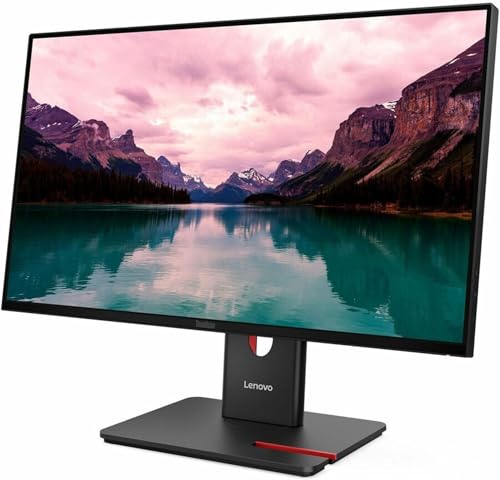
ThinkVision is the display arm of the ThinkPad idea, and the T24-40 carries that inheritance: a 24-inch-class Full HD IPS panel, 23.8 inches viewable, with a WLED backlight, 16.7 million colours and 250-nit brightness in its listing, presented in Raven Black with the line’s characteristic restraint. The fleet case for this monitor is not any single figure in that list. It is the discipline of the line itself — models that stay consistent across a buying cycle, stands and mounts that behave identically at every seat, and a business support channel accustomed to organisations that measure screens in dozens.
Why does fleet discipline matter to a reader who may be buying one screen? Because consistency compounds. The office that standardises on one panel writes one setup instruction, stocks one spare, trains one support habit and never fields the complaint that one desk’s screen looks different from another’s. Even a five-person practice feels that compound interest. The T24-40 is the pick written for the buyer thinking in seats rather than in a seat — the office manager, the practice owner, the IT generalist equipping a growing team in stages and needing each stage to match the last.
As an individual screen it asks to be judged plainly: a modern business IPS panel with the class’s standard brightness and colour count, from the maker whose monitors are designed to sit beside ThinkPads and speak the same design language. Nothing in its presentation chases the home-office flair of the LG or the eye-care specialisation of the BenQ below. That plainness is the fleet aesthetic — a screen that disappears into an organisation — and for the buyer it fits, the disappearance is the feature.
Picture the growing firm equipping its fourth, then its fourteenth desk. Each arrival is the same box, the same stand, the same picture, and the same short setup the office manager can now do from memory. The T24-40 is bought for that repetition, and judged by it, it is the most professional object in this guide.
Fleet thinking has one more dividend that appears only in year two or three: the spare. An organisation running one model can keep a single spare screen that fits any desk, so a failure becomes a ten-minute swap instead of a procurement event. Solo buyers feel a faint version of the same benefit in the model’s sheer commonness — cables, stands and advice for a ThinkVision are easy to find because so many desks already run one. Popularity is not quality, but in business hardware it is a form of insurance.
- Panel: 23.8 inch viewable IPS, 1920×1080, WLED backlight
- Colour and brightness: 16.7 million colours, 250 nit per the listing
- Finish: Raven Black, ThinkVision business styling
- Line: Lenovo ThinkVision T-series business displays
- Desk role: standardised multi-seat office equipment
Strengths
- Line consistency makes staged, multi-desk rollouts painless.
- ThinkVision’s business support matches organisational buying.
- A restrained design that standardises a room’s appearance.
Trade-offs
- Its listing foregrounds no hub or eye-care headline to charm solo buyers.
- Fleet virtues are invisible to a one-desk purchase.
- The plain presentation trails the LG’s borderless flair at home.
Best for: offices equipping several desks to one standard.
Not suited for: solo buyers shopping for a single standout feature.

LG 24MR400-B 24in — Best Value
The 24MR400-B is the pick that makes the class’s uniform specification feel like a bargain rather than a compromise. LG’s listing describes a 24-inch FHD IPS panel at 100Hz with AMD FreeSync, a three-side borderless design, Reader Mode, Smart Energy Saving and OnScreen Control, over HDMI and D-Sub. Two of those lines change the daily experience in ways the class’s standard spec does not. The 100Hz refresh makes scrolling documents and moving windows visibly smoother than the traditional office rate — a small, constant easing of the day’s most repeated motion. And the borderless design makes the screen look like a modern object rather than office equipment, which matters in the home offices where this value pick will mostly live.
Reader Mode is LG’s eye-comfort setting, shifting the picture toward paper-like tones for long text sessions; OnScreen Control lets the picture be adjusted and split from the computer rather than through the monitor’s buttons. Neither is exotic, but together they mark this as the pick designed by people thinking about a person reading at home, not a facilities department buying at scale. The D-Sub port, a legacy connector the other picks omit, even has its constituency: the older desktop or the spare machine that still needs a screen and speaks only VGA.
The value judgement must be made carefully, because this guide prints no prices and the class is close. The LG’s case is that its distinctive features — refresh, design, reader tuning — are the ones a solo home-office buyer will actually feel, while the fleet and hub features it lacks are the ones that buyer will never miss. Value is the ratio between what a desk uses and what it pays for, and for the single home desk that ratio favours the 24MR400-B strongly.
The home worker furnishing a first proper desk is the reader in view: a screen that makes documents glide, looks like it belongs in the room, reads kindly at midnight and connects to whatever machine the household already owns. That is a complete answer at the class’s friendly end, and it earns the value badge without apology.
The borderless design has a second career waiting in it, too. Should the home desk grow to two screens — the commonest upgrade in this entire category — two three-side-borderless panels sit together with a seam thin enough to read across, turning a pair of value monitors into a workspace that feels designed rather than accumulated. Buyers who suspect a second screen is in their future are not merely buying the LG’s present; they are buying the left half of a very presentable pair.
- Panel: 24 inch FHD IPS, 1920×1080, 100Hz
- Sync: AMD FreeSync per the listing
- Design: three-side borderless, per the listing
- Reading tools: Reader Mode and OnScreen Control per the listing
- Ports: HDMI and D-Sub per the listing
Strengths
- 100Hz scrolling smoothness the standard office spec lacks.
- Borderless design suits home offices that are also rooms.
- Reader Mode and software control serve long text days.
Trade-offs
- No DisplayPort or USB hub in its stated connections.
- The legacy D-Sub serves older machines most desks have retired.
- Its charms target solo desks, not organisational rollouts.
Best for: home-office buyers wanting the class’s best daily feel per money.
Not suited for: desks that need DisplayPort or a monitor-side USB hub.

ASUS VA24EHF2 24in — Best Eye-Care Value
The VA24EHF2 pairs the two things long-day office workers ask for and rarely get in the same value panel: genuine eye-care engineering and the smoothest refresh in this guide. ASUS’s listing specifies a 24-inch 1080p IPS panel at 120Hz with 99% sRGB coverage, 1ms response, Adaptive-Sync, HDMI and VGA connections, a frameless design, VESA wall mounting, and the two technologies its badge rests on — Low Blue Light and Flicker Free operation. The flicker-free half is the one veterans of long screen days learn to value first: a backlight that does not pulse imperceptibly is a backlight that stops taxing the eyes by afternoon, and the tax is real even when its cause is invisible.
The 120Hz figure deserves the same honest framing it received elsewhere in this batch: in an office it buys smoothness, not speed records. Documents scroll without judder, window dragging feels liquid, and the small motions repeated ten thousand times a week lose their grain. Combined with the eye-care pair, the ASUS builds a coherent argument — this is the panel for the desk where the screen is not a tool used occasionally but the medium the entire job happens inside, and where comfort compounds like interest.
Its 99% sRGB coverage is the class’s most explicit colour statement, worth a sentence for the office workers whose documents leave the building: presentations, PDFs and web material all live in sRGB, and a panel that covers the space fully shows them as their recipients will see them. It is not a designer’s wide-gamut claim and the review does not dress it as one; it is colour correctness for the office’s actual colour space, which is the correct ambition for this class.
The analyst at hour seven is this ASUS’s defining user: spreadsheets since morning, eyes that have begun to file complaints, a desk where the afternoon’s quality depends on the morning’s equipment choices. For that desk, flicker-free comfort at 120Hz is not a luxury specification. It is the difference between finishing the day and enduring it.
A small practical note completes the ASUS’s case: its VESA mount and frameless design make it the easiest pick here to lift off its stand and onto an arm, and an arm is the natural companion of the comfort strategy — panel floating at exactly eye height, desk surface reclaimed, angle set once and kept. Comfort in this guide is a system of stand, backlight and habits, and the VA24EHF2 is the pick whose parts assemble into that system with the least friction.
- Panel: 24 inch FHD IPS, 1920×1080, 120Hz
- Colour: 99% sRGB per the listing
- Eye care: Low Blue Light and Flicker Free per the listing
- Response and sync: 1ms, Adaptive-Sync per the listing
- Mounting: frameless design, VESA wall mount, HDMI and VGA
Strengths
- Flicker-free operation targets the invisible cause of afternoon strain.
- The class’s highest refresh makes every scroll and drag smoother.
- Full sRGB coverage keeps office documents colour-true.
Trade-offs
- No DisplayPort or USB hub among its stated connections.
- Wall mounting is offered, but the desk stand story is plainer than HP’s.
- Its comfort case matters most to genuinely long screen days.
Best for: heavy daily users whose eyes keep the office hours.
Not suited for: desks needing DisplayPort chains or hub connectivity.

BenQ GW2490 24in — Best for Long Reading Days
BenQ builds two monitor families that matter to this site — the designer line in the CAD guide and this GW series, the eye-care line for everyone else — and the GW2490 is the latter’s office expression. Its listing describes a 24-inch FHD IPS panel at 100Hz with BenQ’s Eye-Care technology, a thin bezel, low blue light, adaptive brightness, VESA mounting, built-in speakers and a generous port set of DisplayPort and two HDMI inputs. Adaptive brightness is the feature to linger on: the panel reads the room’s light and adjusts its own, so the screen that was right at noon is still right at dusk without the user performing the small daily recalibration most monitors silently demand.
The reading-day framing is more specific than generic eye comfort. Some office work is genuinely reading — contracts, research, case files, long reports, the professions whose screen time is page time. For that work the enemies are glare, brightness mismatch and the slow squint, and the GW2490’s combination of adaptive brightness, low-blue-light tuning and BenQ’s eye-care heritage addresses them as a system. The 100Hz refresh keeps long documents scrolling smoothly between pages, and the thin bezel keeps a dual-screen reading desk’s centre seam unobtrusive when the second panel arrives.
Built-in speakers and the twin HDMI ports round out a desk that hosts more than one source: the work laptop on one input, a personal machine or a streaming stick on the other, sound without a separate speaker purchase cluttering a reading desk that prizes clear surface. It is a quietly complete specification, assembled by a maker that has specialised in exactly this user for years.
The solicitor’s clerk, the researcher, the editor — the reader-professions — are this BenQ’s constituency. Their monitor is a reading lamp as much as a display, judged at the end of a ten-hour document day by whether the eyes or the work gave out first. The GW2490 is engineered so that it is never the eyes.
BenQ’s long specialisation in eye care shows in the way the features cooperate rather than merely coexist. Adaptive brightness without low-blue-light tuning would still leave evening sessions harsh; tuning without brightness discipline would leave noon sessions glaring. The GW2490 adjusts both halves of the problem on the same quiet schedule, which is why its reading badge is a system claim rather than a feature claim — and why readers who have suffered screens that solved one half will recognise the difference within a week.
- Panel: 24 inch FHD IPS, 1920×1080, 100Hz
- Eye care: BenQ Eye-Care tech, low blue light, adaptive brightness
- Ports: DisplayPort and two HDMI per the listing
- Audio: built-in speakers per the listing
- Design: thin bezel, VESA mount per the listing
Strengths
- Adaptive brightness ends the daily brightness fiddle for readers.
- Twin HDMI plus DisplayPort hosts work and personal sources together.
- Speakers keep a reading desk clear of extra hardware.
Trade-offs
- No USB hub for the dock-and-go laptop routine.
- Its reading specialisation is surplus for spreadsheet-and-meetings desks.
- Ergonomic range is out-argued by the HP’s E-series stand.
Best for: document professionals who read on screen all day.
Not suited for: hub-dependent laptop desks needing monitor-side USB.
What Separates Six Screens That Look Identical on Paper?
| Monitor | Refresh | Stated connections | Signature idea | Best home |
|---|---|---|---|---|
| Dell P2425H | Class standard | Confirm at listing | The balanced P-series default | Any standard desk |
| HP E24 G5 | Class standard | HDMI, DisplayPort, USB hub | Ergonomics and hub wiring | Client-facing desks |
| Lenovo ThinkVision T24-40 | Class standard | Confirm at listing | Fleet consistency | Multi-seat offices |
| LG 24MR400-B | 100Hz | HDMI, D-Sub | Borderless value with Reader Mode | Home offices |
| ASUS VA24EHF2 | 120Hz | HDMI, VGA | Flicker-free eye care | Longest screen days |
| BenQ GW2490 | 100Hz | DisplayPort, two HDMI | Adaptive brightness for readers | Document professions |
The table’s lesson is that the deciding columns are never the panel’s. Refresh divides the field into standard and smooth; connections divide it into hub desks, legacy desks and multi-source desks; and the signature column is a list of six different jobs wearing one specification. Choose the job first and the row chooses itself — the reverse order, choosing by the panel line, is how buyers end up with a fine monitor that fits nothing in particular.
How Should an Office Monitor Be Set Up for a Healthy Working Day?
Setup begins with the chair and the eye line, not the cable. Sit as you work, and set the panel so its top edge is at or just below eye level, roughly an arm’s length away, square to your shoulders. On the height-adjustable picks this is a minute’s work; on any pick, a monitor arm or even a stable riser achieves the same geometry, and the geometry matters more than the brand of the thing achieving it. A screen too low trains a slouch that no chair can compensate for; a screen too close makes Full HD text swim at the edges of vision.
Next, set brightness against the room rather than against the showroom. The working rule is that the screen’s white should resemble a sheet of paper under the room’s own light — neither glowing nor grey. The BenQ’s adaptive brightness automates this judgement; on the other picks it is a weekly thirty-second habit as seasons and daylight shift. Then choose the colour mode you will actually live in: a standard or reader mode for document days, with low-blue-light settings reserved for the evening hours when they help most and distort colour least consequentially.
Light in the room deserves management alongside the panel’s own settings. A screen facing a window inherits the day’s glare; a screen with a window behind the user reflects it. The kindest arrangement puts windows to the side, and the kindest hour to judge the result is the brightest hour the room actually gets, not the hour the setup happened to occur in. Blinds are monitor equipment in every sense that matters, and offices that treat them as such stop blaming panels for the sun.
Finally, arrange the digital desk. Set the operating system’s scaling so text lands at the size your eyes prefer rather than the size the default chose, position the monitor as the primary display if a laptop screen sits beside it, and route the cables so the laptop’s daily arrival and departure move exactly one lead. An office monitor’s setup is finished when the desk can be assembled in the dark by a tired person — because some mornings, it will be.
Why Does This Class Stay at 24 Inches and Full HD?
It is reasonable to ask, in a guide full of 4K screens elsewhere, why the office mainstream remains 24-inch Full HD — and the answer is that the format is matched to its content with unusual precision. Office documents are typeset for reading at ordinary sizes; at 24 inches, Full HD shows them at those sizes natively, with no scaling layer between the application and the eye. Operating systems and older business software, which still populate real offices, handle the format flawlessly. The panel is also the size that fits the standard desk’s geometry: large enough for two documents side by side in comfort, small enough that the desk remains a desk.
The economics reinforce the ergonomics. This is the highest-volume specification in the display industry, which is why six major makers offer such polished versions of it at friendly tiers, and why support, spares and replacements are effortless. An office that standardises here is buying into the deepest pool in the market. None of that makes the format right for everyone — designers, analysts with wall-sized spreadsheets and the CAD seats in this batch’s other guides need more — but for the general office workload, the burden of proof sits on the upgrade, not on the standard.
There is a training dividend hidden in the standard as well. Every employee, contractor and temp already knows how to sit at a 24-inch FHD screen; no scaling surprises await them, no application renders oddly, no document changes its pagination between desks. Organisations underestimate the productivity of the familiar at their cost. The exotic screen’s advantages are always advertised; the standard screen’s advantage — that an entire workforce is already fluent in it — is advertised nowhere, because it belongs to everyone and therefore to no one’s marketing department.
How Does a Second Screen Change the Office Equation?
The commonest evolution of the office desk is the arrival of a second panel, and this class is where it usually happens — two 24-inch FHD screens remain the working landscape of a remarkable share of the world’s desks. The arrangement’s logic is division of labour: the document being written on one screen, its sources on the other; the spreadsheet open beside the email that questions it; the video call lifted onto its own panel so the work stops disappearing behind colleagues’ faces. Every pick in this guide can serve as either half of that pairing, which is one of the quiet virtues of a uniform class — the second purchase never has to match a discontinued exotic.
Pairing does reward a little foresight at the first purchase. Thin-bezel designs — the LG’s three-side borderless frame, the ASUS’s frameless panel, the BenQ’s thin bezel — minimise the seam the eyes must cross a hundred times a day. A height-adjustable stand matters twice over when two panels must be aligned to the same eye line. And the port question doubles: the desk’s machine must feed two displays, whether through two of its own outputs, a dock, or a hub arrangement like the HP’s. Buyers who plan the pair from the start buy the first screen differently — usually better.
The second screen also reframes the first screen’s verdicts. A pick bought as a main display can retire gracefully into the reference role when a larger or sharper panel eventually takes the centre, and the business build of all six picks suits that long second career. In a class this durable, no purchase is final; each screen is a future second screen, and the guide’s emphasis on stands, mounts and standard connections is partly an investment in that future.
What Should a Home Office Steal From Corporate IT?
The home office’s equipment problems are the corporation’s problems at one-desk scale, and the corporate solutions translate surprisingly well. Standardisation is the first: the home worker with two screens, a dock and a laptop from compatible, mainstream lines spends less of life negotiating adapters — the same compound interest the ThinkVision’s fleet case describes, collected by a fleet of one. The second theft is the spare-cable discipline: one known-good display cable kept in the drawer ends the diagnostic spiral in which a failing lead impersonates a failing monitor, a failing laptop and a personal inadequacy in turn.
The third theft is scheduled replacement thinking. Corporate IT does not wait for screens to die; it rotates them on a cycle matched to their duty, moving the oldest panel to the lightest role. A home office that adopts the rhythm — new screen to the main desk, old screen to second duty or to a family member — never faces the dead-monitor emergency purchase, which is the worst-negotiated purchase in all of technology. The fourth theft is documentation: a phone photograph of the desk’s cabling, taken while it works, is worth an hour of archaeology when it stops.
None of this requires a facilities department. It requires only the recognition that a desk used forty hours a week is infrastructure, and infrastructure rewards the boring virtues — standard parts, known spares, recorded setups, planned rotation — over heroic improvisation. The six business panels in this guide are built by organisations that sell those virtues; the home buyer who adopts the accompanying habits gets the full value of the class, not merely its panels.
What Mistakes Do Office Buyers Keep Making?
The commonest is buying the panel and ignoring the stand, then spending years compensating with books, boxes and posture. The stand is the part of the monitor the body negotiates with; in this class the price differences are small enough that ergonomics should outrank nearly everything. The second mistake is the opposite excess: specifying a fleet purchase by the most demanding desk in the building, so fifty ordinary seats inherit the cost of one unusual requirement. Standardise on the class, and equip the unusual desk individually.
The third mistake is forgetting the cables the desk actually owns. A monitor chosen without checking its stated connections against the laptop’s outputs creates the adapter drawer this batch’s guides keep warning about; the port tables above exist to prevent exactly that purchase. The fourth is treating eye care as a marketing sticker and then wondering at the afternoon headaches — flicker behaviour and brightness discipline are real, cumulative and solvable at purchase time for very little money, as the ASUS and BenQ picks demonstrate. Offices are long games; buy for the thousandth hour, not the first.
A fifth mistake deserves dishonourable mention: buying one screen well and its twin badly. The dual-screen desk is only as pleasant as its worse panel — mismatched brightness, mismatched height, one screen’s text rendering slightly differently from the other’s — and the eyes pay the toll at every crossing of the seam. If a second screen is even a rumour in your plans, buy the first from a line you would happily buy again, which in this guide is any of the six, and keep the receipt’s model number where future-you can find it.
Which of These Screens Belongs in Shared Spaces — Meeting Rooms, Counters and Receptions?
Not every office screen has one owner. The meeting-room display, the reception counter’s second panel and the shared hot-desk screen live harder lives than the personal monitor: strangers adjust them, nobody owns their settings, and they are judged by visitors in the first ten seconds. The class serves these roles well — IPS angles forgive a room’s scattered seating, and the business build tolerates the handling — but the picks divide by temperament. The HP E24 G5’s swivel and hub make it the natural meeting-room citizen, turning toward whoever is presenting and gathering the room’s cables into itself. The ThinkVision’s fleet plainness suits the hot-desk floor, where the screen’s job is to be identical to the one at the next desk and equally unremarkable to steal, break or misconfigure.
Shared screens also argue for the simplest possible setup discipline: one cable type, one input, settings locked in at installation and a laminated card, written by whoever set it up, explaining the one button a visitor is allowed to press. The technology in this guide needs none of the sophistication of the batch’s other categories; what shared spaces need is the removal of every decision a guest should never have to make. Choose the pick whose stand and ports make that removal easiest, and the room will run itself.
What Do Warranty and Support Add to a Screen This Simple?
An office panel is simple enough that buyers often treat support as an afterthought, and for the first year it usually is one. The support question ripens later: a backlight that dims unevenly in year three, a stand whose hinge loosens in year four, a fleet whose fifteenth screen arrives with a dead pixel cluster. The six makers here are the industry’s established business-display houses, and their warranty operations are scaled to organisational buyers who escalate professionally. That infrastructure is part of what a business line’s modest premium purchases, and it is invisible precisely until the day it is the only thing that matters.
The practical advice is proportionate. Register the screen or keep its proof of purchase where the office keeps such things; photograph the serial label during setup, when the back of the panel is still reachable; and for multi-desk purchases, buy the fleet in as few orders as possible so warranty cohorts stay tidy. None of this is exciting, and all of it is cheaper than the afternoon a critical desk spends dark while someone reconstructs a purchase from an email archive. Simple products deserve simple diligence, applied once.
Total cost thinking completes the picture. The panel’s price is joined by the arm or riser some desks will need, the cable the laptop actually requires, and the electricity of a 24-inch LED panel — trivial per desk, visible across a building. Against those stand the avoided costs this class is good at avoiding: the chiropractor economics of a bad stand, the adapter drawer, the premature replacement of a screen bought below the duty it serves. Judged whole, the business panel is among the cheapest per hour of any object in the office — which is the final reason to buy the right one rather than the merely cheapest one.
Final Recommendation
Buy the Dell P2425H if your desk has no special lever to pull — it is the class’s balanced centre, backed by the deepest business support in the guide. Take the HP E24 G5 when the desk moves, swivels and docks all day; the Lenovo ThinkVision T24-40 when the purchase is really several desks wearing one decision; the LG 24MR400-B when a home office wants the smoothest daily feel for the friendliest commitment; the ASUS VA24EHF2 when your eyes file the loudest complaints by afternoon; and the BenQ GW2490 when the job is reading and the room’s light will not sit still. Six versions of the same sensible screen, each tuned to a different working life — choose by the life, and the panel will take care of itself, quietly, for years of ordinary days.
Frequently Asked Questions
Why choose IPS over cheaper panel types for office work?
Because office screens are viewed from everywhere except the ideal seat. IPS holds colour and contrast at angles — leaned back, standing, swivelled toward a colleague — where cheaper panel technologies wash out or invert. Office work is also text work, and text stays crisp and evenly lit across an IPS panel’s whole surface. The technology’s small premium is the class’s best-spent money.
Is Full HD enough, or should an office buy 4K?
For general office work at 24 inches, Full HD is enough, and its text renders at natural sizes without scaling complications. 4K earns its place for design, CAD, very large spreadsheets and bigger screens — the subjects of this site’s other guides. Buying 4K for email and documents purchases sharpness the work cannot display, at the cost of the ergonomic and hub features the work would have felt daily.
Does refresh rate matter on an office monitor?
Modestly, and honestly. The 100Hz LG and BenQ and the 120Hz ASUS scroll documents and drag windows more smoothly than the standard rate, which reduces a small, constant visual grain across the day. It will not change the work itself, and it should not outrank stand quality or the ports your desk needs — but between two otherwise equal picks, the smoother panel is the pleasanter colleague.
What ports should an office monitor have?
Match the listing to your machine, not to a wish list. DisplayPort and HDMI cover modern laptops and desktops between them; a USB hub, as on the HP E24 G5, transforms docking life; legacy VGA or D-Sub, on the ASUS and LG respectively, rescues older machines. The only wrong answer is discovering the mismatch after the box is open, so read the stated connections in the comparison table against your desk’s actual cables.
Can these monitors be wall- or arm-mounted?
Several state VESA mounting outright — the ASUS VA24EHF2 and the BenQ GW2490 among them — and arms are the standard remedy when a bundled stand lacks a motion your desk needs, most often height on a shallow surface. Confirm the VESA pattern on the specific listing before ordering an arm, and remember that mounting is also the cleanest route to a two-screen reading desk with an unbroken surface.
How long should an office monitor last?
Expect five to eight years of full-time service from this class. Business panels are built for exactly that duty cycle, and the makers’ support ecosystems assume it. The usual retirement cause is not failure but the desk changing around the screen — a laptop whose ports moved on, a role that outgrew 24 inches. A standardised fleet, as the ThinkVision pick argues, stretches that life further by letting screens migrate between seats as needs change. When a screen does retire from the main desk, its second careers are honourable: the spare for visitors, the family desk, the workshop or counter display. A panel this standard is never really finished; it is reassigned.
Related Guides
Desks evolve, so readers may also want our guides to the best computer monitors for CAD work, the best monitors that serve as a second screen for a laptop and the best vertical monitors for document-heavy work.


