What's inside
- Key Takeaways
- Quick Picks
- How Did We Judge Laptops for a Life Lived on Camera?
- Why Does the Camera Matter Less Than the Light Around It?
- Putting the Six Meeting Machines Next to Each Other
- How Do You Turn a Kitchen Table into a Meeting Studio?
- Which Meeting-Day Mistakes Make Good Laptops Look Bad?
- How Should a Team Standardise Meeting Laptops?
- What Happens Between Calls Decides Whether the Laptop Keeps Up
- When Is a Headset Worth More Than a Better Laptop?
- How Reliable Is Your Network, and How Would You Know?
- What Does Hybrid Work Ask of a Laptop That Pure Remote Work Does Not?
- How Long Will a Meeting Laptop Stay Respectable?
- What Should a Buyer Test in the First Fortnight?
- Why Do Recorded Calls and Captions Raise the Hardware Bar Slightly?
- How Does Screen Size Change the Way a Meeting Feels?
- A Word on Buying the Configuration You Actually Reviewed
- What Do Presenters Need That Participants Do Not?
- One Last Consideration: the Chair, the Desk and the Person
- Final Recommendation
- Frequently Asked Questions
- Related Guides
As an Amazon Associate I earn from qualifying purchases. This post may contain affiliate links at no extra cost to you.
gizmoverdict.com is reader-supported. When you buy through links on our site, we may earn an affiliate commission.
Where to buy: Meeting quality hides in configuration details, so use the link beside each pick to confirm the exact camera, memory and storage build on offer that day — and note that one respected model below appears without any link at all, for a reason explained in its review.
The best affordable laptops for zoom meetings are not the fastest laptops, the prettiest laptops or the ones with the loudest benchmark stories. They are the machines that make a person look prepared, sound intelligible and stay calm through the fourth video call of a day that has already included three. A meeting laptop is judged by colleagues and clients in real time, through a compressed video feed and a pair of laptop speakers at the other end, and its virtues are therefore peculiar: a decent camera, microphones that reject the room, speakers that render voices clearly, fans that keep their opinions to themselves, and a network connection that does not dissolve during the sentence that mattered.
That peculiar brief explains why this guide is populated by business laptops rather than consumer bargains. The ThinkPads, EliteBook, ExpertBook, ThinkBook and TravelMate below were designed by divisions that sell to IT departments, and IT departments ask about cameras, privacy shutters, Ethernet ports and manageability with a persistence consumer marketing never faces. Five of the six carry purchase links from verified listings. The sixth, Dell’s Latitude 5540, is discussed without one because the listing found for it is a renewed unit; the model remains worth understanding, and its review says exactly why it appears in prose only.
It also explains what this guide refuses to do. Camera quality cannot be read from a megapixel figure alone, microphone quality barely appears in listings at all, and fan noise lives entirely outside specification tables. So the reviews below judge what the listings and the model lines genuinely establish — camera hardware where stated, infrared sign-in, shutter mechanisms, port selections, platform behaviour — and the sections after them teach the setup and testing habits that turn any of these machines into a meeting presence worth trusting.
Key Takeaways
- Cameras, microphones and fan manners decide meeting quality long before processor speed enters the conversation.
- The EliteBook 640 G11 states the strongest camera hardware here outright: a 5MP infrared unit with Windows Hello sign-in.
- Infrared cameras and fingerprint readers matter because unlocking twenty times a day between calls is a real workload.
- The Latitude 5540 is covered without a purchase link since its current listing is a renewed unit, not new stock.
- An Ethernet port is a meeting feature: the ExpertBook and EliteBook keep wired networking available for fragile home Wi-Fi days.
- Lighting and camera height will improve your image more than any upgrade on this page — the setup section explains how.
Quick Picks
| Pick | Badge | Why it is here |
|---|---|---|
| Lenovo ThinkPad E14 Gen 7 | Best overall | The balanced business answer: infrared webcam, Thunderbolt 4, fingerprint sign-in and ThinkPad keyboard manners in a 14-inch frame. |
| HP EliteBook 640 G11 | Best camera and mic setup | A 5MP IR camera headline, thirty-two gigabytes of memory and Ethernet aboard — the executive-presentation configuration. |
| ASUS ExpertBook B1 | Best big-screen value | A 15.6-inch screen for gallery-view marathons, with an IR camera, RJ45 networking and a terabyte of storage fitted. |
| Lenovo ThinkBook 14 Gen 9 | Best touch option | Touchscreen convenience, a physical webcam shutter and a bundled hub for the desk that hosts everything. |
| Acer TravelMate P2 14 | Best budget business pick | Acer’s sober business line delivers WUXGA clarity and modern efficiency at the gentlest positioning here. |
| Dell Latitude 5540 | Prose-only — renewed listing | A proven corporate meeting machine discussed without a link because the listing found sells it as a renewed unit. |
How Did We Judge Laptops for a Life Lived on Camera?
Camera hardware came first, judged only on what listings state. Where a maker names a 5MP infrared camera, as HP does for the EliteBook, that is evidence; where a listing says merely webcam, this guide treats resolution as unstated rather than guessing numbers the seller never provided. Infrared capability earned separate credit because it powers face sign-in, and face sign-in is a meeting feature in disguise: the machine that unlocks at a glance between back-to-back calls removes a small friction that compounds across a working year.
Audio was judged by platform and design intent, since listings rarely specify microphone arrays honestly. Business lines engineer their microphones and speakers around voice — noise suppression for keyboard clatter and household chaos, speaker tuning that privileges the speech band over cinematic bass — and the reviews credit that lineage without inventing measurements. Fan behaviour follows the same logic: processors with modest thermal appetites, like the U-series chips in several picks, tend to keep business laptops quieter through long calls than high-wattage performance silicon straining in a thin chassis.
Connectivity was scored as reliability insurance. Thunderbolt 4 docks turn a desk into a one-cable meeting studio; HDMI keeps a borrowed meeting-room screen usable; an RJ45 Ethernet socket — still fitted by the ExpertBook and EliteBook — offers the nuclear option when home Wi-Fi misbehaves on the morning of the quarterly review. Battery and weight mattered for the workers whose office rotates between kitchen table, office and client site, while raw performance was deliberately ranked last, because every processor here runs video meetings without breaking a sweat.
The renewed question was handled as a matter of labelling honesty. A renewed business laptop can be excellent value and the Latitude line is built to survive exactly that second life, but a guide that links a listing must say what the listing is. The Latitude 5540 therefore stands in this roundup as knowledge — what to look for on the used market, and what it competes with — rather than as a purchase route.
Why Does the Camera Matter Less Than the Light Around It?
Every video platform compresses its feed aggressively, which produces a counterintuitive truth: beyond a competent baseline, the camera matters less than the photons reaching it. A modest webcam in front of a window-lit face will outperform a superior camera filming a silhouette against that same window, every single call. The 5MP hardware in the EliteBook earns its advantage in dim rooms, in backlit kitchens and in the fine detail of a face at arm’s length — conditions where sensor size and processing have something to work with. In a dark room, no specification on this page can invent light that never arrived.
Camera height is the second silent variable. A laptop on a desk films from below, a perspective that flatters nobody and slowly reads as carelessness in professional settings. Raising the machine on a stand or a stack of reference books until the lens sits at eye level transforms presence more than any settings menu, and it improves posture into the bargain. The picks here all benefit equally from that zero-cost upgrade, and the buying advice in this guide assumes the reader will spend on a stand and a decent light before spending on a fancier laptop.
Microphones obey a similar hierarchy. The array built into a business laptop, close to the speaker and tuned for voice, beats a premium microphone placed across a reverberant room. Distance is the enemy: every doubling of distance from the microphone invites more room echo and less voice. That is why the reviews below care about the business platforms’ voice engineering, and why the setup section recommends testing recordings from your actual chair, in your actual room, rather than trusting any review’s adjectives — including this guide’s.

Lenovo ThinkPad E14 Gen 7 — Best overall
The ThinkPad E14 Gen 7 leads this guide because it assembles the meeting brief without a weak paragraph. Its infrared webcam handles face sign-in, a fingerprint reader offers the alternative on days when the camera is covered, Thunderbolt 4 runs a proper docked desk, and the backlit keyboard carries the ThinkPad reputation for people who type their follow-up notes while still on the call. Underneath sits Intel’s Core 5 210H, a processor with performance headroom far beyond video duty, so screen-sharing a heavy spreadsheet while presenting never becomes a negotiation.
The listing for this machine is a customised one, offering memory tiers that climb well beyond the base figure and storage options up to two terabytes; that flexibility suits buyers who know their multitasking habits, though it also obliges the reader to select deliberately rather than accepting whatever configuration loads first. For meeting work even the entry tier suffices — calls are light work — but the professional who keeps mail, documents, a CRM and two browsers resident all day will appreciate the higher memory steps, and choosing them at purchase is cheaper than regretting them later.
The fourteen-inch FHD+ format is the meeting sweet spot: large enough that a gallery grid of colleagues stays legible, small enough that the machine travels between home desk and office without becoming luggage. Windows 11 Pro equips it for managed workplaces. Nothing about the E14 shouts, and that is its qualification — it is the laptop a whole team could standardise on, from the founder to the newest hire, with nobody’s calls embarrassed by their hardware.
- Processor: Intel Core 5 210H
- Camera and sign-in: IR webcam plus fingerprint reader
- Memory and storage: Customised tiers — select the figure deliberately on the listing
- Display: 14-inch FHD+ panel
- Ports note: Thunderbolt 4 for single-cable docking
Strengths
- Complete sign-in toolkit for a day of back-to-back calls
- Processor headroom keeps screen-sharing fluid
- Configuration tiers let the buyer match memory to habit
Trade-offs
- Customised listing demands a careful read before ordering
- Camera resolution is not headlined the way HP states its 5MP unit
- Business styling will not win design awards
Best for: professionals who live in meetings and want one machine that every colleague could also be handed.
Not suited for: minimalists who want the configuration decided for them in a single fixed build.
HP EliteBook 640 G11 — Best camera and mic setup
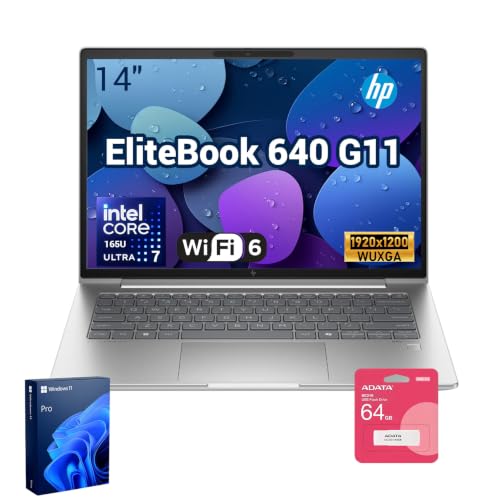
HP states this EliteBook’s camera claim in plain figures — a 5MP infrared camera — and in a category drowning in vague webcam language, that specificity is itself a recommendation. Five megapixels gives the platform more image to work with when it crops, sharpens and balances a face, while the infrared half runs Windows Hello sign-in at a glance. Around that camera HP builds the most executive specification in this guide: a Core Ultra 7 165U, thirty-two gigabytes of memory and a terabyte of storage, so the machine that presents best also multitasks hardest.
The supporting details read like a checklist written by people who attend meetings in buildings. Ethernet is fitted for the wired reliability that hotel and office networks reward, Wi-Fi 6E finds clean air in dense offices, Thunderbolt 4 docks the desk, and the anti-glare fourteen-inch FHD+ screen stays readable under the overhead lighting that makes glossy panels miserable. A bundled accessory package accompanies the listing, easing the first week’s setup.
EliteBook ownership also brings HP’s business support and security culture, which matters to the self-employed professional acting as their own IT department. The premium over the TravelMate is real and should be justified by use: this is the pick for the consultant, coach, executive or salesperson whose face is, in a commercial sense, part of the product. When the call is the shopfront, the camera stops being a component and becomes signage.
- Processor: Intel Core Ultra 7 165U
- Camera: 5MP IR camera with face sign-in
- Memory and storage: 32GB and 1TB fitted
- Display: 14-inch FHD+ anti-glare
- Networking: Ethernet port plus Wi-Fi 6E, Thunderbolt 4 docking
Strengths
- Strongest stated camera hardware in this roundup
- Memory and storage figures need no upgrades or apologies
- Wired networking aboard for fragile-Wi-Fi insurance
Trade-offs
- Priciest posture among the linked picks here
- Specification exceeds what meetings alone can justify
- Bundle contents should be verified on the listing
Best for: client-facing professionals whose on-camera presence carries commercial weight.
Not suited for: internal-team workers whose calls never leave the company’s own grid of familiar faces.

ASUS ExpertBook B1 — Best big-screen value
Some meeting lives are gallery lives: the teacher watching a grid of students, the manager reading a room of twenty faces, the trainer scanning for the raised hand. For them the ExpertBook B1’s fifteen-point-six-inch screen is not a luxury but the correct instrument, giving each participant a face large enough to read. ASUS pairs that canvas with a Core 7 150U, a generous thirty-two gigabytes of memory and a terabyte of storage, so the big-screen pick is not secretly the slow pick.
The meeting hardware is taken seriously: an IR camera for face sign-in, and a port selection that reads like a facilities manager’s wish — HDMI for the meeting-room display, RJ45 Ethernet for a wired connection that ends Wi-Fi excuses, and the everyday USB company a desk accumulates. In rooms where the network is a lottery, that Ethernet socket is worth more than a processor generation, and trainers who present in borrowed spaces will understand the value instantly.
The compromises are the physical ones. A fifteen-inch business machine is a desk resident that travels reluctantly, and its full HD panel spreads its pixels across more inches than the fourteen-inch picks, so text is roomy rather than razor fine. Judged as the stationary heart of a home office — docked or cabled, camera raised on a stand, gallery spread wide — the ExpertBook is arguably the most sensible purchase in this entire guide for the worker whose office never moves.
- Processor: Intel Core 7 150U
- Camera: IR camera fitted for face sign-in
- Memory and storage: 32GB RAM and 1TB drive
- Display: 15.6-inch full HD at 60Hz
- Ports note: RJ45 Ethernet and HDMI alongside the usual set
Strengths
- Gallery grids become readable at this screen size
- Wired networking and display-out suit fixed desks
- Memory and storage are the guide’s joint-best figures
Trade-offs
- Size and weight discourage daily carrying
- Full HD resolution is spread thin across the larger panel
- Grey business finish prioritises function entirely
Best for: teachers, trainers and managers whose calls are crowds and whose desk is a permanent installation.
Not suited for: commuters — this machine’s natural habitat has a postcode, not a timetable.

Lenovo ThinkBook 14 Gen 9 — Best touch option
The ThinkBook occupies Lenovo’s small-business middle ground, less formal than a ThinkPad and more serious than a consumer IdeaPad, and this Gen 9 configuration adds two meeting-friendly touches. The first is literal: a touchscreen over the fourteen-inch FHD+ display, which makes annotating a shared document, tapping through slides and signing the occasional form feel direct rather than mediated. The second is a physical webcam shutter, the small sliding guarantee that the camera is closed because a piece of plastic says so — a feature privacy-conscious workers trust more than any software indicator.
Its Core 5 210H, sixteen gigabytes of DDR5 and half a terabyte of storage form a competent, unpretentious core, and the listing bundles a seven-in-one USB hub that acknowledges how meeting desks actually accumulate hardware: receiver dongles, headsets, backup drives, the second screen’s cable. A fingerprint reader covers sign-in, Thunderbolt 4 covers docking ambition, and the backlit keyboard covers the evening catch-up call from a dim room.
The ThinkBook’s honest limitation is that it is a generalist among specialists — the EliteBook out-cameras it, the ExpertBook out-screens it, the TravelMate under-prices it. Its buyer is the small-business owner or team lead who wants one purchase to cover meetings, documents, travel and the occasional presentation without a specialist’s premium attached to any single talent. Generalists age well in small companies, and so does this laptop.
- Processor: Intel Core 5 210H
- Camera and privacy: Webcam with physical shutter, fingerprint reader
- Memory and storage: 16GB DDR5 and 512GB drive
- Display: 14-inch FHD+ touchscreen
- In the box per listing: 7-in-1 USB hub bundled
Strengths
- Physical shutter gives privacy you can verify by touch
- Touch display speeds annotation and slide work
- Bundled hub acknowledges real desk clutter honestly
Trade-offs
- No infrared face sign-in to match the shutter’s convenience
- Storage figure is the modest tier in this company
- Generalist specification wins no single category outright
Best for: small-business all-rounders who present, annotate and travel with one machine.
Not suited for: privacy maximalists who also demand infrared sign-in — the E14 covers that pairing.
Acer TravelMate P2 14 — Best budget business pick
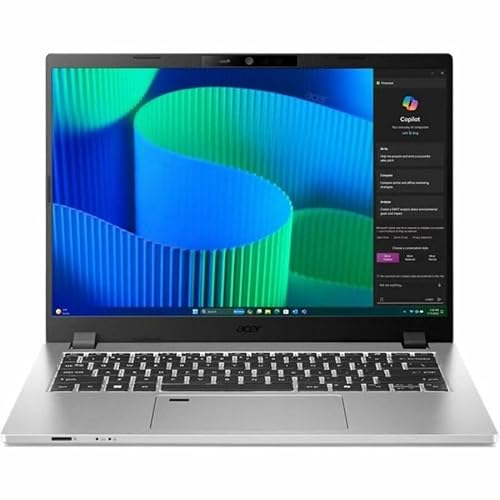
The TravelMate line is Acer’s answer to a question consumer ranges ignore: what does a business actually need, stripped of everything it does not? The P2 14 answers with a WUXGA screen — the taller 1920 by 1200 format that keeps documents and gallery rows comfortable — a Core 5 120U processor chosen for efficiency, sixteen gigabytes of memory and half a terabyte of storage. It is the gentlest-priced linked pick in this guide, and it achieves that position by declining luxuries rather than by cutting meeting corners.
Efficiency is its meeting virtue. The U-series processor sips power and generates little heat, which translates into a quiet machine on calls and a battery that treats a morning of meetings away from the desk as routine. Acer’s business division builds the TravelMate for fleet deployment, so the ownership story — manageability, durability expectations, a sober silver finish that offends no boardroom — is more grown-up than the price suggests.
What the buyer surrenders is headline hardware: the listing does not trumpet an infrared camera or a megapixel figure, so sign-in and camera expectations should be set from the listing’s own details, and the specification generally asks its owner to be the kind of professional whose meetings are internal, frequent and forgiving of straightforward equipment. For a small firm equipping several staff, or a remote worker whose employer reimburses a sensible figure and not a fantasy one, the TravelMate is the pick that respects the budget without embarrassing anyone on screen.
- Processor: Intel Core 5 120U
- Memory and storage: 16GB memory, 512GB solid-state drive
- Display: 14-inch WUXGA at 60Hz
- Design brief: Fleet-minded business build in silver
- Model reference: TMP214-56-54NF
Strengths
- Taller WUXGA format at the friendliest linked price here
- Efficient processor keeps calls quiet and unplugged mornings long
- Business-line manners without business-line ceremony
Trade-offs
- Camera hardware is not a headline feature of this listing
- Specification is a floor executed well, not a ceiling
- Fewer premium touches than the EliteBook class offers
Best for: equipping a small team, or a remote worker buying on a realistic reimbursement.
Not suited for: solo consultants whose camera image is a sales asset — the EliteBook exists for them.
Dell Latitude 5540 — Prose-only: the current listing is a renewed unit
The Latitude 5540 appears in this guide under a clear label: the listing found for this model sells it as a renewed unit, so it is presented here without a purchase link, as market knowledge rather than as a shopping route. That status is worth explaining rather than hiding, because the Latitude 5000 series is one of the most common corporate meeting laptops in circulation, and readers will encounter it constantly — in employers’ fleets, in refurbished channels and in colleagues’ bags. Understanding it helps a buyer judge everything else on this page.
As a model, the 5540 earned its fleet popularity on exactly the virtues this guide prizes: business-grade cameras and microphones tuned for conference software, infrared sign-in options in corporate configurations, docking through the Latitude ecosystem, and a fifteen-inch chassis built to be serviced and kept for years. Corporate machines are specified by people who receive the complaints when calls go badly, and the Latitude’s ubiquity is evidence that it answers those complaints competently. On the used and renewed market, a well-kept example can be a rational purchase for a buyer who understands what renewed means.
That understanding is the condition. A renewed unit’s battery health, warranty terms and cosmetic state belong to the individual listing and its seller, not to the model name, so anyone pursuing a Latitude 5540 through those channels should interrogate the specific unit’s grading, return terms and battery promises with a scepticism that new-stock purchases do not require. This guide links only the five new configurations above; the Latitude stands here as the informed reader’s benchmark for what the refurbished market offers and what questions it demands.
- Status: Discussed without a link — the listing found is a renewed unit
- Class: Mainstream corporate business laptop, 15-inch family
- Reputation: Fleet-standard meeting hardware with docking ecosystem
- Buying route: Used and renewed channels only, judged unit by unit
- Key checks if buying renewed: Battery health, grading, warranty and returns on the specific unit
Strengths
- Proven corporate meeting manners at fleet scale
- Deep service and parts ecosystem from years of deployment
- Renewed pricing can undercut every linked pick here
Trade-offs
- No new-stock purchase route in this guide
- Unit condition varies in ways a model name cannot guarantee
- Warranty terms depend entirely on the renewed seller
Best for: informed buyers comfortable judging a specific renewed unit on its own paperwork.
Not suited for: anyone who wants a manufacturer’s fresh warranty without reading refurbishment fine print.
Putting the Six Meeting Machines Next to Each Other
| Pick | Camera story | Screen | Memory / Storage | Signature advantage |
|---|---|---|---|---|
| ThinkPad E14 Gen 7 | IR webcam, fingerprint reader | 14-inch FHD+ | Tiered options | Balance across every meeting need |
| EliteBook 640 G11 | 5MP IR camera | 14-inch FHD+ anti-glare | 32GB / 1TB | Strongest stated camera plus Ethernet |
| ExpertBook B1 | IR camera | 15.6-inch full HD | 32GB / 1TB | Biggest gallery canvas, wired ports |
| ThinkBook 14 Gen 9 | Webcam with physical shutter | 14-inch FHD+ touch | 16GB / 512GB | Touch plus verifiable privacy |
| TravelMate P2 14 | Business-standard webcam | 14-inch WUXGA | 16GB / 512GB | Efficiency and fleet pricing |
| Latitude 5540 | Fleet-proven business camera | 15-inch class | Varies by unit | Renewed-market benchmark — no link |
Two patterns emerge from the table. First, the camera arms race is modest and honest: one stated 5MP unit, two infrared arrangements, one physical shutter and a great deal of competent normality — because meeting software compresses everything anyway, and light and placement matter more than sensor bragging. Second, memory and storage split the field by ambition rather than by meeting ability: the 32GB terabyte machines are for people whose work between calls is heavy, while the 16GB picks run the calls themselves identically. Buy the meeting hardware for the calls and the specification for everything else you do.
How Do You Turn a Kitchen Table into a Meeting Studio?
Start with the background and the light, because the camera sees both more than it sees you. Face a window or a soft light source, never sit with bright light behind you, and clear the frame of the visual noise — laundry, cluttered shelves, the doorway other people wander through — that taxes your credibility at a subconscious level. Raise the laptop until its camera meets your eyes, using a stand that also improves the keyboard angle, and position yourself an arm’s length from the lens so your face fills a natural share of the frame without looming.
Sound comes next. Soft furnishings are acoustic treatment in disguise: a rug, curtains and a bookcase calm the echo that makes home offices sound like bathrooms on calls. Record a test call in the platform’s own preview or a practice meeting, listen back on headphones, and adjust one variable at a time — chair position, microphone distance, room door open or closed. Business laptops like these six carry voice-tuned microphone arrays, but they amplify the room they are given, and the room is the part of the signal chain entirely under the owner’s control.
Finally, rehearse the boring failures. Know where your mute control lives without looking, keep a phone hotspot ready for the day the broadband dies mid-presentation, and charge a headset the night before an important call rather than discovering its battery during one. Professional presence is mostly the absence of visible scrambling, and scrambling is prevented on quiet afternoons, not during the call itself.
Which Meeting-Day Mistakes Make Good Laptops Look Bad?
The most common is joining from a machine already suffocating: thirty browser tabs, a cloud sync saturating the connection, an operating-system update waiting to announce itself. A two-minute pre-call ritual — close the hoard, pause the sync, plug in the power — prevents the frozen frame that colleagues remember longer than the presentation. The second mistake is trusting Wi-Fi by habit in a house where the router lives two floors away; the Ethernet-equipped picks exist because a cable across the floor on an important morning is professionalism, not defeat.
Audio mistakes follow close behind: speakers loud enough to feed back into the microphone, a headset abandoned for the laptop mic in a tiled kitchen, notifications chiming through shared screens. And the visual classics — backlit silhouette, camera at chin level, virtual background dissolving the edges of a person’s head — are all arrangement errors, not hardware verdicts. Every machine in this guide is capable of a dignified call; the mistakes above are how owners talk themselves out of one.
How Should a Team Standardise Meeting Laptops?
A team that buys one model buys one troubleshooting language: the same camera behaviour, the same dock, the same sign-in methods, the same spare charger in the meeting room. The E14 Gen 7 and the TravelMate P2 are the natural fleet candidates here, at balanced and budget postures respectively, while the EliteBook serves the leadership tier whose external calls justify its camera. Standardising also means standardising the setup — a written one-page guide to lighting, camera height and pre-call checks will improve a fleet’s meetings more than a model upgrade would.
Employers should also decide the renewed question as policy rather than leaving it to chance. Renewed Latitudes and their kin can stretch an equipment budget impressively, but a fleet needs consistent warranty handling and battery expectations, so renewed purchases belong in a deliberate programme with a trusted refurbisher — or not at all. The worst arrangement is the accidental one, where half the team’s machines carry histories nobody recorded.
What Happens Between Calls Decides Whether the Laptop Keeps Up
Meeting laptops spend most of their lives doing office work, and the specification differences in this guide live there. The thirty-two-gigabyte machines shrug at the professional reality of mail, documents, spreadsheets, a CRM, two browsers and a chat client all resident simultaneously; the sixteen-gigabyte picks handle the same load with occasional discipline about tab hoarding. Storage divides similarly — a terabyte absorbs years of recorded calls and shared decks, while half a terabyte asks for a cloud-first filing habit that many organisations already mandate.
Battery behaviour belongs to this between-calls life too. A machine that sips through a morning of meetings at a client site, wakes instantly for the unscheduled call and charges quickly over lunch earns trust that a benchmark cannot measure. The efficiency-oriented processors in the EliteBook, ExpertBook and TravelMate were chosen by their makers for exactly this rhythm, while the H-series chips in the Lenovo pair trade a little of that frugality for heavier multitasking muscle. Neither philosophy is wrong; they are answers to different diaries.
When Is a Headset Worth More Than a Better Laptop?
There is a point in every meeting setup where the next improvement is not a laptop at all. A decent headset places a microphone centimetres from the mouth, which does more for intelligibility than any array built into a lid can achieve across a desk, and it returns privacy in open offices and shared houses alike. Every machine in this guide pairs happily with wired USB or wireless headsets, and the buyer choosing between the TravelMate plus a good headset and the EliteBook alone should think hard about which combination their colleagues would rather listen to. Colleagues, consulted honestly, pick the headset every time.
Headset choice has its own small print. Wireless models add freedom to fetch coffee during a listening call and add a battery that will eventually die at a poetic moment; wired models never need charging and tangle with chair wheels instead. Earbuds travel better, over-ear designs isolate better, and speakerphone pucks serve the small-room huddle better than either. None of this diminishes the laptops — the camera, sign-in, screen and reliability stories remain theirs — but a meeting setup is a system, and the honest guide admits where the system’s weakest link usually sits.
The same logic blesses the external webcam question. A worker whose laptop lives docked and closed under a monitor has no use for the lid’s camera at all, and should buy for the docked specification while adding a separate camera at eye level. The EliteBook’s 5MP argument matters most to people who present from the laptop itself, in varied rooms, where built-in quality is the only quality available. Knowing which worker you are is worth more than the price difference between the picks.
How Reliable Is Your Network, and How Would You Know?
Most meeting failures blamed on laptops are network failures wearing a laptop costume. The diagnostic is simple: a wired connection that never stutters in a house where Wi-Fi calls regularly dissolve has acquitted the computer and indicted the wireless. The ExpertBook and EliteBook, with Ethernet aboard, let their owners run that experiment for the price of a cable; the other picks can join it through their docks and hubs, which is one more reason the bundled and dockable accessories in this guide matter beyond convenience.
Wi-Fi quality is a geography problem before it is a speed problem. The advertised broadband figure describes the pipe entering the house, not the signal surviving two brick walls and a fish tank to reach the study. A mesh node near the desk, a router lifted from the floor to a shelf, or simply moving the working chair one room closer will rescue more meetings than any laptop upgrade. Test at the hours meetings actually happen, when neighbours’ networks wake and the household’s other screens start streaming, because a network measured at dawn lies about its evening behaviour.
Upload speed deserves its own sentence, since meetings are the rare home activity that sends as much presence as it receives. A connection that downloads films beautifully can still strangle an outgoing video feed, and the symptom — you hear everyone clearly while they watch you dissolve — confuses buyers into blaming the camera. Check both directions before replacing hardware. The laptops here are innocent of most network crimes; the honest guide says so and points at the router.
What Does Hybrid Work Ask of a Laptop That Pure Remote Work Does Not?
The hybrid worker’s laptop lives two lives: docked citizen of a home desk and traveller to offices where nothing is guaranteed. That duality rewards the fourteen-inch picks, which carry like books and still present properly, and it rewards sign-in speed and battery frugality, because the hybrid day is a chain of short sessions in borrowed rooms. It also rewards boring robustness — the machine that wakes reliably, reconnects to unfamiliar Wi-Fi without sulking and survives being opened on trains will be loved longer than a faster machine with theatrical habits.
Hot-desking adds a social dimension: the worker arriving at a shared office desk needs the meeting setup to assemble in minutes from a bag. A one-cable dock habit at home, a charger that lives in the bag rather than migrating between rooms, and a headset that pairs without a ceremony are the difference between settling and scrambling. The ThinkBook’s bundled hub and the E14’s Thunderbolt docking both speak to this life, while the fifteen-inch ExpertBook politely recuses itself — a fine machine whose owner should have a fixed address.
Security follows the hybrid worker out of the building, which is where shutters, fingerprint readers and infrared sign-in stop being bullet points. The ThinkBook’s physical shutter on a train, the EliteBook’s glance-to-unlock in a client office, the E14’s fingerprint alternative in a dark auditorium — each is a small, daily answer to the question of who else can see or use the machine. Hybrid work made the laptop a public object, and these business lines were designed in that expectation.
How Long Will a Meeting Laptop Stay Respectable?
Meeting software evolves gently compared with games or design tools, so a business laptop bought today should present respectably for five years or more. The ageing risks are peripheral rather than computational: batteries losing their unplugged morning, fans growing audible as dust accumulates, camera expectations rising as colleagues upgrade around you. The specification headroom in the thirty-two-gigabyte picks guards the multitasking side of that future, while the efficient U-series machines guard the battery-and-quiet side, since a processor that never strained also never cooked its own cooling system.
Care extends the respectable years cheaply. Keep vents clear, let the machine update on your schedule rather than mid-presentation, and replace a tired battery rather than retiring a healthy laptop. Business lines like these six are built with service in mind — parts and documentation circulate for years — which is another quiet dividend of buying from the fleet catalogue instead of the fashion shelf. A meeting laptop’s job is to be unremarkable for as long as possible, and unremarkable, maintained properly, can last a very long time indeed.
What Should a Buyer Test in the First Fortnight?
Run the audition in your own rooms, on your own network, with your own colleagues as the judges. Join a real meeting from the chair you will actually use, record a sample through the platform’s test tools and listen to yourself with the cruelty of a stranger. Check the camera at your worst lighting hour, not your best; unlock the machine twenty times and notice whether sign-in delights or irritates; share your screen with the heaviest file you own while speaking, and watch whether the presentation stays fluid.
Then test the edges of the life the laptop will lead. Take a call from the kitchen, the garden, the client office. Let the battery carry a morning and note where it stands at lunch. Dock and undock with a call scheduled five minutes later. Sleep the machine mid-document and wake it against a deadline. A business laptop that passes its owner’s real geography in the first fortnight will rarely surprise in the fiftieth week, and any machine that fails the audition has failed while returning it was still a formality rather than a feud.
Ask the other end, too. The defining evidence in meeting quality is what colleagues experience, and they will tell a trusted asker the truth: whether your voice thinned when you leaned back, whether your fan joined the call, whether your picture held when you shared your screen. That testimony, gathered early, calibrates the setup adjustments in this guide better than any reviewer’s adjectives — and it turns the purchase from a specification decision into a reputation decision, which is what it always secretly was.
Why Do Recorded Calls and Captions Raise the Hardware Bar Slightly?
Modern meeting platforms quietly added workloads that did not exist when many home offices were equipped. Live captions transcribe locally or in the cloud depending on the service, recordings encode while the call continues, background effects segment your silhouette from your bookshelf in real time, and AI summaries chew through the meeting afterwards. Each feature is light alone; together they explain why a processor with genuine headroom — the H-series Lenovos, the Ultra 7 EliteBook — keeps a long call feeling effortless where a minimal machine grows warm and busy beneath the same grid of faces.
None of this rescues an underspecified purchase after the fact, but it reframes the value question for buyers choosing between tiers. The worker who records everything, captions everything and lets the platform summarise everything is running a small media operation from their desk, and should buy accordingly — which in this guide means favouring the stronger processors and the thirty-two-gigabyte configurations. The worker who joins, speaks and leaves can safely let the TravelMate’s efficiency carry the day. Features are only worth their hardware tax when they are switched on.
How Does Screen Size Change the Way a Meeting Feels?
The fourteen-inch machines dominate this guide because they dominate the market, but the honest differences deserve a paragraph each. Fourteen inches at a desk’s normal distance shows a gallery of a dozen faces at readable size, keeps shared documents legible without leaning in, and still slips into a bag without negotiation. It is the size of the compromise most workers would choose again, which is why four of the six picks live there and why their other differences — camera, ports, price — carry the deciding weight.
The ExpertBook’s fifteen-point-six inches change the social physics of large calls. Faces grow large enough for expressions to register, the raised-hand icon stops being a rumour, and a shared spreadsheet can be read by the person presenting it rather than merely displayed. Against that, the machine’s bag presence is real and its pixel density gentler. Workers whose meetings are predominantly two-person conversations gain little from the size; workers herding twenty-person sessions gain something every single day. Screen choice, like camera choice, is really a question about which meetings fill the diary.
A Word on Buying the Configuration You Actually Reviewed
Business laptop names describe families with dozens of members, and the ThinkPad E14 alone exists in more configurations than this guide could review in a month. The judgements above attach to the listed builds: their stated cameras, sign-in hardware, memory tiers and ports. Before ordering, read the configuration summary on the listing as carefully as you would a contract — confirm the camera type, the memory figure and the storage size in the actual basket — because a cheaper sibling wearing the same name may quietly lack the infrared camera or the port that motivated the purchase. Sellers’ pages reward the careful reader and tax the hurried one, and in business hardware the tax is usually discovered on the first morning of use, in front of an audience, during a call that mattered.
What Do Presenters Need That Participants Do Not?
Presenting is a heavier job than attending, and the worker who regularly shares their screen should read this guide through that lens. Screen sharing encodes a second video stream while the first continues, so the presenter benefits from the stronger processors and the memory headroom that keeps the shared application responsive while the platform works. A second screen — even an inexpensive one hung off the dock — transforms presenting more than any laptop upgrade, because the shared window can live on one display while notes, chat and the participant grid stay visible on the other, ending the alt-tab theatre that audiences find so draining.
Presenters also carry the meeting’s technical reputation. When the presenter’s audio crumbles, the meeting crumbles, which argues for the wired connection where a pick offers one, a headset reserved for presenting even if everyday calls use speakers, and a rehearsal habit for any deck containing video or live demonstrations. The EliteBook and ExpertBook, with their Ethernet sockets and generous specifications, are the natural presenters’ picks here; the E14 follows closely when the presenting travels. Choose by the share of your week spent in the presenter’s chair, and this guide’s internal order rearranges itself accordingly — which is exactly how a good shortlist should behave.
One Last Consideration: the Chair, the Desk and the Person
No laptop in this guide can compensate for a chair that punishes its occupant by the third call or a desk at the wrong height for the fourth. Meeting work is sedentary endurance work, and the professionals who thrive in it treat the whole workstation — seat, screen height, light, sound — as one purchase spread across several receipts. If the budget forces a choice between the next laptop tier and the stand, light and headset that complete the setup, choose the setup. The TravelMate with a humane desk will out-present the EliteBook balanced on a pile of cookbooks, and every reviewer who has judged both arrangements knows it. Buy the laptop that fits the system, then build the system that flatters the laptop.
One closing observation from years of watching remote teams equip themselves: the workers who sound and look best on calls are rarely the ones with the most expensive machines. They are the ones who tested their setup once, wrote down what worked, and stopped fiddling. Every laptop in this guide clears the hardware bar for that discipline. Pick the one whose particular strengths match your diary, set it up with the care the earlier sections describe, and then go back to being judged on your work instead of your webcam.
Final Recommendation
Take the ThinkPad E14 Gen 7 as the default: it covers the meeting brief completely, signs you in two ways, docks properly and leaves no colleague under-equipped. Step up to the EliteBook 640 G11 when your face sells your work, choose the ExpertBook B1 for a fixed desk with crowds to watch, and let the ThinkBook and TravelMate serve the all-rounder and the fleet buyer respectively. Keep the Latitude 5540 in mind as the renewed-market benchmark it is — respected, understood, and deliberately unlinked here.
Frequently Asked Questions
Does a 5MP webcam actually look better on Zoom?
It gives the platform more detail to work with, particularly in poor light and when digital cropping or background effects are active, so yes — with the caveat that lighting and camera height still dominate the result. The EliteBook’s stated 5MP IR unit is the strongest camera hardware in this guide.
Is an infrared camera worth having?
For anyone unlocking a laptop many times a day, face sign-in removes a repeated friction and keeps passwords off sticky notes. Between calls, that convenience compounds into one of the most appreciated features a business laptop owns.
Should I buy the renewed Latitude 5540 instead?
Only with your eyes open. Judge the specific unit’s battery health, grading, warranty and return terms, because a renewed purchase buys a particular machine’s history rather than a model’s reputation. Buyers wanting a fresh manufacturer’s warranty should choose one of the five linked picks.
Why do business laptops dominate this category?
Because their makers answer to IT departments, which specify cameras, shutters, docks, Ethernet and manageability as purchasing requirements. Consumer ranges chase thinness and entertainment features; meeting quality is a business-line obsession that happens to benefit every remote worker.
Will sixteen gigabytes of memory run all-day meetings?
Easily — video calls themselves are light work. Memory pressure comes from everything open alongside the calls, and heavy multitaskers are the readers who should favour the thirty-two-gigabyte EliteBook or ExpertBook configurations.
Does a privacy shutter matter if software can disable the camera?
It matters to many workers because it is verifiable by touch rather than by trust. The ThinkBook’s sliding shutter closes the lens physically, ending the low-level uncertainty that software indicators leave behind, and in shared houses and regulated industries that certainty is a feature people genuinely use daily. Software controls remain valuable for microphones and quick toggles, but the shutter is the one privacy control nobody has to take on faith.
How can I sound better without buying a microphone?
Get closer to the laptop, soften the room with furnishings, close the door, and test-record from your real chair. Distance and echo are the two enemies, and both are arrangement problems that cost nothing to fix.
Related Guides
Round out the meeting setup with our guide to home-office lighting and camera placement, our roundup of docking stations for hybrid workers, and our comparison of business laptops for remote teams.


