What's inside
- Key Takeaways
- Quick Picks
- How Did We Decide What Counts as Affordable in CAD?
- Why Do CAD Viewports Punish Ordinary Laptops?
- Which of These CAD Machines Fits Your Desk?
- How Should You Set Up a CAD Laptop in Its First Week?
- What Mistakes Do Buyers Make When Shopping for CAD Laptops?
- How Much Graphics Memory Does a Drawing Office Need?
- What Should a Small Studio Standardise, and What Should It Leave Free?
- Why Does the Dock Decide Whether a Laptop Feels Like a Workstation?
- How Can a Buyer Test a CAD Laptop During the Returns Window?
- What Does Warranty and Service Coverage Mean for a Working Designer?
- How Do 2D Drafting and 3D Modelling Disagree About Hardware?
- Should Students Buy Differently From Practising Engineers?
- What Role Does Storage Play Beyond Holding Files?
- How Should a Designer Think About Noise, Heat and the Shared Office?
- A Short Word on Buying Timing for Workstations
- Final Recommendation
- Frequently Asked Questions
- Related Guides
As an Amazon Associate I earn from qualifying purchases. This post may contain affiliate links at no extra cost to you.
gizmoverdict.com is reader-supported. When you buy through links on our site, we may earn an affiliate commission.
Where to buy: CAD software punishes vague listings, so each machine named here was matched against a verified product record before it earned a place; follow the link attached to a pick to see its present configuration, because workstation stock turns over faster than consumer laptop stock does.
Finding the best affordable laptops for CAD starts with admitting what the phrase can honestly mean. Professional design software will happily consume a five-figure mobile workstation, yet most working designers, students and small-studio engineers never touch the assembly sizes or simulation loads that justify that spending. Their real workload is sketches, parts, modest assemblies, floor plans and the occasional rendering job left running over lunch. A laptop that handles those tasks fluently, holds its value through several software generations and stays pleasant to carry is affordable in the only sense that matters: it stops costing time.
Two distinct families answer that brief. The first is the genuine mobile workstation, sold by Lenovo, Dell and HP with independent software vendor certification behind its graphics drivers, meaning the vendor has tested the machine against named CAD applications and stands behind the combination. The second family is the creator laptop, built around a gaming-grade GeForce RTX chip, which delivers more raw graphics muscle per unit of money but carries no certification promise. Neither family is cheating. They simply insure against different risks, and this guide keeps both in view so the reader can choose which risk matters at their desk.
One warning belongs at the top. Graphics memory and driver behaviour matter more to CAD stability than the headline processor generation, and RAM is the resource that large assemblies quietly eat first. Every pick below ships with at least sixteen gigabytes, most carry thirty-two, and the sections after the reviews explain how to judge viewport performance, why certified drivers calm down cranky software, and where the genuine floor sits below which a cheap laptop becomes an expensive frustration.
Key Takeaways
- Certified workstation drivers, not raw benchmark scores, are what keep large CAD viewports calm during deadline week.
- Thirty-two gigabytes of memory is the comfortable landing spot for assemblies beyond a few hundred parts.
- The Firefly G10 reviewed here runs integrated Iris Xe graphics, so its appeal rests on build, size and certification rather than rendering speed.
- Creator laptops with RTX 4060 silicon give the strongest graphics value when certification is not contractually required.
- A previous-generation Precision often undercuts newer stock while keeping the same certified driver branch alive.
- Screen quality decides how long a designer can stare at wireframes before fatigue starts making mistakes for them.
Quick Picks
| Pick | Badge | Why it is here |
|---|---|---|
| Lenovo ThinkPad P14s Gen 5 (AMD) | Best overall | A certified fourteen-inch workstation with a Ryzen PRO chip and generous memory that suits the widest spread of CAD seats. |
| Dell Precision 3591 | Best value ISV workstation | Dell’s entry Precision pairs a Core Ultra processor with an RTX 1000 workstation card at the friendliest certified price in this set. |
| MSI Creator A16 AI+ | Best GPU power for the money | An RTX 4060 and a fast QHD+ panel make this the pick when rendering and viewport work share the same afternoon. |
| HP ZBook Firefly 14 G10 | Best compact workstation | The travelling reviewer’s machine: certified, light and Thunderbolt-equipped, with integrated graphics stated plainly. |
| Dell Precision 3571 | Best previous-generation value | An older Precision generation whose twelfth-generation H-series chip still handles mainstream modelling without drama. |
| ASUS ProArt StudioBook 16 OLED | Premium step-up | A 3.2K OLED touchscreen and HX-class processor for designers whose CAD work bleeds into colour-critical presentation. |
How Did We Decide What Counts as Affordable in CAD?
Affordability in this category is a ratio, not a sticker. A workstation that costs a third more but survives two extra software generations, accepts a memory upgrade and keeps its certified driver support alive is cheaper across its working life than a bargain machine replaced in year two. So the judging here weighed purchase positioning against five practical axes: certified or capable graphics, memory fitted today, processor sustained performance, display suitability for precision work, and the physical serviceability that decides whether a failed fan ends a career or merely a morning.
Certification received deliberate emphasis because it is the feature buyers most often misunderstand. When Lenovo, Dell or HP certify a model for a named application, the promise is narrow and valuable: this exact hardware, running this driver branch, has passed the software vendor’s own test suite. It does not make the laptop faster. It makes weird behaviour somebody else’s problem, because support desks on both sides accept the configuration as known-good. Freelancers billing by the hour feel that difference the first time a viewport glitch appears the night before a client review.
The creator machines were judged by a stricter honesty test instead. Their GeForce drivers are the Studio branch where available, their cooling is designed for sustained gaming loads that resemble rendering more than office work, and their screens often outclass workstation panels at the same money. What they cannot offer is the certification paper trail, so any reader whose employer or client mandates certified hardware should treat the workstation picks as the real shortlist and the creator picks as context.
Finally, every configuration was read as listed, not as the range the manufacturer advertises. A model line may offer sixty-four gigabytes and a brighter panel somewhere in its catalogue, but the pick below is the specific build in the verified listing: its memory, its storage, its screen. Where a listing leaves a component vague, the review says so instead of filling the gap with a guess, because CAD buyers have been burned by exactly that kind of cheerful assumption.
Why Do CAD Viewports Punish Ordinary Laptops?
A CAD viewport is not a video game scene, however similar the rotating shaded model may look. Games optimise ruthlessly, discarding detail the player will never notice, while a design application must draw every edge the engineer created, exactly where it was created, and redraw the whole construction whenever the view moves. Rotate a six-hundred-part assembly and the graphics hardware is asked to push millions of lines and surfaces through a driver that prioritises correctness over cleverness. Integrated graphics borrowed from a thin office laptop can do this at small scales, then begin to stutter, tear or simplify the display precisely when the model becomes important enough to inspect closely.
Memory pressure arrives from a different direction. The assembly file, the application itself, the operating system, a browser full of supplier datasheets and a PDF drawing set all compete for the same RAM. When the pool runs dry, the machine pages to storage and every operation acquires a pause. Designers describe this as the laptop feeling tired by mid-afternoon; in truth it was underspecified at breakfast. That is why this guide treats thirty-two gigabytes as the comfort zone and sixteen as a floor that only suits genuinely light modelling, and why storage speed matters too: autosaves and file opens happen hundreds of times a week.
Thermals complete the picture. A processor’s advertised boost speed is a sprinter’s number, available in bursts, while a rendering job or a large regeneration is a marathon. Slim chassis designs vary enormously in how much performance they retain after twenty minutes of load, and the workstation class earns part of its price through cooling and power delivery designed for sustained work. None of the six picks is a toy in this respect, but their shapes telegraph their intentions: the fourteen-inch travellers trade some sustained headroom for portability, and the sixteen-inch machines keep more of both.

Lenovo ThinkPad P14s Gen 5 (AMD) — Best overall
The P14s occupies the most useful square on the CAD chessboard: a proper certified workstation that still behaves like a laptop rather than a luggable. Its Ryzen 7 PRO 8840HS brings eight full-performance cores, and the PRO designation matters in managed environments because it unlocks the remote administration and security layers IT departments ask about. Around that chip Lenovo fits thirty-two gigabytes of DDR5 and a terabyte of storage, which together remove the two most common reasons a workstation feels old before its time.
The fourteen-inch WUXGA panel deserves its sentence. The 1920 by 1200 resolution restores the vertical rows that sixteen-by-nine screens stole from drawing work, so toolbars, layer trees and property panels stack without squeezing the model area into a letterbox. IPS technology keeps the image stable when a colleague leans in from the side to argue about a fillet radius. This is not a colour-showpiece display, and photographers should look elsewhere in our guides, but for shaded models, drawings and documentation it is the right tool shaped correctly.
Ownership details tilt further in its favour. ThinkPad keyboards remain the ones travelling engineers request by name, the chassis is built to a durability standard office ultrabooks skip, and the P-series driver certification covers the mainstream CAD catalogue. The integrated Radeon graphics in this AMD configuration are workstation-certified rather than gaming-bred, which is precisely the trade a reliability-first buyer wants: less spectacle, fewer surprises, and viewport behaviour that matches what the software vendor tested.
- Processor: AMD Ryzen 7 PRO 8840HS
- Memory and storage: 32GB DDR5 with a 1TB solid-state drive
- Display: 14-inch WUXGA IPS panel, anti-glare finish
- Graphics route: Certified workstation driver support through the ThinkPad P line
- Operating system: Windows 11 Pro
Strengths
- Certified fourteen-inch package that travels like a normal laptop
- Memory and storage already at the levels CAD users grow into
- Taller screen format suits drawing trees and property panels
Trade-offs
- Integrated graphics cap heavy rendering ambitions
- Panel prioritises accuracy and comfort over colour drama
- AMD configuration will not suit shops standardised on Intel vPro fleets
Best for: the solo designer or small-studio seat that needs certification, portability and memory headroom in one purchase.
Not suited for: render farms in miniature — studios expecting overnight photorealistic output should budget for a discrete-GPU machine.

Dell Precision 3591 — Best value ISV workstation
If certification is non-negotiable and the budget meeting was uncomfortable, the Precision 3591 is where the conversation should start. It is Dell’s accessible entry into the Precision line, yet the specification refuses to behave like a compromise: a sixteen-core Core Ultra 7 165H, thirty-two gigabytes of memory and, crucially, an NVIDIA RTX 1000 workstation graphics card. That card is the whole argument. It places the machine inside the certified-driver world with dedicated graphics memory, rather than asking integrated silicon to borrow from the system pool while a large assembly is open.
The fifteen-point-six-inch full HD screen is the honest cost of the positioning. It is perfectly serviceable for modelling, with room for the ribbon interface and a drawing side by side, but it lacks the extra vertical resolution and colour ambition of pricier panels. Dell’s calculation is visible and defensible: money went to the graphics card and the processor, the parts a CAD seat cannot upgrade its way out of, while the display is the component most easily supplemented by an external monitor at the main desk.
Daily life with the 3591 follows the Precision pattern. The chassis is a working tool rather than a sculpture, the Windows 11 Pro installation suits domain-joined offices, and half a terabyte of storage is adequate for active projects when finished work lives on a server or external archive, as studio discipline says it should. Buyers running everything locally forever will fill it, and should plan the archive habit or the larger drive from day one.
- Processor: Intel Core Ultra 7 165H, sixteen cores
- Graphics: NVIDIA RTX 1000 workstation card
- Memory and storage: 32GB memory, 512GB solid-state drive
- Display: 15.6-inch full HD panel
- Operating system: Windows 11 Pro
Strengths
- Real workstation graphics at the friendliest certified entry point here
- Modern Core Ultra platform with strong multicore throughput
- Specification spends money on parts that cannot be added later
Trade-offs
- Full HD screen is the plainest in this company
- Half-terabyte drive demands an archiving habit
- Working-tool styling, with weight to match its cooling
Best for: a practice that must show certified hardware on the asset register without funding the flagship tier.
Not suited for: desks without an external monitor where the laptop panel alone must carry colour judgement calls.

MSI Creator A16 AI+ — Best GPU power for the money
The Creator A16 walks in from the other family and immediately complicates the workstation argument, because its GeForce RTX 4060 simply out-muscles the certified cards here for viewport shading, GPU rendering and any visualisation work that strays toward real-time engines. MSI builds the machine around a Ryzen AI 9-365 processor and thirty-two gigabytes of fast LPDDR5x memory, then tops the specification with a sixteen-inch QHD+ display refreshing at 240Hz. CAD software will not use that refresh rate the way a game does, but the panel’s resolution and smoothness make dense models feel liquid under the hand.
Honesty about the trade is essential. GeForce silicon runs Studio drivers that are tested against creative applications, and for many independent designers that is entirely sufficient — SolidWorks hobbyists, Fusion users and Rhino visualisers run happily on such hardware every day. What the A16 cannot produce is an ISV certificate with the purchaser’s name effectively on it. A consultancy whose contract specifies certified workstations should not buy this machine and hope nobody audits the asset list.
Everything else about the configuration reads generously. A terabyte of NVMe storage swallows project libraries, Wi-Fi 7 prepares the wireless side for the next router generation, and the sixteen-inch chassis gives the cooling system room to let the RTX card work at length rather than in apologetic bursts. It is the heaviest kind of pick in this guide, a desk-first machine that travels between desks rather than living in a shoulder bag, and judged on that basis it is superb value.
- Processor: AMD Ryzen AI 9-365
- Graphics: NVIDIA GeForce RTX 4060 laptop GPU
- Memory and storage: 32GB LPDDR5x, 1TB NVMe drive
- Display: 16-inch QHD+ panel at 240Hz
- Wireless: Wi-Fi 7 fitted
Strengths
- Strongest graphics performance per unit of money in this roundup
- High-resolution, high-refresh screen flatters dense assemblies
- Cooling space lets the GPU sustain work instead of sprinting
Trade-offs
- No ISV certification to show a compliance-minded client
- Size and weight argue for a desk-based life
- Soldered-style memory configuration leaves little upgrade theatre
Best for: independent designers and visualisers whose CAD work shares the week with rendering and real-time walkthroughs.
Not suited for: contracts that name certified workstations in their compliance clauses.
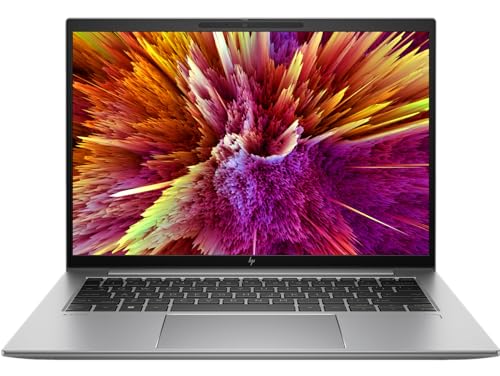
HP ZBook Firefly 14 G10 — Best compact workstation
Let the potentially misleading part be said in the open: this Firefly G10 configuration uses Intel Iris Xe integrated graphics. There is no discrete GPU hiding in the specification, and any review implying otherwise would be setting its readers up for a disappointing first rendering job. What HP is actually selling here is the smallest honest ticket into the ZBook world — certification, a fourteen-inch WUXGA IPS display, thirty-two gigabytes of DDR5, a terabyte of storage and Thunderbolt 4 docking, wrapped in a machine a travelling engineer can carry through an airport without resentment.
That proposition suits a real and common job. Site engineers, survey-adjacent designers and consultants spend their laptop hours reviewing models, marking up drawings, adjusting parts and presenting, rather than regenerating thousand-part assemblies on a train table. For that work the twelve-core i7-1370P is brisk, the integrated graphics drive the viewport adequately at sensible model scales, and the certified driver stack keeps behaviour predictable when a client is watching over a shoulder.
The supporting cast strengthens the travel case. A backlit keyboard keeps hotel-desk evenings workable, the fingerprint reader speeds up the dozen daily unlocks, and Wi-Fi 6E finds clean spectrum in congested offices and conference venues. Buy it as the portable half of a CAD life, ideally with a stronger machine or a rendering service back at base, and the Firefly makes complete sense. Buy it as the only machine for heavy modelling and the integrated graphics will file their objection within the month.
- Processor: Intel Core i7-1370P, fourteen cores
- Graphics: Intel Iris Xe integrated — stated plainly, no discrete card
- Memory and storage: 32GB DDR5 and 1TB solid-state storage
- Display: 14-inch WUXGA IPS
- Connectivity notes: Thunderbolt 4 and Wi-Fi 6E, fingerprint reader fitted
Strengths
- Genuine ZBook certification in a genuinely portable shell
- Memory and storage figures shame many larger rivals
- Docking and security features suit consultant travel
Trade-offs
- Integrated graphics limit serious modelling and rendering
- Premium attaches to the badge and build, not to GPU speed
- Fourteen-inch screen asks for a monitor at the home desk
Best for: mobile engineers whose CAD hours are review, markup and moderate editing between sites.
Not suited for: a sole-machine modelling seat — the Iris Xe ceiling arrives too quickly there.

Dell Precision 3571 — Best previous-generation value
Workstation generations do not expire the way phone generations pretend to. The Precision 3571 carries a twelfth-generation Core i7-12800H, a twelve-core H-series processor built for sustained loads, alongside thirty-two gigabytes of memory and half a terabyte of storage. In the daily grammar of CAD — open, rotate, section, dimension, export — that combination remains fluent, and because the model belongs to an earlier Precision wave, its market positioning undercuts the newer certified machines while its driver support continues on the same professional branches.
The fifteen-point-six-inch full HD display repeats the value logic seen in its younger sibling: adequate, roomy and clearly where money was saved. One gap deserves explicit mention. This listing’s headline specification does not trumpet a discrete graphics card the way the 3591’s does, so a buyer should read the linked listing’s full configuration carefully and confirm the exact graphics fitted before ordering, rather than assuming every Precision badge guarantees the same GPU tier. That checking habit protects against the most common workstation purchasing error, which is buying the badge and discovering the configuration afterwards.
Treated as a known quantity, the 3571 suits the buyer who values the certified ecosystem, Dell’s service network and a mature platform whose quirks are documented across years of forum threads. It will not flatter its owner with the newest platform features, and its storage asks for the same archiving discipline as the 3591. What it returns is professional behaviour at a gentler point in the market, which is a trade experienced purchasers make deliberately.
- Processor: Intel Core i7-12800H, twelve cores
- Memory and storage: 32GB total memory, 512GB solid-state drive
- Display: 15.6-inch full HD, 1920 by 1080
- Chassis colour: Titan Gray
- Buying note: Confirm the exact graphics configuration on the listing before ordering
Strengths
- Proven H-series power with professional driver lineage
- Earlier-generation positioning softens the certified entry cost
- Mature platform with a deep public record of fixes and advice
Trade-offs
- Graphics configuration needs confirming on the listing itself
- Storage capacity is modest for a hoarder of project archives
- Platform lacks the newest connectivity and efficiency features
Best for: a cost-aware practice adding a certified seat and comfortable buying a mature generation.
Not suited for: shoppers who want the configuration’s every detail settled by the headline alone.

ASUS ProArt StudioBook 16 OLED — Premium step-up
The StudioBook is the indulgence in this guide, included because a slice of CAD work is secretly presentation work. When the model must be shown to a client whose approval releases the next payment, a sixteen-inch 3.2K OLED touchscreen with deep contrast and exact colour turns a review meeting into a demonstration. ASUS pairs that screen with an i9-13980HX, a twenty-four-core flagship processor, and an RTX 4060, so the machine renders, regenerates and drives visualisation software with the same confidence it displays the results.
Its one specification that reads against the grain is memory: sixteen gigabytes, where most rivals here fit thirty-two. For presentation-led and medium-assembly work that figure copes, and the terabyte of storage is generous, but a designer whose assemblies keep growing should weigh the ceiling honestly. ProArt machines aim at the creator who moves between CAD, image editing and video, and the balance of this configuration reflects that spread of work rather than a pure engineering brief.
Everything else about the StudioBook argues step-up. The build targets professionals, the touchscreen serves markup sessions naturally, and the RTX silicon opens GPU rendering and real-time visualisation routes that integrated machines cannot follow. It is not the affordable heart of this guide; it is the reward at the top of it, priced as a premium instrument and justified only when the screen and the HX processor will actually be used weekly rather than admired monthly.
- Processor: Intel Core i9-13980HX
- Graphics: NVIDIA GeForce RTX 4060
- Memory and storage: 16GB DDR5, 1TB solid-state drive
- Display: 16-inch 3.2K OLED touchscreen
- Finish: Mineral Black, model H7604JV-PS94T
Strengths
- OLED panel turns client review sessions into showcases
- Flagship HX processor devours regeneration and rendering queues
- RTX graphics unlock real-time visualisation workflows
Trade-offs
- Sixteen gigabytes of memory is the tightest fit in this guide
- Premium positioning stretches the meaning of affordable
- Touch OLED glamour is wasted on purely back-office seats
Best for: designer-presenters whose models must persuade clients as well as survive engineering checks.
Not suited for: pure modelling throughput on a fixed grant — the certified picks spend that money more soberly.
Which of These CAD Machines Fits Your Desk?
| Pick | Graphics route | Memory | Screen | Choose it when |
|---|---|---|---|---|
| ThinkPad P14s Gen 5 | Certified integrated Radeon | 32GB | 14-inch WUXGA IPS | Portability and certification must coexist daily |
| Precision 3591 | RTX 1000 workstation card | 32GB | 15.6-inch full HD | A discrete certified GPU is the contract’s demand |
| Creator A16 AI+ | GeForce RTX 4060 | 32GB | 16-inch QHD+ 240Hz | Rendering shares the workload and certification is optional |
| ZBook Firefly 14 G10 | Iris Xe integrated | 32GB | 14-inch WUXGA IPS | Travel review work outweighs heavy modelling |
| Precision 3571 | Confirm exact fit on listing | 32GB | 15.6-inch full HD | A mature certified generation fits the accounts |
| StudioBook 16 OLED | GeForce RTX 4060 | 16GB | 16-inch 3.2K OLED touch | Client-facing display quality closes the sale |
Read the graphics column first, because it decides which software promises each machine can keep. Then read memory, because it decides how large a model can grow before the pauses begin. The screen column is about the human being: hours of wireframe work reward the taller formats, while presentation work rewards the OLED. Price positioning moves within each row’s logic, so compare like with like — a certified card and a gaming card at similar money are not the same product wearing different badges.
How Should You Set Up a CAD Laptop in Its First Week?
Begin with the driver, not the wallpaper. Install the graphics driver branch your CAD vendor recommends for your exact application version, then resist the operating system’s cheerful offers to replace it with a newer generic release. Certified stability is a snapshot that works; chasing the freshest driver is how stable seats become haunted ones. Record the working driver version somewhere boring and permanent, because the day a viewport misbehaves, that note becomes the map back to sanity.
Next, teach the machine your file discipline. Point autosave and recovery folders at the fast internal drive, set backup copies to land on external or network storage, and open your largest real assembly to watch memory behaviour while everything is still returnable. Configure the power profile for plugged-in performance, calibrate the display if colour leaves the building, and set the lid and sleep behaviour so a closed laptop never cooks a queued rendering job. Finally, dock it properly: a single-cable Thunderbolt or USB-C dock driving two monitors converts any pick here into a desk workstation, and the fourteen-inch travellers benefit most of all from that double life.
What Mistakes Do Buyers Make When Shopping for CAD Laptops?
The classic error is shopping by processor badge alone, as if a fast chip excuses integrated graphics and sixteen gigabytes of memory in a machine bought for assemblies. The second is assuming certification is a marketing sticker, right up until a support call asks what hardware the glitch occurred on. A third mistake hides in configurations: two listings can share a model name while differing in graphics, memory and screen, which is why this guide keeps repeating the unfashionable advice to read the exact build being sold.
Buyers also undervalue the screen they will stare at for six hours daily, and overvalue storage they could archive externally. Perhaps the most expensive error is buying for the software demonstration rather than for their own files: vendor demos are optimised to flatter hardware, while a three-year-old project with imported supplier geometry tells the truth. Test with real work, during the returns window, at the desk where the machine will live.
How Much Graphics Memory Does a Drawing Office Need?
Graphics memory is the specification CAD buyers feel without seeing, because its shortage announces itself as behaviour rather than as an error message. When a model’s textures, shaded surfaces and section views exceed what the graphics hardware can hold locally, the system shuffles data back and forth across the bus, and the viewport responds with a hesitation that designers often blame on the processor. A dedicated card with its own memory pool, like the RTX 1000 inside the Precision 3591 or the RTX 4060 inside the two creator machines, keeps that pool separate from system RAM, so a hungry assembly does not simultaneously starve the application that created it.
Integrated graphics, by contrast, reserve a slice of the main memory and share its bandwidth with everything else. Modern integrated designs are far better at this juggling than their ancestors, and the ThinkPad and Firefly picks prove that mainstream modelling survives the arrangement. The honest boundary is scale: a designer working on enclosures, brackets, furniture, jigs and modest product assemblies will rarely meet the ceiling, while vehicle subassemblies, plant layouts and architectural models with entire buildings of context geometry will find it repeatedly. Buyers unsure which side of that line their work occupies should open their largest historical project on any borrowed machine and watch the viewport during a full rotation with shadows and edges displayed.
There is also a longevity angle. Software releases add visual features every year — better ambient occlusion, richer materials, real-time preview modes — and each addition spends graphics memory. A card that feels generous today is really buying headroom against that steady inflation. This is one reason the guide favours configurations that are strong at purchase: graphics hardware in a laptop is almost never upgradeable later, unlike the storage and sometimes the memory, so the graphics decision is the one decision the buyer must live with for the machine’s whole career.
What Should a Small Studio Standardise, and What Should It Leave Free?
A studio buying three or more seats faces a question the solo buyer never meets: whether sameness itself is worth money. Standardising on one model — say the Precision 3591 for modelling seats — means one driver version to validate, one dock type on every desk, one spare charger that fits every bag and one support conversation repeated identically when something breaks. That sameness quietly saves more hours than a small specification advantage ever will, and it is a large part of why the certified brands dominate practice purchasing despite creator machines offering louder graphics numbers.
Yet total uniformity wastes money at the edges. The partner who mostly reviews and presents does not need the modelling seat’s graphics card; the Firefly exists for that person’s travel bag. The visualiser who renders client films needs the RTX silicon the modellers could live without. A sensible studio standard is therefore a short menu rather than a single model: one certified modelling seat, one travel configuration and one visualisation configuration, each with its validated driver and dock, and no improvisation outside the menu without a written reason. Every pick in this guide was chosen partly with that menu logic in mind.
Procurement timing matters too. Previous-generation stock like the Precision 3571 tends to appear in waves as channels clear inventory, and a studio ready to buy several seats during such a wave can equip a whole room for the cost of fewer current-generation machines. The risk is uneven availability when a later seat must match the fleet, so a studio taking that route should buy its foreseeable seats together, including a spare, rather than discovering in eight months that the matching model has vanished from the market.
Why Does the Dock Decide Whether a Laptop Feels Like a Workstation?
The romantic image of CAD work is a designer and a laptop; the reality is a designer, two monitors, a space mouse, a keyboard with a number pad and a desk that never moves. The laptop becomes a workstation through its dock, and the quality of that connection decides whether the arrangement feels seamless or improvised. Thunderbolt 4 on machines like the Firefly allows a single cable to carry display signals, data and charging, so the travelling engineer returns, plugs once and watches both screens wake with the project exactly where the site visit left it.
Bandwidth arithmetic governs what a dock can promise. Two large high-resolution monitors, a gigabit network link, external drives and USB peripherals all share the pipe, and cheap docks reveal themselves through flickering screens or network speeds that sag during file transfers. A studio equipping desks should budget the dock as part of the laptop purchase rather than as an afterthought bought from the bargain shelf, because a flaky dock generates the same lost mornings as a flaky laptop while being harder to diagnose. The picks here with modern USB-C and Thunderbolt ports all support respectable docking; the discipline is in buying docks worthy of them.
Home desks deserve the same thinking in miniature. Many designers now split the week between studio and home, and a second dock — or a monitor with a built-in hub and power delivery — at the home desk means the laptop travels alone in a sleeve while its entire working environment waits at both ends. That pattern, more than any processor generation, is what makes a fourteen-inch certified machine like the P14s feel like a full workstation: the power lives in the desks, and the laptop simply carries the work between them.
How Can a Buyer Test a CAD Laptop During the Returns Window?
The first test should be deliberately unkind. Open the largest assembly the machine will plausibly meet this year, not the tidy demo file, then rotate it with edges and shadows on, run a section view, and start a drawing regeneration while a video call is running. Watch for viewport hesitation, listen for fan behaviour that would annoy a shared office, and note whether the chassis surface stays comfortable where the palms rest. A machine that handles that compound insult gracefully will handle ordinary Tuesdays without comment.
Second, rehearse the failure modes. Let the battery run the machine through a site meeting and see whether performance modes change the viewport behaviour in ways that matter. Sleep the laptop mid-project and wake it on a different network. Undock and redock with the project open. These transitions, not peak benchmarks, are where workstation ownership is actually lived, and a configuration that sulks through them will generate a year of small resentments that no specification sheet warned about.
Third, verify the paperwork while returning is still painless. Confirm the exact graphics hardware in the system information against the listing, check the memory figure the machine reports, and confirm that the CAD vendor’s certification database lists the model or its driver branch for the software version in use. If any answer surprises, that discovery is a gift — it arrived while the remedy was still a returns label rather than a write-off. Diligent buyers treat the first fortnight as an audition, and the machines in this guide were selected to pass auditions rather than auditions’ publicity photographs.
What Does Warranty and Service Coverage Mean for a Working Designer?
A consumer laptop’s warranty imagines a machine that can be absent for a fortnight; a designer’s laptop is closer to a tradesperson’s van, and its absence stops invoicing. The workstation brands sell next-business-day on-site service tiers precisely because their customers calculate downtime in billable hours, and the modest premium for that coverage is usually the best-value line in the entire purchase. Buyers comparing a certified machine against a cheaper creator alternative should compare them with equivalent service attached, since the honest price gap narrows considerably once both machines promise the same rescue when a fan dies in March.
Accidental damage coverage deserves a colder eye. Laptops that never leave a desk rarely meet gravity, while site machines live beside scaffolding, survey gear and coffee. The Firefly’s owner, travelling weekly, can justify coverage that the StudioBook’s studio-bound owner should probably decline and self-insure. What neither should skip is a backup regime that makes any single machine disposable: nightly image or file backup to somewhere that is not the laptop, so a dead workstation becomes a hardware errand rather than a data funeral. No warranty tier restores an unbacked-up project, and no certification covers forgetfulness.
Finally, consider the support ecosystem’s memory. Mature platforms like the Precision line accumulate years of answered questions, documented driver pairings and replacement part availability, which shortens every future troubleshooting session. Newer platforms ride the current of vendor attention. Either position can be right; the mistake is buying an orphan configuration from an obscure corner of a catalogue and discovering, at the first fault, that nobody anywhere has seen that exact machine before. The six picks here were kept deliberately mainstream for exactly that reason.
How Do 2D Drafting and 3D Modelling Disagree About Hardware?
Buyers often say CAD as if it were one workload, yet the two halves of the discipline stress a laptop in almost opposite ways. Classic 2D drafting — plans, schematics, detailing — leans on single-core processor speed, crisp text rendering and a screen that keeps lines hairline-sharp at arm’s length. It is historically forgiving work: a modest machine with a good display drafts beautifully, which is why so many architectural practices ran elderly workstations happily for a decade. The moment the practice adopts model-based workflows, the hardware conversation changes completely.
Parametric 3D modelling spreads the load. Regeneration and feature solving lean on the processor, viewport work leans on graphics, interference checks and large-assembly management lean on memory, and file operations lean on storage. Simulation and rendering then arrive as a third personality altogether, devouring every core and graphics resource offered to them for as long as the job lasts. A laptop bought for a mixed practice must therefore be balanced rather than brilliant in one dimension, and that balance is exactly what the middle picks in this guide pursue: the P14s with its memory and certification, the 3591 with its dedicated card, the Creator with its graphics emphasis for the visualisation-heavy variant of the same week.
The practical consequence is a diagnostic habit. Before buying, a designer should name the three operations that waste their time today — the slow regeneration, the stuttering rotation, the export that invites a coffee break — and match the new machine against those specific pains. A purchase justified by named pains can be judged a success or failure honestly; a purchase justified by a general feeling that the old laptop is old can never be evaluated, and usually ends with the same pains wearing newer clothes.
Should Students Buy Differently From Practising Engineers?
A student’s CAD laptop lives a double life that a studio machine escapes: it must survive lecture theatres, library sessions and part-time work alongside the engineering software, and it must do so on a budget that competes with rent. That reality argues for the value end of this guide — the previous-generation Precision or the Creator A16 when coursework includes rendering modules — and against premium screens whose replacement cost after a bag accident would end the semester. Durability, a keyboard that survives essay season and a weight that does not punish a cross-campus walk matter more to a student than to any desk-bound professional.
Curriculum timing should shape the specification. First-year modelling is deliberately gentle, and almost any pick here will feel extravagant; final-year projects, group design builds and dissertation simulations are where ceilings appear. A student buying once for a whole degree should therefore buy for the final year, not the first term, favouring the thirty-two-gigabyte configurations and discrete graphics where the course involves simulation. A student buying for two years with a planned upgrade can safely take the lighter route and let a future employer fund the serious workstation.
One more student-specific warning concerns software licences. Educational licences often restrict commercial use and sometimes behave differently from the professional builds employers run, so a student should confirm that the machine’s certification and driver story matches the software version the department actually teaches. Universities publish recommended specifications that lag the market politely; treat them as a floor, read this guide for the reasoning above that floor, and the resulting purchase will outlast the degree ceremony.
What Role Does Storage Play Beyond Holding Files?
Storage in a CAD machine is working space, not an attic. Modern design applications lean on the drive constantly: autosave writes, recovery files, local caches for cloud-synced projects, texture and material libraries, and the paging file that rescues the system when memory runs short all compete for throughput. A terabyte drive, as fitted to four of these six picks, earns its place less by holding more finished projects than by keeping generous free space available, because solid-state drives slow down as they approach fullness and CAD workflows punish that slowdown dozens of times a day.
The half-terabyte configurations ask for a deliberate habit in exchange for their gentler positioning: finished work migrates to a server, a NAS or an external archive on a schedule, and the internal drive holds the living projects only. That habit is good practice at any capacity — a laptop is the easiest computer to lose, steal or drown in coffee — but at five hundred gigabytes it stops being optional virtue and becomes operating procedure. Buyers who know they will never maintain that discipline should treat the terabyte picks as the true shortlist and save themselves the quarterly panic-delete of old project folders.
Cloud project libraries add a wrinkle worth planning for. Services that sync design files selectively can leave a designer at a client site staring at placeholders for the very assembly they travelled to discuss, so the first-week setup should include pinning active projects for offline availability and testing that the pins worked with the Wi-Fi switched off. Storage, memory and graphics get the headlines, but the embarrassing failures in CAD life are usually sync failures, and they are entirely preventable in that first week.
How Should a Designer Think About Noise, Heat and the Shared Office?
Performance figures are measured on benches; careers happen in rooms with other people in them. A workstation rendering under full load will make noise, and the character of that noise — a low whoosh versus a thin whine — decides whether colleagues tolerate the machine or begin scheduling their concentration around its jobs. The larger chassis in this guide, the Creator and StudioBook and the fifteen-inch Precisions, generally move air more calmly than compact designs working equally hard, which is a genuine if unglamorous argument for size when the desk is permanent and shared.
Heat has a second audience: the machine itself. Sustained rendering on a soft surface, in a docking arrangement that blocks vents, or in a site cabin during summer will throttle performance in ways that look exactly like a software problem. The first-week setup should include a hard surface, clear vents and a dock position that lets the chassis breathe, plus a glance at where the exhaust points relative to papers and hands. Designers who travel between a studio dock and a home dock should check both, because the home arrangement is usually the improvised one.
None of this requires laboratory measurement. It requires the buyer to run one honest heavy job during the returns window, in the room where the machine will live, and to listen with the ears of the colleague at the next desk. The picks in this guide come from product lines designed for professional rooms, and none should embarrass its owner — but the test costs nothing and converts a specification-sheet purchase into a workplace decision.
A Short Word on Buying Timing for Workstations
Workstation pricing breathes with business buying cycles, and a flexible buyer can use that rhythm. Quarter-end and model-transition periods tend to loosen channel pricing on outgoing generations, which is precisely how a machine like the Precision 3571 becomes the value story of a guide like this one. The caution is configuration drift: during clearance waves the exact memory and graphics combination wanted may sell through first, leaving the odd builds behind. A buyer who has decided on a specific configuration from this page should treat availability as part of the decision, verify the build on the listing at the moment of ordering, and avoid the temptation to accept a lesser specification merely because it is the one still sitting in the warehouse.
Final Recommendation
For most readers the ThinkPad P14s Gen 5 is the answer that needs the fewest footnotes: certified, well balanced, portable and already fitted with the memory serious modelling eventually demands. The Precision 3591 is the smarter purchase when a discrete certified card is the specific requirement, and the Creator A16 takes over whenever rendering and visualisation dominate the week and no contract demands certification papers. Choose the Firefly for a life lived between sites, the 3571 for value with a professional lineage, and the StudioBook when the model itself must do the persuading in the room where the client decides.
Frequently Asked Questions
Is ISV certification actually worth paying for?
It is worth paying for when downtime is billable or a client contract names it. Certification buys tested driver combinations and a support conversation that starts from known-good hardware. Hobbyists and many independent designers can reasonably trade it away for stronger graphics, as the Creator A16 pick demonstrates.
How much RAM does CAD software really use?
Small parts and 2D drafting live comfortably in sixteen gigabytes. Assemblies with hundreds of components, imported geometry and several applications open together push past that figure and into paging, which is why five of the six configurations here carry thirty-two.
Can integrated graphics run CAD at all?
Yes, within honest limits. The Firefly’s Iris Xe handles review work, markups and moderate models, and certified integrated Radeon in the ThinkPad serves mainstream modelling. The ceiling appears with very large assemblies and GPU rendering, where discrete cards stop being luxuries.
Should I choose a workstation card or a GeForce card?
Choose the workstation card for certified drivers and support alignment; choose GeForce for raw graphics throughput per unit of money and stronger rendering value. The deciding question is whether anyone — an employer, a client, an insurer — will ever ask to see the certification.
Does screen resolution matter for CAD work?
Vertical pixels matter daily, because interfaces stack toolbars above and below the model. The WUXGA and QHD+ panels here ease that squeeze. Extreme resolution on a small screen can shrink interface text, so scaling settings deserve a test during the first week.
How long should a CAD laptop stay useful?
A well-specified workstation should serve four to six years, because CAD software evolves more slowly than gaming demands. Memory headroom, certified driver support and a serviceable chassis are the three features that stretch that lifespan furthest.
Related Guides
Engineers building out a full workstation corner may also want our thinking on precision monitors for CAD desks, the companion roundup of docking stations for dual-screen engineering setups, and our guide to creator laptops for rendering and visualisation.
Related guides
- Best 4K UHD HDR HDMI Extenders: 4K60, Long-Run and 4K120 Kits Compared
- Best 25–35 Inch Monitors With Lowest Display Lag: An Honest Ranking Without Invented Numbers
- Best Color Product Label Printers: Six Desktop Machines for Short-Run Product Labels
- Best Enterprise SATA SSDs: Endurance Classes, Power-Loss Protection and Fleet Sense



[…] rounding out a mobile office should also read our guide to portable presentation gear for listing appointments, our notes on phone hotspots and connectivity for field professionals, and our roundup of […]